
Introduction
While After Effects doesn’t have real interactivity, you can easily create the illusion of a hover-over effect — for example, making an icon appear or grow when the cursor moves over it. This technique is perfect for UI motion design, app demos, or web prototypes.
Step 1: Open Your Project
Open your project that already includes a cursor image and an icon or button you want to interact with.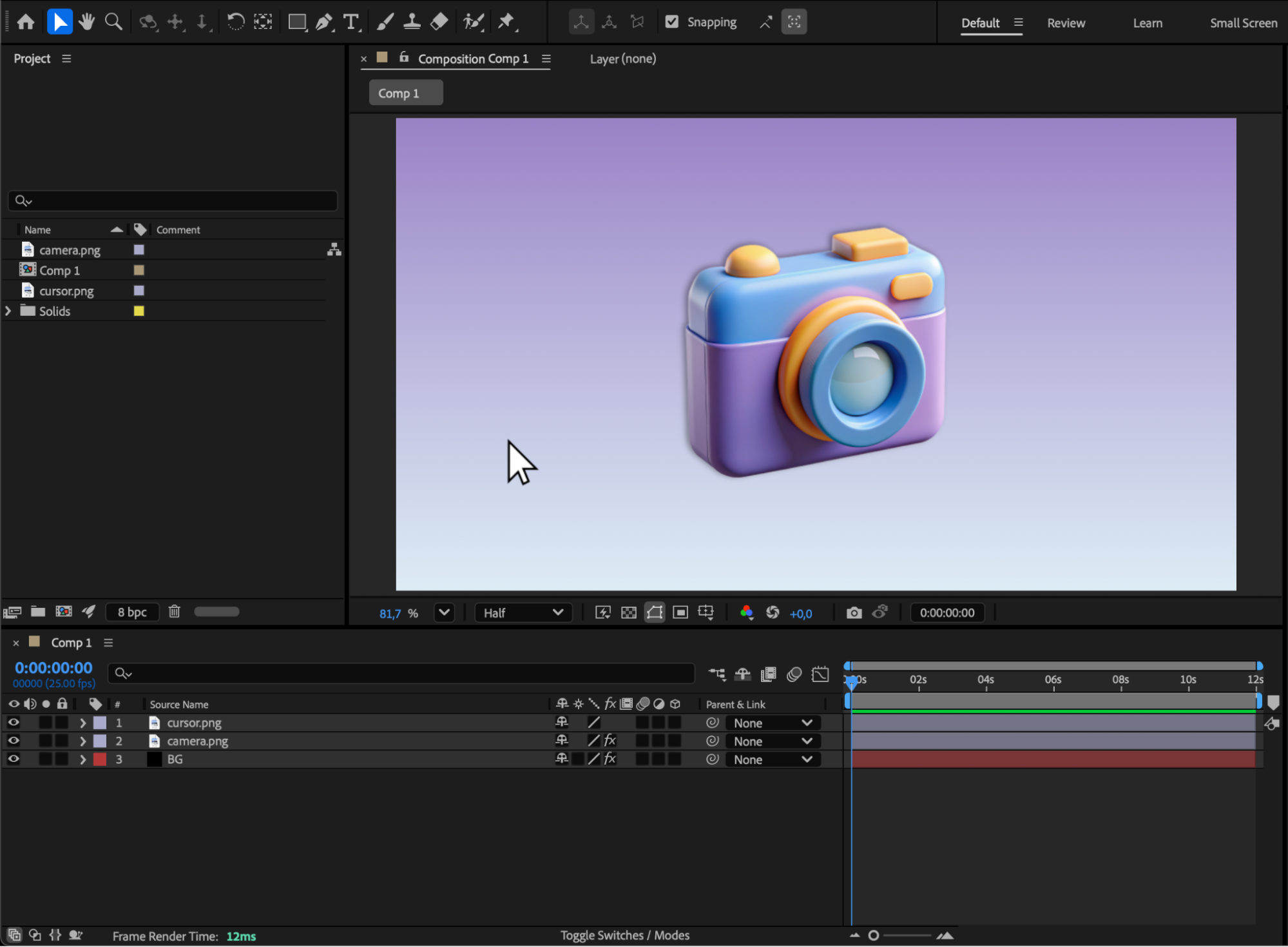
Step 2: Animate the Cursor Movement
Select the cursor layer, press “P” to open Position, and create two keyframes — one at the beginning (cursor outside the icon) and one where it moves over the icon.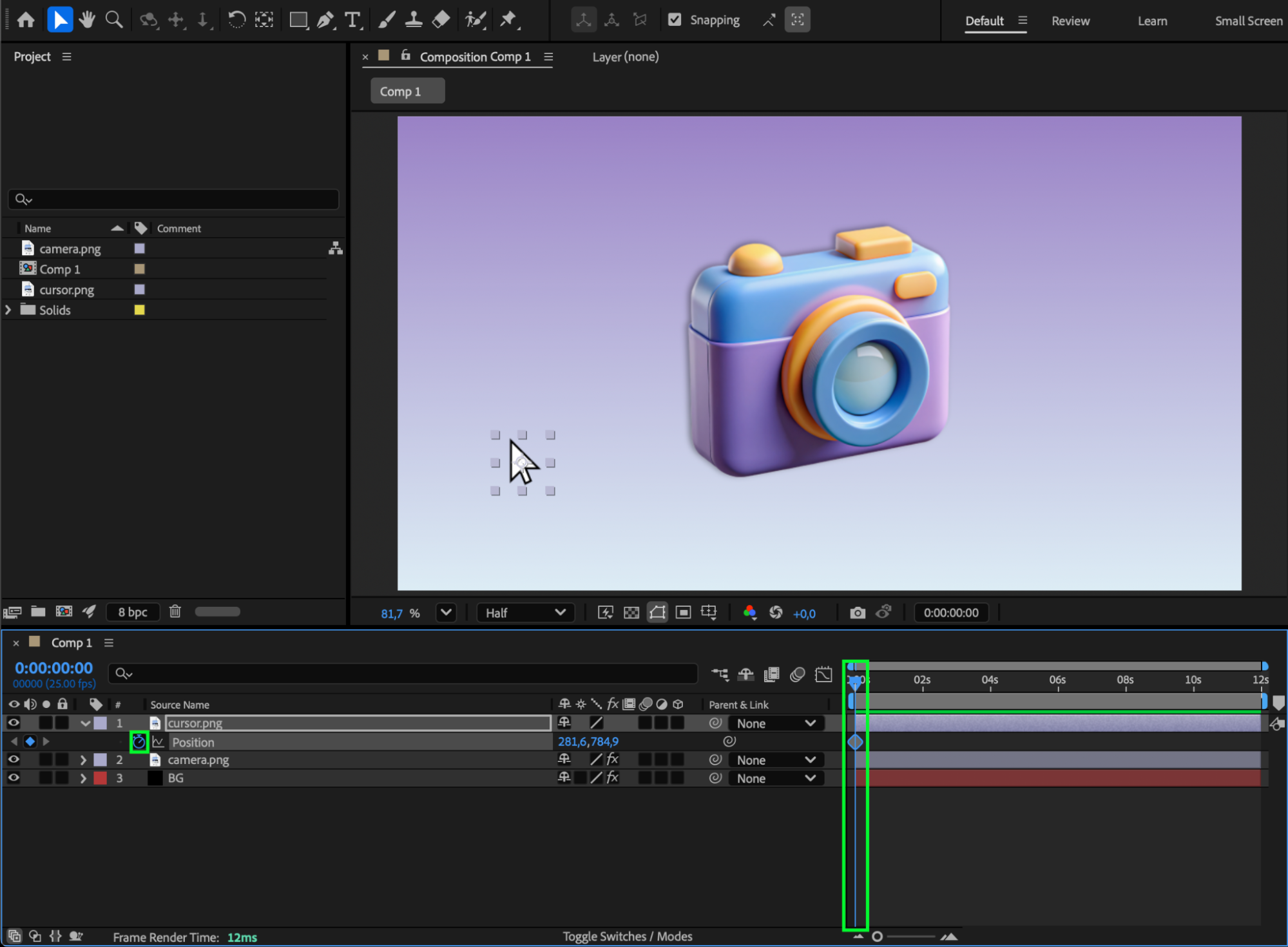
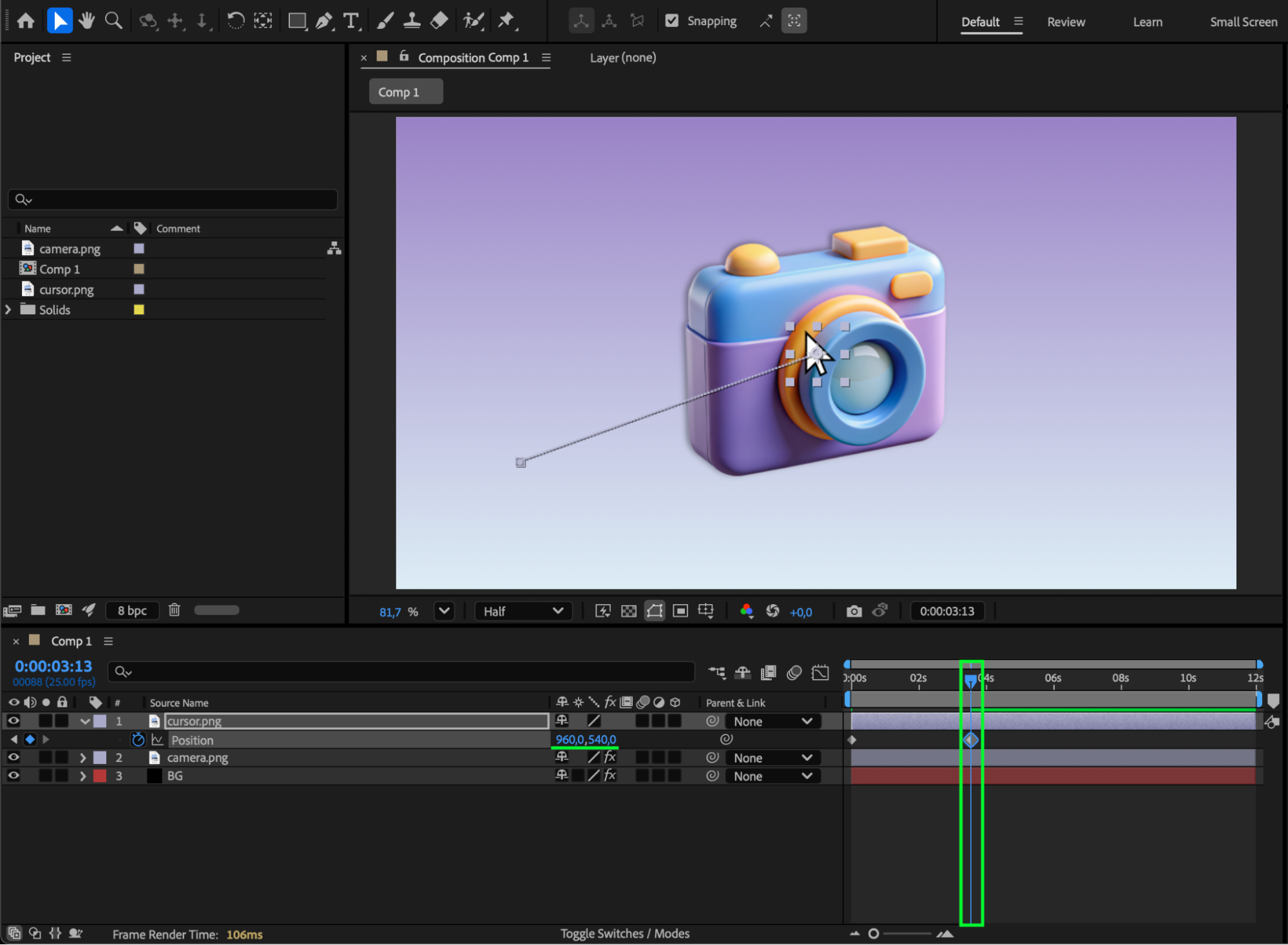
Step 3: Animate Icon Visibility and Scale
At the frame where the cursor reaches the icon (second keyframe), click the stopwatch next to Opacity and Scale on the icon layer. Move the CTI (Current Time Indicator) a few frames forward, then set Opacity = 100% and Scale back to its normal size. Now the icon will appear smoothly when the cursor “hovers” over it.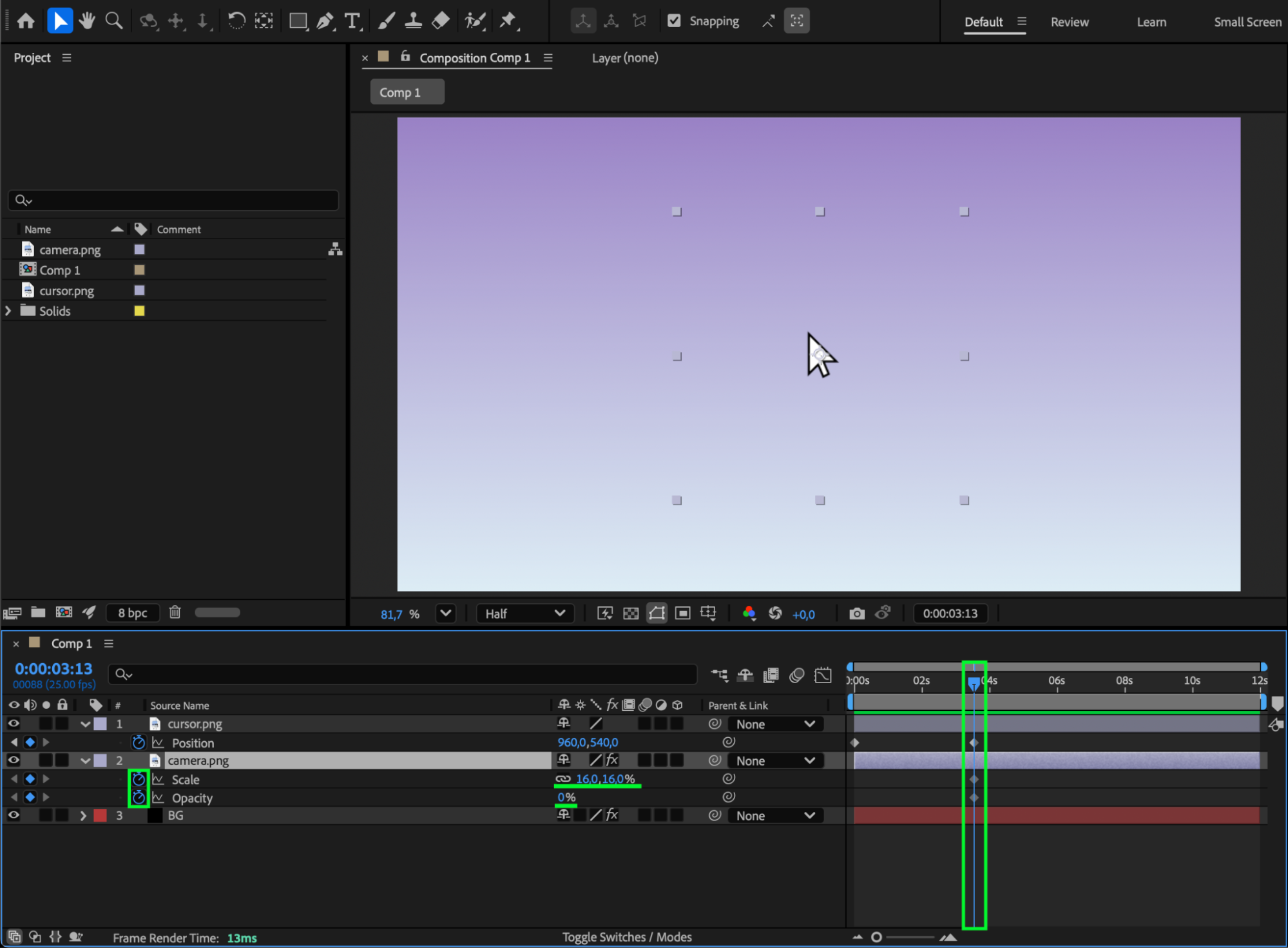
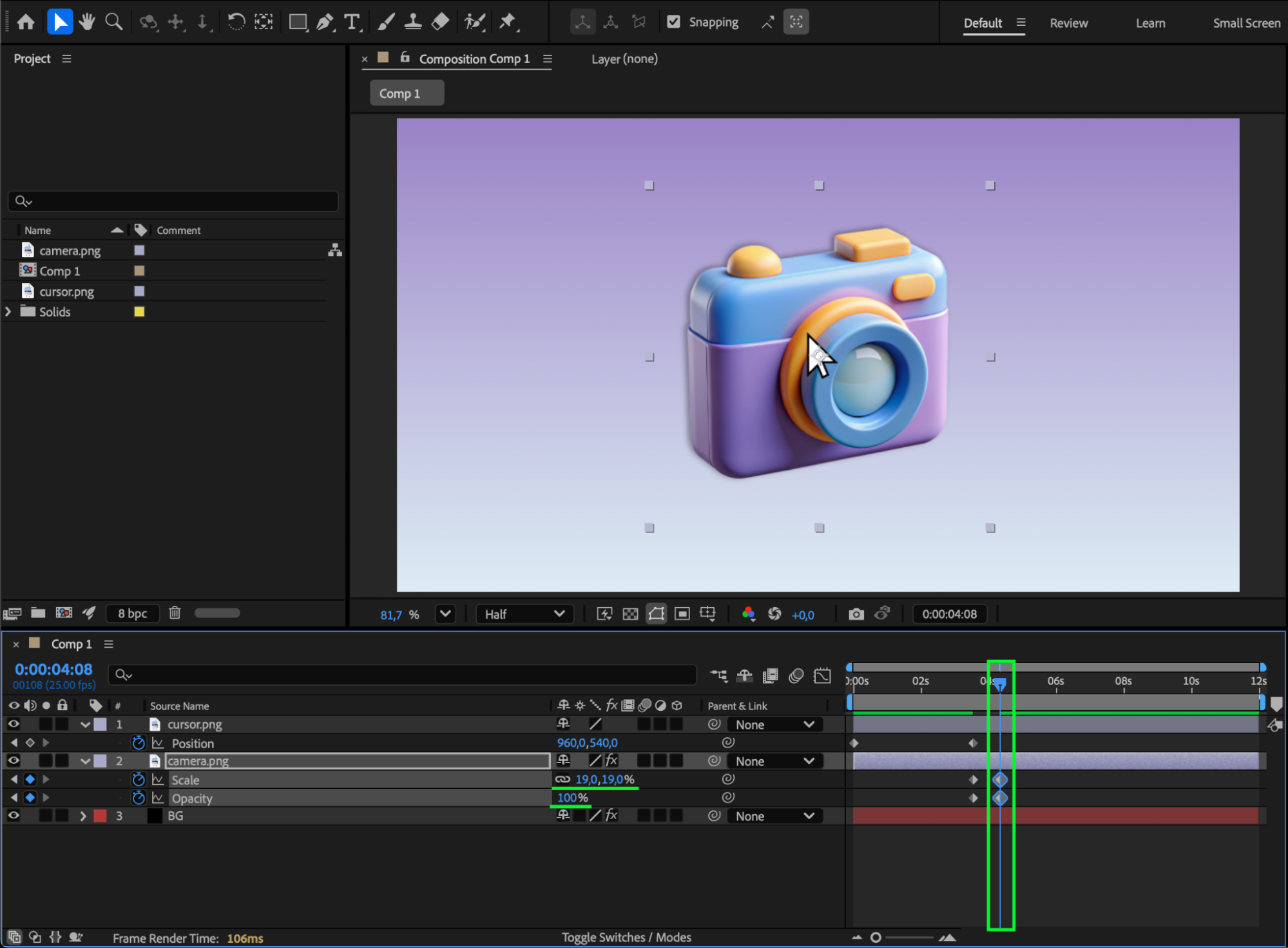 Step 4: Add Easy Ease
Select all your keyframes, right-click, and choose Keyframe Assistant > Easy Ease to make the movement and fade-in more natural.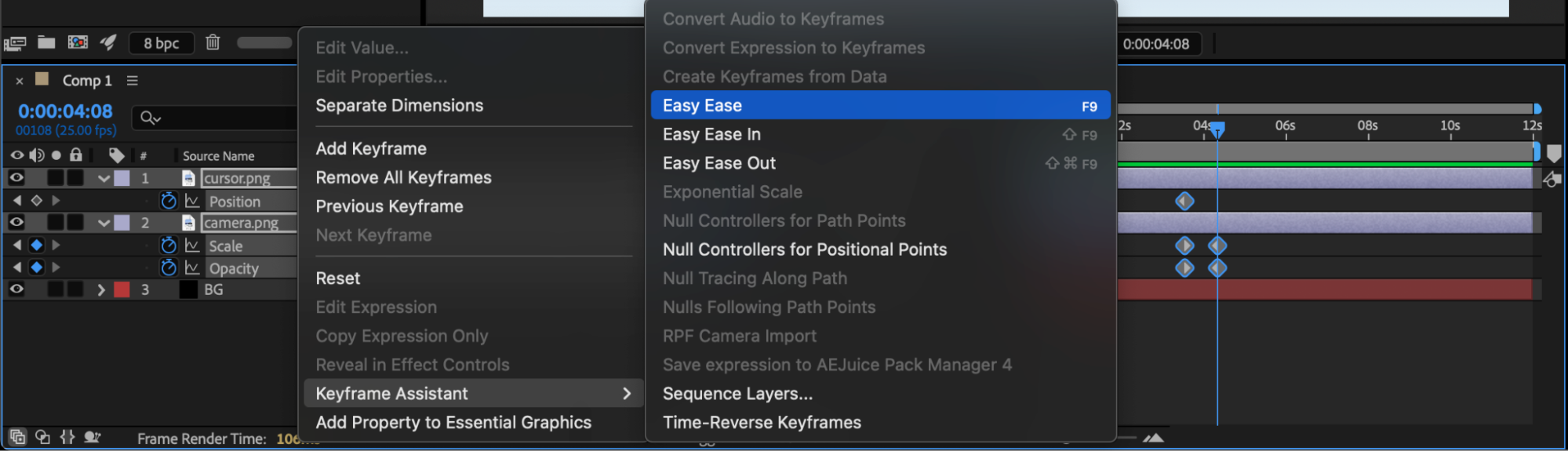
Step 5: Optional — Add a Subtle Wiggle Effect
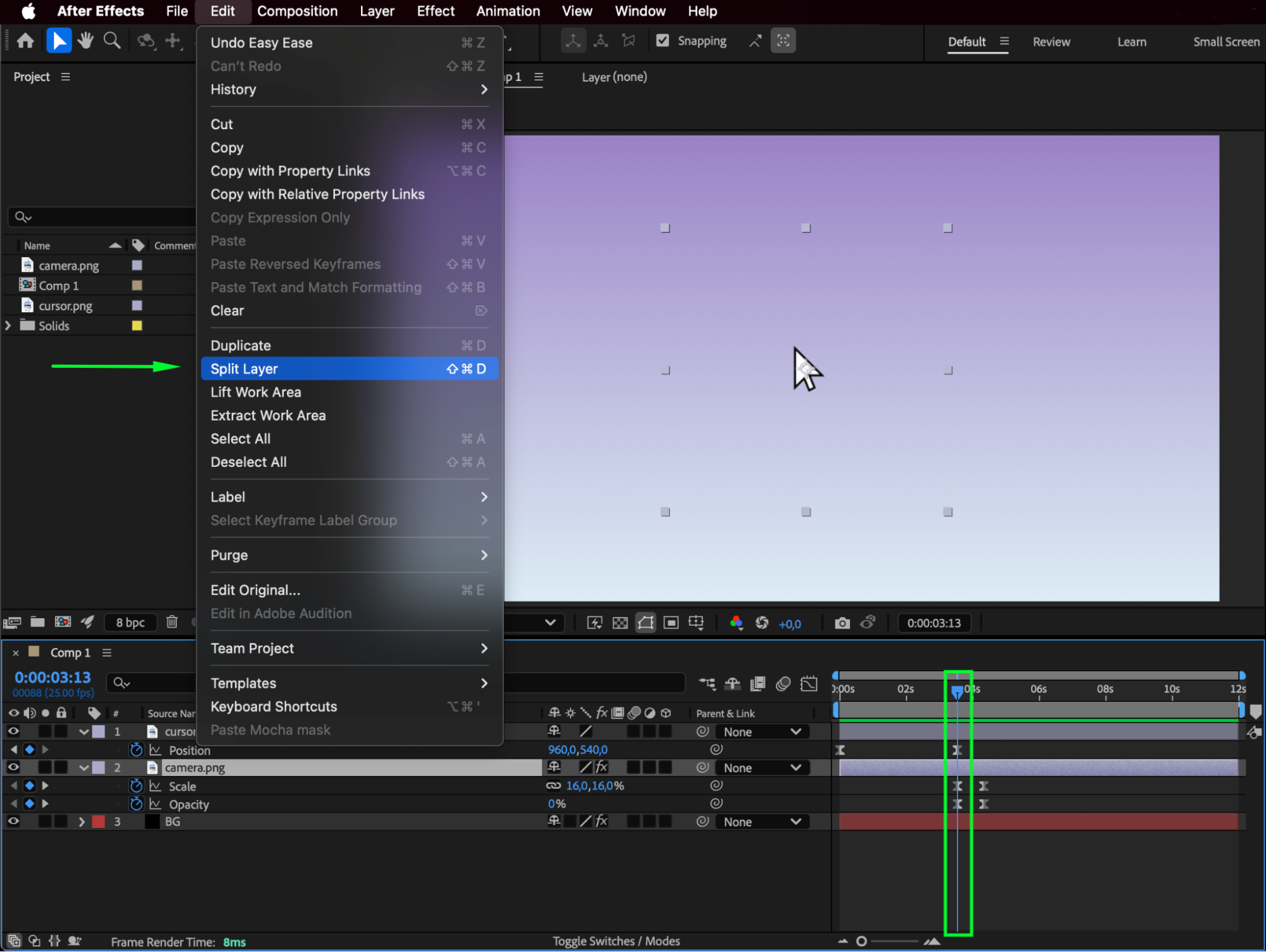
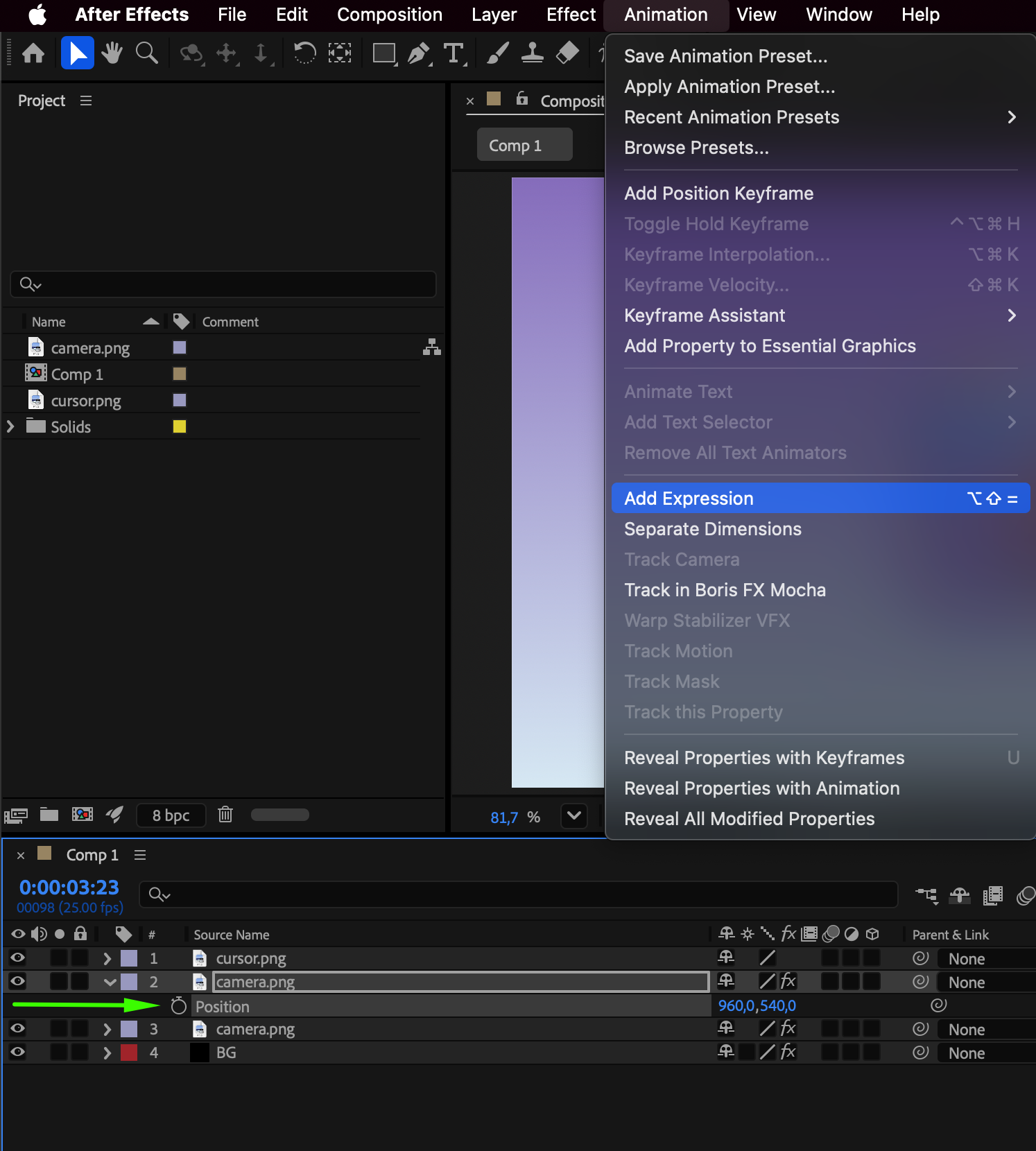
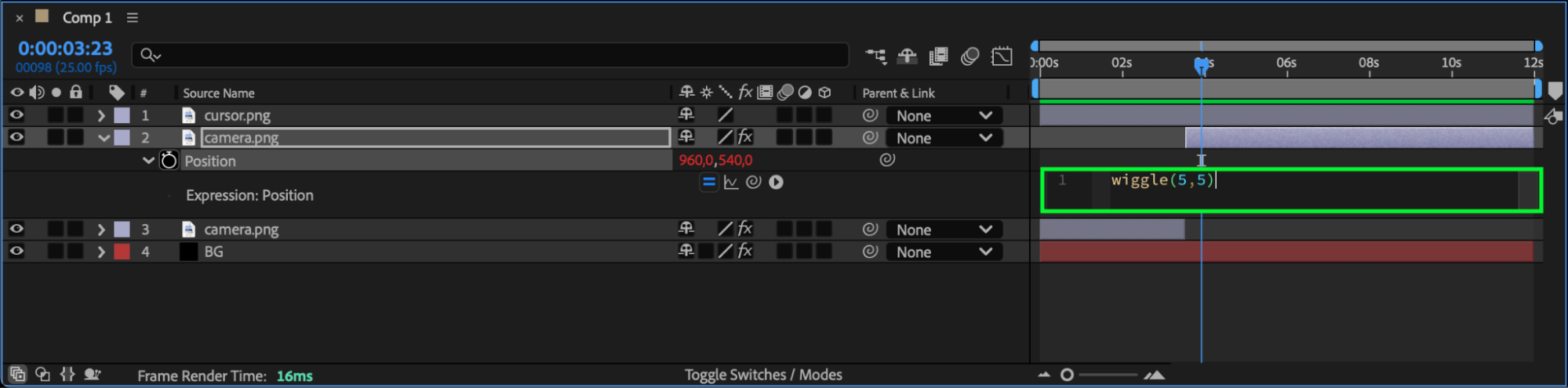
To make the icon look more lively, you can add a light wiggle animation. Set the CTI at the frame where Opacity = 0, then go to Edit > Split Layer. On the visible part, press “P” for position and type
wiggle(5,5)
This will make the icon vibrate slightly when it appears.
Step 6: Enable Motion Blur
Enable Motion Blur for both the cursor and icon layers, and make sure Motion Blur is turned on in the composition panel.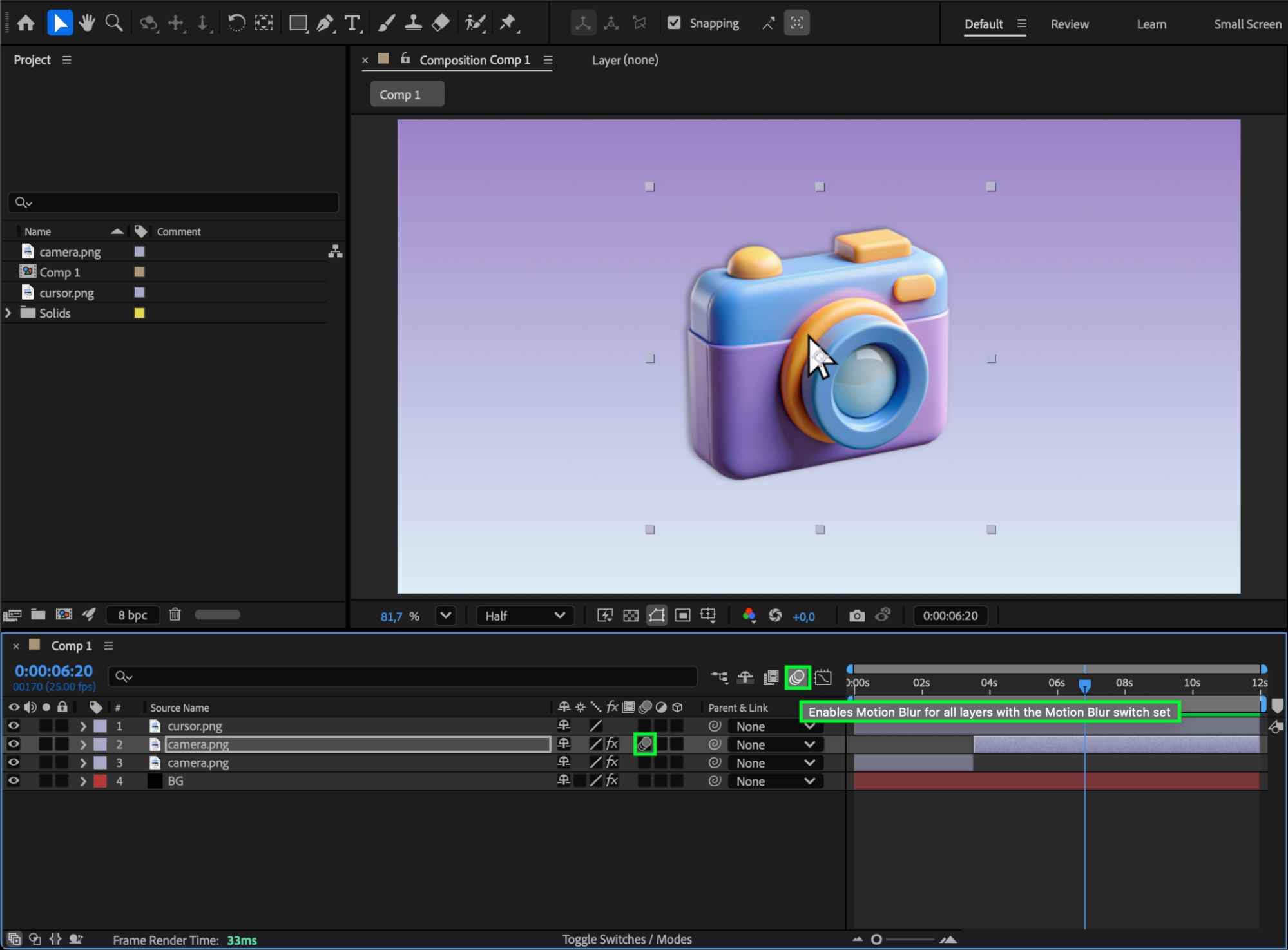 Step 7: Preview and Adjust
Press Spacebar to preview your animation. You should see the cursor move over the icon and the icon smoothly appear or grow, perfectly imitating a hover-over effect.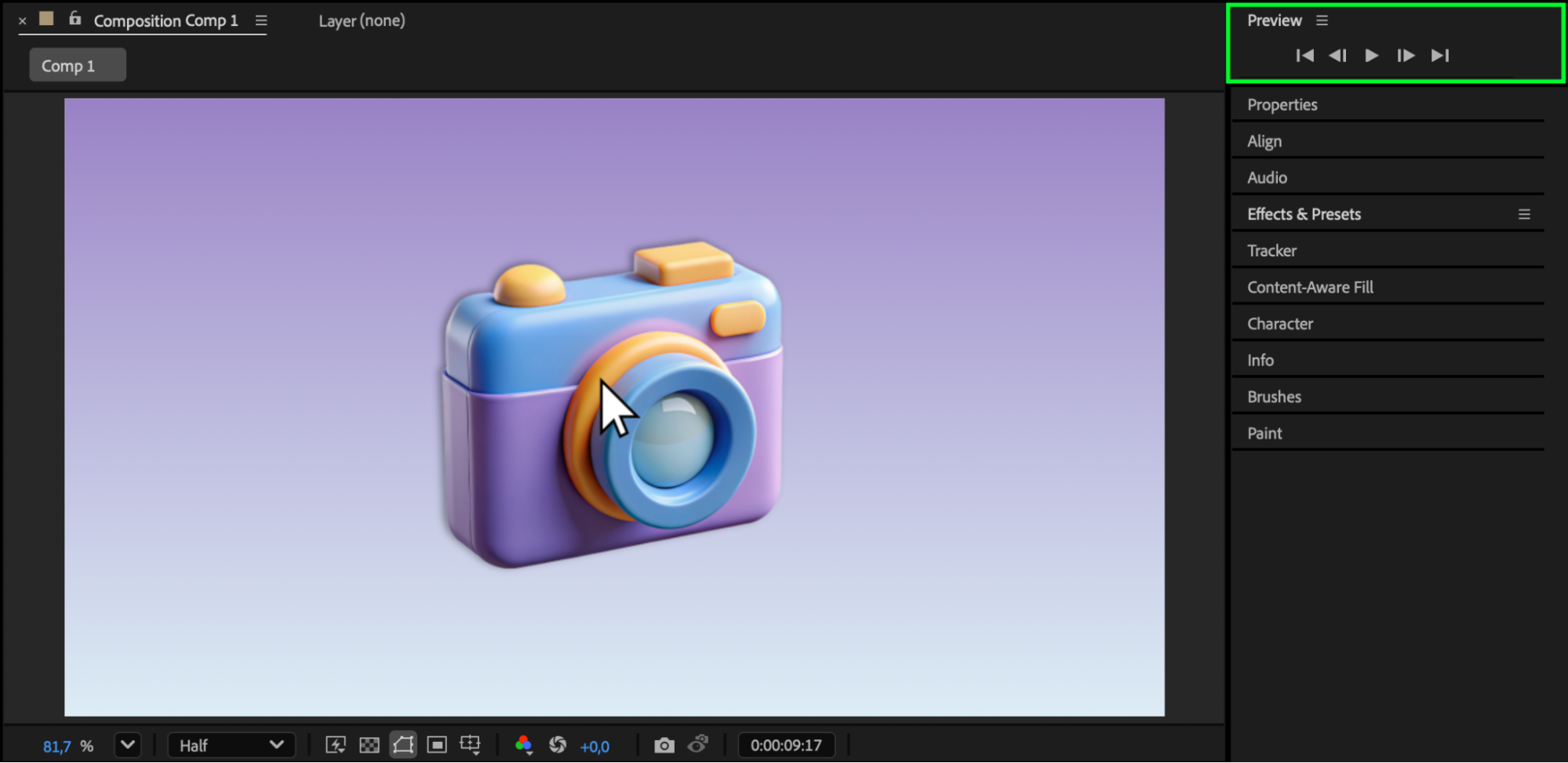 Conclusion
You’ve just learned how to simulate a hover-over effect in After Effects! By animating the cursor’s position, opacity, and scale, you can create realistic UI interactions that bring your designs to life — ideal for portfolios, app previews, and web animations.
Our Bestsellers
Our Bestsellers


