
Introduction
Creating text that appears from a line is a popular motion design effect often seen in modern title sequences. Using a combination of the Trim Paths animation and Track Matte, you can make your text reveal elegantly from behind an animated line.
Step 1: Create the Line
Open your project and select the Pen Tool (G) to draw a straight line in the Composition panel. In the Shape Layer settings, set Fill to None and Stroke to around 13 px. Choose any stroke color you like for your animation.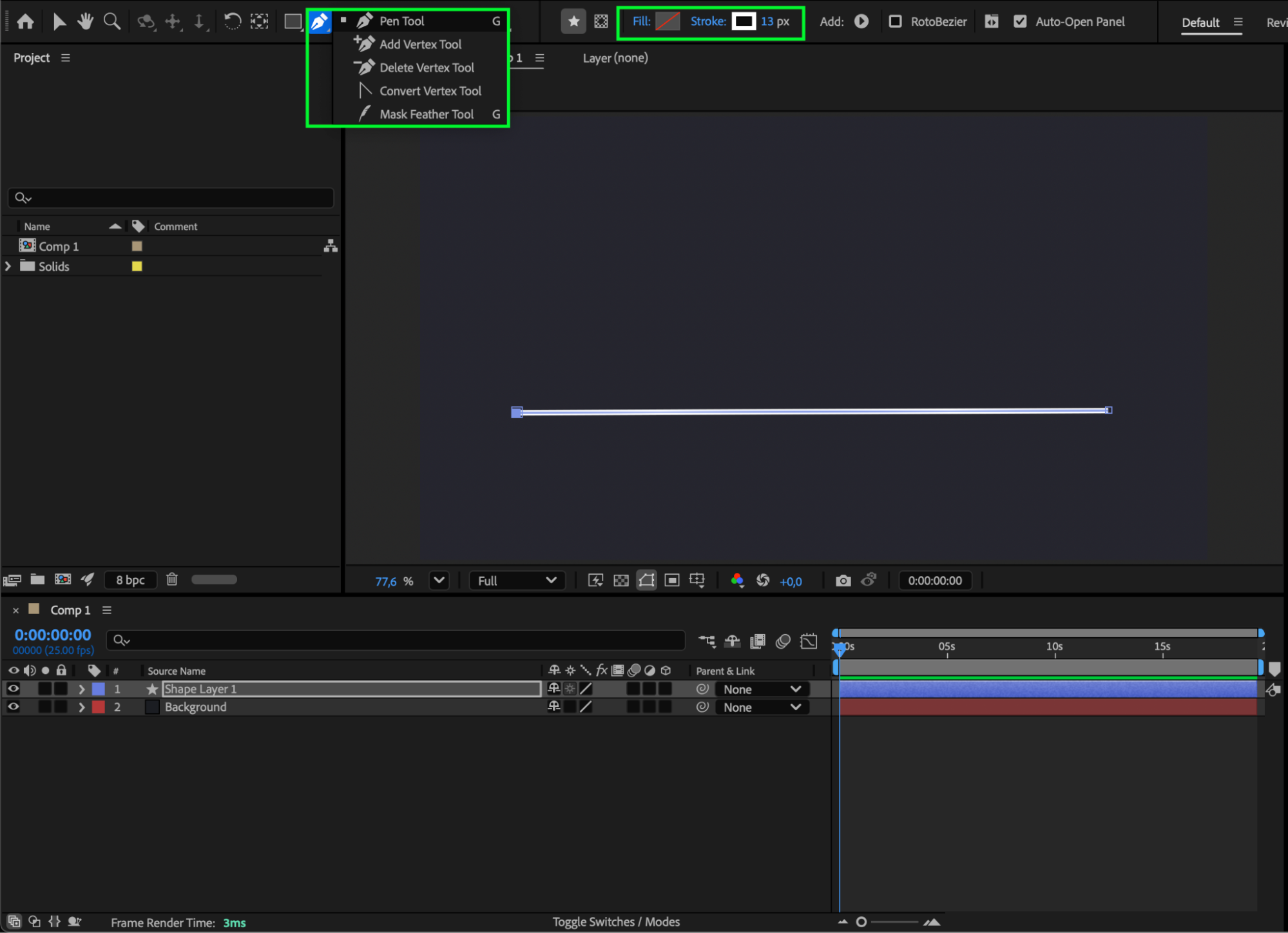 Step 2: Add Text
Select the Type Tool (Ctrl/Cmd + T) and create your text. Make sure your text width approximately matches the length of your line.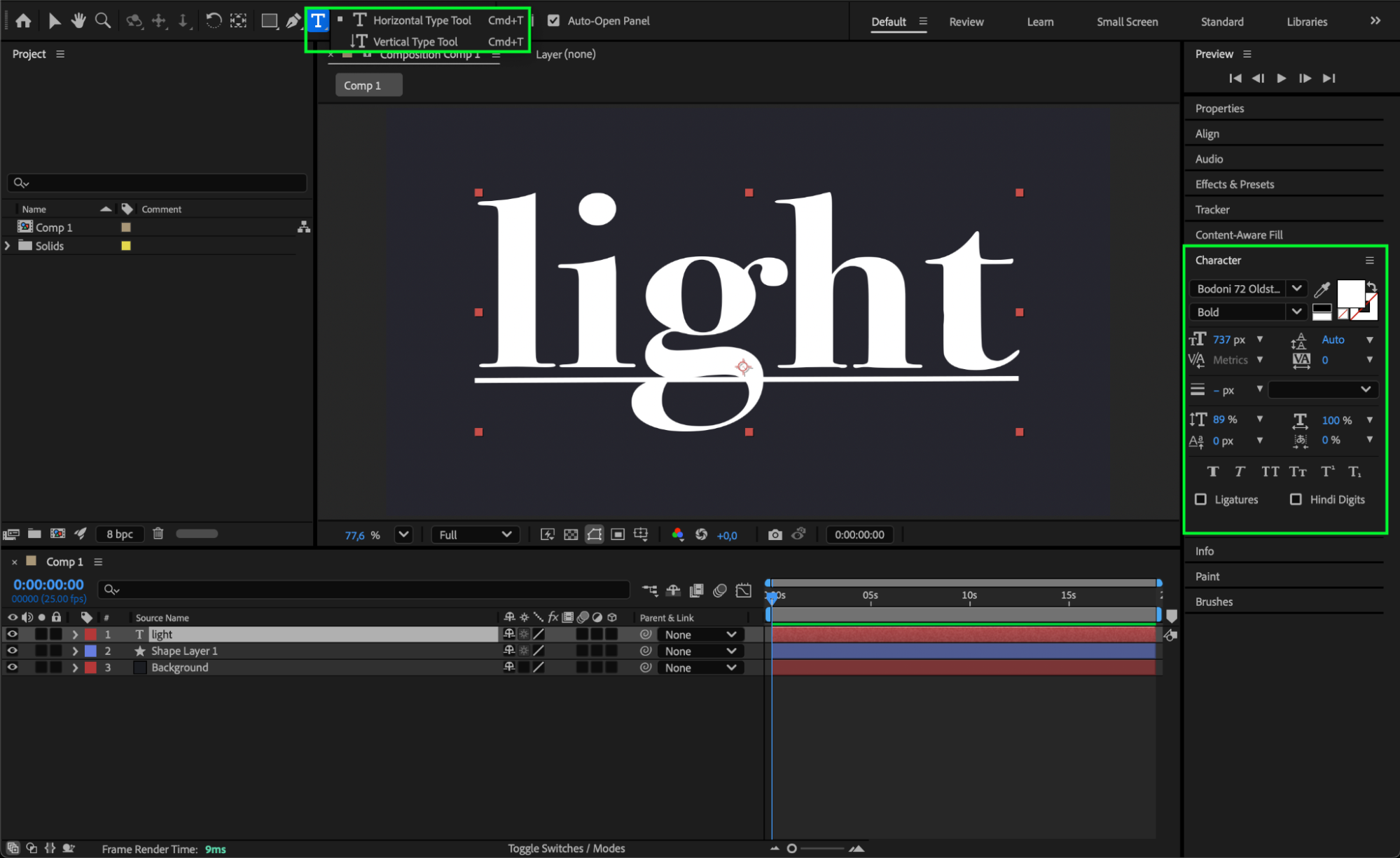
Step 3: Animate the Line
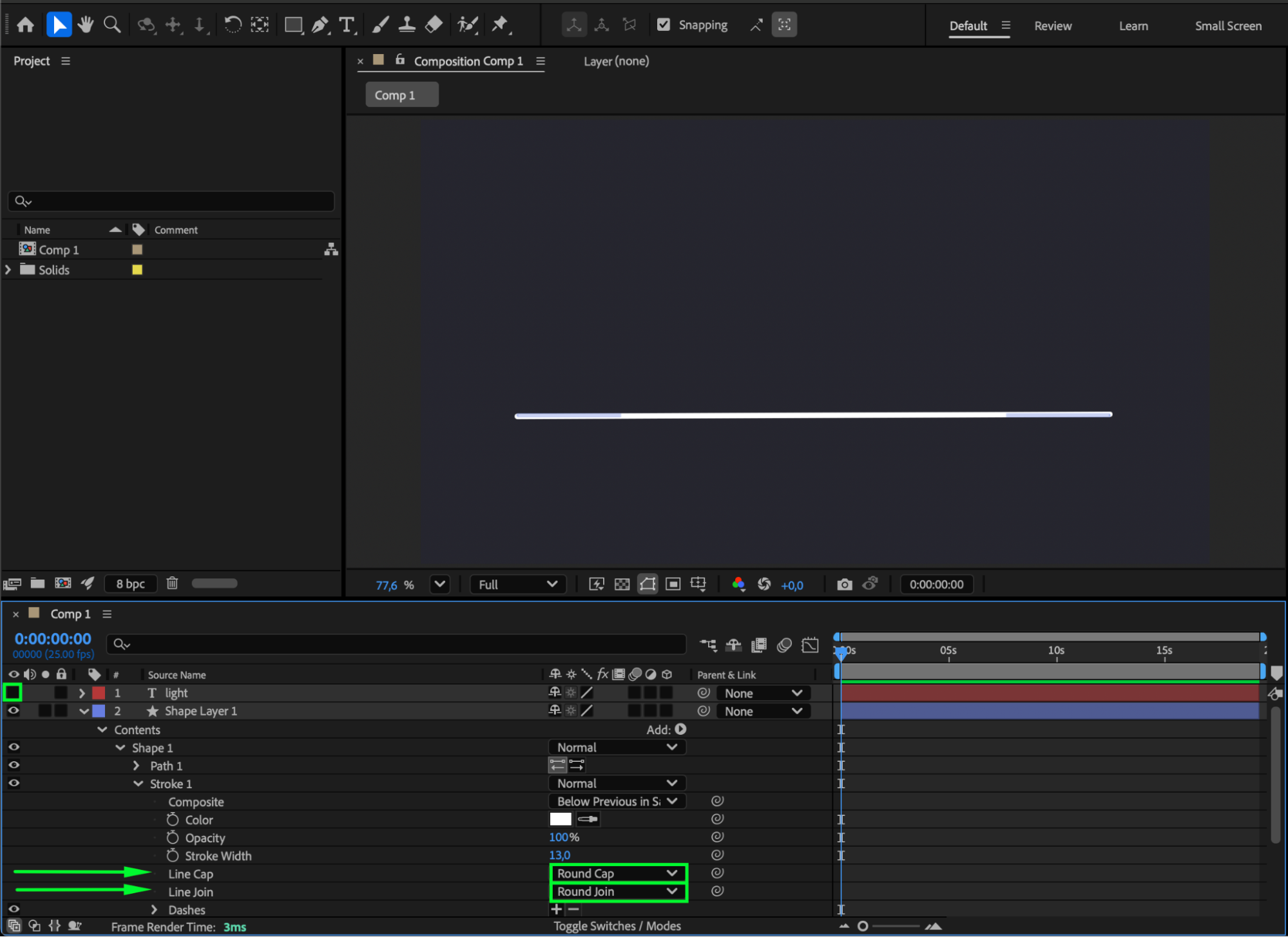
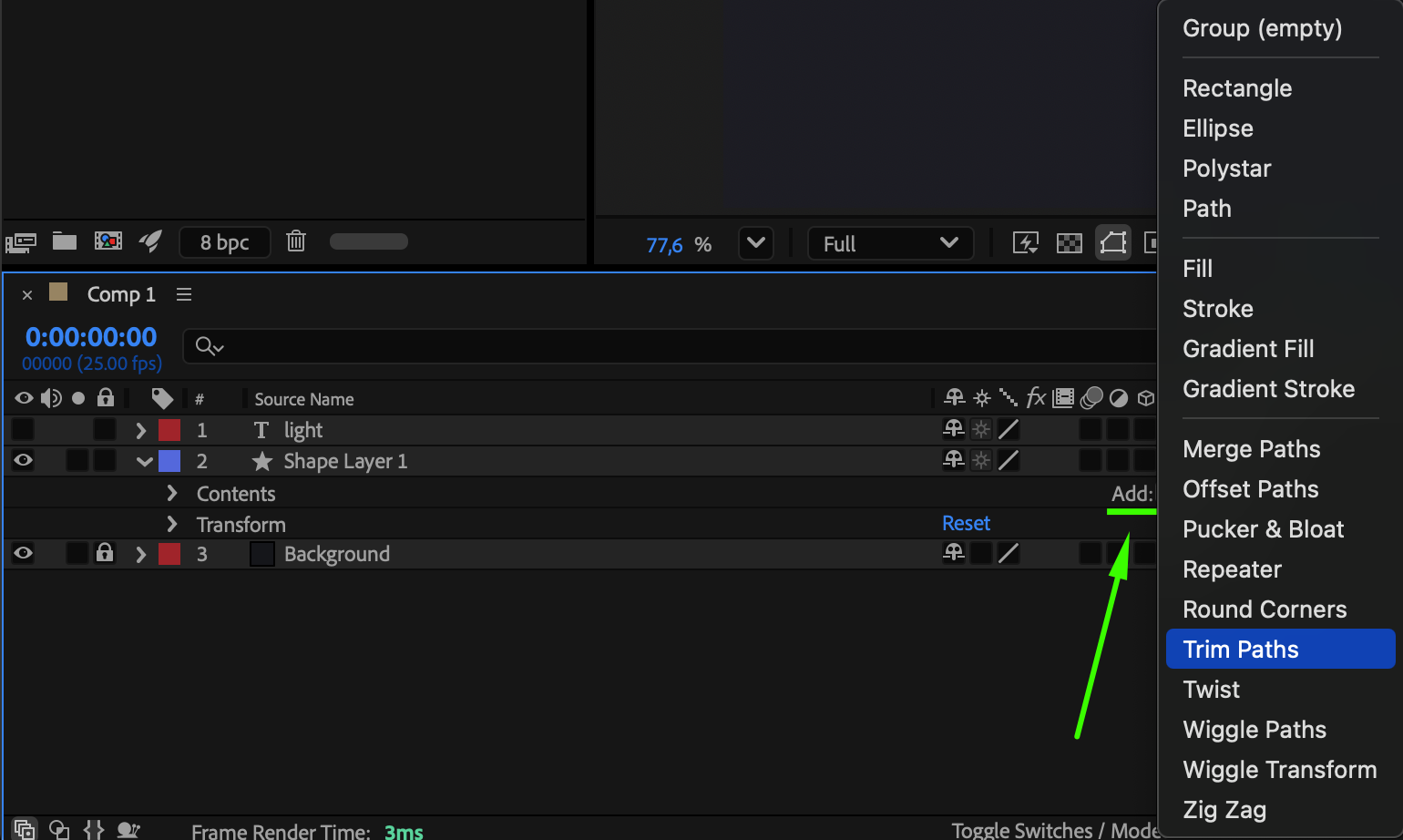
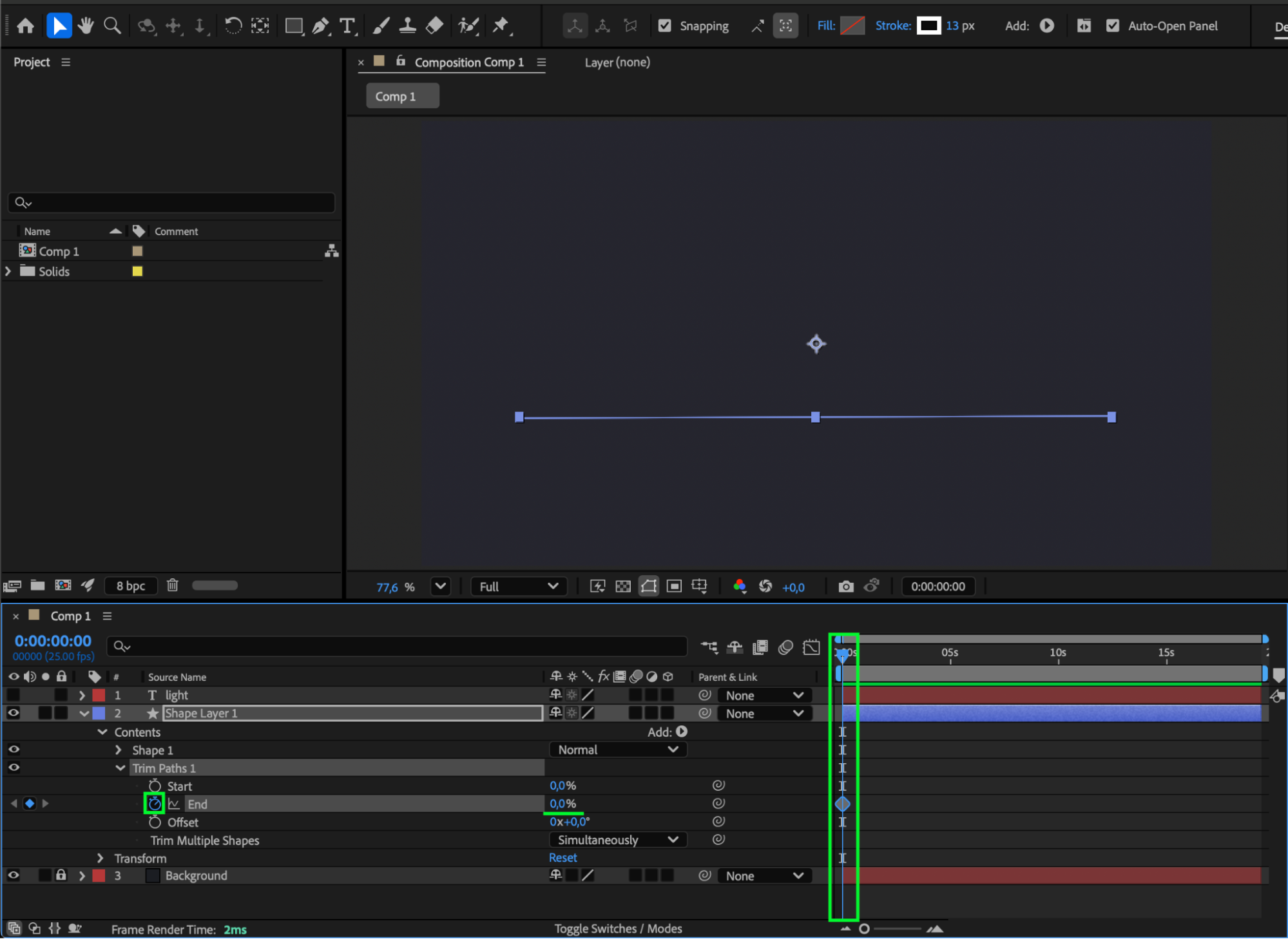
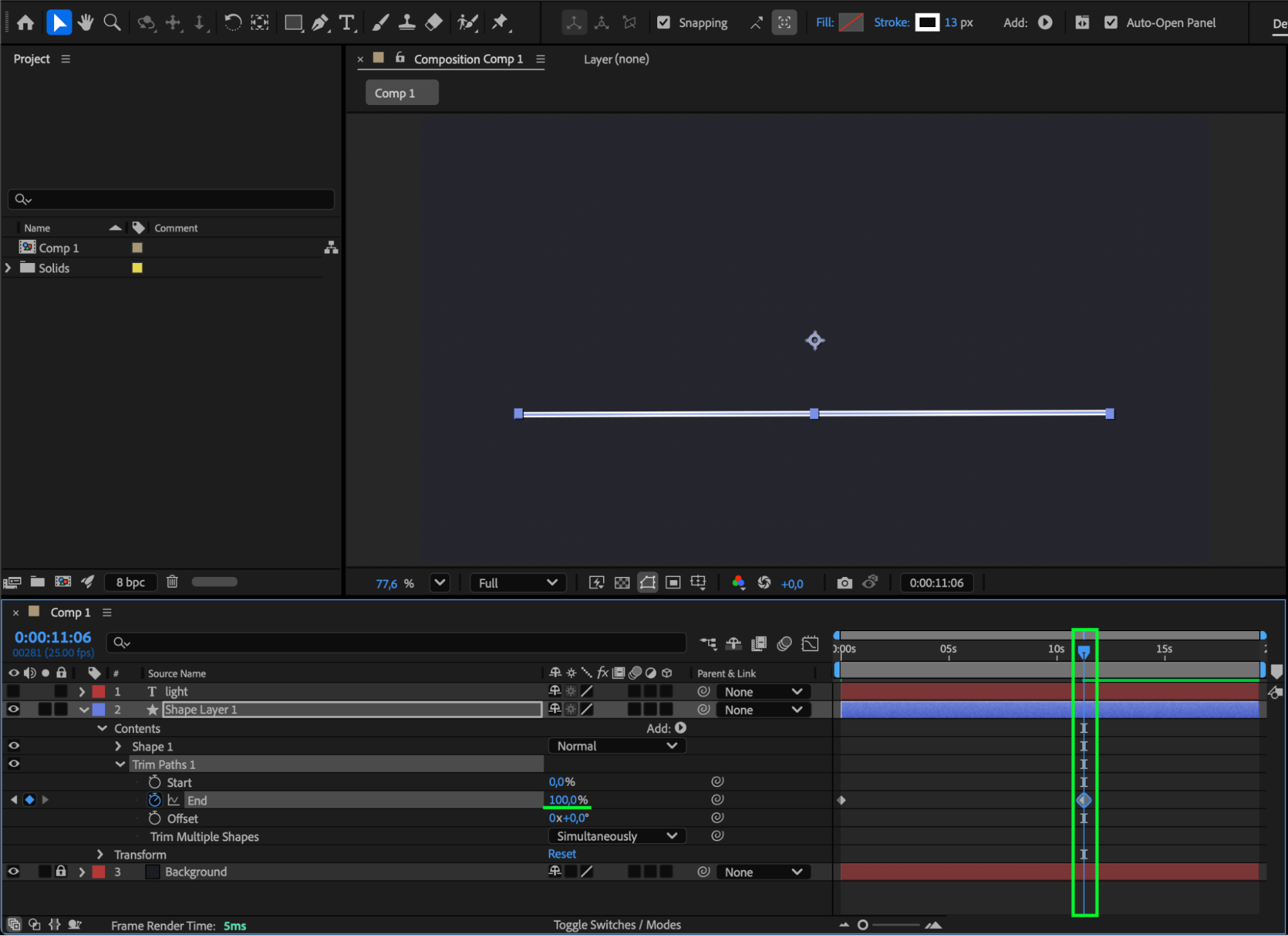
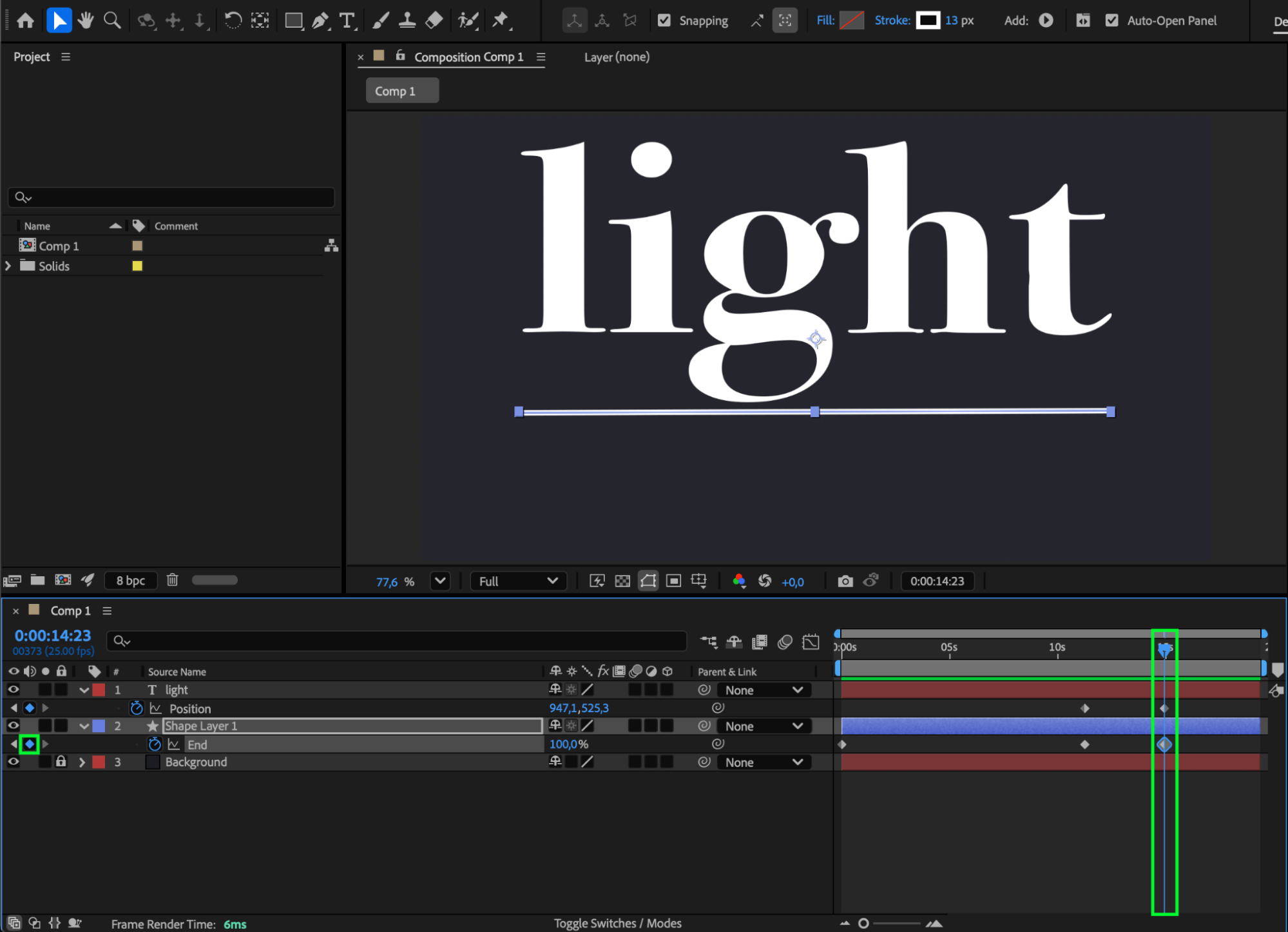
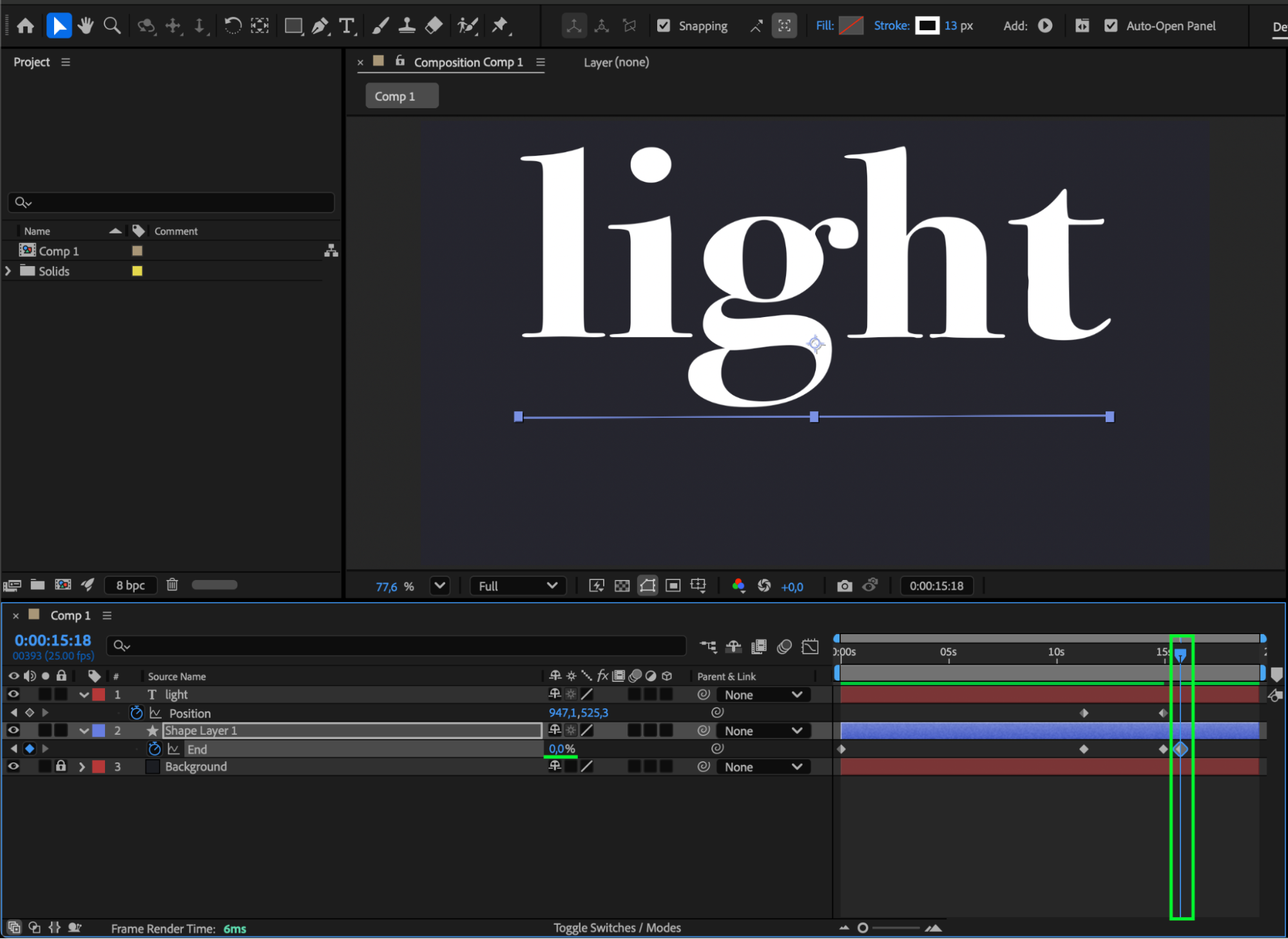
Hide the text layer temporarily by clicking the Eye icon. Expand the line layer properties and under Stroke, set Line Cap to Round Cap and Line Join to Round Join for smooth edges. Next, click Add → Trim Paths. Animate the End property from 0% to 100% so the line draws itself across the screen.
 Step 4: Animate the Text Position
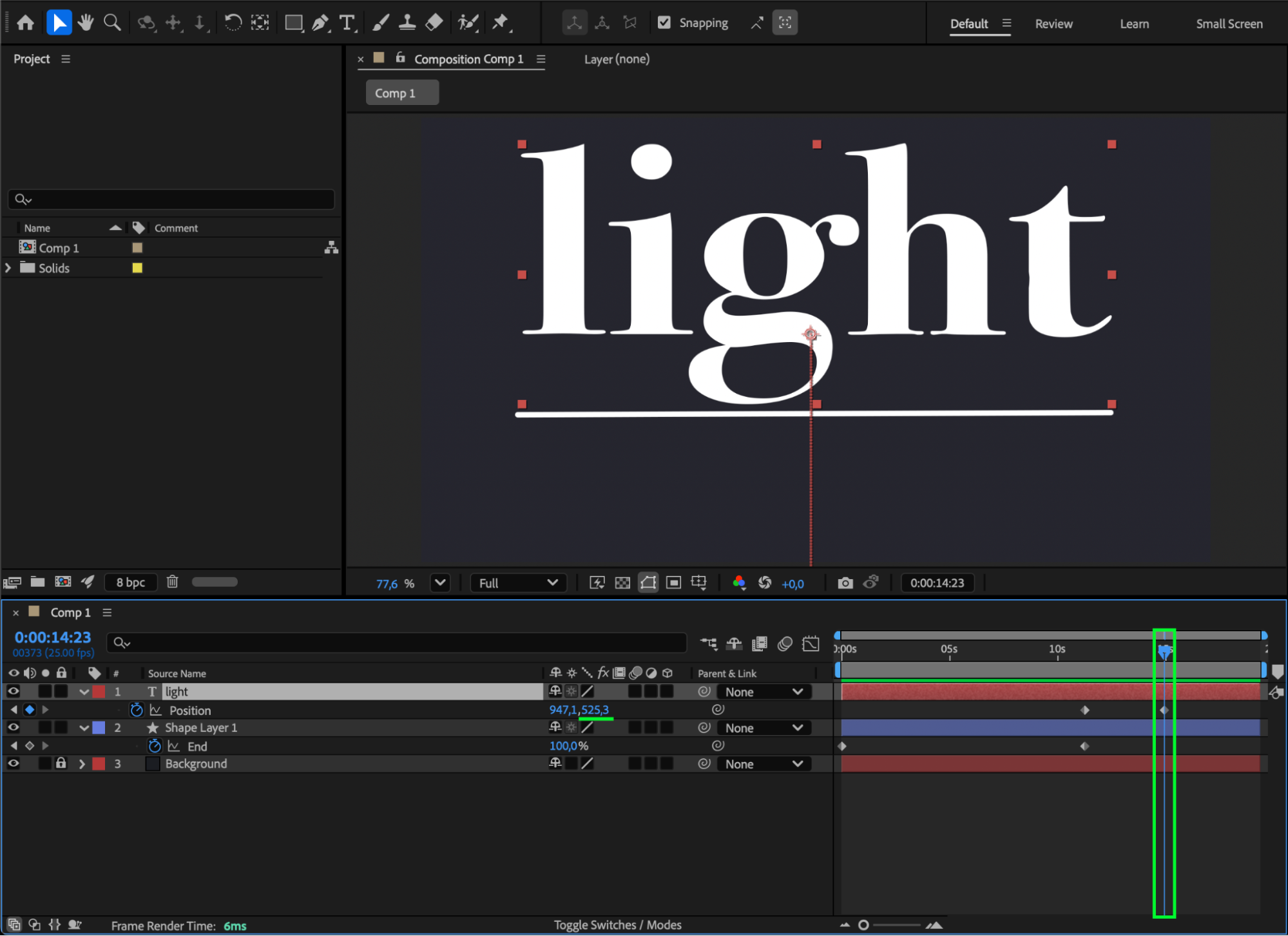
Make the text visible again by enabling the Eye icon. Press “P” to open the Position property for the text layer. Move the CTI (Current Time Indicator) to the moment when the line finishes drawing (End = 100%). Set a keyframe with the text positioned below the line. Then, move the CTI forward in the timeline and adjust the Y Position so the text moves upward, appearing from behind the line. You can also animate the line disappearing by reversing the End property from 100% to 0%.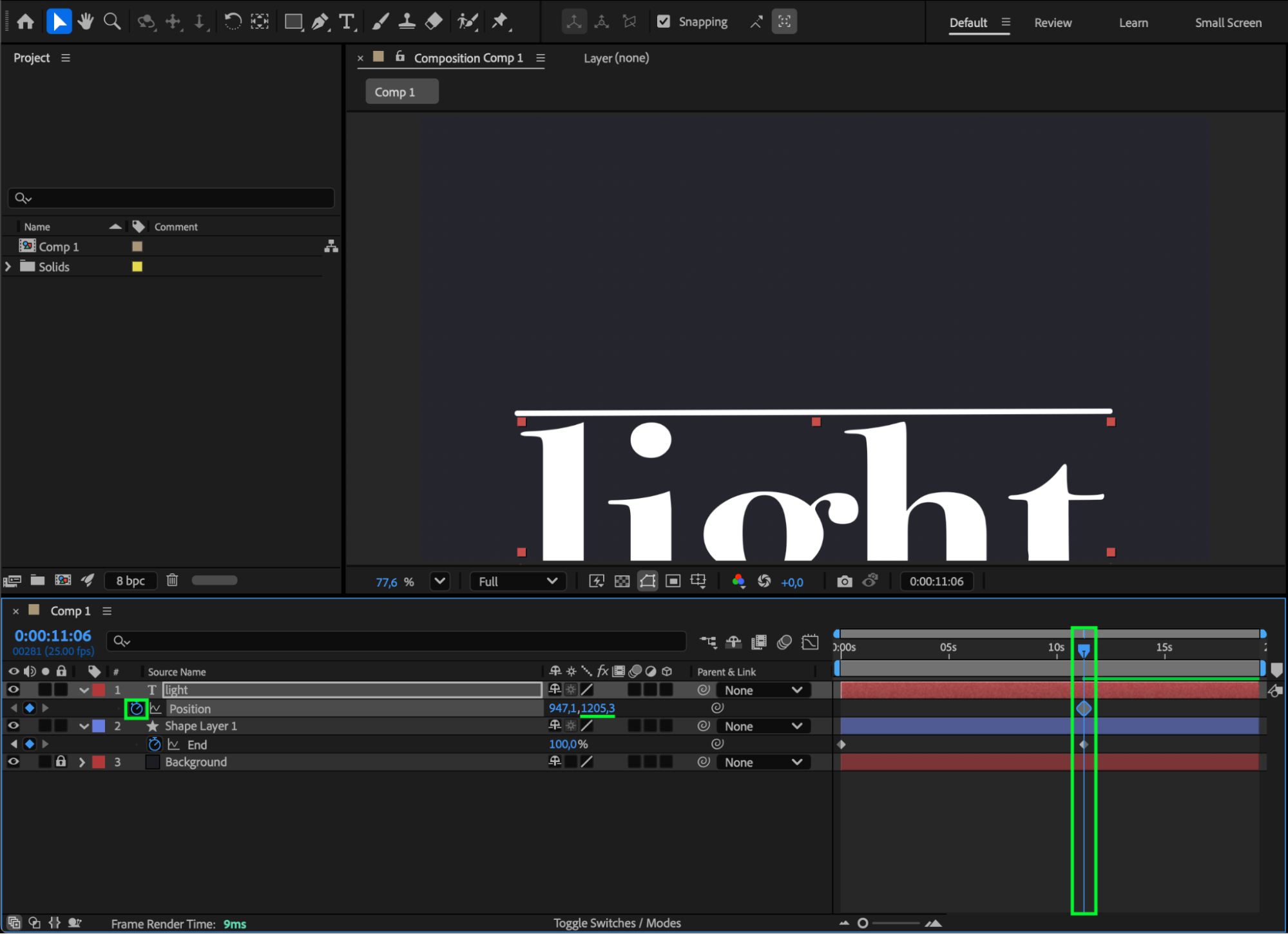
Step 5: Use Track Matte for a Clean Reveal
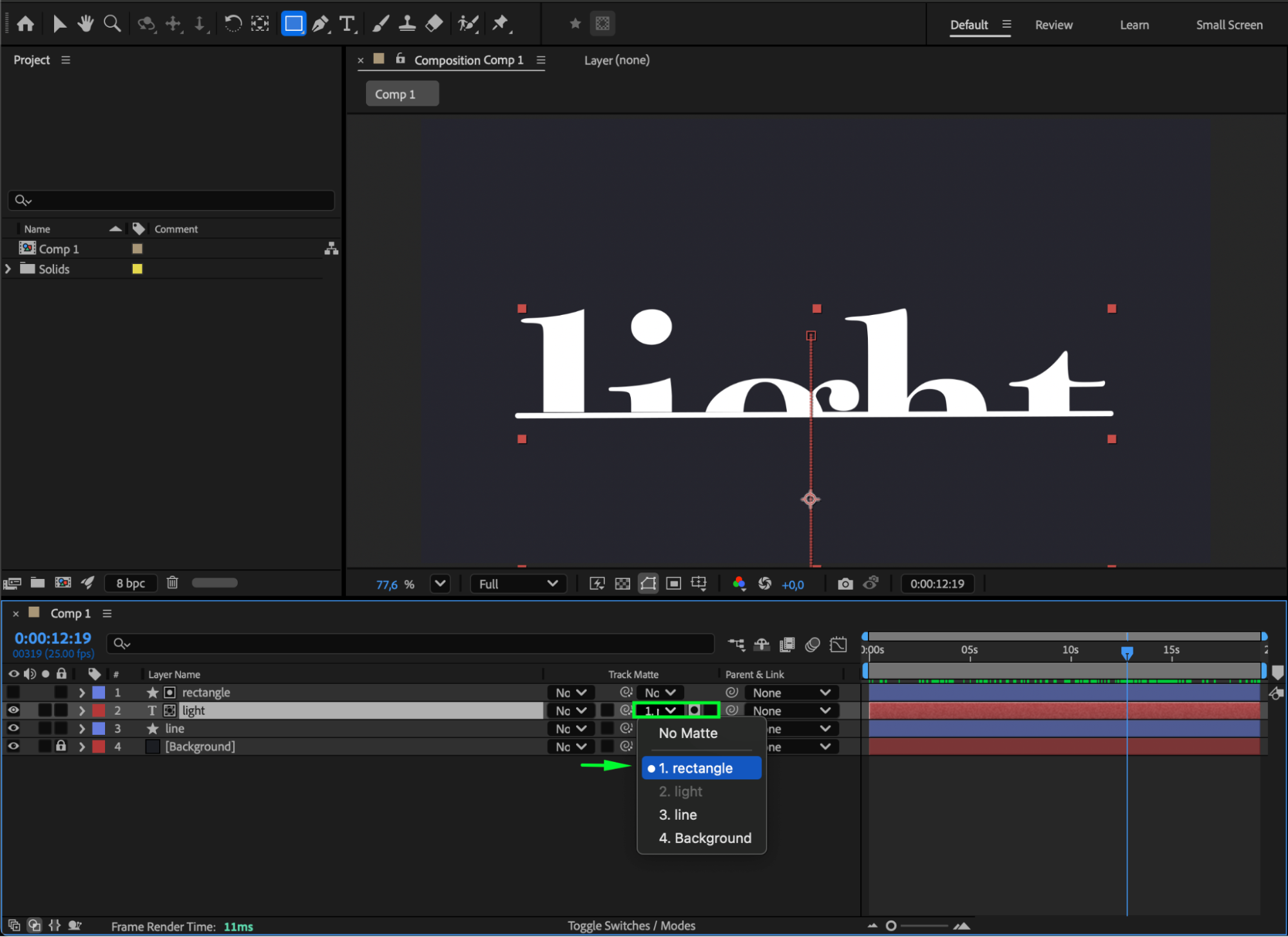
Use the Rectangle Tool (Q) to draw a rectangle that covers everything above the line.
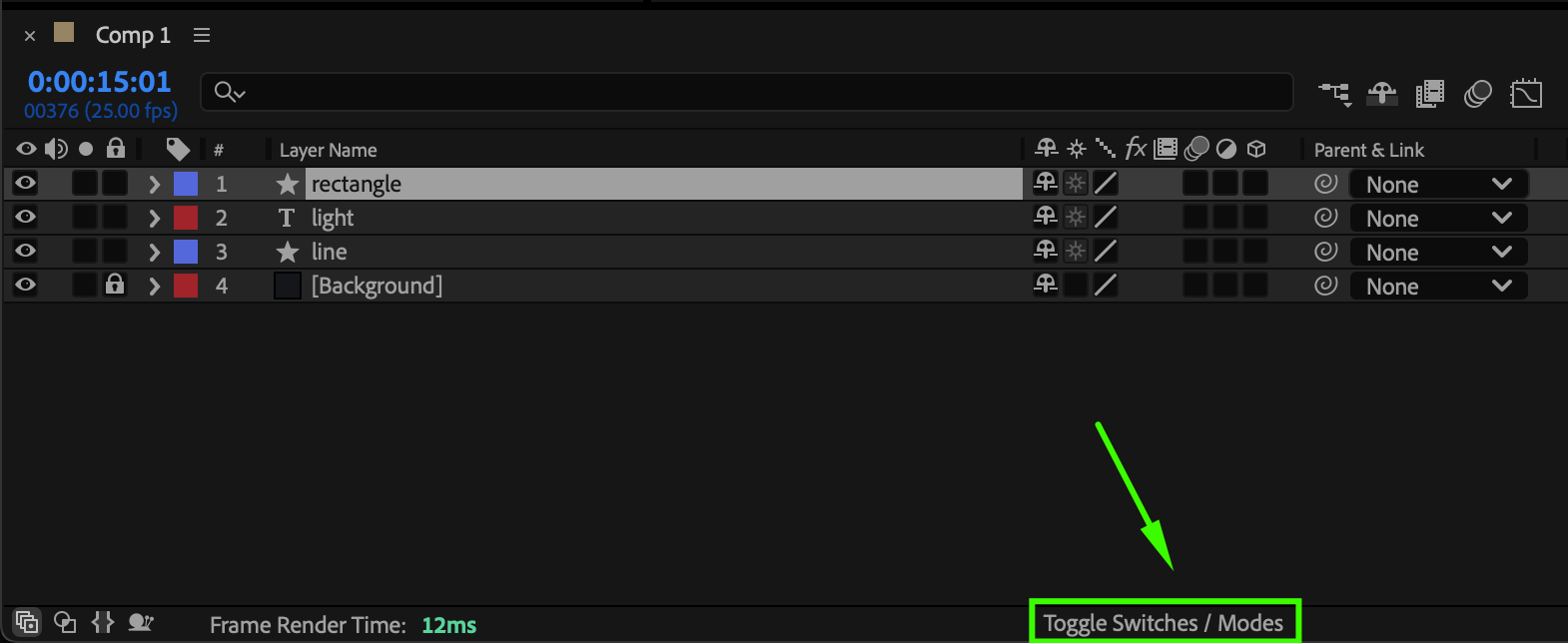
Place this rectangle layer directly above the text layer. Then, toggle Switches/Modes and in the Track Matte column of the text layer, select Alpha Matte (the rectangle layer). This ensures the text appears only when passing the line area.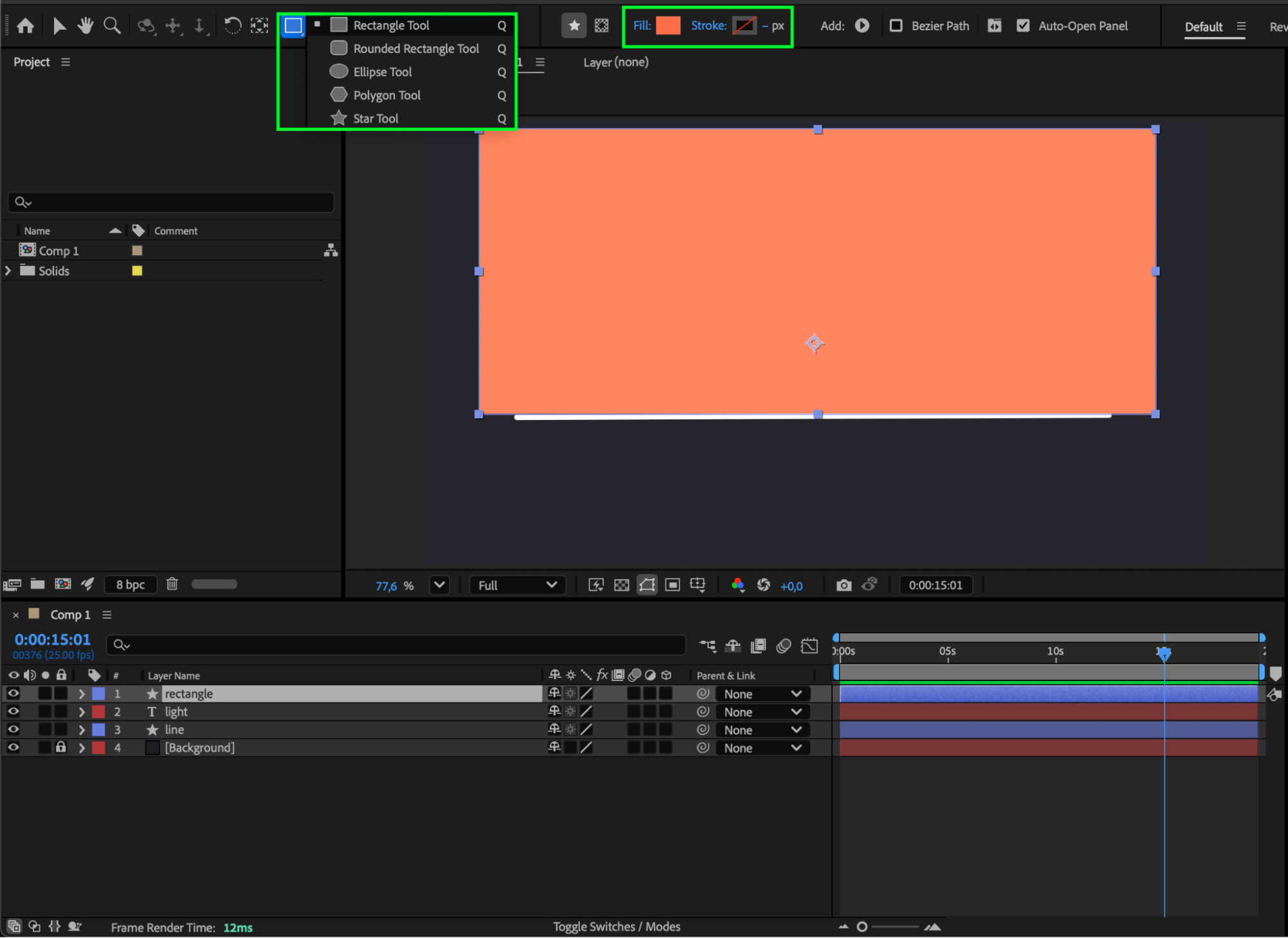
 Step 6: Enable Motion Blur
Turn on Motion Blur for both the text and line layers, and also enable it for the composition. This makes the animation smoother and more realistic.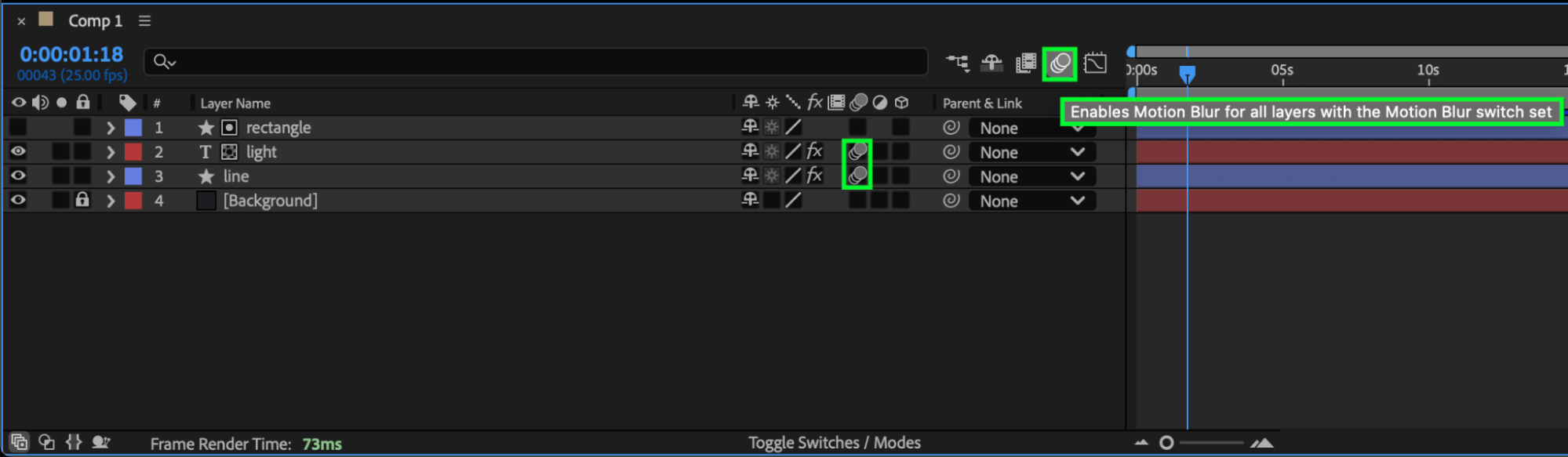 Step 7: Preview Your Composition
Press the Spacebar to preview your animation. You’ll see your line draw across the screen as the text smoothly appears from behind it — a polished motion design effect perfect for intros and titles.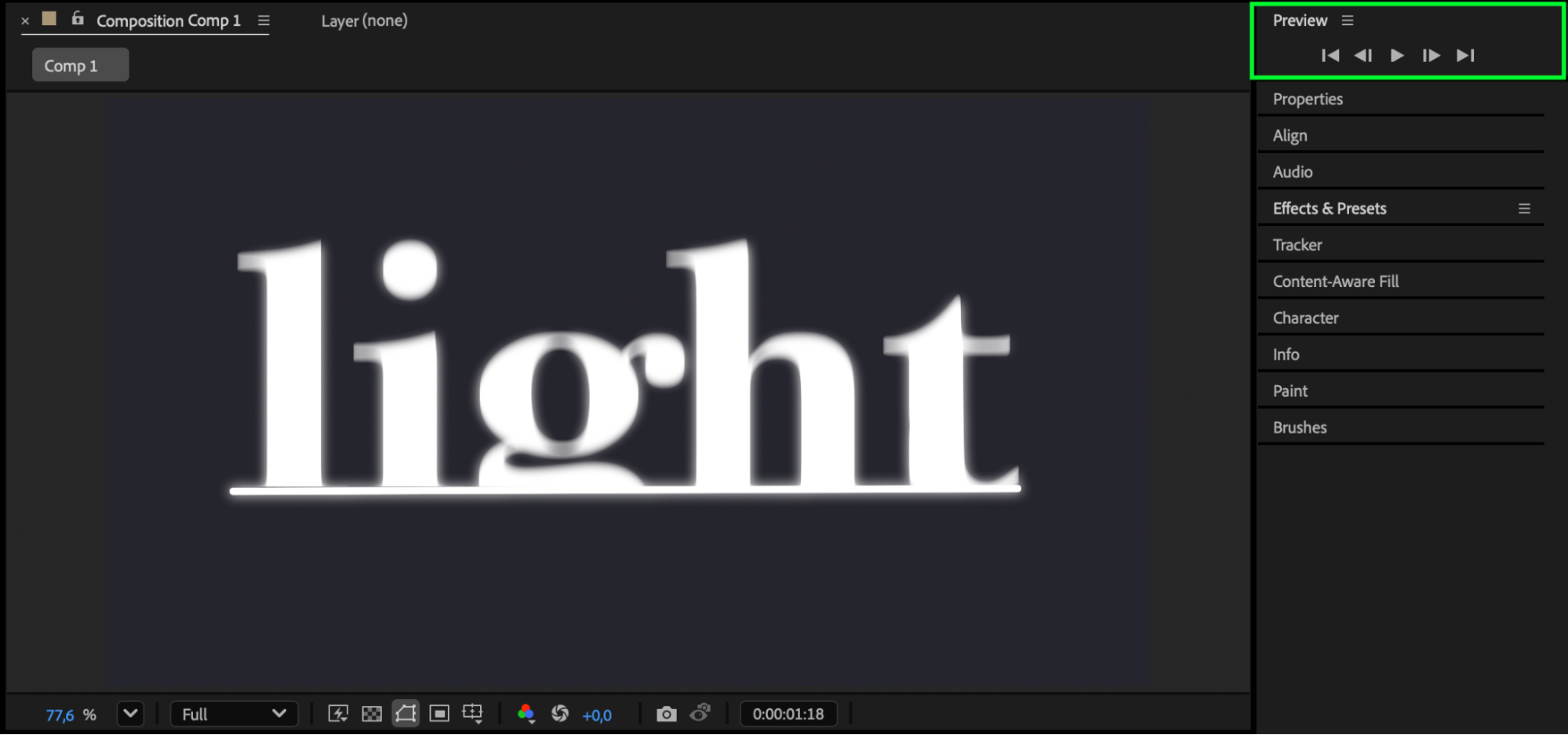
Conclusion
Making text appear from a line in After Effects is a simple but visually impressive animation. By combining Trim Paths, Position keyframes, and Track Matte, you can create smooth, professional-looking text reveals in just a few steps.
Our Bestsellers
Our Bestsellers


