
Introduction
If you want to remove a specific color from your footage and turn it fully transparent, After Effects offers several approaches. One of the most effective methods—especially for complex textures—is using the Roto Brush Tool. Below is a simple workflow to achieve clean transparency.
Step 1: Import Your Footage
Go to File > Import > File, select your video or image, and drag it into your Composition Timeline. Your layer is now ready for isolating the color you want to remove.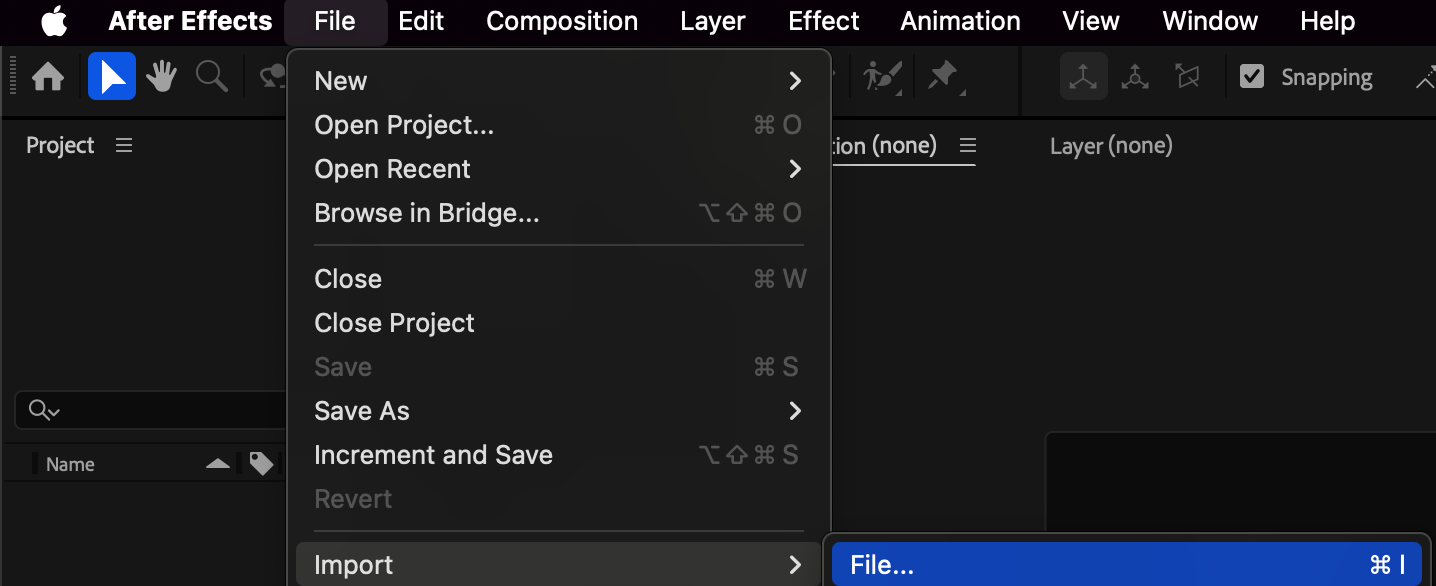
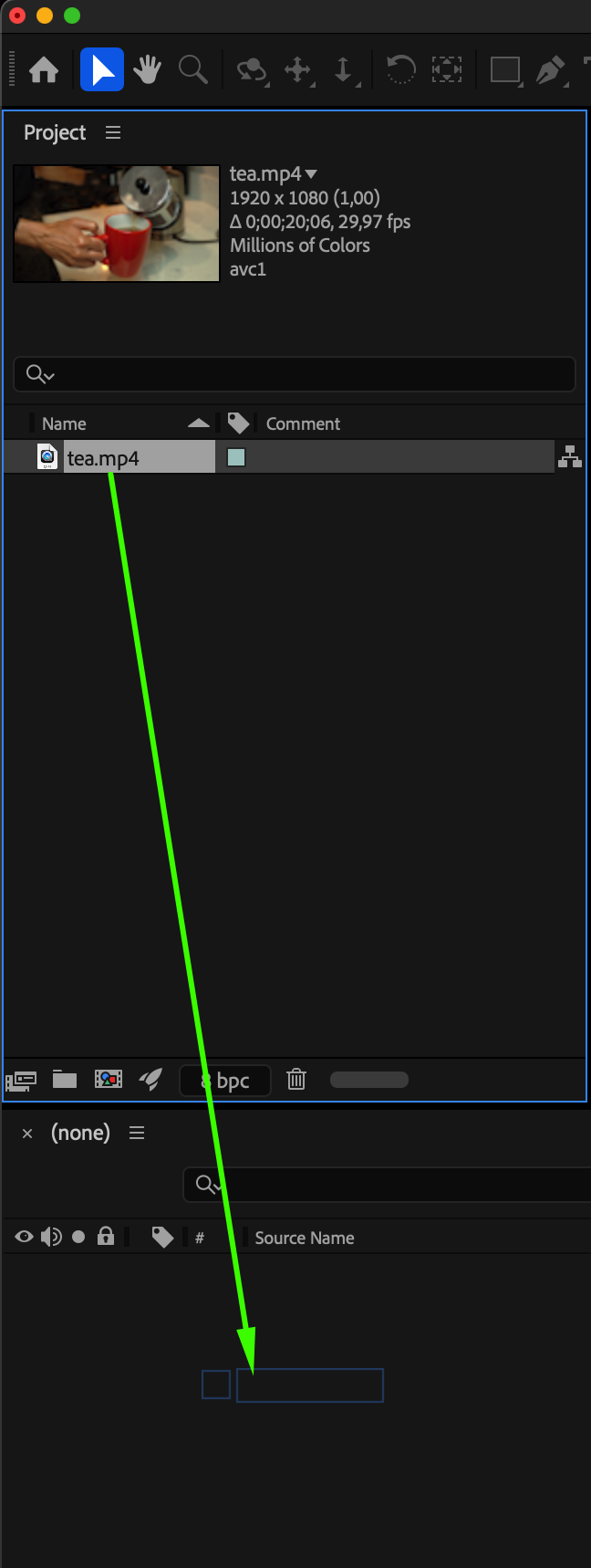
Step 2: Isolate the Color Using the Roto Brush Tool
Double-click your video layer to open it in the Layer panel. Select the Roto Brush Tool (Alt/Option + W). Paint over the color you want to remove. The tool will detect and highlight the selected region. In the Effect Controls panel, enable “Invert Foreground/Background” so the selected color becomes the area that will turn transparent. Click Freeze to lock in the segmentation for the entire clip.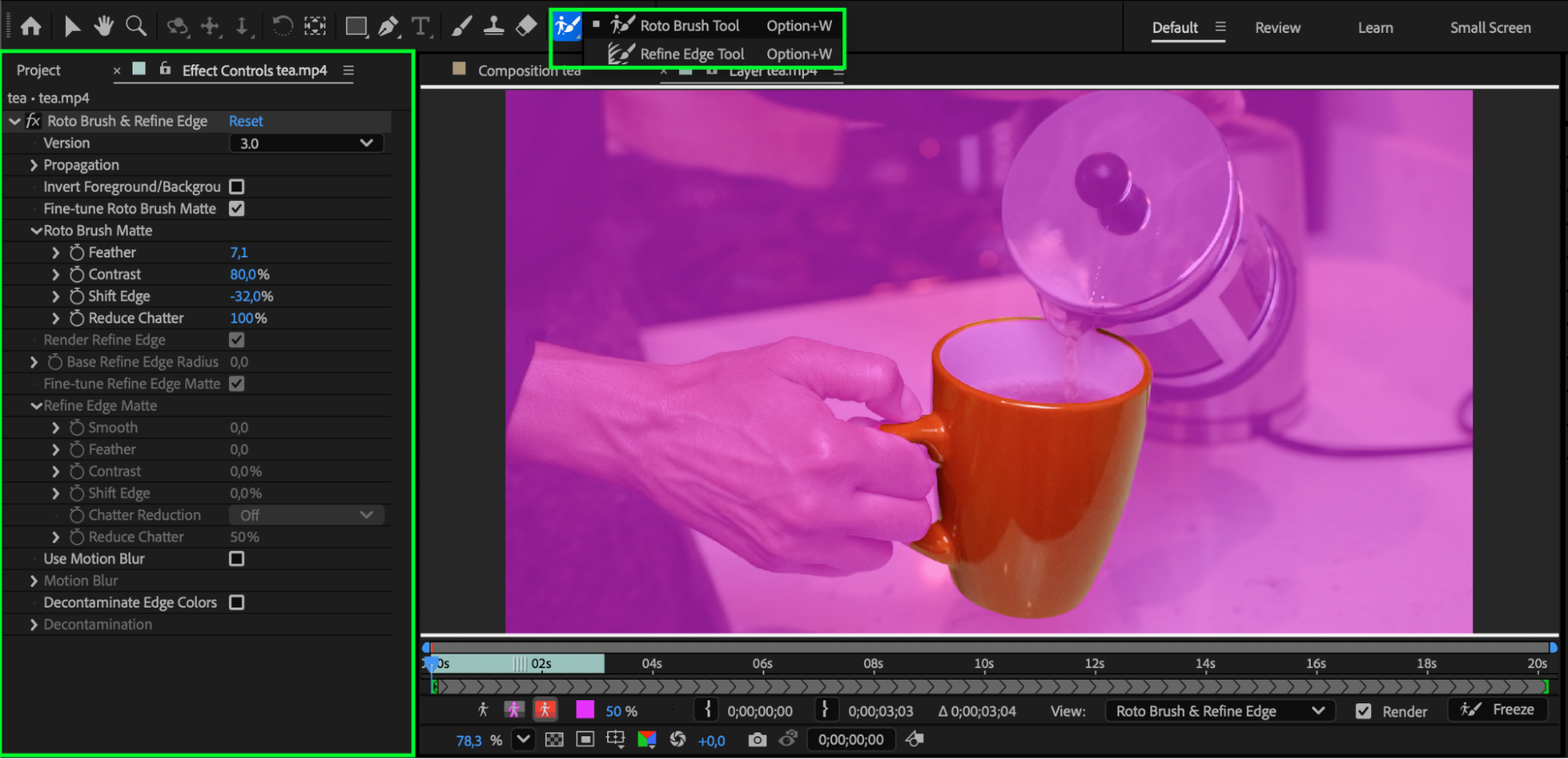
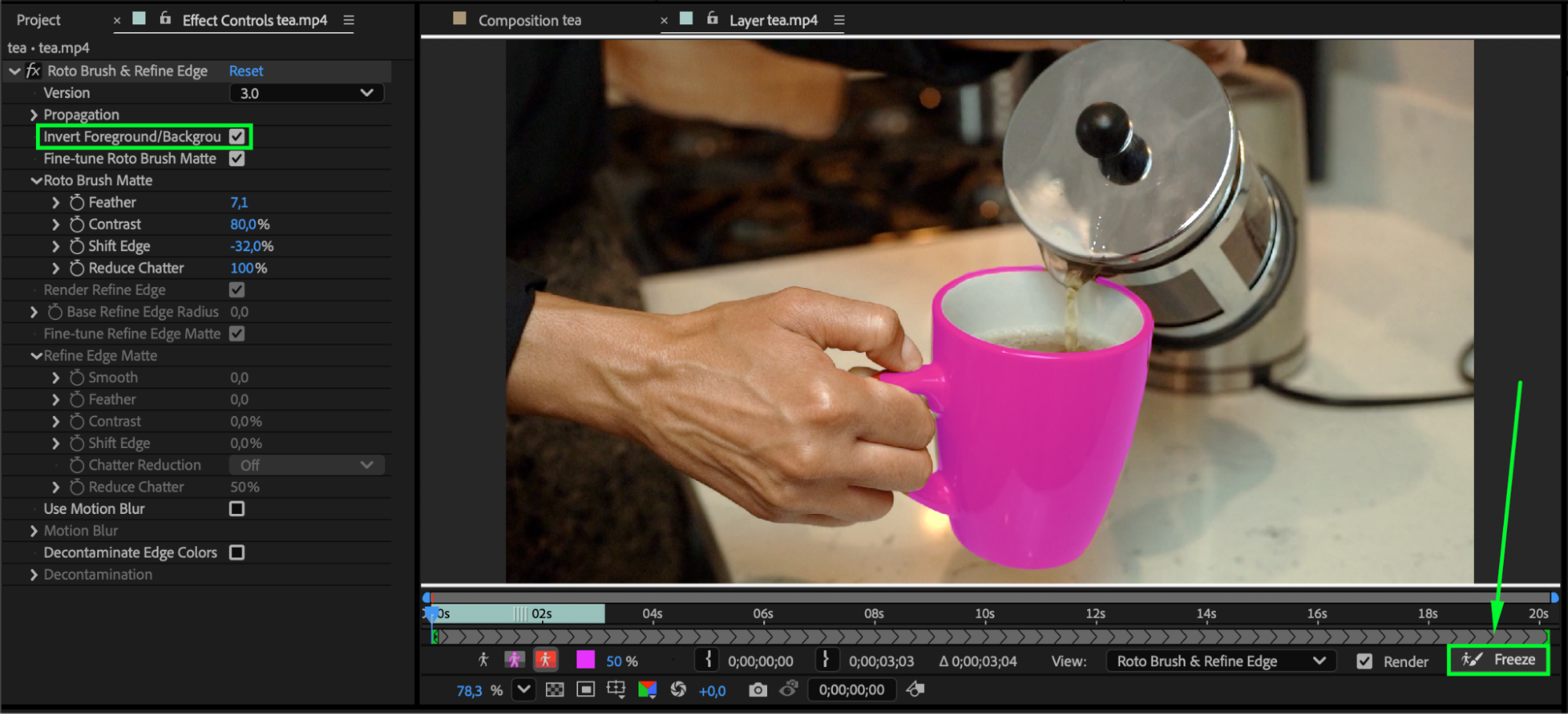 Step 3: Return to the Composition Panel
Go back to the Composition panel to view the transparency result. Click Toggle Transparency Grid to clearly see which areas are now transparent.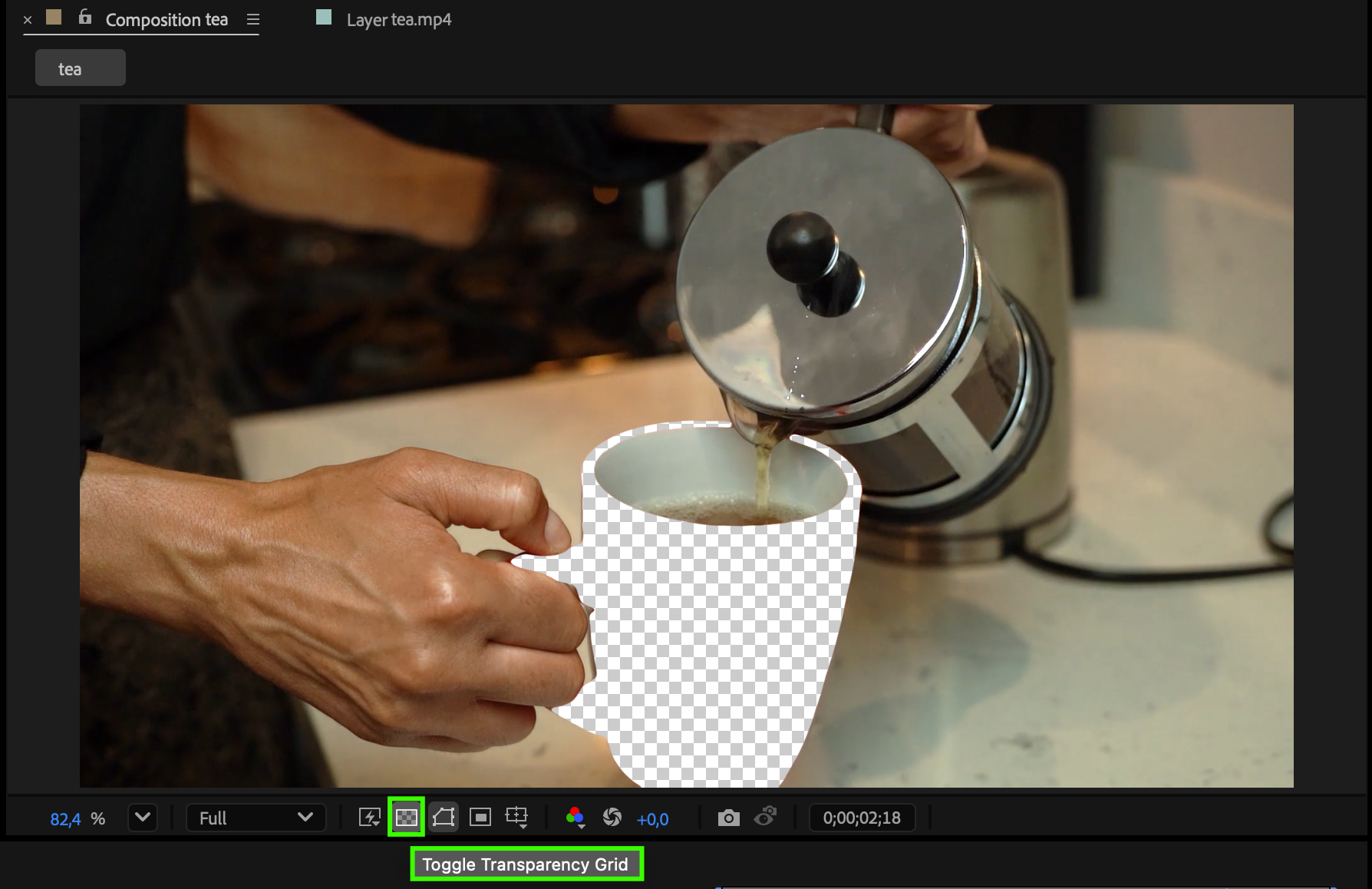
Step 4: Preview & Fine-Tune
Preview your composition to ensure the transparency looks clean. If needed, refine the edges using Roto Brush Refine Edge or adjust the segmentation in the Layer panel before freezing again.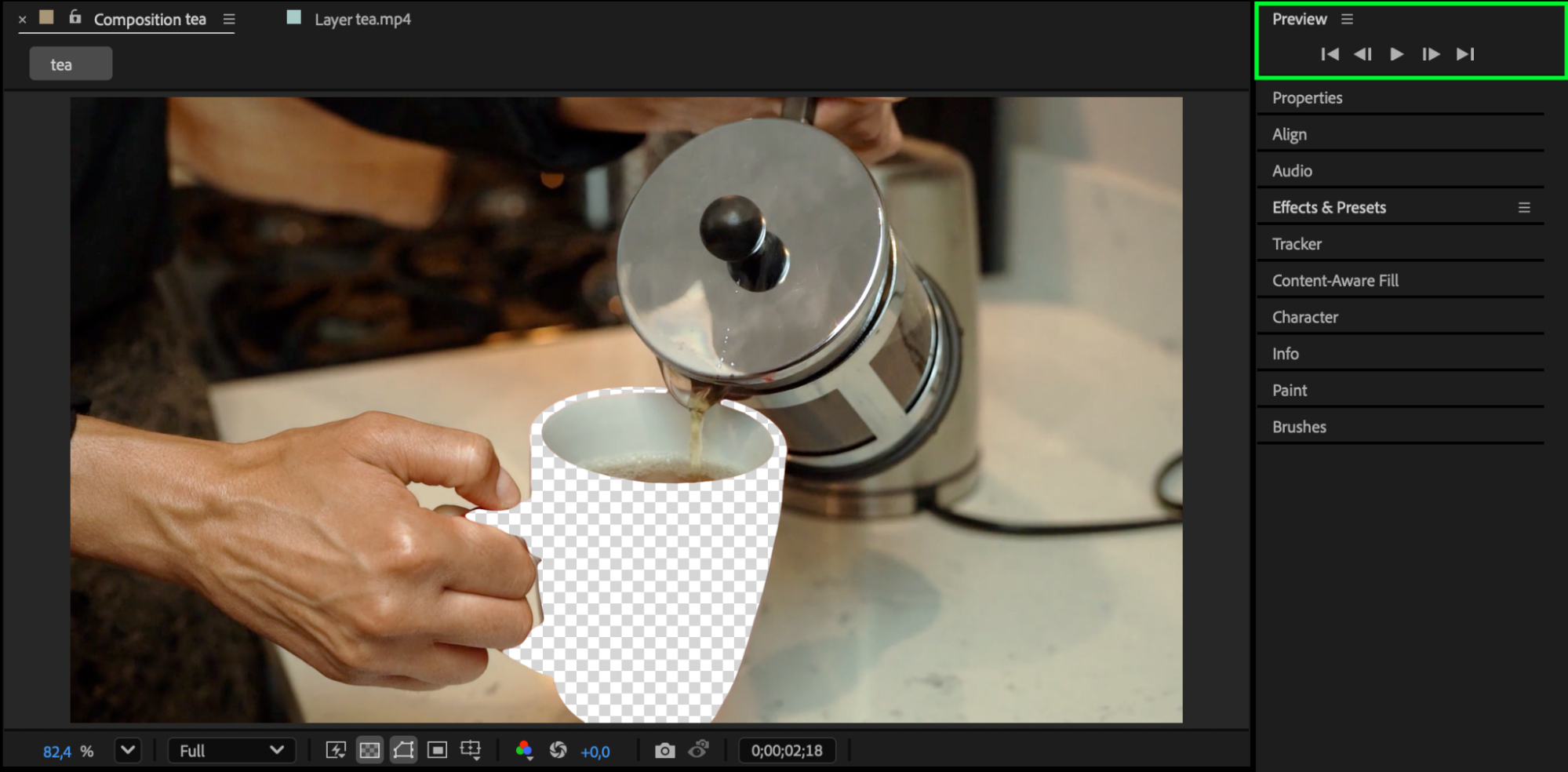 Conclusion
Mapping a color to transparent in After Effects is straightforward when using the Roto Brush workflow. It allows for flexible, detailed color isolation—even on footage where simple keying wouldn’t be accurate. With just a few steps, you can cleanly remove any color and achieve professional transparency results.
Our Bestsellers
Our Bestsellers


