
Introduction
Step 1: Create or Import Your Shapes
Create your shapes using the Rectangle, Ellipse, or Pen Tool, or import paths from Illustrator. Make sure all shapes you want to merge exist inside the same shape layer, as Merge Paths only works within one layer.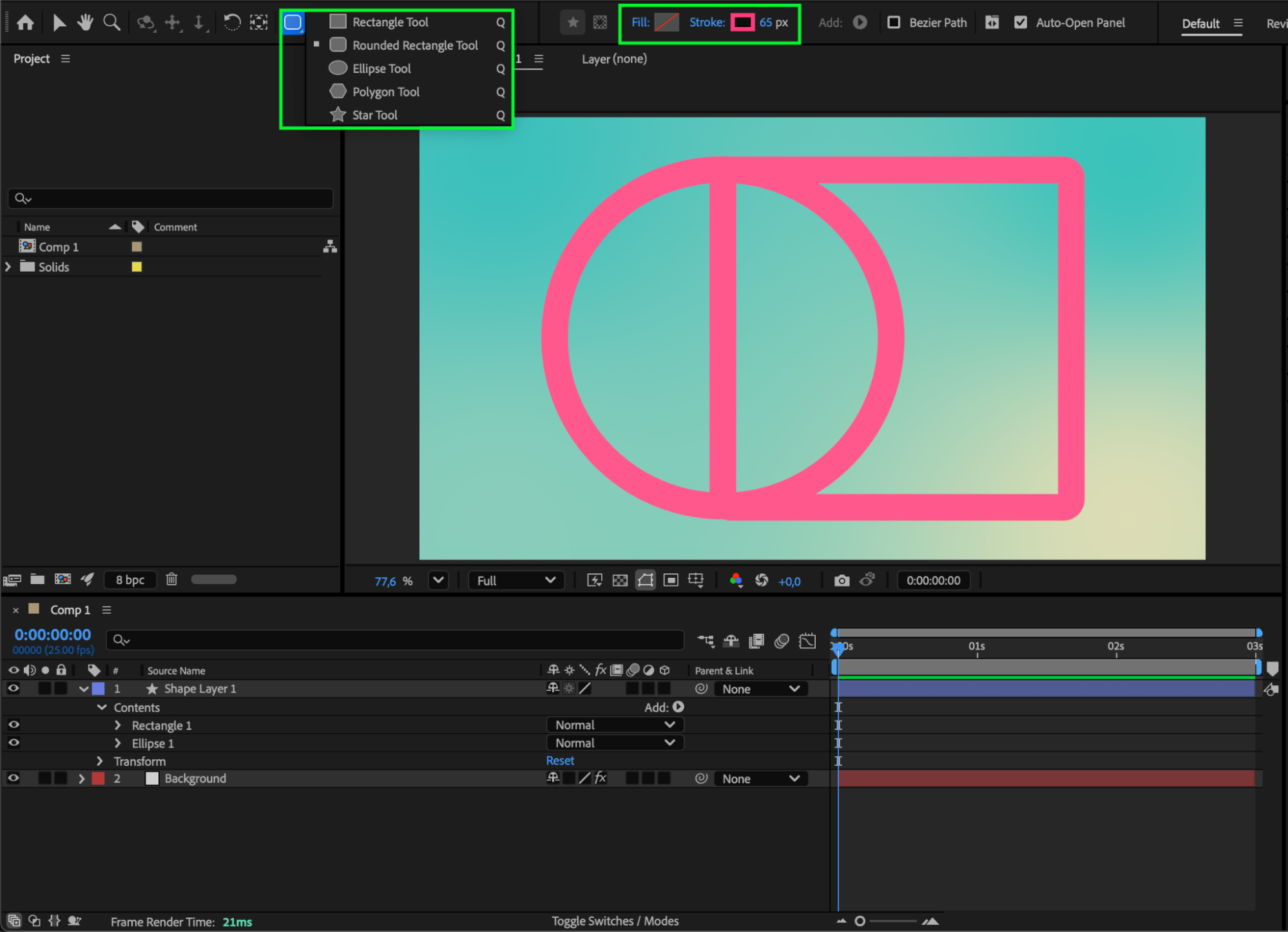 Step 2: Add a Merge Paths Operator
Select the shape layer, click Add › Merge Paths, and After Effects will enable boolean-style operations. This tool allows you to combine or modify shape interactions just like in vector editing programs.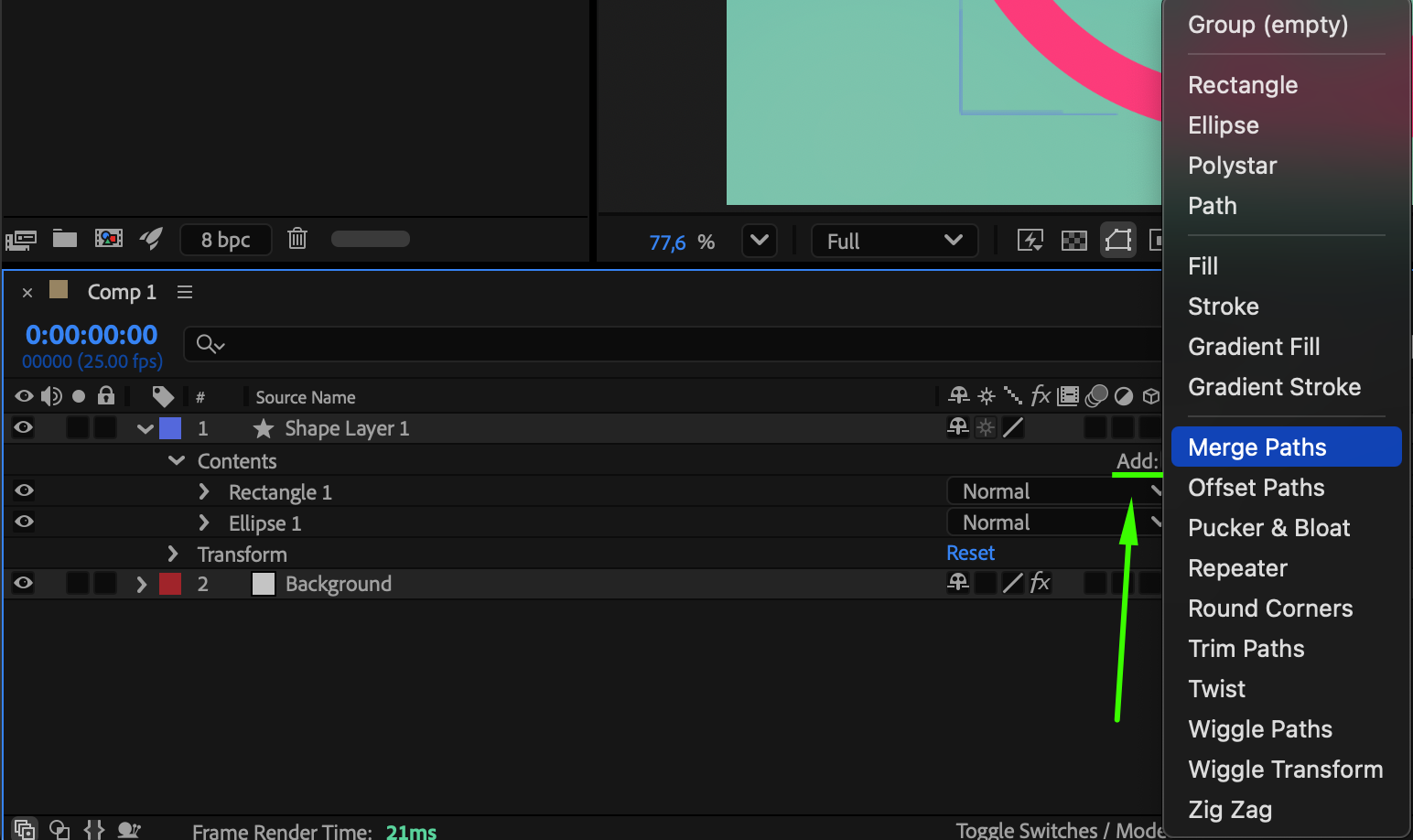
Step 3: Choose the Right Mode to Form an Outline
In the Merge Paths settings, select a Mode depending on the outline effect you want:
Add / Merge — combines all shapes into a single connected form.
Subtract — removes one shape from another.
Intersect — keeps only the overlapping areas of the shapes.
Exclude Intersections — creates outlines around the negative space between shapes.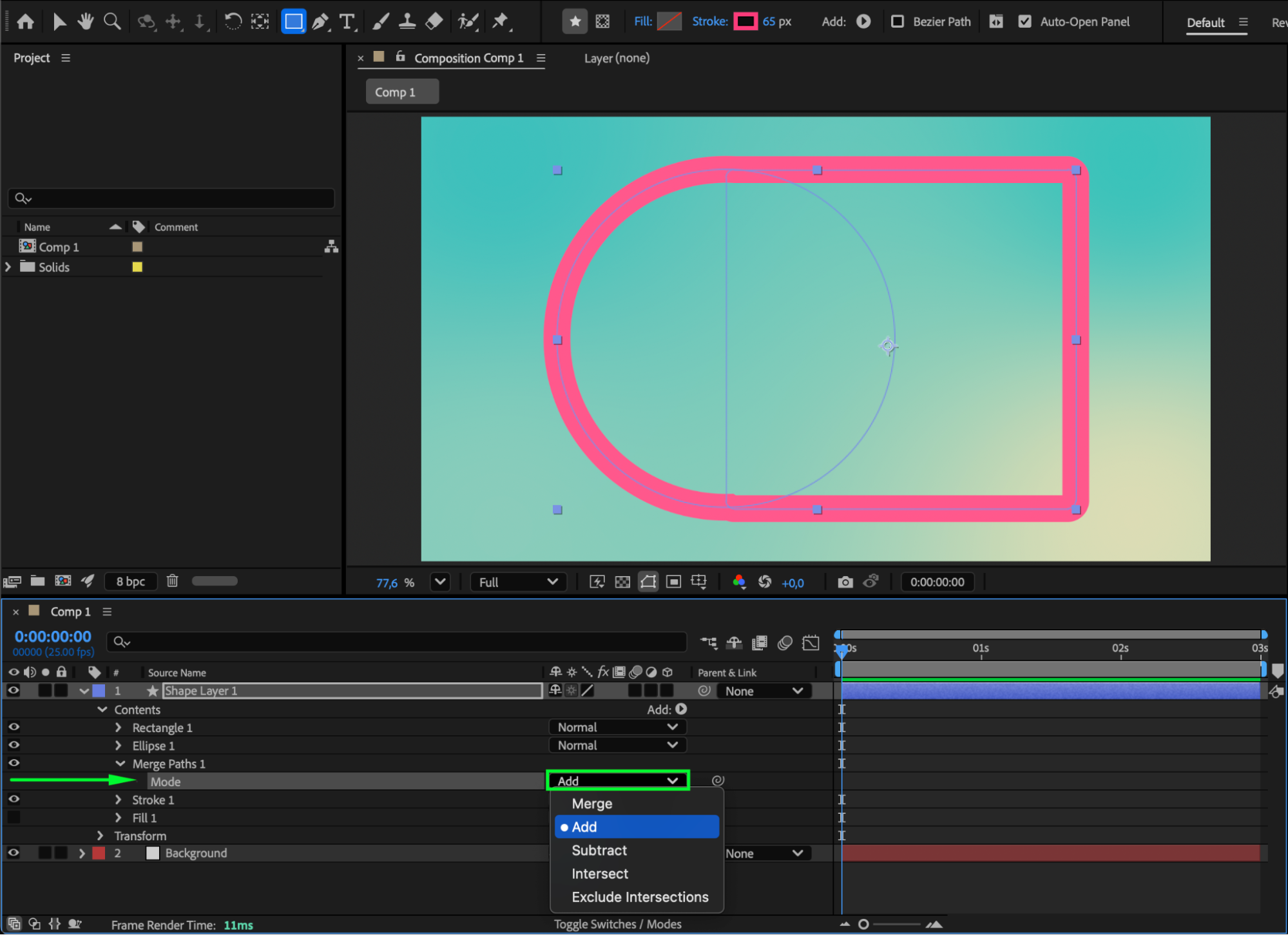 Step 4: Apply a Stroke or Fill to Create the Outline
If your shapes only have a fill, add a Stroke. If they have only a stroke, add a Fill. Adjust the width, color, and style to create the outline effect you need.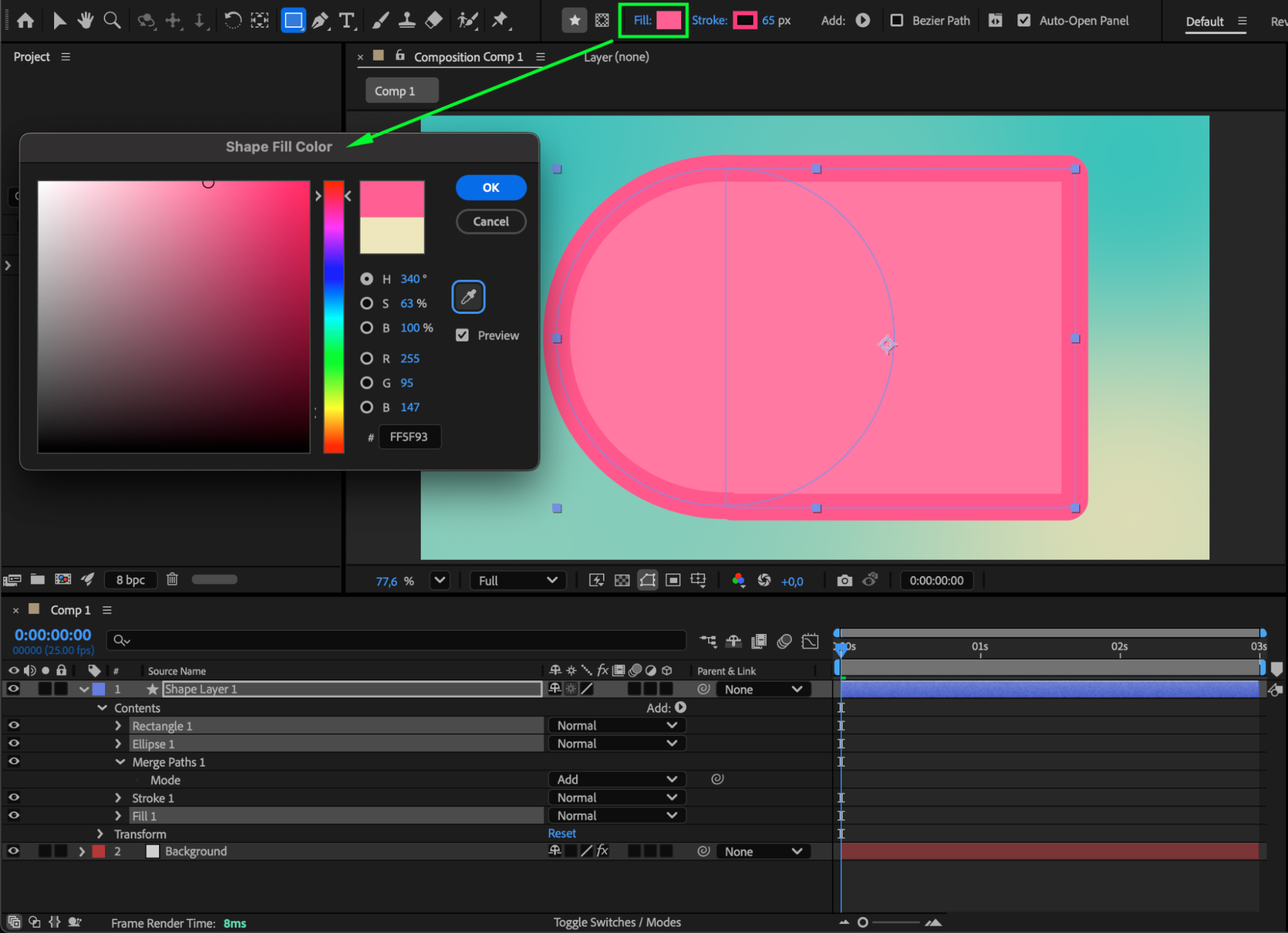
Step 5: Refine the Path and Adjust the Stroke
Use the Selection Tool (V) or Pen Tool to fine-tune anchor points and curves. You can also adjust Line Cap and Line Join settings to improve how corners, edges, and rounded transitions appear.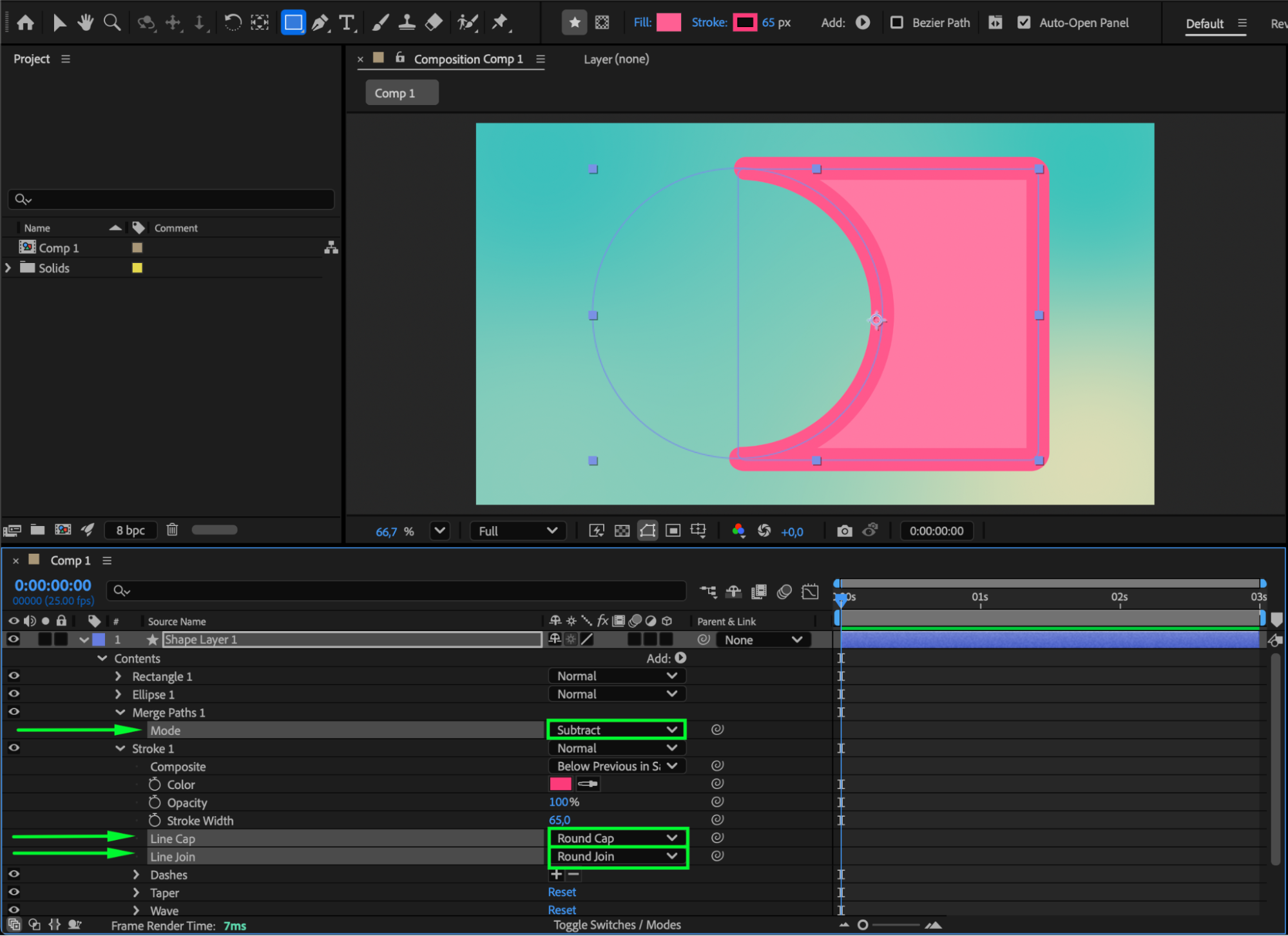 Step 6: Preview and Make Final Adjustments
Press Spacebar to preview the merged outline. Adjust Merge Paths modes, stroke width, or path geometry until everything looks smooth and cohesive.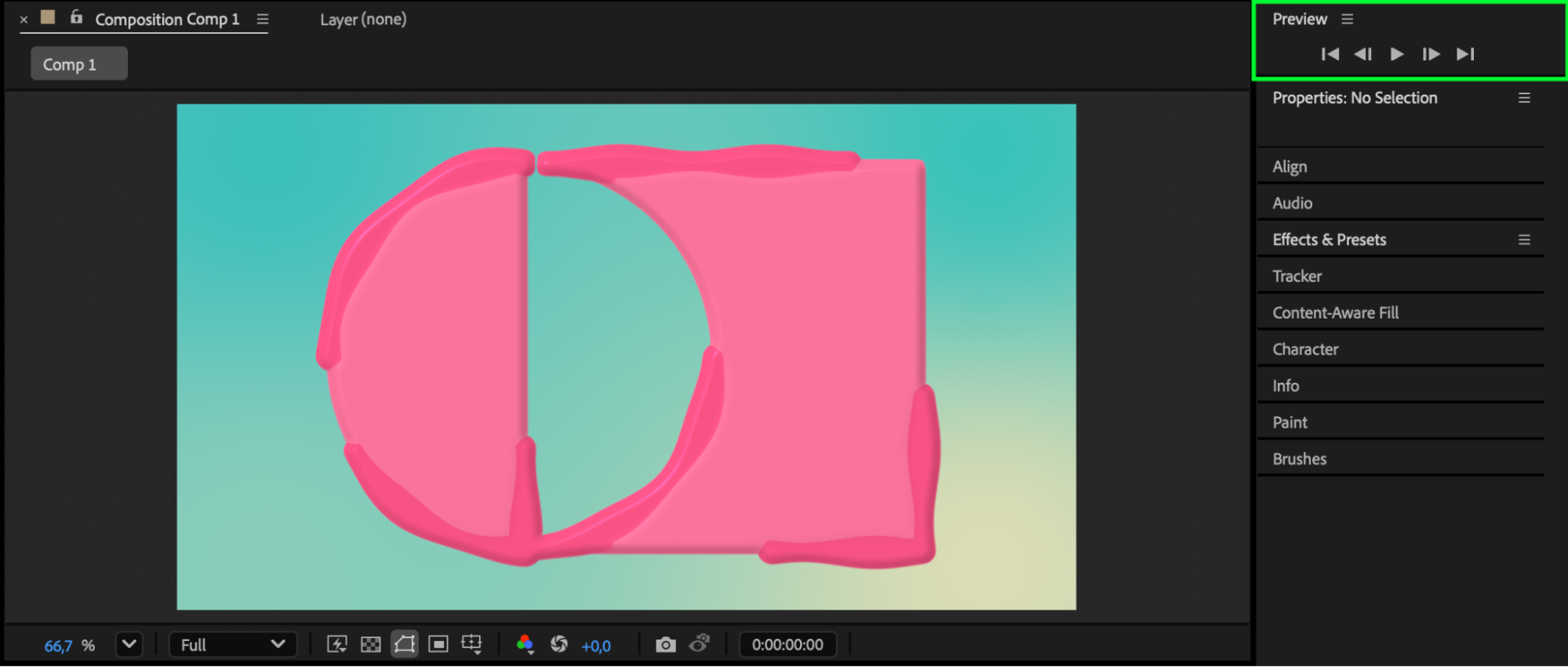 Conclusion
By using Merge Paths inside a single shape layer, you can easily mold multiple shapes together and create a clean, unified outline in After Effects. This workflow is perfect for motion graphics, logos, icons, and any design where precise vector shapes are needed.
Our Bestsellers
Our Bestsellers


