
Create a Text Morphing Animation in After Effects
Introduction
Morphing text is a great way to transition between different words or styles in your animation. In this tutorial, you’ll learn how to transform one text into another using masks and path animation in After Effects. This effect is useful for logos, titles, or any creative typography animation.
Step 1: Create a New Composition
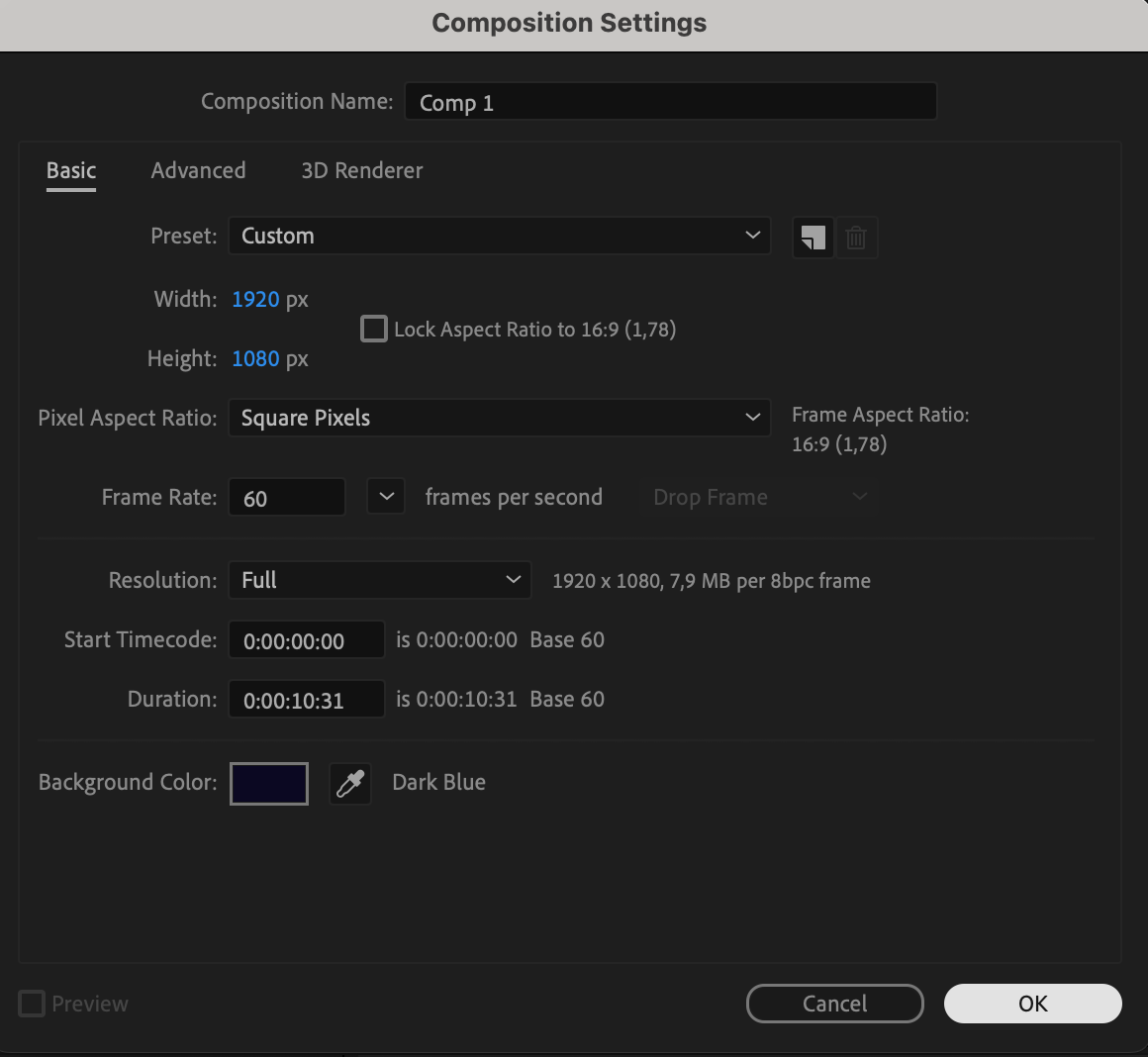
Start by creating a new composition (Composition > New Composition). Choose your desired resolution and duration. This will be the workspace where you animate your morphing text.
 Step 2: Add Two Text Layers
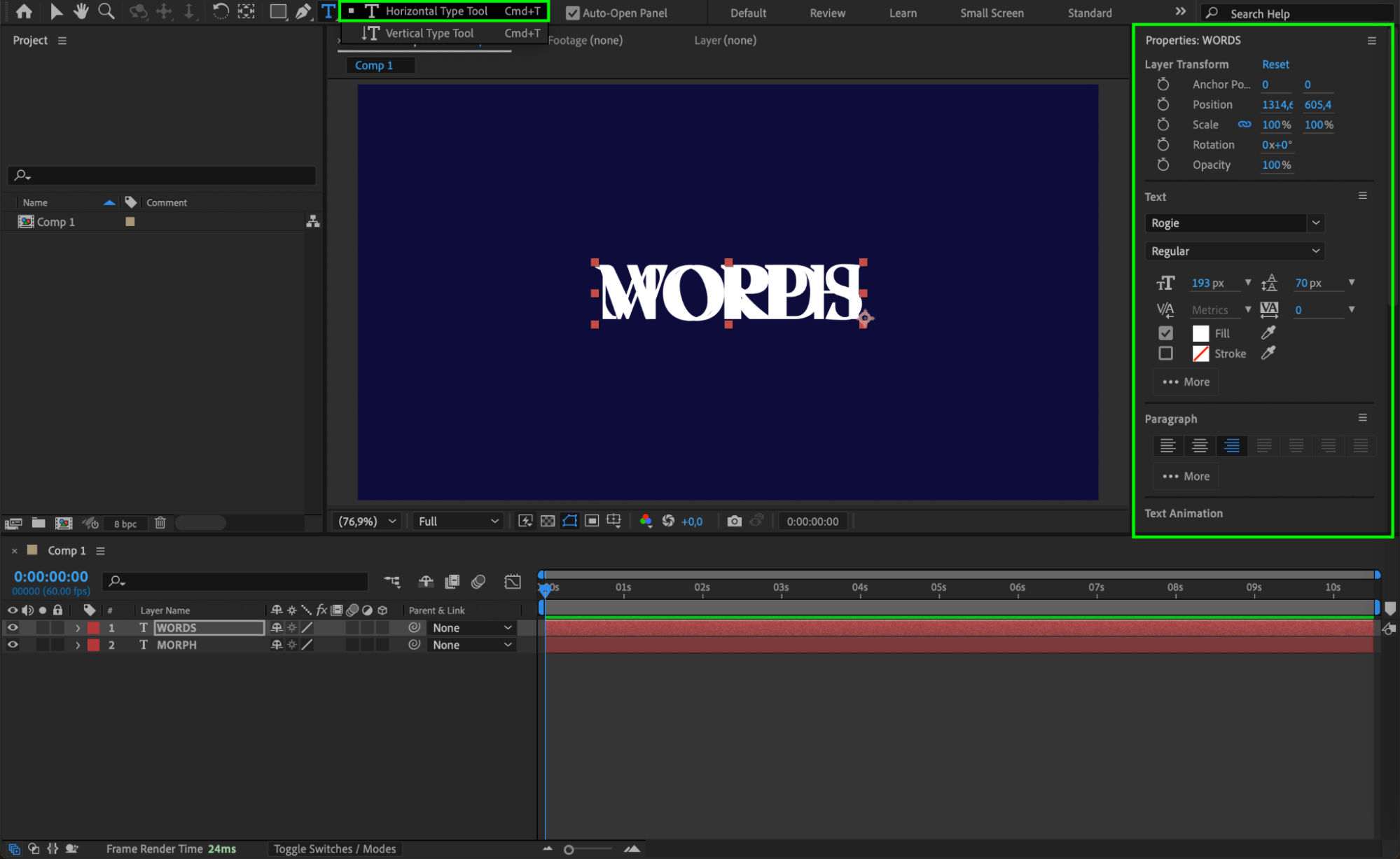
Use the Type Tool (Ctrl/Cmd + T) to create two text layers — one with the starting word and the other with the word it will morph into. Make sure both layers are in the same position.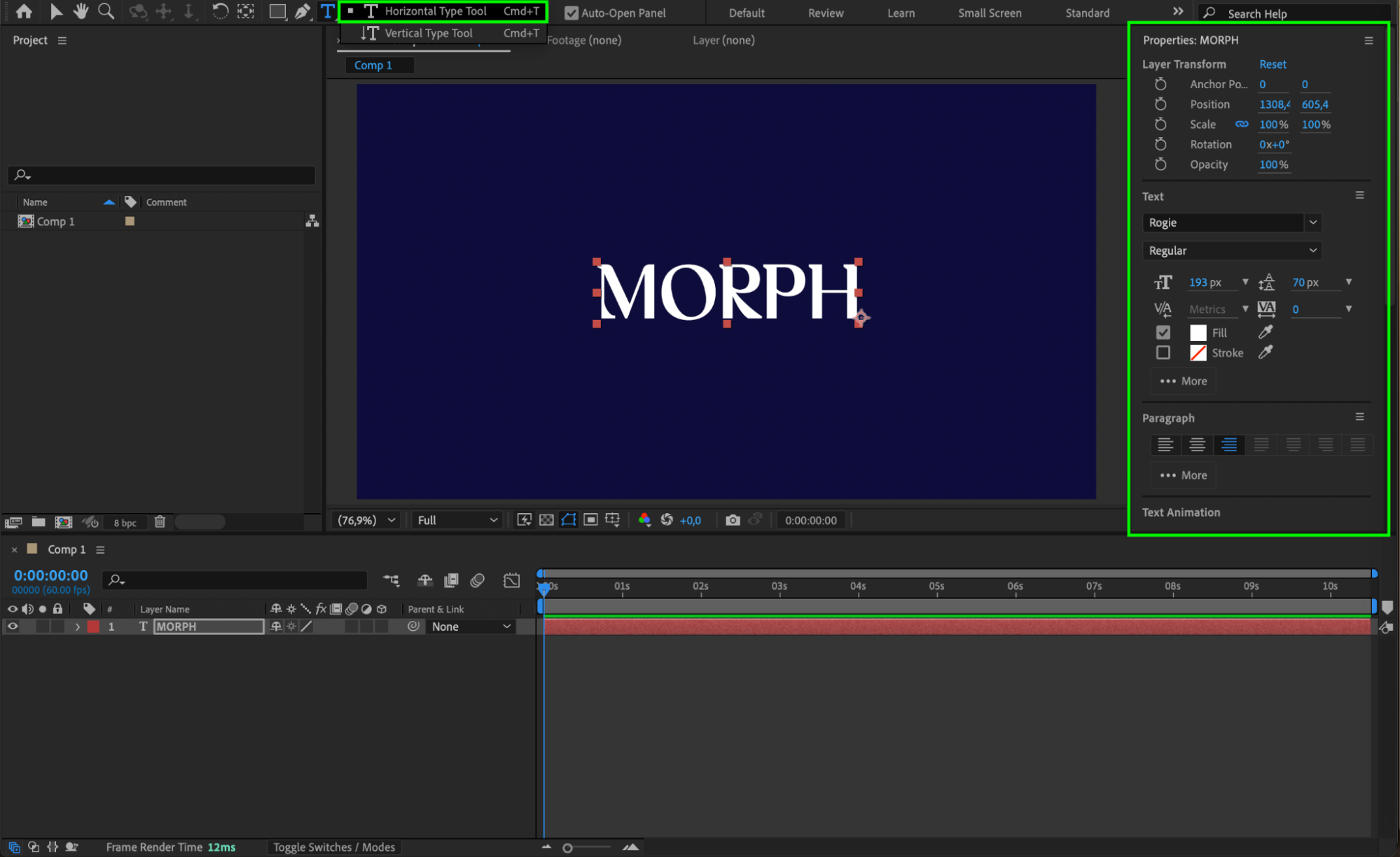
 Step 3: Align the Text
Use the Align panel (Window > Align) to center both text layers vertically and horizontally. This ensures a clean morphing effect later.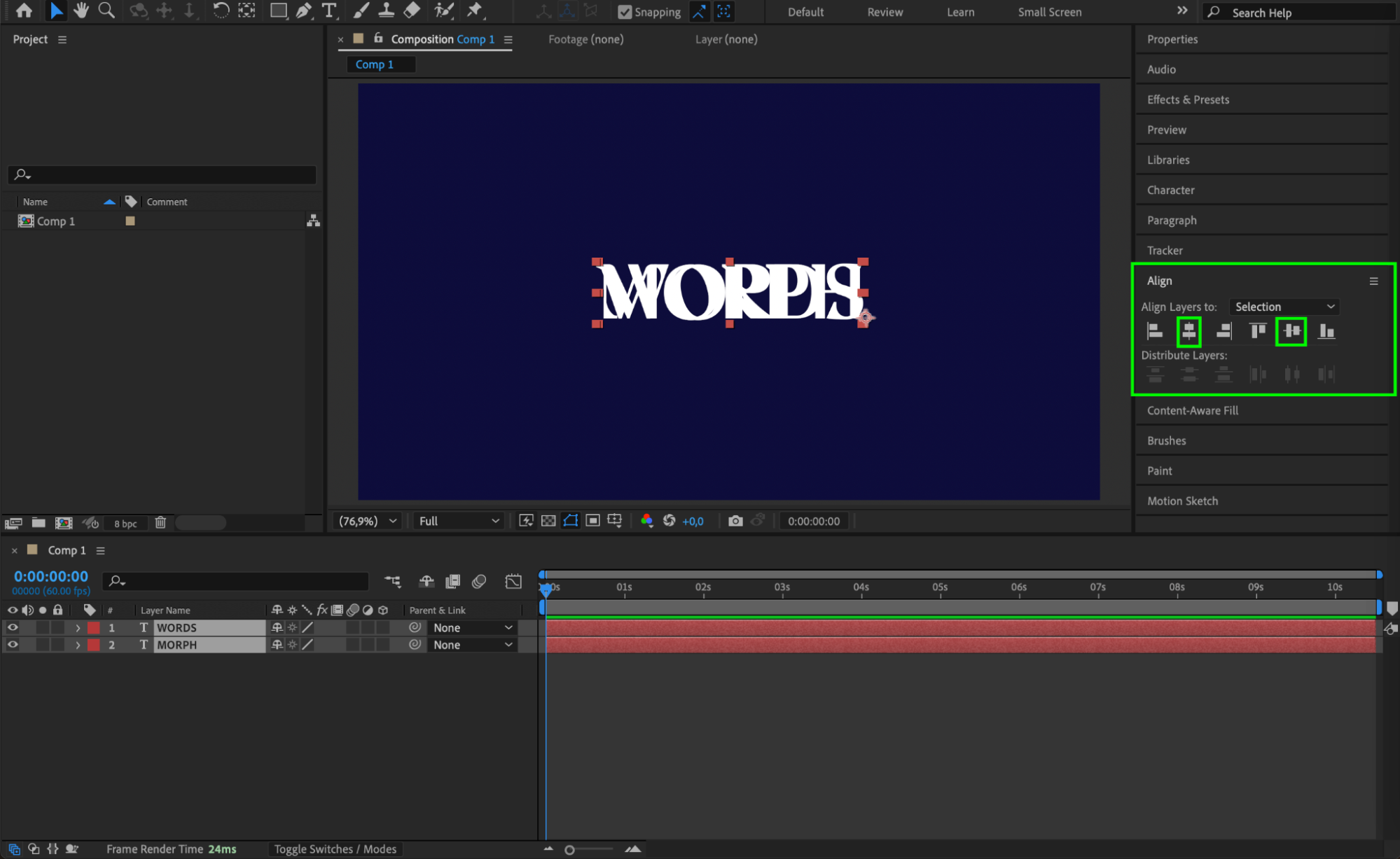
Step 4: Center the Anchor Points
Select both text layers, right-click and go to Transform > Center Anchor Point in Layer Content. This keeps your transformations balanced.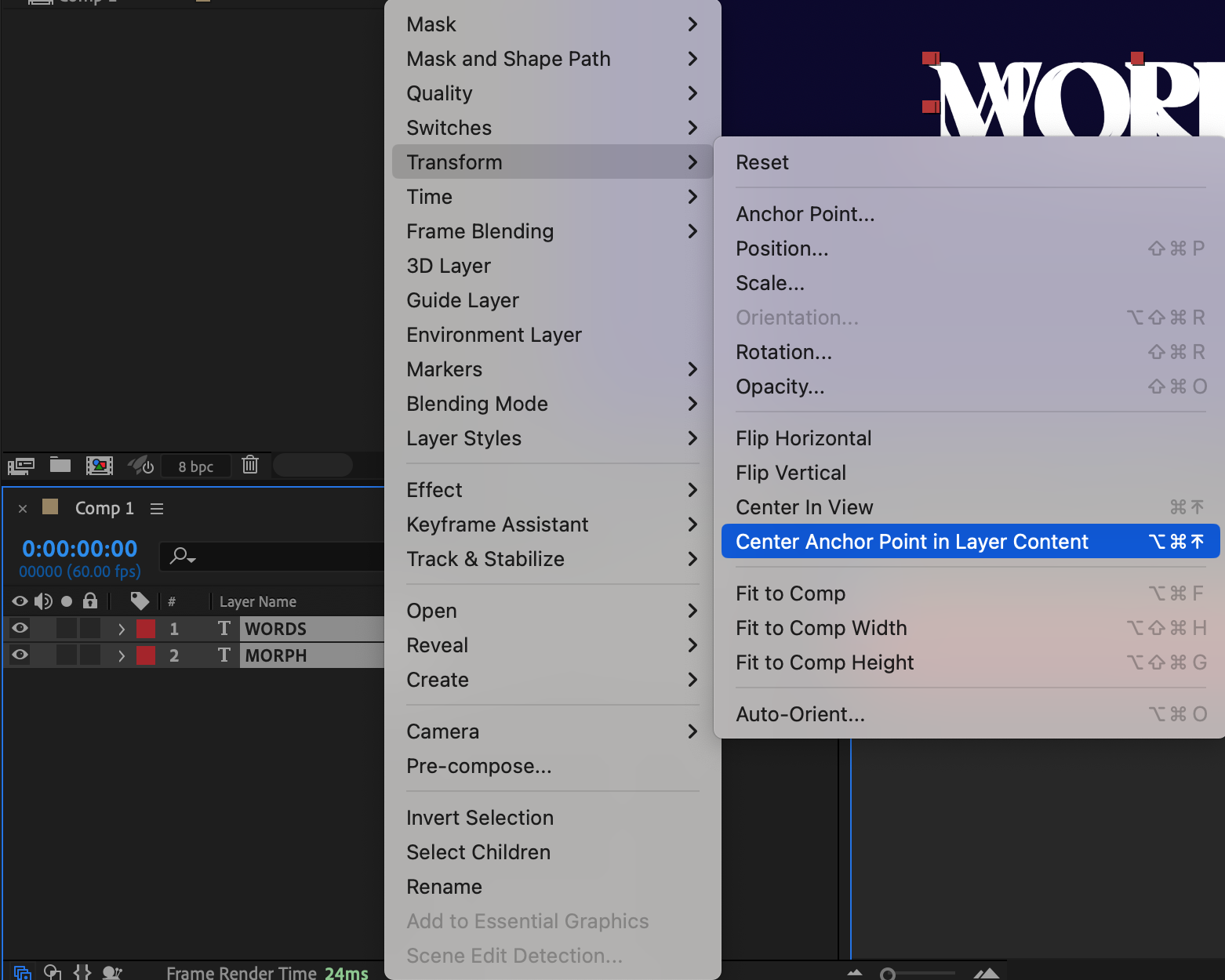 Step 5: Convert Text to Masks
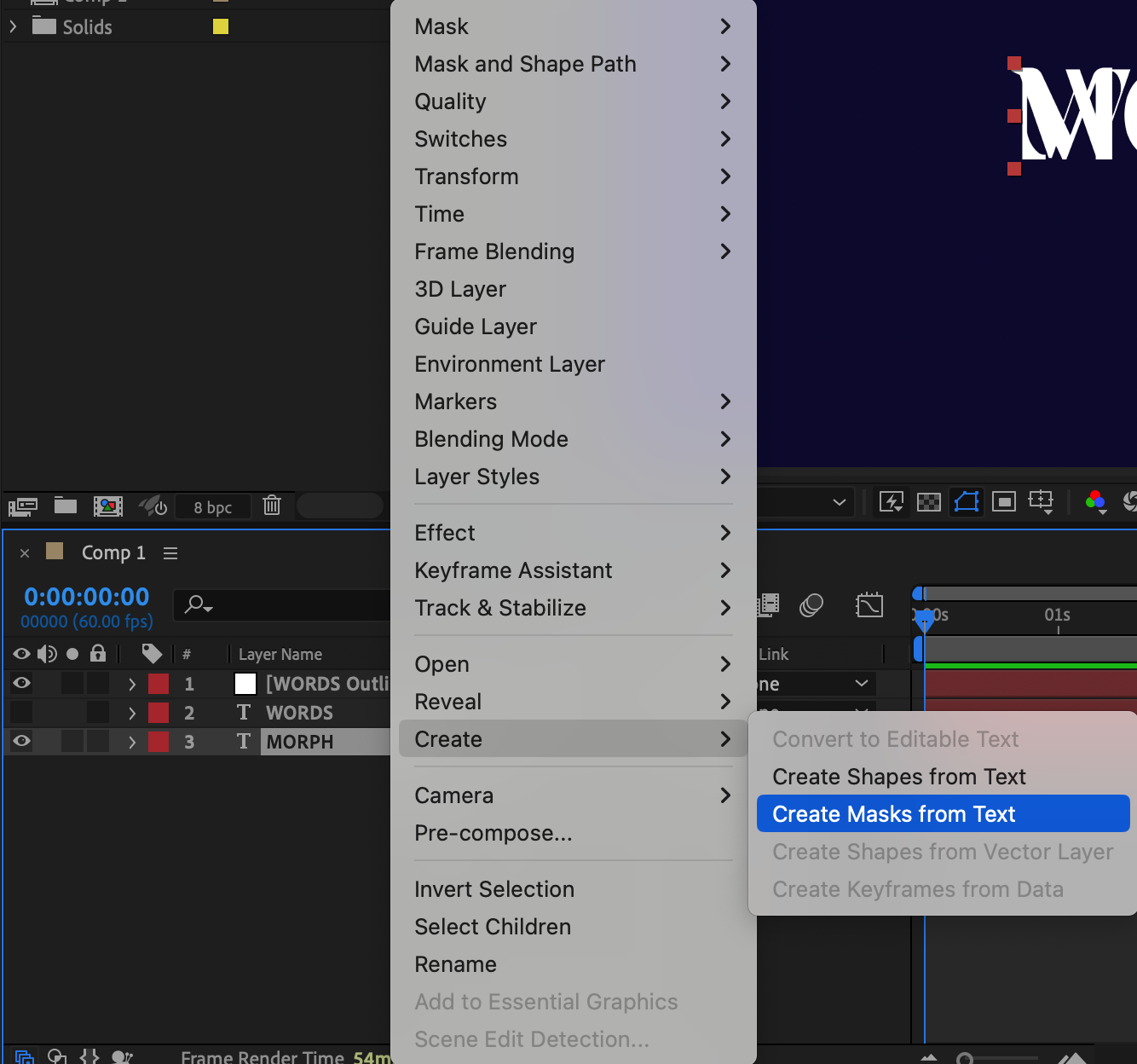
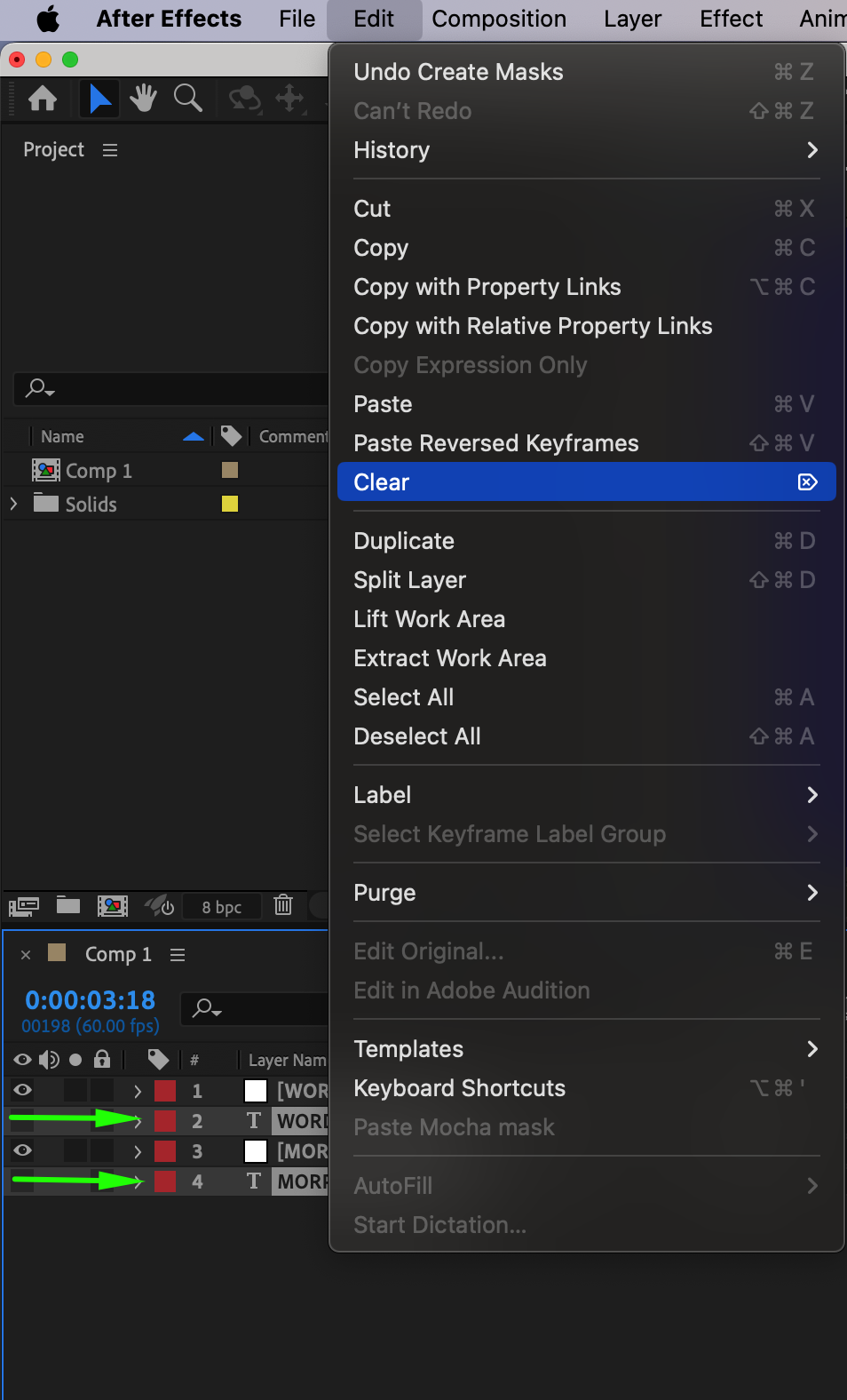
Right-click on each text layer and choose Create > Create Masks from Text. This converts each character into vector paths. Then, delete the original text layers and leave only the mask layers. Hide the second mask layer by clicking the eye icon.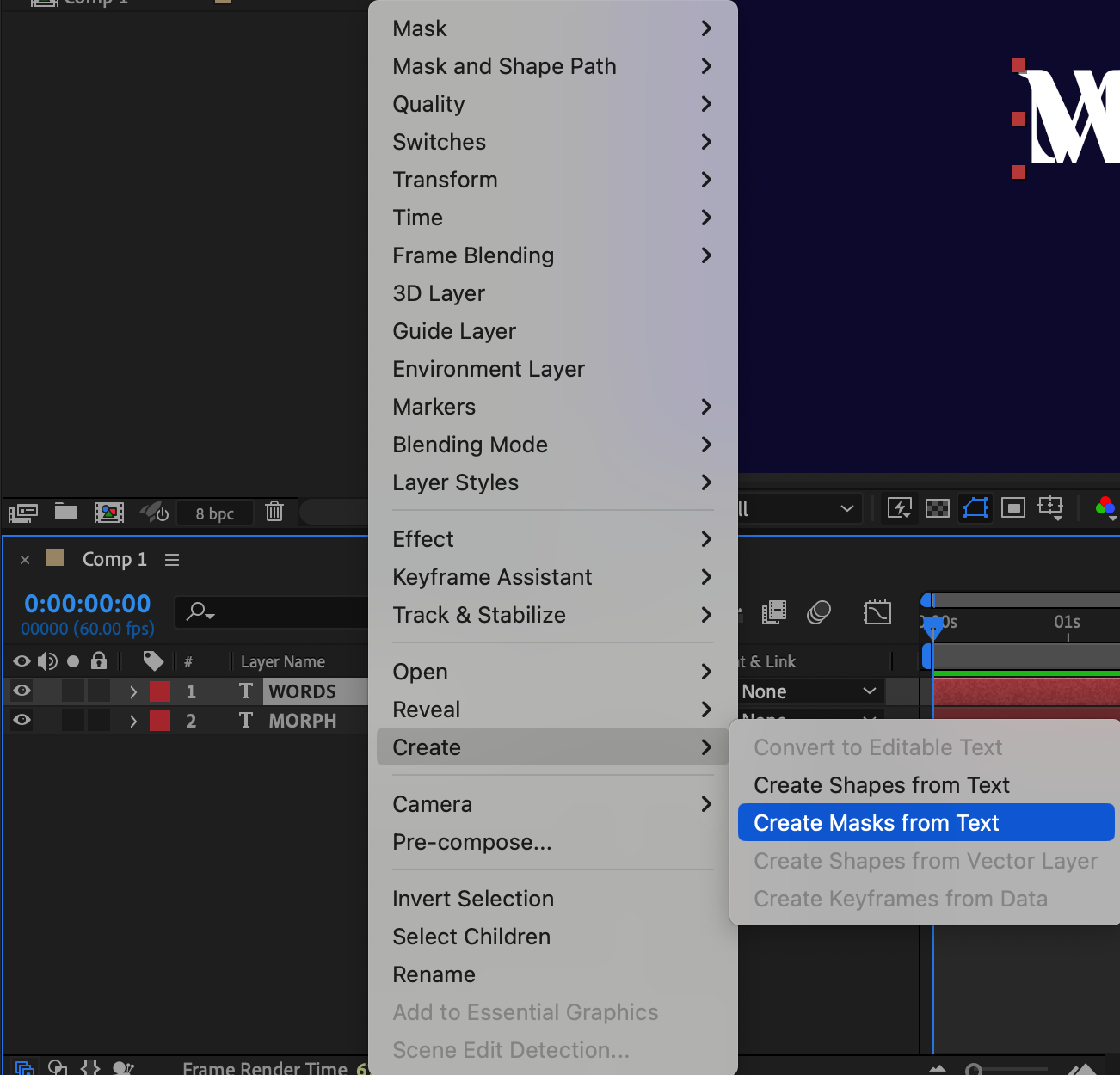
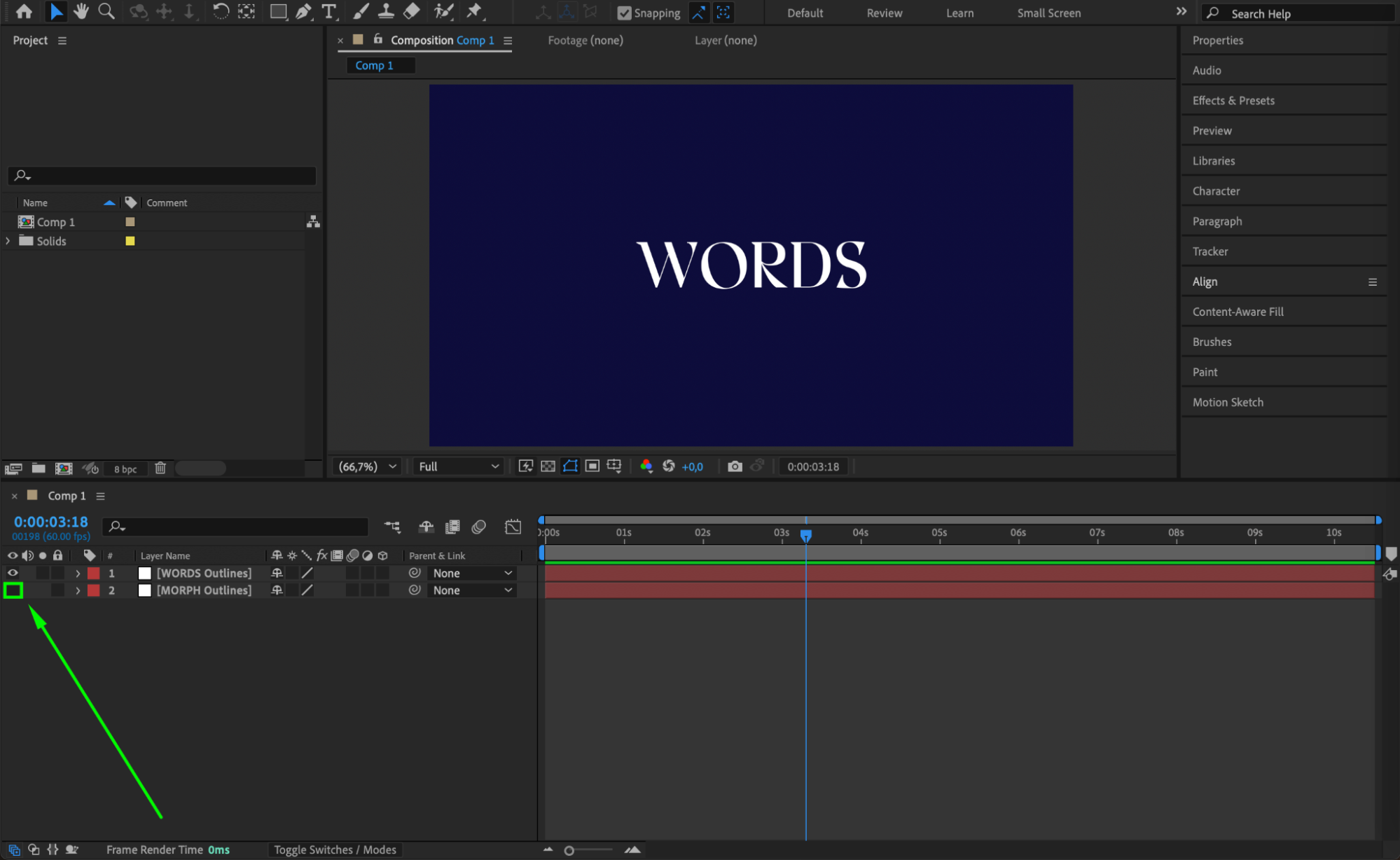 Step 6: Animate the First Text Layer
Go to 2 seconds on your timeline. Select all letters of the first mask layer. Open the “Mask Path” property for each and click the stopwatch to add keyframes.
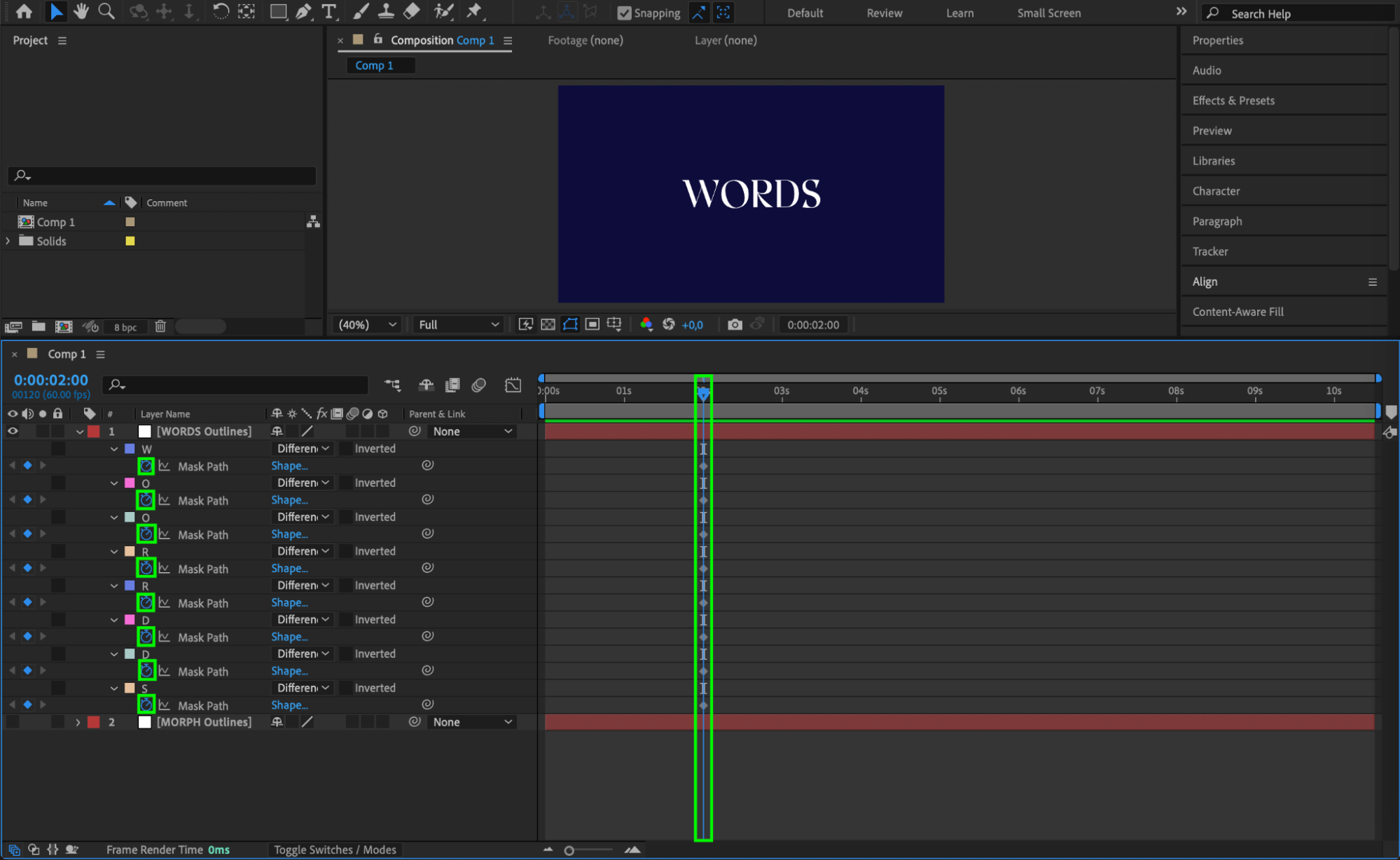
Step 7: Copy Mask Path from Second Layer
Expand the second mask layer (the target text). Copy the mask path of the first letter.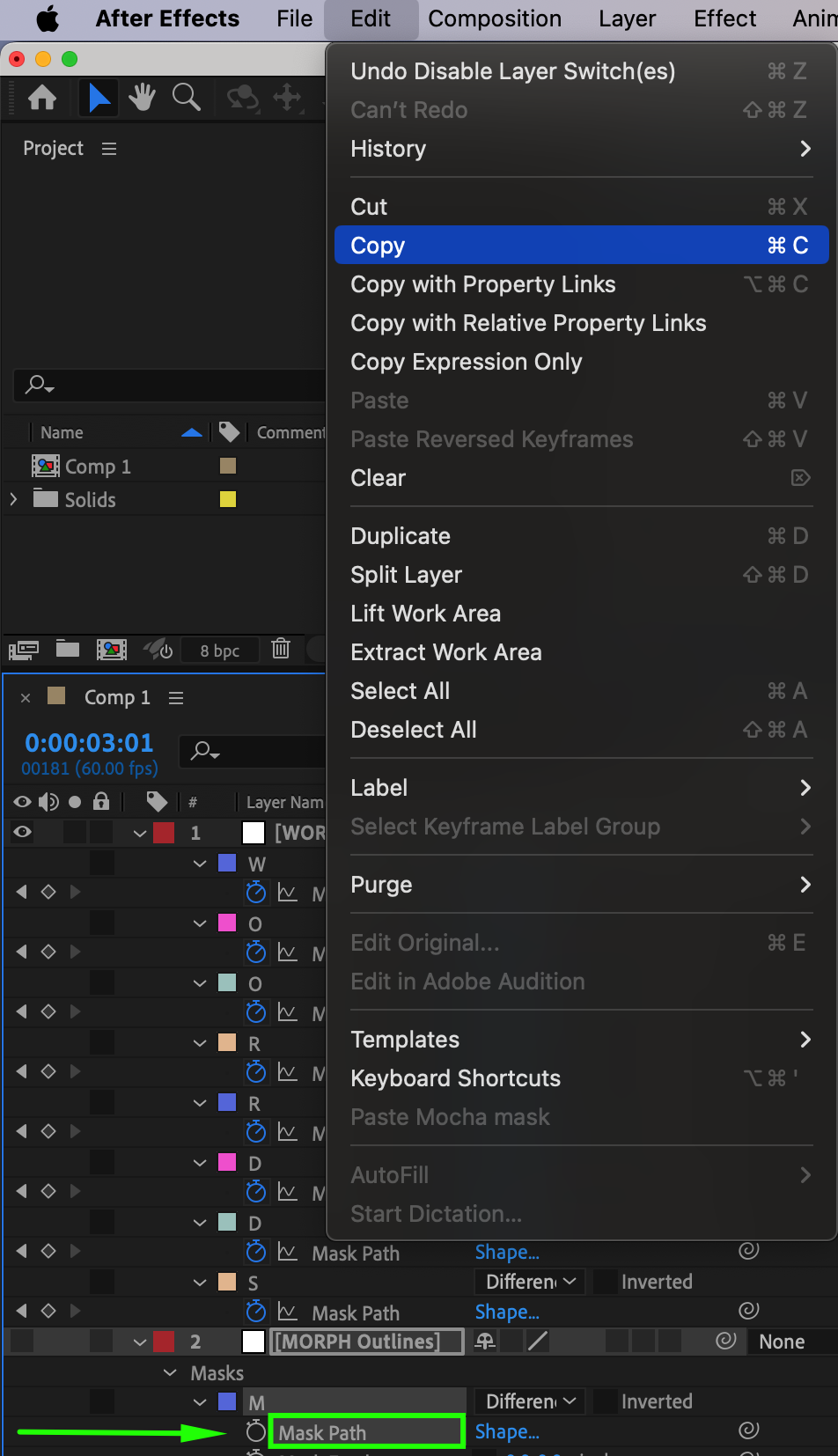 Step 8: Paste Mask Path on the First Layer
Move the timeline to 3 seconds. Make the second layer visible. Paste the copied path onto the first letter on the first mask layer.
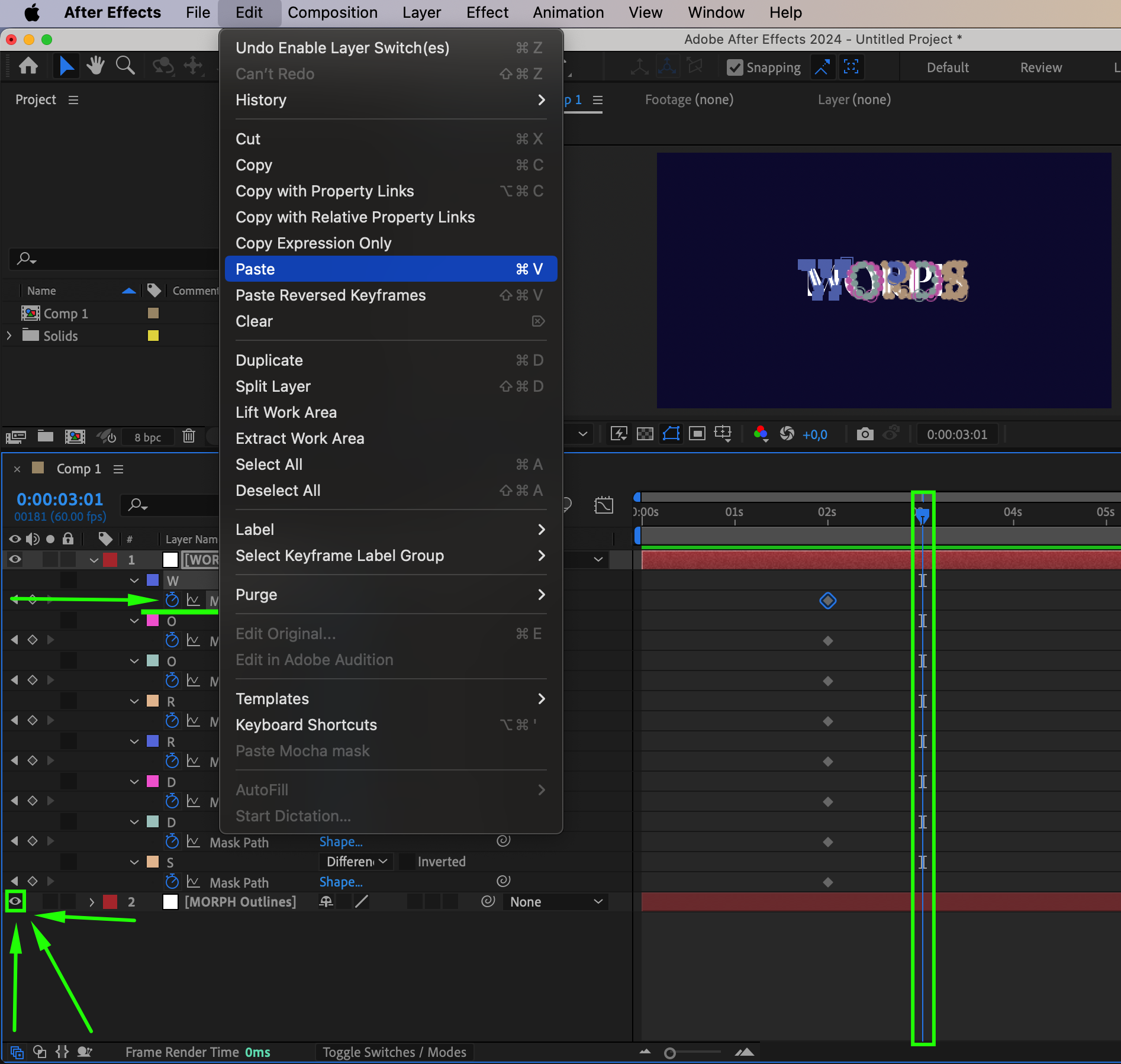
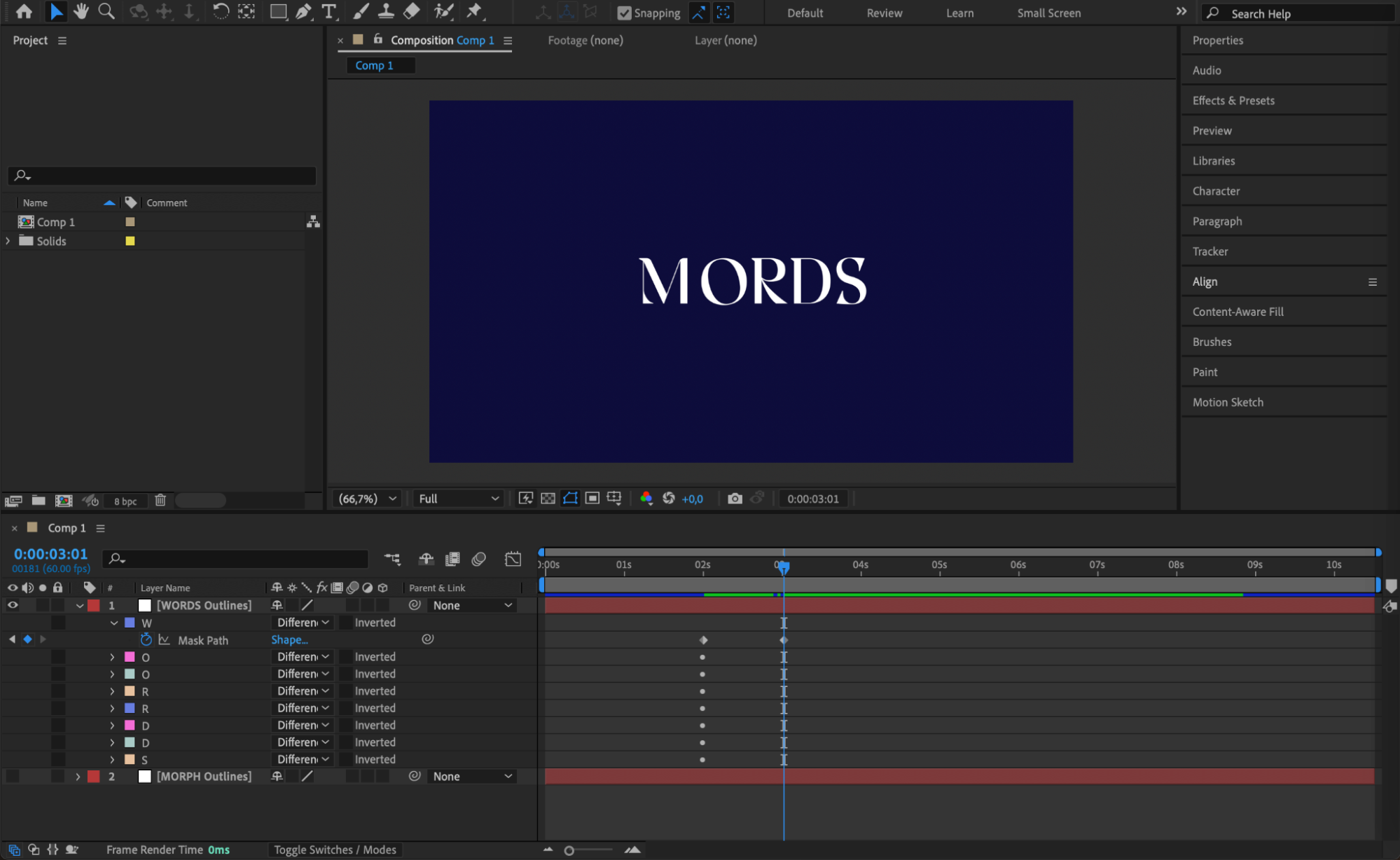 Step 9: Adjust Morphing with Mask Expansion and Feather
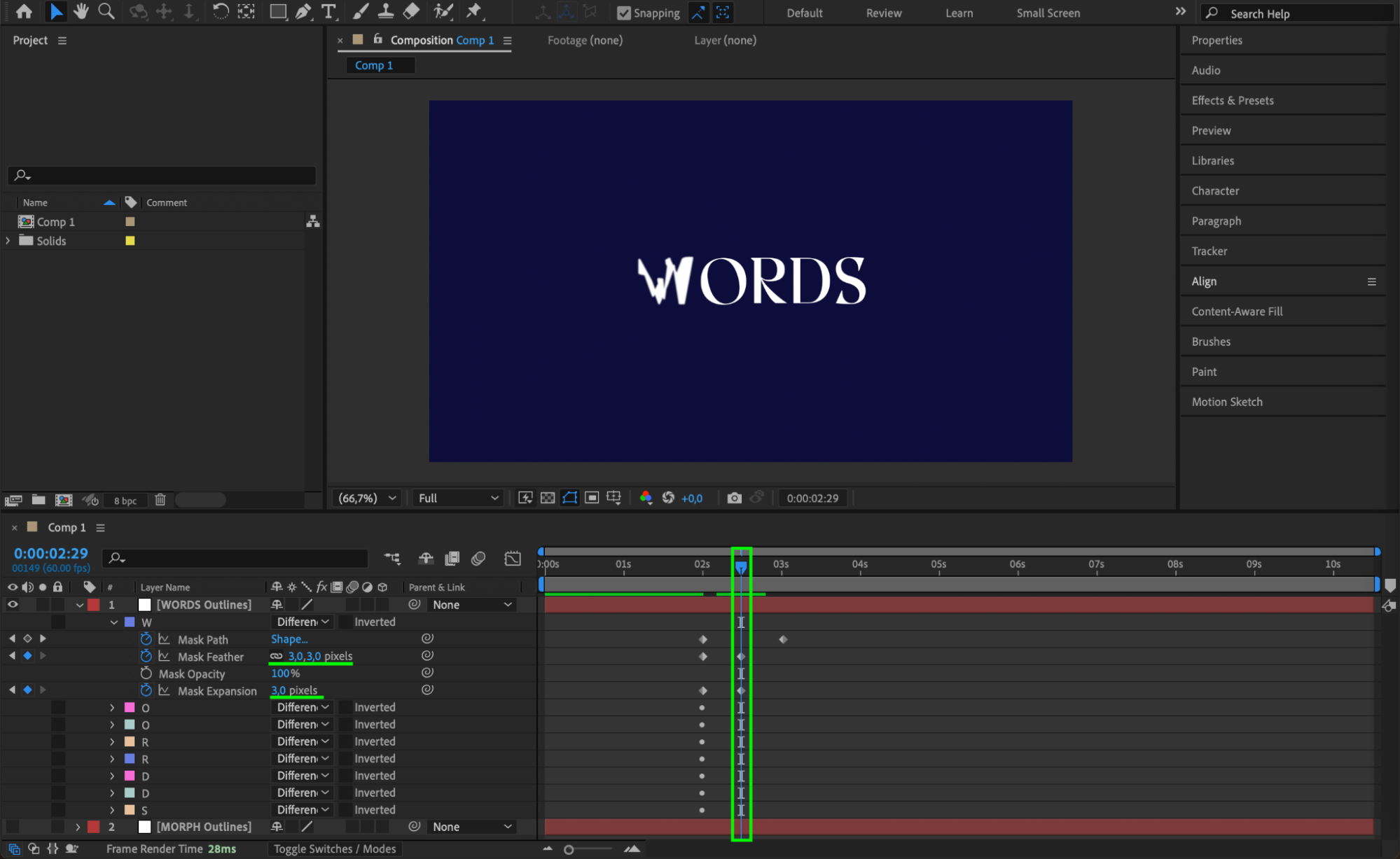
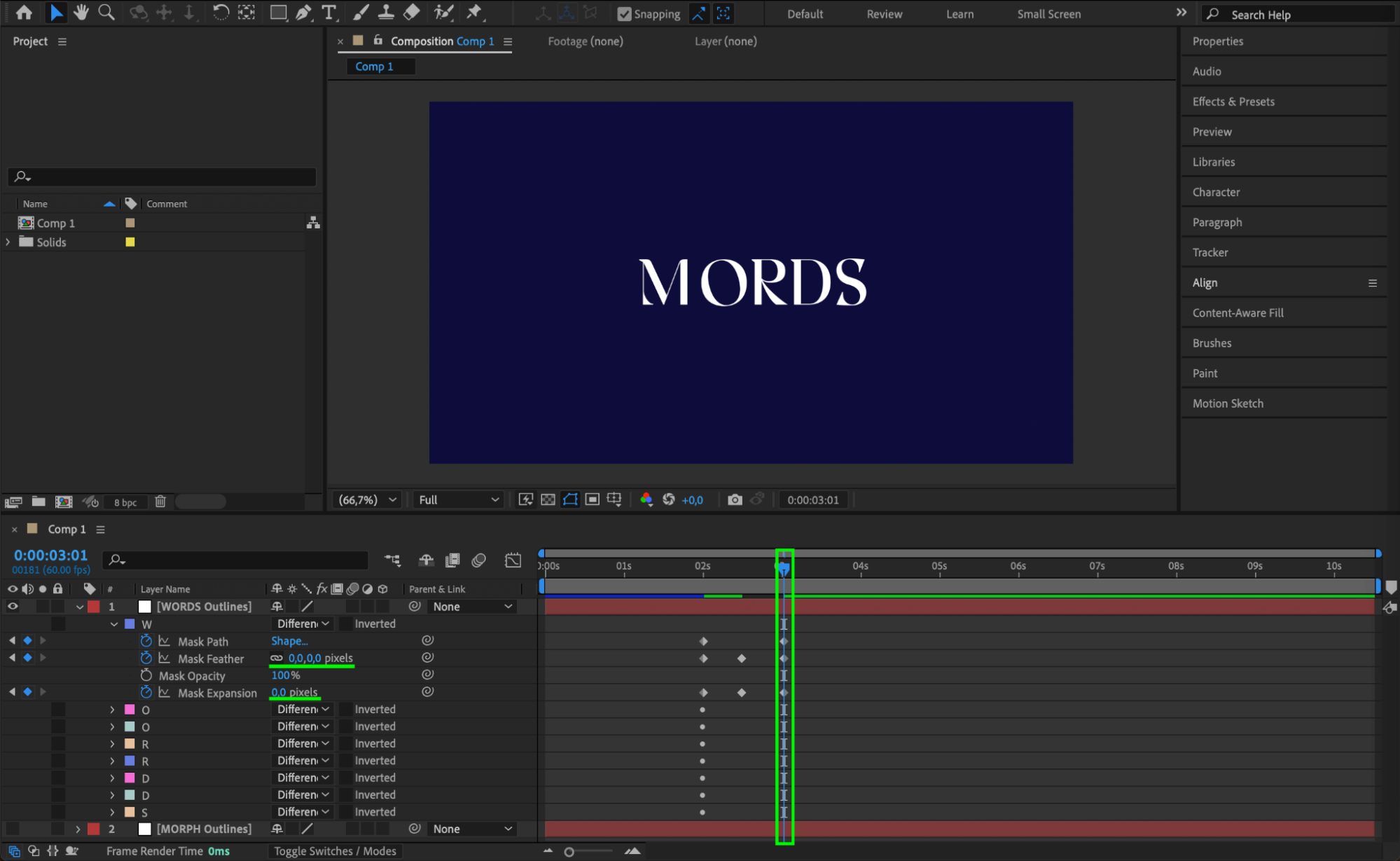
To control the smoothness and visibility of the transition, animate both Mask Expansion and Mask Feather.
At 2 seconds, set both to 0
Between 2 and 3 seconds, animate to values like 3
At 3 seconds, bring both back to 0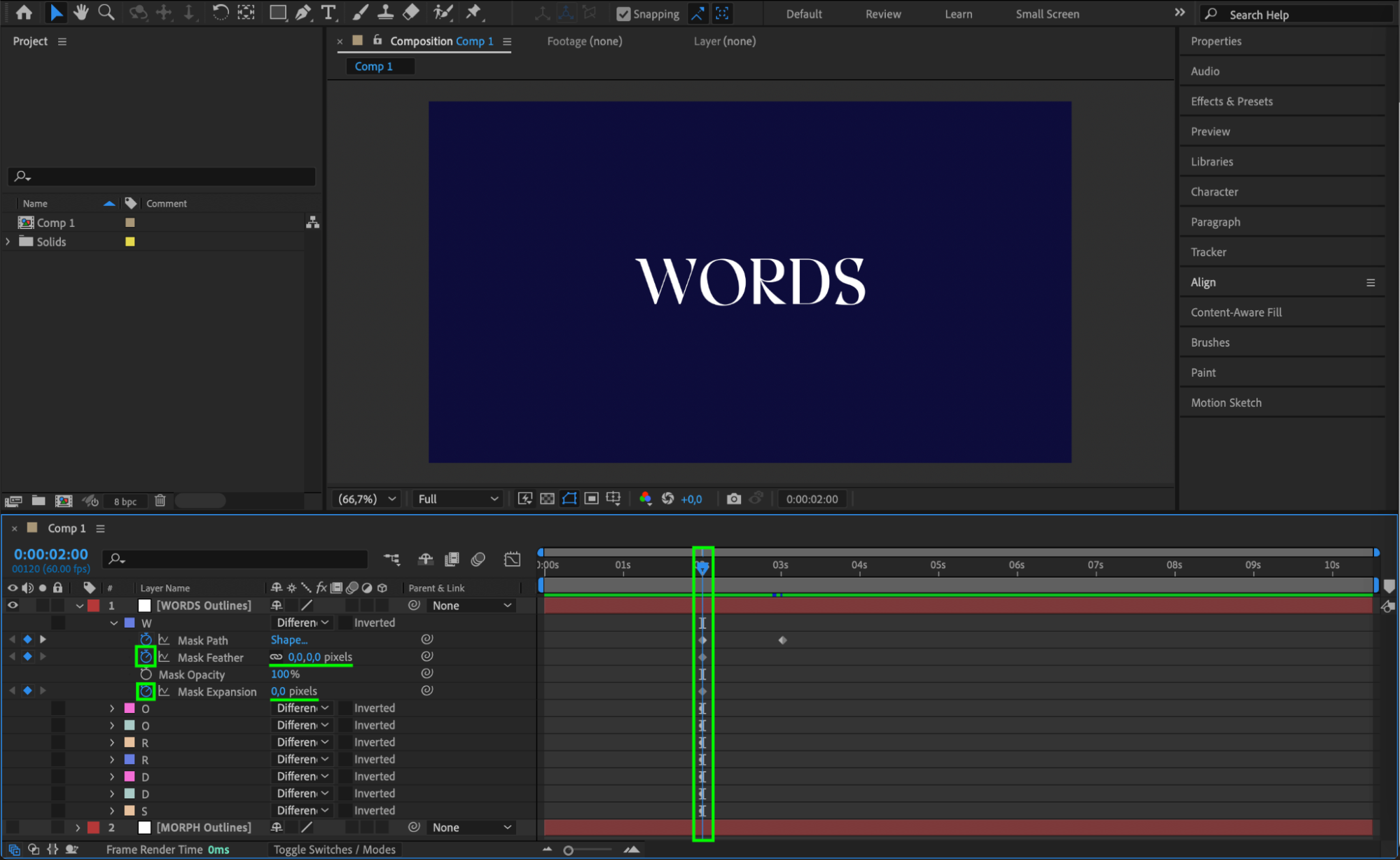
 Step 10: Repeat for Each Letter
Repeat this process for every letter. Copy the Mask Path from each corresponding letter in the second layer and paste it into the matching letter of the first layer. Also animate Mask Expansion and Mask Feather for each one. This ensures the entire word morphs smoothly from the first text to the second.
Step 11: Easy Ease for Smooth Animation
Select all keyframes for each letter. Right-click and choose Keyframe Assistant > Easy Ease to smooth out the animation.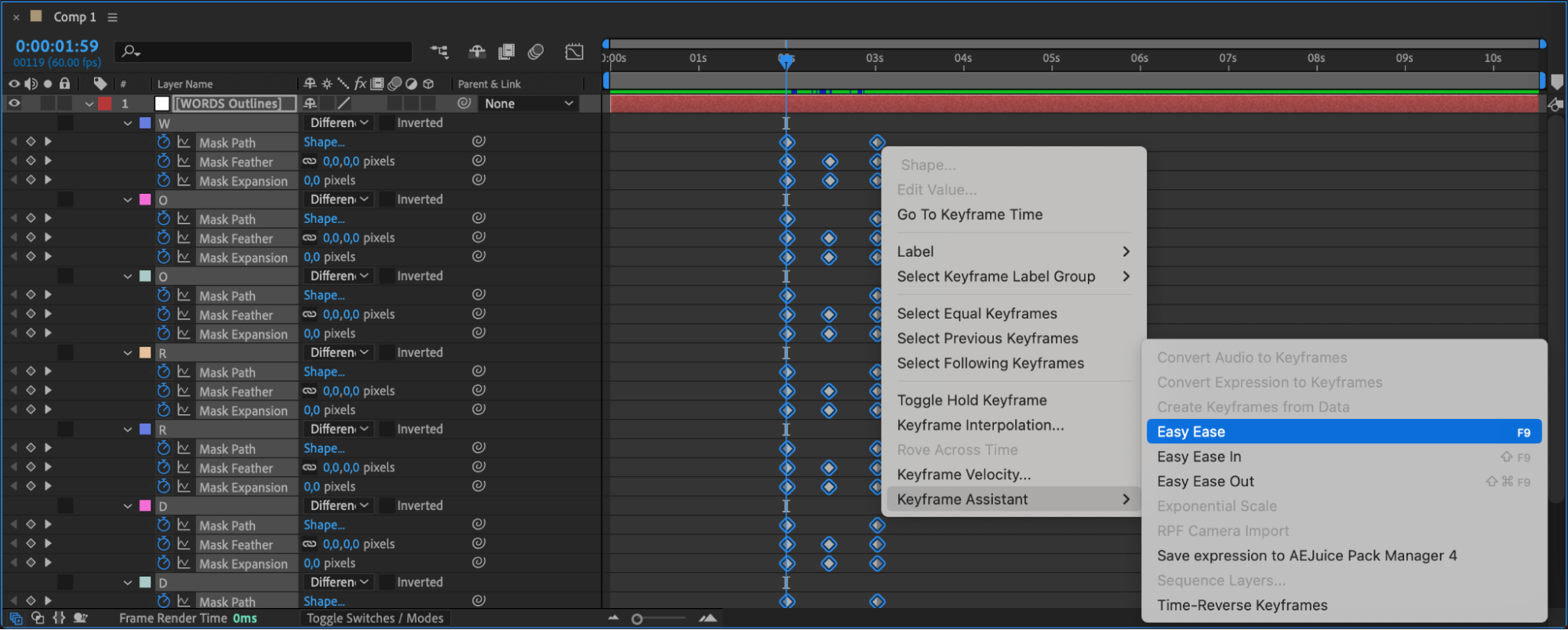 Step 12: Enable Motion Blur
Enable the motion blur icon on the layer and in the timeline for a more natural transition.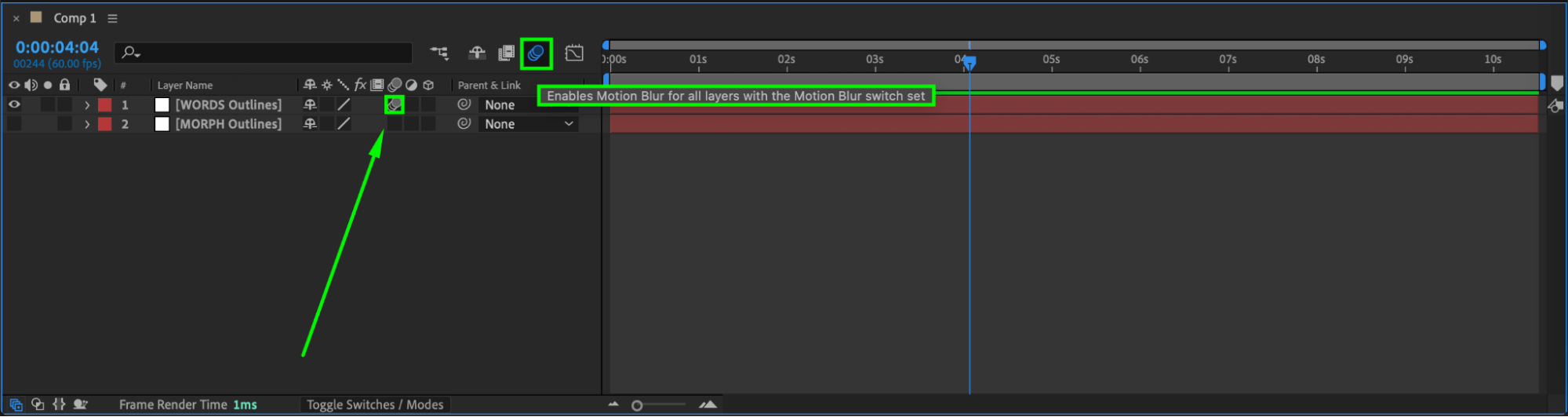
Step 13: Preview the Animation
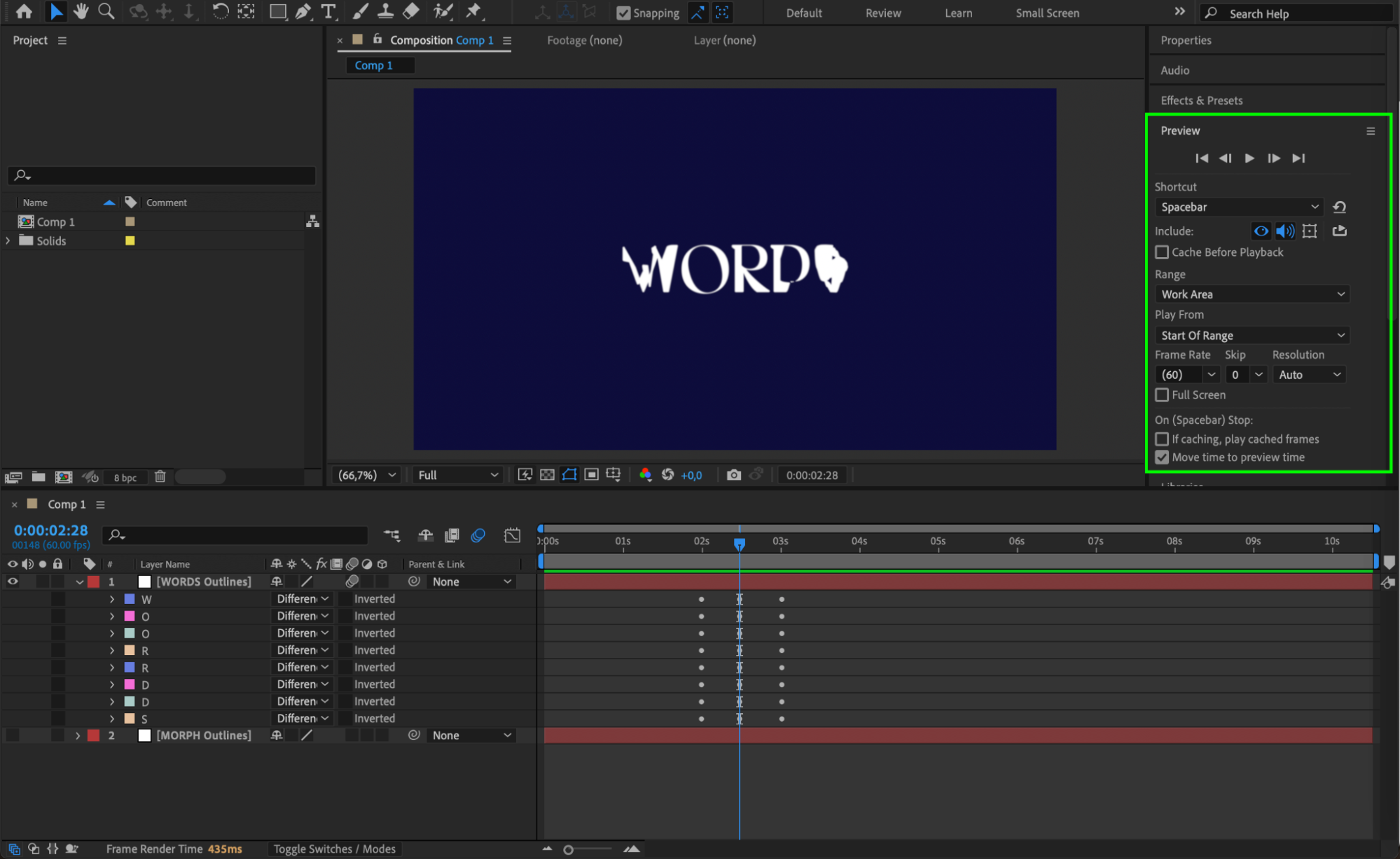
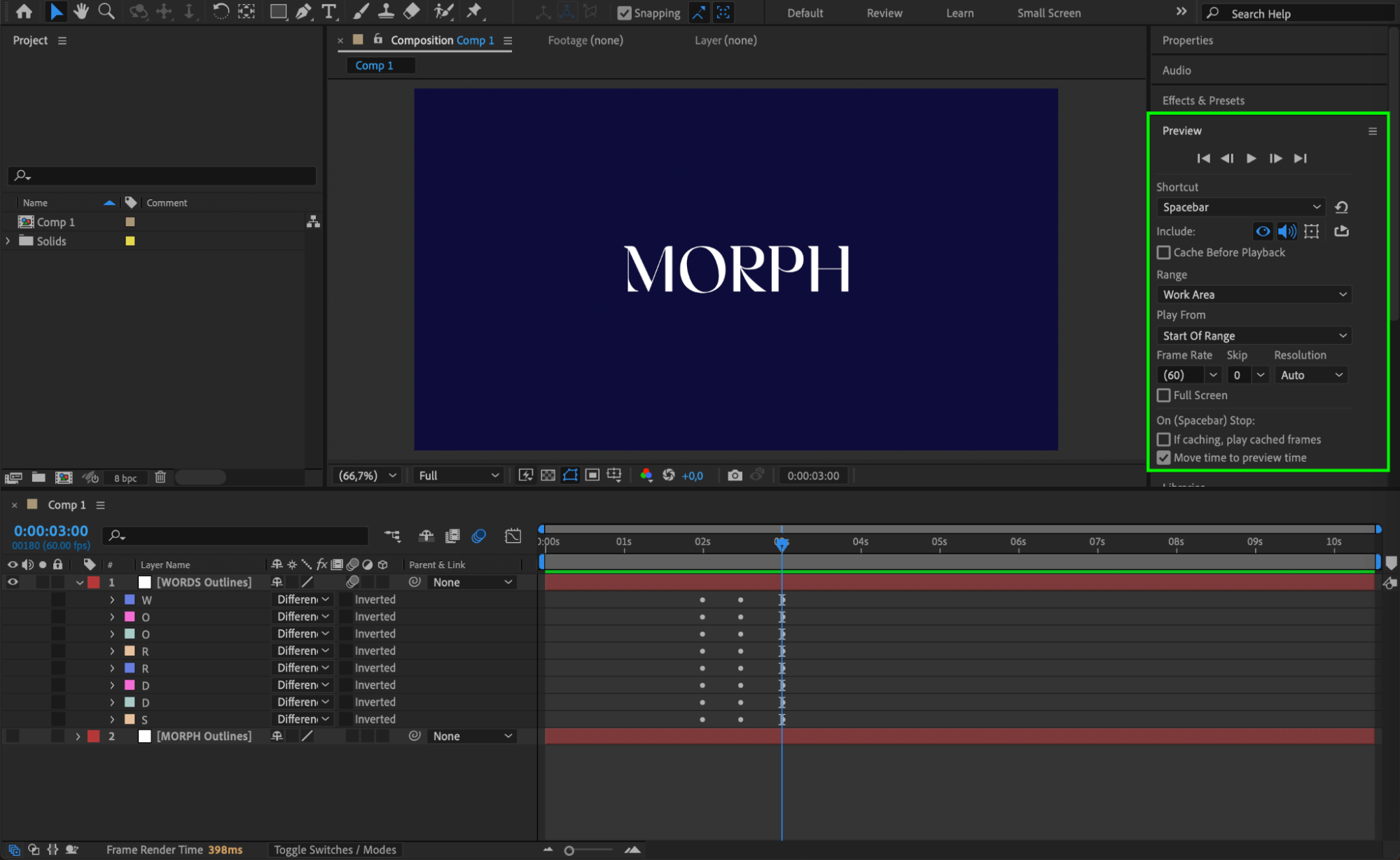
Press spacebar or use the Preview panel to check your morphing animation.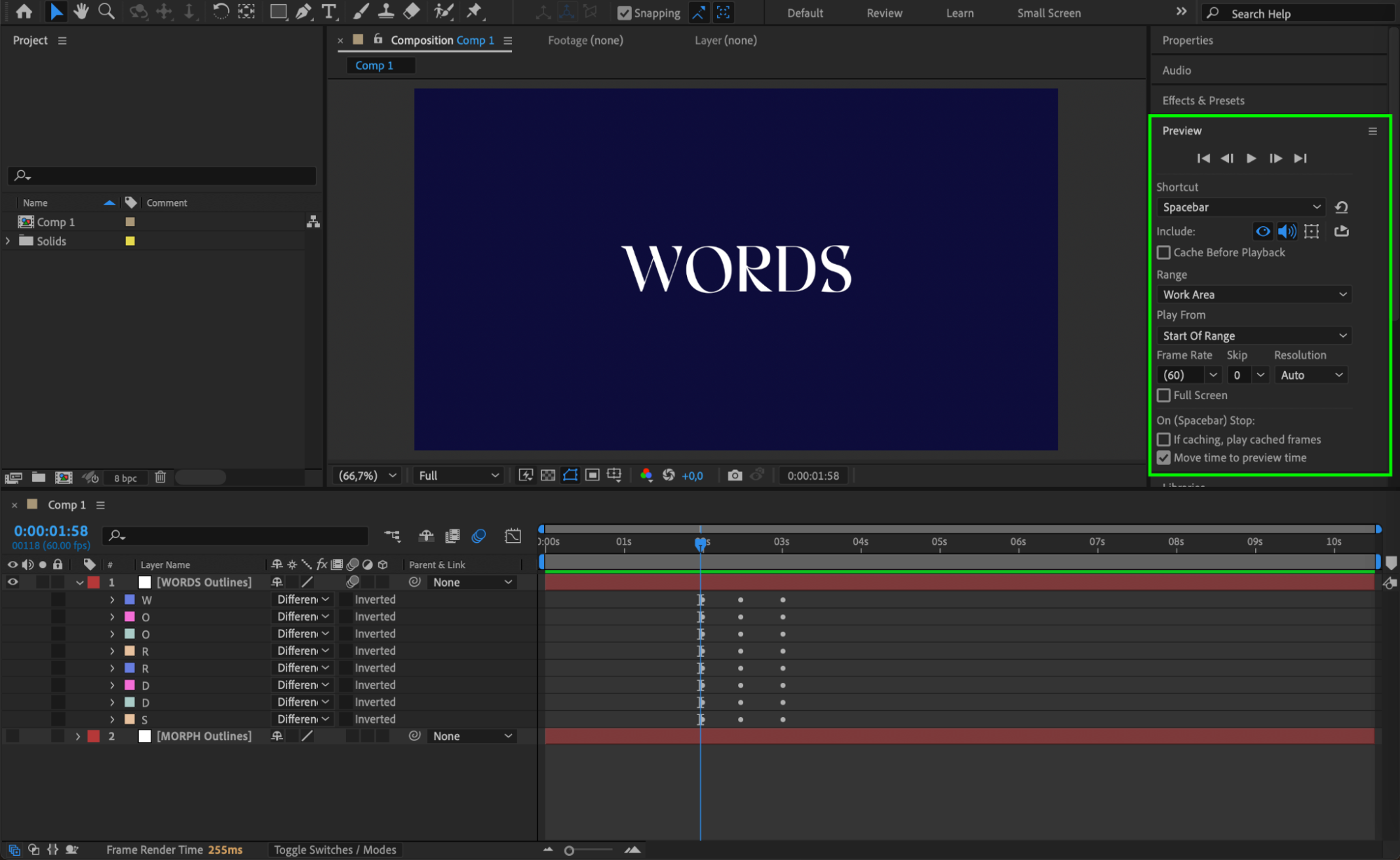
Step 14(Optional): Add Extra Effects
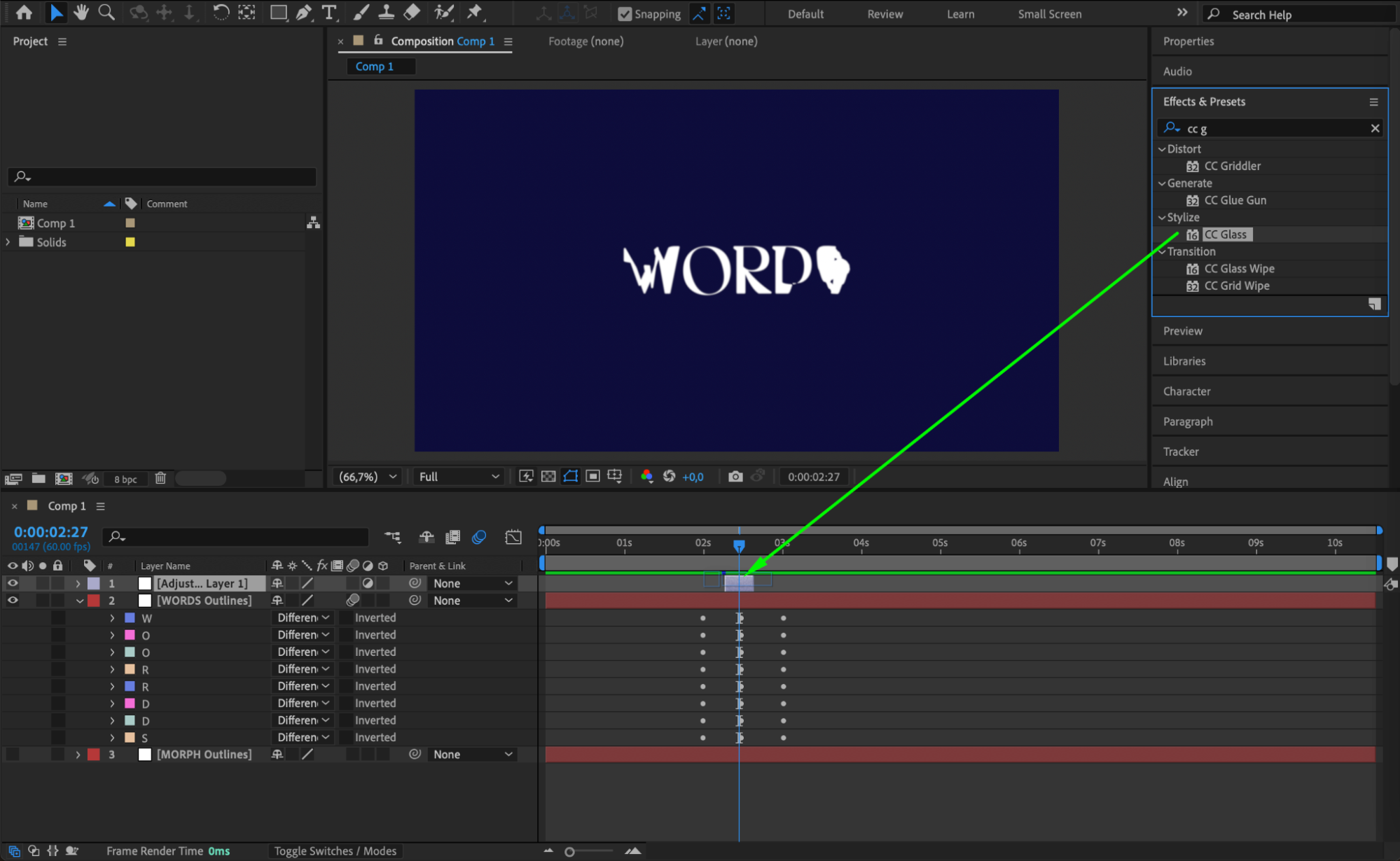
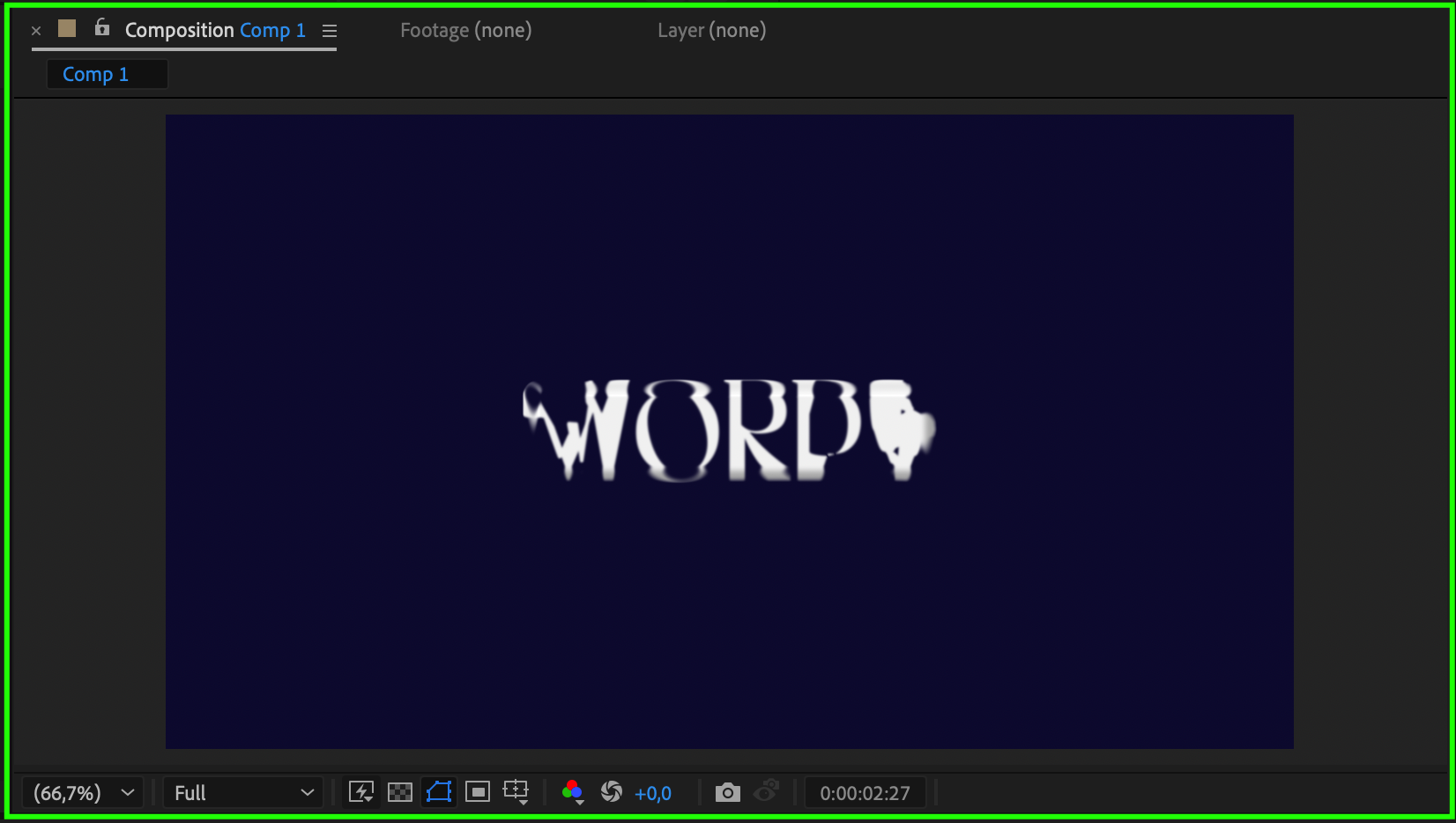
To enhance the morphing, add an Adjustment Layer between 2 and 3 seconds. Then apply effects like CC Glass from the Effects & Presets panel. This adds texture and distortion during the morph.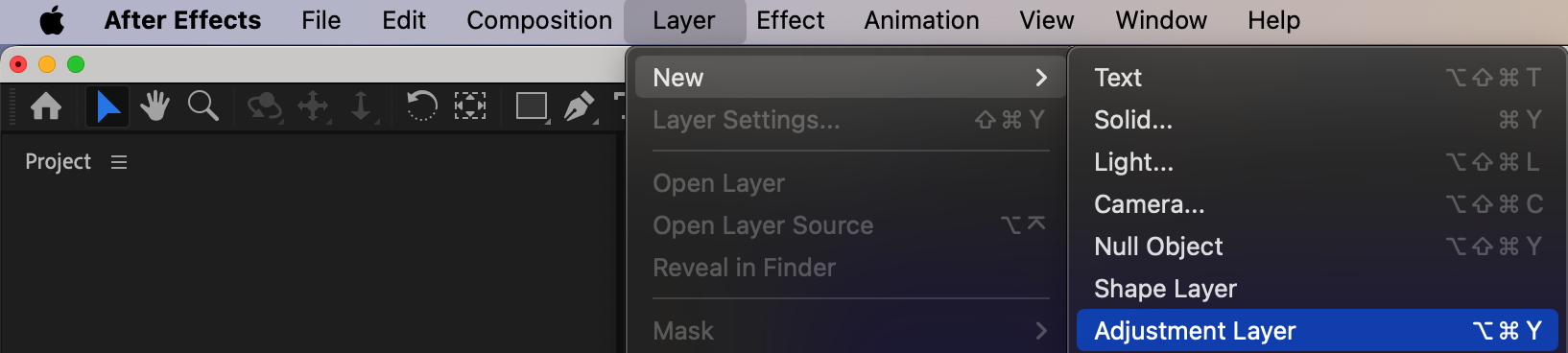
 Conclusion
With a few creative steps, you can create a professional-looking text morph effect in After Effects. This technique adds a dynamic and modern touch to any project involving text animation. Experiment with timing, effects, and colors to make it your own!
Our Bestsellers
Our Bestsellers


