
Introduction to Creating Wall Text Effects
Placing text on a wall in After Effects can create a dramatic, immersive look for your scene. Whether you want to simulate graffiti, signs, or digital projections, aligning text with wall perspective requires a combination of 3D space, camera tracking, and blending. This tutorial walks you through the essential steps.
Step 1: Import Your Footage and Create a Composition
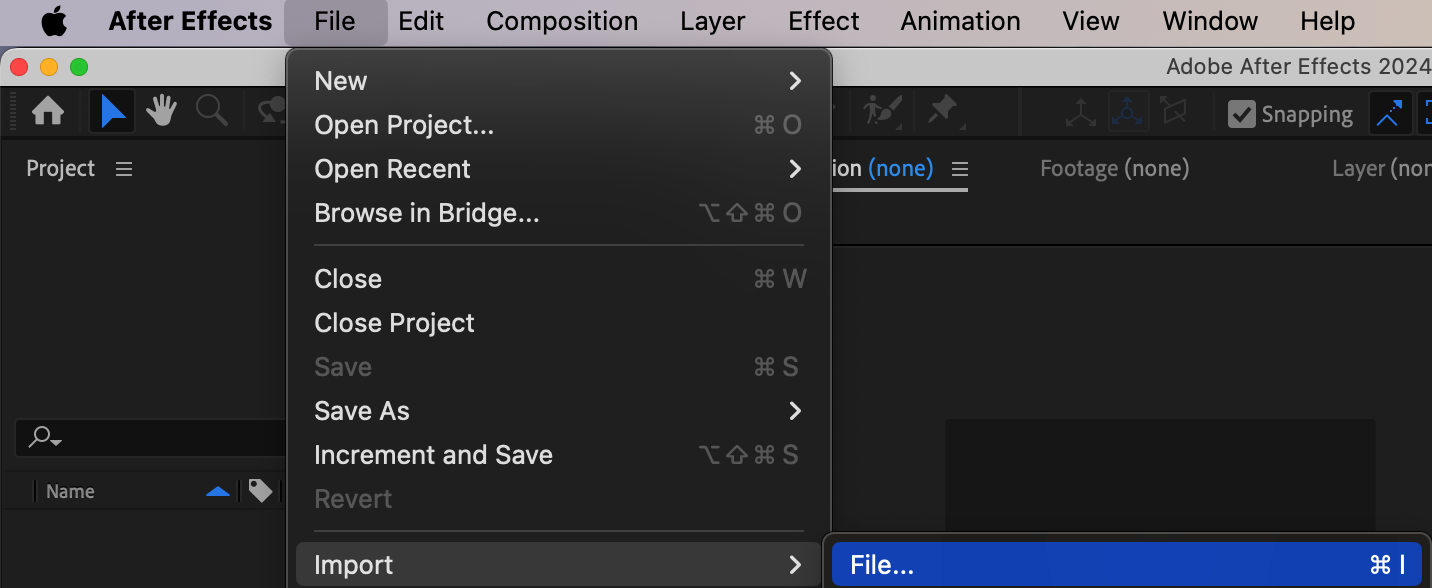
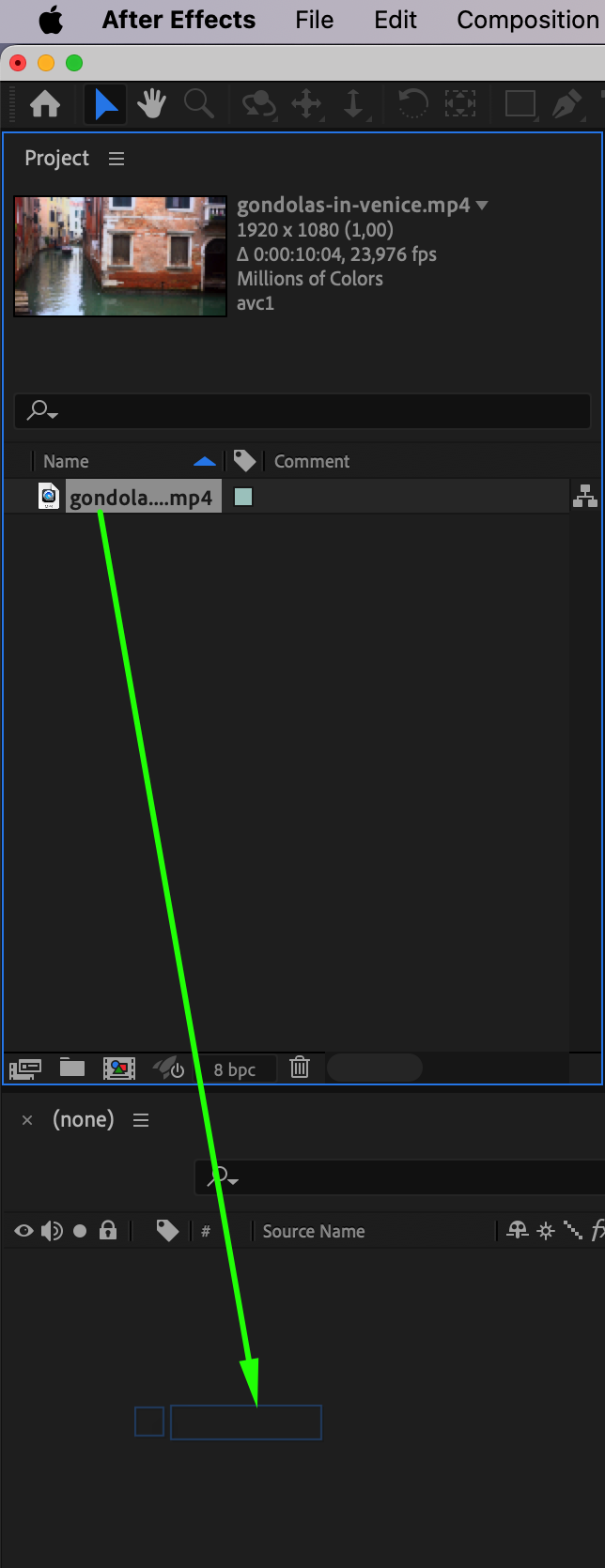
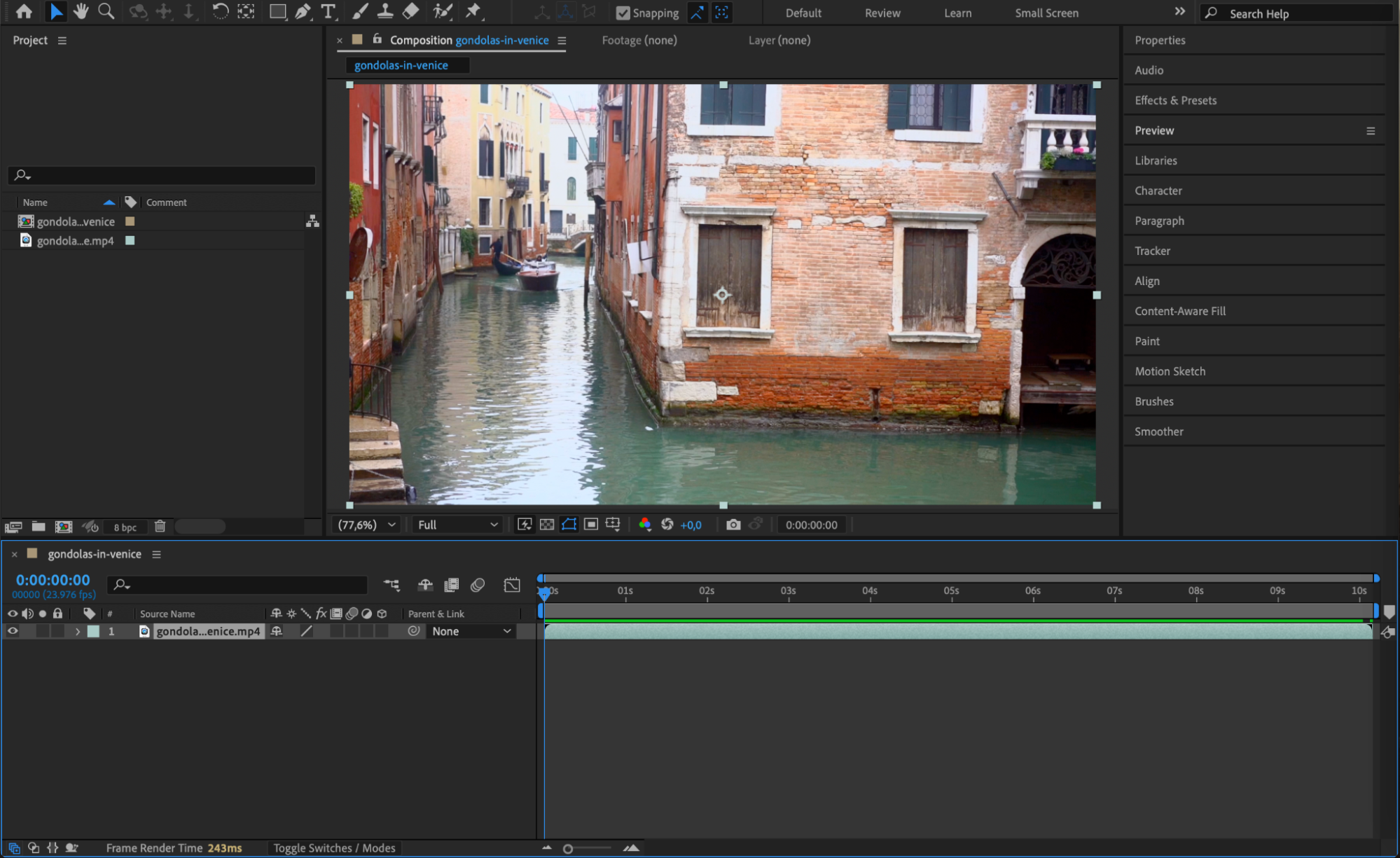
Start by importing your background footage that contains the wall where the text will appear. Drag it into the timeline to create a new composition. Make sure the footage has visible perspective and a clear wall surface for best results.
 Step 2: Add and Style Your Text
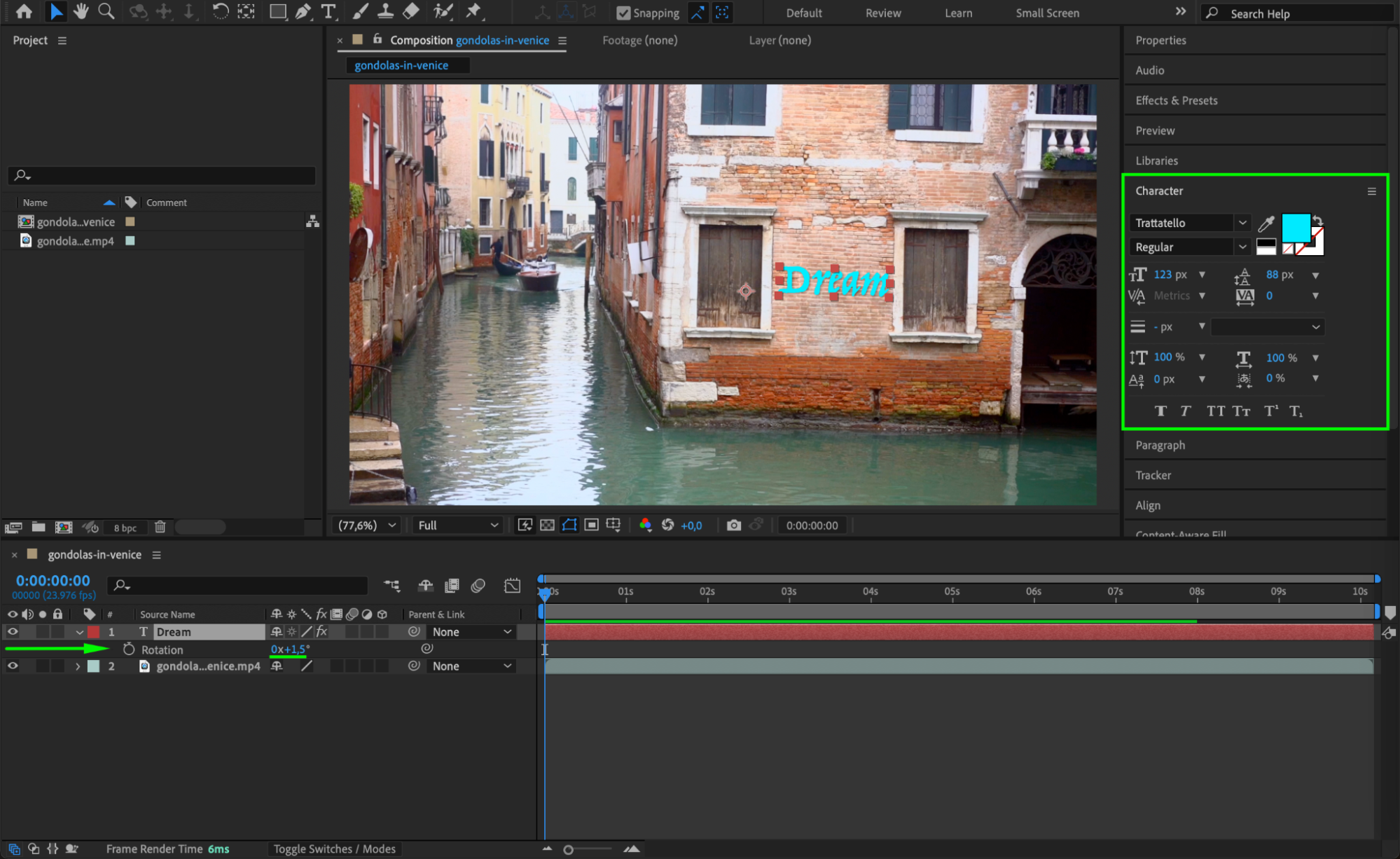
Go to Layer > New > Text and type the message you want on the wall. Use the Character and Paragraph panels to adjust font, color, and alignment. Choose a font that suits the wall’s style — for example, grunge for graffiti or clean sans-serif for signage.
Step 3: Convert the Text Layer to 3D
Select the text layer and enable the 3D Layer switch (the cube icon in the timeline). This allows you to rotate and position the text in three-dimensional space so that it can match the wall’s surface.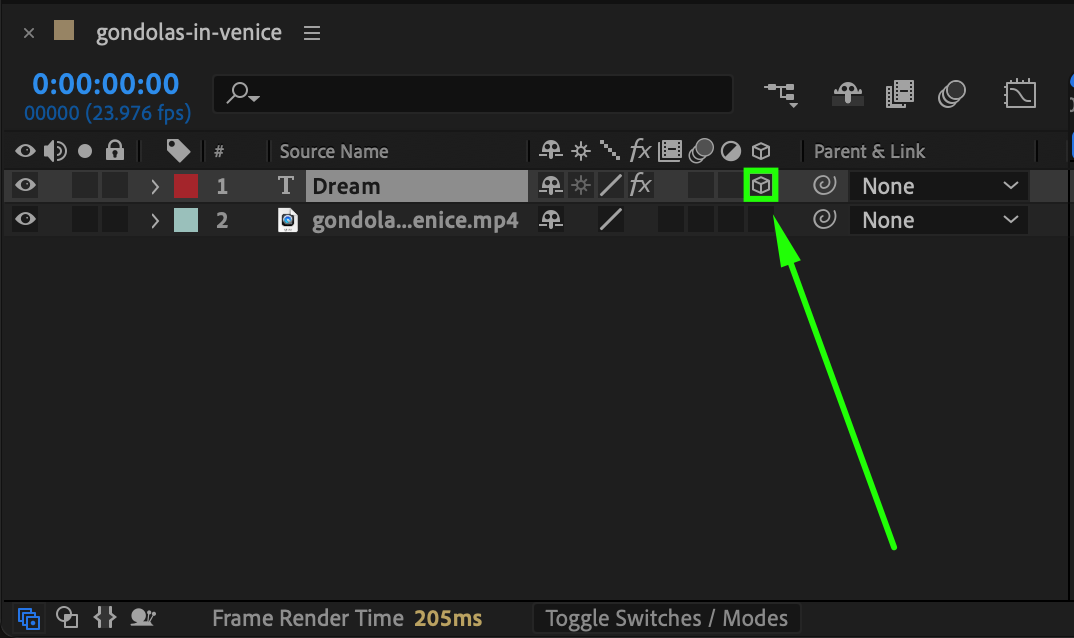 Step 4: Rotate and Position the Text in 3D Space
Press “R” to reveal rotation properties and P for position. Adjust the X, Y, and Z rotation values to align the text to the angle of the wall. Use the selection tool to move the text into place visually. Use a reference grid or guides to help match the perspective.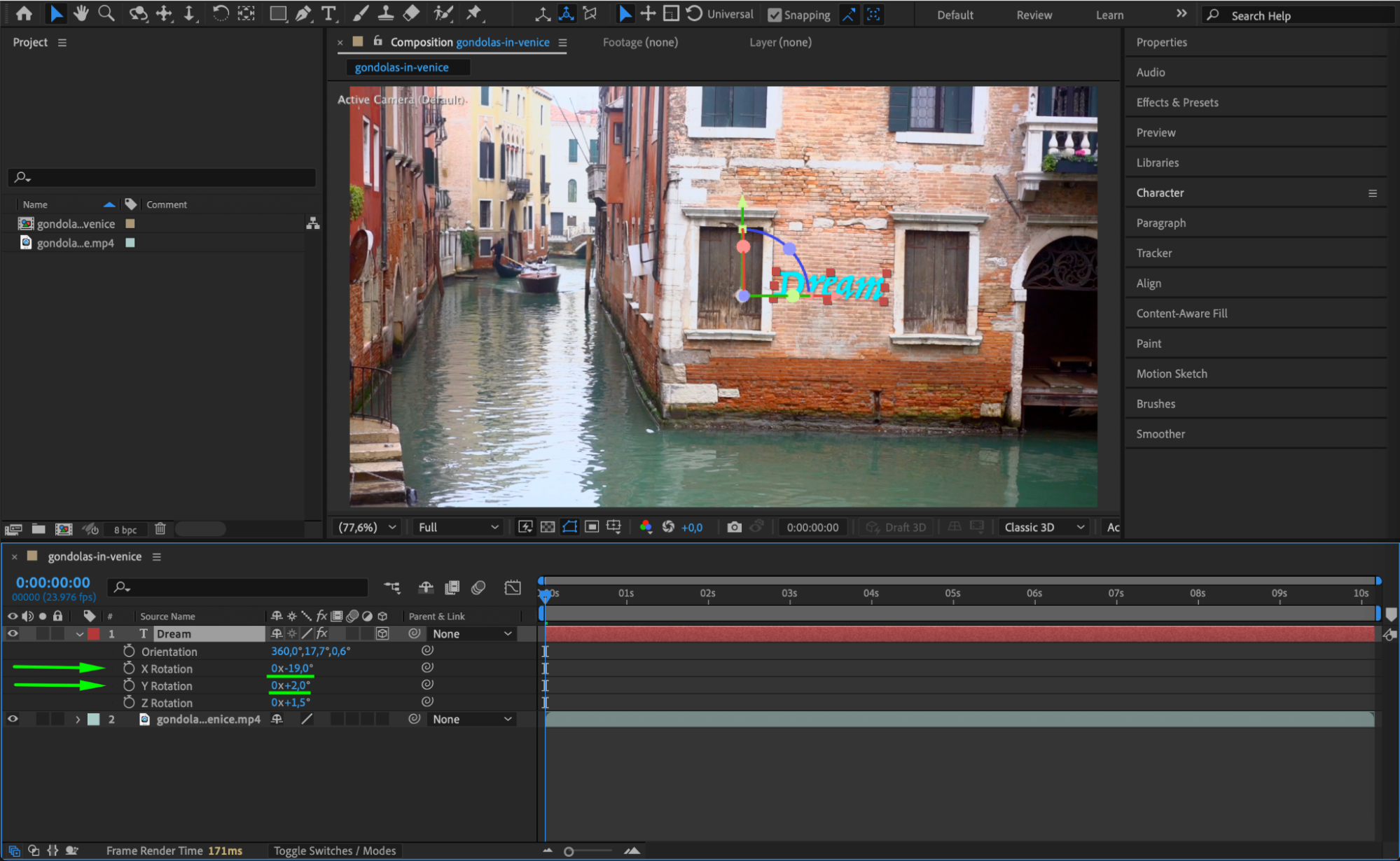 Step 5: Use Blending Modes and Effects for Realism
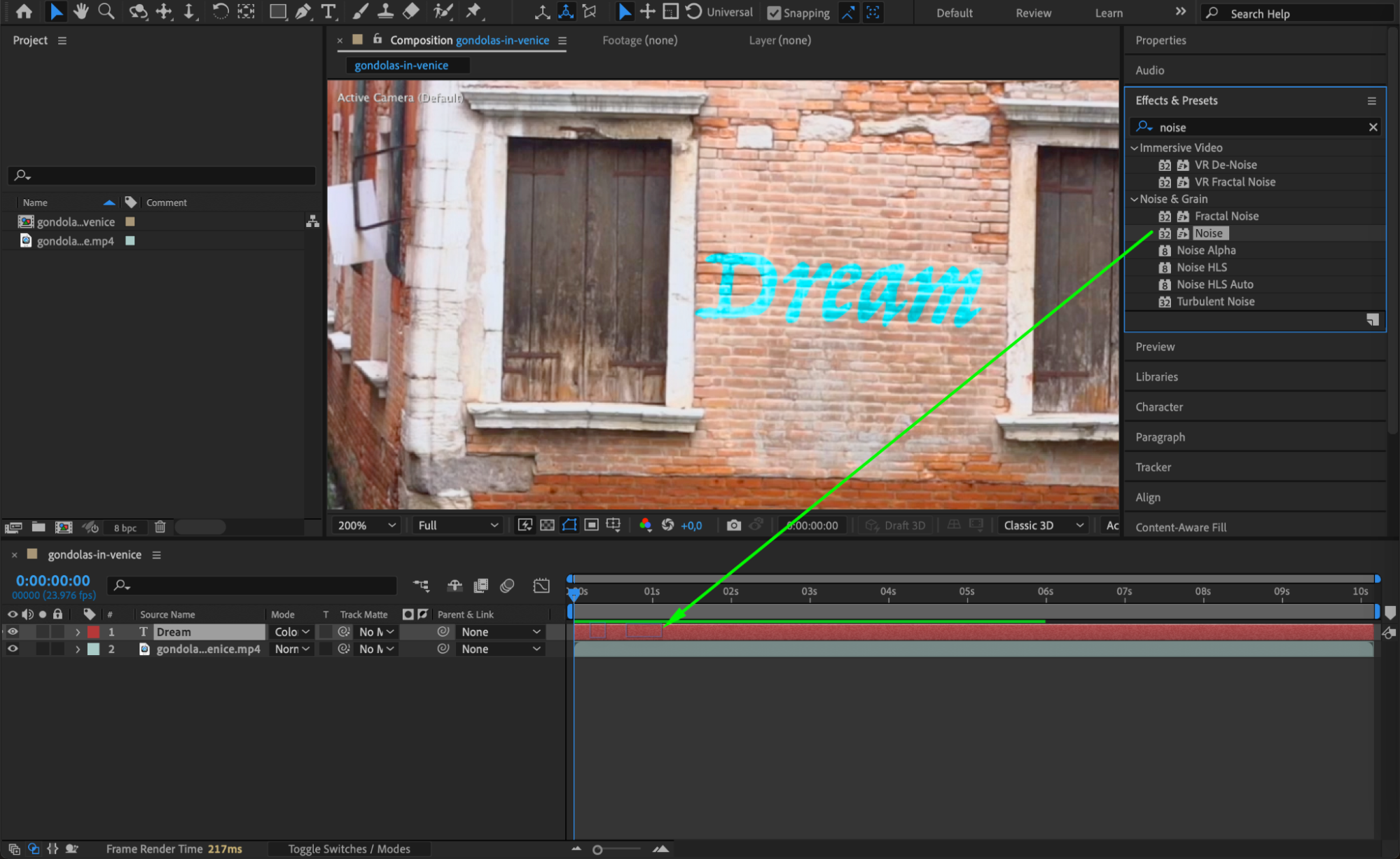
To make the text look like it’s part of the wall, try changing the text layer’s Blending Mode to Multiply, Overlay, or Color. Add effects like Gaussian Blur, Noise, or Displacement Map to help the text follow the texture and lighting of the wall.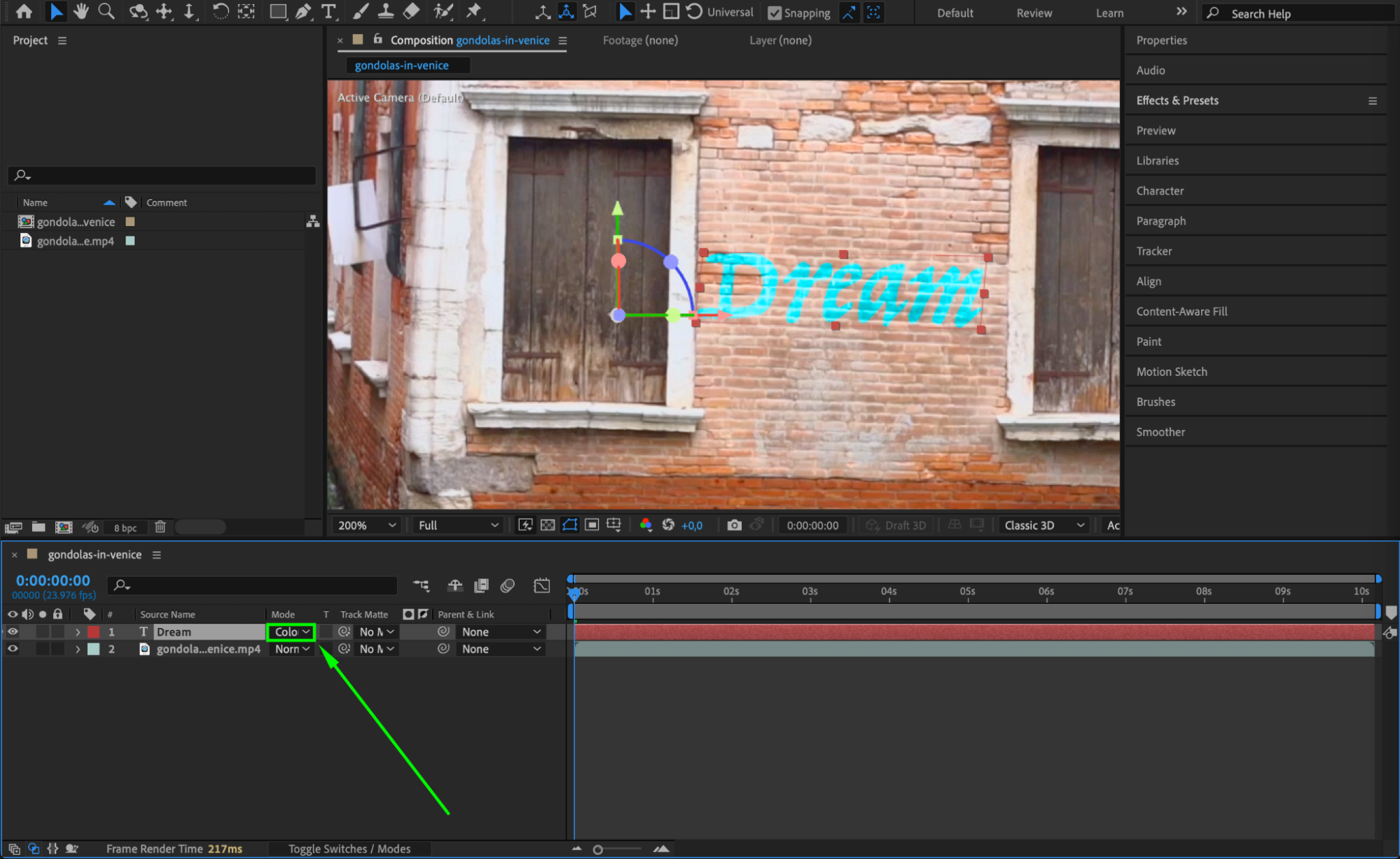
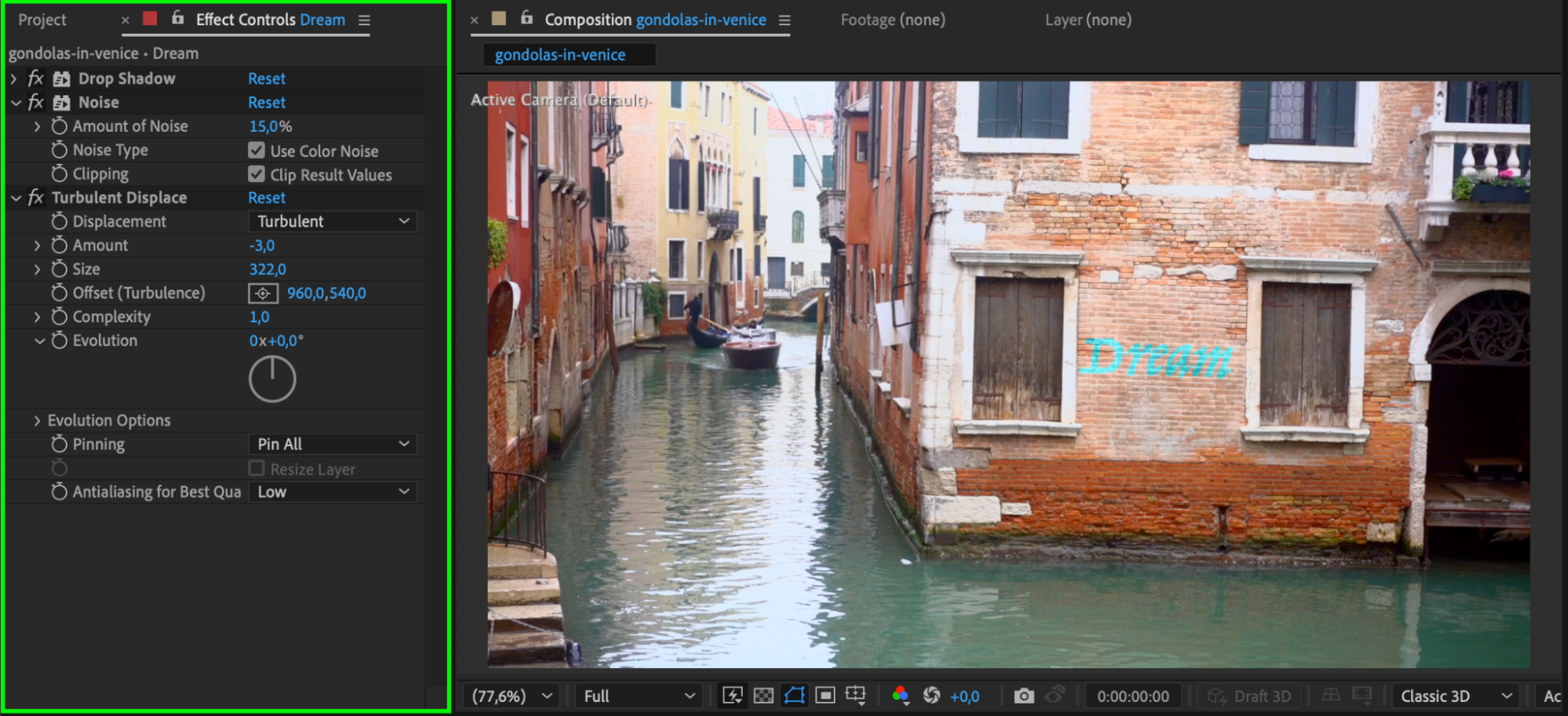
Step 6: Track the Wall if the Camera Moves (Optional)
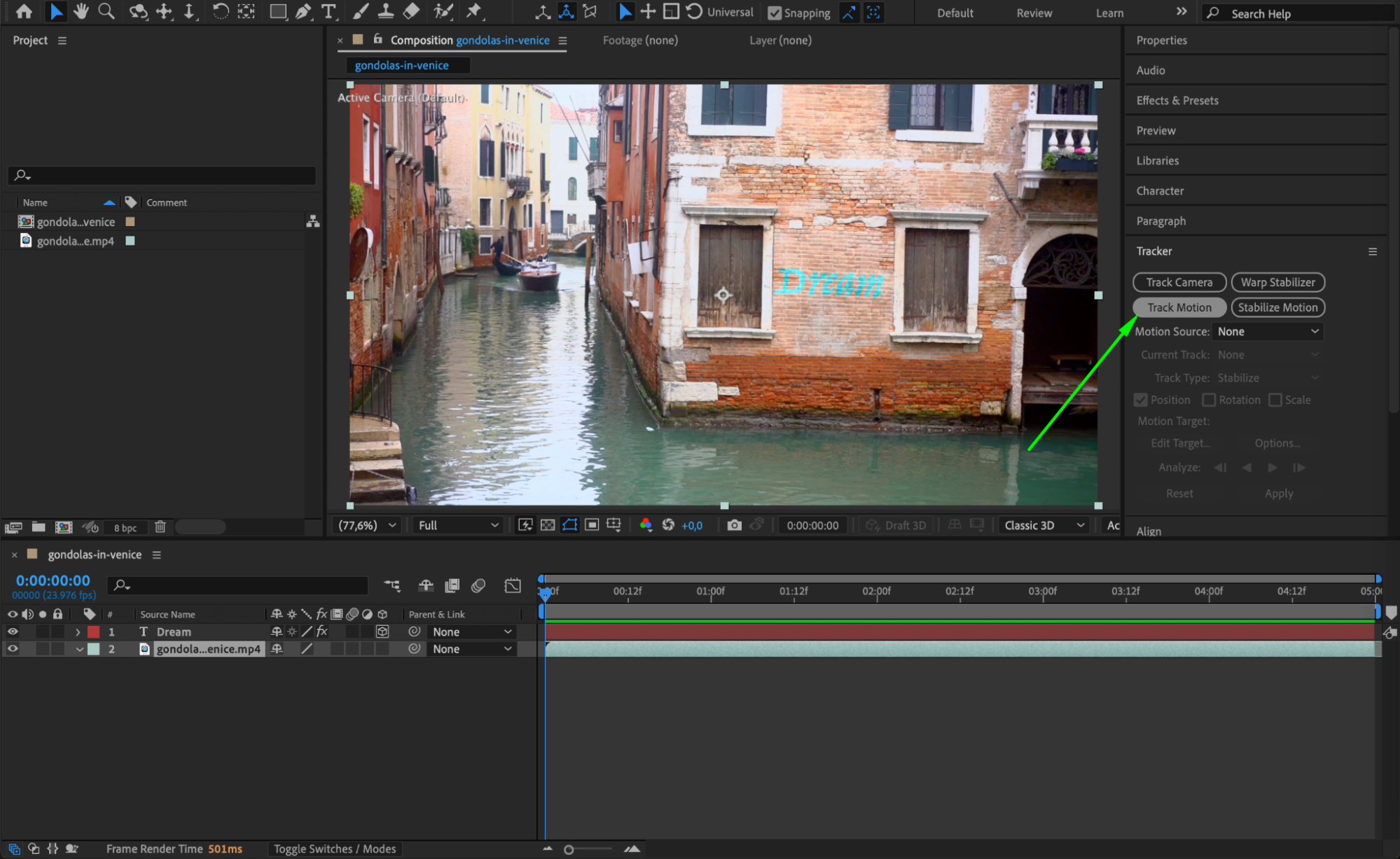
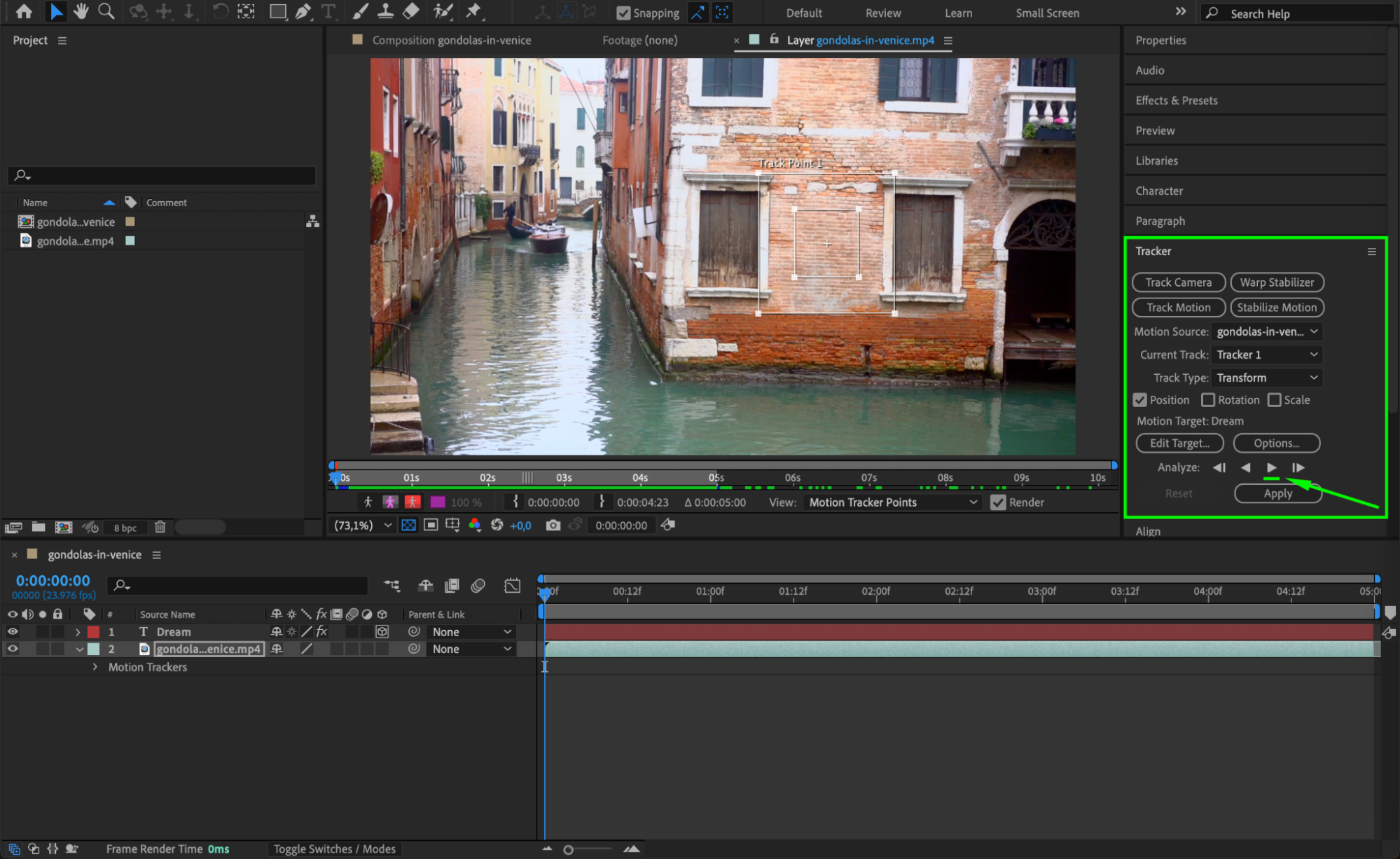
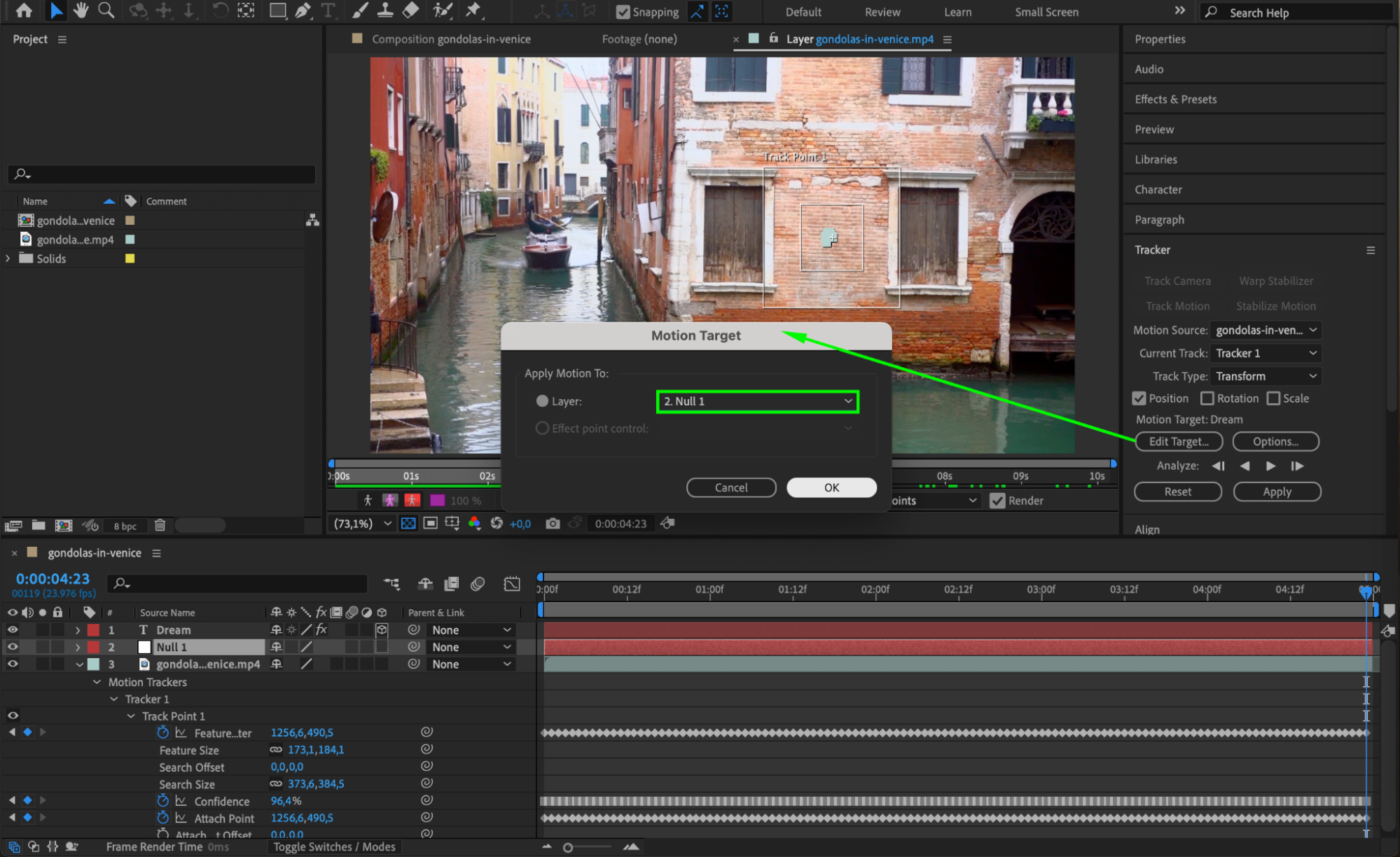
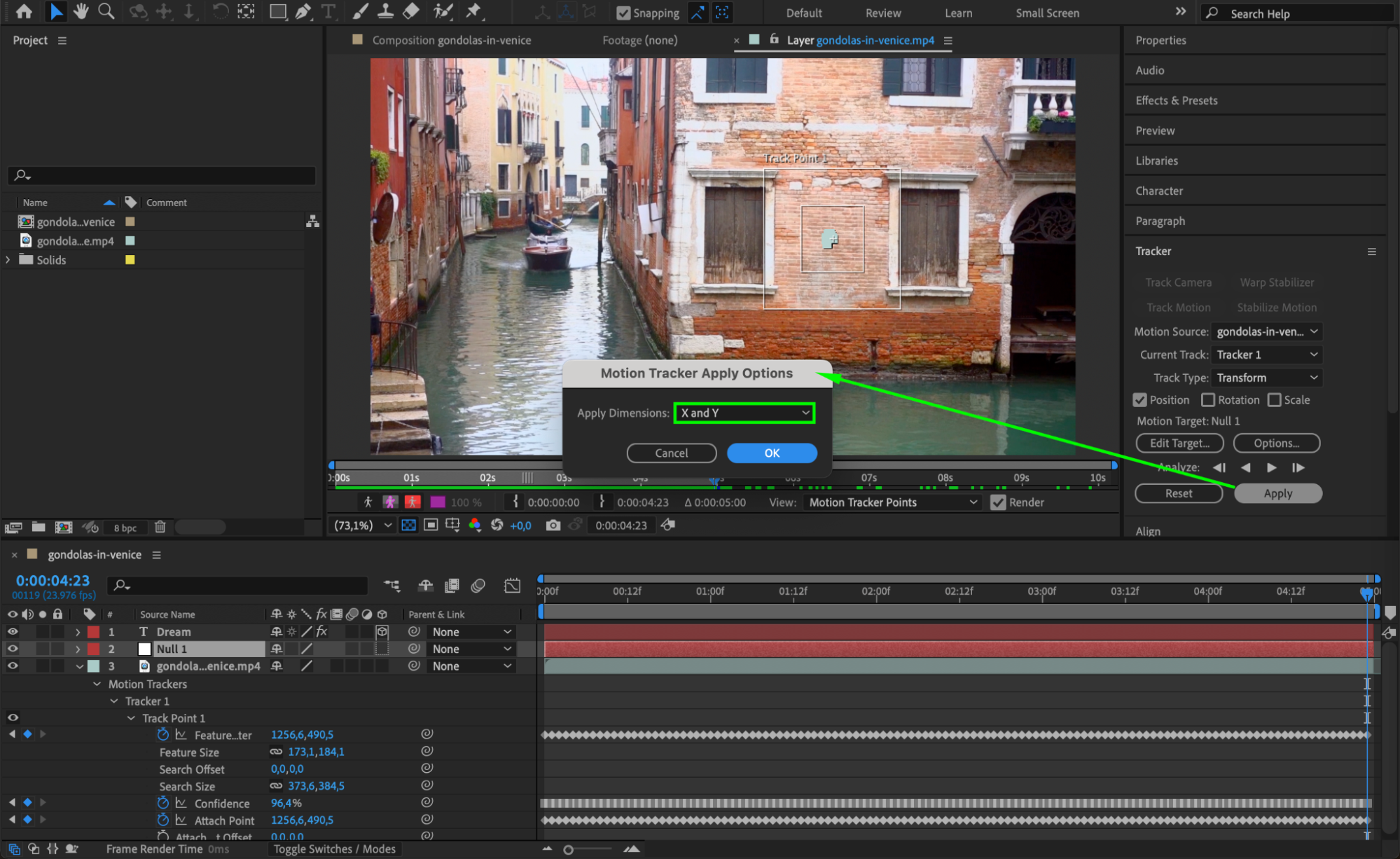
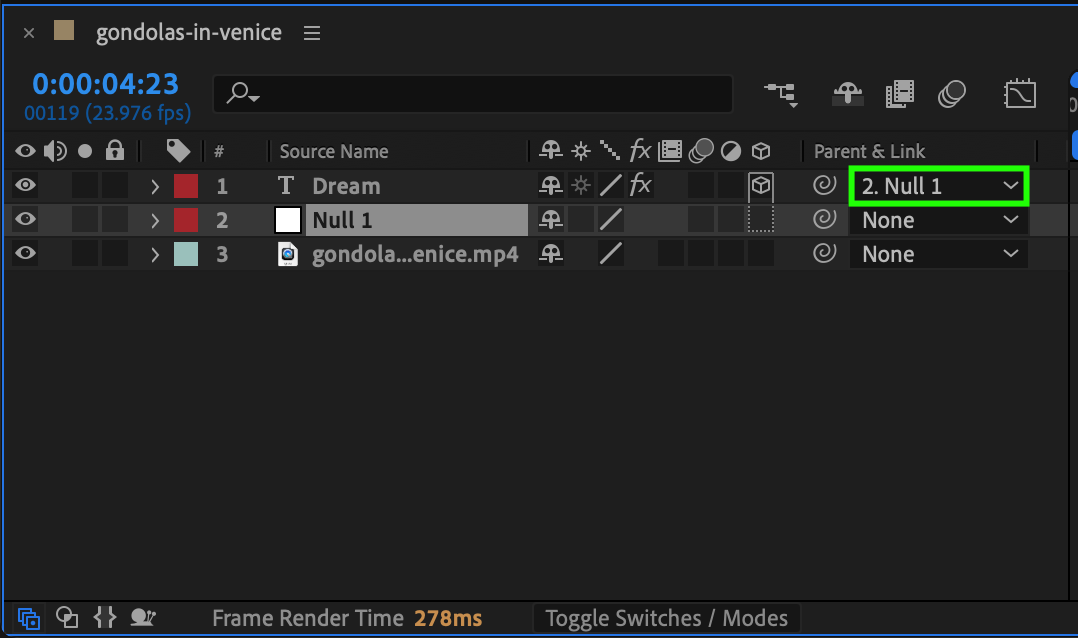
If your footage has camera movement, you need to track the wall so the text stays locked in place. For dynamic or handheld shots, go to Animation > Track Camera to analyze 3D camera movement. For static or slightly moving footage, open the Tracker panel and choose Track Motion. After the tracking is done, create a Null Object and apply the tracking data to it. Then, in the Parent & Link column of your text layer, select the null — this links the text to the wall’s movement, making it appear naturally attached.

 Step 7: Preview and Refine
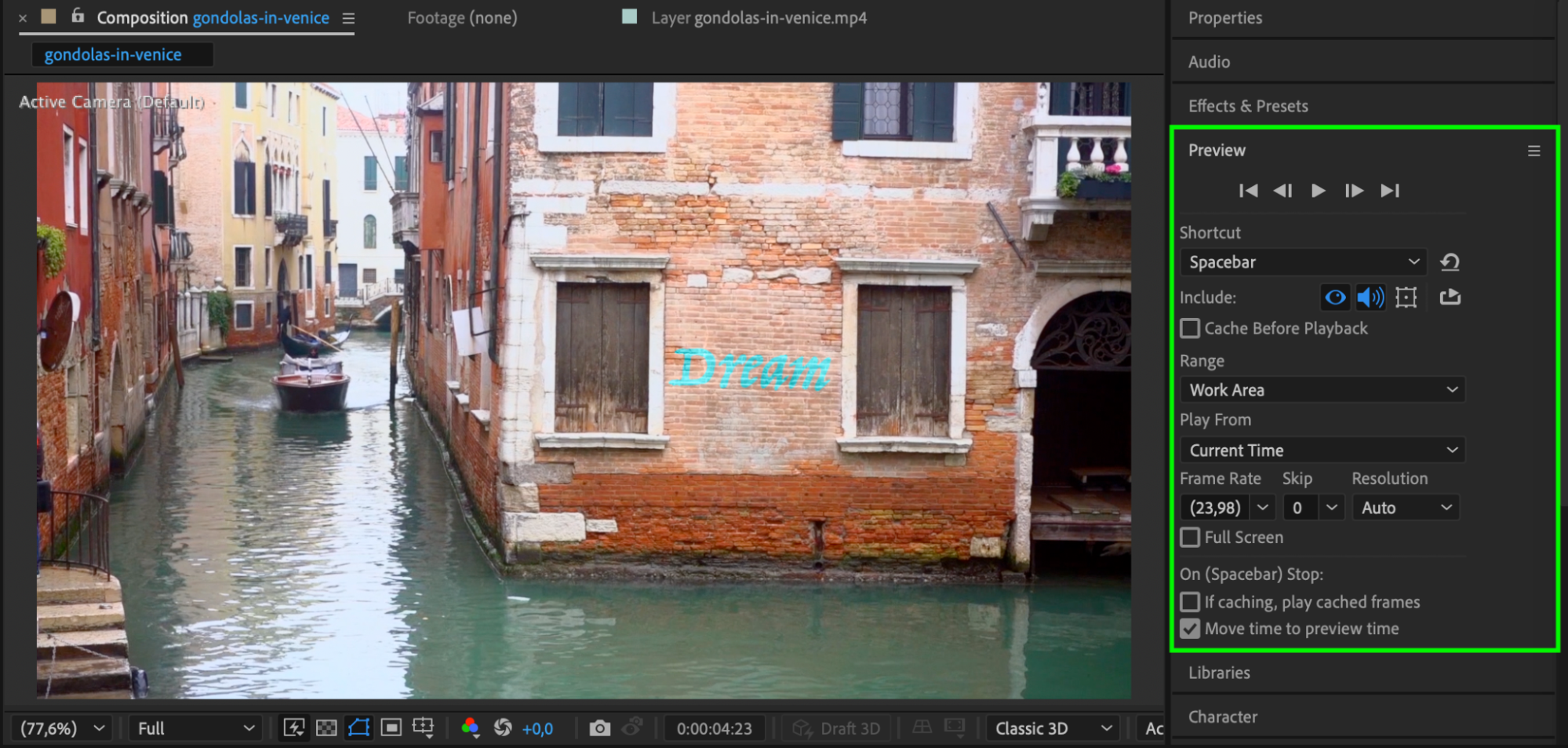
Press Spacebar to preview your animation and see how the text sits on the wall. Make small adjustments to position, rotation, blending, or effects until it feels like part of the original footage. If needed, reduce opacity or add a shadow for more realism.
Conclusion
Adding text to walls in After Effects is a powerful way to ground graphics in a real scene. By combining 3D layering, accurate perspective, blending, and optional camera tracking, you can create effects that look naturally integrated into your footage.
Our Bestsellers
Our Bestsellers


