
How to Add 3D Text to a Video Using After Effects
Introduction to Creating and Styling 3D Text in After Effects
Creating 3D text directly in After Effects is a great way to enhance your video with dynamic, professional-looking titles or labels. In this guide, you’ll learn how to use the Cinema 4D renderer to add depth and dimension to your text and seamlessly blend it into your footage.
Step 1: Create a New Composition with Cinema 4D Renderer
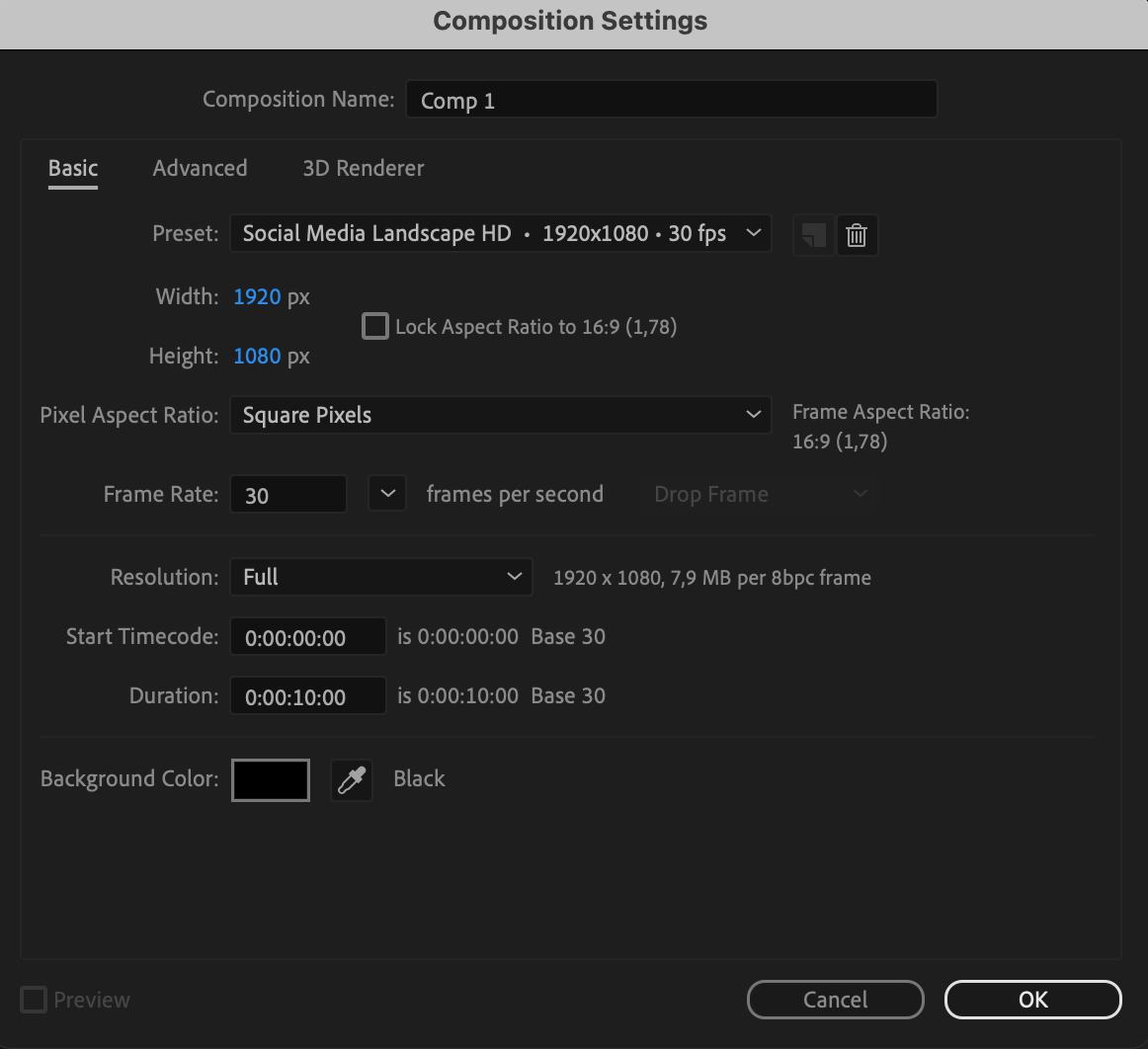
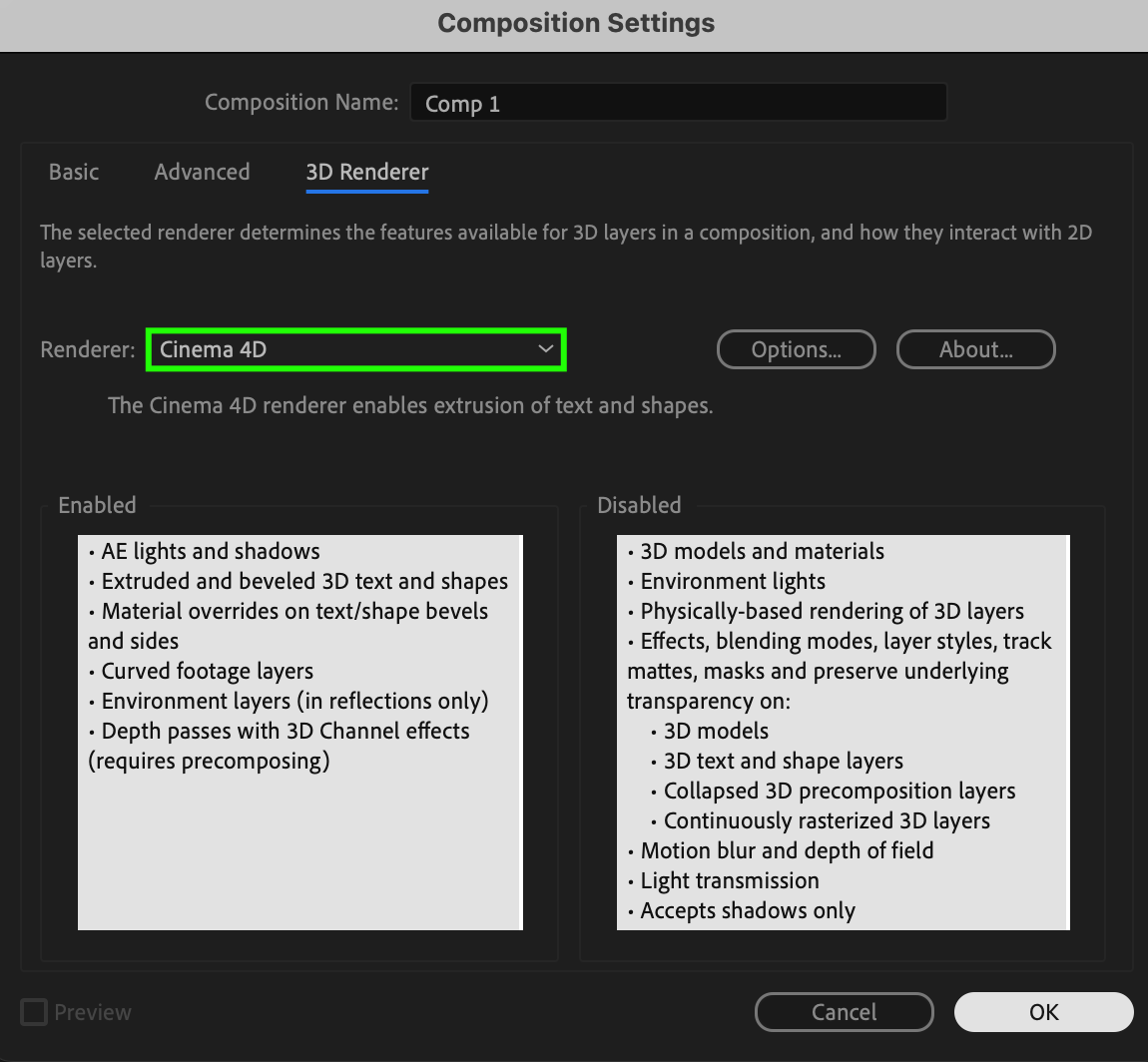
Start by creating a new composition. In the Composition Settings, under the 3D Renderer tab, choose Cinema 4D as the renderer. This allows access to 3D properties like extrusion and bevels.
 Step 2: Create a Text Layer
Select the Type Tool (Ctrl/Cmd + T) from the toolbar and type your desired text. This will create a new text layer in your composition.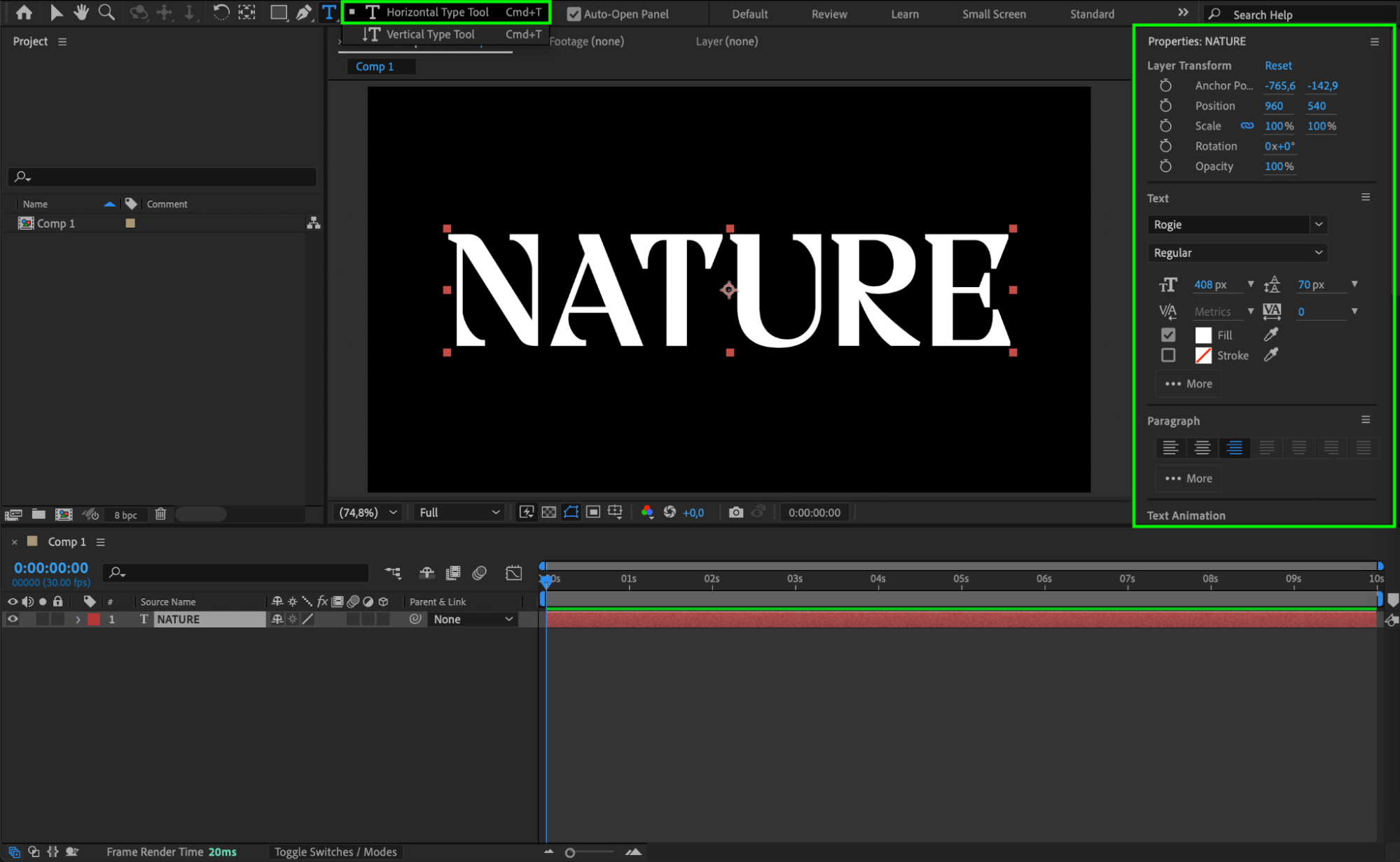 Step 3: Make the Text Layer 3D
Click the 3D layer switch (the cube icon) next to your text layer in the timeline to enable 3D. This gives you access to extra properties such as position in 3D space and material options.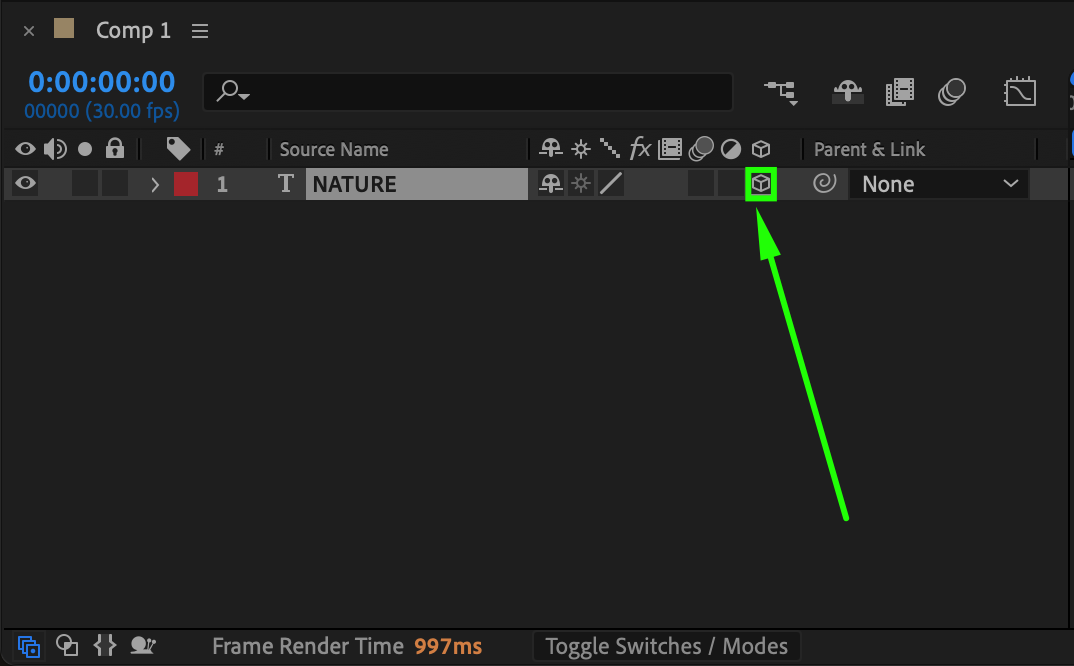
Step 4: Adjust Bevel and Extrusion Depth
Twirl down the text layer properties and open the Geometry Options section. Set Bevel Depth to around 10 and Extrusion Depth to 162 to give the text noticeable 3D thickness. Rotate the text along the Y-axis in the Transform settings to see the depth more clearly.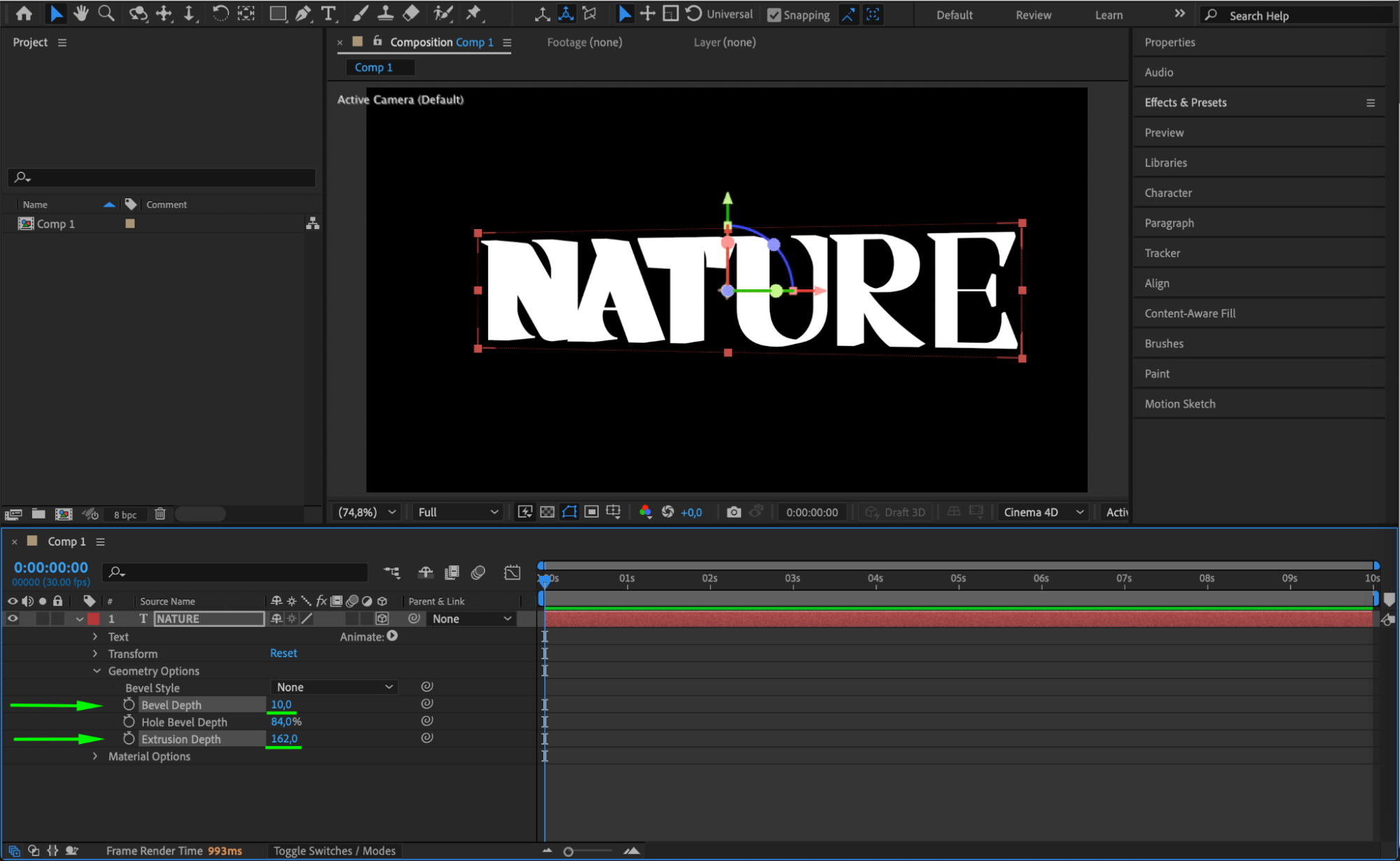 Step 5: Add Color to Front, Back, and Sides
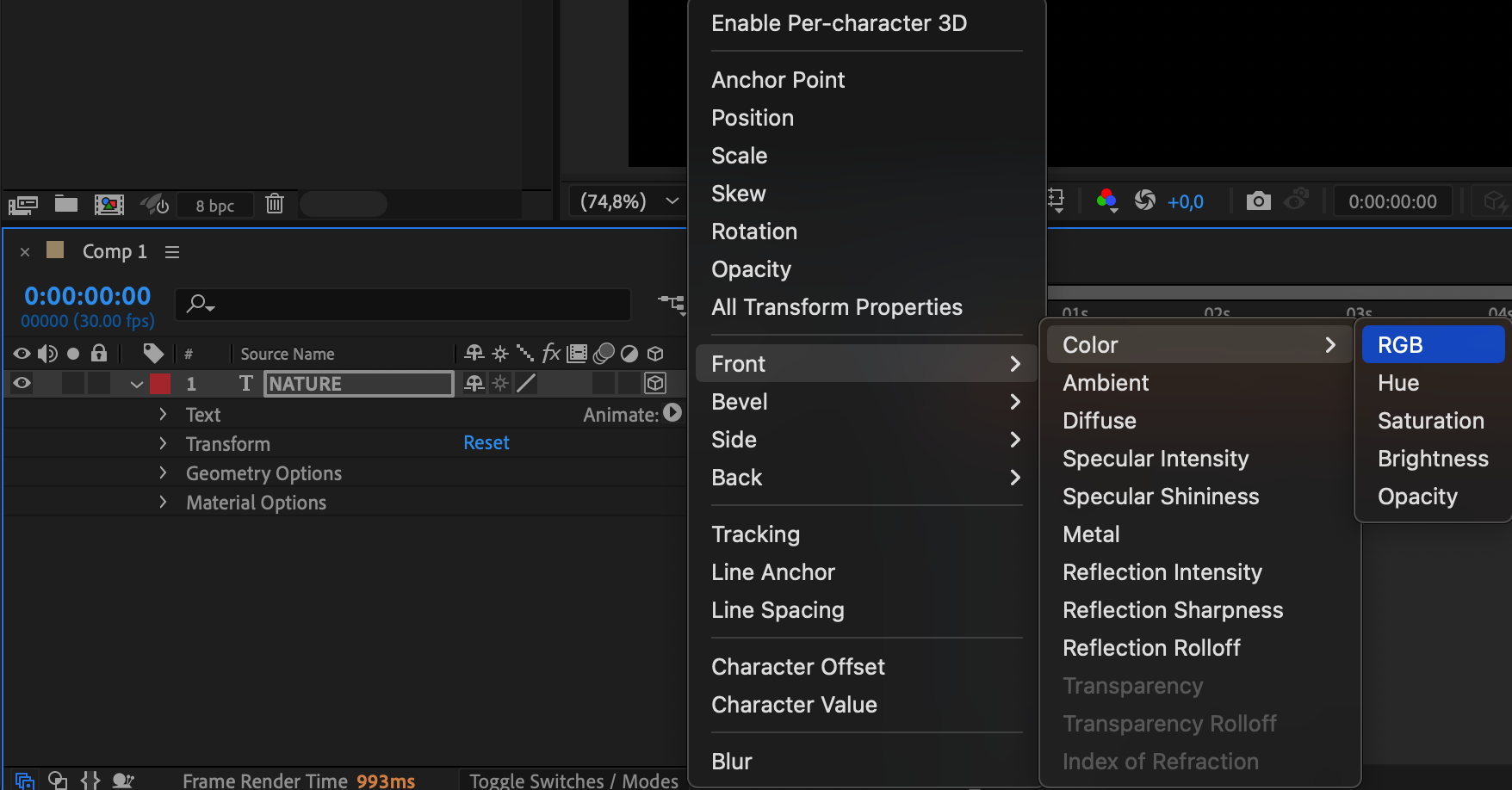
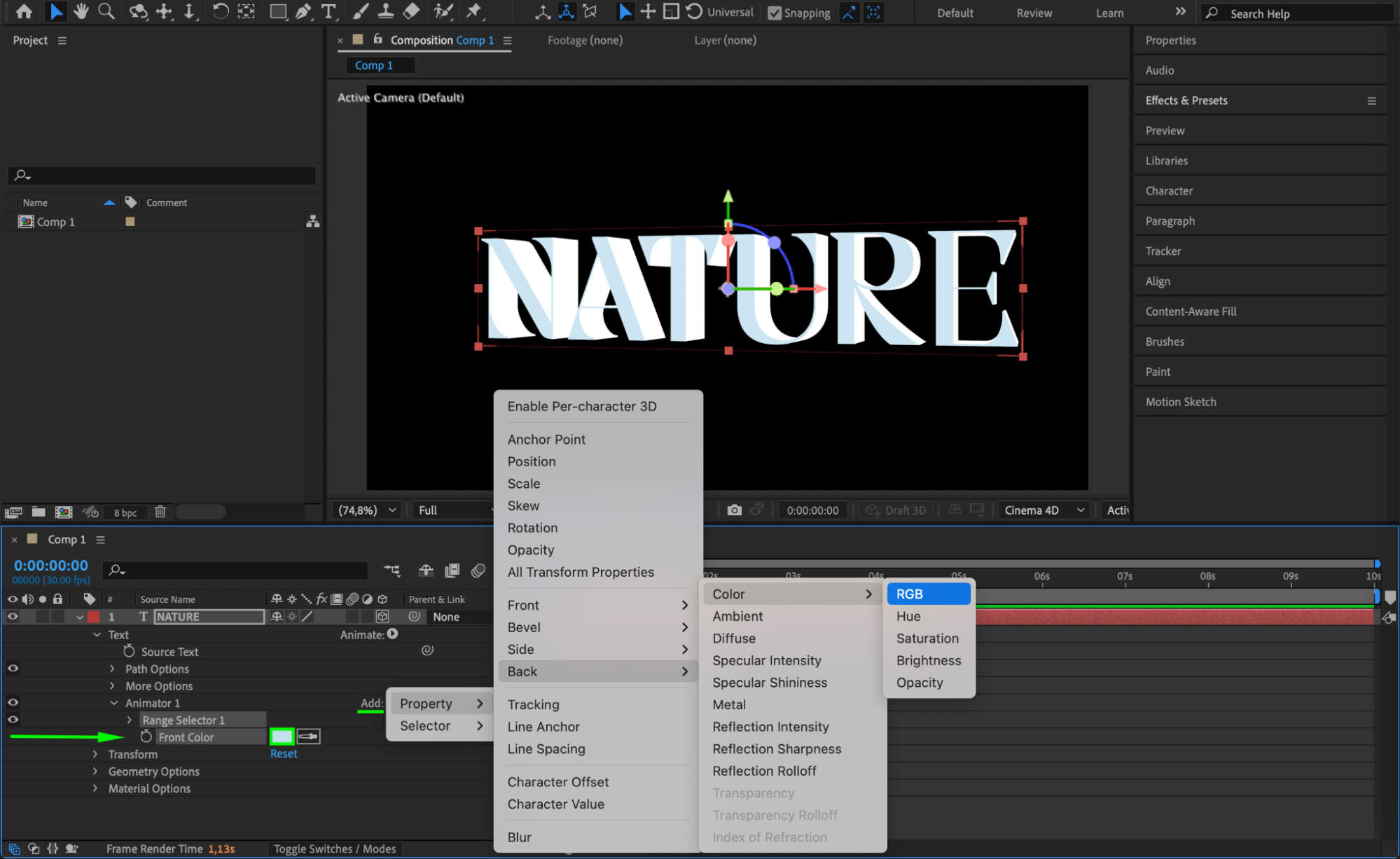
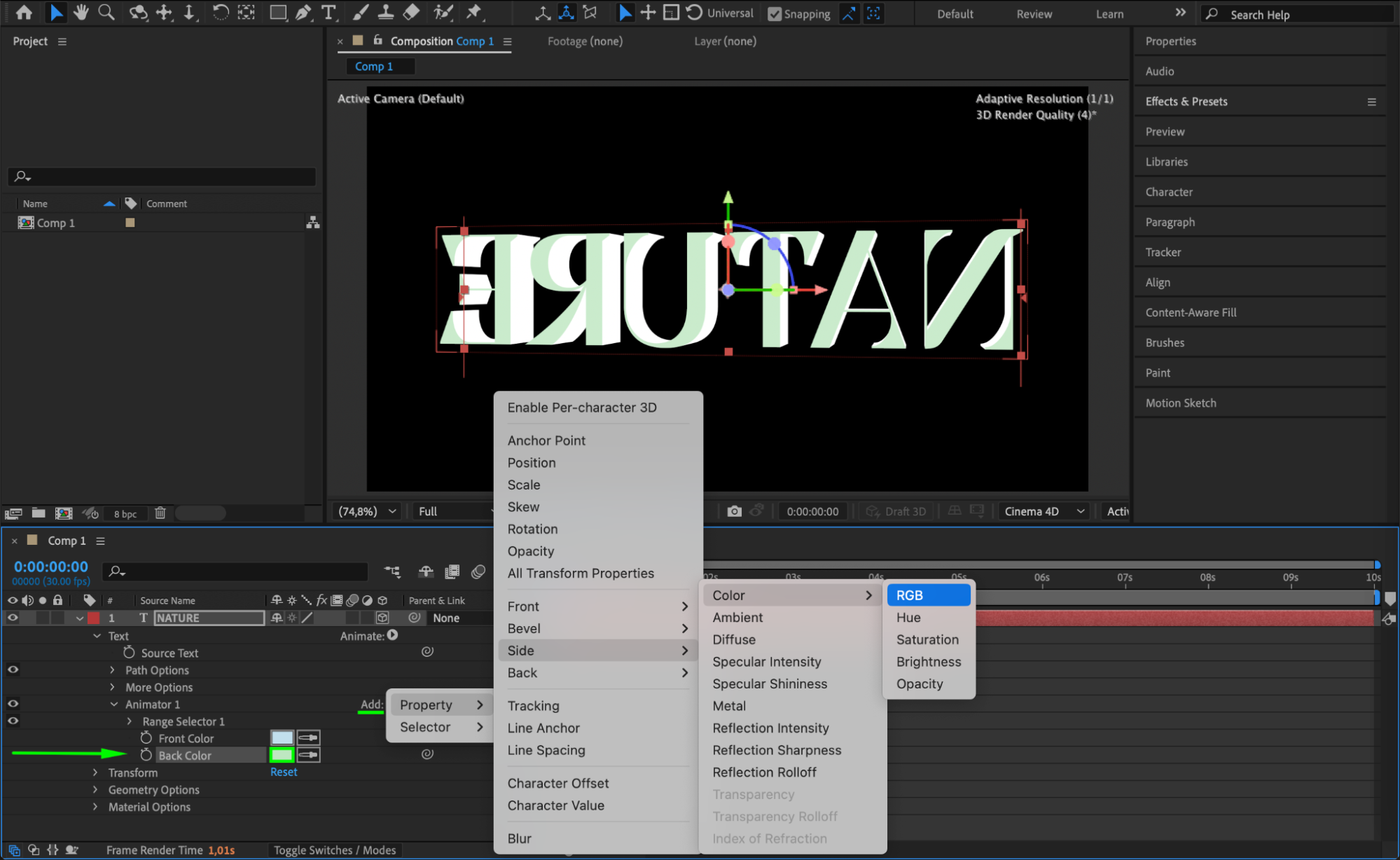
Next to the Text section of your layer, click Animate > Front > Fill Color > RGB and choose a color for the front face. Then, click the Add button beside Animator 1, go to Back > Fill Color > RGB, and choose a color for the back. Do the same for Side > Fill Color > RGB to define the side color of your 3D text.
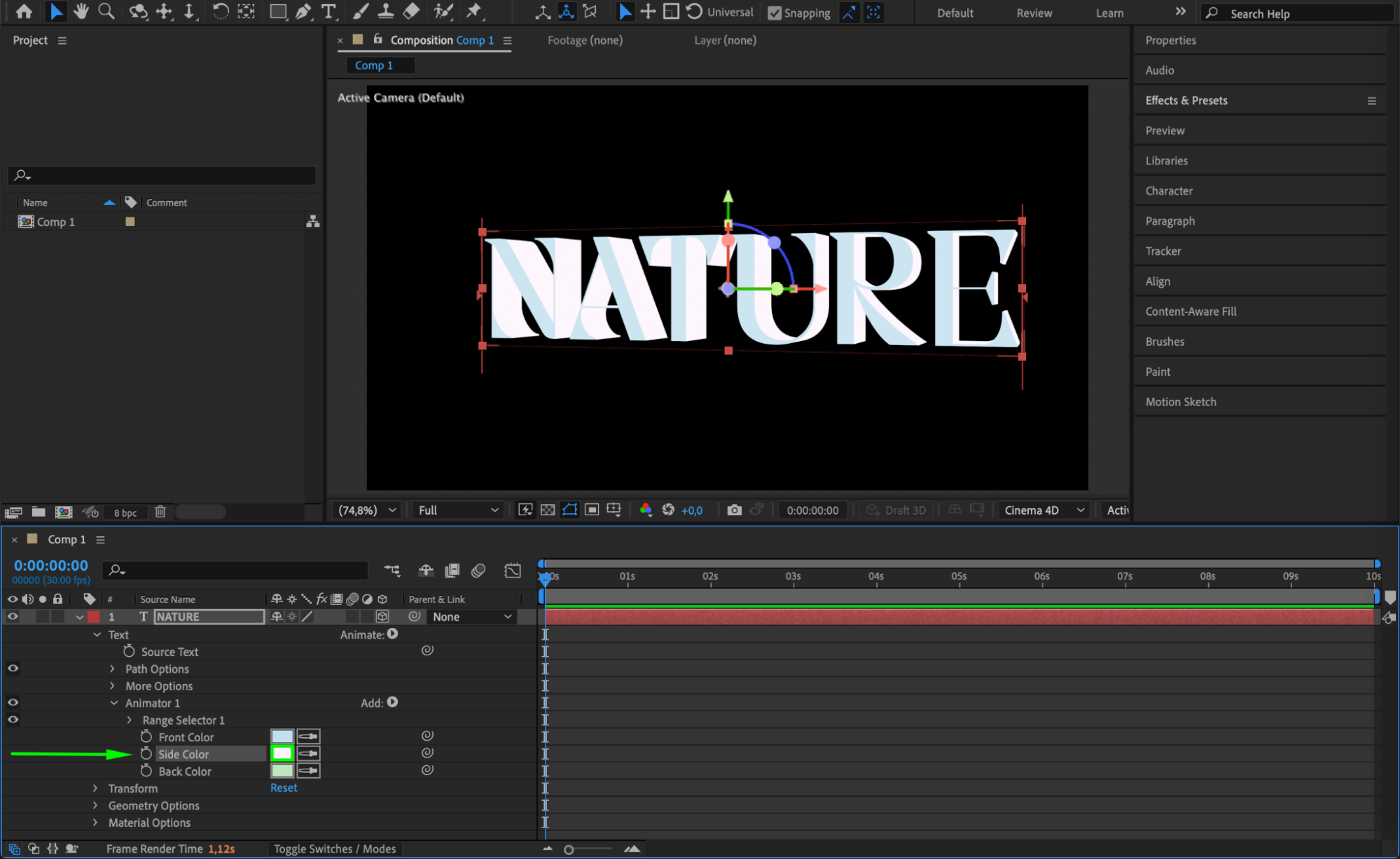 Step 6: Import and Position the Background Video
Import your background video by going to File > Import > File, then drag it onto your timeline below the text layer. Scale and position your 3D text in the scene to make it match the video perspective.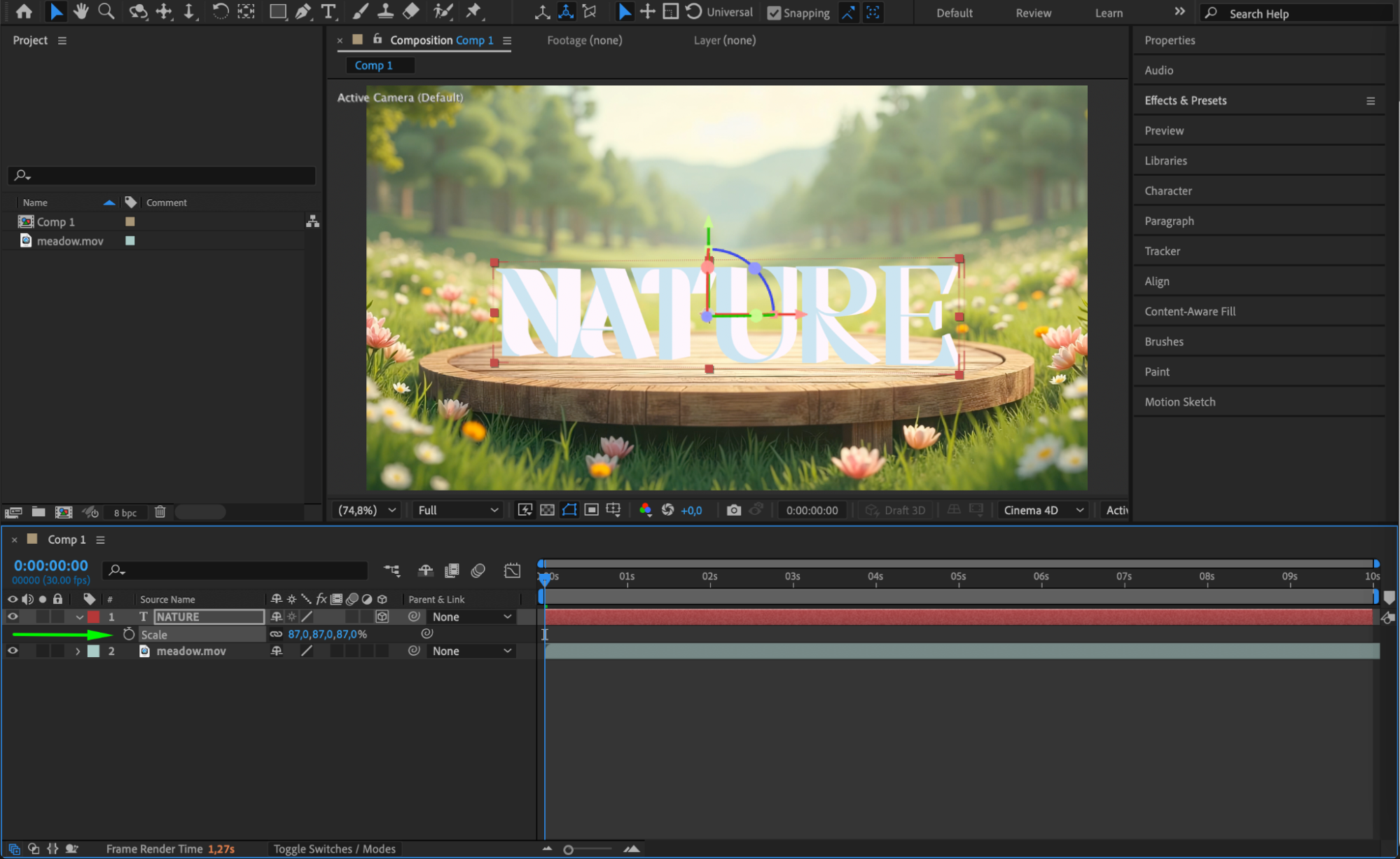
Step 7: Animate the Text Position
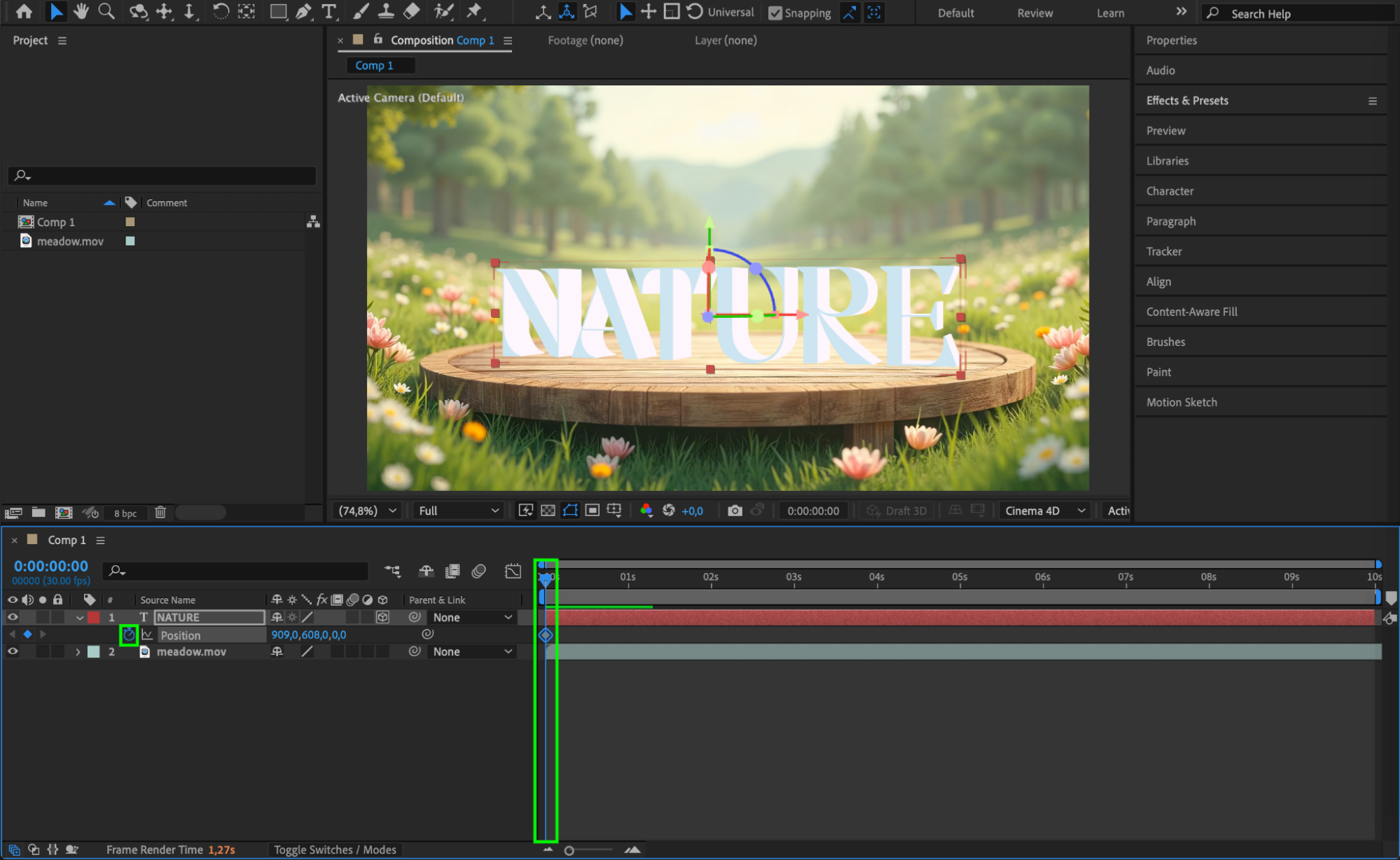
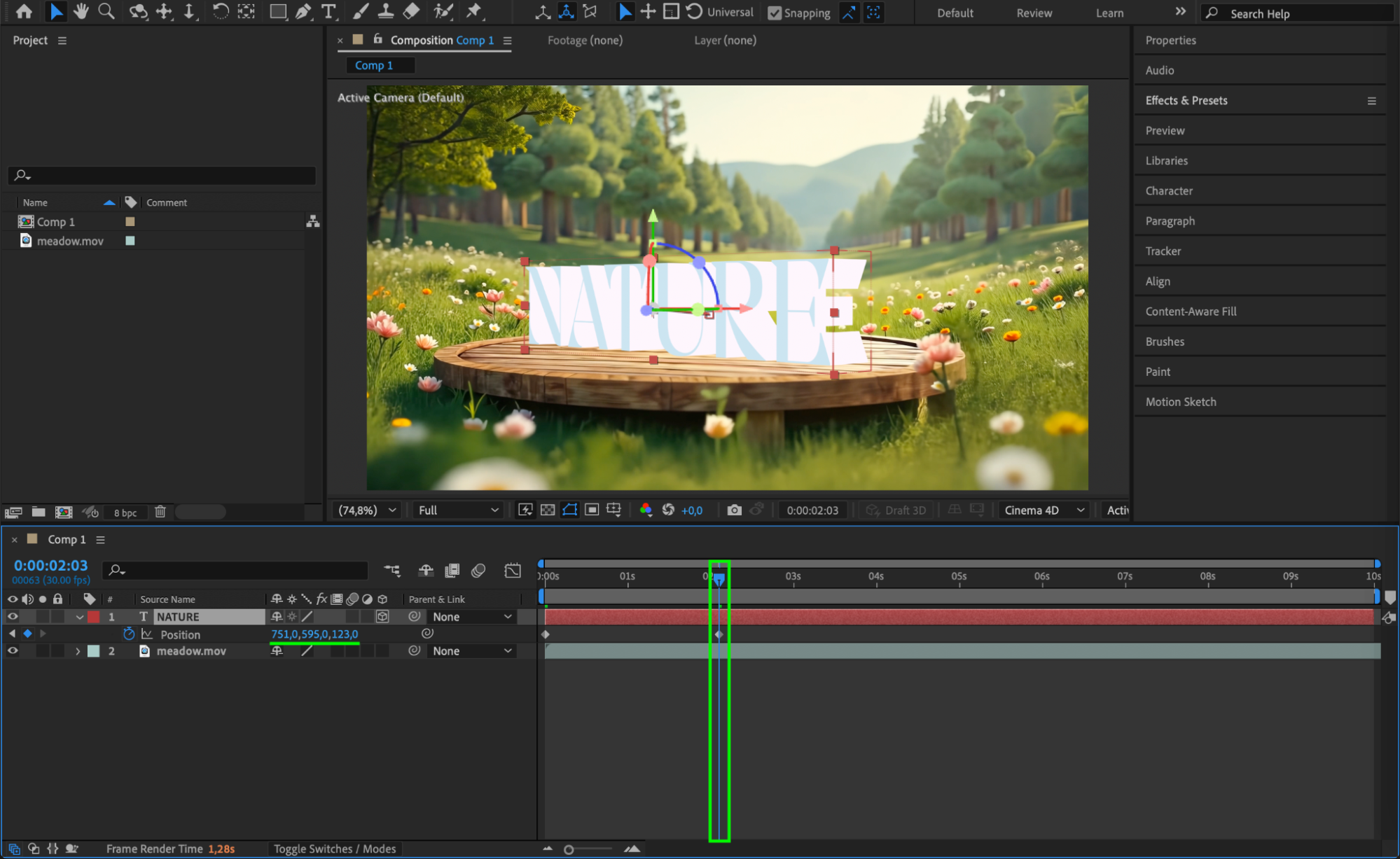
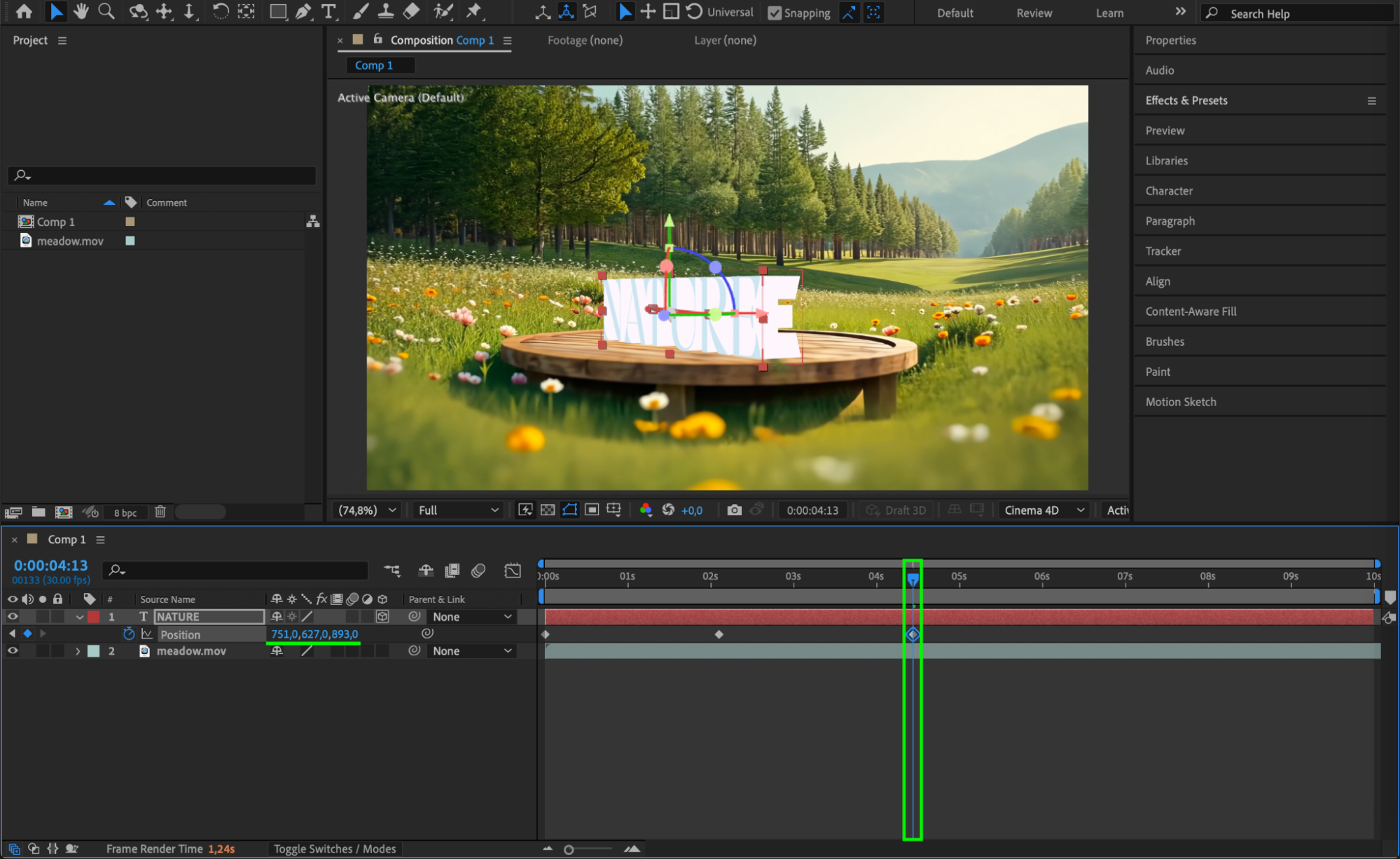
To make the 3D text interact with the video, animate the Position of the text over time using keyframes. This helps integrate it more naturally into the motion of the footage.
Step 8: Add an Adjustment Layer
Go to Layer > New > Adjustment Layer. This will allow you to apply global effects that impact both your video and text layers together.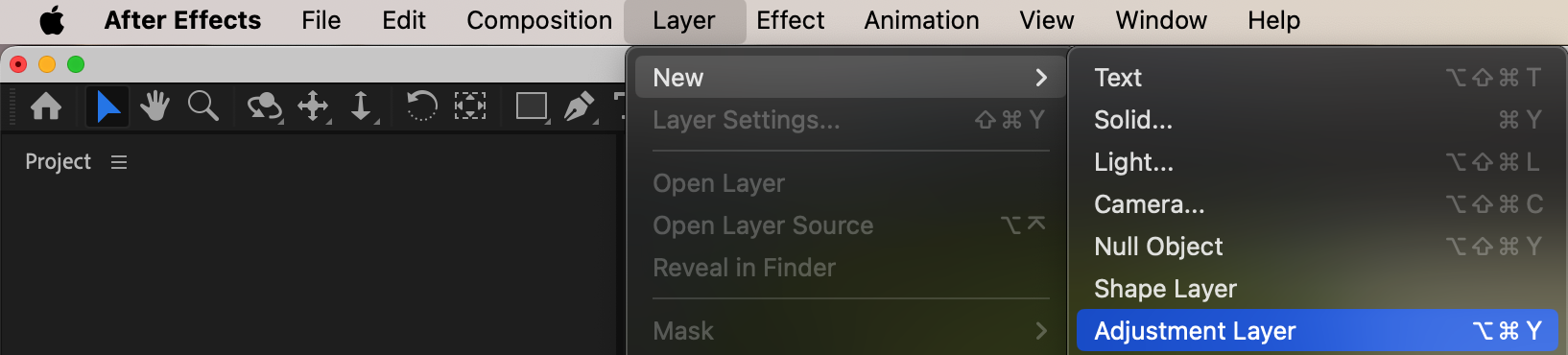 Step 9: Apply Final Effects for Integration
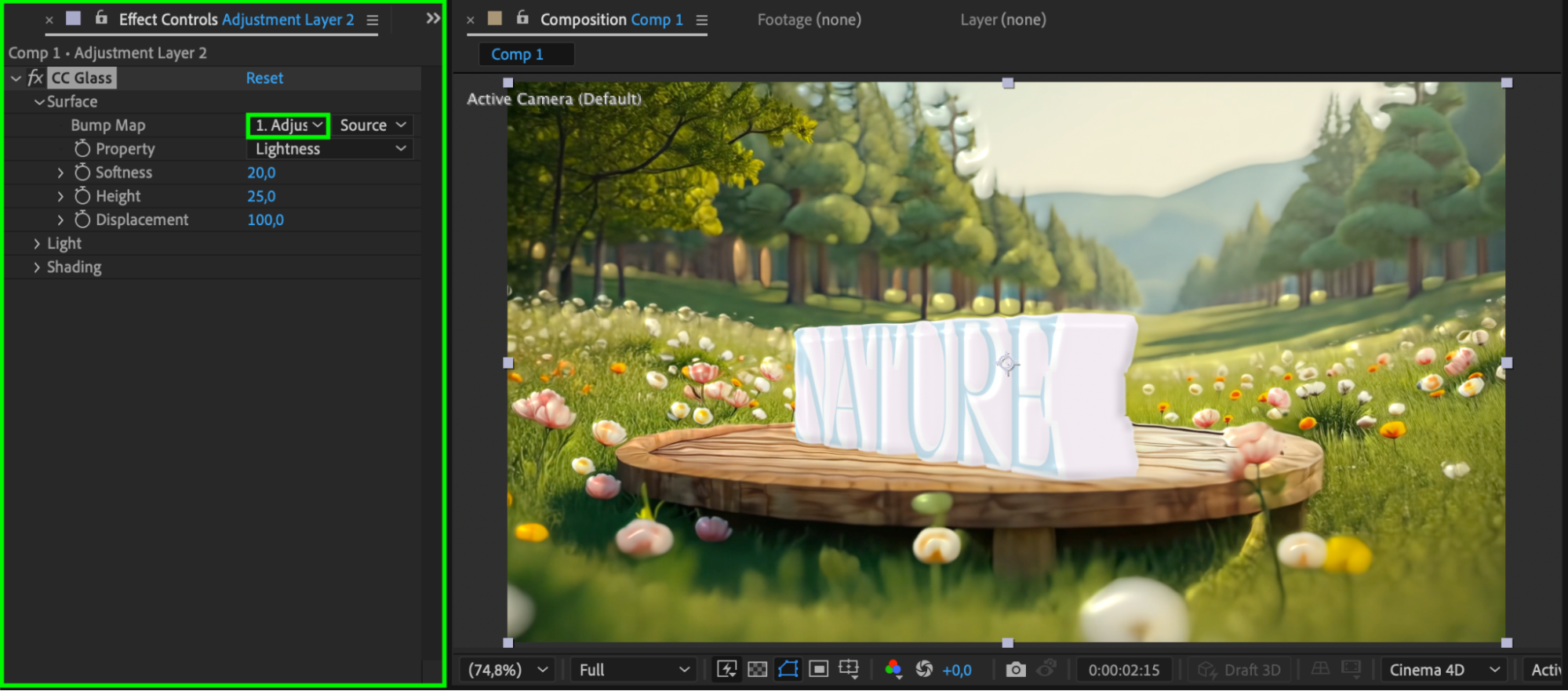
To blend everything visually, apply effects like CC Glass, Glow, or Color Correction to the adjustment layer. These help match lighting and texture between the 3D text and the video.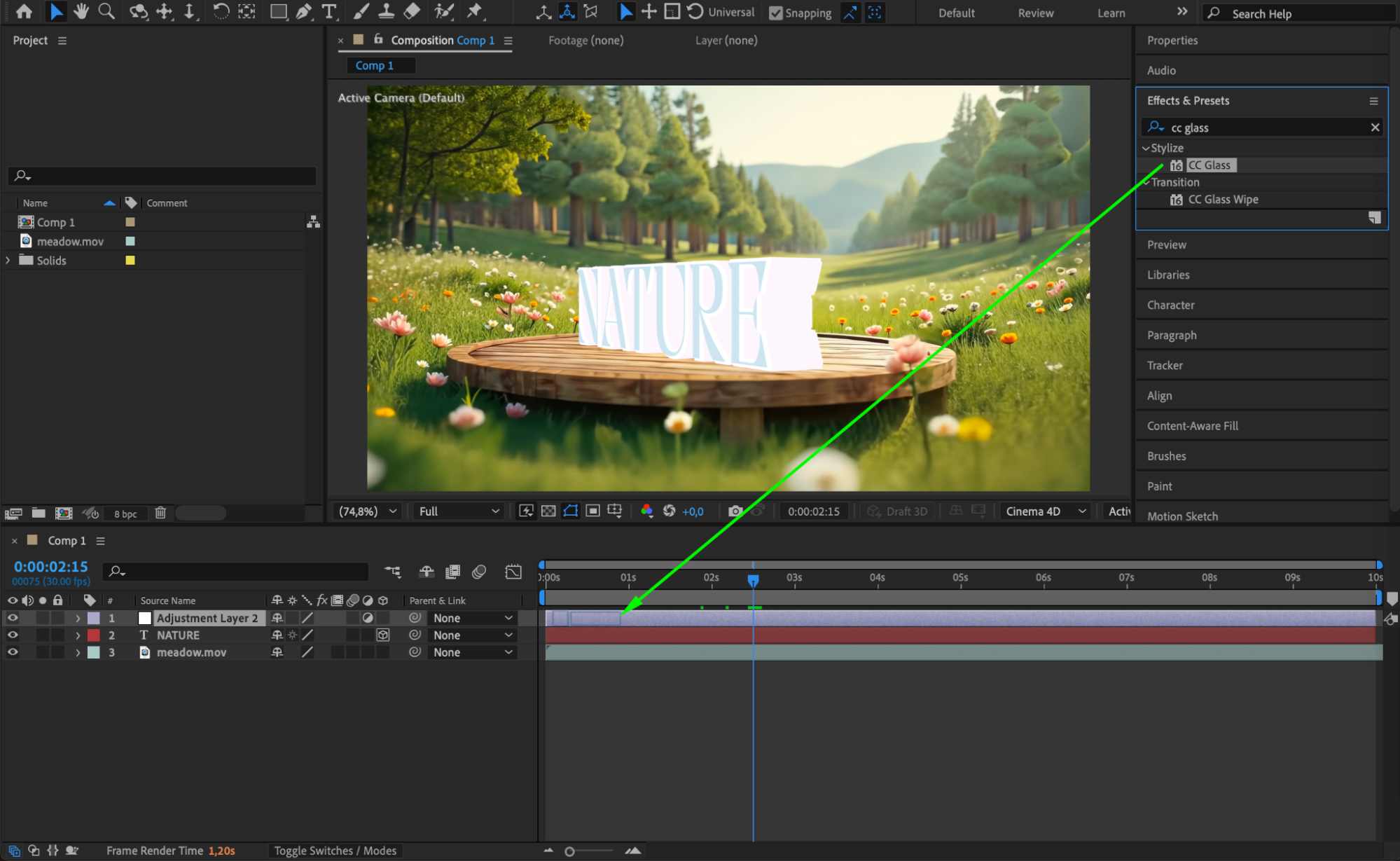
 Step 10: Preview Your Result
Press Spacebar to preview your animation and make final tweaks. Ensure your text is well-integrated and visually appealing within the scene.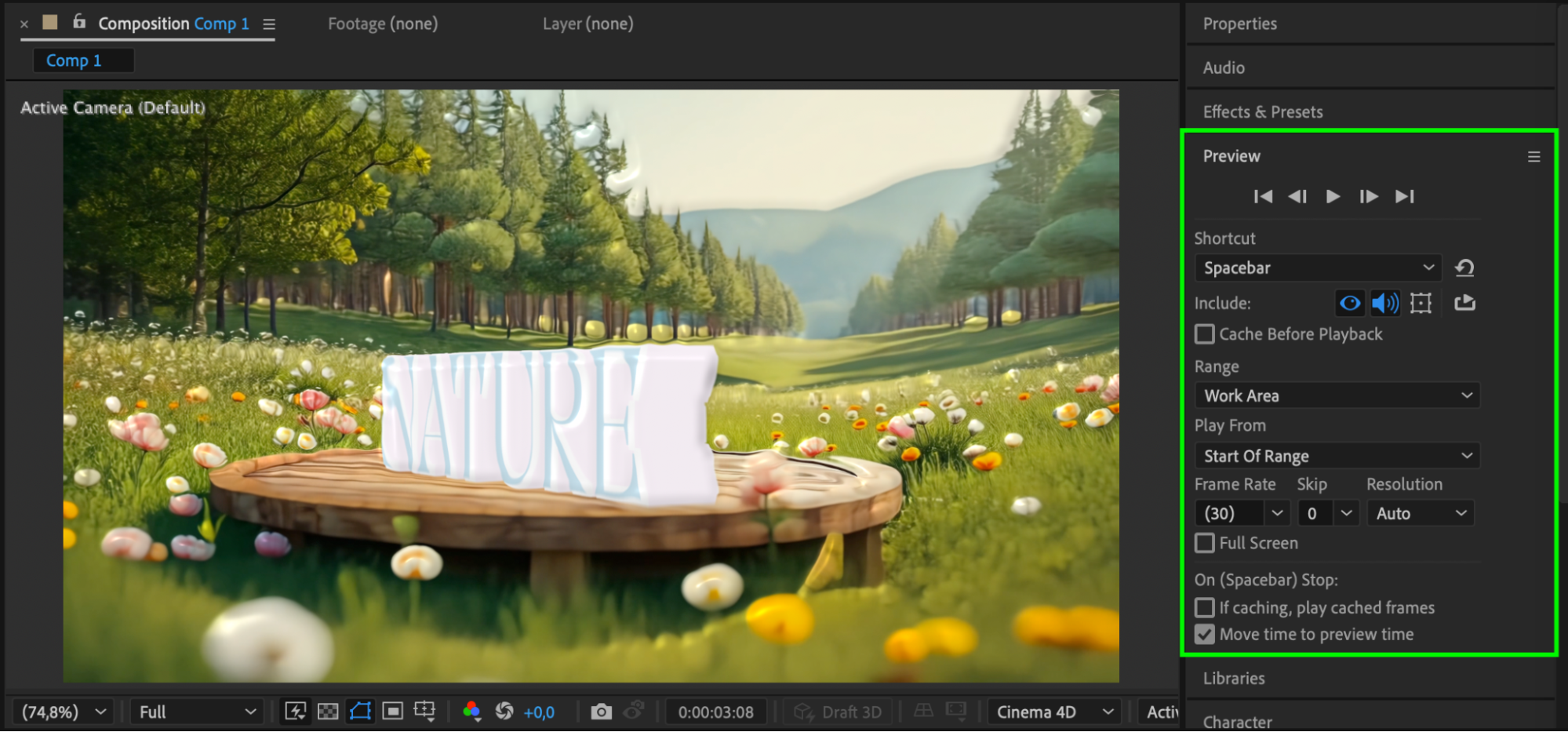
Conclusion
With the Cinema 4D renderer and some simple settings, you can create powerful 3D text inside After Effects and integrate it with live footage. This technique is ideal for cinematic titles, product labels, or visual effects that require a polished, dimensional look.
Our Bestsellers
Our Bestsellers


