
How to Re-Dock or Reorganize Panels in After Effects
Introduction
In After Effects, panels like Timeline, Project, Effects & Presets, and others are usually docked together in a clean workspace layout. Sometimes, you may accidentally undock or float a panel, which can clutter your screen or make your workflow harder. In this tutorial, you’ll learn how to re-dock panels to their original or custom positions and organize your workspace effectively.
Step 1: Identify the Floating Panel
First, find the panel you want to re-dock. A floating panel will appear as a separate window, not attached to the main After Effects interface. Look for the panel’s name in the title bar, such as “Effects & Presets” or “Timeline.”
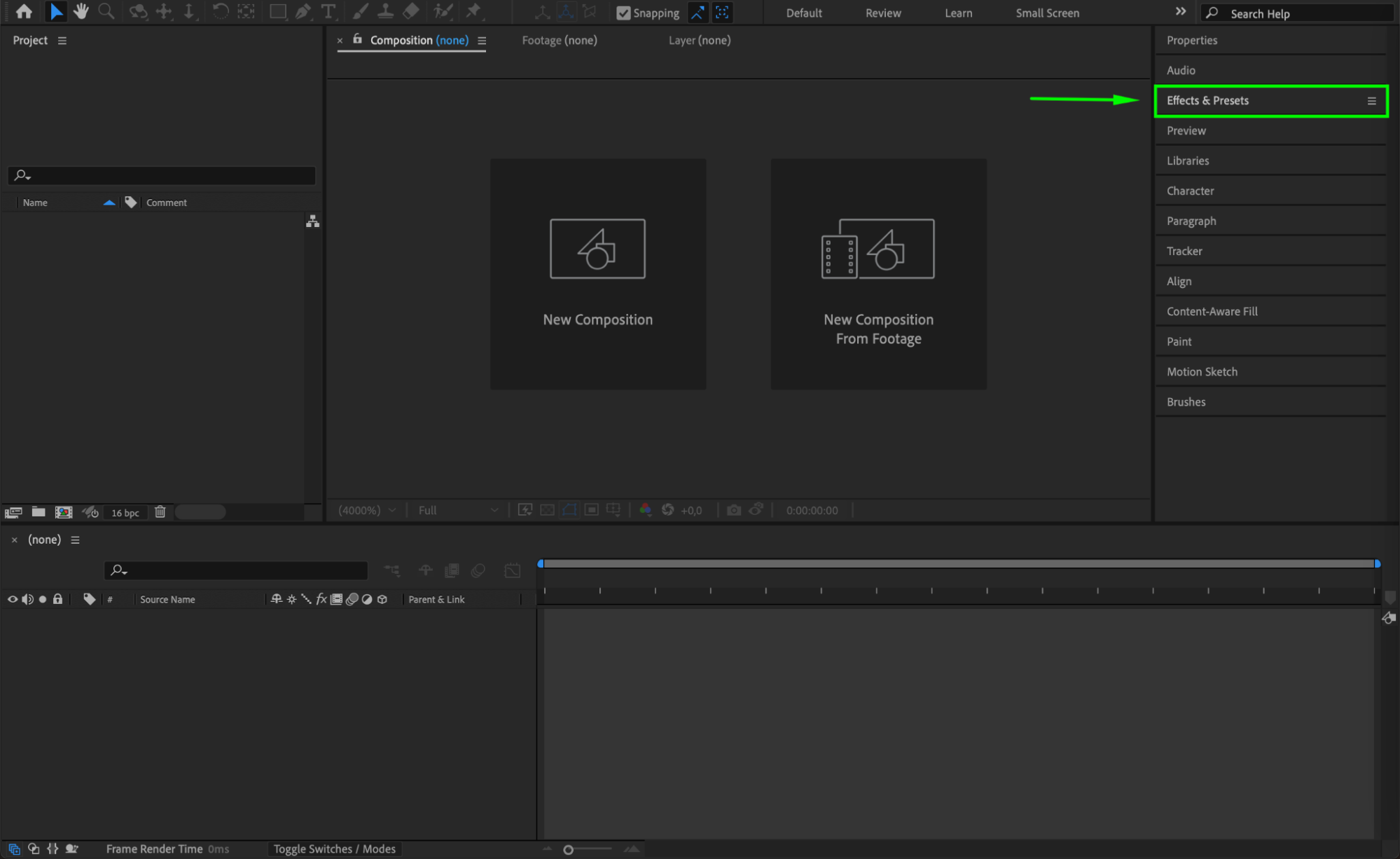
Step 2: Drag the Panel Back into the Workspace
Click and hold the tab at the top of the floating panel. While dragging, move it over the After Effects interface. As you hover over different areas, you’ll see blue highlights showing where the panel can be docked — to the left, right, bottom, or as a tab with another panel.
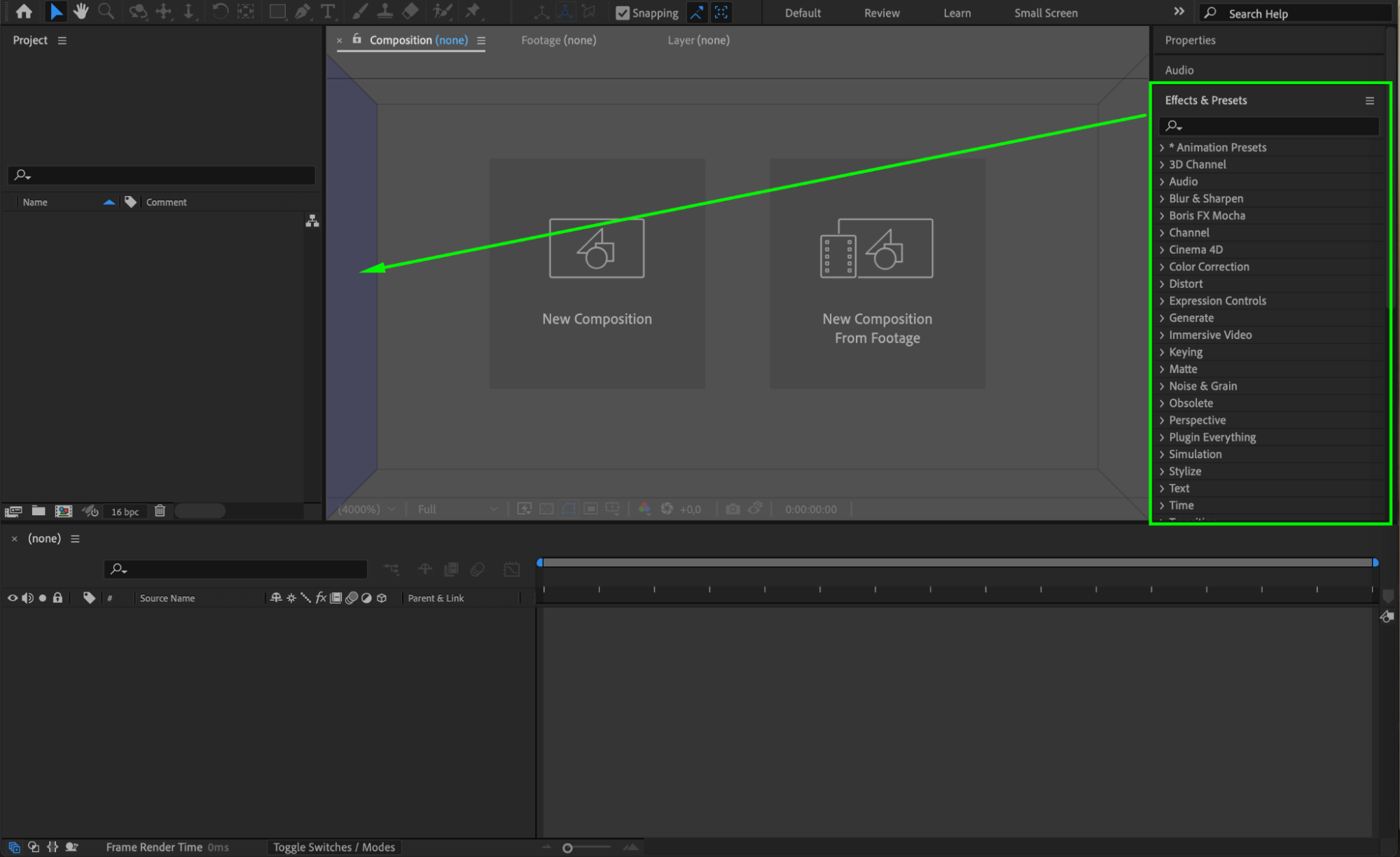 Step 3: Drop the Panel to Re-Dock
Once the desired docking area is highlighted in blue, release the mouse button to drop the panel in place. It will snap into the workspace layout, either next to other panels or grouped as a tab in a shared window.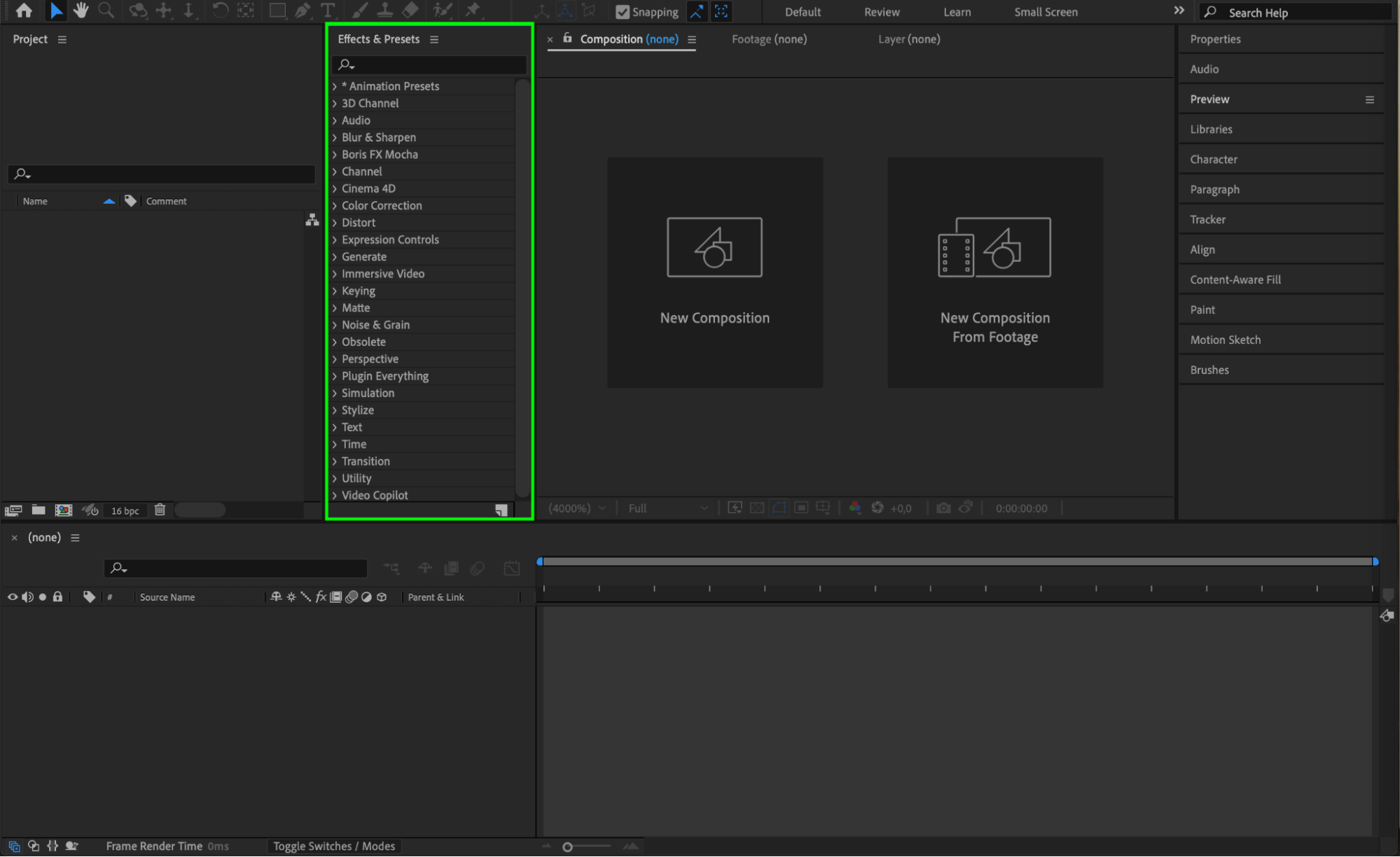
Step 4: Reset the Workspace (Optional)
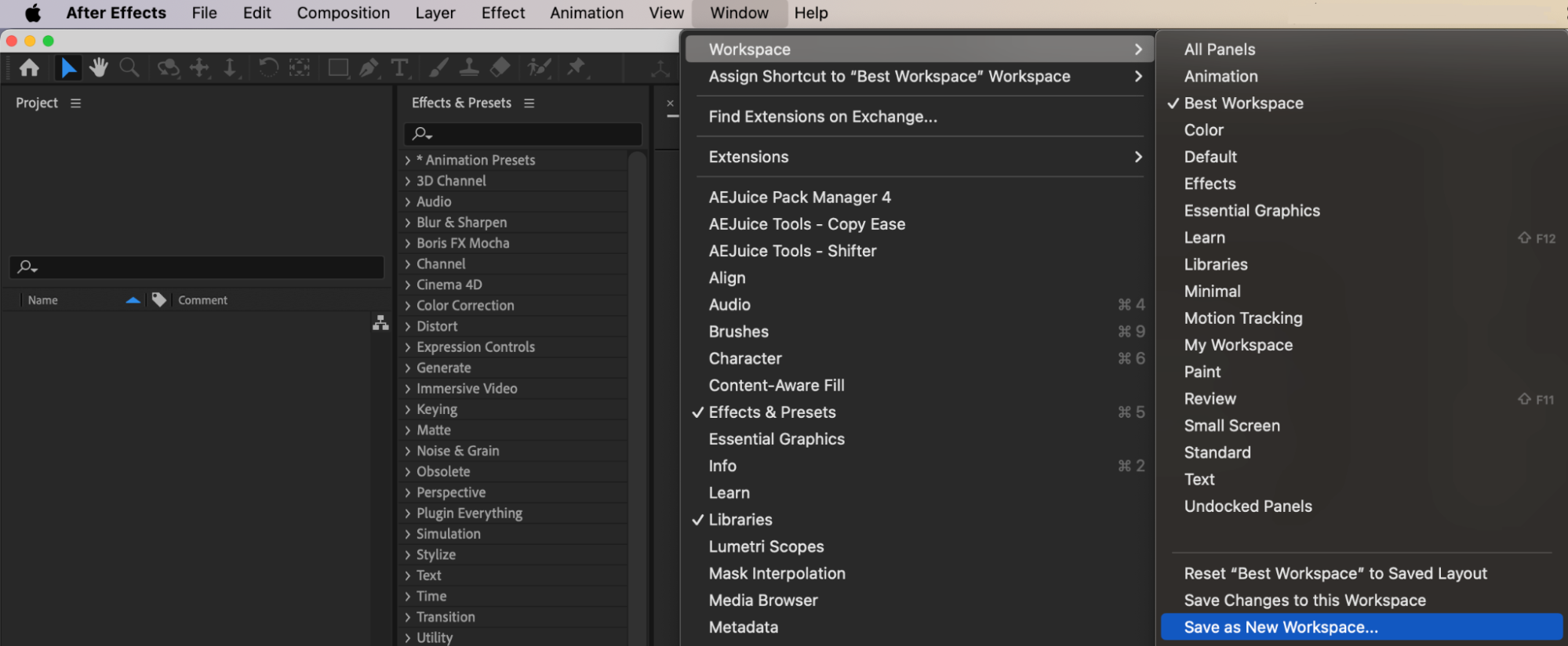
If your layout still feels messy, you can quickly reset everything. Go to Window > Workspace > Reset “(Your Current Workspace Name)”. This restores all panels to their original locations based on the selected workspace.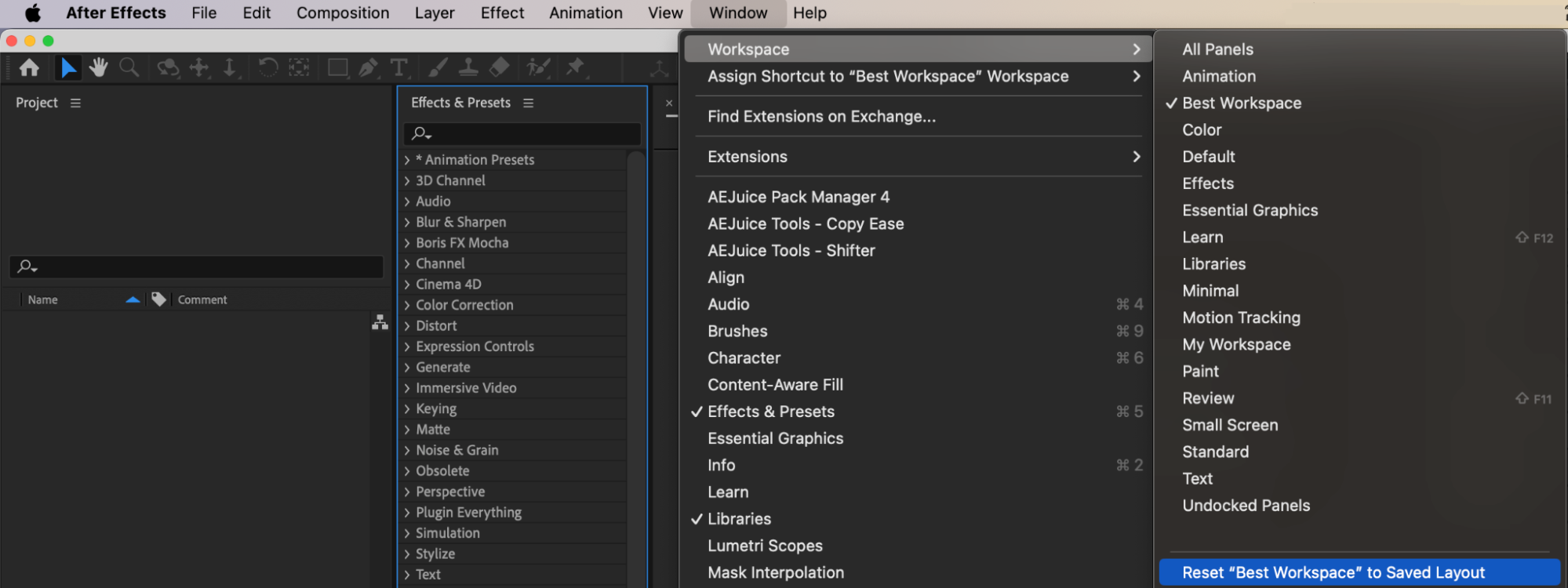 Step 5: Save Your Custom Workspace (Optional)
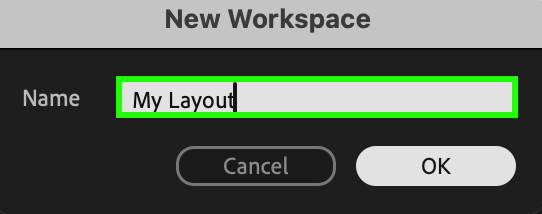
If you like your current panel setup and want to use it again later, go to Window > Workspace > Save as New Workspace. Give it a name like “My Layout” and After Effects will save your custom panel arrangement for future use.
Conclusion
Knowing how to re-dock panels in After Effects helps you stay organized and work more efficiently. Whether you’re fixing a floating panel or setting up your ideal layout, it only takes a few steps to restore order to your workspace. Don’t forget to save your layout to avoid repeating the process.
Our Bestsellers
Our Bestsellers


