
Removing Unwanted Text from Video in After Effects
Introduction
Sometimes your footage includes unwanted text, such as watermarks, lower-thirds, or embedded captions. After Effects offers an effective tool called Content-Aware Fill that makes it easy to remove this text automatically. In this step-by-step guide, you’ll learn how to quickly erase text using masks and Content-Aware Fill.
Step 1: Import Your Video
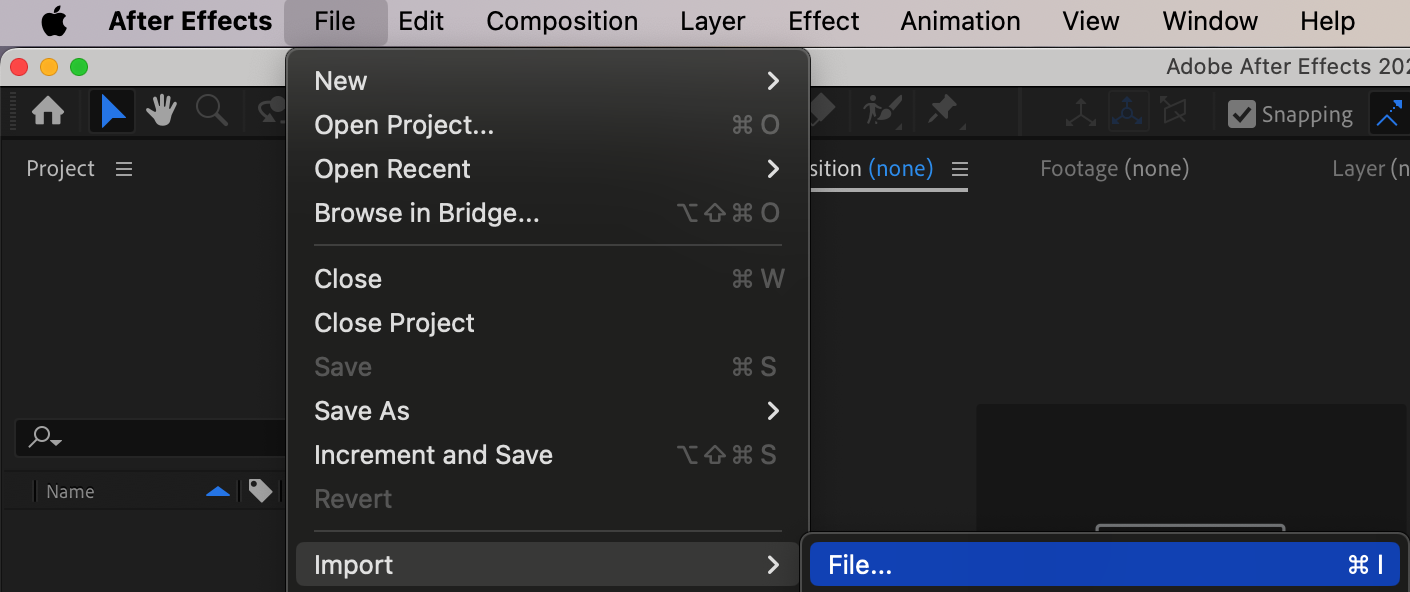
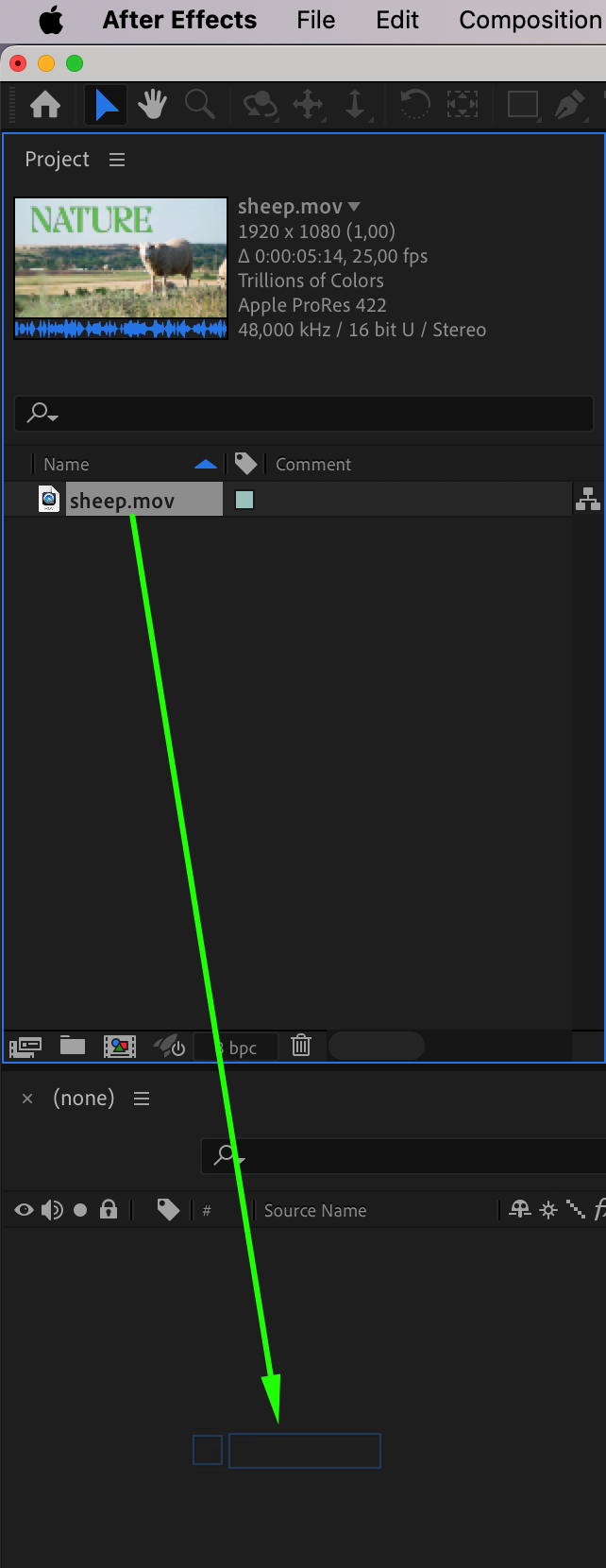
Start by launching After Effects. Go to File > Import > File, choose your video, and drag it into the timeline panel to begin editing.

Step 2: Mask the Area Around the Text
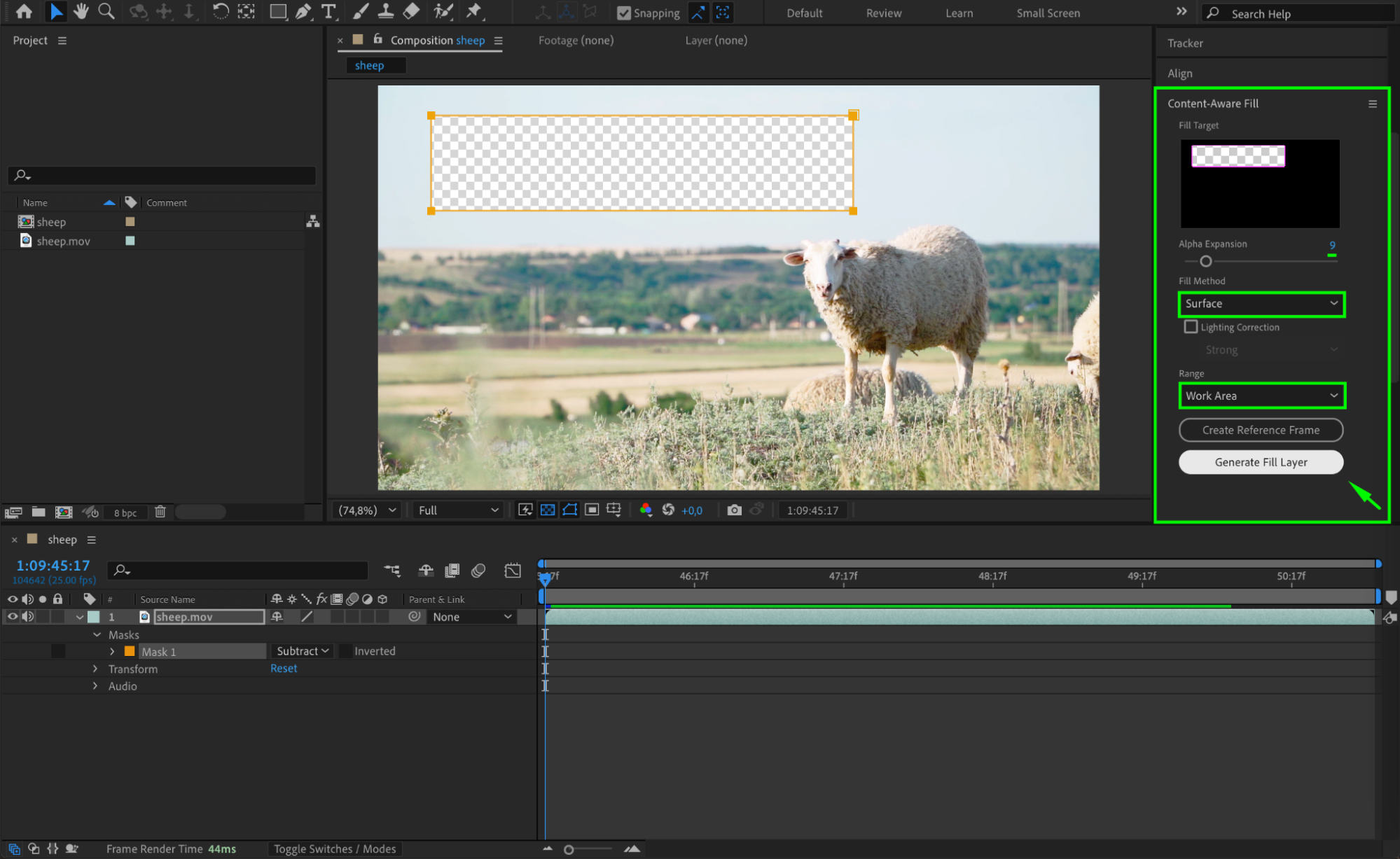
Select the video layer, then choose the Rectangle Tool (Q) from the top toolbar. Draw a rectangle around the text you want to remove. In the timeline, open the mask settings and set the Mask Mode to Subtract so that After Effects knows which part to replace.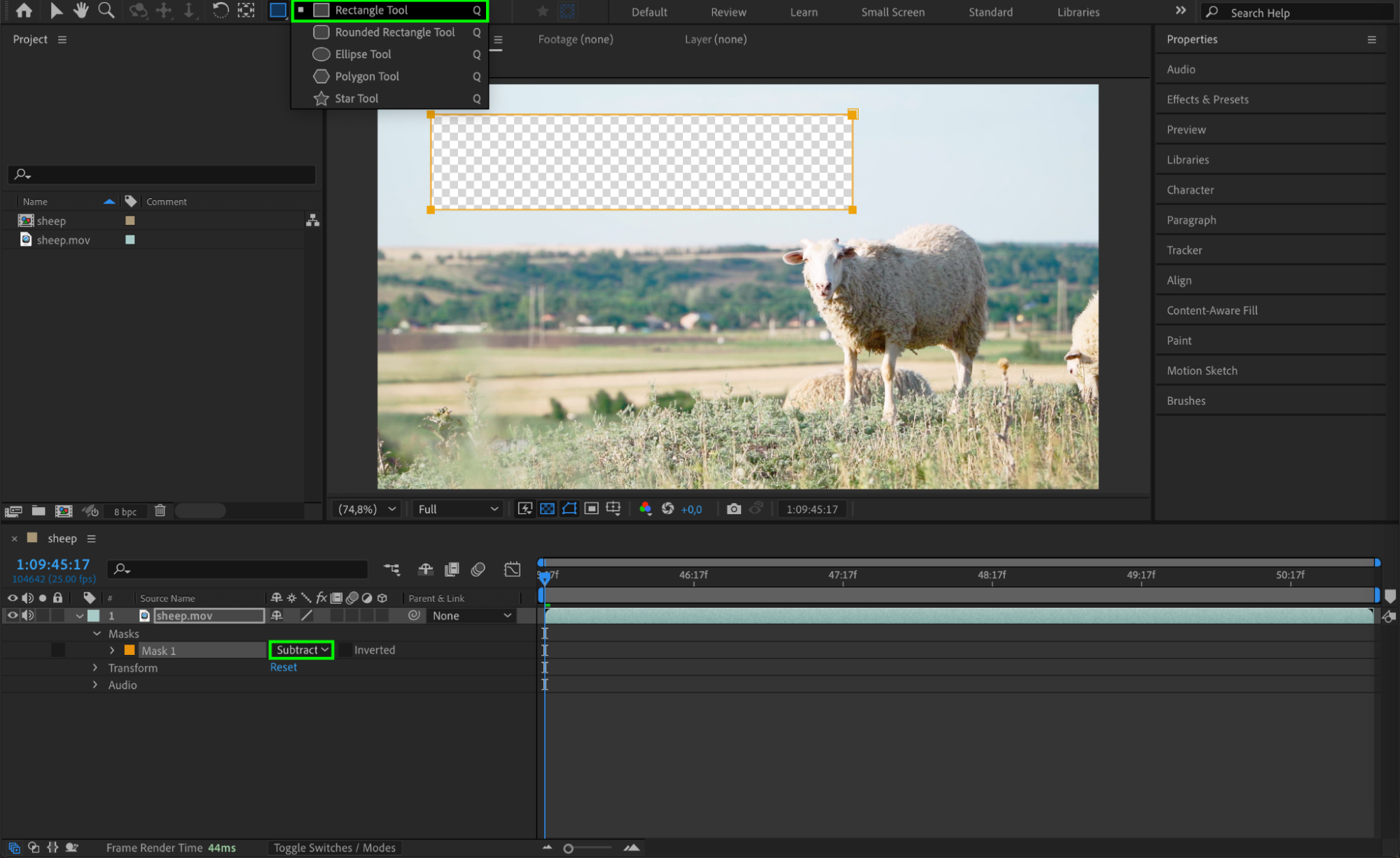
Step 3: Open Content-Aware Fill Settings
Go to Window > Content-Aware Fill to open the panel. Set Alpha Expansion to 3-9 to give the tool extra space to blend the fill. Choose Surface as the Fill Method for best results on flat backgrounds. Set Range to Work Area, then click Generate Fill Layer. After Effects will analyze your scene and create a new layer that removes the text.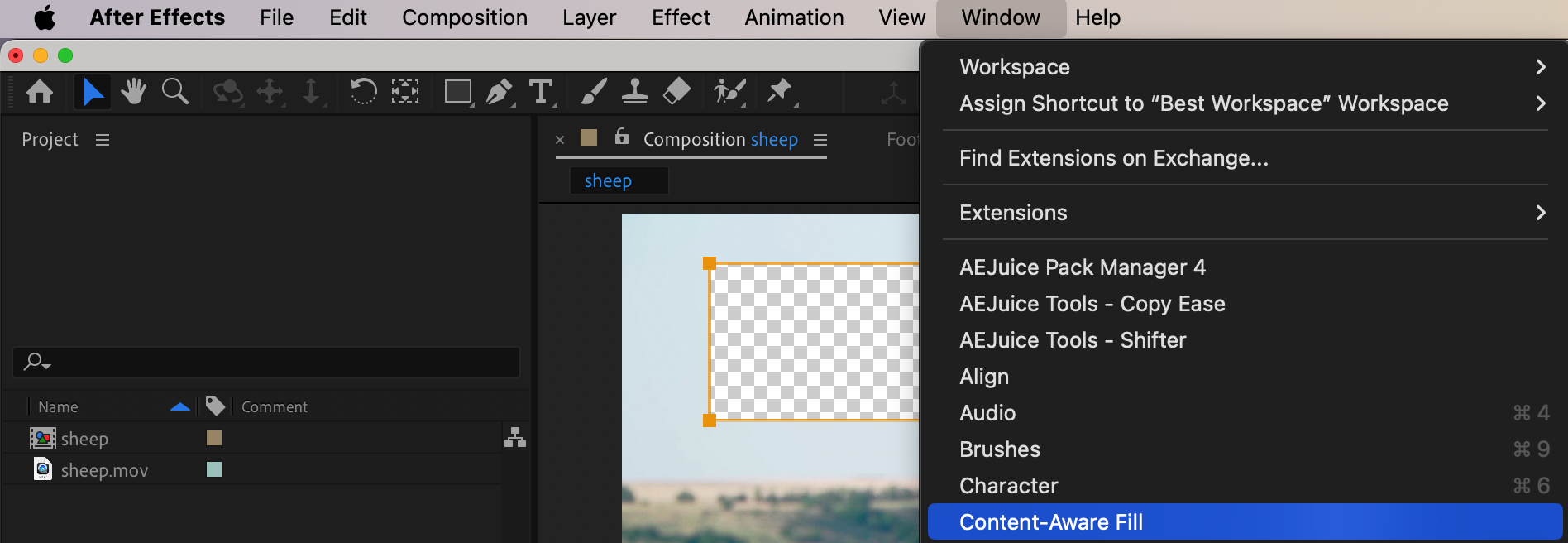
 Step 4: Preview the Result
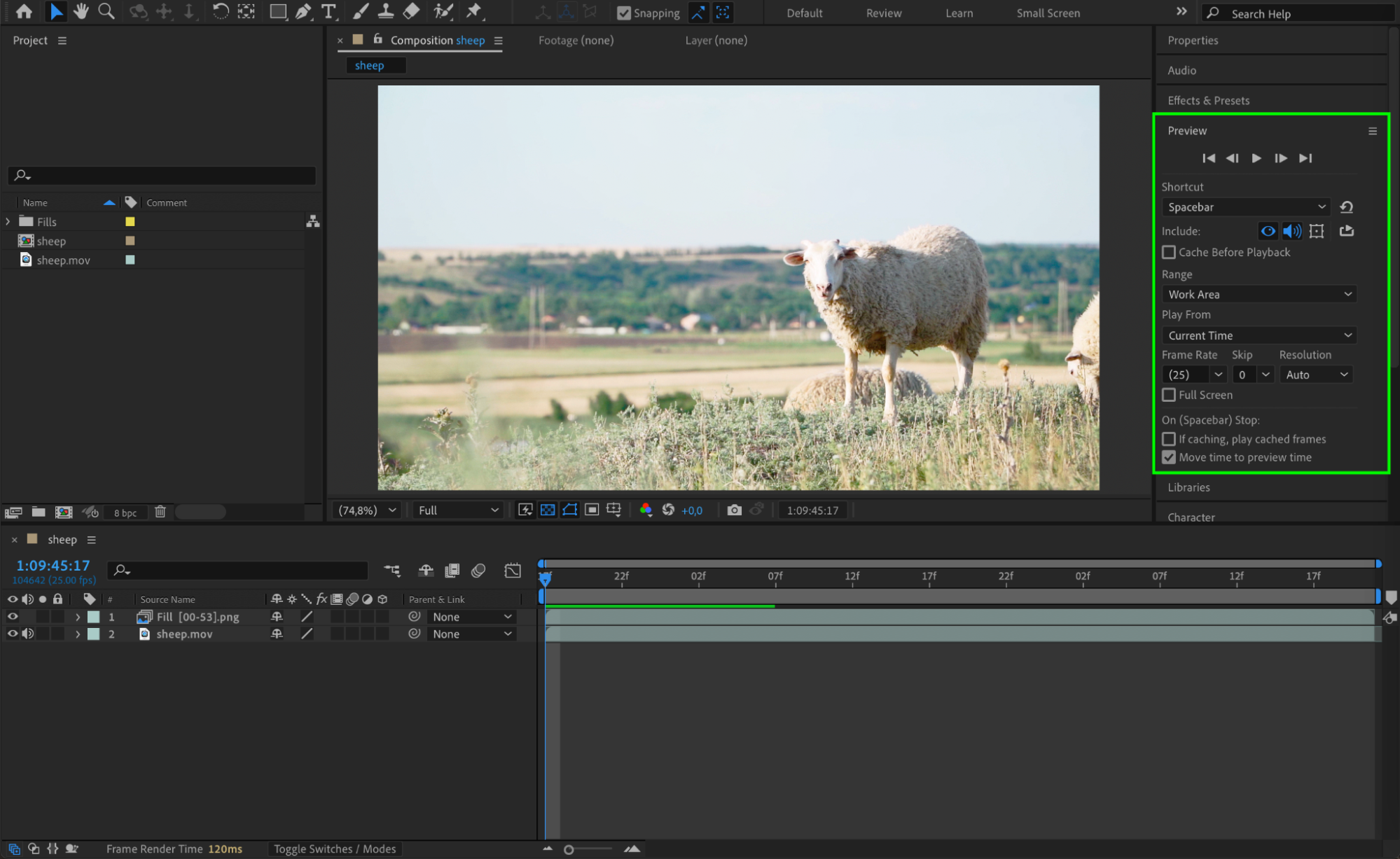
Press the spacebar to preview your composition. The text should now be cleanly removed, and the background should appear consistent with the rest of the footage.
Step 5: Export the Final Video
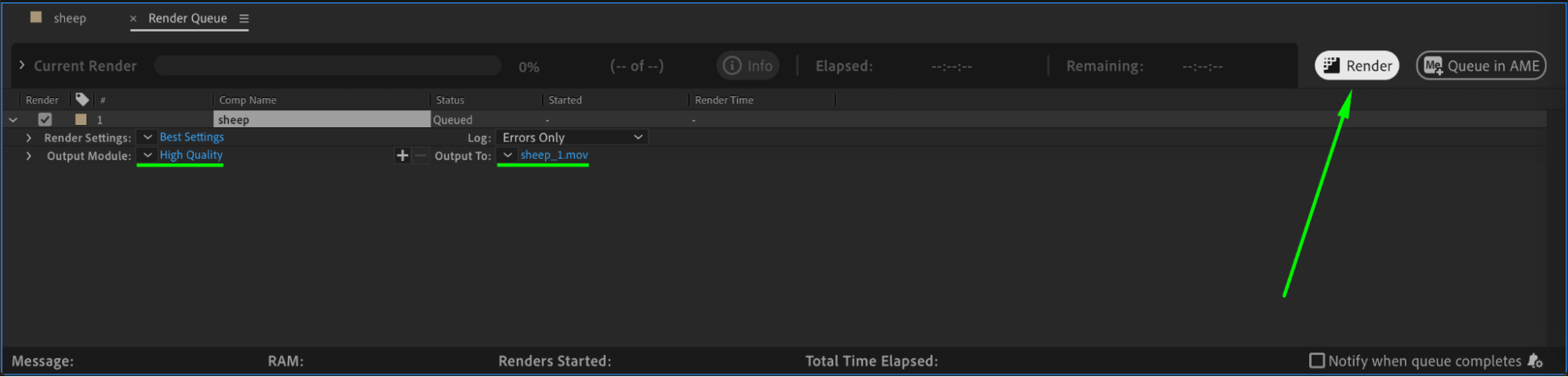
Once you’re happy with the result, go to Composition > Add to Render Queue or use Adobe Media Encoder to render your final video with the text removed.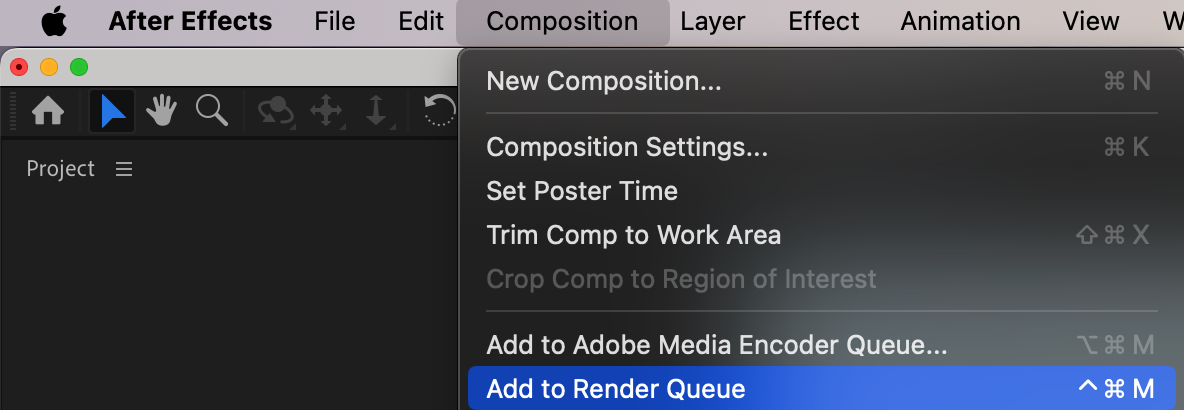
 Conclusion
Removing text from a video in After Effects is quick and efficient using the Content-Aware Fill feature. With just a simple mask and a few settings, you can clean up your footage and achieve professional-looking results without needing advanced rotoscoping or manual cleanup.
Our Bestsellers
Our Bestsellers


