
Scaling One Side of a Layer in Adobe After Effects
Introduction
Sometimes in motion design, you may want to scale only one side of a layer — for example, stretch it from the left or shrink it from the top — without affecting the opposite side. In Adobe After Effects, this can be done by adjusting the anchor point and scaling in a single dimension. This short tutorial will show you how to achieve this effect with precision.
Step 1: Create a New Composition
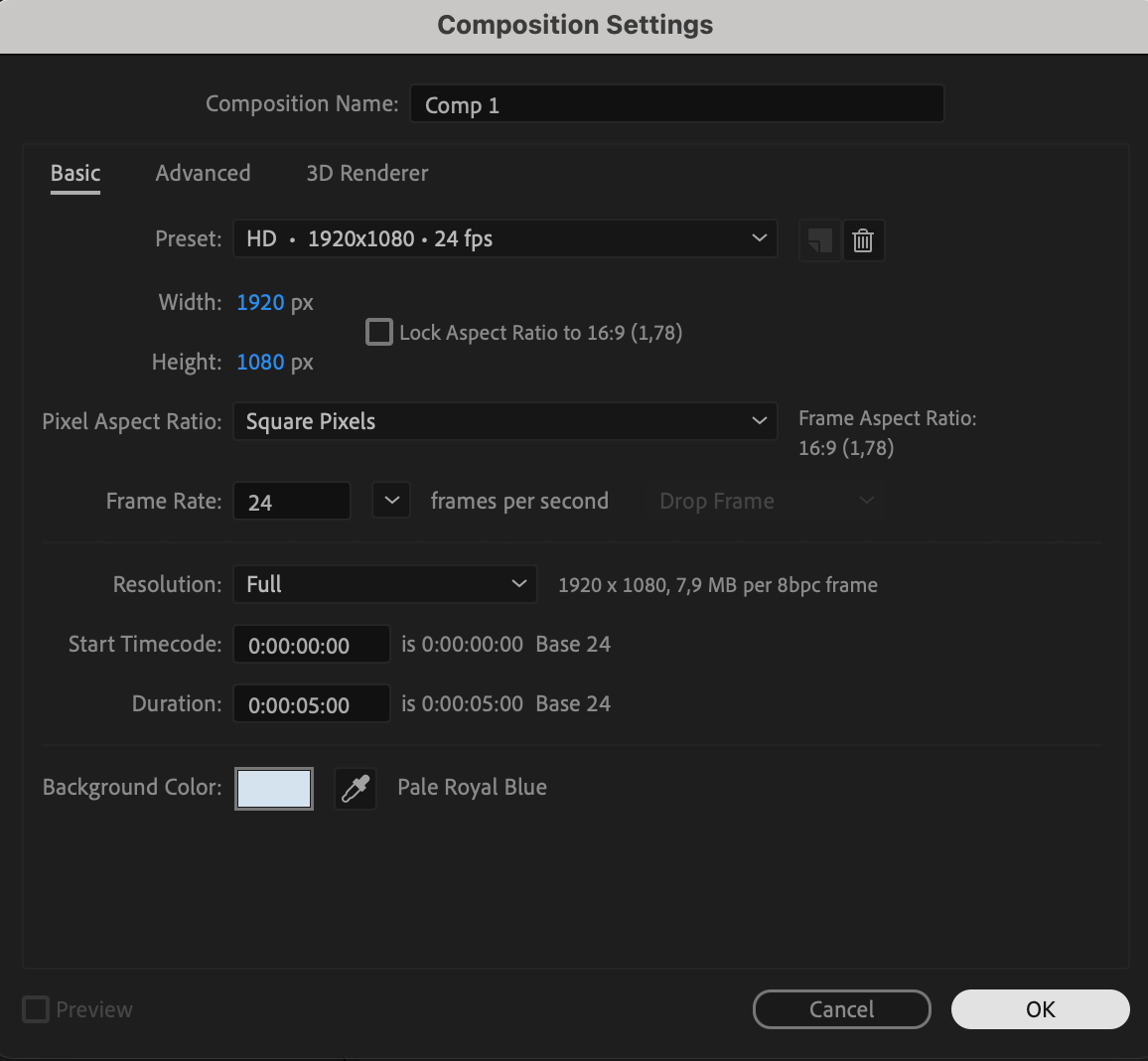
Open After Effects and create a new composition by going to Composition > New Composition. Set your desired resolution, frame rate, and duration, then click OK.
 Step 2: Import or Create a Layer
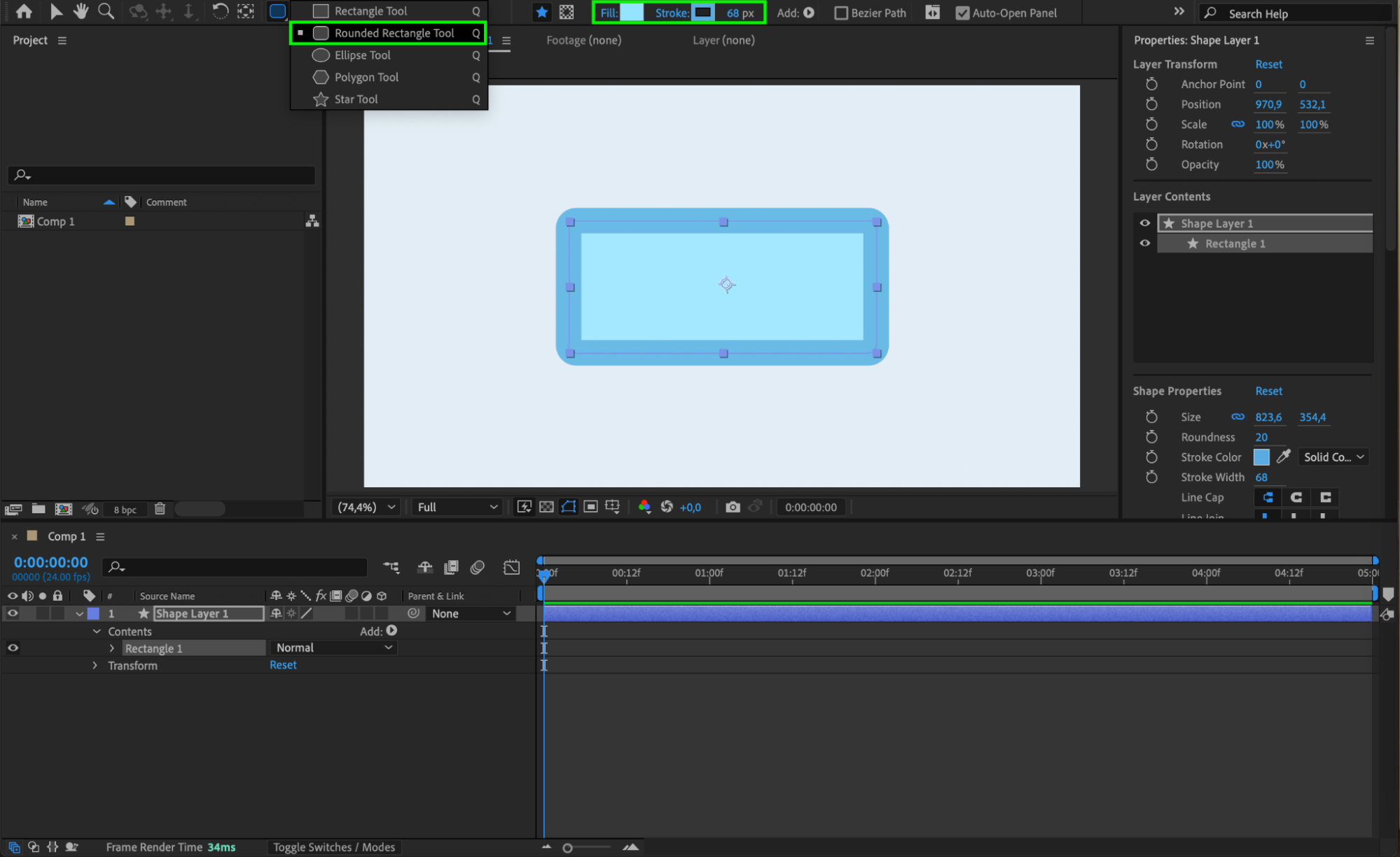
Drag your image, shape layer, or footage into the composition. If you don’t have a file, you can simply create a shape or solid layer from Layer > New > Solid or Shape Layer.
Step 3: Open the Transform Controls
Select the layer in the timeline and press the “S” key to reveal the Scale property. By default, the X and Y values are linked, meaning the layer scales uniformly.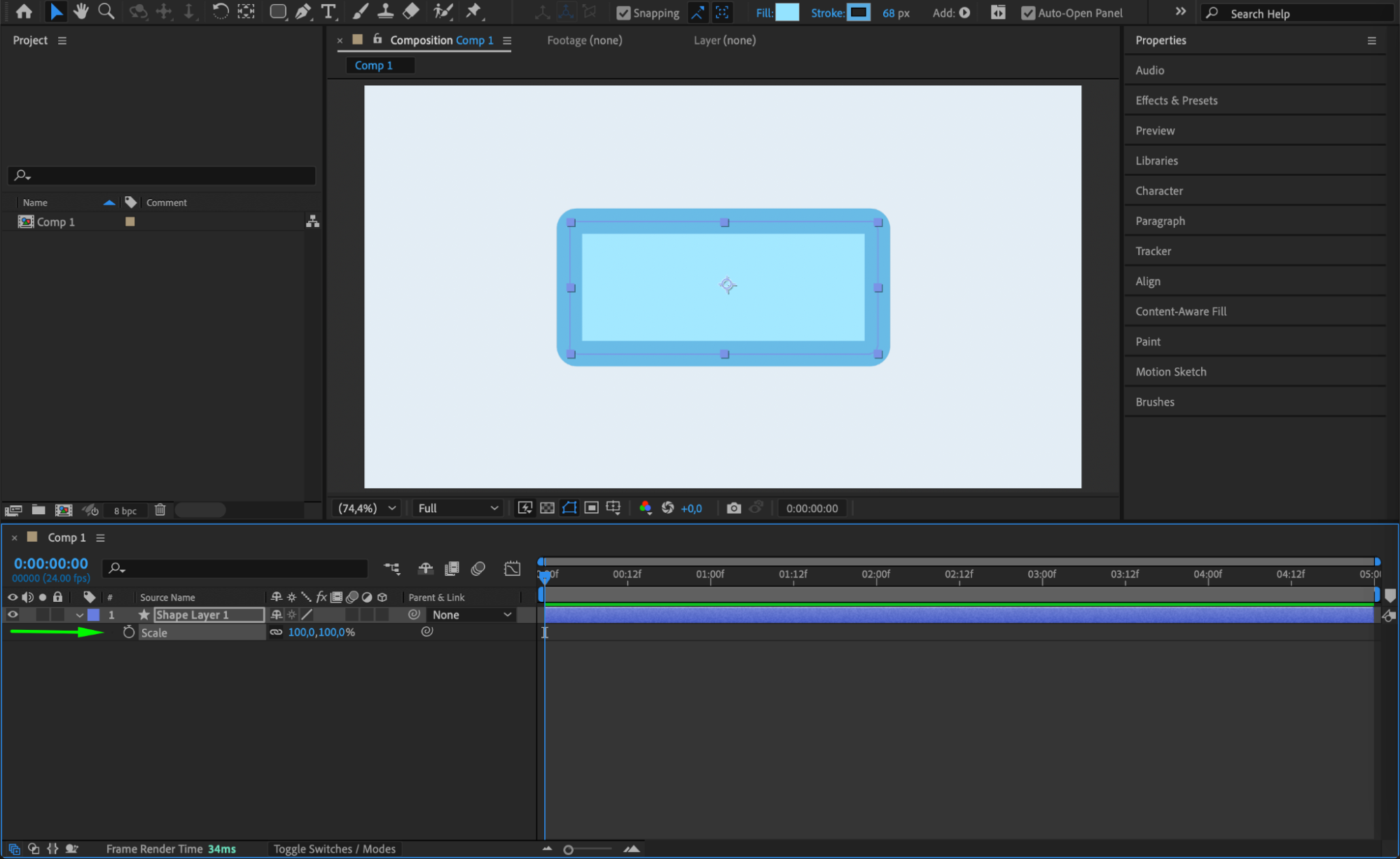 Step 4: Unlink Scale Dimensions
Click the chain icon next to the Scale property to unlink the dimensions. This allows you to scale the layer in X or Y direction independently, which is essential for scaling only one side.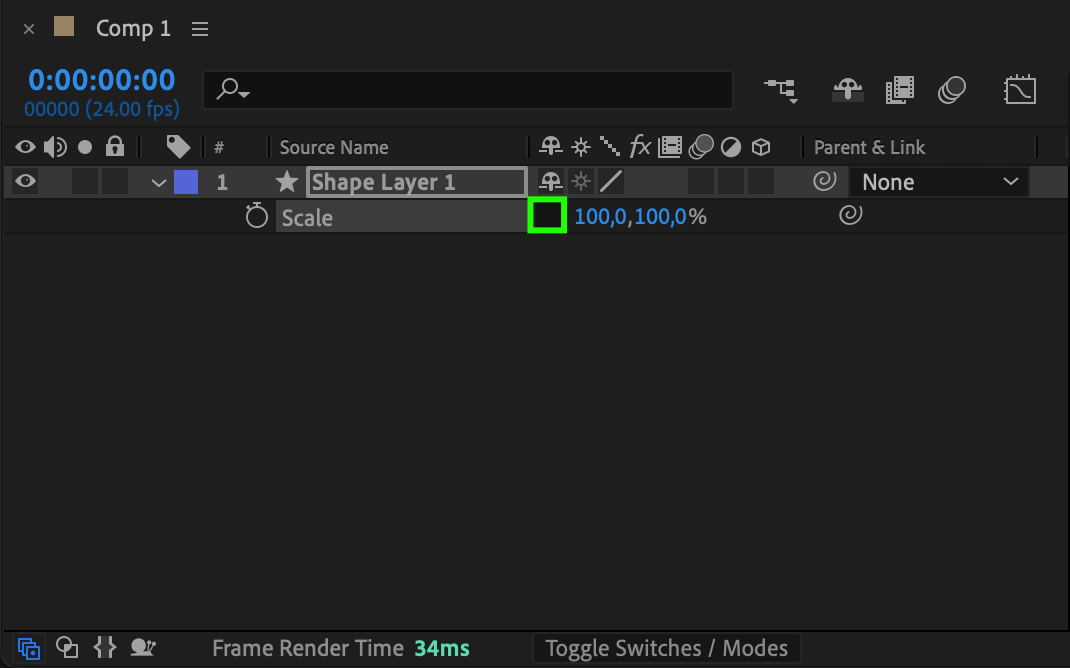 Step 5: Adjust the Anchor Point
To scale only one side, you need to move the anchor point to the opposite edge of the side you want to stretch. Press Y on your keyboard to activate the Pan Behind Tool, then drag the anchor point to the edge of the layer (e.g., far left if you’re scaling from the right).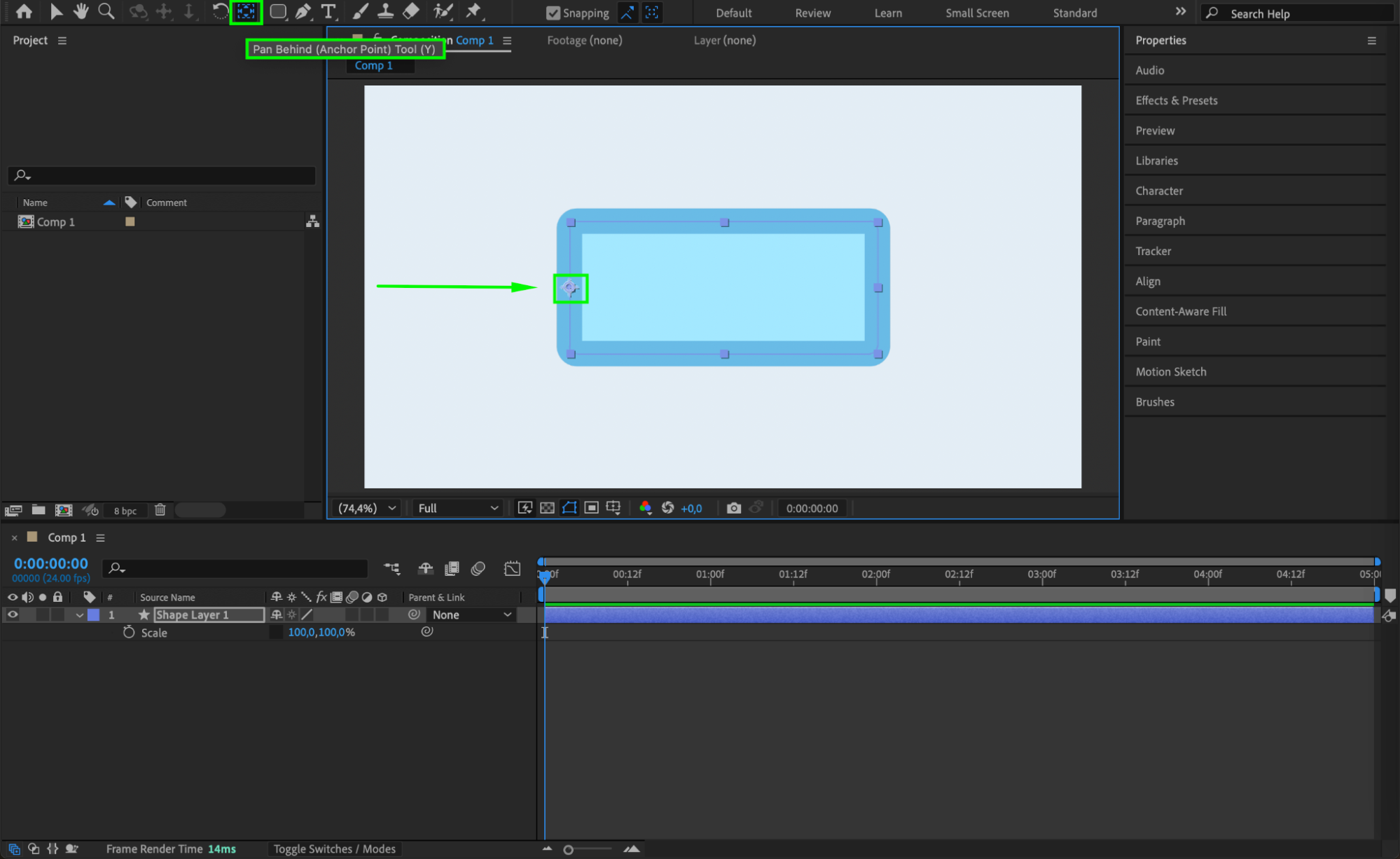
Step 6: Scale in One Direction
Now that the anchor point is moved, scale the layer by increasing or decreasing the X or Y value, depending on your goal. The layer will now expand or shrink from the side opposite the anchor point.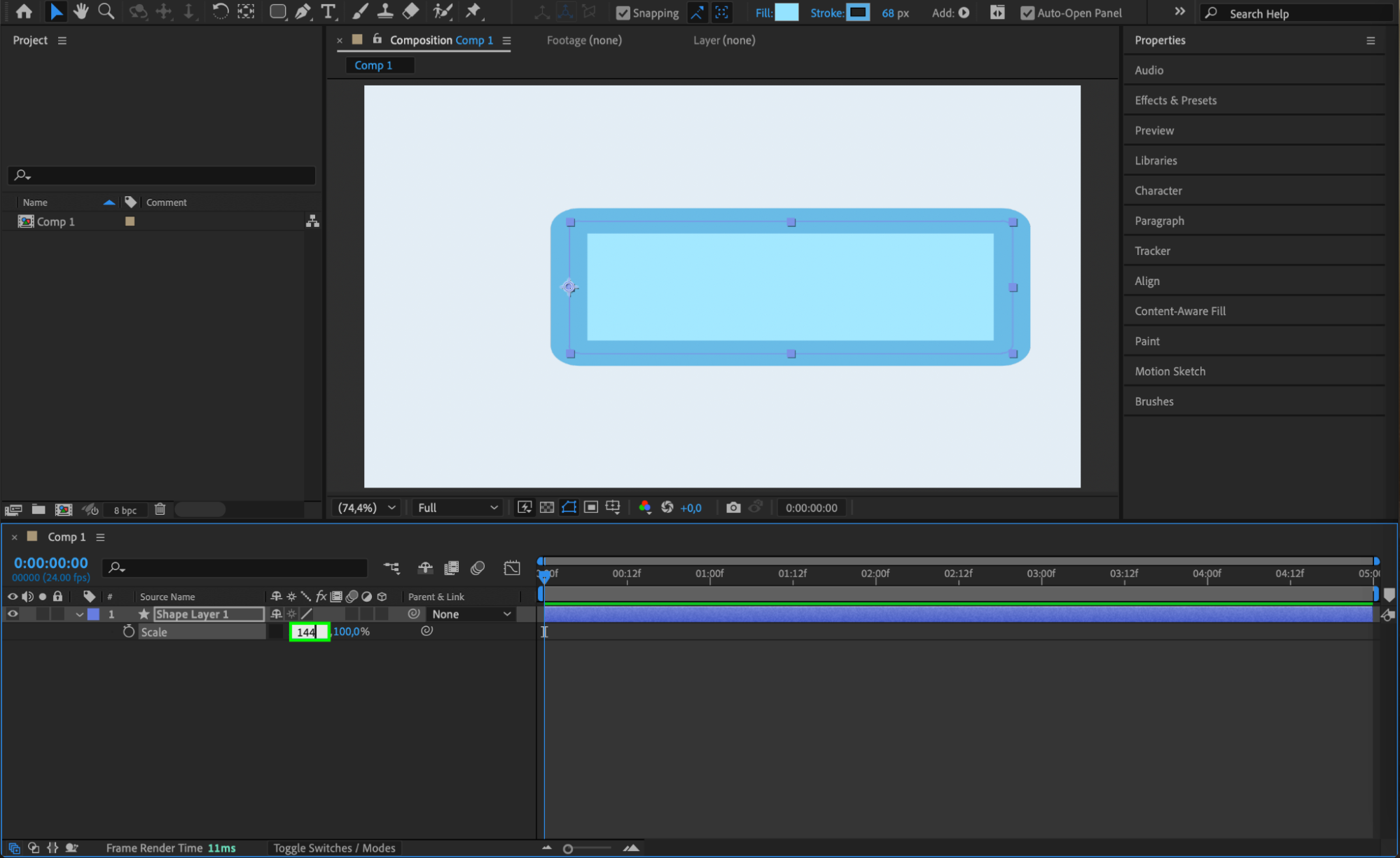 Step 7: Use Motion or Keyframes (Optional)
If you want the one-sided scale to happen over time, set keyframes for the Scale property by clicking the stopwatch icon. Move the playhead and adjust the scale to animate the effect.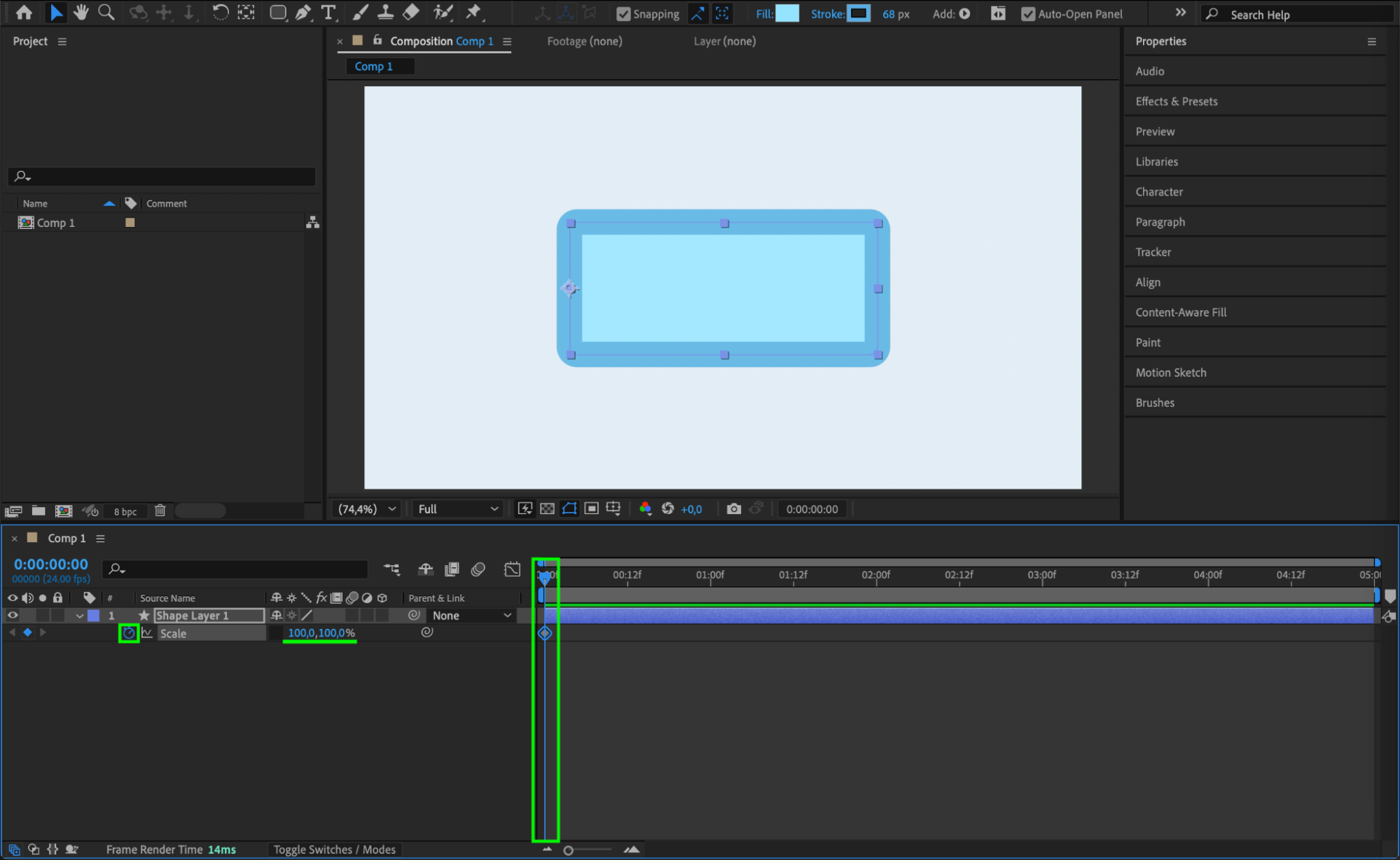
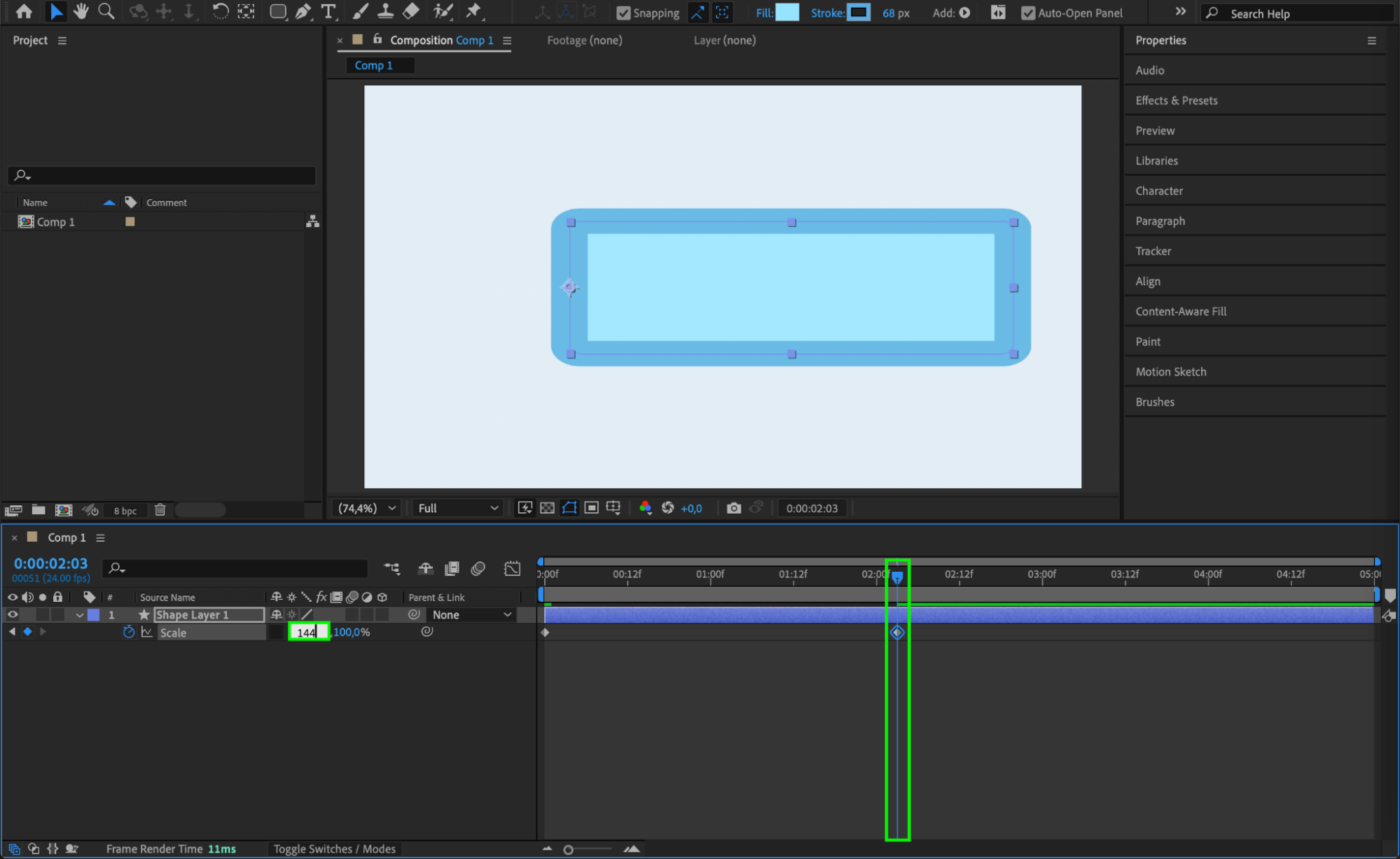 Step 8: Fine-Tune with Ease
For smoother animation, right-click the keyframes and choose Keyframe Assistant > Easy Ease. You can also use the Graph Editor to refine the timing and easing of the scale.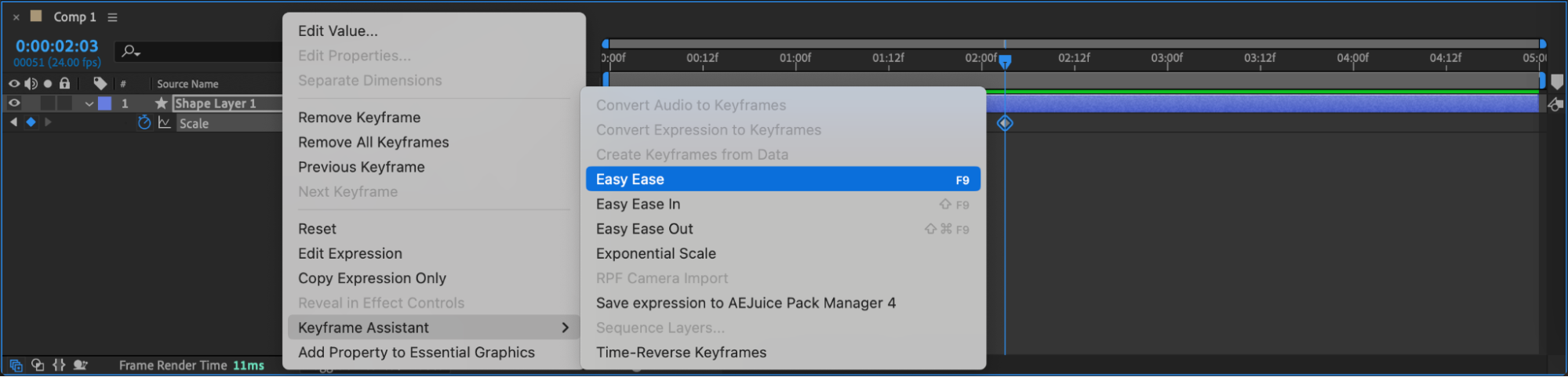
Conclusion
Scaling only one side of a layer in After Effects is easy once you understand how to reposition the anchor point and scale dimensions separately. This technique is useful for UI animations, reveals, or creative transitions. With a few clicks, you can achieve precise control and dynamic visual effects in your motion graphics projects.
Our Bestsellers
Our Bestsellers


