
Introduction
After Effects doesn’t display the final file size before rendering, but you can estimate it accurately by checking the codec, format, and bitrate settings in the Render Queue.
Knowing this helps you control export quality and prevent oversized renders before you start the process.
Step 1: Add Your Composition to the Render Queue
Go to Composition > Add to Render Queue. This opens the Render Queue panel at the bottom of your workspace, where you can manage all render settings.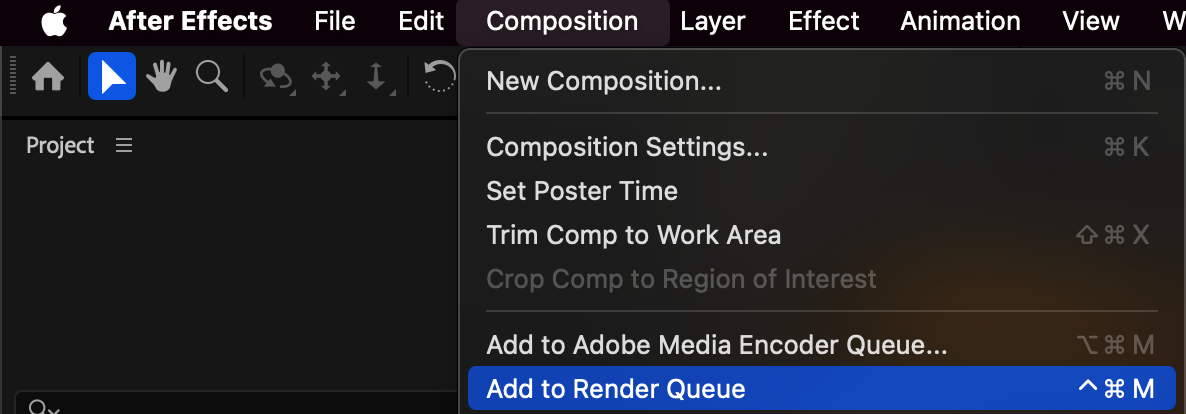 Step 2: Choose the Output Module
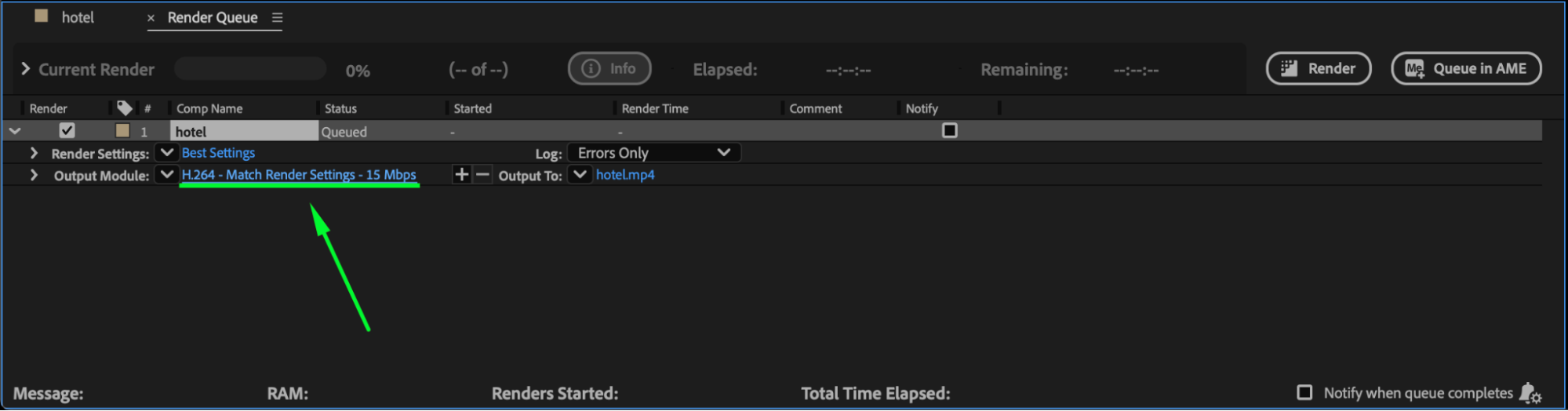
In the Render Queue, click the text next to Output Module (for example, H.264 – Match Render Settings – 15 Mbps). This opens the Output Module Settings window, where you can choose your Format and Codec.
Step 3: Select the Format and Codec
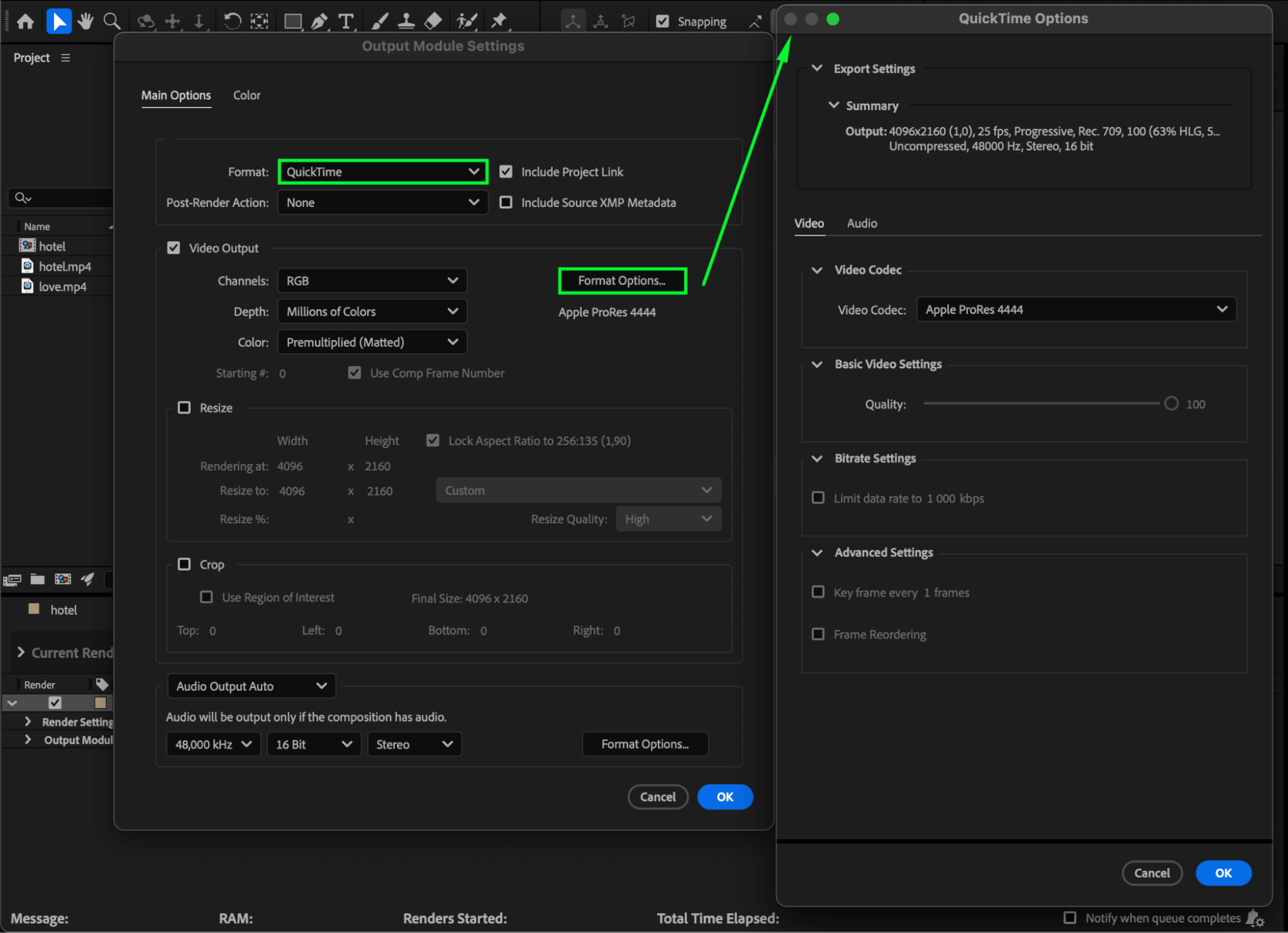
Choose a compressed format like QuickTime or AVI, depending on your workflow. Then click Format Options — here you can set the Video Codec (for example, H.264 or Apple ProRes). Each codec has its own bitrate, which determines file size:
Higher bitrate → better quality but larger files.
Lower bitrate → smaller files but lower quality.
Step 4: Estimate File Size Using Bitrate Formula
After Effects won’t show the size directly, but you can calculate it manually:
File Size (MB) ≈ (Bitrate × Duration) ÷ 8
Example:
If your bitrate is 20 Mbps and the video is 60 seconds long:
(20 × 60) ÷ 8 = 150 MB
This gives a close estimate of how large your file will be after rendering.
Step 5: Test with a Short Preview Render
If you’re unsure about your settings, try rendering just a 5–10 second section of your composition. Check the file size of that short test, then multiply it by the total duration to get a full estimate.
Step 6: Adjust Settings if Needed
If the test render is too large, go back to Output Module Settings > Format Options and choose a lower bitrate or a more efficient codec like H.264. You can repeat the quick test until you find the balance between quality and size you want.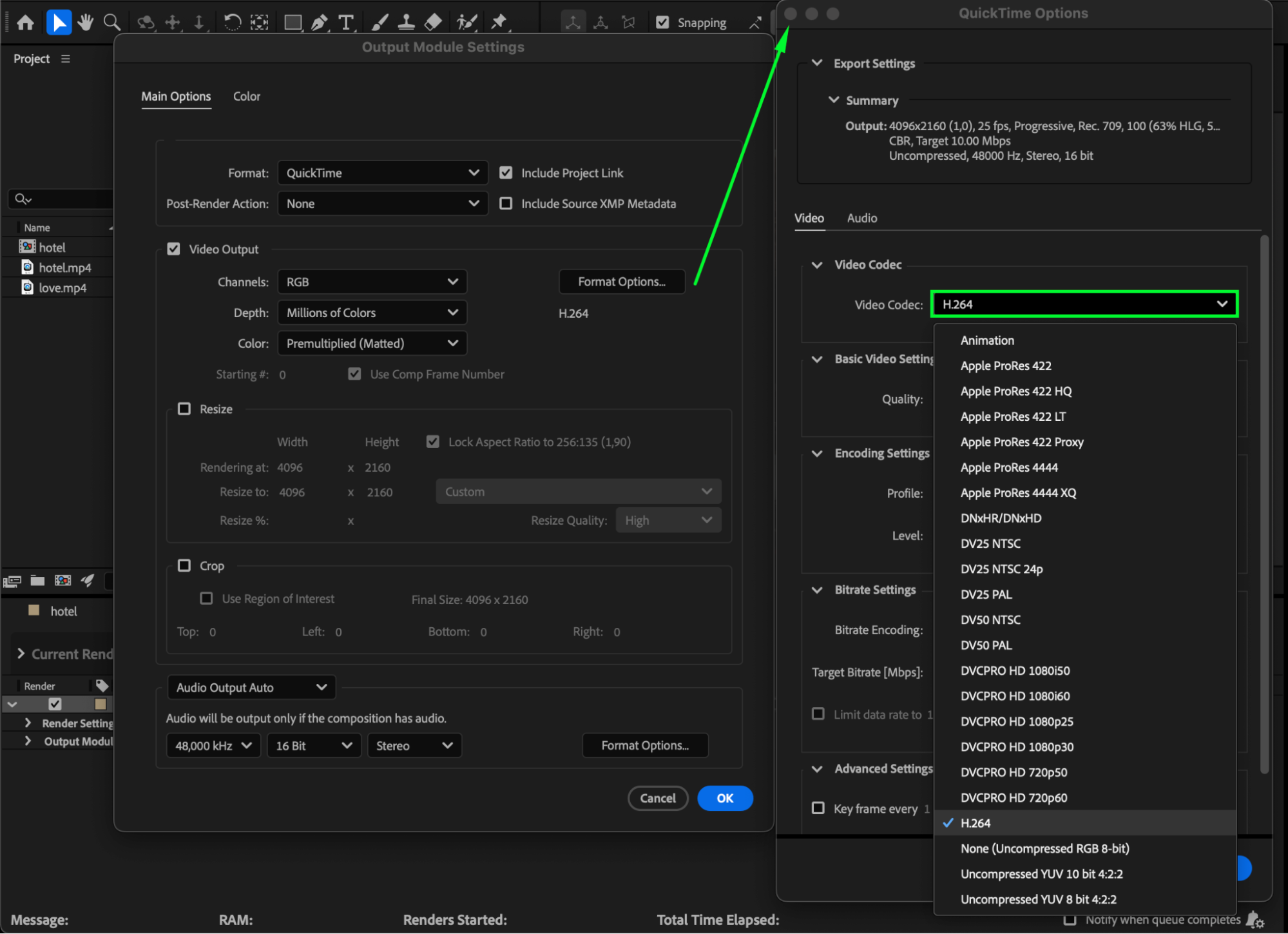
Conclusion
Using the bitrate formula or a short preview render lets you predict file size accurately, saving you time and ensuring your final output fits your storage and delivery needs.
Our Bestsellers
Our Bestsellers


