
Enhancing Motion Design with Urban Texture Overlays
Introduction to Using Urban Design Elements in Your Videos
Urban textures are a powerful way to bring grit, realism, and street-style energy to your motion design. Whether you’re creating titles for a music video, designing a sports promo, or giving your footage a raw, cinematic edge, these textures help set the tone. In this tutorial, you’ll learn how to use the AEJuice Urban Texture Pack in After Effects correctly — as visual overlays, not distortions — to elevate your design with authentic urban details.
Step 1: Import Your Footage
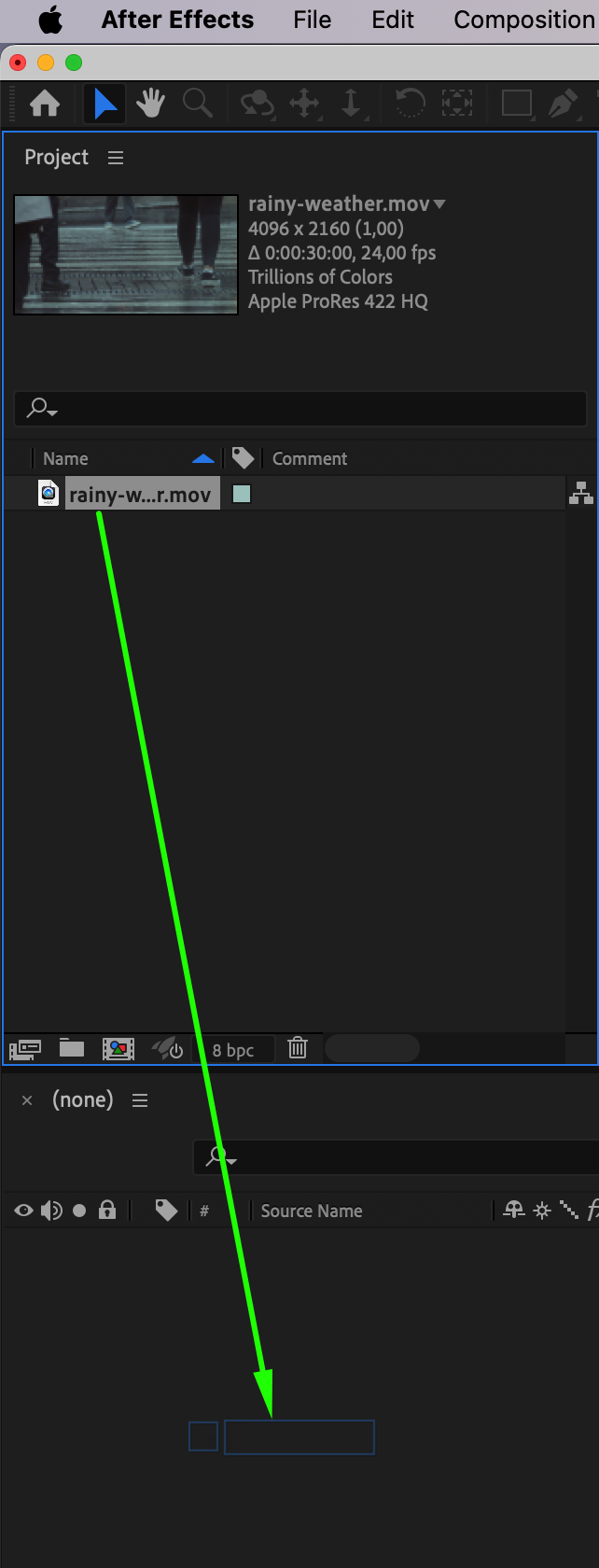
Open After Effects and go to File > Import > File to bring in your video or image sequence. Drag the footage into the timeline to automatically create a new composition. This will be your base layer for applying textures.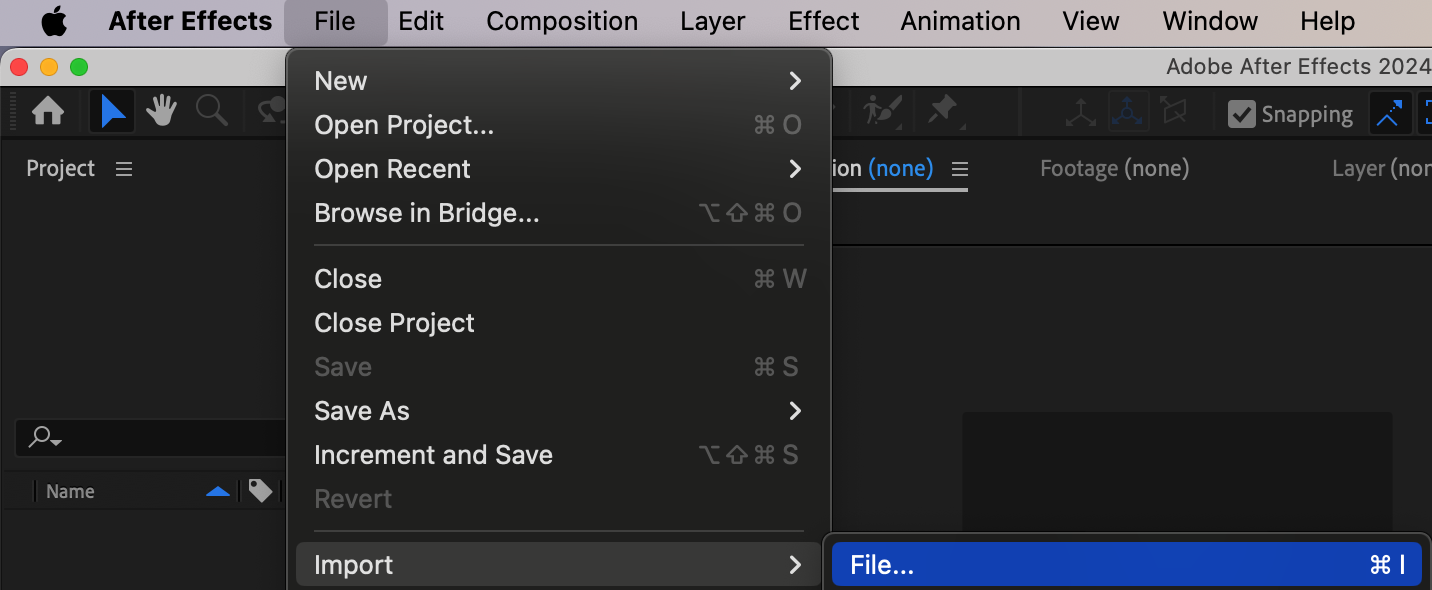
Step 2: Open AEJuice Pack Manager
Go to Window > AEJuice Pack Manager 4 to open the plugin panel. AEJuice Pack Manager is the hub where all your AEJuice products are installed and managed. Make sure you’re logged in to access the full content library. Step 3: Download the Urban Texture Pack
Inside the Pack Manager, scroll or search to find Urban Texture Pack. Click on the pack and download it if you haven’t already. Once it’s downloaded, you can explore a variety of cinematic texture overlays designed specifically for motion graphics and video editors.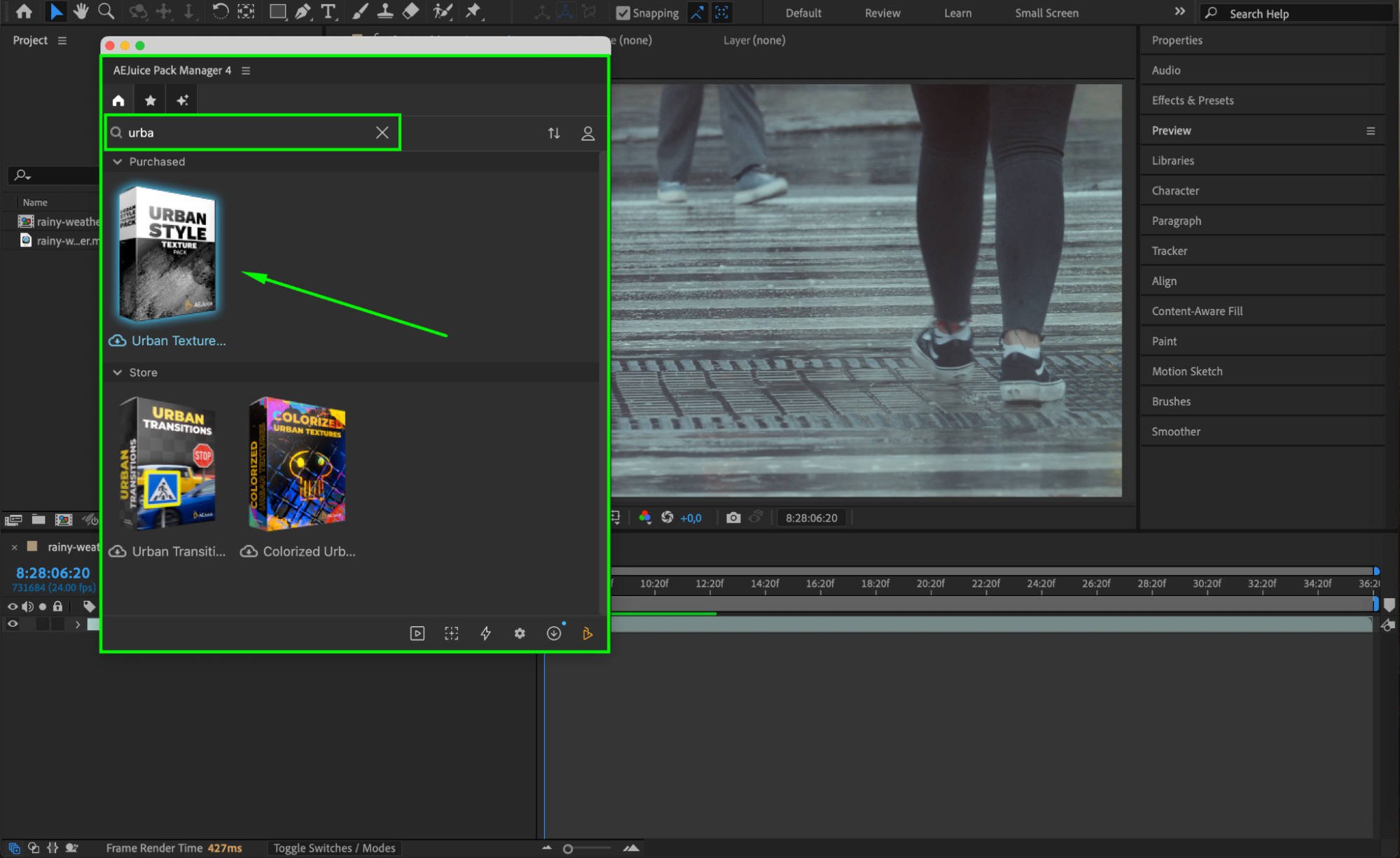
Step 4: Select and Import a Texture Overlay
Choose an overlay that matches your project’s mood — for example, Urban Texture Overlay 10. Click on the texture to preview it, then press the Import button. The overlay will automatically be added to your current composition as a new pre-comp layer.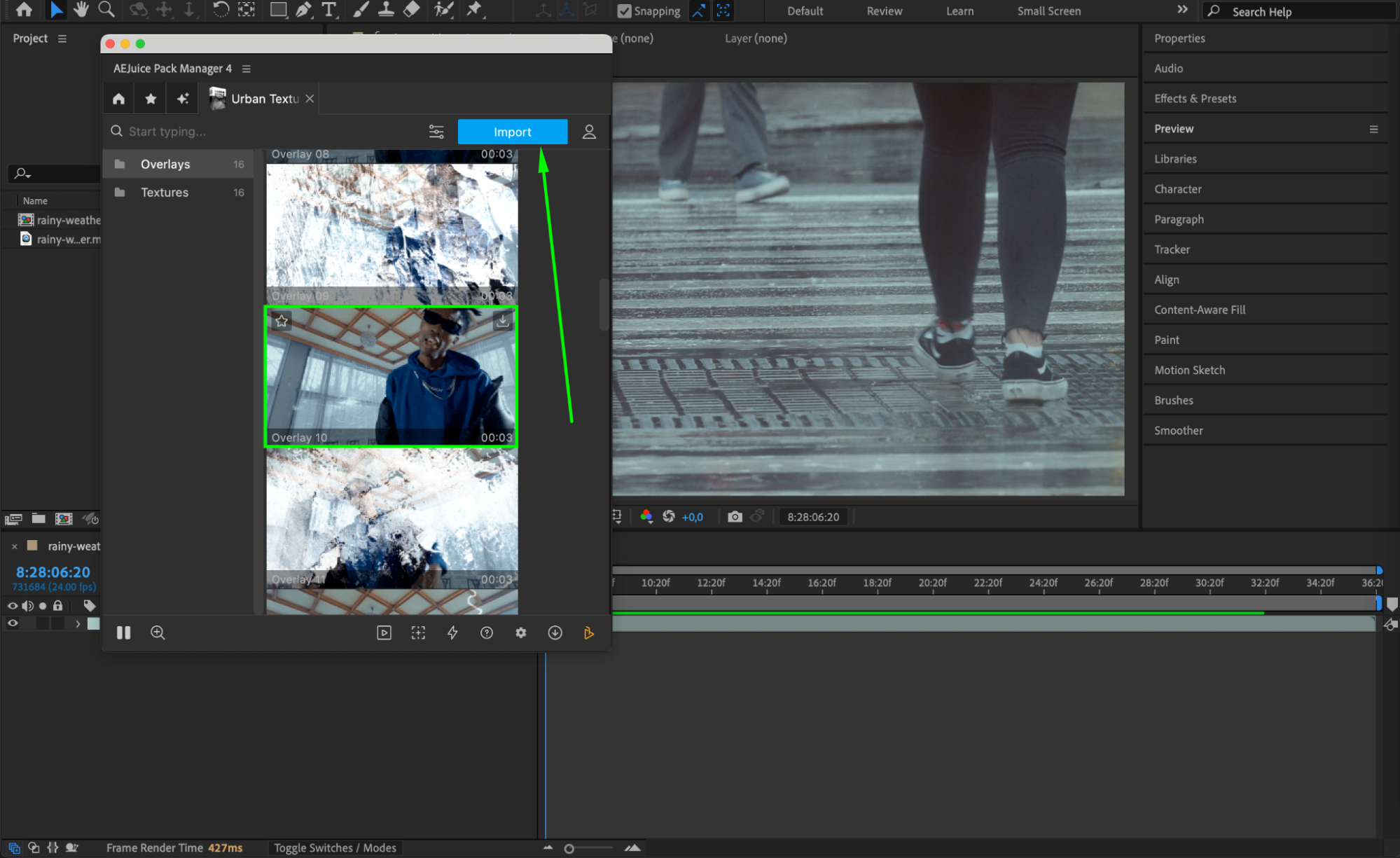 Step 5: Blend the Texture
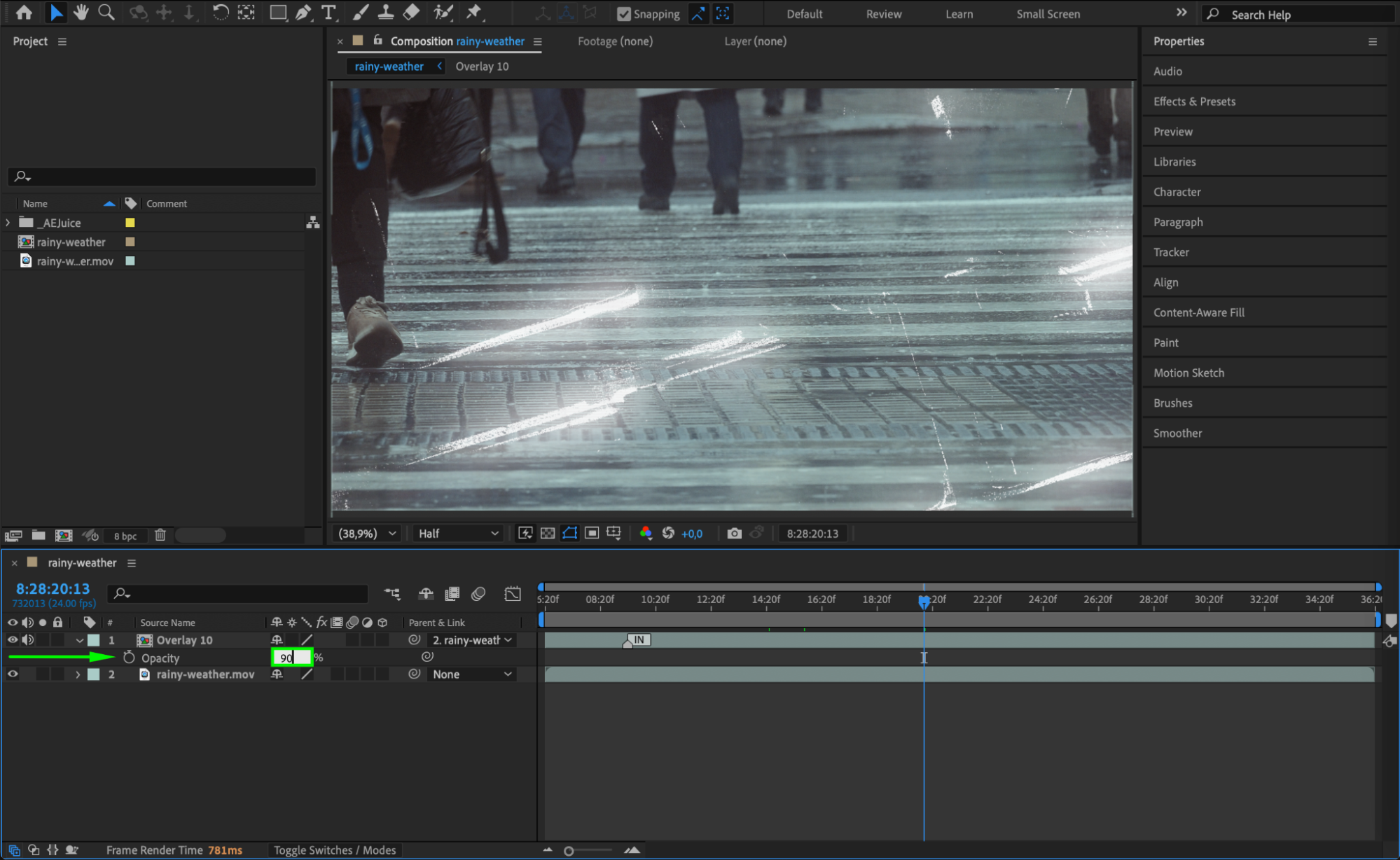
After importing, the texture layer will be resized to match your composition. Place the texture above your footage layer. Right-click on the texture layer, go to Blending Mode, and choose an option like Screen, Overlay, or Multiply, depending on the look you want. You can also adjust the Opacity (T) to soften or intensify the texture’s effect.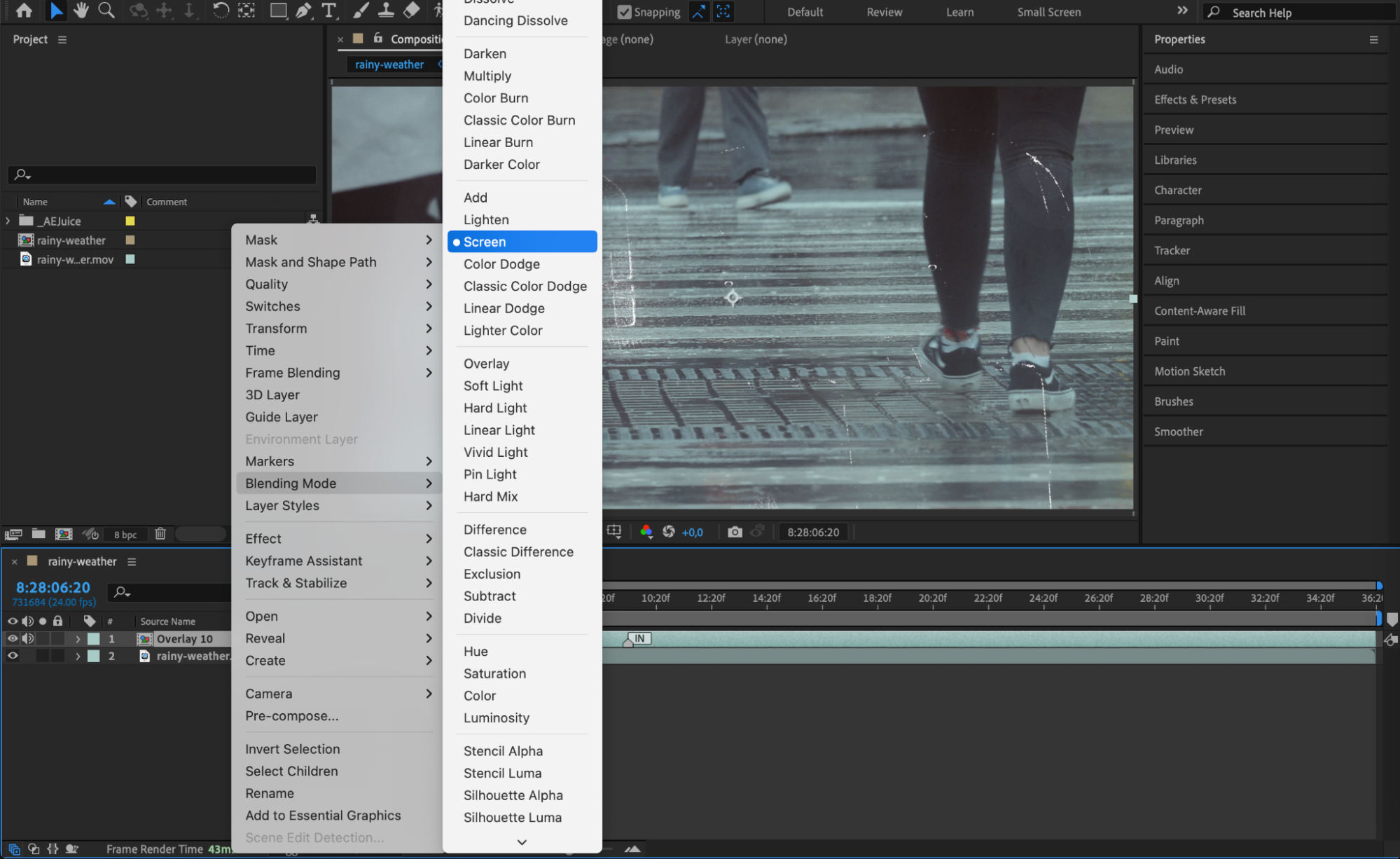
Step 6: Combine with Text or Motion Graphics
Urban textures pair well with bold, modern typography. Use the Type Tool (Cmd/Ctrl + T) to add titles or callouts. Place your text above the texture layer to ensure it remains clear and readable. You can also animate your text with position, scale, or opacity keyframes for more energy.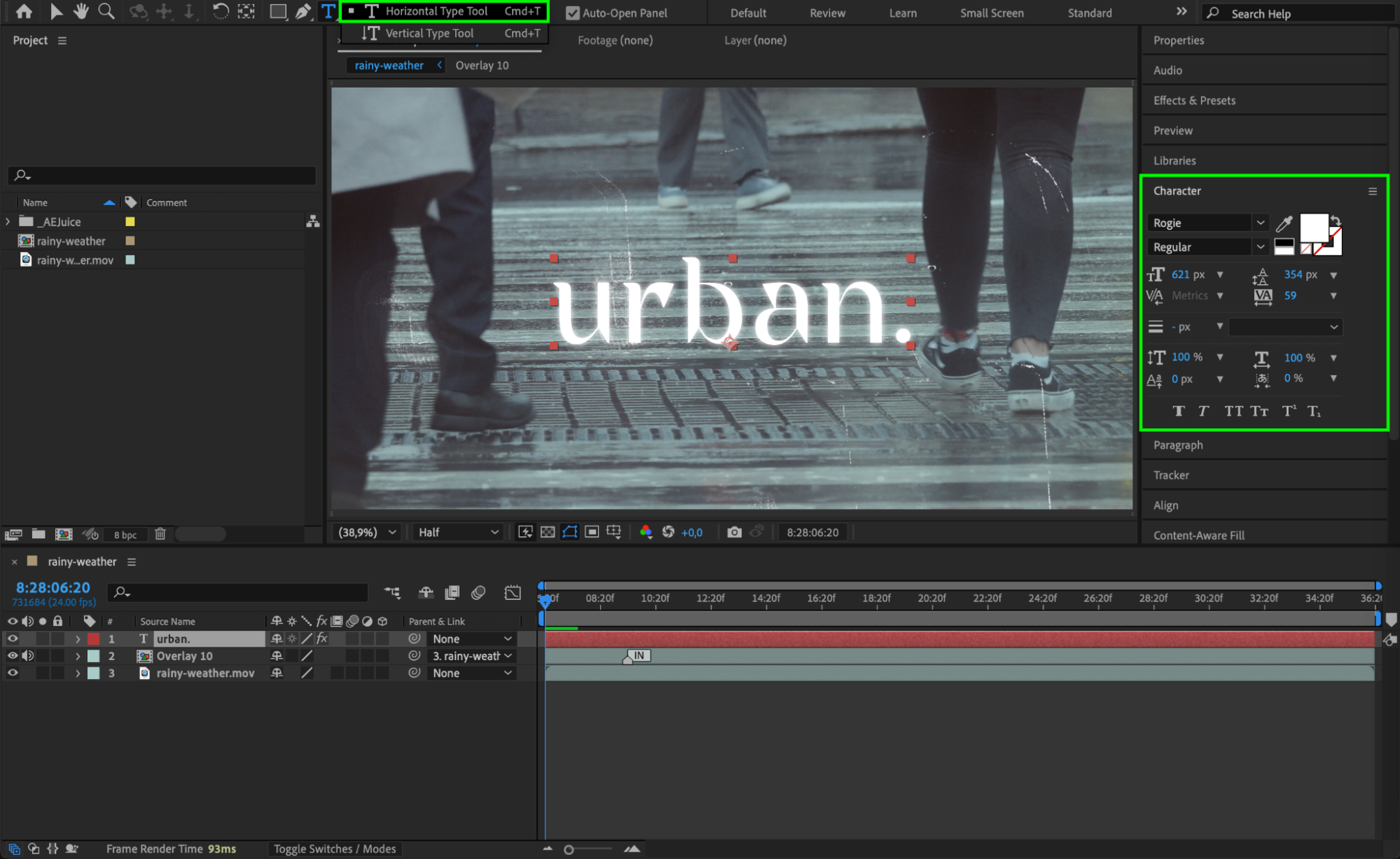 Step 7: Preview and Make Final Adjustments
Press the Spacebar to preview your animation. Adjust blending modes, opacity, or timing if needed. You can also duplicate texture layers or combine multiple overlays for a richer, more layered look.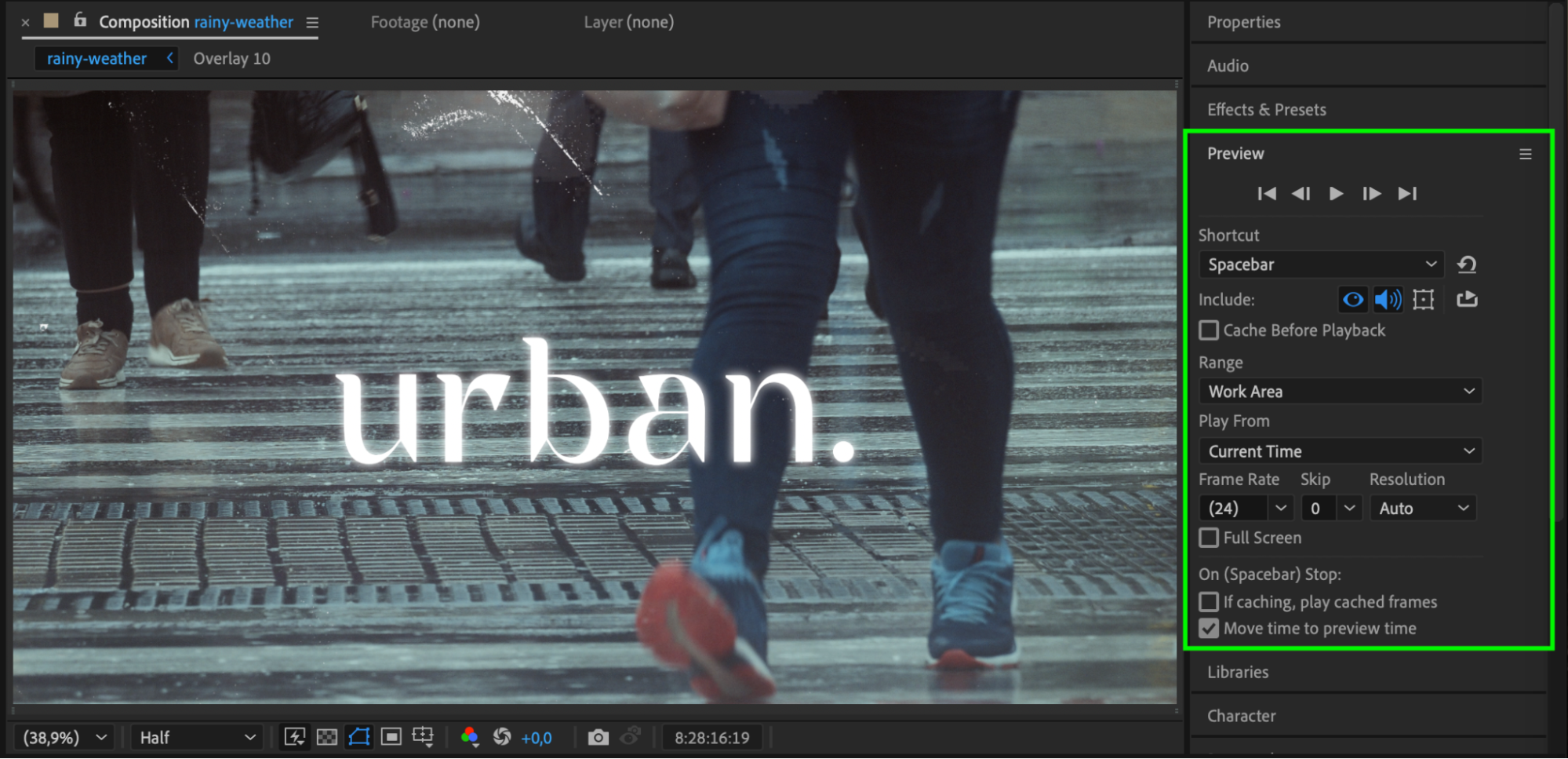
Conclusion
AEJuice’s Urban Texture Pack gives you high-quality textures that add real-world texture and atmosphere to your scenes. When used correctly — as overlays layered above your footage — these textures help your motion design stand out with a gritty, stylized aesthetic. Combine them with animated titles or graphics for maximum impact.
Our Bestsellers
Our Bestsellers


