
Introduction
Zooming out on a specific object in After Effects allows you to highlight your subject while smoothly revealing the surrounding scene. This technique is especially useful for cinematic shots, product reveals, or visual storytelling effects. By combining the Roto Brush, Content-Aware Fill, and simple scaling, you can achieve a clean zoom-out effect on just one object.
Step 1: Import Your Video
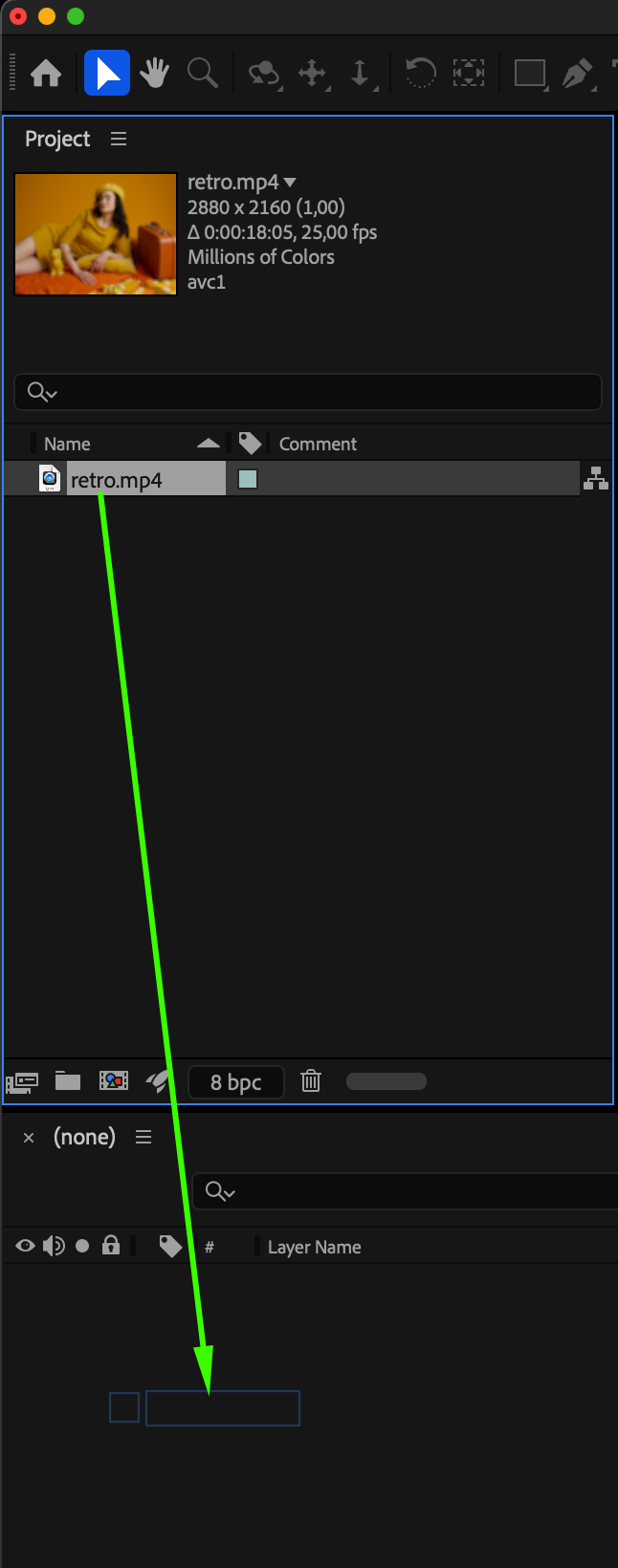
Go to File > Import > File and select your video clip. Drag it into the Timeline to create a new composition.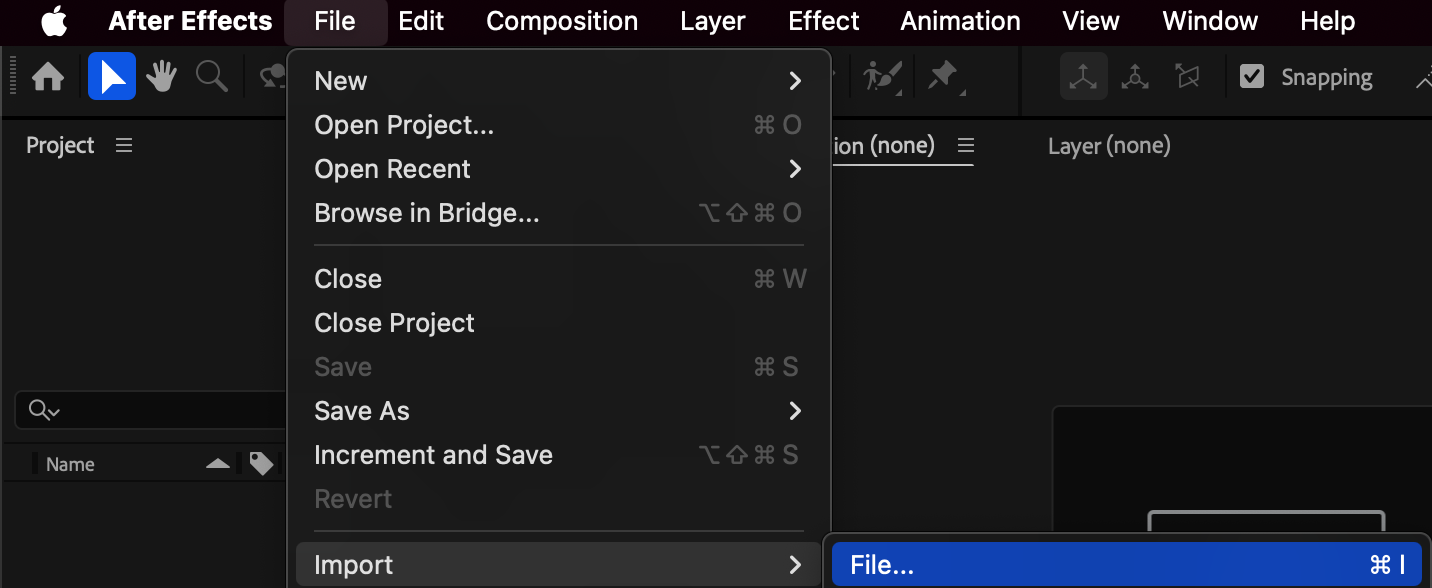
 Step 2: Isolate the Object Using Roto Brush
Double-click your video layer to open it in the Layer panel. Select the Roto Brush Tool (Alt/Option + W) and paint over the object you want to zoom out. Use small strokes for better accuracy.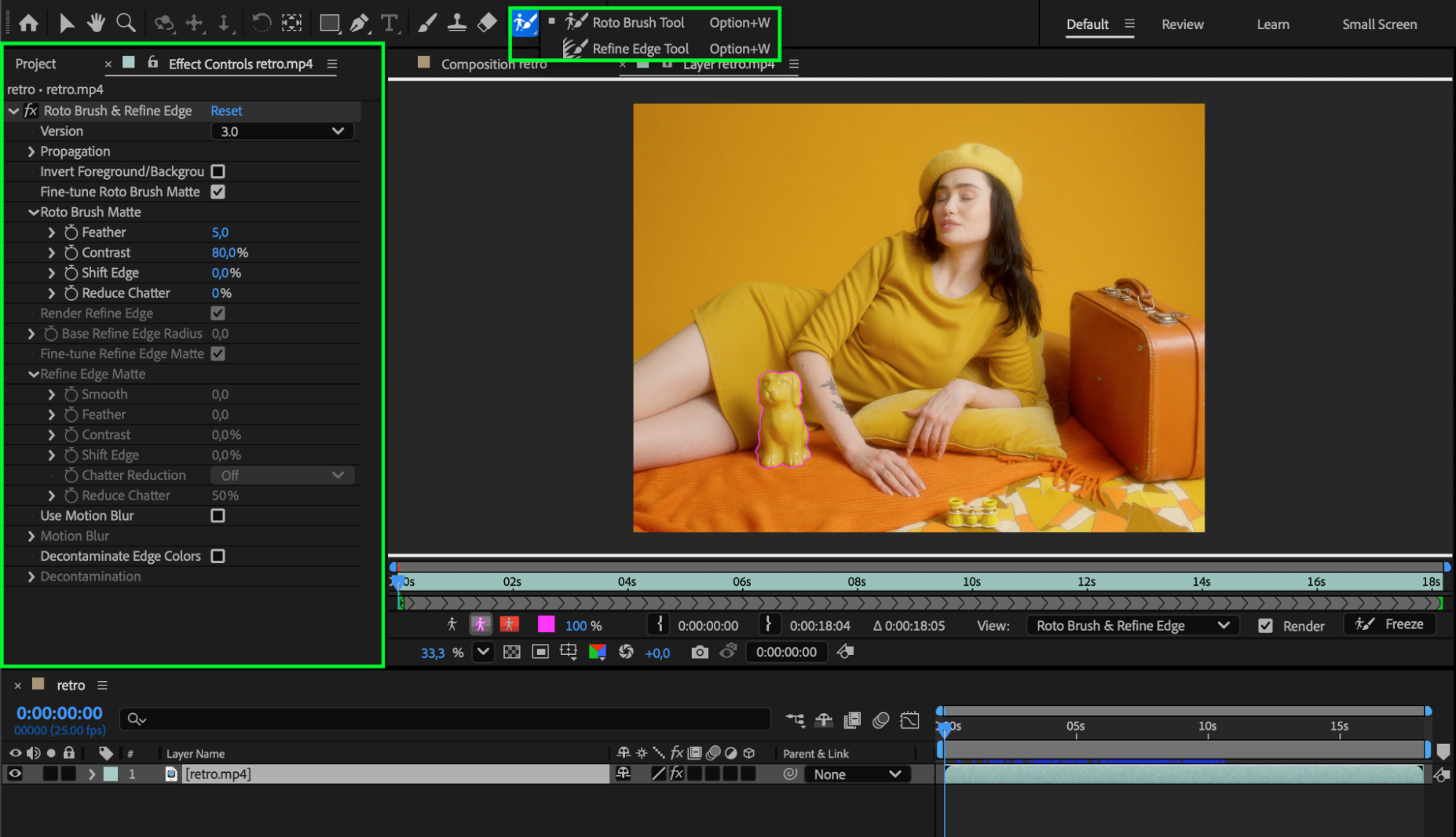 Step 3: Duplicate the Layer
Once you have a clean selection, duplicate the video layer by pressing “Ctrl/Cmd + D”. You will now have two layers — one for the object and one for the background.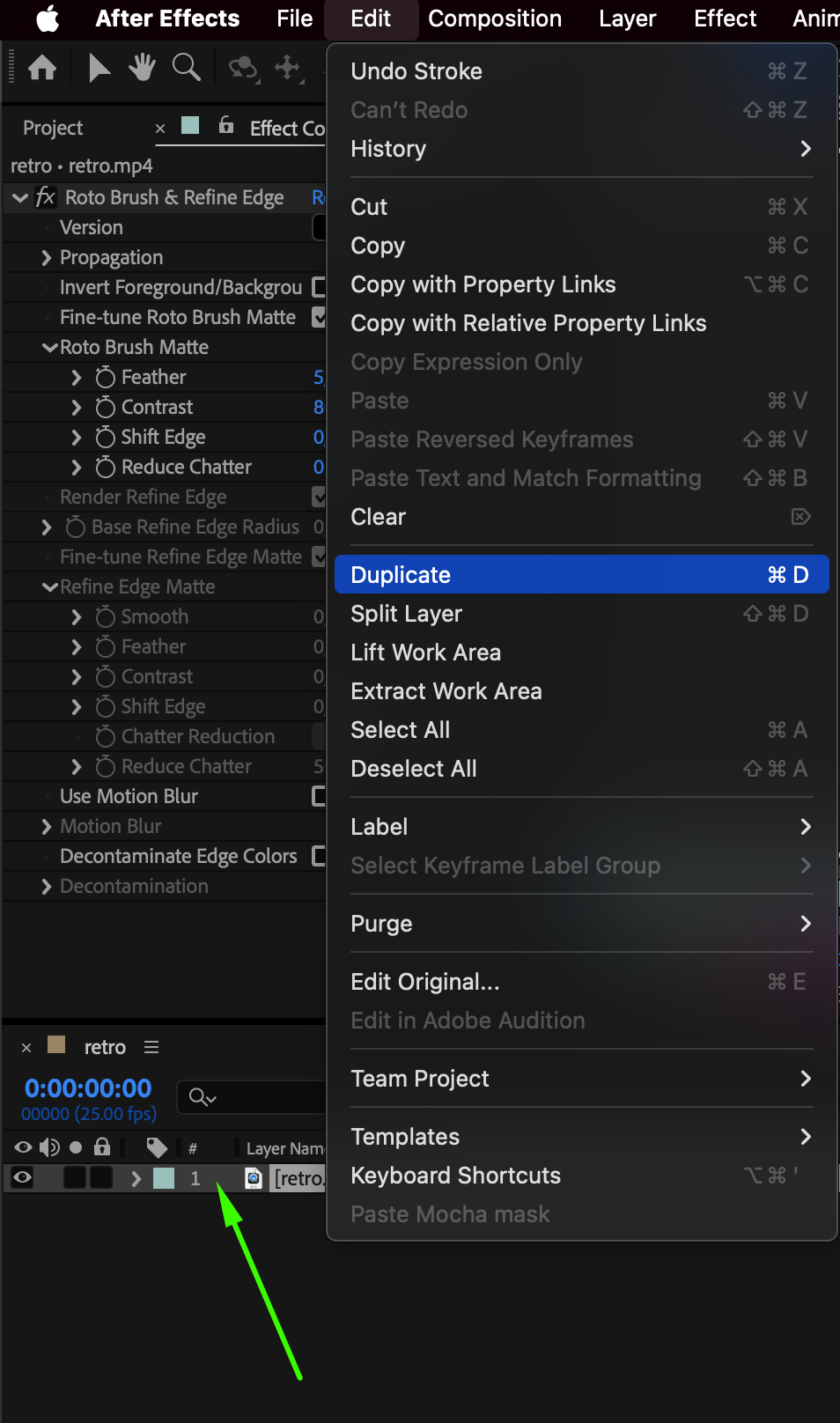
Step 4: Freeze the Duplicate Layer
Select the duplicate layer, then click Freeze at the bottom of the Layer panel to lock the Roto Brush selection.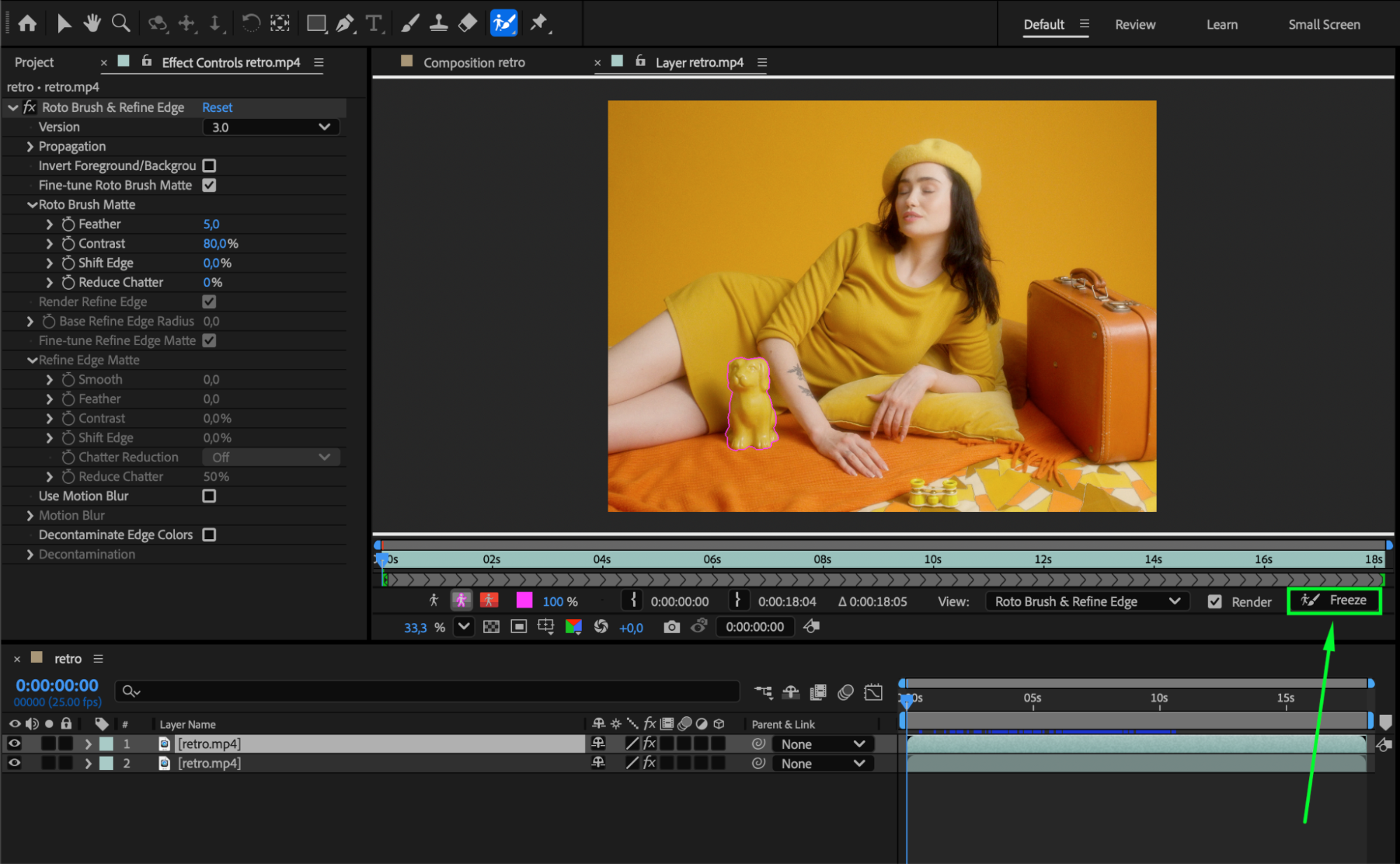 Step 5: Invert the Background on the Original Layer
Hide the visibility of the duplicate layer by clicking the eye icon. Select the original video layer, go to the Effect Controls panel, and check Invert Foreground/Background. Then click Freeze again to finalize the mask.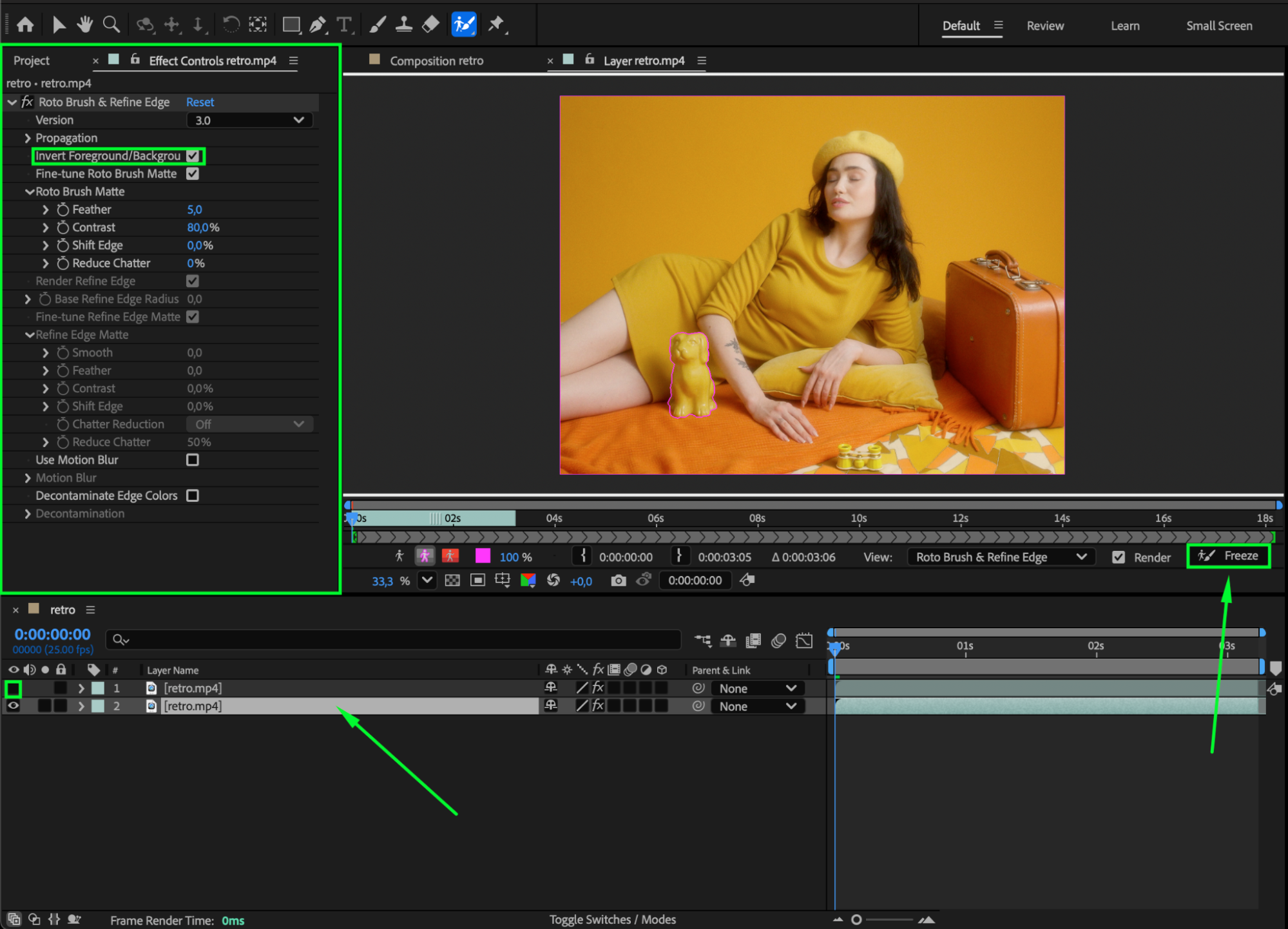 Step 6: Use Content-Aware Fill to Remove the Object
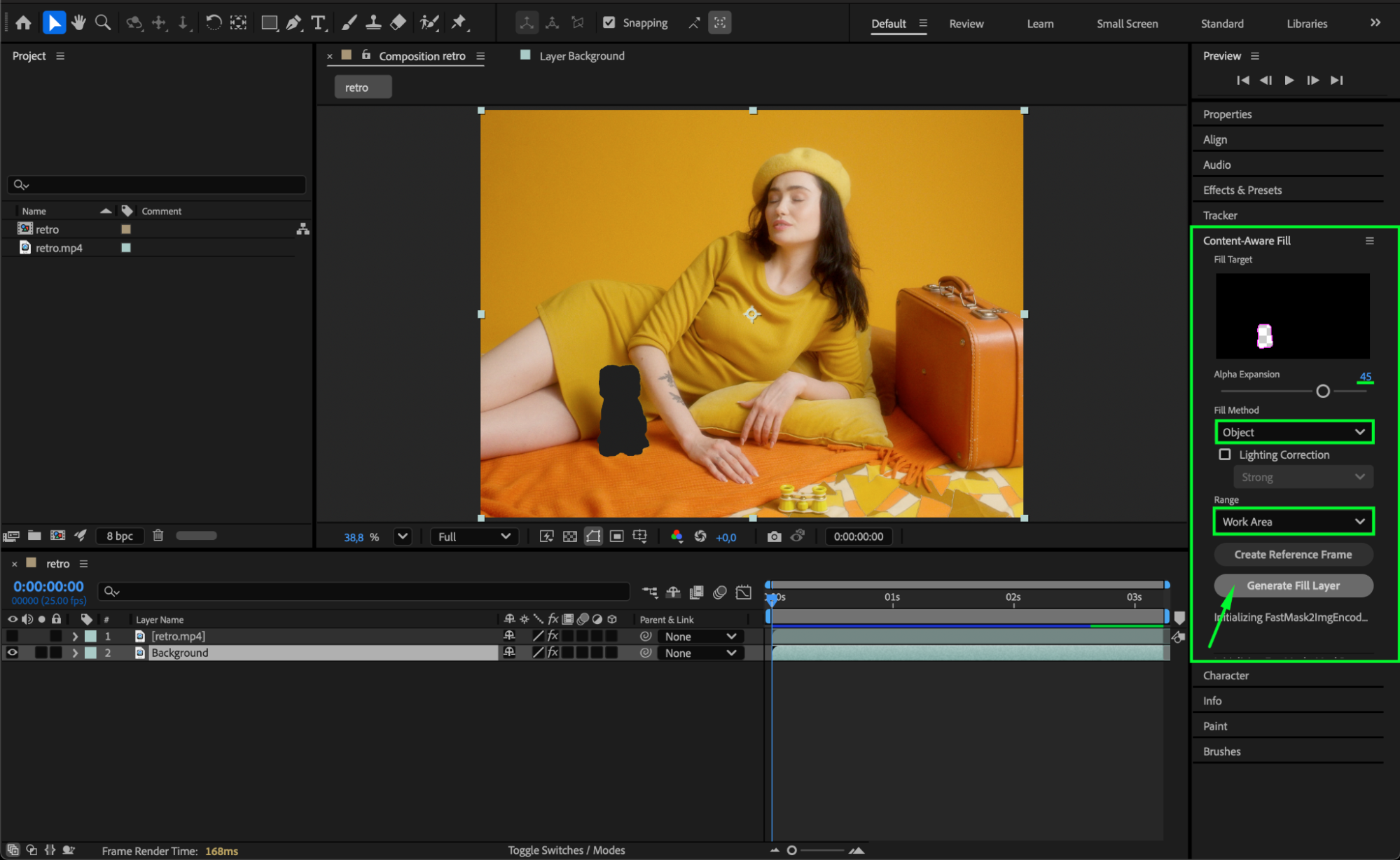
Return to the Composition panel and open the Content-Aware Fill panel (Window > Content-Aware Fill). Set Fill Method to Object (best for removing moving subjects),
and Range to Work Area. Click Generate Fill Layer — After Effects will automatically fill in the background where your object was removed.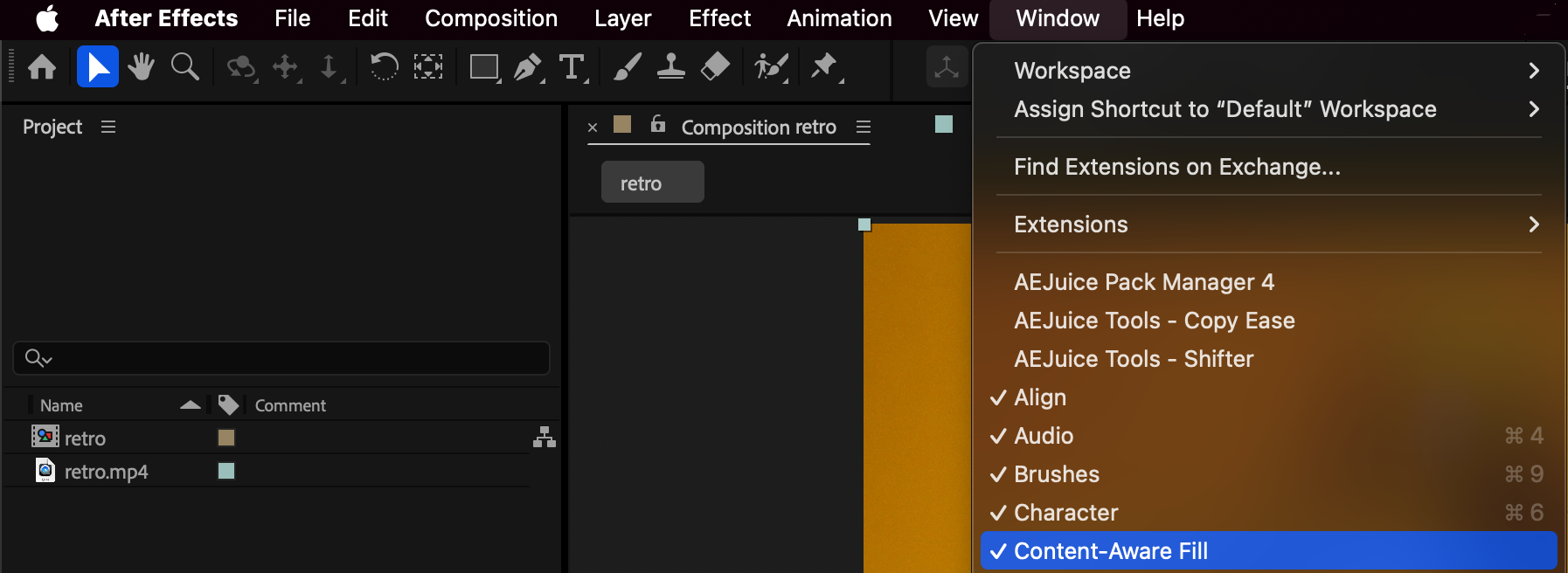
Step 7: Zoom Out the Isolated Object
Turn the visibility of your isolated (duplicate) layer back on and place it above the generated fill layer. Select the object layer and press “S” to open Scale. Add keyframes to animate the object zooming out by gradually decreasing its scale value over time.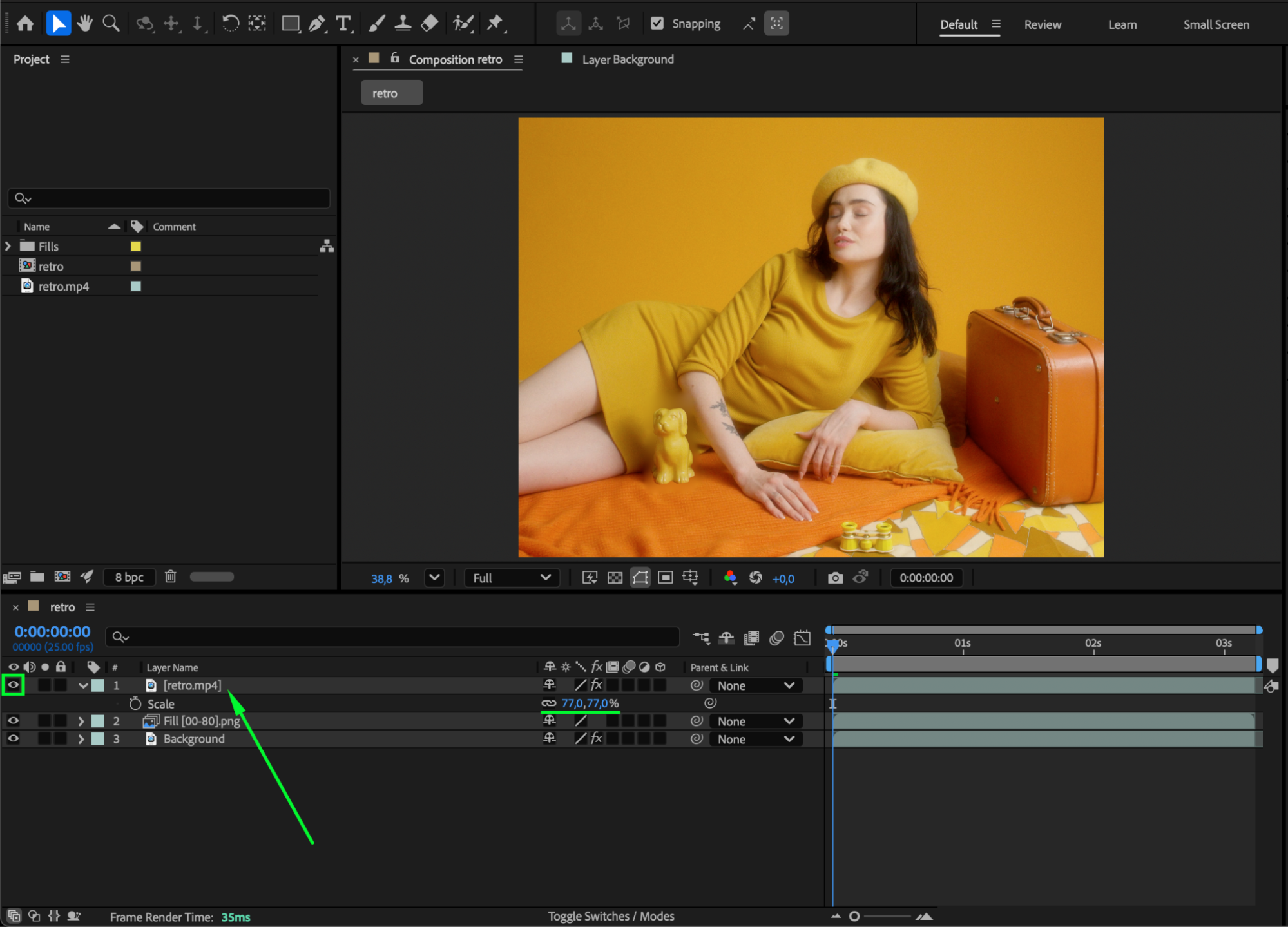 Step 8: Preview and Adjust
Press the Spacebar to preview your animation. The background should remain seamless while your object zooms out smoothly. Adjust scale speed, motion blur, or easing if needed for a more cinematic look.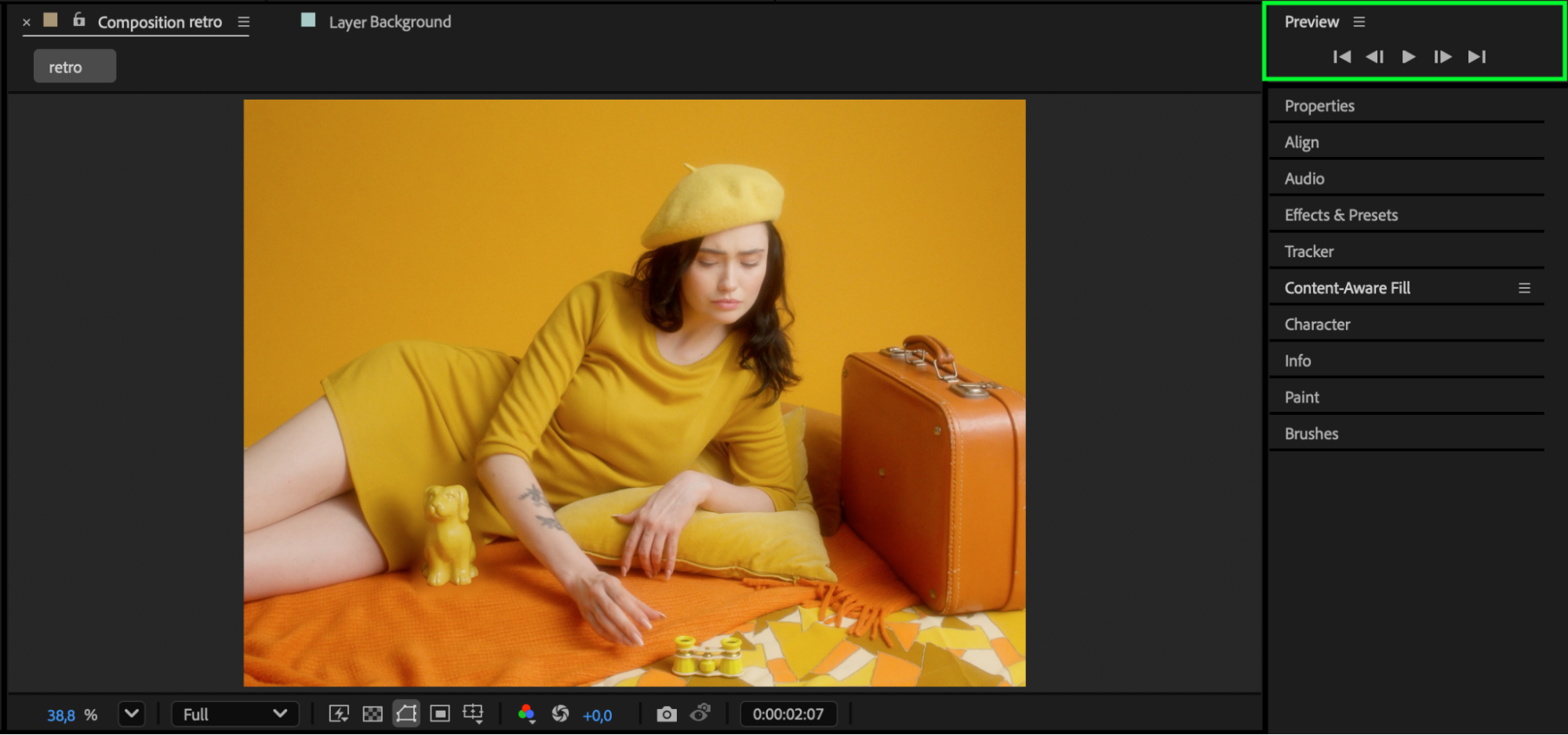
Conclusion
By combining Roto Brush, Content-Aware Fill, and scale animation, you can easily zoom out on a single object in After Effects while maintaining a clean background.
This technique is great for transitions, focus pulls, and creative storytelling in motion design or video editing.
Our Bestsellers
Our Bestsellers


