Creating a Black and White Flicker Text Effect in After Effects
Introduction
In this tutorial, you’ll learn how to create a flickering black-and-white text effect in Adobe After Effects. This cinematic style is great for titles, horror effects, or sci-fi visuals. You can also enhance it with glow effects to make your text stand out even more.
Step 1: Create a New Composition
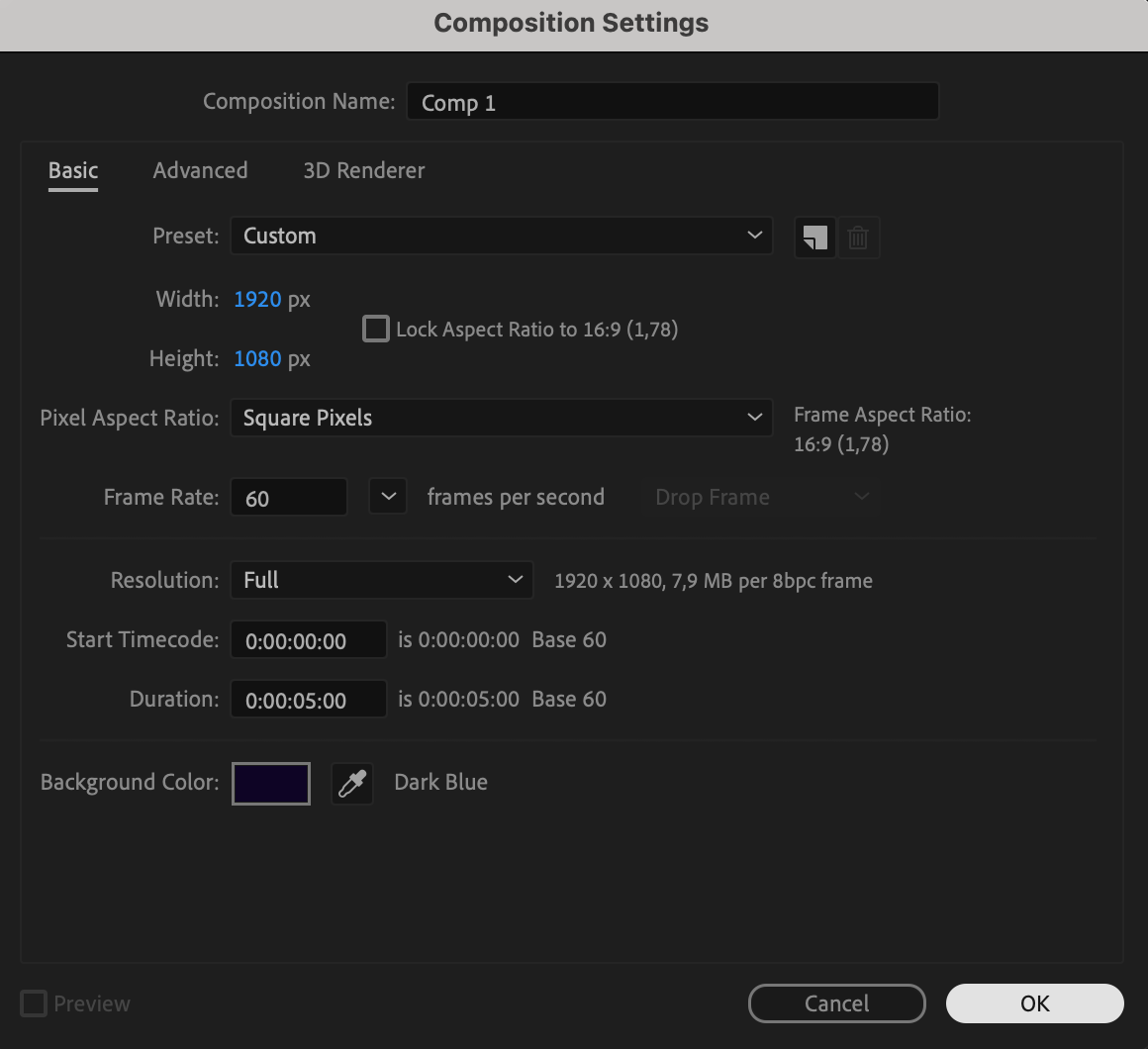
Go to Composition > New Composition and set your desired resolution and duration. For a more dramatic look, choose black as the background color if you want your text to flicker between black and white. Alternatively, use dark blue if you plan to add a glow effect later, creating a more realistic glowing background.
Step 2: Add Your Text
Select the Type Tool (Ctrl/Cmd + T) and click inside the composition to type your text. Choose a bold font, increase the size for better visibility, and set the text color to white.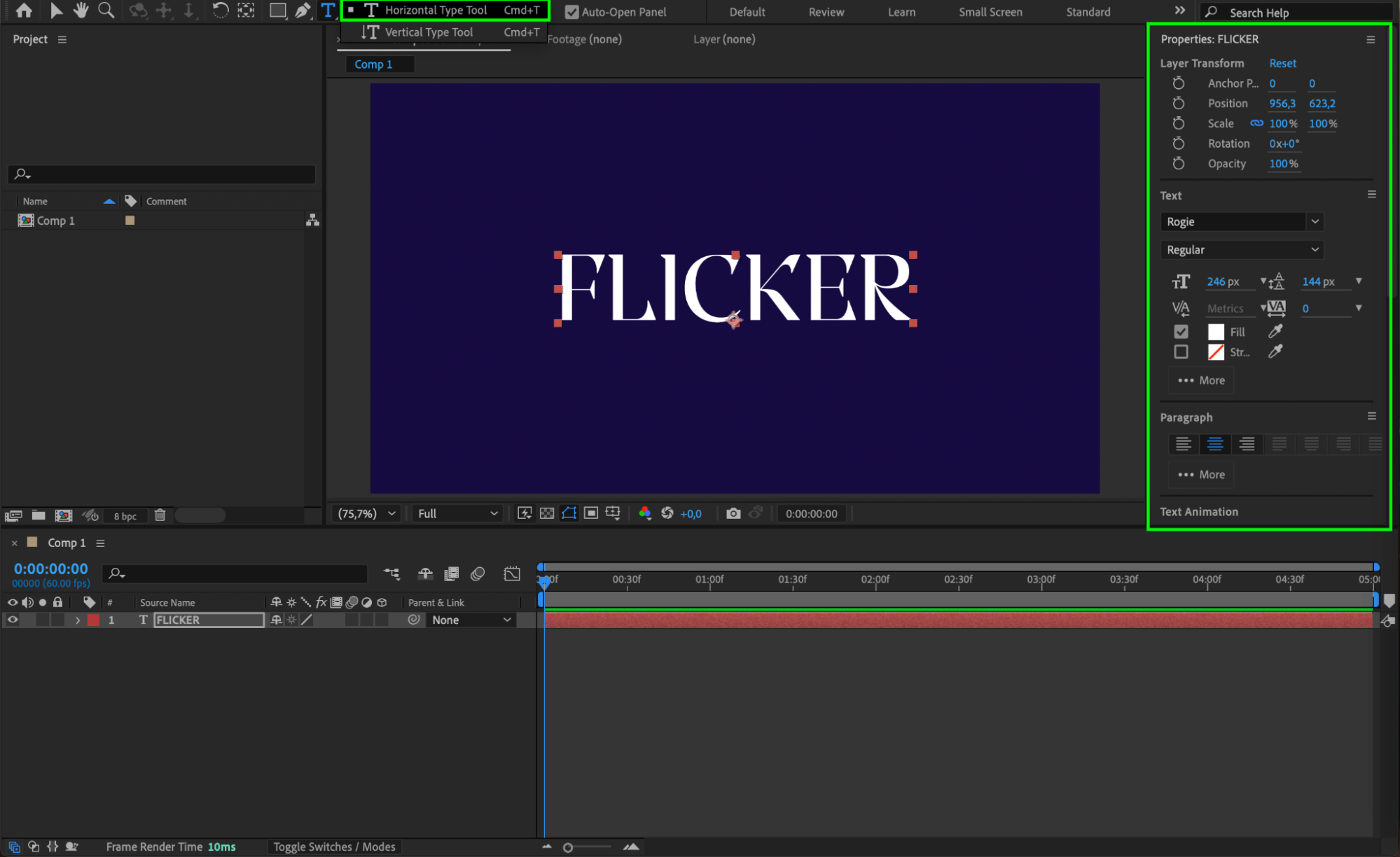
Get 10% off when you subscribe to our newsletter

Step 3: Duplicate the Text Layer and Add Stroke
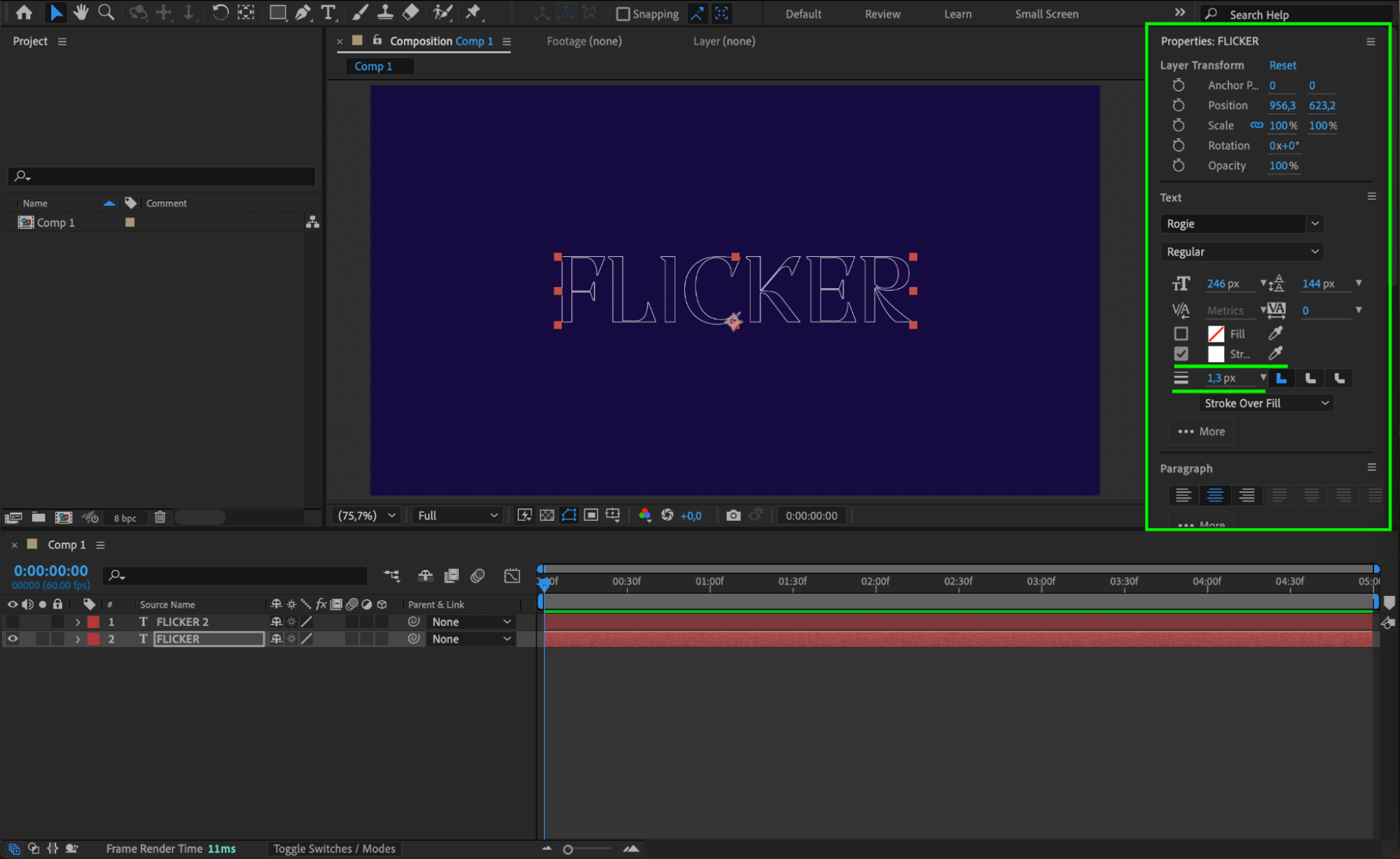
Press “Ctrl/Cmd + D” to duplicate the text layer. Select the original text layer, go to the Properties panel, and set Fill to “None” and Stroke to white with a value of 1.3 px. This creates a white outline of your text.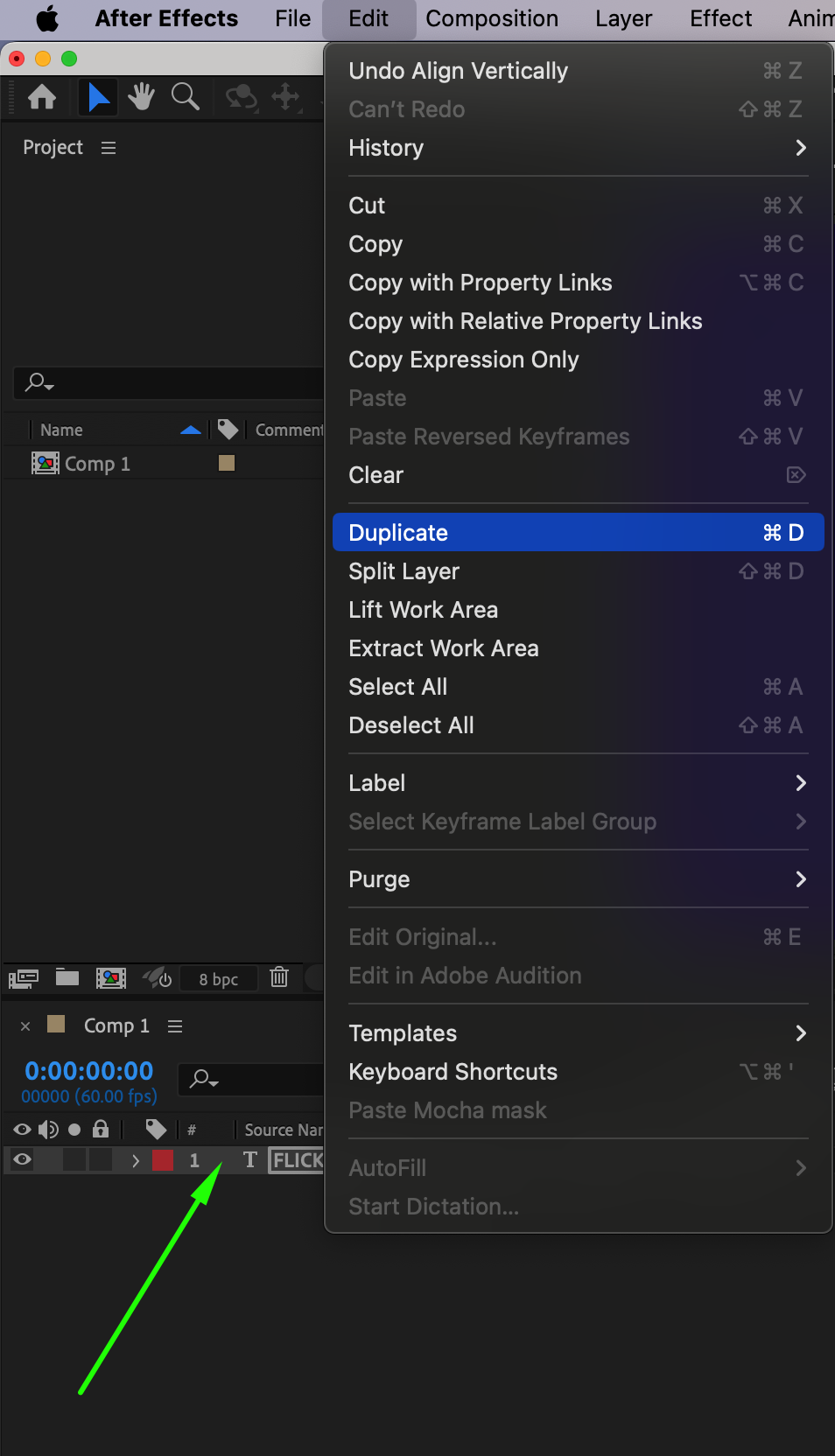
 Step 4: Animate Opacity on the Duplicate Layer
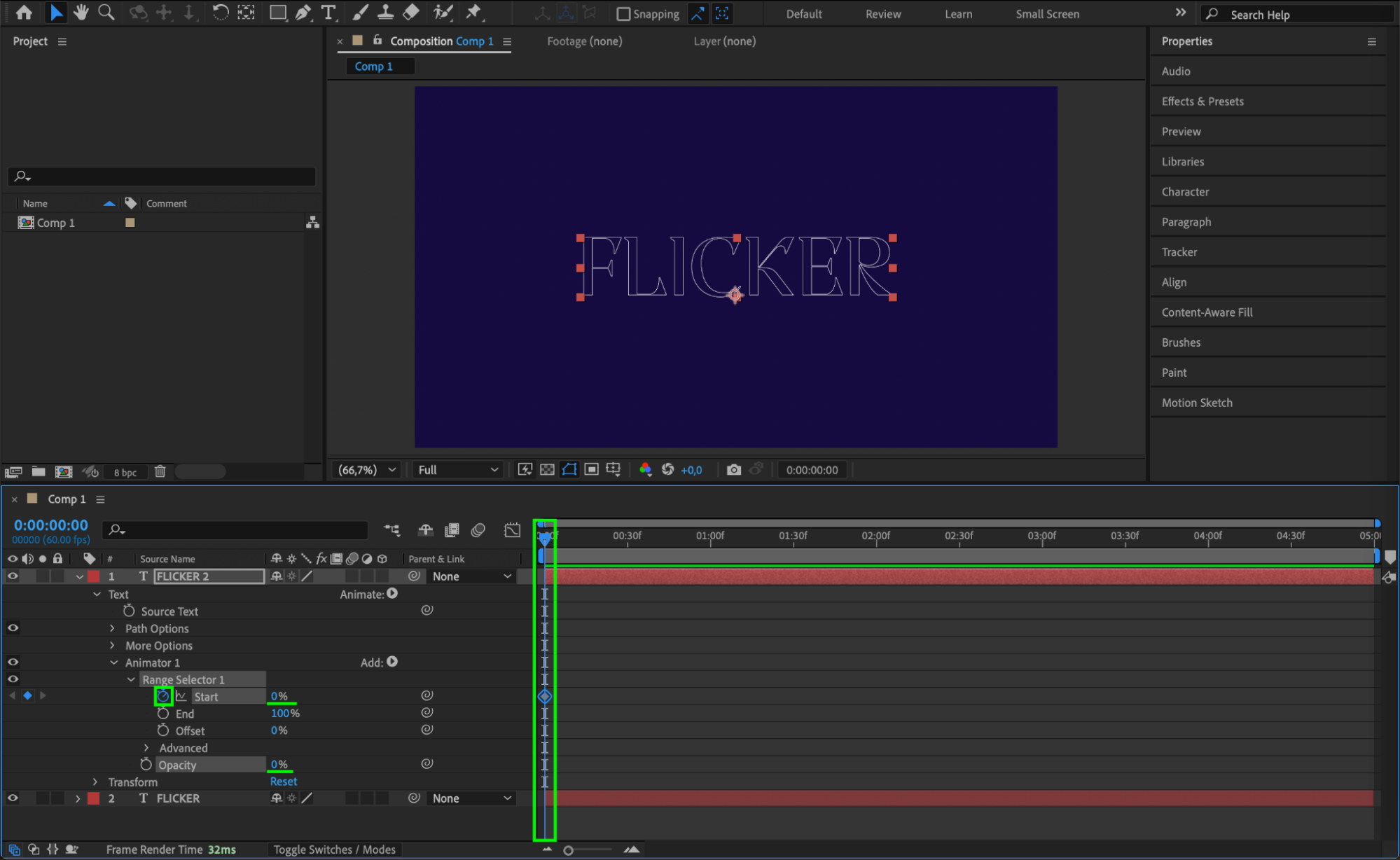
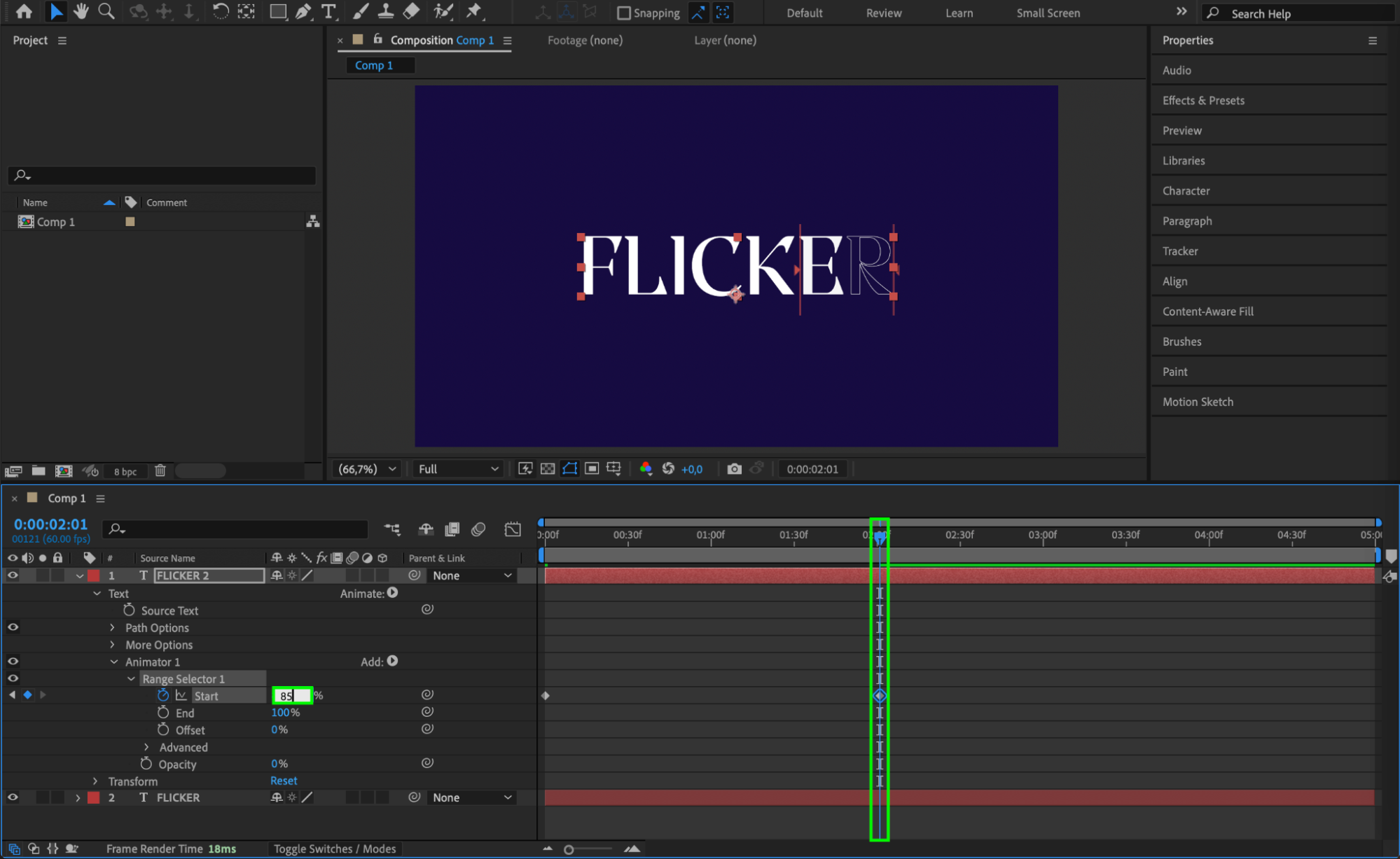
Expand the duplicate text layer’s properties. Click the Animate button next to the Text section and choose Opacity. Set Opacity to 0% and Start to 0%. Move the CTI (Current Time Indicator) to the beginning of the timeline and click the stopwatch next to the Start property to create a keyframe. Then, move the CTI to the middle of the timeline and change Start to 85%. This will create a gradual flicker-on effect as the text becomes visible.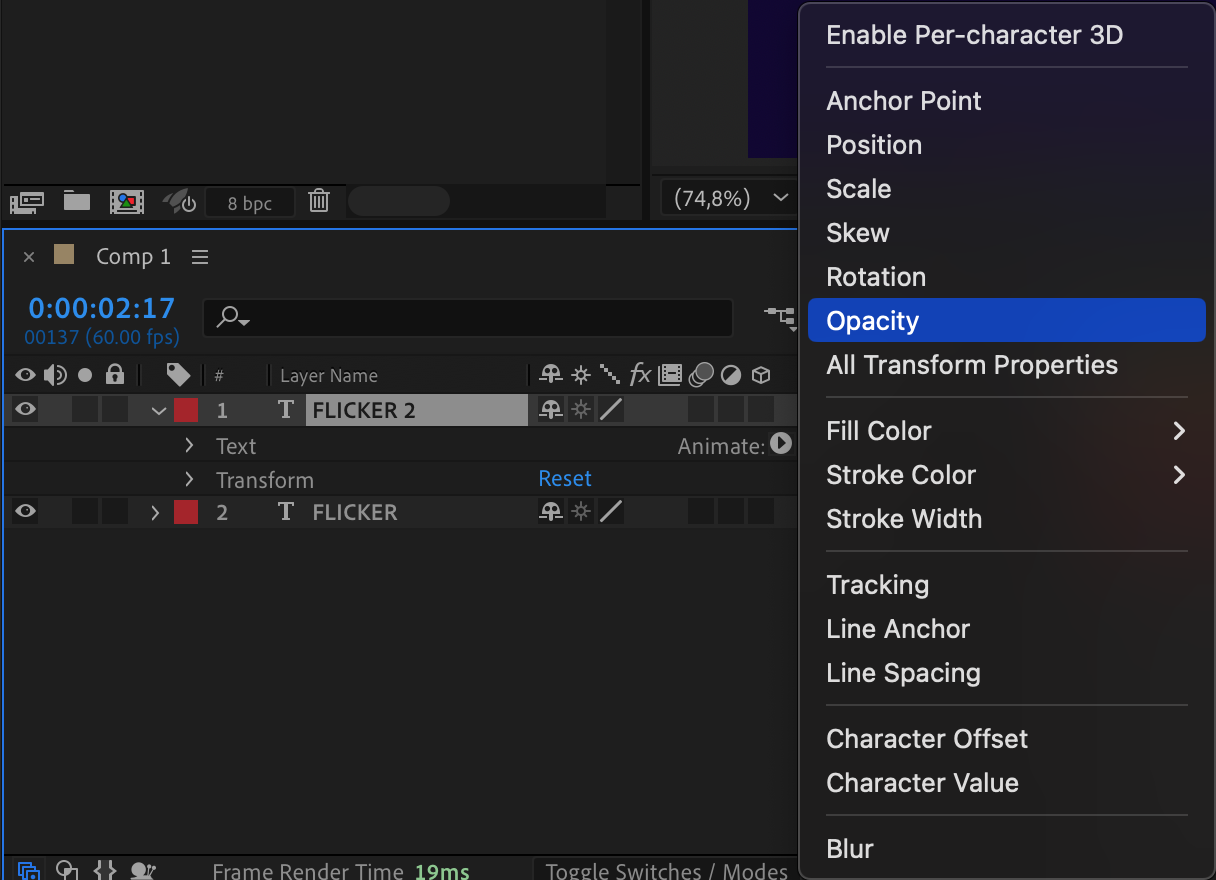
Step 5: Add Random Flicker Using Expressions
Still on the duplicate text layer, go to the Randomize Order section and turn it On. Then, for Random Seed, hold Alt/Option and click the stopwatch. Type the expression:
time*20
This makes the flicker more dynamic and non-repetitive over time.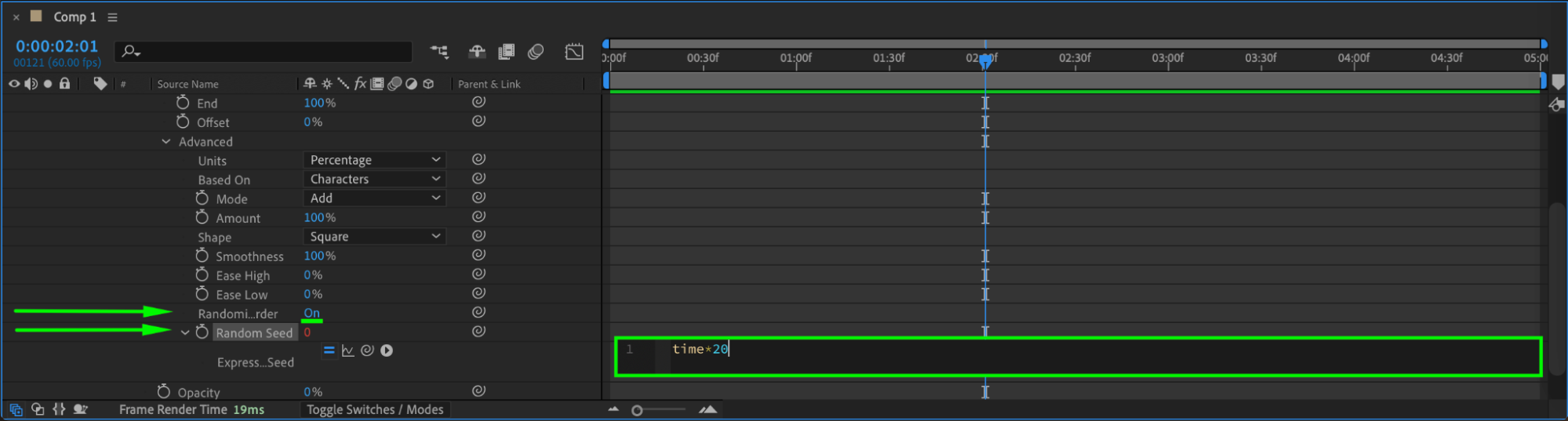 Step 6: Add a Glow Effect
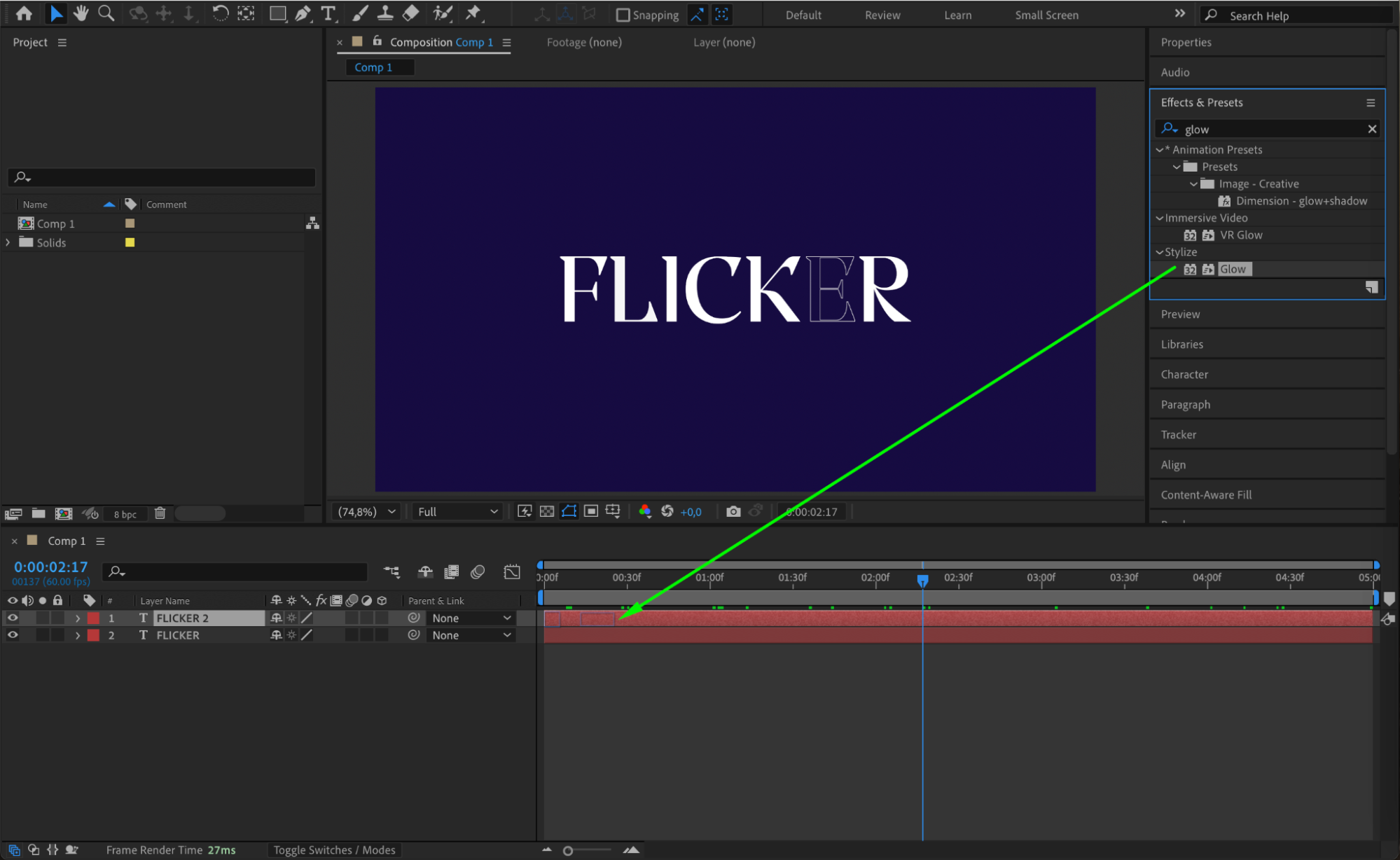
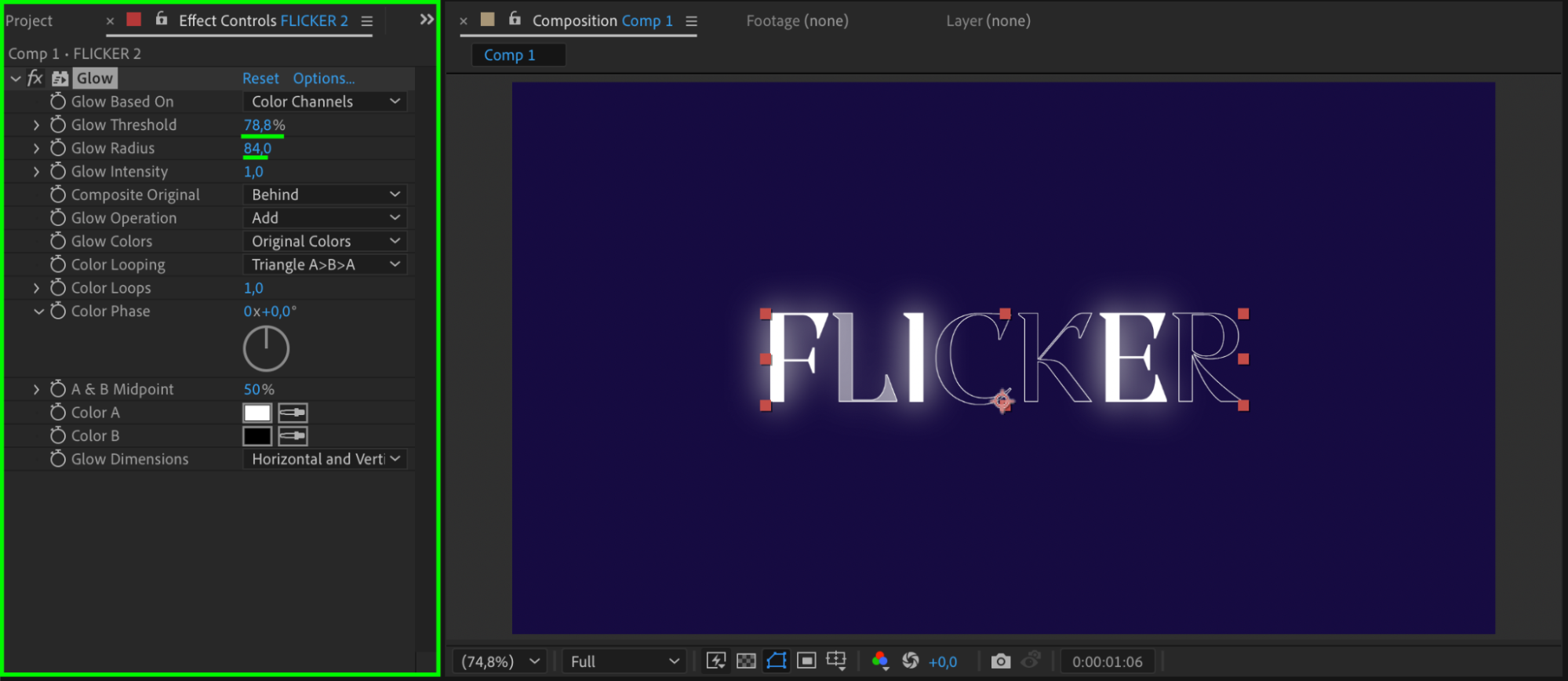
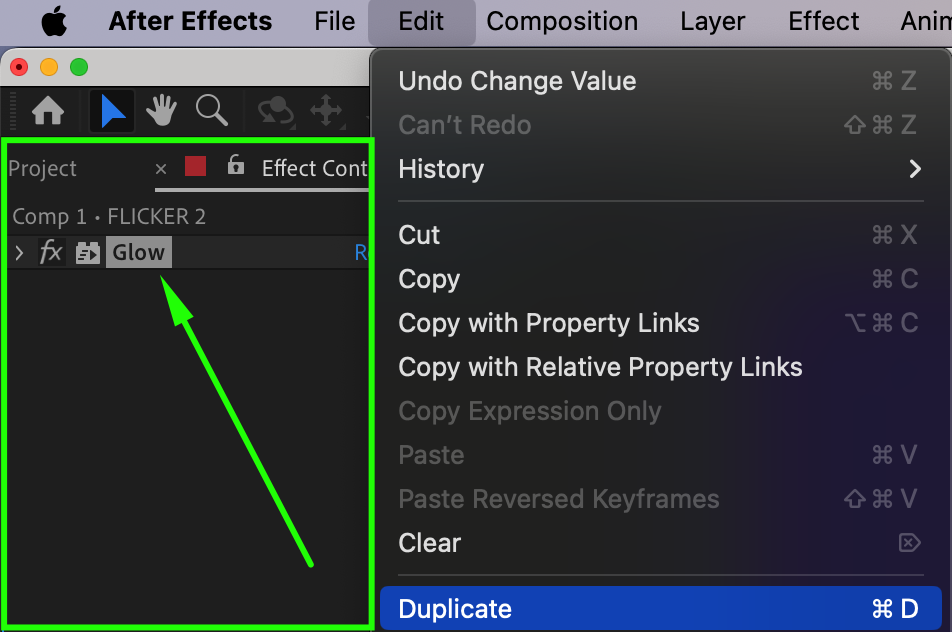
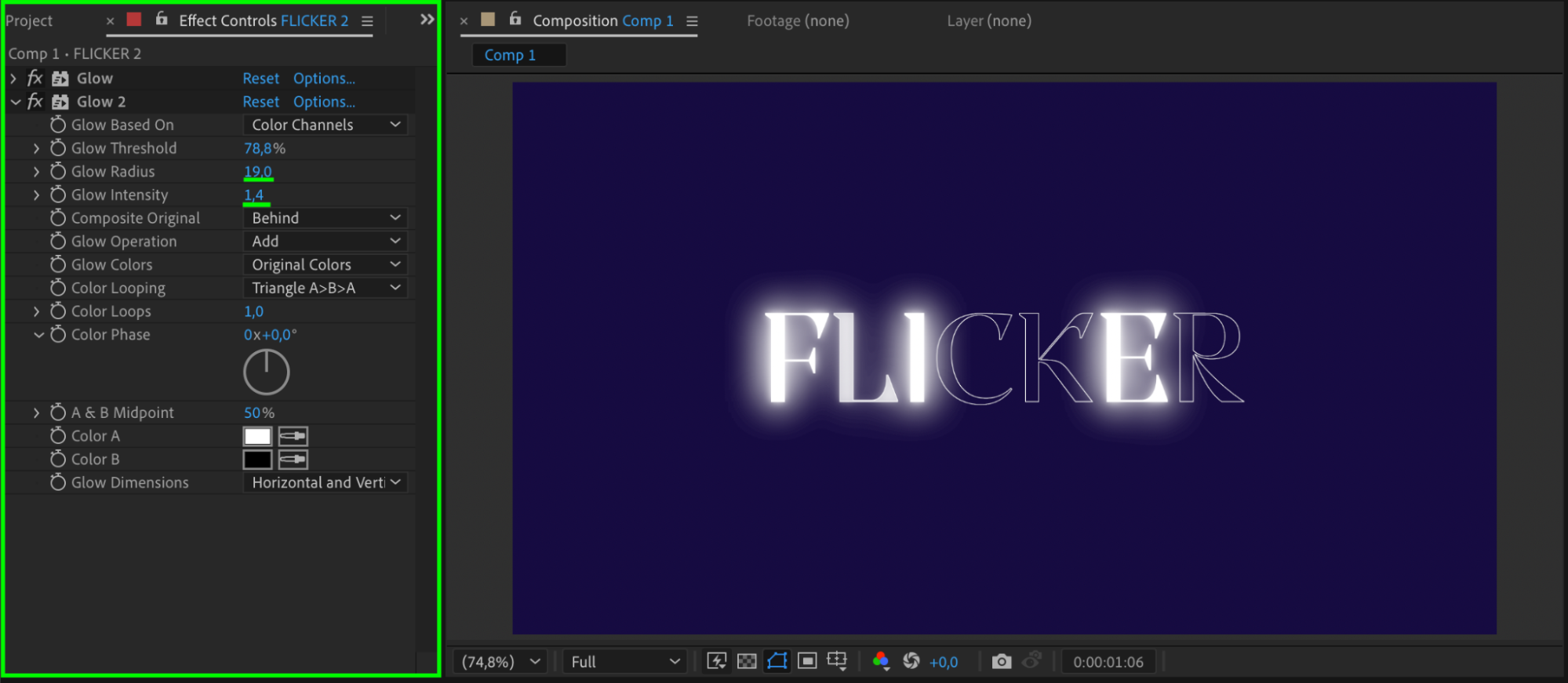
With the duplicate text layer selected, go to Effect > Stylize > Glow. Set Glow Threshold to 78.8 and Glow Radius to 84. Duplicate the Glow effect (Ctrl/Cmd + D), and for Glow 2, set Glow Radius to 19 and Glow Intensity to 1.4. This creates a soft inner glow combined with a brighter outer edge.
 Step 7: Preview the Effect
Press the spacebar to preview your animation. You should see your text flickering between white and transparent, outlined by a glowing stroke with randomized intensity.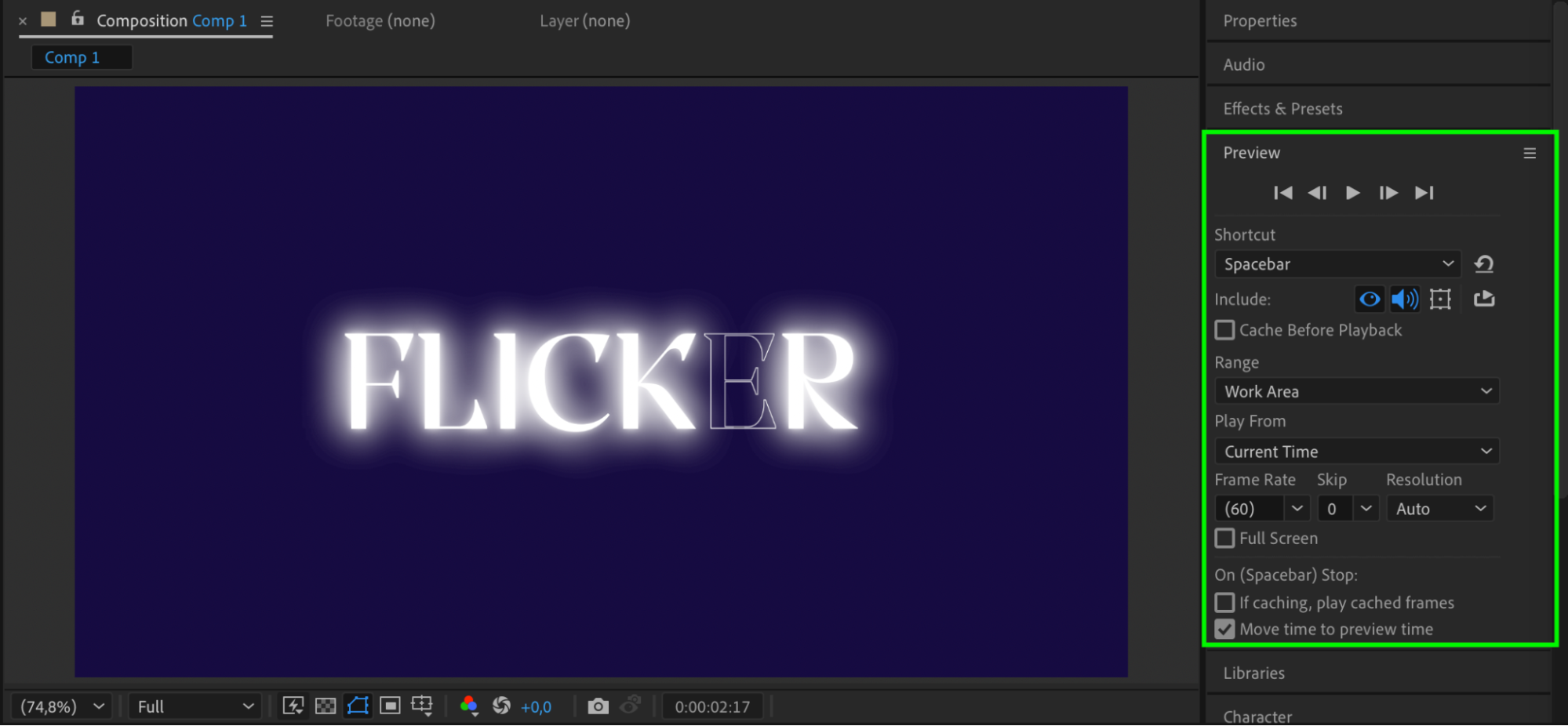
Conclusion
By combining animated opacity, randomization, and glow effects, you can easily create a flickering black-and-white text effect in After Effects. This look is perfect for edgy titles, eerie sequences, or any design needing a pulsing, energetic feel. Experiment with glow and colors to match your creative style.
Our Bestsellers

