
Introduction
In this tutorial, you’ll learn how to apply a glitch effect exclusively to a person in a video using Adobe After Effects. By isolating the subject with the Roto Brush Tool, you can add glitch effects without affecting the background.
Step 1: Import Your Video
Go to File → Import → File and import your video. Drag the video onto the timeline.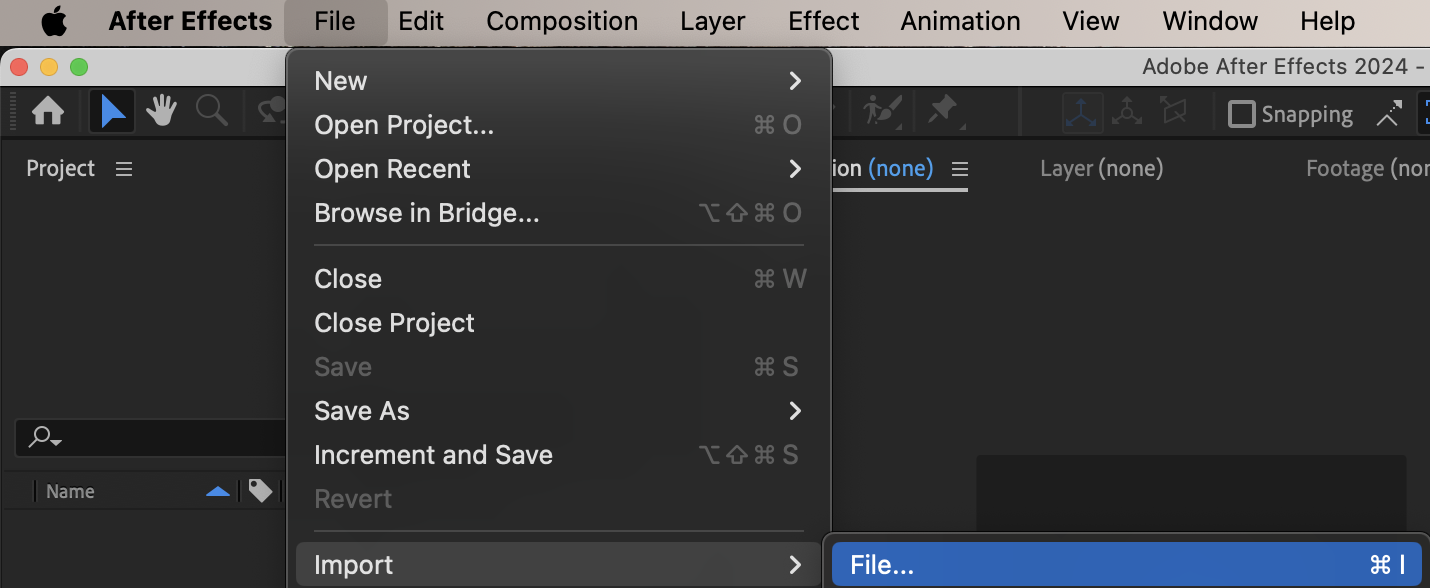
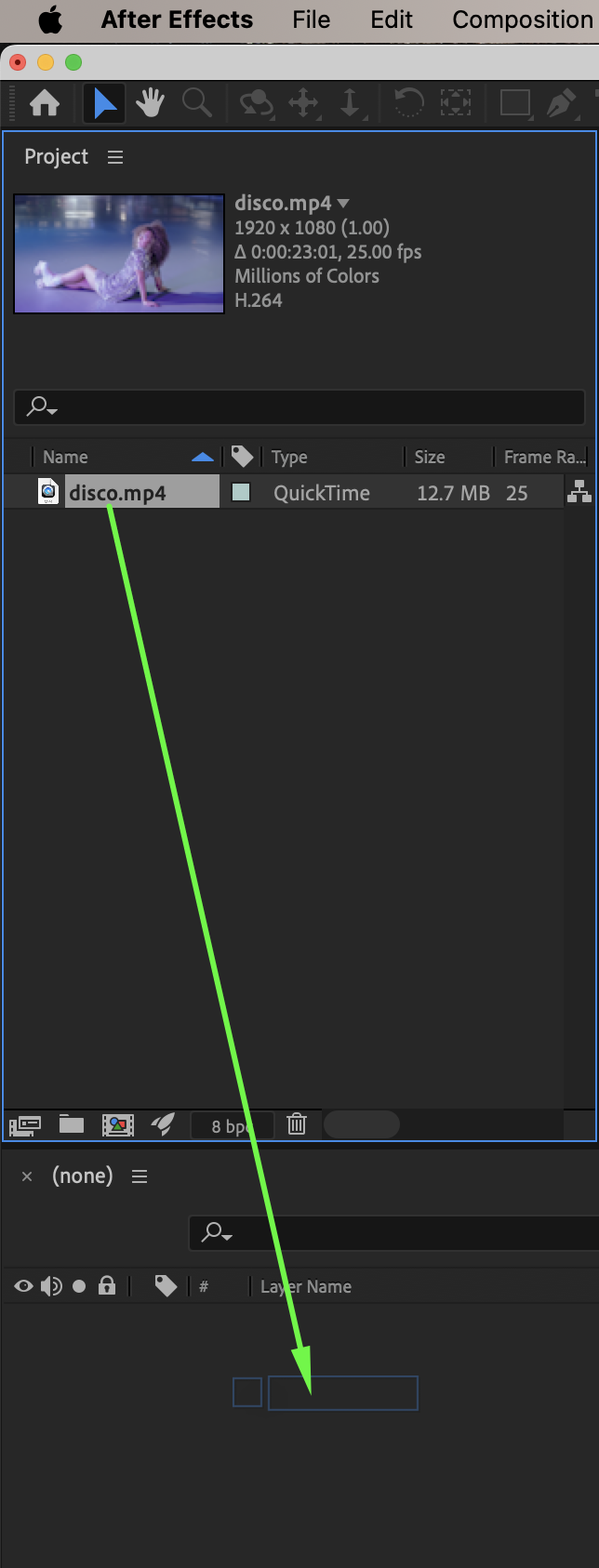
Step 2: Duplicate the Video Layer
Duplicate the video layer (Cmd/Ctrl + D). Rename the layer:
Original layer → Background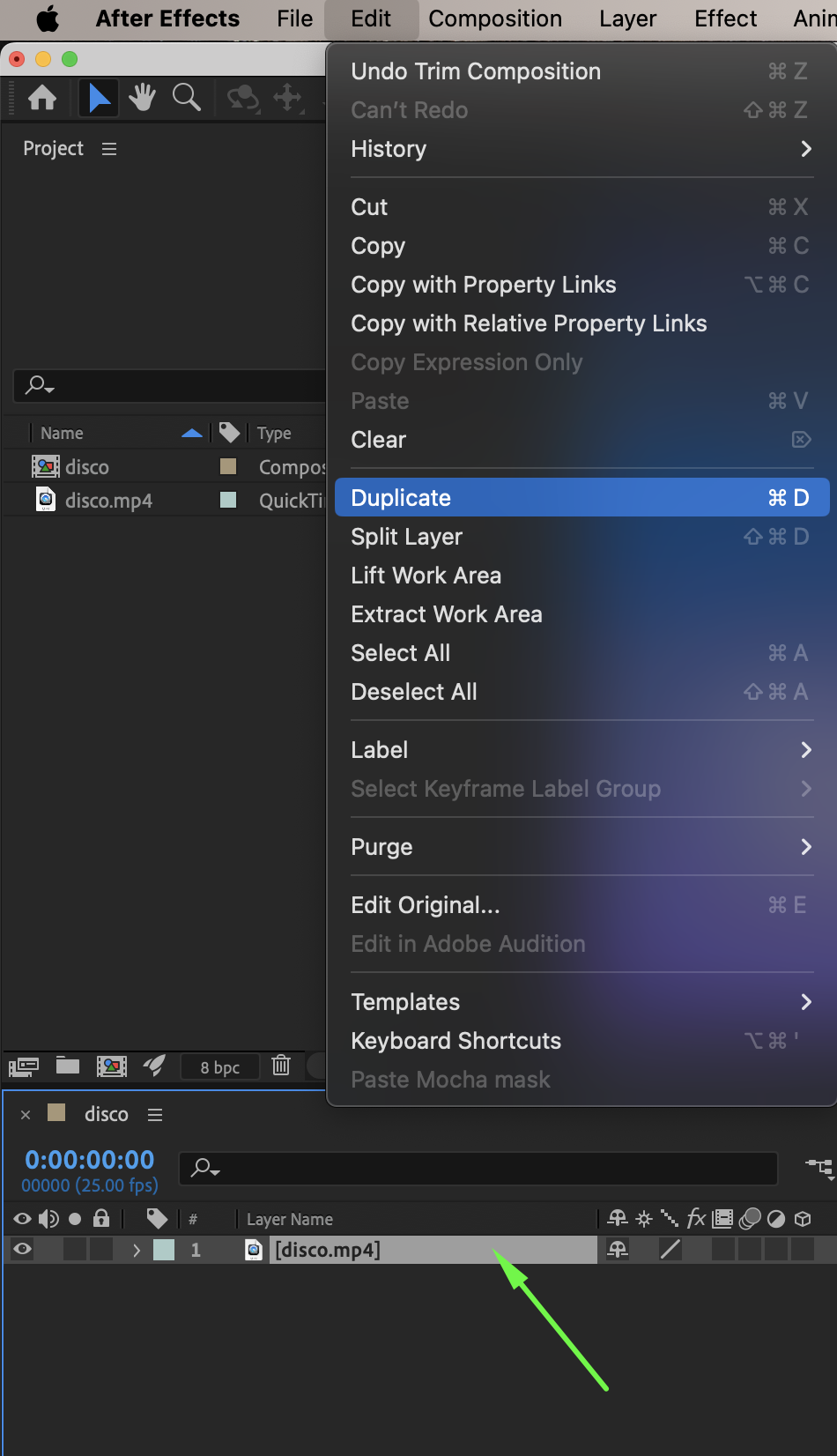
Step 3: Cut Out the Person with Roto Brush
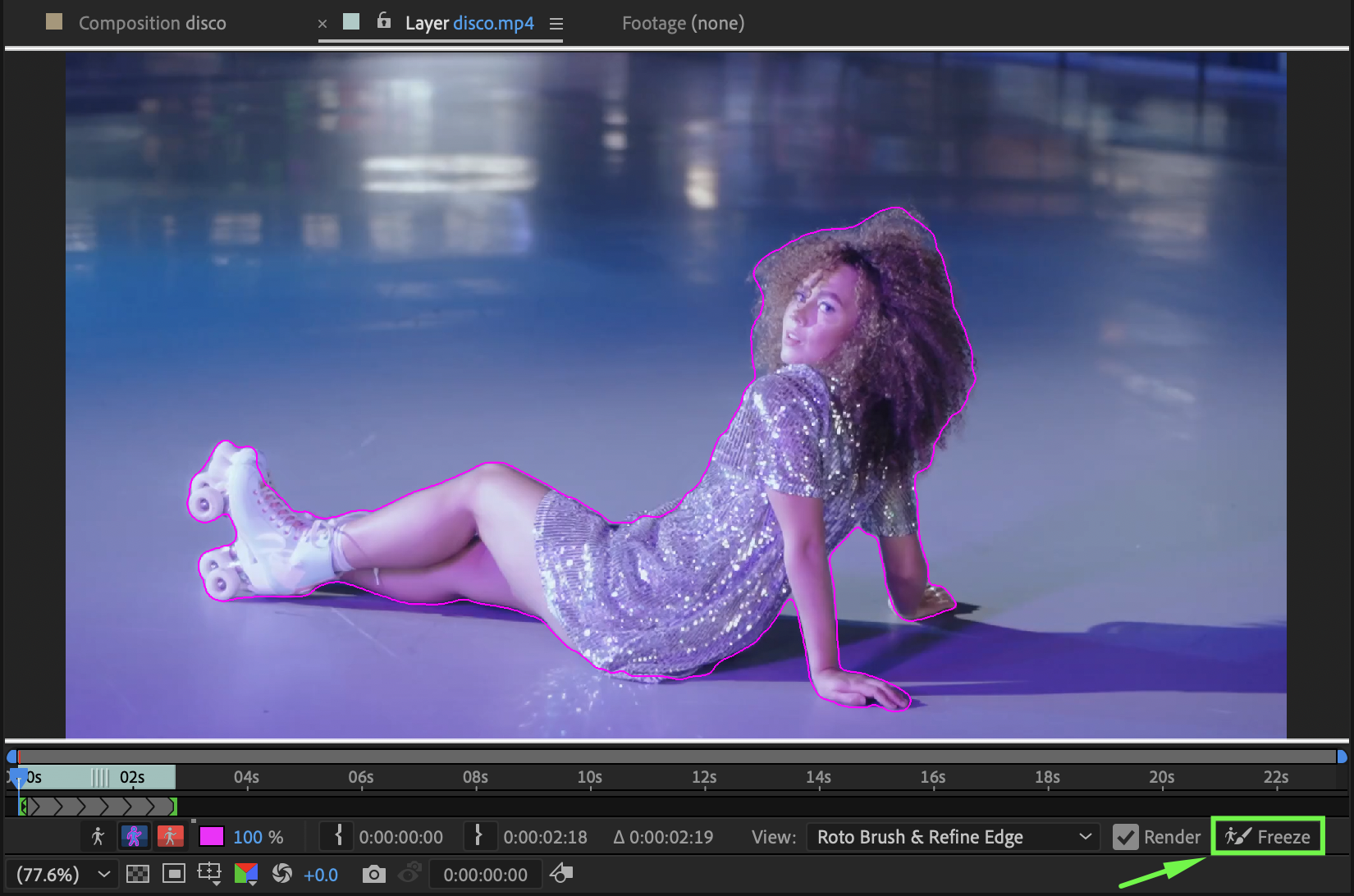
Double-click the Person layer to open it in the Layer Panel. Select the Roto Brush Tool (Alt/Option + W). Paint over the person to isolate them from the background. Once the selection looks correct, click Freeze to lock the roto mask.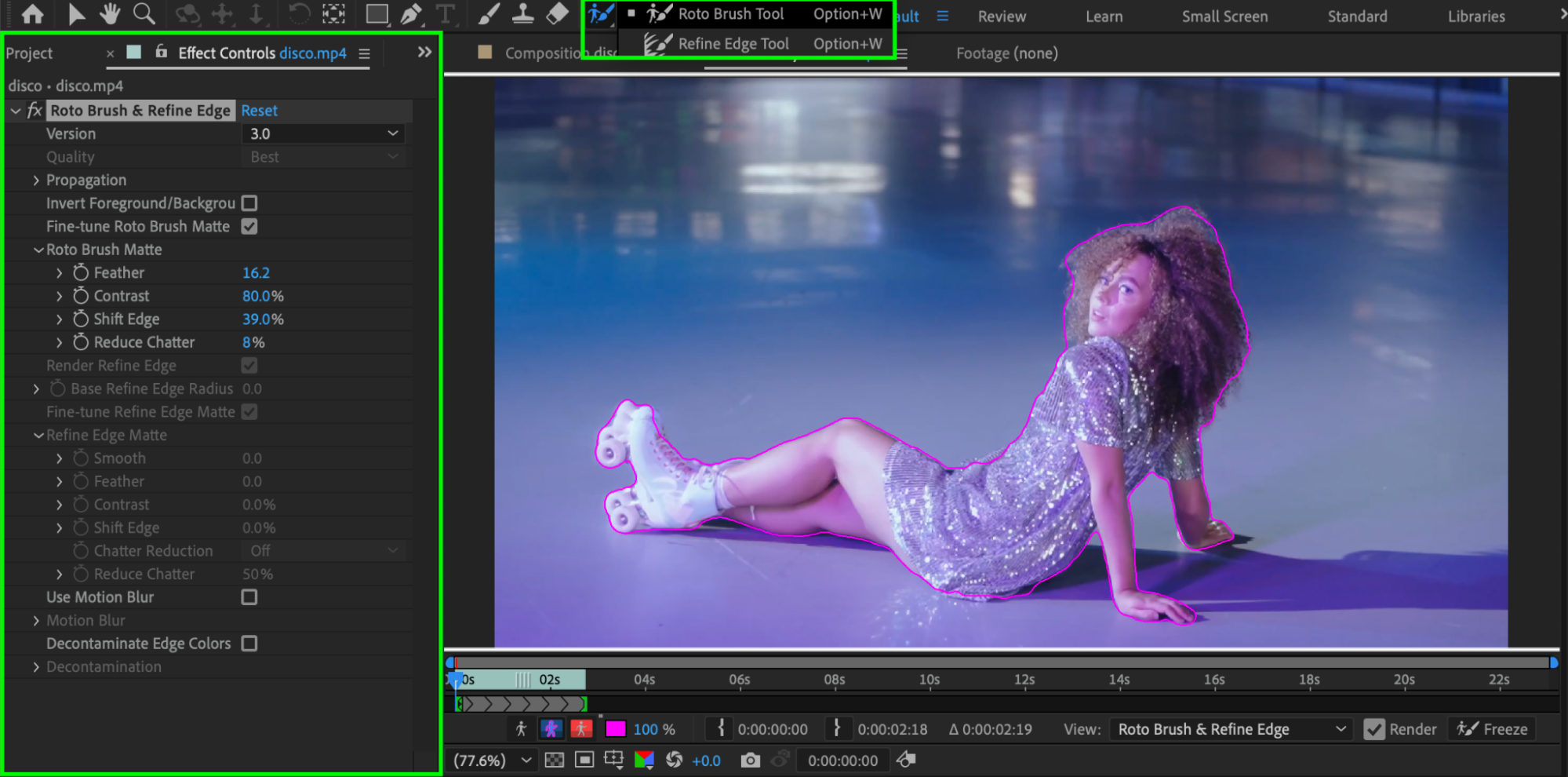
Step 4: Apply the Glitch Effect
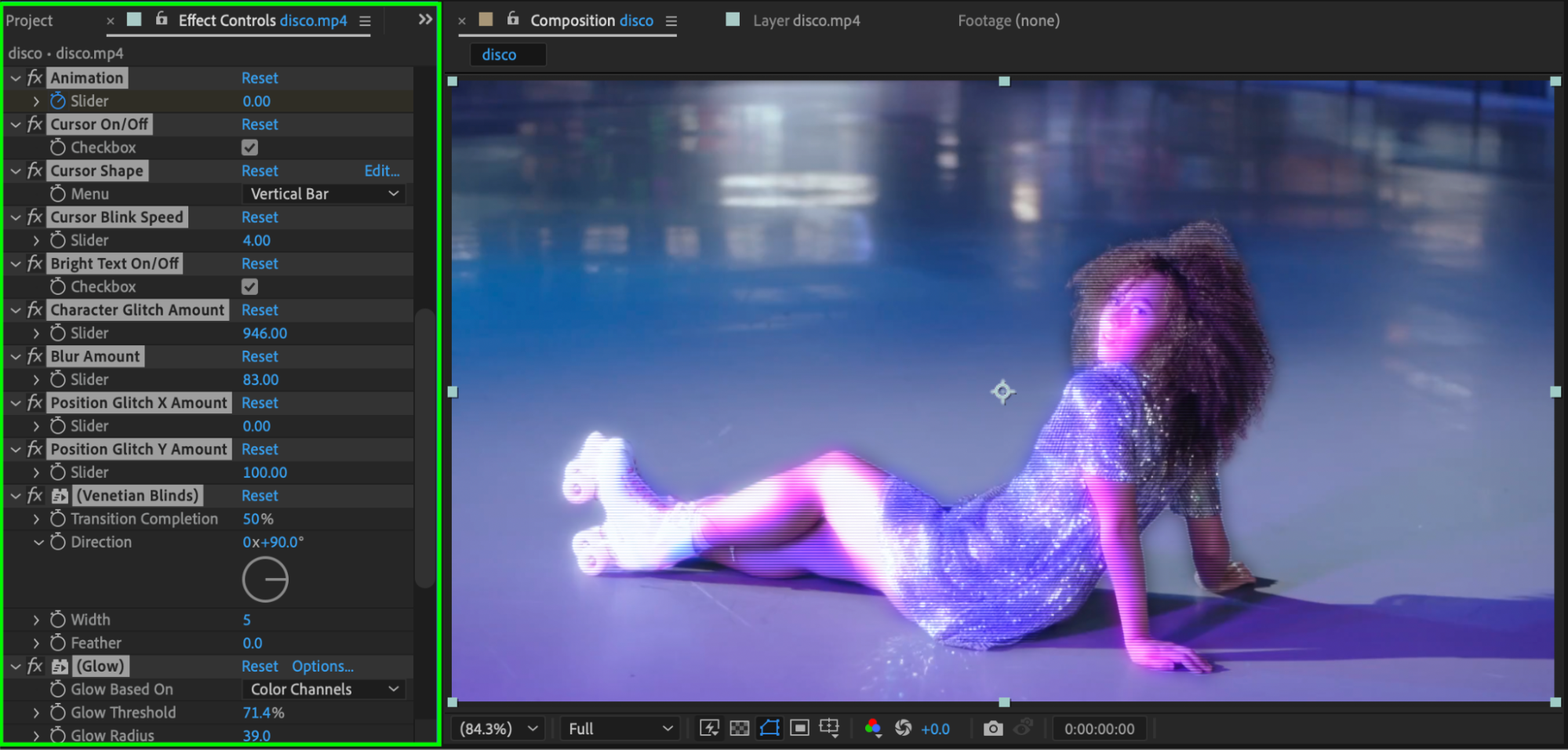
Return to the Composition Panel. Select the Person layer. From Effects & Presets, apply the Glitchy Text Decoder effect. Adjust the effect settings in the Effect Controls Panel to achieve the desired glitch intensity and style.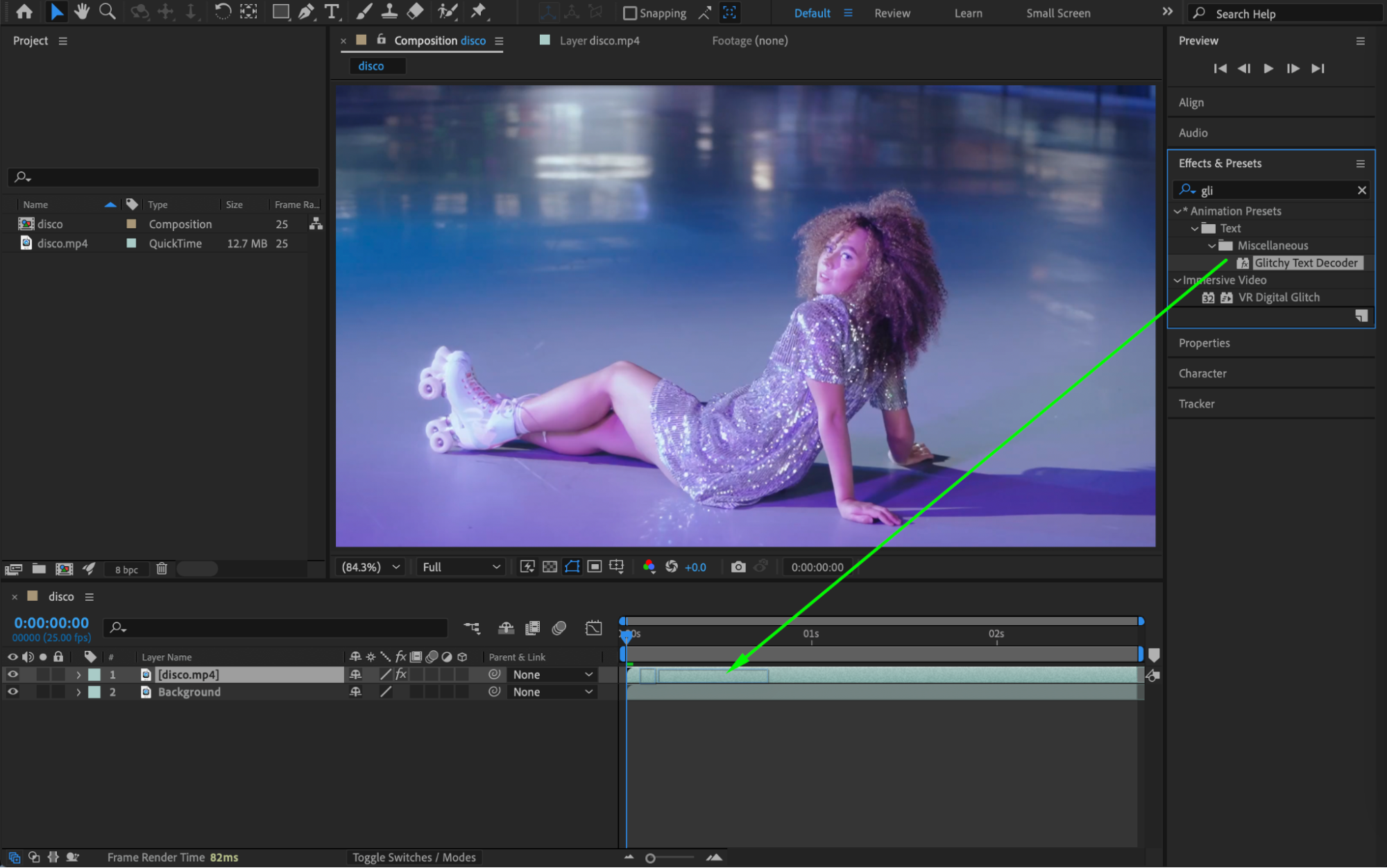
 Step 5: Preview the Result
Preview the composition. The glitch effect should now affect only the person, while the background remains unchanged.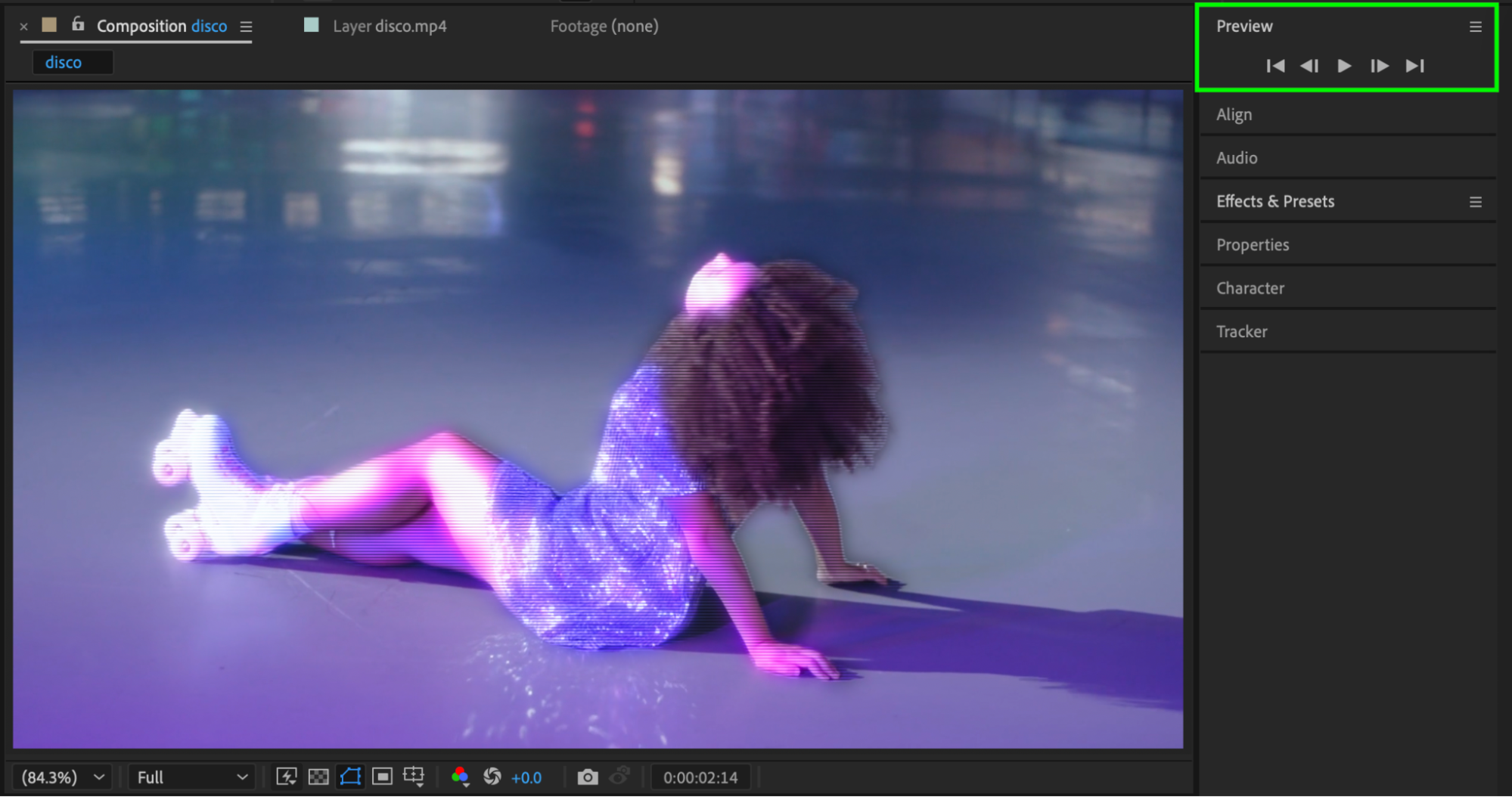
Conclusion
By using the Roto Brush Tool and applying effects only to the isolated layer, you can easily create professional glitch effects on a person without damaging the background. This technique works well for music videos, reels, and creative motion graphics.
Our Bestsellers
Our Bestsellers


