
Introduction
Gradient masks are a powerful way to blend photos or videos smoothly into a background. In this tutorial, you’ll learn how to create a gradient mask in After Effects using shape layers and track mattes for soft, professional transitions.
Step 1: Import Your Background
Go to File → Import → File and import the photo or video you want to use as the background. Drag it onto the timeline.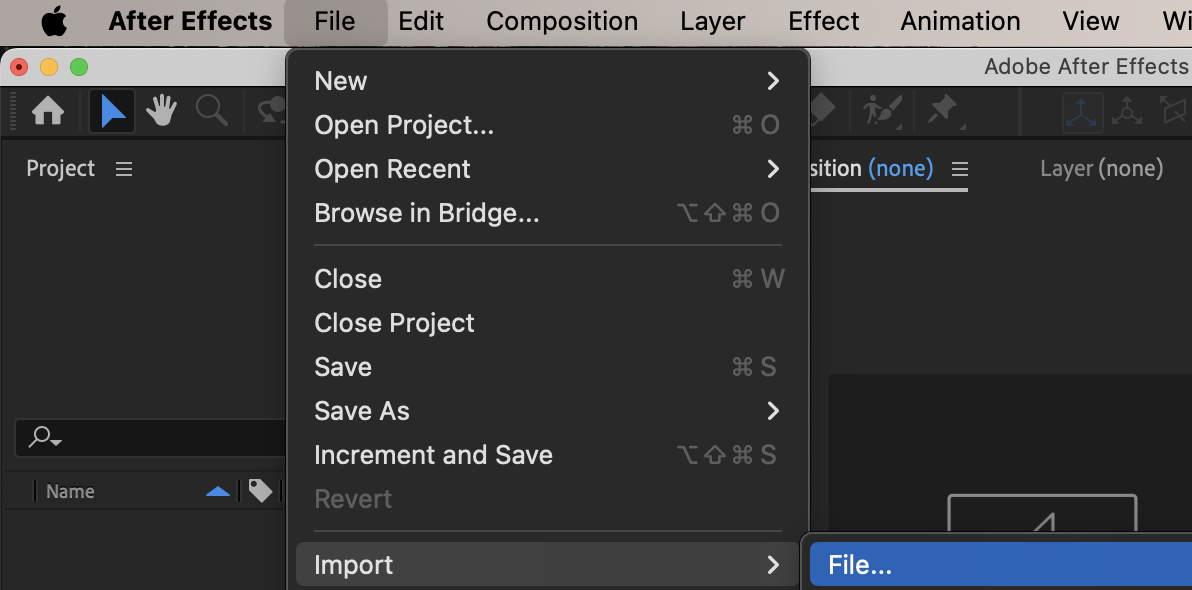
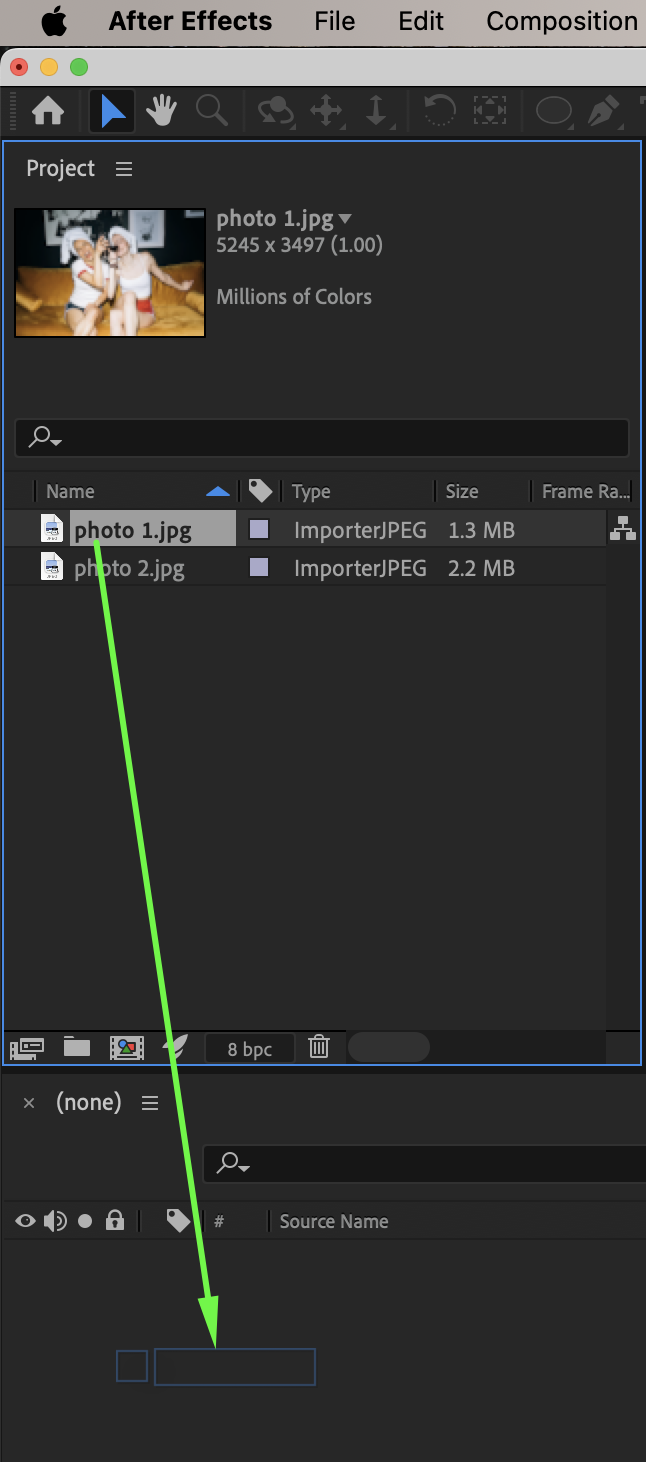
Step 2: Create a Gradient Shape
Select the Ellipse Tool (Q). Draw a shape in the area and size where you want the mask to appear. In the toolbar, set:
Fill: Linear Gradient
Stroke: None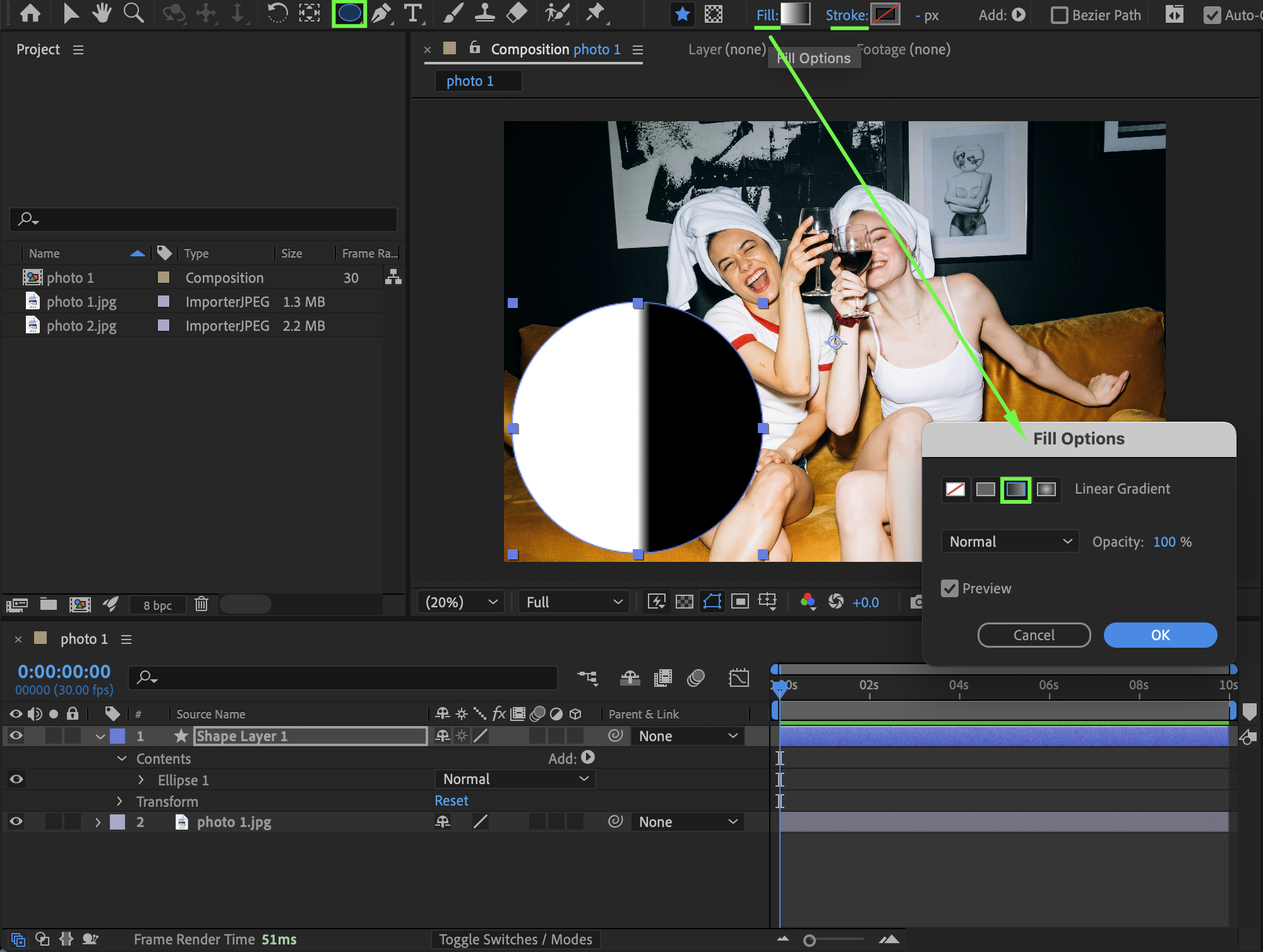
Step 3: Place the Masked Layer Above
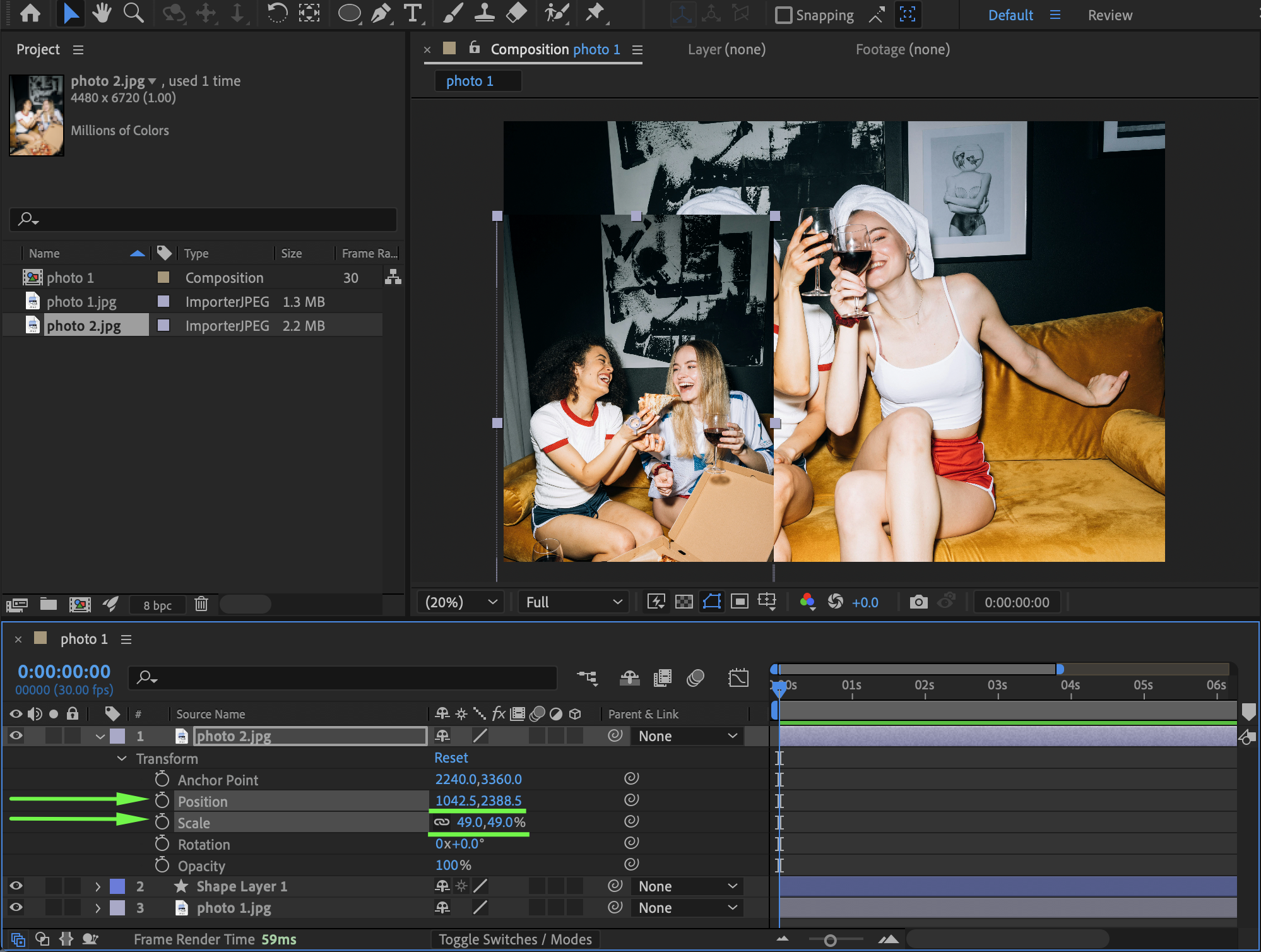
Drag the second photo or video (the layer you want to be masked) onto the timeline. Place this layer above the shape layer. Adjust its Scale and Position so it aligns correctly with the gradient shape.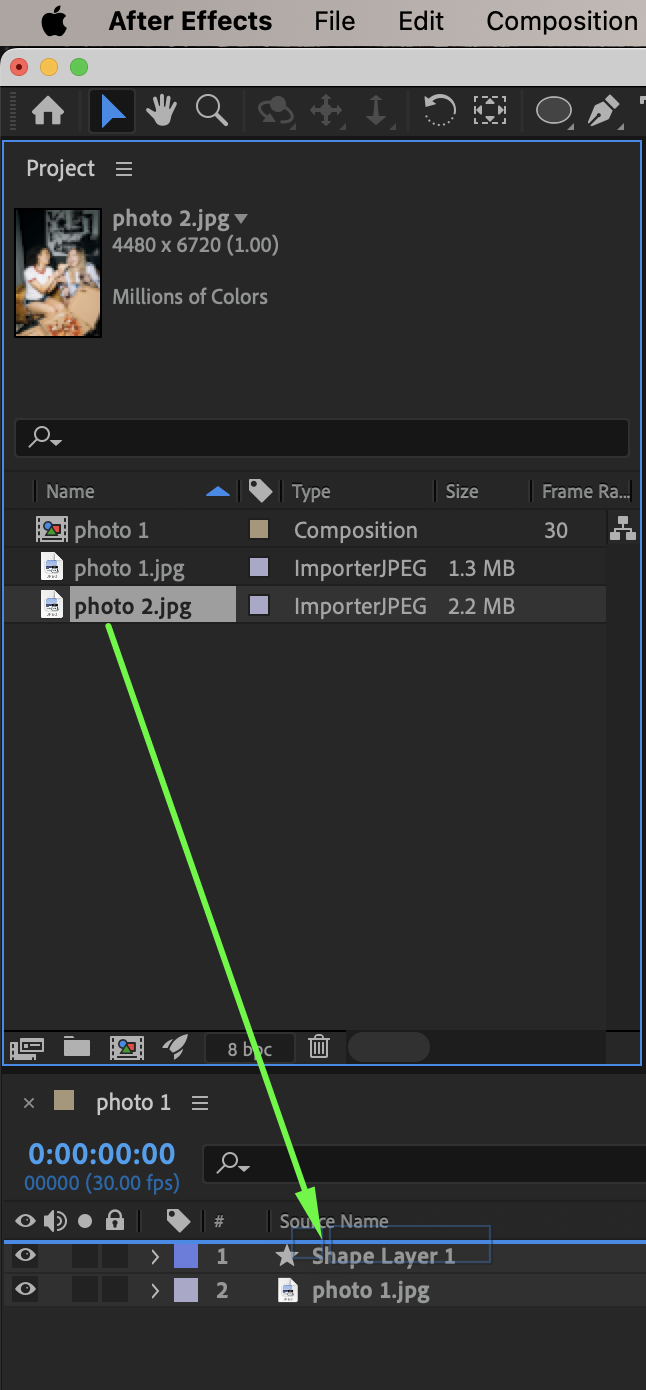
 Step 4: Set the Track Matte
In the Track Matte column of the timeline: Set the second photo or video layer’s Track Matte to the Shape Layer. (If you don’t see Track Matte, click Toggle Switches/Modes.)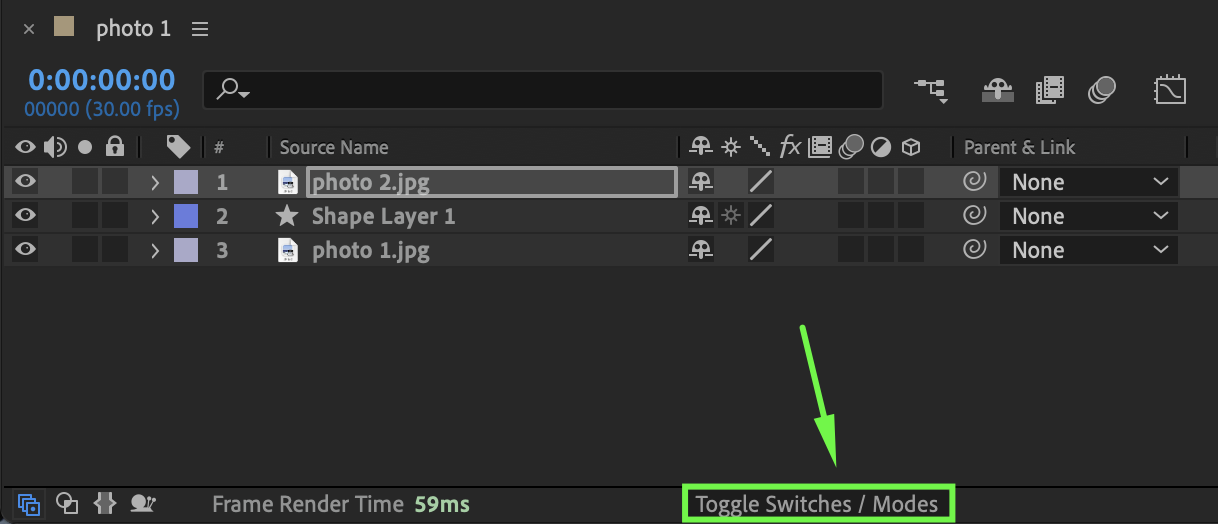
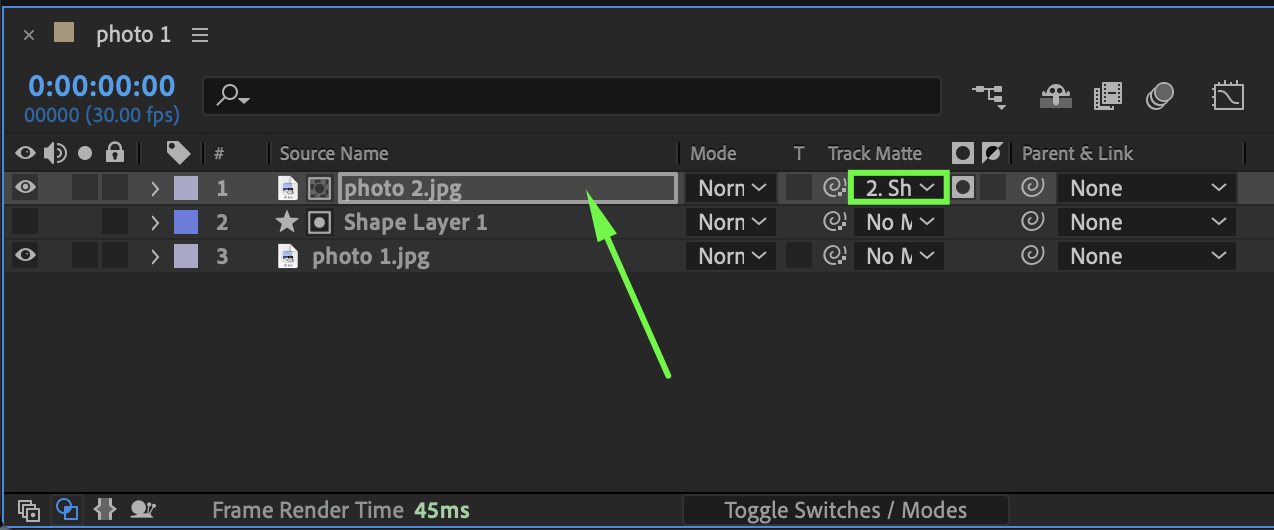
Step 5: Adjust the Gradient Mask
For photos or videos, choose Luma Matte as the track matte type.
Select the shape layer and adjust the Gradient Fill properties:
Start Point
End Point
This controls the direction and softness of the gradient mask.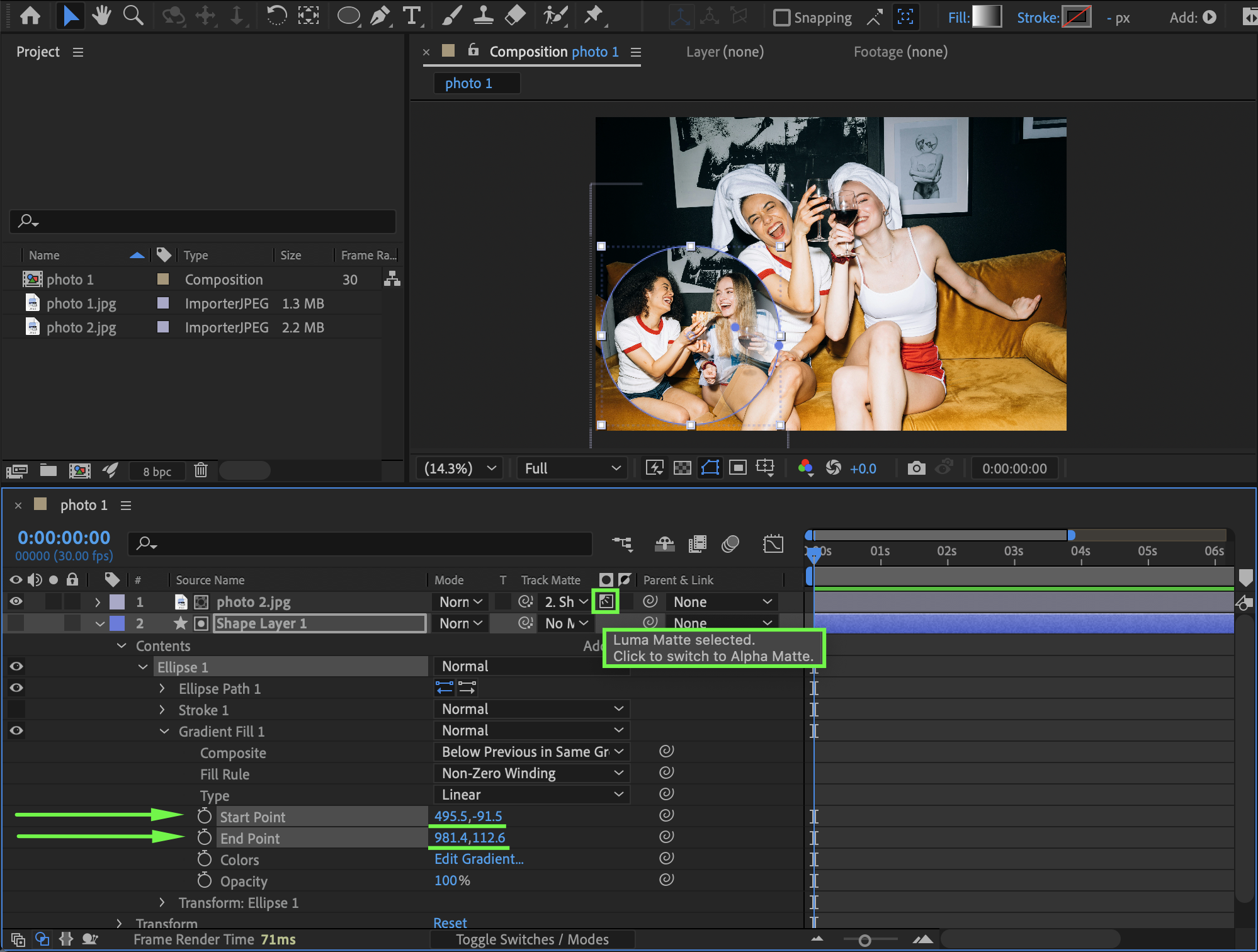 Step 6: Preview the Result
Preview the composition and fine-tune the gradient position and feathering until the blend looks smooth and natural.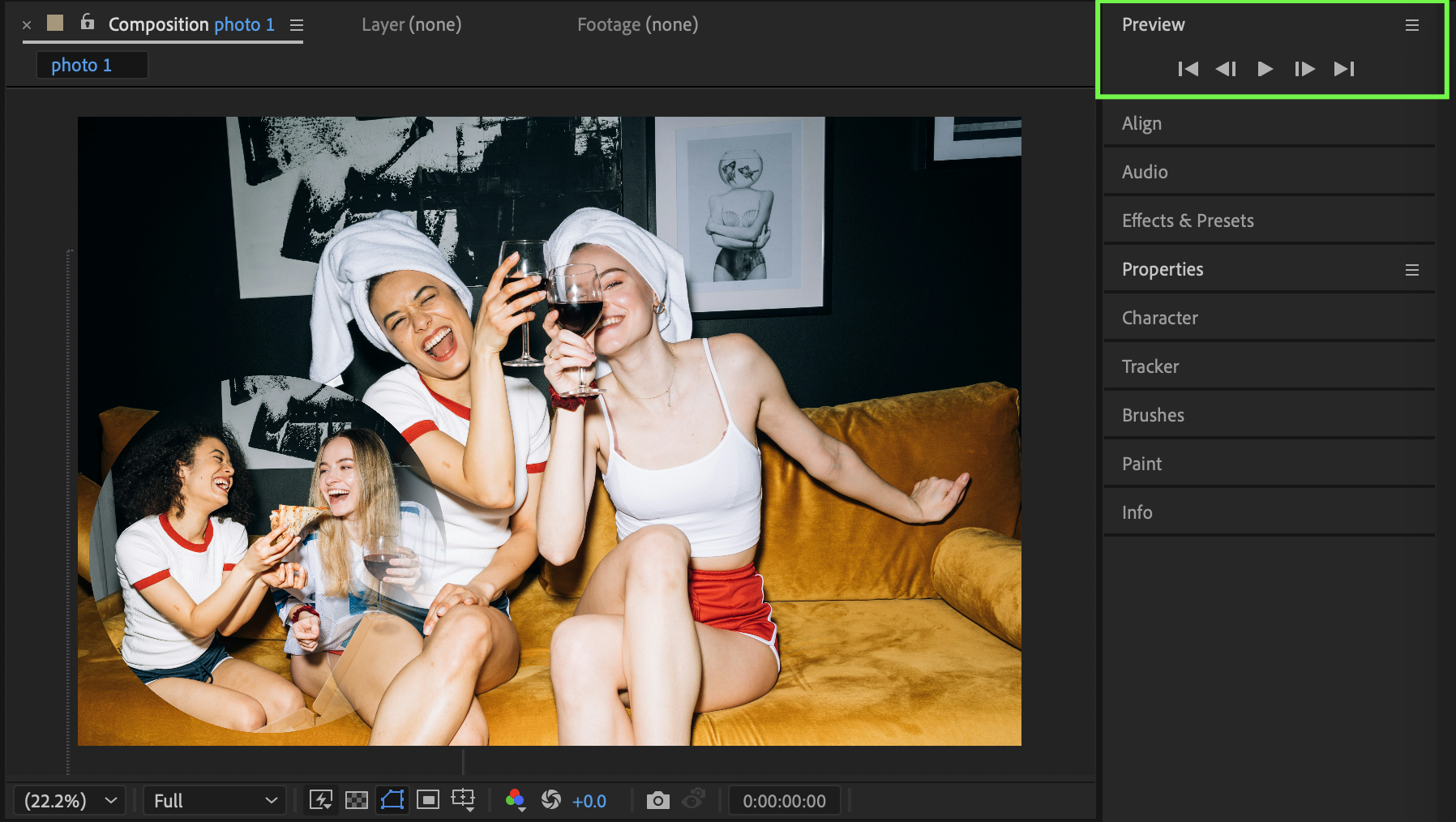
Conclusion
Using shape layers with gradient fills and track mattes allows you to create clean, flexible gradient masks in After Effects. This technique is perfect for cinematic blends, overlays, and modern motion design.
Our Bestsellers
Our Bestsellers


