
Introduction
This tutorial shows how to create a circular audio spectrum animation around a picture in After Effects. You’ll import audio and an image, build an audio spectrum using effects, convert it into a circular shape, and add audio-reactive scaling for a dynamic result.
Step 1: Import Audio and Image
Go to File > Import > File and import:
Your audio file
Your image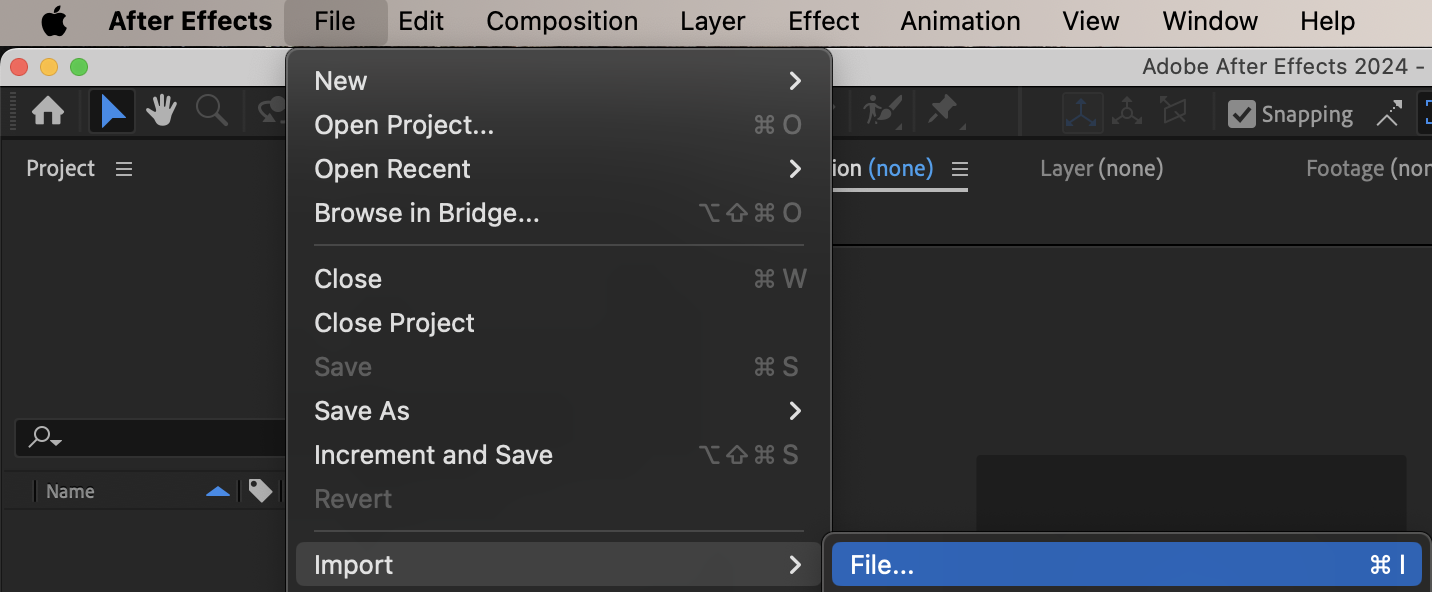
Step 2: Create a New Composition
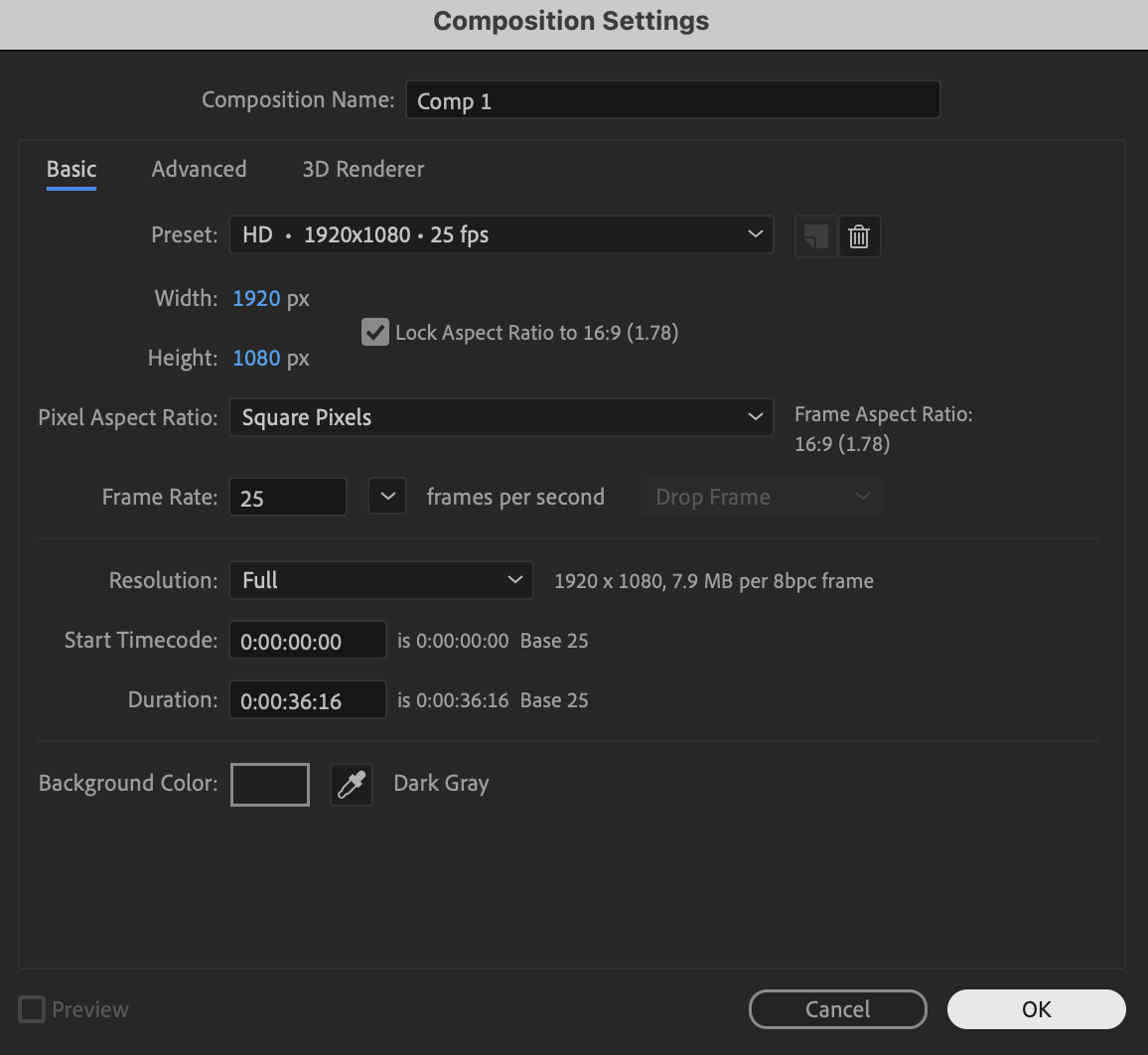
Create a new composition with your desired resolution and frame rate.
 Step 3: Add Audio to the Timeline
Drag the audio file onto the timeline.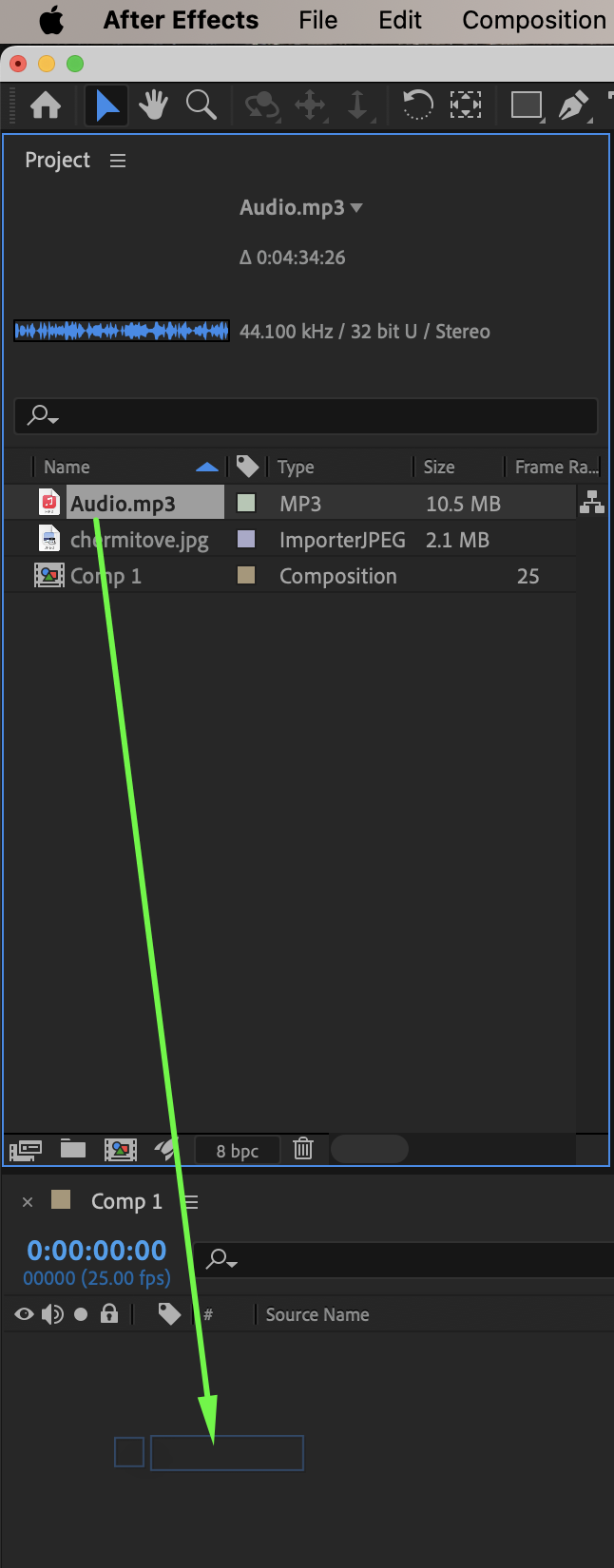
Step 4: Create a Solid for the Audio Spectrum
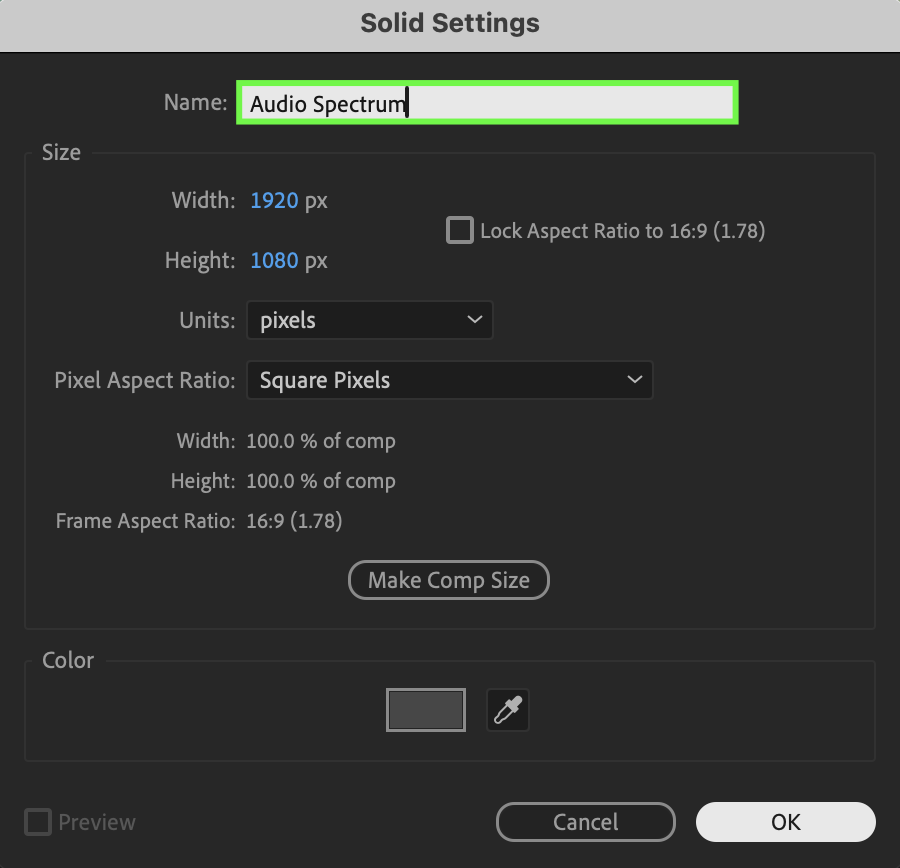
Go to Layer > New > Solid. Name the solid Audio Spectrum and click OK.
Step 5: Apply the Audio Spectrum Effect
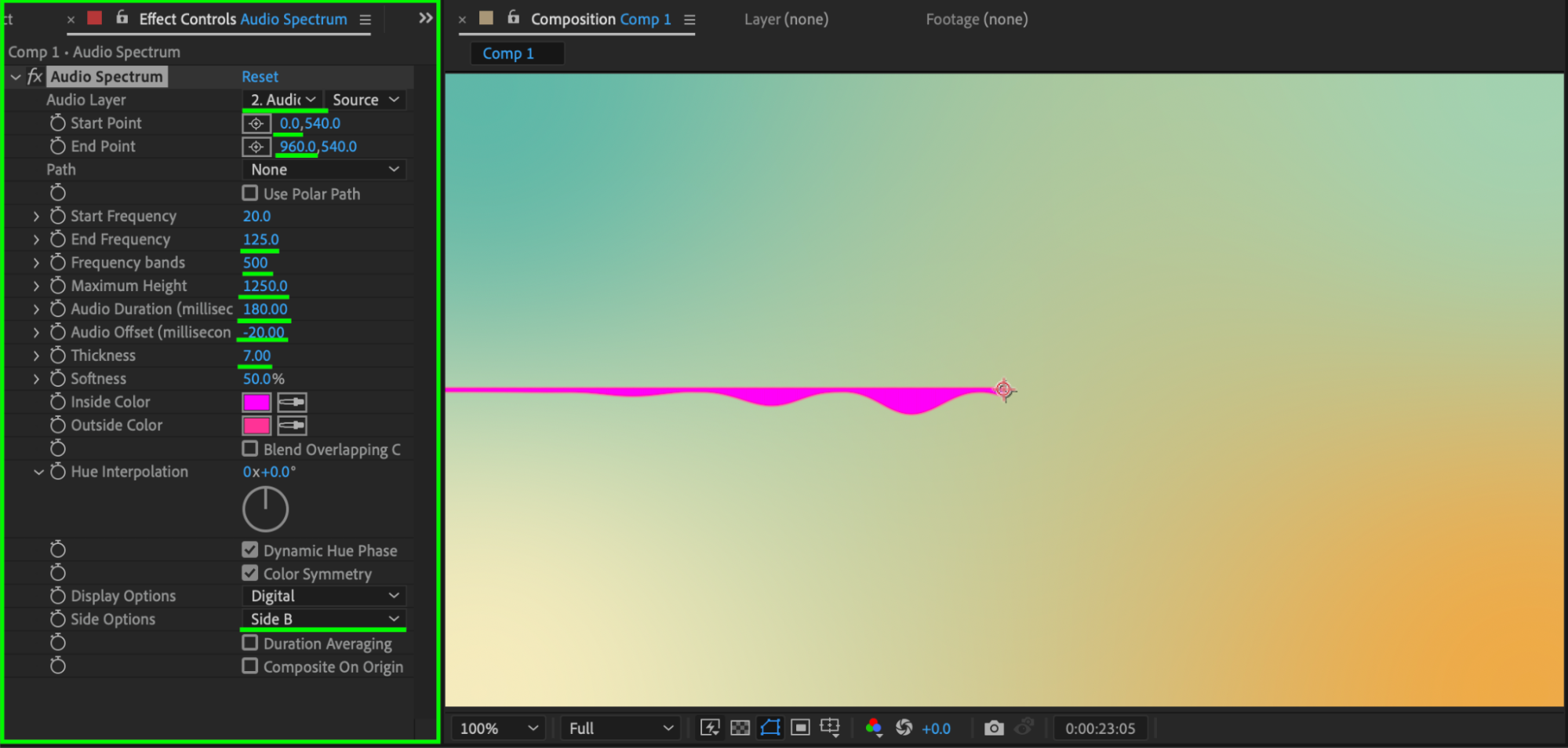
Select the Audio Spectrum solid. From the Effects & Presets panel, apply the Audio Spectrum effect. Set the following values:
Audio Layer: your audio
Start Point: X = 0
End Point: X = 960
End Frequency: 125
Frequency Bands: 500
Maximum Height: 1250
Audio Duration: 180
Audio Offset: -20
Thickness: 7
Side Options: Side B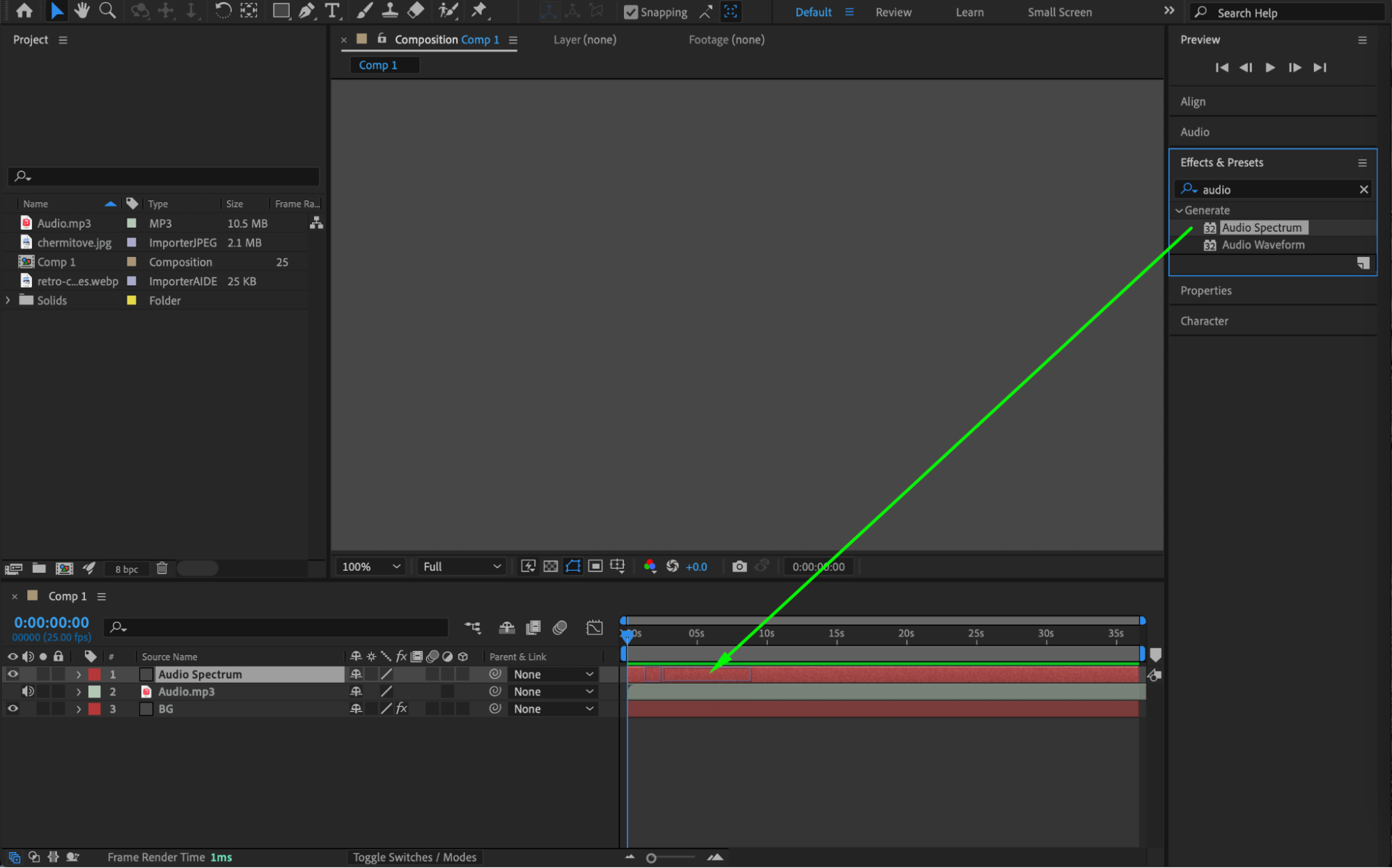
 Step 6: Convert the Spectrum to a Circle
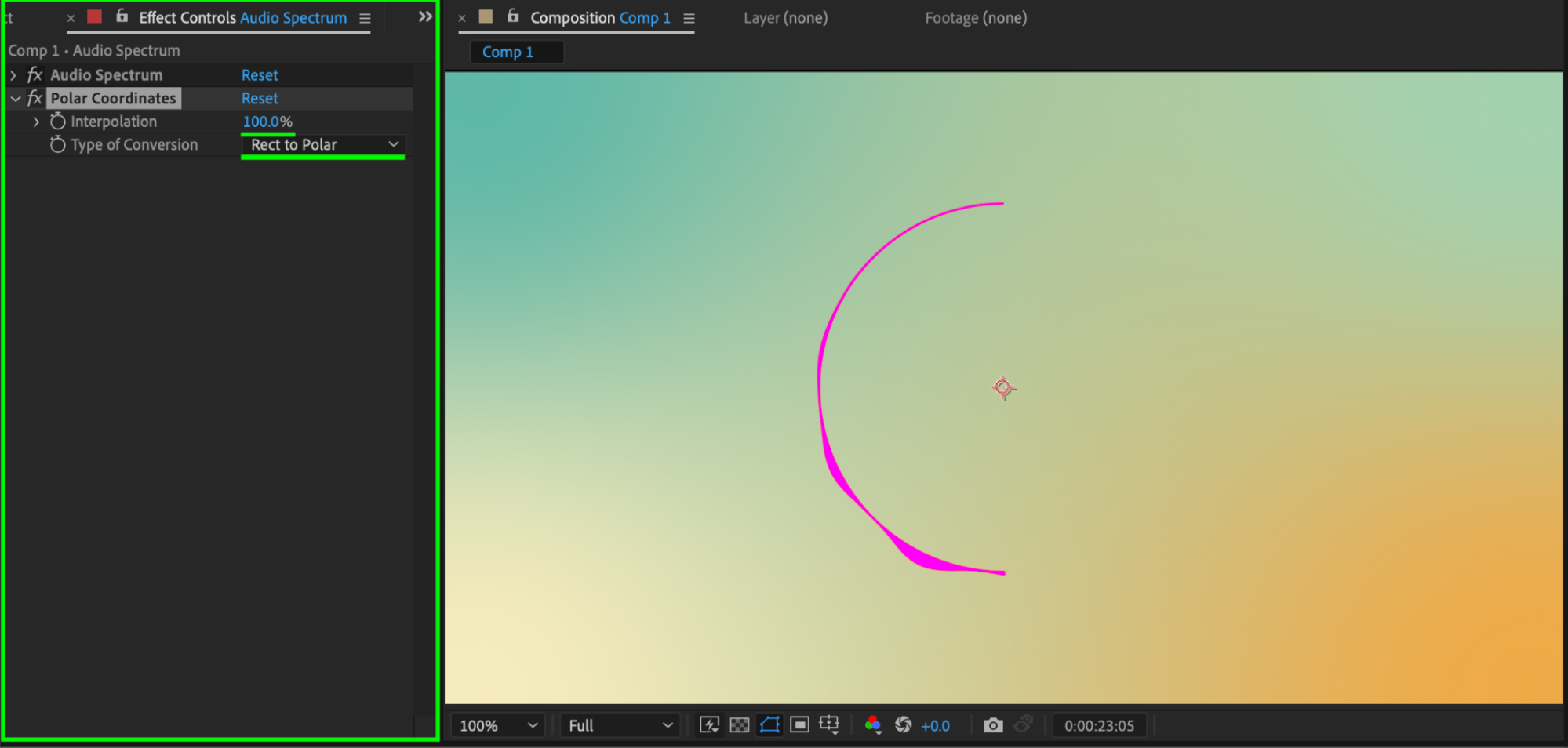
Apply the Polar Coordinates effect to the same solid. Set:
Type of Conversion: Rect to Polar
Interpolation: 100%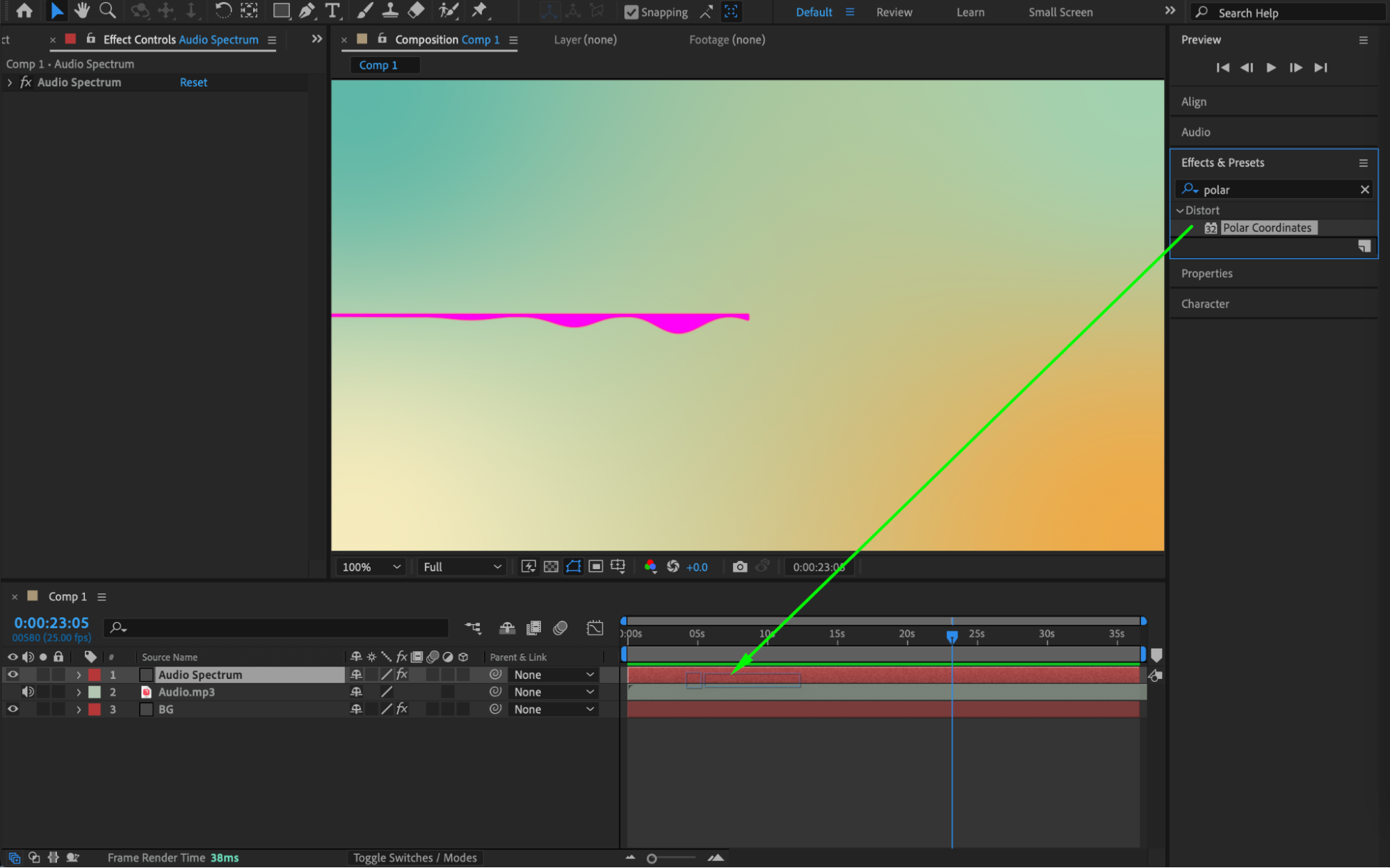
 Step 7: Mirror the Spectrum
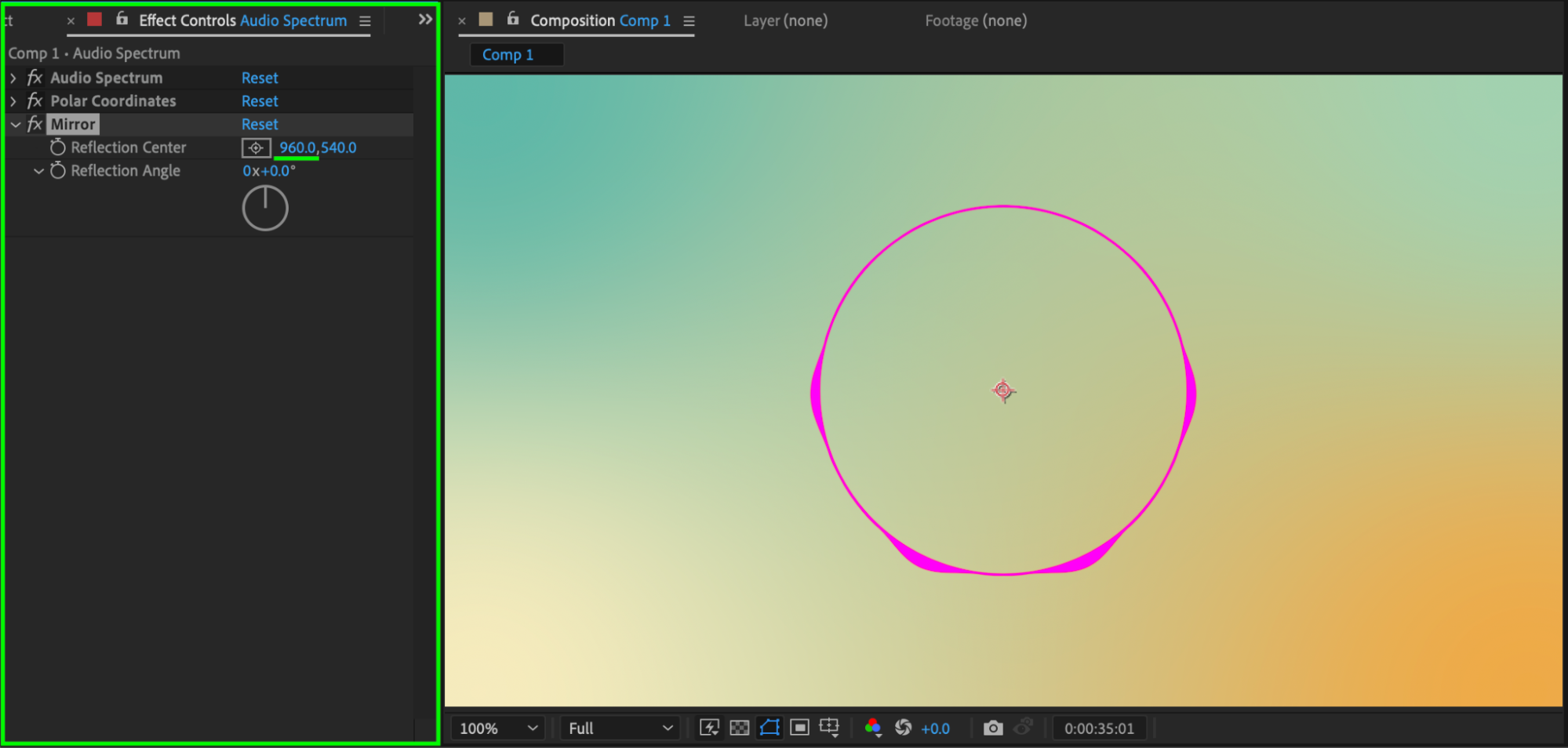
Apply the Mirror effect to the Audio Spectrum solid. Set:
Reflection Center: X = 960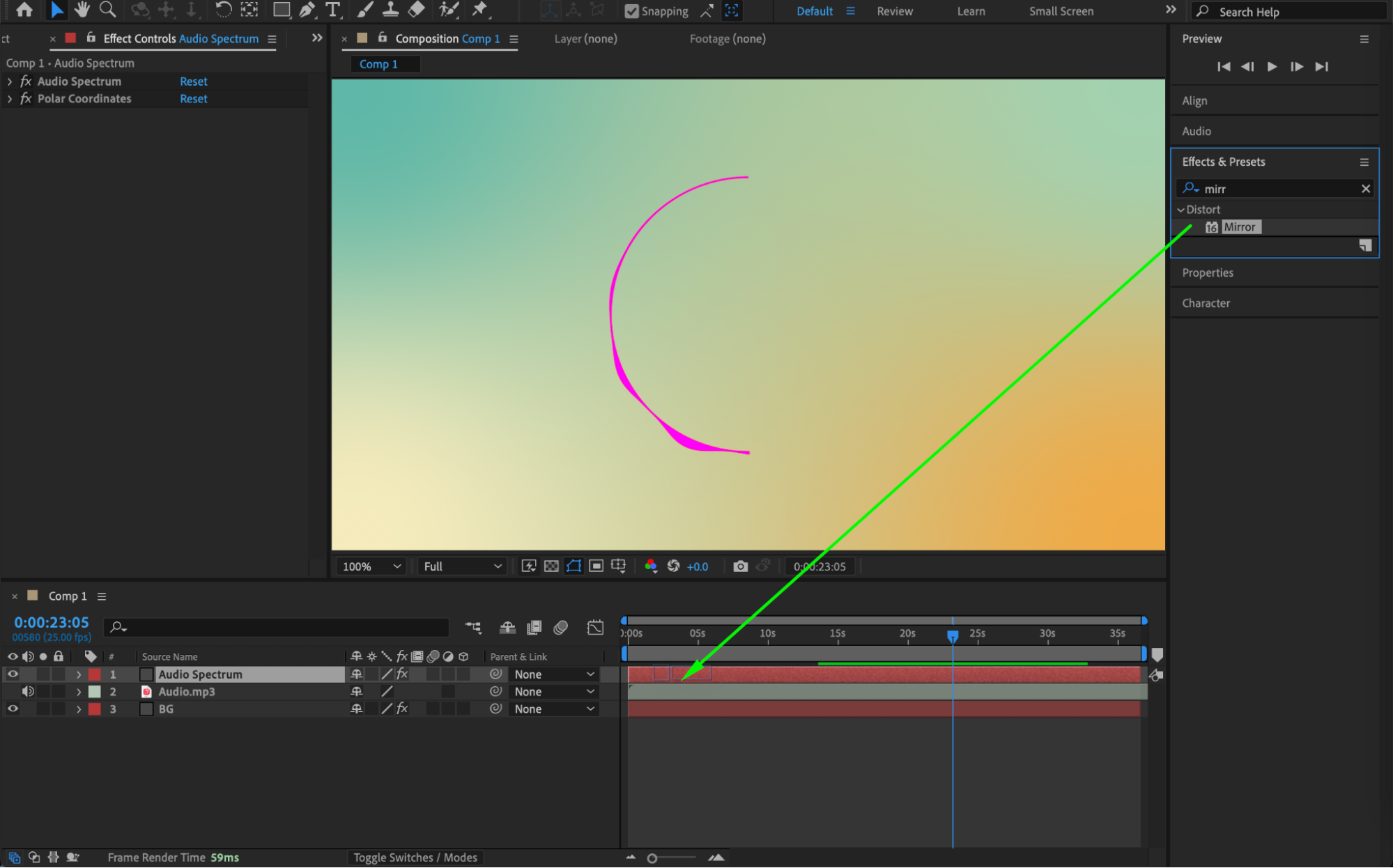
 Step 8: Adjust Spectrum Colors
Return to the Audio Spectrum effect and customize the color settings to your liking.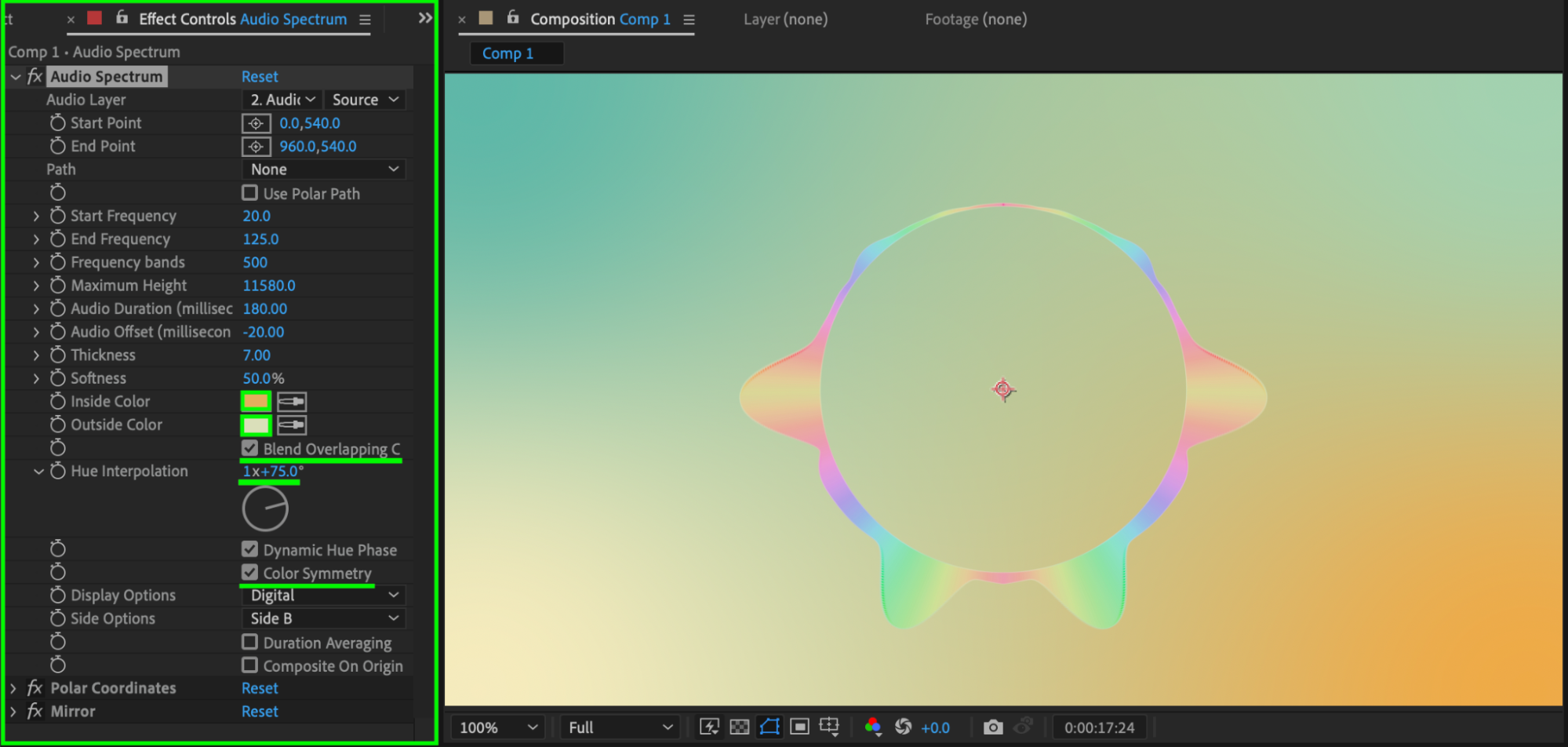 Step 9: Add and Mask the Image
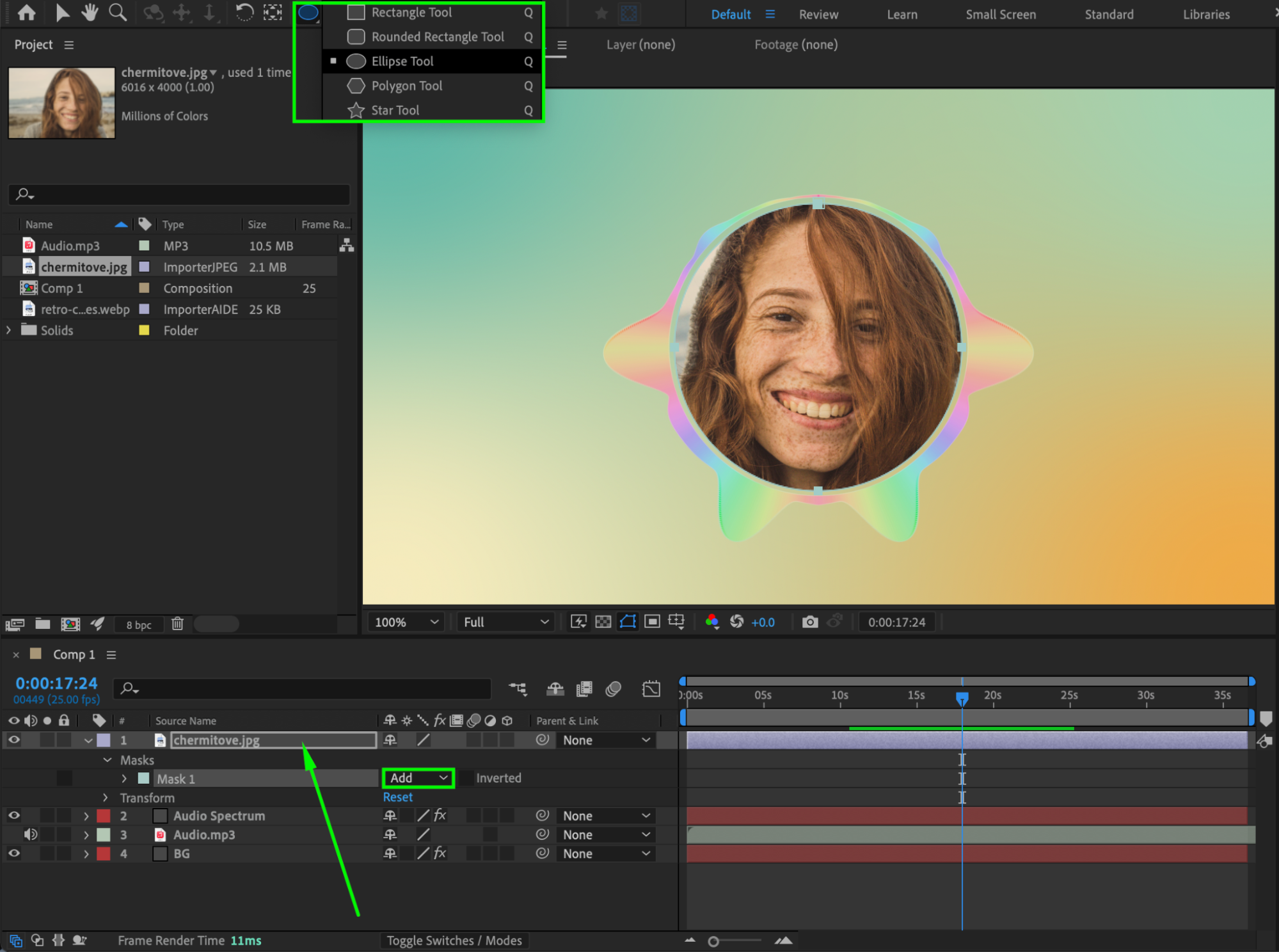
Drag your image onto the timeline. Select the Ellipse Tool (Q) and create a mask on the image layer. Set Mask Mode to Add so the image becomes circular.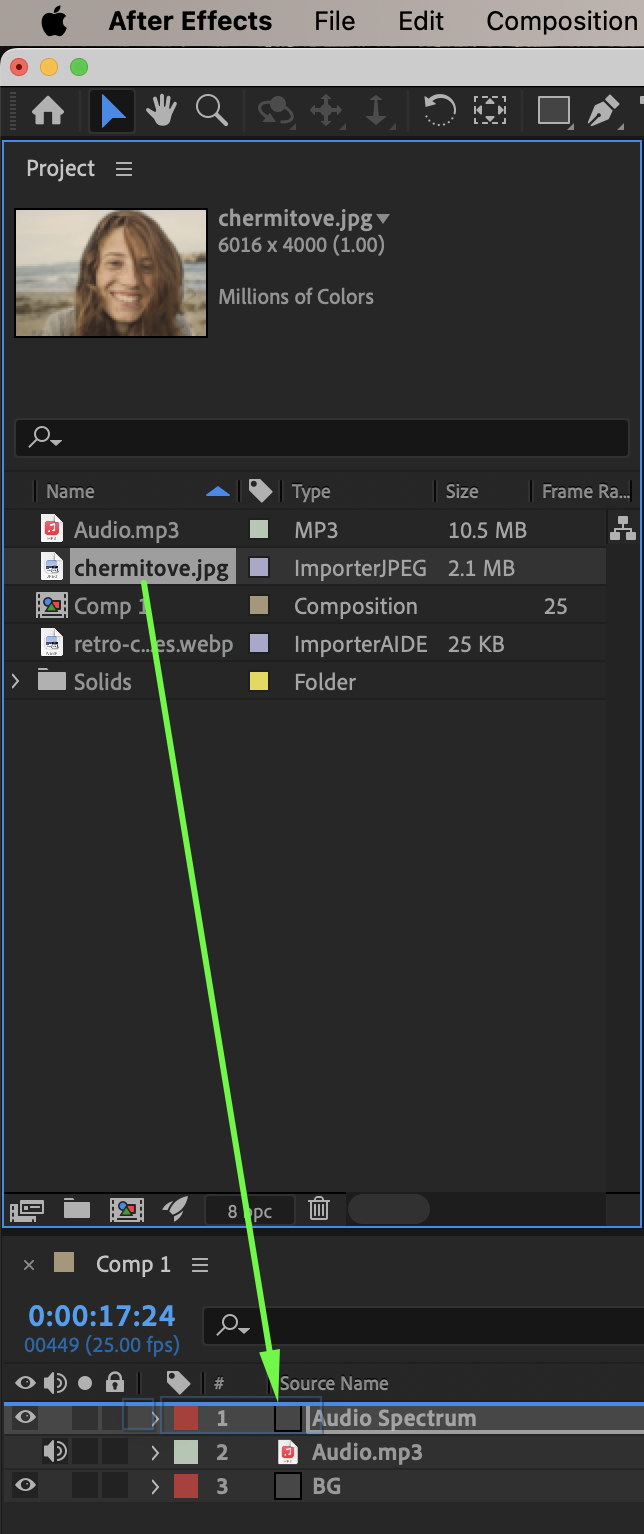
Step 10: Convert Audio to Keyframes
Right-click on the audio layer. Choose Keyframe Assistant > Convert Audio to Keyframes.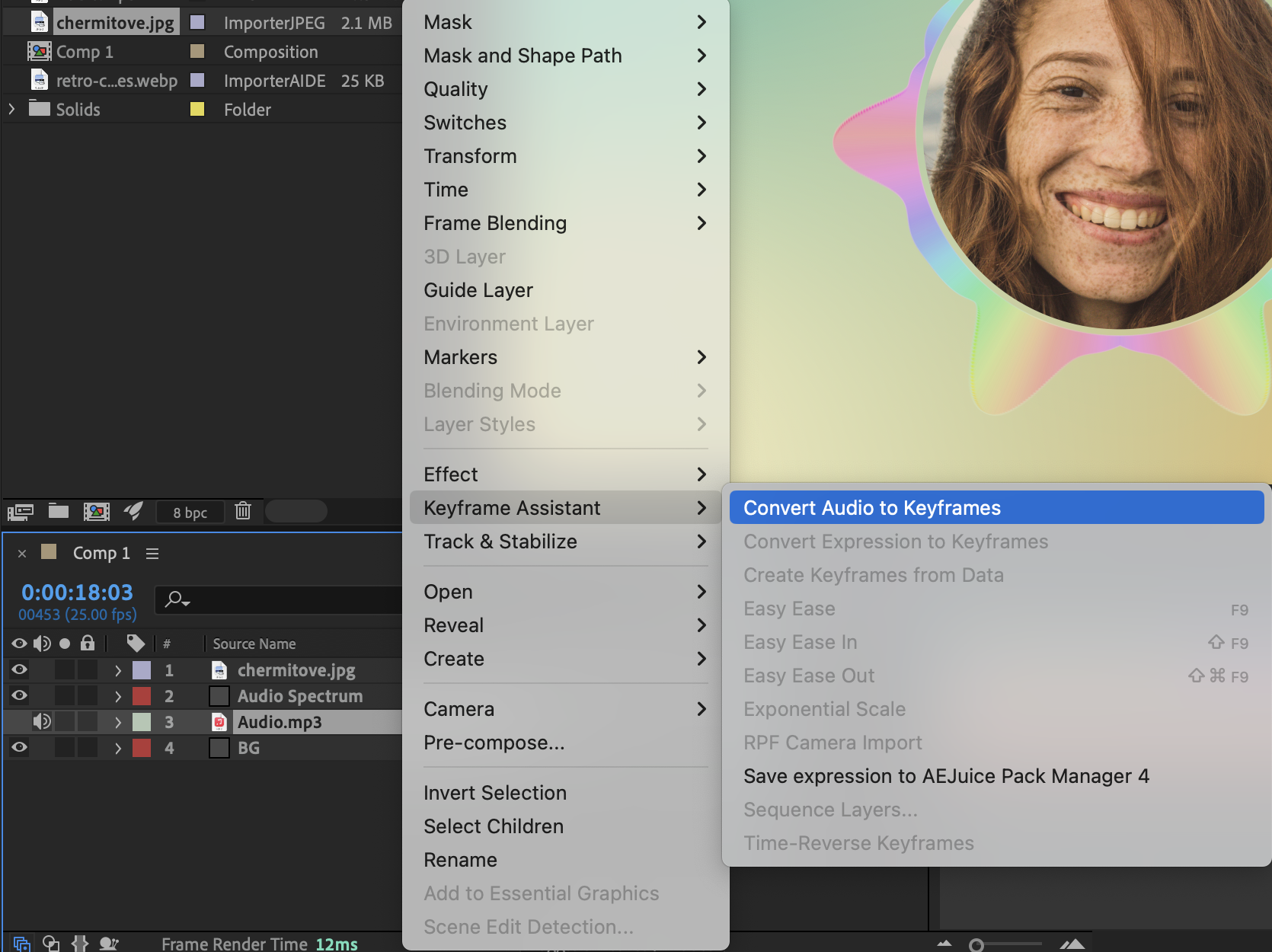 Step 11: Pre-compose the Layers
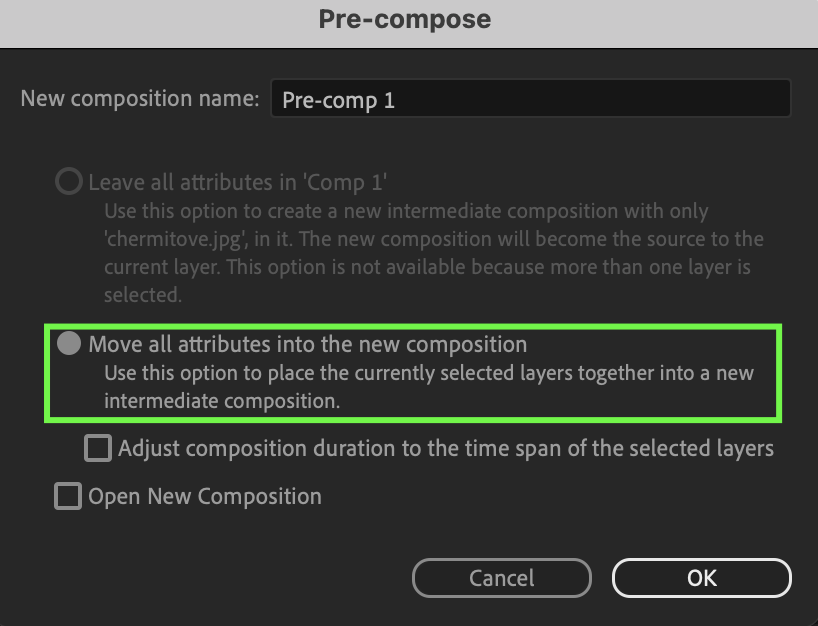
Select the image, the audio layer, and the Audio Spectrum solid. Right-click and choose Pre-compose.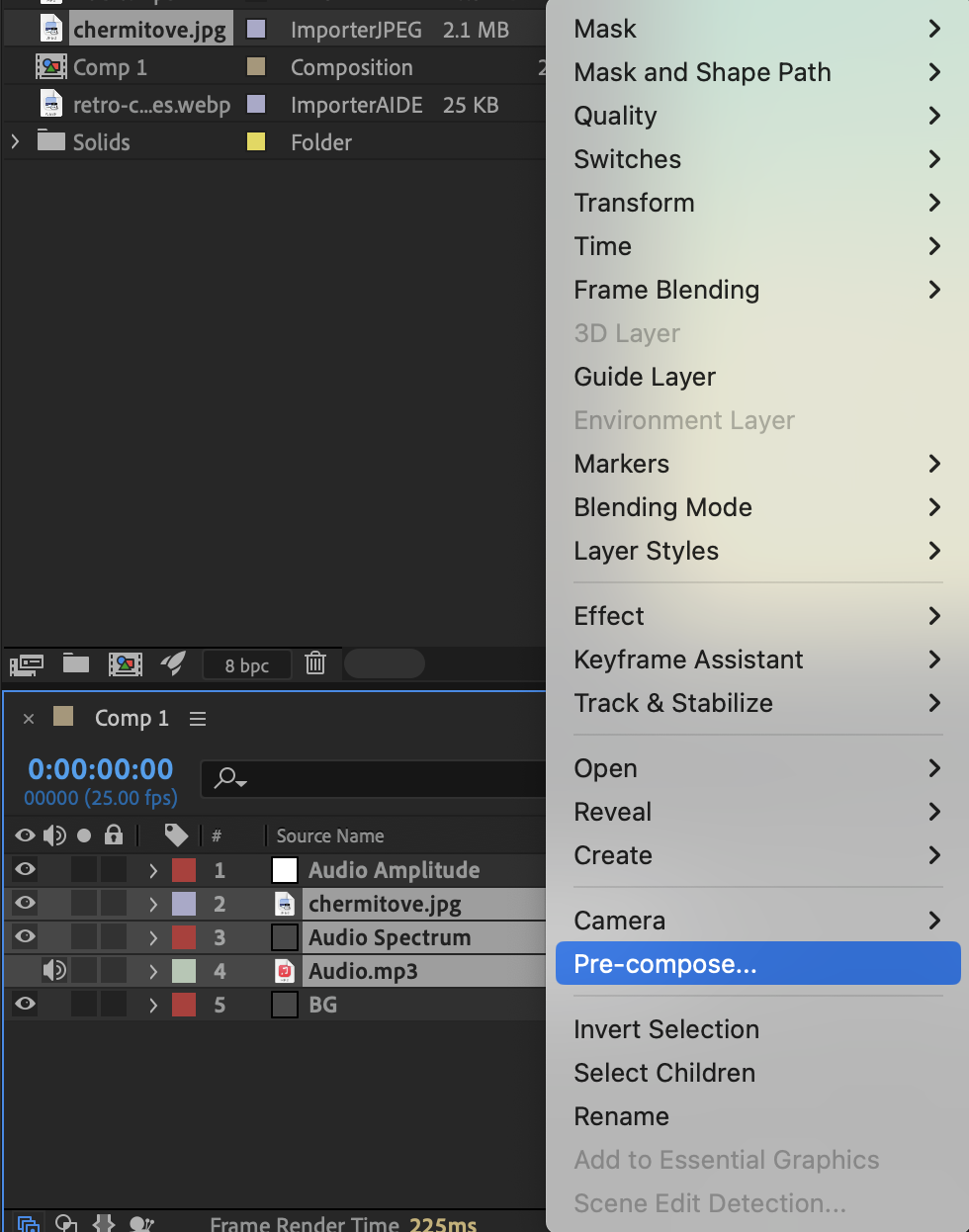
 Step 12: Add Audio-Reactive Scale Expression
Select the pre-composition layer. Alt / Option-click the Scale stopwatch and paste the following expression:
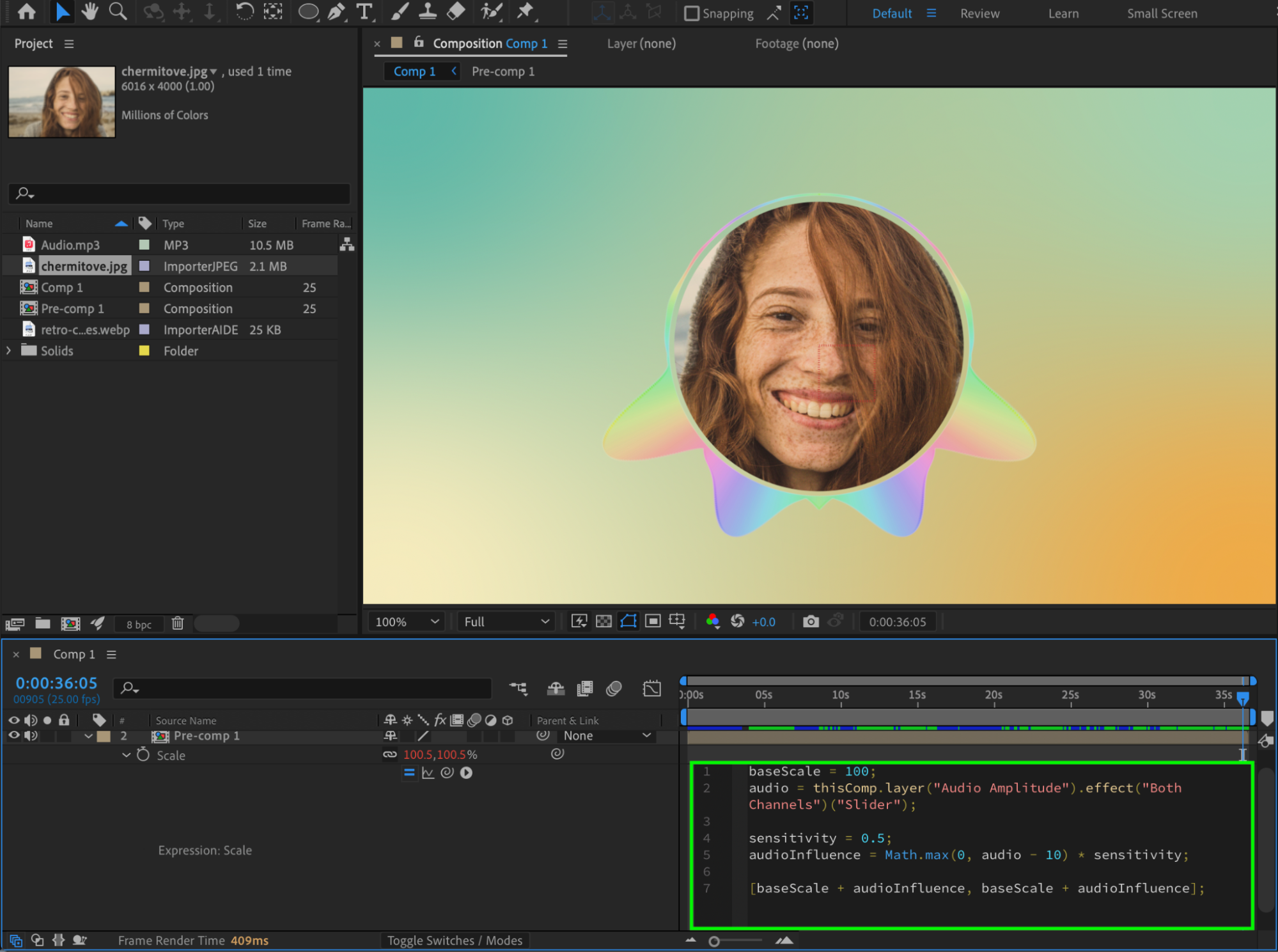
baseScale = 100;
audio = thisComp.layer(“Audio Amplitude”).effect(“Both Channels”)(“Slider”);
sensitivity = 0.5;
audioInfluence = Math.max(0, audio – 10) * sensitivity;
[baseScale + audioInfluence, baseScale + audioInfluence];
This makes the spectrum scale react to the audio only above 100%.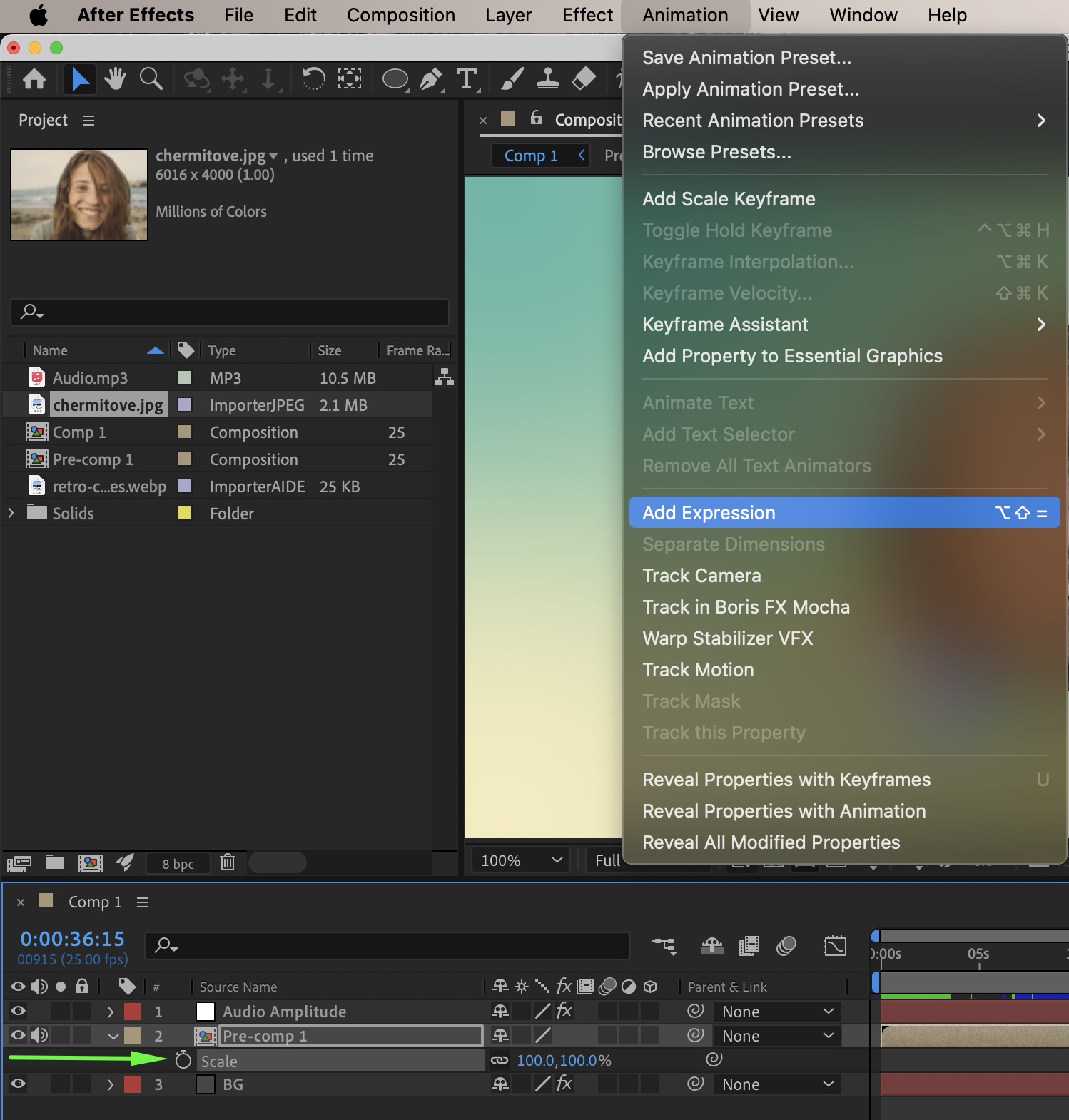
 Step 13: Preview and Finalize
Preview the composition. Adjust spectrum settings, colors, and scale sensitivity until the animation feels smooth and balanced.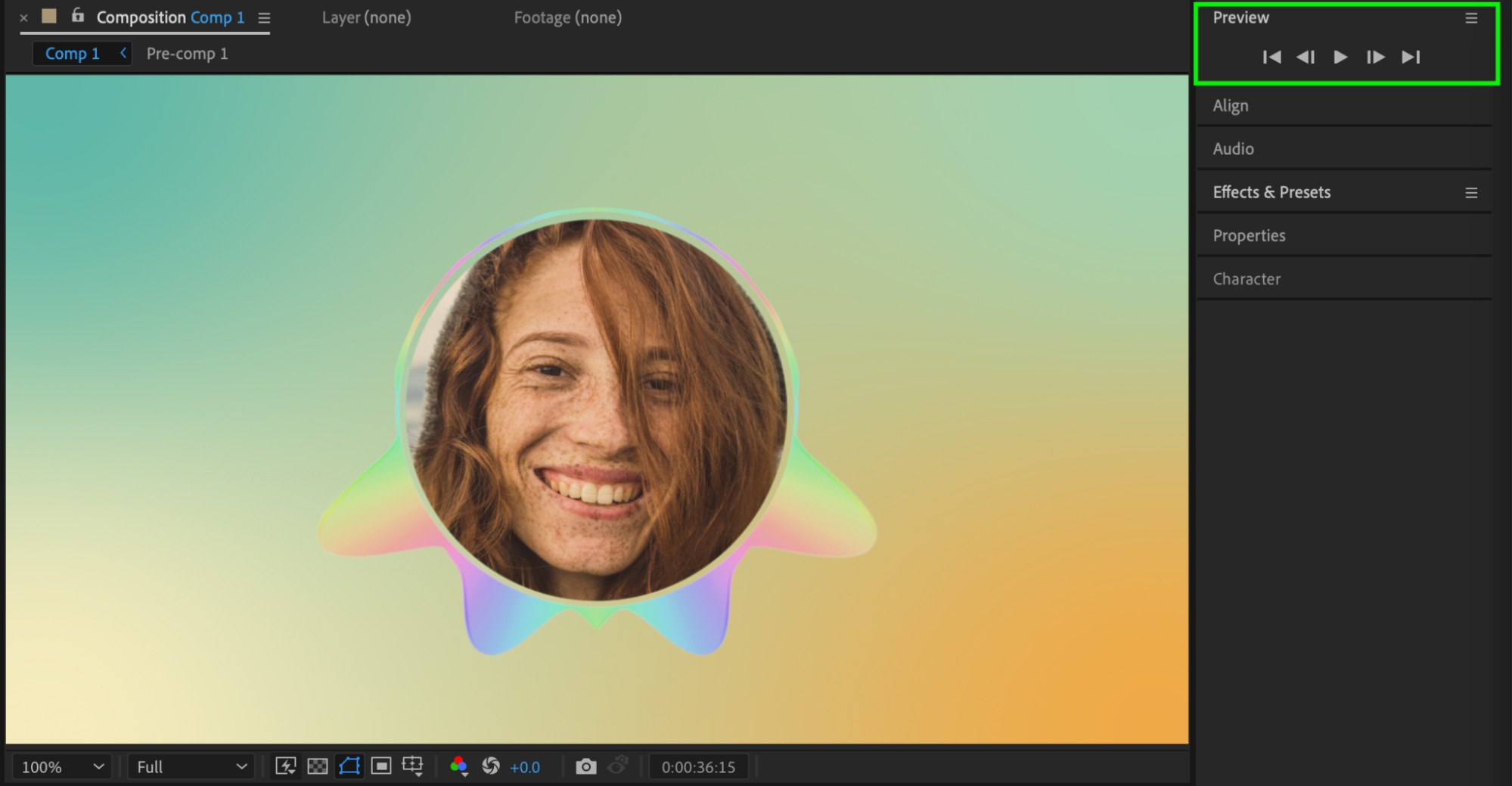
Conclusion
By combining Audio Spectrum, Polar Coordinates, masking, and expressions, you can create a clean and dynamic audio visualizer with an image in After Effects. This technique works well for music videos, podcasts, social media visuals, and motion graphics projects.
Our Bestsellers
Our Bestsellers


