
Introduction to Shadow Creation Using Spotlights
Adding a shadow in After Effects can help your compositions feel more realistic and visually grounded. While drop shadows are commonly used, creating a real-time shadow using 3D layers and a spotlight offers more control and realism. This method allows you to simulate natural lighting by projecting shadows from any custom shape or photo onto a background. In this guide, you’ll learn how to set it up step by step.
Step 1: Prepare the Photo Layer and Enable 3D
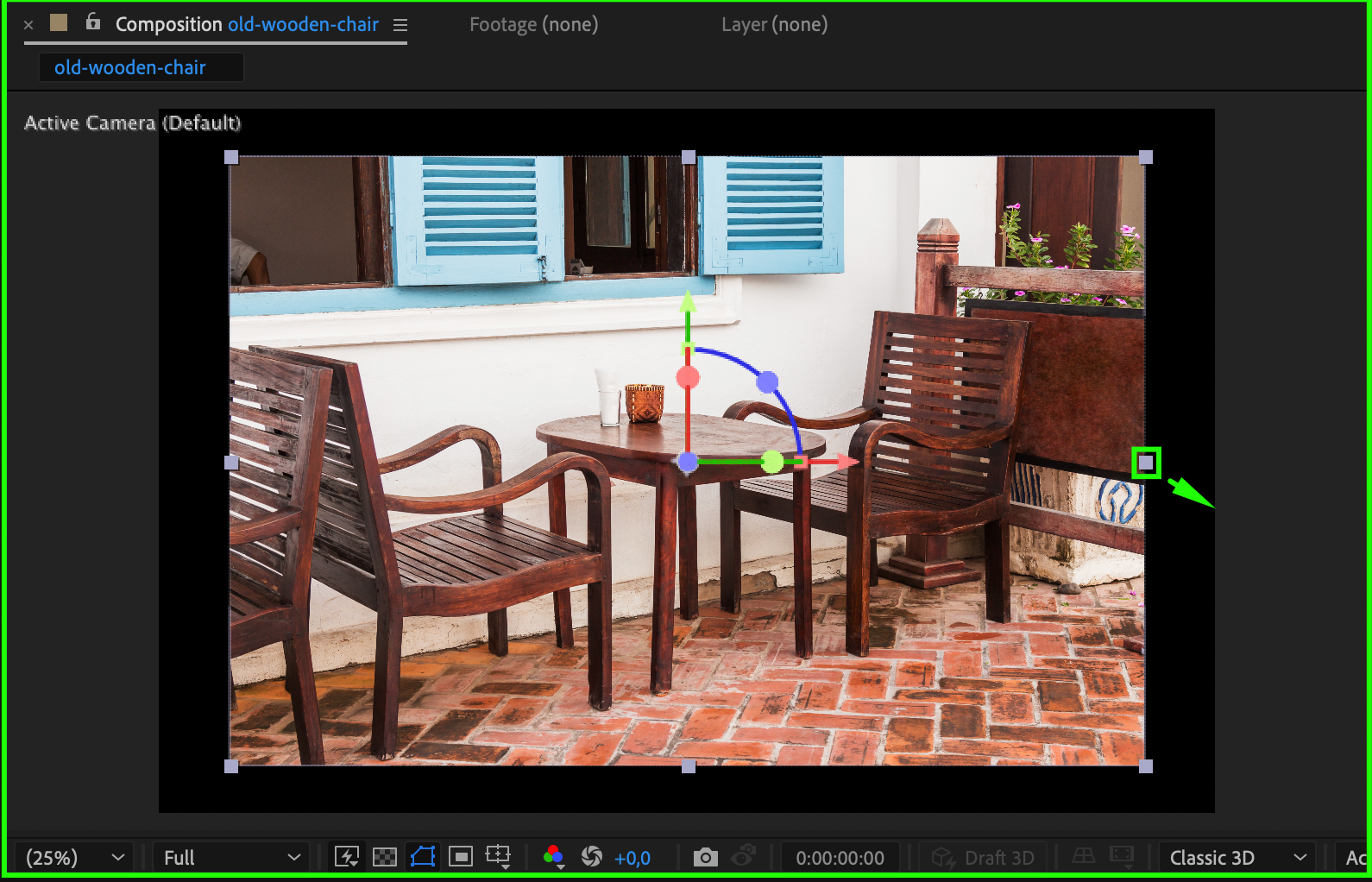
Open your project and select the image layer you want to cast the shadow onto. Click the 3D Layer switch (the cube icon) to enable 3D. Then press “P” to open Position and increase the Z-value to around 1050. This pushes the layer back in space. Go to the Composition panel and manually scale the image back up to match the comp size, since it appears smaller after moving it back in Z space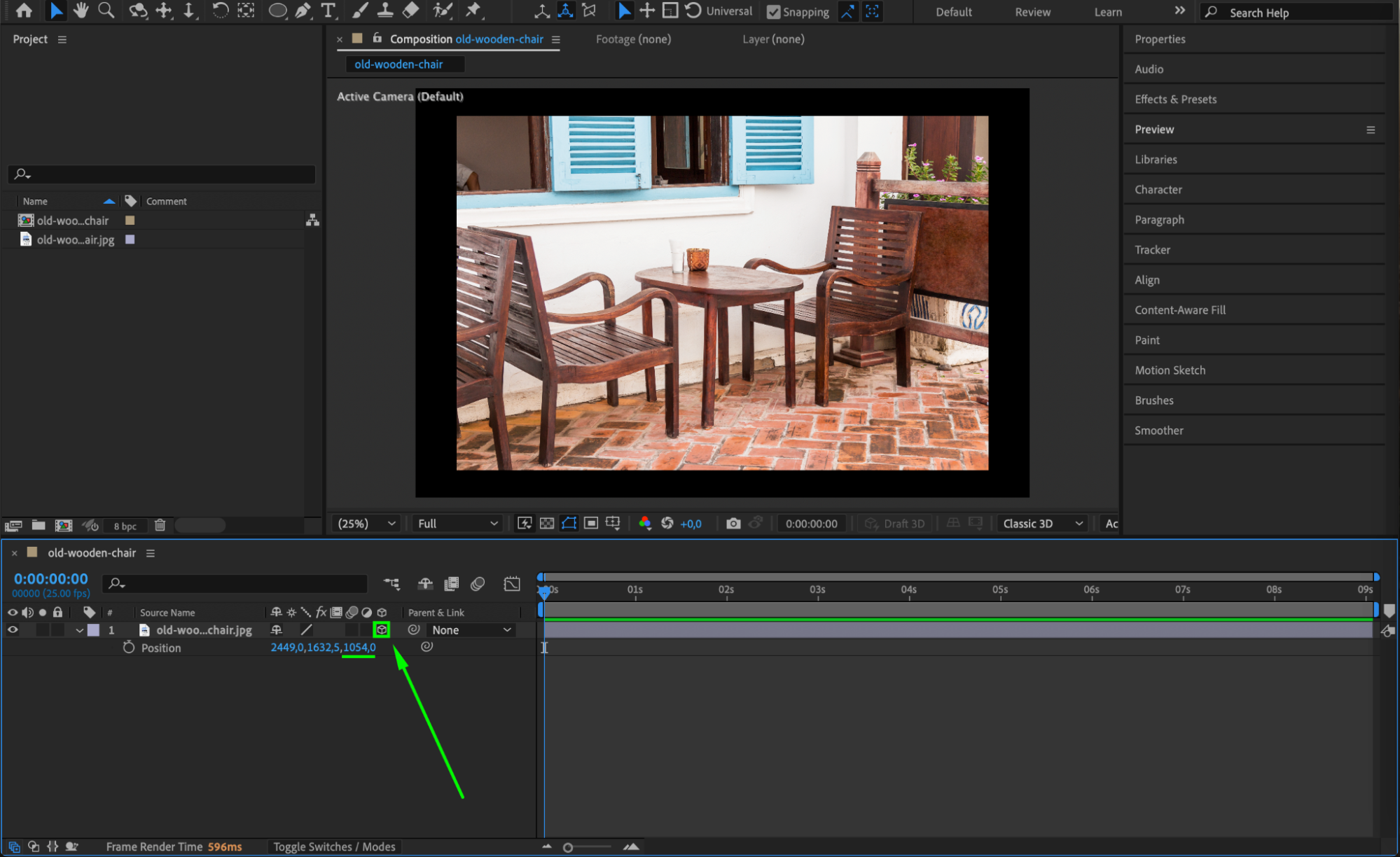
 Step 2: Create a Spotlight
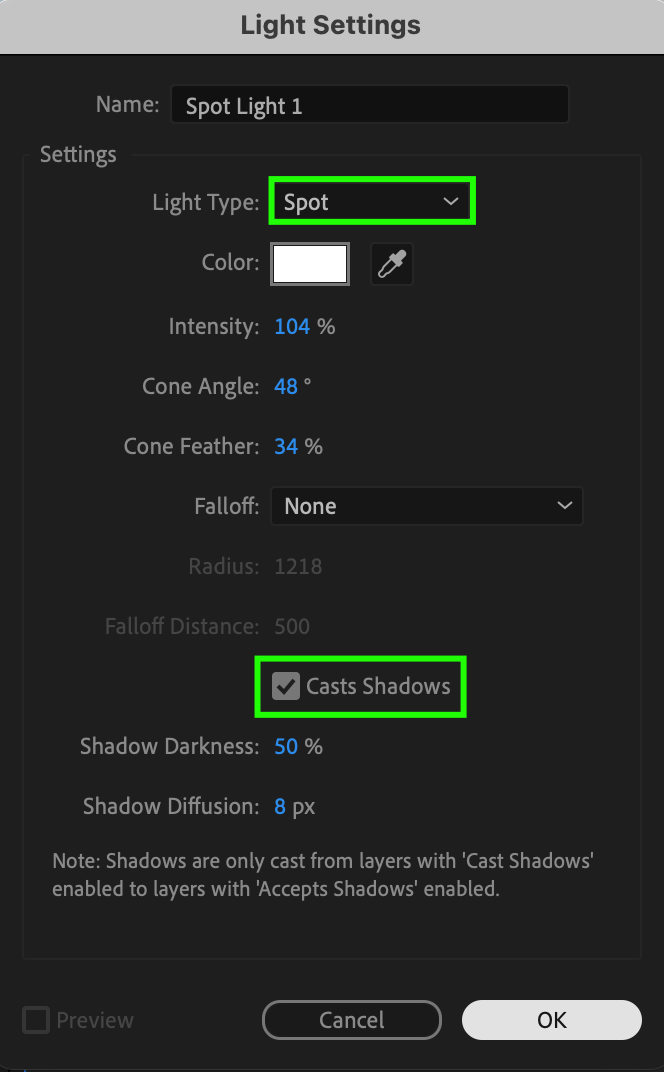
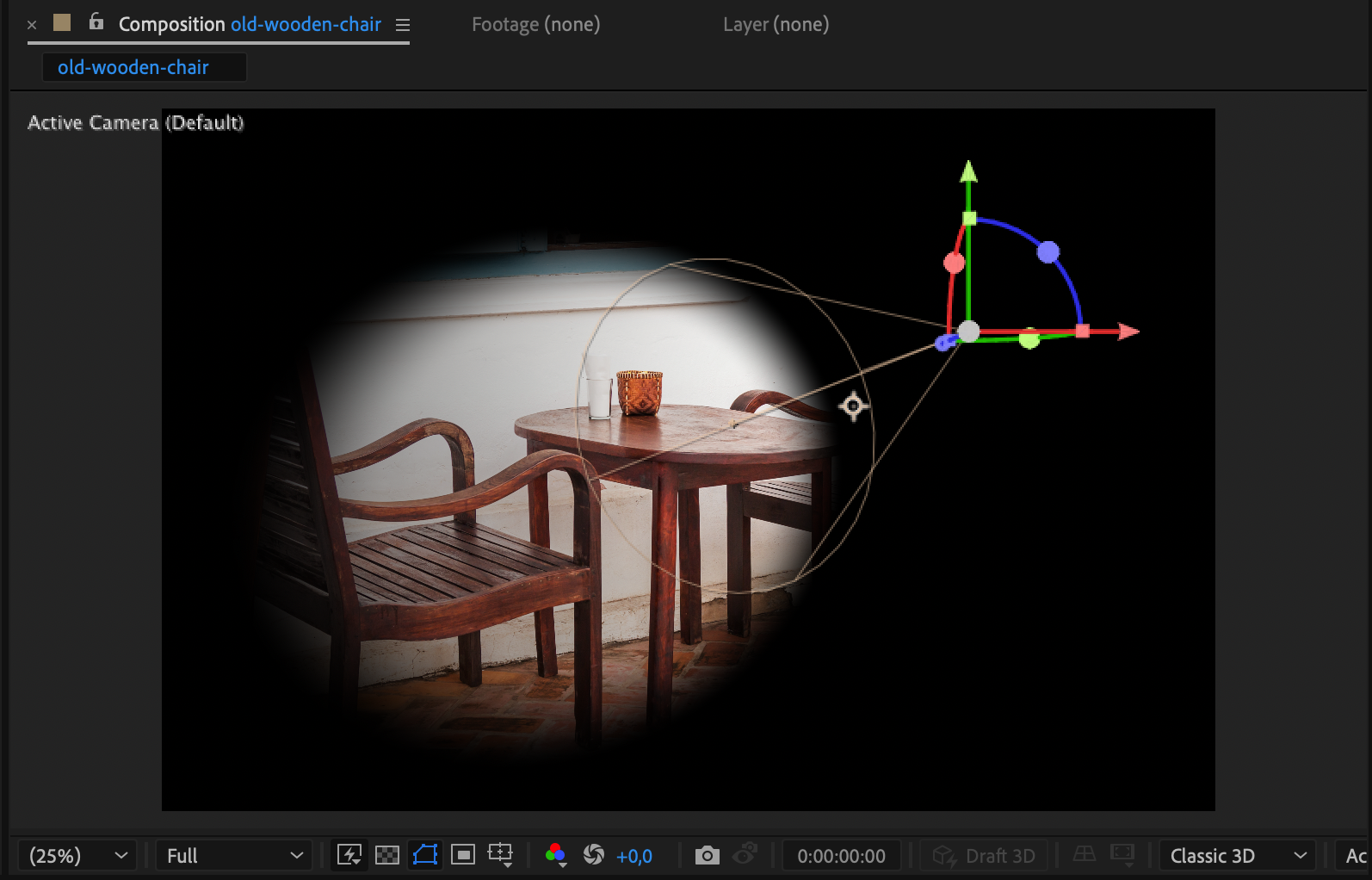
Go to Layer > New > Light. In the dialog box, set the Light Type to Spot. Make sure Casts Shadows is set to On. This will allow the light to project shadows from 3D layers in the scene. Position the light roughly above and in front of the photo layer so it can shine toward the surface.
Step 3: Turn Off Light Influence for Background
Select the original photo layer again and press “AA” to open light options. Set Accepts Lights to Off so it won’t be affected by the spotlight. This makes the photo keep its original brightness while still receiving shadows.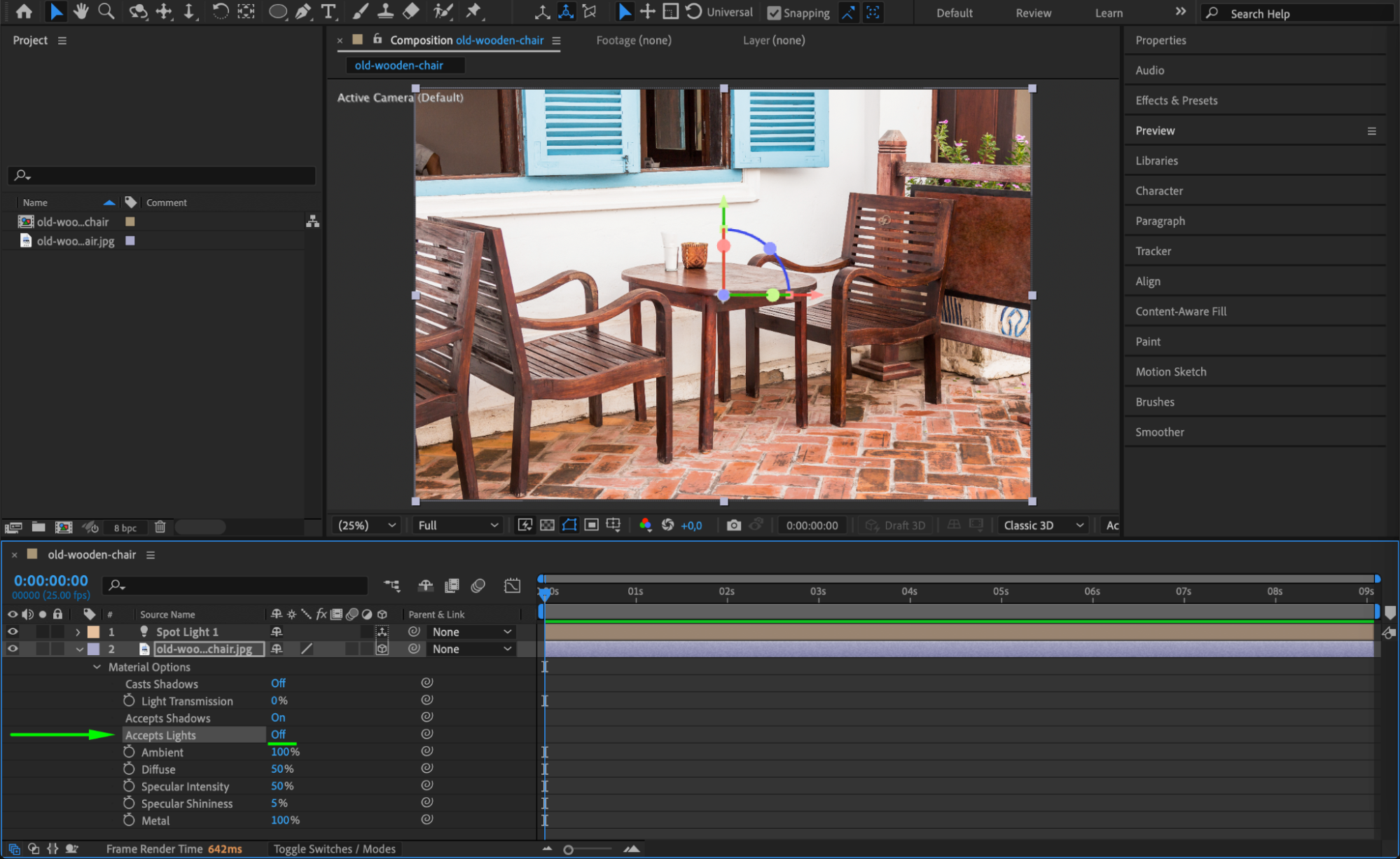
Step 4: Import Your Shadow Image
Import the image you want to use as the shadow shape — like a window frame or branches. The image should have a transparent background (such as a PNG file). Drag it onto your timeline above the background layer.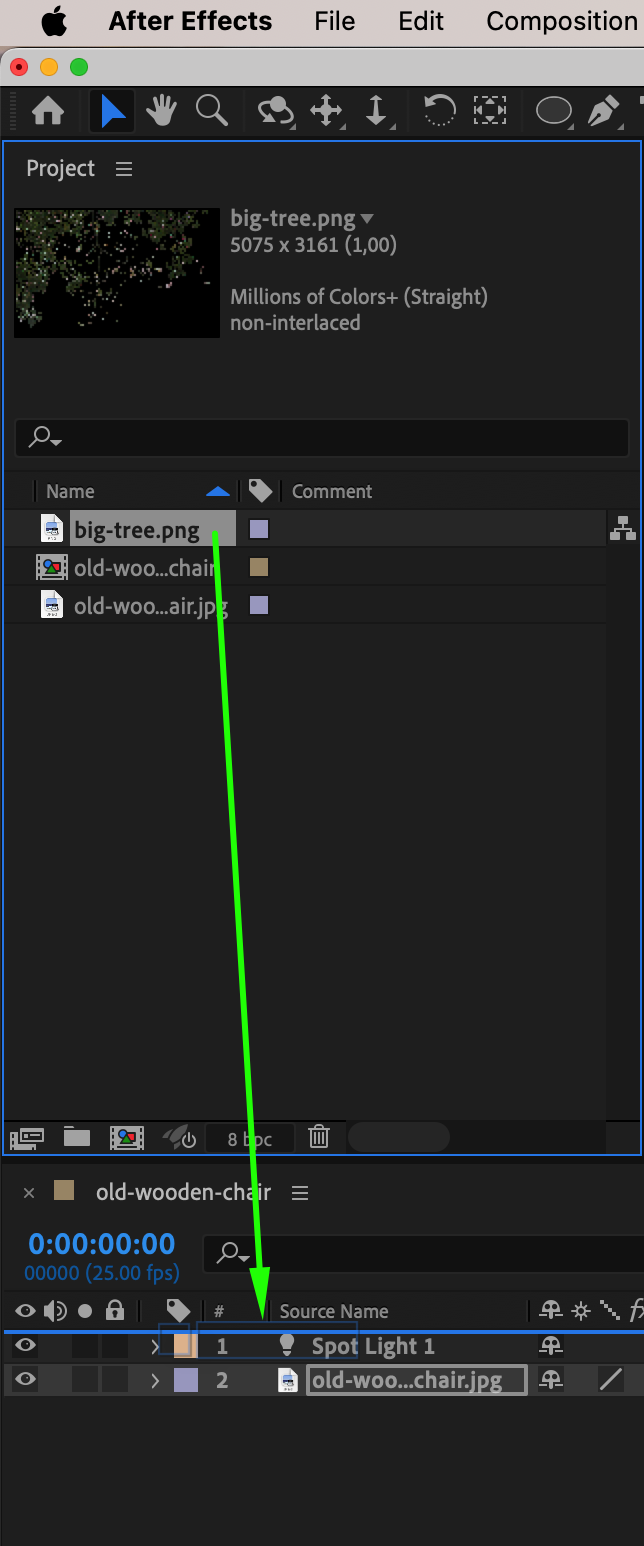
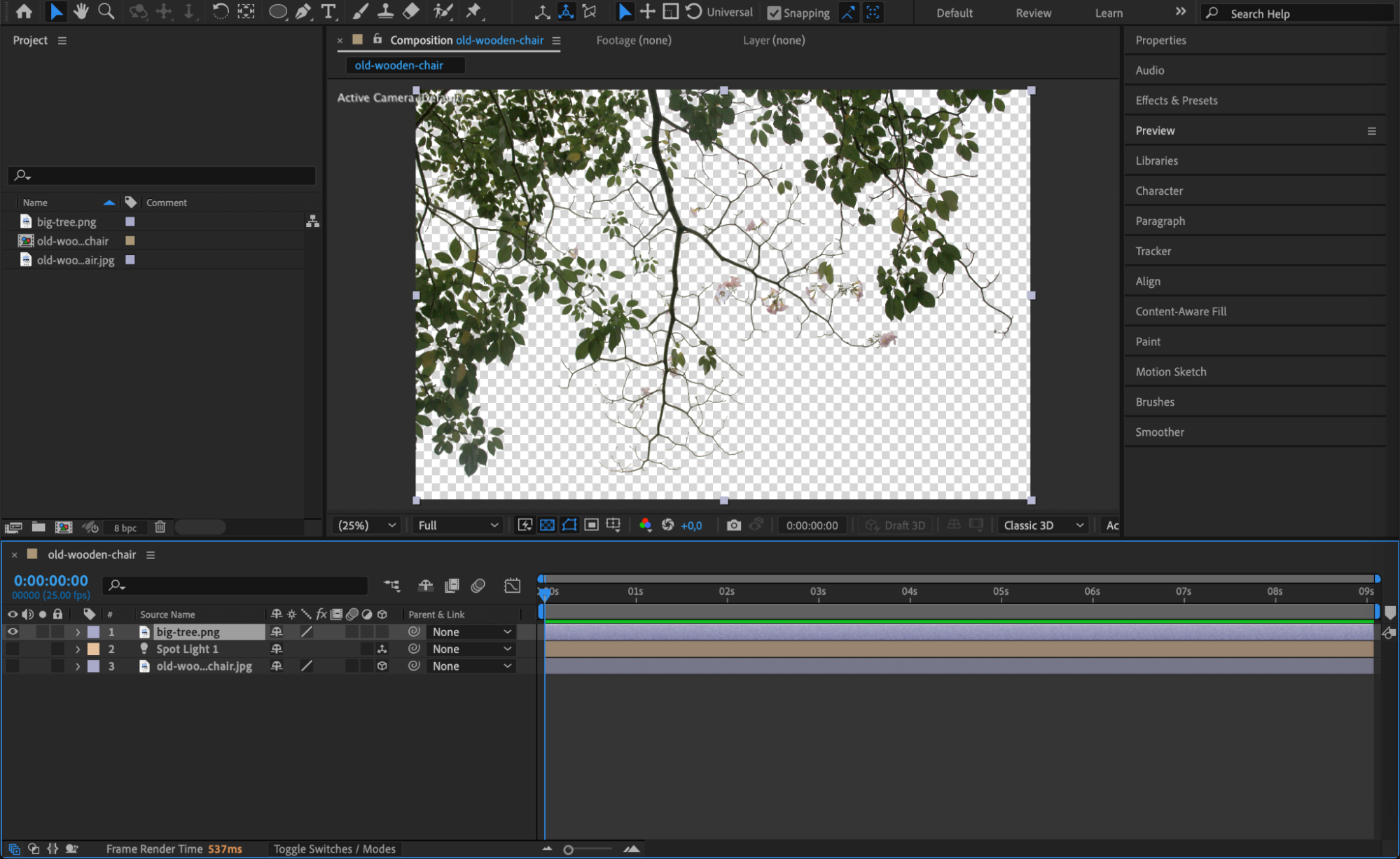 Step 5: Pre-compose the Shadow Image
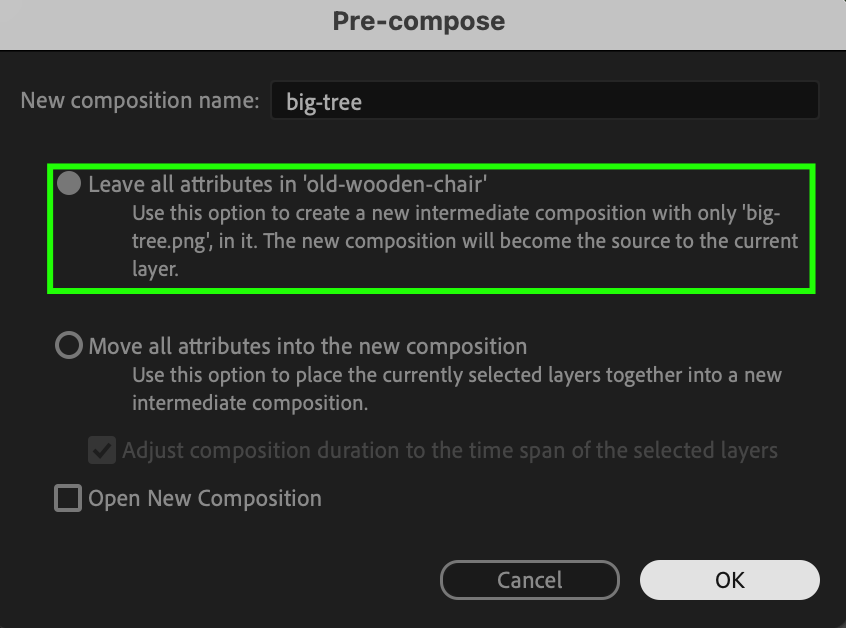
Select the shadow image layer and go to Layer > Pre-compose. Choose Leave All Attributes in “Main Comp”. This will place the image in its own comp but keep its position and settings within the current timeline.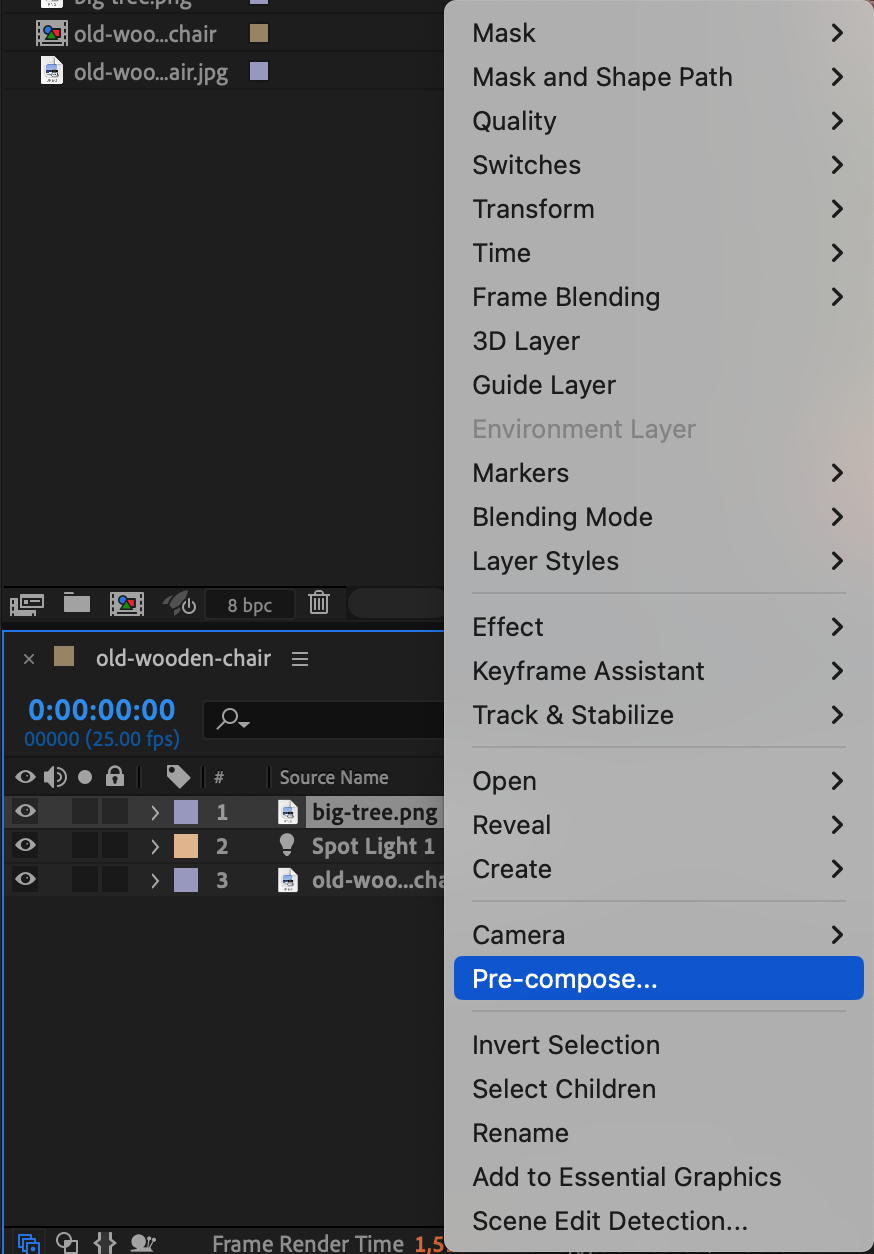
 Step 6: Make the Pre-comp a 3D Layer and Parent It
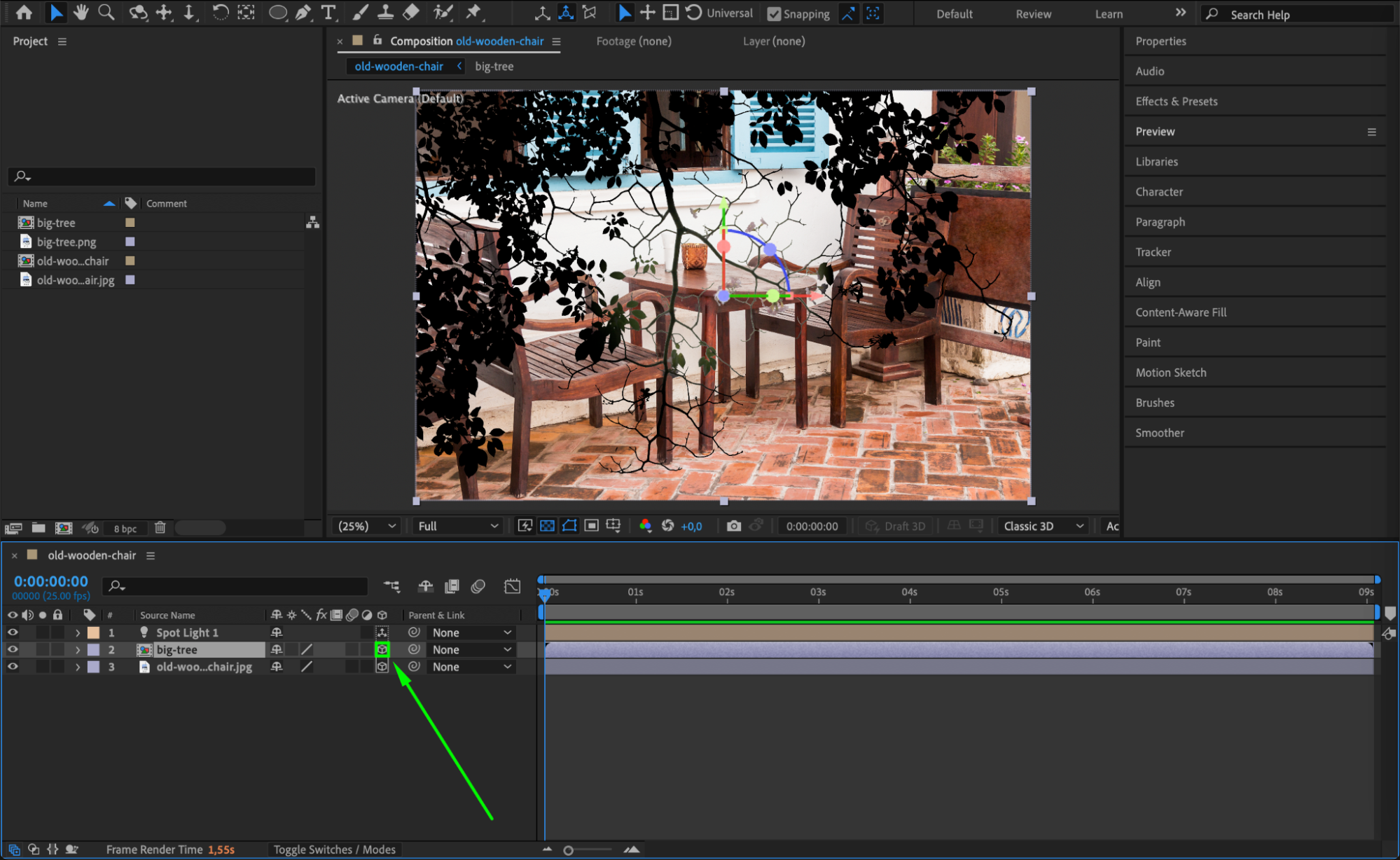
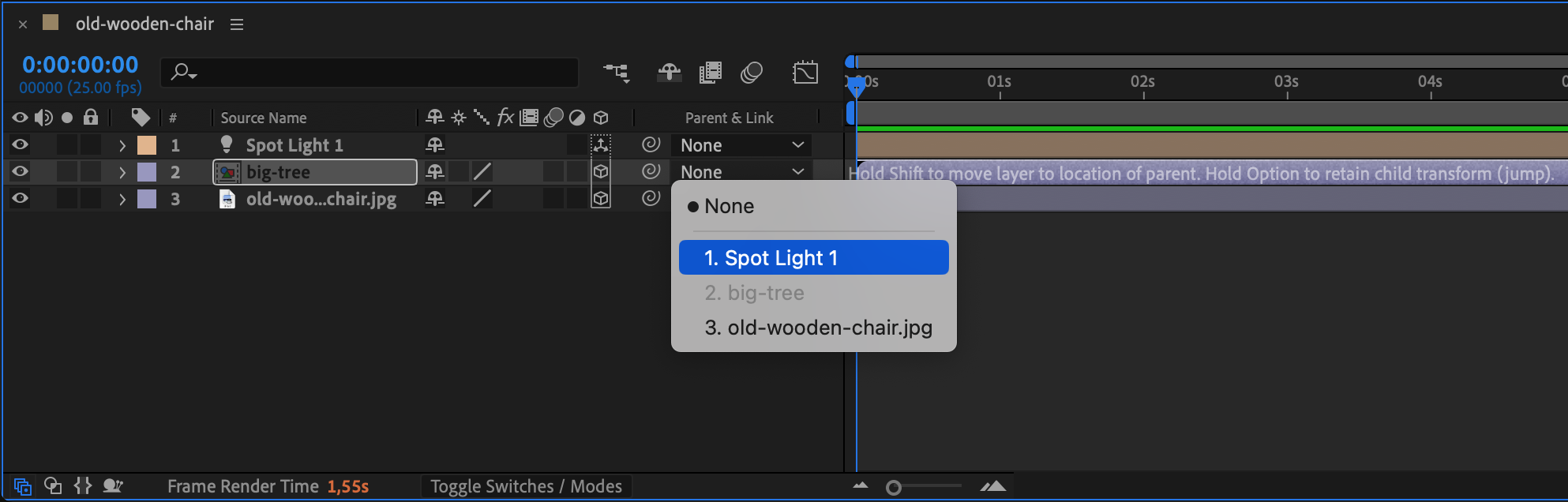
Enable the 3D switch for the pre-composed shadow layer. Then, under the Parent & Link column, parent this layer to the Spot Light. This links its position and movement to the light source.
 Step 7: Zero Out Position and Orientation
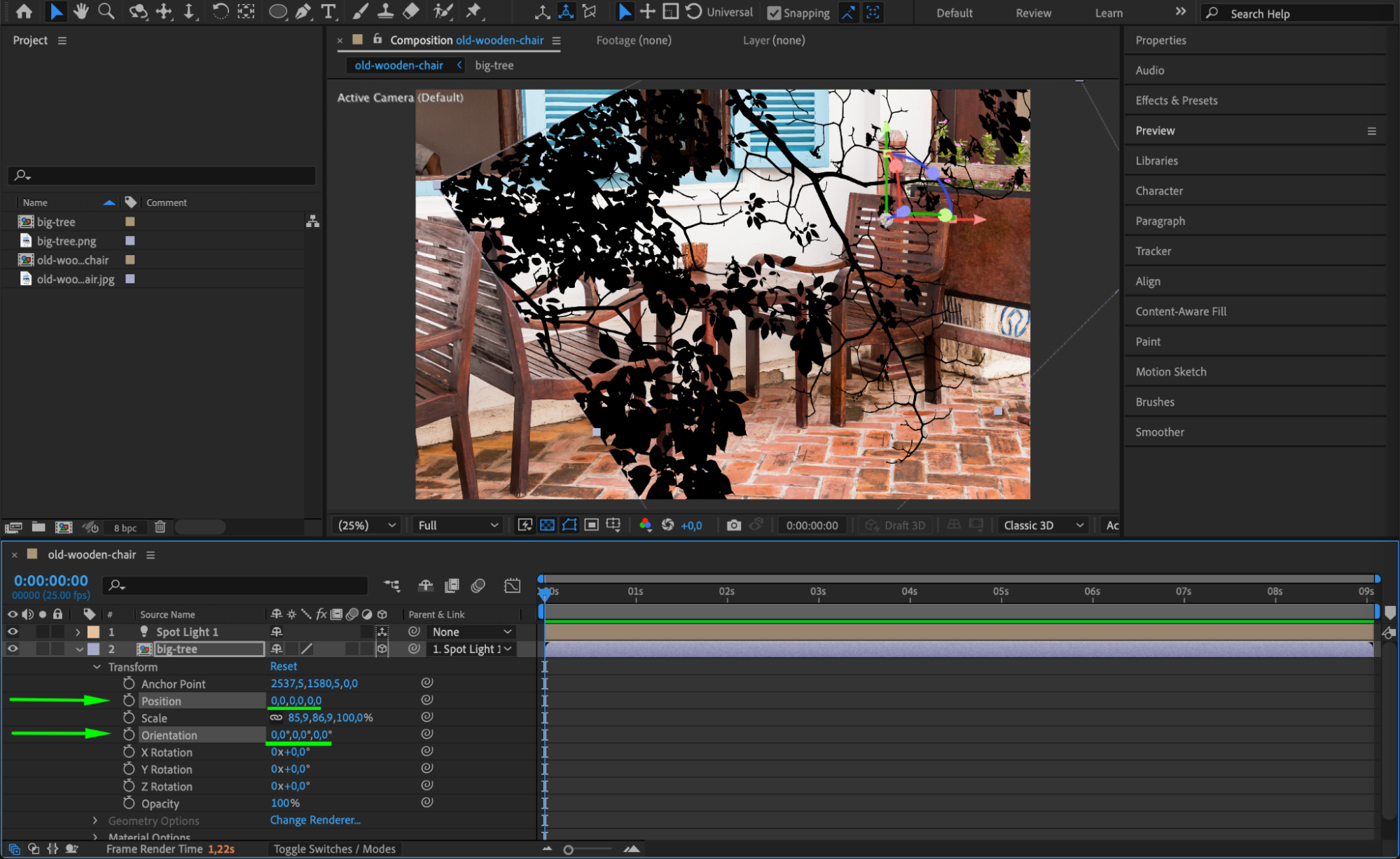
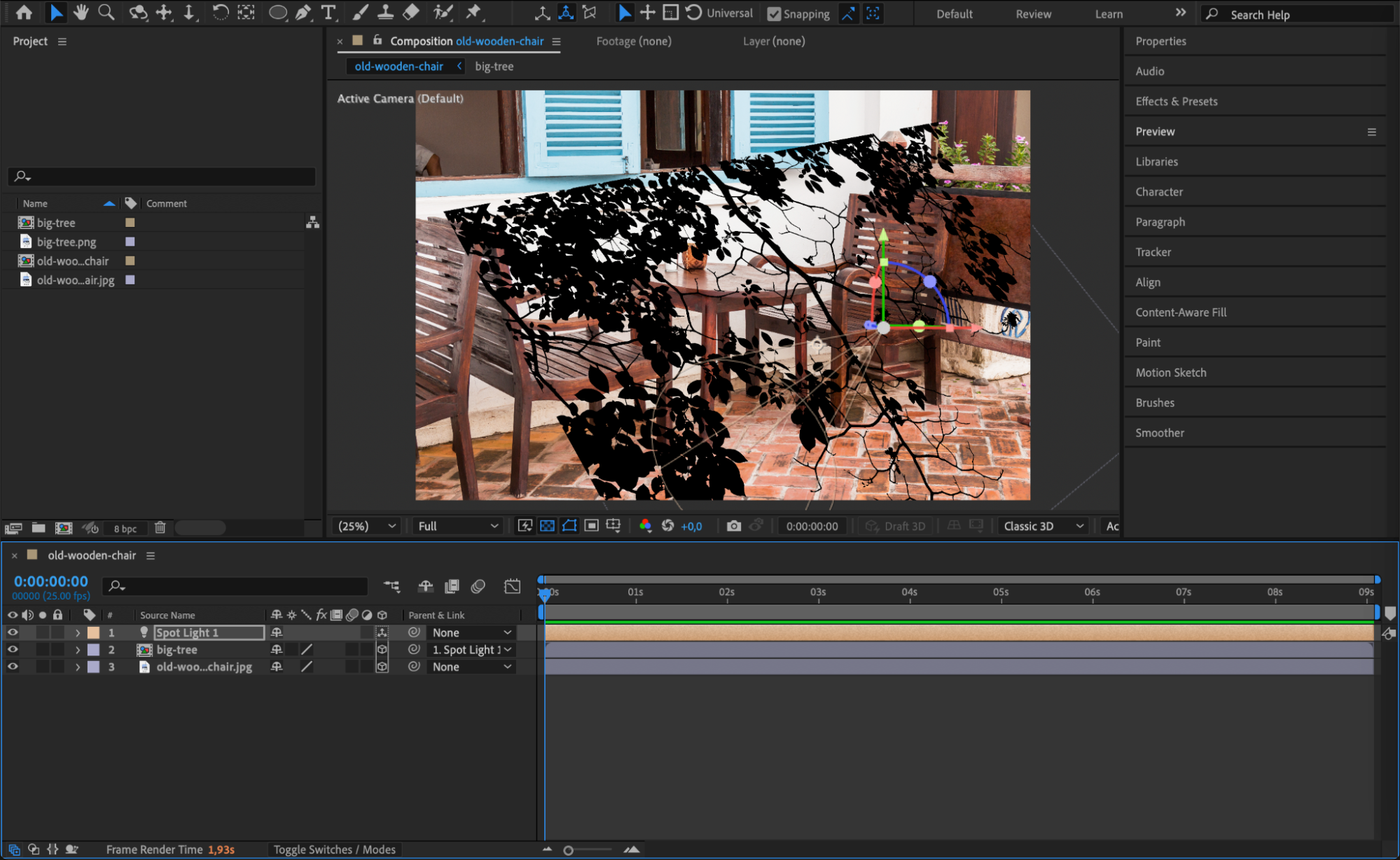
Select the pre-comp shadow layer, press “AA”, and set Position to 0, 0, 0 and Orientation to 0, 0, 0. This ensures the shadow image aligns perfectly with the spotlight’s direction and starts from the same origin point.
Step 8: Adjust the Z Position of the Shadow Layer
Fine-tune the Z position of the pre-comp shadow layer to control where the shadow appears — closer to the ground or more centered. Small changes will shift the projected shape on your background layer.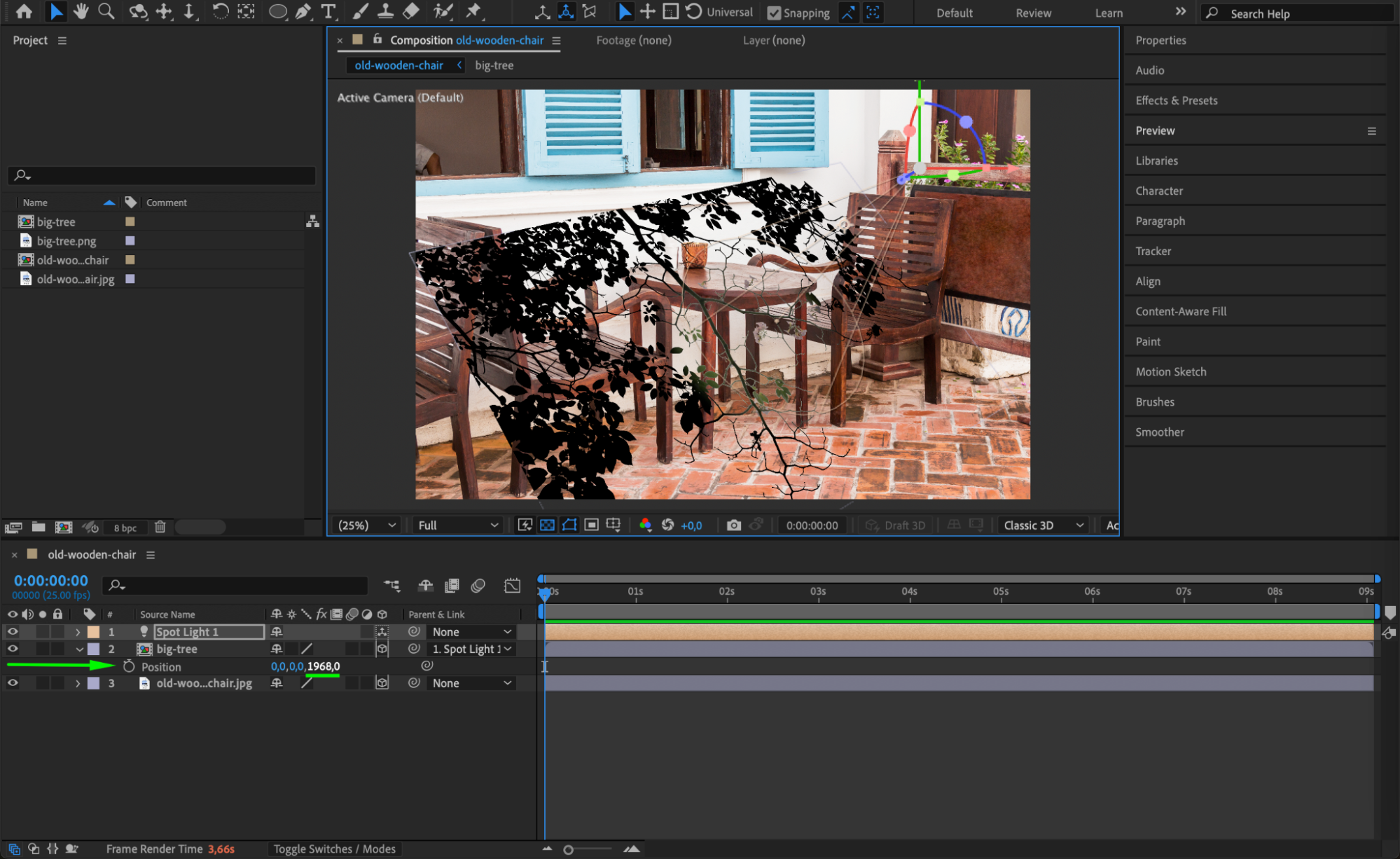
Step 9: Enable Shadows for the Shadow Layer Only
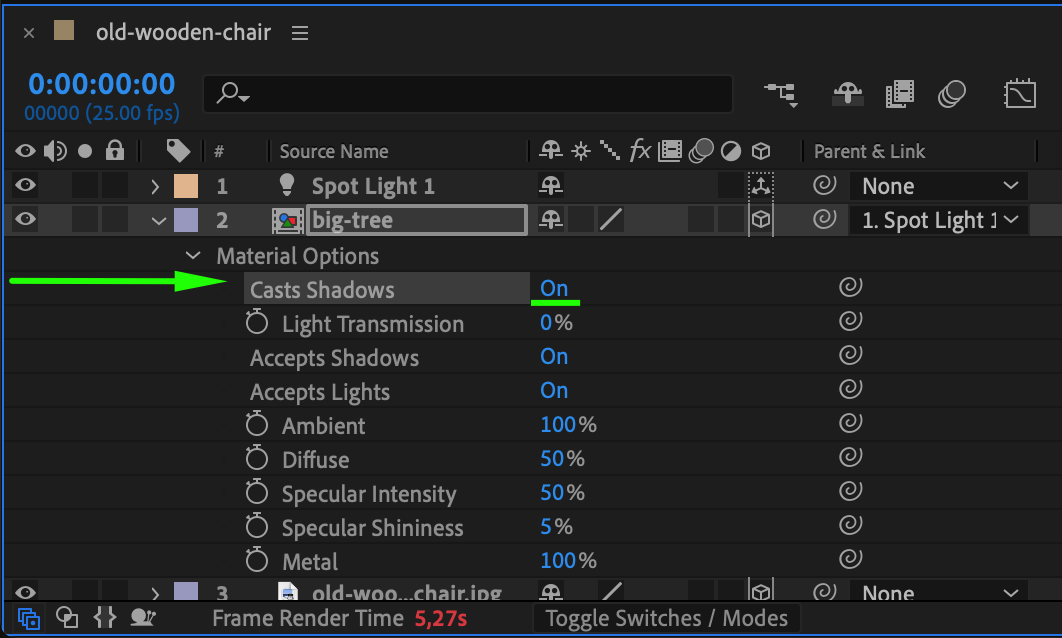
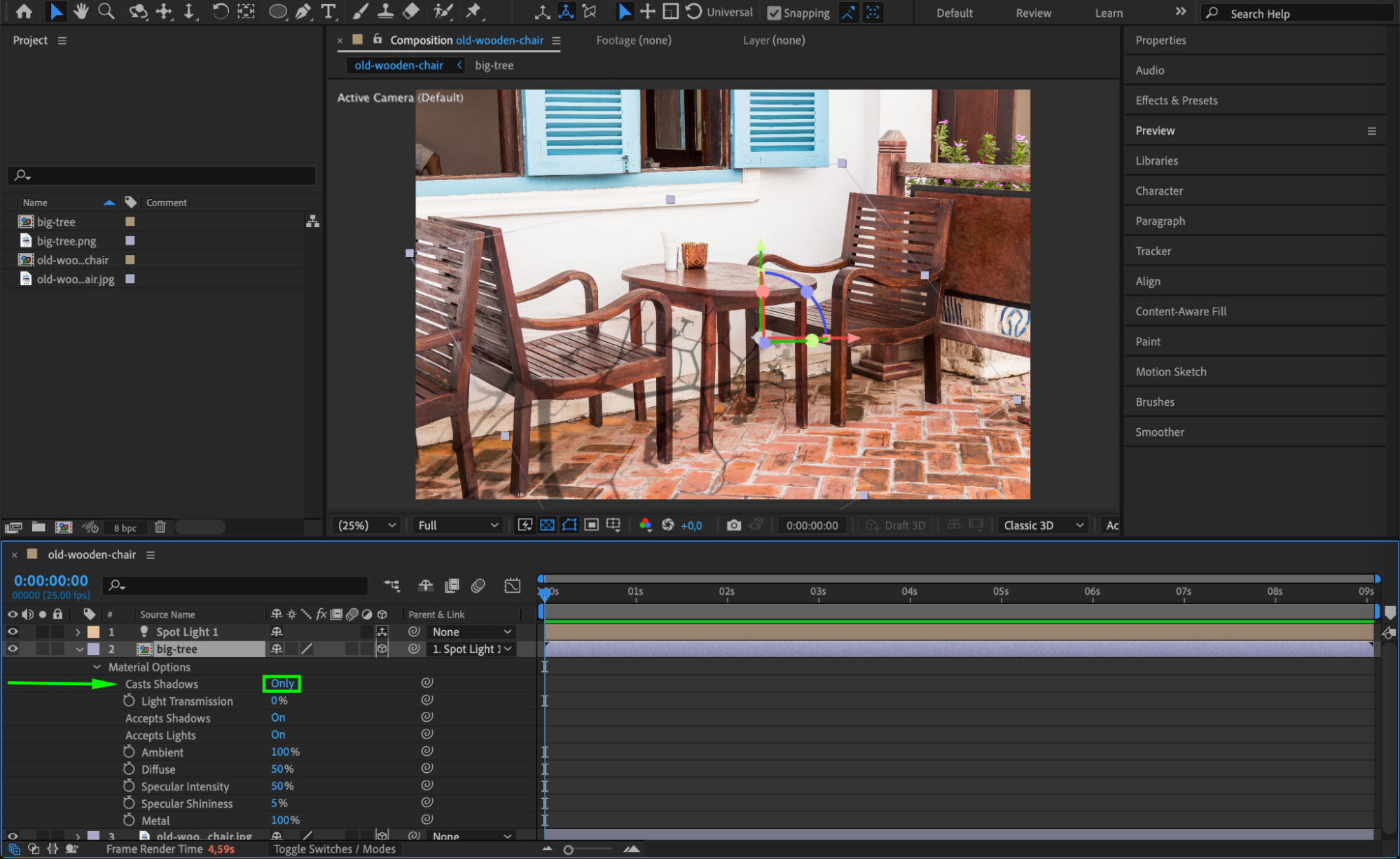
Select the shadow pre-comp, press “AA”, and change Casts Shadows from Off to Only. This makes the layer itself invisible but still allows it to cast a visible shadow on other layers.
Step 10: Fine-Tune the Light Position
Move or rotate the spotlight as needed to control the angle, length, and softness of the shadow. You can adjust Light Cone Angle, Feather, and Shadow Darkness in the Light Settings to get the exact look you want.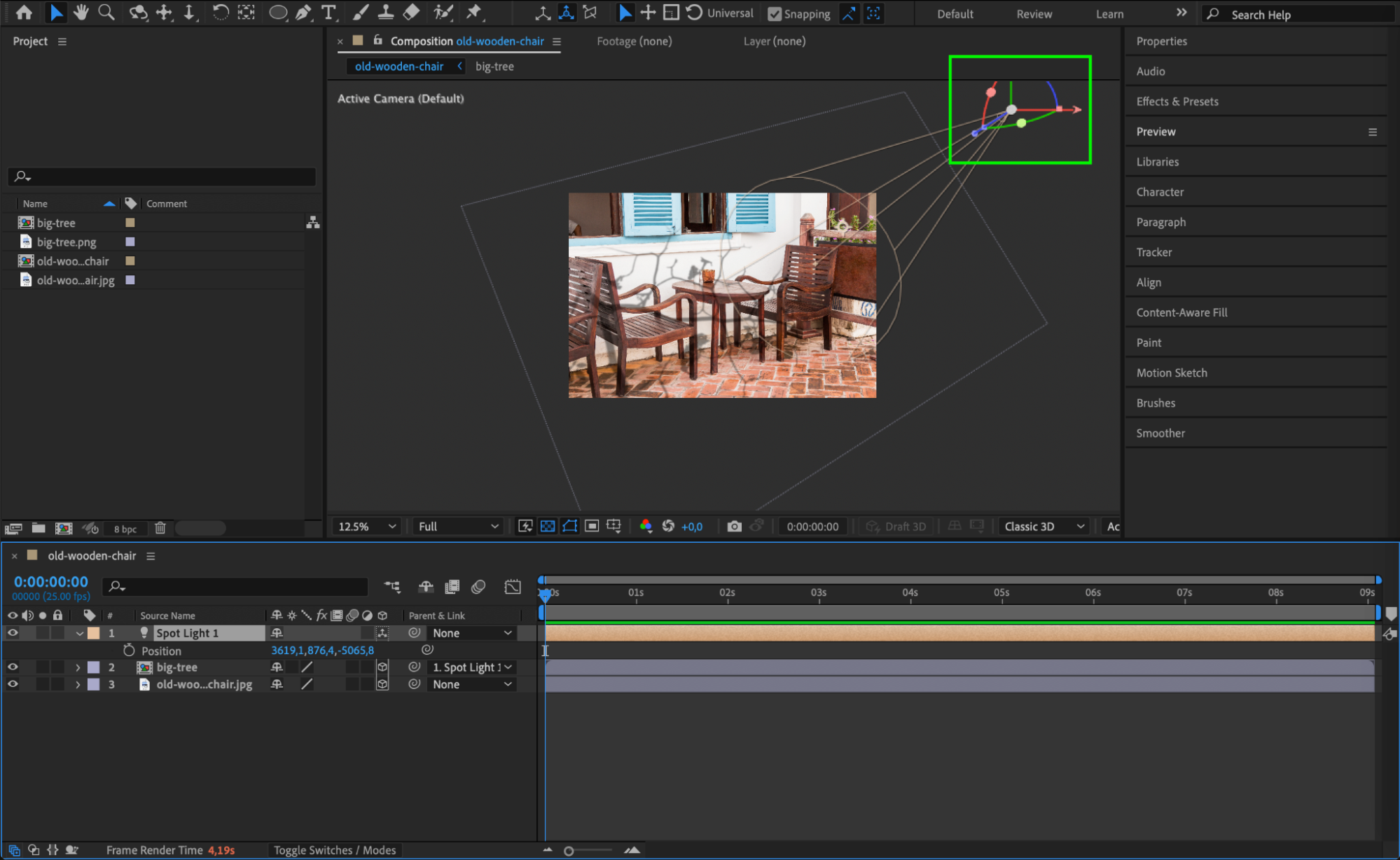 Step 11: Preview and Finalize
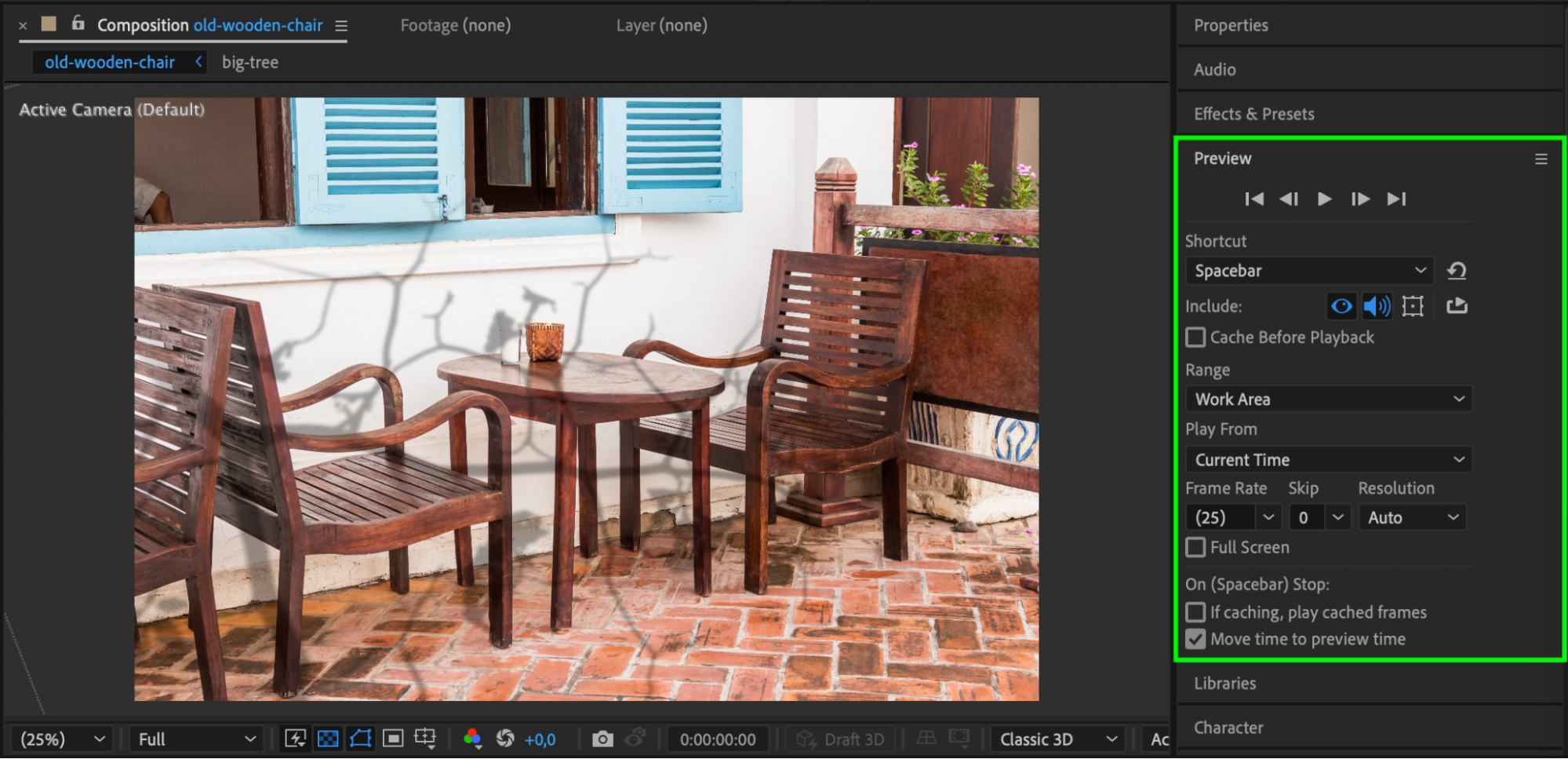
Press Spacebar to preview your animation. Make sure the shadow is projecting correctly and adjust the Z positions or light settings if needed. When satisfied, you’ve successfully created a realistic custom shadow using 3D layers in After Effects.
Conclusion
Using 3D layers and spotlights to create shadows in After Effects gives you much more flexibility and realism than basic drop shadows. Whether you’re simulating natural light through a window or casting a dramatic silhouette, this method lets you bring depth and atmosphere to your scenes with full creative control.
Our Bestsellers
Our Bestsellers


