
Introduction
When you motion-track text onto a moving object in a video, adding a shadow can make it look more realistic and integrated into the scene. In this tutorial, you’ll learn how to track motion, attach text, and create a soft shadow that follows your tracked movement.
Step 1: Import Your Video
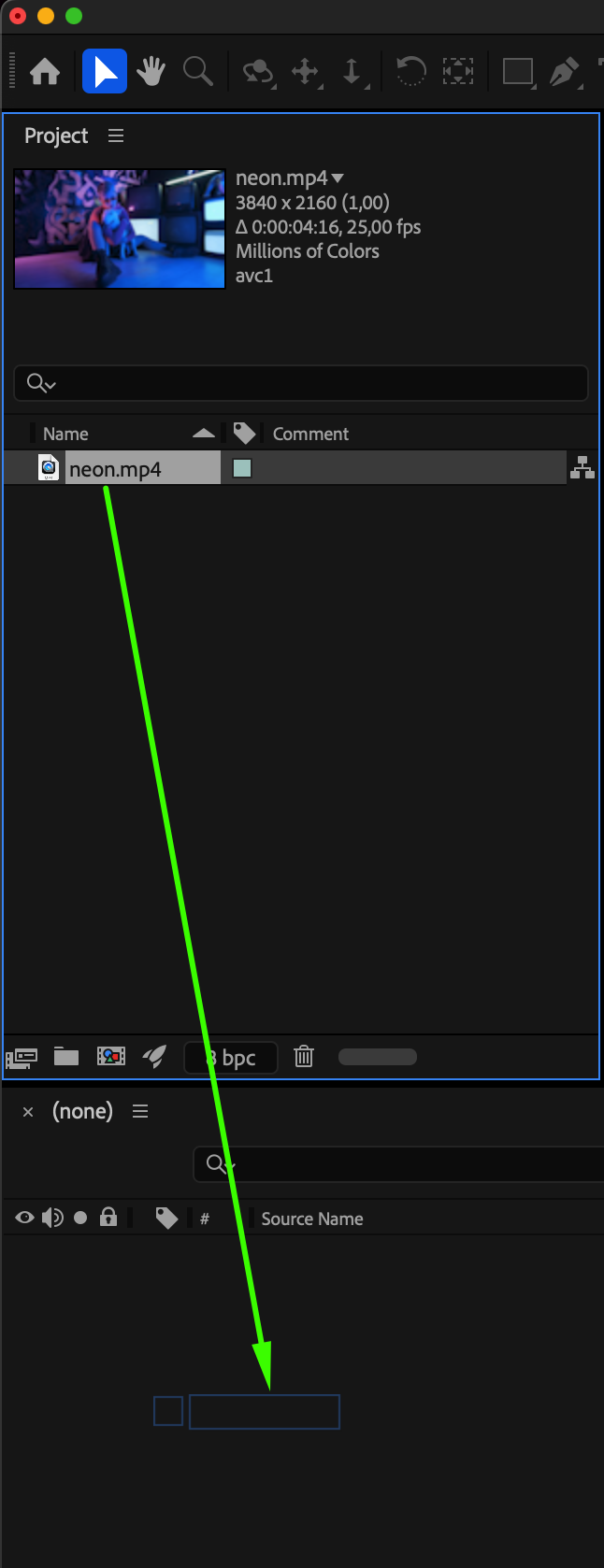
Go to File > Import > File, select your video, and drag it to the Timeline. This will be the footage you’ll use for motion tracking.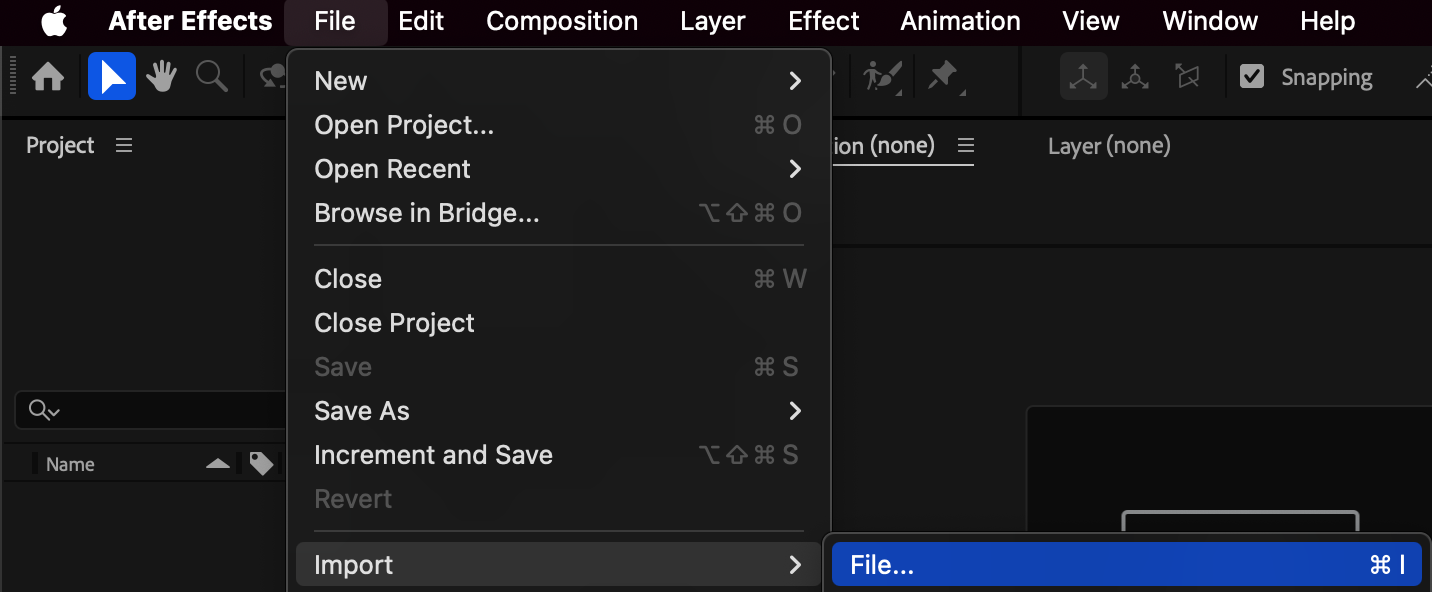
 Step 2: Track the Motion
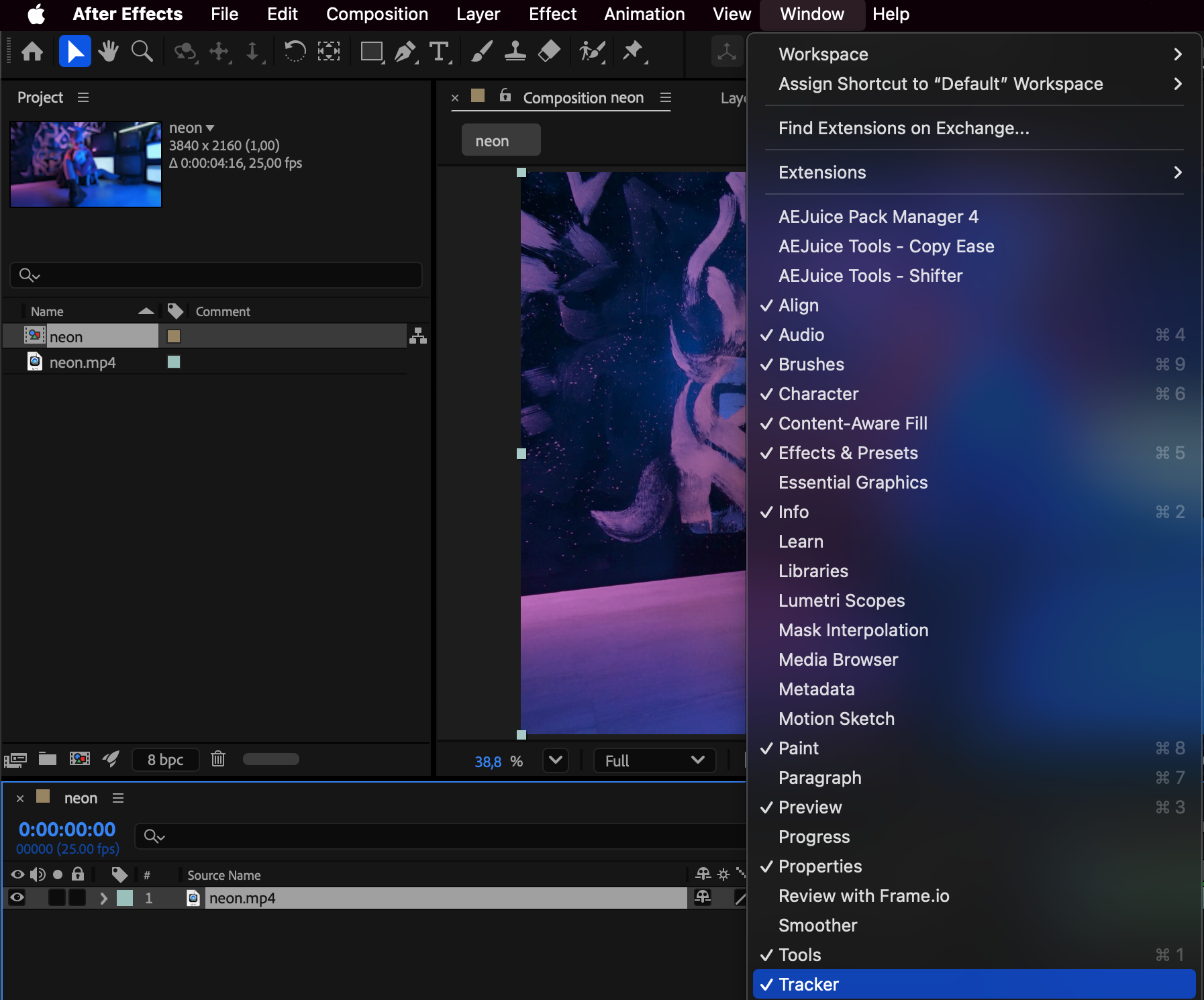
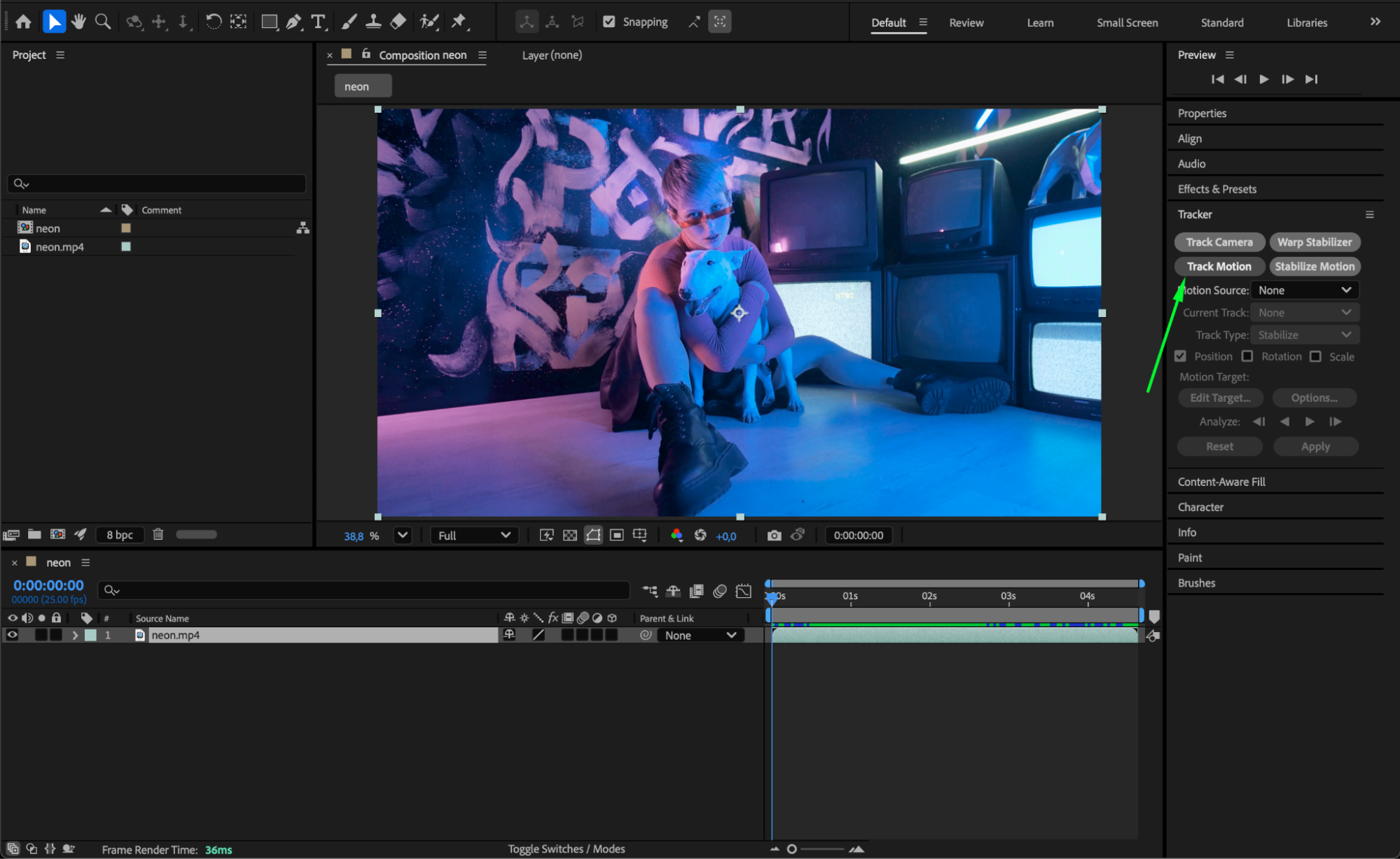
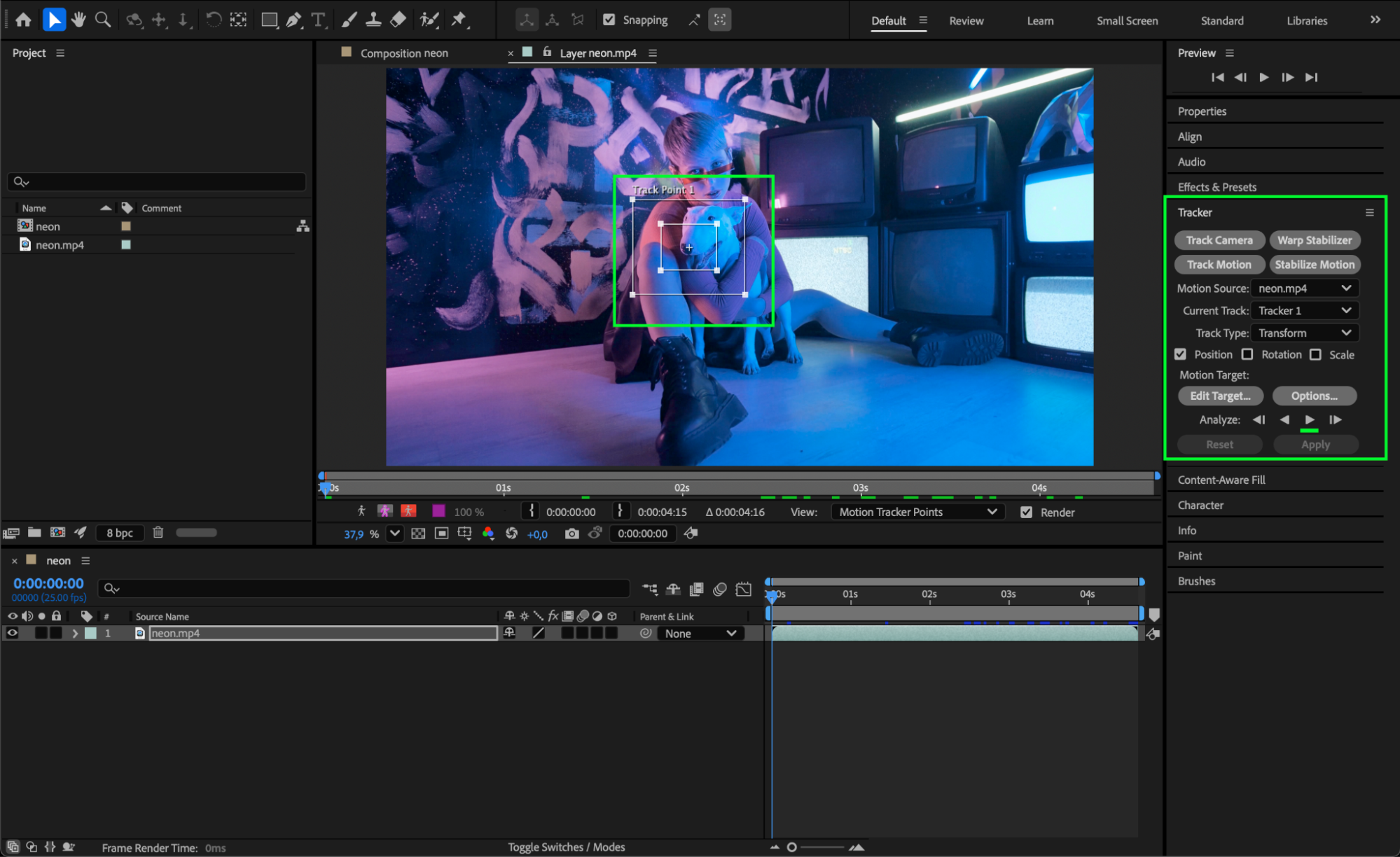
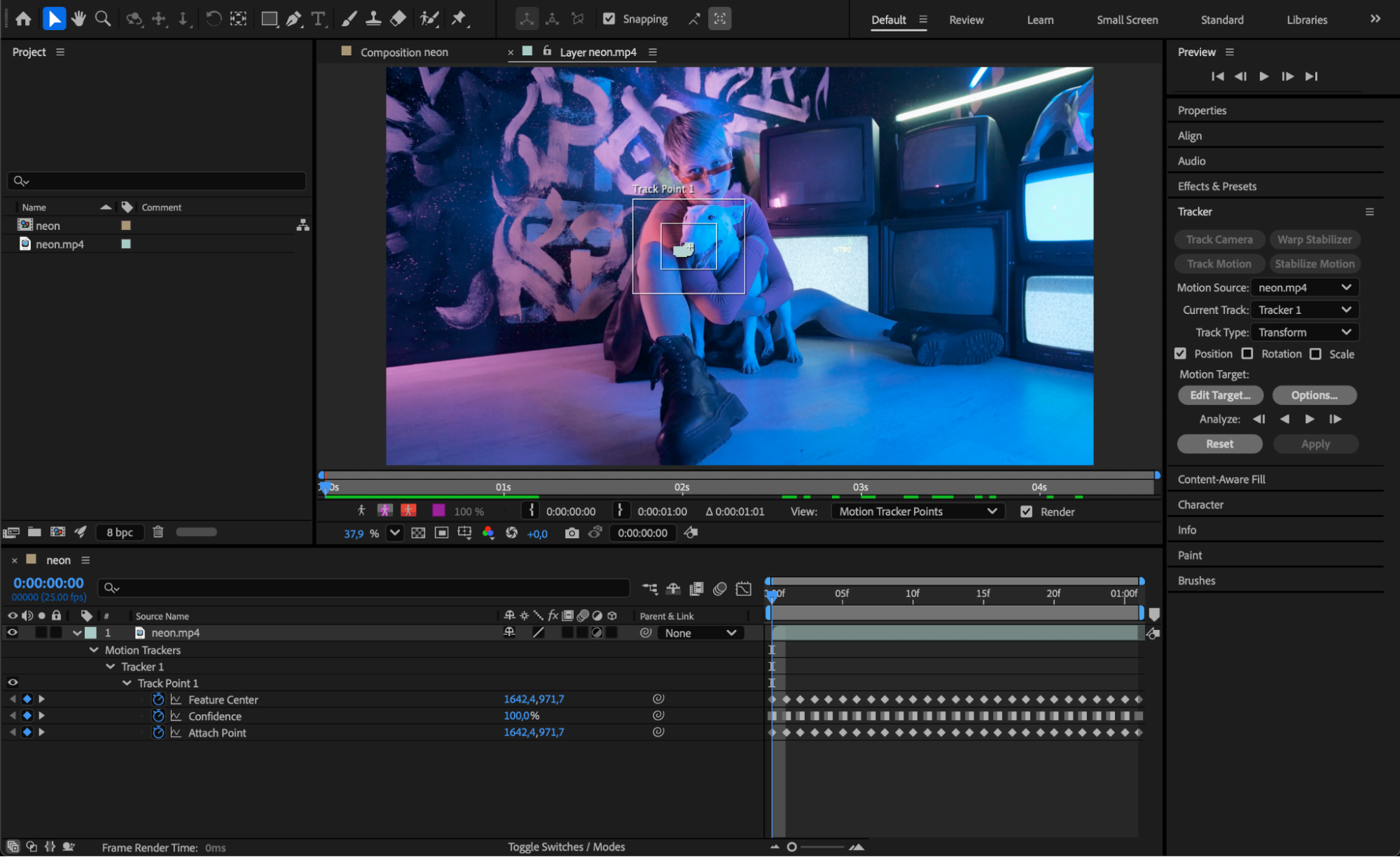
Go to Window > Tracker to open the Tracker Panel. With your video layer selected, click Track Motion. A Track Point 1 will appear on the screen. Place it on a high-contrast area of the footage that moves consistently. Then, under the Analyze section, press the Play (Analyze Forward) button to start tracking.
Step 3: Create a Null Object
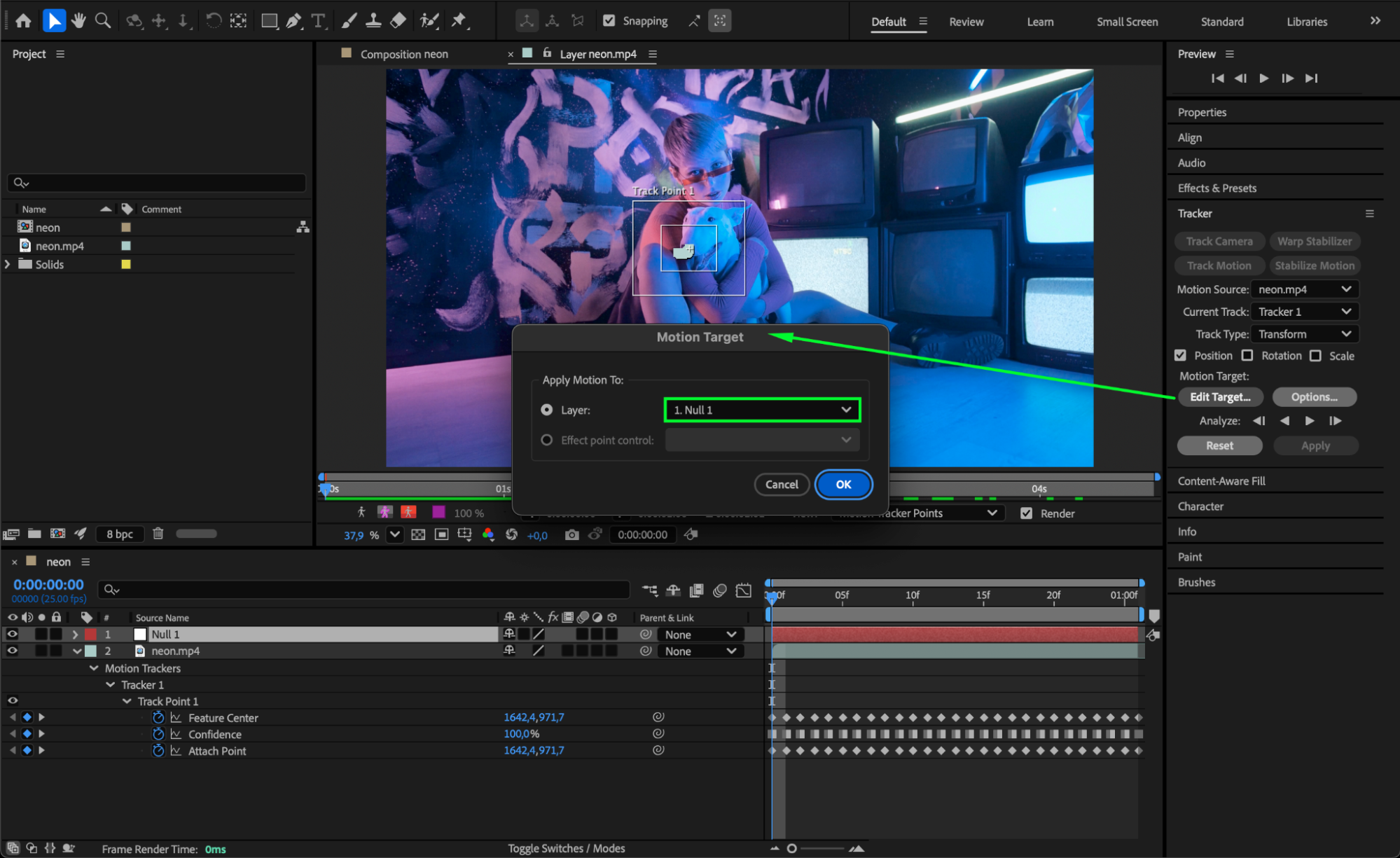
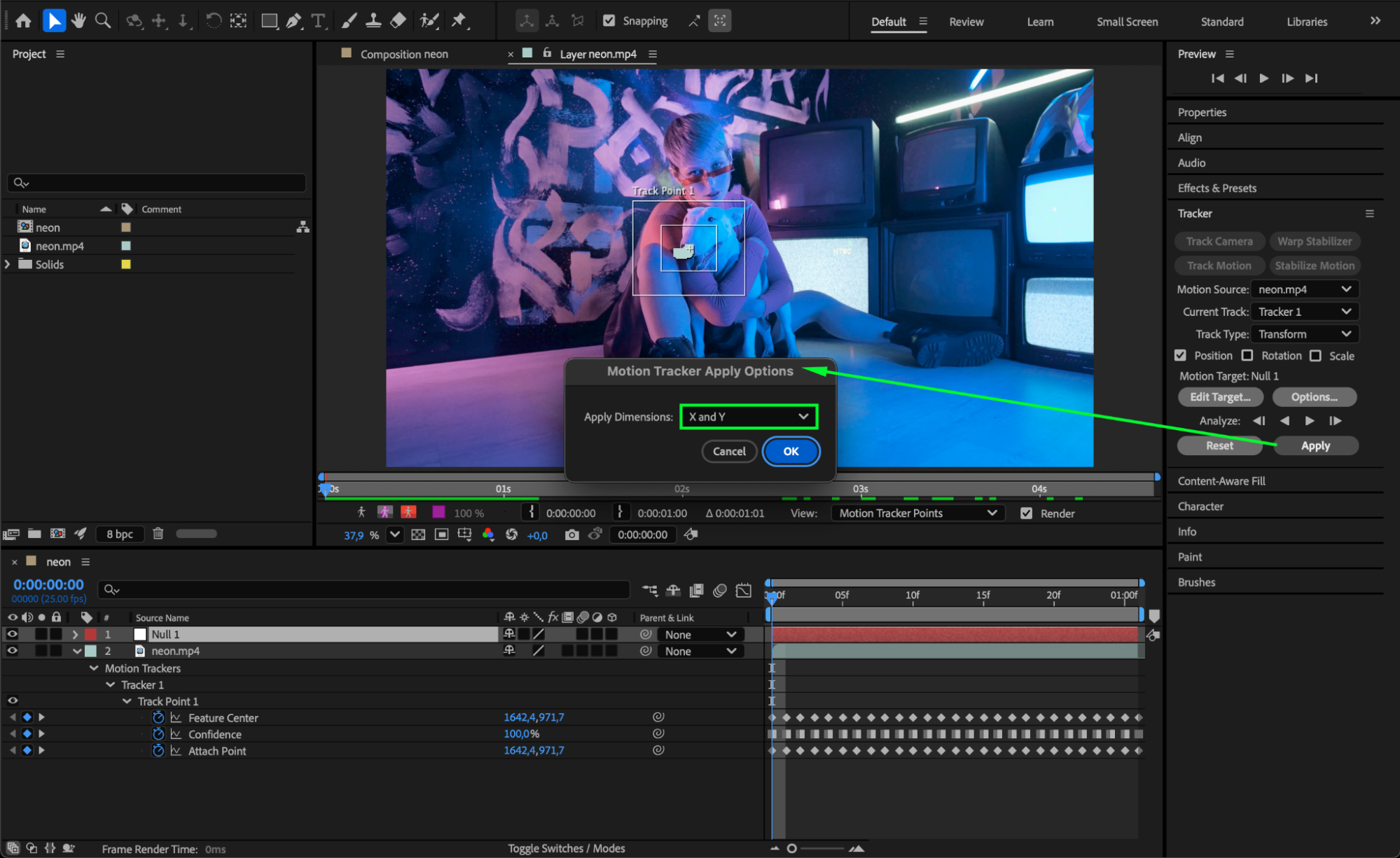
Go to Layer > New > Null Object. In the Tracker Panel, click Edit Target, and select the Null Object layer as your target. Then click Apply, and in the pop-up window, choose X and Y to apply the motion tracking data.
 Step 4: Add Text and Parent It to the Null
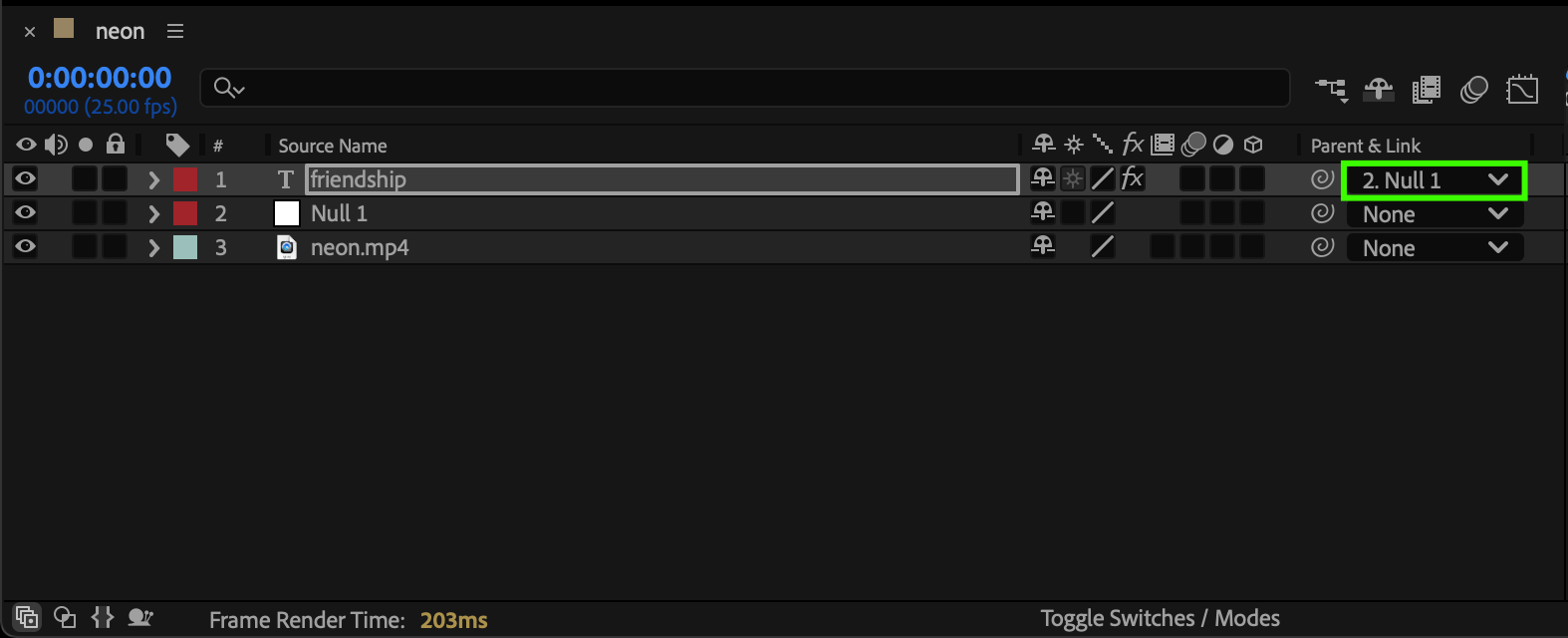
Create your text using the Type Tool (Ctrl/Cmd + T). In the Timeline, use the Parent & Link column to make the text layer a child of the Null Object. This way, the text will follow the motion of the tracked object.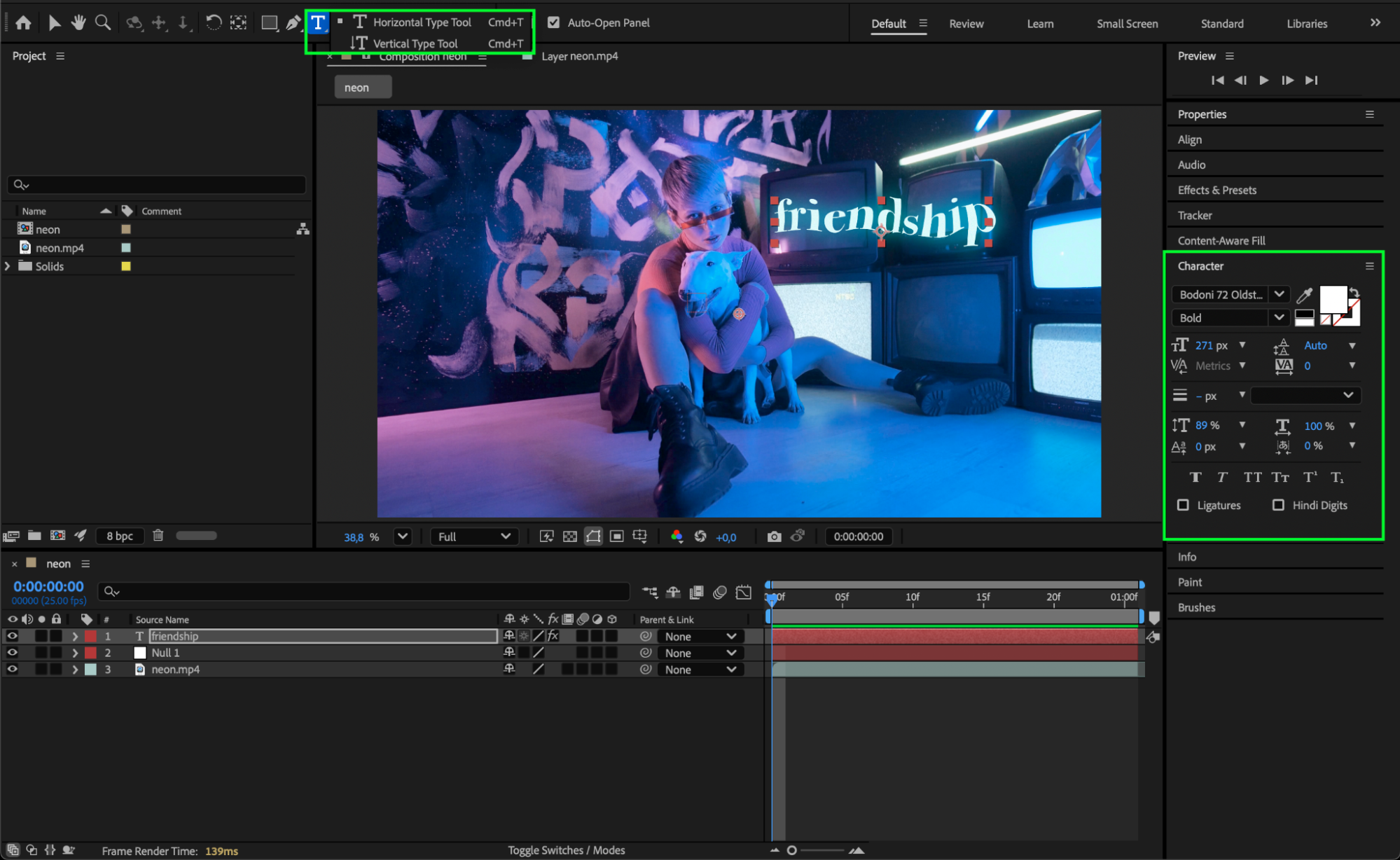
Step 5: Duplicate the Text Layer
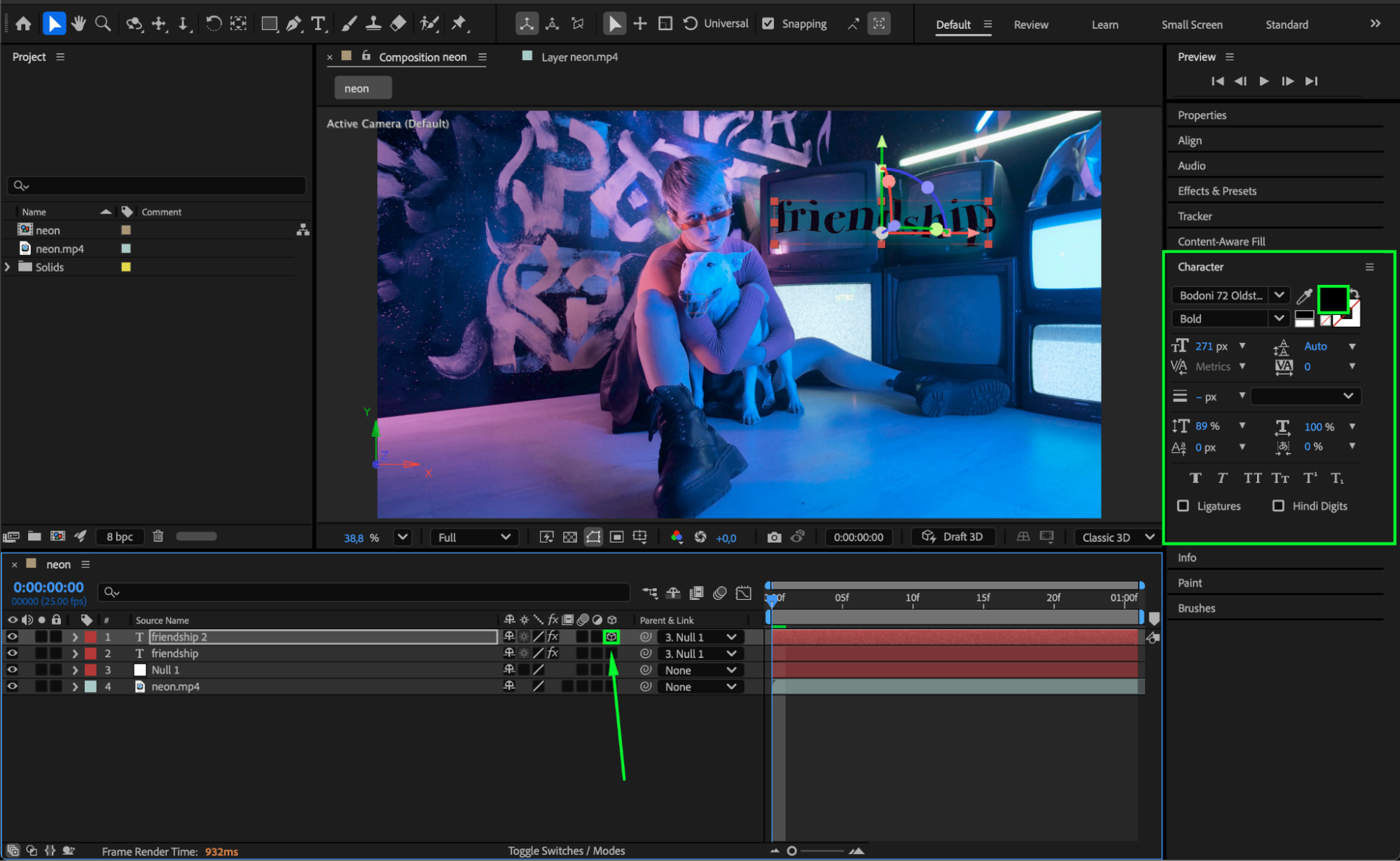
Select your text layer and press “Ctrl/Cmd + D” to duplicate it. Change the color of the duplicate text to black — this layer will serve as the shadow.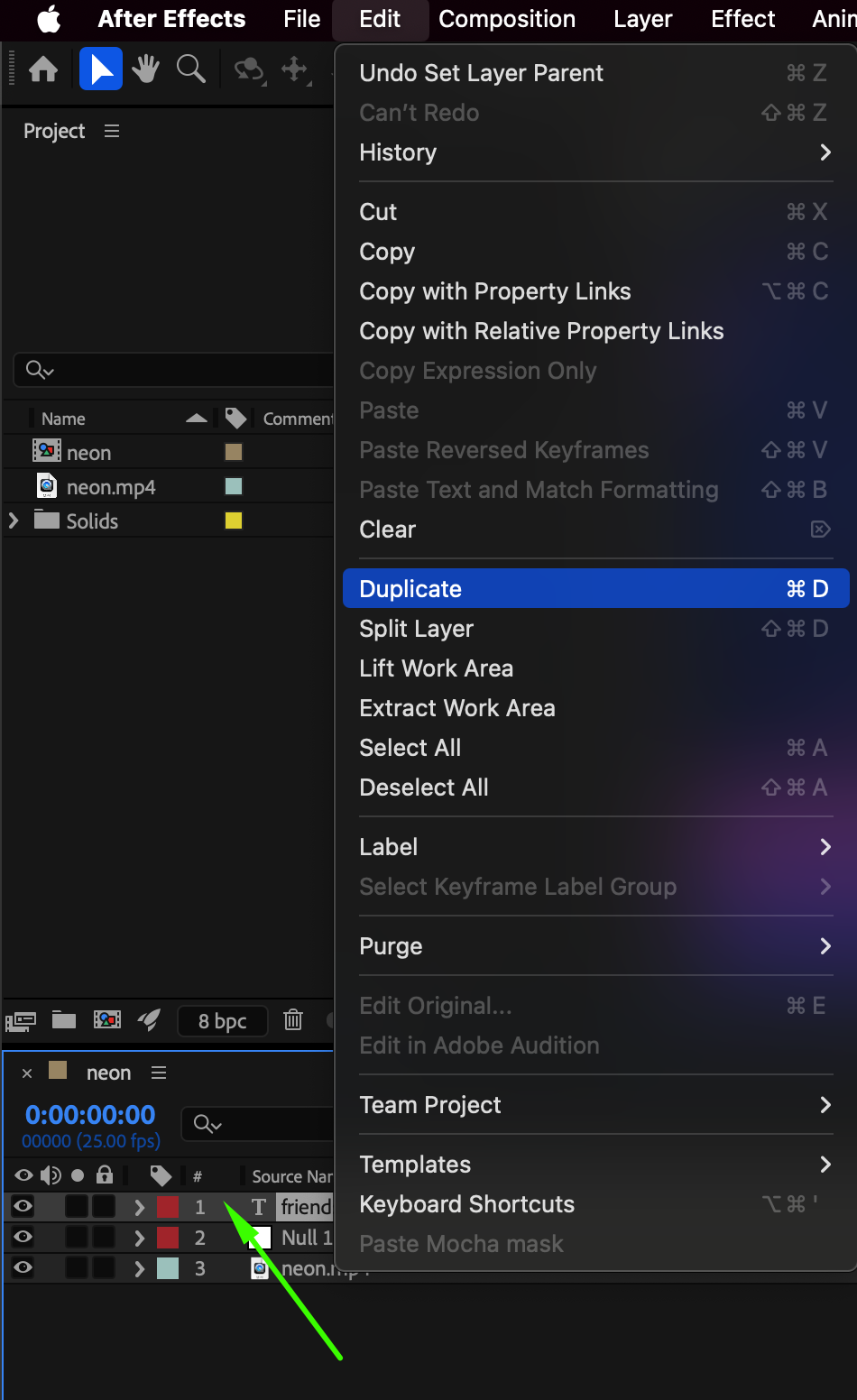
 Step 6: Add a Blur Effect to the Shadow
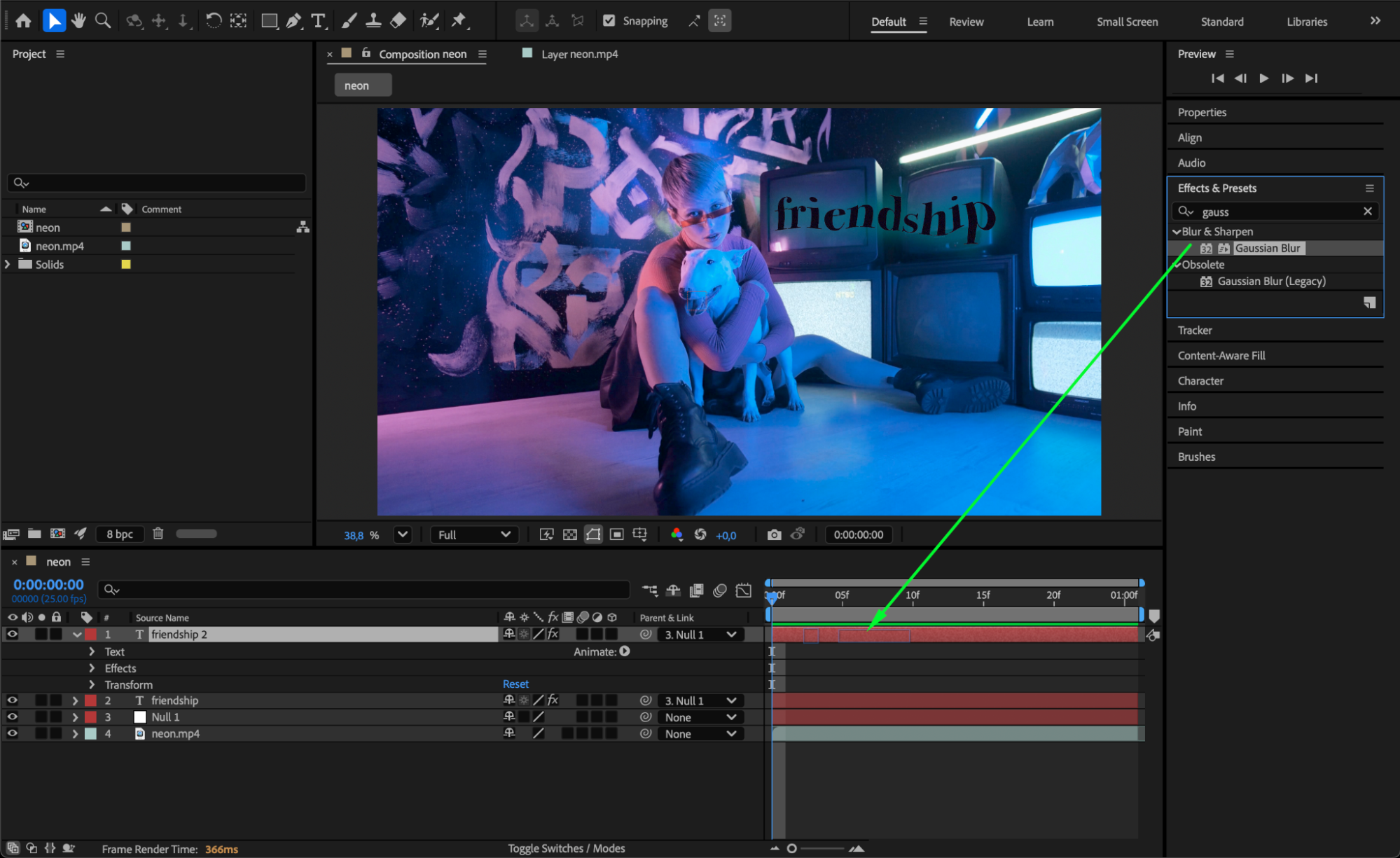
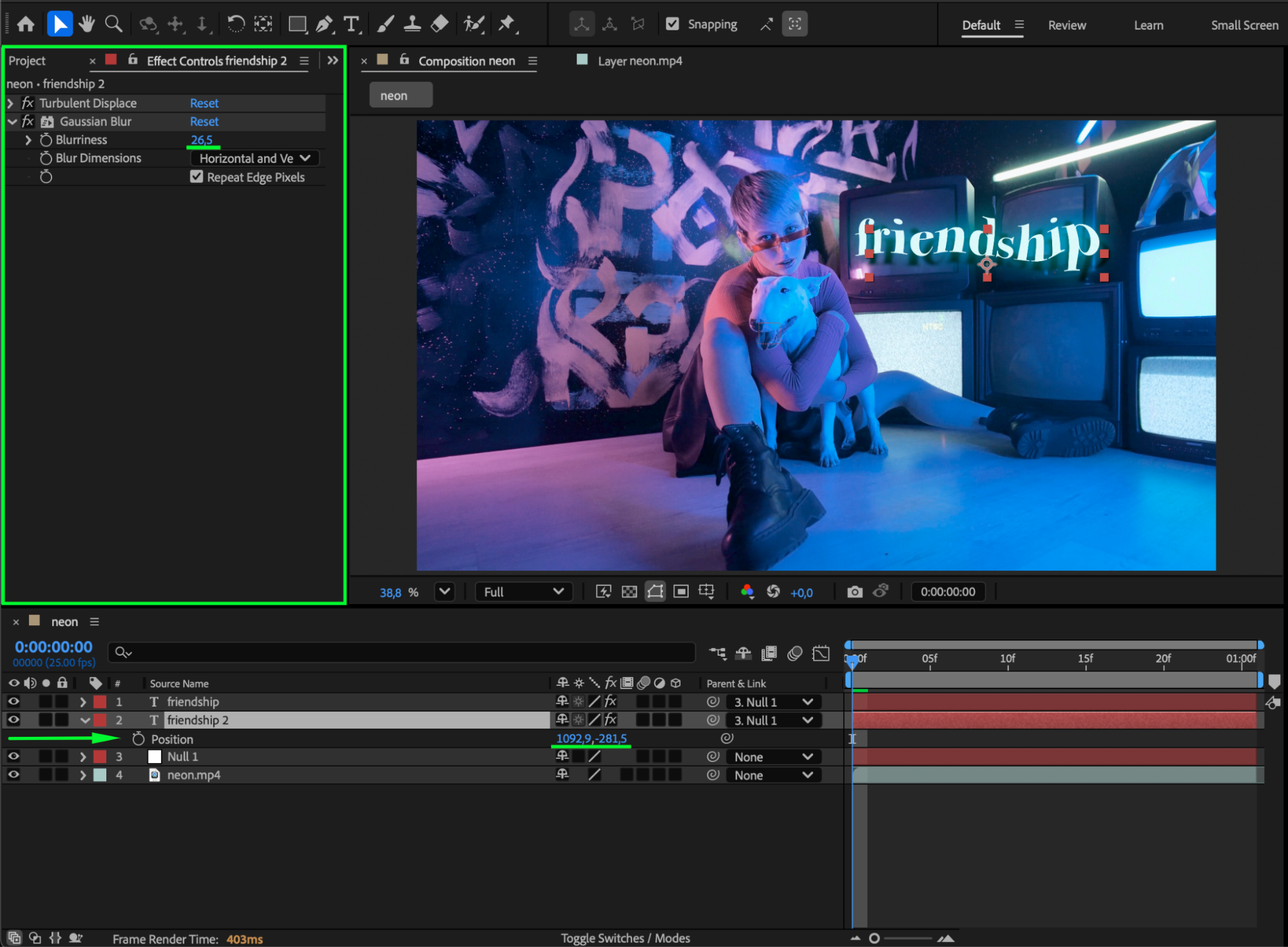
With the black text layer selected, go to Effect > Blur & Sharpen > Gaussian Blur. Increase the Blurriness value to around 26 (or adjust as needed). Move this blurred text layer below the original text layer and slightly offset its position to create a natural shadow look.
Step 7: Preview and Adjust
Press the Spacebar to preview your animation. Adjust the blur intensity, opacity, or position of the shadow until it looks realistic and matches the lighting of your video.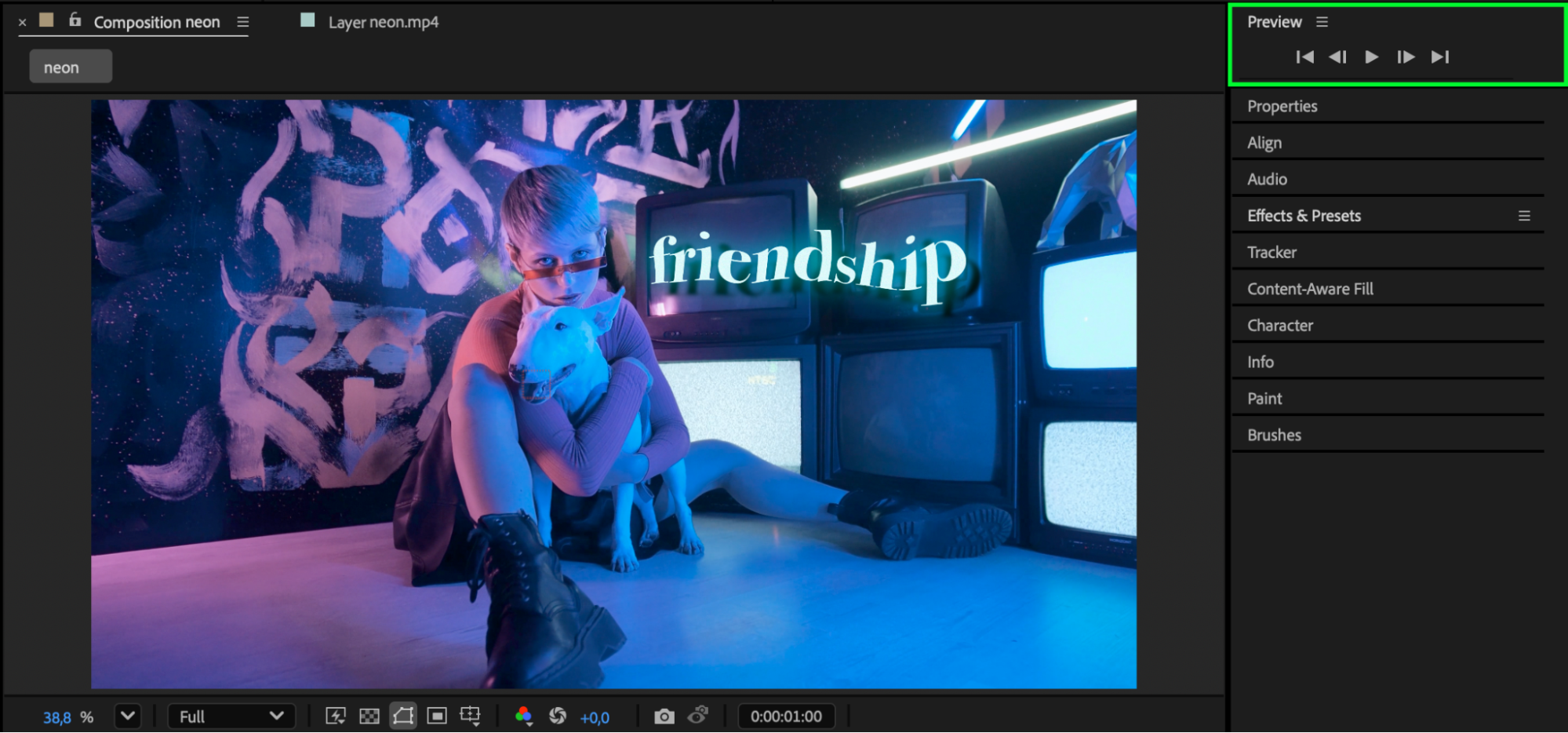
Conclusion
By duplicating your text layer and applying Gaussian Blur, you can easily create a natural-looking shadow that follows your motion-tracked text. This simple technique helps integrate your graphics more seamlessly into live-action footage and gives your project a polished, professional feel.
Our Bestsellers
Our Bestsellers


