How to Create a Splash Transition Effect in After Effects
Introduction
In this tutorial, you’ll learn how to add a dynamic splash transition between two video clips in Adobe After Effects. We’ll use a pre-made splash animation with a green screen and show how to blend it with your footage using the Keylight effect and creative enhancements like glow.
Step 1: Import Your Footage
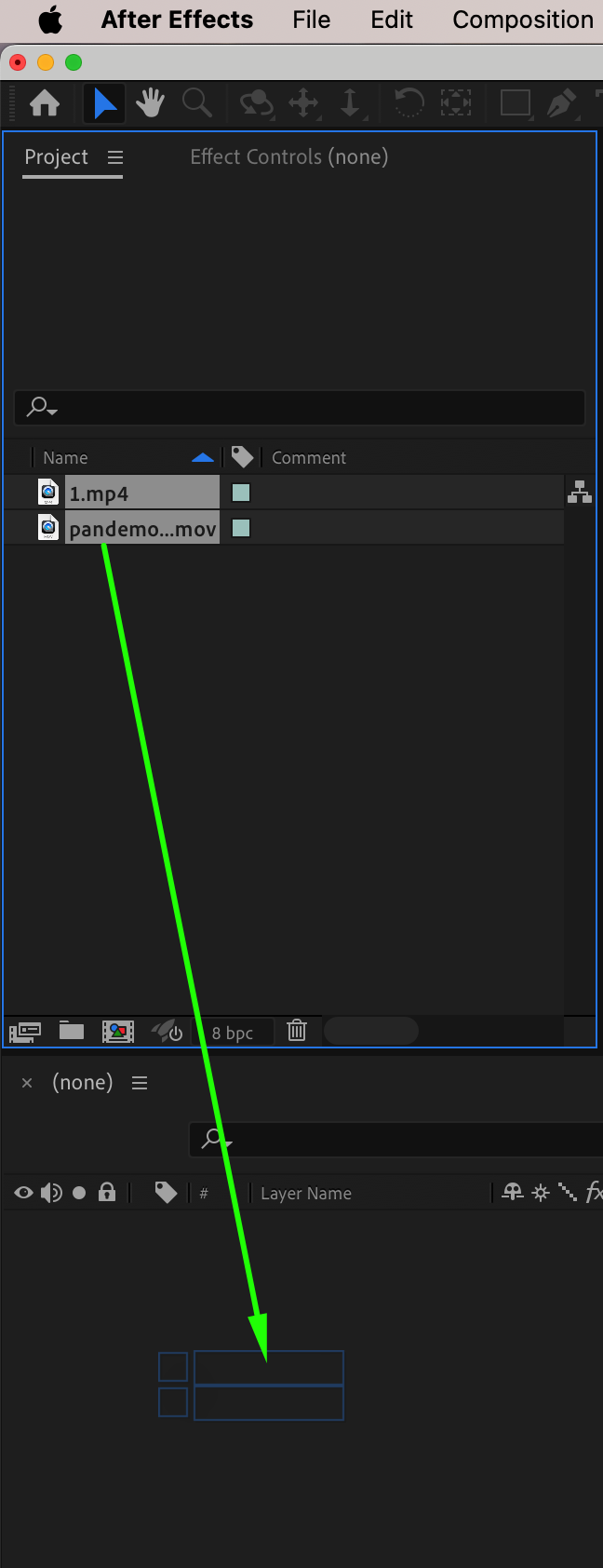
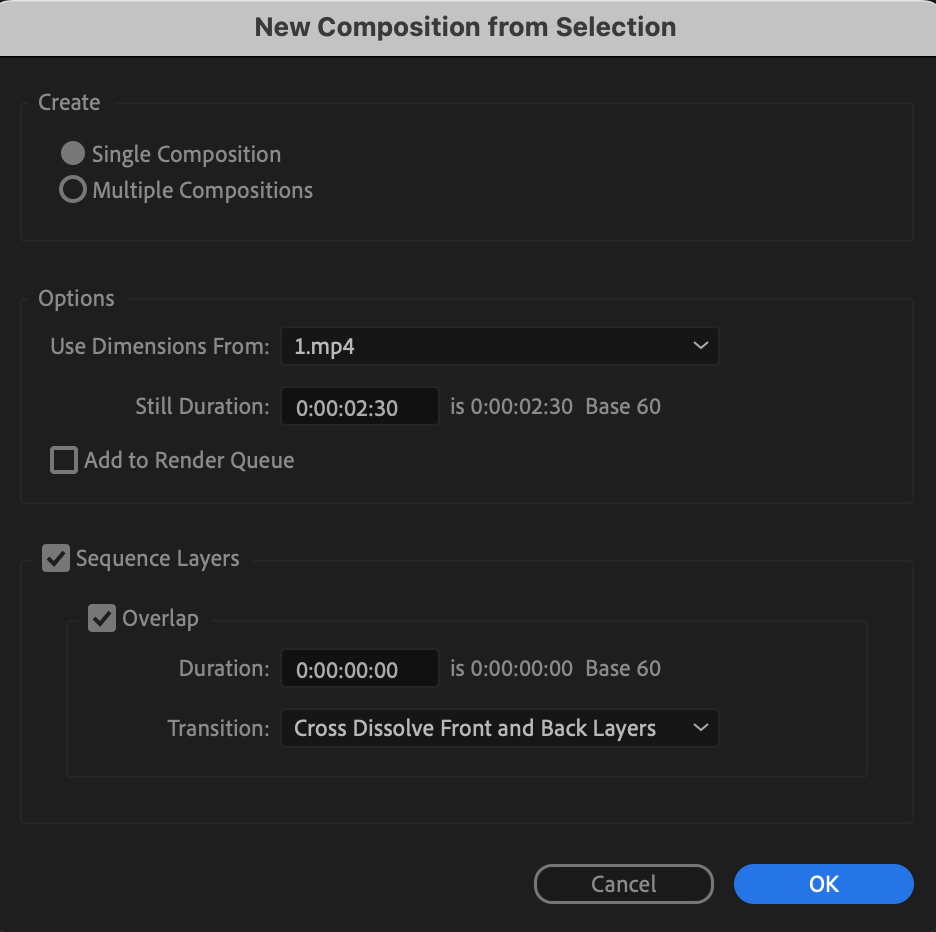
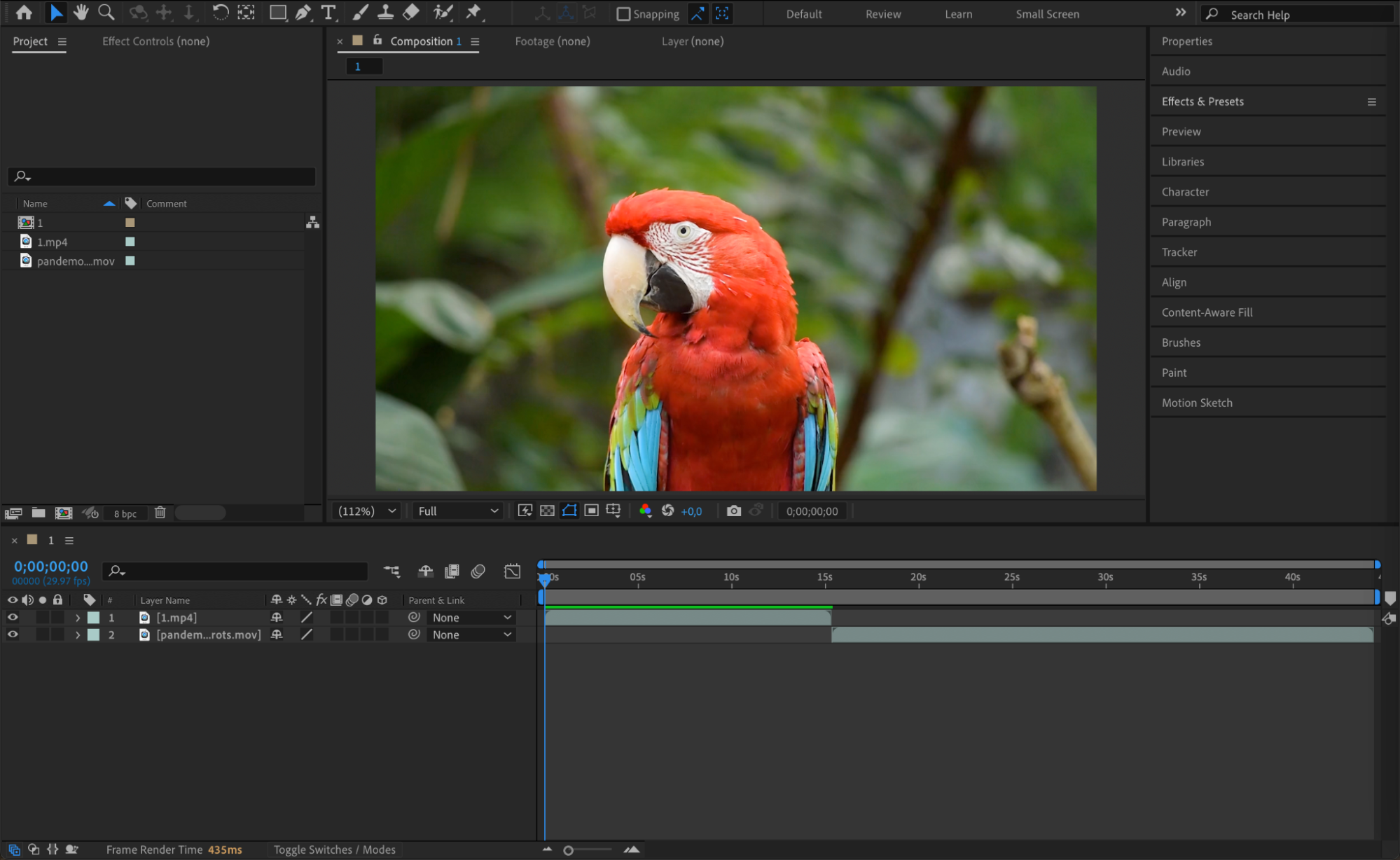
Start by going to File > Import > File and select the two video clips you want to transition between. Drag them onto the timeline so they are placed back to back in the composition.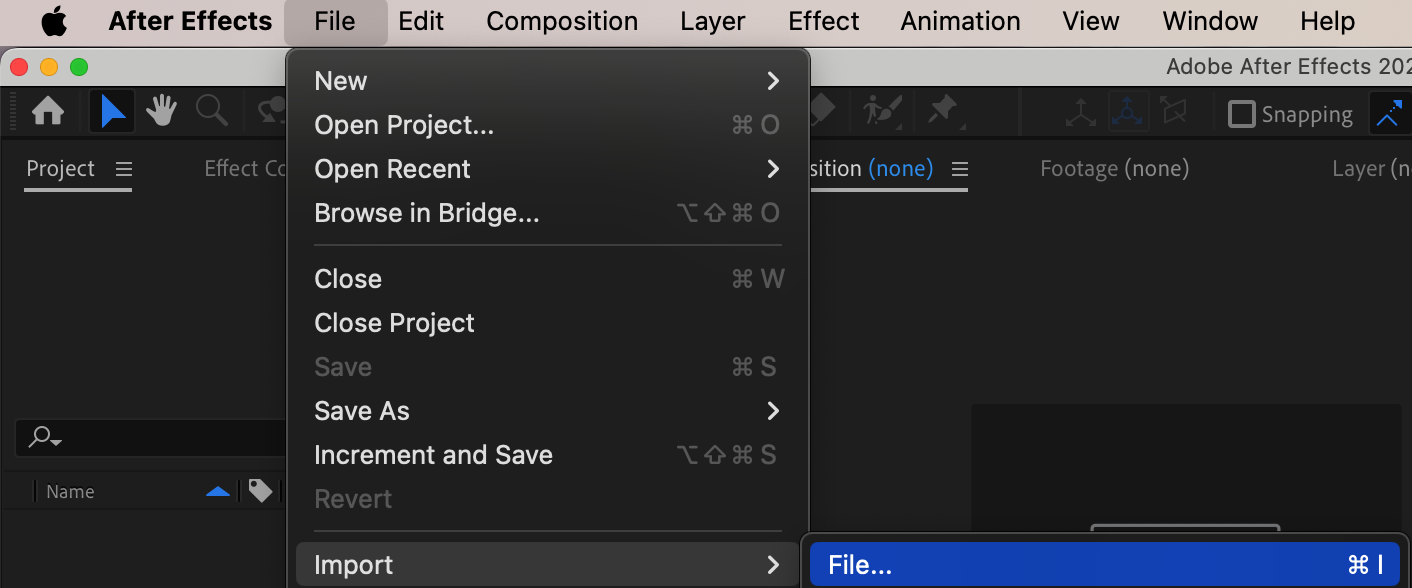
 Step 2: Import the Splash Transition
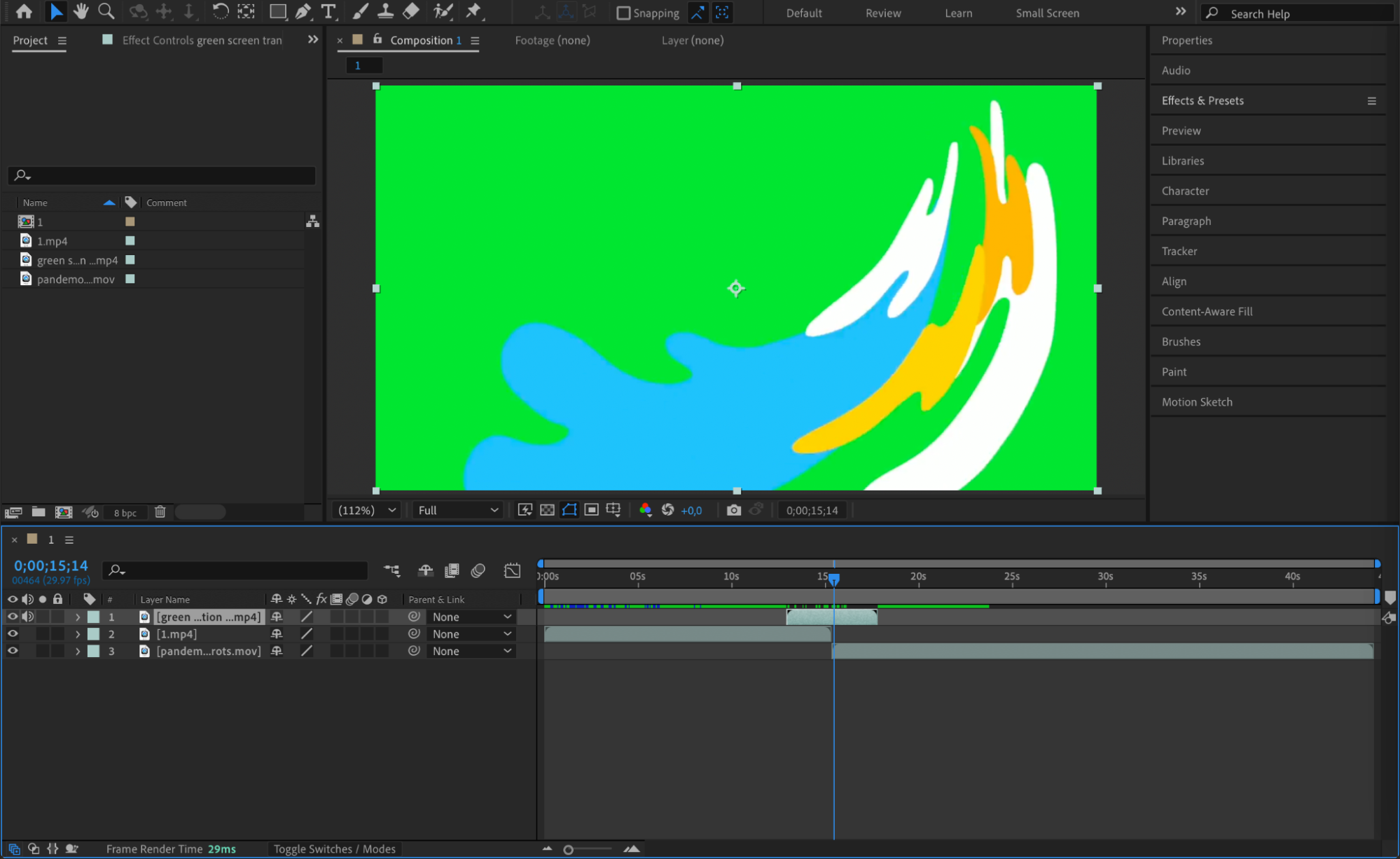
Import the splash transition animation you previously downloaded. Place it on the timeline above the cut where the two video clips meet. Make sure it’s positioned exactly over the transition point for a smooth effect.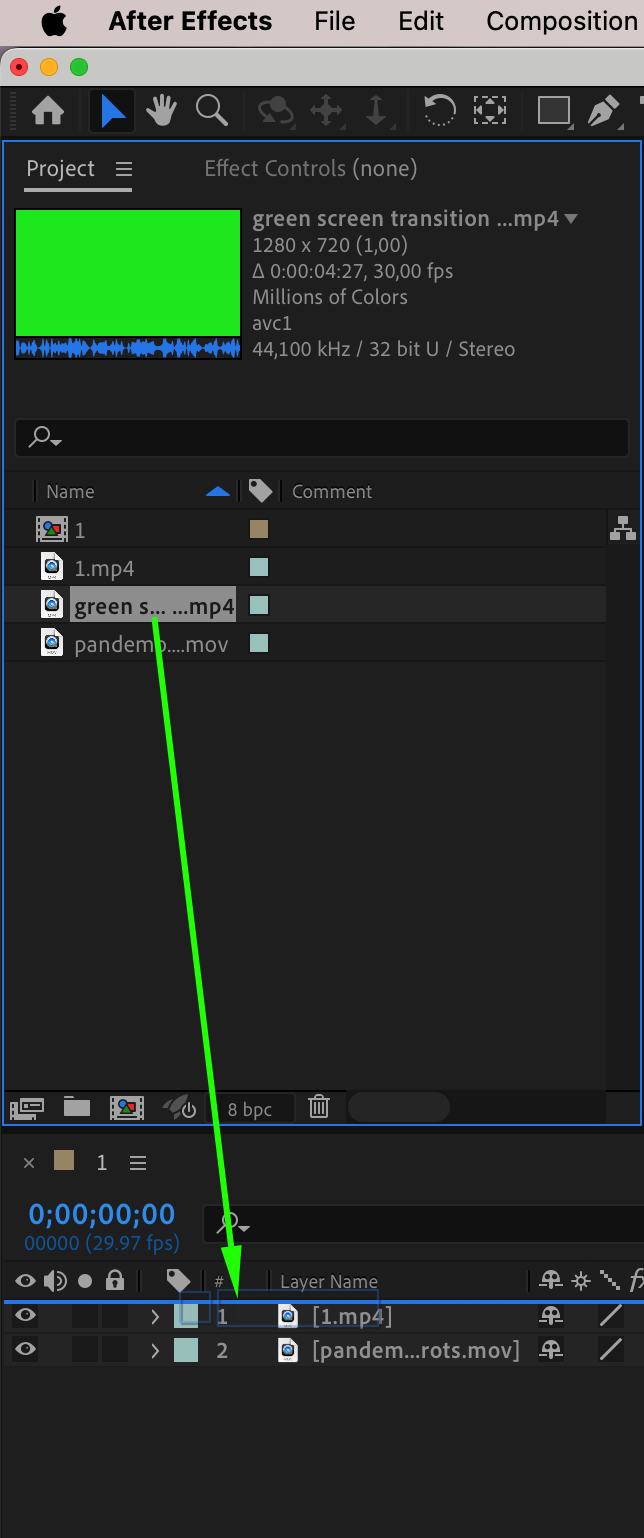
Get 10% off when you subscribe to our newsletter

Step 3: Remove the Green Screen
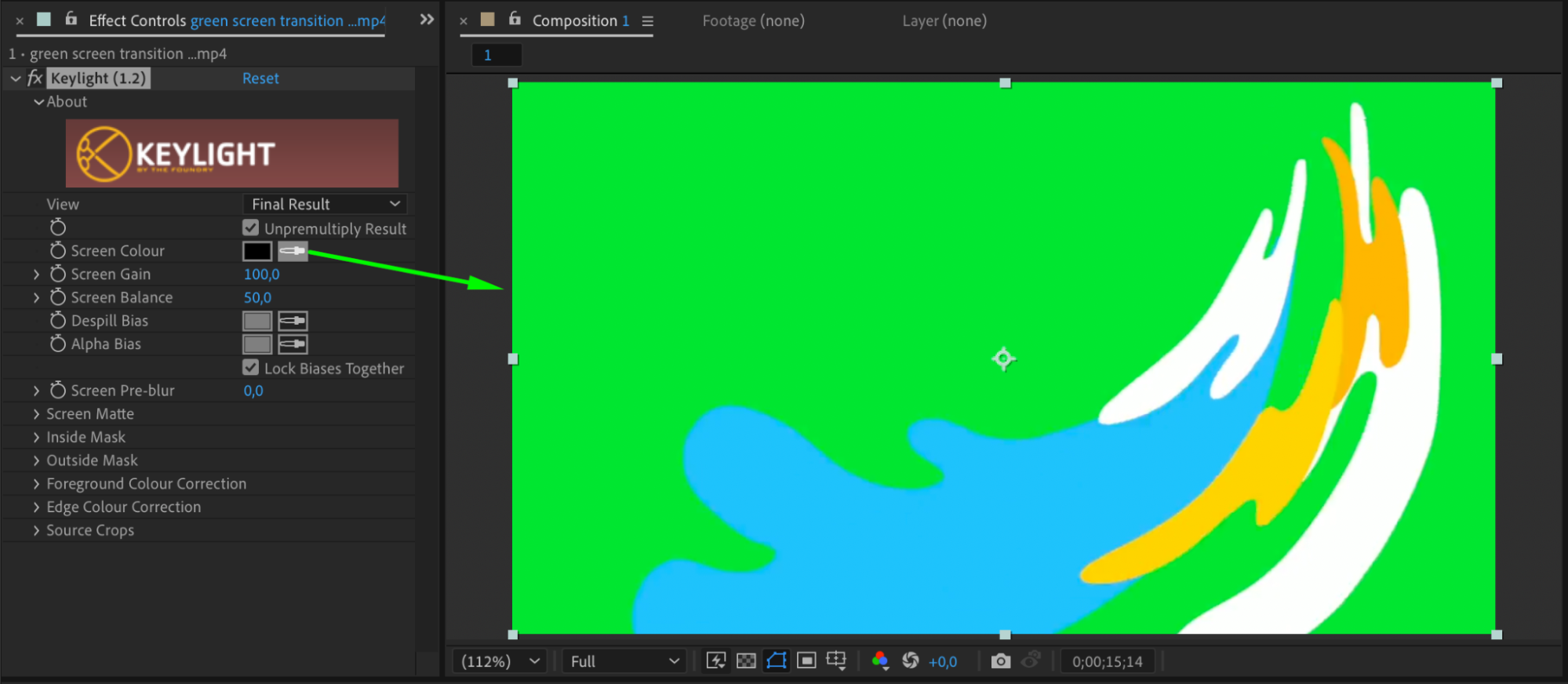
If your splash transition includes a green screen background, go to Effects & Presets and apply the Keylight (1.2) effect to the transition layer. Use the eyedropper tool to select the green color and remove the background, keeping only the splash effect.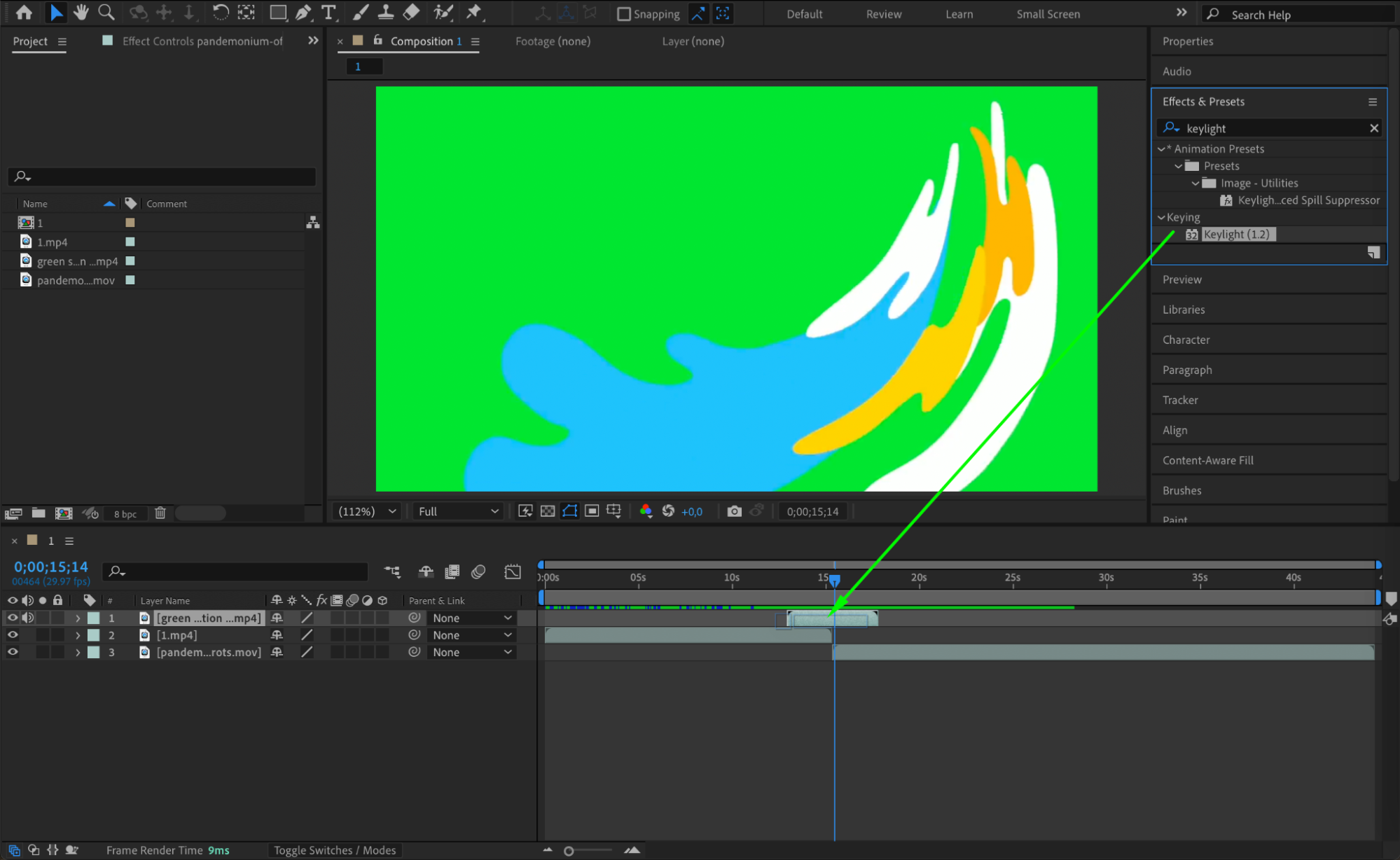
 Step 4: Trim the Splash Clip
Use the Current Time Indicator (CTI) to select the desired start and end points for the splash animation. Then press “Alt/Option + [” to trim the start and “Alt/Option + ]” to trim the end of the splash layer so it matches your transition point. 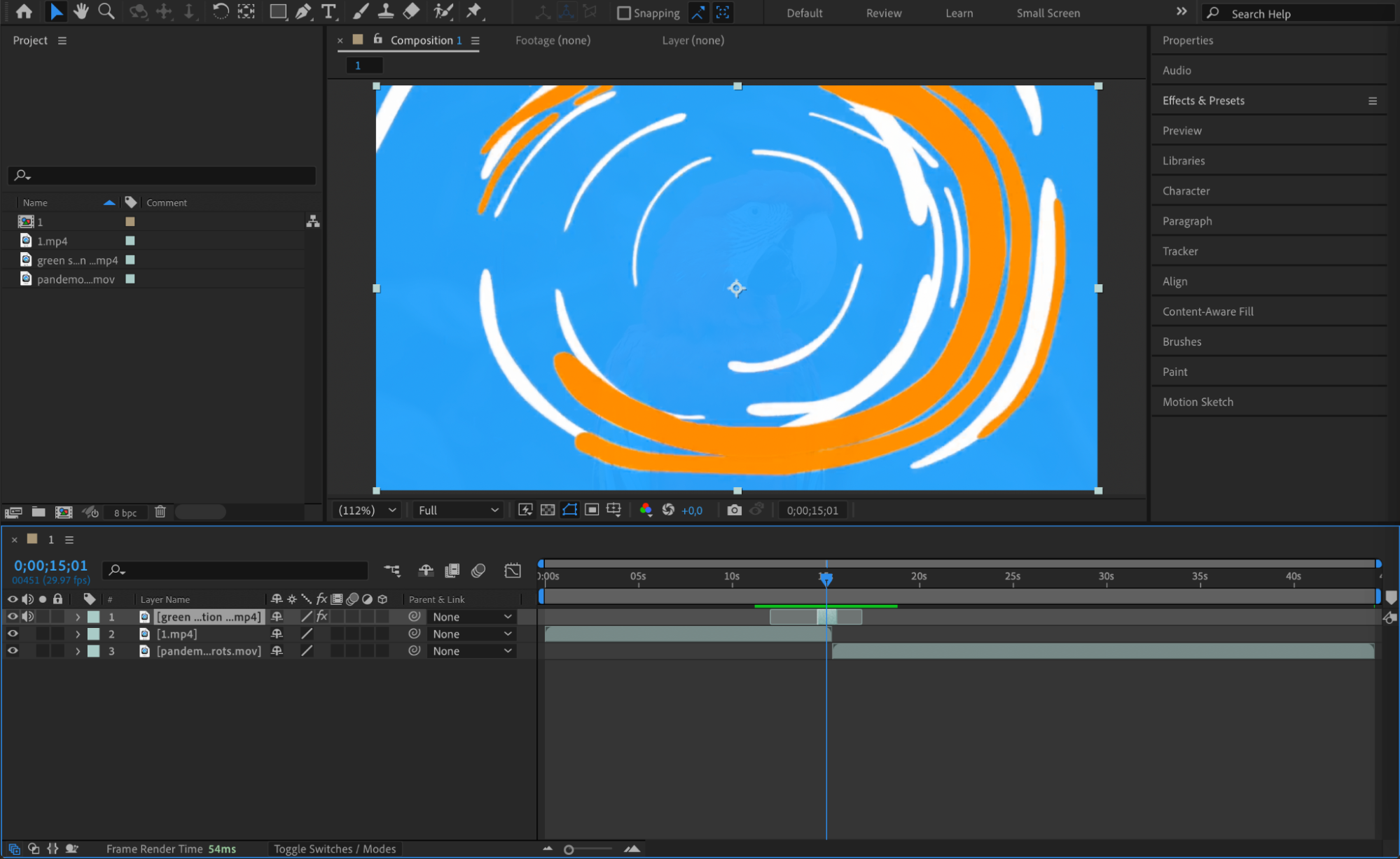
Step 5: Add Creative Effects
To enhance the visual style of your splash transition, consider adding effects such as Glow or Motion Blur. These can be applied from the Effects & Presets panel and help integrate the transition more naturally into your scene.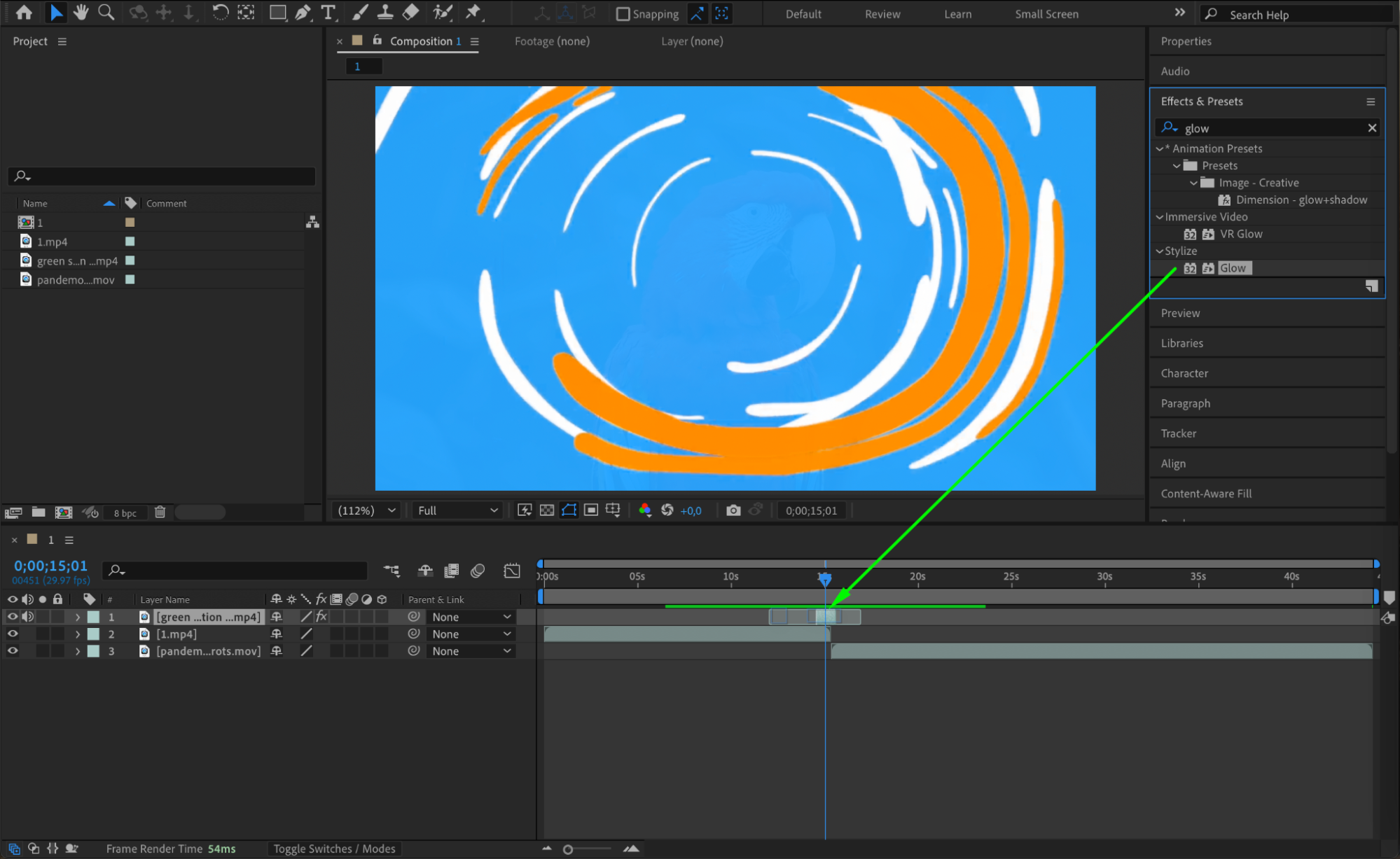
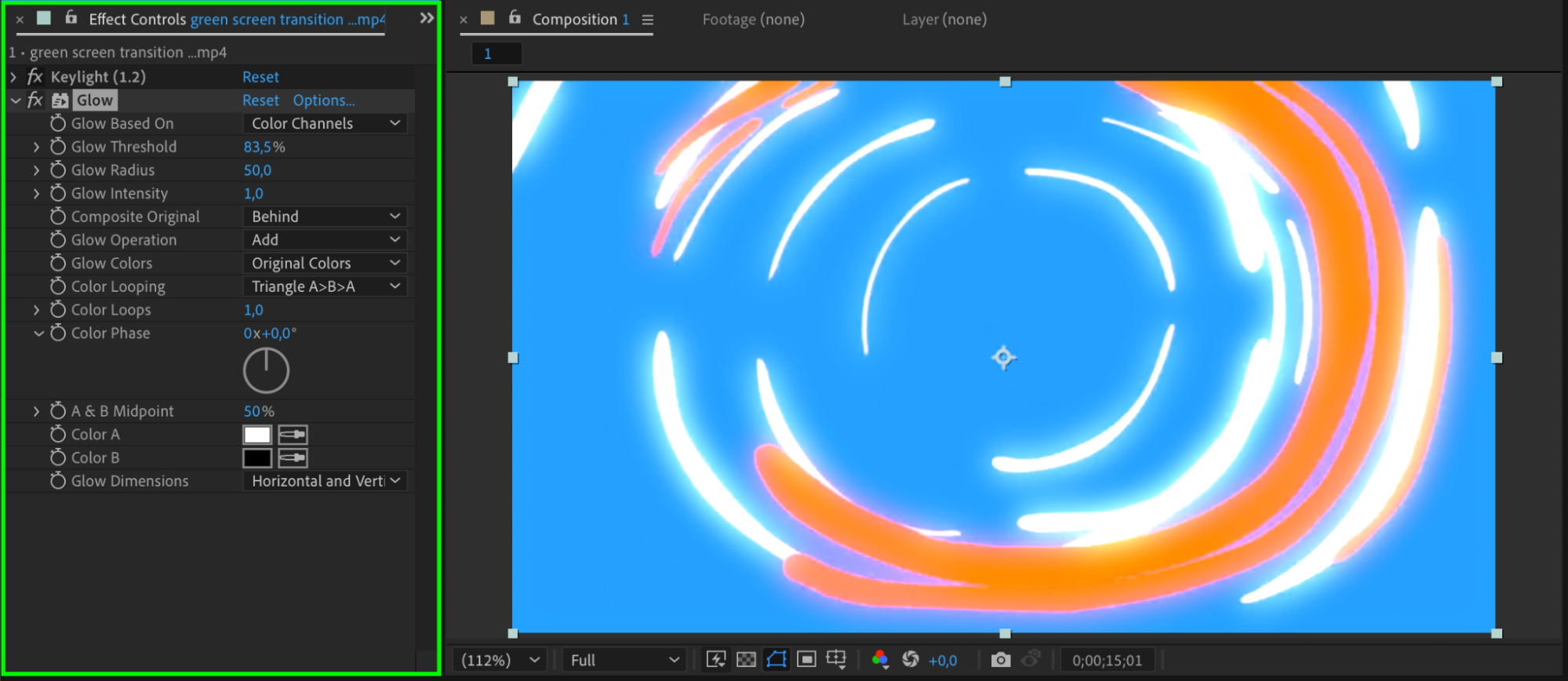 Step 6: Preview and Adjust
Preview the full composition to ensure your splash transition appears smooth and well-timed. Make any final adjustments to the position, timing, or effects as needed.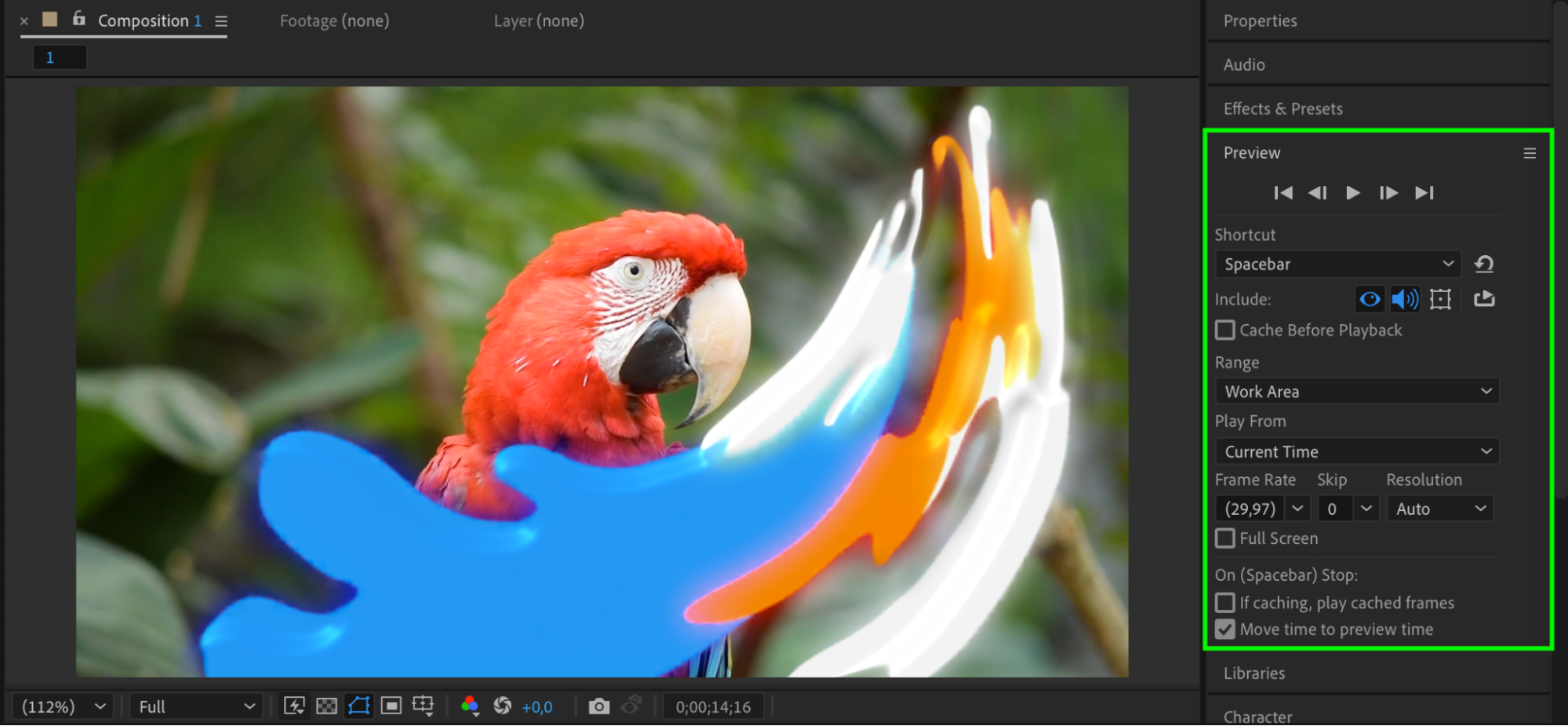 Conclusion
Adding a splash transition in After Effects is a quick way to make your edits more engaging. With a simple green screen asset and a few effects, you can create smooth, professional-looking transitions between clips.
Our Bestsellers

