
Adding and Styling a Stroke on Solid Layers in After Effects
Introduction
In Adobe After Effects, strokes aren’t just for shape or text layers—you can also add them to solid layers using layer styles. This is helpful for creating graphic elements, backgrounds, or outlines that can be easily styled and animated. This tutorial shows how to add and customize a stroke on a solid layer.
Step 1: Create a New Composition
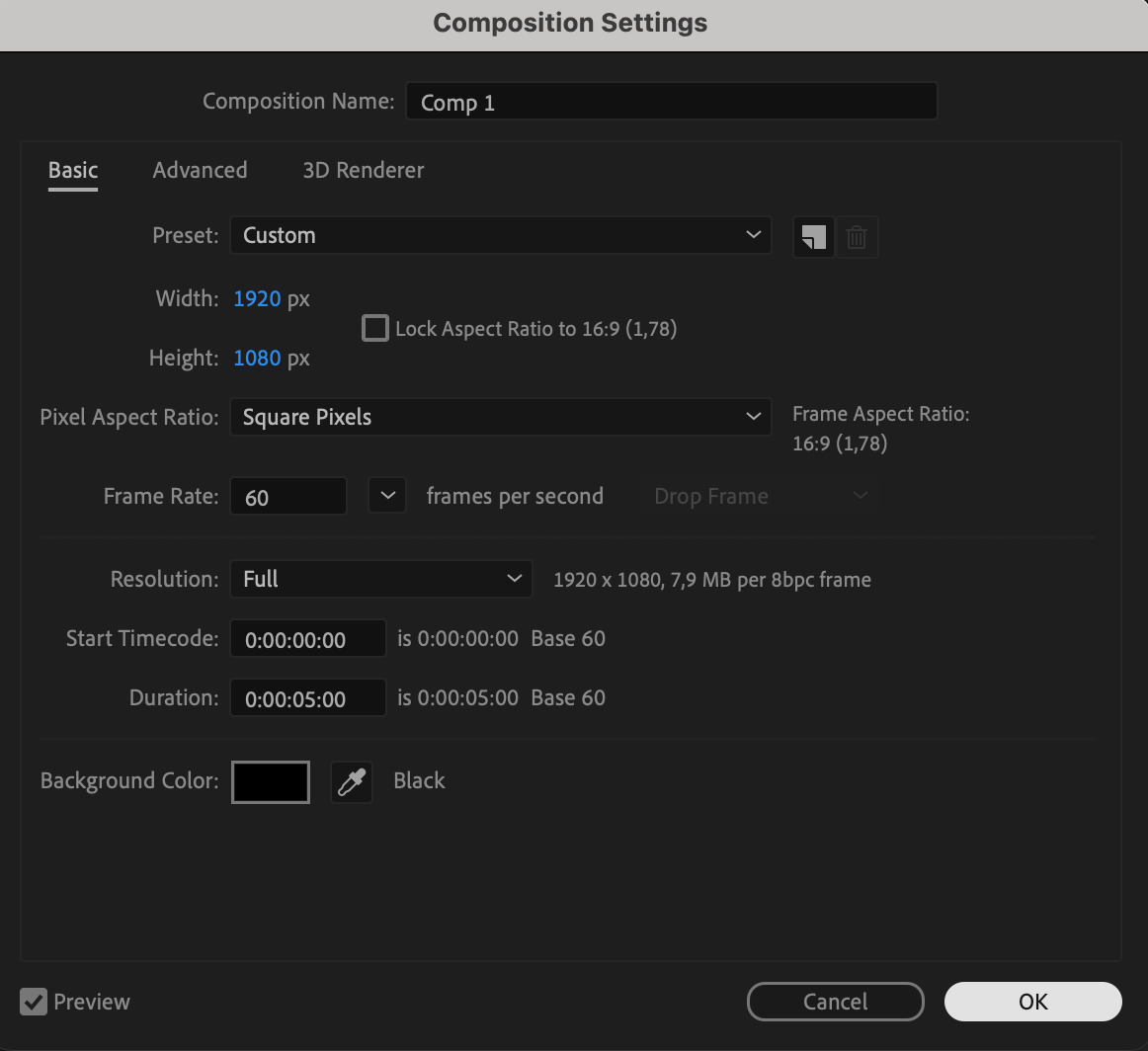
Start by creating a new composition. Go to Composition > New Composition or use the shortcut “Ctrl/Cmd + N”. Set your preferred resolution, duration, and background color, then click OK.
 Step 2: Create a Solid Layer
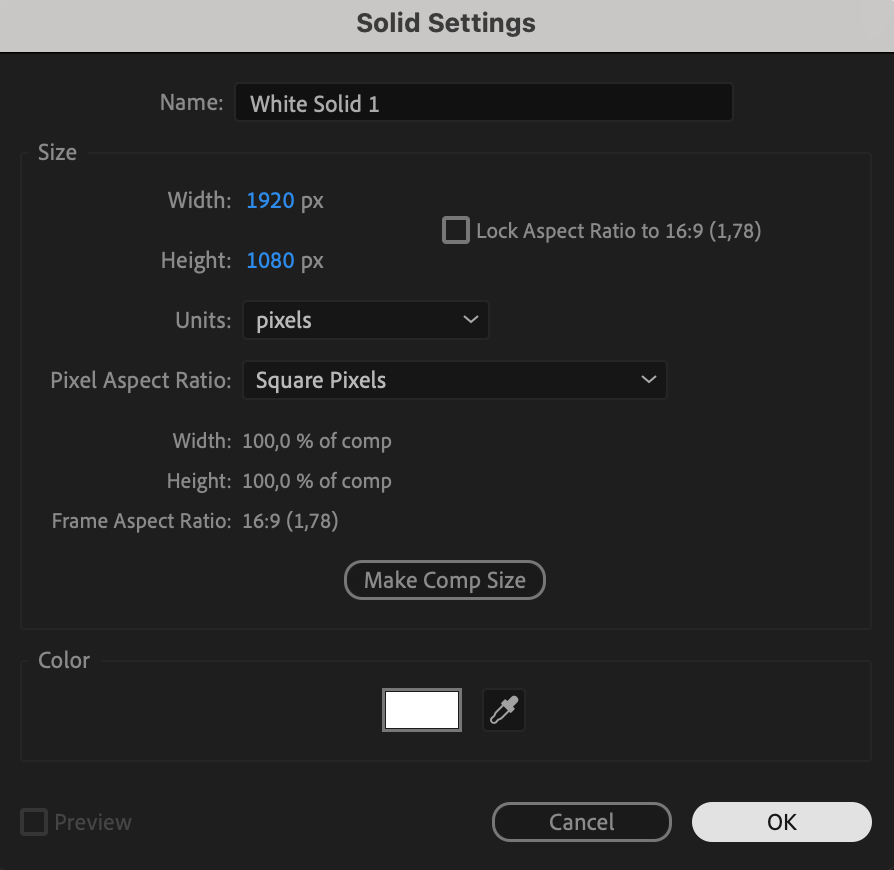
Go to Layer > New > Solid and choose any color (for example, white). Name the layer if you want to keep your project organized. This solid will be the base for your stroke.
Step 3: Resize the Solid Layer
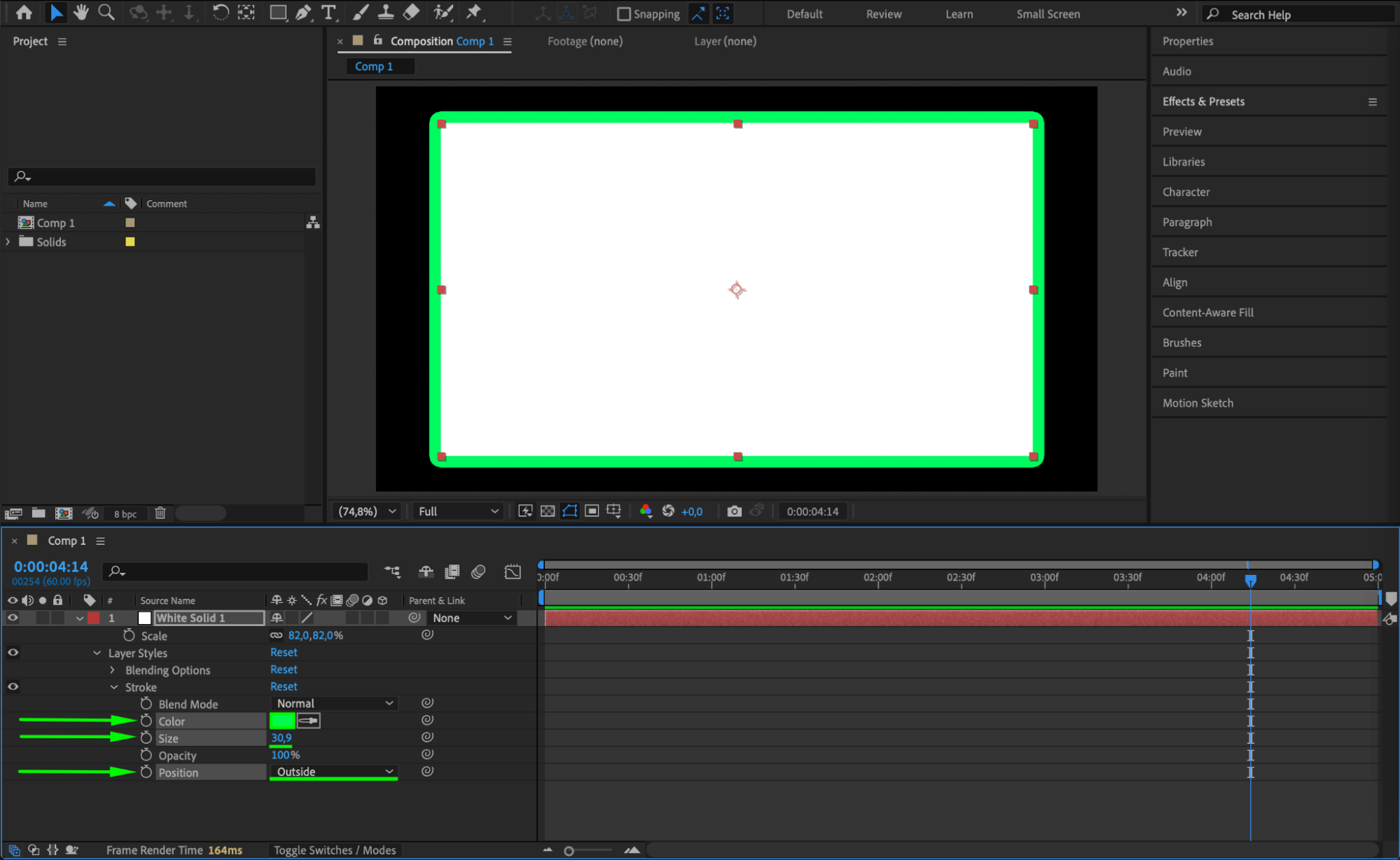
Select the solid layer and press “S” to open the Scale property. Reduce the scale so the solid becomes a smaller rectangle or square – this will help make the stroke visible around it.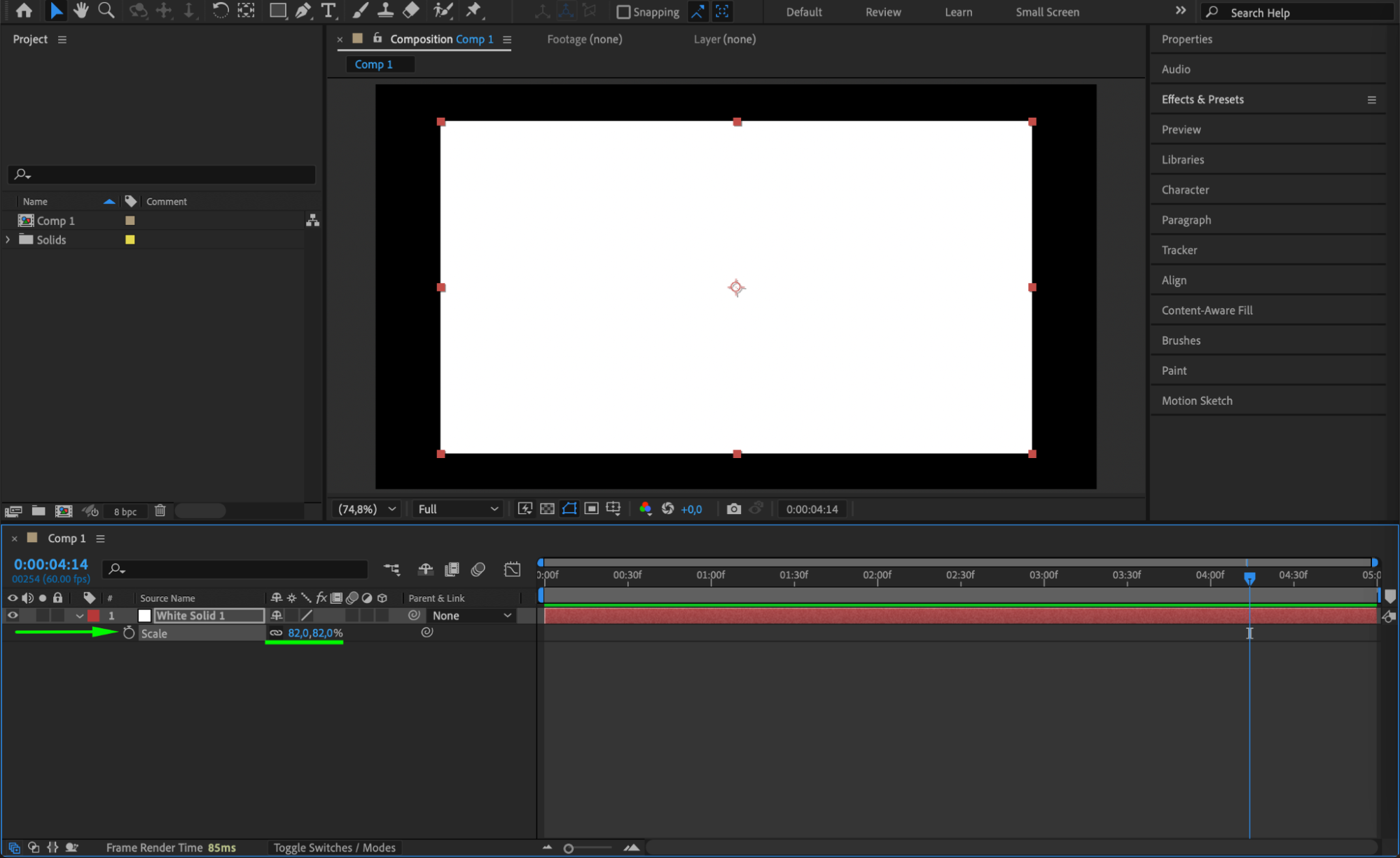 Step 4: Add a Stroke Layer Style
Right-click on the solid layer and choose Layer Styles > Stroke. Open the layer’s dropdown menu and expand “Stroke” to access its settings. Choose the Size, Color, and Position (Outside for rounded edges or Inside for sharp corners). You can also adjust Opacity and Blend Mode if needed.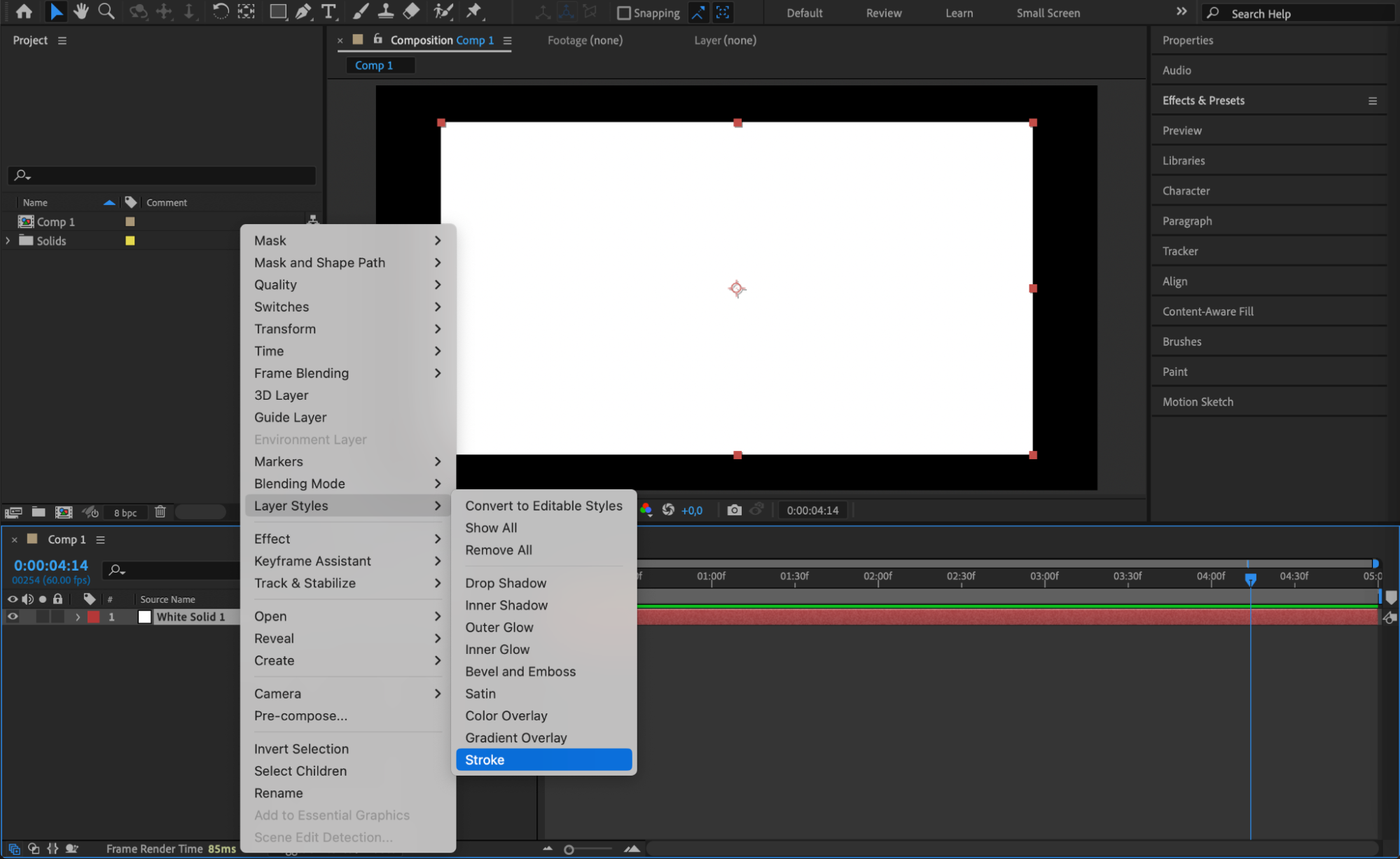
Step 5: (Optional) Add Outer Glow
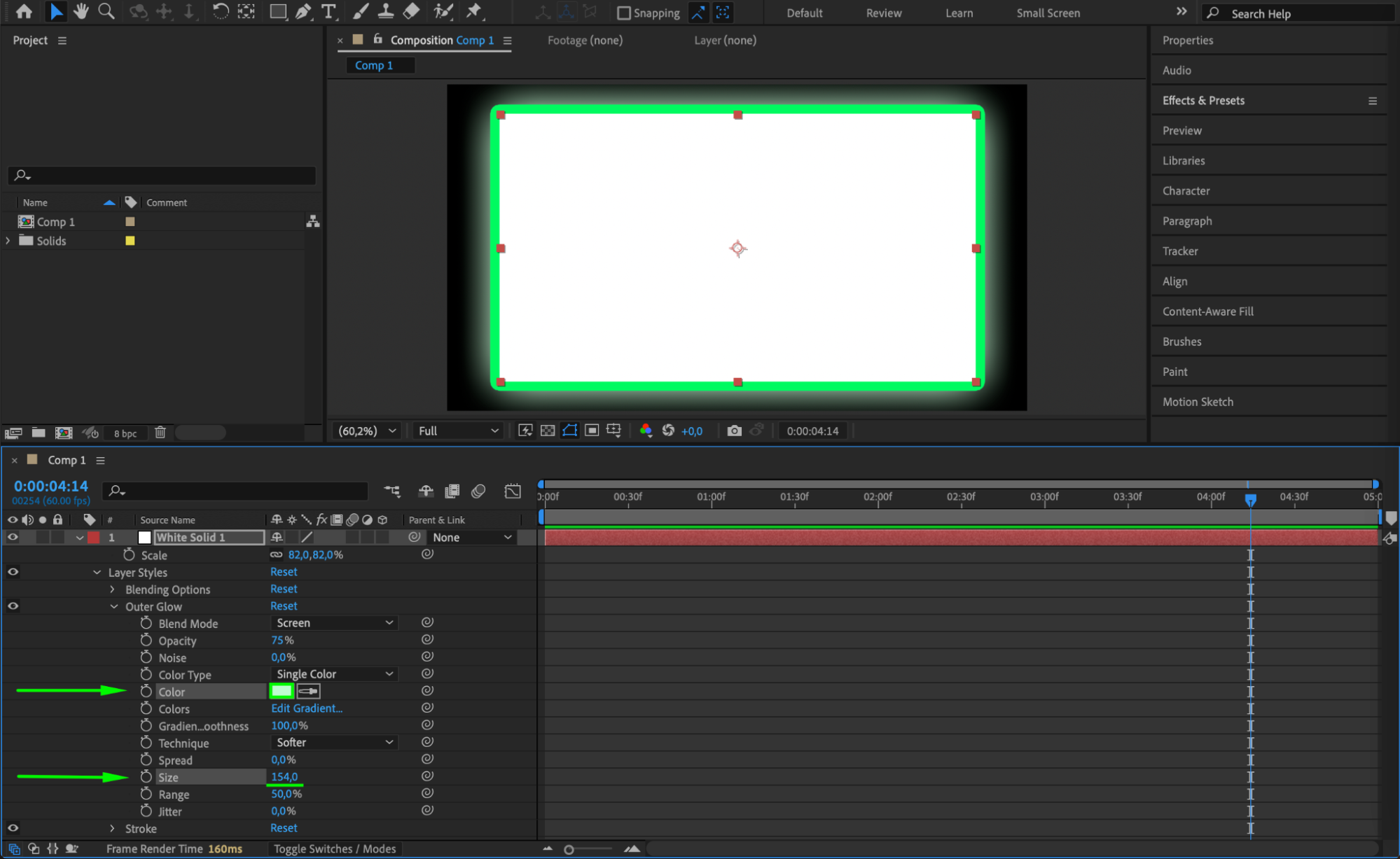
To enhance the stroke and make it stand out more, right-click the solid layer again and choose Layer Styles > Outer Glow. In the settings, you can customize the Color, Size, and Spread to get the look you want. This is especially useful for vibrant or glowing UI elements.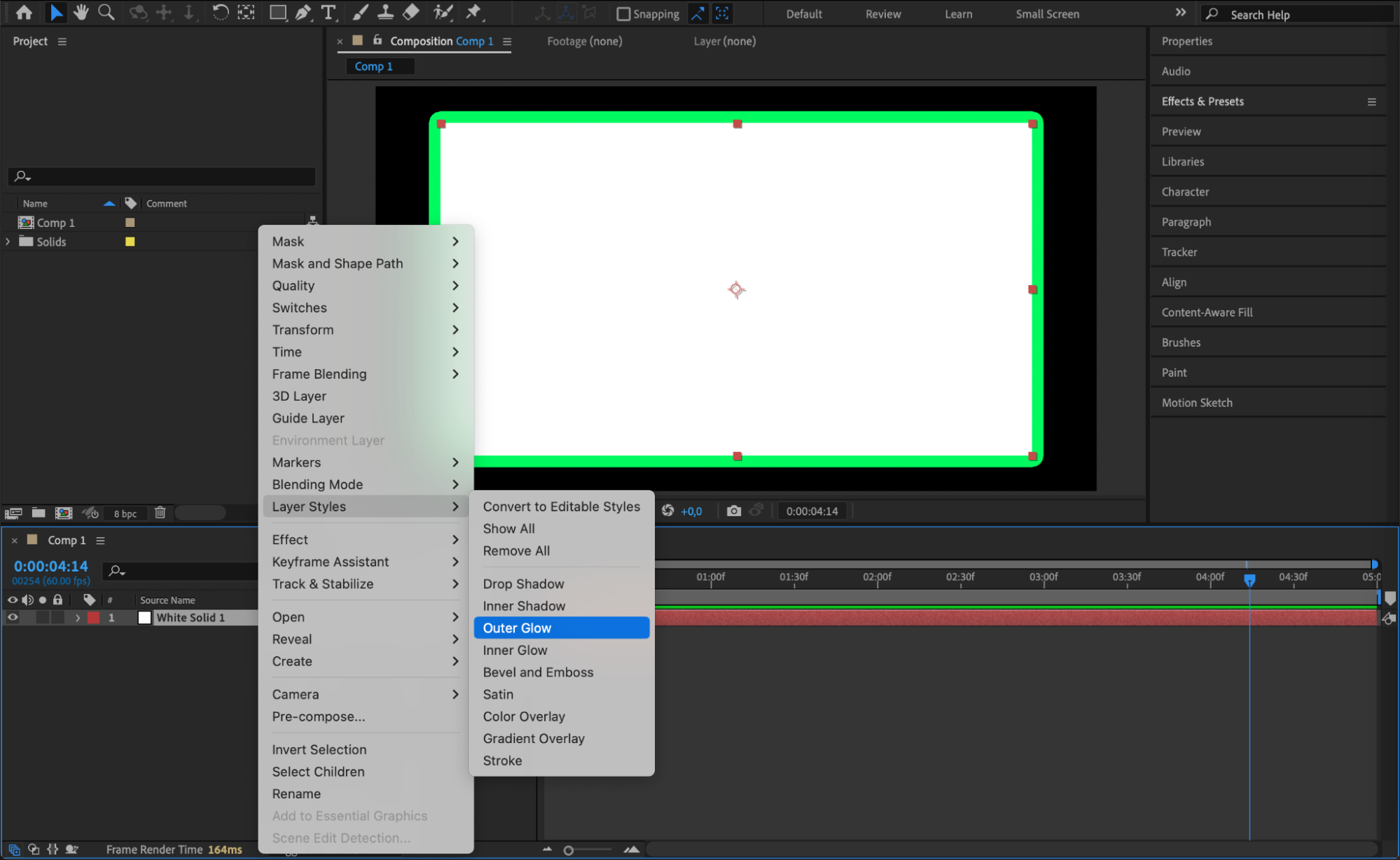
 Step 6: Preview the Result
Press the spacebar to preview your composition. You’ll see your solid layer with the stroke and optional glow, ready to be animated or used as a visual element in your project.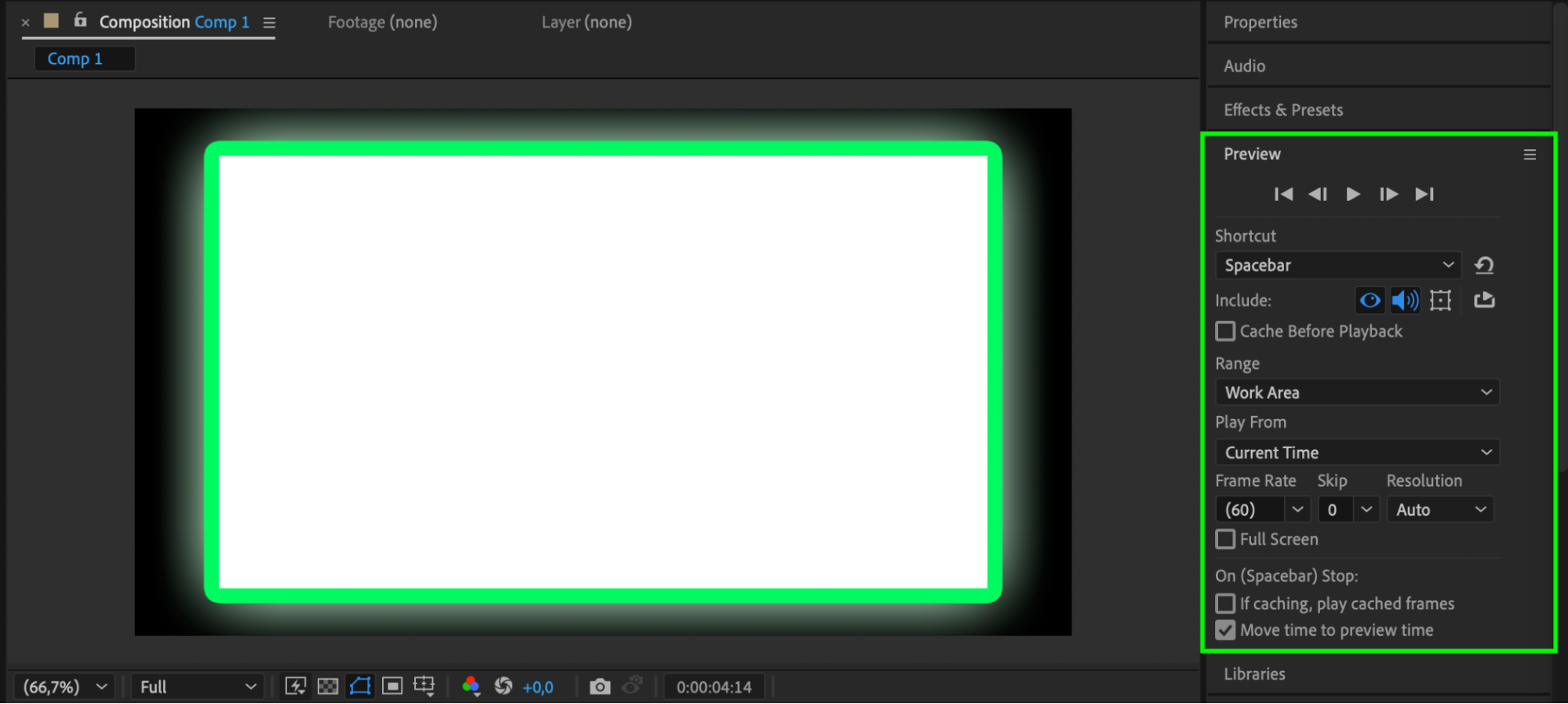 Conclusion
Adding a stroke to a solid layer in After Effects is quick and flexible using layer styles. Whether you’re creating graphic accents, frames, or visual markers, this technique helps add clean and customizable outlines with ease. Adjust the stroke’s size, position, and style to match your design and make your visuals stand out.
Our Bestsellers
Our Bestsellers


