
Introduction
This tutorial explains how to create a tile scramble transition effect in After Effects. The transition is built by dividing the frame into multiple rectangular sections that move apart, revealing the next video. You’ll use solids, track mattes, position animation, and easing to achieve a smooth result.
Step 1: Import the First Video
Go to File > Import > File and import your first video.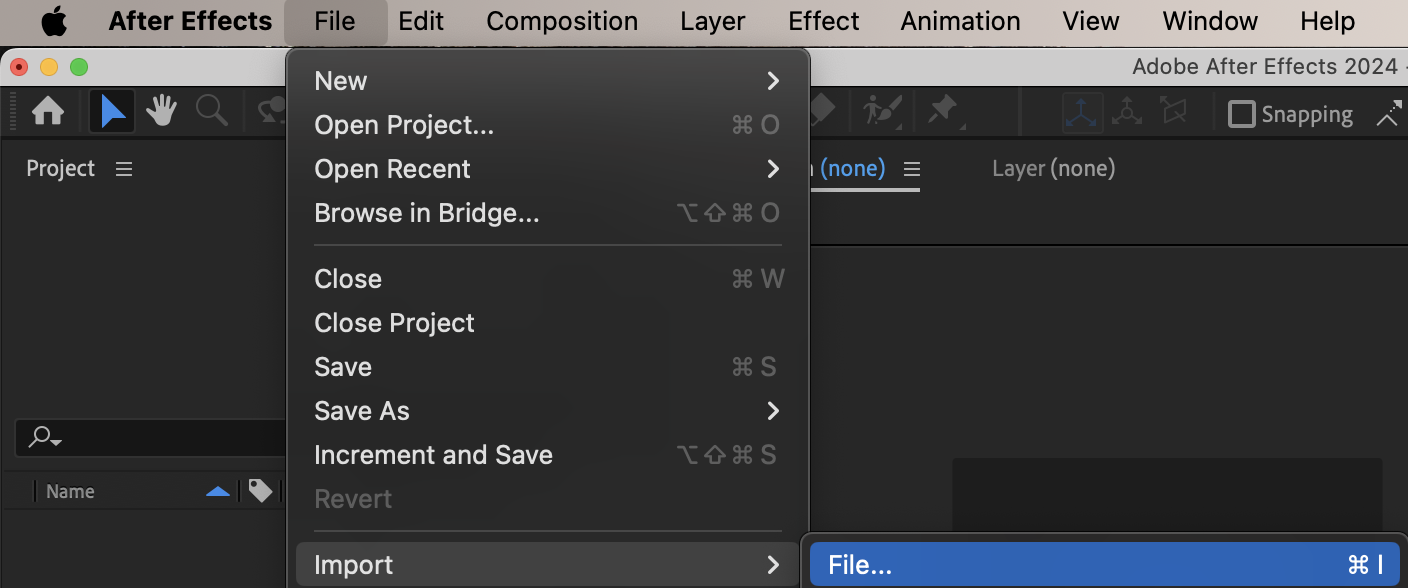 Step 2: Create a New Composition
Create a new composition using the video’s settings. Set the composition size to match the video resolution.
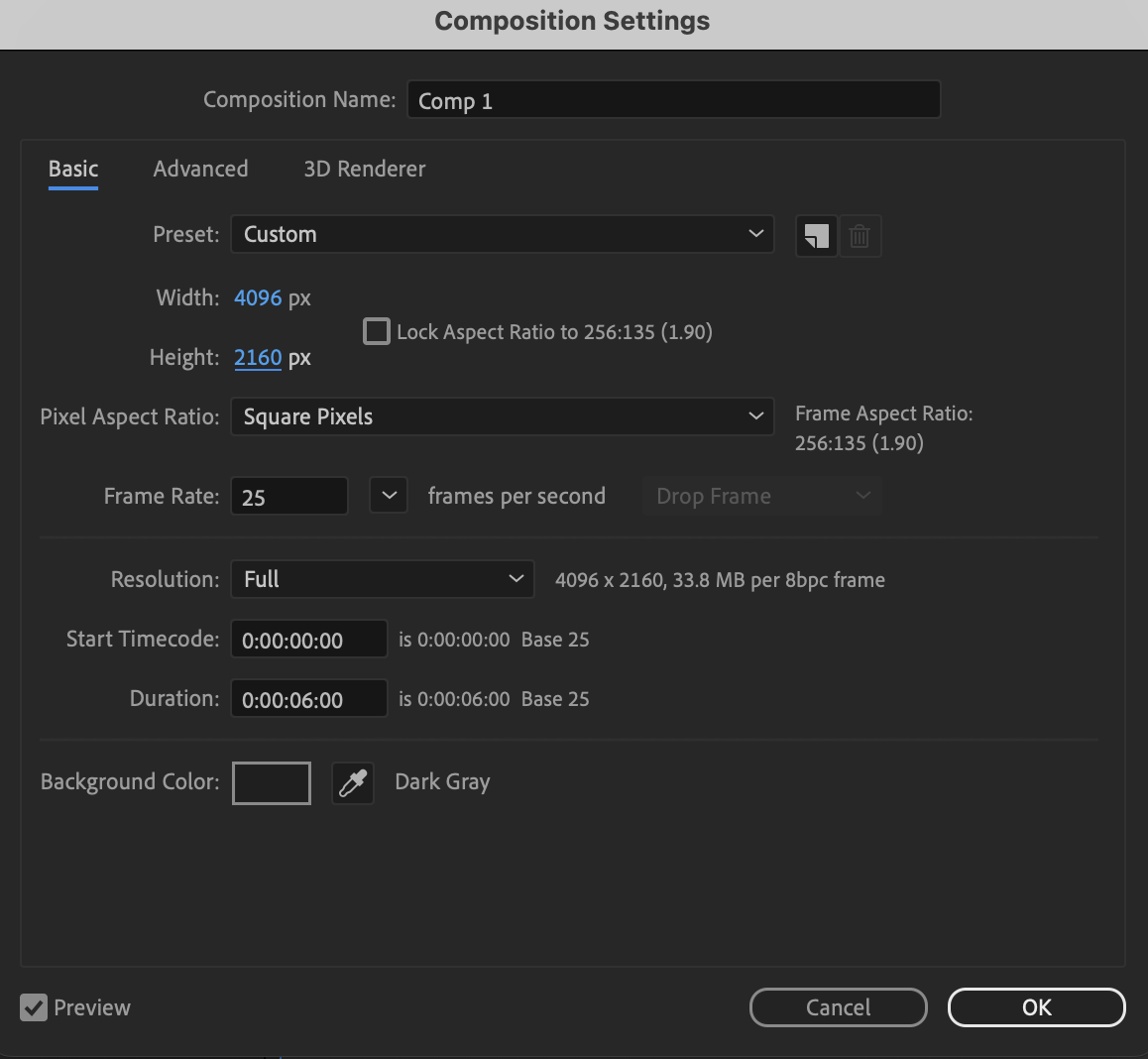 Step 3: Create Four Solids
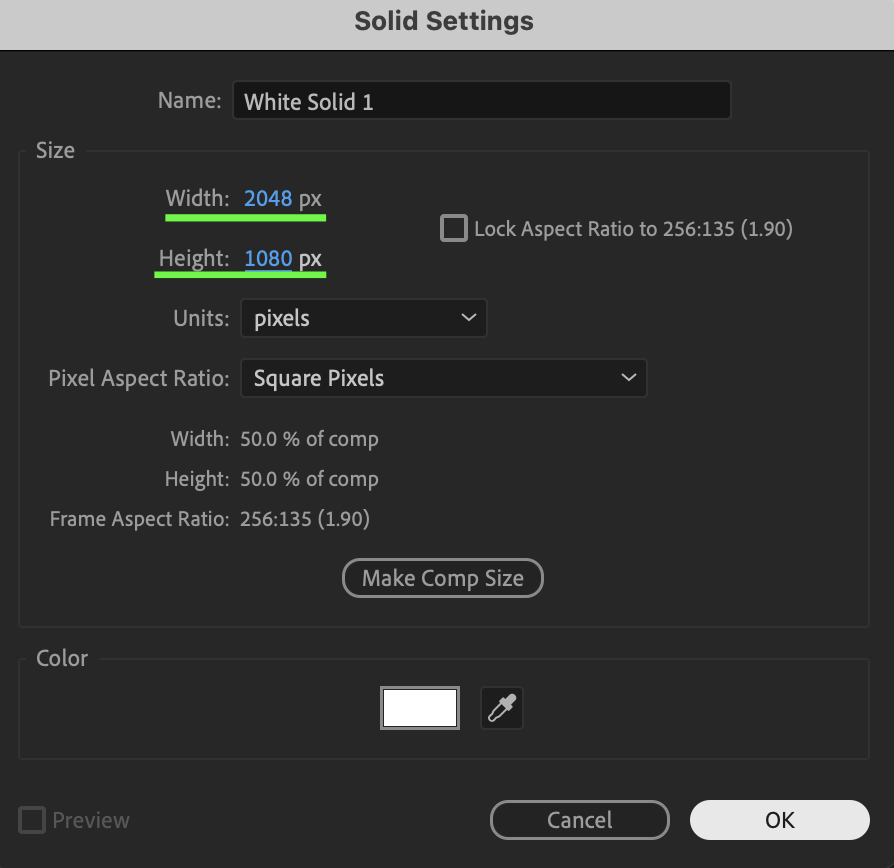
Create four solid layers sized so that they fill the composition as four equal rectangles. Example: If your composition size is 4096 × 2160, each solid should be:
2048 × 1080
Step 4: Arrange the Solids
Position the four solids so they completely fill the composition area without gaps or overlaps.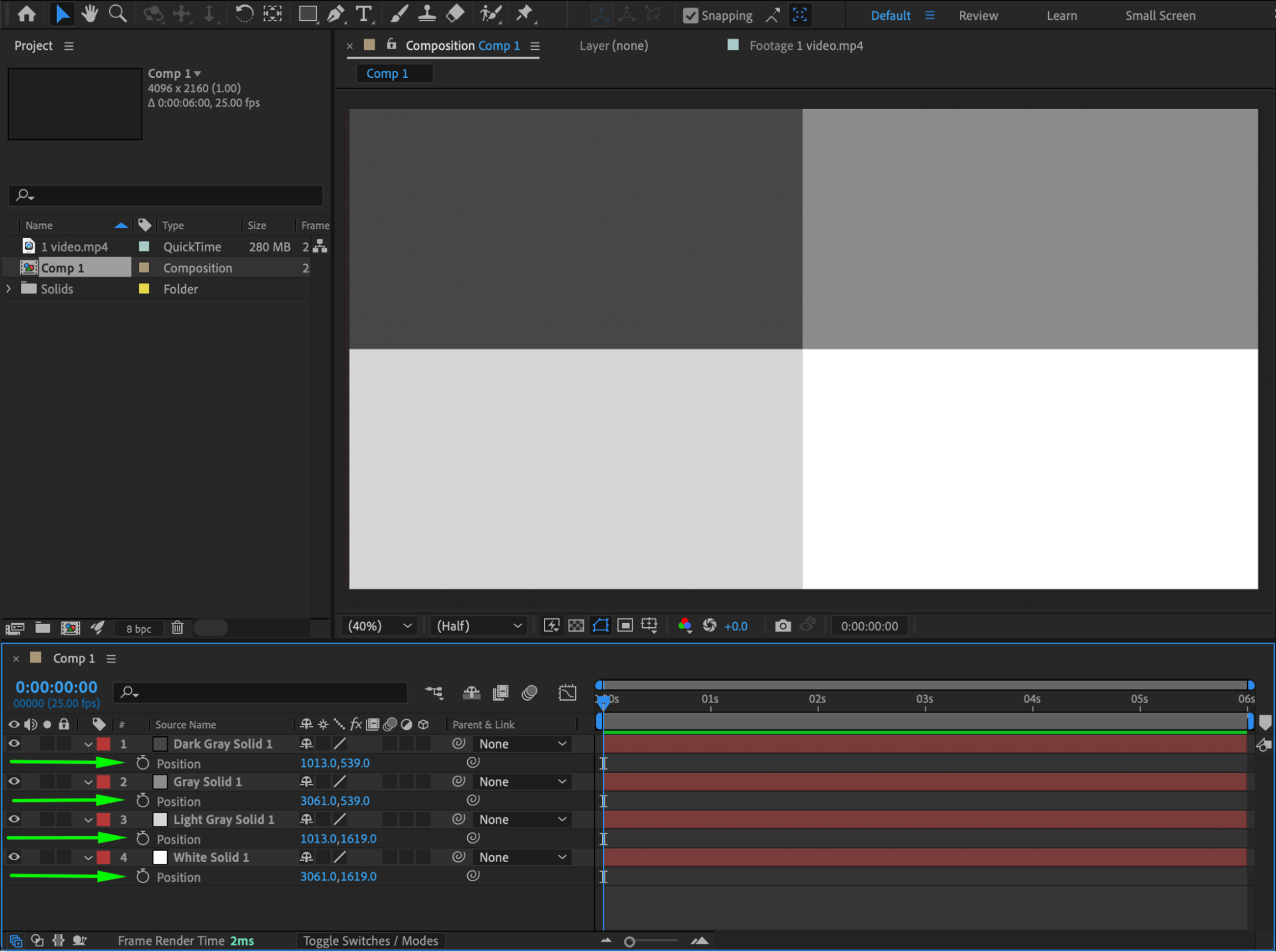 Step 5: Duplicate the Video Layer
Place the first video layer above the solids. Duplicate the video layer four times, so you have one video layer for each solid.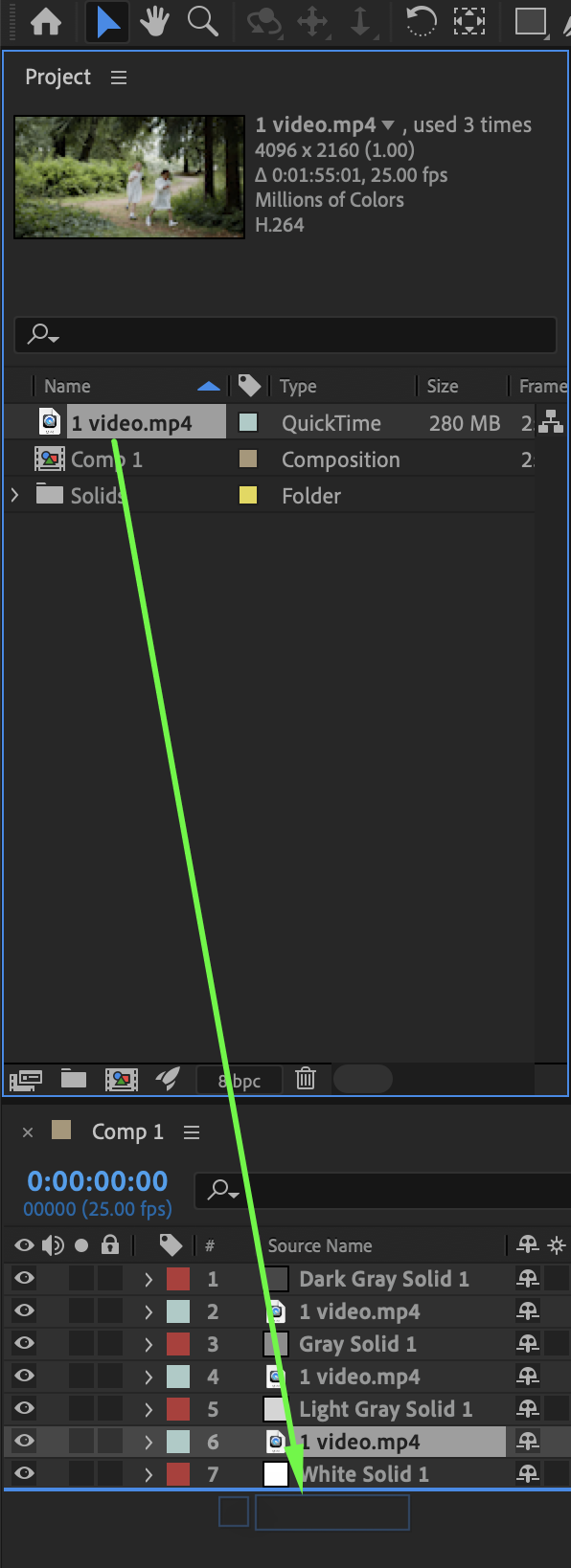 Step 6: Apply Track Mattes
In the Track Matte column: Assign a different solid as a track matte for each video layer. This will split the video into four separate segments.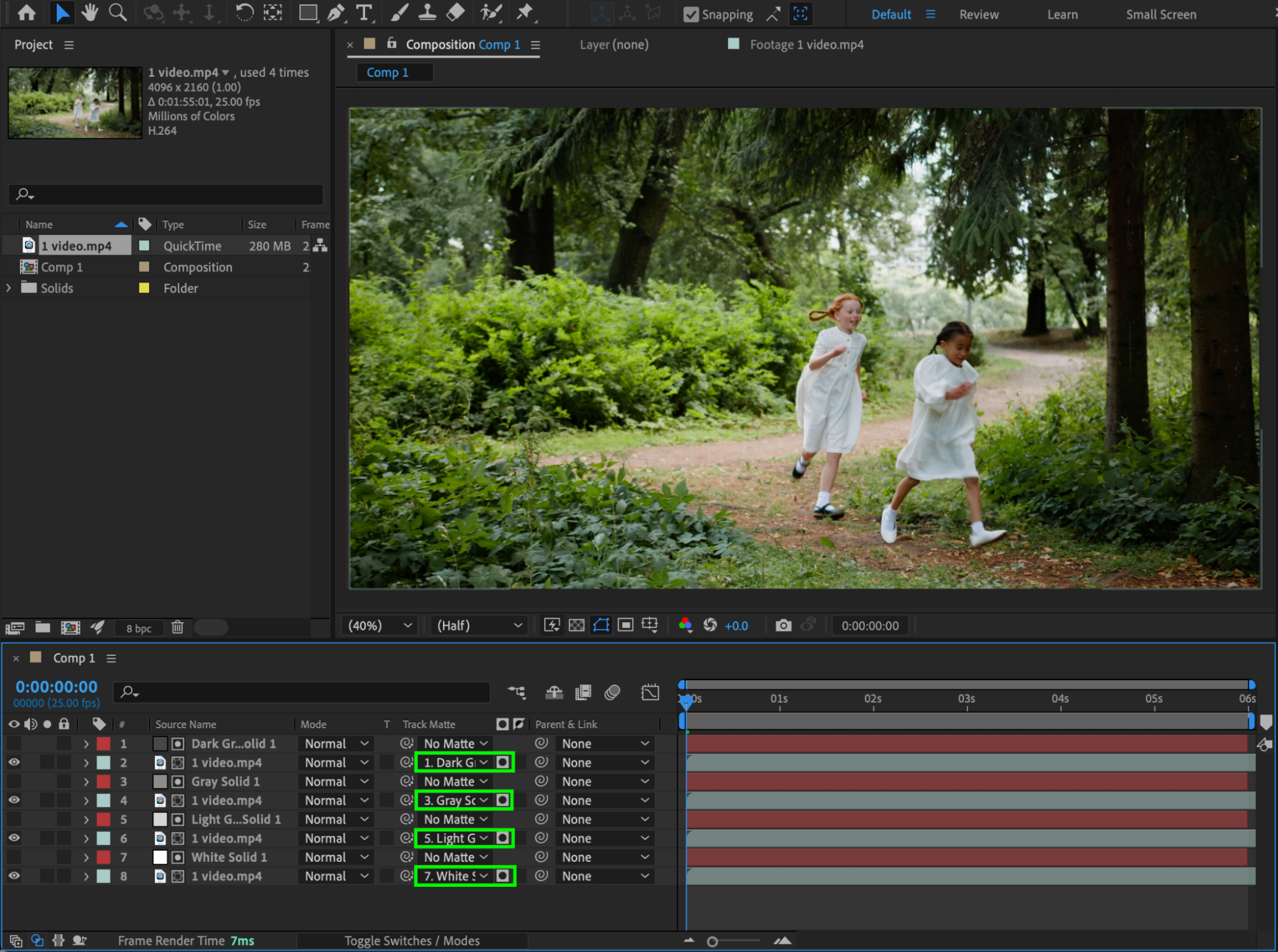 Step 7: Set the Start of the Transition
Move the CTI (Current Time Indicator) to where you want the transition to begin. For each video layer, click the Position stopwatch to create keyframes.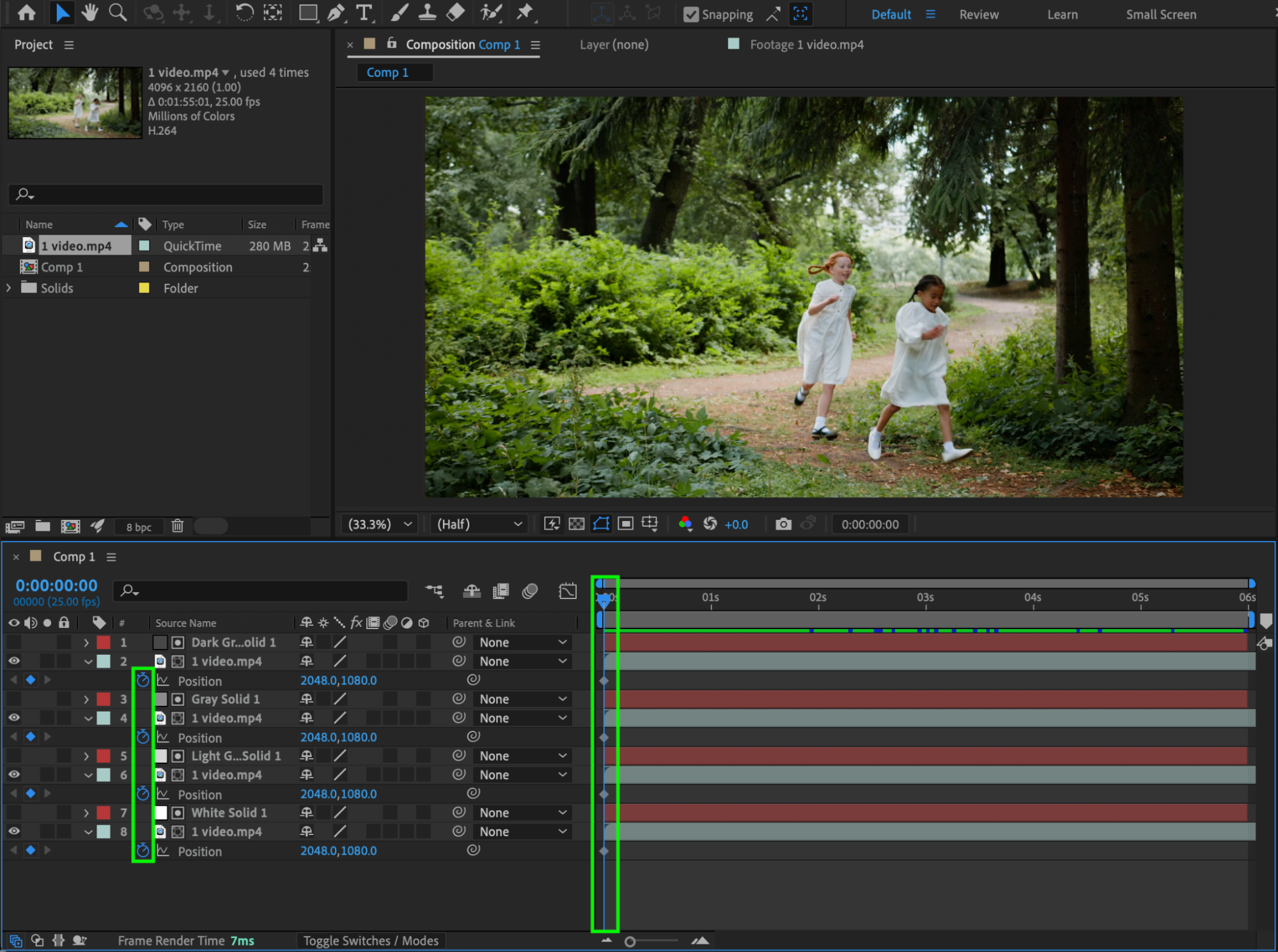 Step 8: Animate the Scramble Effect
Move the CTI to where you want the transition to end. For each video layer, change the Position values so the segments move apart in different directions, creating a scrambled tile effect.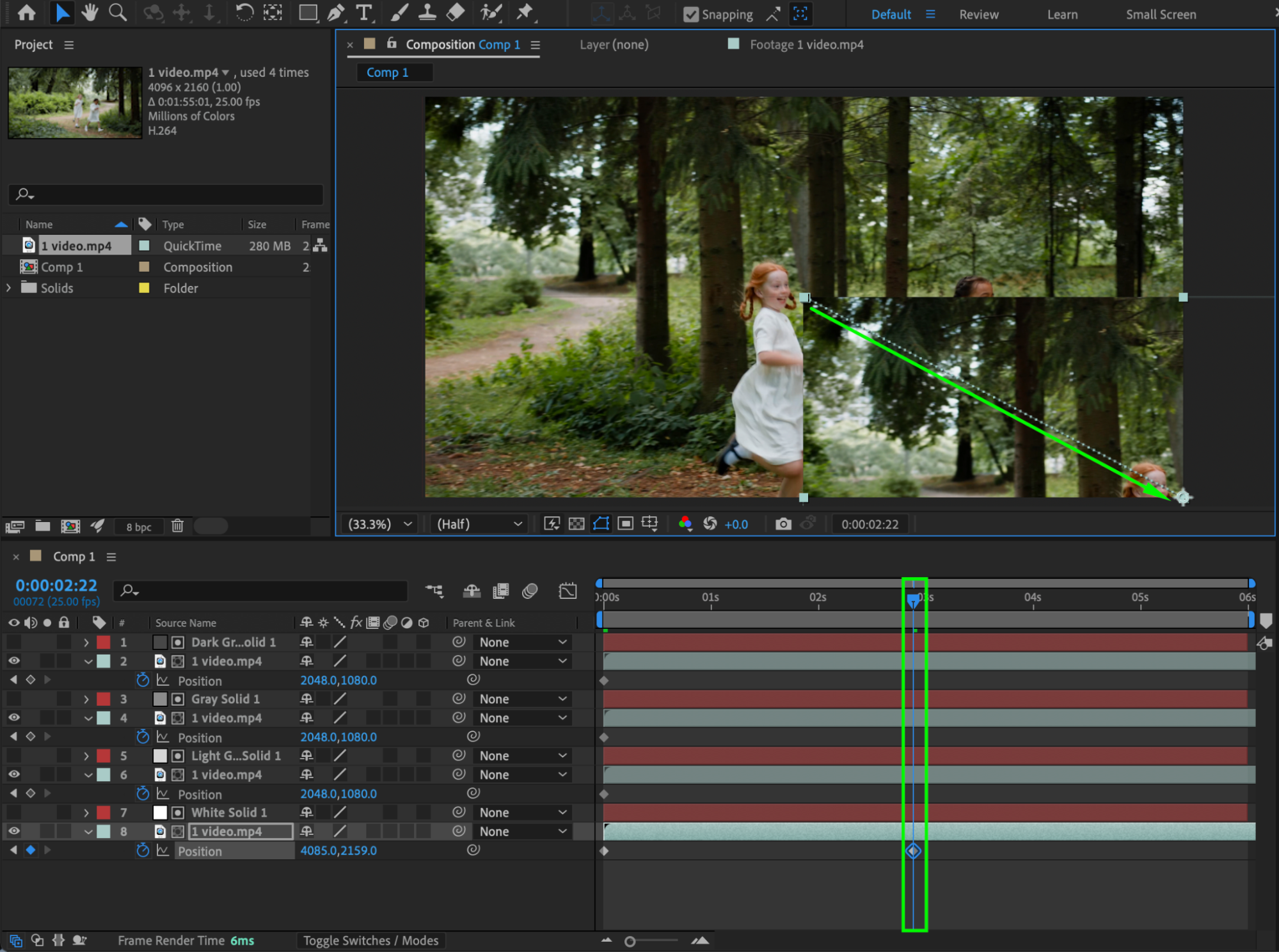
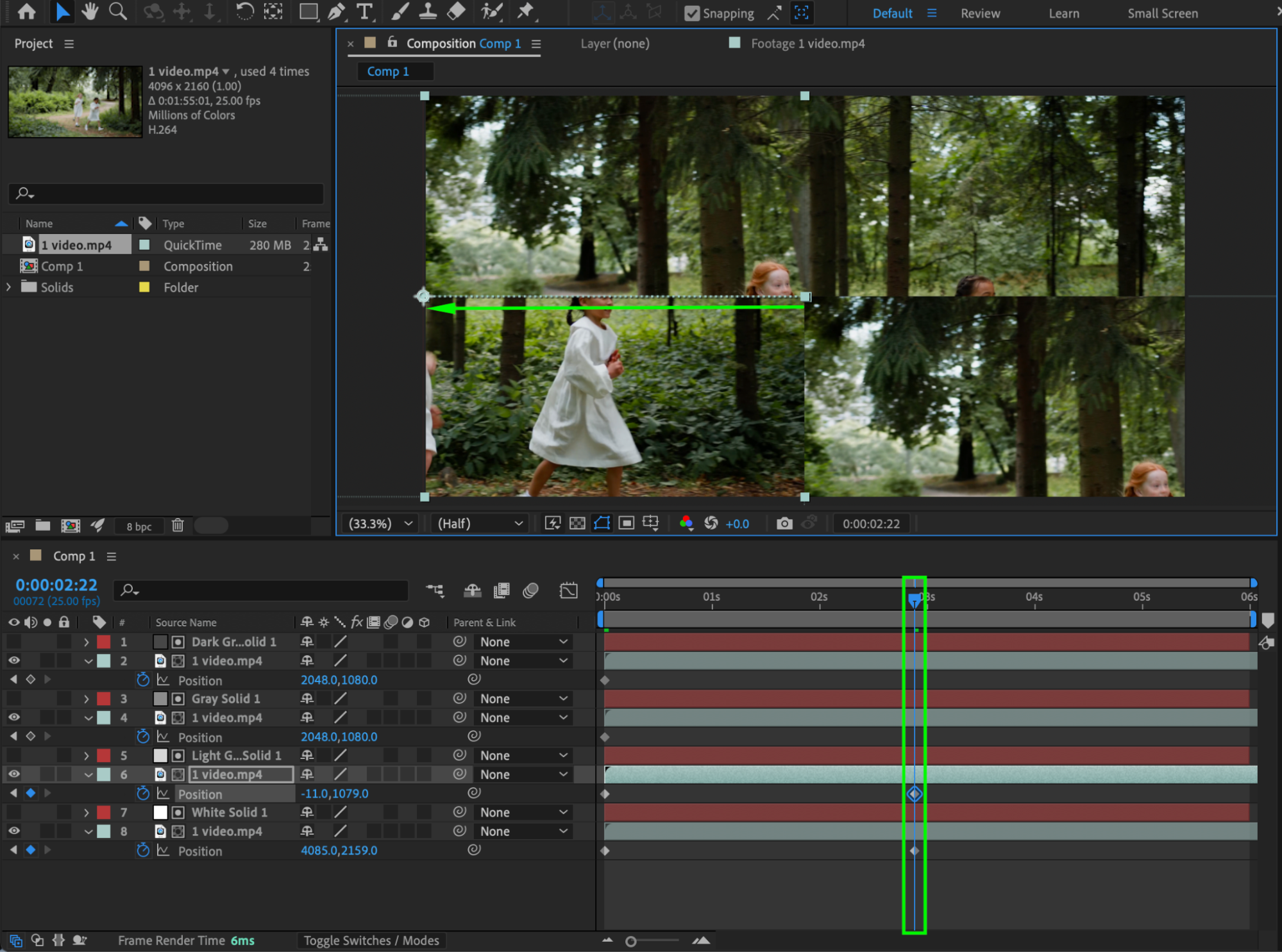
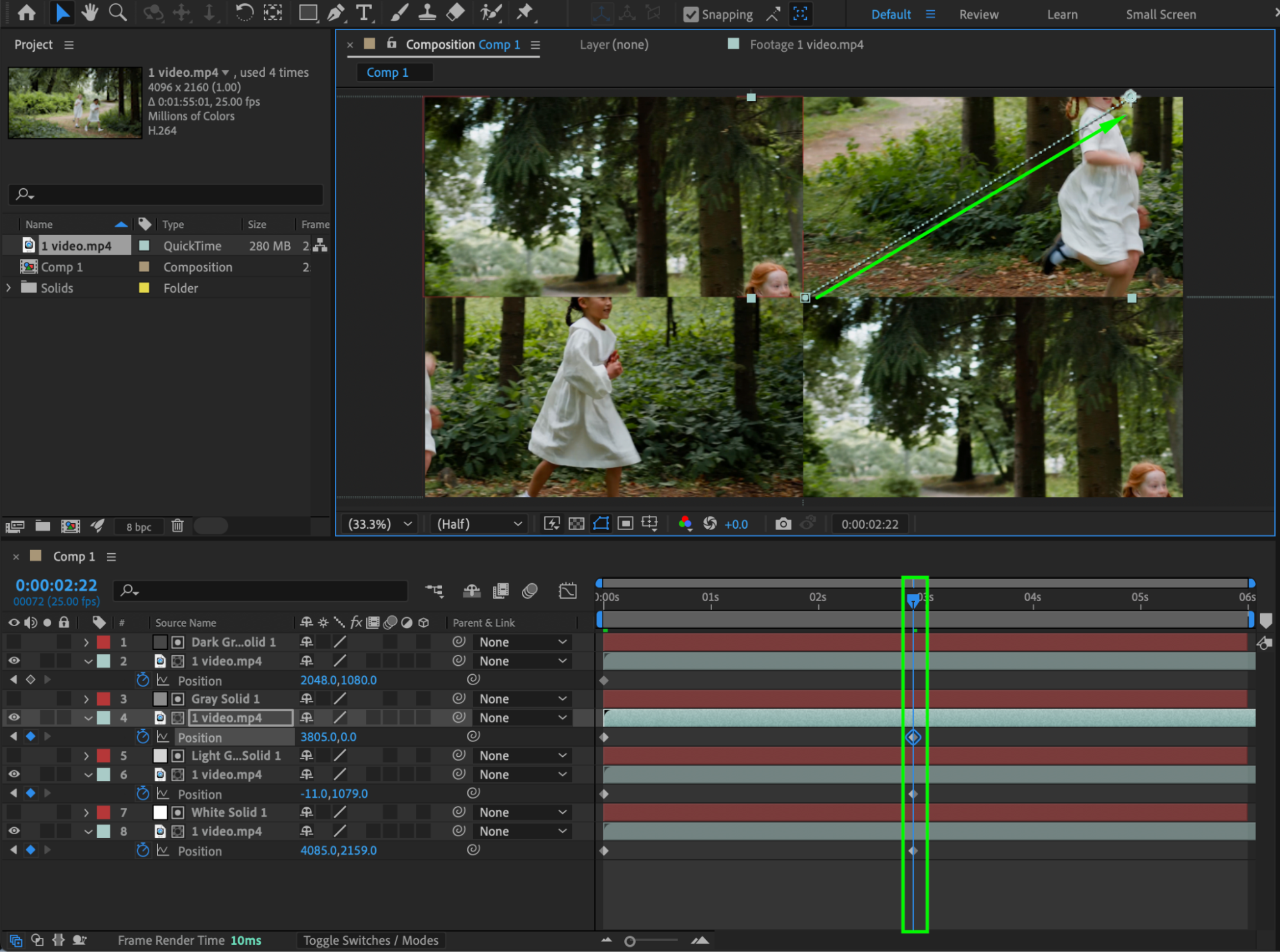
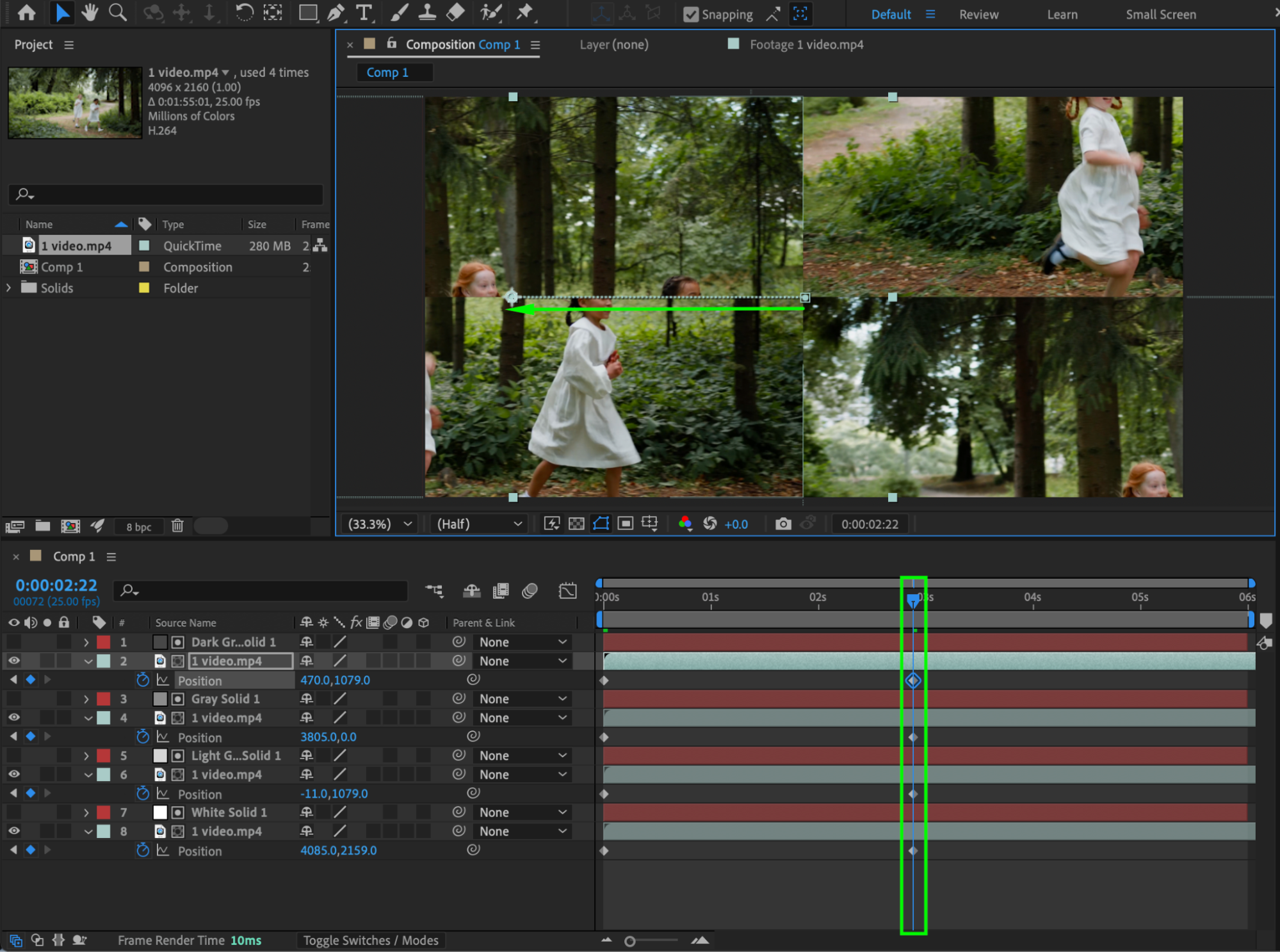
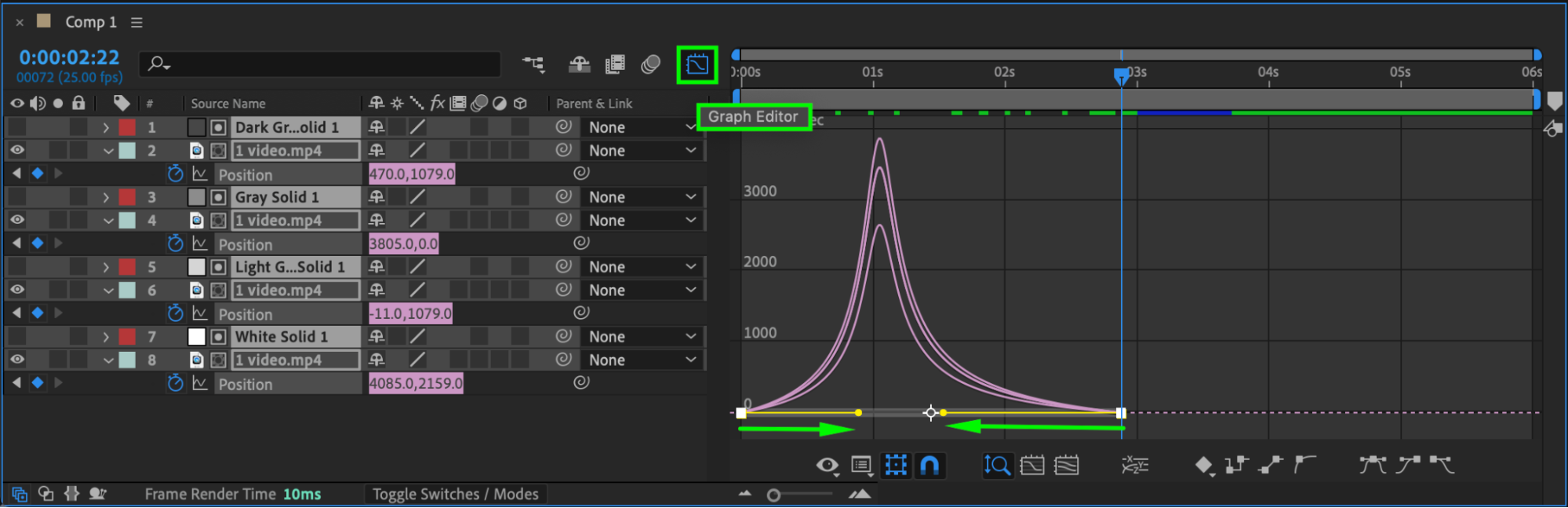
Step 9: Add Easy Ease and Adjust the Graph Editor
Select the position keyframes. Apply Easy Ease, then fine-tune the motion using the Graph Editor for smoother animation.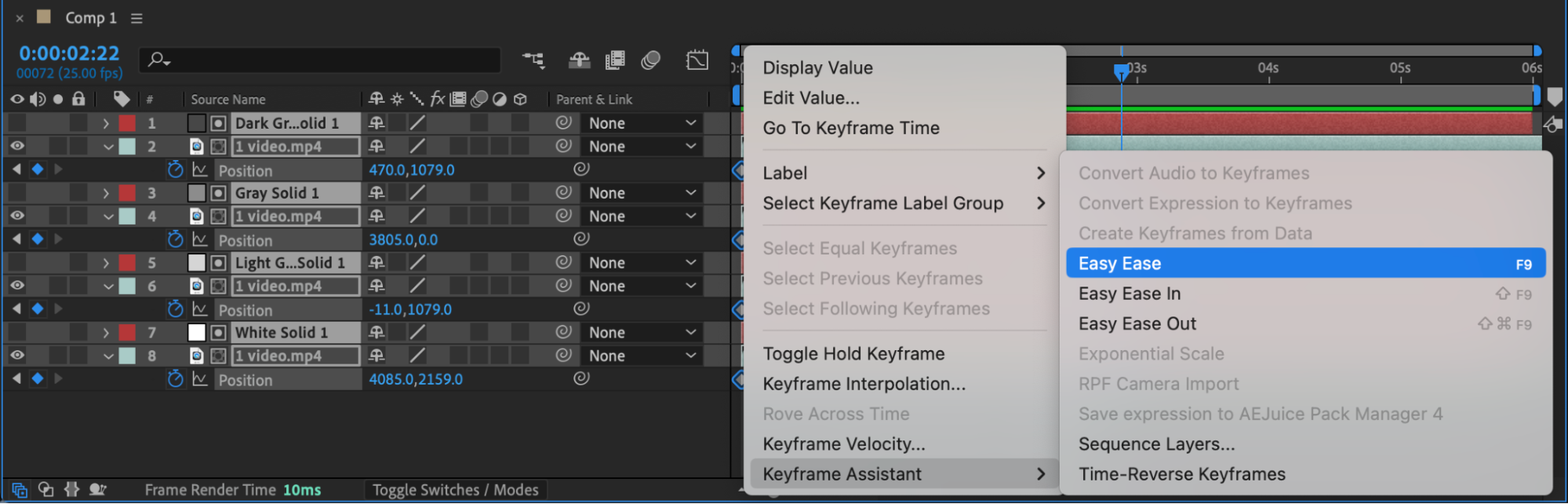
 Step 10: Add the Second Video
Import and place the second video into the composition.
Repeat the track matte setup for the second video.
Set a Position keyframe at the point where you want the transition to fully finish.
Move the CTI backward, copy the four Position keyframes from the first video, and paste them at the beginning of the second video’s animation.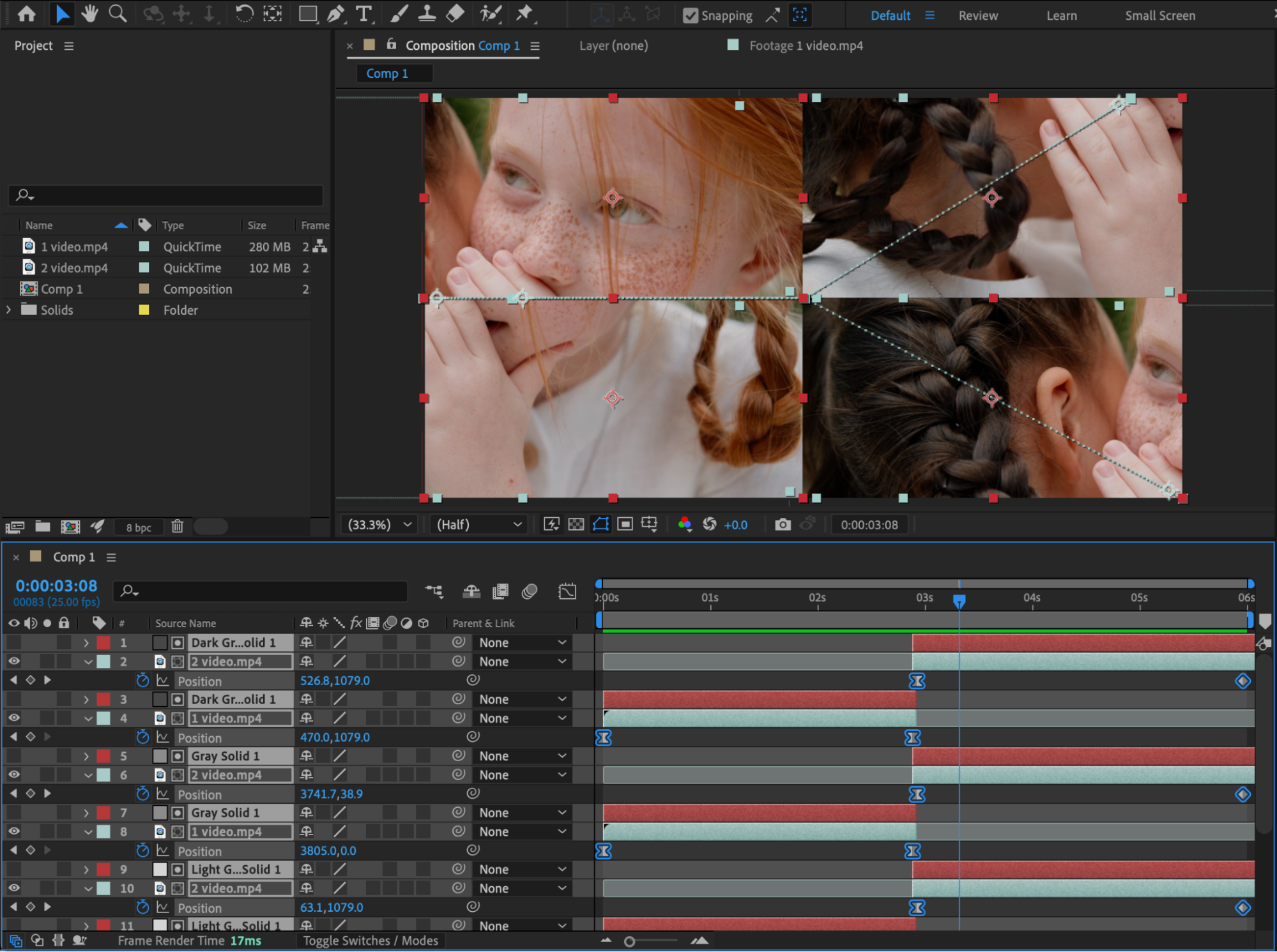 Step 11: Enable Motion Blur
Enable Motion Blur for all video layers and turn on Motion Blur for the composition to enhance realism.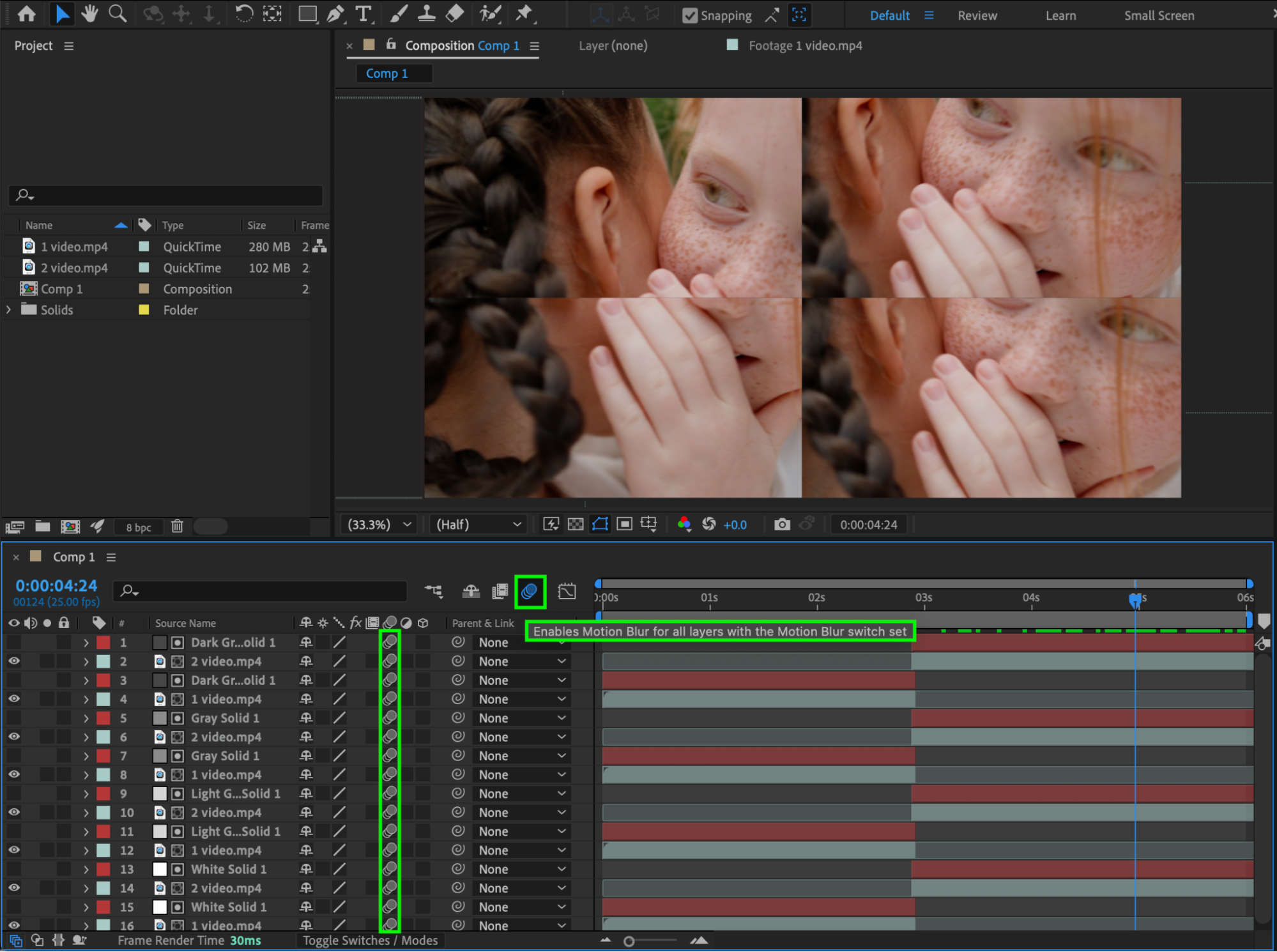 Step 12: Preview and Finalize
Preview the transition. Adjust timing, spacing, and easing until the tile scramble effect feels smooth and dynamic.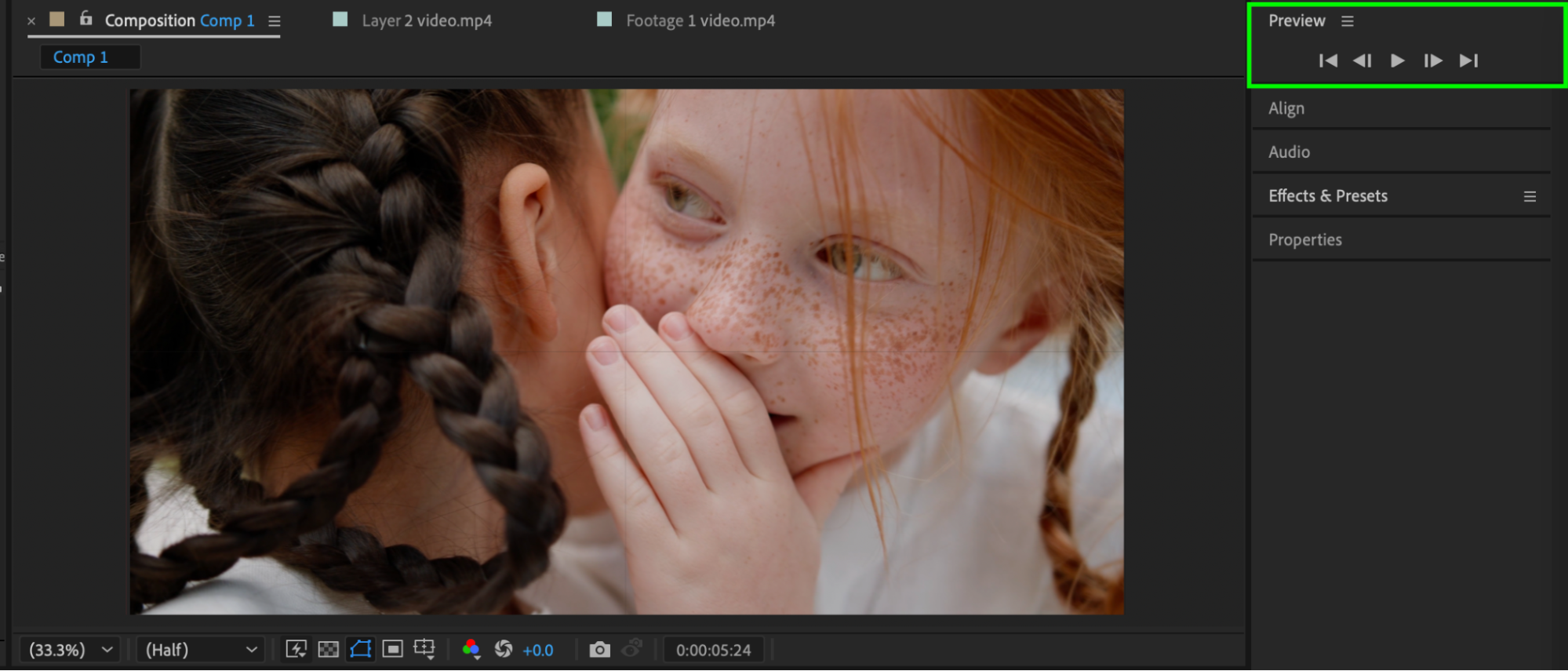 Conclusion
By dividing the frame into multiple tiles and animating their positions with track mattes, you can create a clean and customizable tile scramble transition in After Effects. This technique works well for dynamic edits, promos, and modern motion design projects.
Our Bestsellers
Our Bestsellers


