
Introduction
Emojis can add emotion, emphasis, and personality to motion graphics. In After Effects, emojis can be added either as text characters or as image files. This tutorial covers both methods and shows how to animate emojis easily.
Method 1: Add Emojis as Text Characters
Step 1: Create a Text Layer
Create a new composition. Select the Type Tool (Ctrl / Cmd + T) and click in the Composition panel to create a text layer.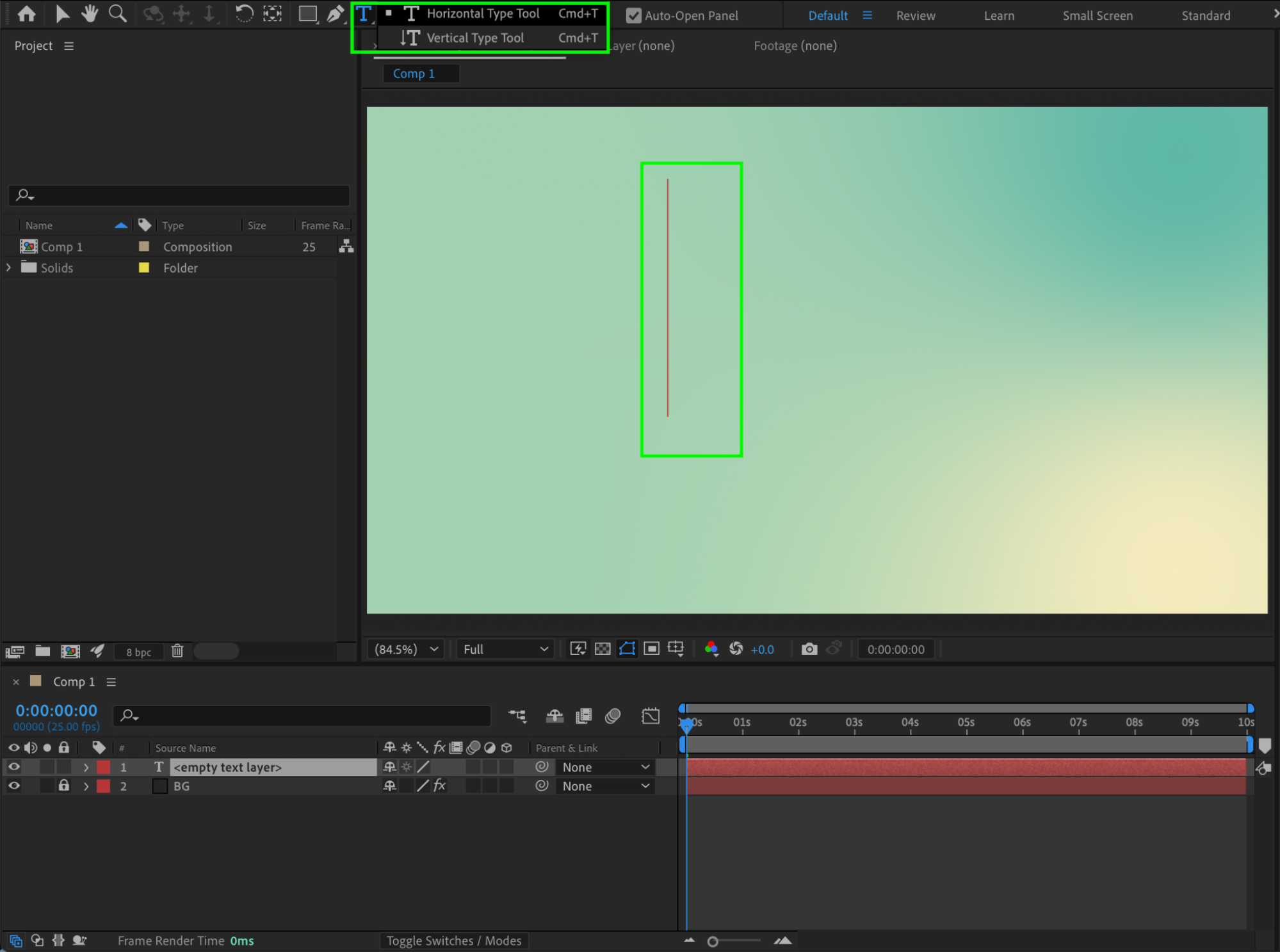
Step 2: Insert an Emoji
Place the text cursor inside the text layer. Insert an emoji by:
Opening the system emoji picker
Windows: Win + .
macOS: Control + Cmd + Space
Or copy and paste an emoji from a website or document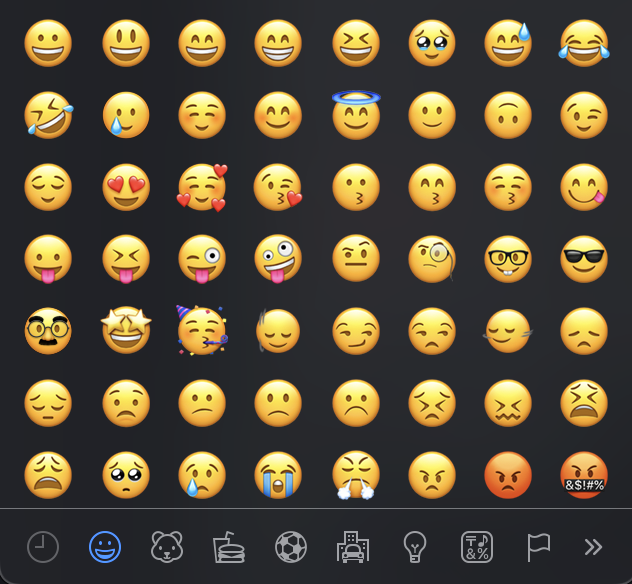
Step 3: Choose an Emoji-Compatible Font
Make sure the text layer uses a font that supports emojis, such as:
Apple Color Emoji (macOS)
Segoe UI Emoji (Windows)
Noto Color Emoji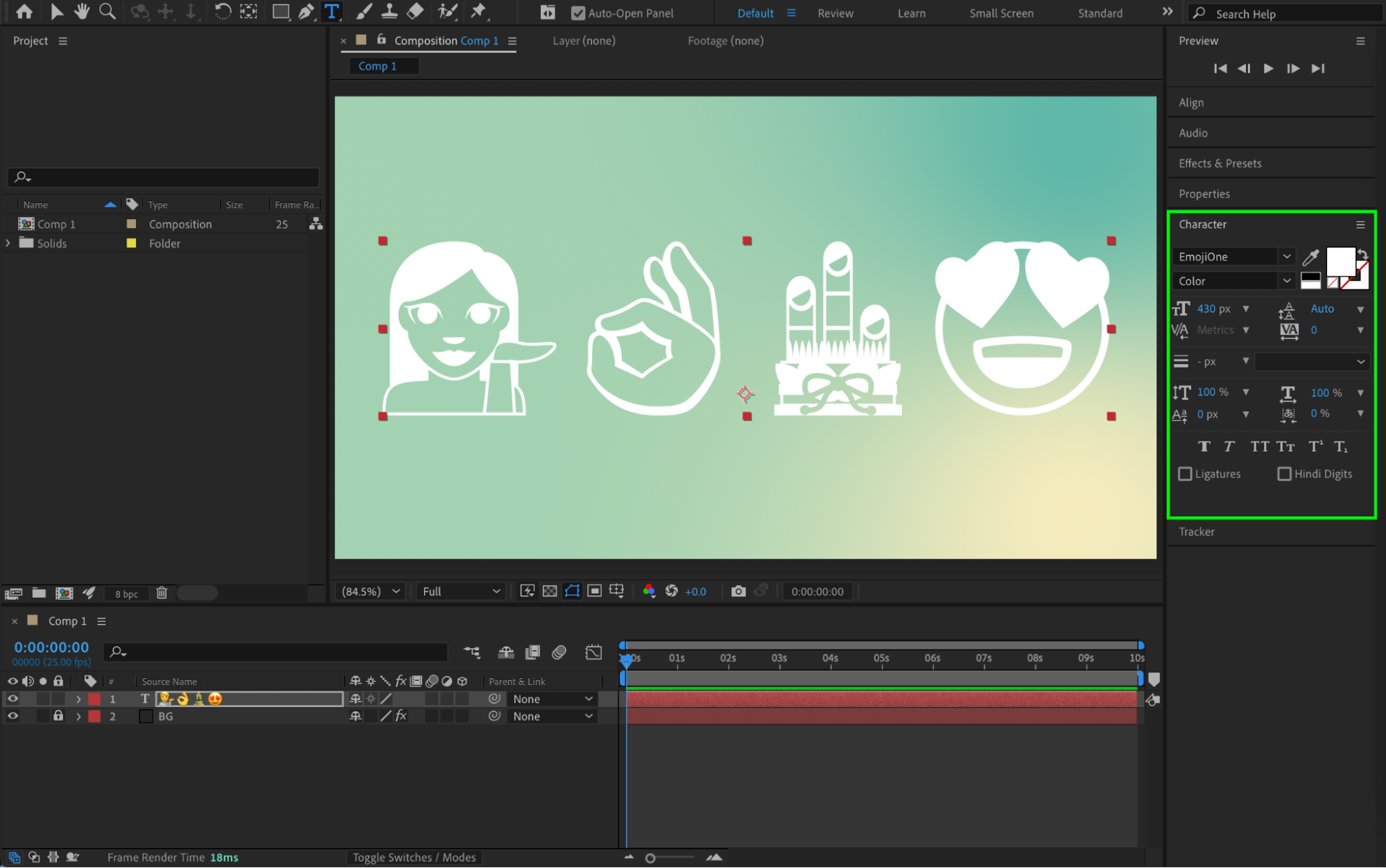 Step 4: Animate the Emoji
Animate the emoji like any other text:
Scale
Position
Rotation
Opacity
You can also use Text Animators for more advanced animation.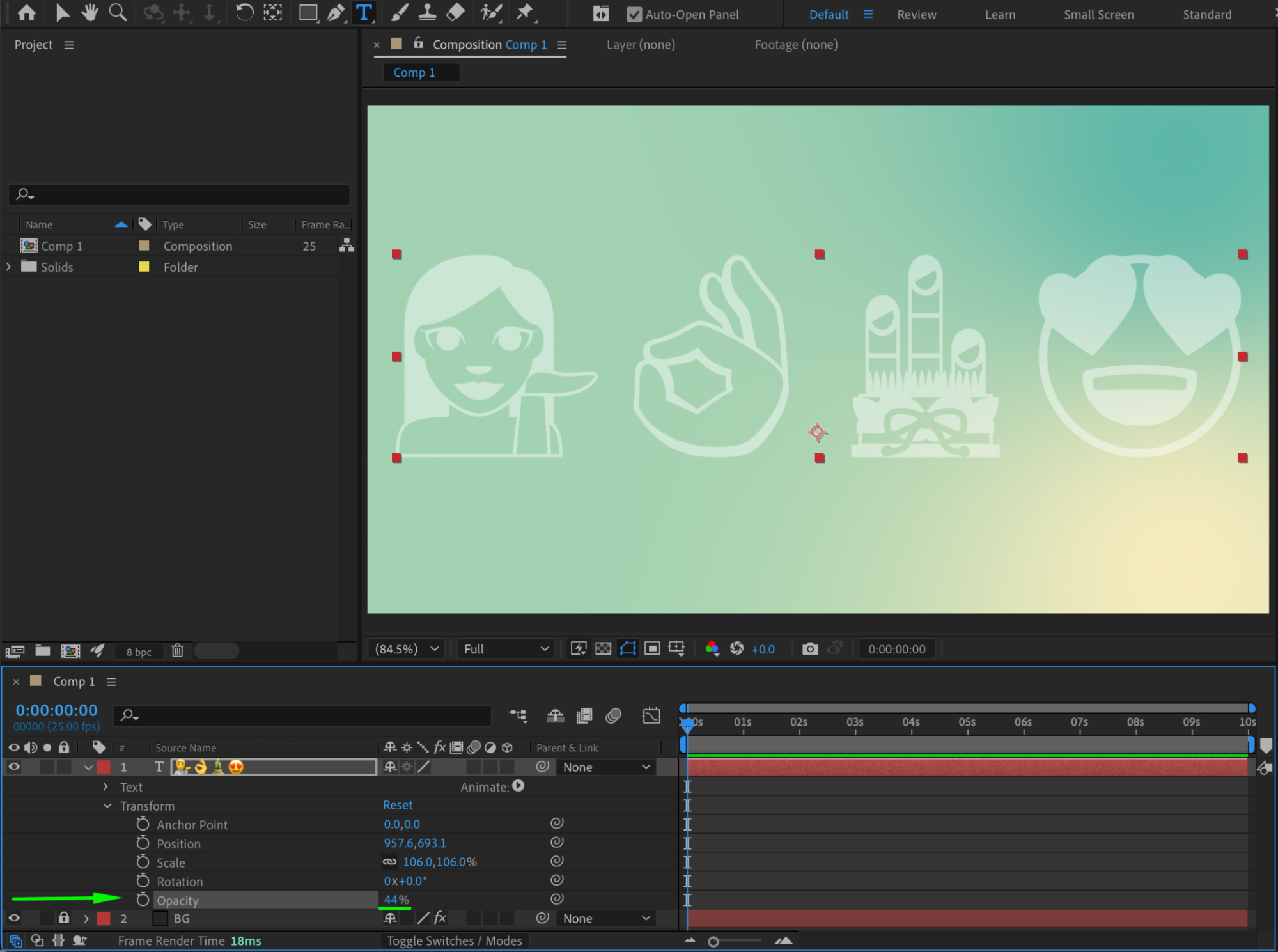
Method 2: Add Emojis as Image Files
Step 1: Import the Emoji Image
Go to File → Import → File and import a PNG or SVG emoji image. Drag the emoji image onto the timeline.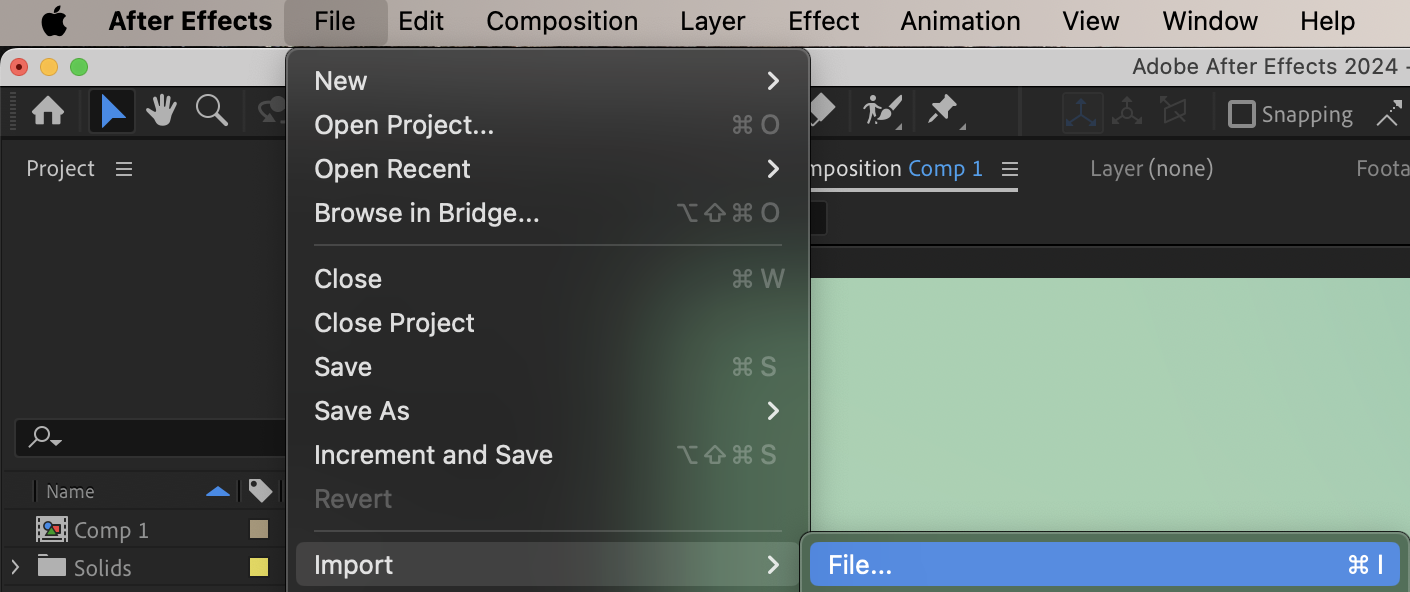
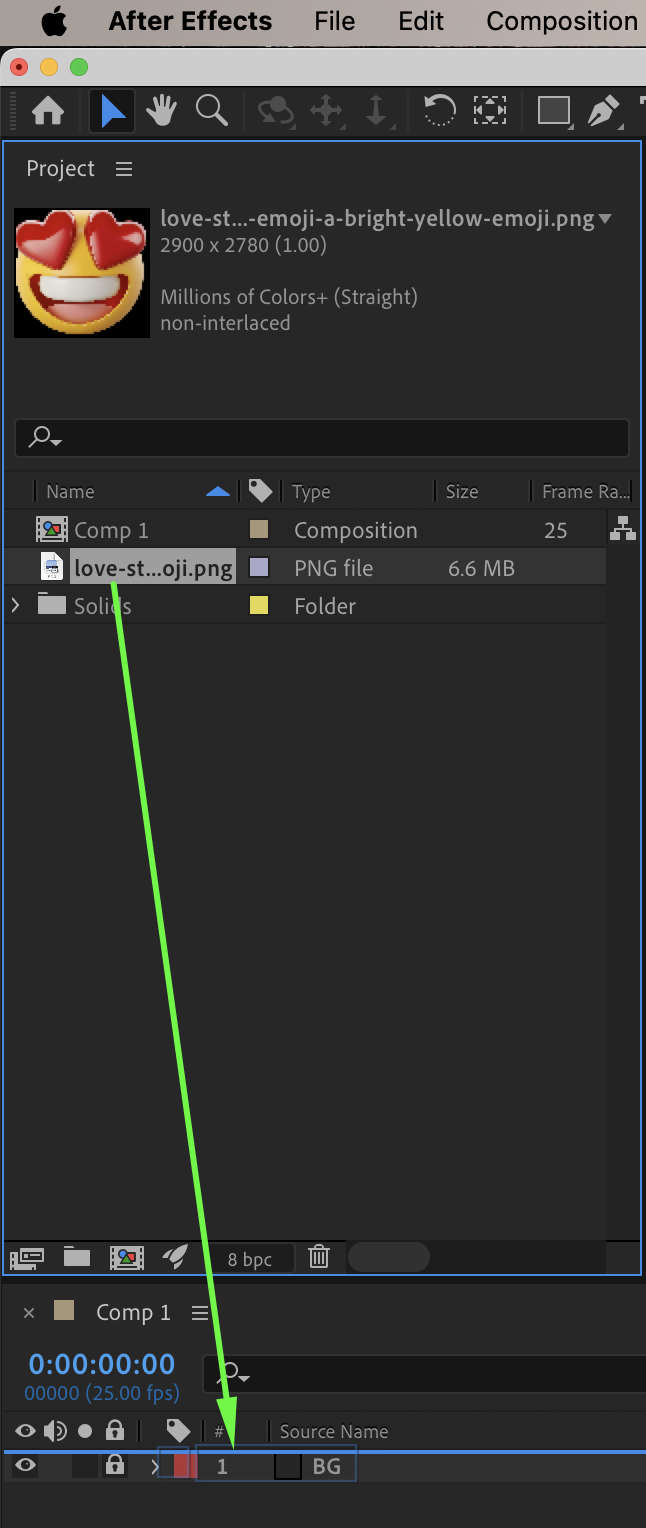 Step 2: Animate the Emoji Image
Use standard transform properties (Scale, Position, Rotation) to animate the emoji. This method ensures consistent appearance across all platforms.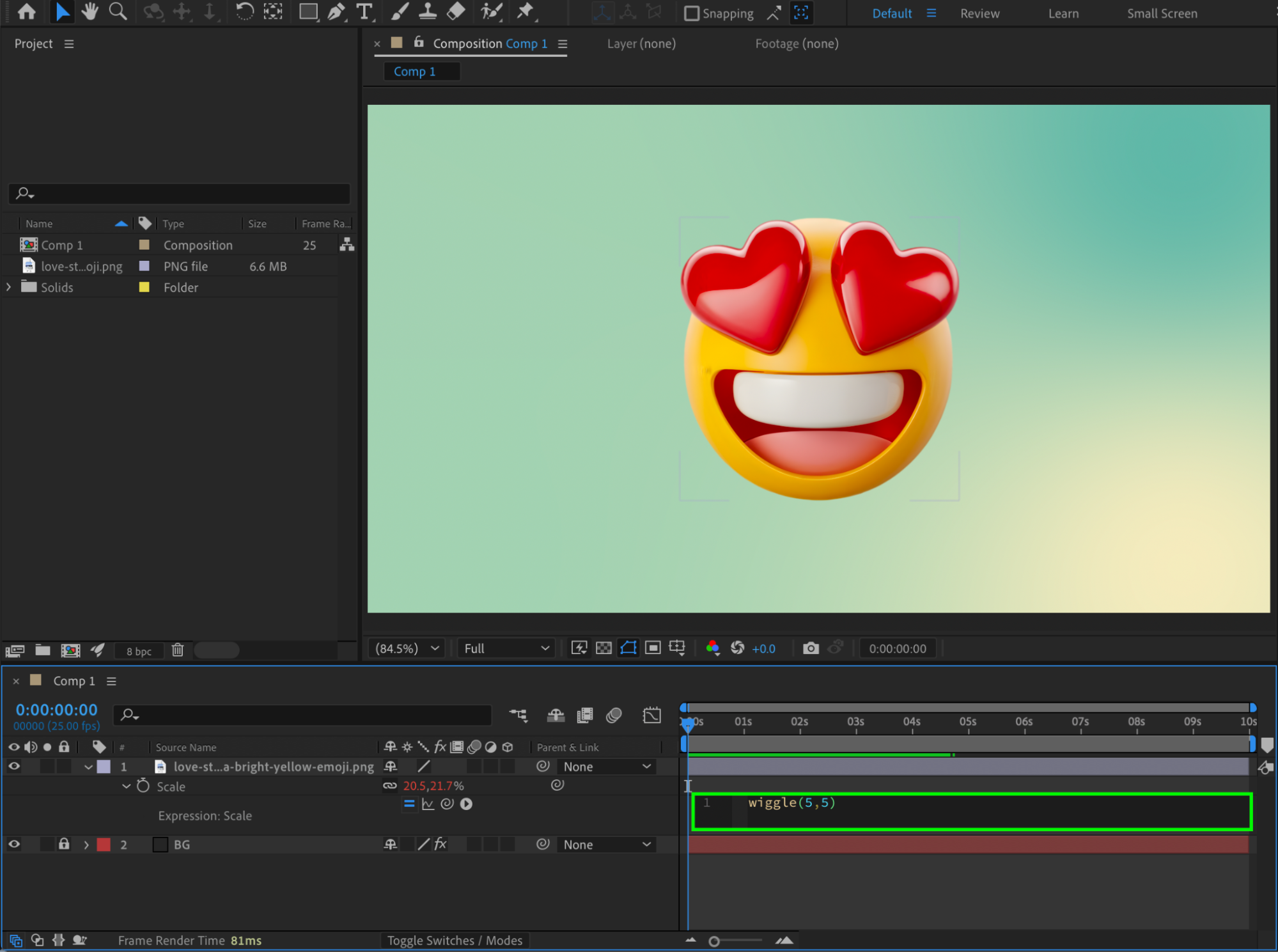
Tips and Notes
Emoji appearance may vary between operating systems.
Image-based emojis offer the most visual consistency.
Keep emoji sizes reasonable to avoid pixelation.
Conclusion
Adding emojis in After Effects is simple using text layers or image files. Animated or static, emojis add clarity, emotion, and visual interest to motion graphics, social media content, and UI animations.
Our Bestsellers
Our Bestsellers


