
Introduction
In After Effects, the Track Matte feature allows you to use one layer to control the visibility of another based on its alpha or luminance values. However, each layer can only have one track matte applied directly.
If you want to use multiple track mattes — for example, to combine two masks or create layered effects — you can easily simulate this using blending modes and stencil options.
Step 1: Prepare Your Layers
Import your footage or create the layers you want to use. Place your main layer (the one you want to reveal) at the bottom and your matte layer (the one that defines transparency) above it in the Timeline.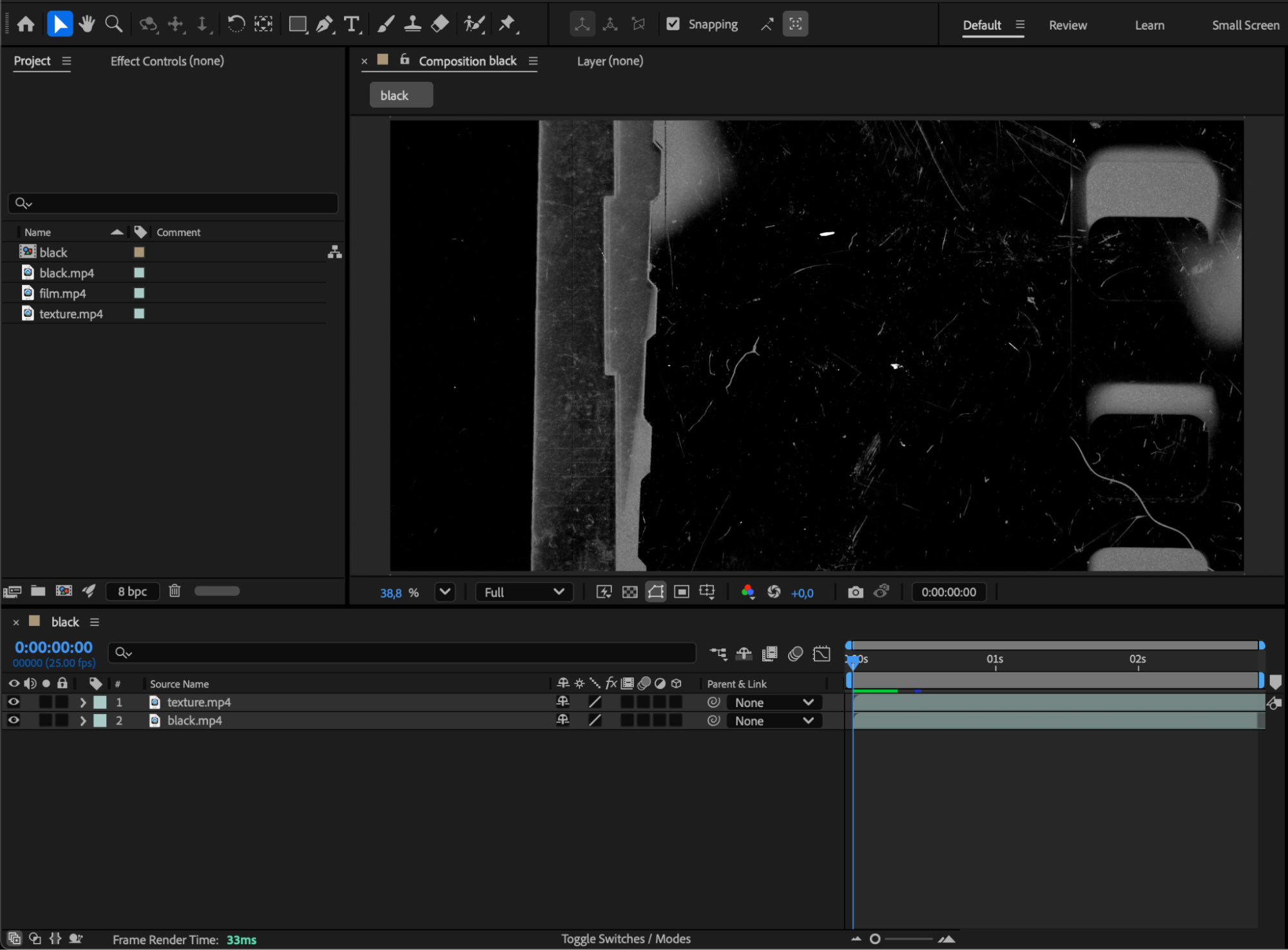
Step 2: Apply the First Track Matte
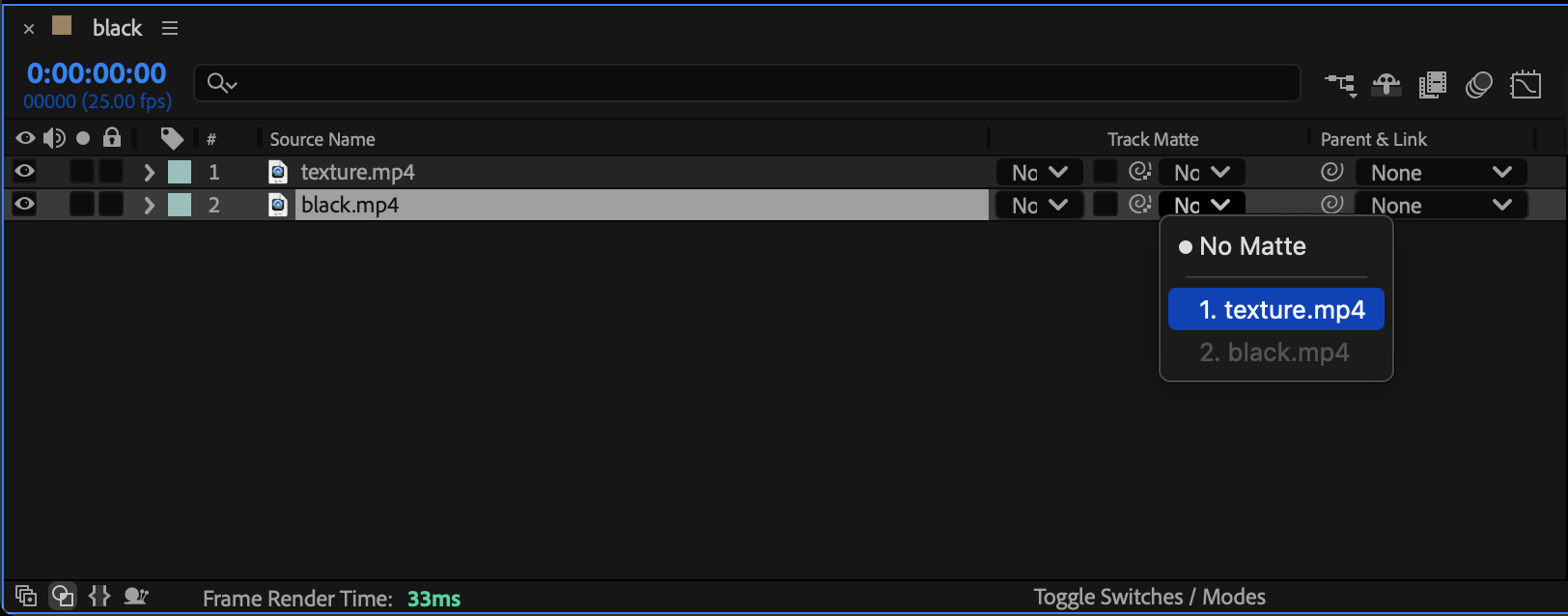
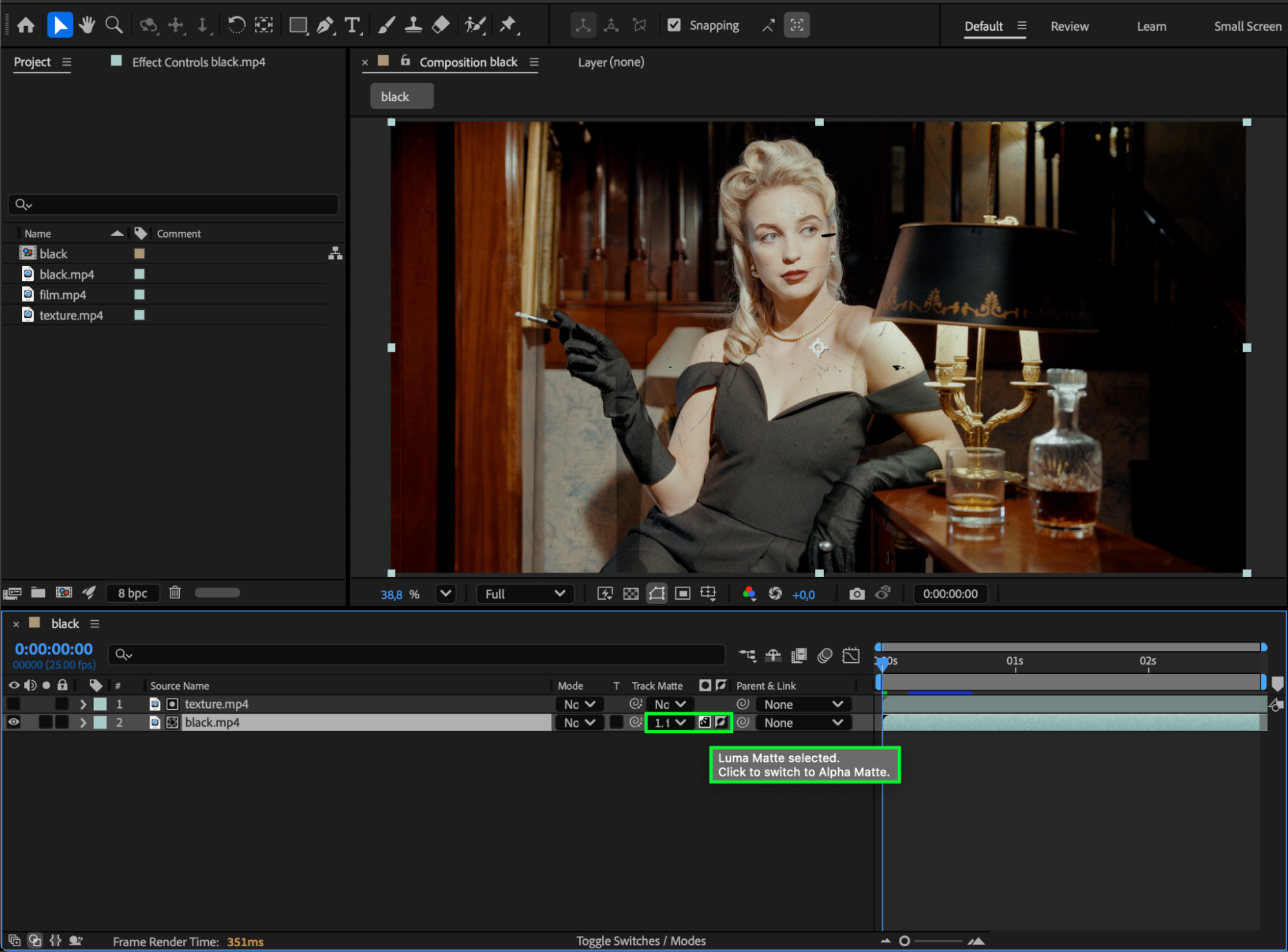
Click the Toggle Switches/Modes button at the bottom of the Timeline to display the Track Matte column. For your main footage layer, choose your matte layer as the Track Matte source and select either Alpha Matte or Luma Matte, depending on which works best for your design.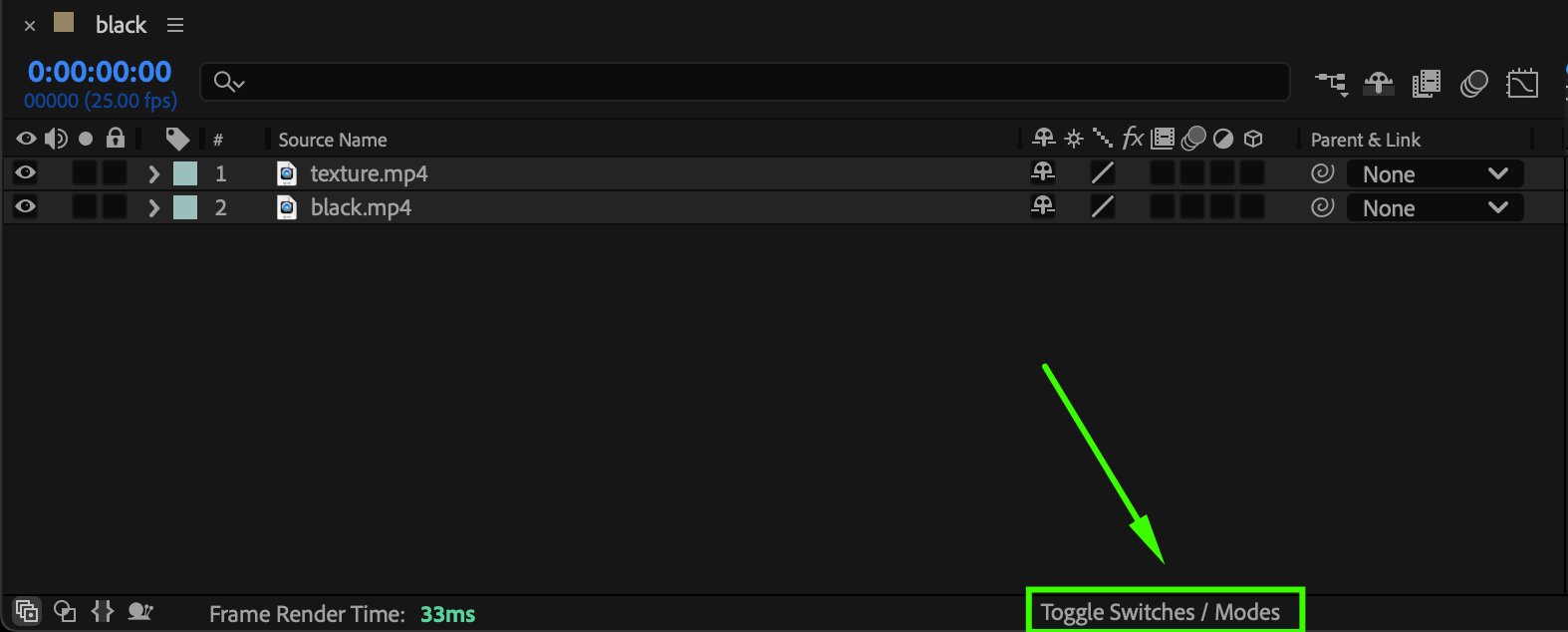
 Step 3: Add a Second Matte Using Stencil or Blending Modes
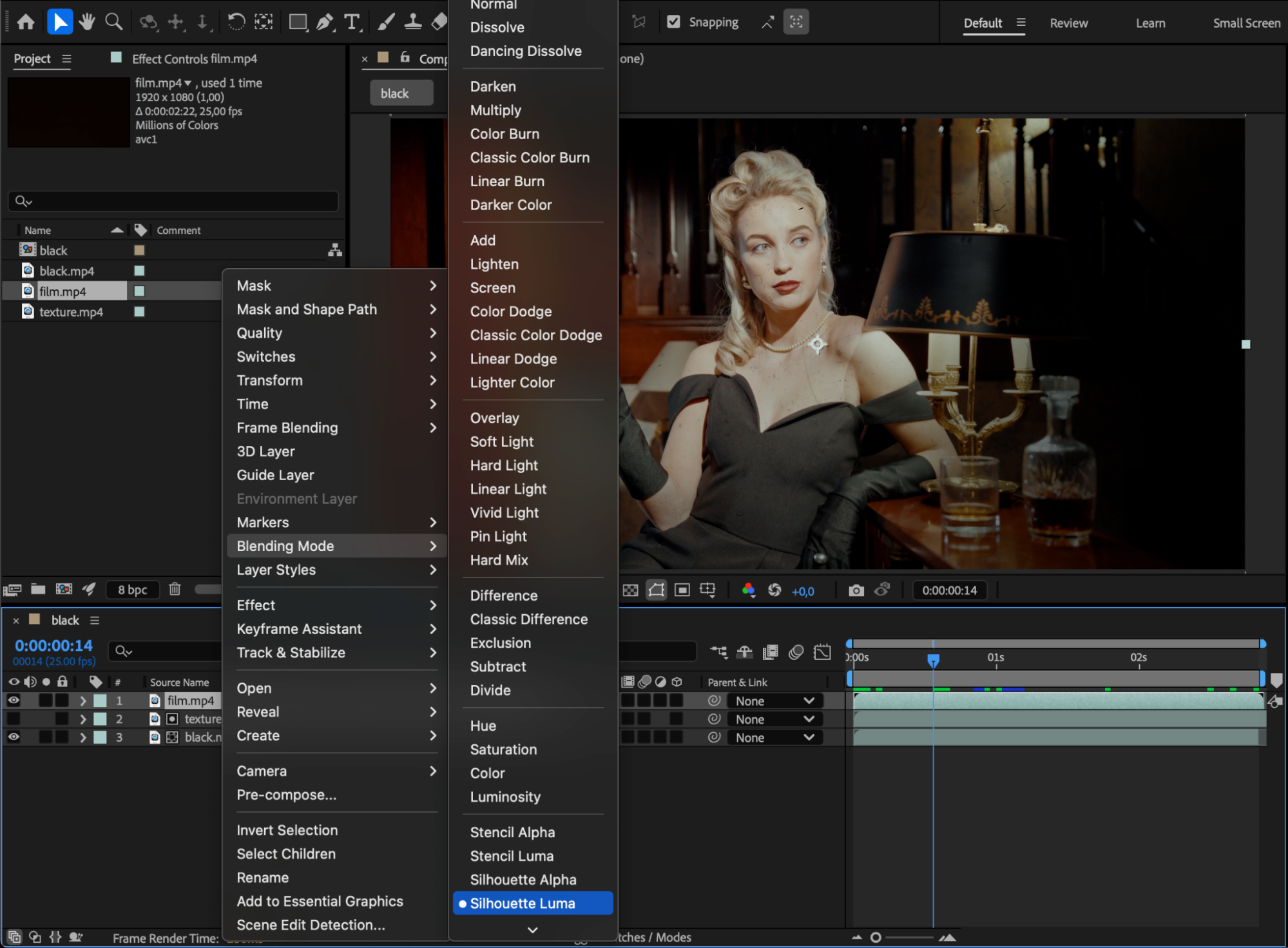
Add another matte layer from your Project panel and place it on top of your existing layers. Right-click on this new layer, go to Blending Mode, and choose one of the following to simulate a second matte:
Stencil Alpha or Stencil Luma (for cutting through all layers below)
Silhouette Alpha or Silhouette Luma (for subtracting transparency)
You can also experiment with other blending modes such as Overlay, Screen, or Multiply to achieve creative results.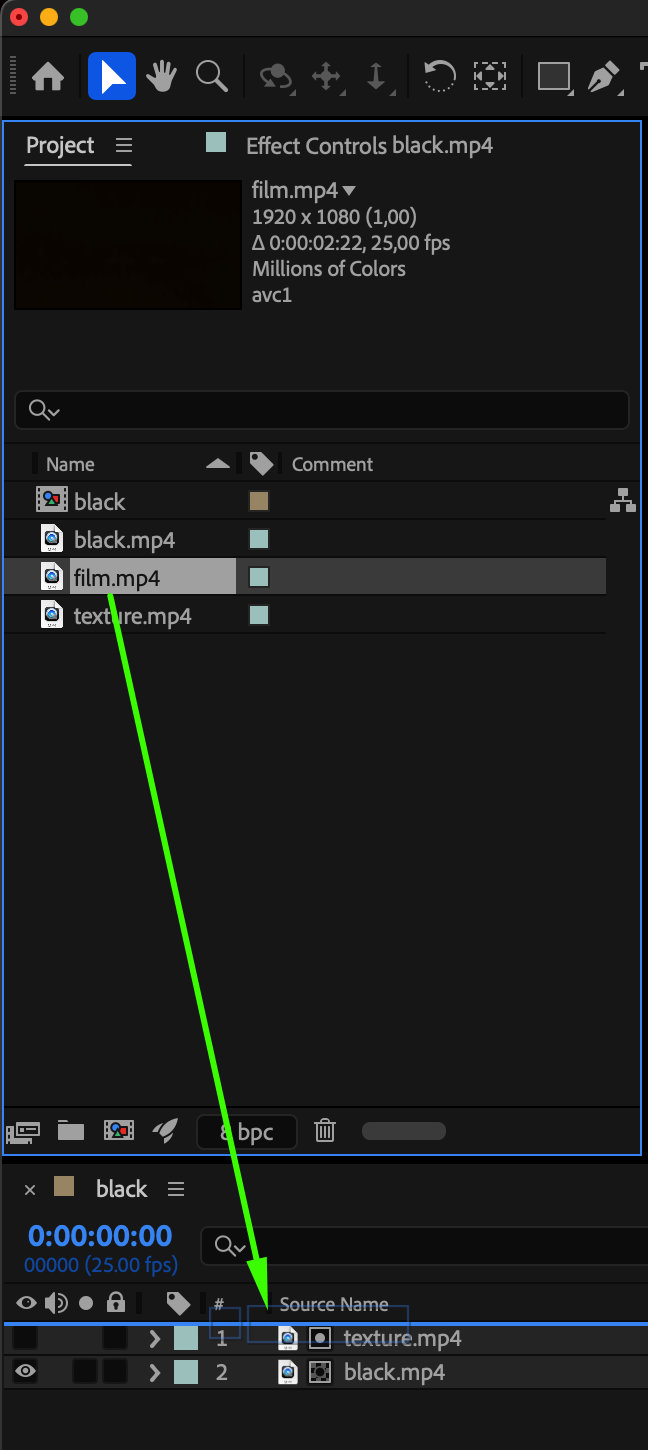
Step 4: Preview Your Composition
Press Spacebar to preview your animation. Adjust the opacity, blending mode, or layer order if necessary until you get the desired multi-matte effect.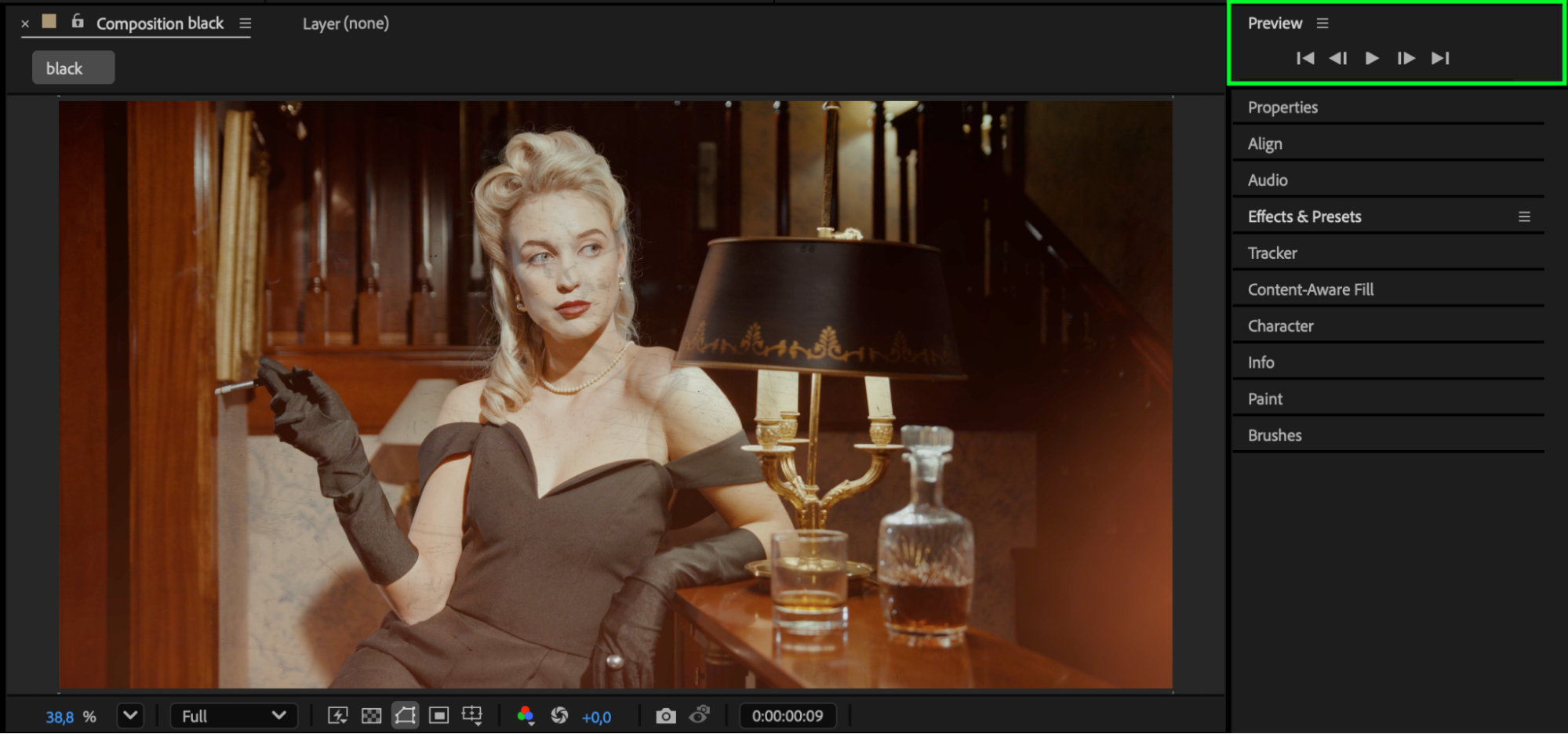
Conclusion
By combining Track Mattes with Stencil or Blending Mode options, you can effectively use more than one matte in After Effects. This technique is perfect for building complex composites, layered transparency effects, or creative transitions that go beyond a single track matte limit.
Our Bestsellers
Our Bestsellers


