
Introduction
This tutorial explains how to add perspective to text in After Effects so it appears naturally integrated into a scene. You’ll use 3D text layers, rotation controls, depth positioning, and optional lighting and tracking for a more realistic result.
Step 1: Import and Place the Video
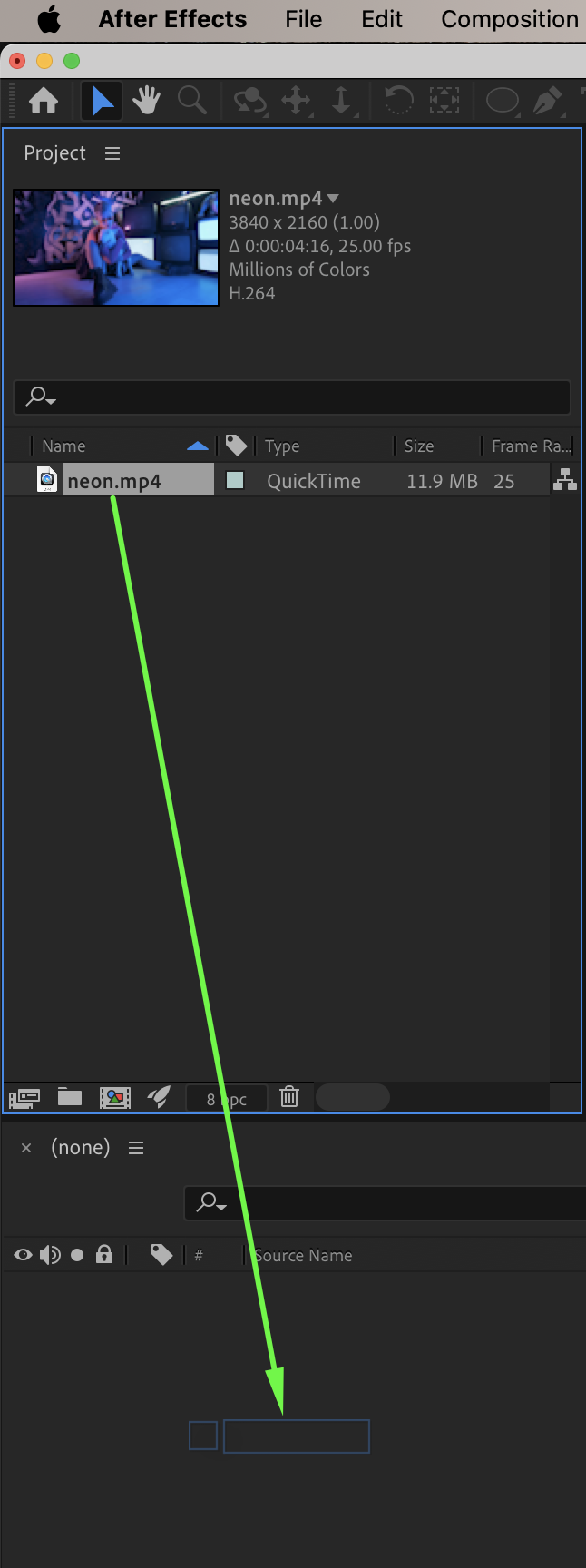
Go to File > Import > File and import your video. Drag the video onto the timeline.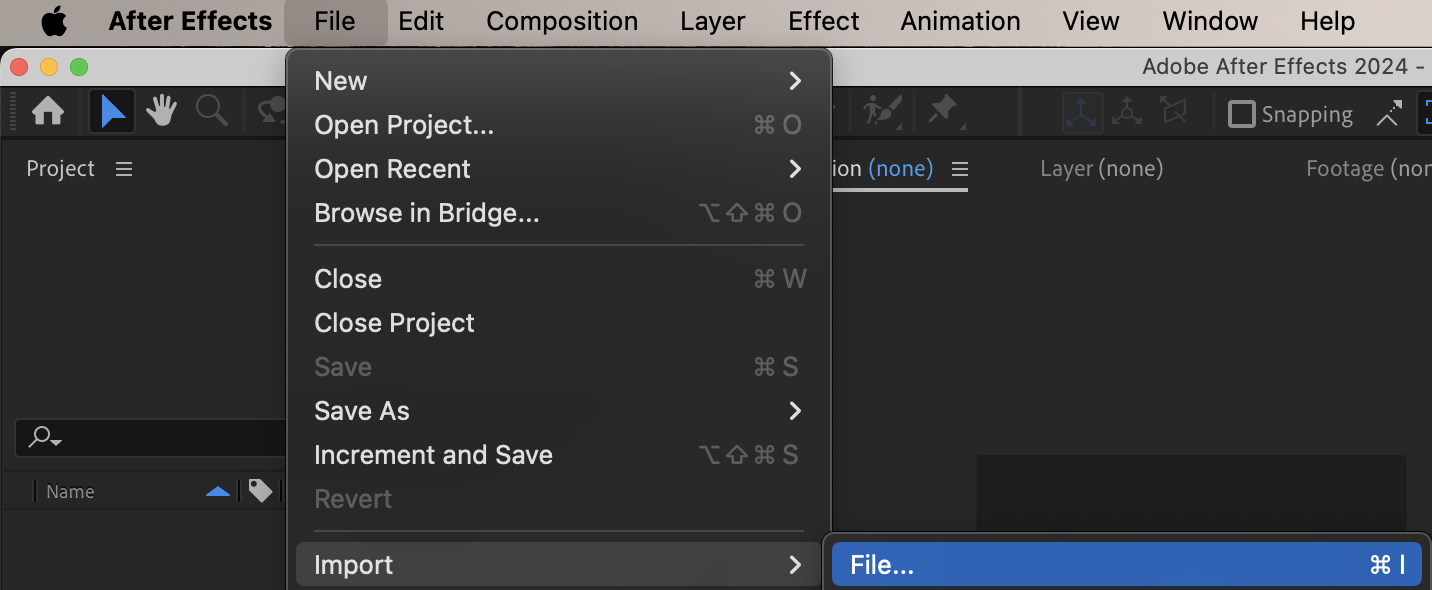
 Step 2: Create the Text Layer
Select the Type Tool (Ctrl / Cmd + T) and create your text in the Composition panel.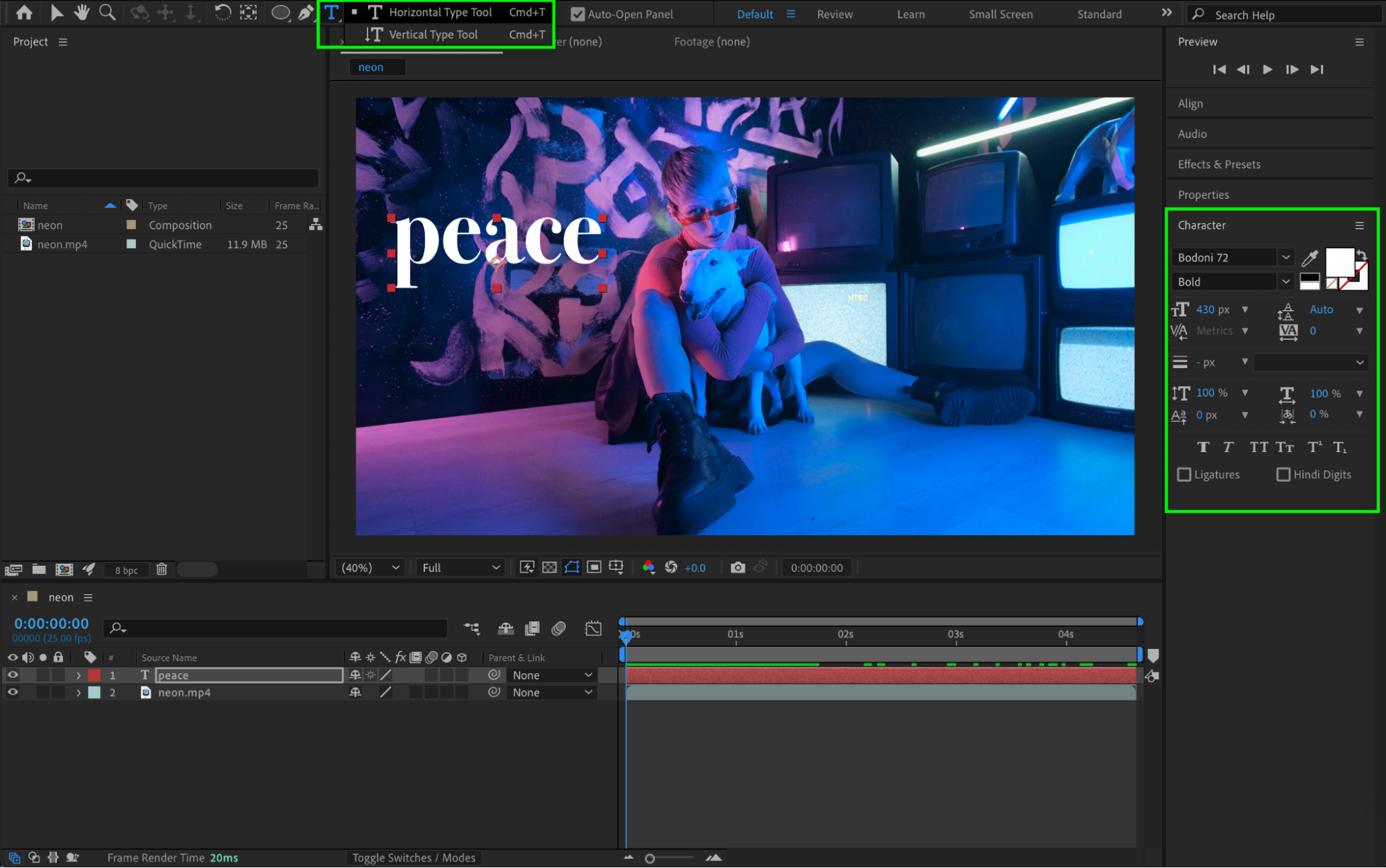
Step 3: Enable 3D and Adjust Orientation
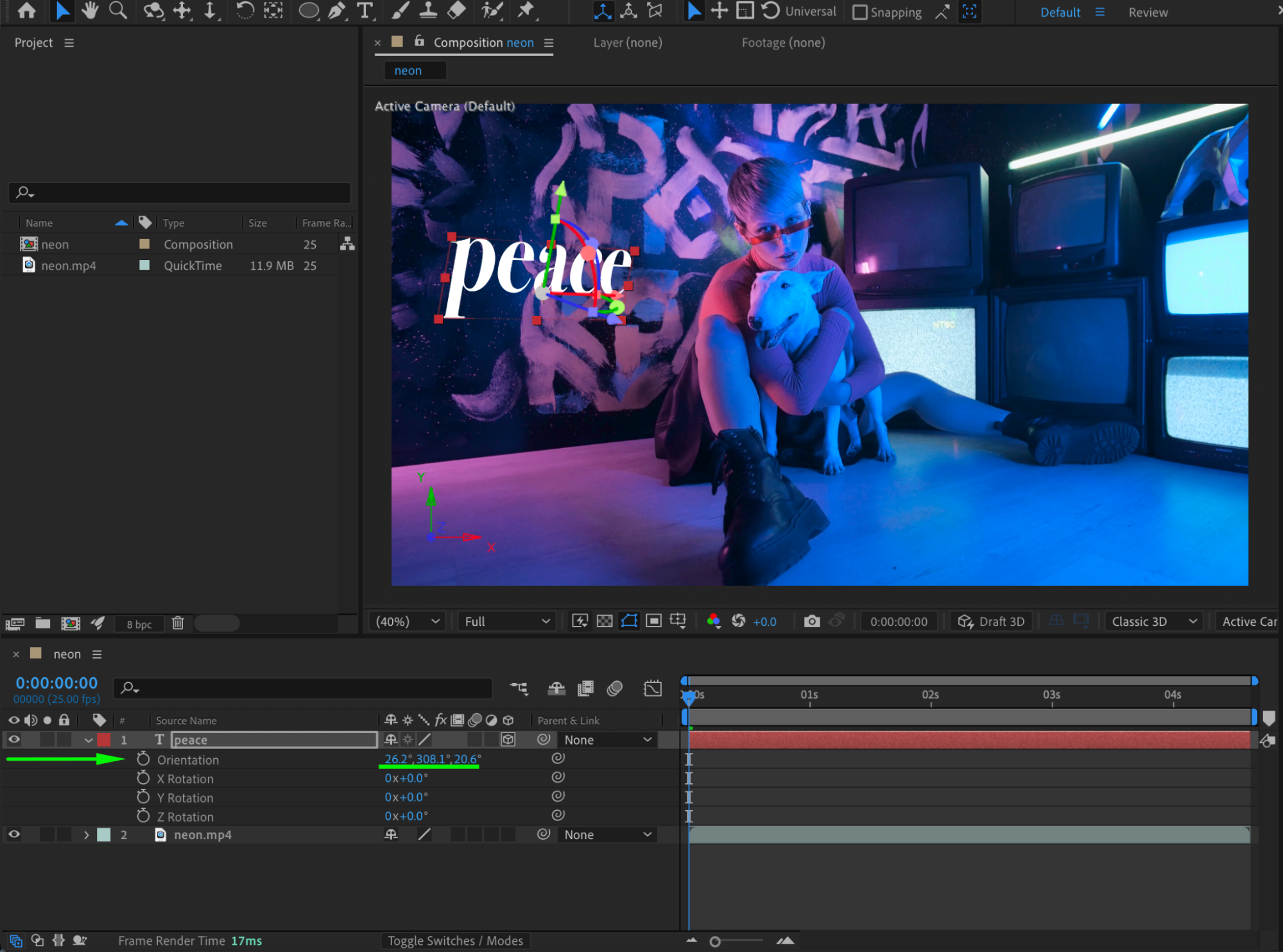
Enable the 3D Layer switch for the text layer. Either:
Adjust the Orientation manually, or
Use the X, Y, and Z Rotation properties to control the text’s perspective.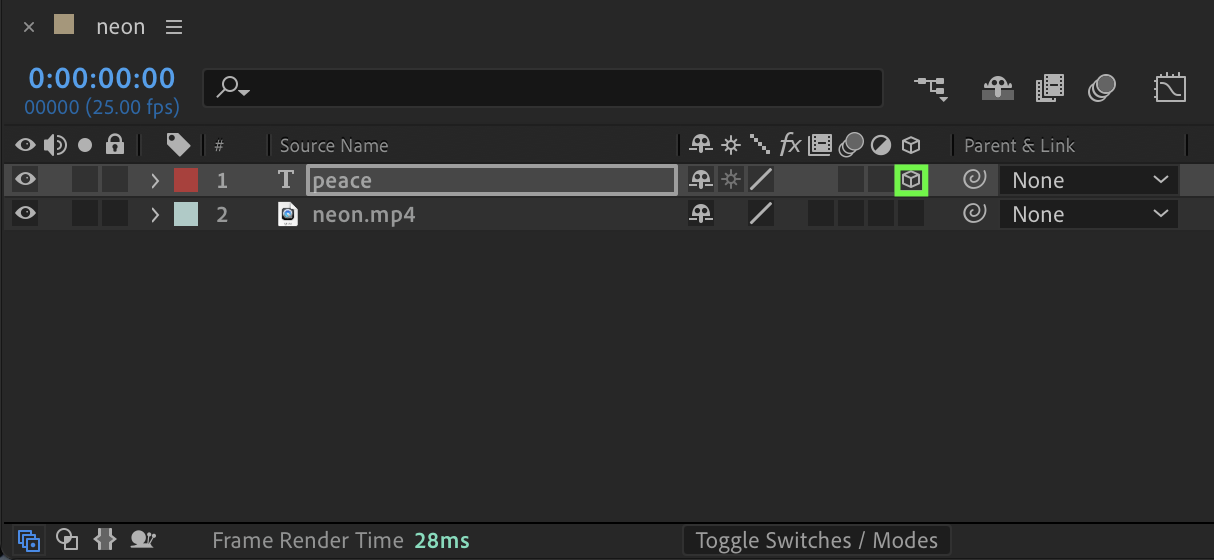
 Step 4: Adjust Depth Using Z Position
Expand the Position property of the text layer. Adjust the Z value to move the text closer to or farther away from the camera.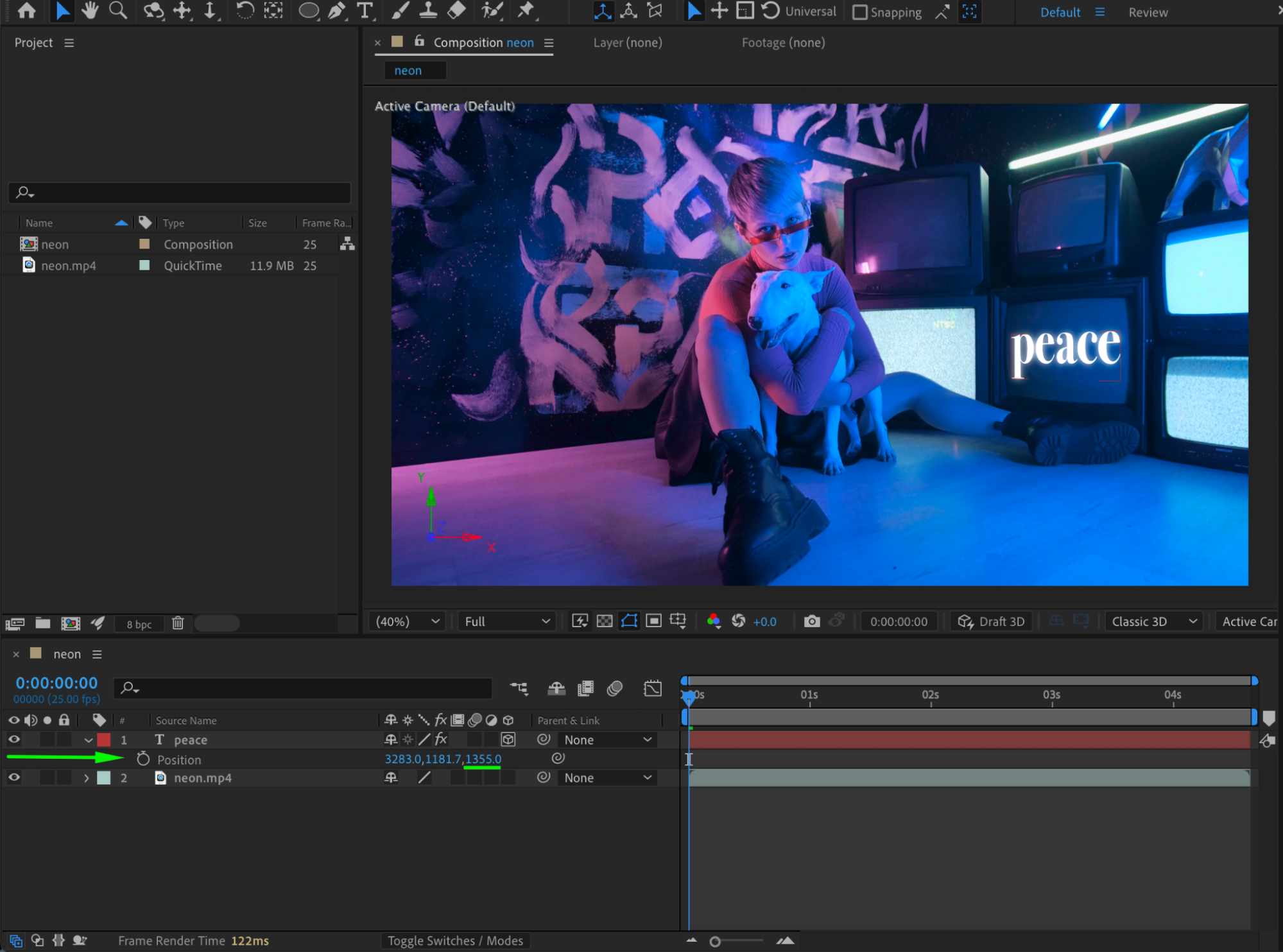
Step 5: (Optional) Add a Spotlight
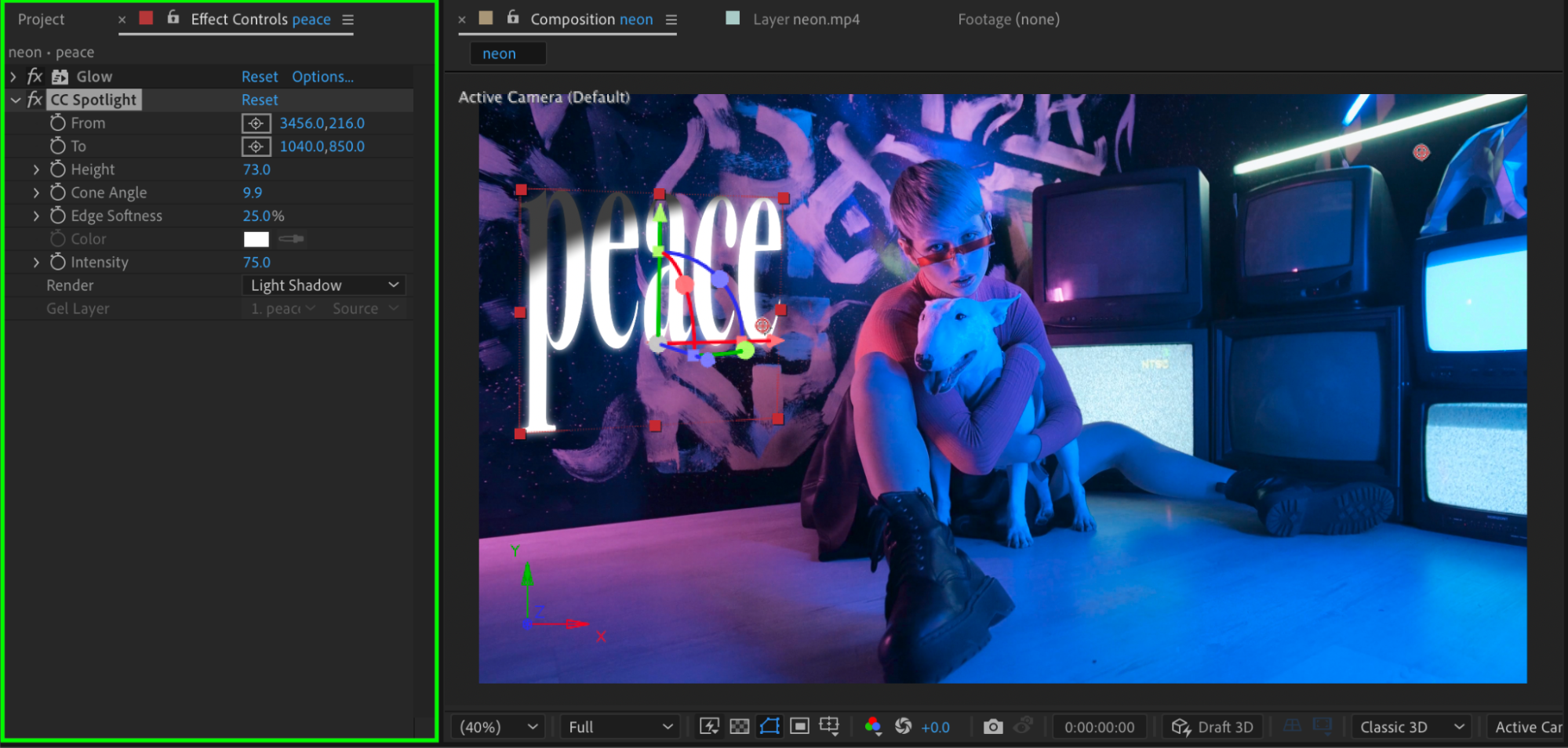
Optionally, apply a Spotlight effect or add a Light Layer to enhance depth and realism.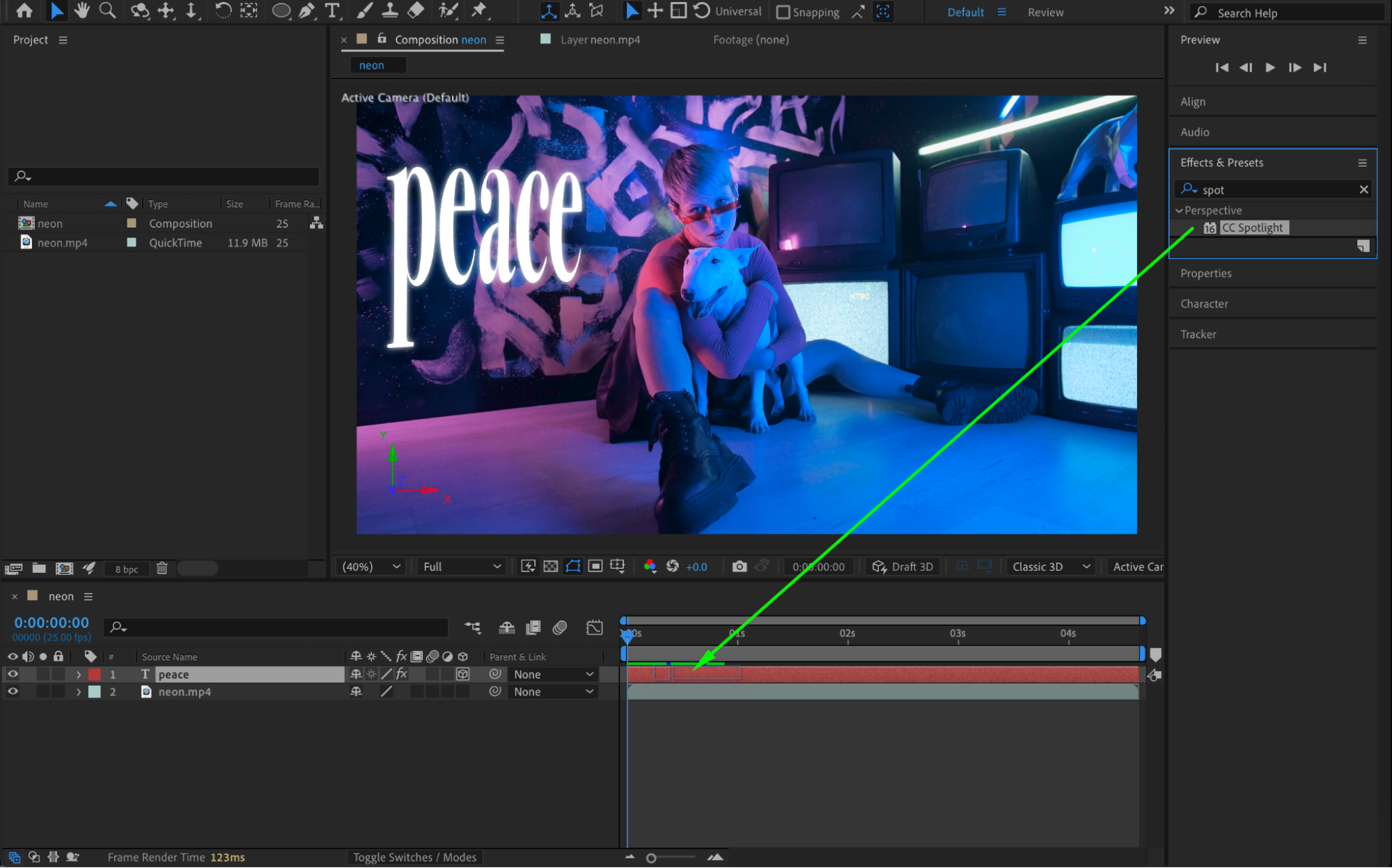
Step 6: (Optional) Add Tracking
You can optionally use motion tracking to attach the text to a moving surface in the video for a more realistic perspective match.
Step 7: Preview and Finalize
Preview the composition and fine-tune rotation, depth, lighting, and tracking until the text feels naturally placed in the scene.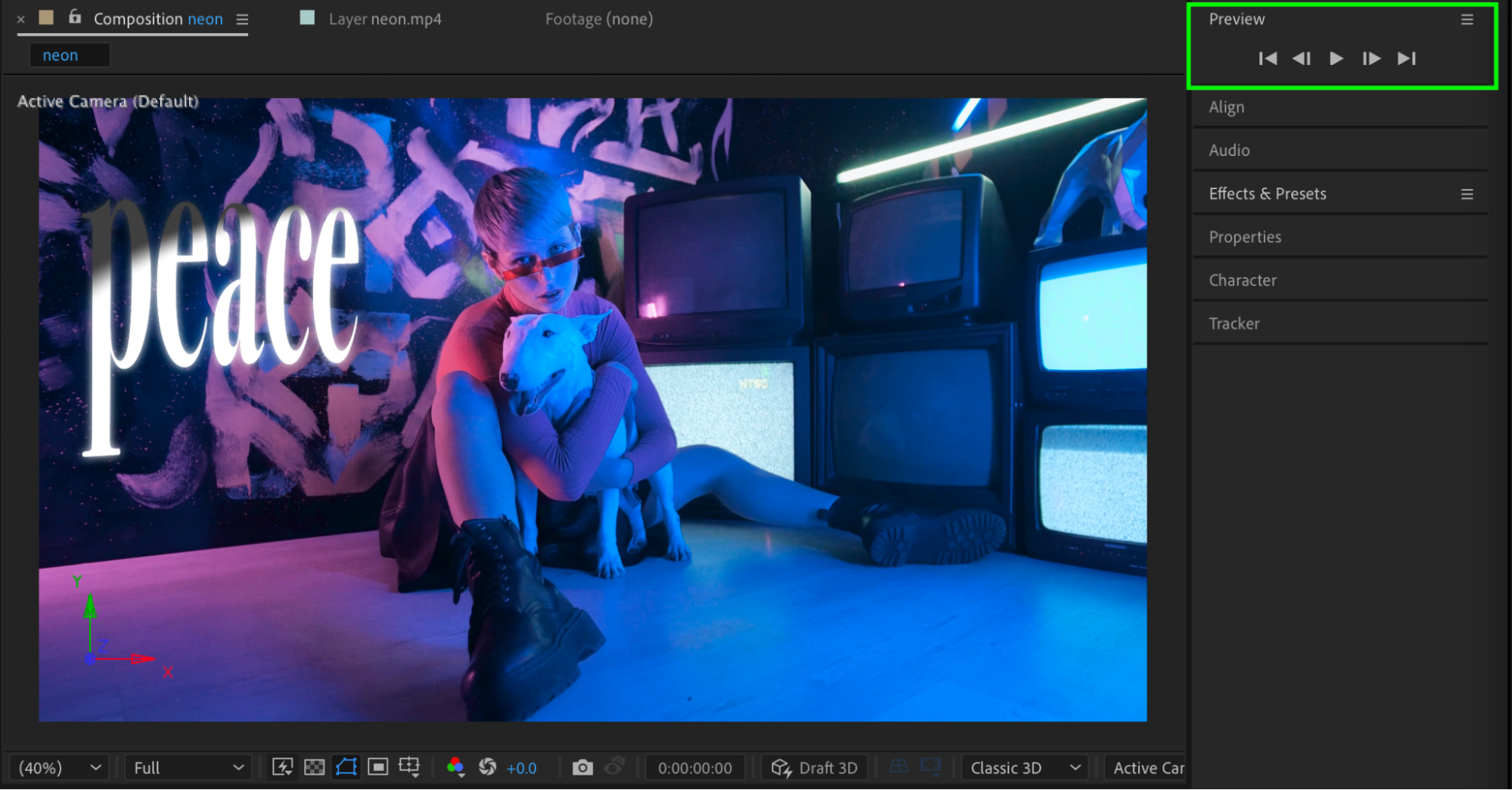
Conclusion
By using 3D text layers, rotation, Z-positioning, and optional lighting or tracking, you can easily add realistic perspective to text in After Effects. This technique works well for titles, signage, and cinematic motion graphics.
Our Bestsellers
Our Bestsellers


