
Introduction
This tutorial explains how to place text behind a subject in a video while keeping the background visible. You will duplicate the footage, isolate the foreground using Roto Brush, and position the text layer between the background and foreground layers.
Step 1: Import and Place the Video
Go to File > Import > File and import your video. Drag the video onto the timeline.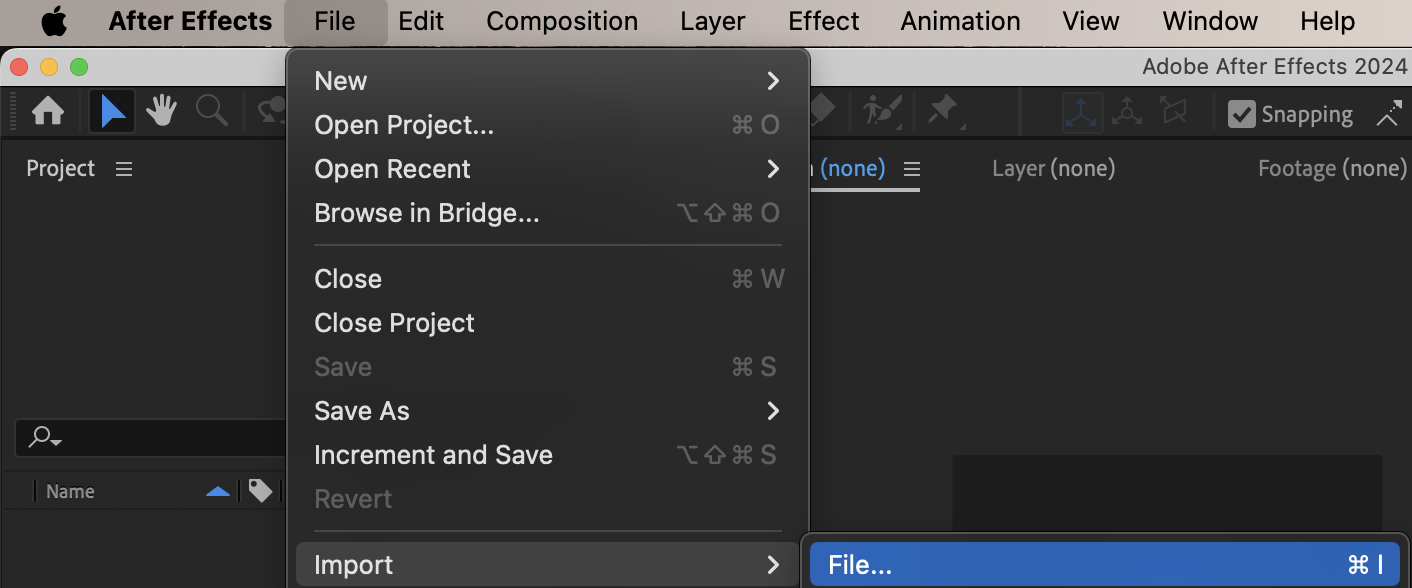
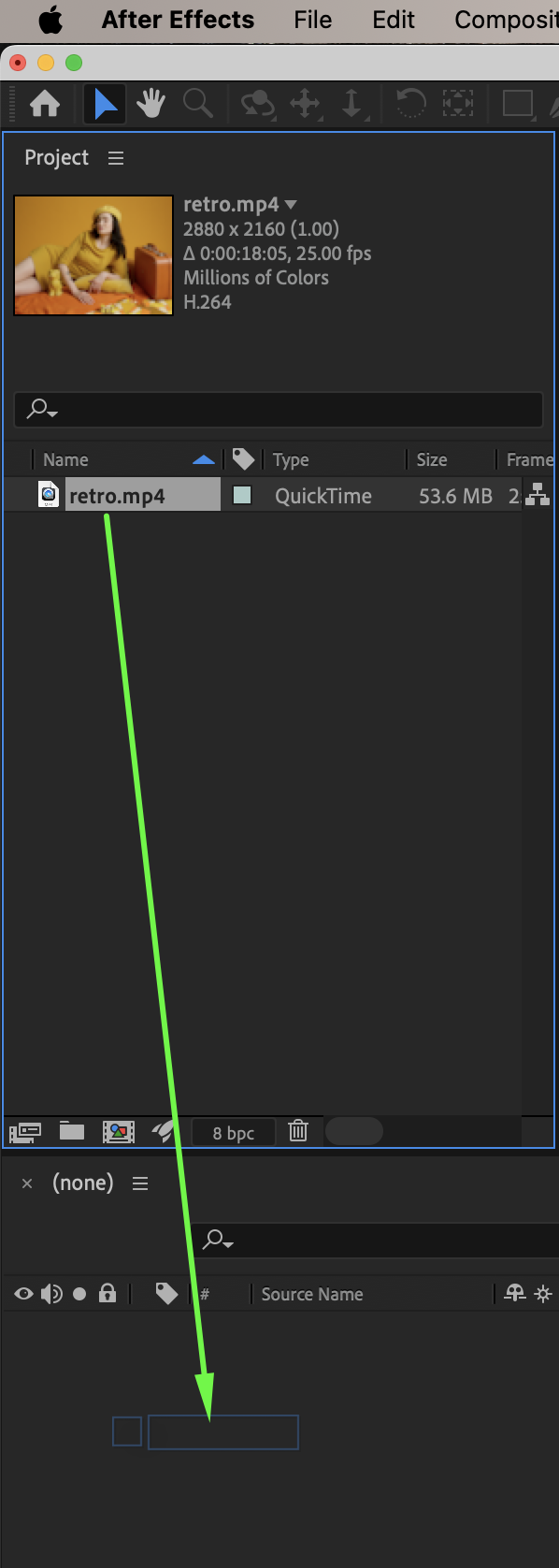 Step 2: Duplicate the Video Layer
Duplicate the video layer. Rename:
The original layer to Background
The duplicated layer to Foreground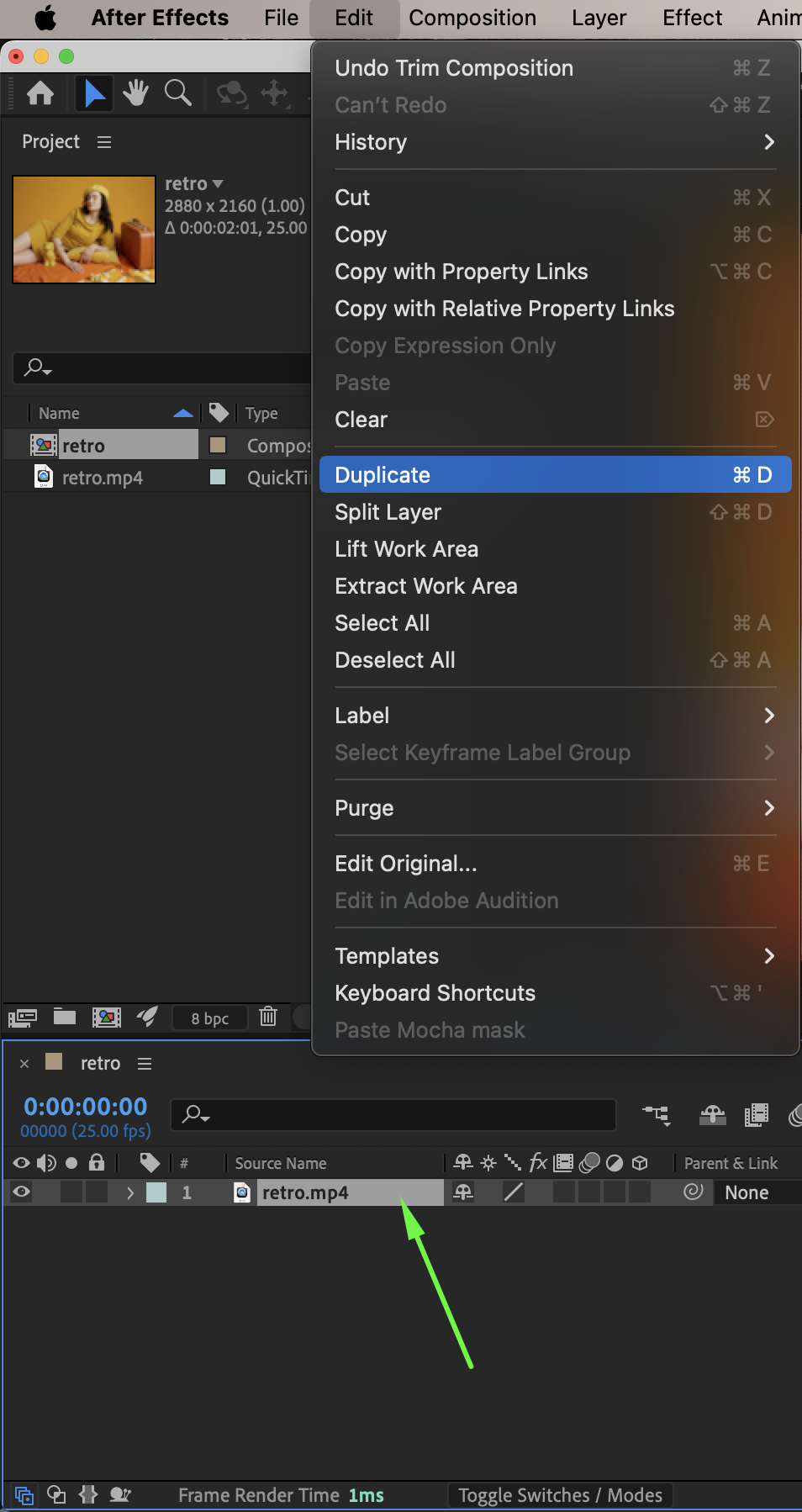
Step 3: Isolate the Foreground Using Roto Brush
Double-click the Foreground layer to open it in the Layer panel. Select the Roto Brush Tool (Alt / Option + W). Paint over the subject to define the foreground. When the selection looks correct, click Freeze.
Alternatively, you can select the background first, then click Invert Foreground/Background, and press Freeze.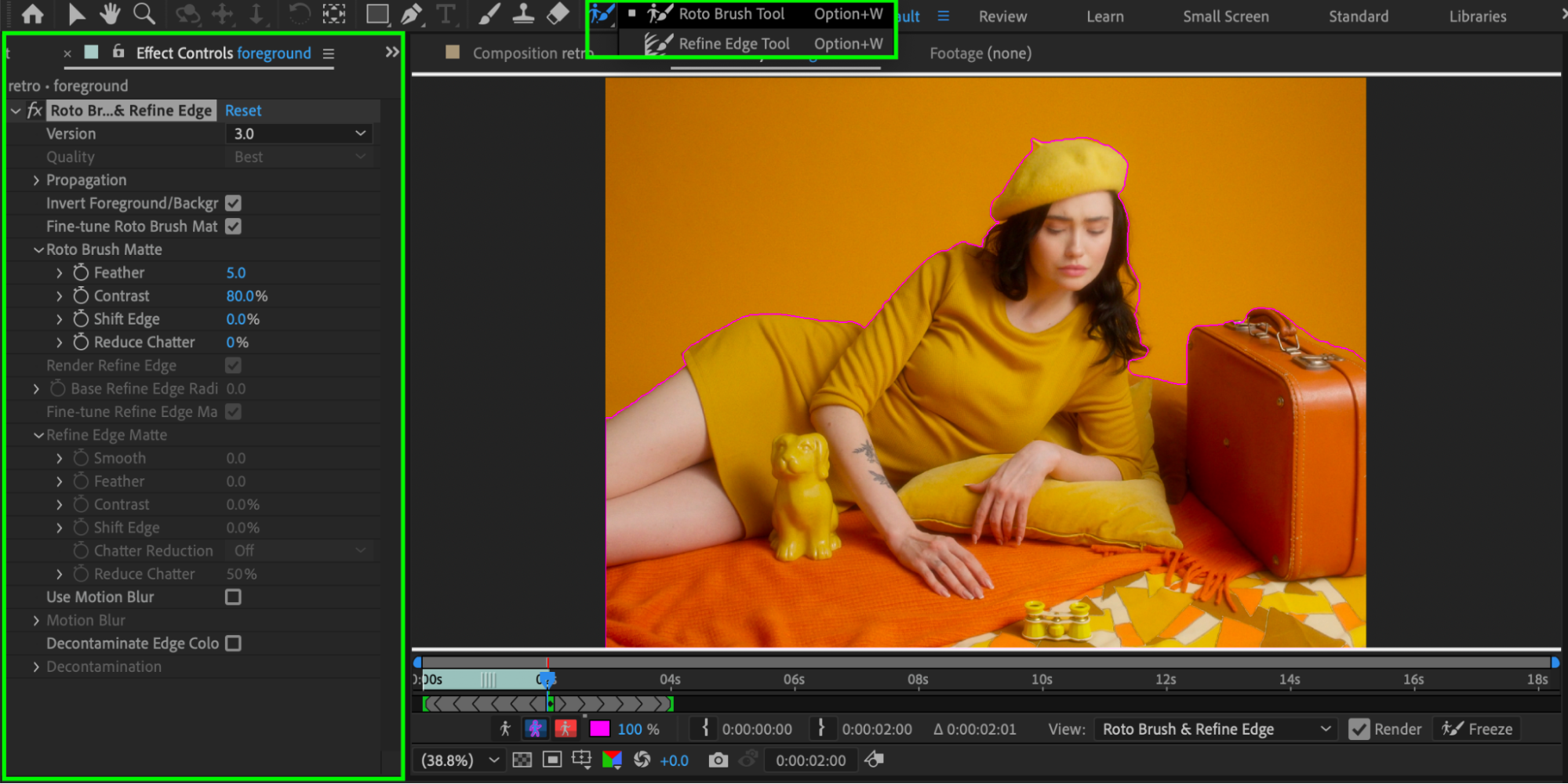
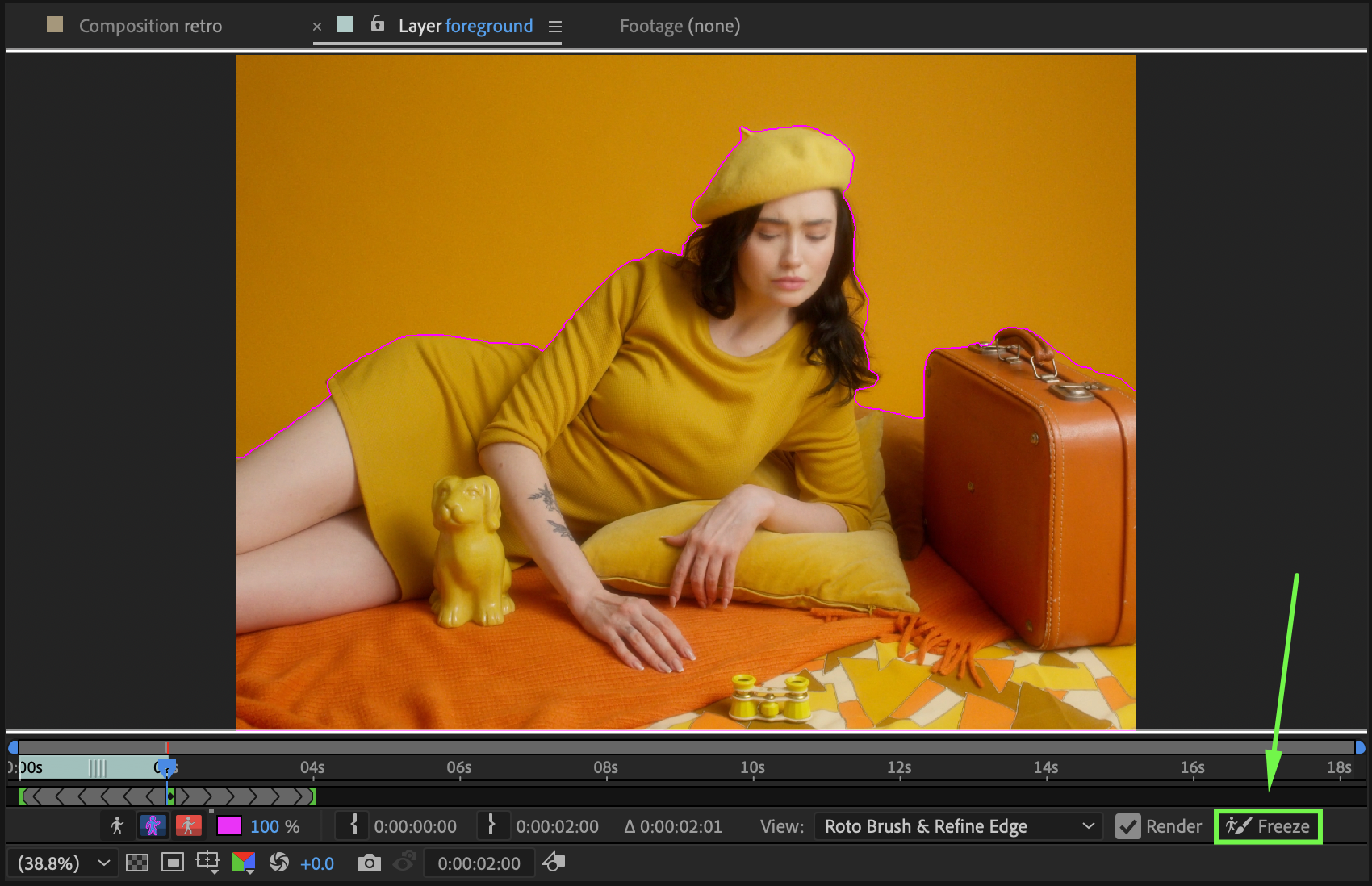
Step 4: Create the Text Layer
Return to the Composition panel. Select the Type Tool (Ctrl / Cmd + T) and create your text.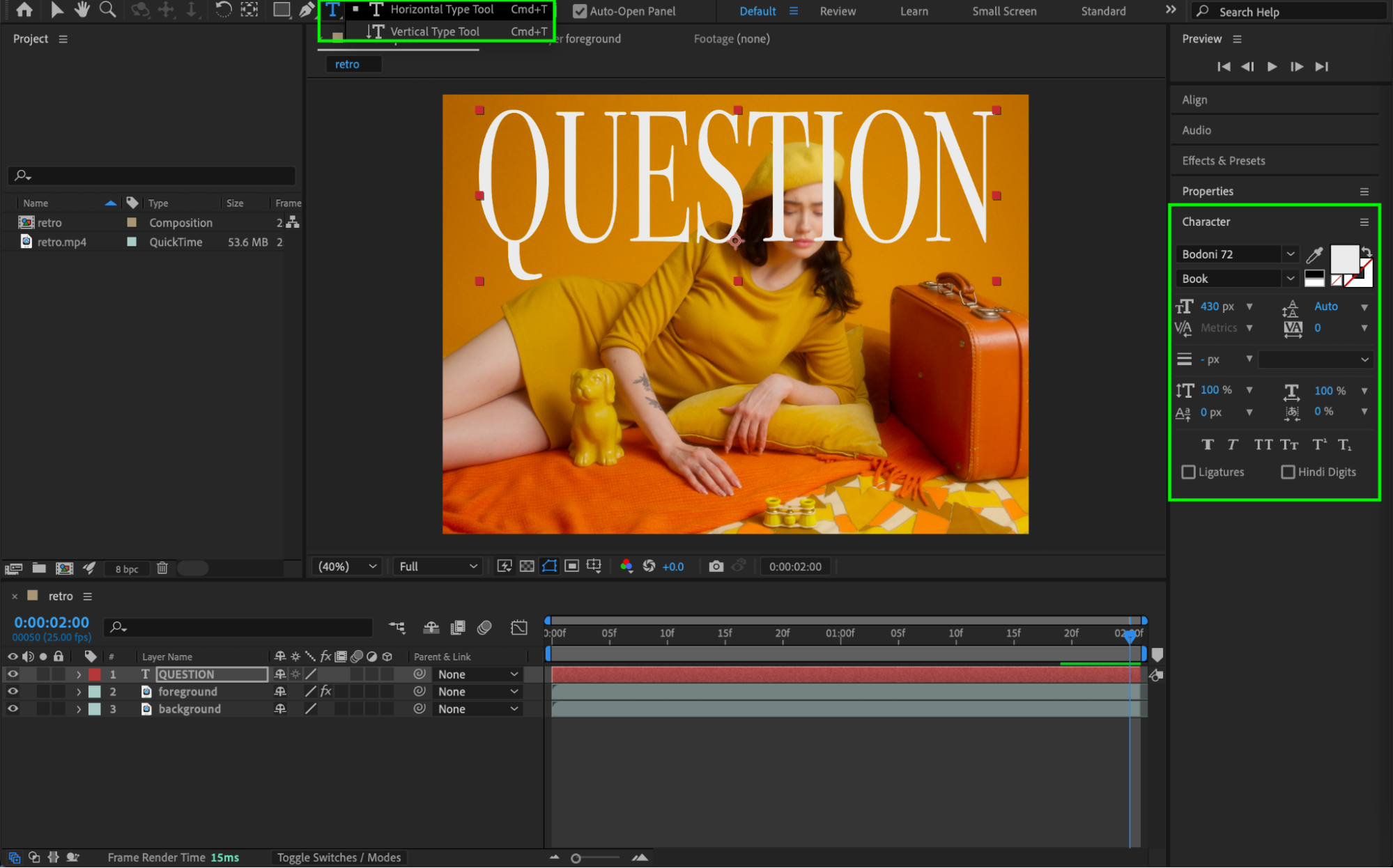
Step 5: Place the Text Behind the Subject
Move the text layer below the Foreground layer in the timeline. This places the text behind the subject and in front of the background.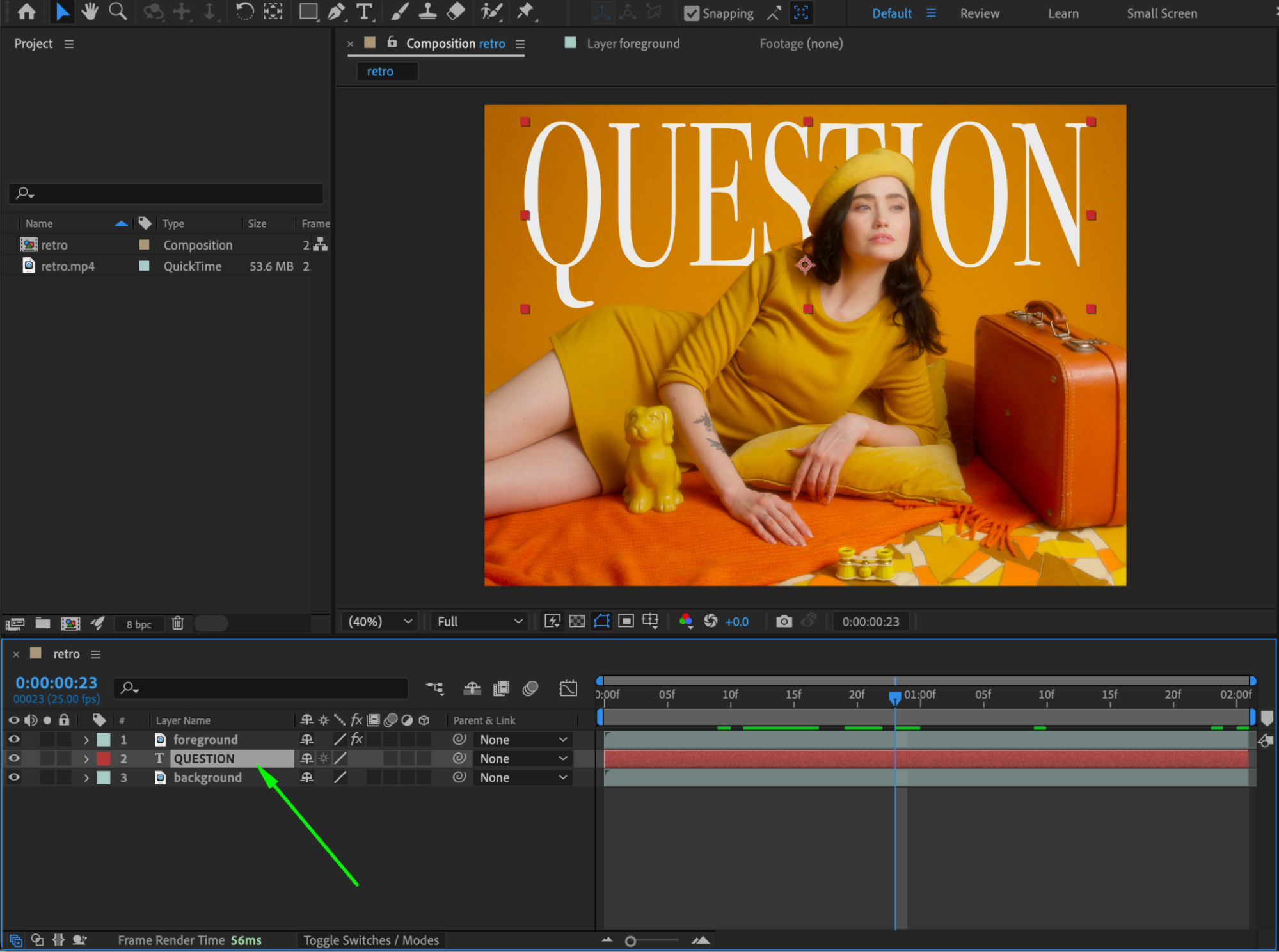
Step 6: Preview and Finalize
Preview the composition and make any necessary adjustments to the text position or roto edges.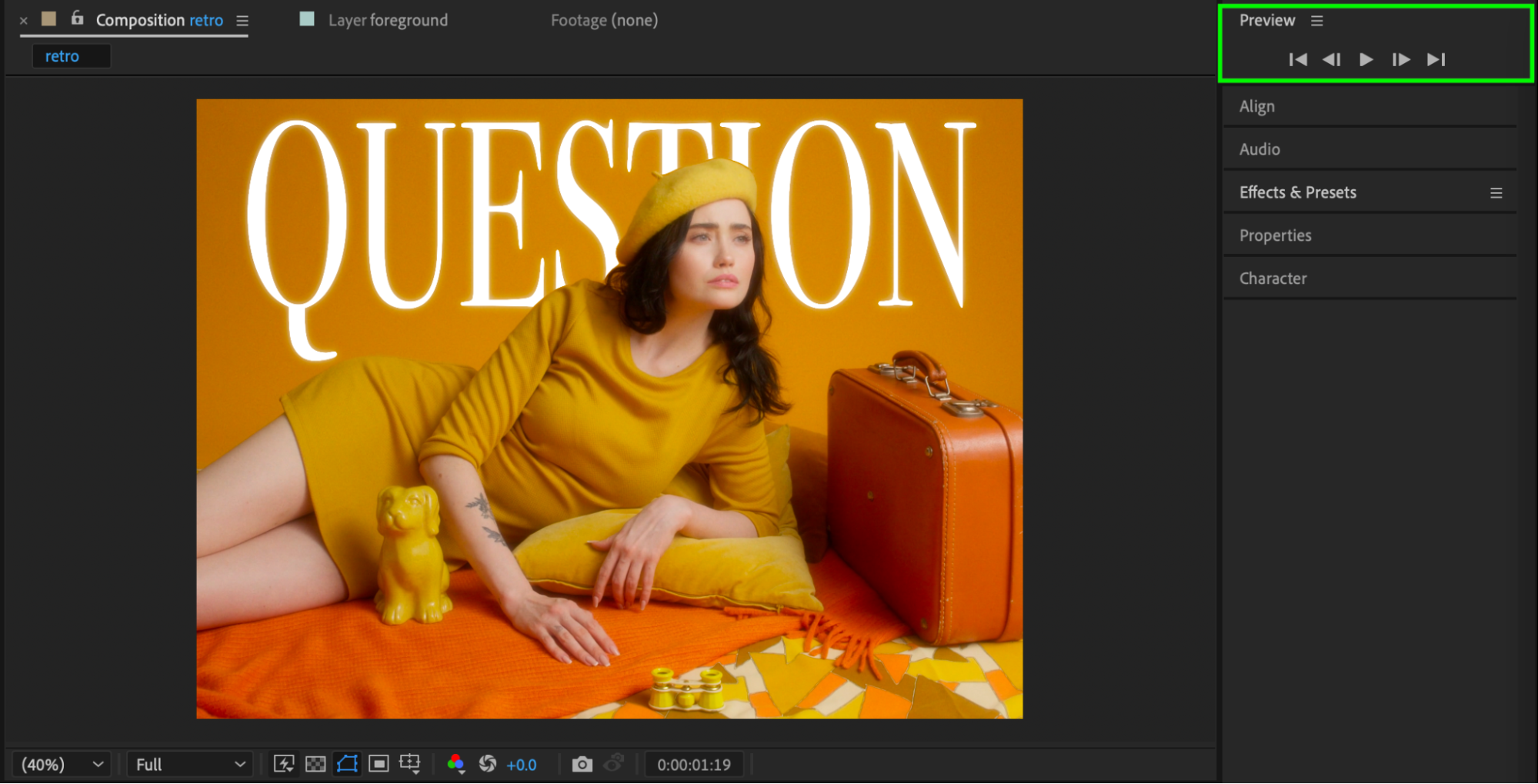 Conclusion
By duplicating the footage and using Roto Brush, you can easily place text behind a subject in After Effects. This technique is ideal for titles, intros, and cinematic text effects.
Our Bestsellers
Our Bestsellers


