
Introduction to Elevating Animation with Textures
Adding textures to your layers in After Effects can bring depth and realism to your animations. By blending textures with text, shapes, or images, you can create unique visual effects that make your projects stand out. This guide will walk you through the step-by-step process of adding textures to your compositions.
Step-by-Step Guide
Step 1: Create or Import Your Object
Start by creating text, shapes, or importing an image that will serve as the base for your texture application. This will be the layer where the texture effect is applied.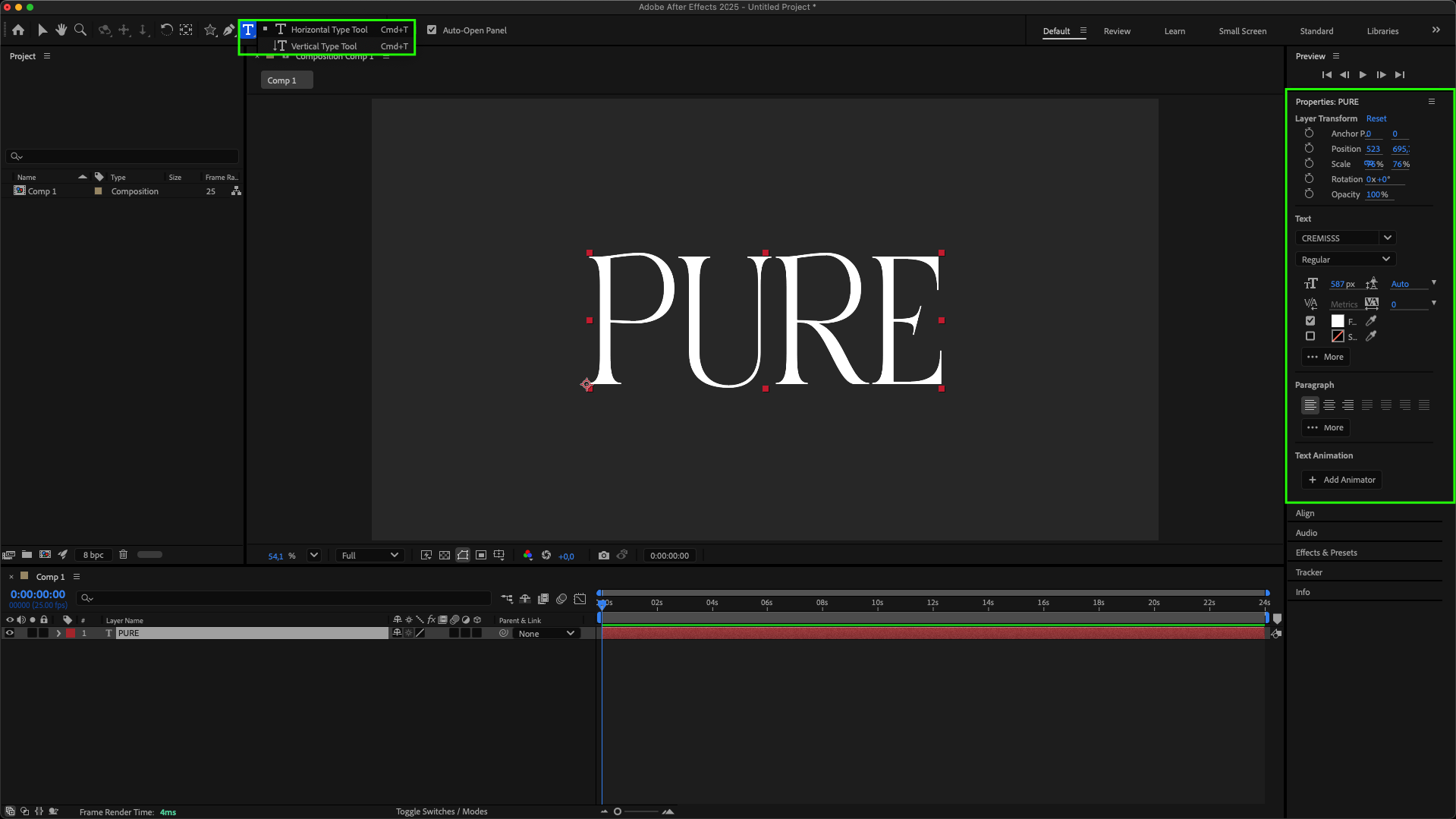
Step 2: Add a Solid Background
Go to Layer > New > Solid to add a background to your composition. This provides contrast and helps the texture effect stand out. Adjust the color and size as needed.
Step 3: Import Your Texture
Navigate to File > Import > File and select your texture file. Drag it onto your timeline and place it above or below the object you want to texture.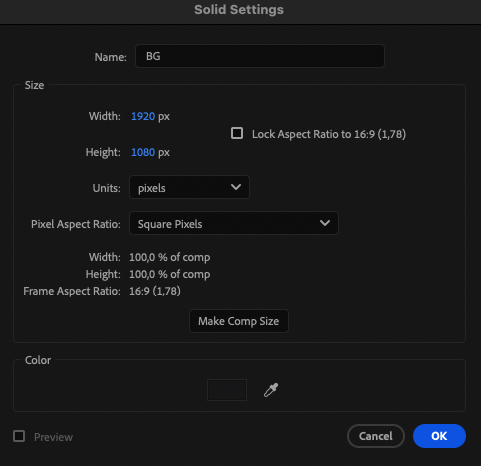 Step 3: Import Your Texture
Navigate to File > Import > File and select your texture file. Drag it onto your timeline and place it above or below the object you want to texture.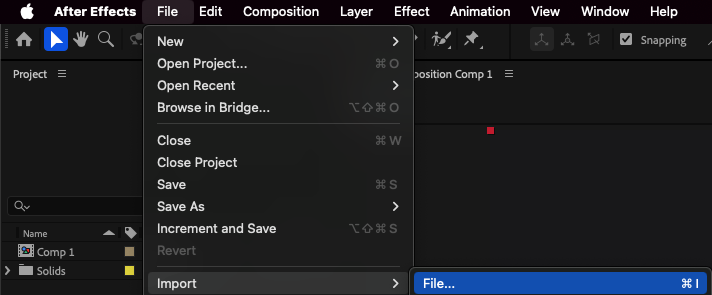
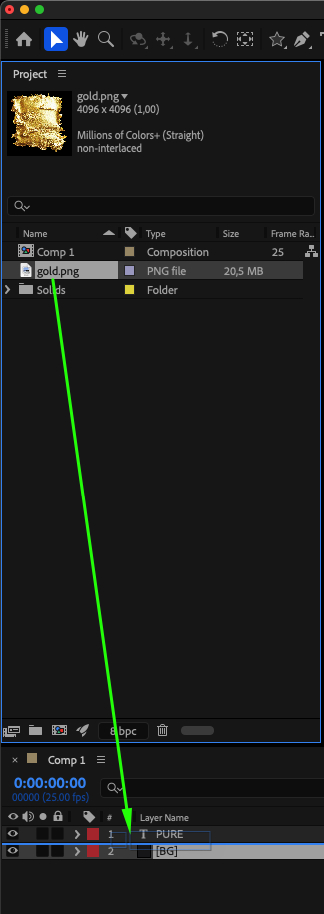
Step 4: Apply Blending Modes
Enable Toggle Switches/Modes in the timeline panel. For the texture layer and the layer above it (text, shape, or image), choose a suitable Blending Mode such as Silhouette Luma, Classic Difference, or another mode that creates the desired effect. Experiment with different modes to see how the texture interacts with your object.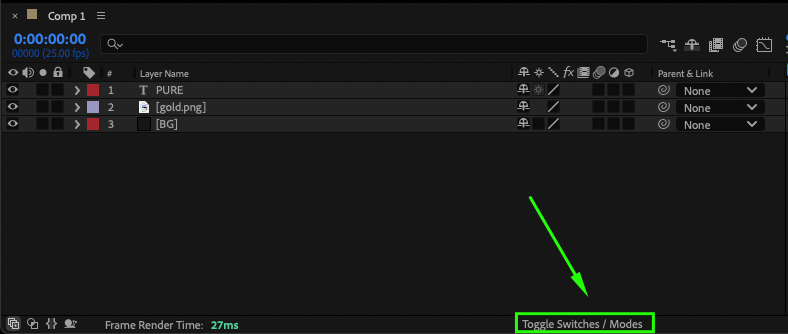
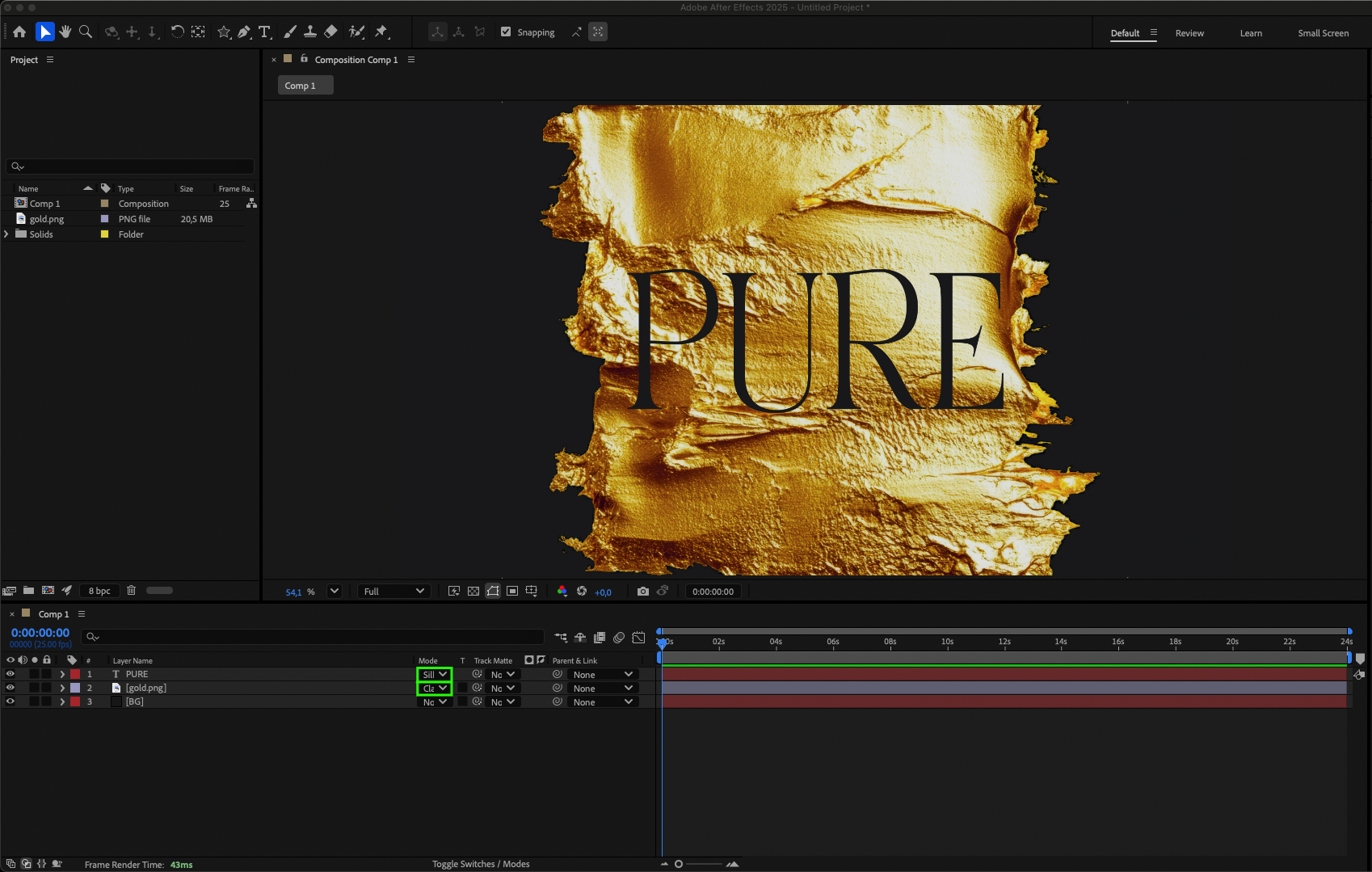
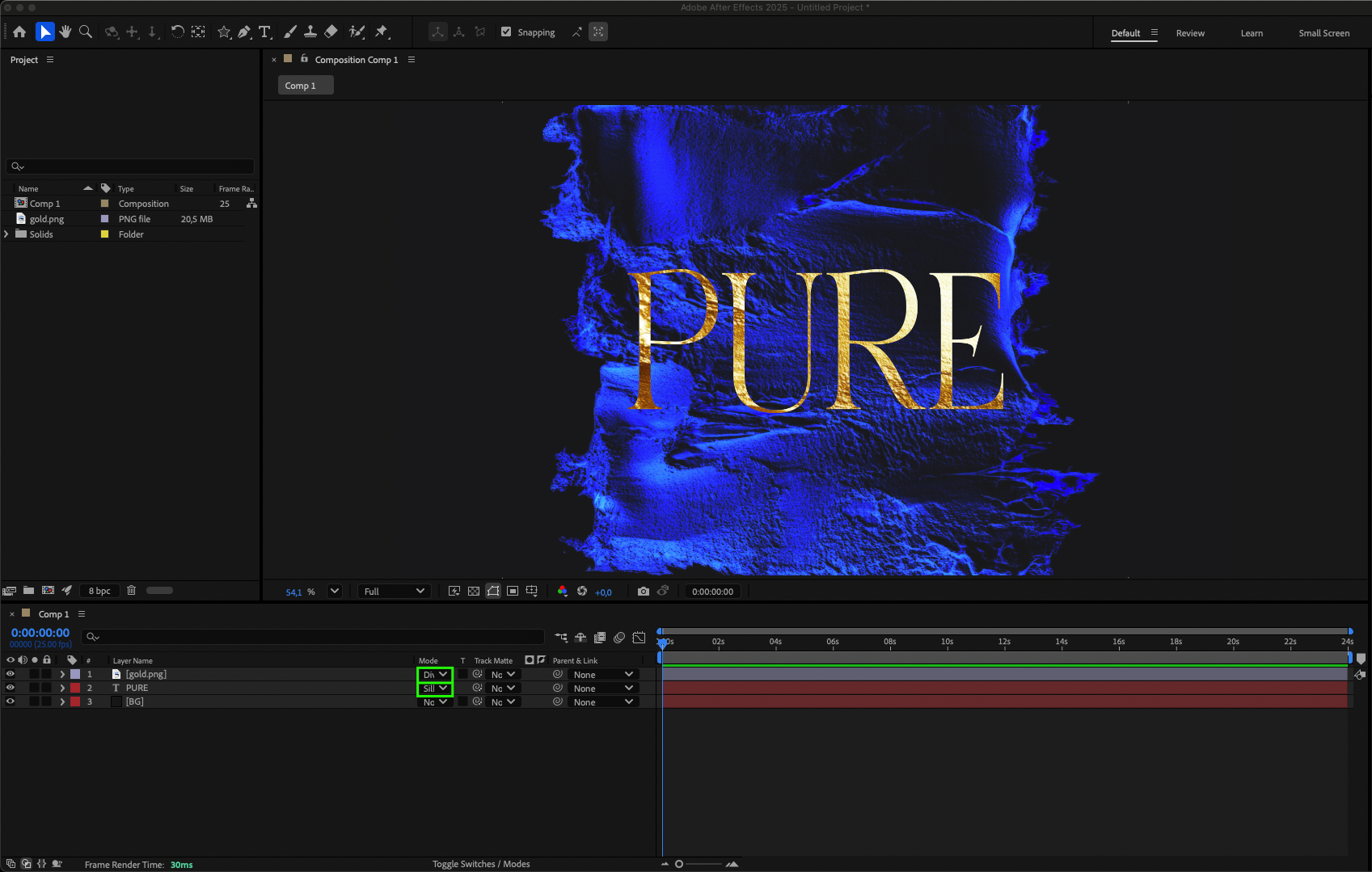 Step 5: Preview Your Composition
Press Spacebar to preview your animation and see how the texture affects the object. Make adjustments to blending modes, layer order, or opacity to refine the final look.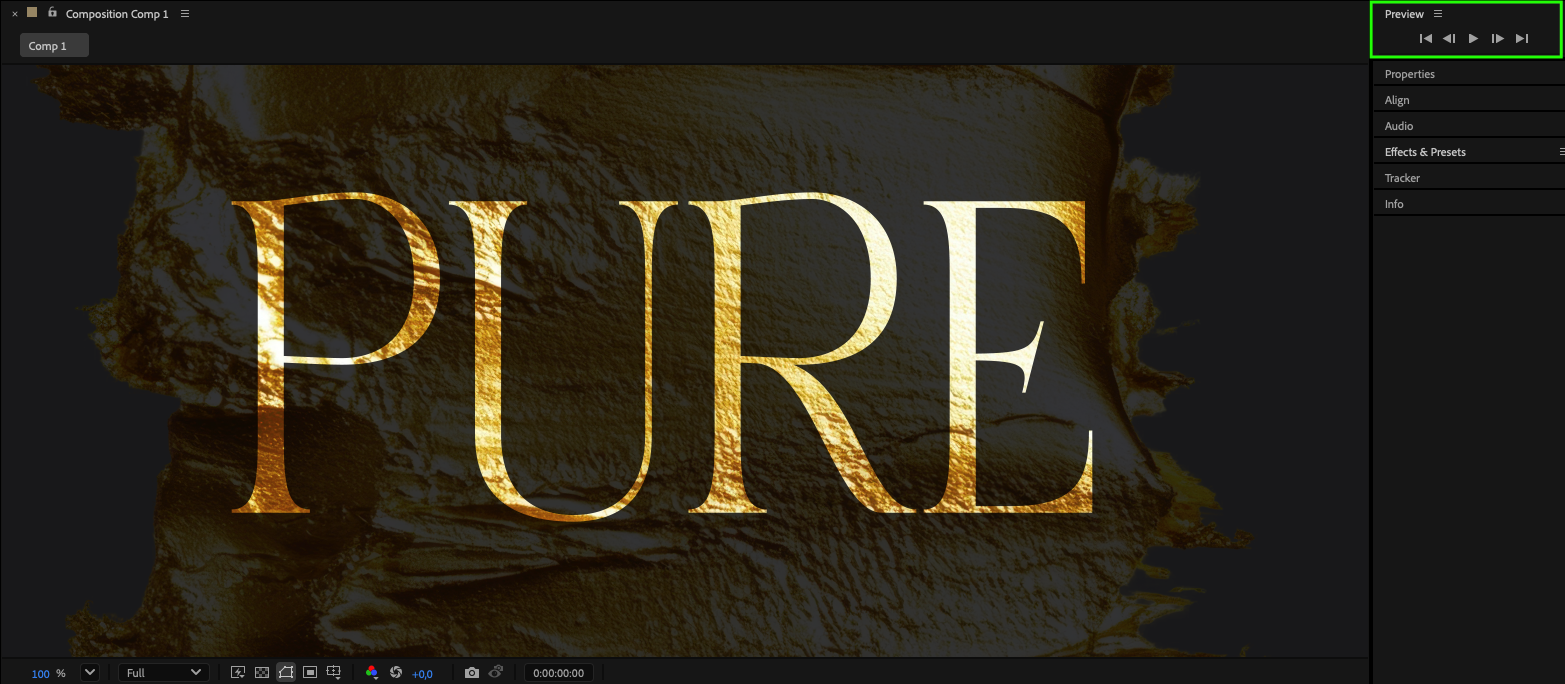 Conclusion
Adding textures in After Effects is a simple yet effective way to enhance your animations. By combining textures with text, shapes, or images, you can create visually striking compositions and elevate the quality of your projects. Experiment with different textures and blending modes to discover unique visual styles and make your animations stand out.
Our Bestsellers
Our Bestsellers


