
Enhancing Animation Quality with Motion Blur Adjustments
Motion blur adds realism and fluidity to your animations in After Effects, making them appear smoother and more professional. Properly adjusting motion blur can improve the overall quality of your motion graphics and captivate your viewers.
Step-by-Step Guide
Step 1: Open the Composition
Open your After Effects project and select the composition where you want to adjust motion blur.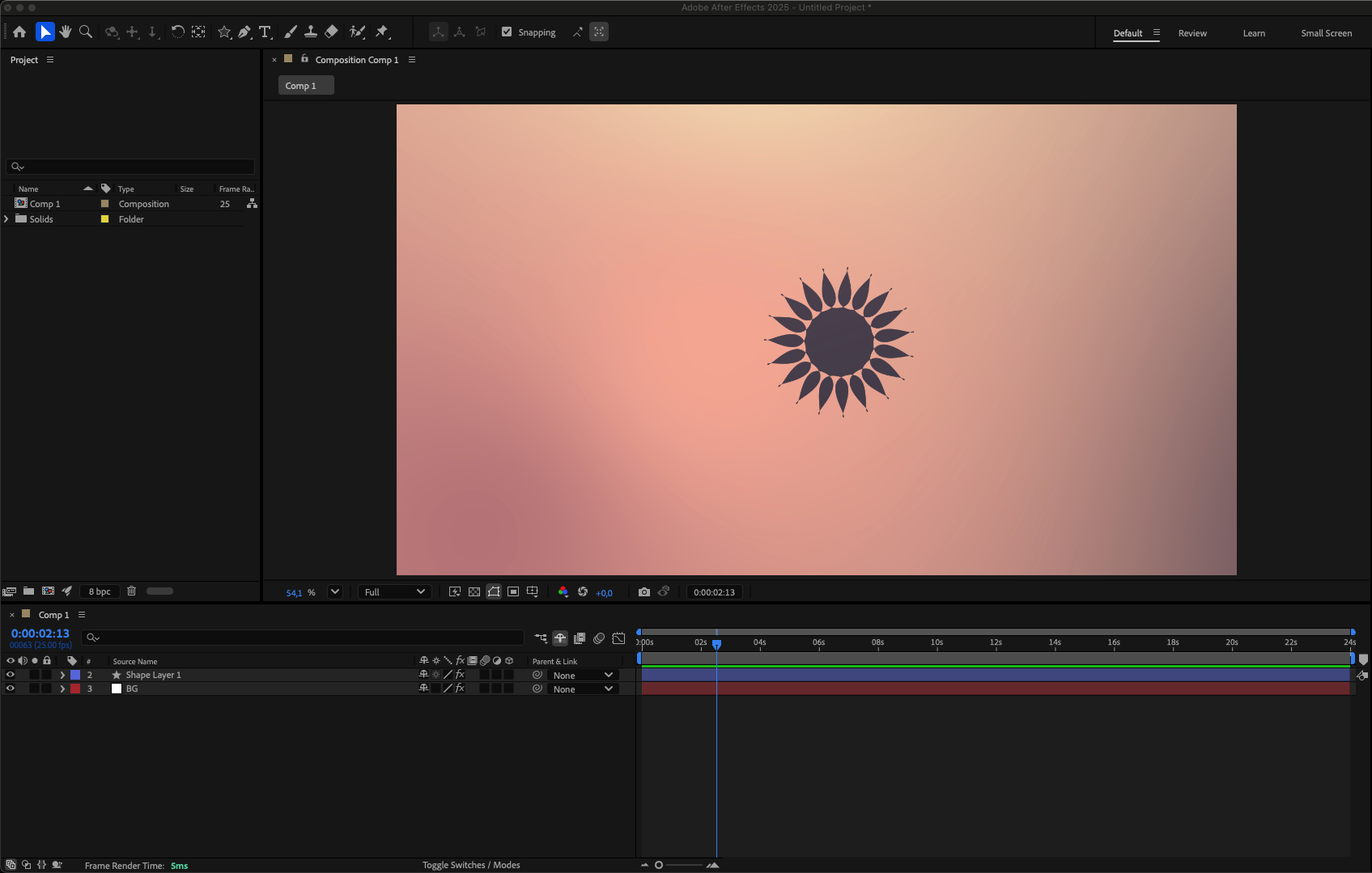 Step 2: Select the Layer
Choose the animated layer that will receive the motion blur effect.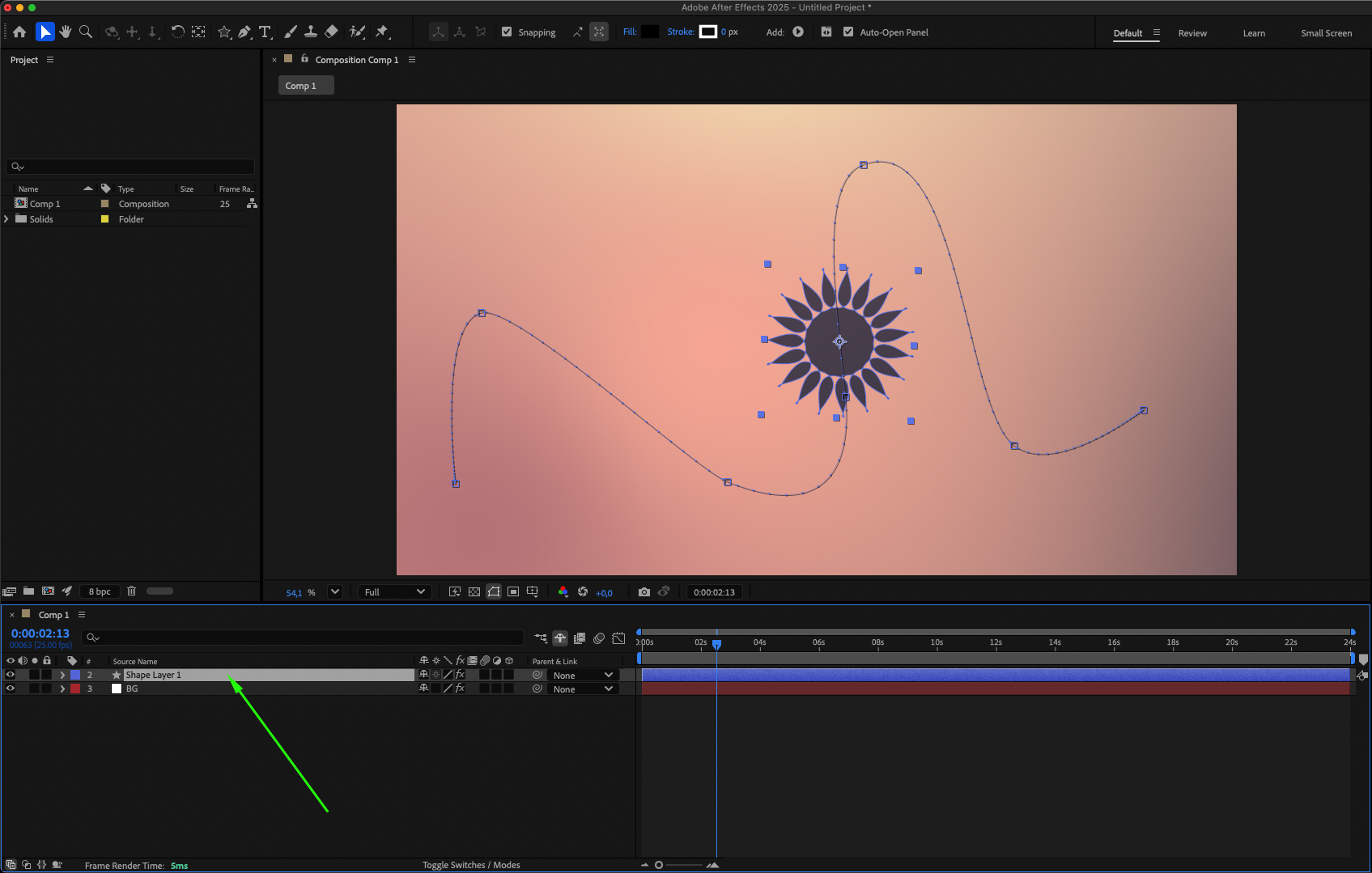
Step 3: Enable Motion Blur
Enable motion blur for the composition by clicking the Enable Motion Blur button in the timeline panel. Then, enable it for your selected layer as well.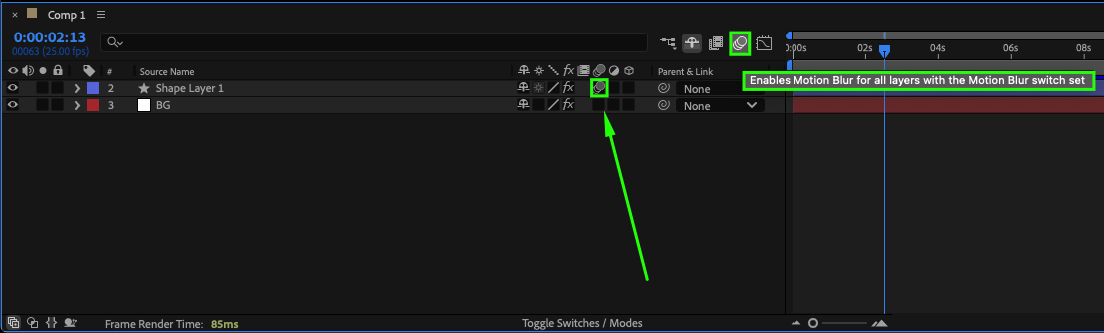
Step 4: Adjust Settings (Optional)
For more control, open the Effect Controls panel to fine-tune parameters like blur intensity or sampling (if using CC Force Motion Blur or Pixel Motion Blur).
Step 5: Preview the Result
Press Spacebar to preview your animation and see how motion blur affects the layer. Adjust settings as needed for the desired effect.
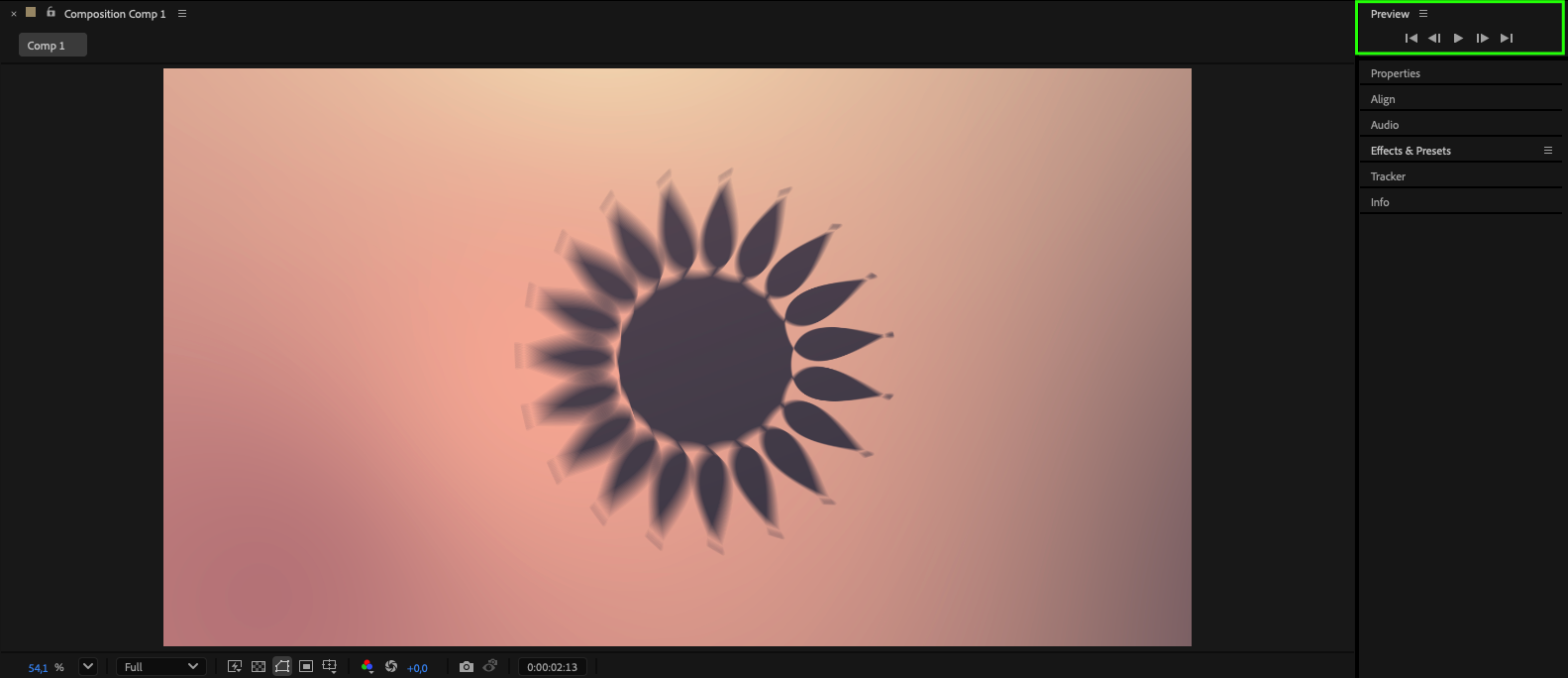
Step 6: Export the Project
When you’ve finished working with the motion effect, export your project to share it or use it in other applications.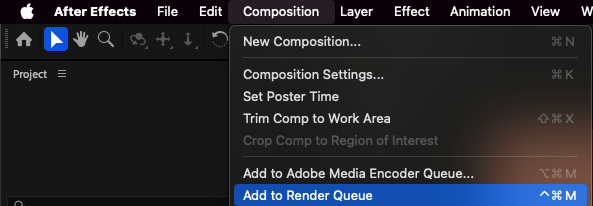

Conclusion
Adjusting motion blur in After Effects is a simple yet powerful way to make animations
smoother and more lifelike. By enabling and fine-tuning motion blur, you can elevate your animations and create professional-quality motion graphics that capture attention.
Our Bestsellers
Our Bestsellers


