
Introduction
Proper white balance ensures that colors in your footage appear natural and consistent. In After Effects, you can adjust white balance by manipulating the individual color channels using the Levels effect.
Step 1: Import Your Video
Go to File > Import > File and bring your video into the Timeline.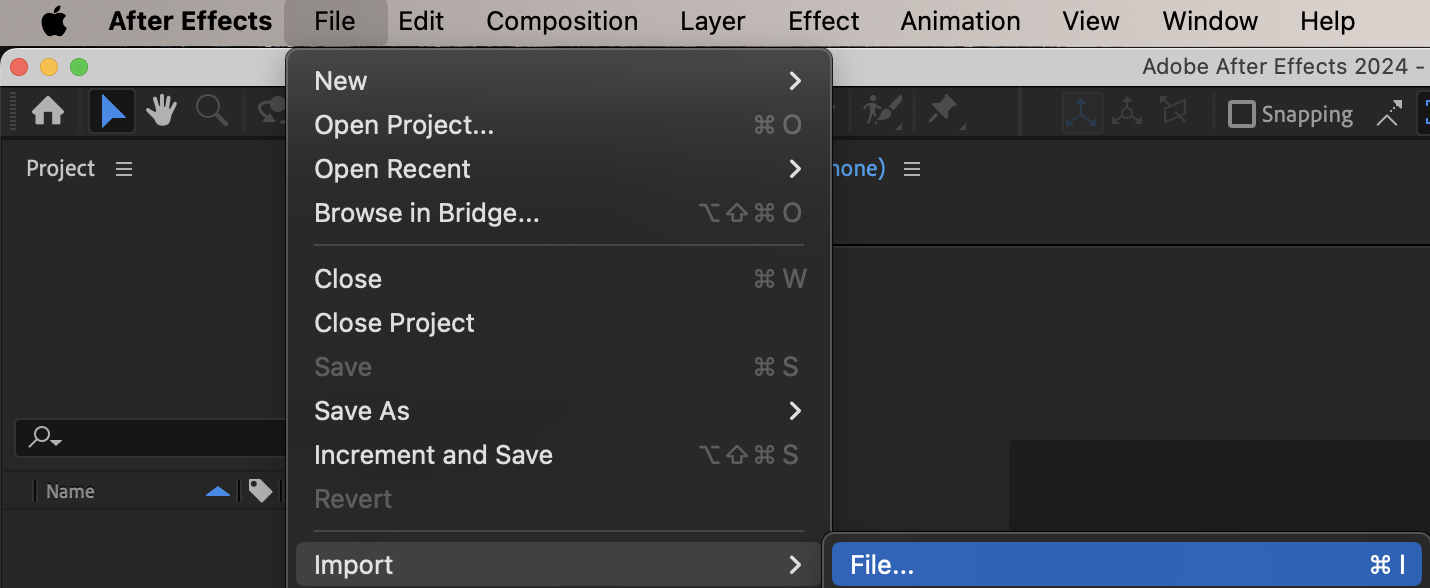
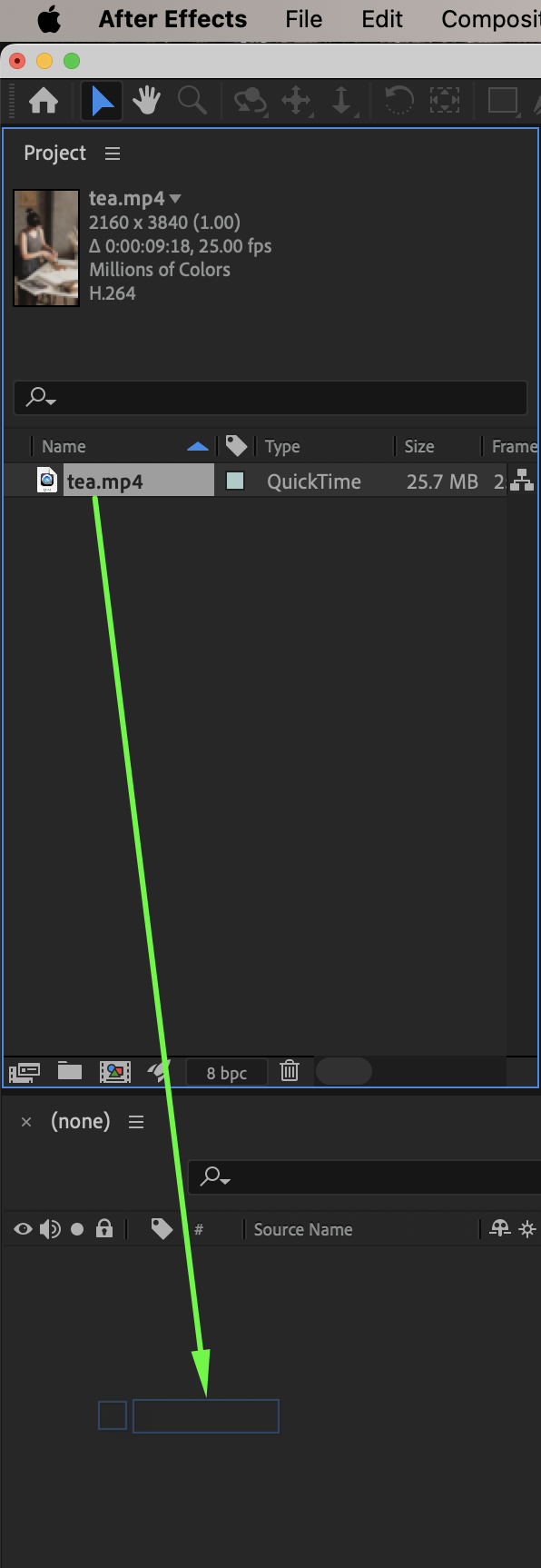 Step 2: Apply the Levels Effect
From the Effects & Presets panel, drag the Levels effect onto your video layer.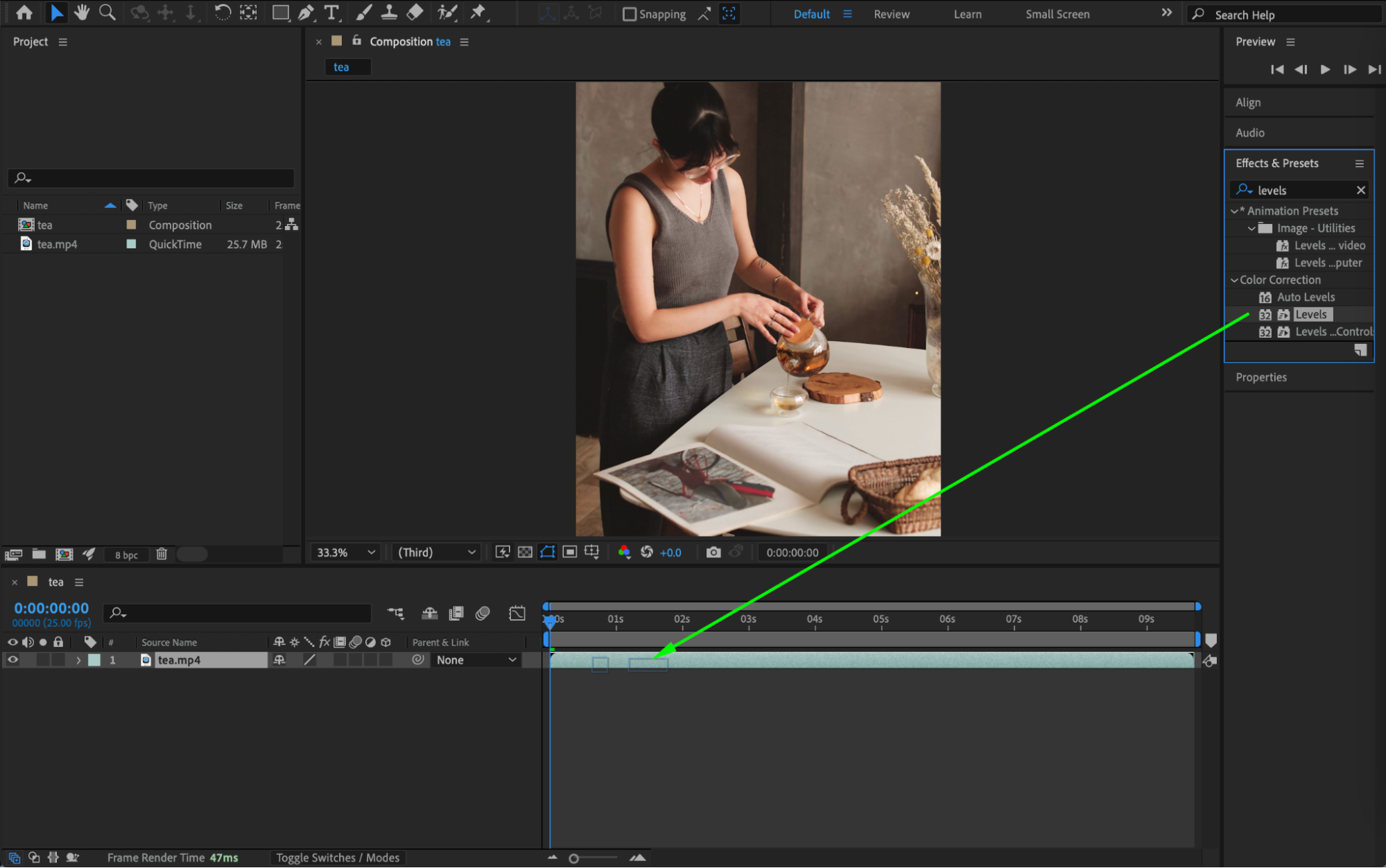
Step 3: Adjust the Green Channel
In the Effect Controls panel, choose Channel: Green. In the histogram, grab the corner of the right end (the highlight handle) and drag it slightly to the left. This will create a third marker slightly before the end of the histogram.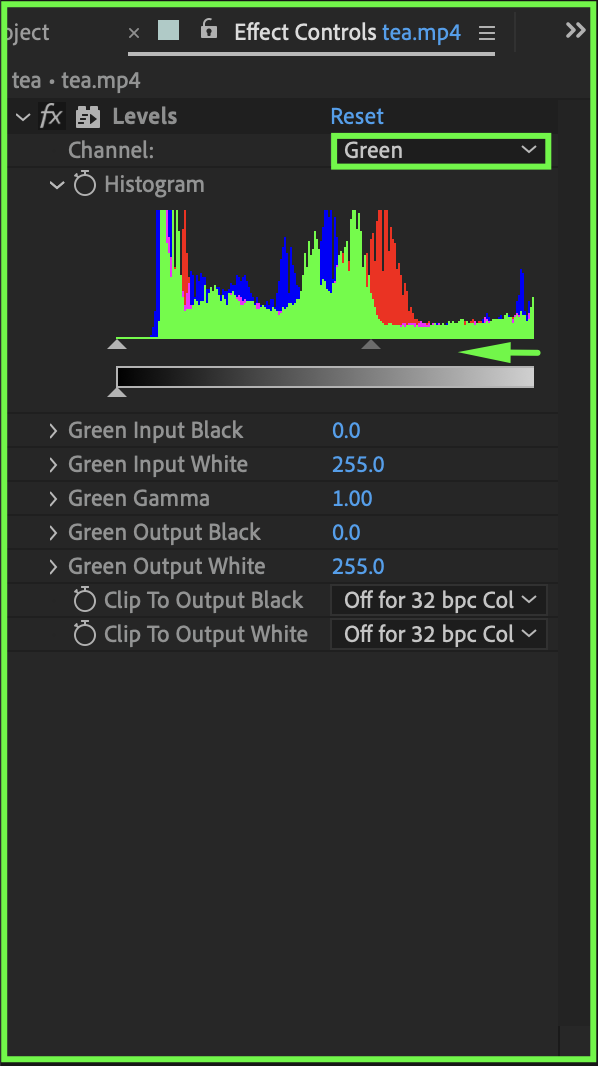
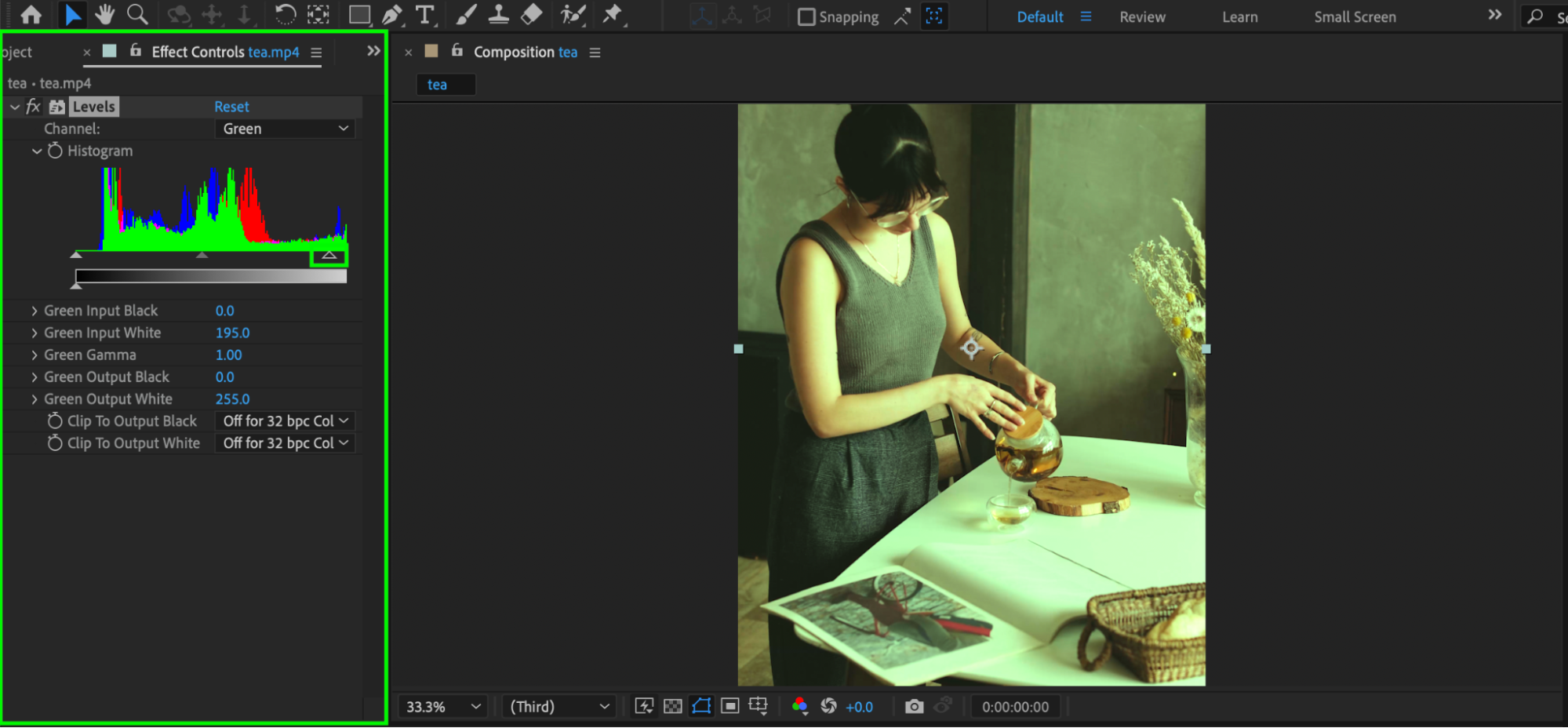
Step 4: Adjust the Blue Channel
Now select Channel: Blue and do the same: drag the corner of the right end of the histogram slightly to the left to help adjust and balance the white in the image.
Step 5: Preview Your Adjustment
Scrub through the timeline or press Spacebar to preview the white balance adjustment. Fine-tune the sliders as needed for the best result.

Conclusion
By adjusting the green and blue channels in the Levels effect, you can effectively correct white balance in After Effects, ensuring natural and accurate colors in your video.
Our Bestsellers
Our Bestsellers


