
Introduction
Aligning 3D text in After Effects can be challenging because standard alignment tools work in 2D space. By properly setting anchor points, using snapping, and viewing layers from the correct camera angle, you can accurately align 3D text layers in a scene.
Step 1: Create or Select Your Text Layers
Create multiple text layers using the Type Tool (Ctrl/Cmd + T) or select the existing text layers you want to align.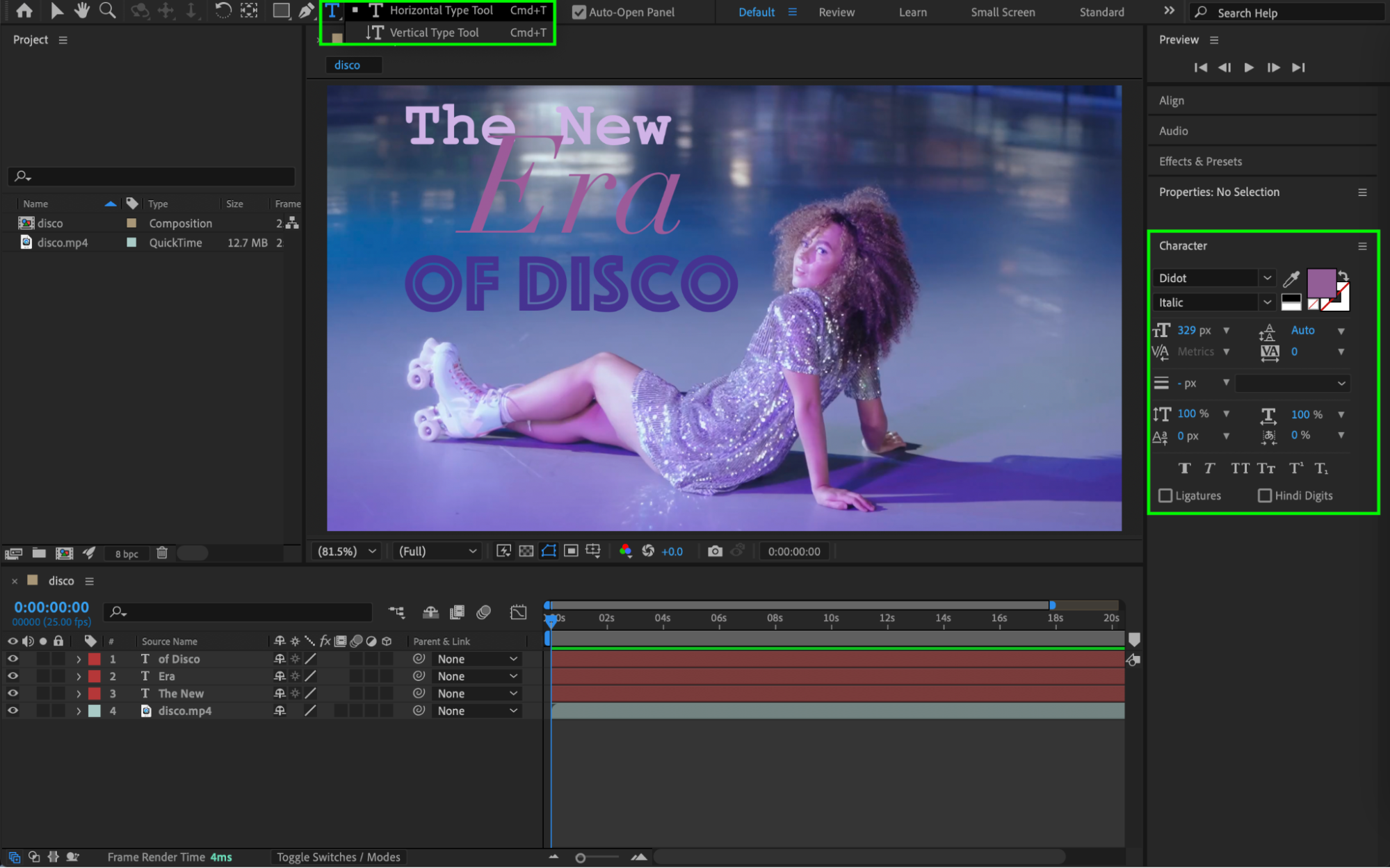 Step 2: Center the Anchor Points
Select all text layers and go to
Layer > Transform > Center Anchor Point in Layer Content
This ensures consistent and predictable alignment.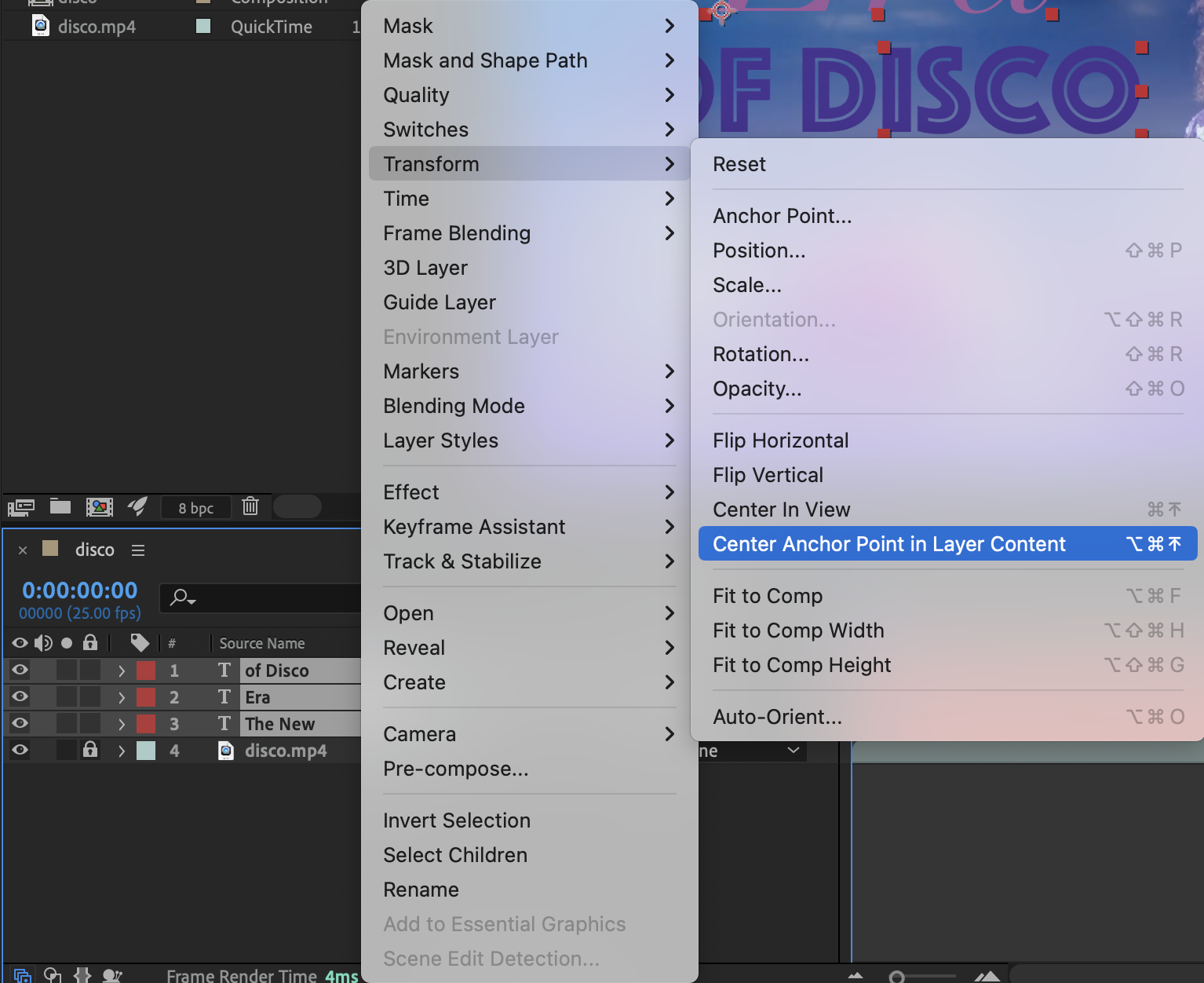
Step 3: Enable 3D Layers
Click the 3D Layer (cube) switch for all text layers. This allows you to position the text in 3D space.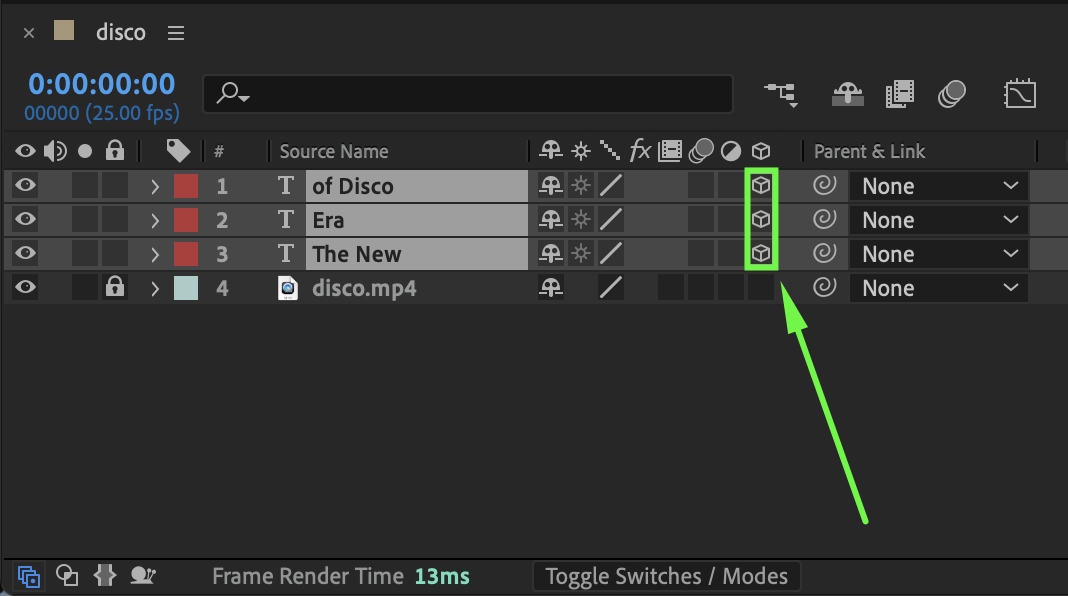 Step 4: Switch to a Custom View
At the bottom of the Composition panel, change the view from Active Camera to Custom View 1 (or any Custom View). This makes it easier to see and align layers along the X, Y, and Z axes.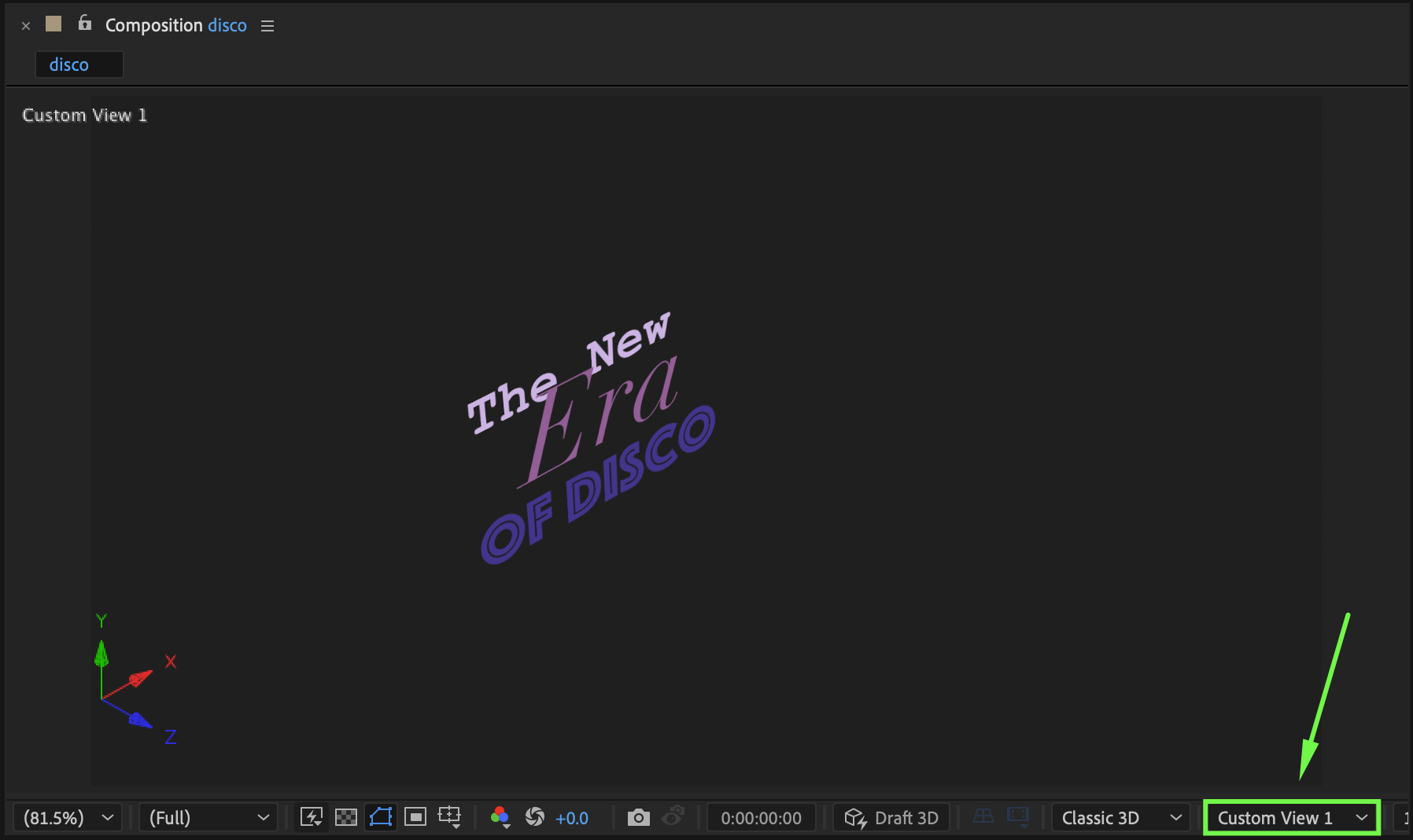
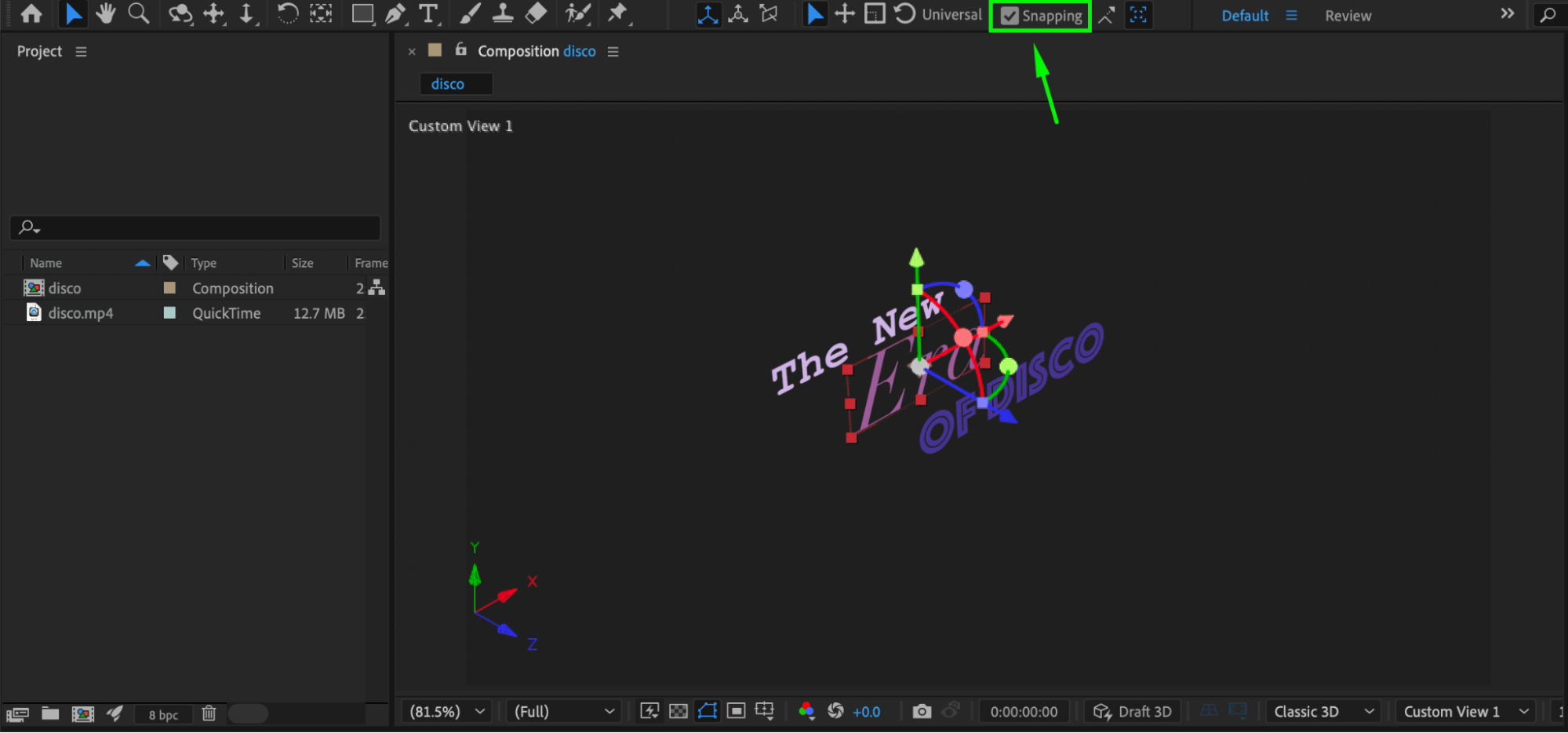
Step 5: Enable Snapping
Enable Snapping at the top of the Composition panel. Snapping helps align text layers precisely in 3D space.
Step 6: Align Using Position Values
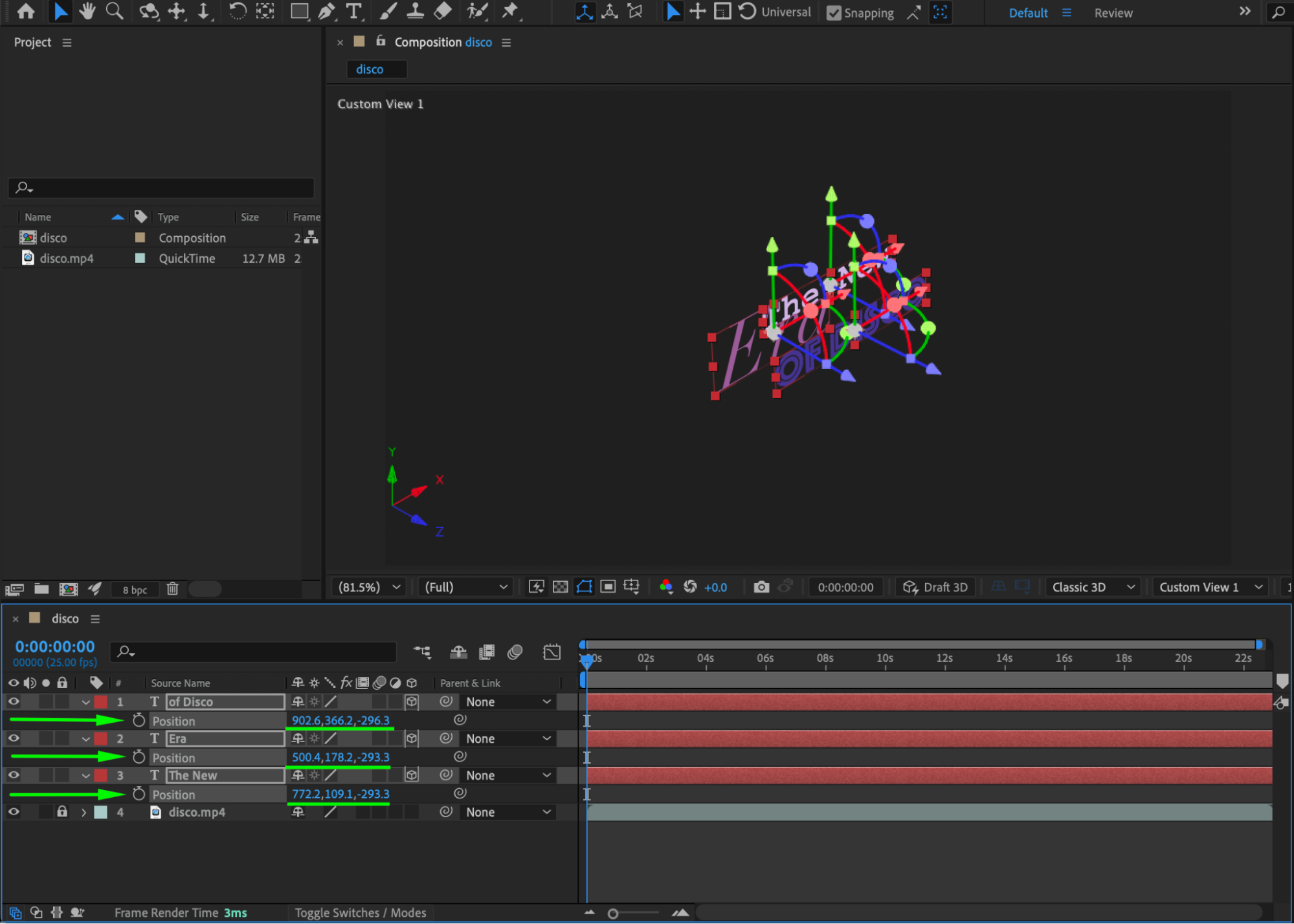
Select a text layer and press “P” to reveal Position. Manually match the X, Y, or Z values across layers to align them horizontally, vertically, or in depth.
For example:
Same X value → vertical alignment
Same Y value → horizontal alignment
Same Z value → depth alignment
 Step 7: Use a Temporary Guide (Optional)
You can create a temporary guide using the Pen Tool (G) or Shape Tool to visualize alignment in 3D space. Align text layers to this guide, then delete it afterward.
Step 8: Return to Active Camera View
Once aligned, switch the view back to Active Camera to preview the final result.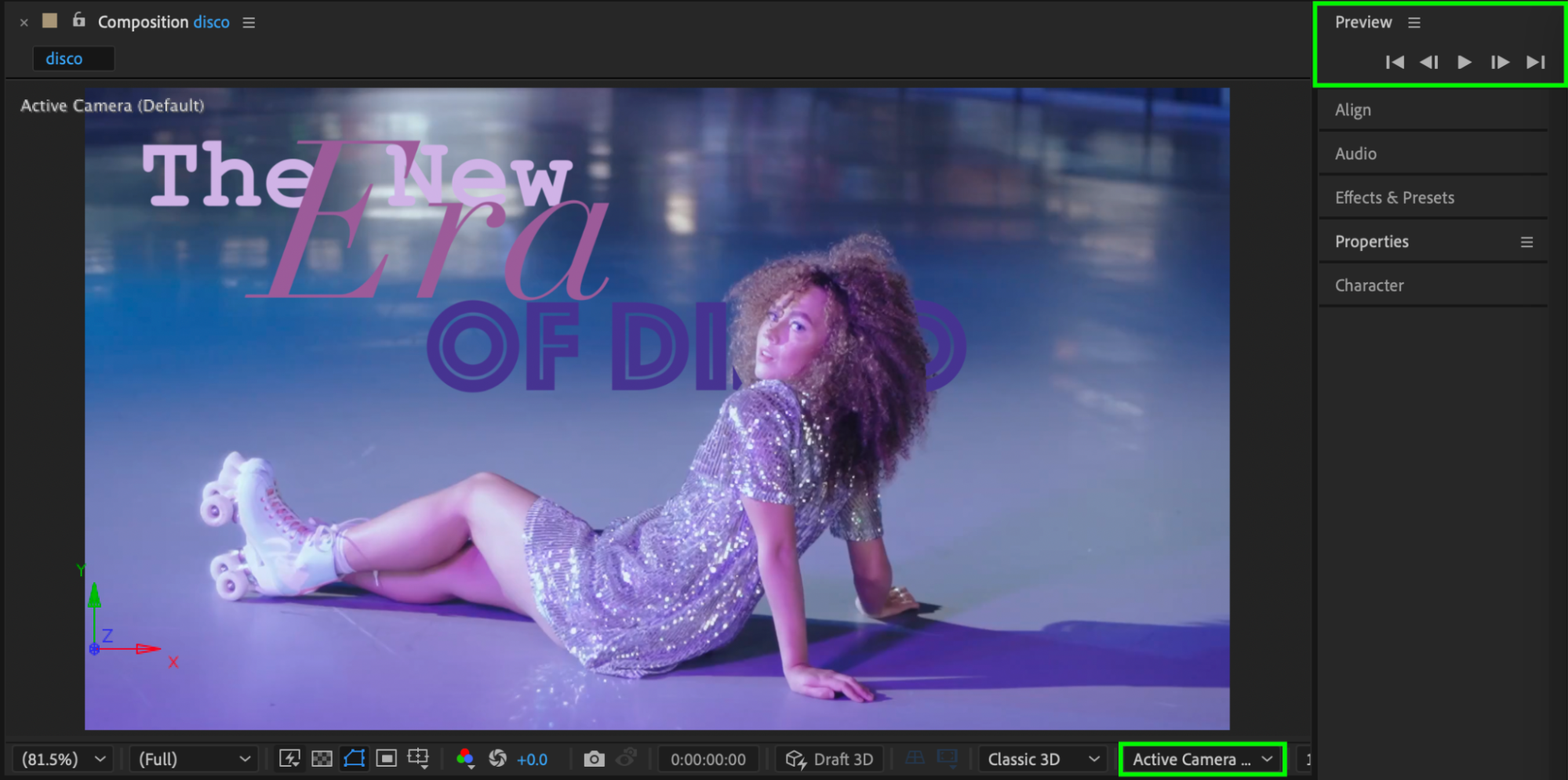
Conclusion
By centering anchor points, enabling 3D layers, using Custom Views, and aligning position values, you can precisely align 3D text layers in After Effects. These techniques are essential for creating clean, professional 3D typography and motion graphics.
Our Bestsellers
Our Bestsellers


