
Introduction
Some effects in After Effects, such as CC Scatterize, can cause visible edges or bounding box artifacts when their values are pushed high. This happens because the effect expands pixels beyond the original layer boundaries. Fortunately, this issue can be fixed easily.
Step 1: Open Your Project
Open your After Effects project and select the layer you want to apply the effect to.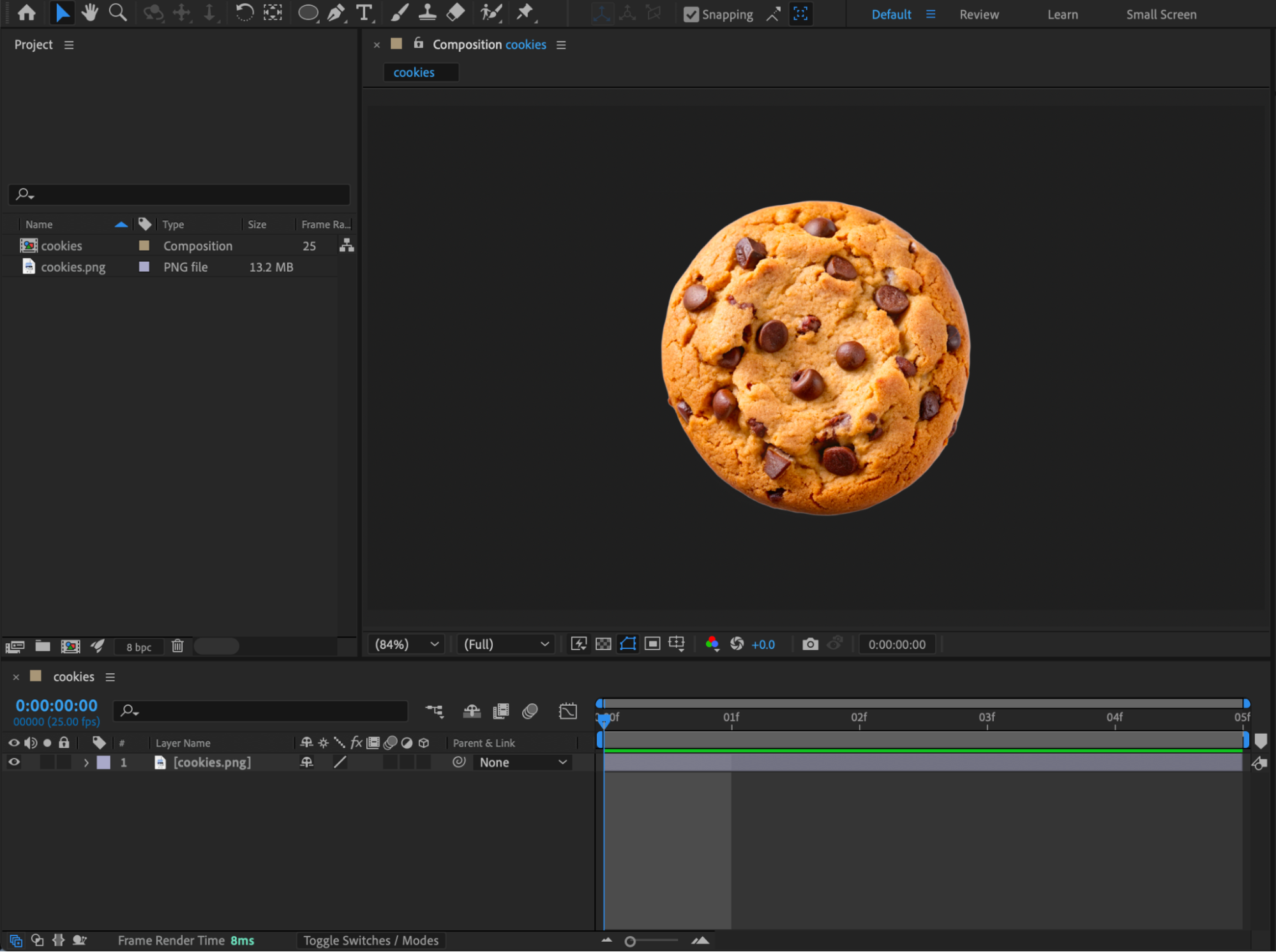 Step 2: Apply the Effect
From the Effects & Presets panel, apply an effect that causes pixel displacement, such as CC Scatterize, to your layer.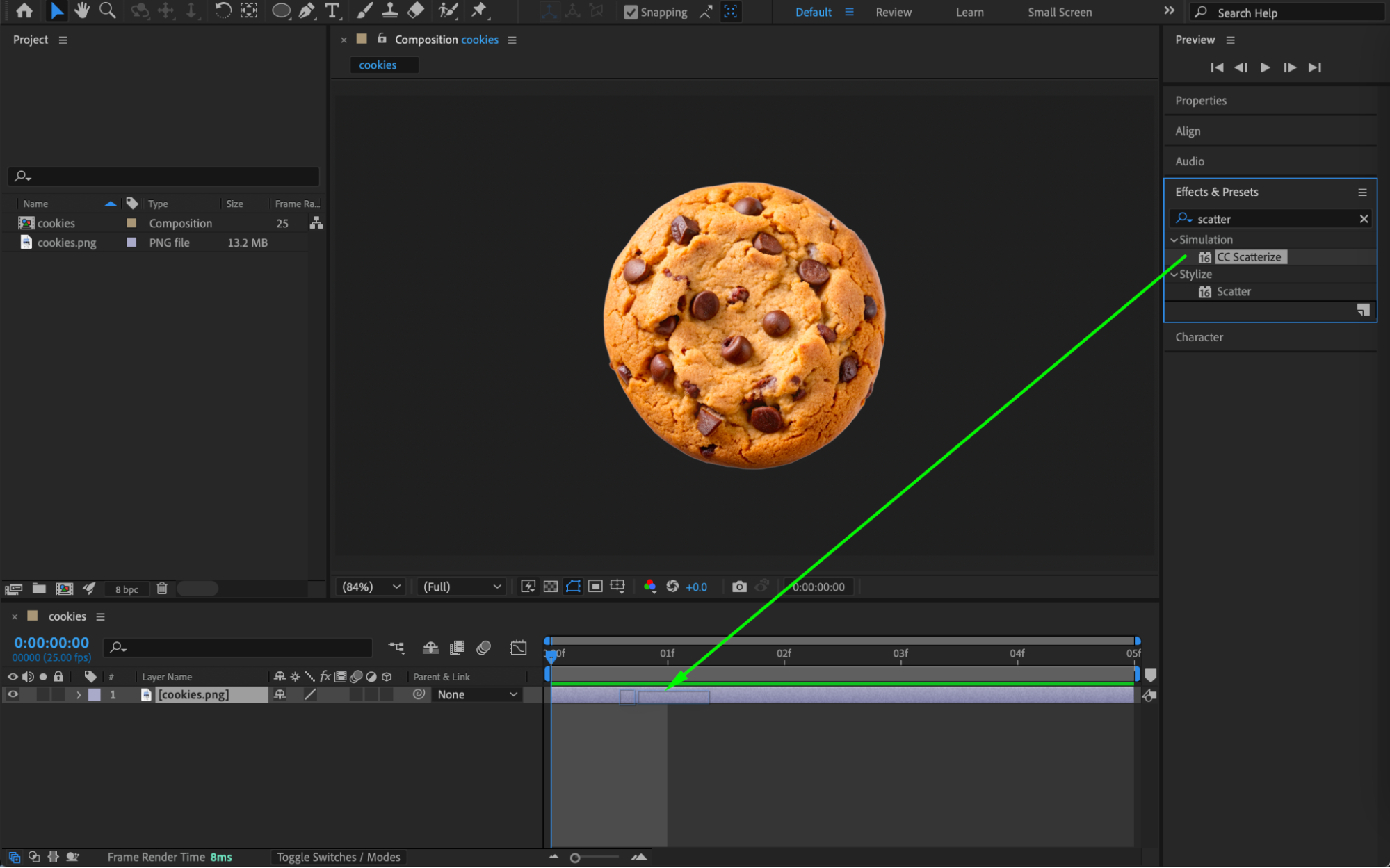
Step 3: Animate the Effect
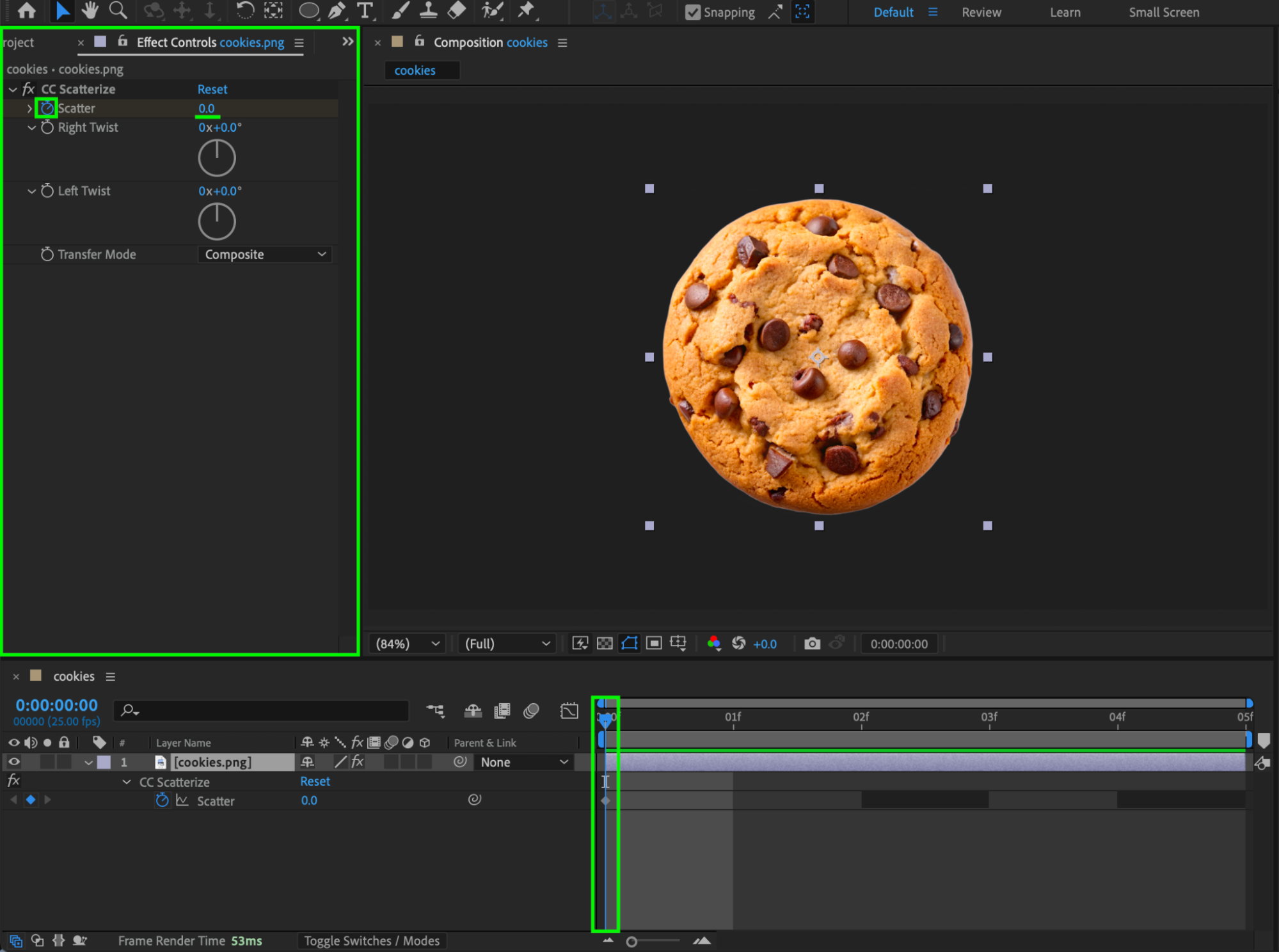
In the Effect Controls panel, animate the Scatter parameter:
Set Scatter = 0 at the beginning of the composition.
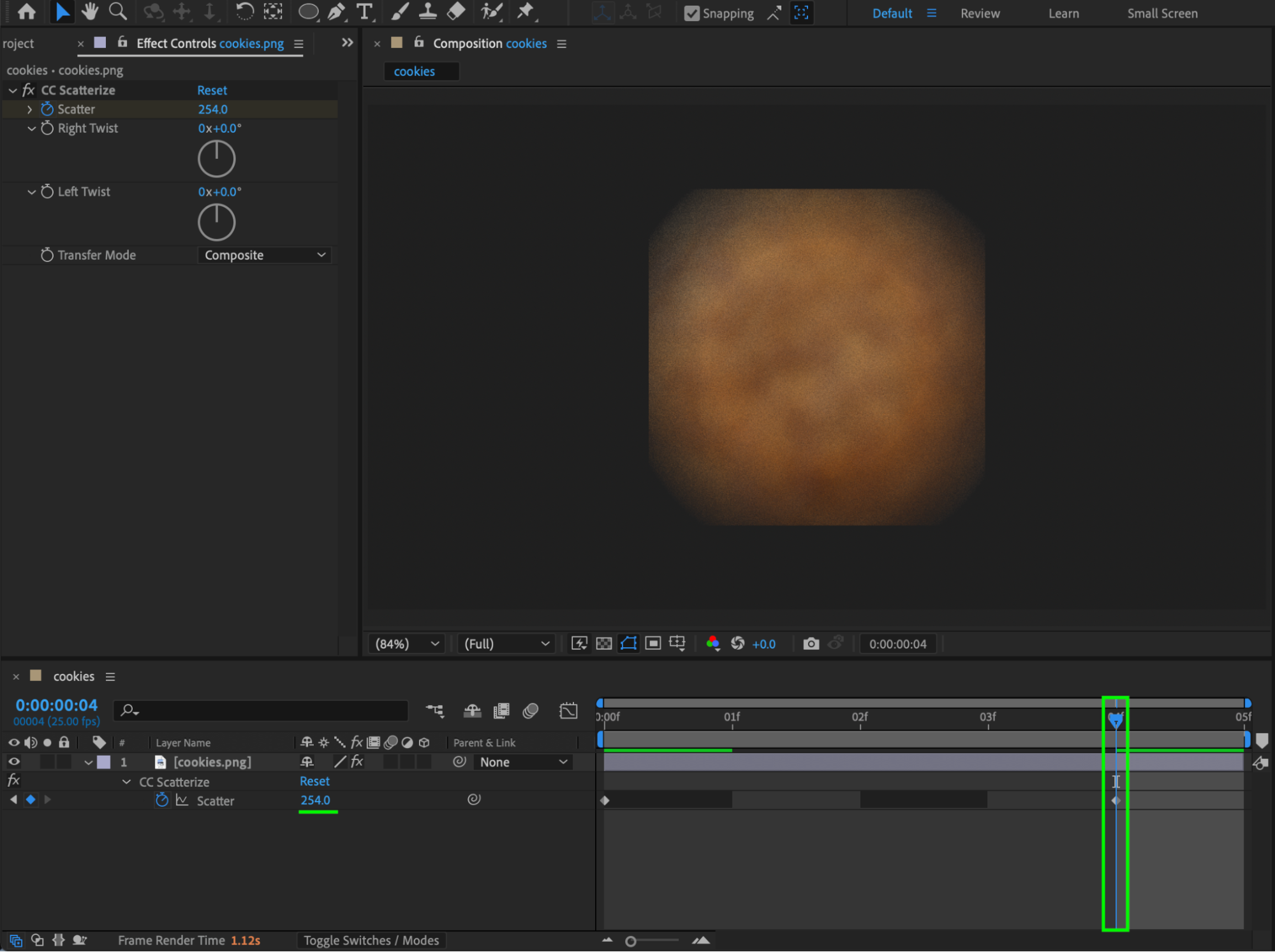
Increase it to a higher value (for example, 254) toward the end of the composition.
 Step 4: Fix the Bounding Box Edges
At high Scatter values, you may notice hard edges or a visible bounding box around the image. To fix this:
Apply the Grow Bounds effect to the same layer.
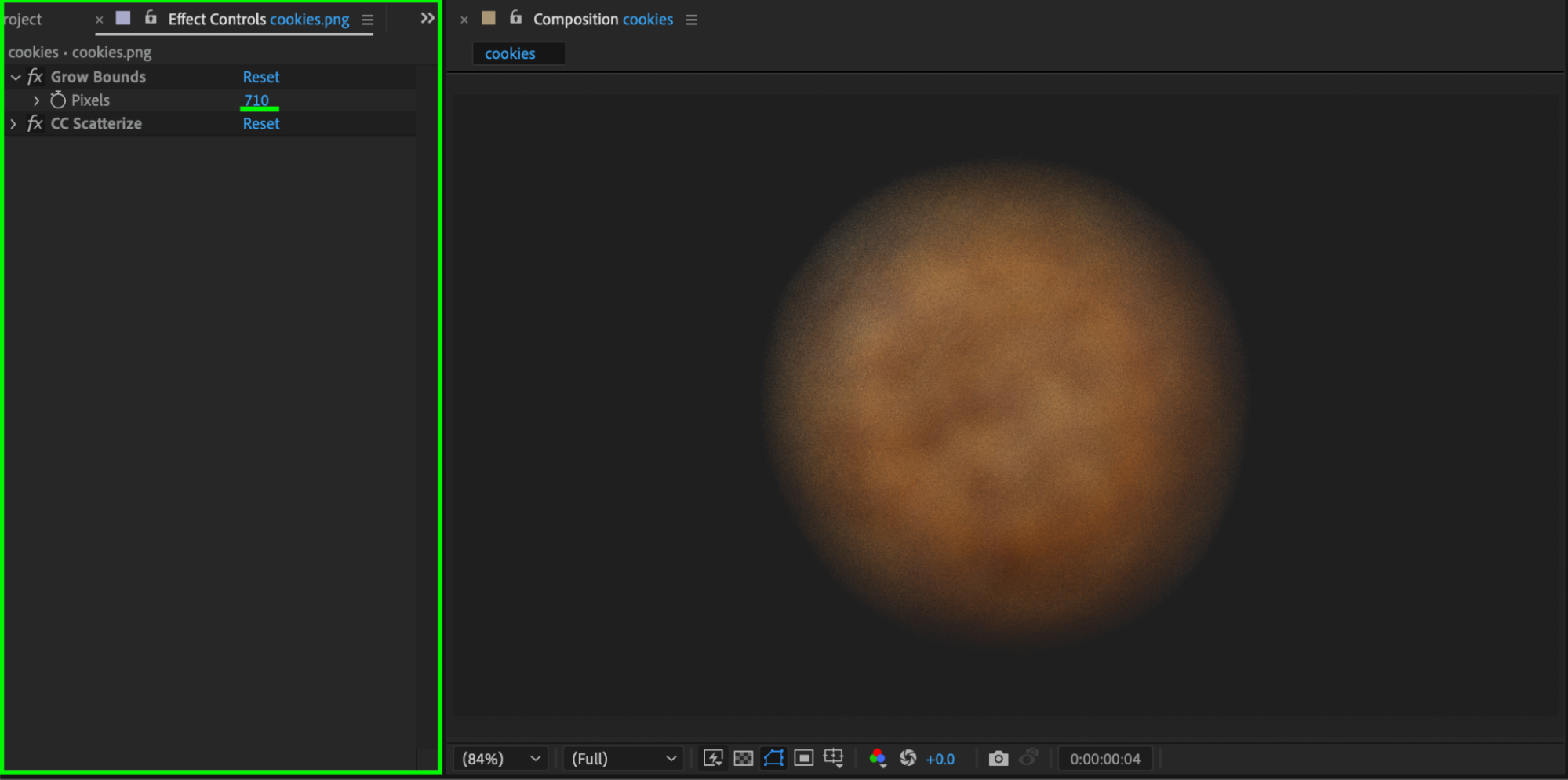
Make sure Grow Bounds is placed above CC Scatterize in the Effect Controls stack.
Adjust the Grow Bounds value until the edges disappear.
This expands the layer’s render area and prevents clipping.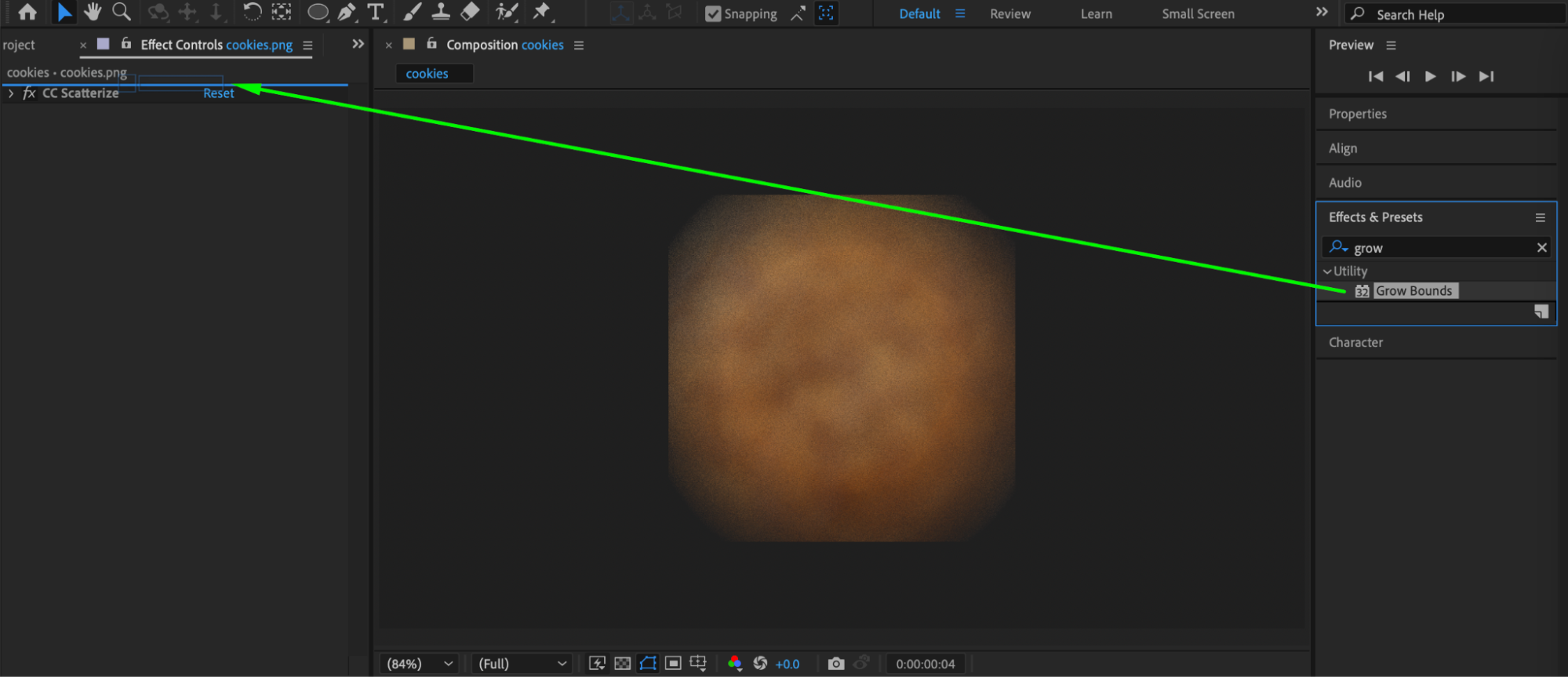
Step 5: Preview the Result
Preview your composition to confirm that the bounding box artifacts are gone and the effect animates smoothly.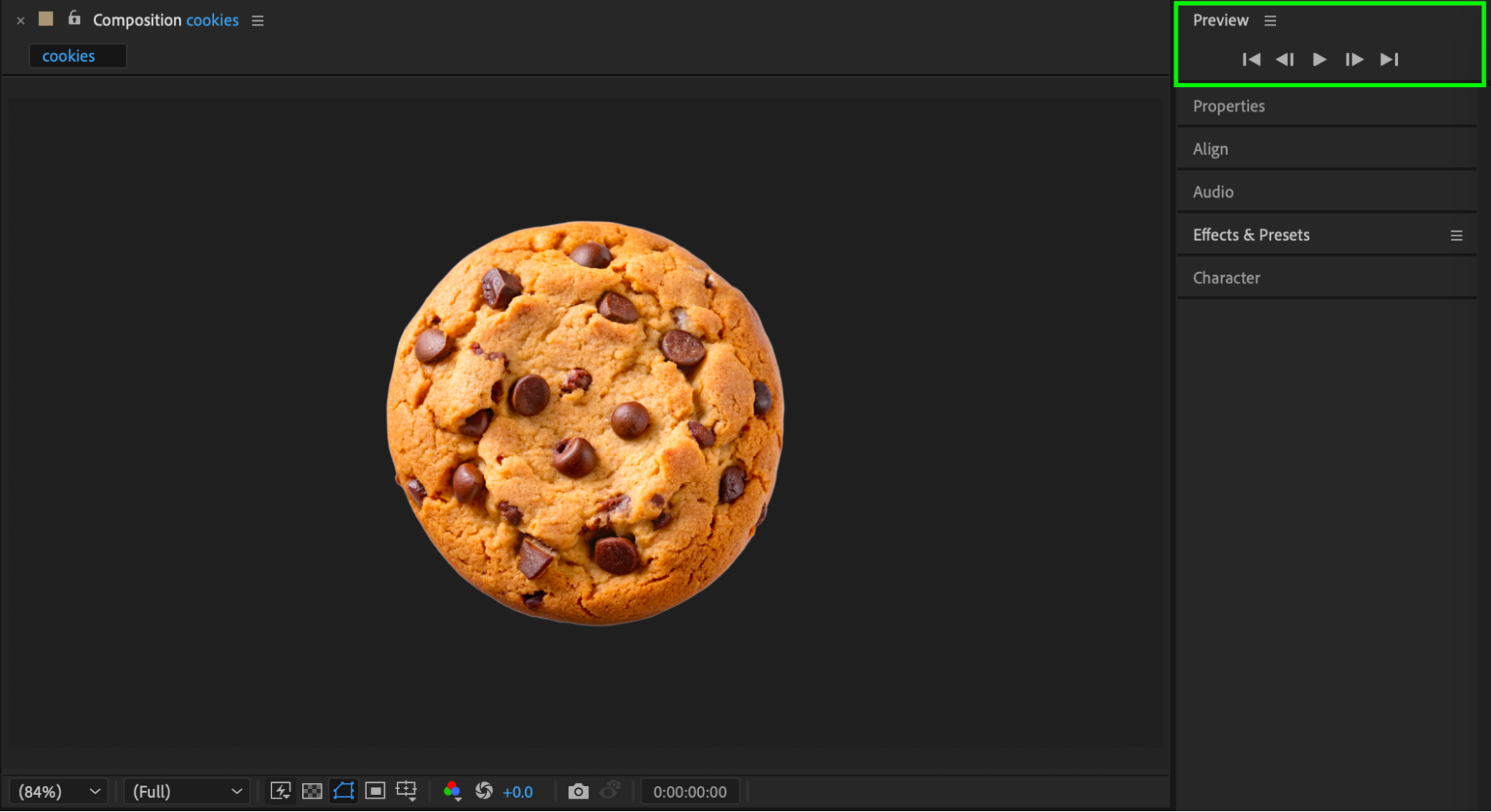 Conclusion
Bounding box artifacts are common when using displacement or scatter effects in After Effects. By placing Grow Bounds above the effect in the stack, you can eliminate unwanted edges and ensure clean, professional-looking animations.
Our Bestsellers
Our Bestsellers


