
Introduction
Animating a balloon is a great way to add soft, organic motion to your scene. Using the Puppet Tool, you can easily create a subtle wind-driven sway that loops smoothly and feels natural.
Step 1: Import the Balloon Image
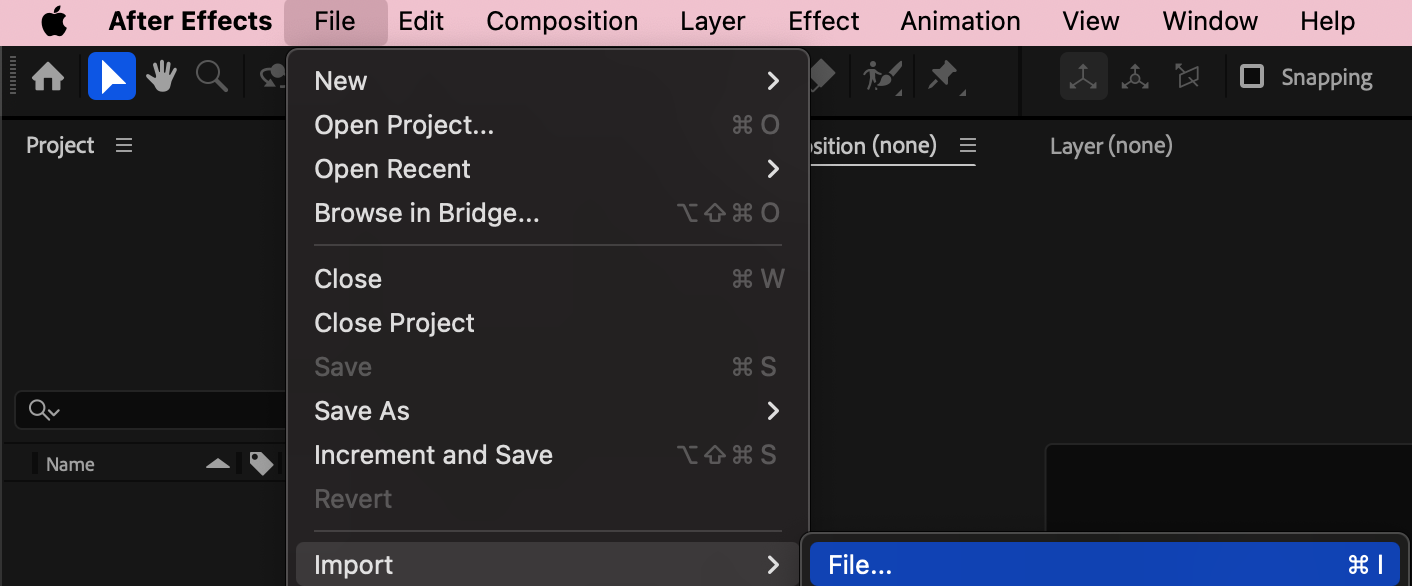
Go to File > Import > File and import your balloon image into the project.
Step 2: Create a New Composition
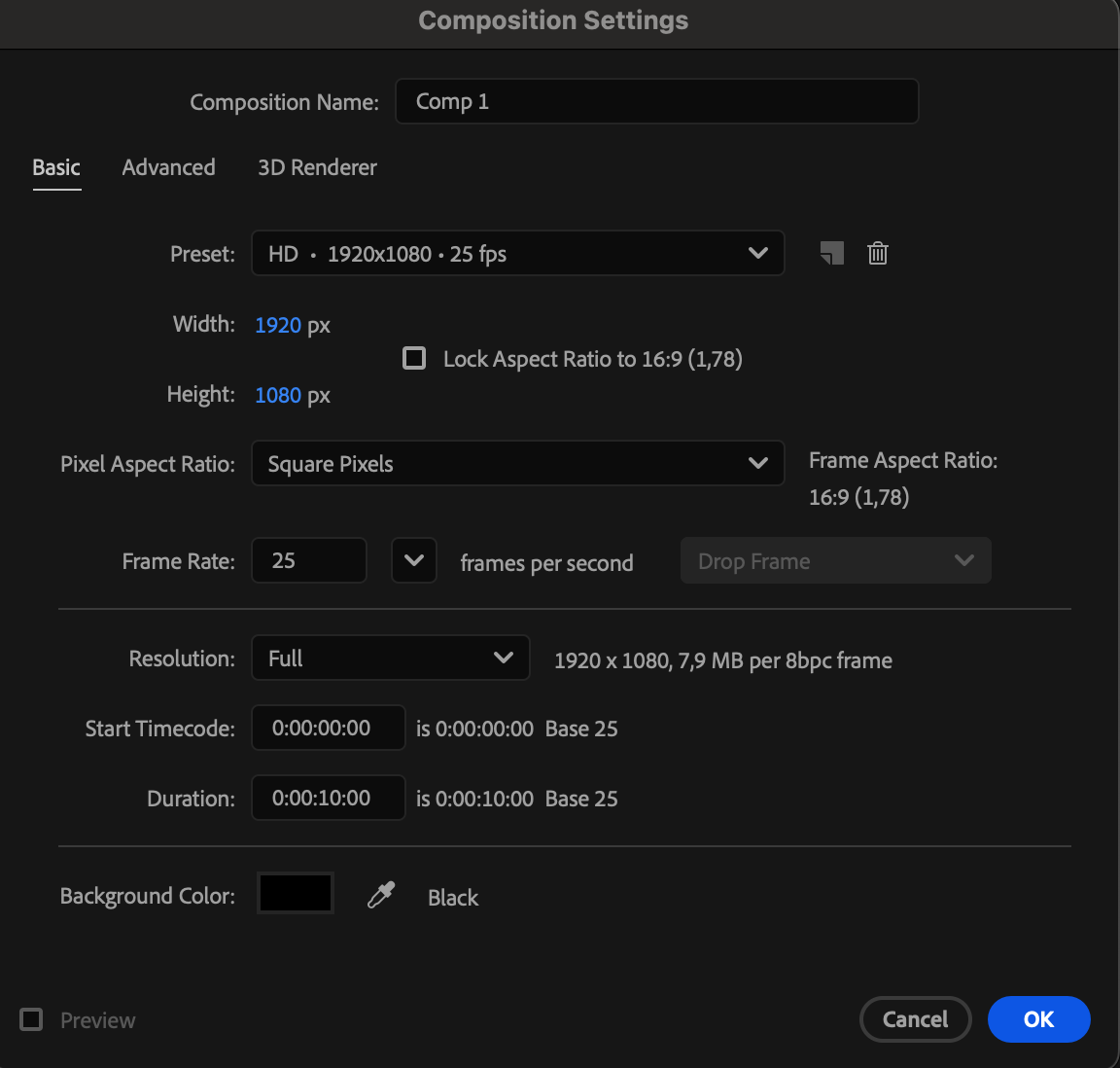
Create a New Composition and set the desired resolution and frame rate.

Step 3: Add the Balloon to the Timeline
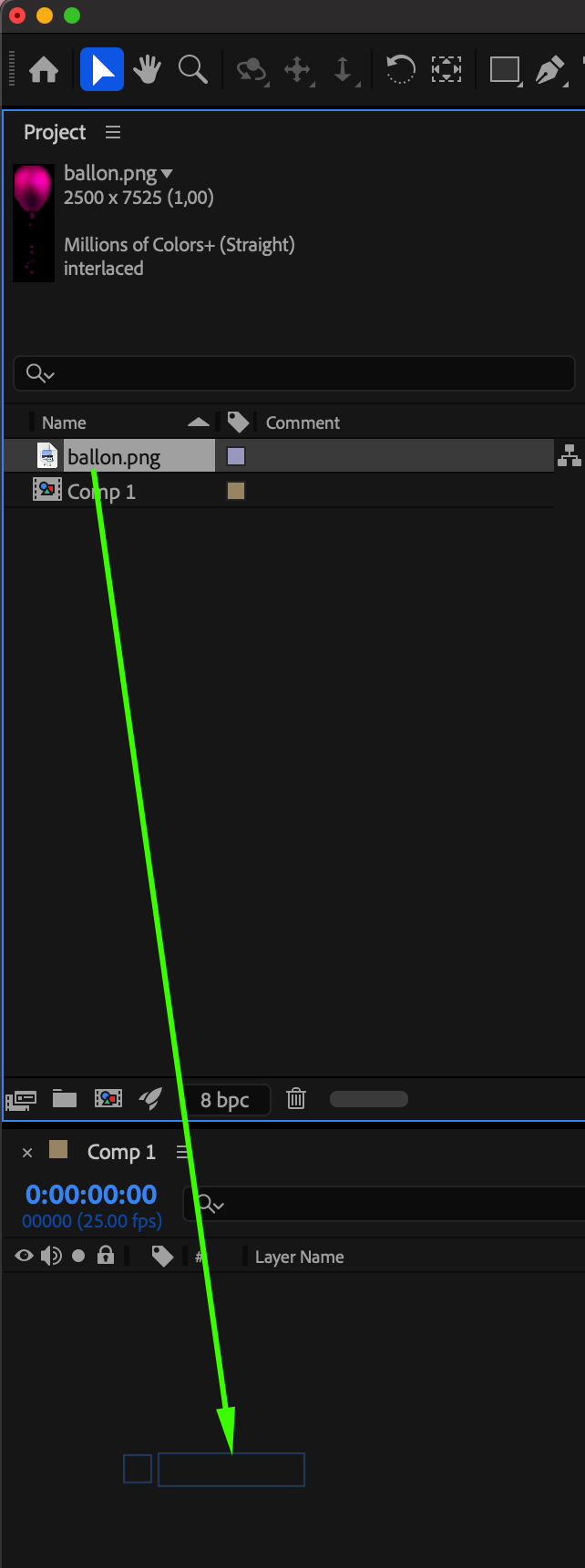
Drag the balloon image from the Project panel onto the timeline.
Step 4: Add Puppet Pins
Double-click the balloon layer to open it in the Layer panel. Use the Puppet Pin Tool (Ctrl/Cmd + P) and place several pins on the balloon to control its deformation.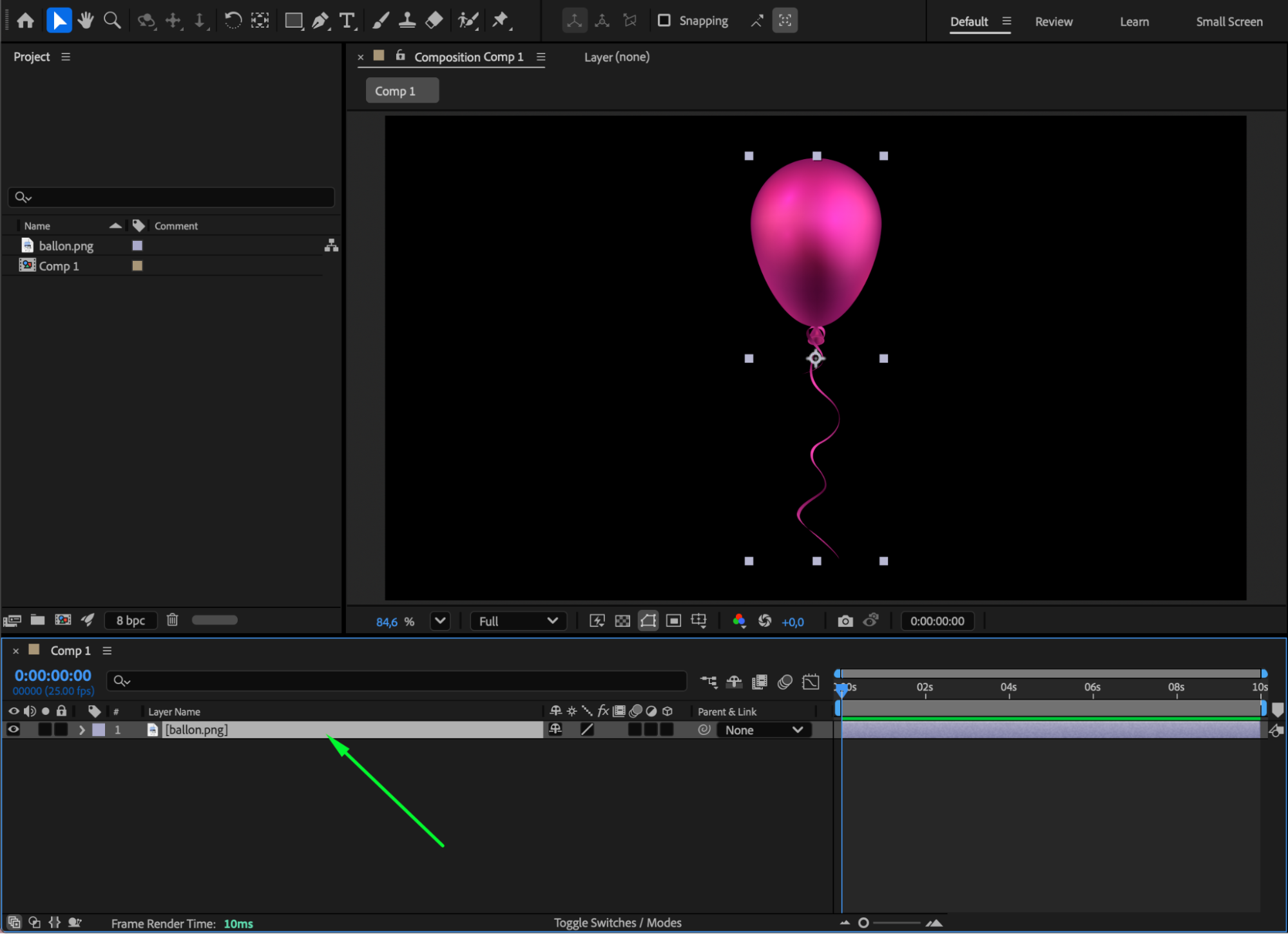
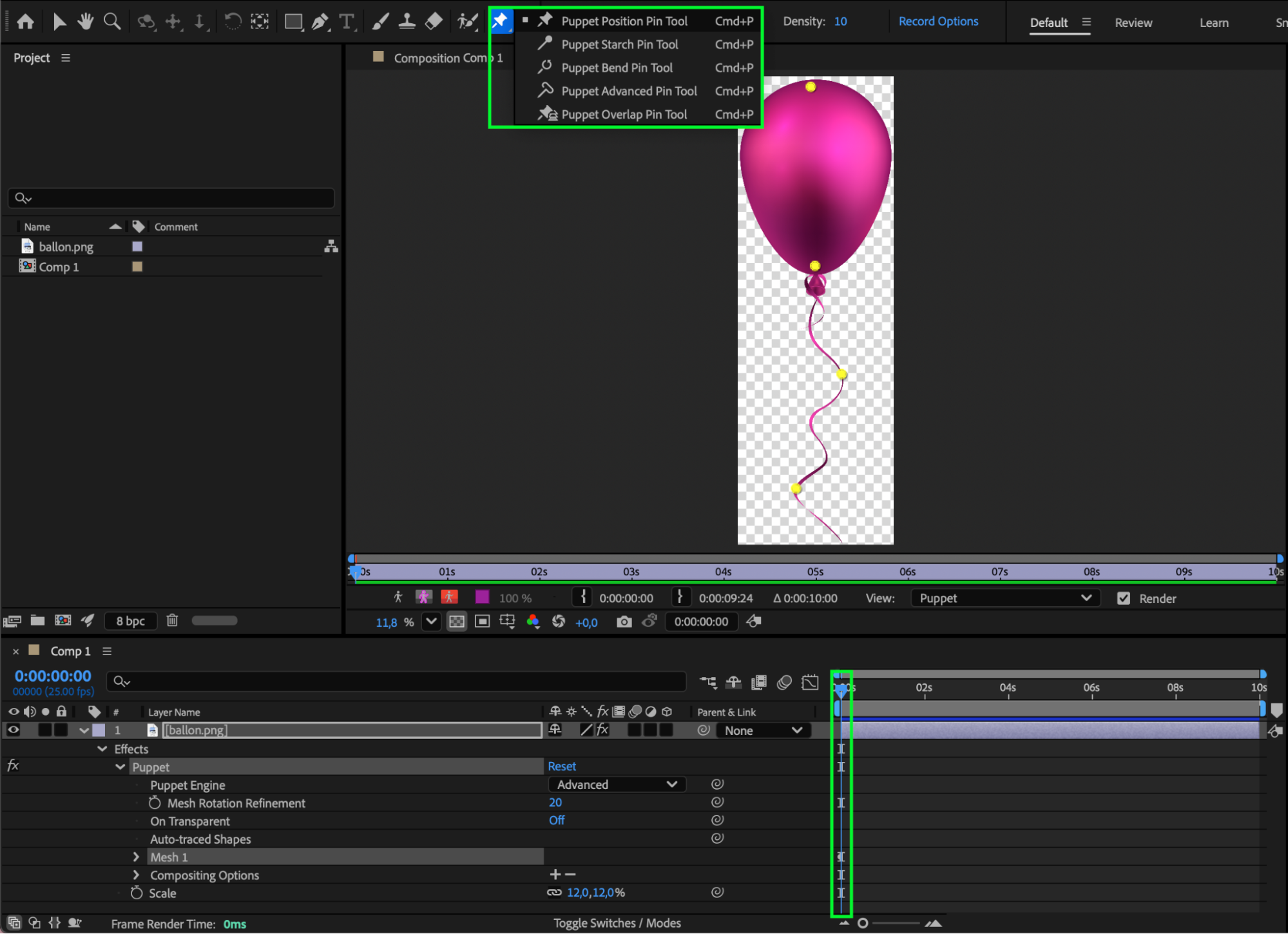
Step 5: Animate the Balloon Movement
Move the CTI forward and slightly adjust the position of the puppet pins. This will create a gentle swaying motion, simulating the balloon moving in the wind.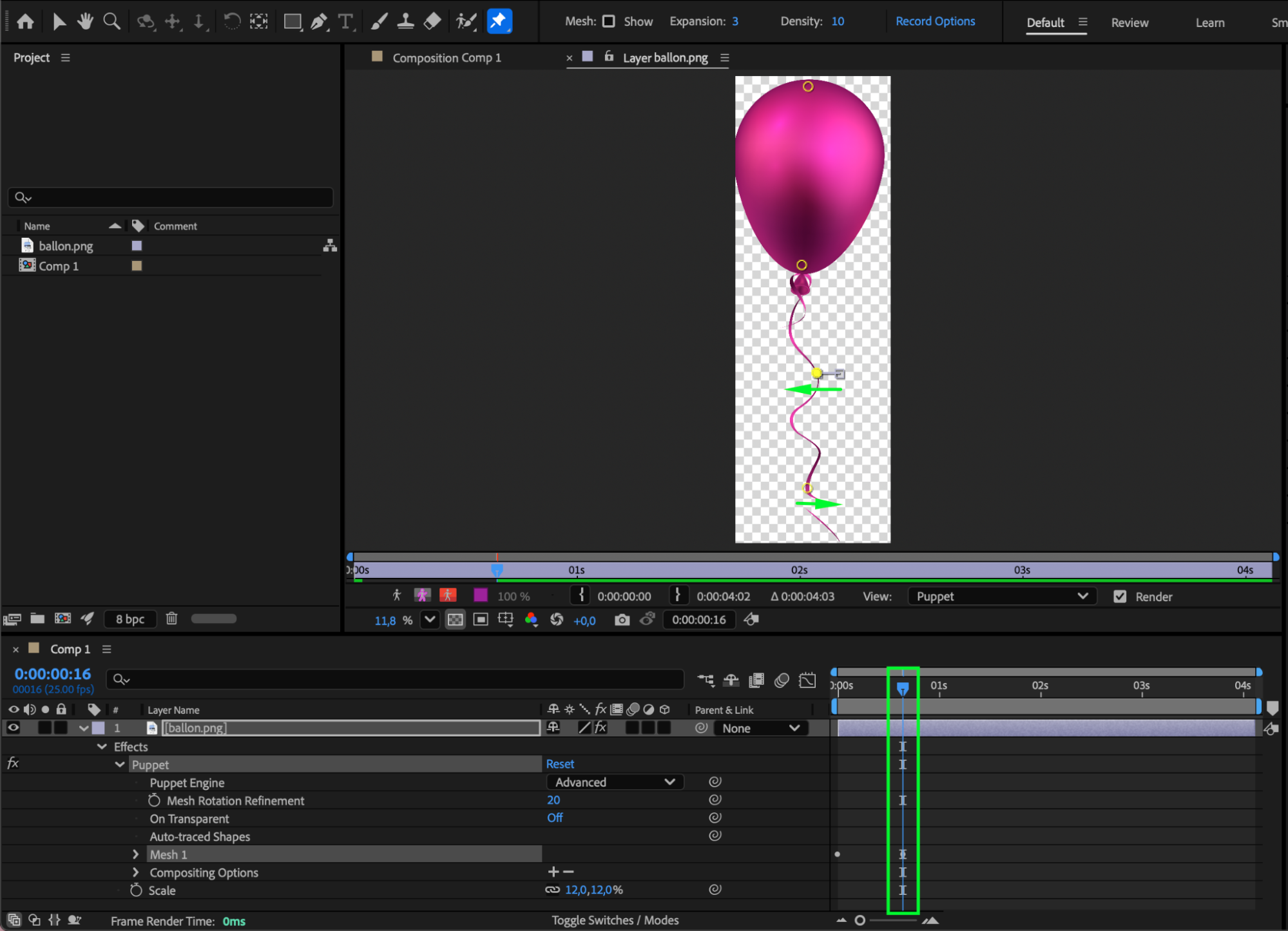
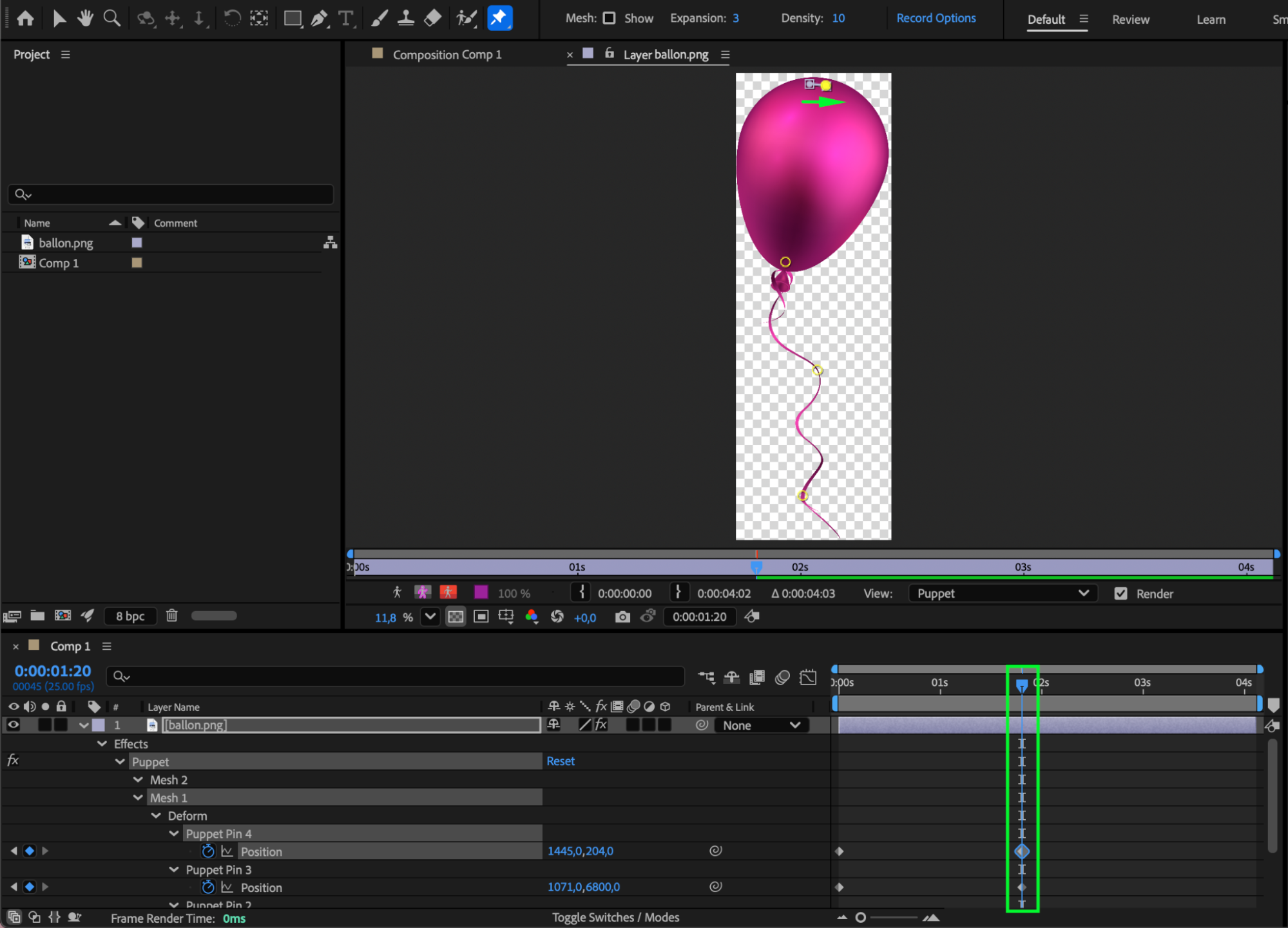
Step 6: Loop the Animation
For all animated Puppet Pin Position properties, Alt/Option-click the stopwatch and add the following expression:
loopOutDuration(type = “cycle”, duration = 0)
This creates a seamless looping animation.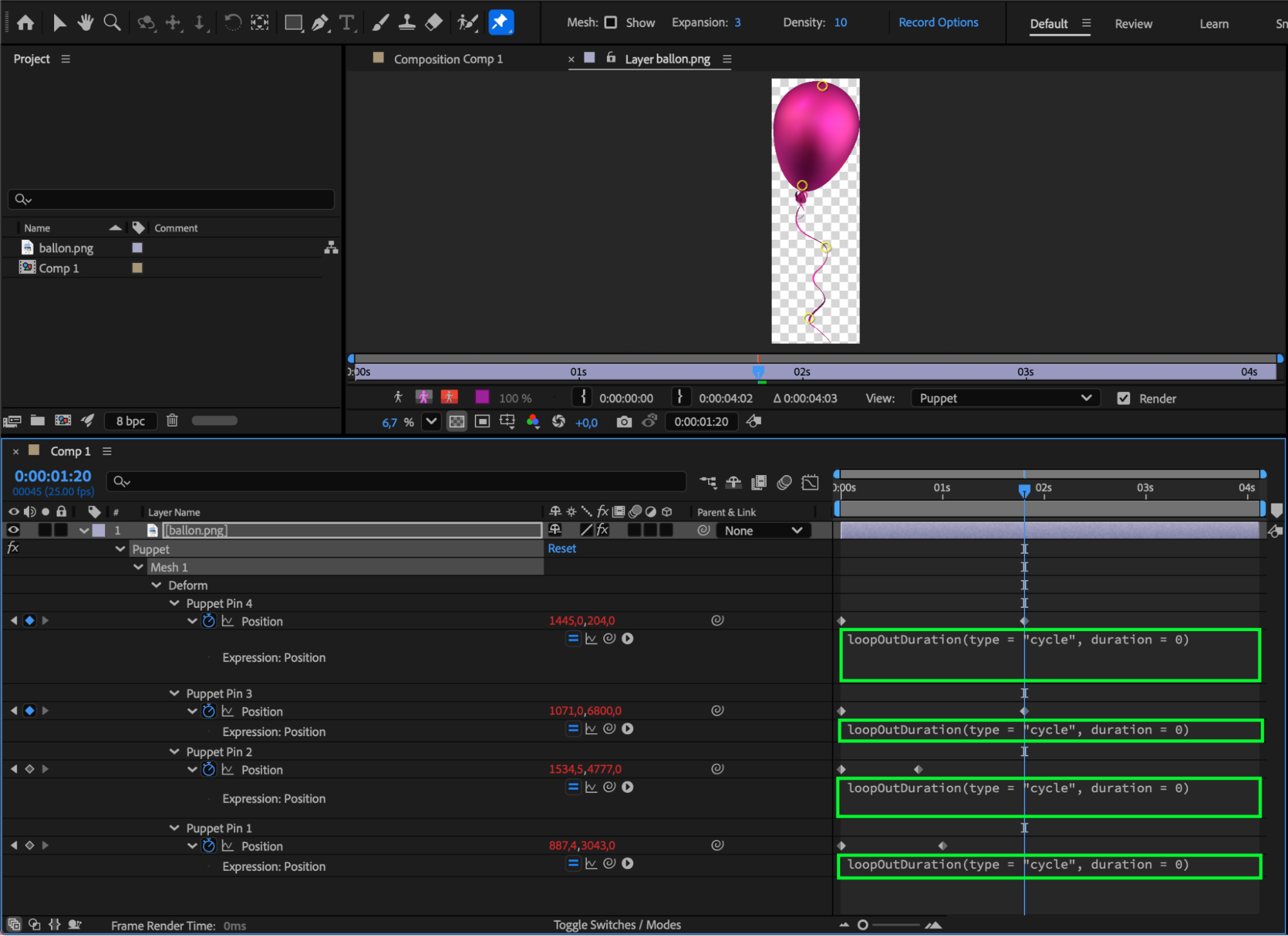 Step 7: Add Motion Blur
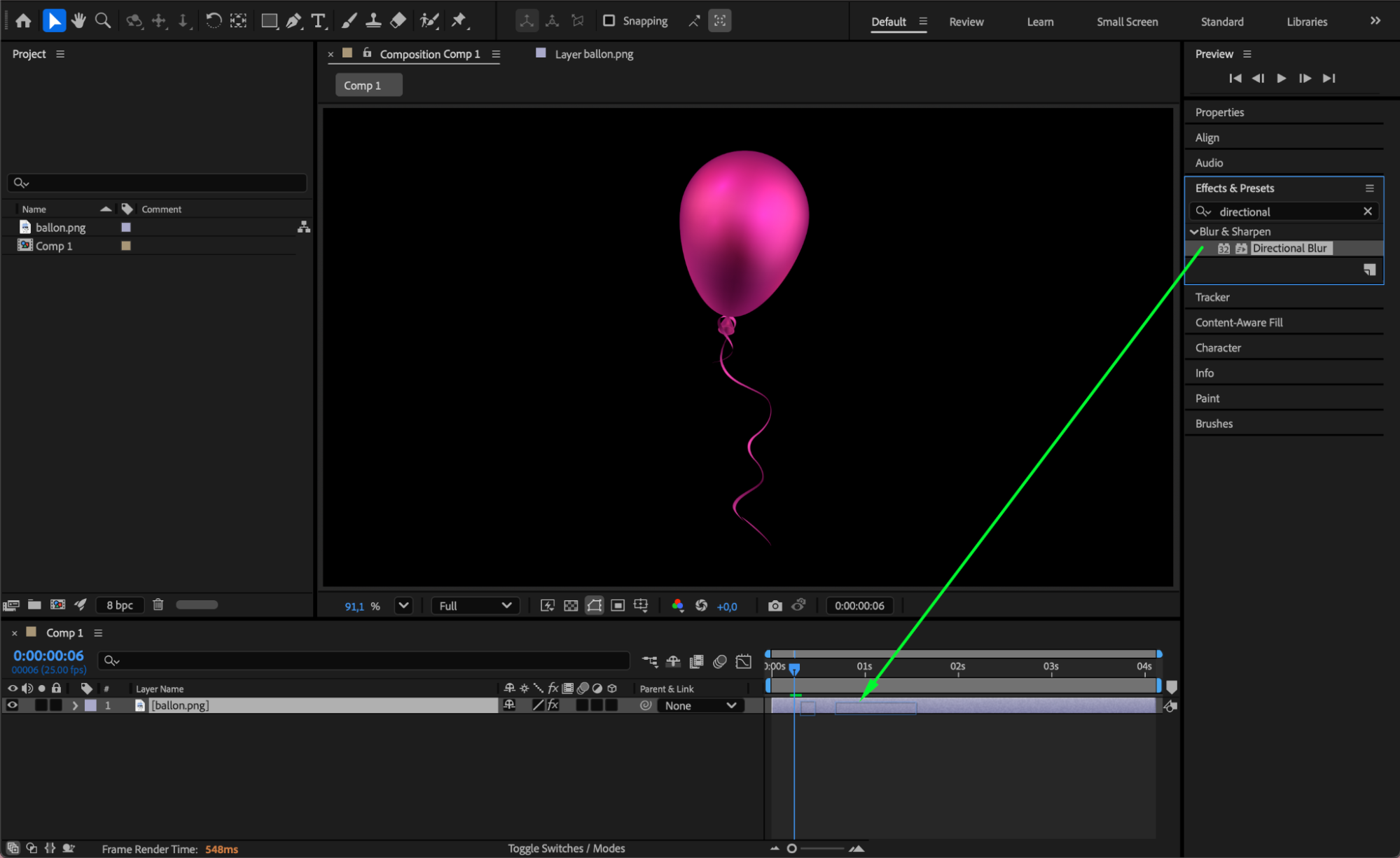
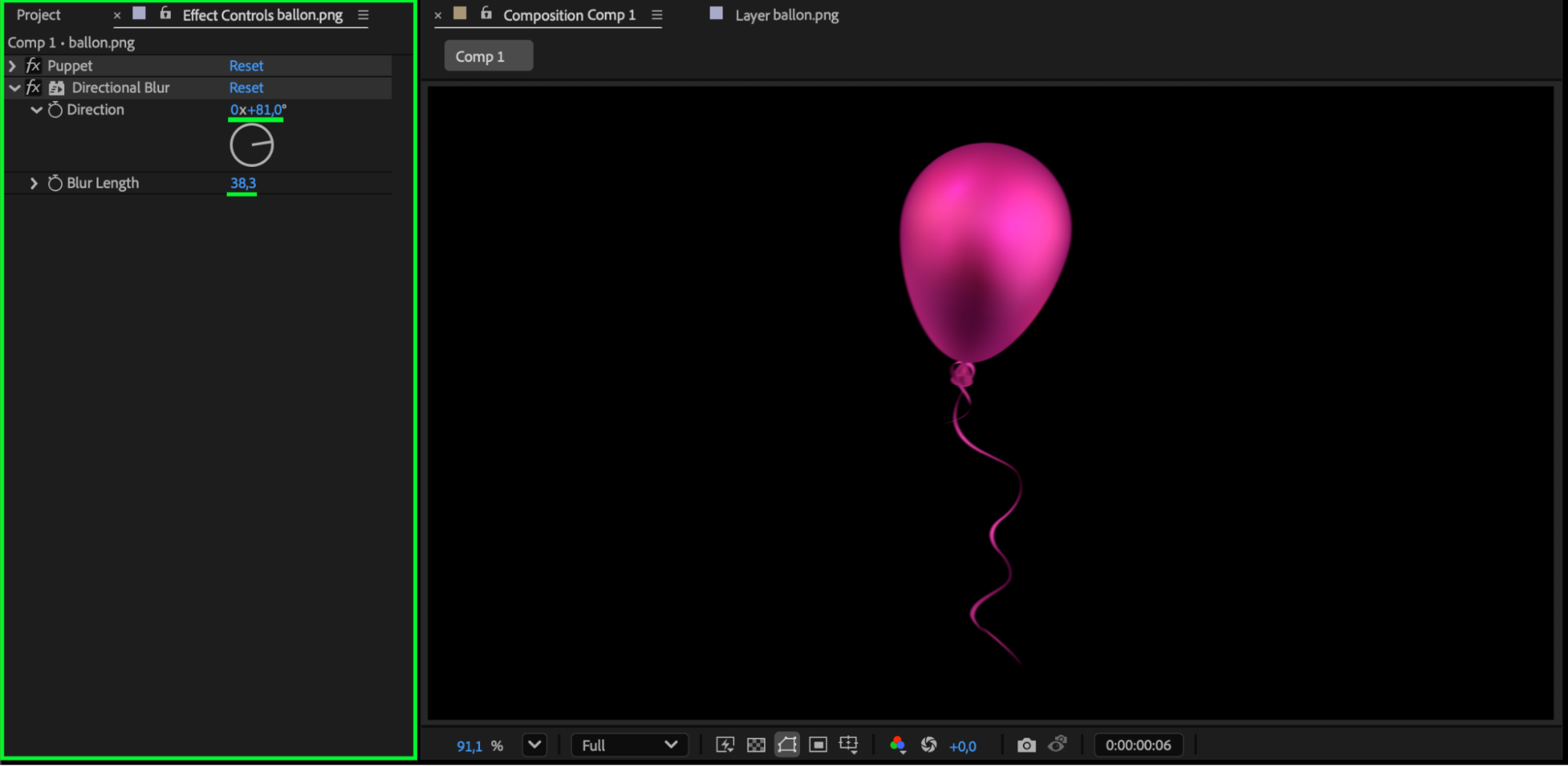
Apply the Directional Blur effect to the balloon layer to enhance realism and smooth out the motion.
Preview
Preview your animation and adjust the timing or pin movement if needed.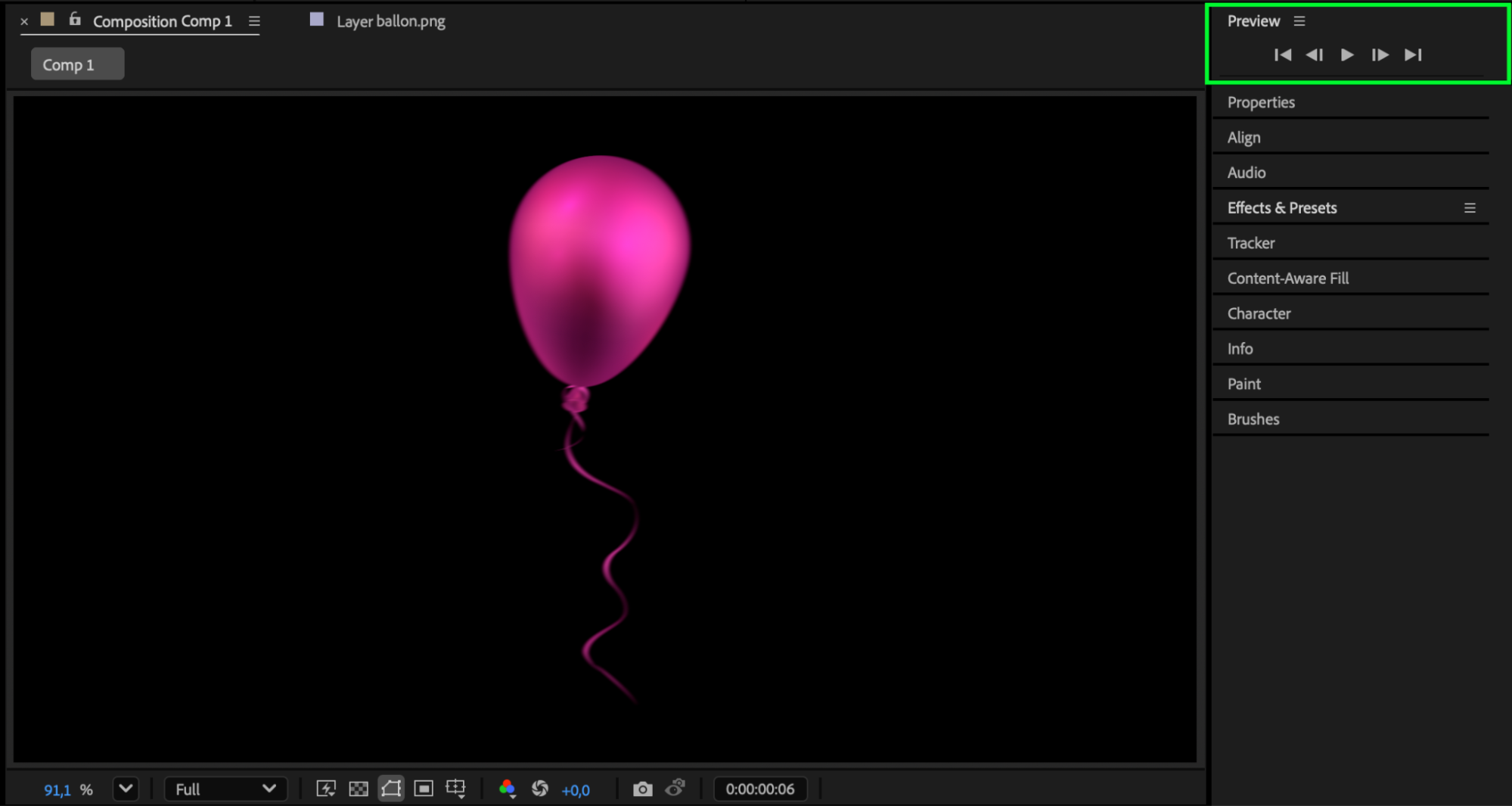
Conclusion
With subtle puppet animation and looping, you can create a smooth, natural balloon motion that works perfectly for backgrounds, illustrations, or motion graphics.
Our Bestsellers
Our Bestsellers


