
Learn how to create and animate a dotted line in After Effects using shape layers, stroke settings, and simple animation techniques.
Introduction
Animating a dotted line is a simple yet effective technique often used in motion graphics, maps, UI animations, and explainer videos. In this tutorial, you’ll learn how to create a dotted line and animate it smoothly using shape layer properties in After Effects.
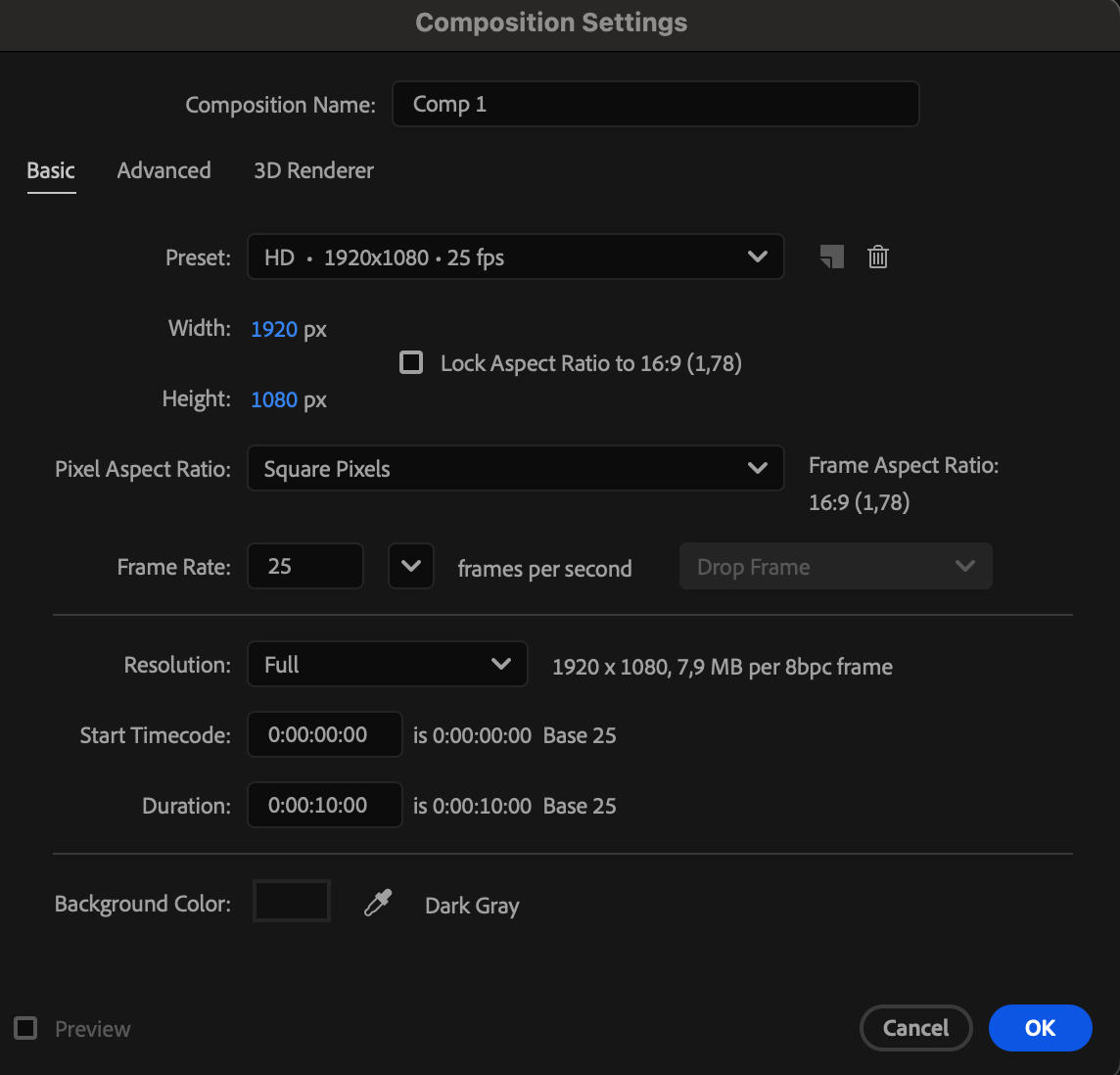
Step 1: Create a New Composition
Create a new composition with the resolution and frame rate you need for your project.
 Step 2: Draw the Line
Select the Pen Tool (G) and draw a line in the Composition panel.
Set Fill to None
Choose a Stroke color
Set the Stroke Width as needed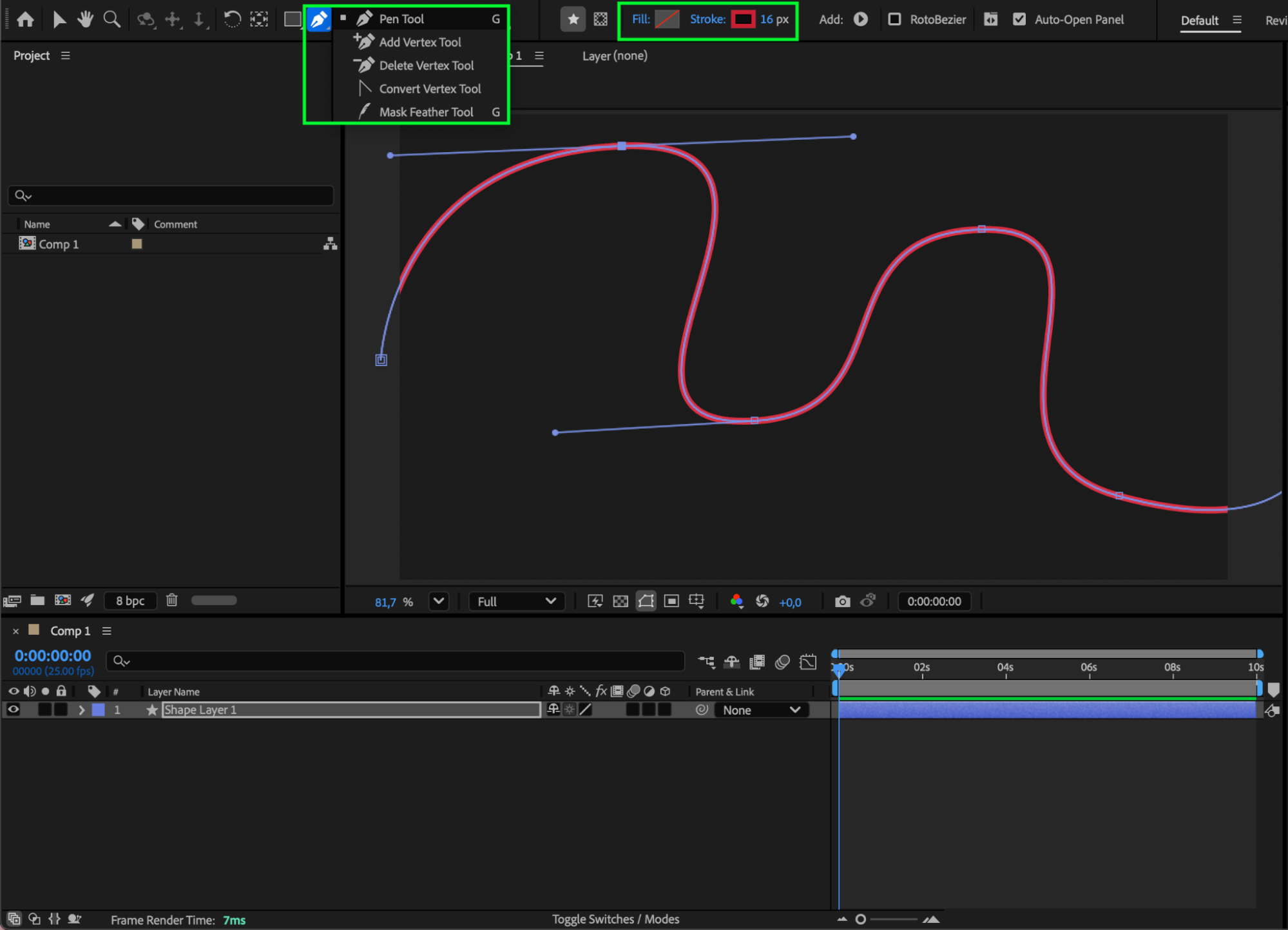
Step 3: Adjust Stroke Settings
Open the shape layer properties and go to Stroke settings:
Set Line Cap to Round Cap
Set Line Join to Round Join
Under Dashes, click the “+” button to enable dashed strokes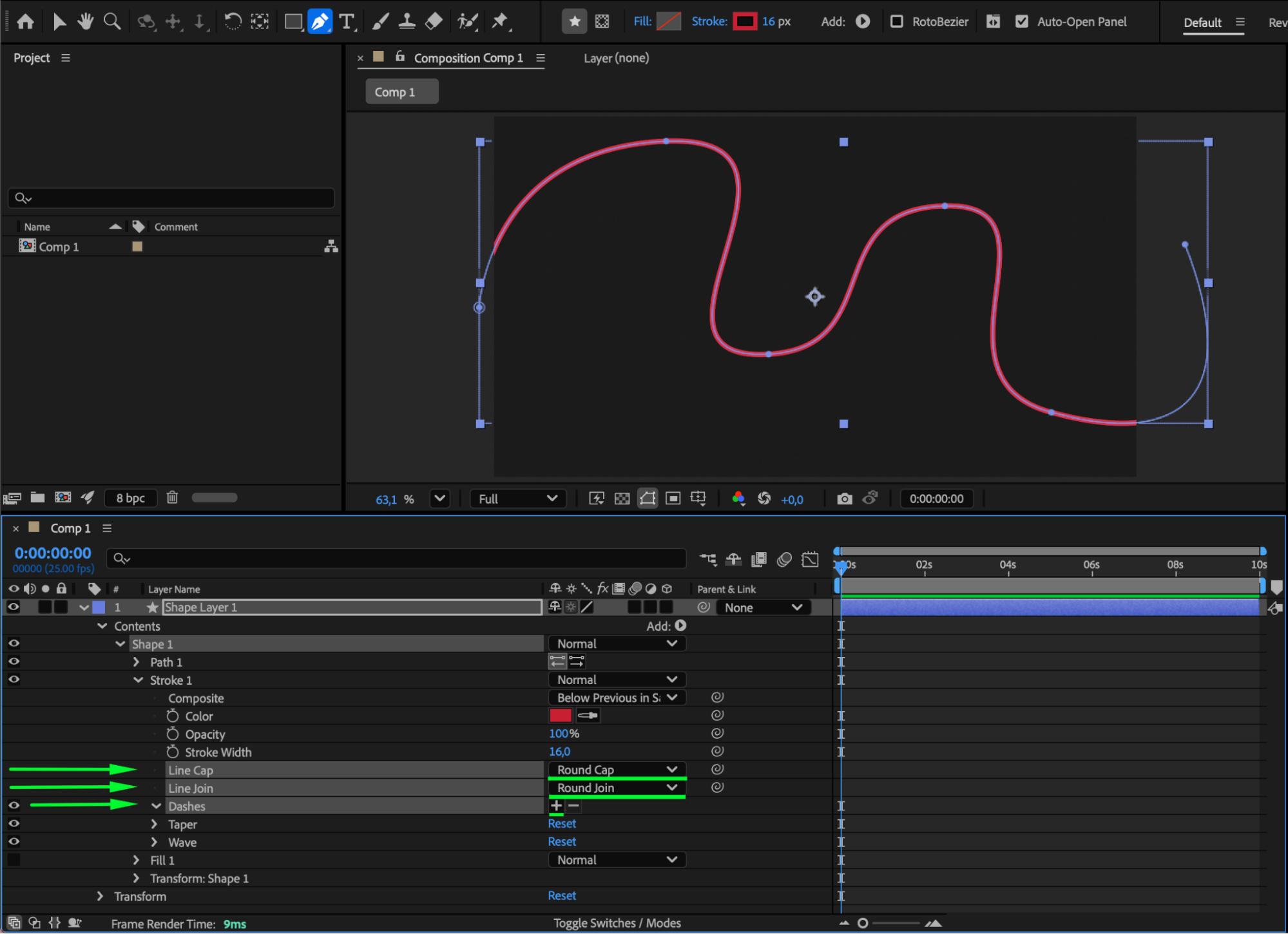 Step 4: Create and Animate the Dots
Adjust the dash settings:
Set Dash to 71
Set Wave Amount to 60 (optional)
Animate the Offset parameter:
0 at the start of the composition
770 around the middle of the composition
This creates the animated dotted line movement.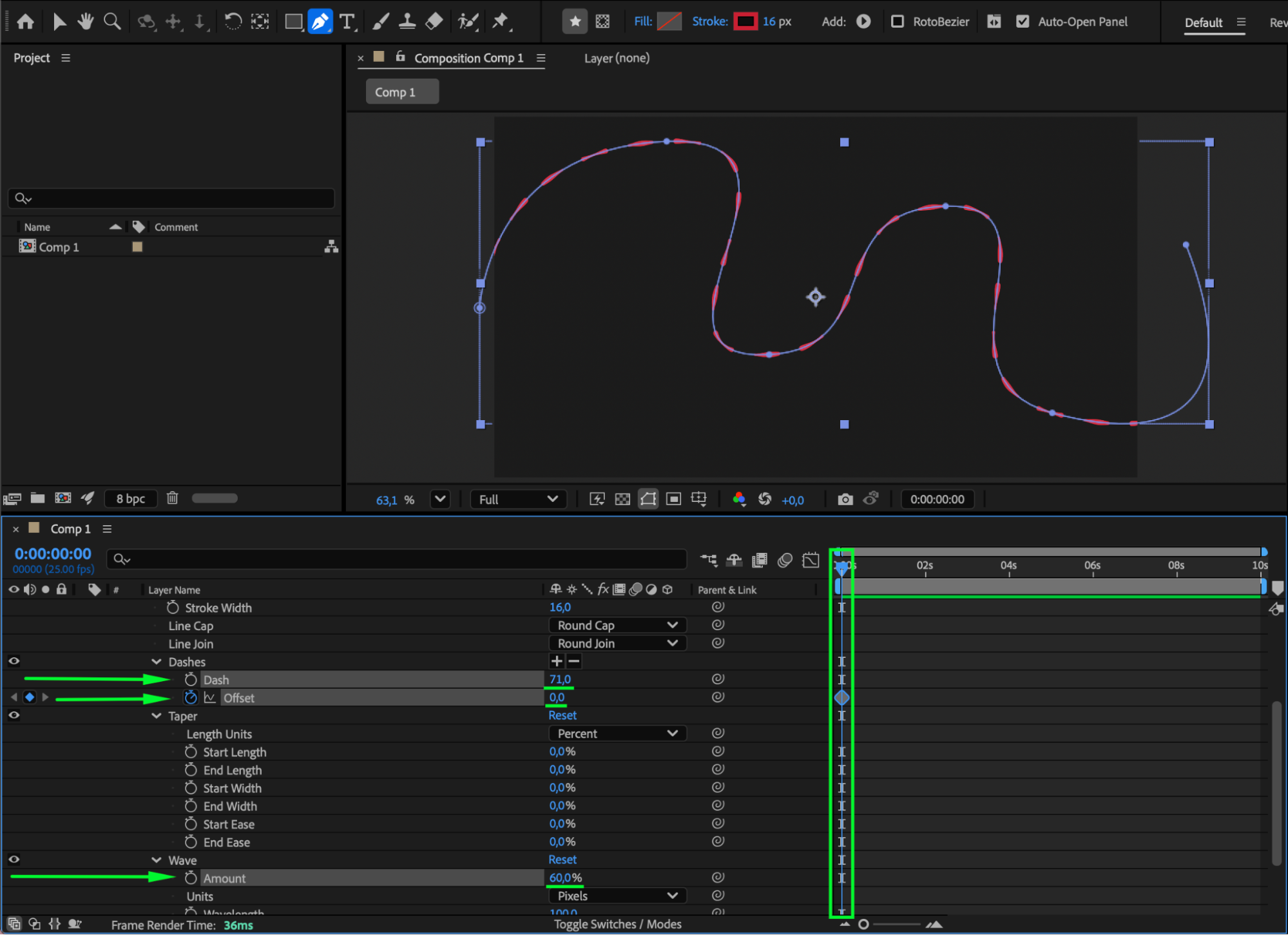
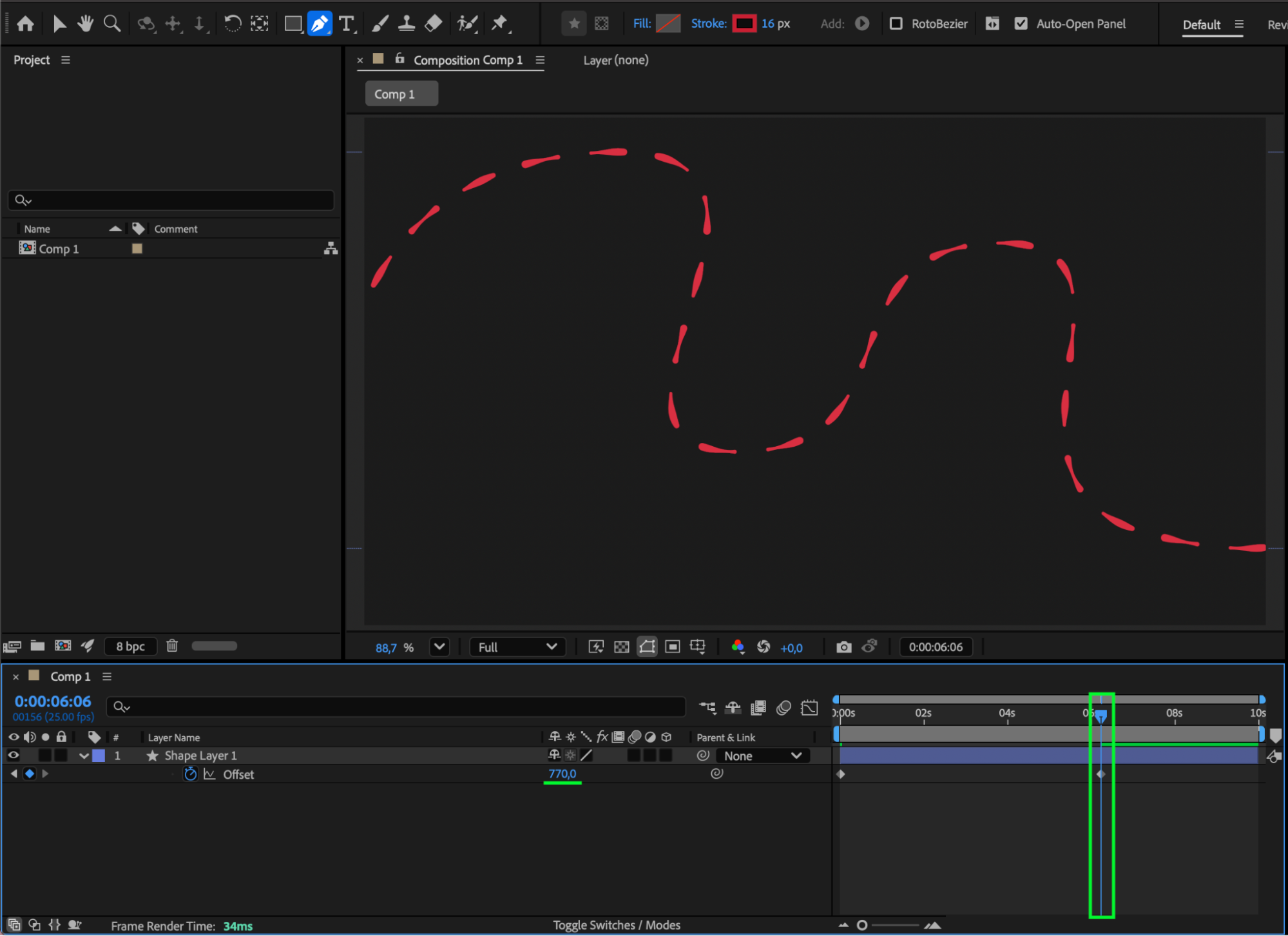
Step 5: Customize the Look
Add effects from Effects & Presets, such as Glow, to enhance the dotted line.
Experiment with colors
Adjust the stroke width
Try multiple Glow effects for a stronger visual style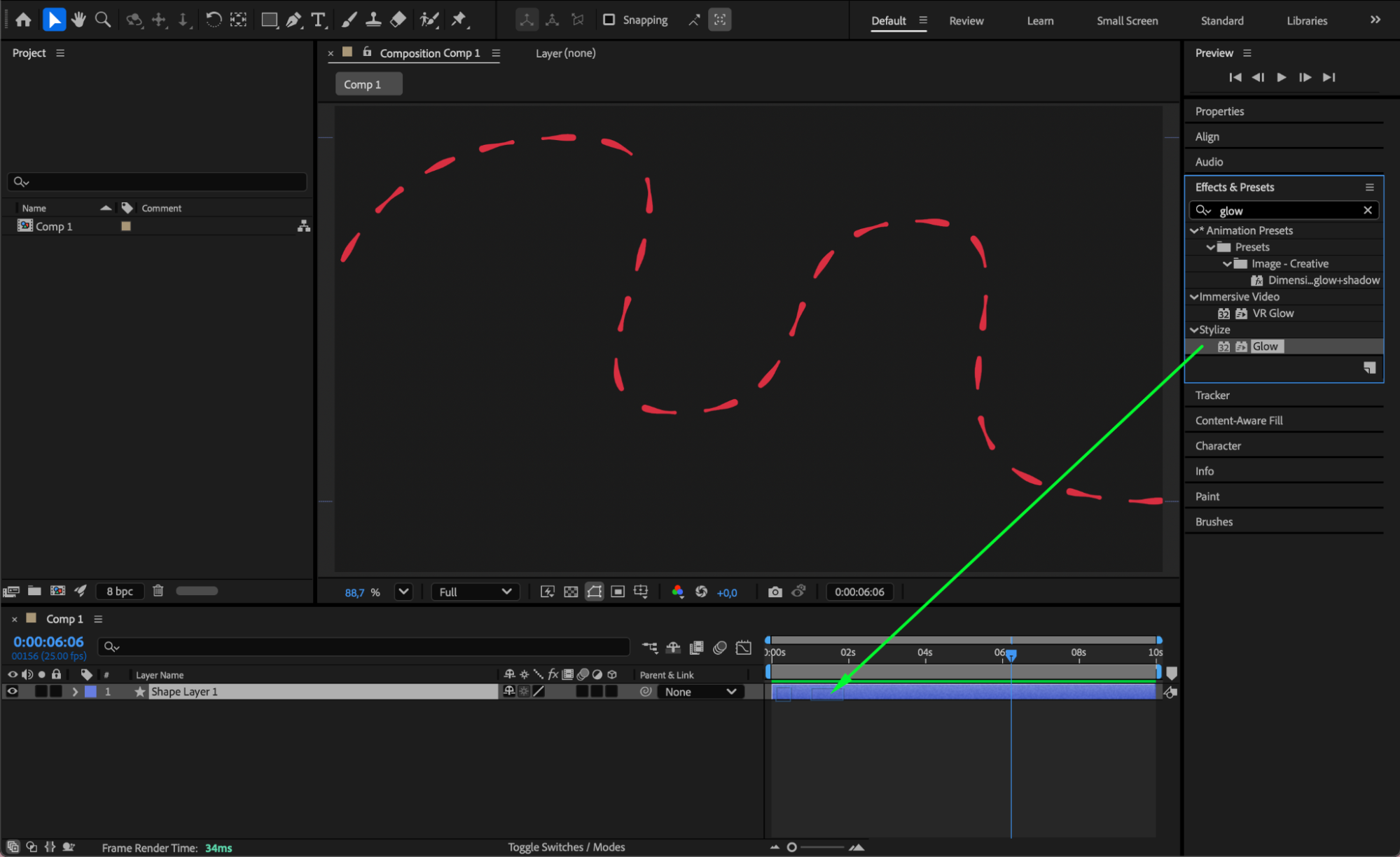
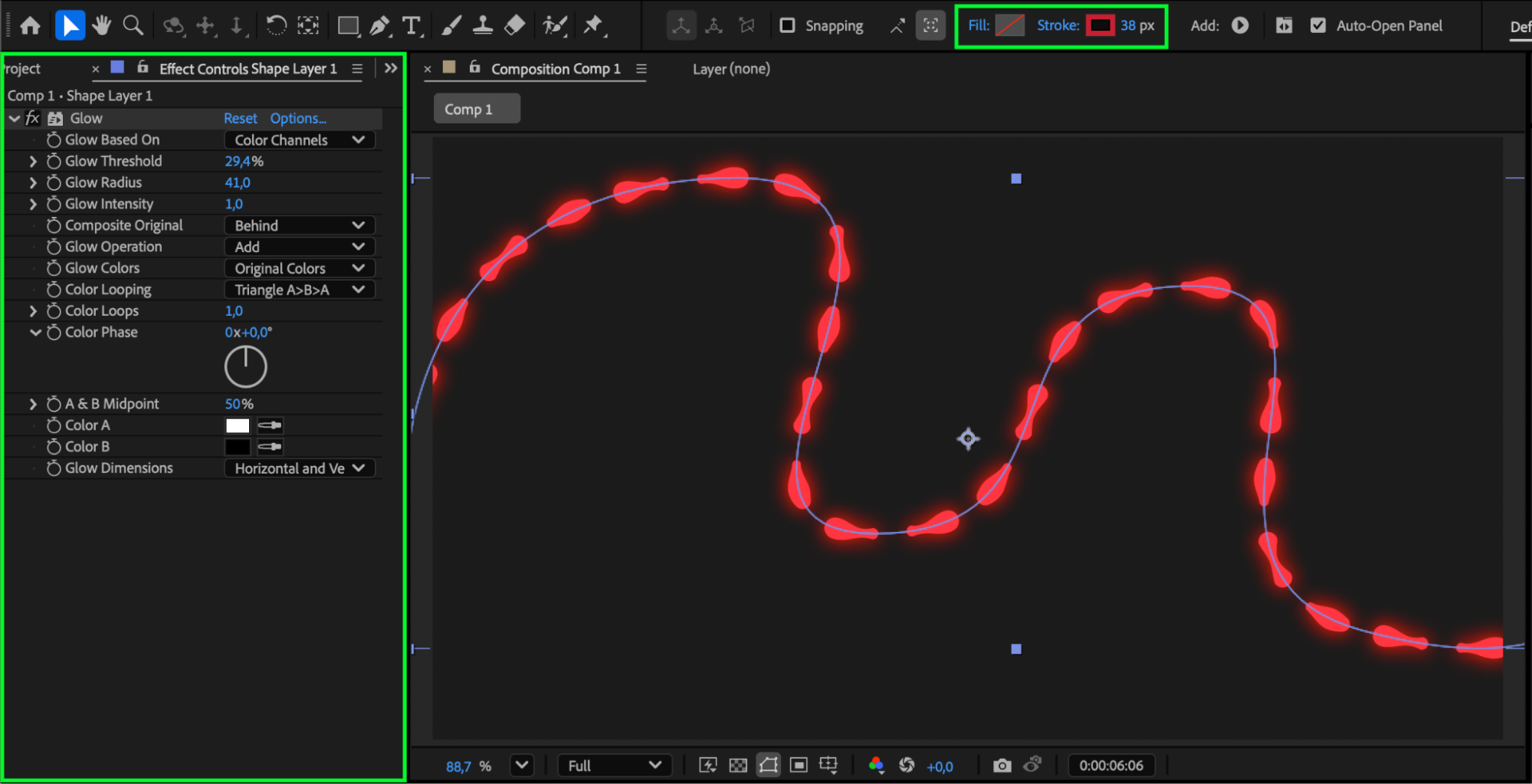 Step 6: Preview the Animation
Preview your animation and fine-tune the timing and visual style as needed.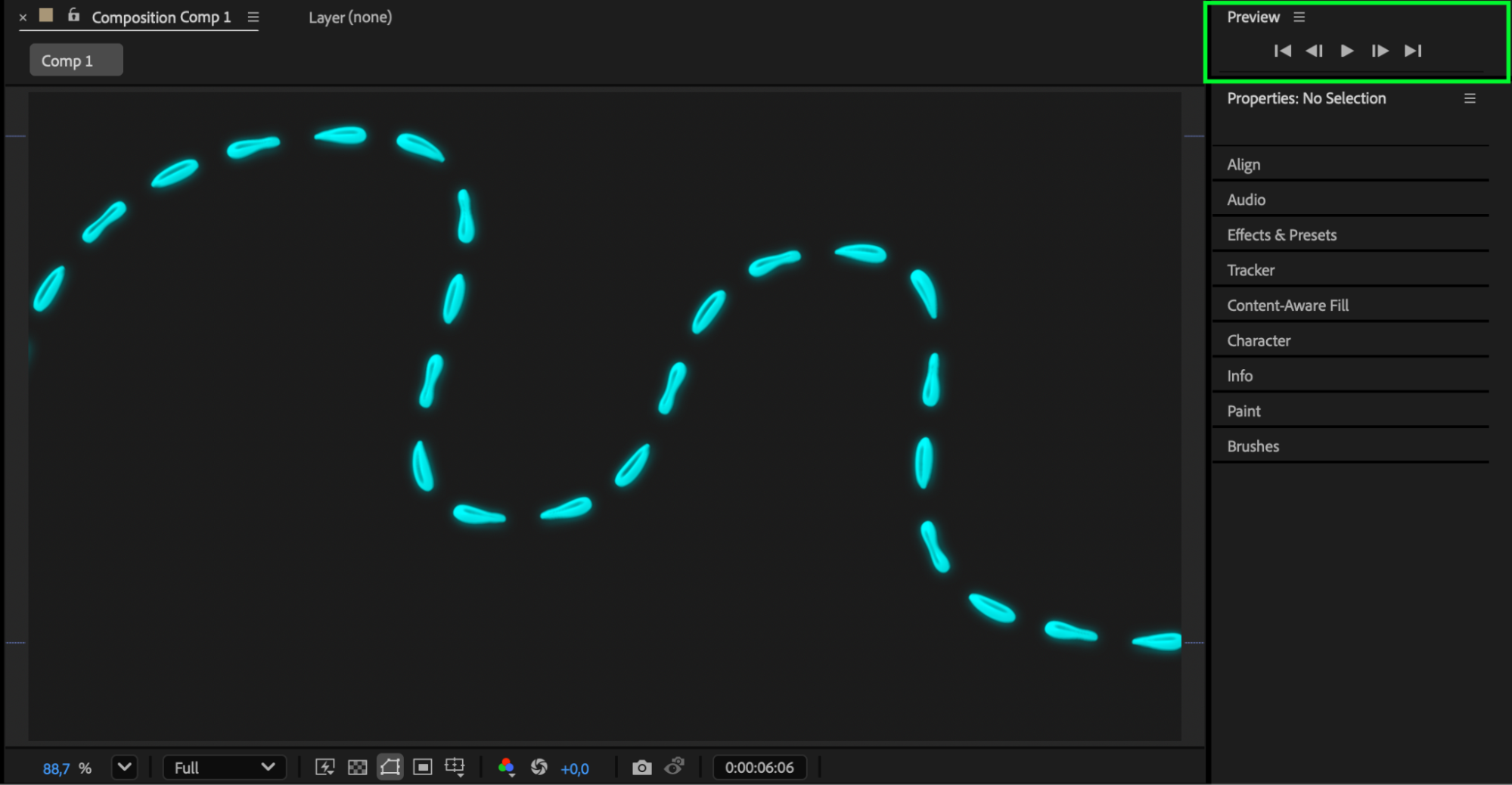 Conclusion
Animating a dotted line in After Effects is a fast and flexible technique that works well for many motion design scenarios. By animating the Stroke Offset and customizing effects, you can easily create clean and dynamic dotted line animations.
Our Bestsellers
Our Bestsellers


