
Learn how to create smooth and stylish rectangle animations using shape layer properties, easing, motion blur, and effects in After Effects.
Introduction
Animating rectangles is a core skill in motion design. By adjusting shape layer properties such as Size, Position, and Roundness, you can create clean and dynamic UI animations, transitions, and modern motion graphics directly in After Effects.
Step 1: Create a New Composition
Go to Composition > New Composition and set up your composition with the desired resolution and frame rate.
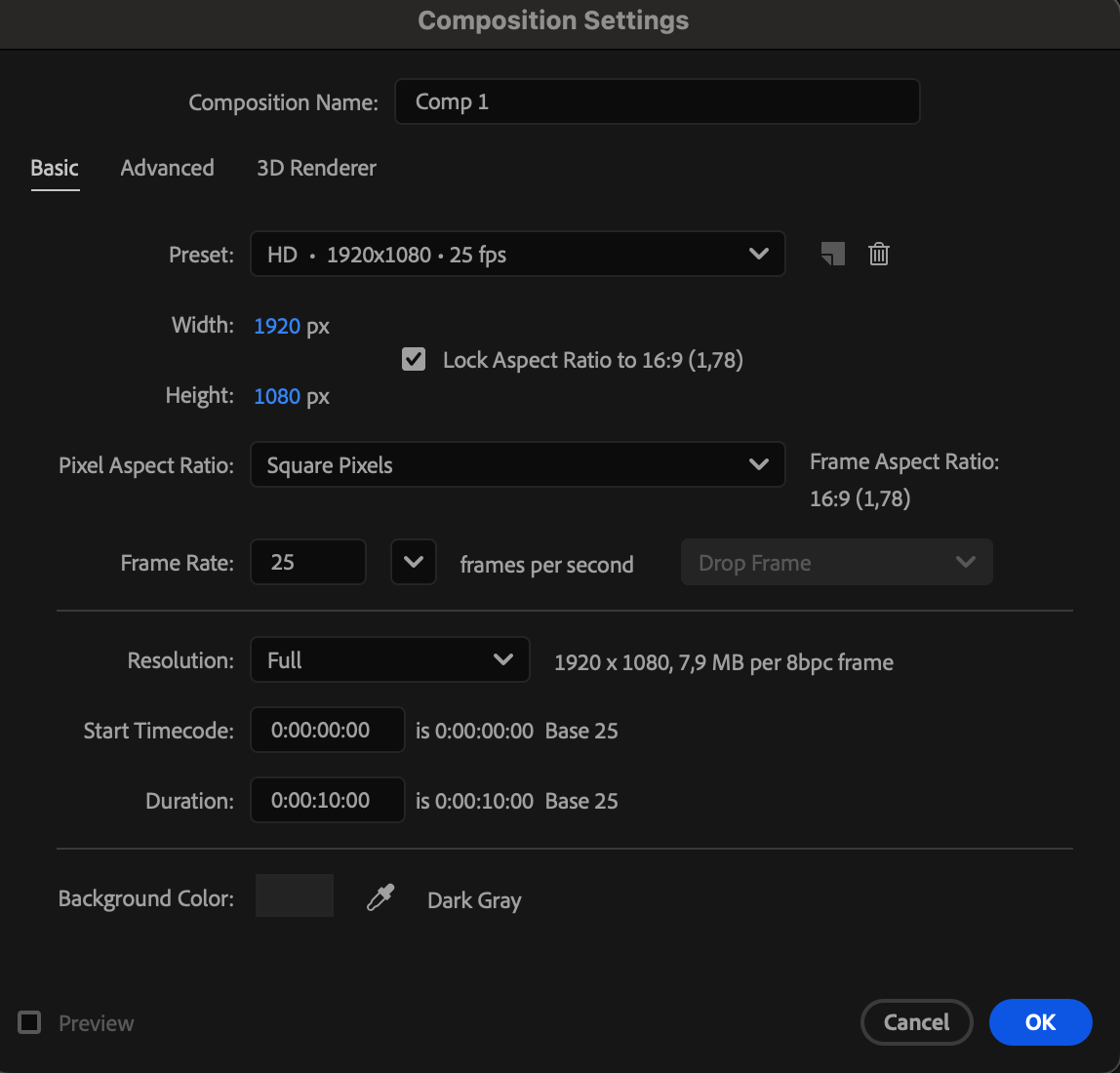 Step 2: Create a Rounded Rectangle Shape
Select the Rounded Rectangle Tool (Q). Draw a rectangle and set the Fill and Stroke colors as needed.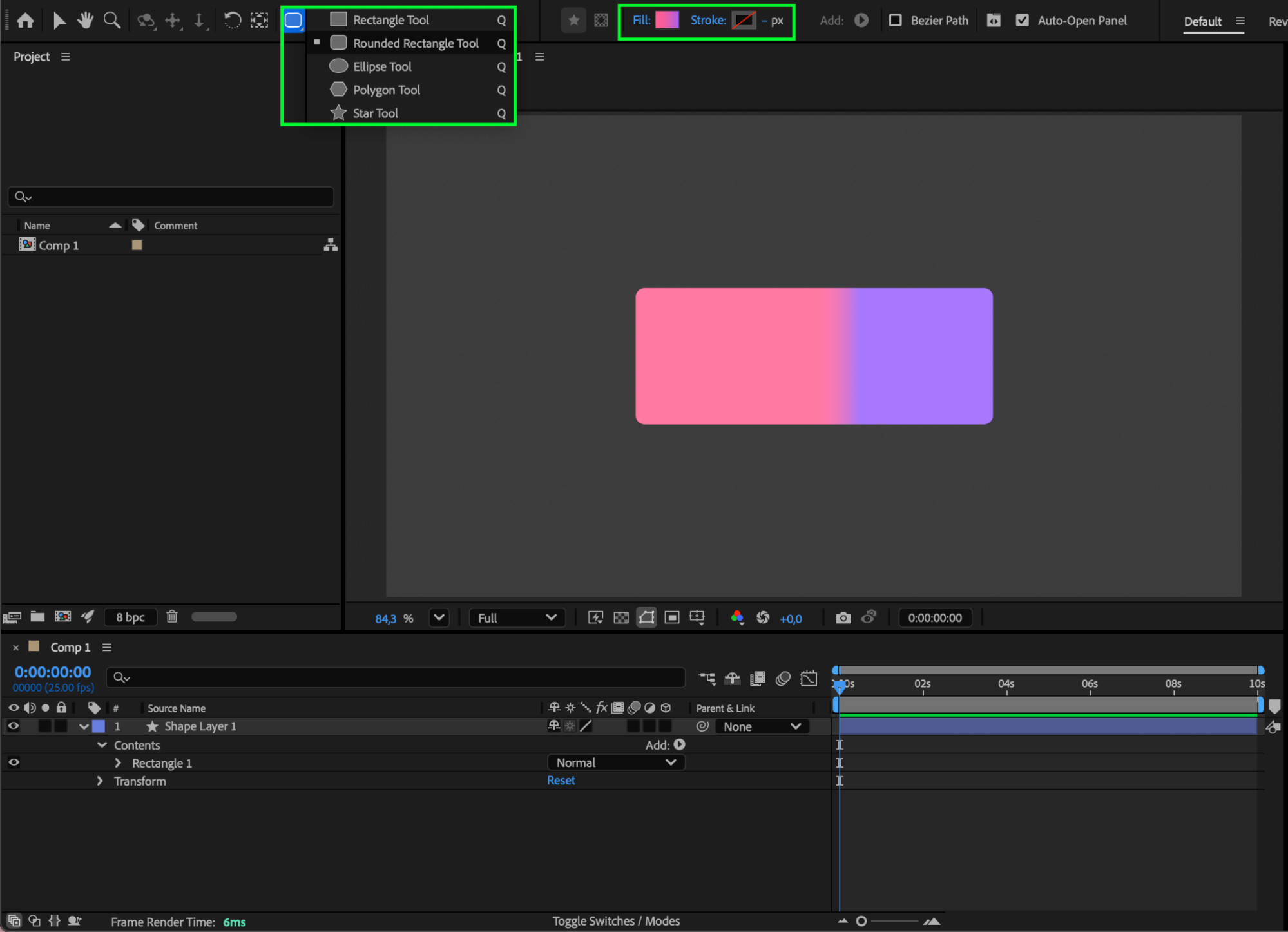
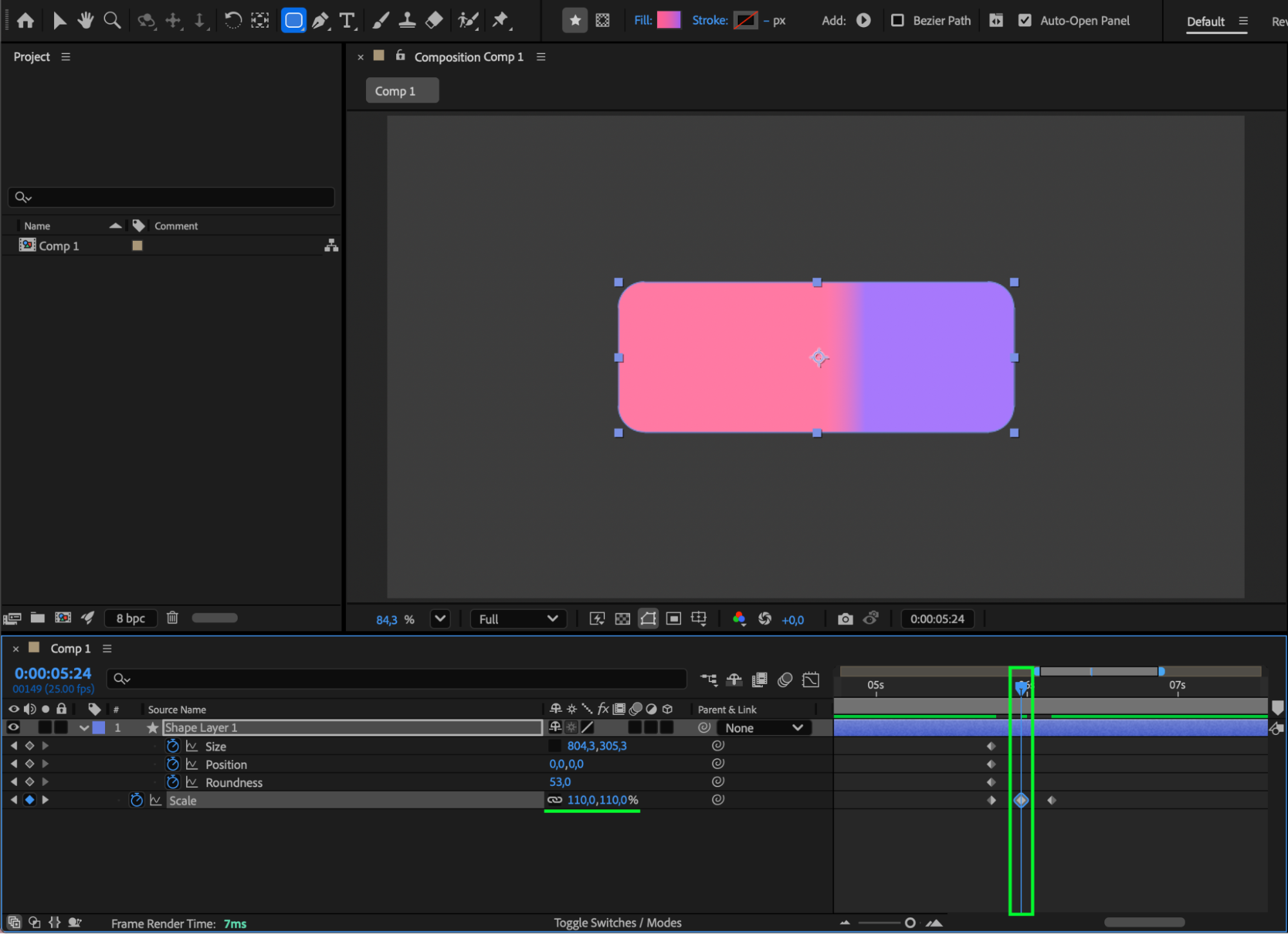
Step 3: Animate the Shape Properties
Expand the shape layer properties and locate Size, Roundness, and Position.
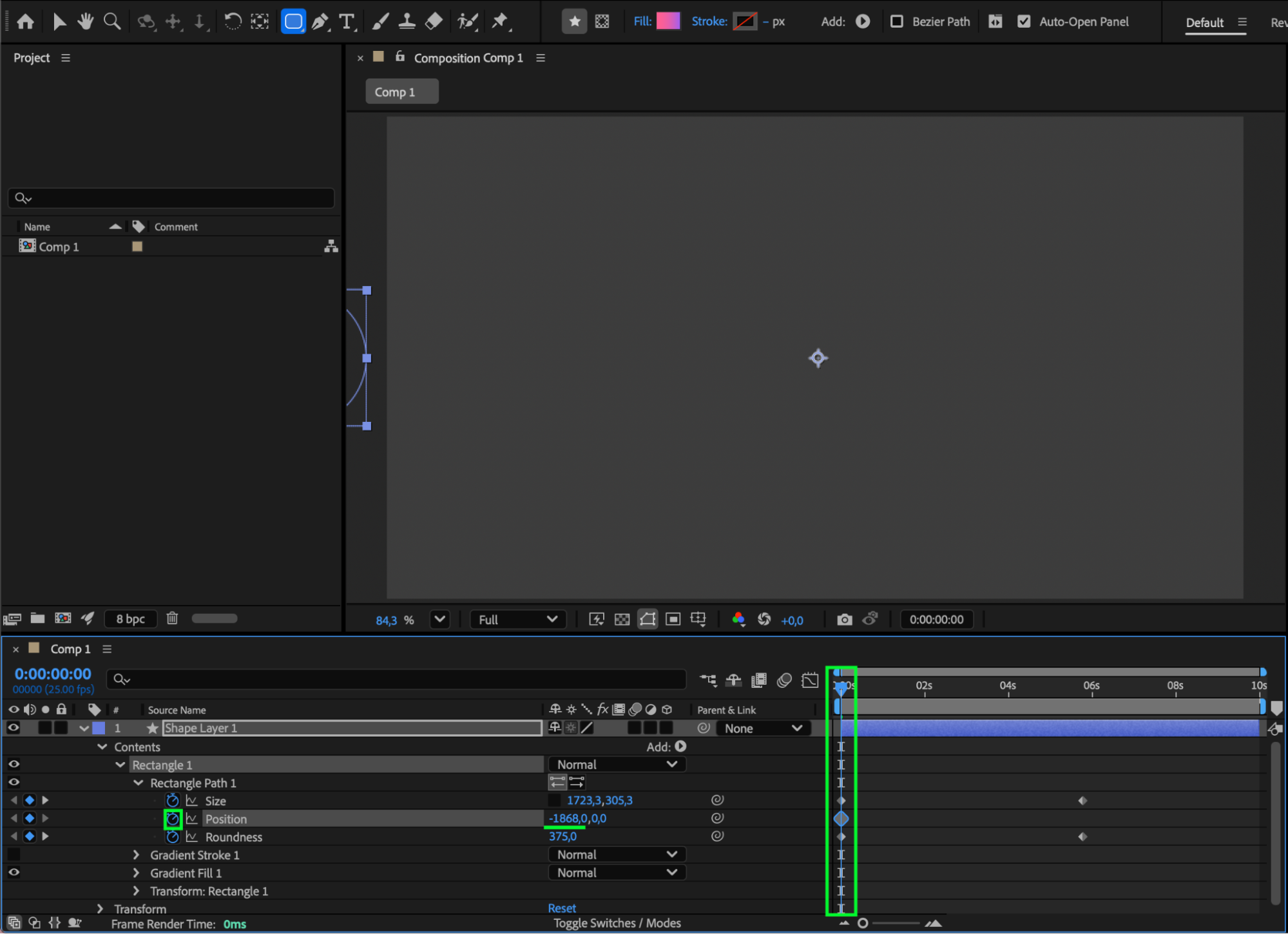
At the start of the composition, enable keyframes (click the stopwatch) for all parameters and set:
Size: 1723, 305 (example)
Roundness: 375
Position: –1868, 0
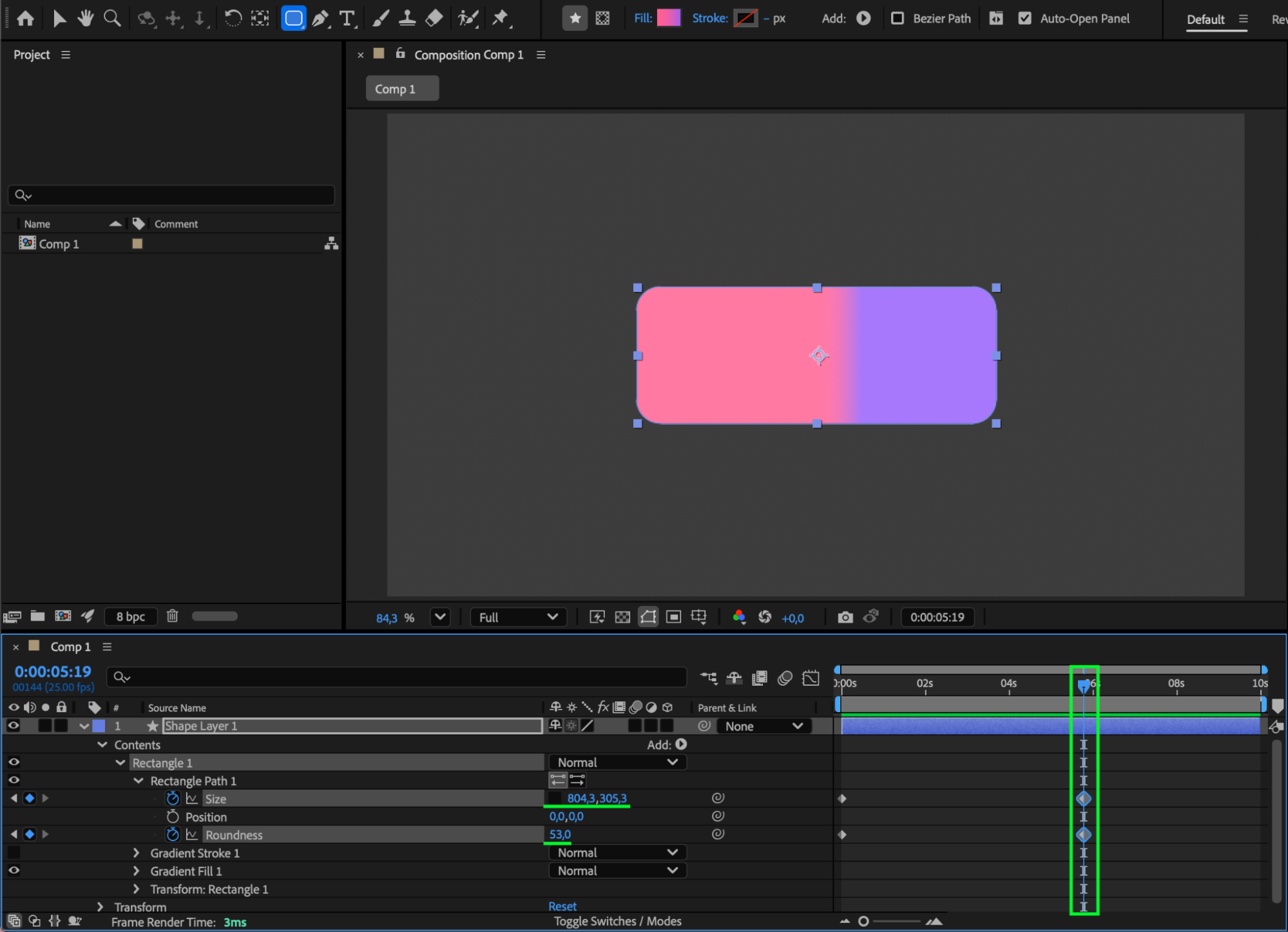
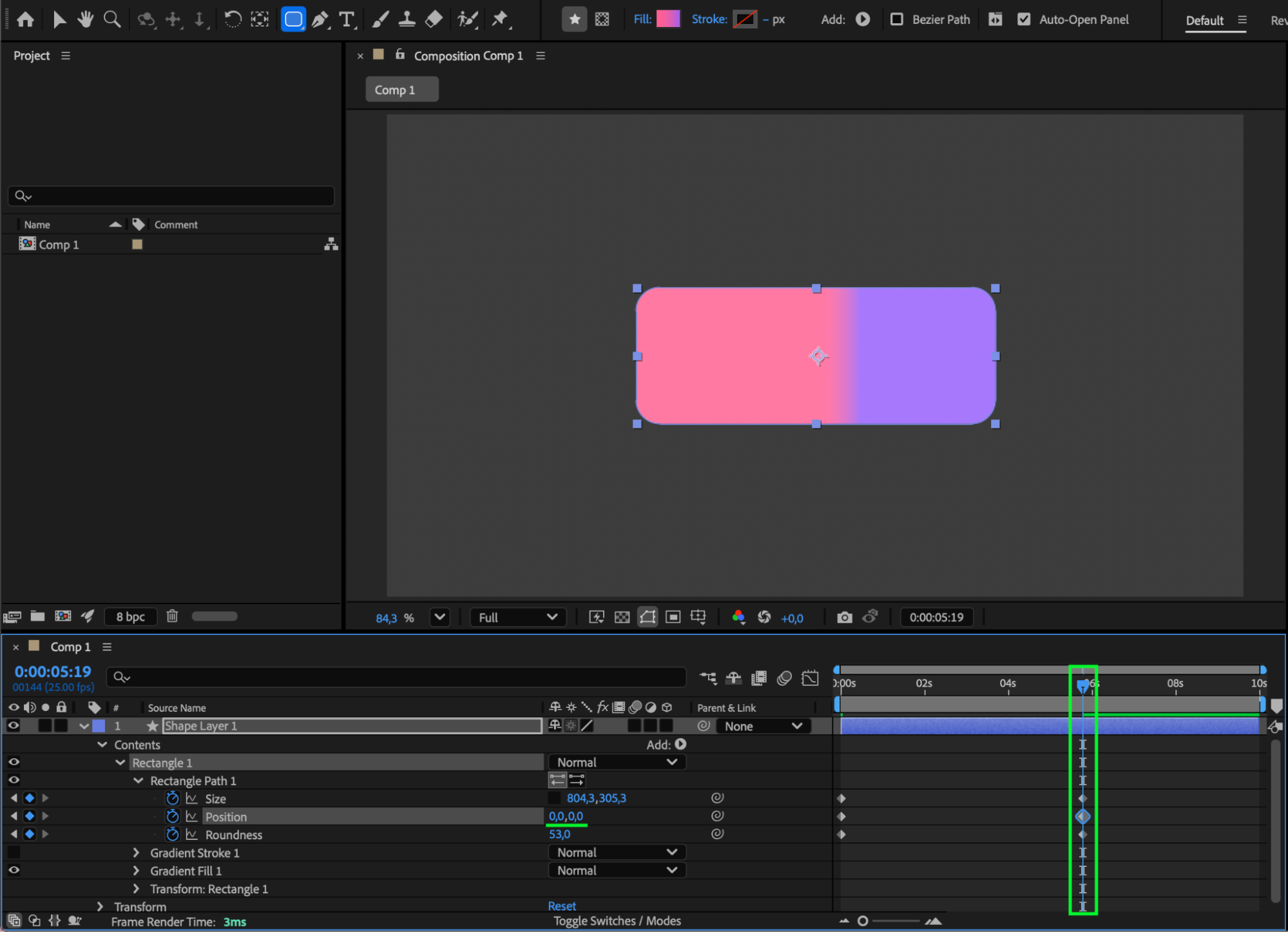
Move the CTI to the middle of the composition and change the values to:
Size: 804, 305 (example)
Roundness: 53
Position: 0, 0
This creates an animation where a long horizontal shape moves and transforms into a compact rectangle.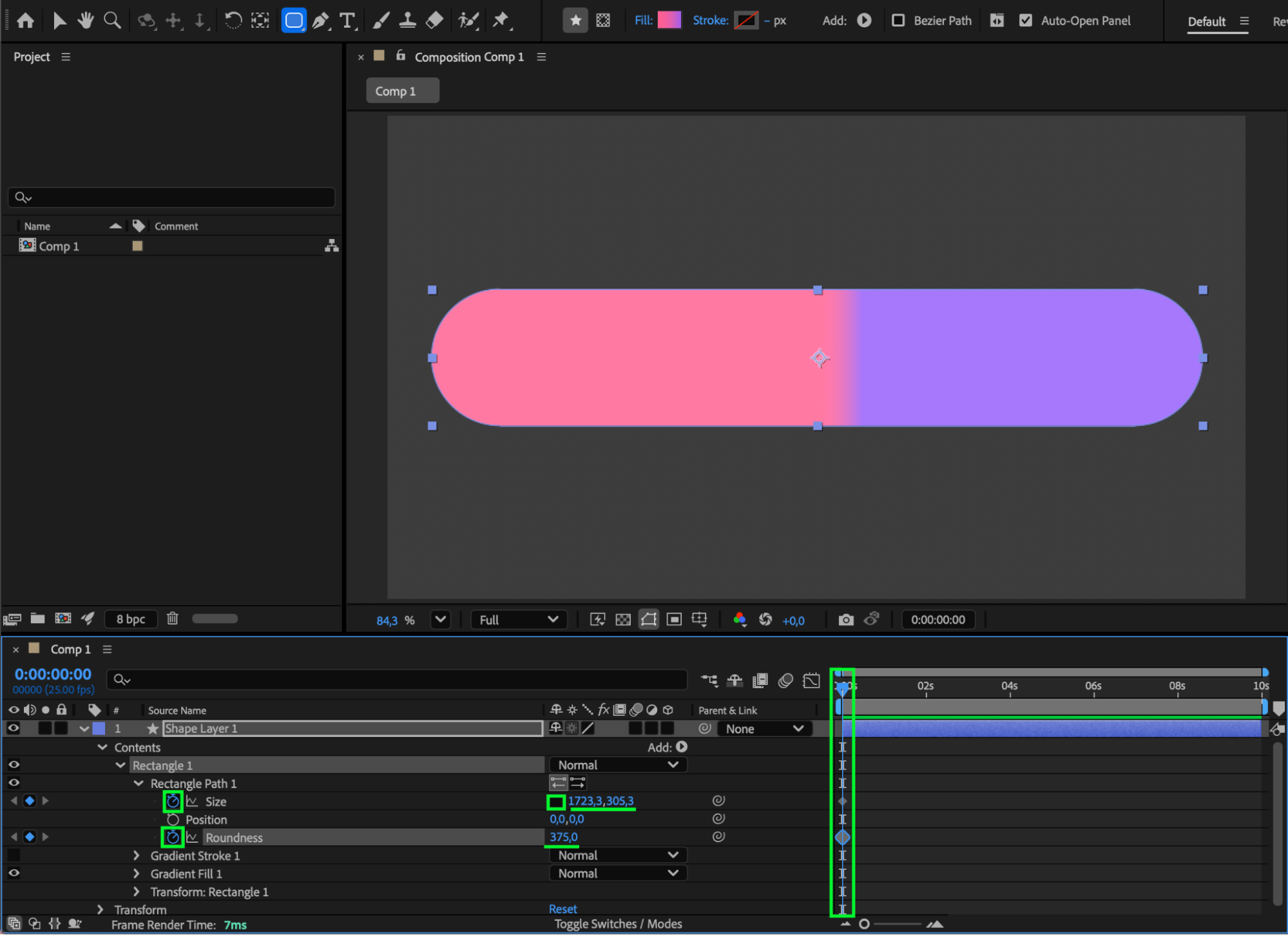
 Step 4: Add a Subtle Scale Bounce
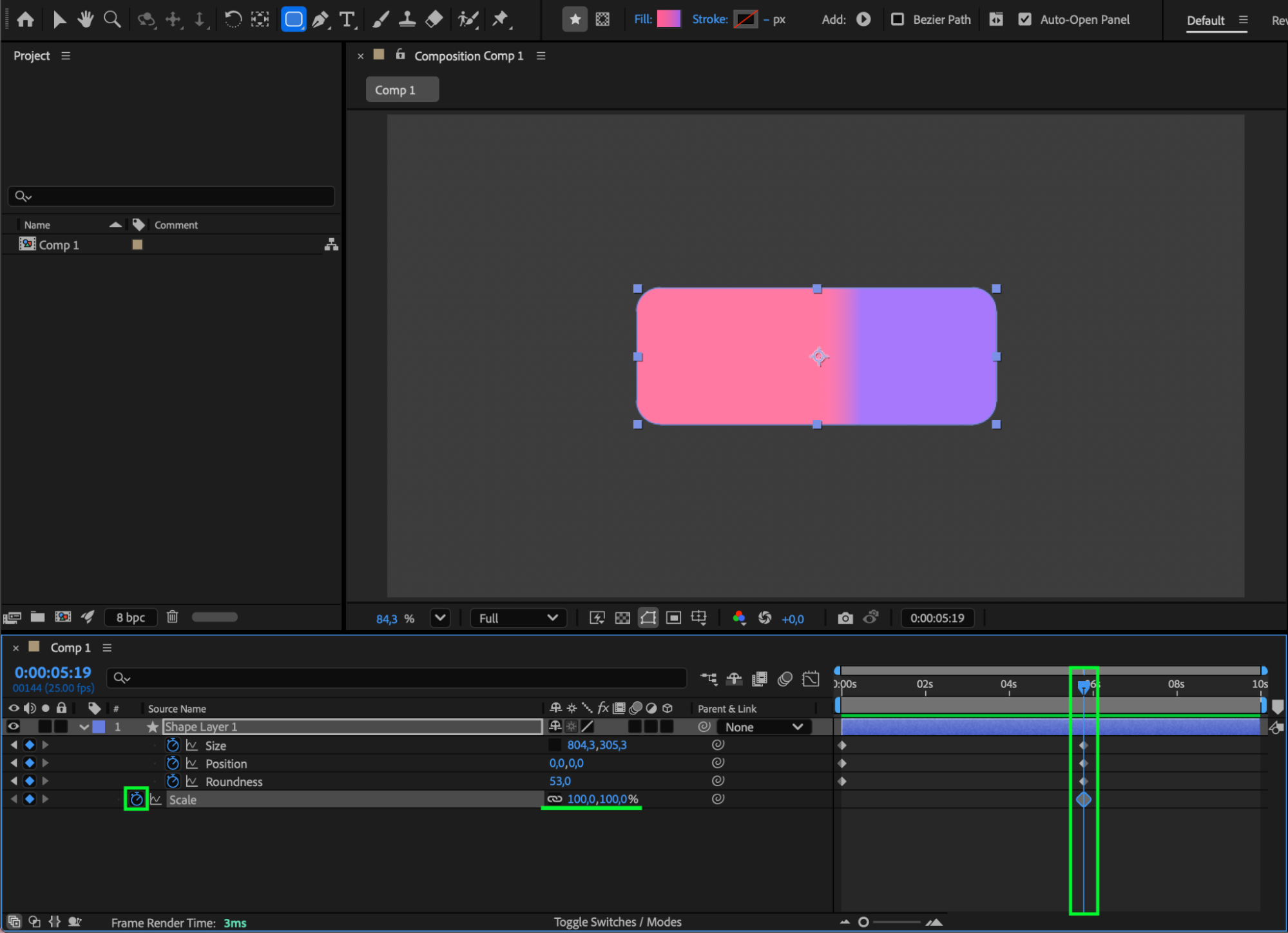
At the end of the position animation:
Set Scale = 100%.
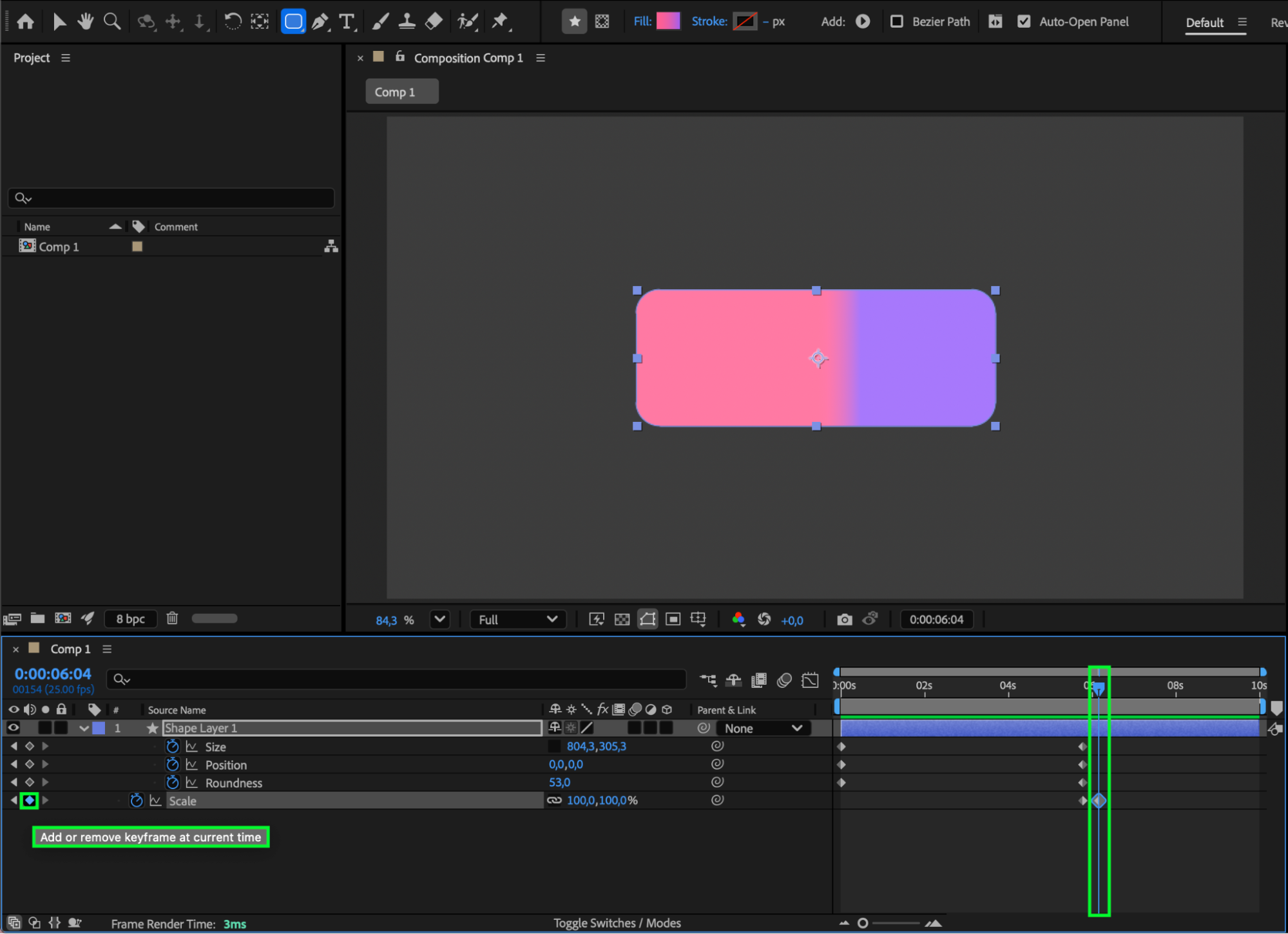
Move the CTI 5 frames forward and set Scale = 110%.
Move the CTI another 5 frames forward and return Scale = 100%.
This adds a subtle bounce for extra polish.
Step 5: Apply Easy Ease and Refine in the Graph Editor
Select all keyframes and press F9 to apply Easy Ease. Open the Graph Editor to fine-tune the animation curves for smoother motion.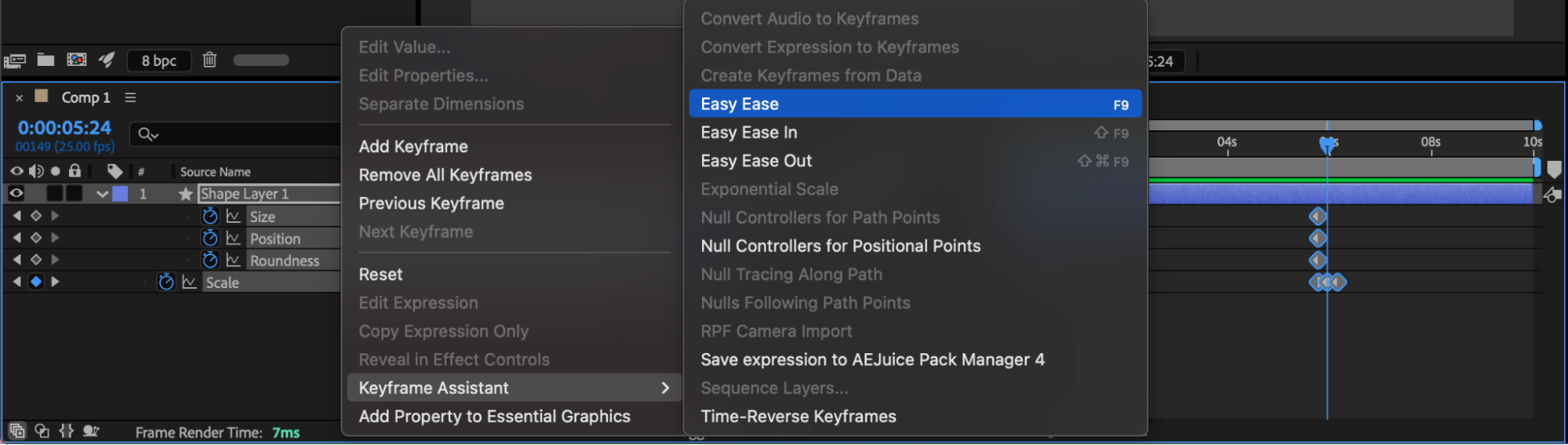
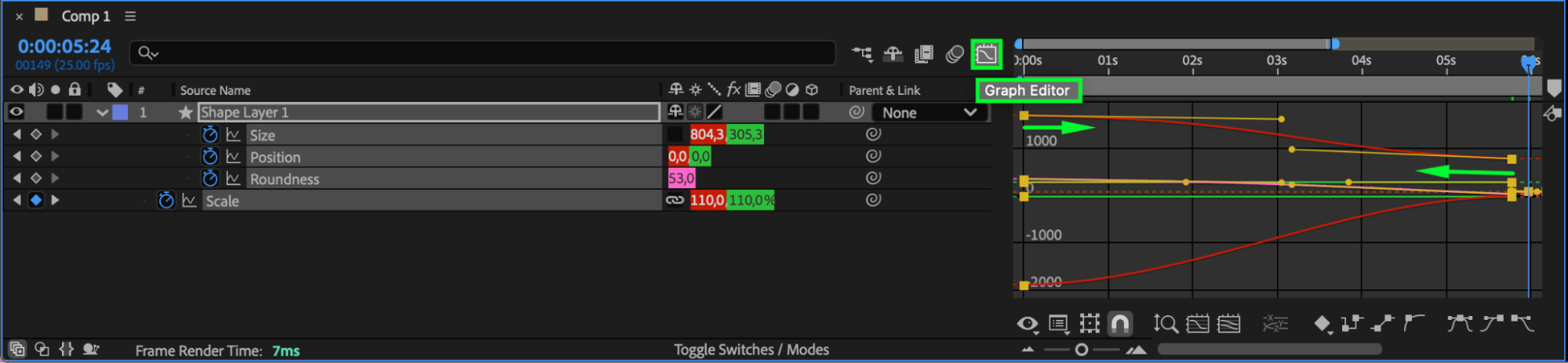 Step 6: Enable Motion Blur
Turn on Motion Blur for the rectangle layer and enable it in the timeline to add realism to the movement.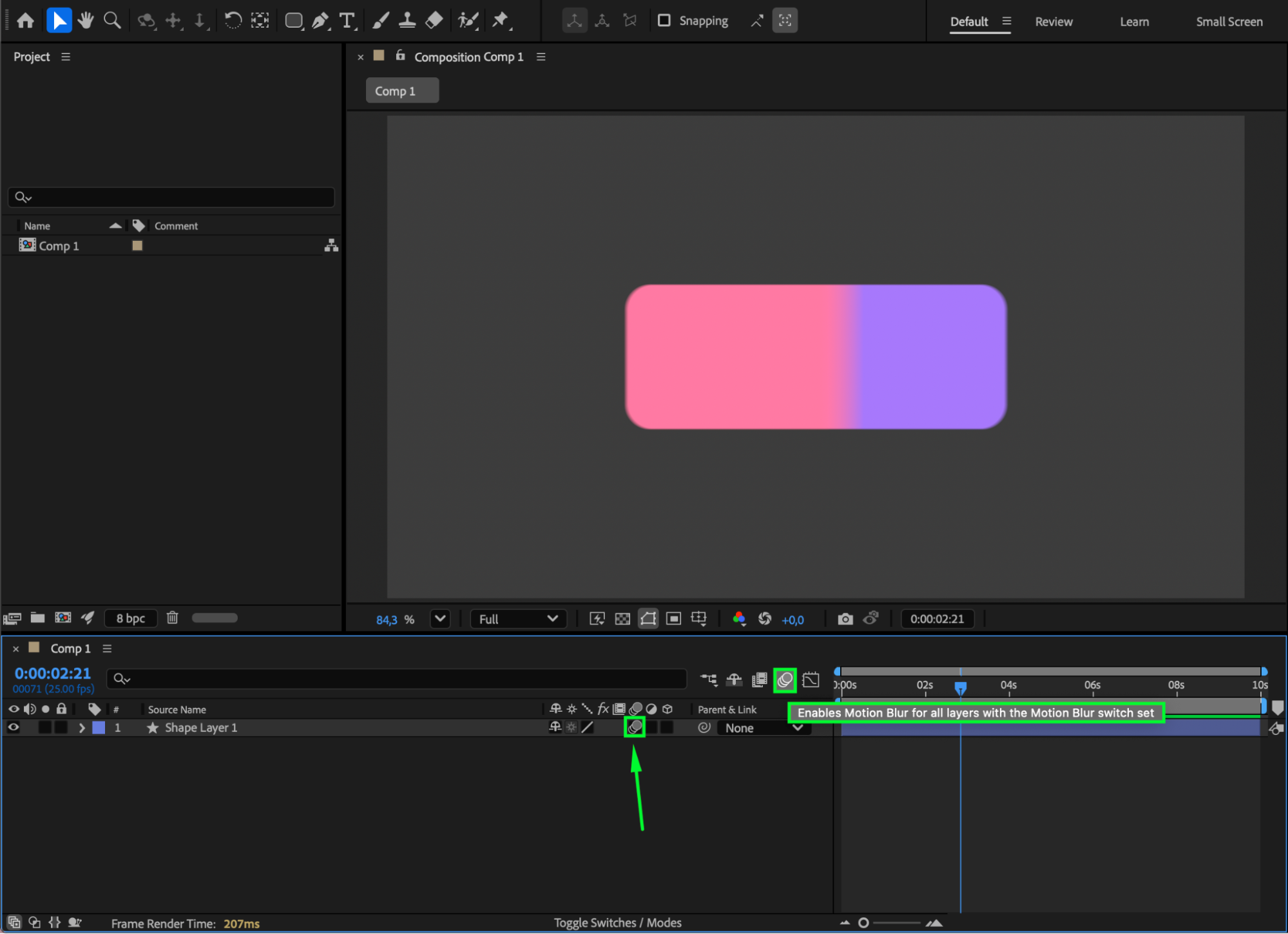 Step 7: Customize with Effects
Apply effects from the Effects & Presets panel, such as Glow, to further customize the look of your rectangle animation.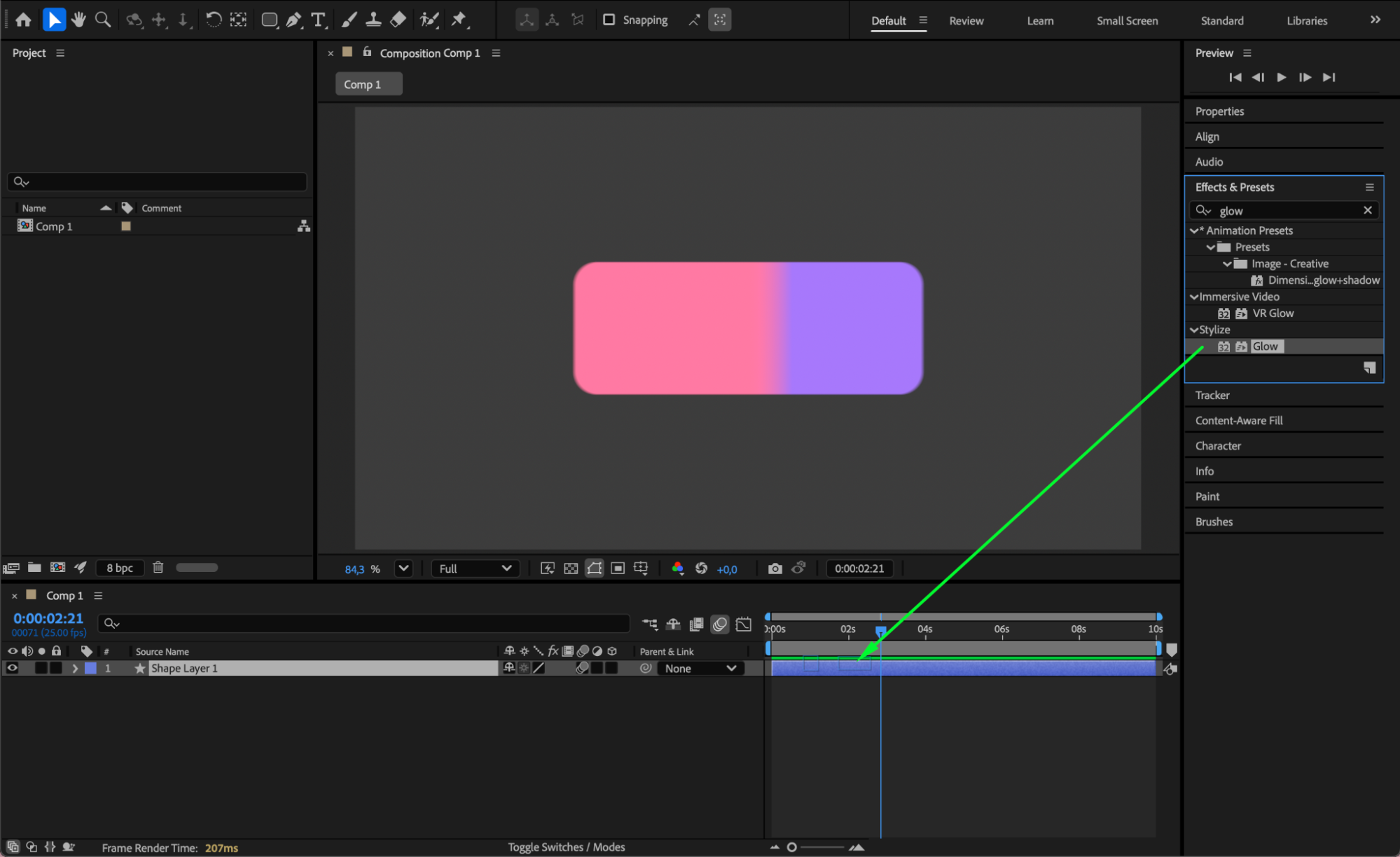
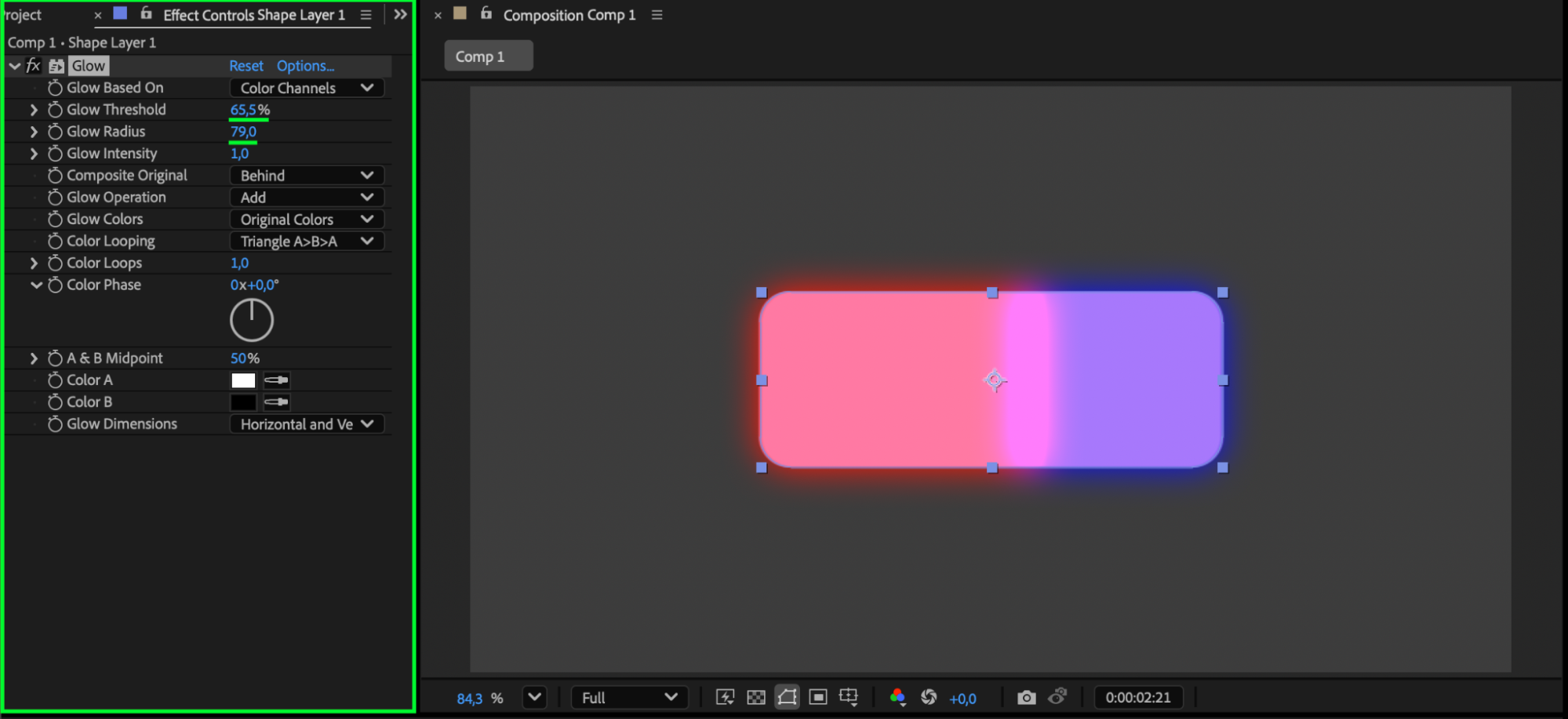
Step 8: Preview and Finalize
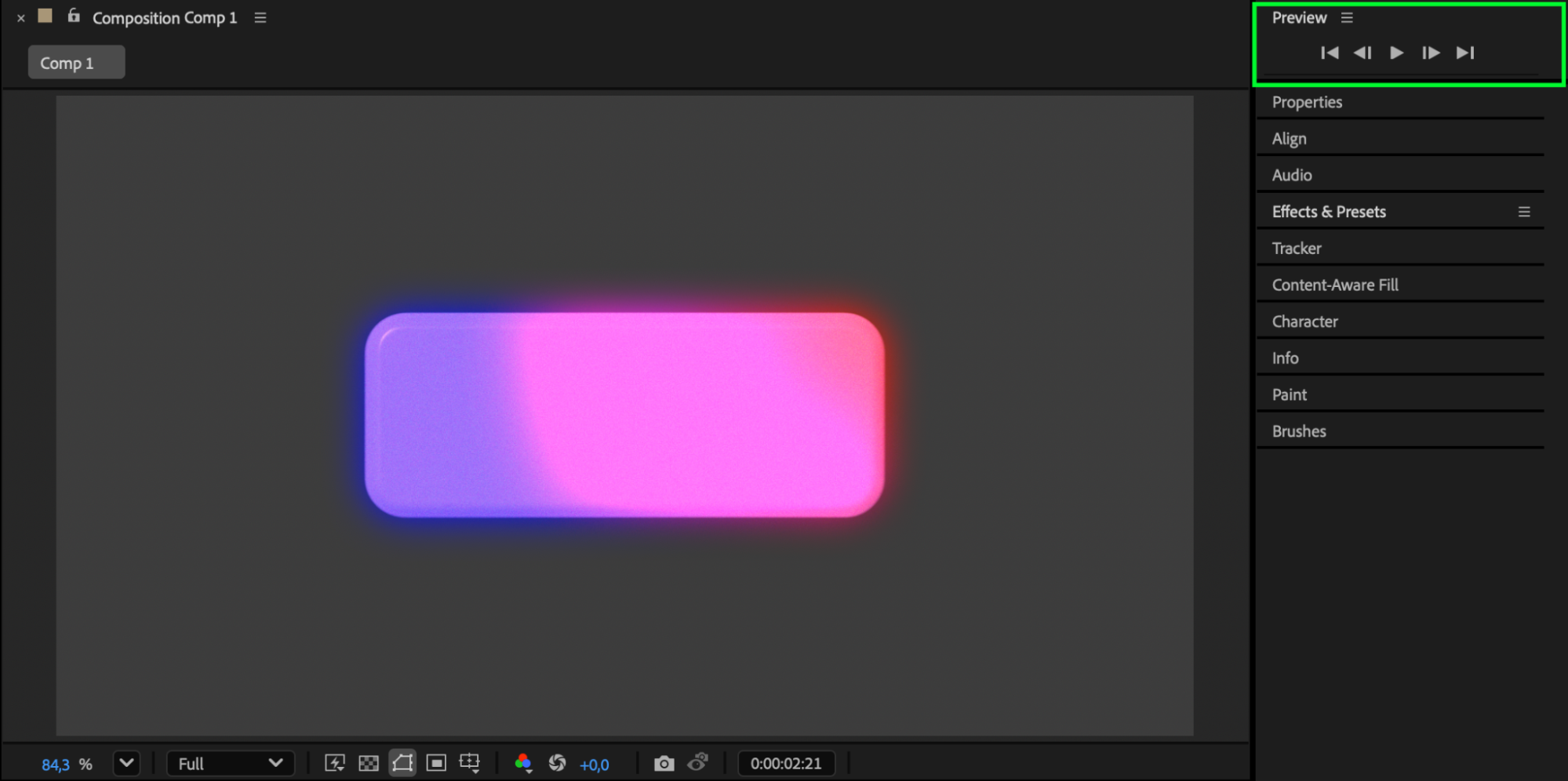
Preview the animation and adjust timing, easing, and effects until the motion feels smooth and professional.
Conclusion
By animating shape layer properties and enhancing them with easing, motion blur, and effects, you can create clean and modern rectangle animations in After Effects. This technique is perfect for UI design, transitions, and motion graphics projects.
Our Bestsellers
Our Bestsellers


