Introduction
Animating increasing numbers is useful for statistics, financial data, dashboards, or percentage counters. In After Effects, you can easily create a smooth counting animation using a text layer, the Angle Control effect, and a simple expression. In this tutorial, you’ll learn how to animate a number that increases automatically over time.
Step 1: Create a New Composition
Click New Composition, choose your desired resolution and frame rate, and press OK to create your working timeline.
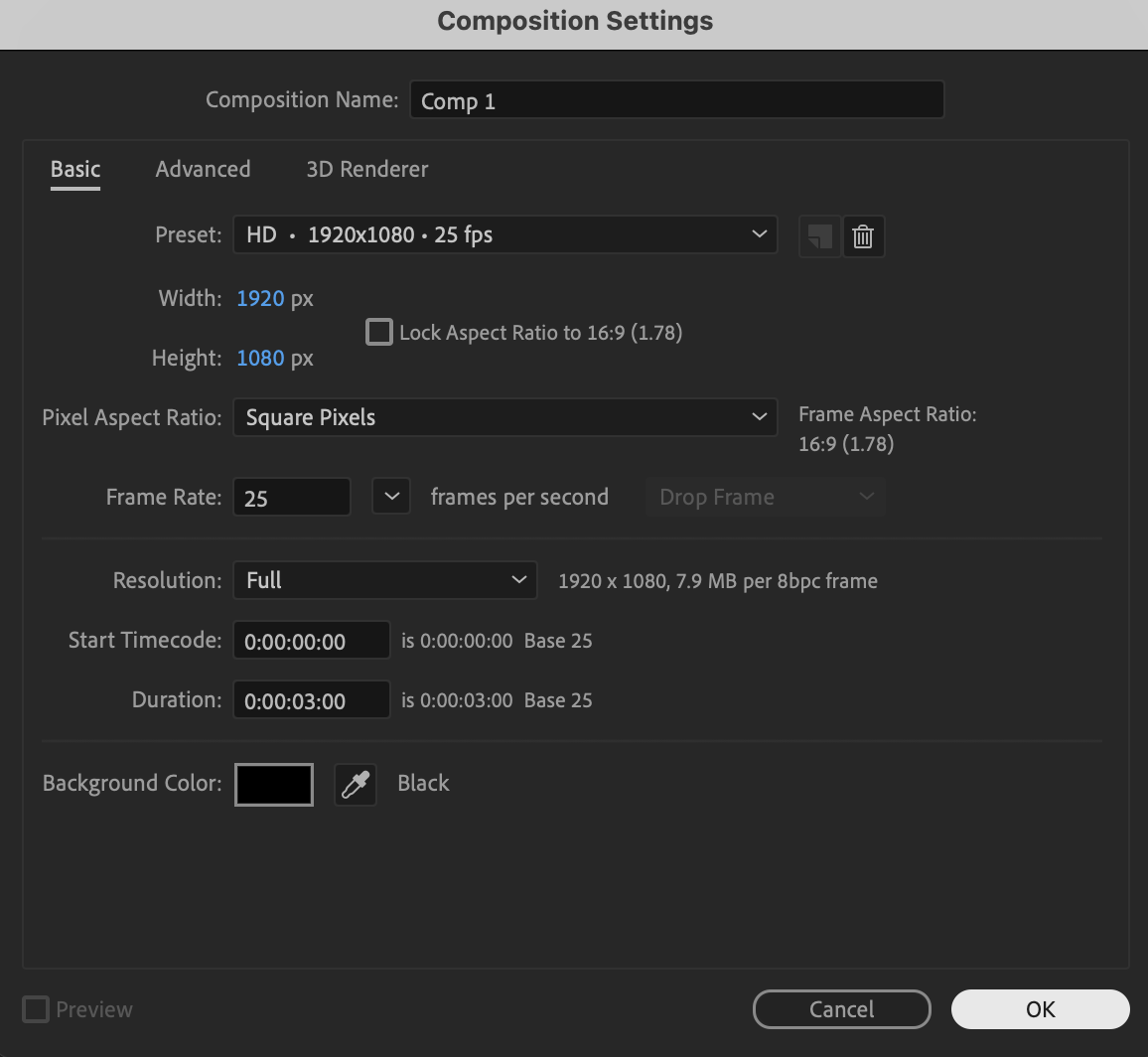 Step 2: Create the Starting Number
Select the Type Tool (Ctrl/Cmd + T), click in the Composition panel, type the number 0, and use the Align panel to center it both horizontally and vertically.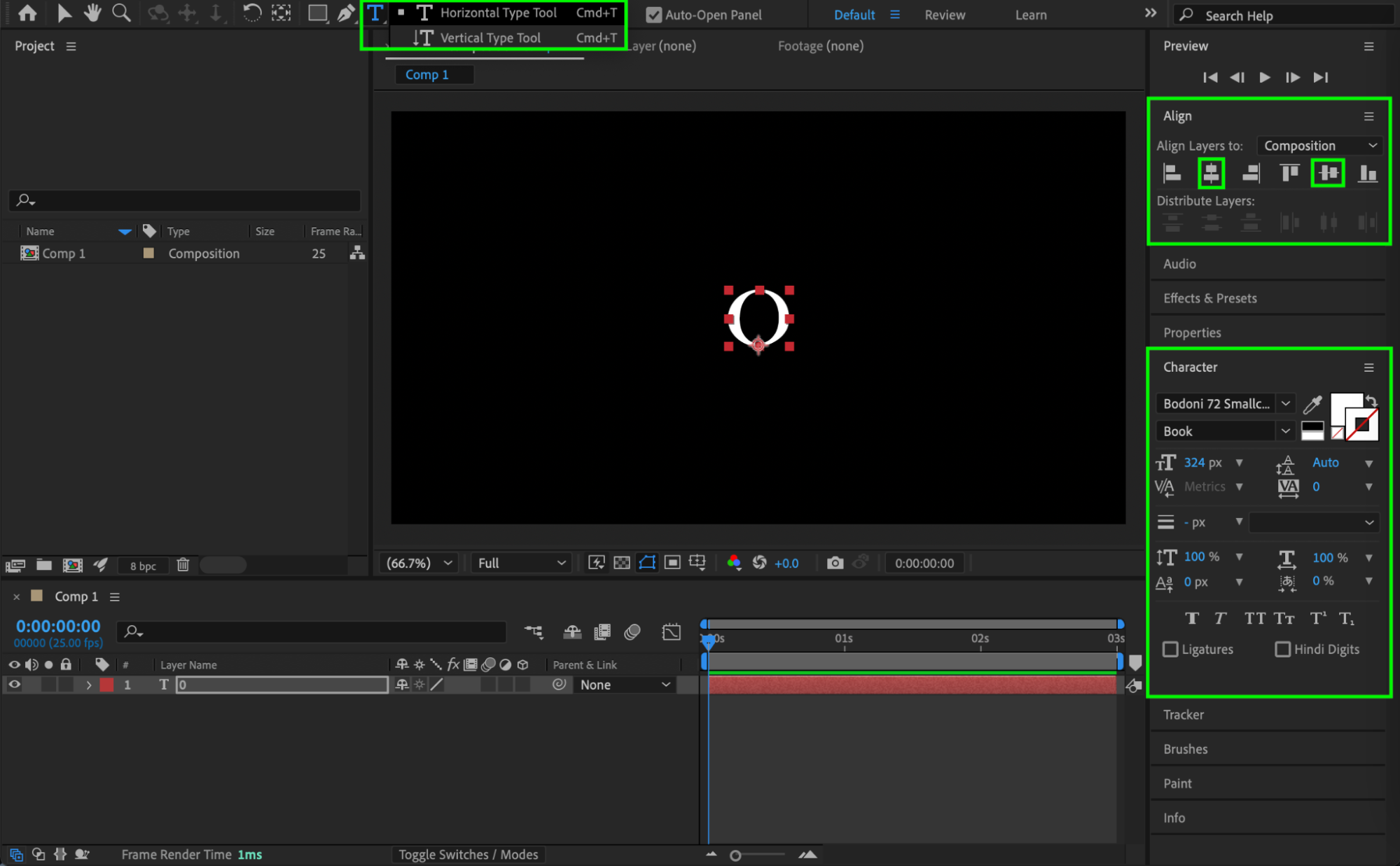 Step 3: Add Angle Control
Open the Effects & Presets panel, search for Angle Control, and apply it to the text layer.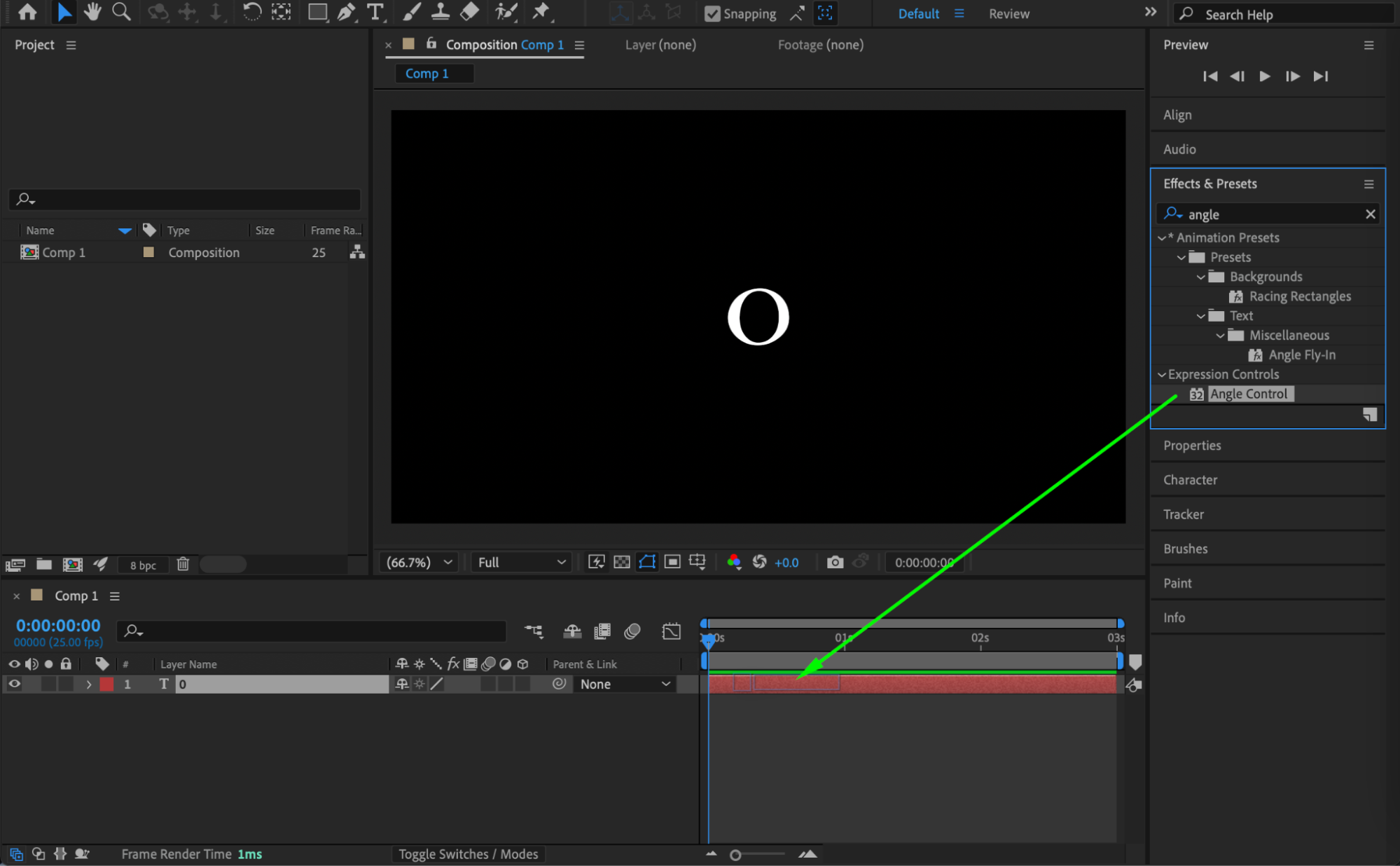
Get 10% off when you subscribe to our newsletter

Step 4: Link Source Text to Angle Control
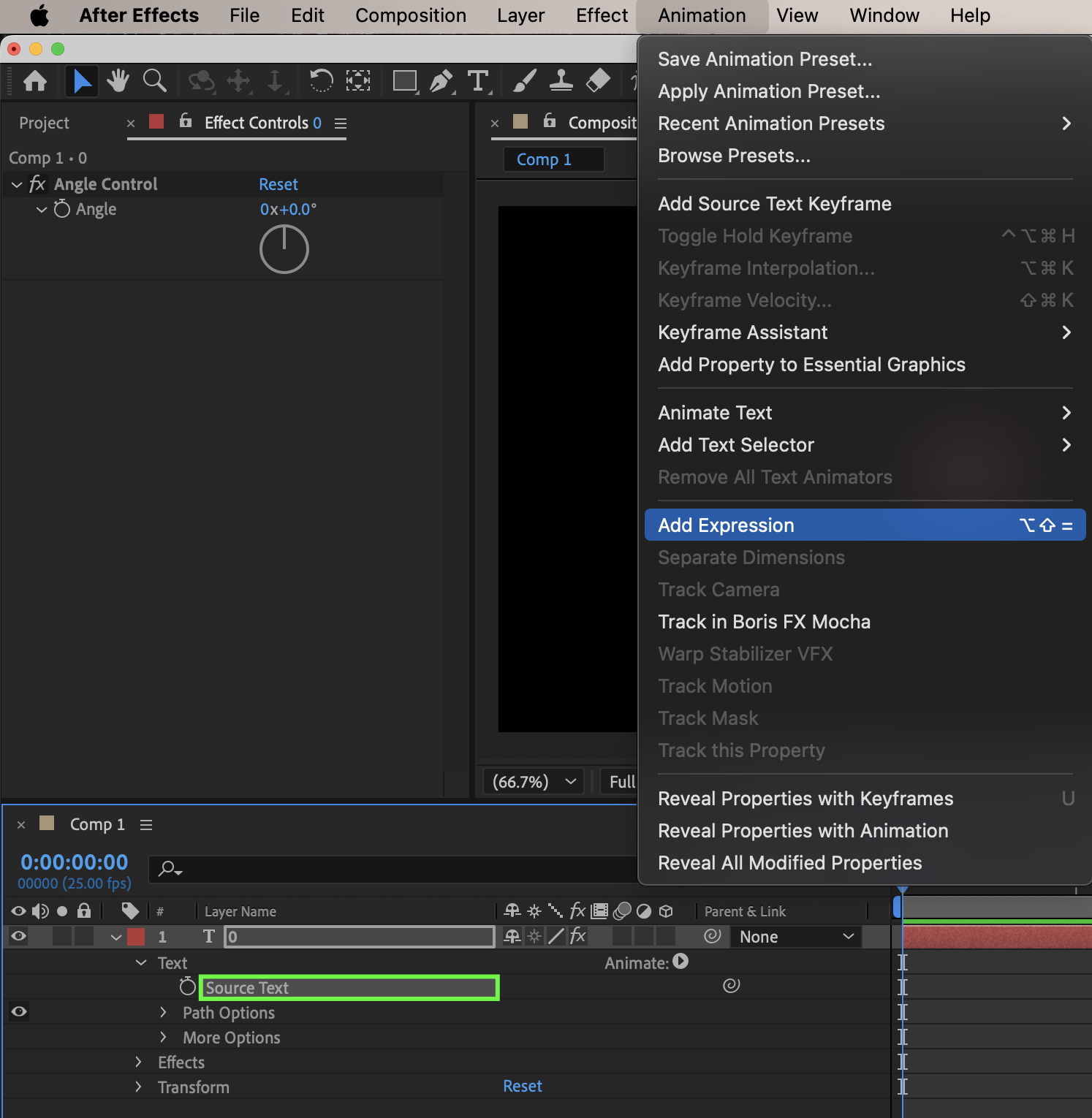
Expand the text layer properties, hold Alt (Windows) or Option (Mac) and click the stopwatch next to Source Text, then use the Pick Whip to drag to the Angle property inside the Angle Control effect to link the text value to the Angle parameter.
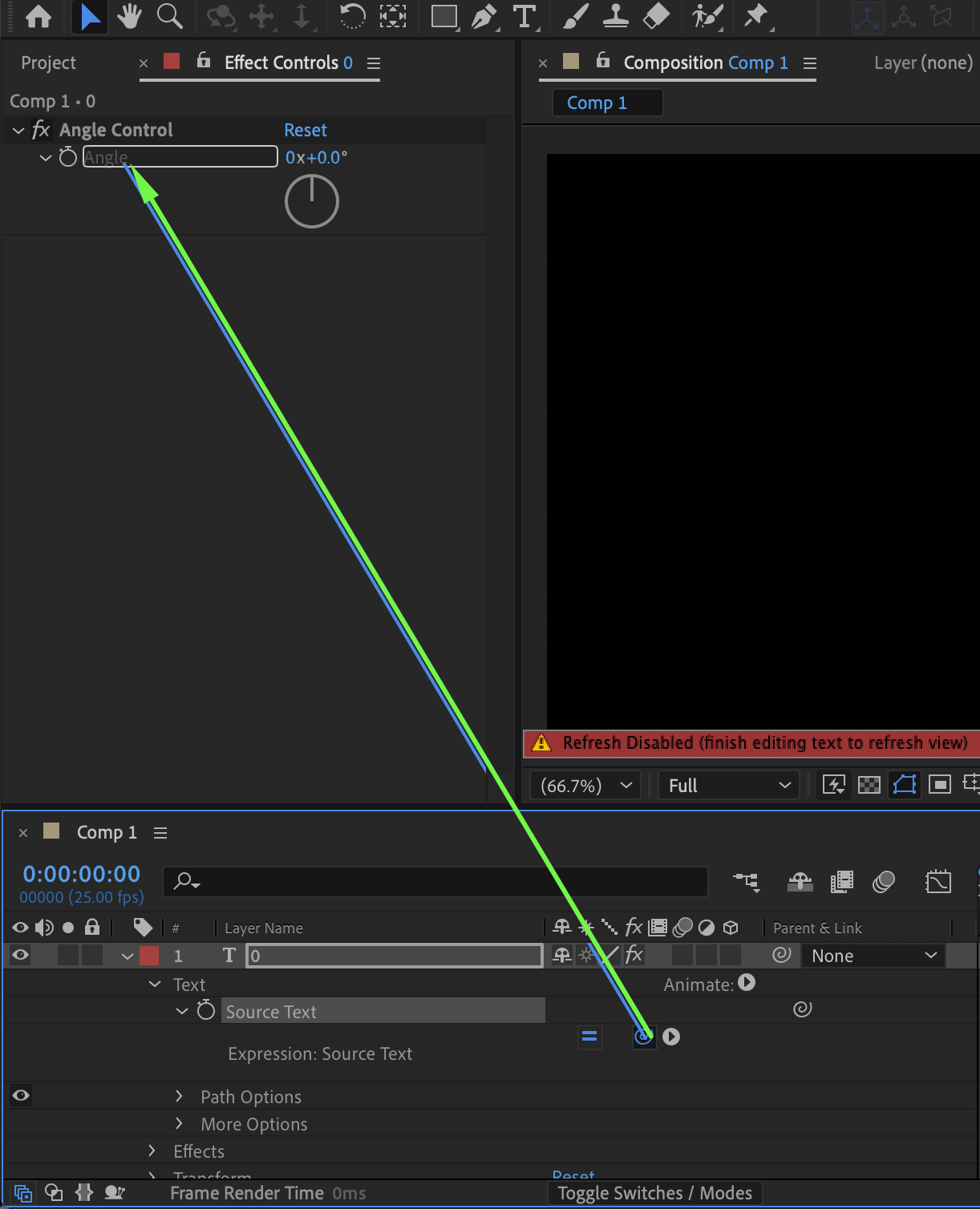 Step 5: Animate the Value
Move the Current Time Indicator (CTI) to the beginning of the composition and click the stopwatch for the Angle parameter to create the first keyframe, then move the CTI near the end of the composition and change the Angle value to 100 (or any final number you need) to create the counting animation.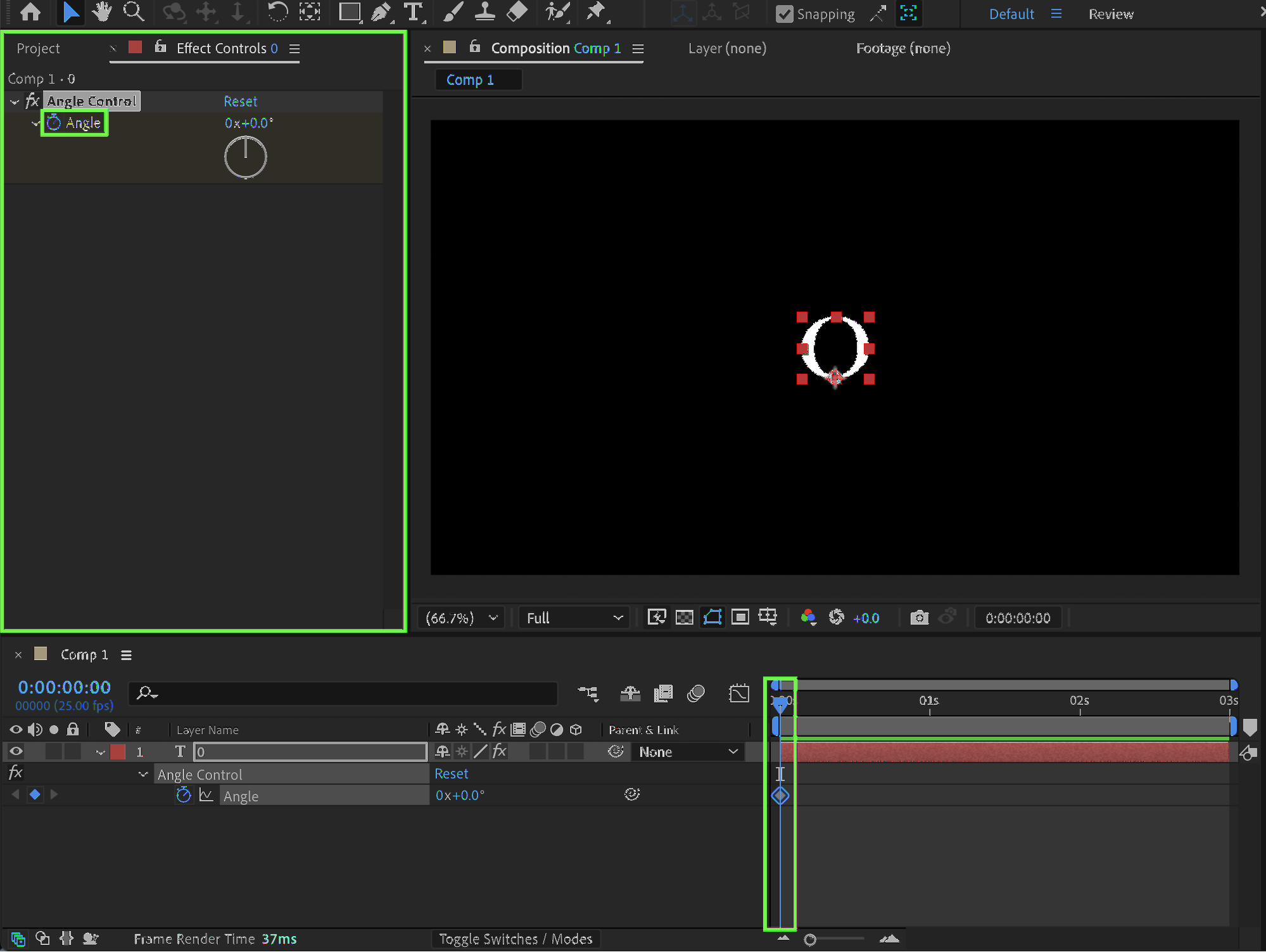
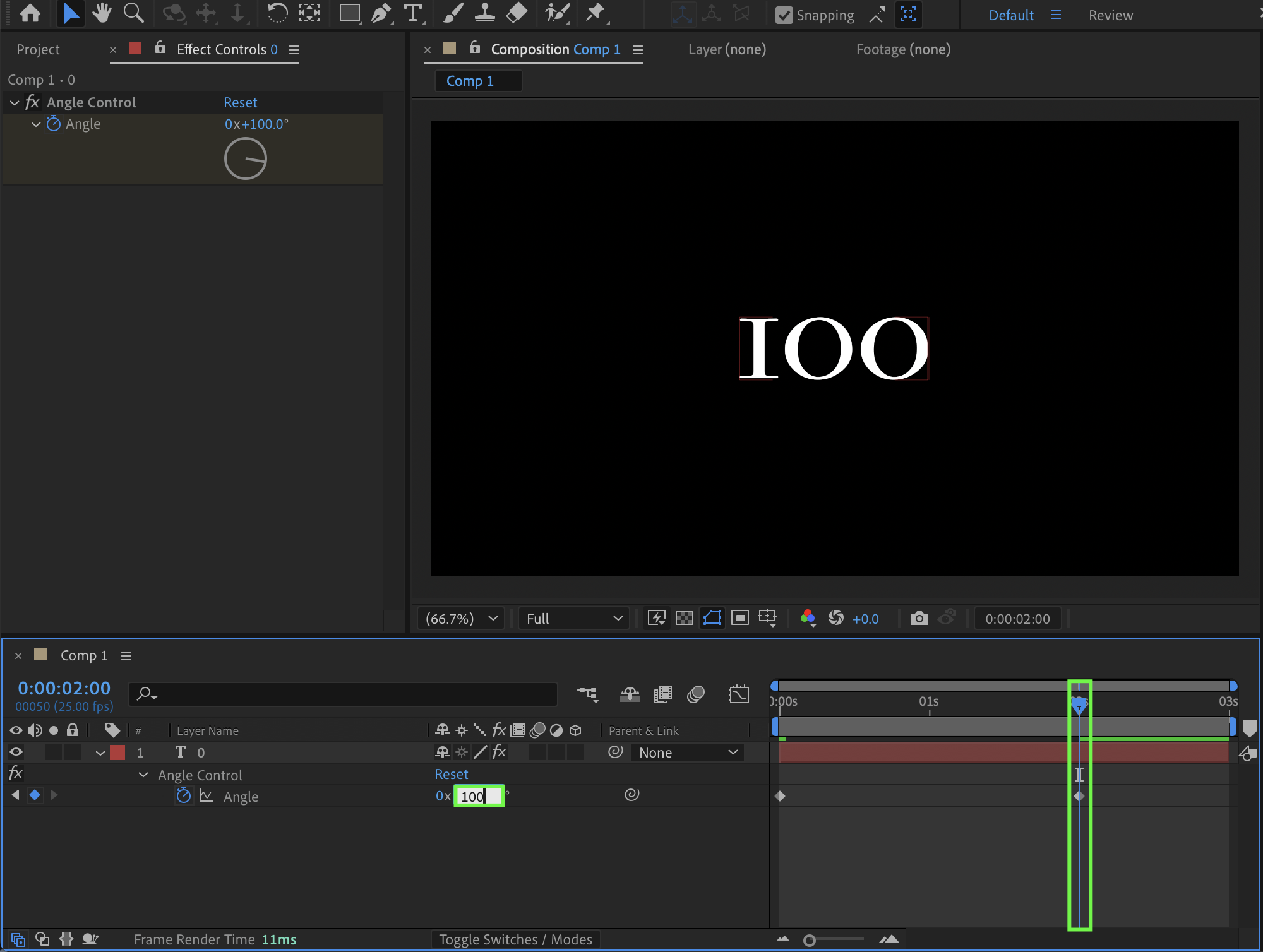 Step 6: Remove Decimal Numbers
To remove unwanted decimal values, add the following at the end of the Source Text expression:
.value.toFixed(3)
This controls how many decimal places are displayed (you can change 3 to 0 if you want whole numbers only).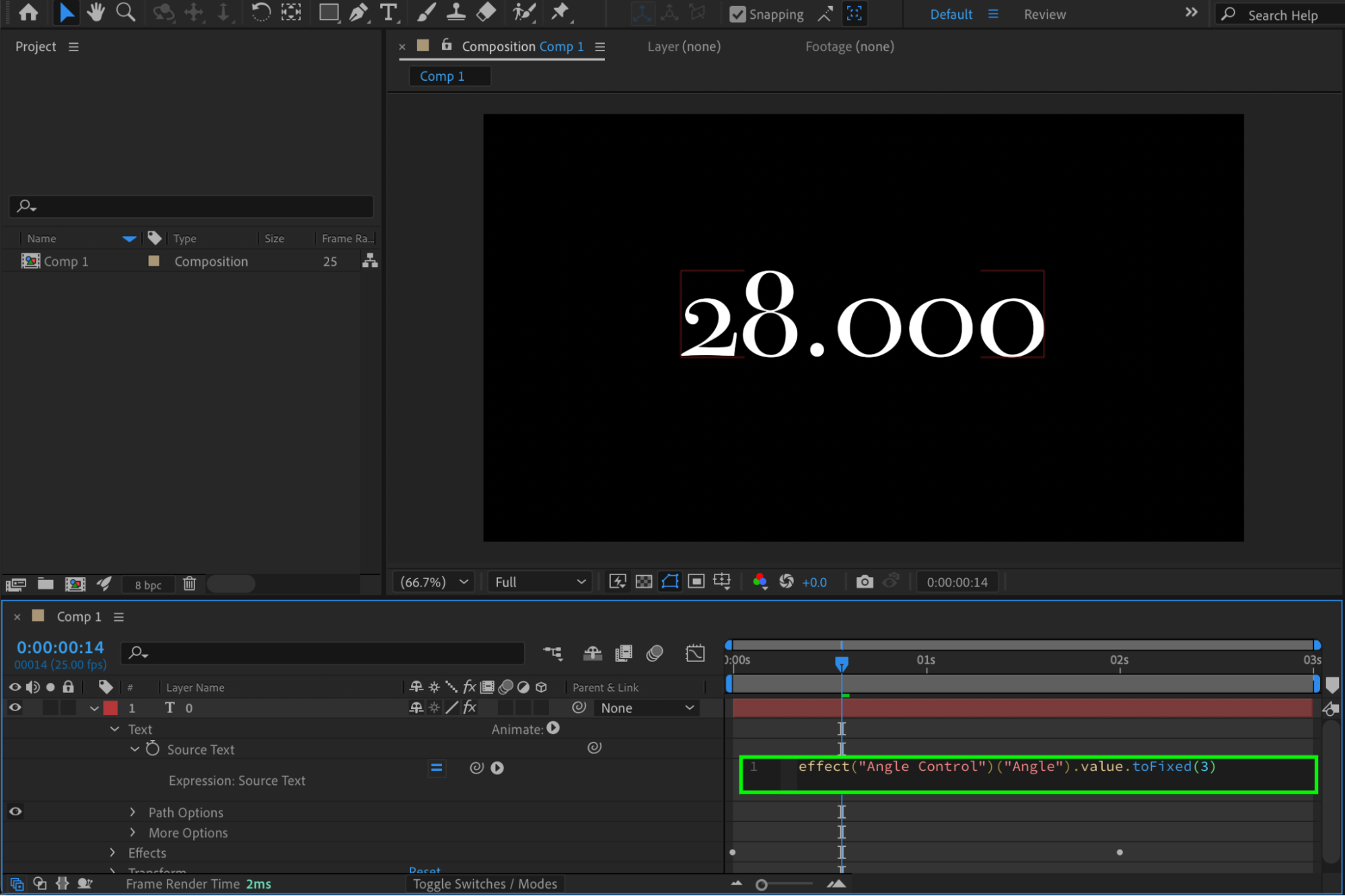
Step 7: Add a Currency Symbol (Optional)
If you want to add a symbol before the number, modify the expression by adding:
“$ ” +
at the beginning of the expression to display a dollar sign before the value.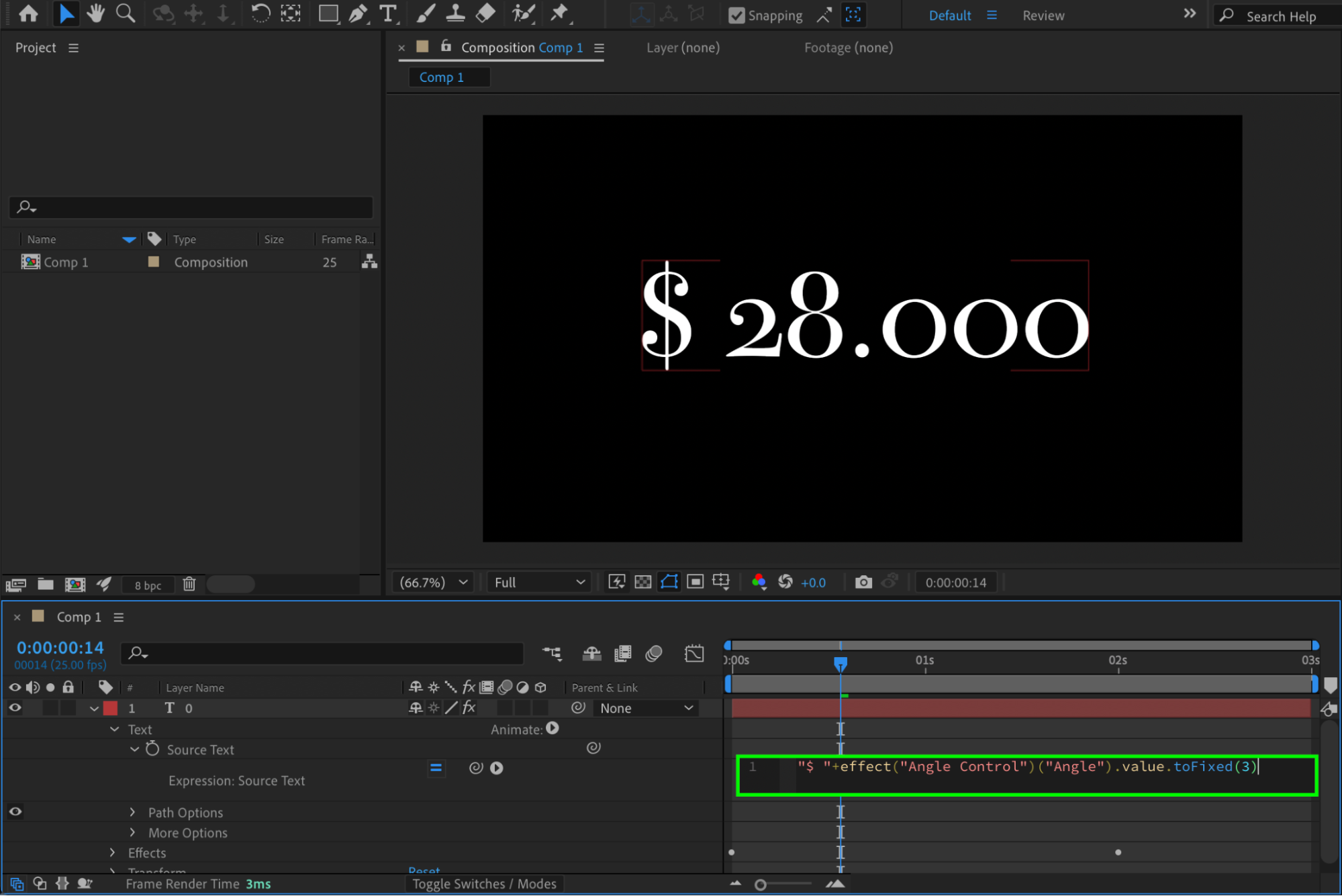
Step 8: Add a Symbol at the End (Optional)
If you want to add something after the number, such as a percentage sign, add:
+ “%”
at the end of the expression; anything inside quotation marks will appear as text.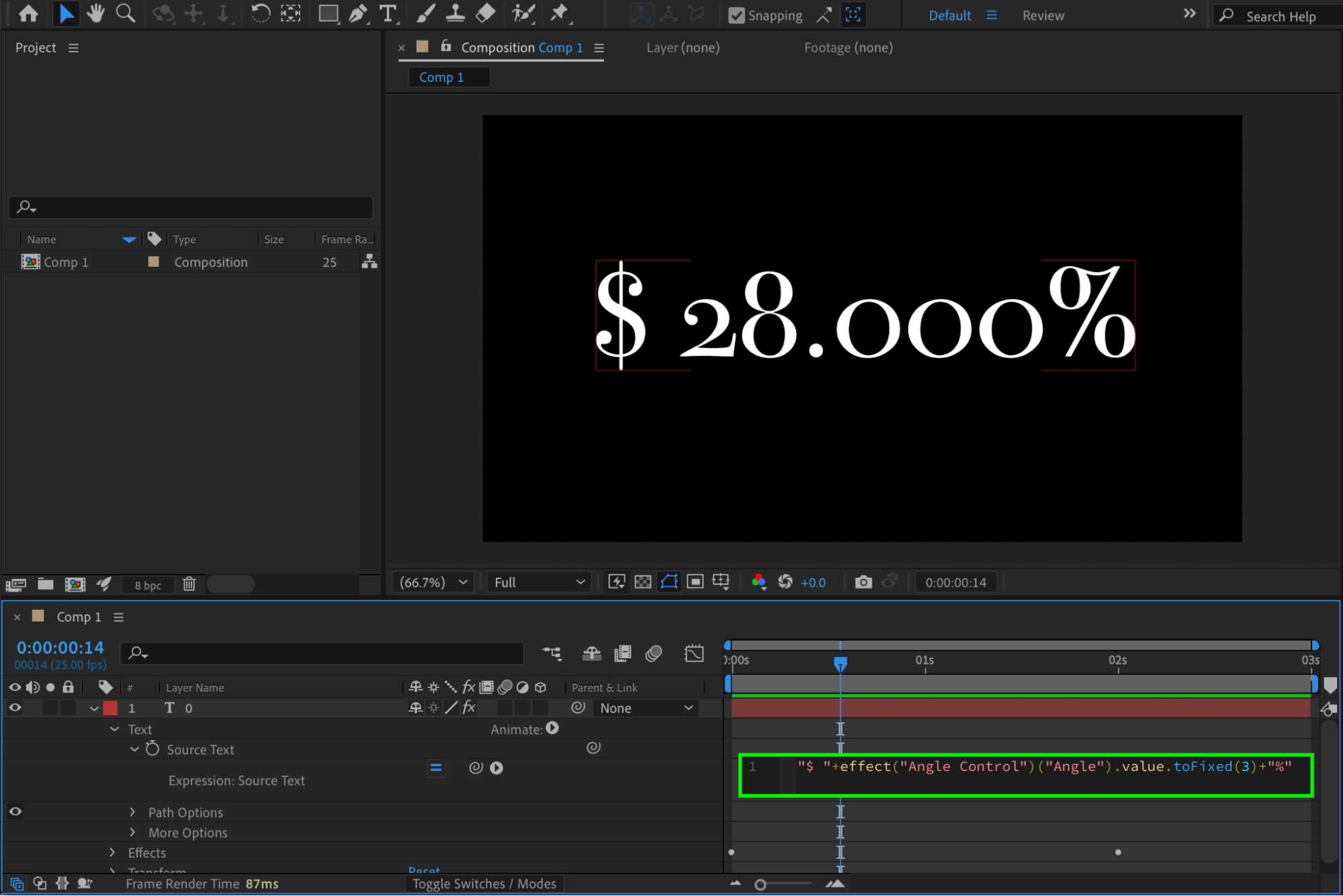
Step 9: Preview the Animation
Press Spacebar or use RAM Preview to play the animation and adjust timing or final values if needed.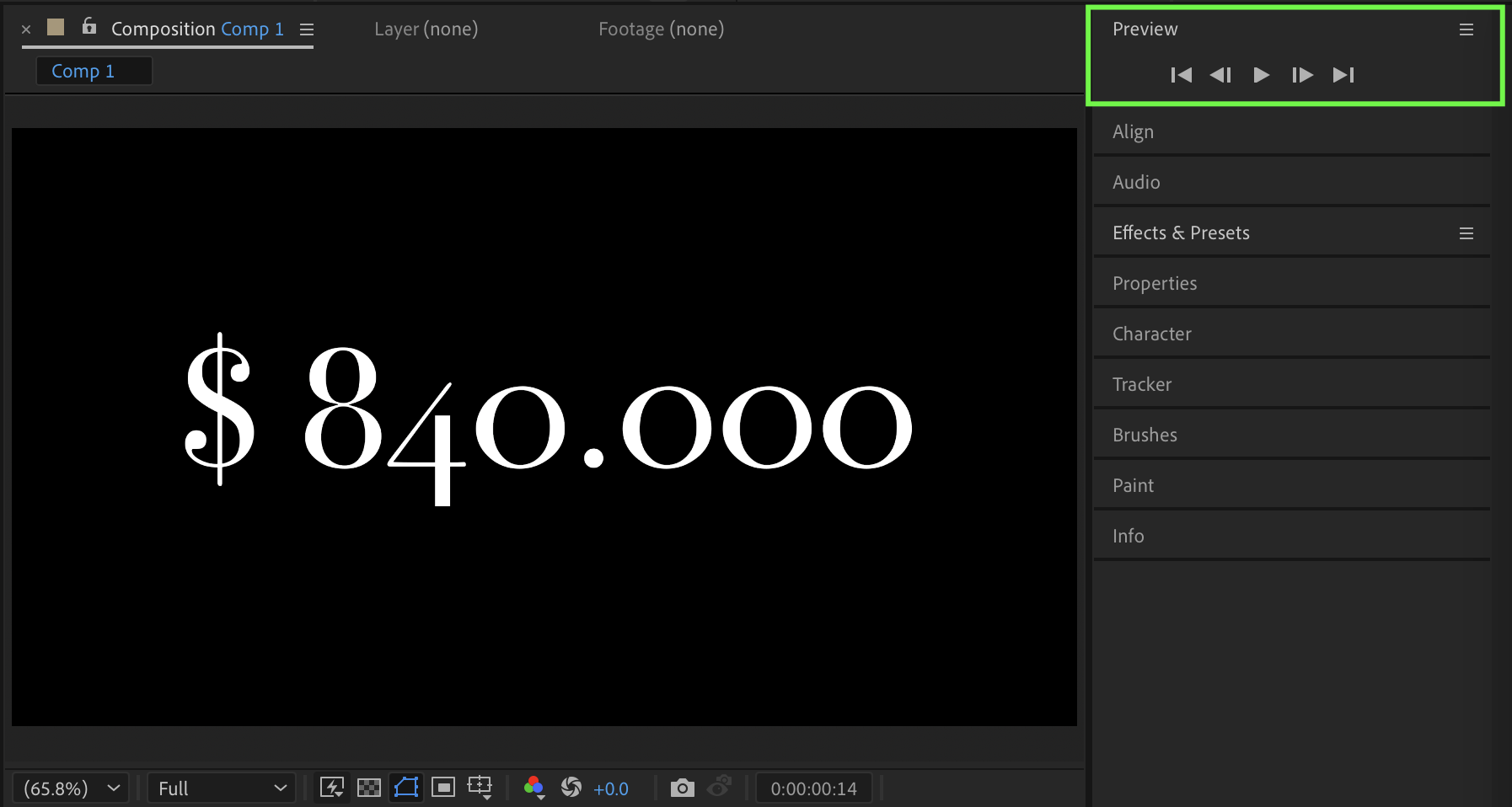 Conclusion
By linking Source Text to Angle Control and animating its value, you can quickly create smooth counting number animations in After Effects. With simple expression adjustments, you can customize decimal precision and add currency symbols or percentages for professional data-driven designs.
Our Bestsellers
Our Bestsellers


