
Learn how to create cyberpunk glitch logo animations using AEJuice packs in After Effects. A step-by-step tutorial for editors.
Create Stunning Cyberpunk Glitch Logo Animations in After Effects
Introduction to Using Cyberpunk Glitch Templates for Logo Animation
Cyberpunk glitch effects are bold, electric, and perfect for modern branding, gaming intros, or futuristic promos. With AEJuice’s Cyberpunk Glitch Logo Pack, you can easily add intense digital distortion and neon energy to your logo. Follow this tutorial to learn how to animate a logo with cyberpunk glitch effects in After Effects.
Step 1: Create a New Composition
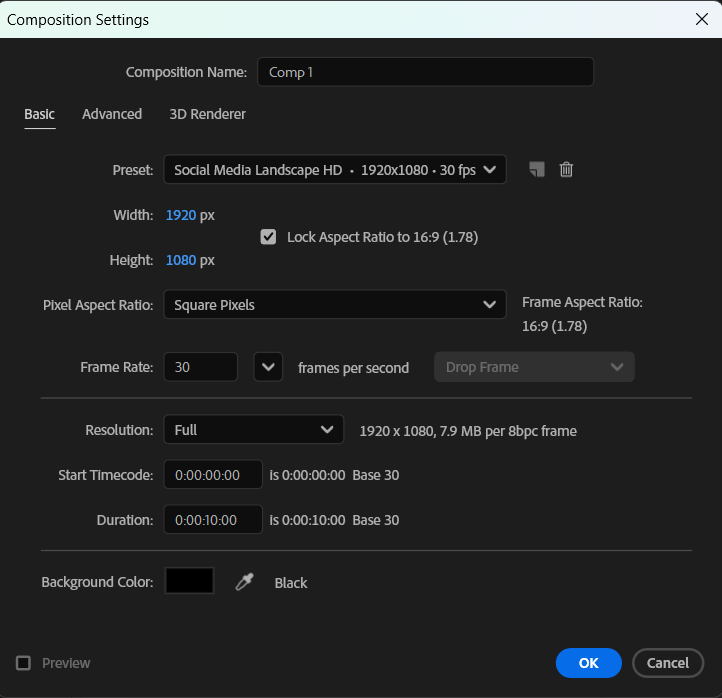
Start by opening After Effects and creating a new composition via Composition > New Composition. Set your desired resolution and duration.
 Step 2: Open AEJuice Pack Manager
Go to Window > AEJuice Pack Manager 4 to open the AEJuice plugin panel. This is where all your installed and available AEJuice packs are located, including the glitch effects and logo templates.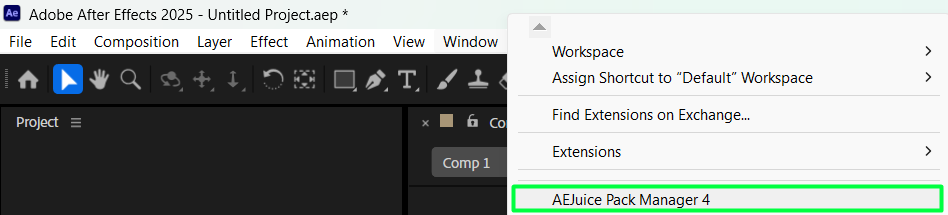
Step 3: Download the Cyberpunk Glitch Logo Pack
Inside the Pack Manager, find the Cyberpunk Glitch Logo Pack. If it’s not installed yet, click to download it. Once installed, you’ll be able to preview and select from a variety of animated glitch templates tailored for cyberpunk-style intros.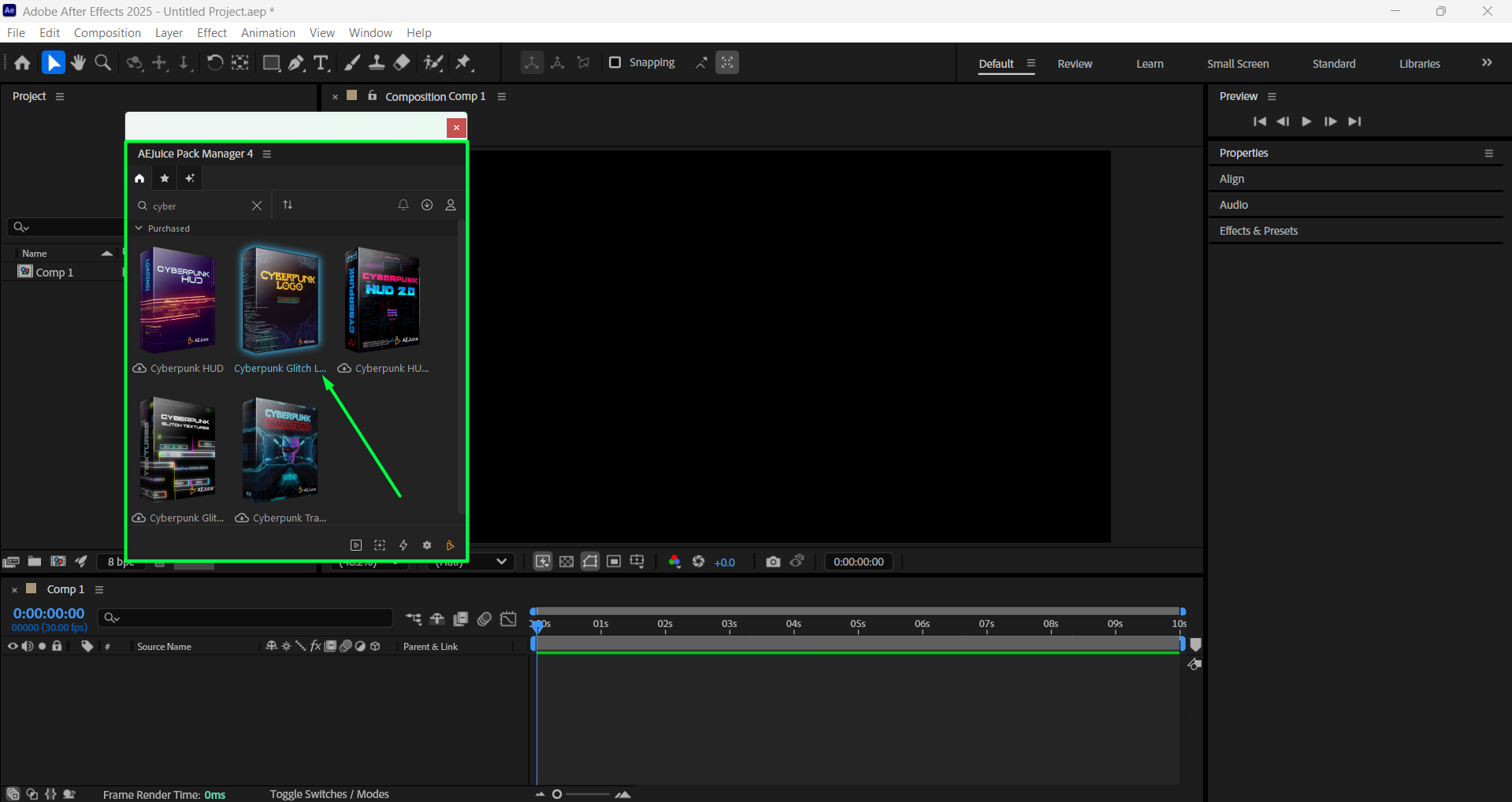 Step 4: Choose and Import a Glitch Template
Browse through the available templates and select the one that best fits your brand’s tone. Click on a template (e.g., Cyberpunk Logo Color 04) and press Import. AEJuice will add a pre-made composition with glitch animations to your timeline.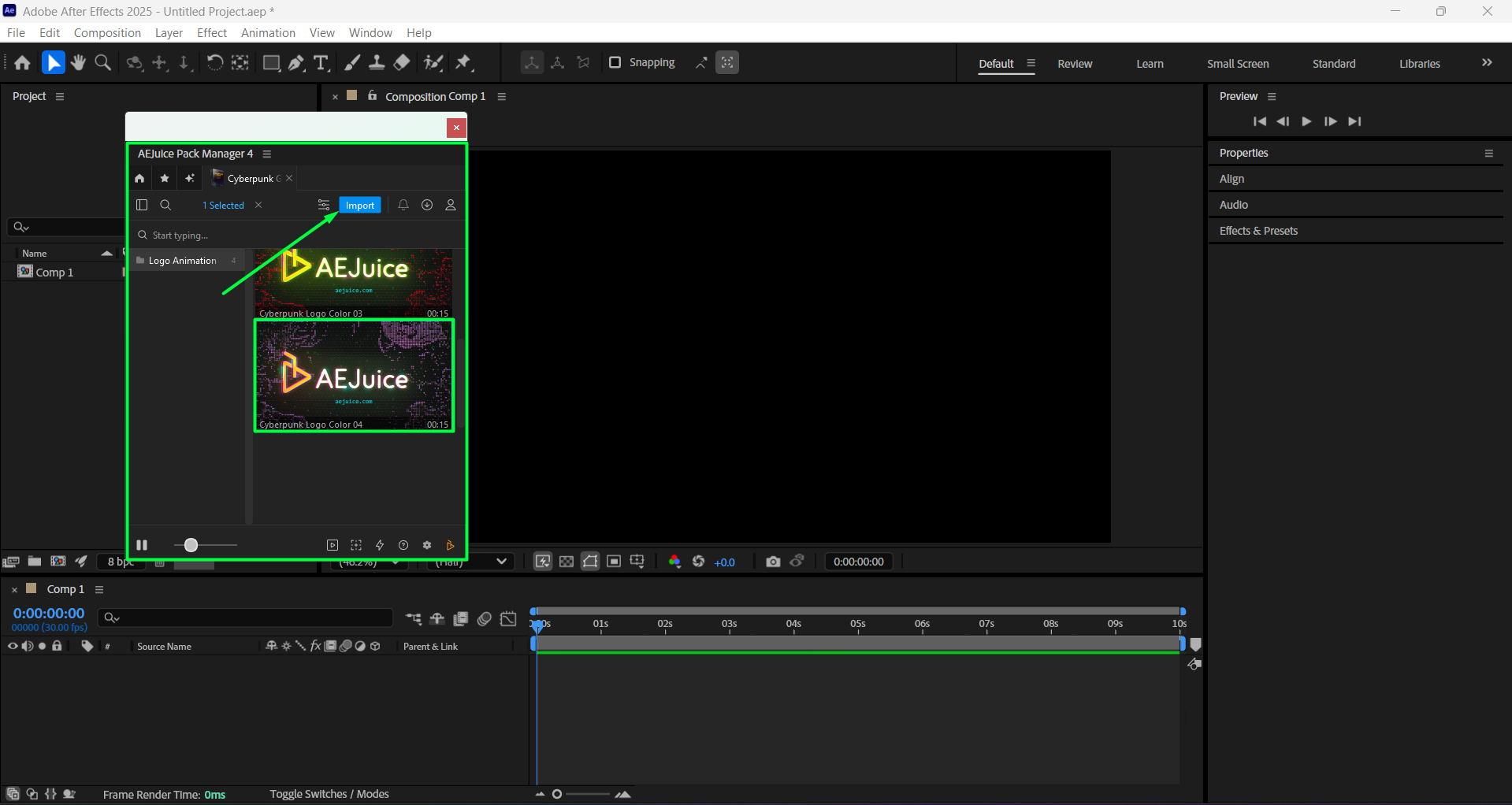
Step 5: Customize the Template
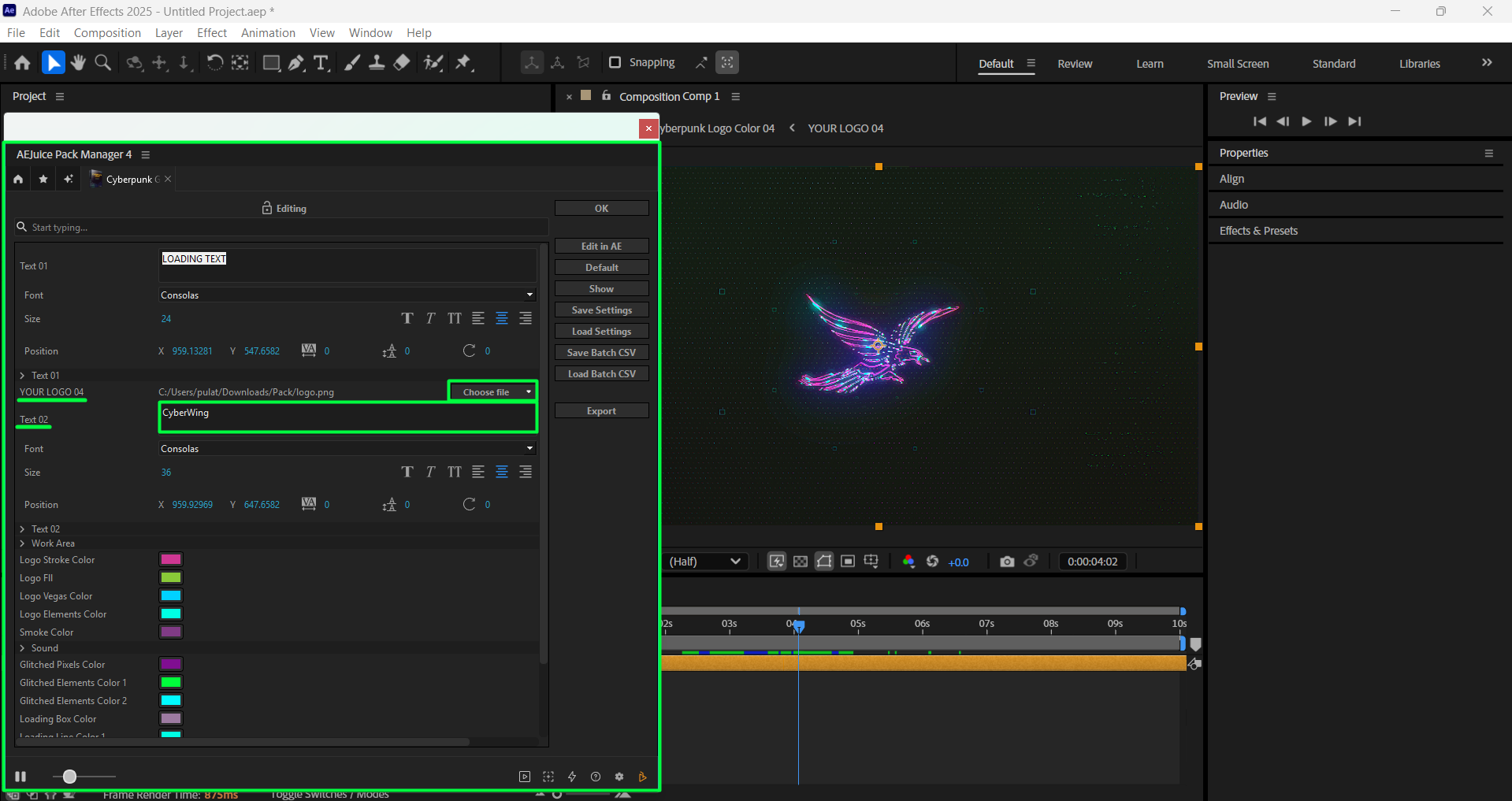
Click on the imported pre-comp layer in the timeline. Then, in the AEJuice Pack Manager 4 panel, click the Edit button (represented by three sliders). This will open a customization panel where you can adjust settings like text, font, and size. Next to the logo placeholder, click the Choose File button to upload your image. You can also adjust its size and position to fit the design. Additionally, you can easily customize the template colors to match your brand or personal style.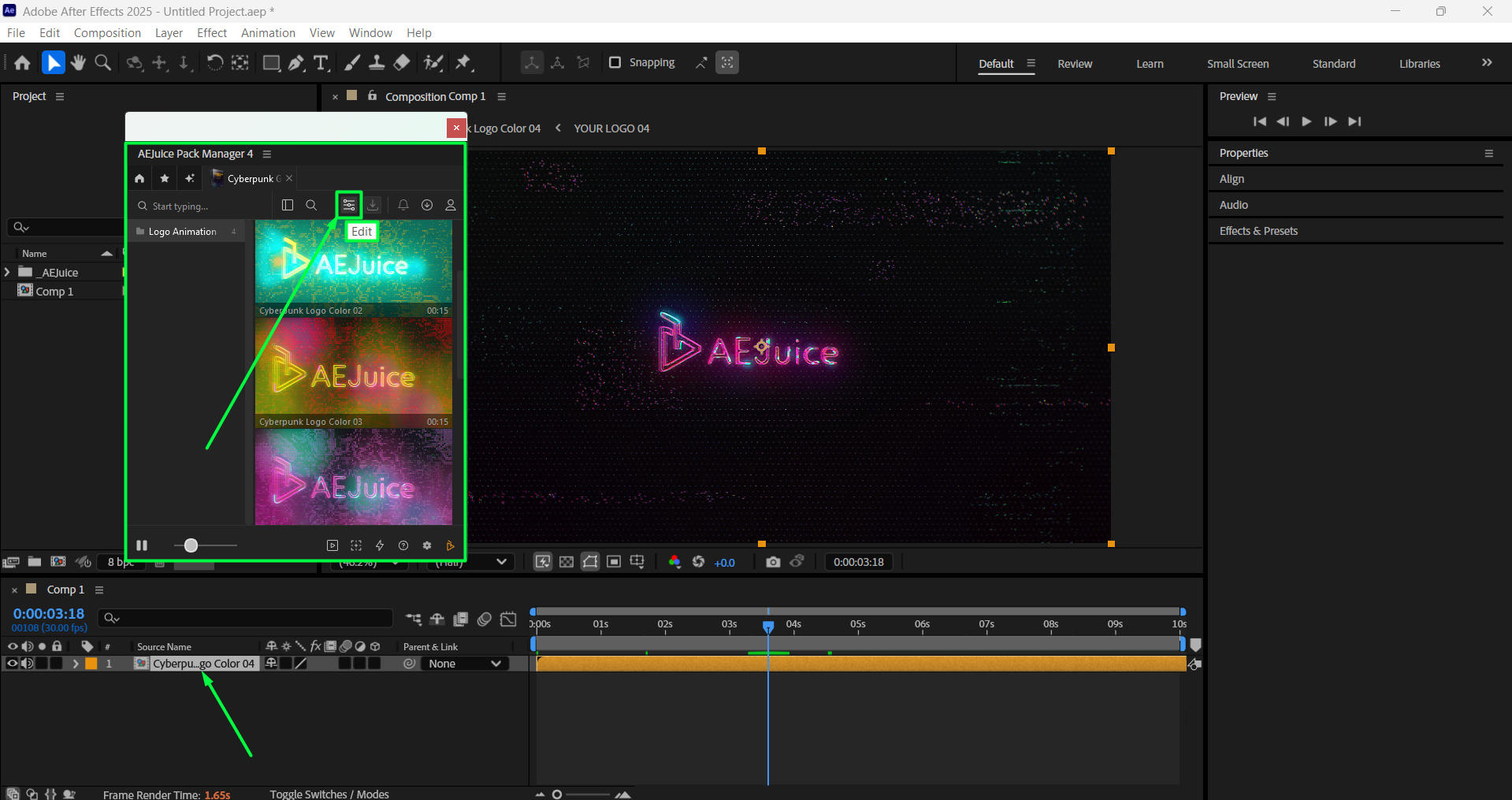
 Step 6: Preview Your Animation
Press Spacebar to preview your animation. Once satisfied, you can render the final video by going to Composition > Add to Render Queue or using Adobe Media Encoder.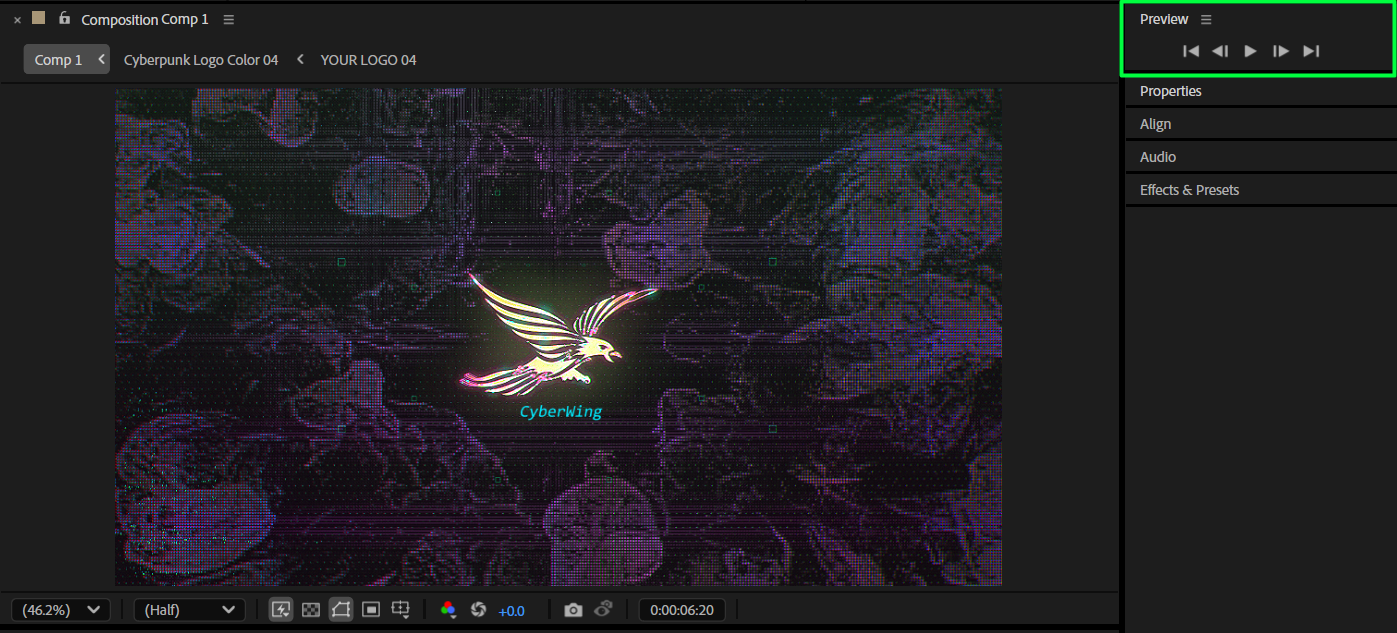 Conclusion
With AEJuice’s Cyberpunk Glitch Logo Pack, you can easily build electrifying, futuristic logo intros that stand out. Perfect for tech brands, YouTube intros, and more, these templates save time while delivering a professional, polished result.
Our Bestsellers
Our Bestsellers


