Introduction
Creating realistic lava animation in After Effects is easier than it looks. By combining a magma preset, transition effects, 3D positioning, and particle simulation, you can build a dynamic volcanic lava look. This guide walks you through each step clearly.
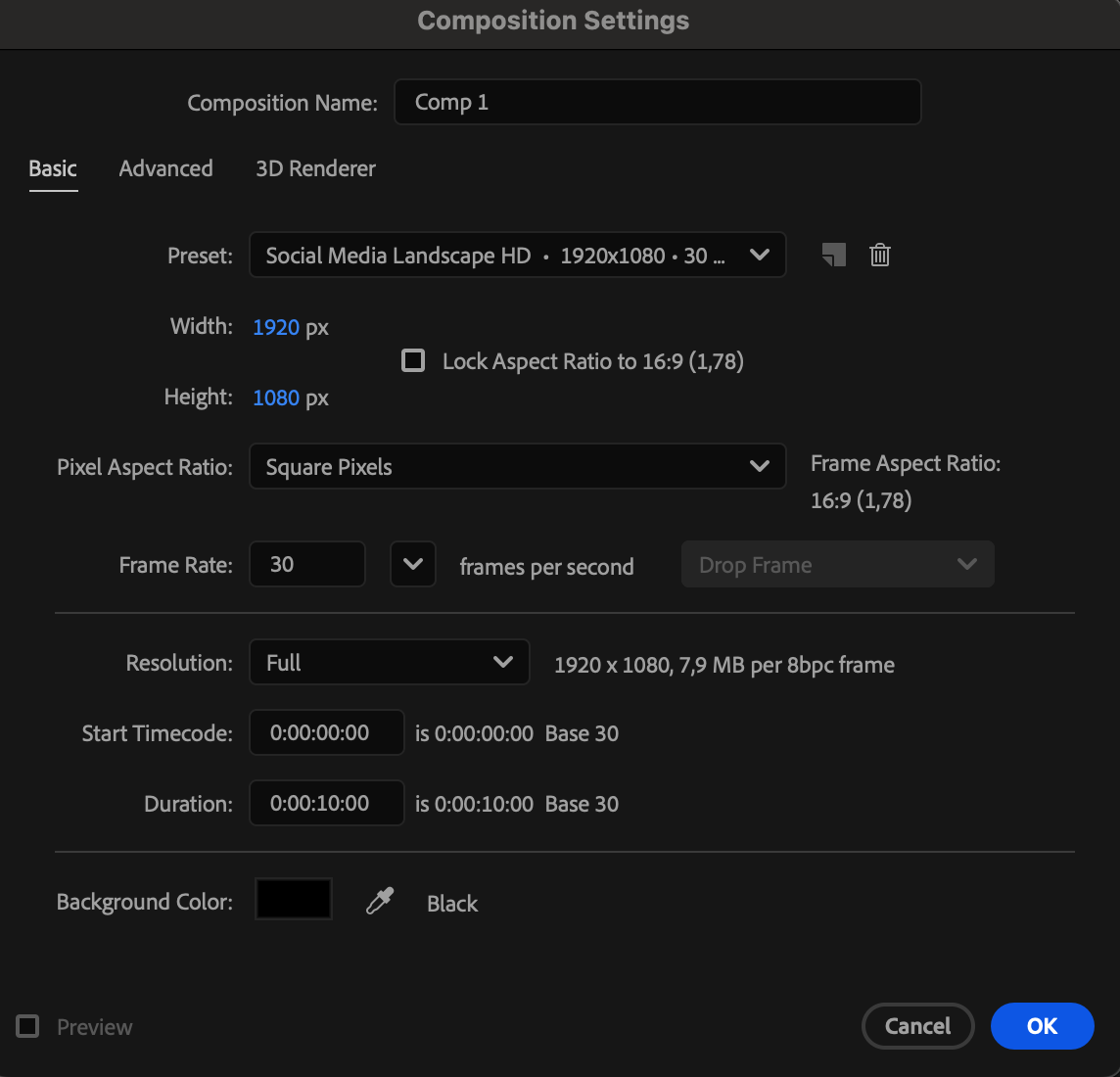
Step 1: Create a New Composition
Go to Composition > New Composition and set the desired resolution and duration.
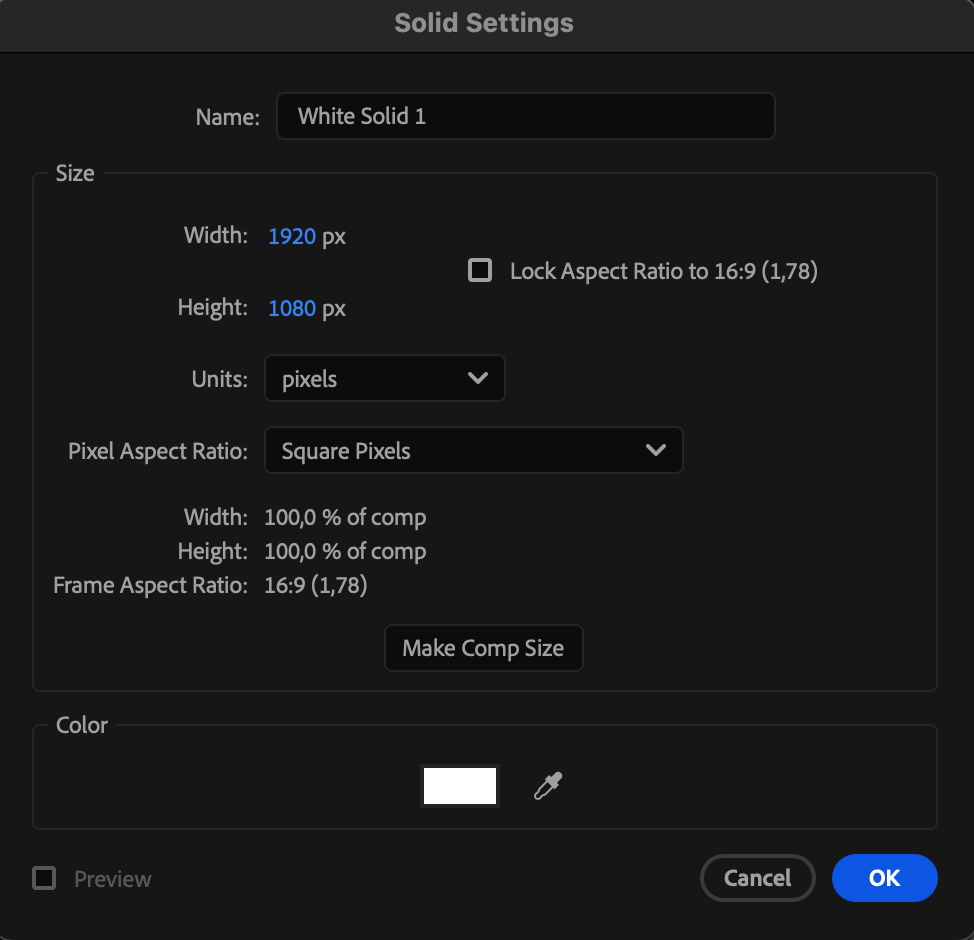
 Step 2: Add a White Solid
Navigate to Layer > New > Solid and create a white solid. This layer will serve as the base for your lava texture.
 Step 3: Apply the Magma Preset
From the Effects & Presets panel, search for Magma and drag the preset onto your solid. This instantly generates a lava-like animated texture.
Get 10% off when you subscribe to our newsletter

Step 4: Adjust the Magma Animation Speed
In the Effect Controls panel, customize the Magma settings to your liking. To adjust the animation speed:
Select the solid layer.
Press “U” to reveal all keyframes created by the preset.
Select the middle keyframe group.
Drag the keyframes to the right to slow down the lava animation.
Drag them to the left to speed it up.
This gives you full control over the flow speed.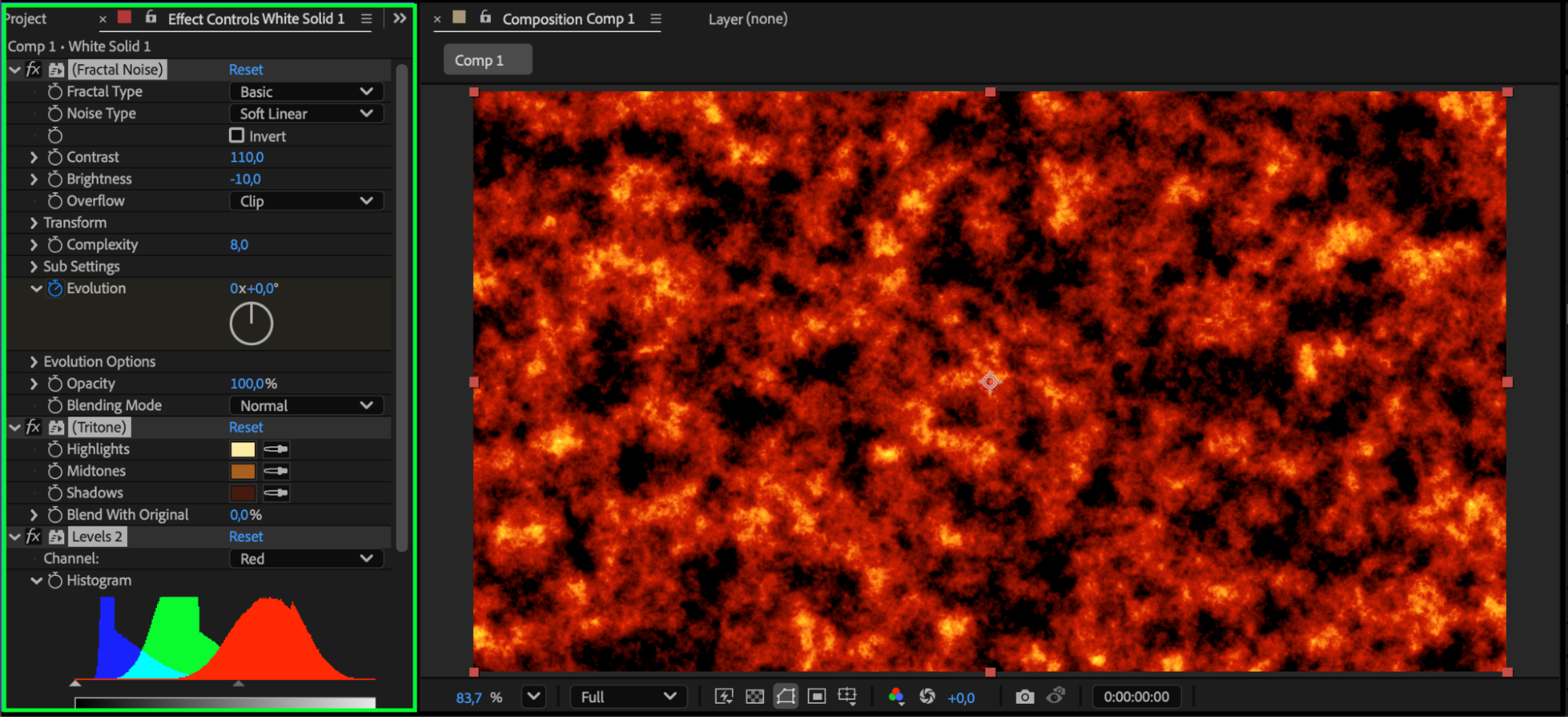
 Step 5: Add CC Radial Scale Wipe
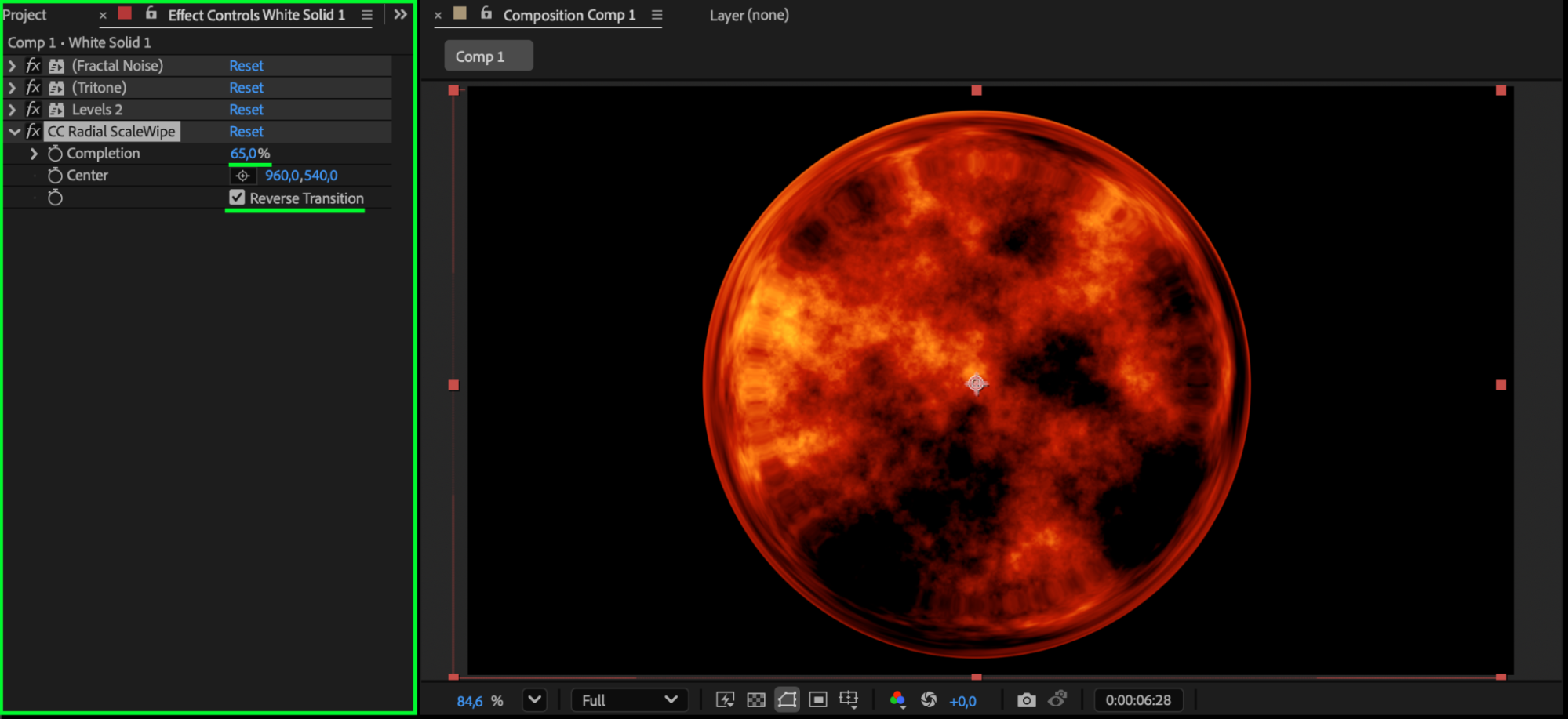
Apply CC Radial Scale Wipe from the Effects & Presets panel. Recommended settings:
Completion: 65
Reverse Transition: On
This creates a tapered opening effect that begins to resemble the mouth of a volcano.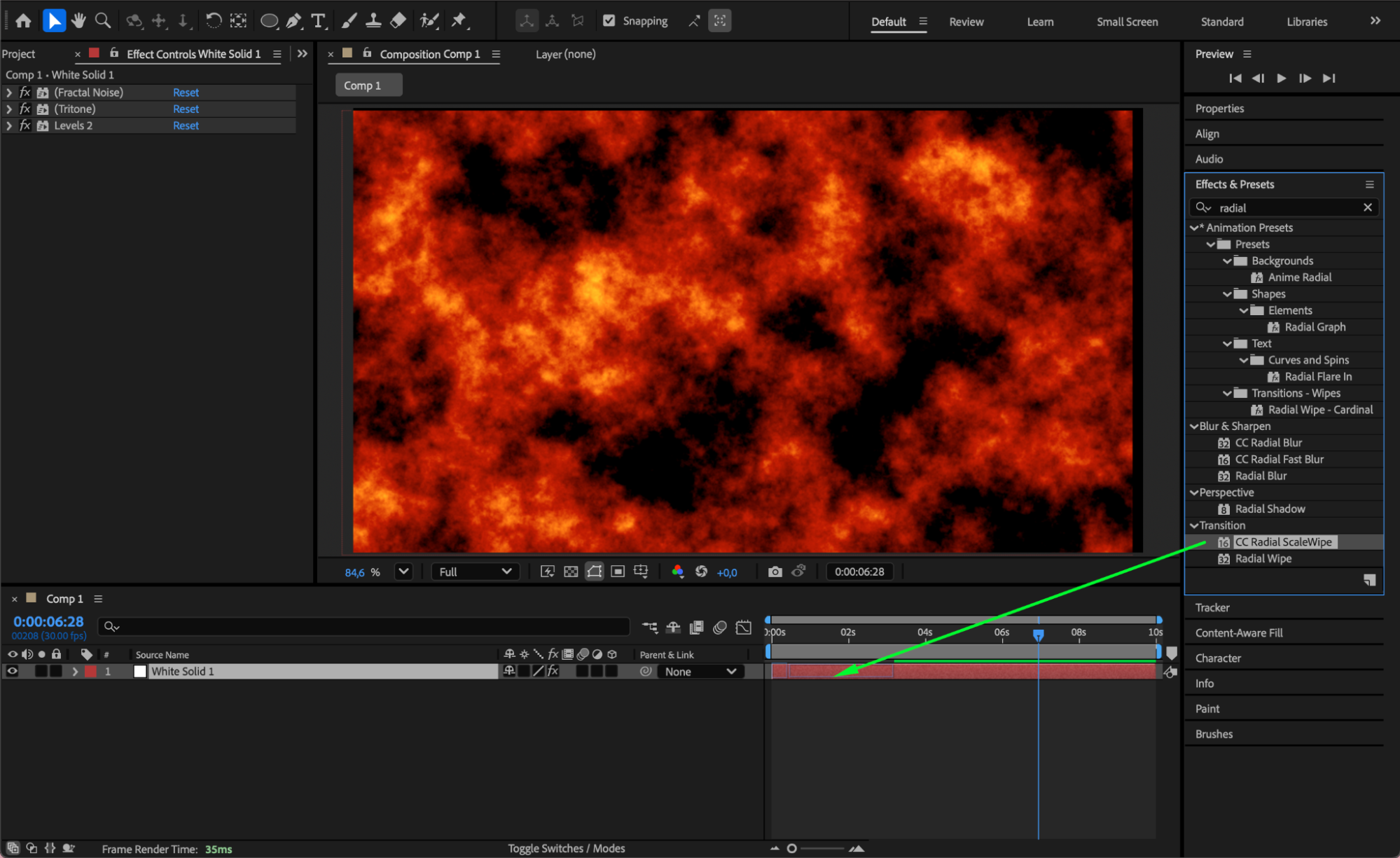
 Step 6: Enable 3D and Adjust Perspective
Click the 3D cube icon next to the layer to make it 3D. Then adjust:
Position
Scale
Tilt and size the lava texture so it looks like a volcanic crater viewed from above.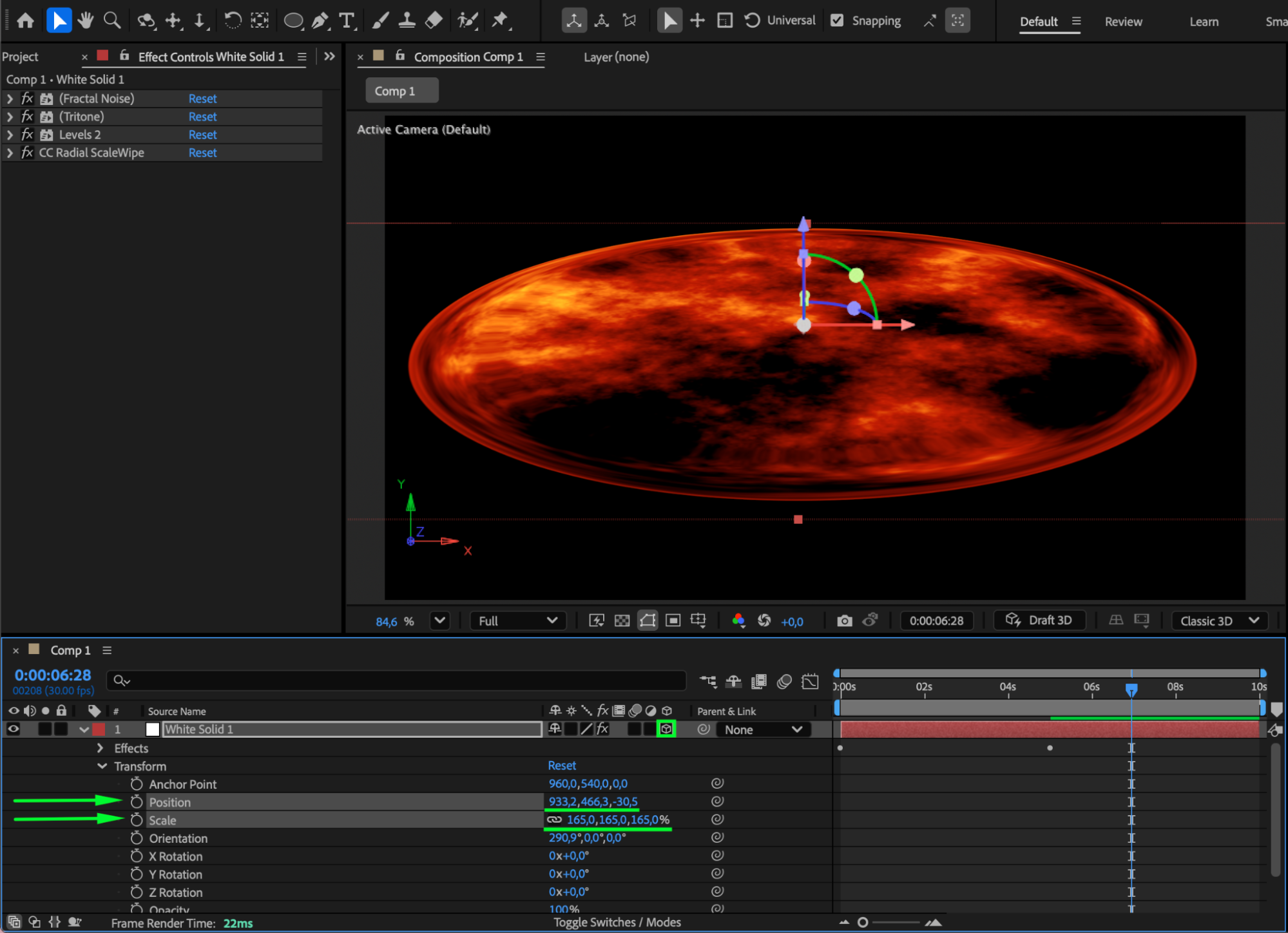
Step 7: Add CC Mr. Mercury for Lava Droplets
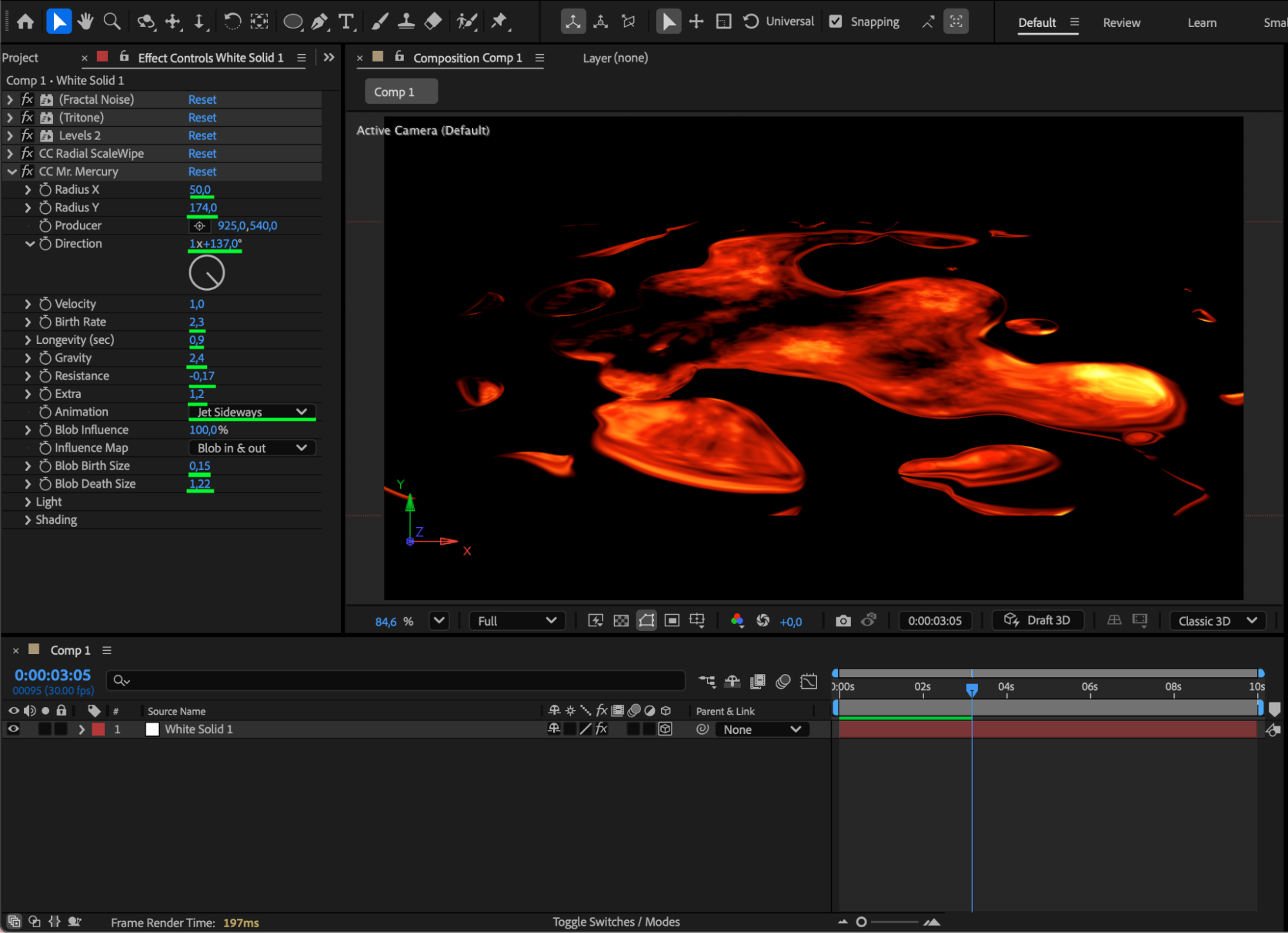
Apply CC Mr. Mercury to simulate popping and falling lava blobs. Recommended settings:
Radius X: 50
Radius Y: 174
Direction: 497°
Birth Rate: 2.3
Longevity: 0.9
Gravity: 2.4
Resistance: -0.17
Extra: 1.2
Animation: Jet Sideways
Blob Birth Size: 0.15
Blob Death Size: 1.22
This adds dynamic droplets that enhance the lava realism.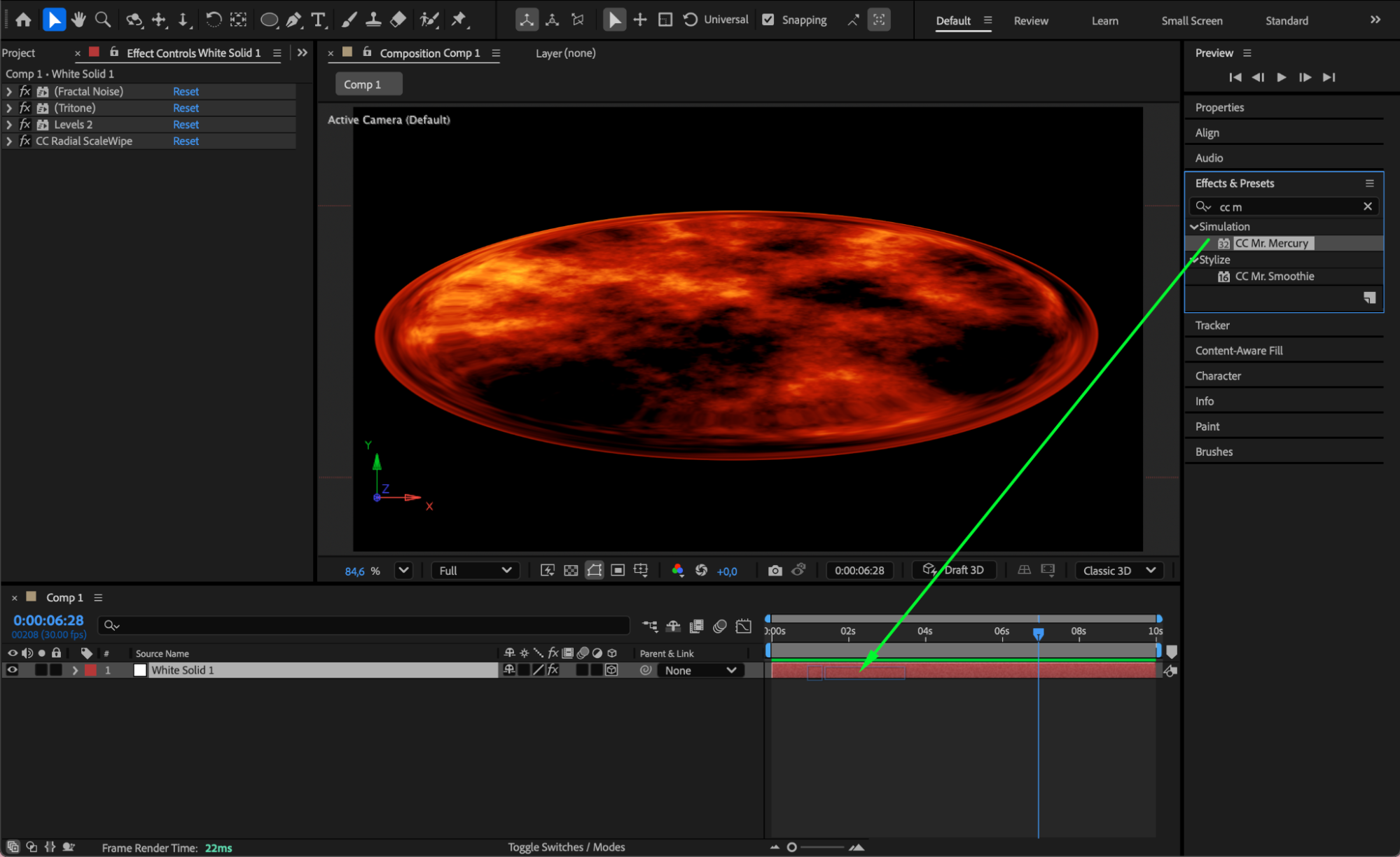
 Step 8: Preview and Refine
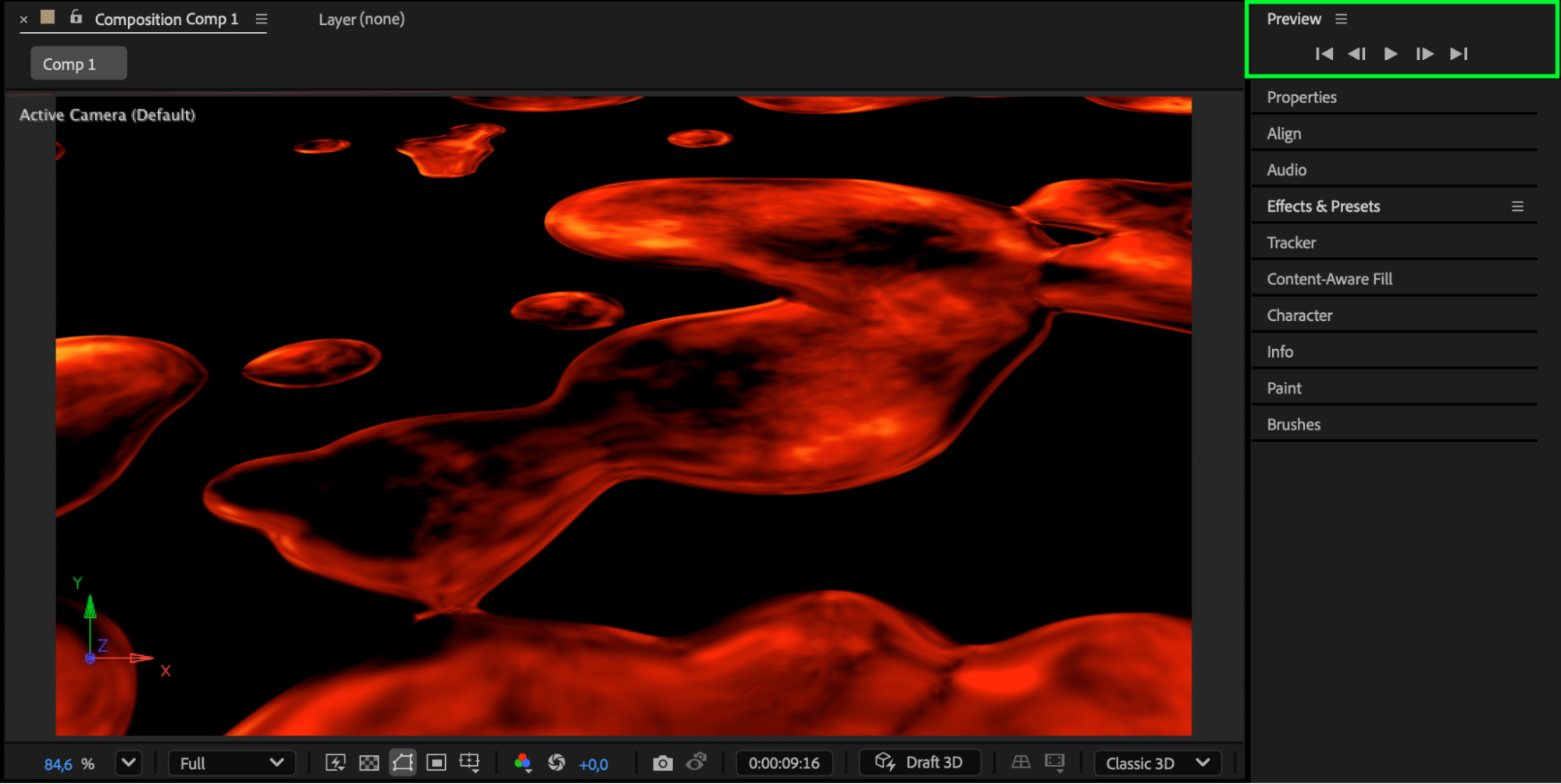
Press Spacebar to preview your lava animation. You can remove the CC Radial Scale Wipe effect if you prefer the lava to flow across the entire composition instead of being shaped like a crater. Tweak magma settings, 3D positioning, or particle behavior until the animation looks right.

 Conclusion
With the Magma preset, a radial wipe transition, 3D adjustments, and CC Mr. Mercury particles, you can create a striking lava animation in After Effects. This setup works well for volcanic scenes, fantasy effects, motion backgrounds, and dramatic visual elements.
Our Bestsellers


