
Learn how to create professional animated logos using the AEJuice Animated Logotypes Pack in After Effects with simple steps and customizable templates.
Animate Your Logo in After Effects Using AEJuice Animated Logotypes
Introduction to Logo Animation for Branding and Motion Design
Animated logos are a powerful tool for branding, especially in the world of video content. They make your brand more memorable and help build a consistent visual identity. In this Animated Logotypes tutorial, we’ll show you how to animate your logo in After Effects using one of the best logo animation tools: the AEJuice Animated Logotypes Pack. This pack offers a collection of ready-made templates that are easy to customize — perfect for content creators, business owners, and motion designers.
Step 1: Create a New Composition
Open After Effects and go to Composition > New Composition. Set the resolution, frame rate, and duration based on your project requirements. This will be the base for your animated logo.
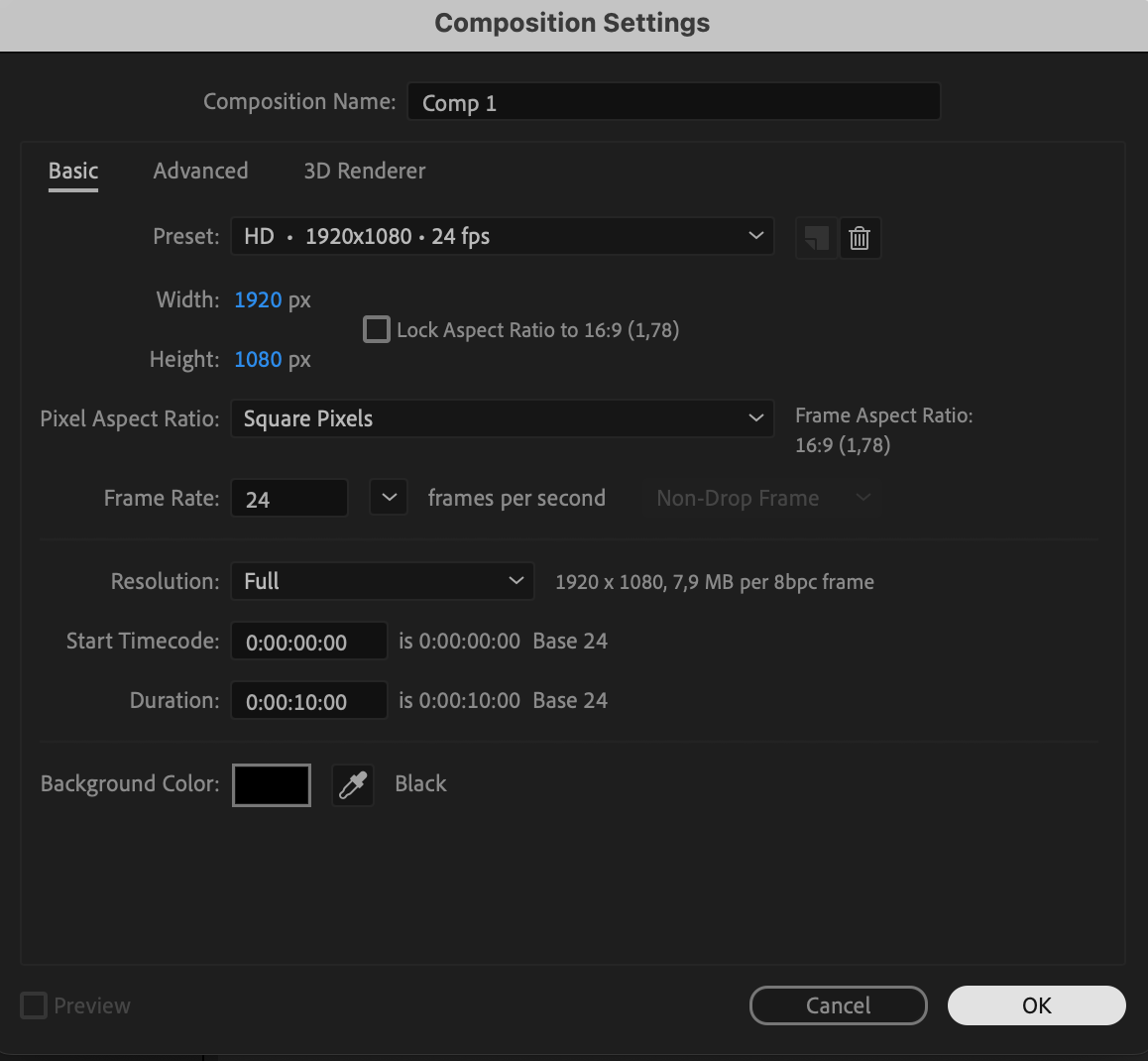 Step 2: Open the AEJuice Pack Manager
Navigate to Window > AEJuice Pack Manager 4 to open the plugin panel. This is where you can access all installed AEJuice packs, including logotype animations, effects, and more.
Step 3: Download the Animated Logotypes Pack
In the Pack Manager, scroll or use the search bar to find the Animated Logotypes pack. If you haven’t downloaded it yet, click to install. Once downloaded, the pack will be ready for use.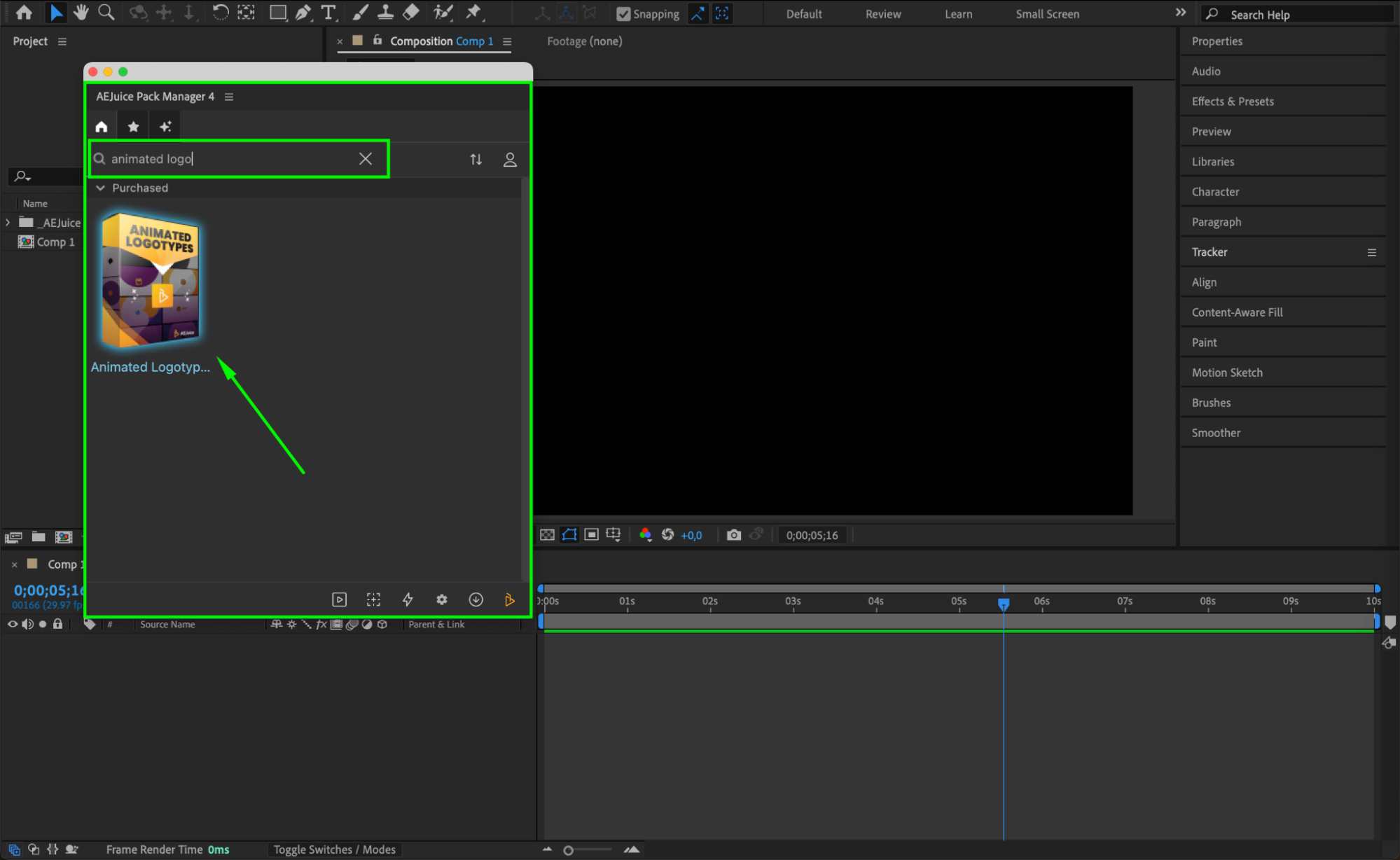 Step 4: Choose and Import a Logo Animation Template
Browse through the available templates and pick one that matches your brand’s style. Click on it, then press Import. The animation will appear in your timeline as a pre-composed layer (pre-comp).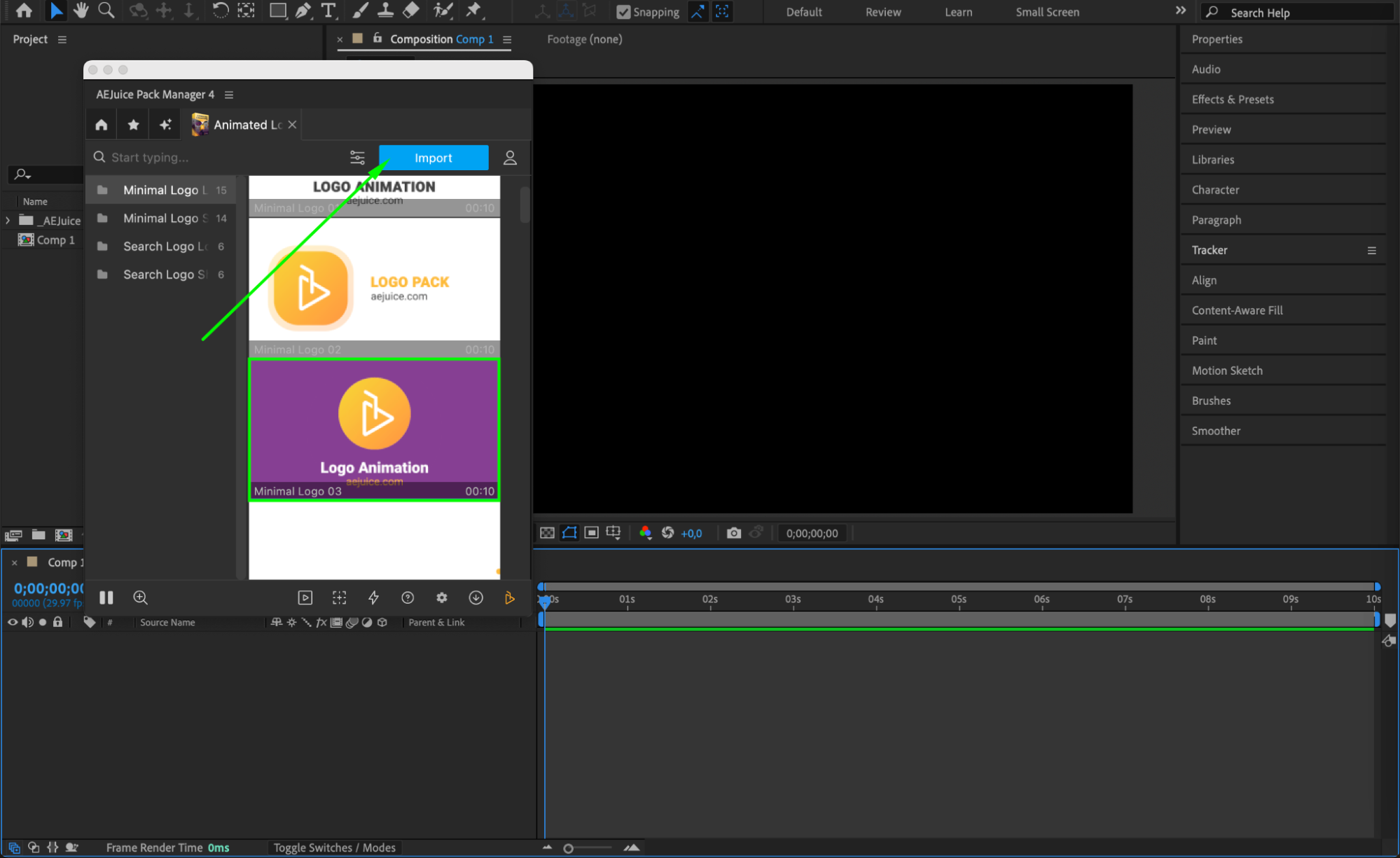
Step 5: Customize the Template
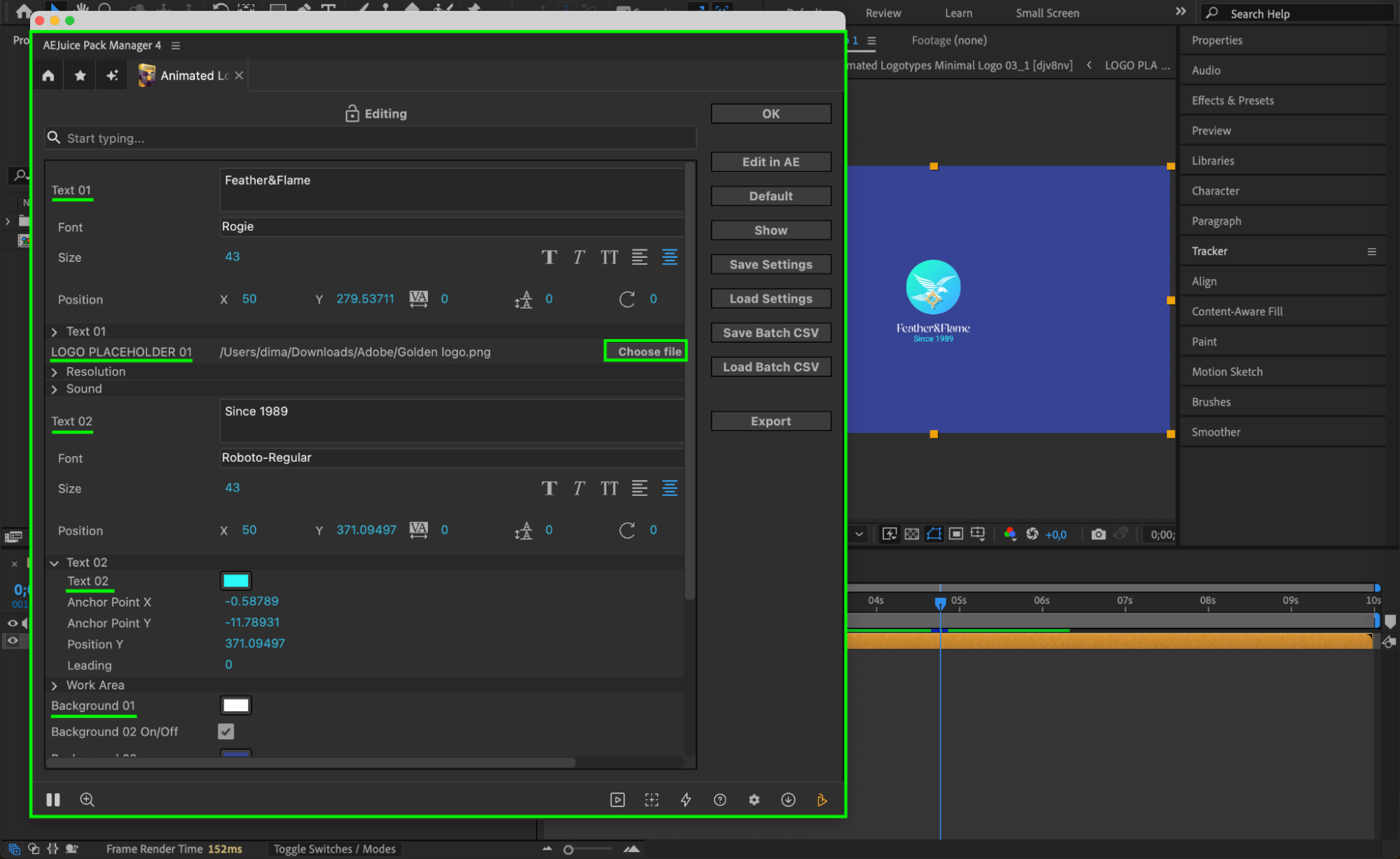
Select the imported pre-comp in the timeline. Click the Edit button (three sliders icon) in the Pack Manager. This opens the customization panel where you can:
Change the text, font, and colors
Replace the placeholder logo by clicking Choose File and selecting your logo from your computer
Adjust colors and animation settings to fit your branding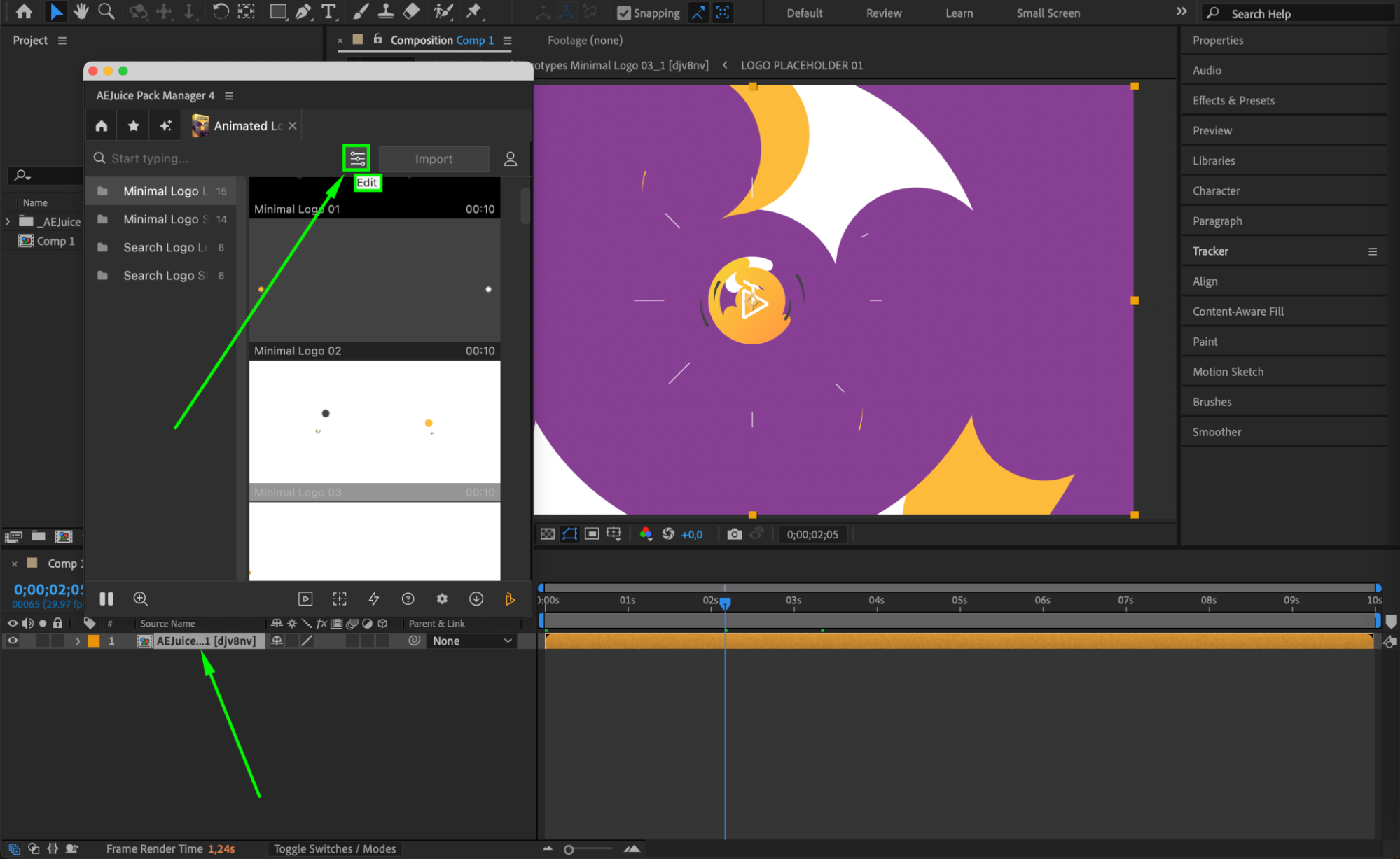
 Step 6: Adjust Scale (if needed)
To resize the entire template, simply select the pre-comp layer in the timeline and adjust its Scale property in the Transform settings.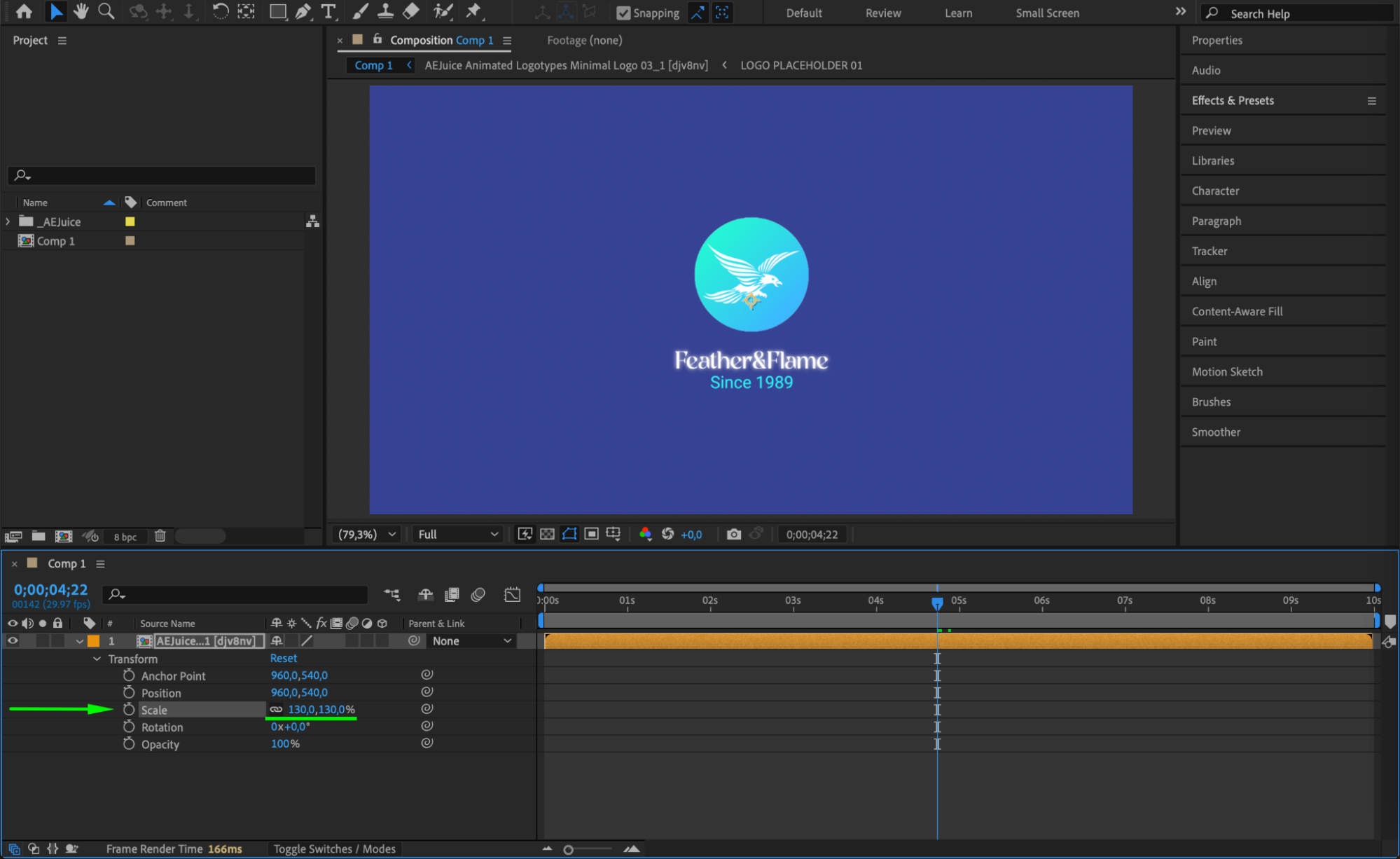 Step 7: Preview Your Animation
Press the Spacebar to preview the animated logo in real time. Make any final adjustments to timing, colors, or layout to ensure it integrates smoothly with your project.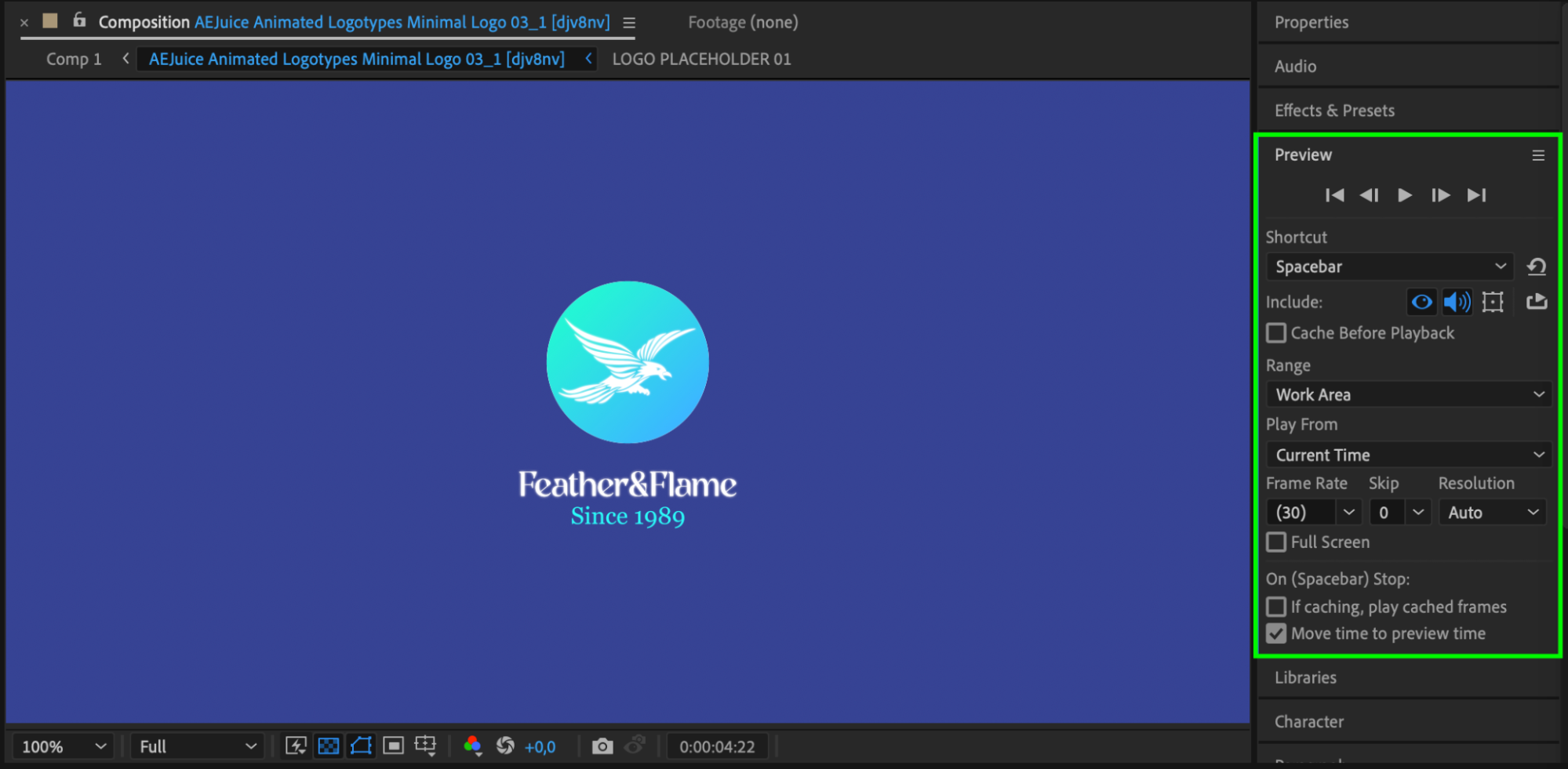 Conclusion
Animating your logo with the AEJuice Animated Logotypes Pack is a fast and effective way to elevate your brand identity. With fully customizable templates and user-friendly tools, you can create eye-catching intros, outros, or branding animations in just a few clicks.
Our Bestsellers
Our Bestsellers


