
Description: Learn how to use film artifact overlays in After Effects with AEJuice to give your videos a cinematic, vintage film look.
Creating a Cinematic Look with Film Artifacts in After Effects
Introduction to Film Artifact Effects and Overlays
Film artifacts are a powerful way to add cinematic depth and a nostalgic touch to your videos. With AEJuice’s Film Artifacts Pack, you can quickly apply realistic overlays like film grain, scratches, dust, and burn effects. This film artifacts effect tutorial will show you step by step how to apply and customize them using After Effects. These are some of the best film texture overlays for editors working on stylized or retro-inspired projects.
Step 1: Import Your Footage
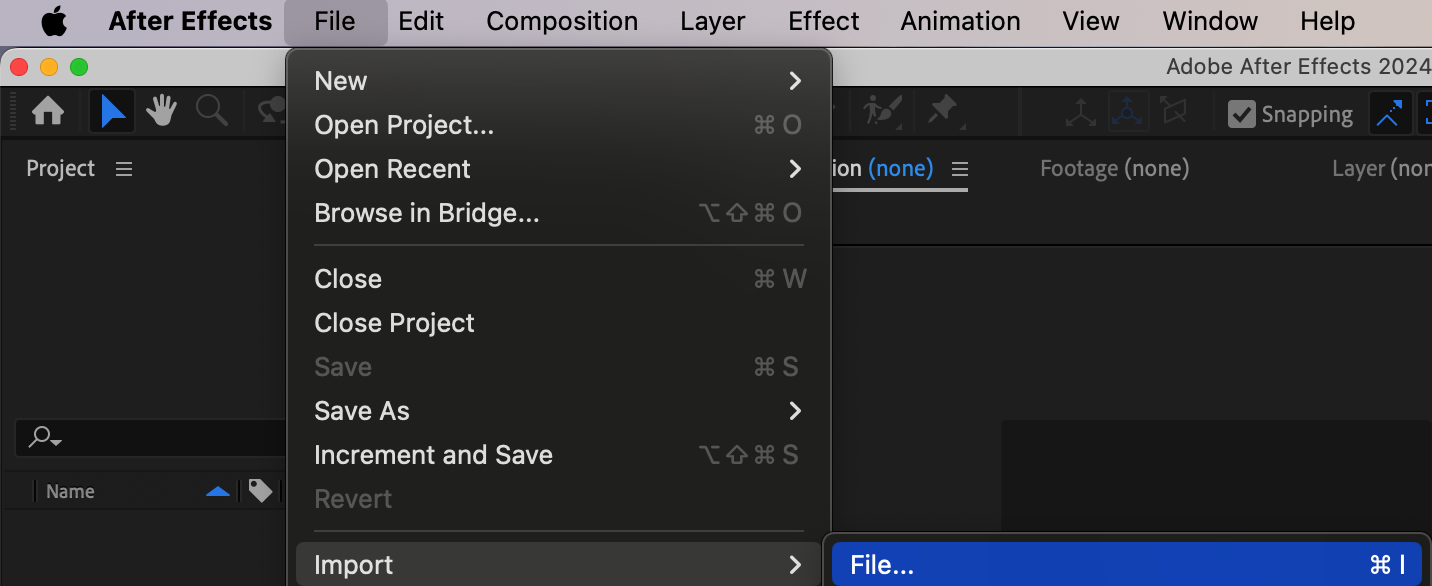
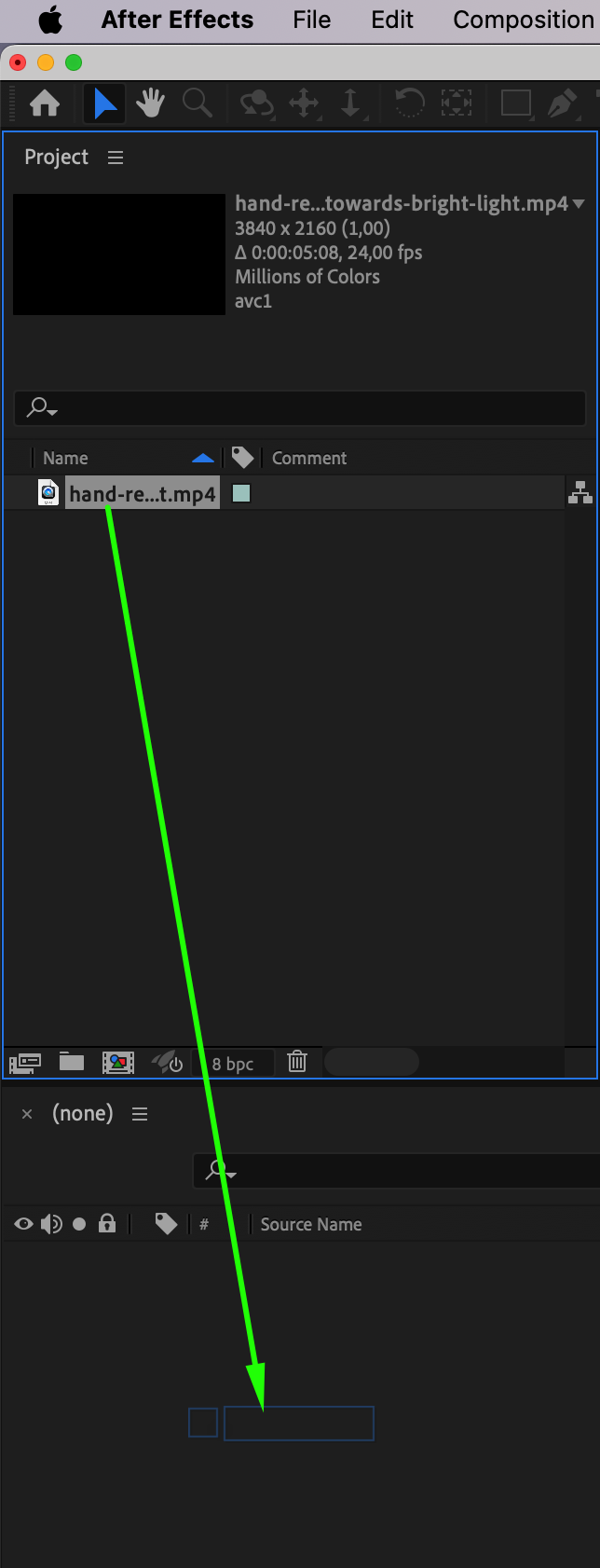
Start by importing your video. Go to File > Import > File and select your clip. Then drag it into the timeline. After Effects will automatically create a new composition based on the clip settings. This will serve as the foundation for your edit.
 Step 2: Open AEJuice Pack Manager
Go to Window > AEJuice Pack Manager 4 to launch the AEJuice plugin panel. This is where all AEJuice packs are organized and accessible. You’ll use this panel to locate and import the film overlay templates into your project.
Step 3: Download the Film Artifacts Pack
In the Pack Manager, scroll through the list of available packs and find the Film Artifacts Pack. If it’s not installed yet, click on it to download. Once downloaded, the pack will display a range of film-inspired overlays such as grain, scratches, burn marks, and dust.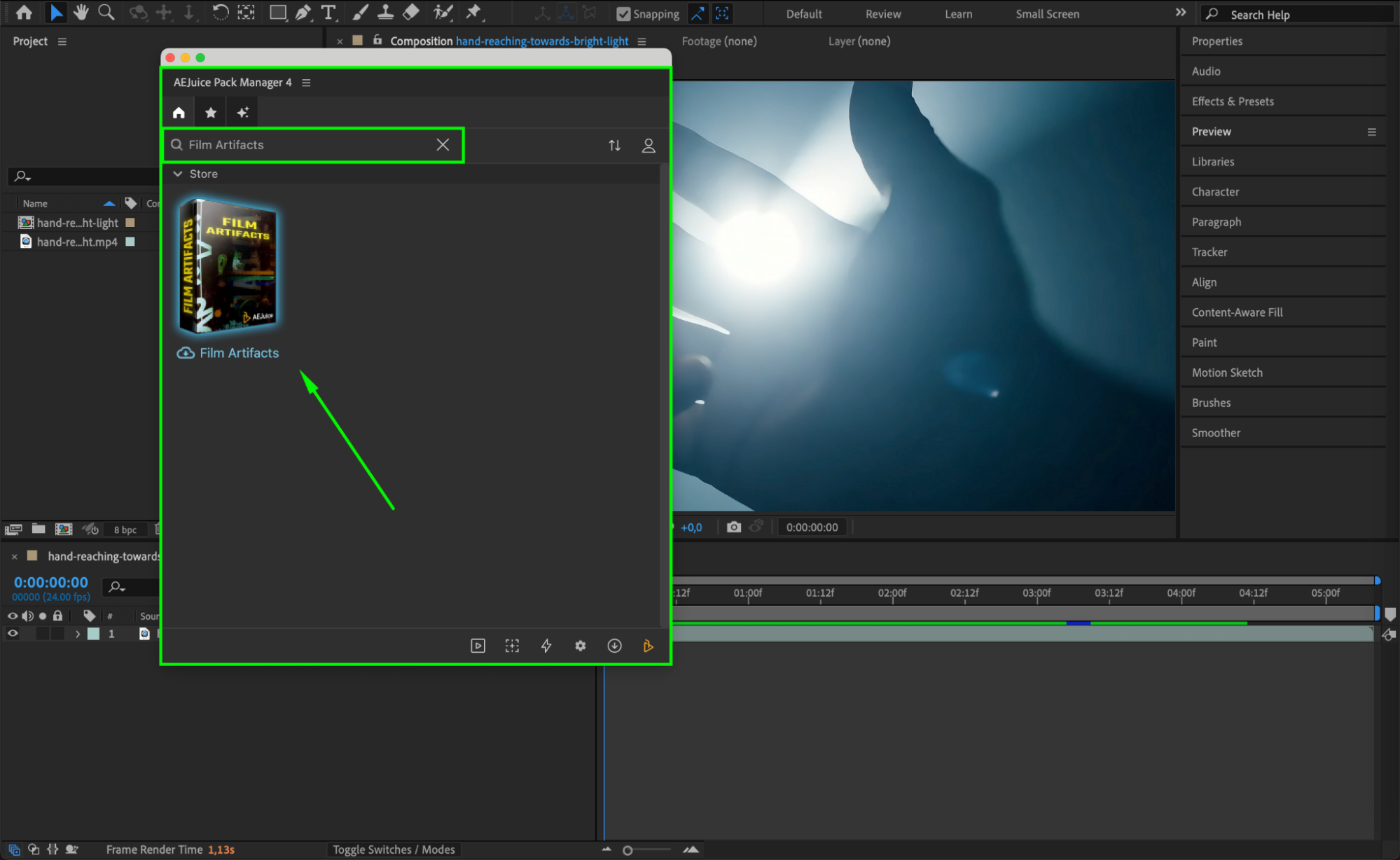 Step 4: Choose and Import a Film Overlay
Browse through the available overlays and select one that matches the aesthetic you’re going for — such as subtle grain or a heavily damaged reel look. Move the CTI (Current Time Indicator) to the point where you want the overlay to appear. Then click on your selected overlay and press Import.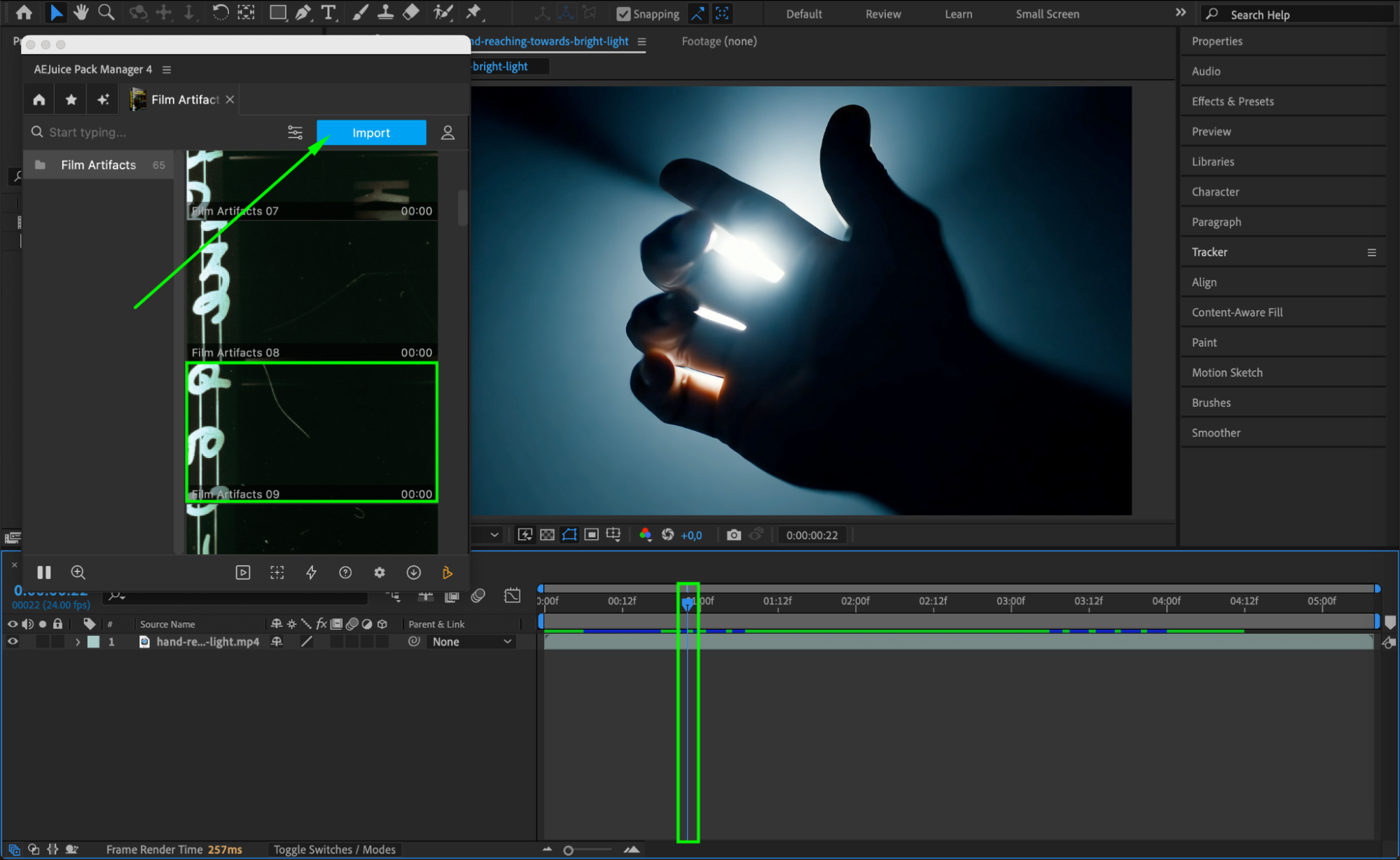 Step 5: Overlay Appears in Timeline
The overlay will appear in your timeline as an MP4 layer, automatically resized to match your composition. Make sure it sits above your main footage for proper visibility.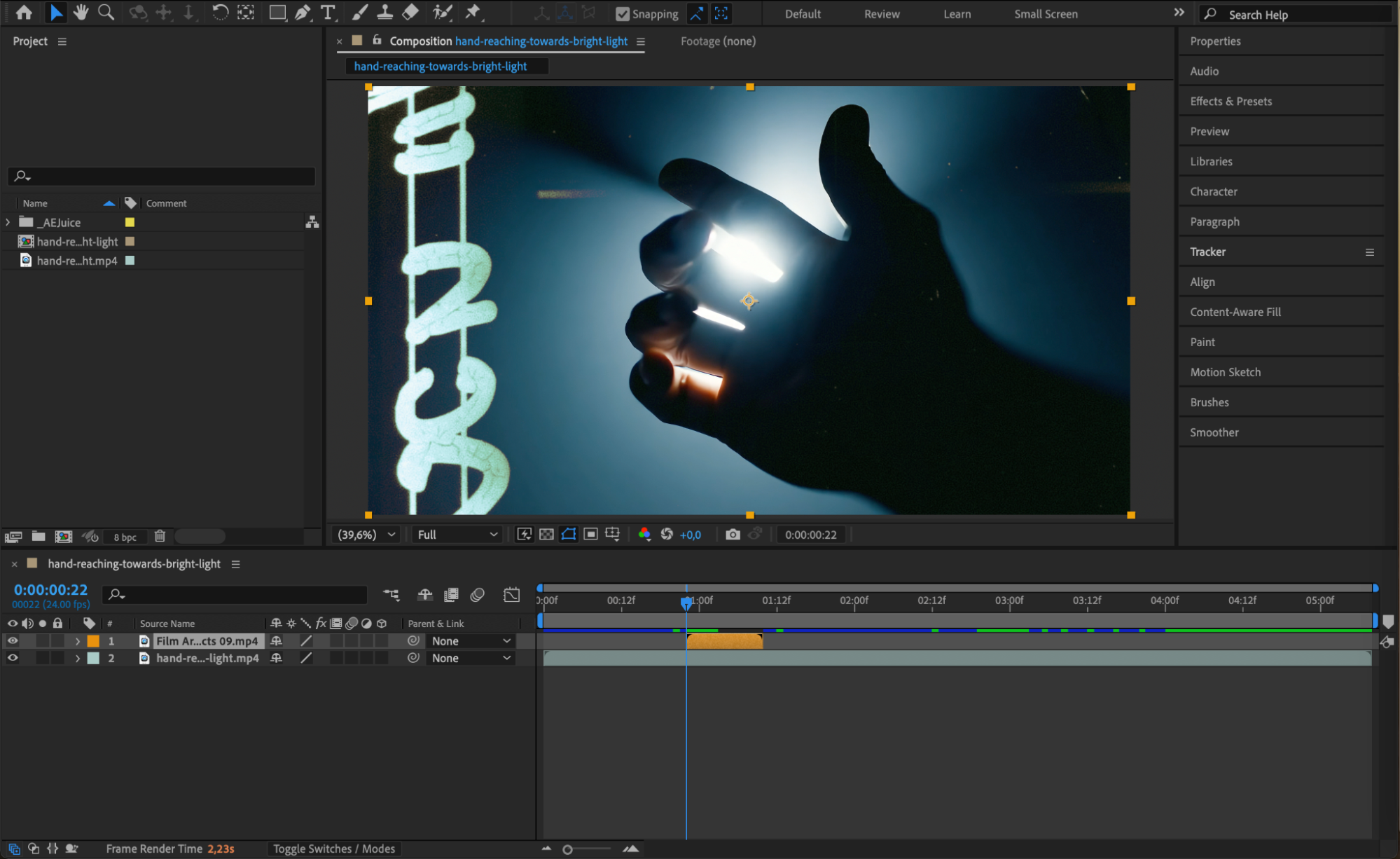
Step 6: (Optional) Apply a Blending Mode
To better integrate the overlay with your footage, press the Toggle Switches/Modes button at the bottom of the timeline (if blending modes are not visible). Then set the blending mode of the overlay layer to Screen, Overlay, or Add, depending on the visual effect you want.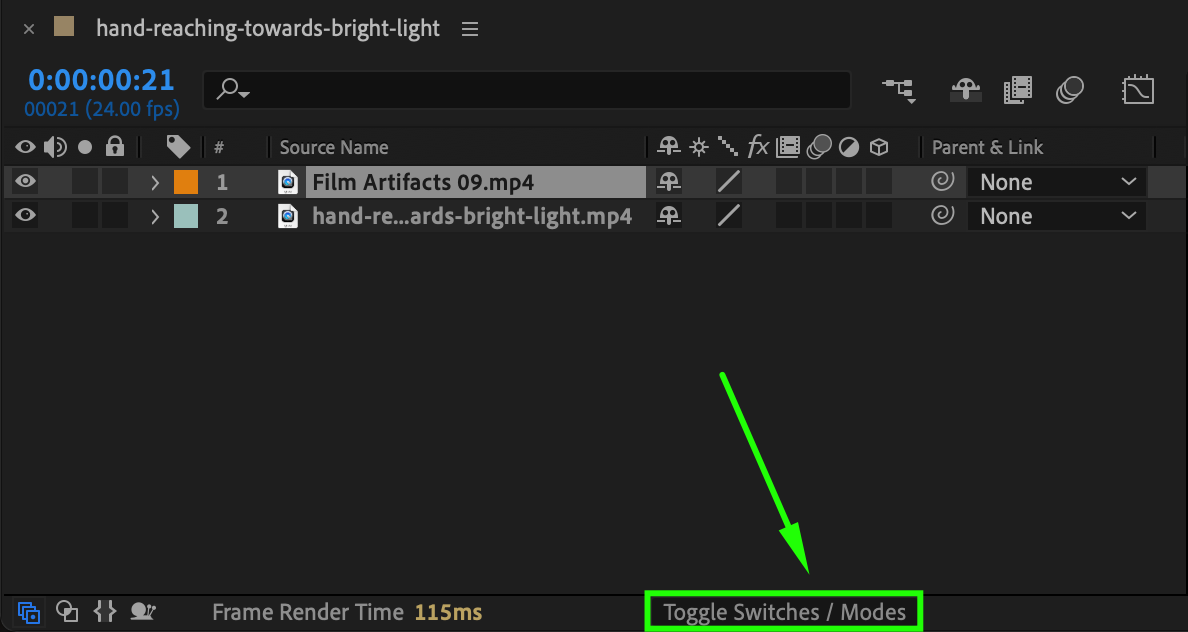
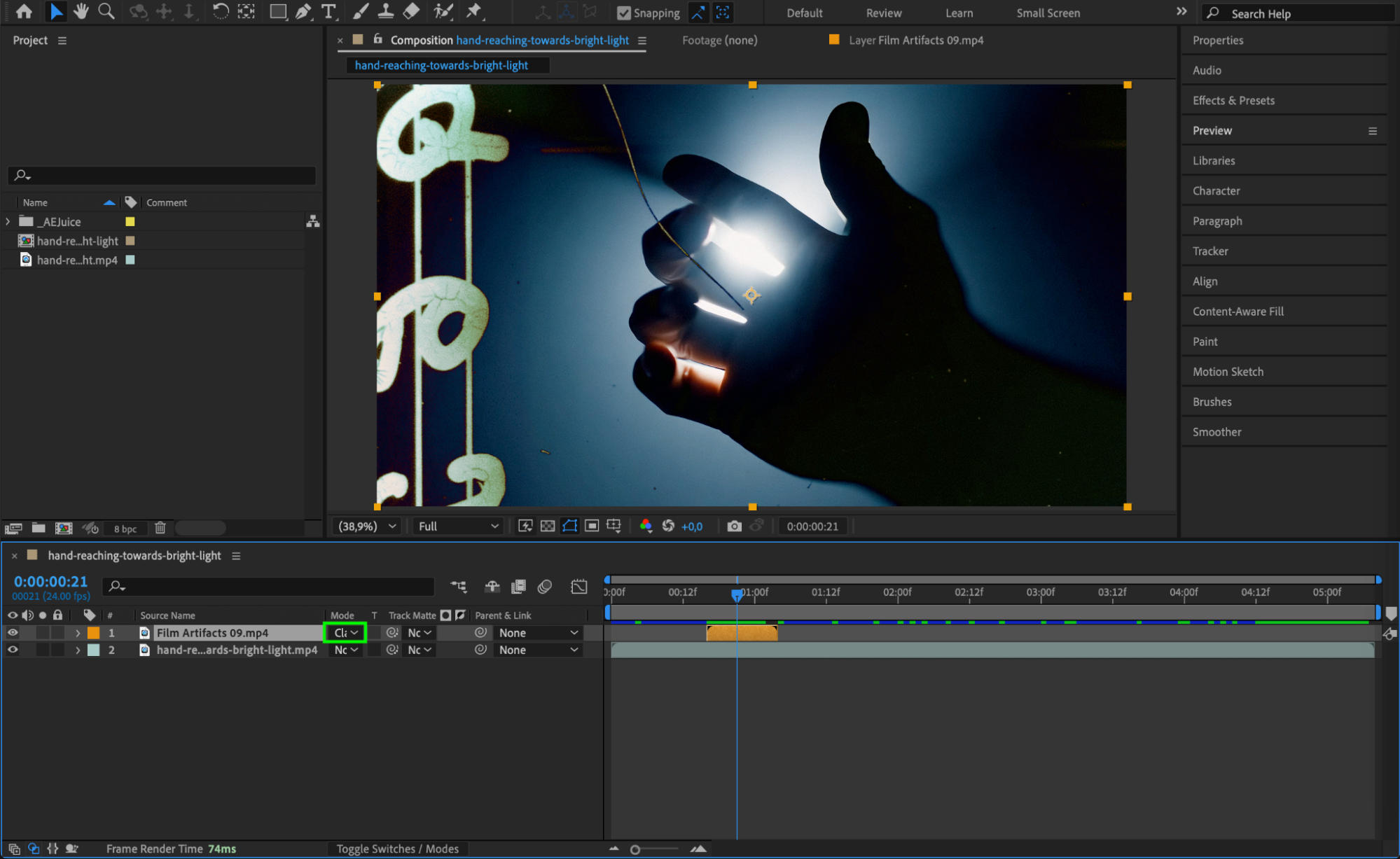
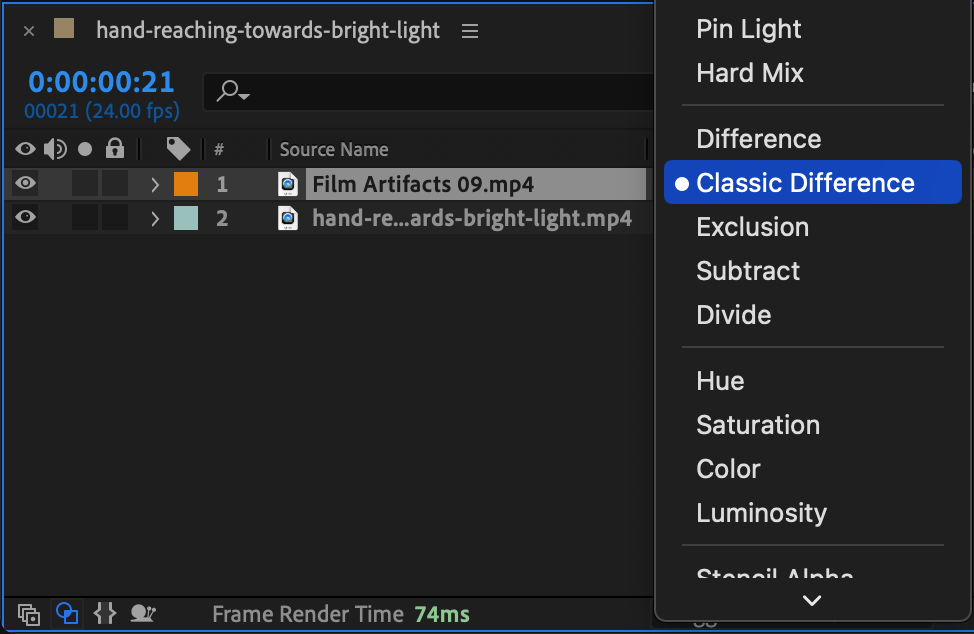 Step 7: Preview and Finalize
Press Spacebar to preview the animation. Fine-tune the overlay’s appearance by adjusting its opacity or by applying effects like Tint or Curves if needed. When everything looks cinematic and cohesive, render your final project.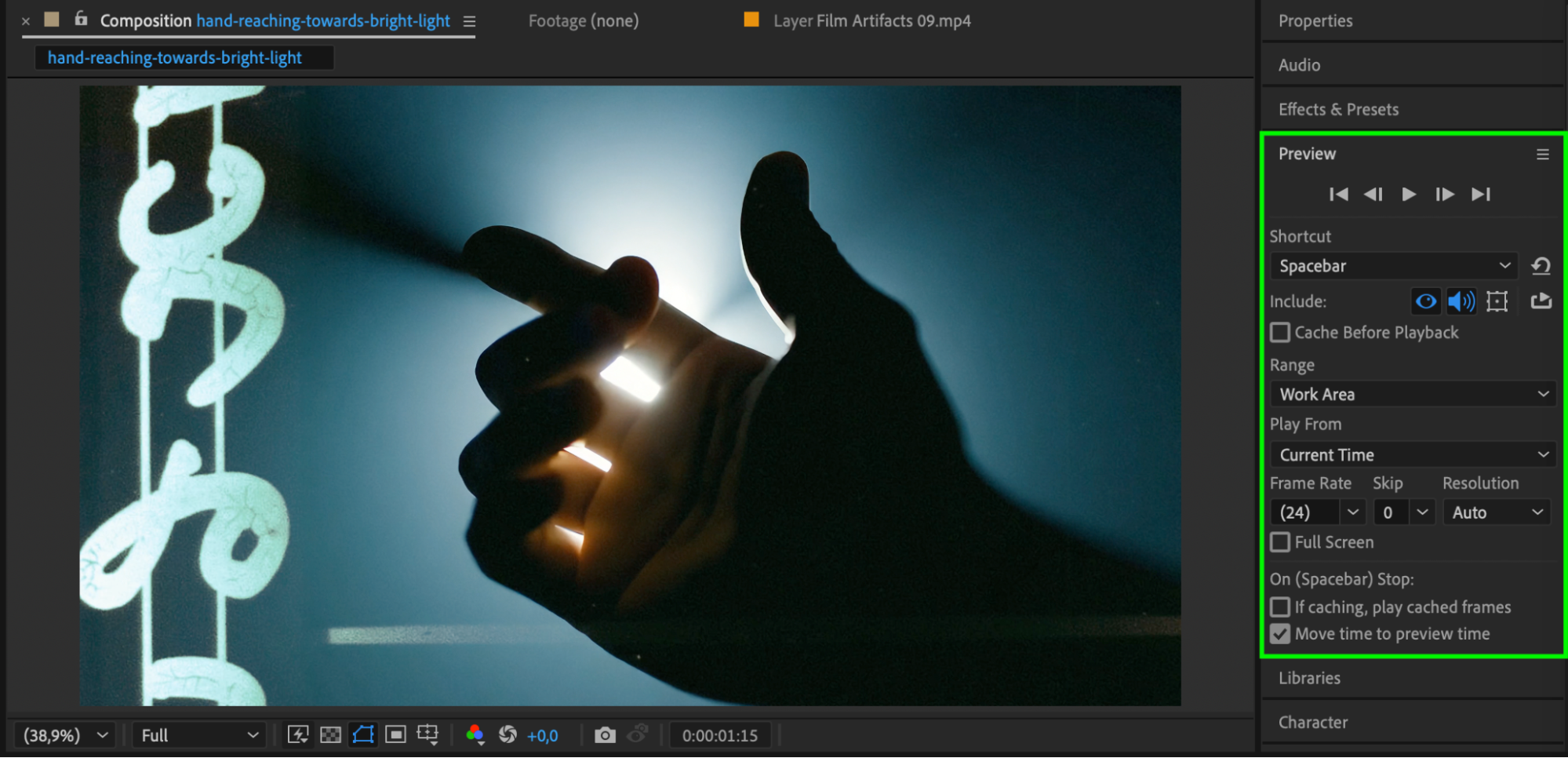 Conclusion
AEJuice’s Film Artifacts Pack offers one of the easiest ways to add stylish, vintage overlays to your video. With just a few clicks, you can simulate film damage, grain, and texture that bring depth and character to any project. Whether you’re editing a music video, short film, or social content, this pack provides some of the best film texture overlays for a professional, cinematic look.
Our Bestsellers
Our Bestsellers


