
Introduction
The “Blow Away” effect in After Effects is a simple yet powerful way to make your text appear as if it’s being blown away by the wind. You can easily apply it using built-in animation presets and customize the timing for more impact.
Step 1: Create a New Composition
Go to Composition > New Composition and set your desired resolution, frame rate, and duration.
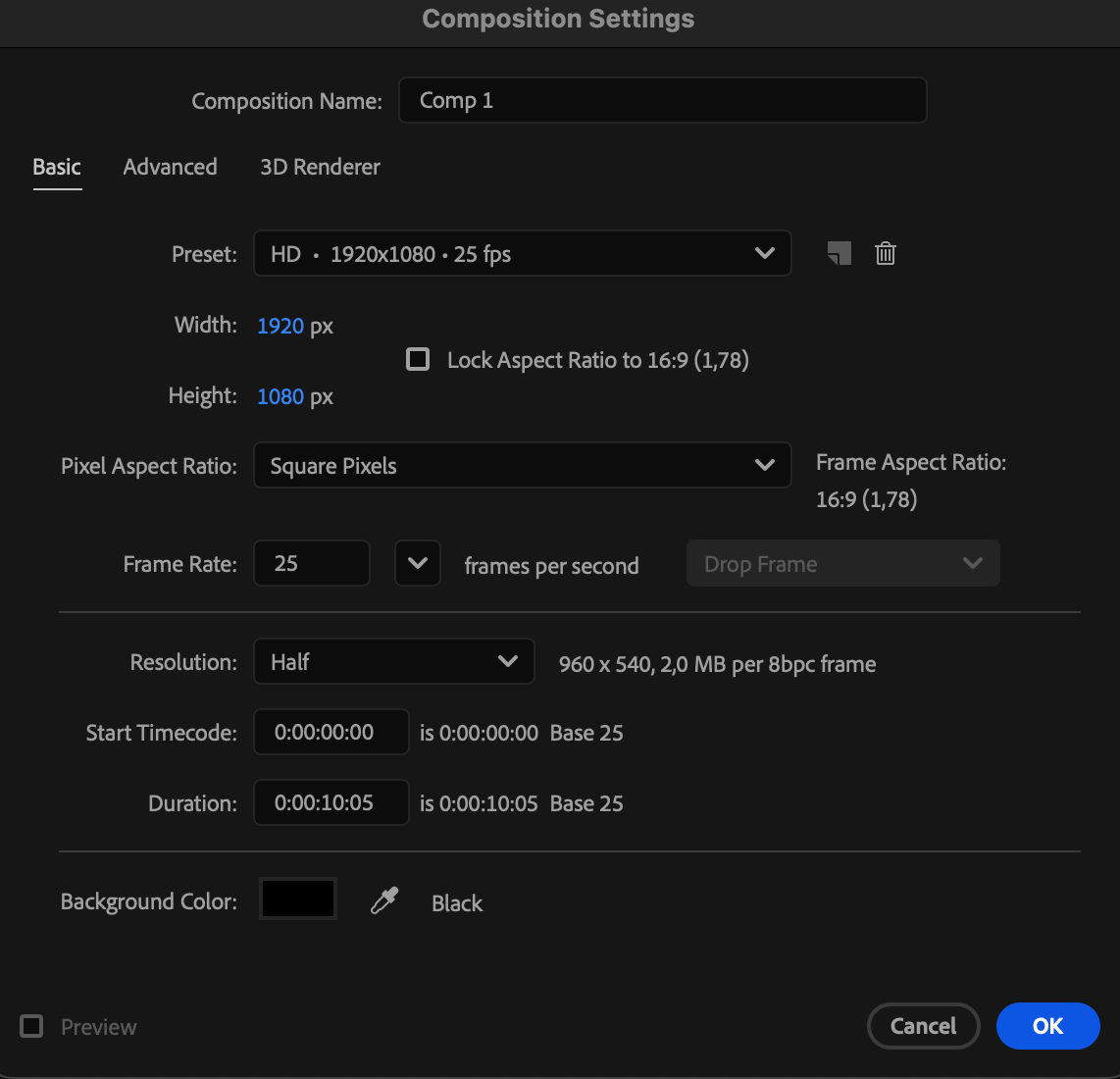 Step 2: Create Your Text
Select the Type Tool (Ctrl/Cmd + T) and type your text in the Composition panel. Use the Character and Properties panels to customize the font, color, and alignment.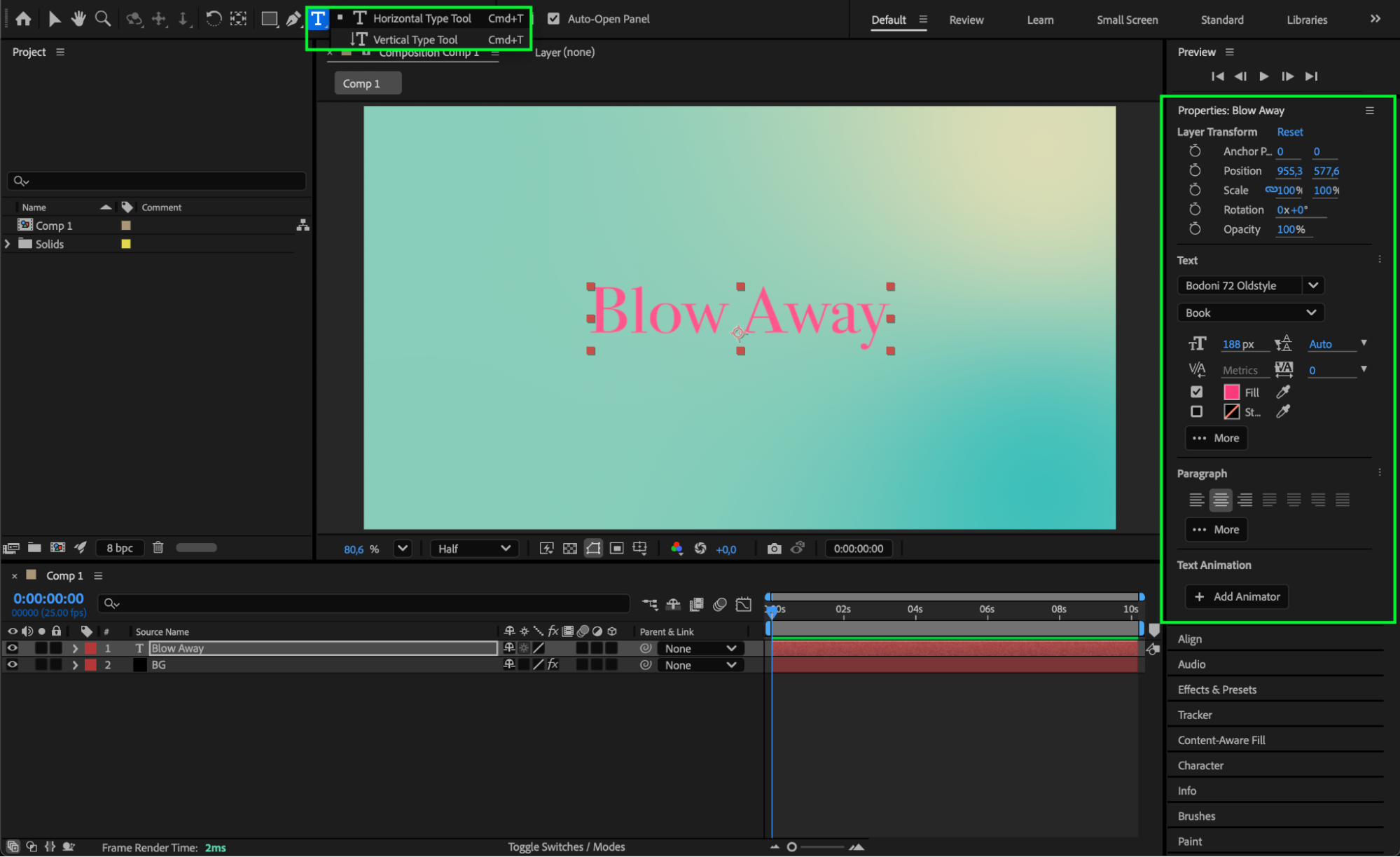
Step 3: Apply the Blow Away Effect
Open the Effects & Presets panel and search for “Blow Away”. Drag and drop the Blow Away Out preset onto your text layer.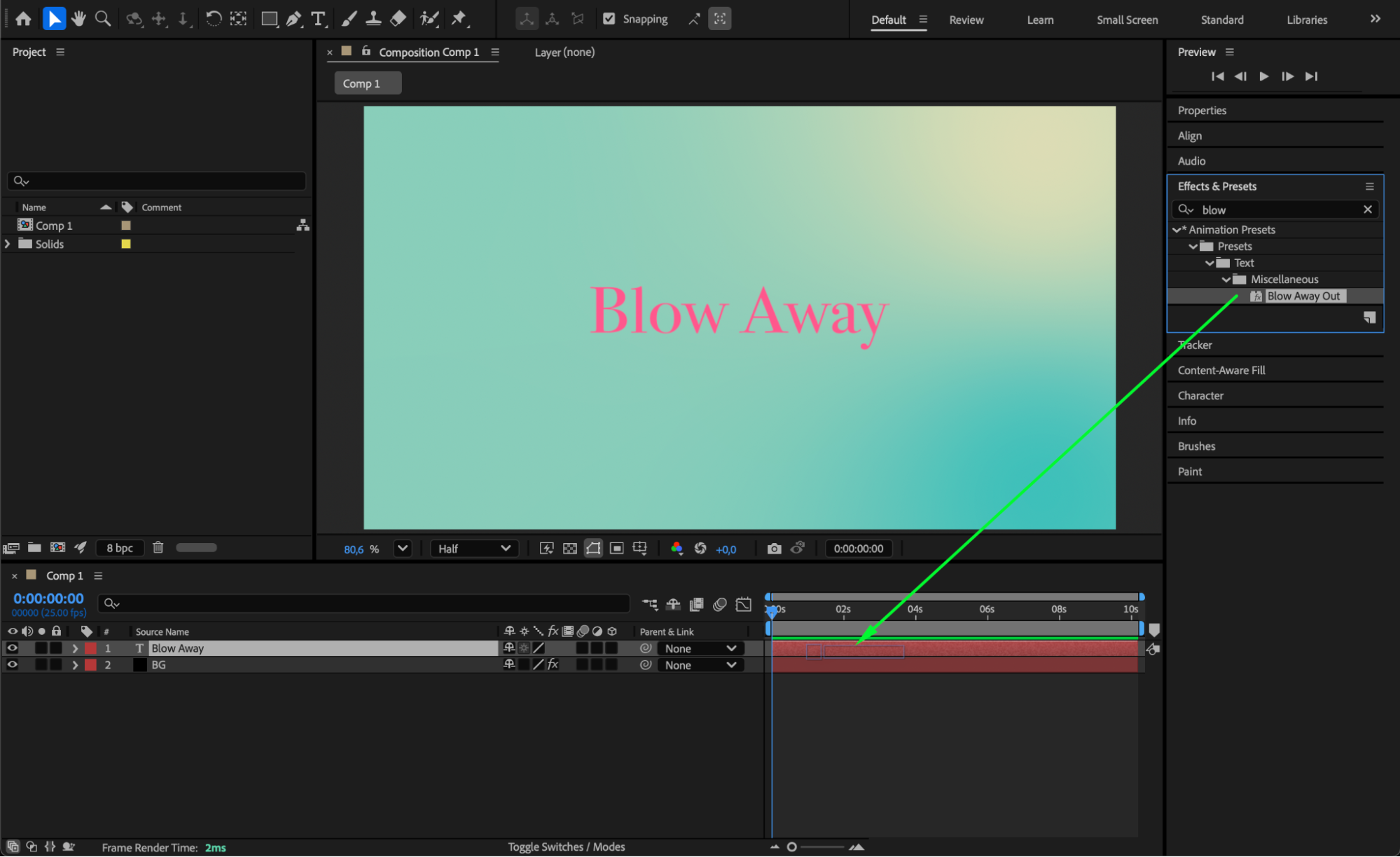 Step 4: Adjust the Timing
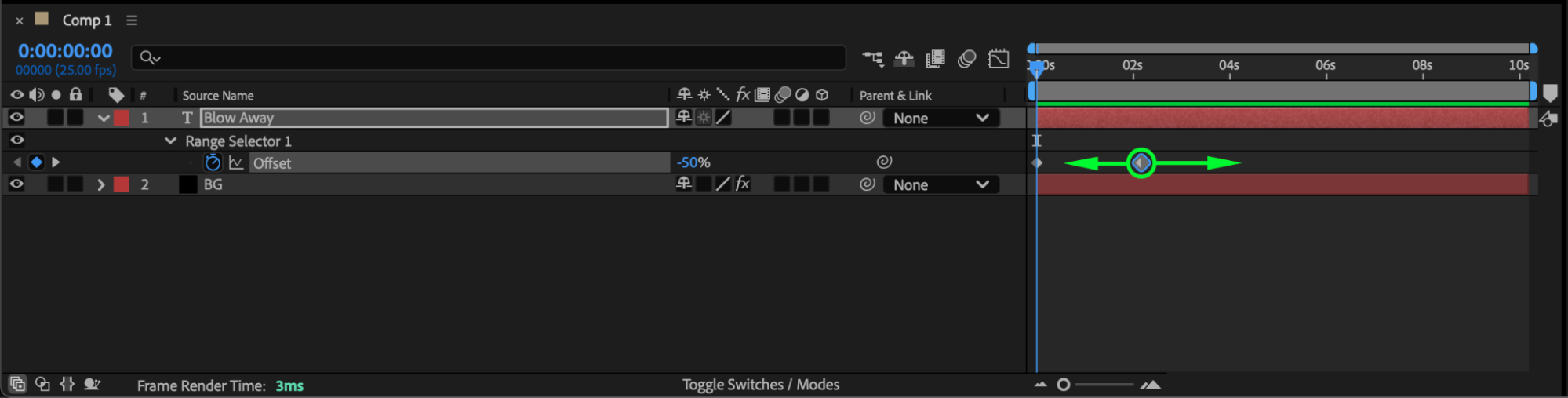
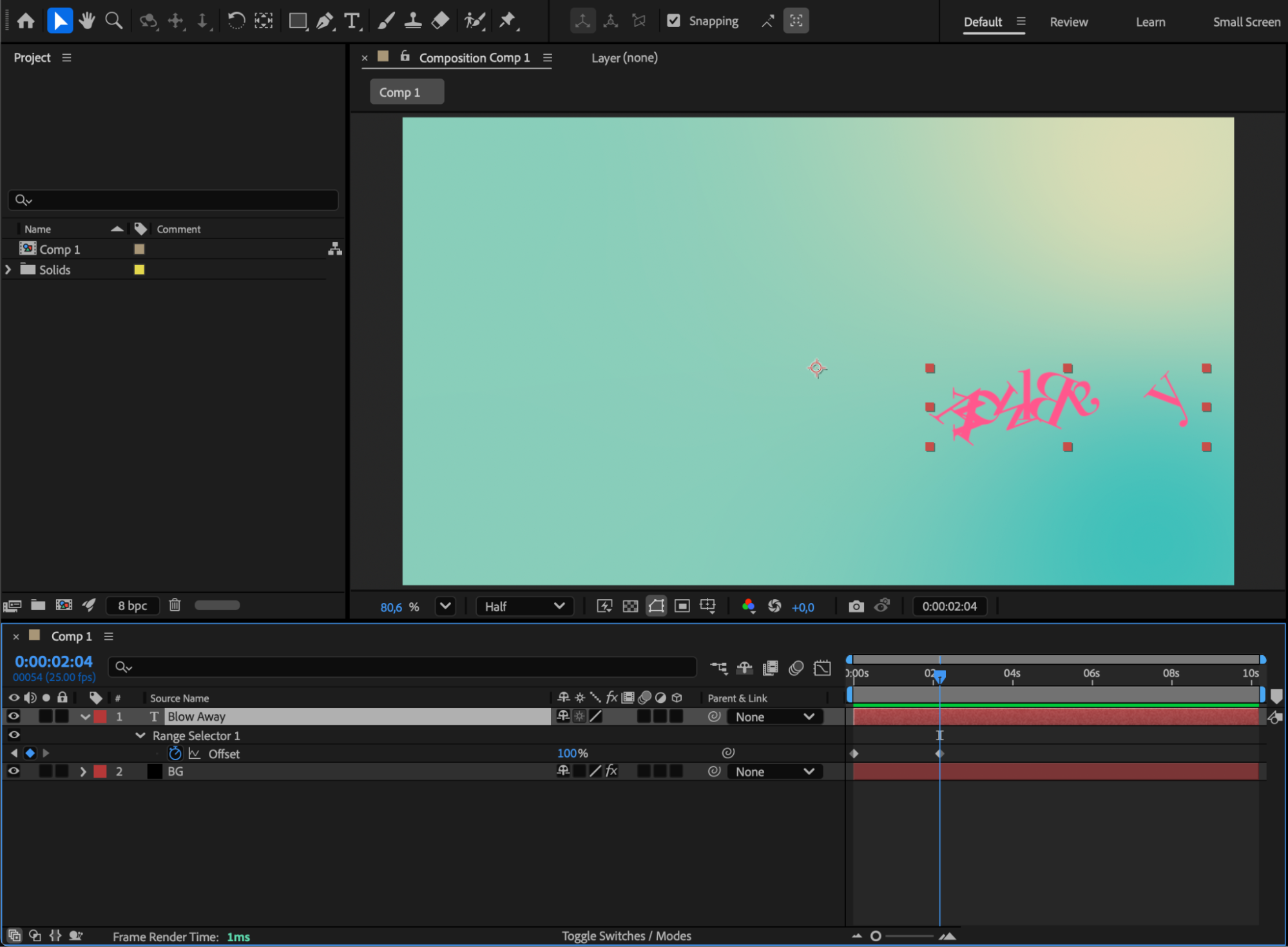
Press “U” on your keyboard to reveal all keyframes for the text layer. Locate the last two keyframes near the end of the animation — move them closer to the beginning to speed up the blow-away motion, or further to the right to slow it down.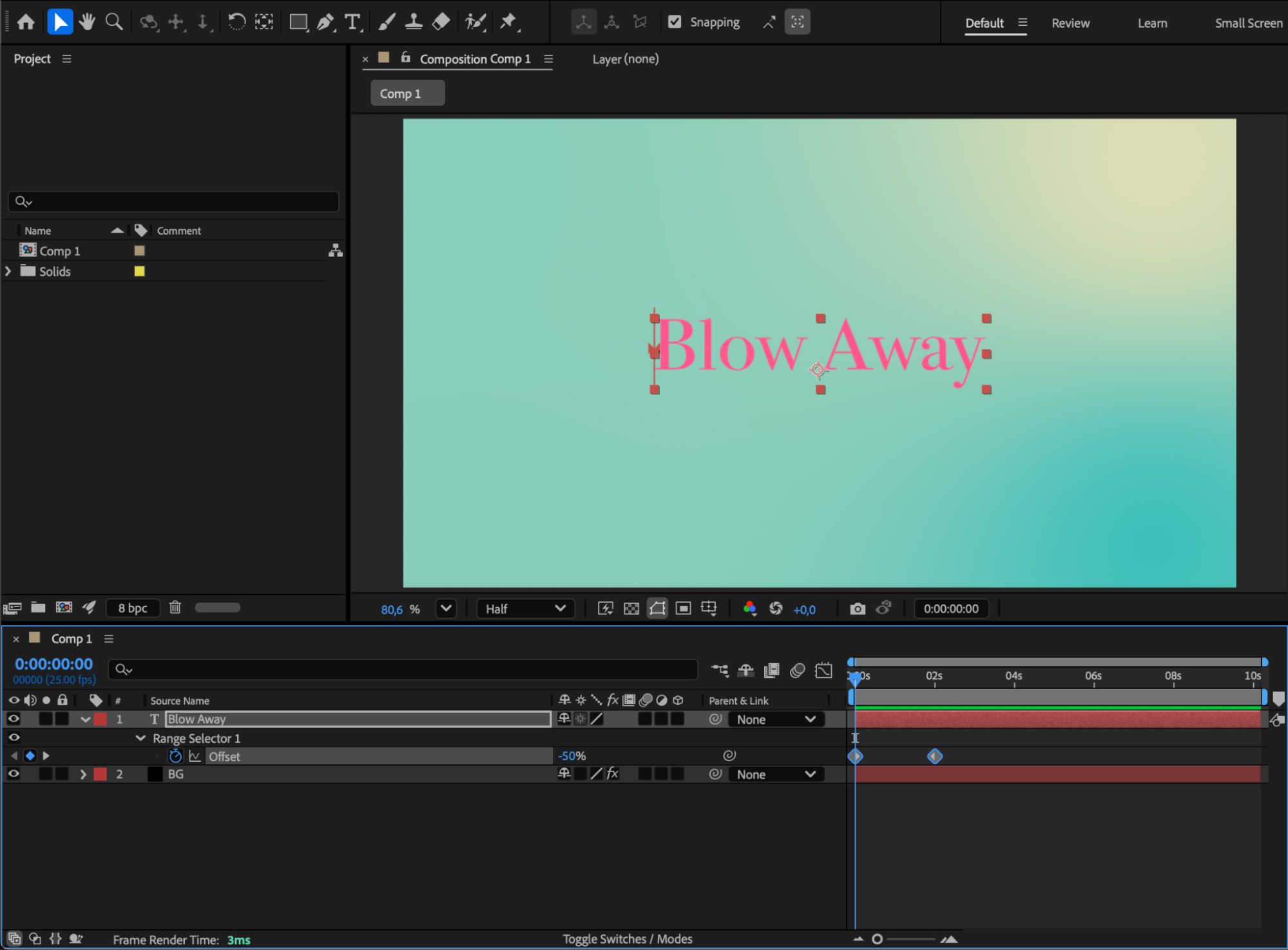
 Step 5: Animate the Position (Optional)
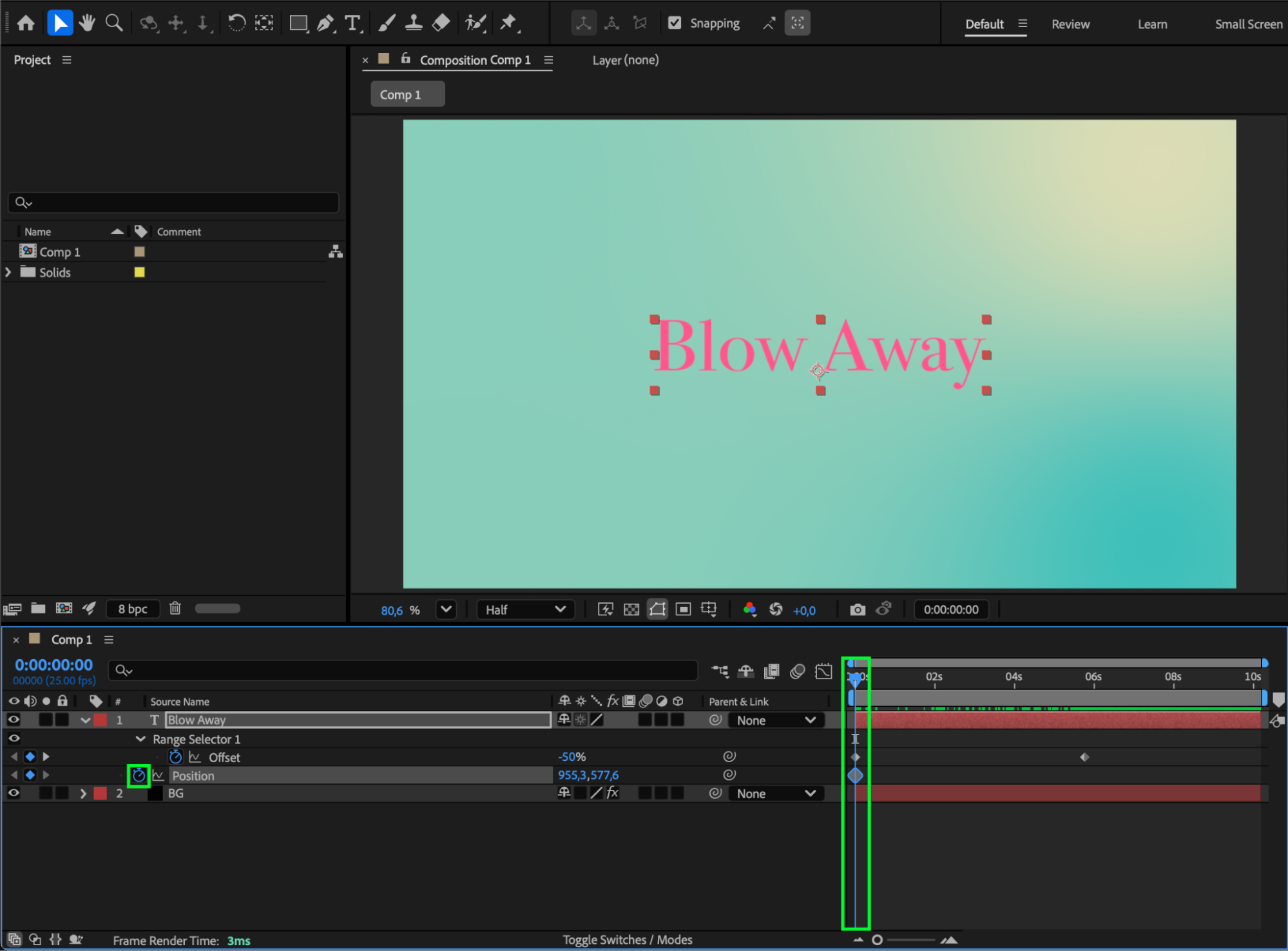
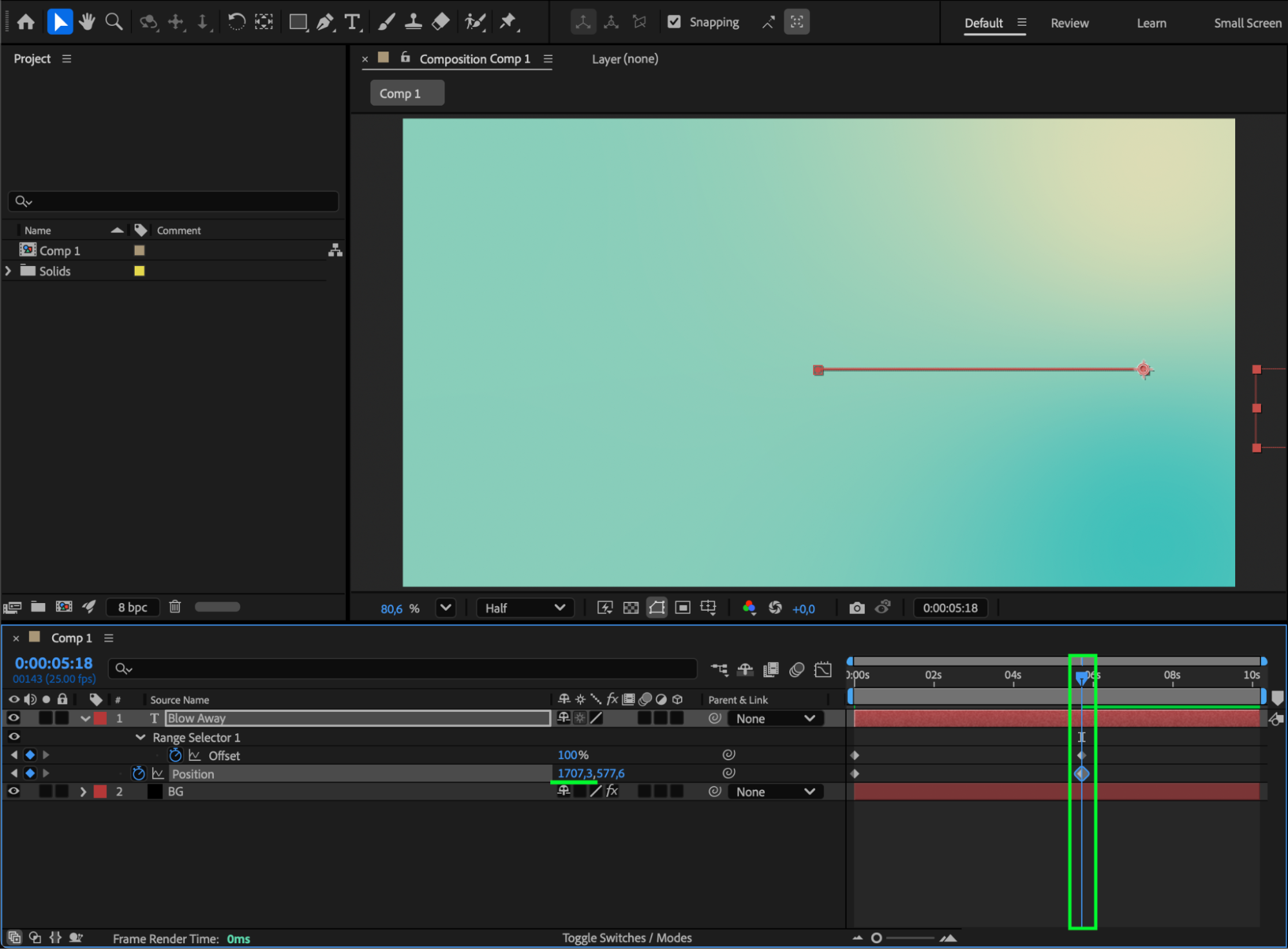
If you want the letters to completely leave the frame, animate the Position property as well.
Set a starting keyframe where the text begins to move and another one off-screen to finish the blow-away effect.
Step 6: Refine the Animation
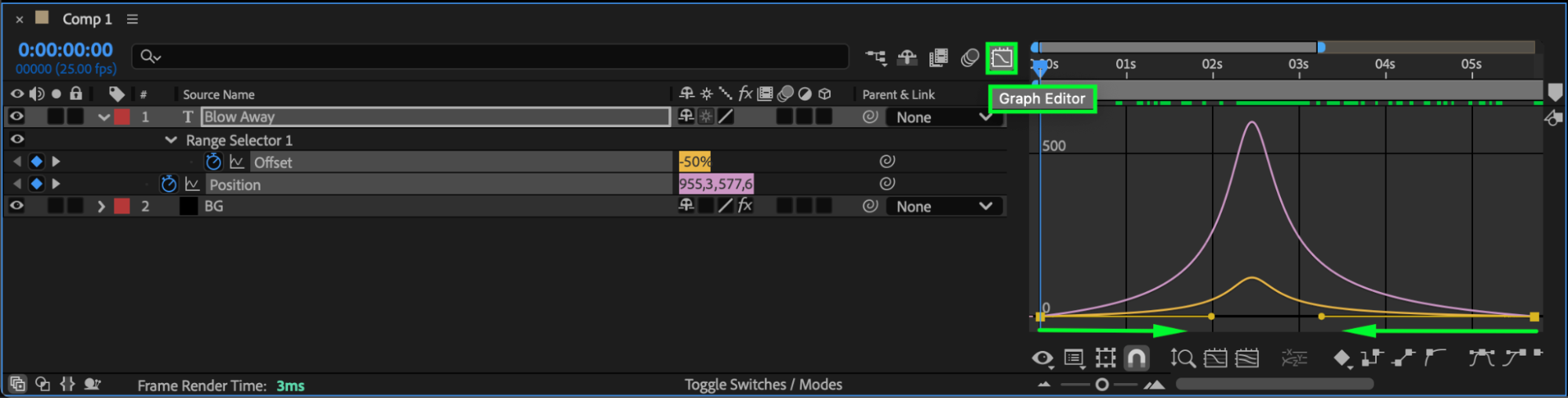
Apply Easy Ease to the keyframes for smoother motion. Open the Graph Editor to fine-tune the speed and acceleration for a more natural look.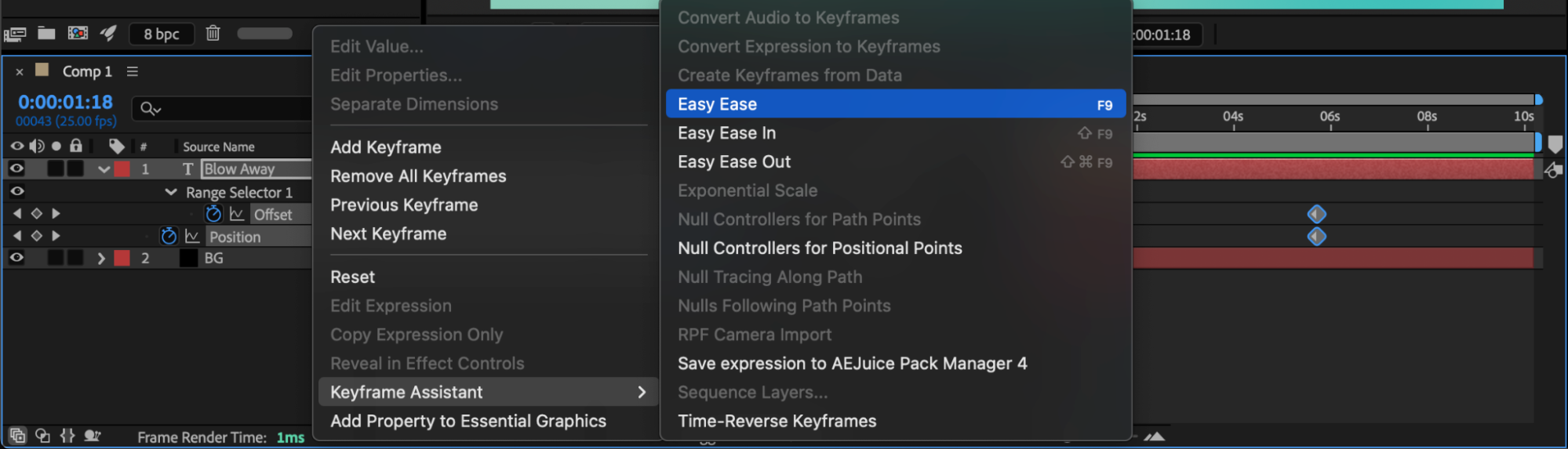
 Step 7: Enable Motion Blur
Enable Motion Blur for the text layer and turn it on in the composition panel to add realism to the movement.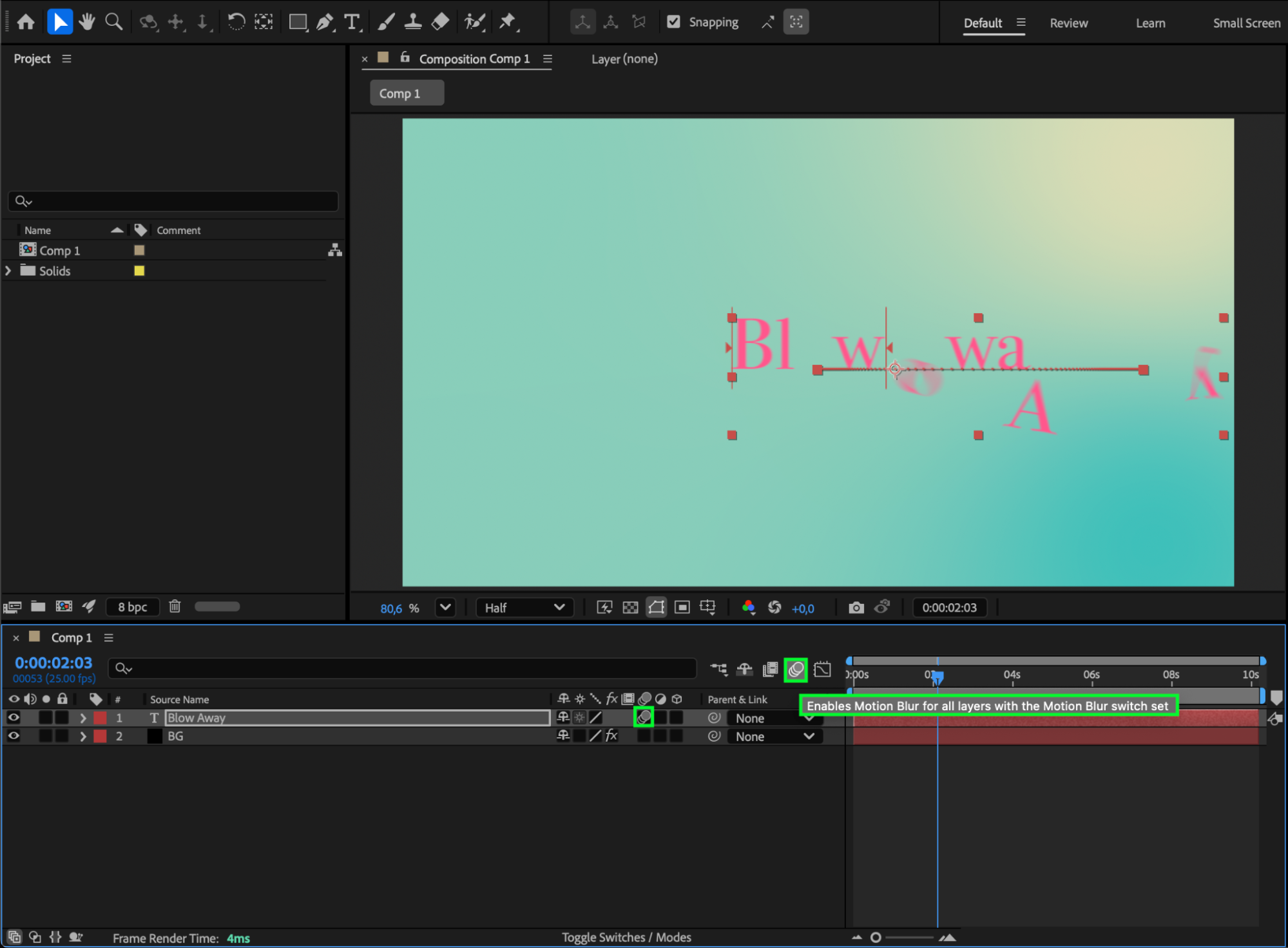 Step 8: Preview and Finalize
Preview your animation and adjust timing or strength as needed until the text blow-away looks smooth and dynamic.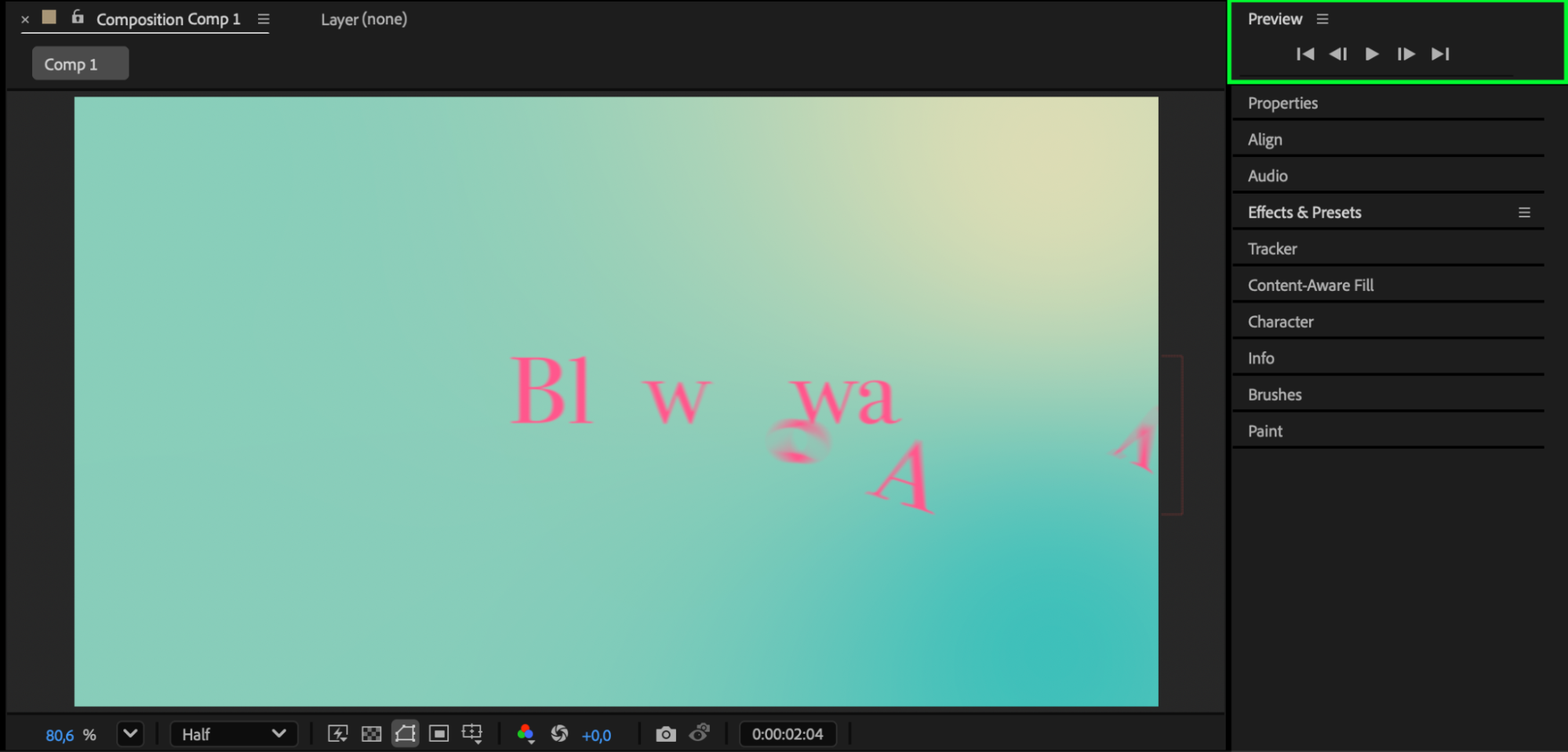
Conclusion
With the Blow Away preset in After Effects, you can quickly create engaging transitions or disappearing text effects. By adjusting timing, position, and motion blur, your animation will feel fluid and professional — perfect for intros, title reveals, or motion graphics projects.
Our Bestsellers
Our Bestsellers


