
Introduction
The “brush away” text effect is a creative way to make your text disappear or get swept away as if brushed off the screen. This technique combines shape animation, edge distortion, and blur effects to create a natural-looking stroke motion. You can use it for titles, transitions, or stylized motion graphics.
Step 1: Create a New Composition
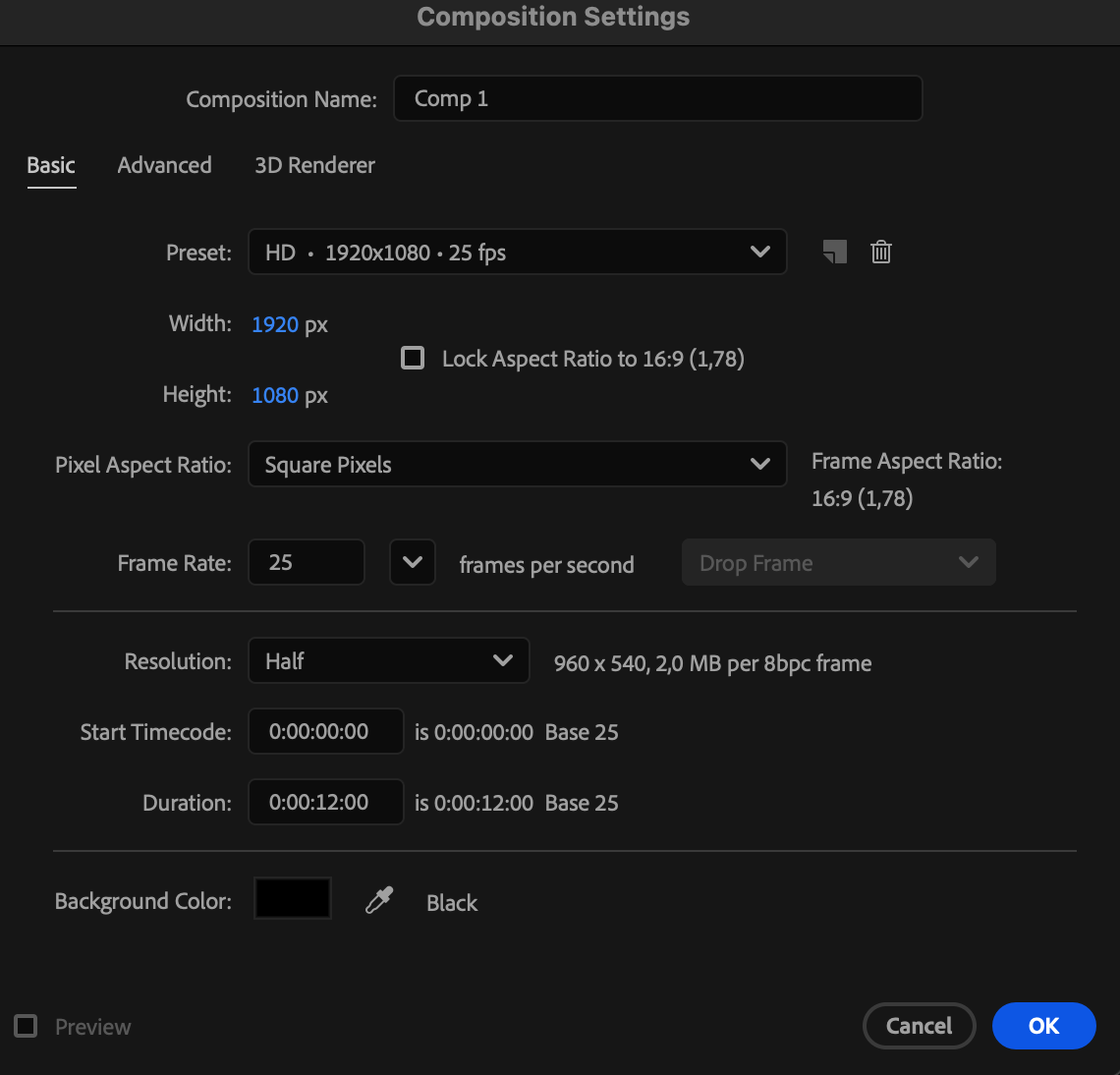
Go to Composition > New Composition, set your desired resolution and duration, and click OK.

 Step 2: Add Your Text
Select the Type Tool (Ctrl/Cmd + T) and click on the composition panel to type your text. Customize the font, size, and color in the Properties panel to fit your design.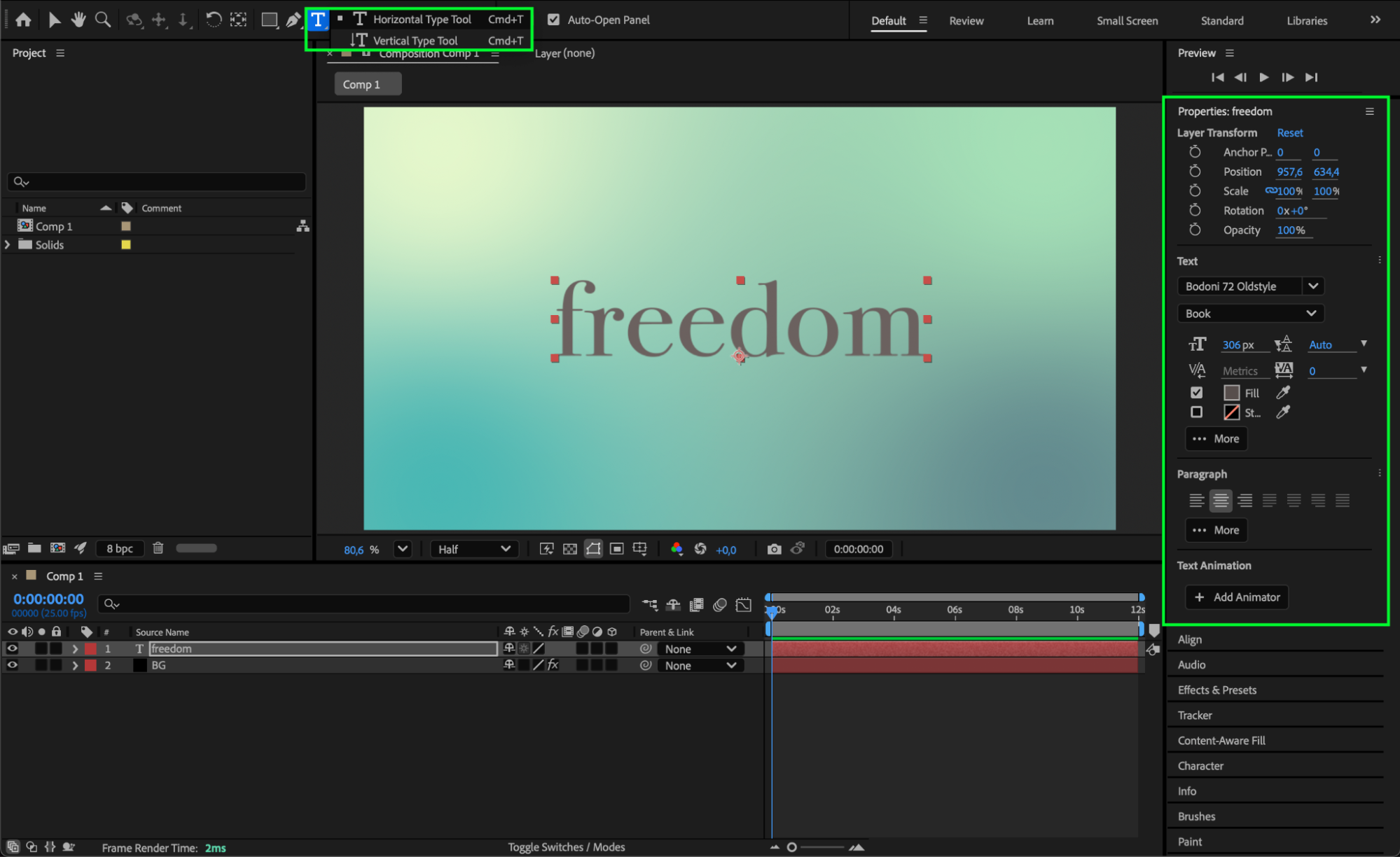 Step 3: Draw the Brush Line
Select the Pen Tool (G) and draw a line that crosses over your text completely. Set Fill to None, Stroke Width to 422 px, and choose a color that matches your design style.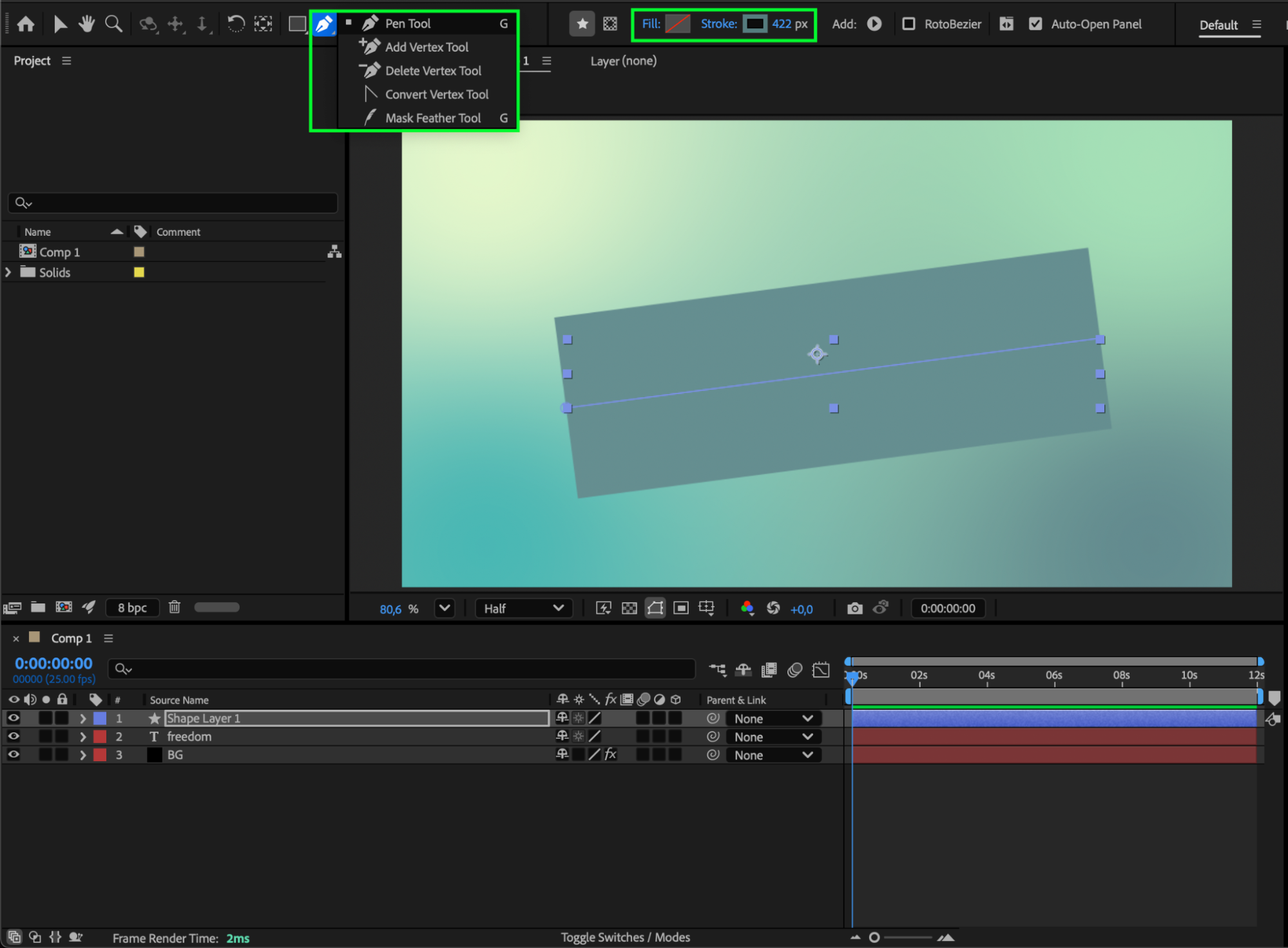
Step 4: Add a Gaussian Blur
From the Effects & Presets panel, drag the Gaussian Blur effect onto your shape layer. Set Blurriness to 55 to create a soft, brush-like edge.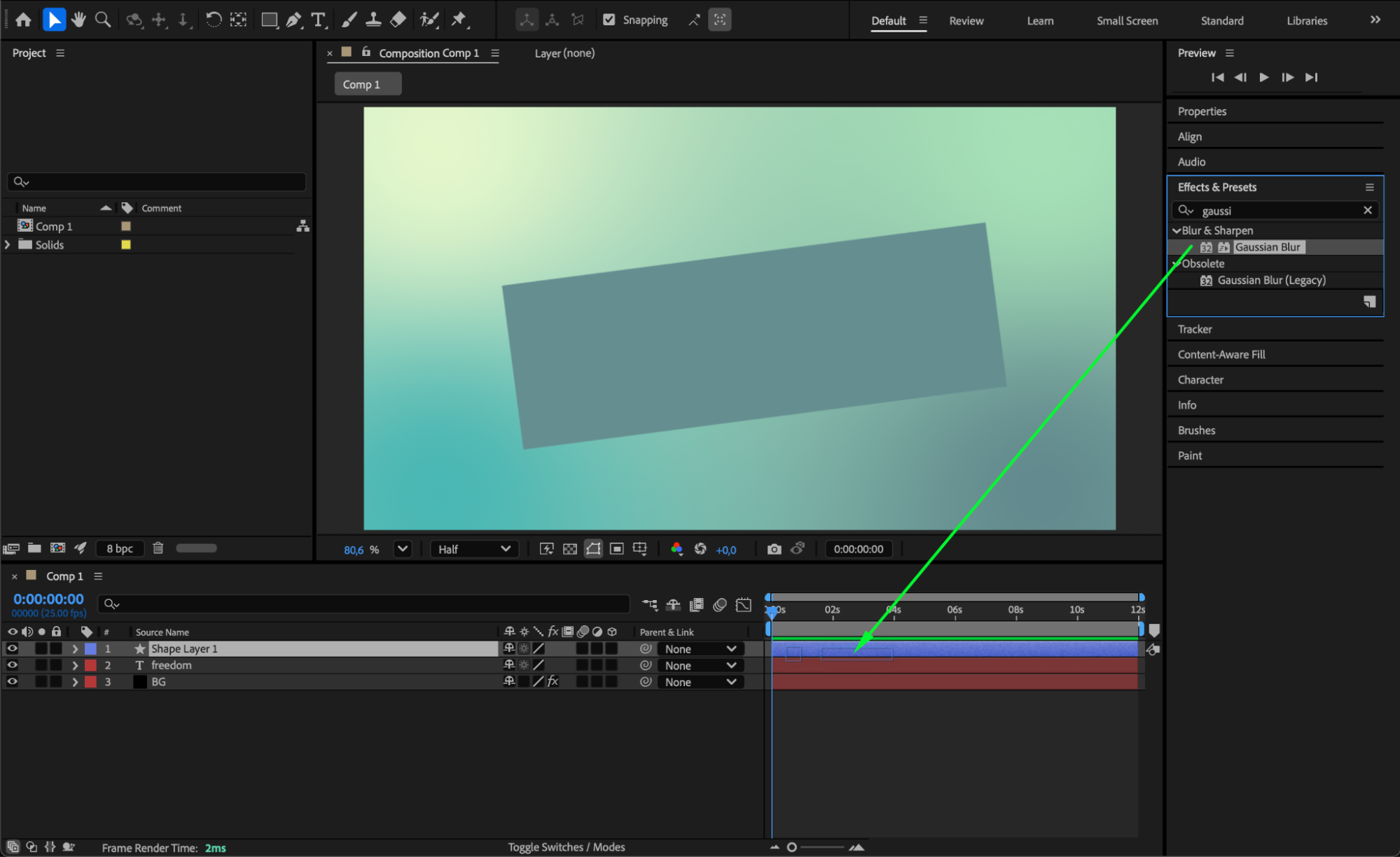
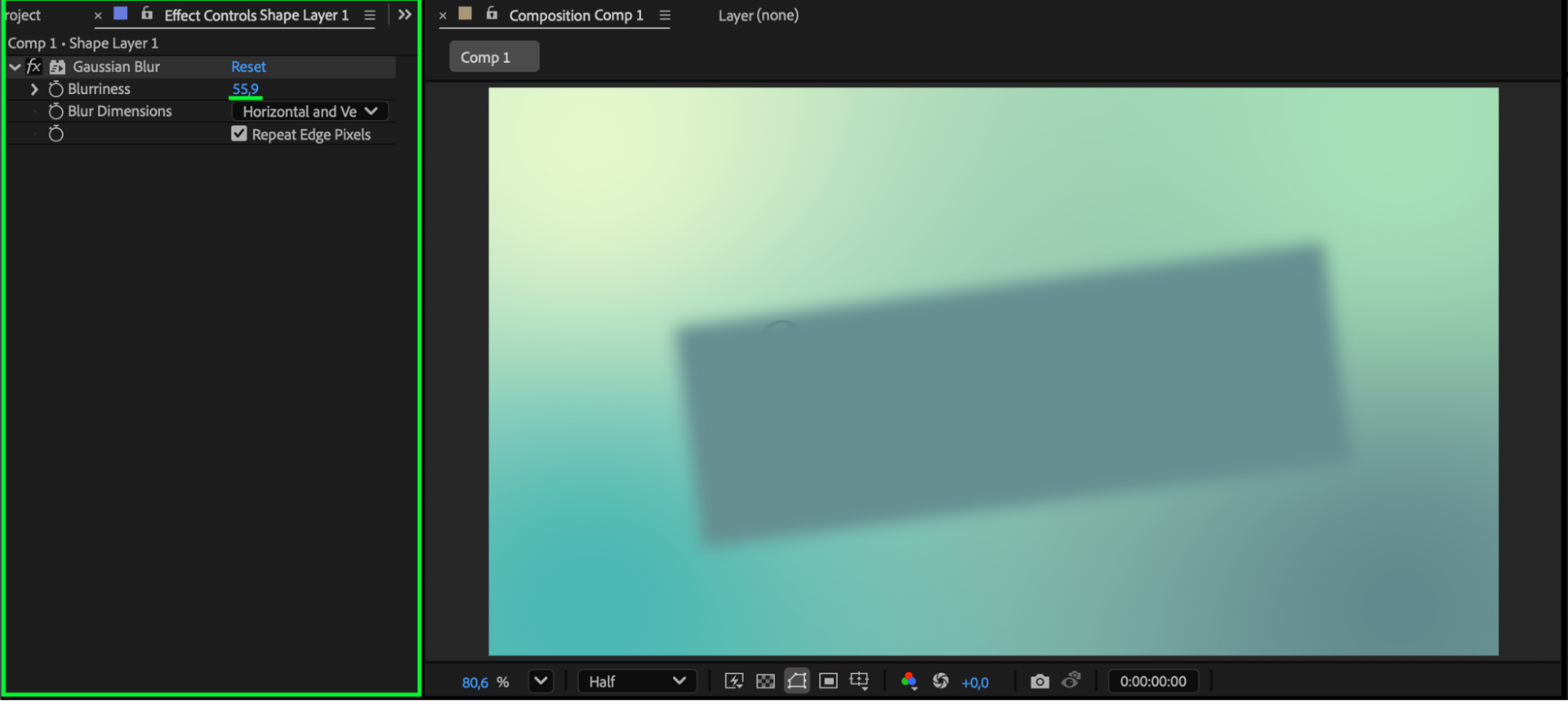 Step 5: Add Roughen Edges for Texture
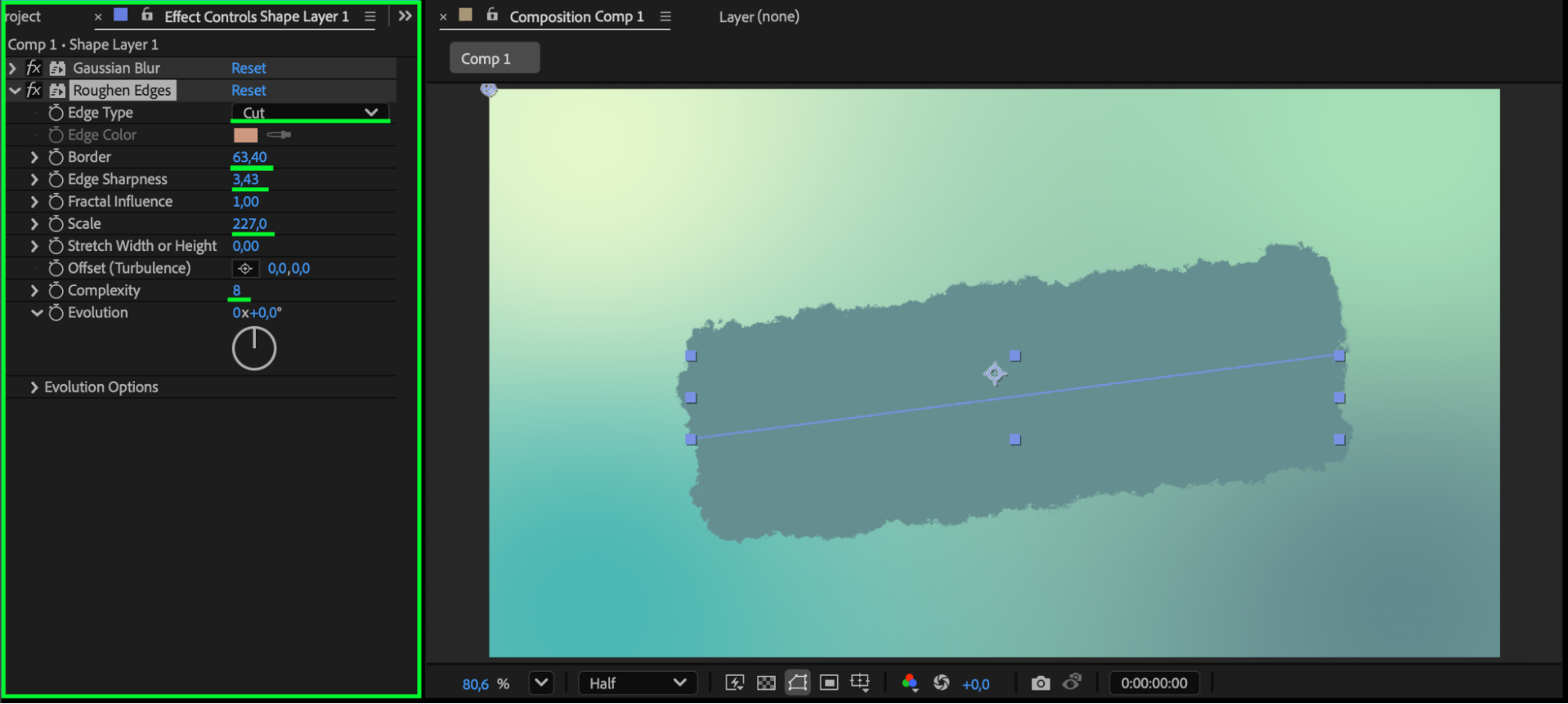
Apply the Roughen Edges effect to the same layer. In the Effect Controls panel, adjust the settings:
Edge Type: Cut
Border: 63
Edge Sharpness: 3.43
Scale: 227
Complexity: 8
This gives the stroke an organic, textured look.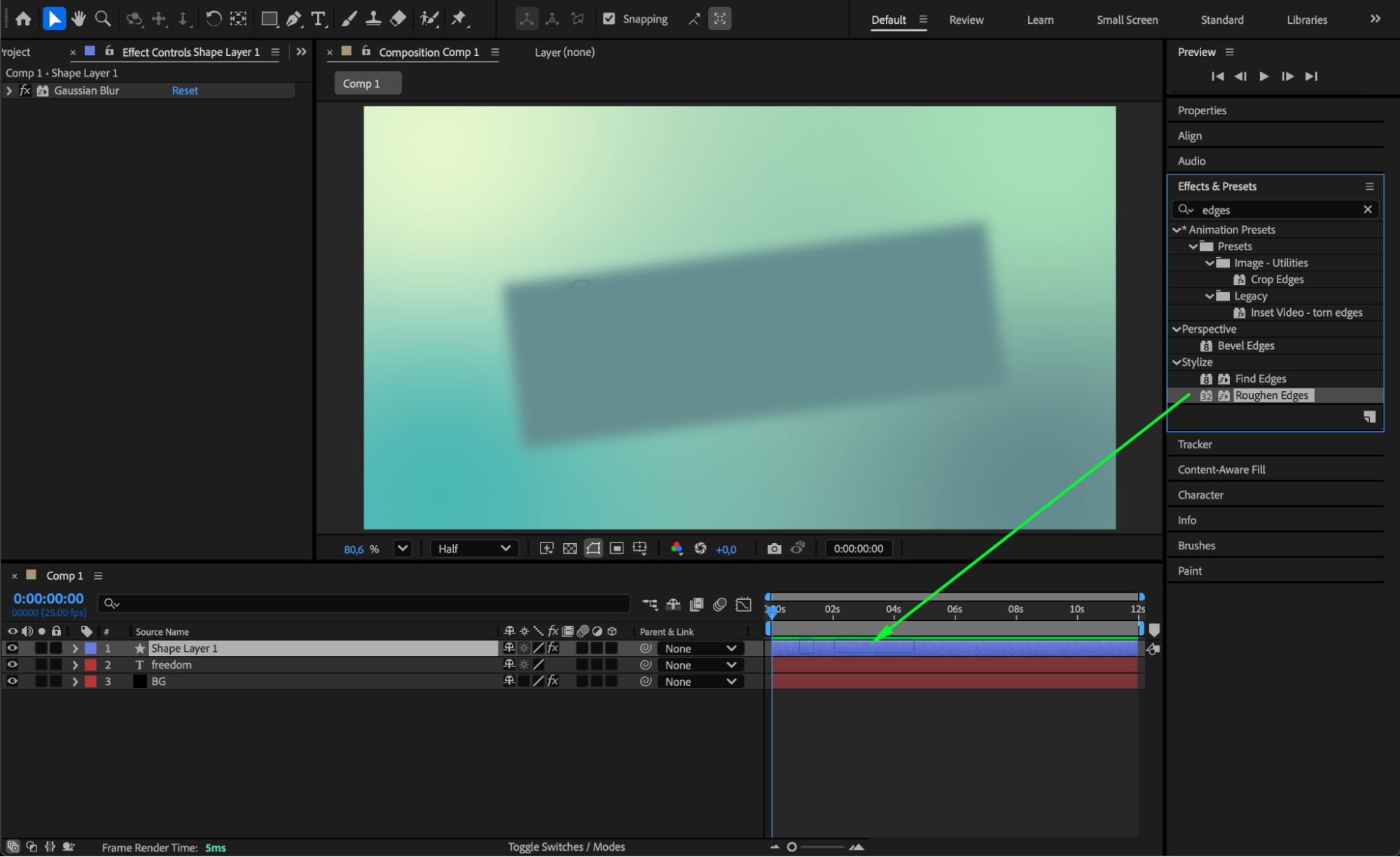
 Step 6: Animate the Trim Paths
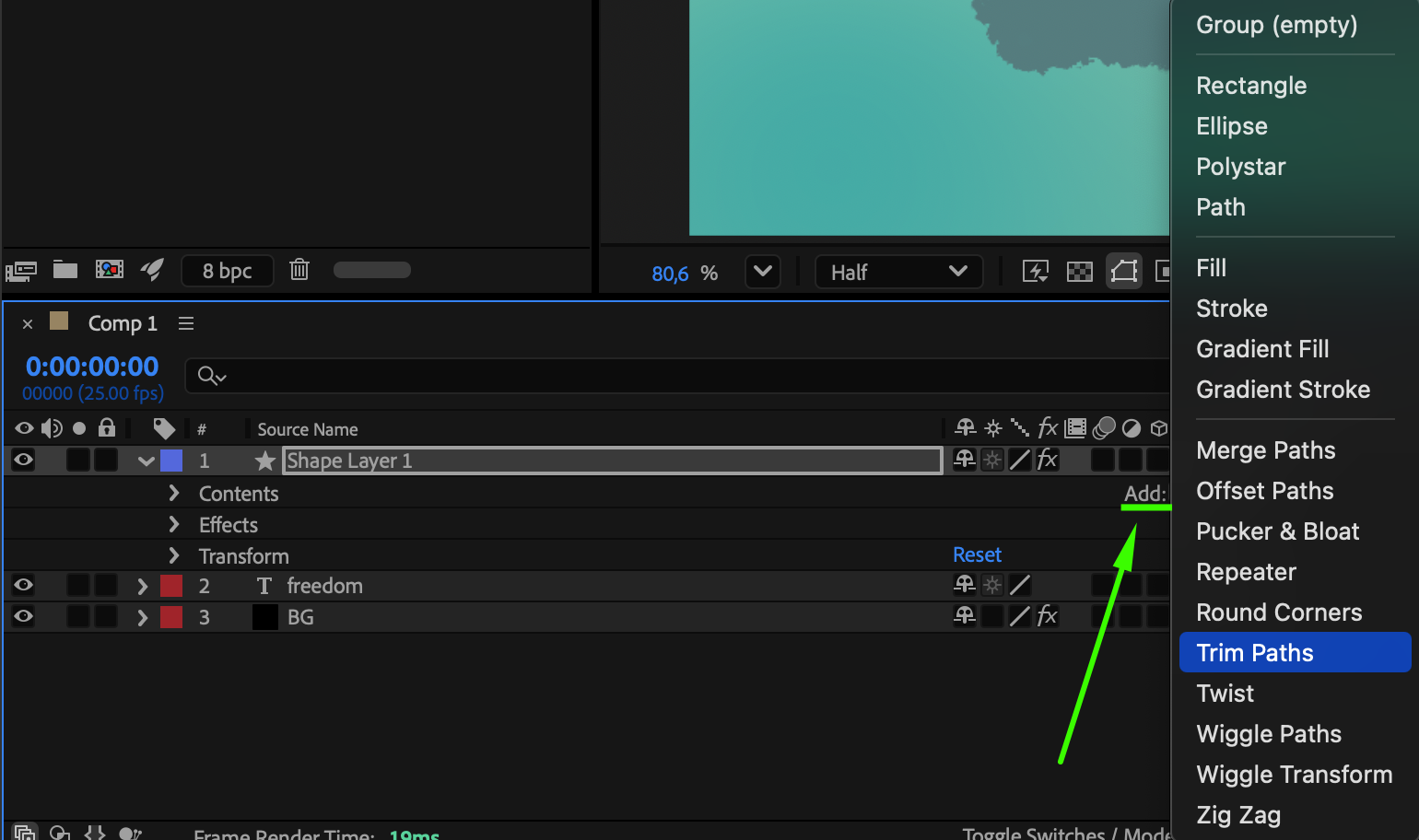
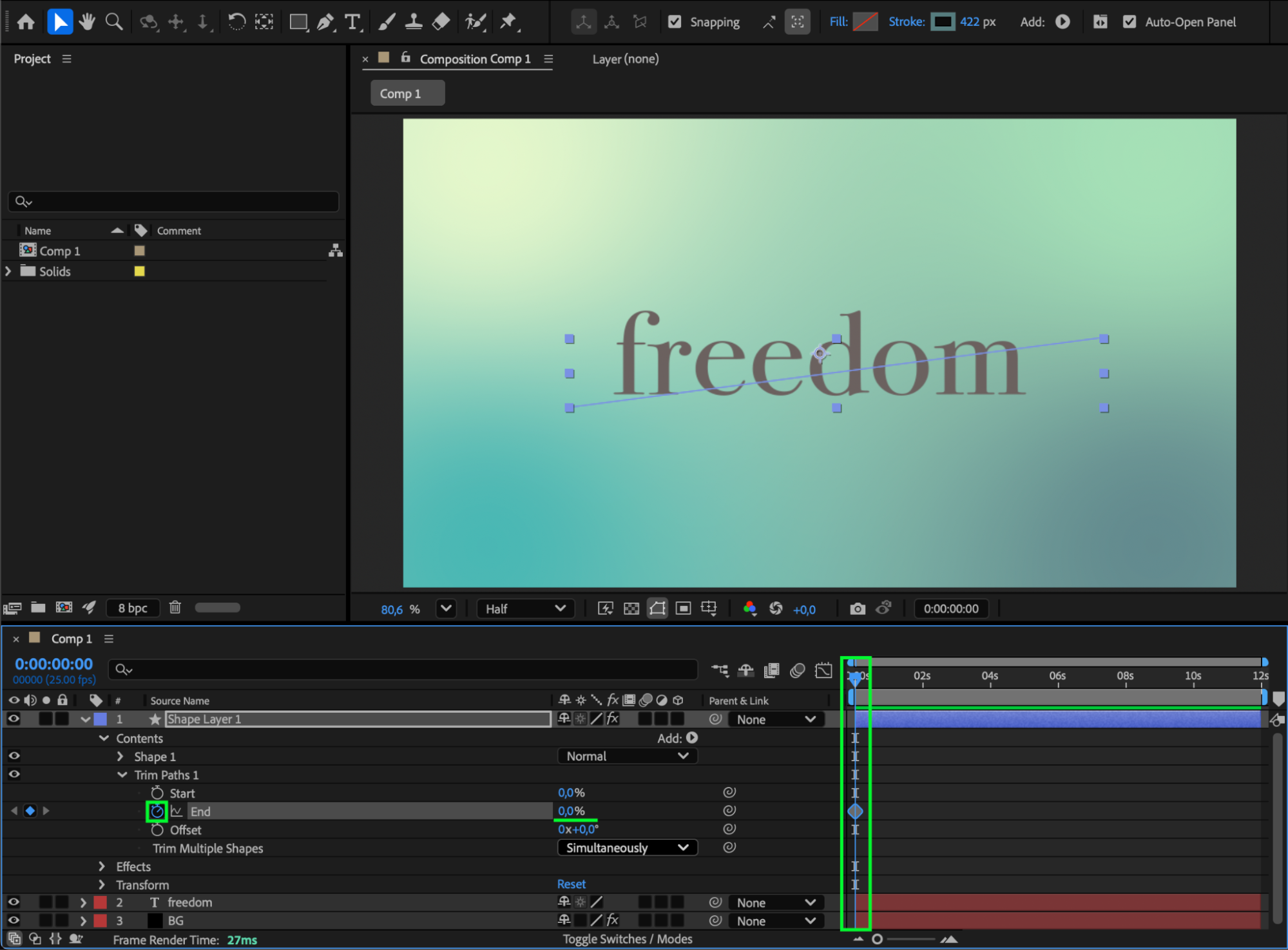
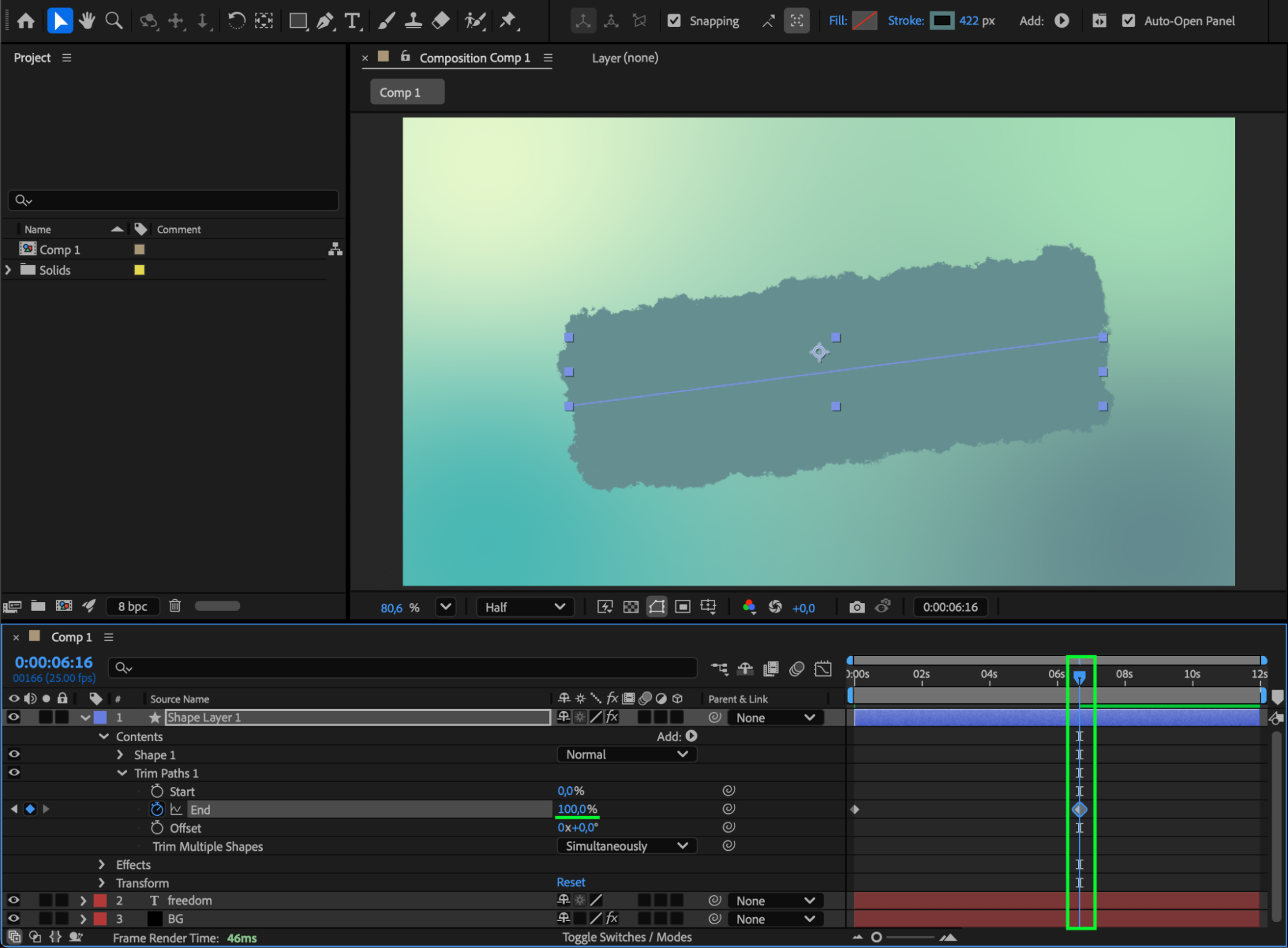
Expand the Shape Layer properties and next to Contents, click Add > Trim Paths. Move the CTI to the start of the composition and set End = 0%. Then, move forward in time and set End = 100% to animate the line brushing across the text.
Step 7: Smooth the Animation
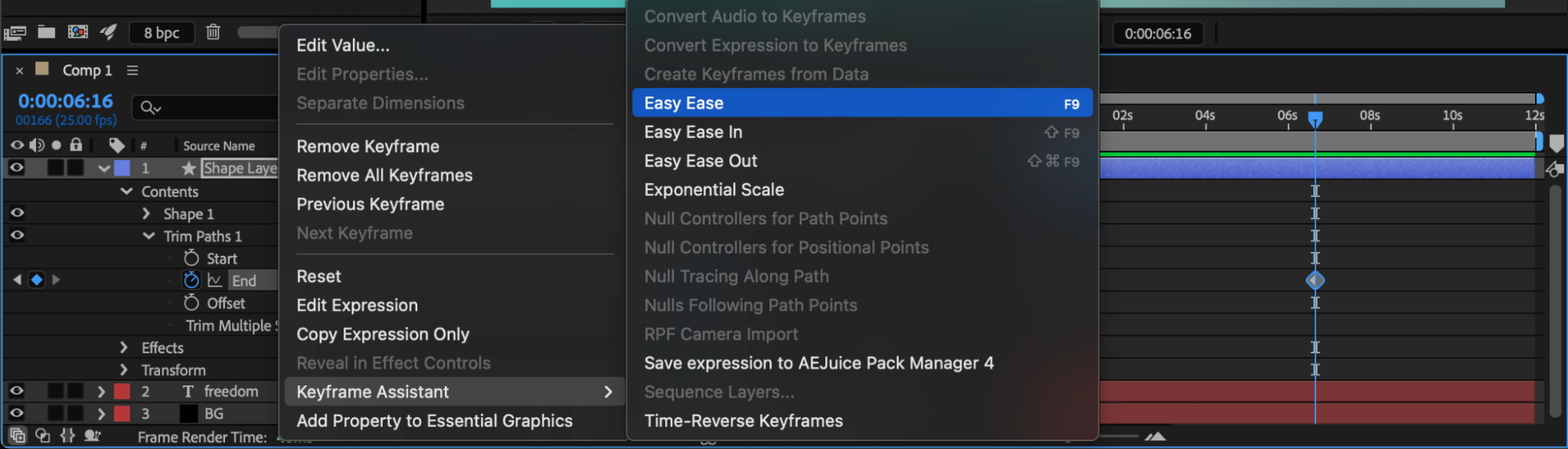
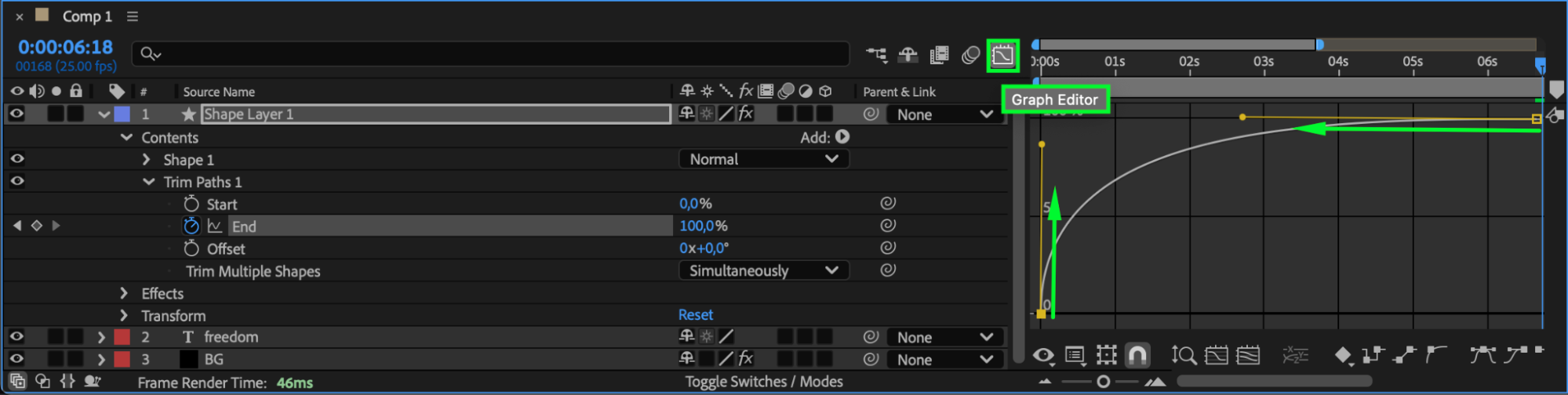
Select the keyframes, press F9 to apply Easy Ease, and adjust timing in the Graph Editor for smoother motion.
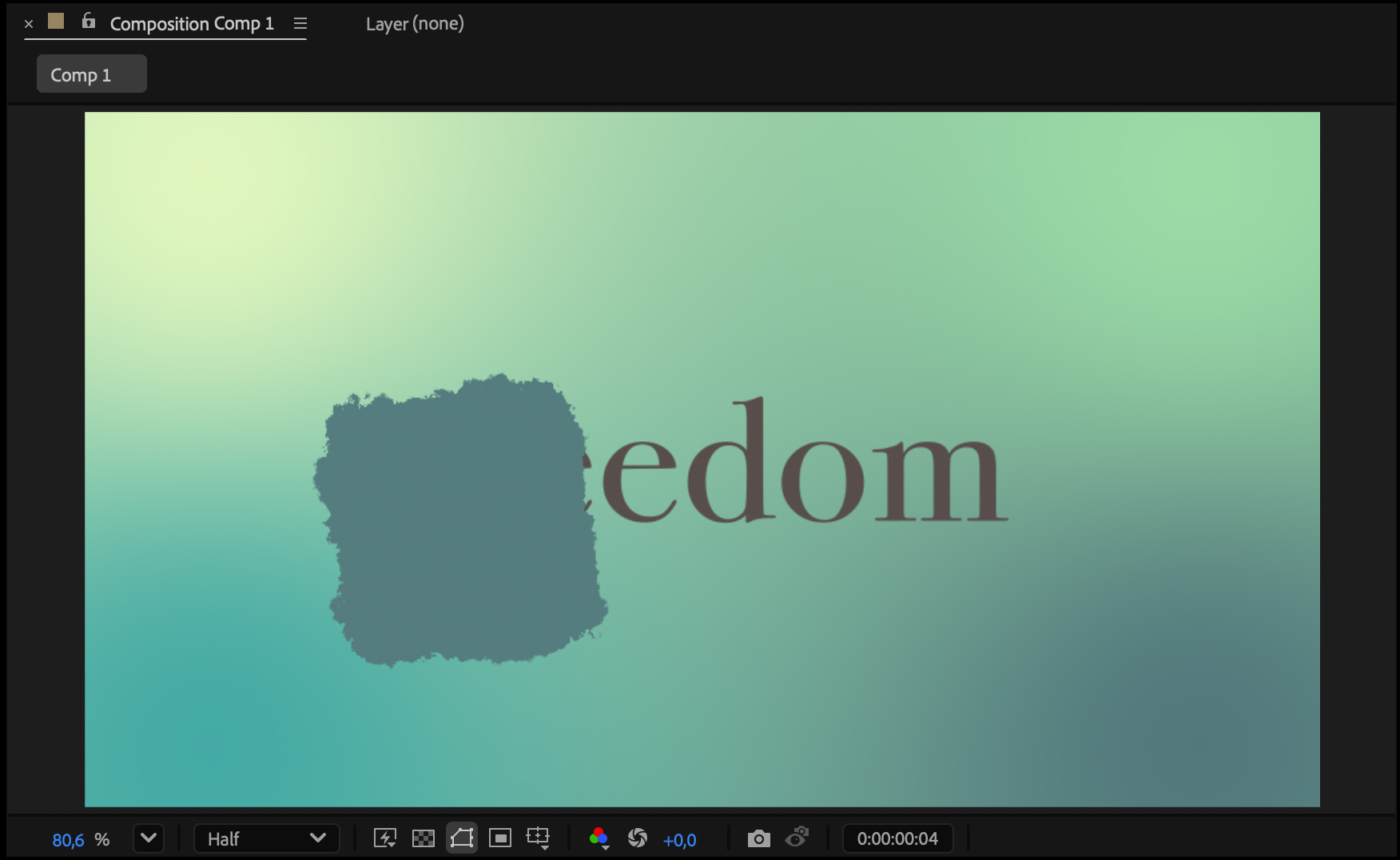 Step 8: Optional – Use Track Matte
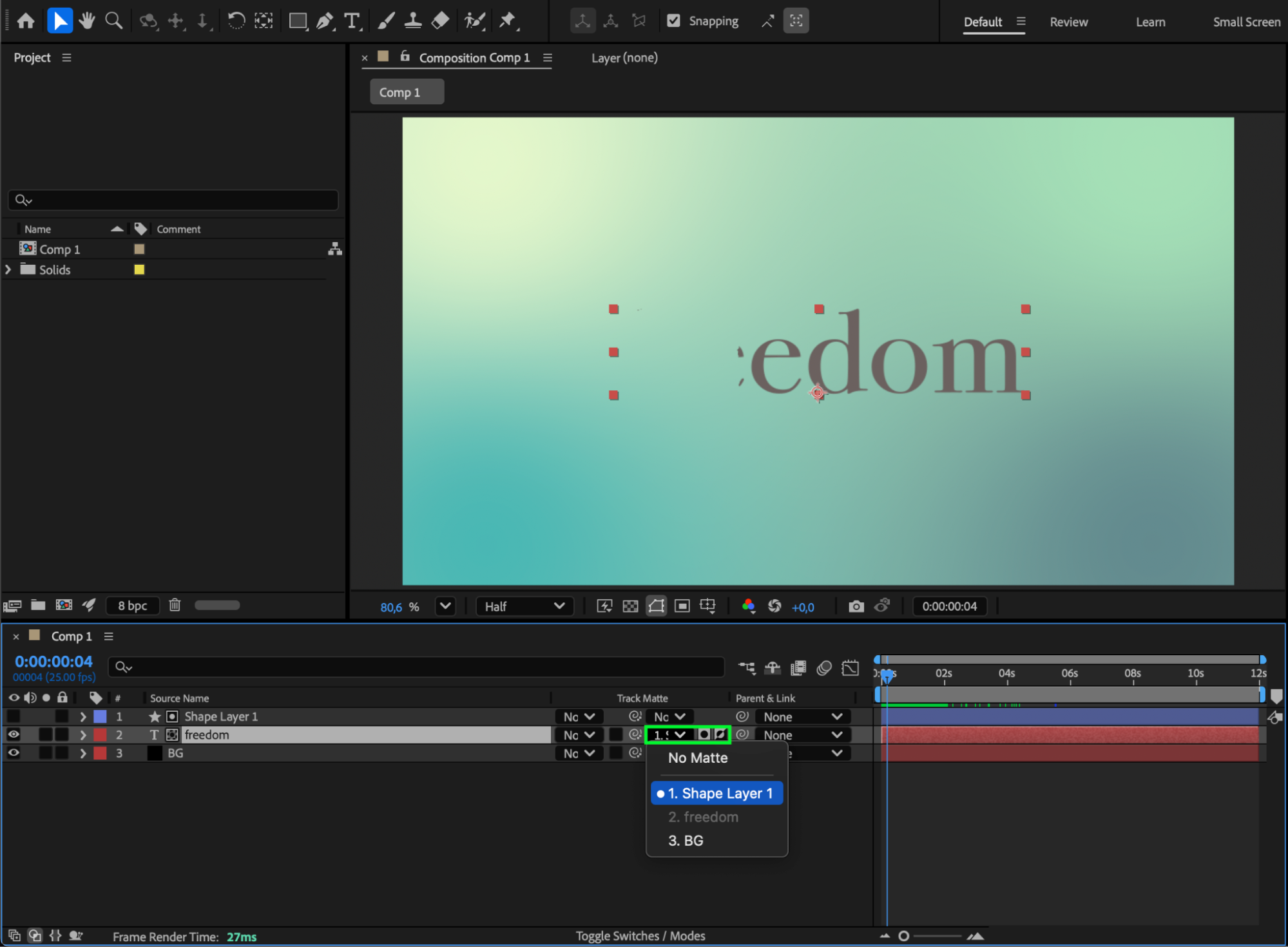
To make the text disappear as the brush passes, enable the Track Matte column in your timeline. Set your Text Layer to use the Shape Layer as a Luma Matte or Alpha Matte, experimenting with Inverted options for the best look.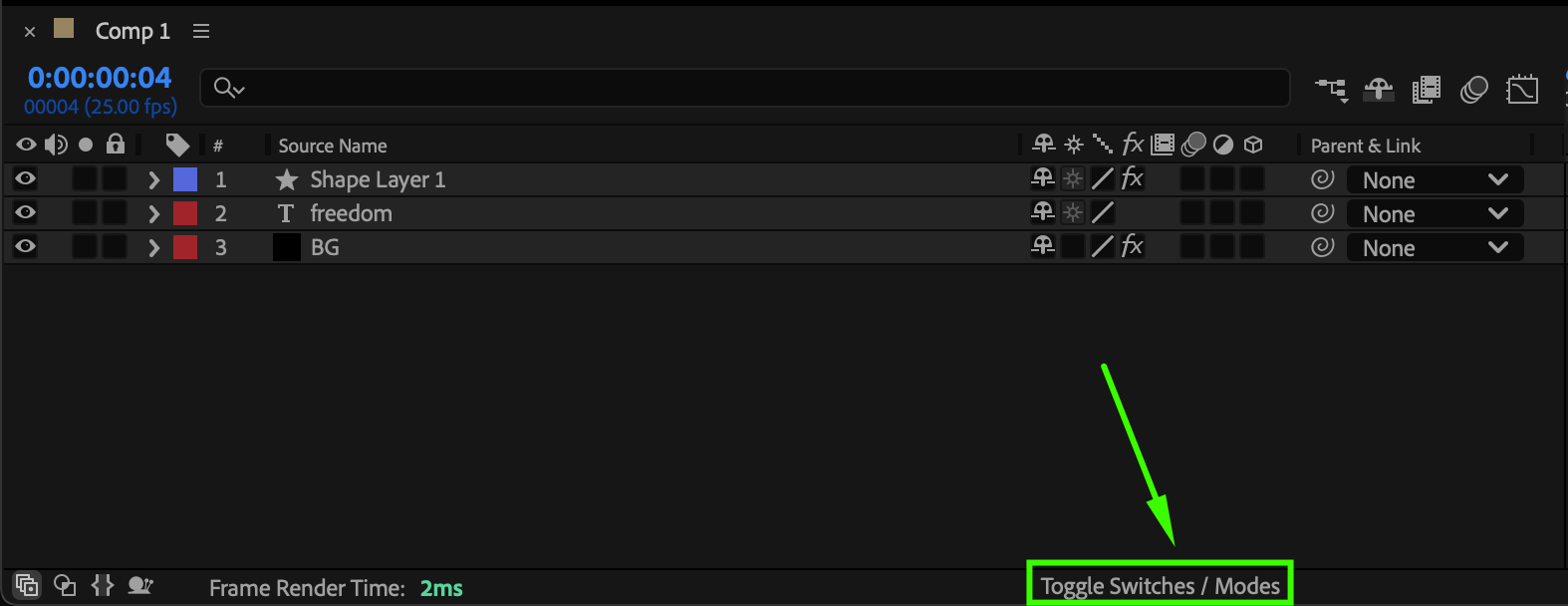
 Step 9: Preview and Refine
Press Spacebar to preview your animation. Adjust the blur, stroke width, or animation speed to create the exact “brush away” motion you want.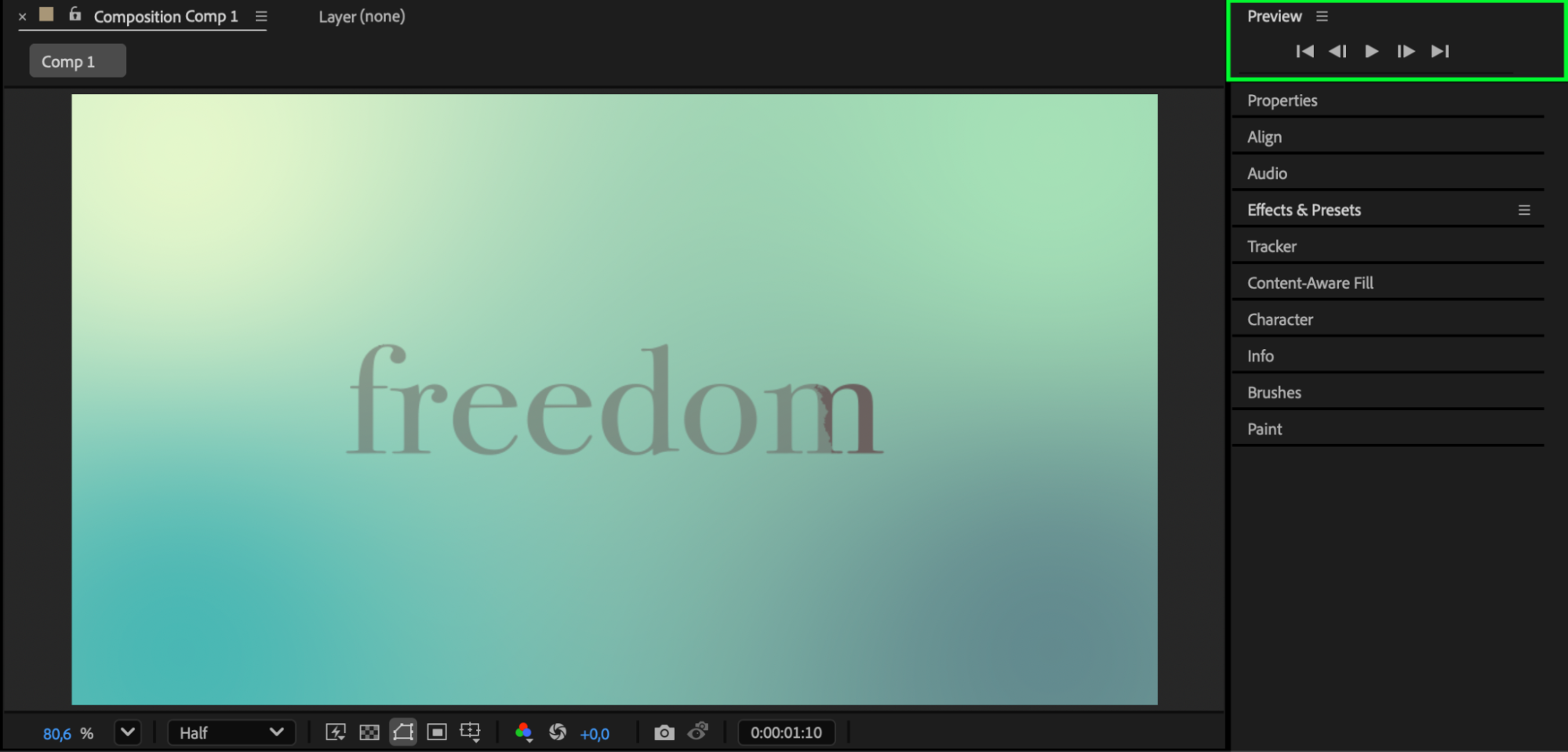 Conclusion
By combining Trim Paths, Gaussian Blur, and Roughen Edges, you can easily create a professional “brush away” text effect in After Effects. This technique works perfectly for dynamic text reveals, logo animations, or creative title sequences.
Our Bestsellers
Our Bestsellers


