
Introduction to Blend Modes and Effects
Blend modes in Adobe After Effects control how a layer or effect interacts with the layers beneath it. By changing the blend mode, you can create a variety of looks — from soft glows and light leaks to contrast-rich overlays or surreal lighting effects. In this tutorial, you’ll learn how to apply an effect to an adjustment layer and modify its blend mode to achieve more advanced visual styles.
Step 1: Import Your Video
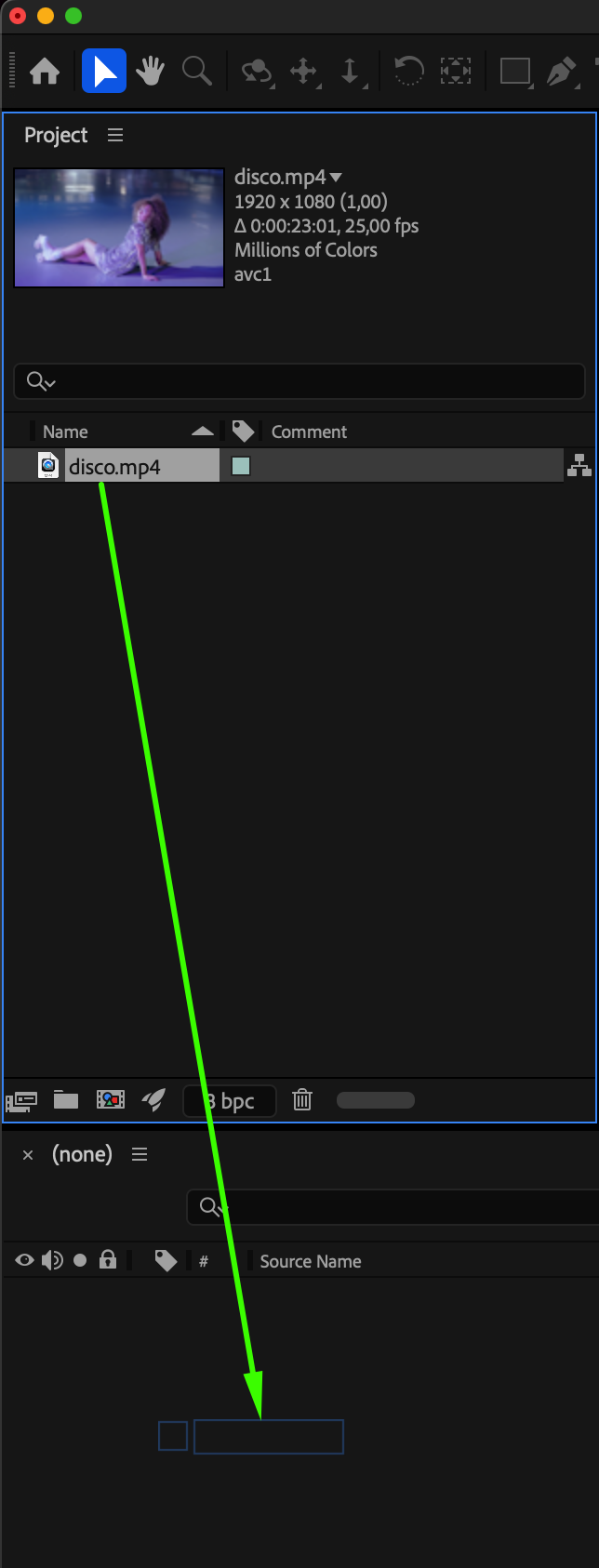
Go to File > Import > File and select the video you want to use. Drag it into your Timeline and make sure it’s visible in the Composition panel. This will be your base footage for applying the effect.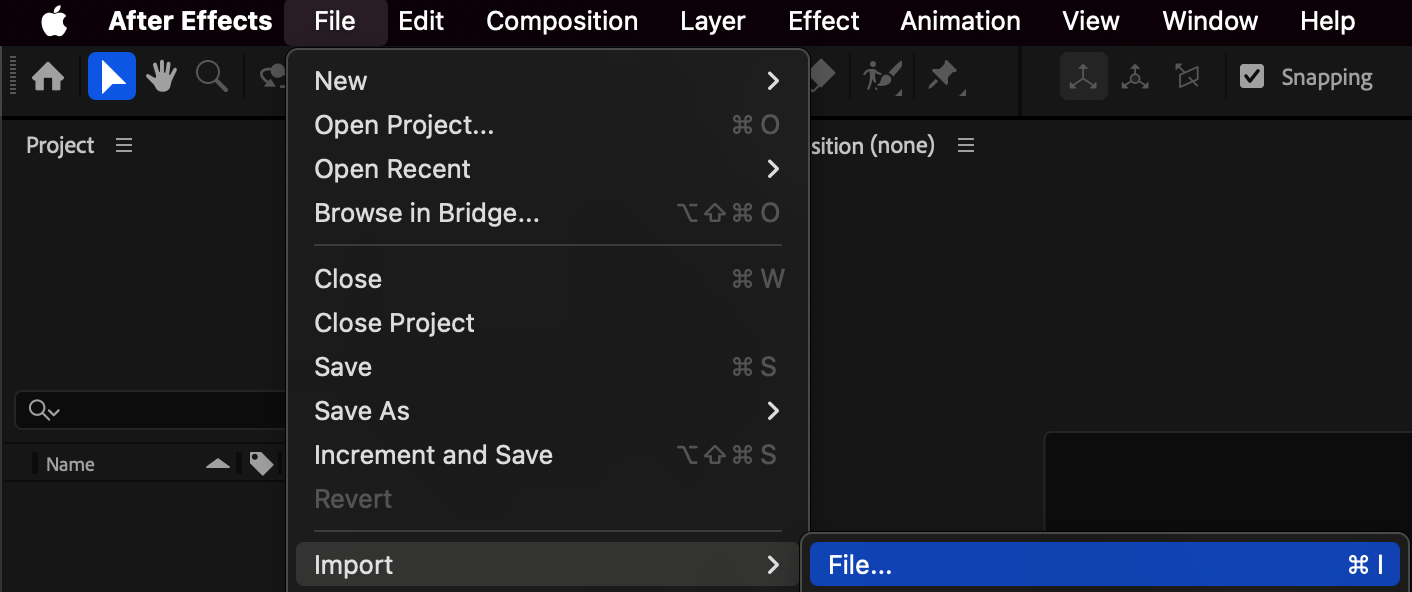
 Step 2: Create an Adjustment Layer
Go to Layer > New > Adjustment Layer. This layer allows you to apply effects that affect all layers below it — without permanently changing the original footage.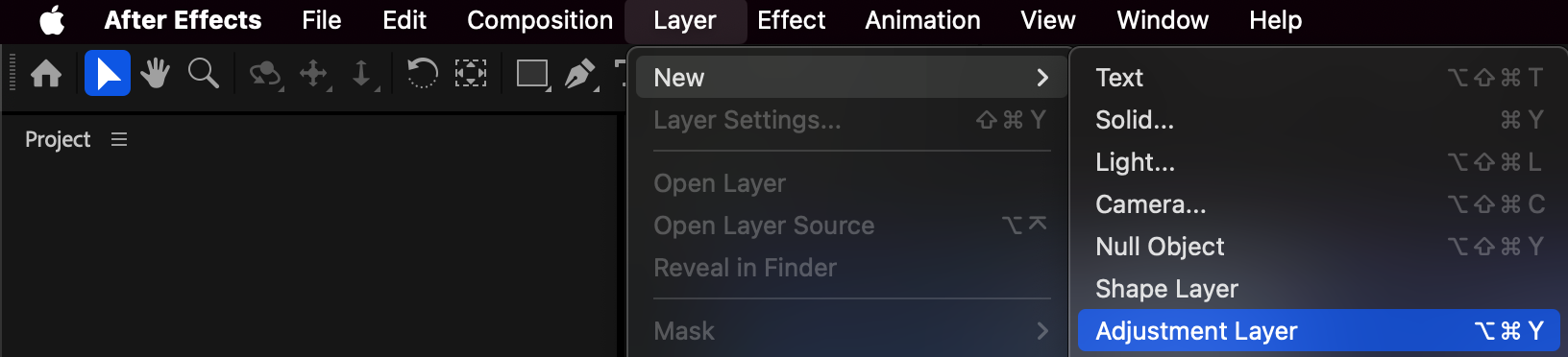
Step 3: Apply an Effect to the Adjustment Layer
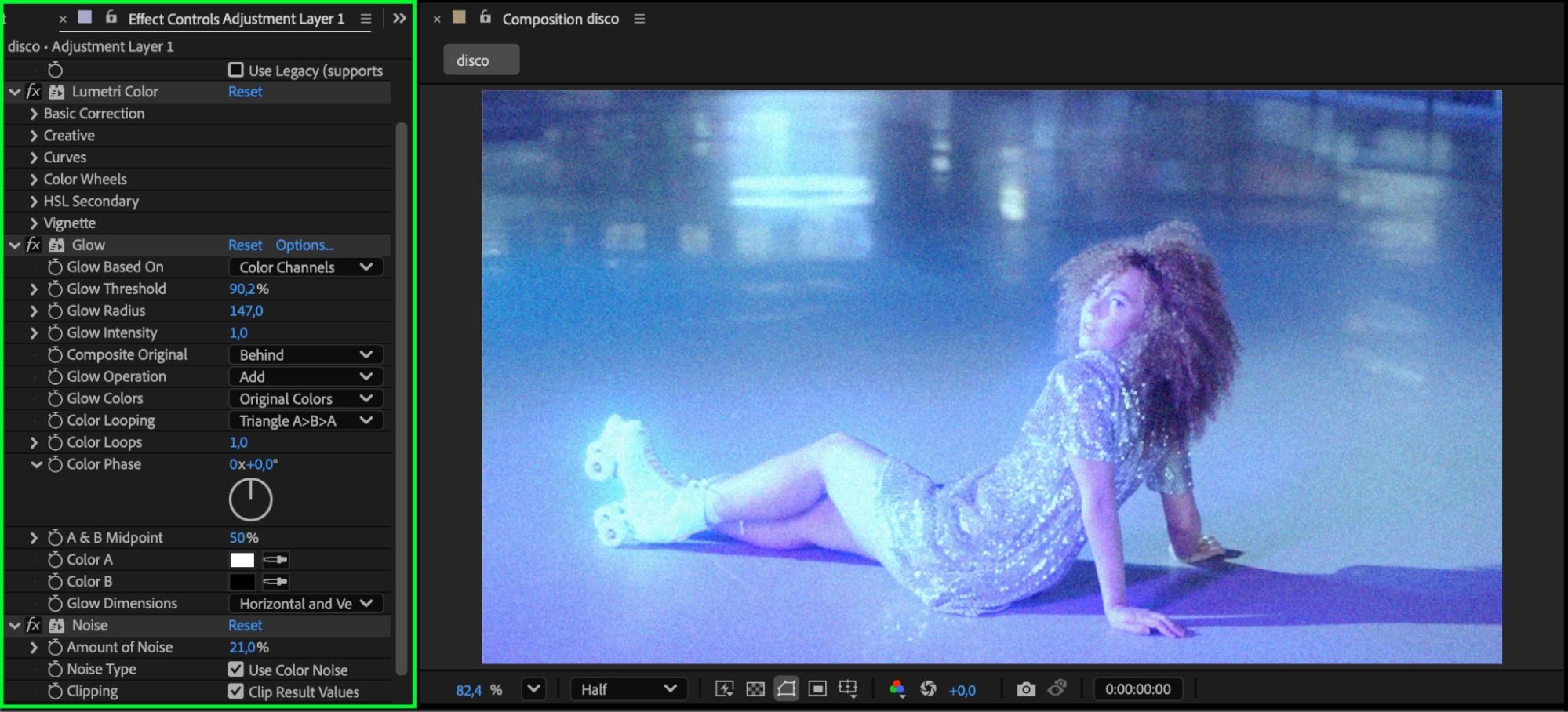
In the Effects & Presets panel, search for an effect that works well with blend modes — for example, Glow, Turbulent Noise, or CC Light Burst 2.5.
Drag the chosen effect onto the adjustment layer. In the Effect Controls panel, tweak its parameters until you see a visible change. For instance, if you use Glow, increase Glow Radius and Glow Intensity to create a bright halo effect.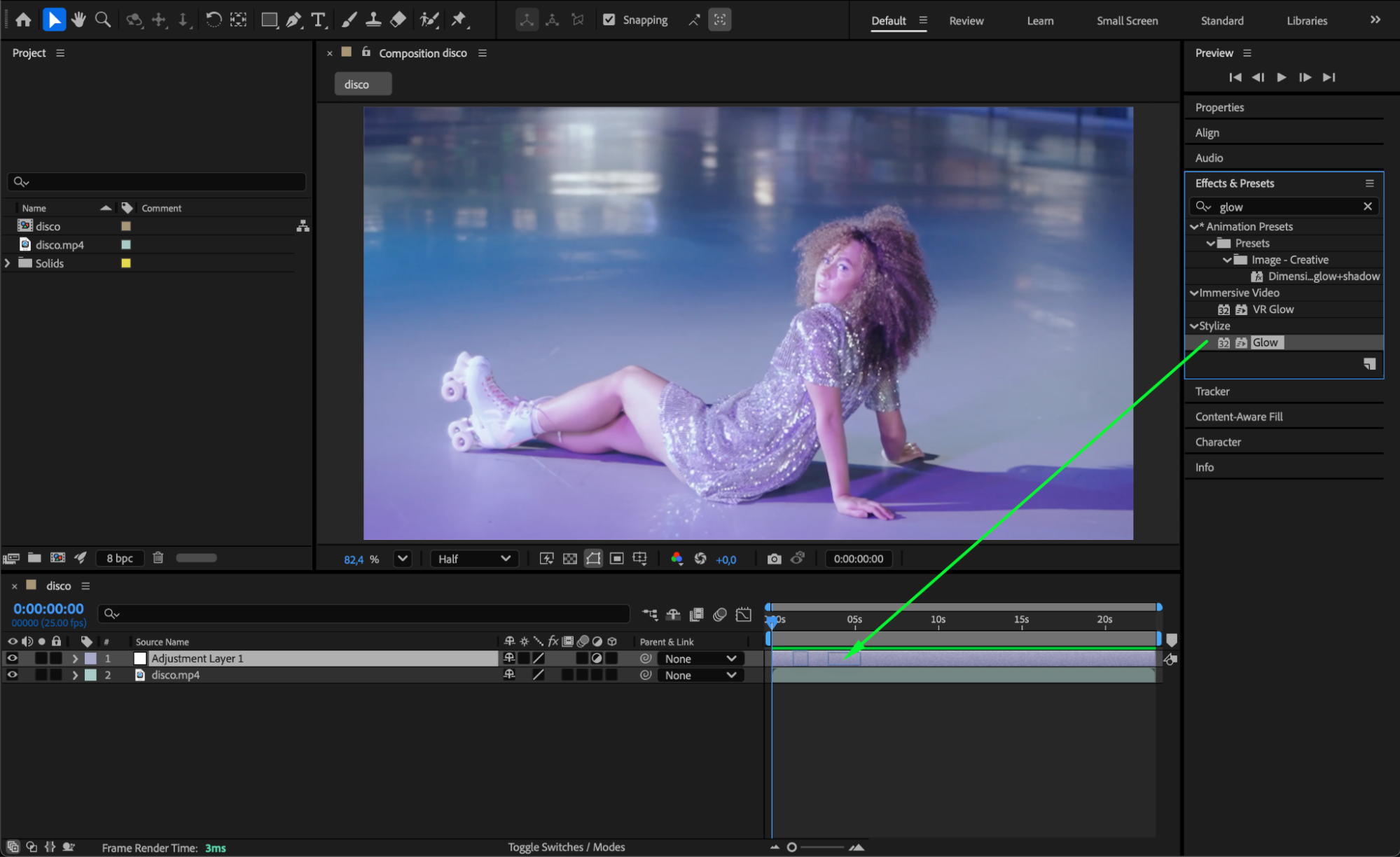
 Step 4: Change the Blend Mode of the Adjustment Layer
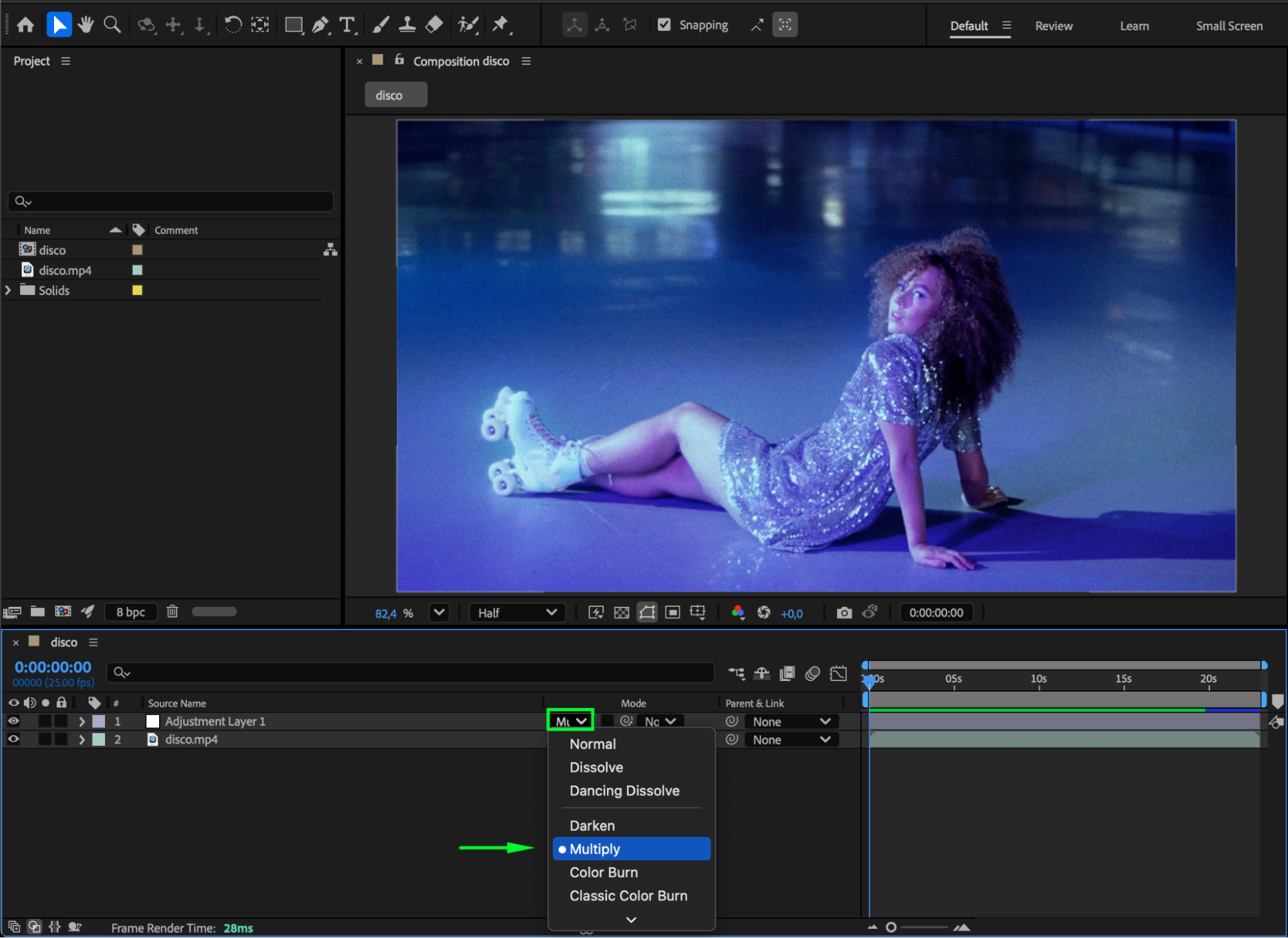
To enable blend modes, click the Toggle Switches/Modes button at the bottom of the Timeline if you don’t see them. Find the Mode column next to your adjustment layer. Click the dropdown menu and choose a blend mode — for example:
Add or Screen for bright, glowing effects
Multiply or Overlay for deeper shadows and contrast
Soft Light for subtle blending
Experiment with different modes to see how your effect interacts with the underlying video.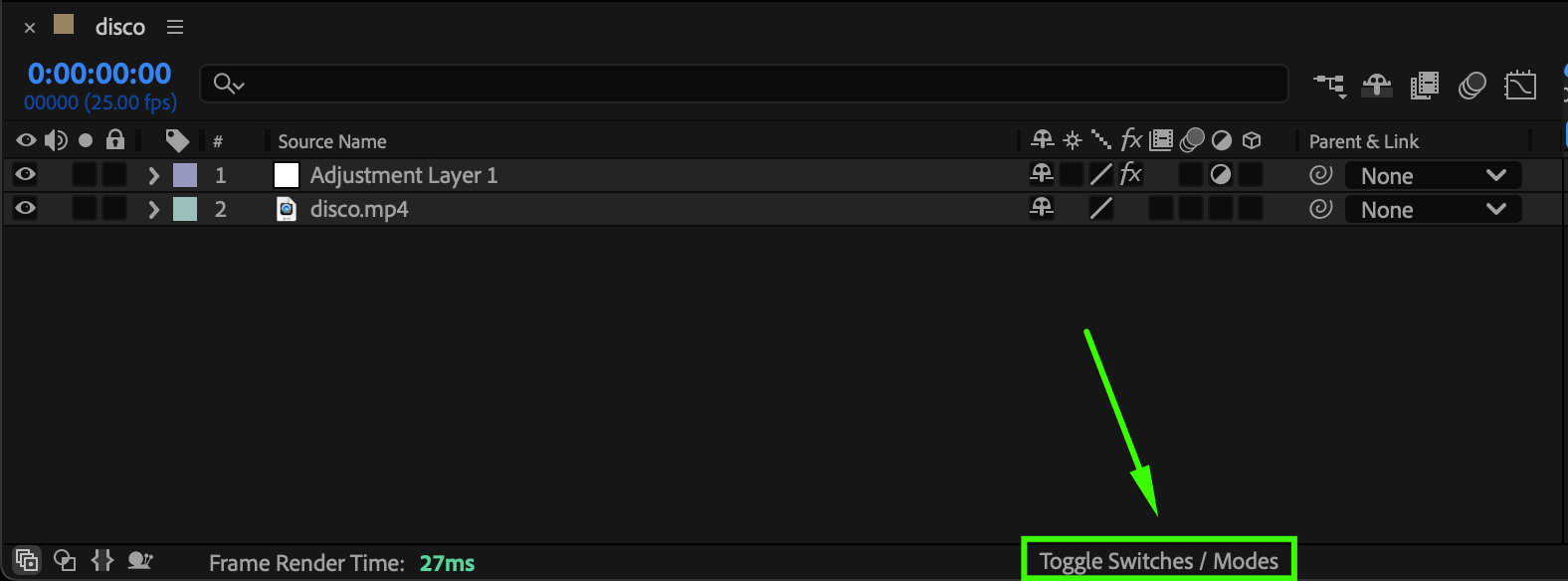
Step 5: Preview and Fine-Tune
Press Spacebar or use the Preview panel to see how the effect looks in motion. Adjust the intensity of your effect or switch blend modes again until you achieve the desired result.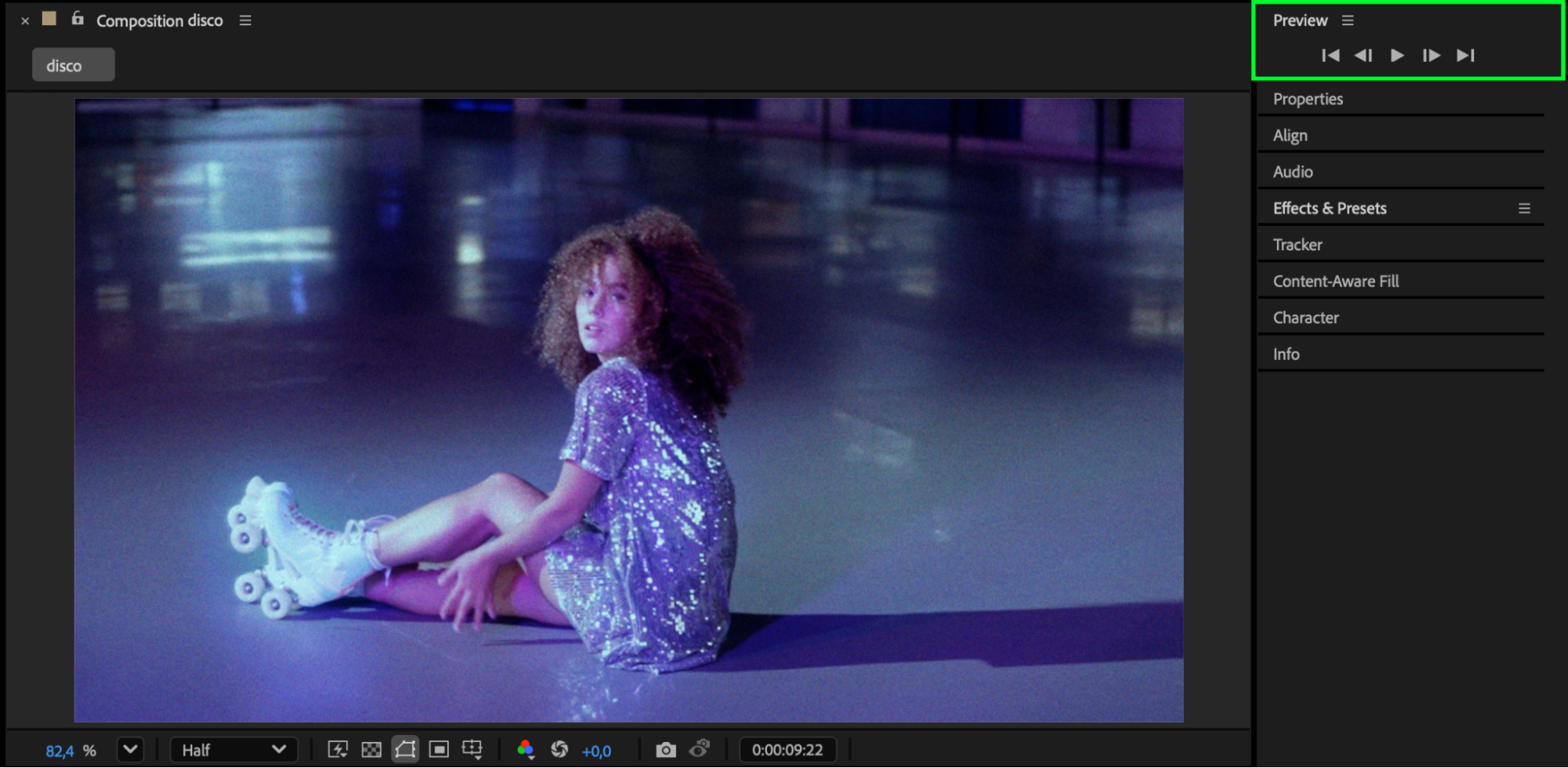
Conclusion
Changing blend modes on effects in After Effects gives you much greater creative control. Whether you’re adding glow, light rays, or texture overlays, experimenting with blend modes can completely transform your visuals — from soft atmospheric looks to bold cinematic styles — all without needing third-party plugins.
Our Bestsellers
Our Bestsellers


