
Changing the Color of Traced Shapes or Paths in Adobe After Effects
Introduction to Coloring Traced Layers
After you trace an object in Adobe After Effects—whether manually with masks or automatically using Auto-trace—you often end up with a monochrome outline. To match your design or animation style, you may need to change the color of these outlines or shapes. In this guide, you’ll learn several easy methods to recolor traced layers, including fills, shape layers, layer styles, and the 4-Color Gradient effect.
Step 1: Create or Auto-Trace an Object
Start by importing your image or footage into the project and adding it to a new composition. Select the layer, then go to Layer > Auto-trace. Adjust the Tolerance and Blur settings depending on the detail level you want. Once applied, Auto-trace creates a mask around the object, often appearing as a black outline on a white background.
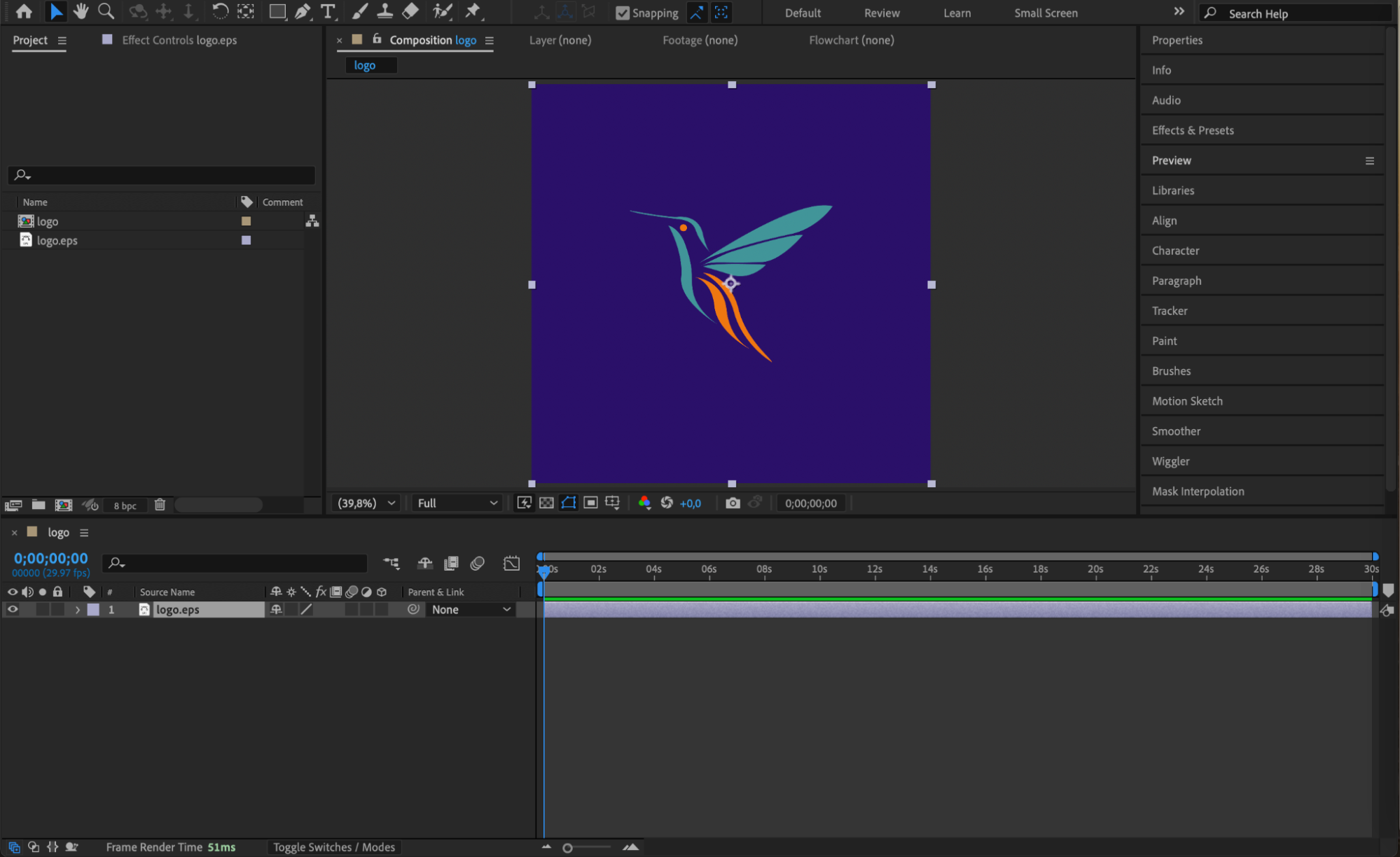
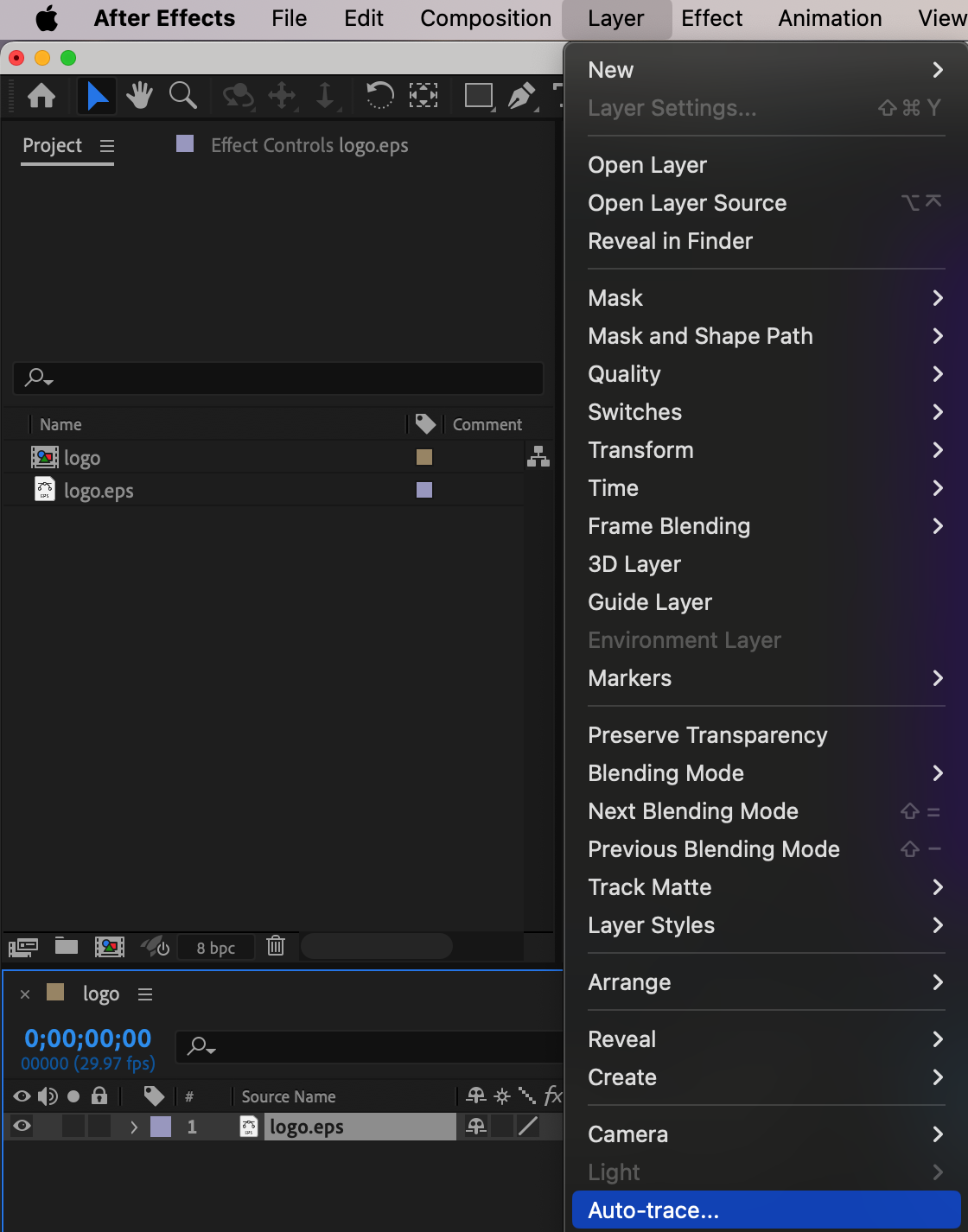
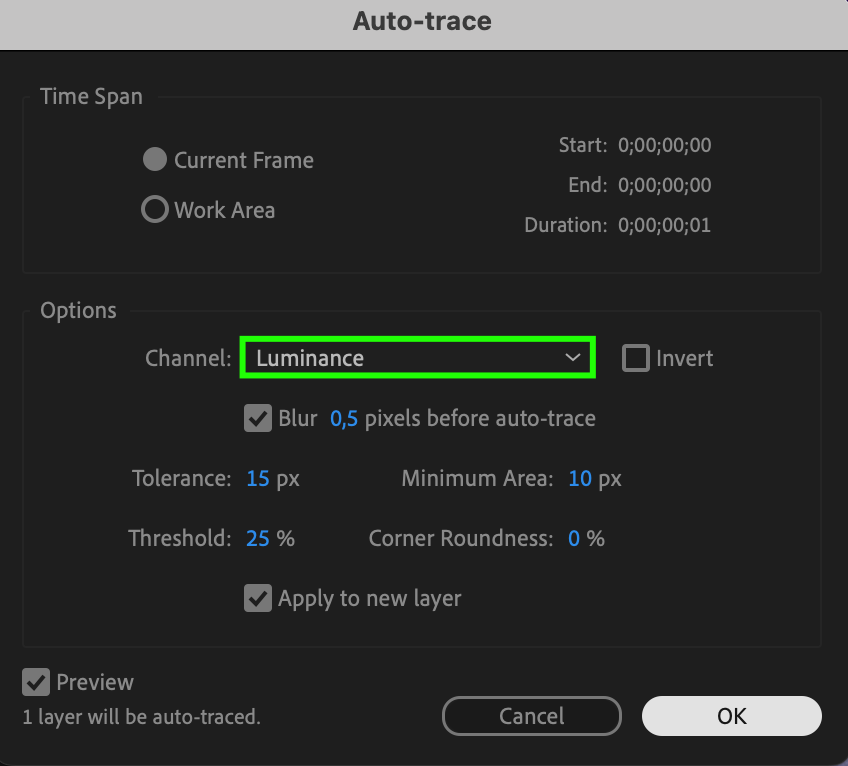 Step 2: Apply the Fill Effect to a Masked Layer
If your traced object remains a solid layer with a mask, you can apply the Fill effect from the Effects & Presets panel. Drag it onto the layer and choose any color from the Fill settings. This is one of the simplest ways to recolor the traced outline without converting the layer.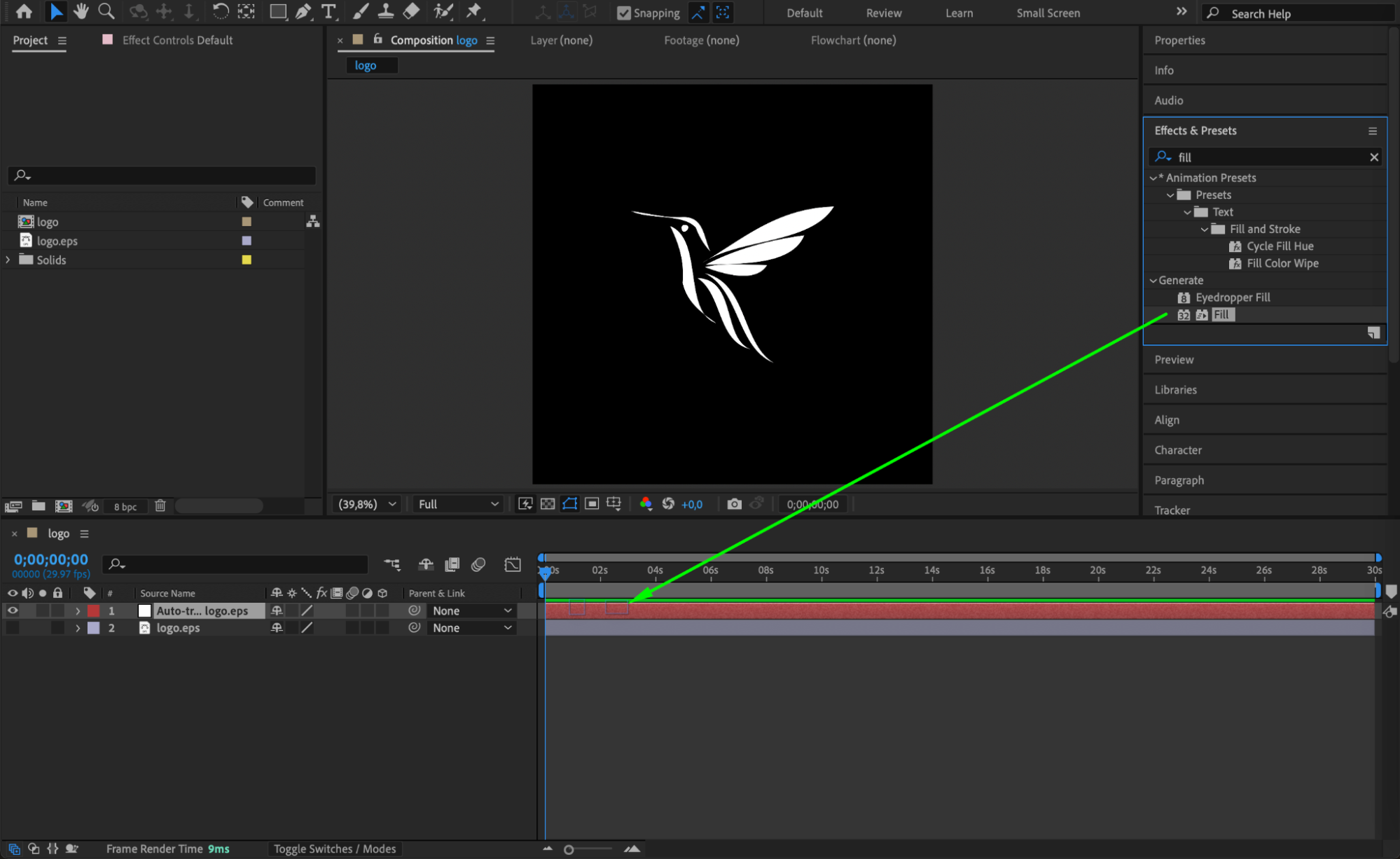
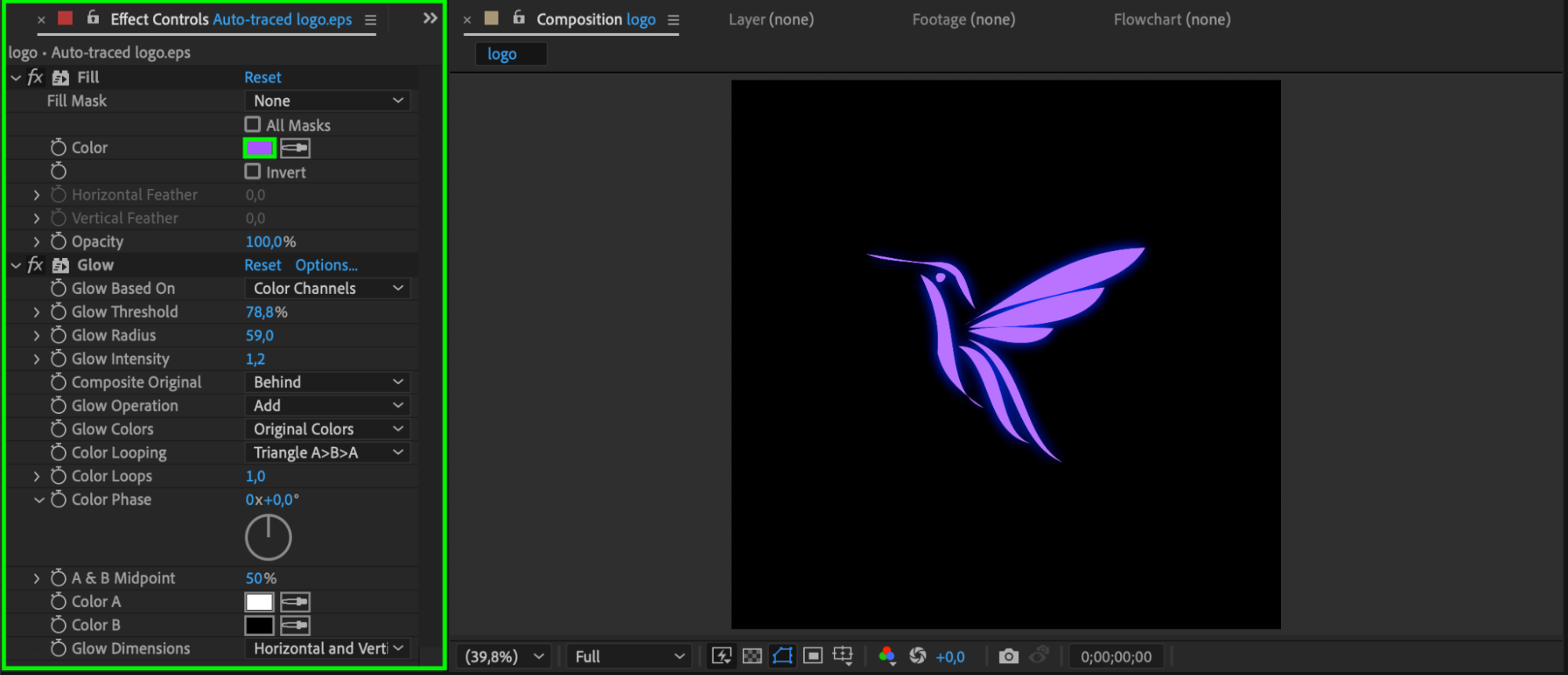
Step 3: Convert to Shape Layer for More Control
For more control, select the layer and choose Layer > Create Shapes from Vector Layer (if it’s a vector), or manually draw the shapes using the pen or shape tools. This turns the object into a Shape Layer, where you can expand the Contents in the timeline and change the Fill color of each group individually. This method is best for full customization and animation.
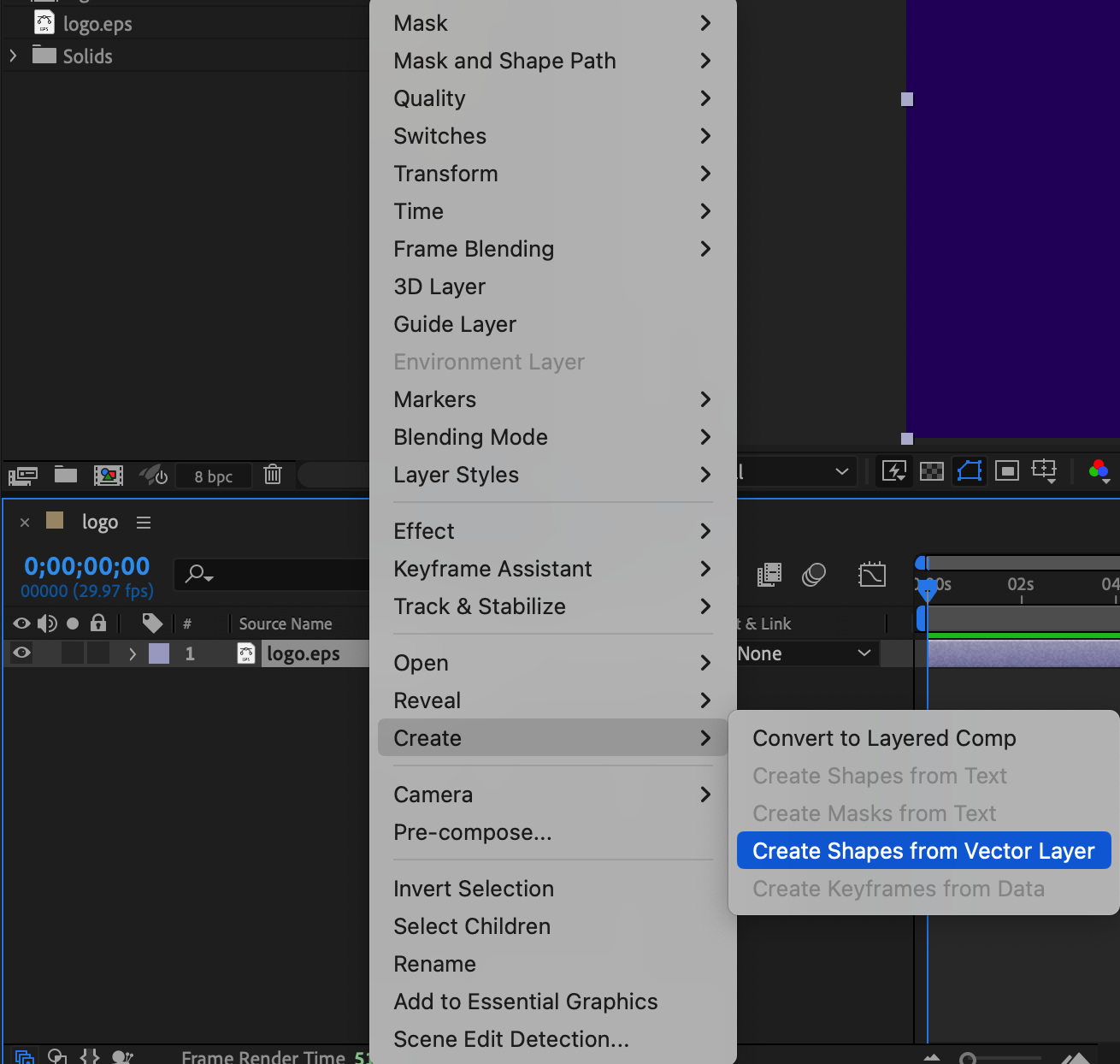
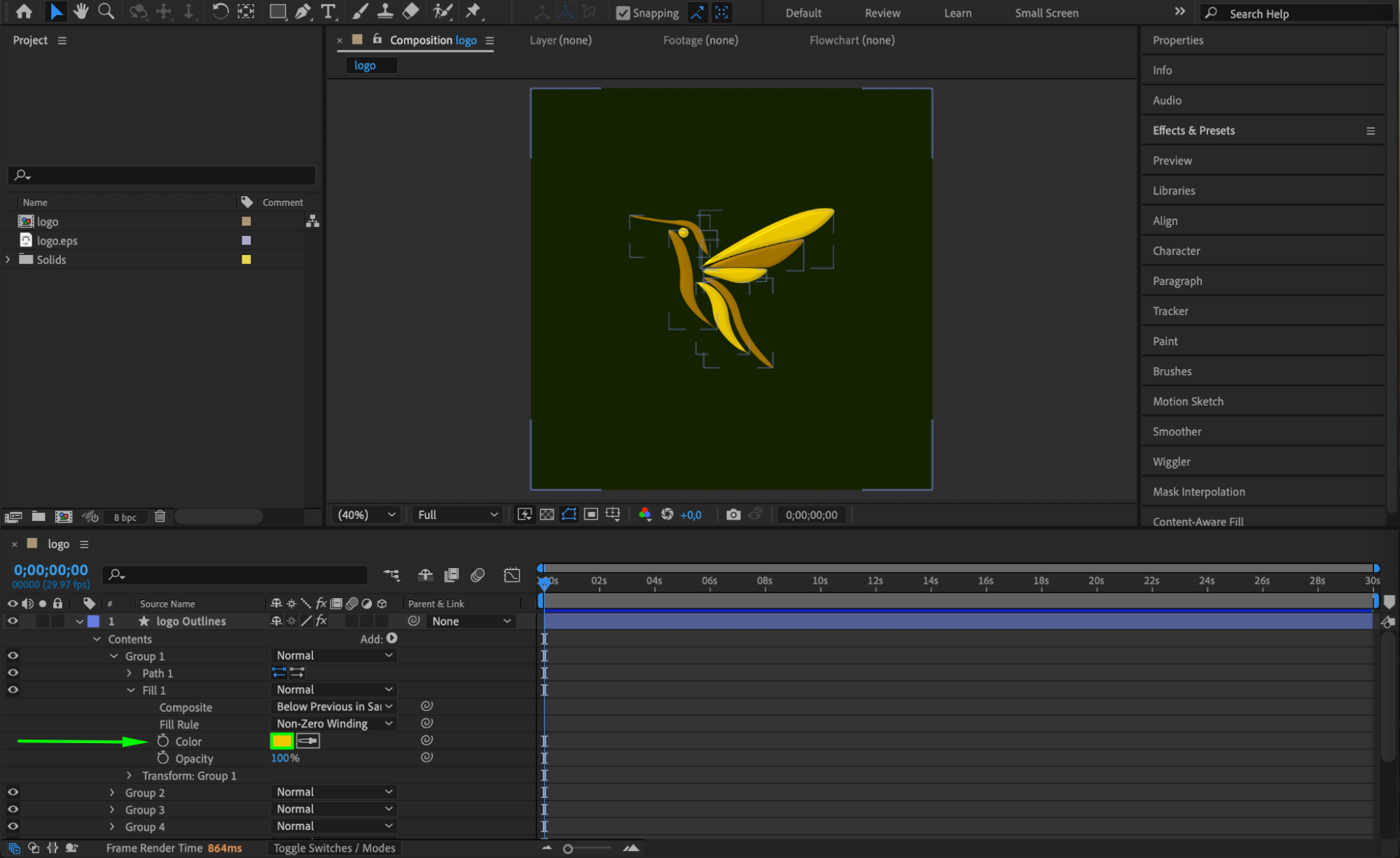 Step 4: Use Layer Styles for Effects Like Stroke and Glow
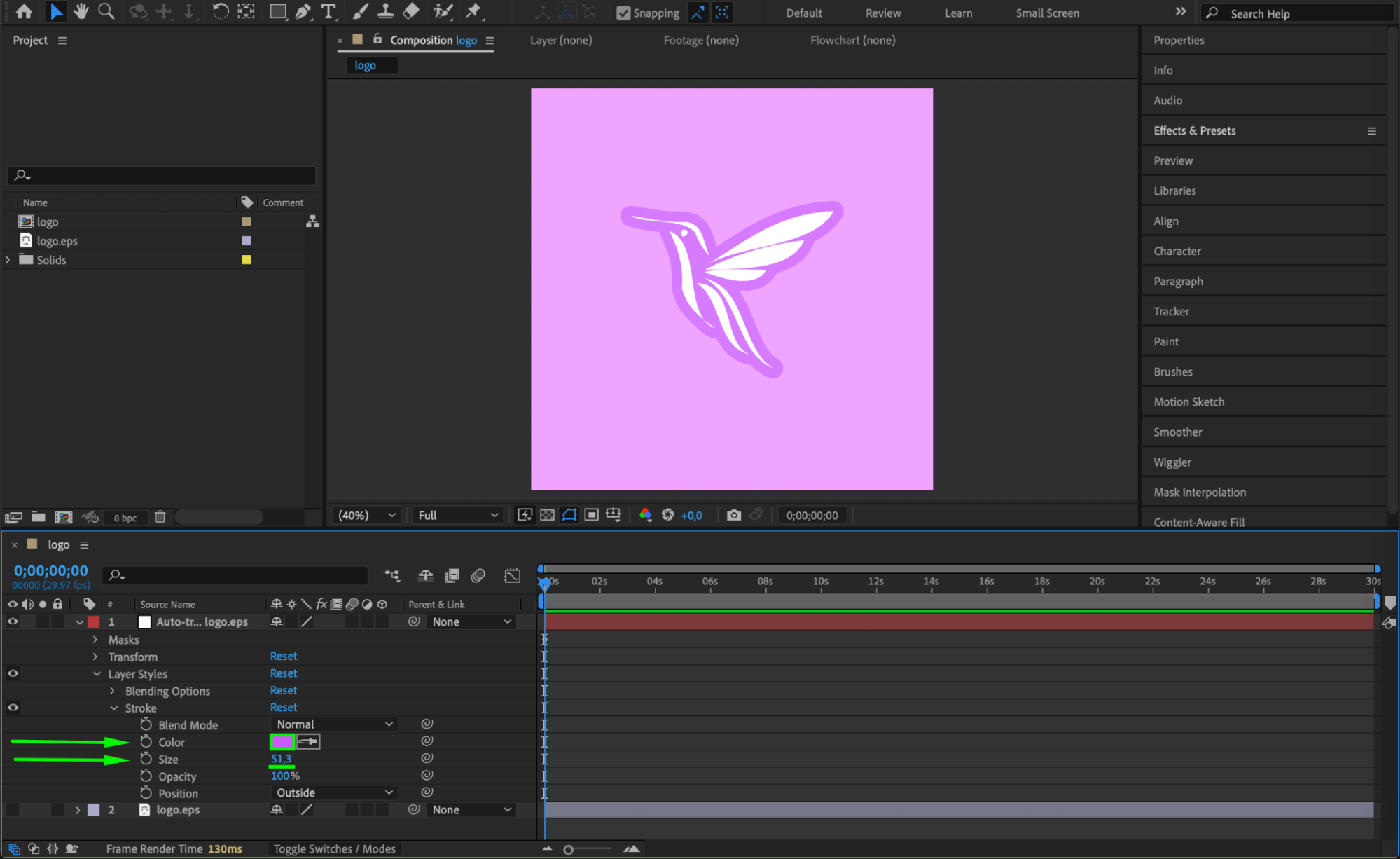
To stylize your traced object, right-click the layer and choose Layer Styles > Stroke or Outer Glow. These options let you add outlines or glowing effects. Open the Layer Styles section in the timeline and adjust the color, size, and blend mode as needed. This can help make your traced objects stand out visually.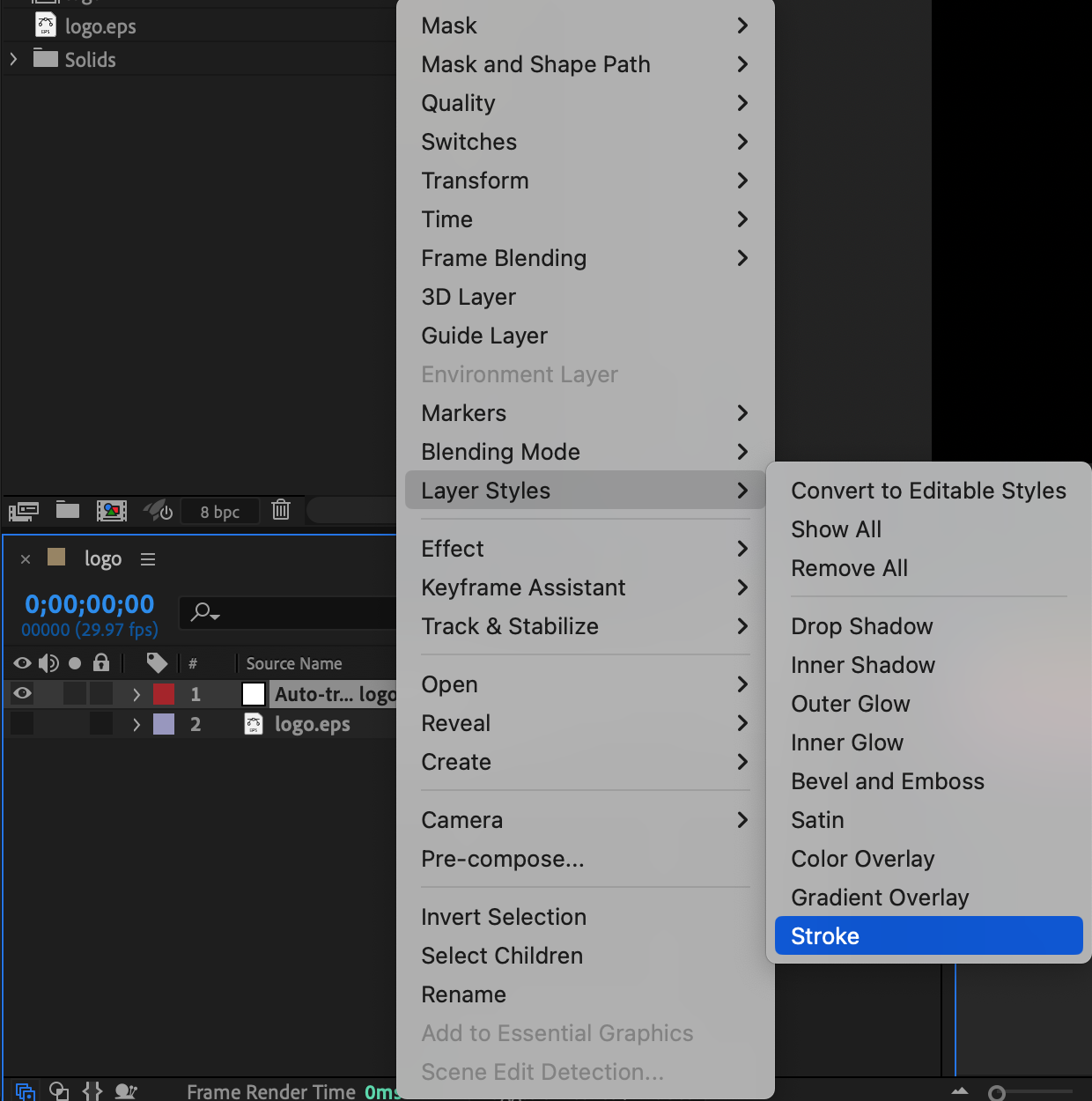
Step 5: Apply the 4-Color Gradient Effect
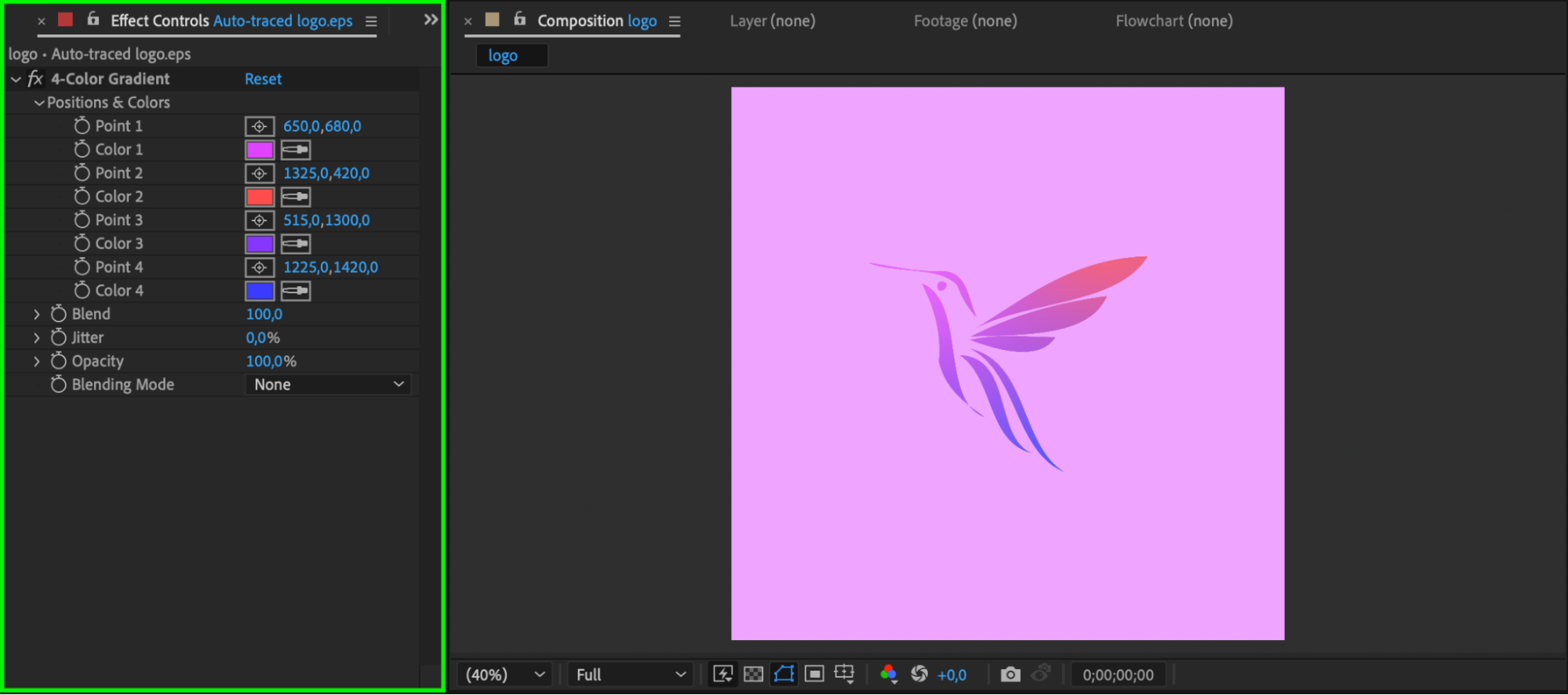
For a more dynamic look, apply the 4-Color Gradient effect from the Effects & Presets panel. Drag it onto the layer and customize each of the four corner colors. You can reposition the gradient points and create smooth, colorful transitions across your shape or traced object. This is especially useful for adding a modern or abstract style to traced artwork.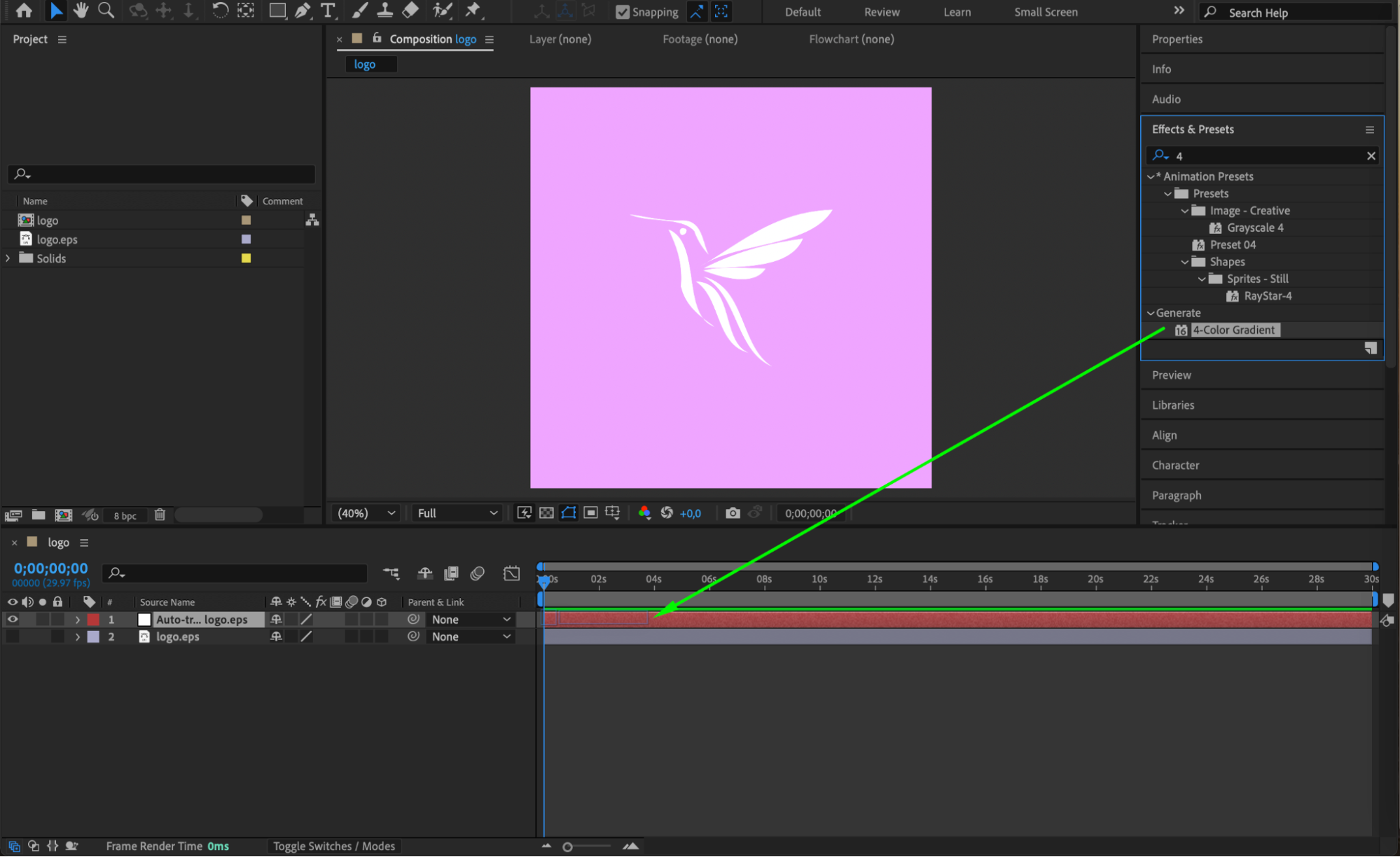
 Step 6: Preview Your Result
Press the spacebar to preview your animation and check the color transitions. Make adjustments to gradients, fills, or layer styles if needed. You can also keyframe the color properties for more dynamic changes over time.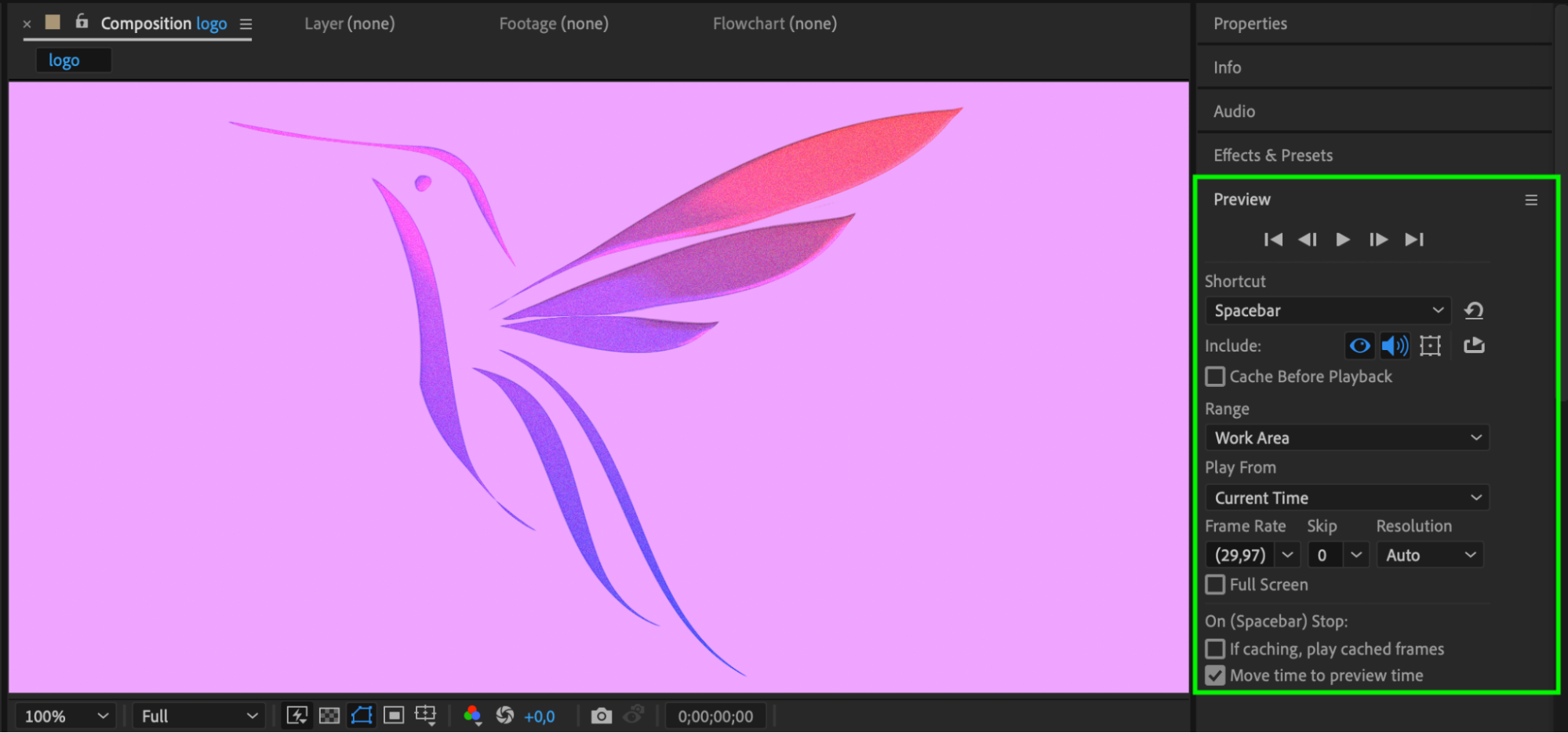 Conclusion
Changing the color of traced objects in After Effects is simple once you understand the layer type you’re working with — mask-based solids or shape layers. From basic Fill effects to advanced gradients and styles, these tools let you creatively color and enhance your traced visuals with ease.
Our Bestsellers
Our Bestsellers


