
Introduction to Changing GIF Colors
If you want to give your GIF a new look or adjust its overall color mood, you can easily do this in Adobe After Effects. By using effects like Hue/Saturation, you can shift the colors of the entire animation or individual parts, such as the background or main object. This method is simple, flexible, and allows you to create different themes — from warm tones to cool cinematic hues.
Step 1: Open Your Project
Start by opening your GIF project in After Effects. If your GIF consists of multiple layers (for example, a background and a moving object), make sure all layers are properly aligned in your timeline.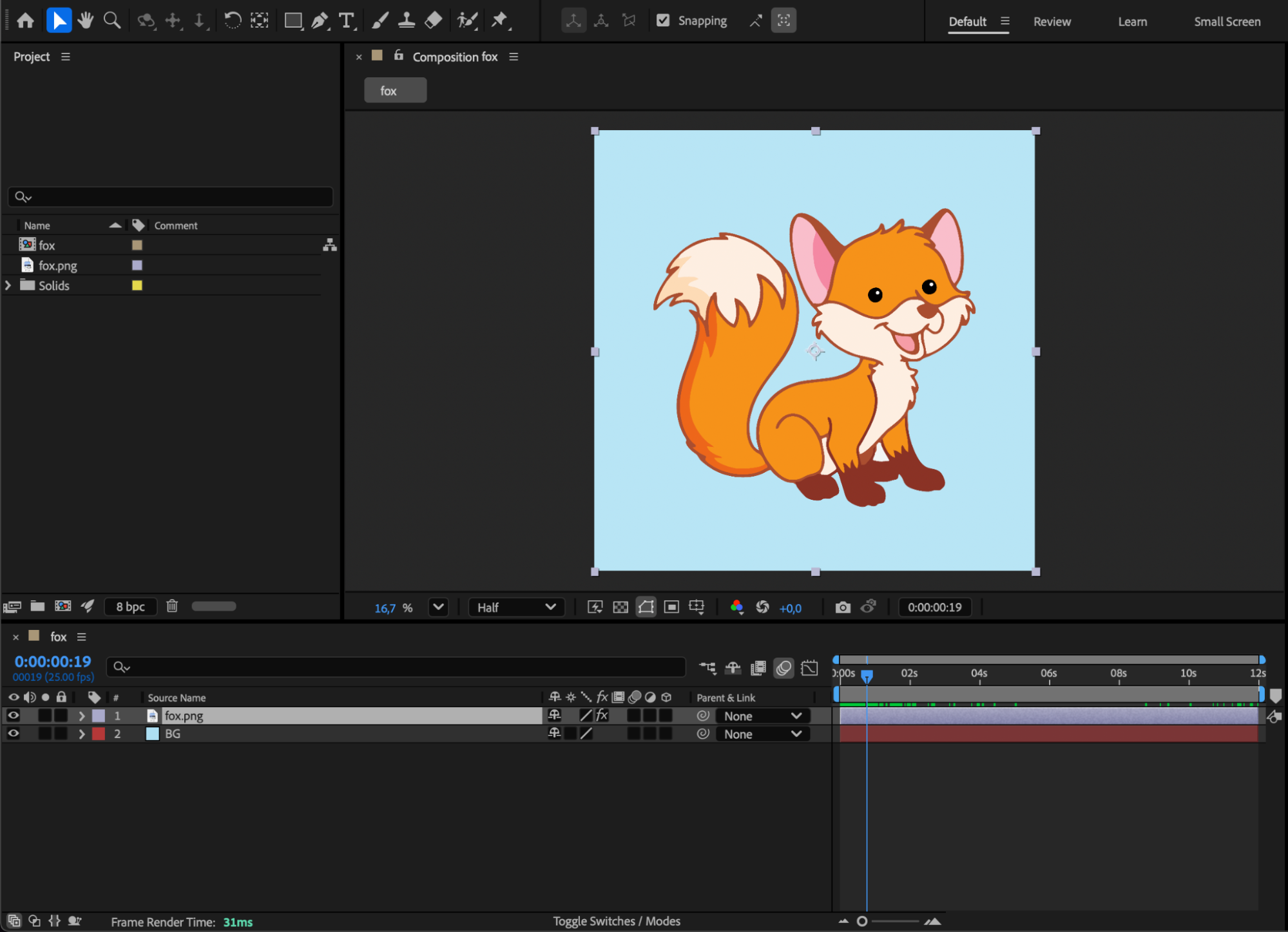 Step 2: Create an Adjustment Layer
Go to Layer > New > Adjustment Layer. This layer will allow you to apply color effects to all the layers below it, helping you control the color theme of your entire GIF without editing each layer individually.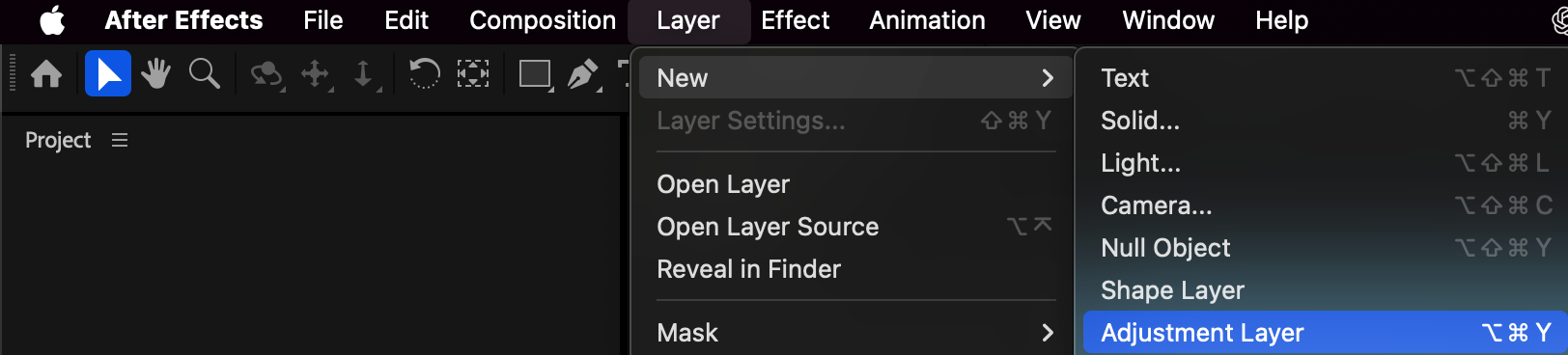
Step 3: Apply the Hue/Saturation Effect
Open the Effects & Presets panel and search for Hue/Saturation. Drag the effect onto the adjustment layer. This effect will let you shift and modify the overall color palette of your animation.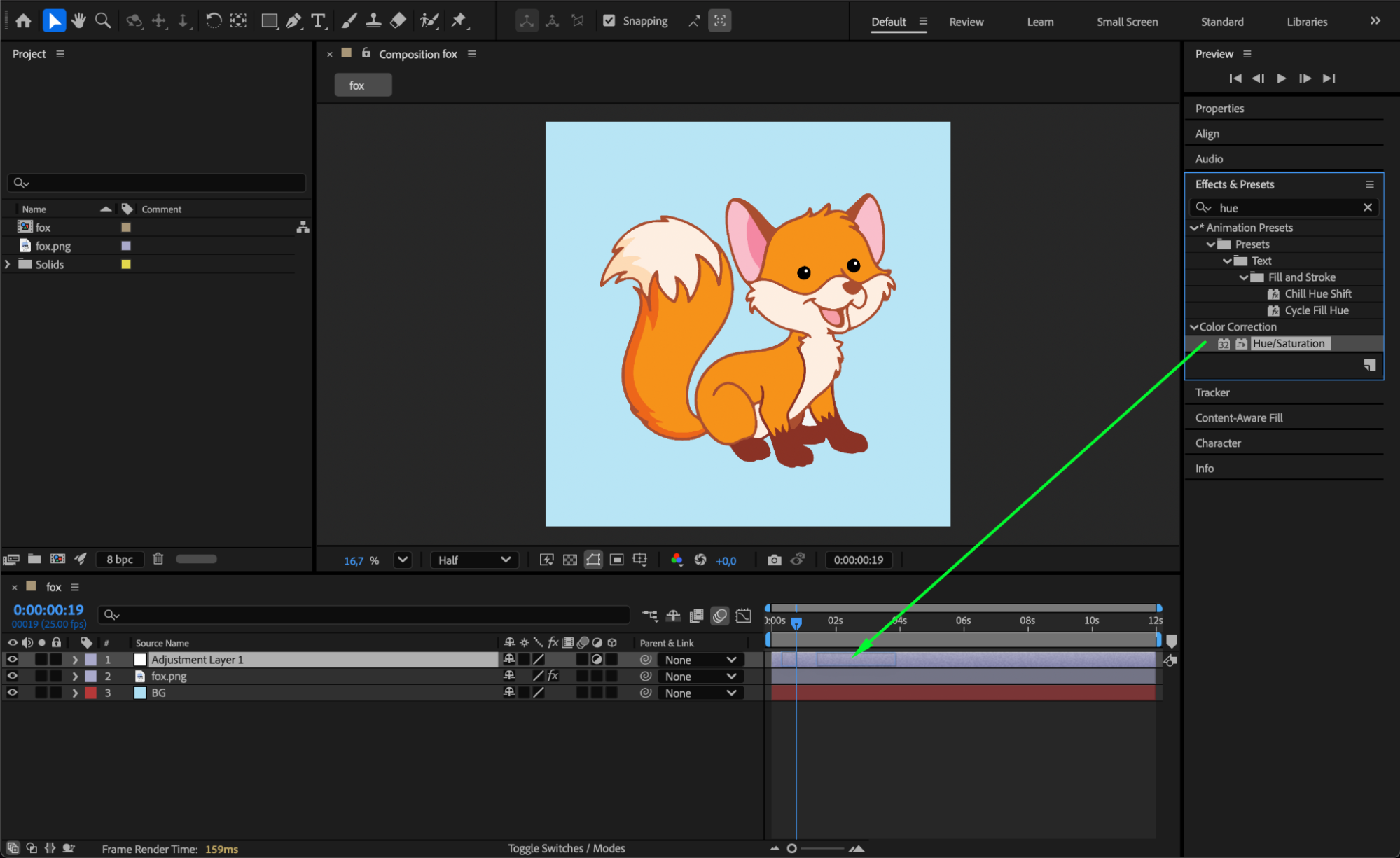 Step 4: Adjust the Color Settings
In the Effect Controls panel, find Master Hue, Master Saturation, and Master Lightness.
Master Hue: changes the overall color tone.
Master Saturation: increases or decreases color intensity.
Master Lightness: brightens or darkens the image.
Experiment with these settings to find the best color style for your GIF — for example, turning a warm tone into a cool blue theme.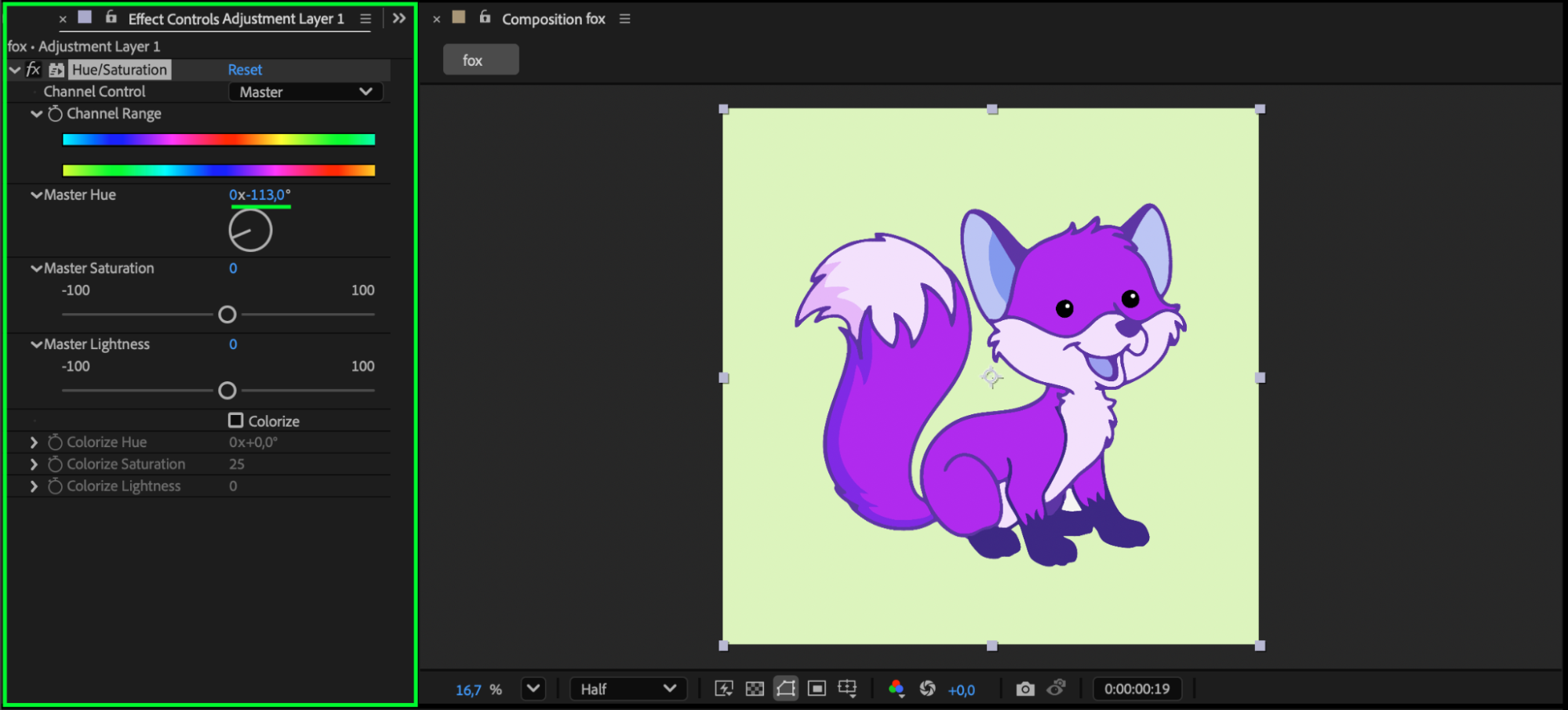
Step 5: Add Additional Effects (Optional)
To enhance your GIF further, you can add extra effects.
For example:
Add Texture to the background for depth.
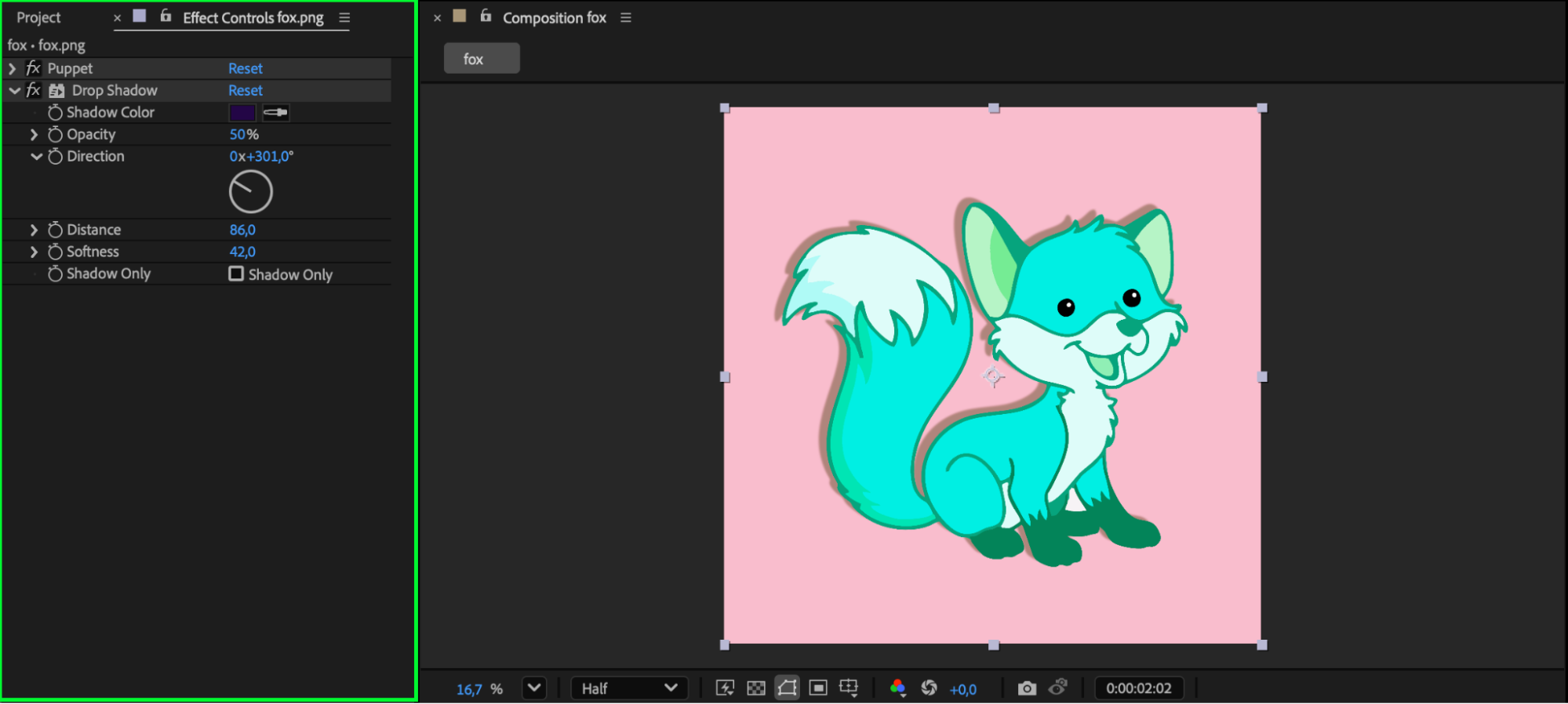
Use Glow or Drop Shadow for the main object to create a more dynamic look.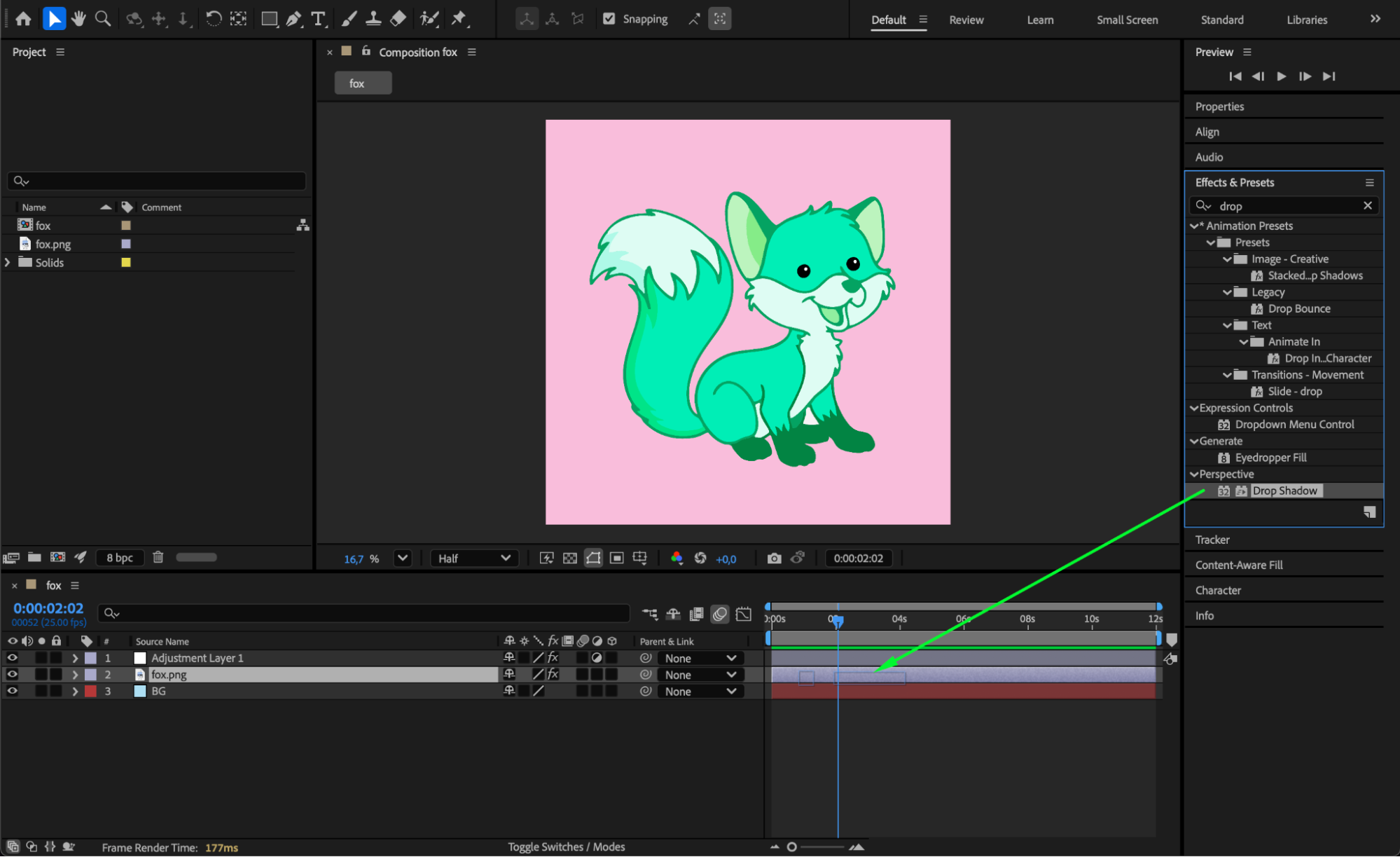
 Step 6: Preview Your GIF
Press Spacebar or click Preview to see how your color adjustments look in motion. Make any final tweaks to hue, saturation, or other effects.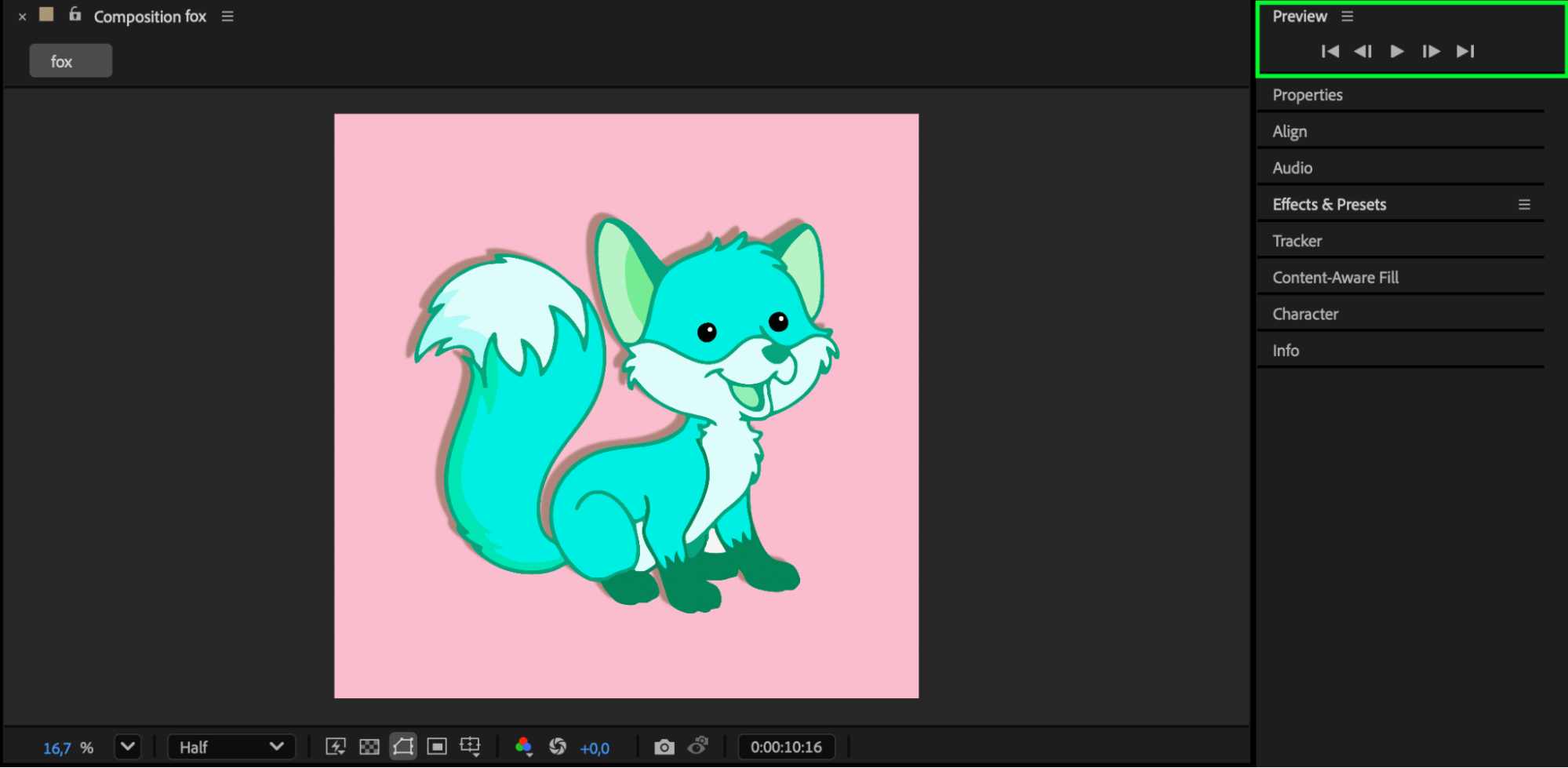 Step 7: Export Your GIF
When you’re ready to save, go to Composition > Add to Adobe Media Encoder Queue. Choose your export settings and render the final GIF.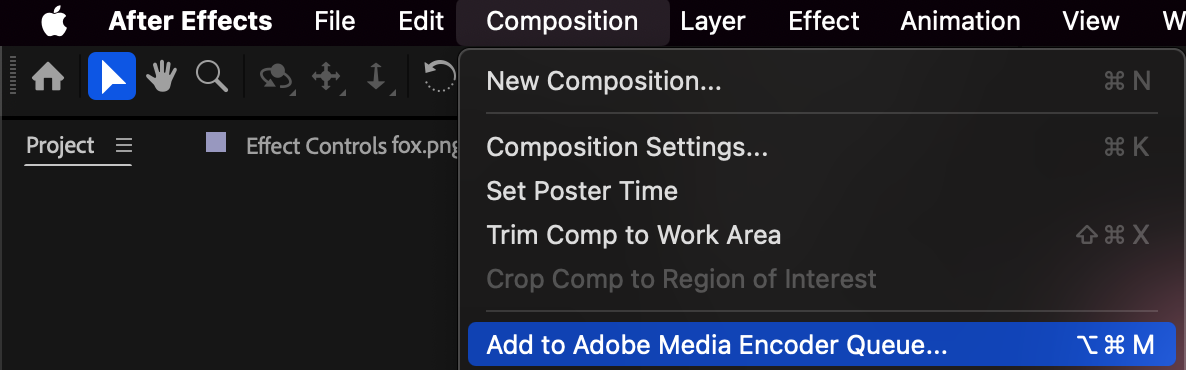 Conclusion
Changing the theme color of a GIF in After Effects is quick and effective. With the Hue/Saturation effect and a few creative adjustments, you can easily transform the tone of your animation to match any mood, brand style, or visual theme — all while keeping your GIF smooth and professional-looking.
Our Bestsellers
Our Bestsellers


