
Introduction to Choking Black Edges
When you key out a black or dark background in After Effects, you might notice a thin dark outline — also called a “black edge” — around your subject. This edge appears when parts of the background remain slightly visible or when the alpha matte isn’t perfectly clean. To fix this, you can use a combination of keying tools and the Key Cleaner effect to smooth and choke these edges without losing important details.
Step 1: Create a New Composition
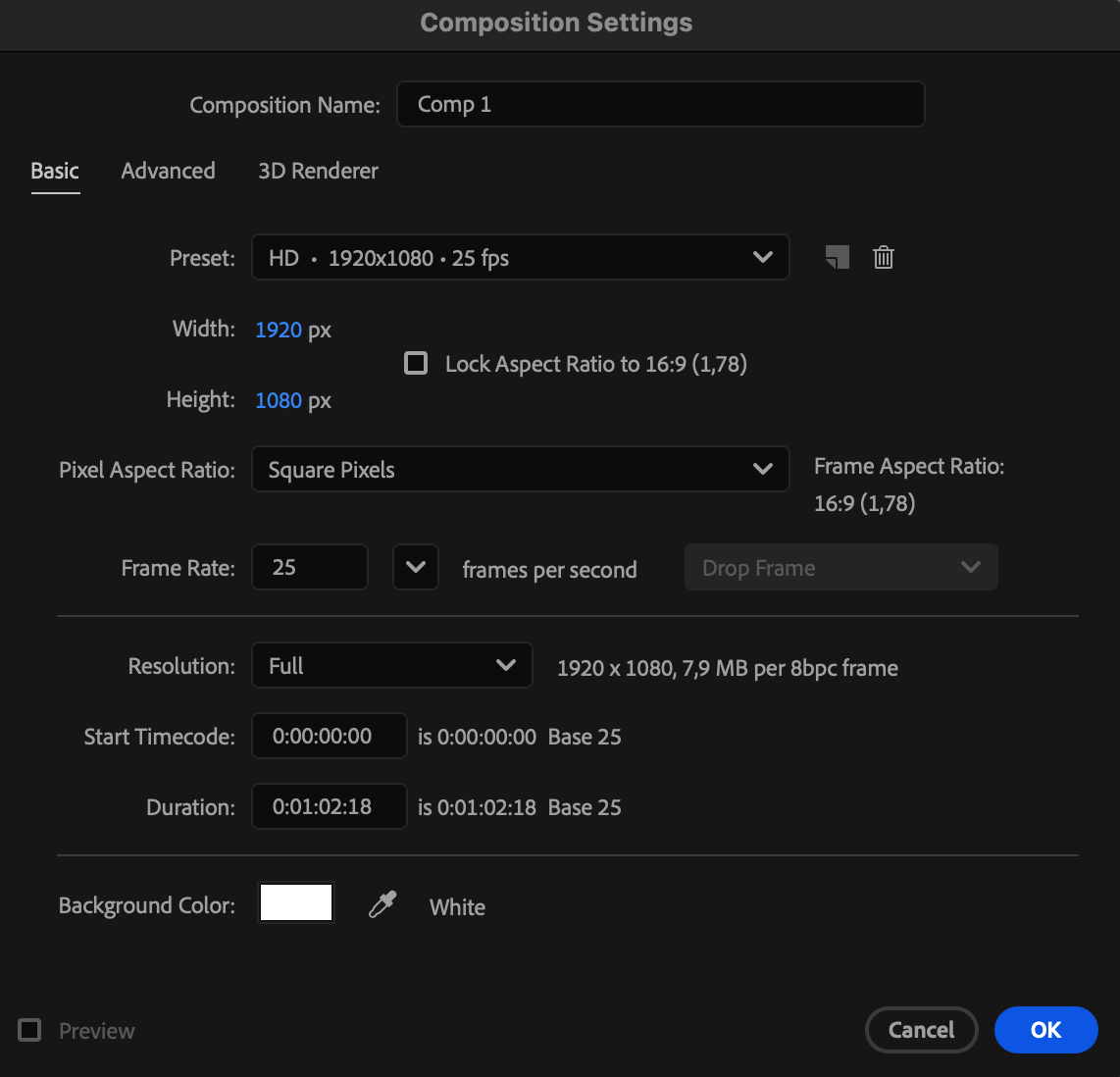
Go to Composition > New Composition and set up your project. For better visibility, choose a white background color — this helps you clearly see any remaining dark edges around your keyed object.
 Step 2: Import Your Video
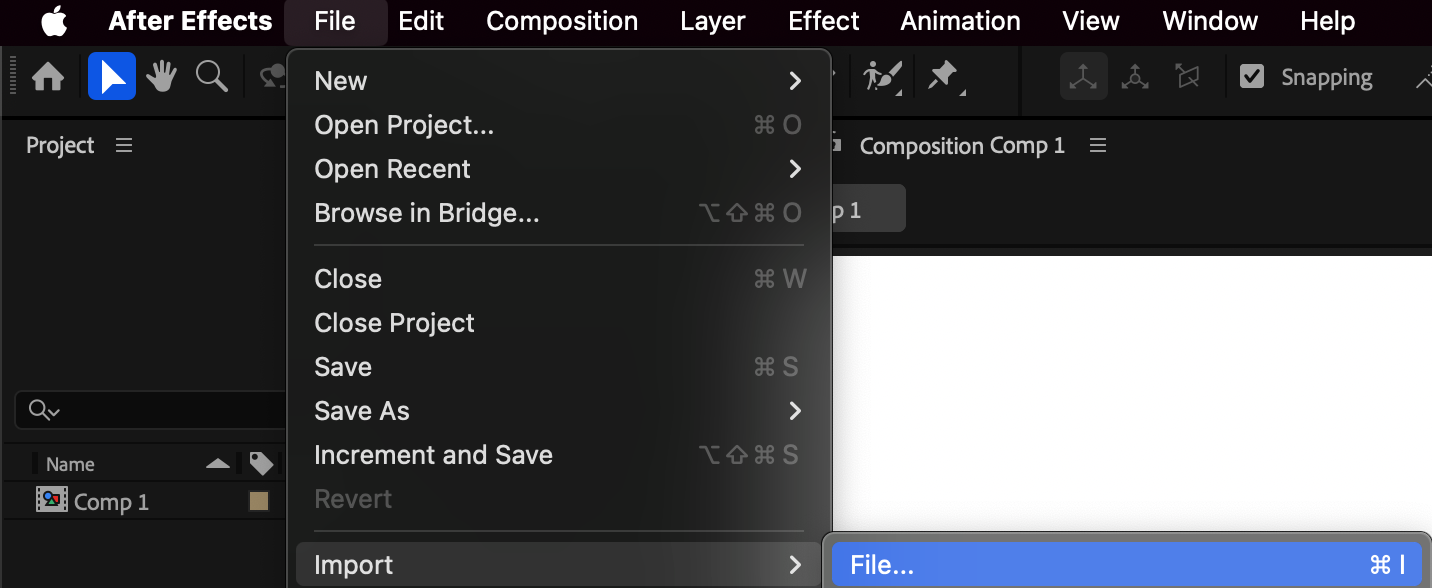
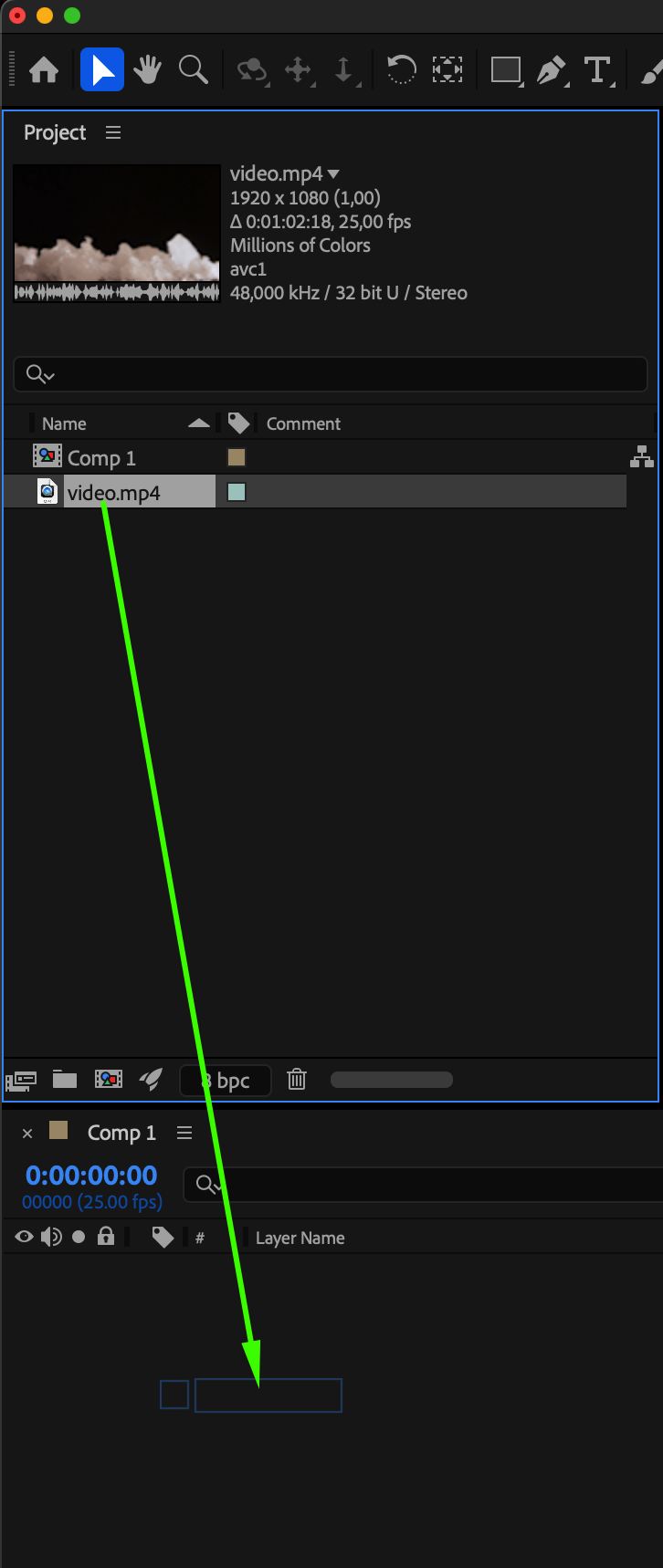
Go to File > Import > File and select your video with a black background. Drag it onto the Timeline to begin editing.
Step 3: Apply a Keying Effect
Open the Effects & Presets panel and search for either Linear Color Key or Keylight (1.2). Drag one of these effects onto your video layer.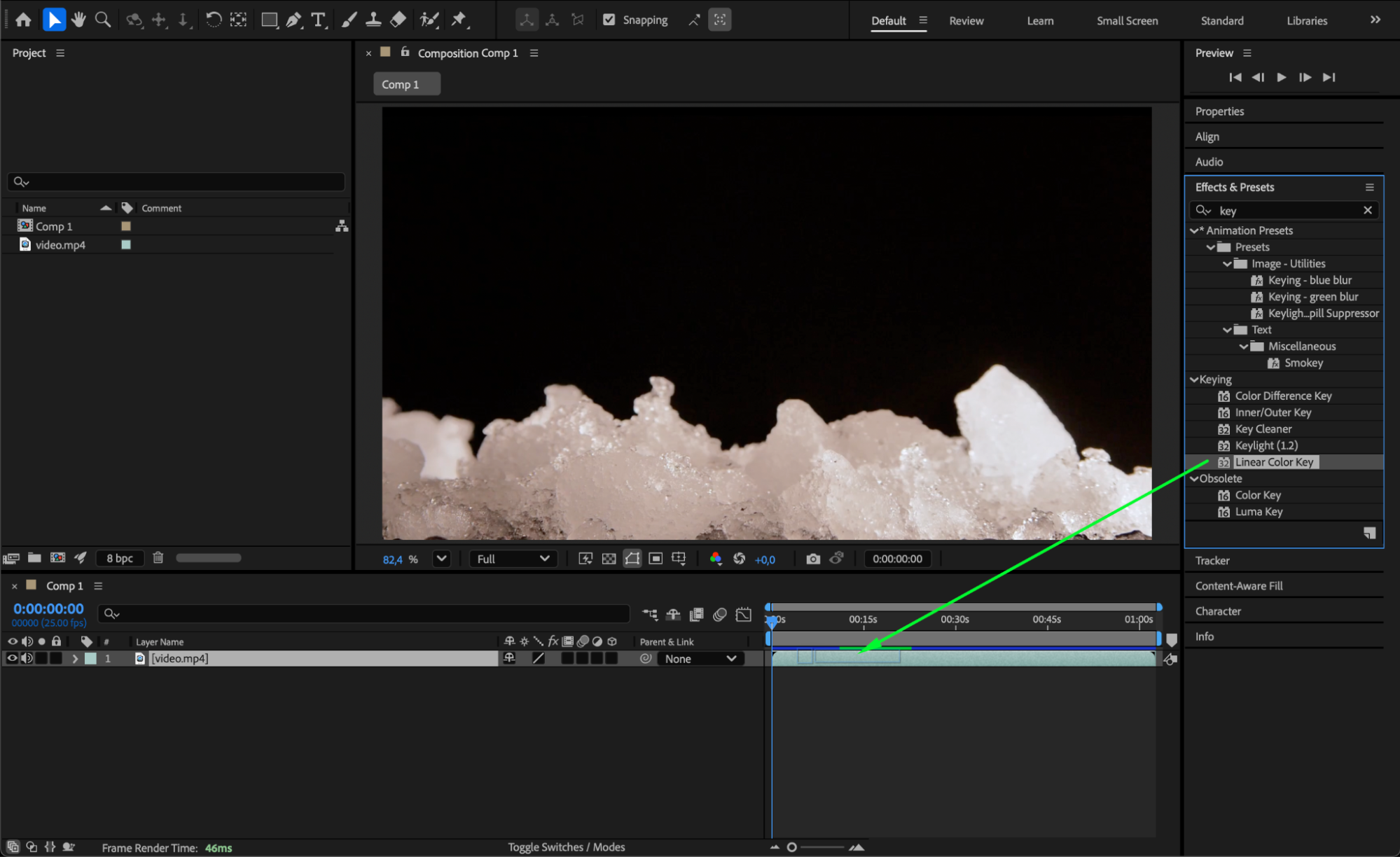 Step 4: Remove the Black Background
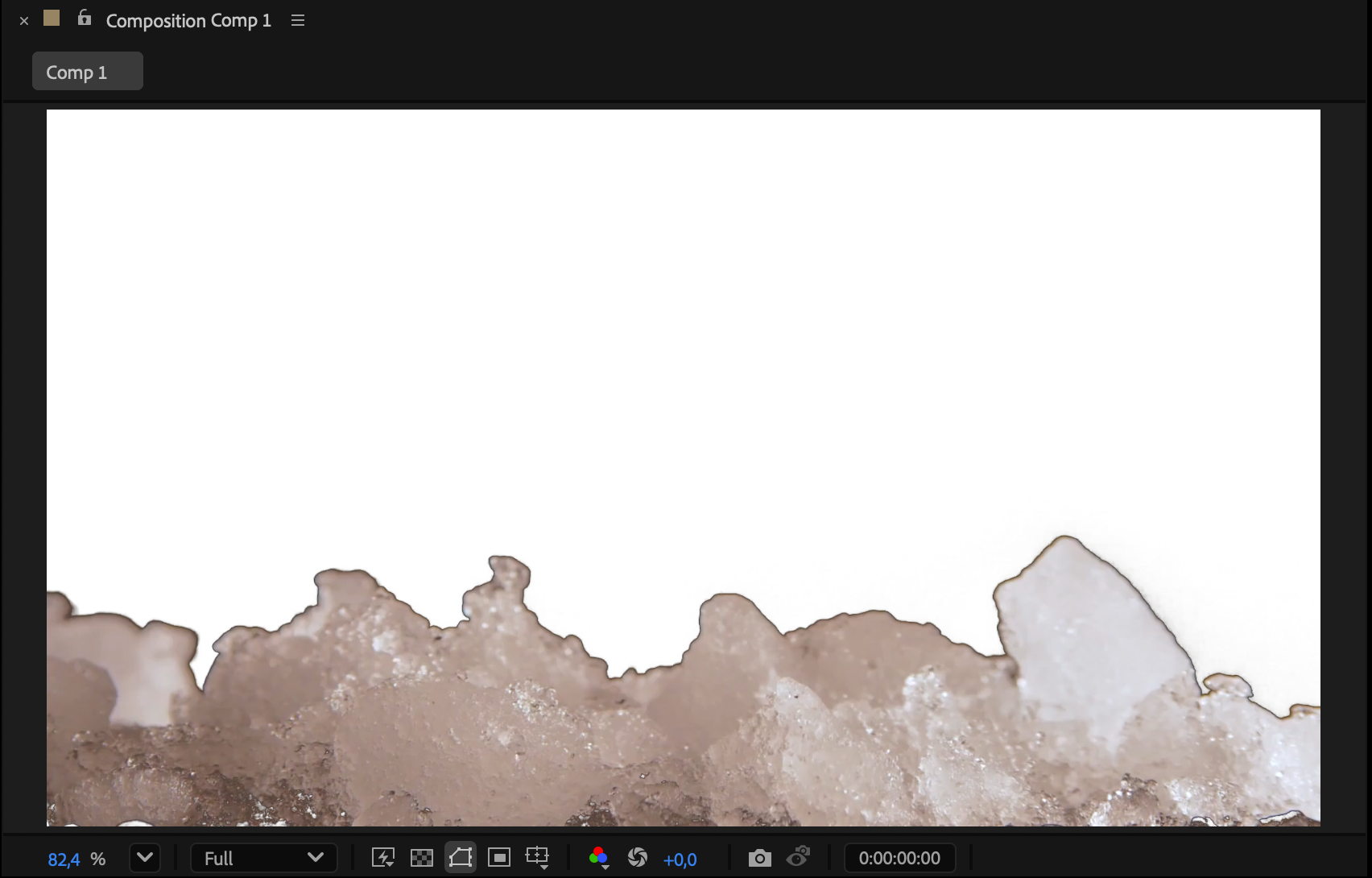
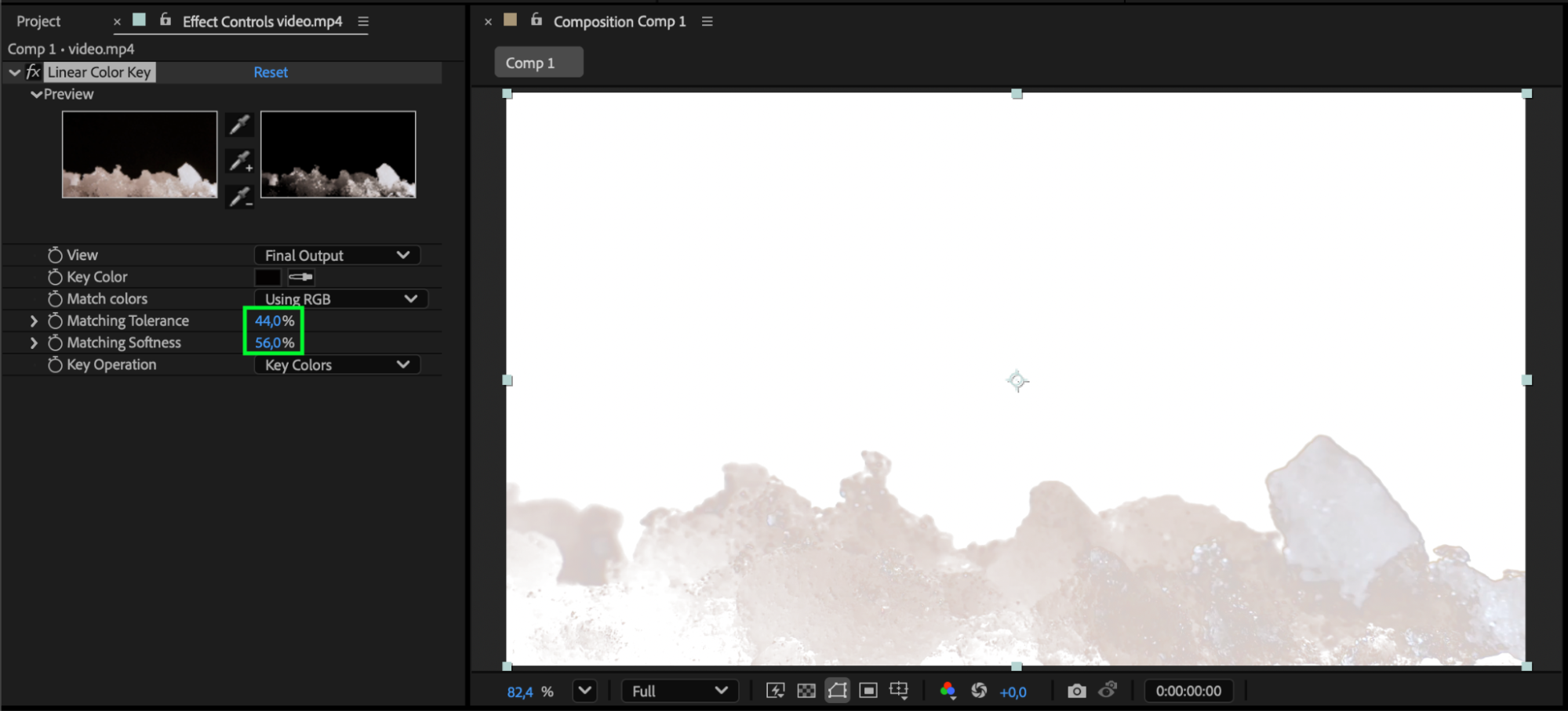
In the Effect Controls panel, use the eyedropper tool to sample and remove the black background. After the keying process, your subject should be isolated — but you might still see dark outlines around it (the “black edges”). Adjusting the effect parameters too much can sometimes remove parts of your subject, so be careful not to overdo it.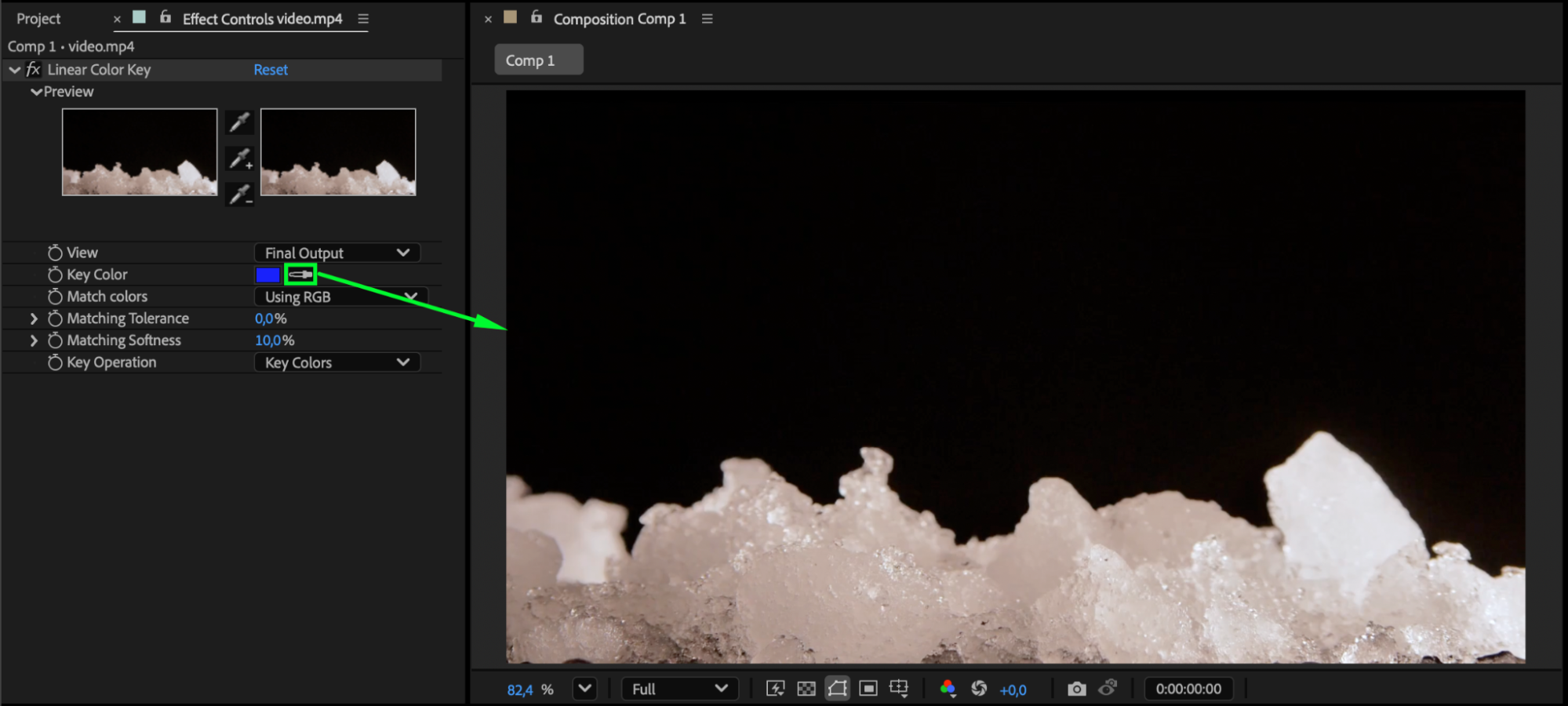
Step 5: Use the Key Cleaner Effect
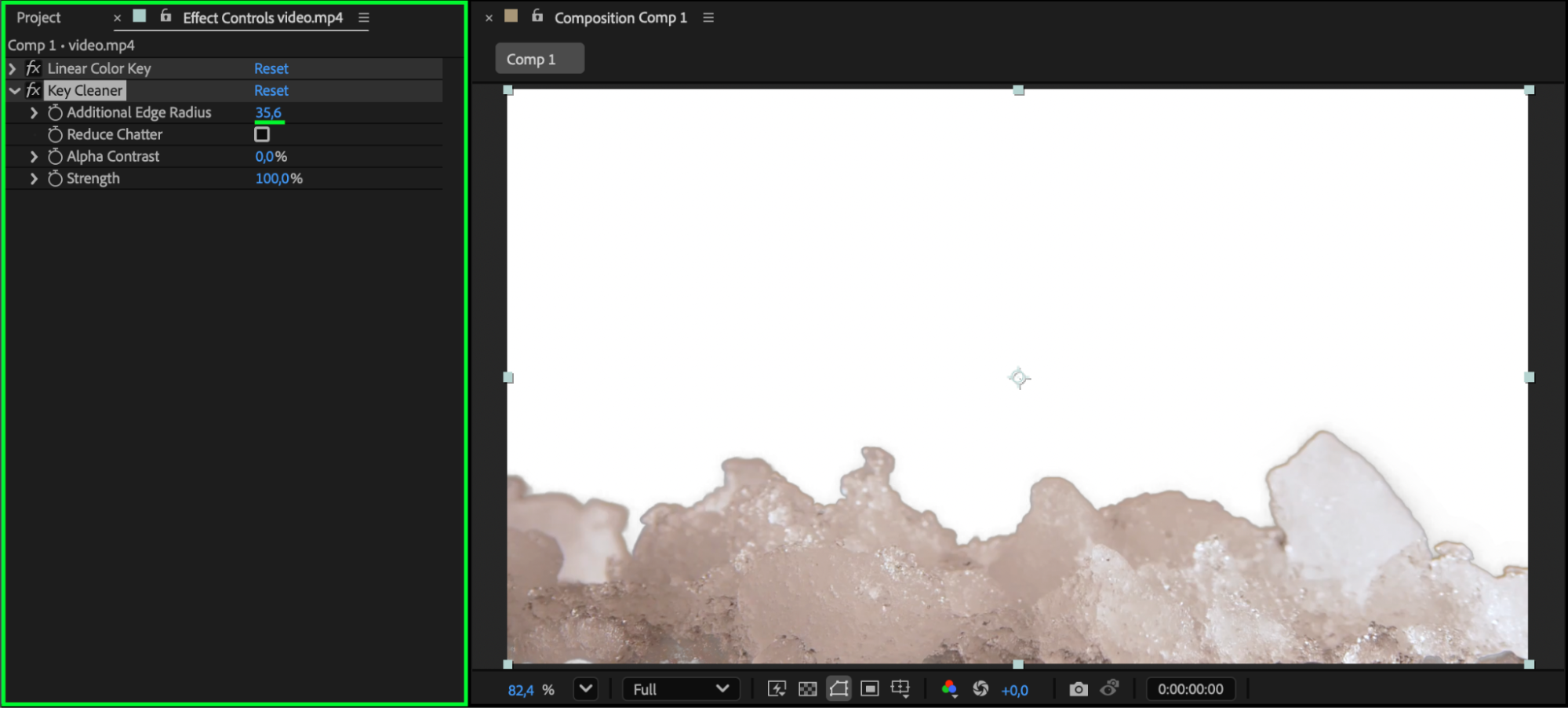
To refine the edge, apply the Key Cleaner effect from the Effects & Presets panel. In the Effect Controls, increase the Additional Edge Radius (for example, set it to around 35) until the dark outline disappears. This setting expands and softens the matte, effectively “choking” the black edges.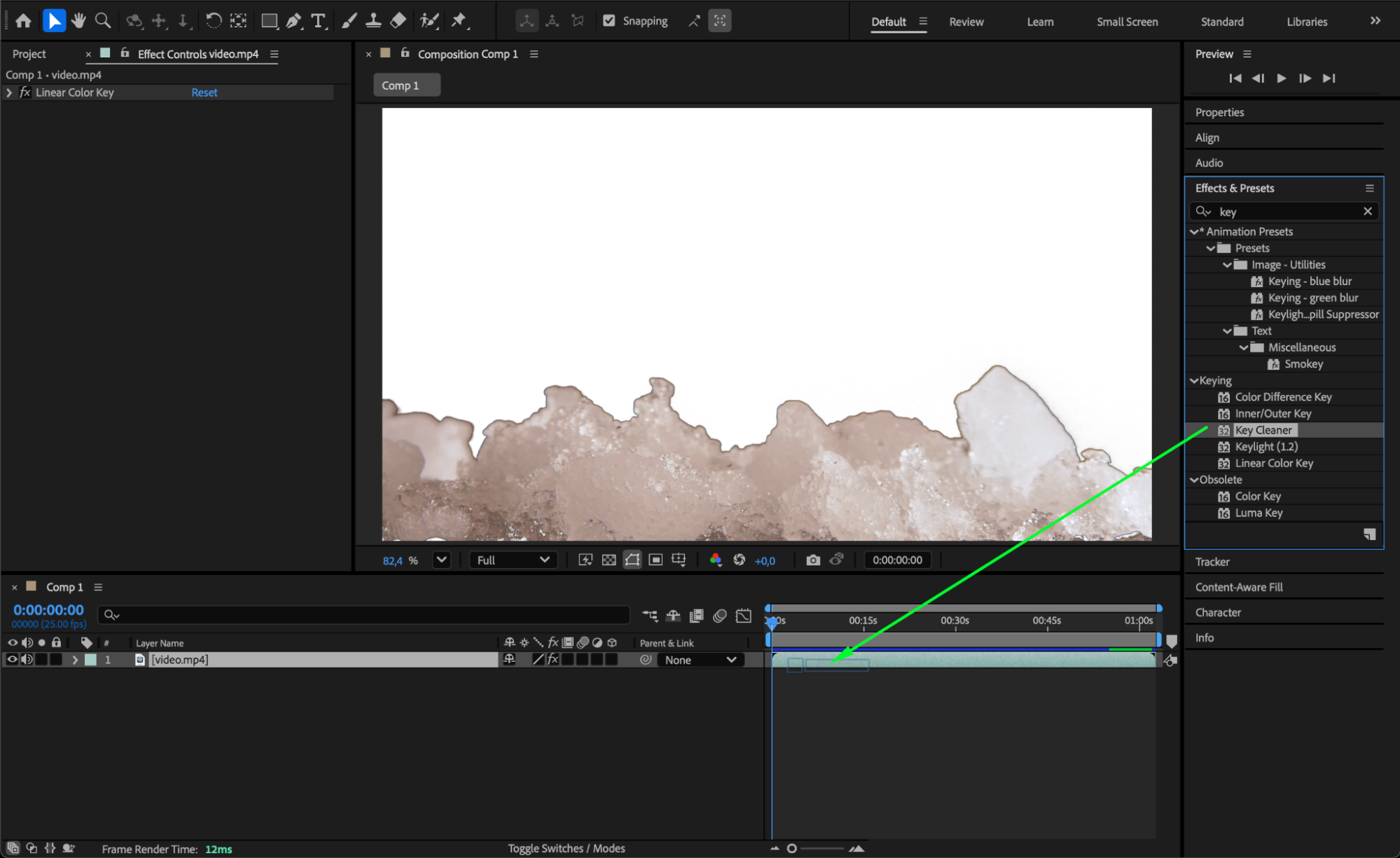
 Step 6: Preview and Fine-Tune
Press Spacebar to preview your composition. Check multiple frames to ensure the edges stay clean throughout the clip. If the black edge reappears in certain parts of the video, animate the Additional Edge Radius parameter to adapt to those changes.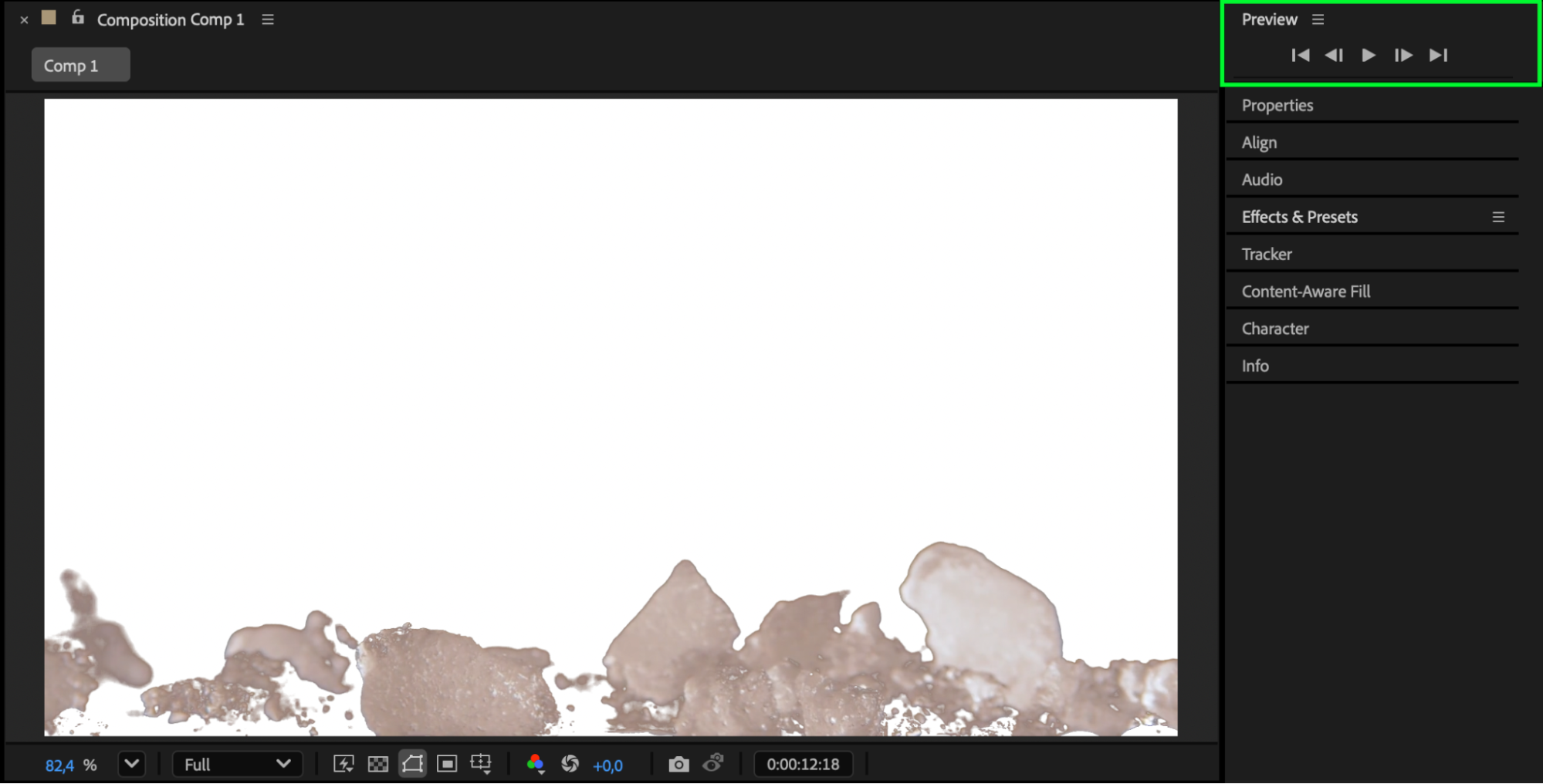
Conclusion
Removing black edges in After Effects helps your keyed subjects blend naturally with new backgrounds. By combining Keylight (or Linear Color Key) with Key Cleaner, you can clean up unwanted outlines while keeping your object’s details sharp and professional-looking.
Our Bestsellers
Our Bestsellers


