
How to Copy Effects in After Effects to Another Layer
Introduction
Tired of manually applying effects to each layer in After Effects? Discover how to effortlessly copy effects from one layer to another, streamlining your workflow and maintaining project consistency.
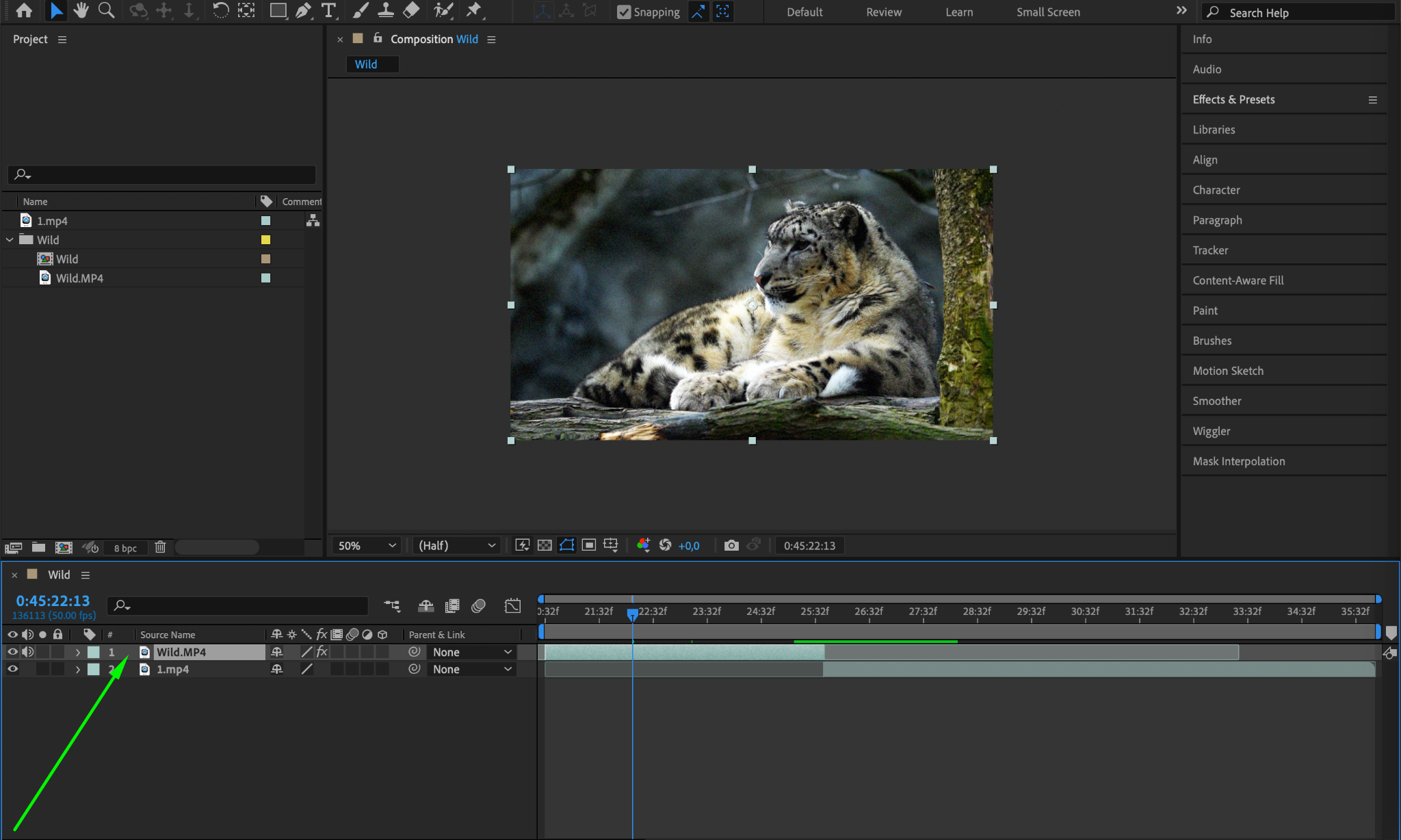
Step 1: Select the Source Layer
Begin by selecting the layer containing the effects you wish to copy. Click on the layer in the timeline.
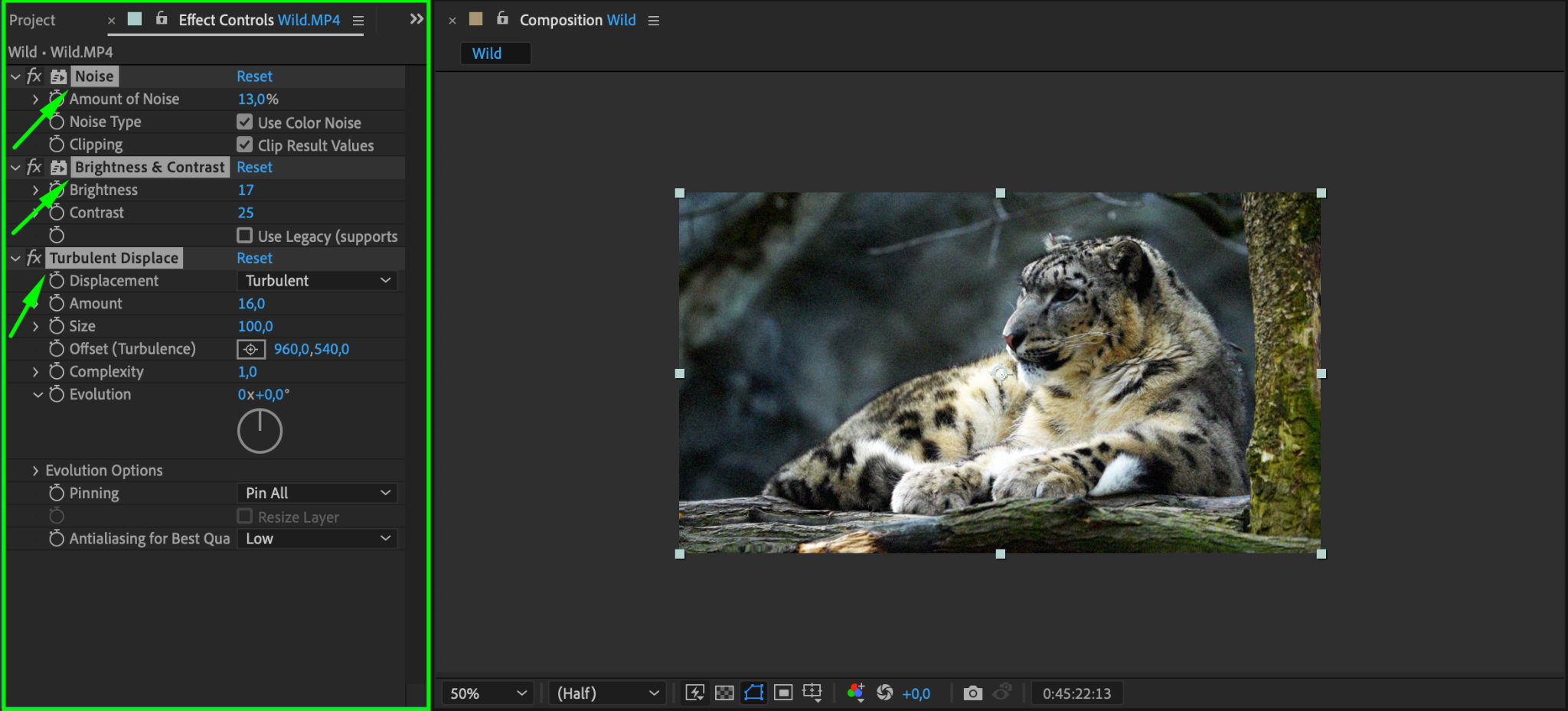
Step 2: Access the Effects Control Panel
Navigate to the Effects Control panel. You can find it under the “Effect” menu or use the shortcut F3. Here, you’ll see a list of effects applied to the selected layer. Click on each effect you want to copy, or hold Shift to select multiple effects.

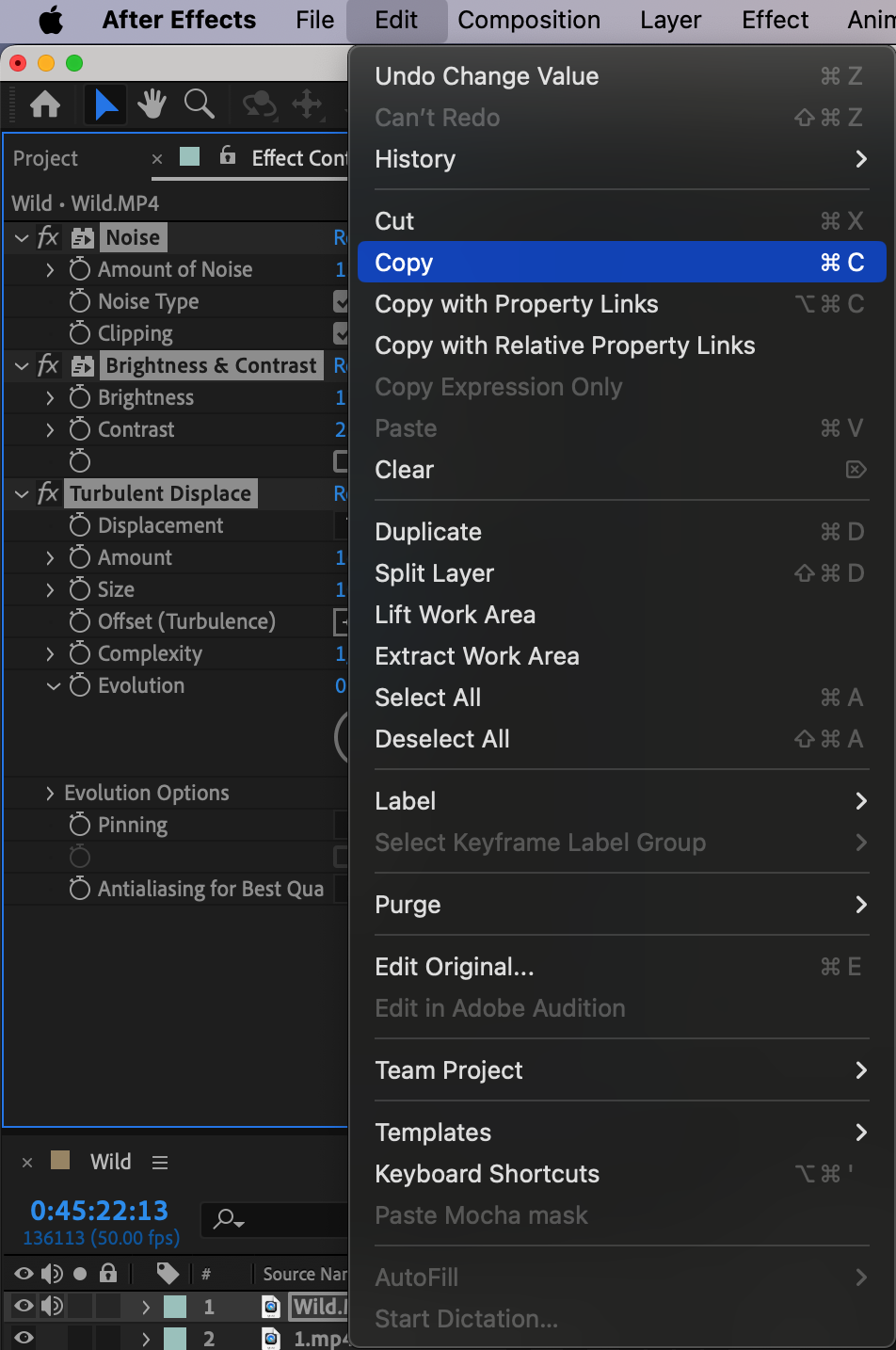
Step 3: Copy the Effects
With the effects selected, go to the Edit menu and choose “Copy” or use the shortcut Ctrl/Cmd + C to copy the effects.
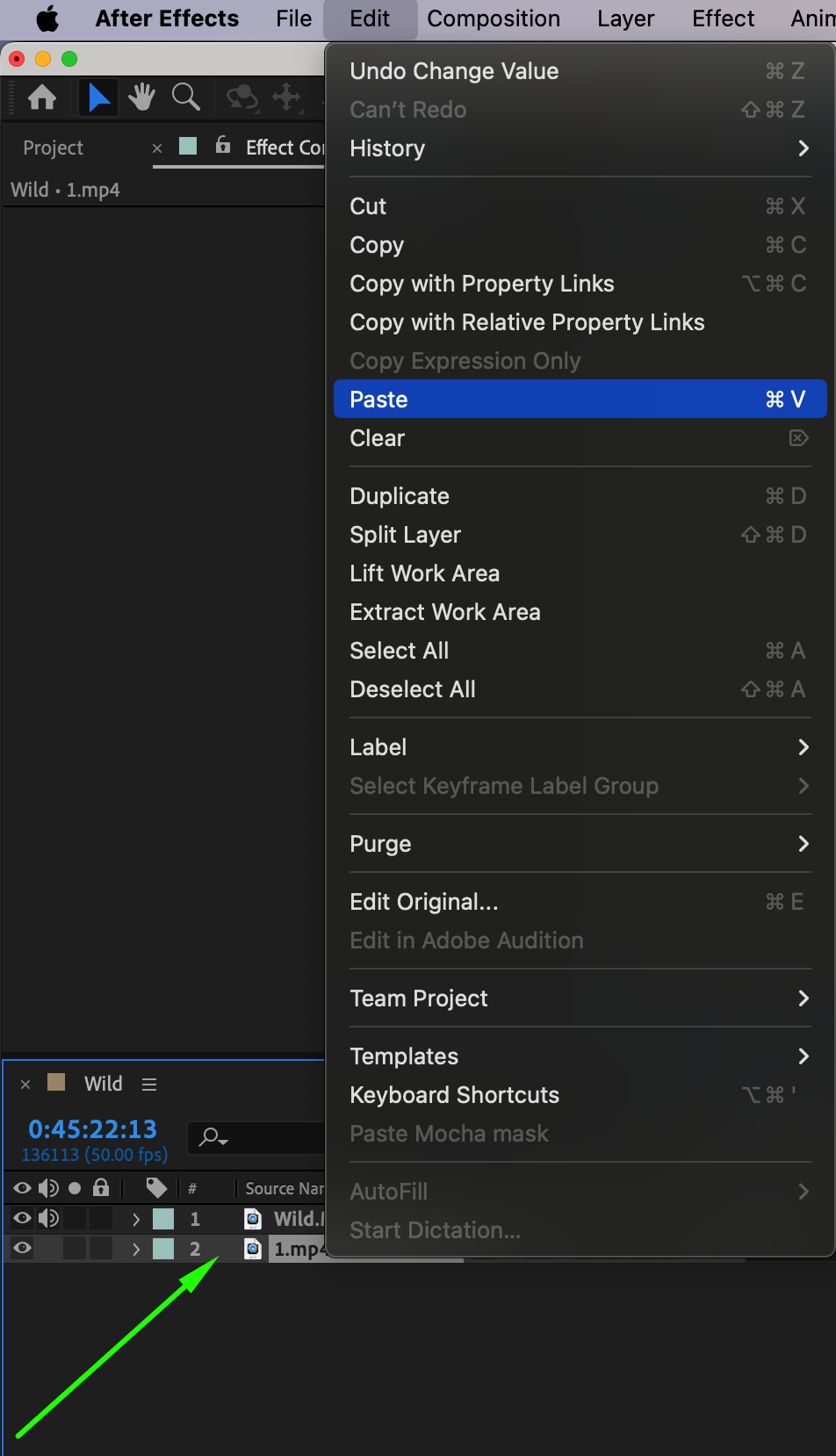
Step 4: Select the Target Layer(s)
Now, select the layer(s) to which you want to apply the copied effects. Hold Shift to select multiple layers or use Ctrl/Cmd + click to select non-consecutive layers. After selecting the target layer(s), go back to the Edit menu and choose “Paste” or use the shortcut Ctrl/Cmd + V to apply the copied effects to the selected layers.
Step 6: Review and Adjust
Once pasted, review the effects on the new layers. Use the Effects Control panel to make any necessary adjustments or tweaks to ensure they integrate seamlessly with your project.
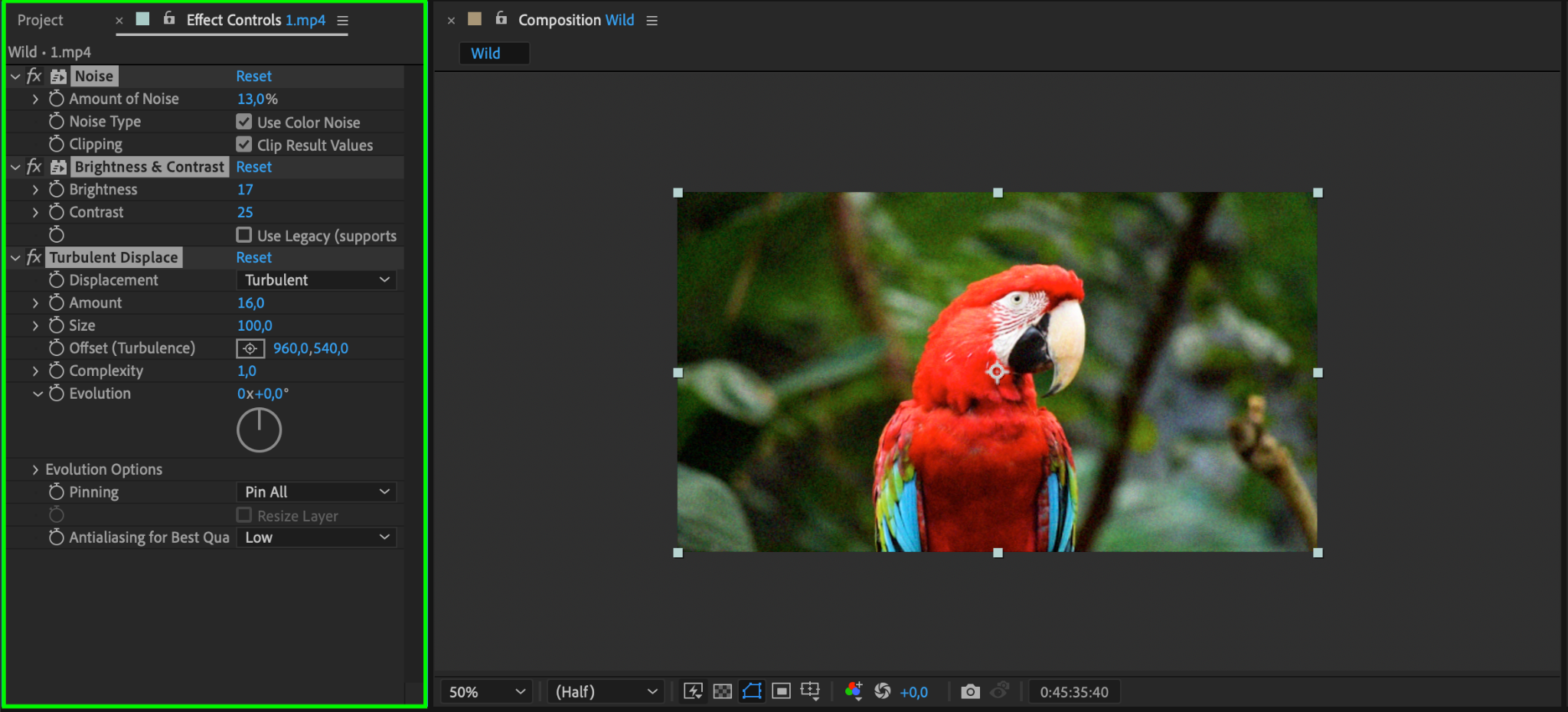
Congratulations! You’ve successfully copied effects from one layer to another in After Effects. This technique saves time and enhances consistency across your projects, whether you’re working on motion graphics, visual effects, or any creative endeavor.
Conclusion
Copying effects in After Effects is a game-changer for motion designers, offering a quick and efficient way to apply effects across multiple layers. Embrace this powerful feature to streamline your workflow and focus more on creativity. Try it out and experience the benefits firsthand – efficient, consistent, and hassle-free effects application in After Effects.
Our Bestsellers
Our Bestsellers


