
Introduction
The fly-through text effect allows your camera to move directly through 3D text placed inside real footage. By using the 3D Camera Tracker, you can anchor text into a scene so it feels like part of the environment and create dynamic cinematic motion.
Step 1: Import Your Footage
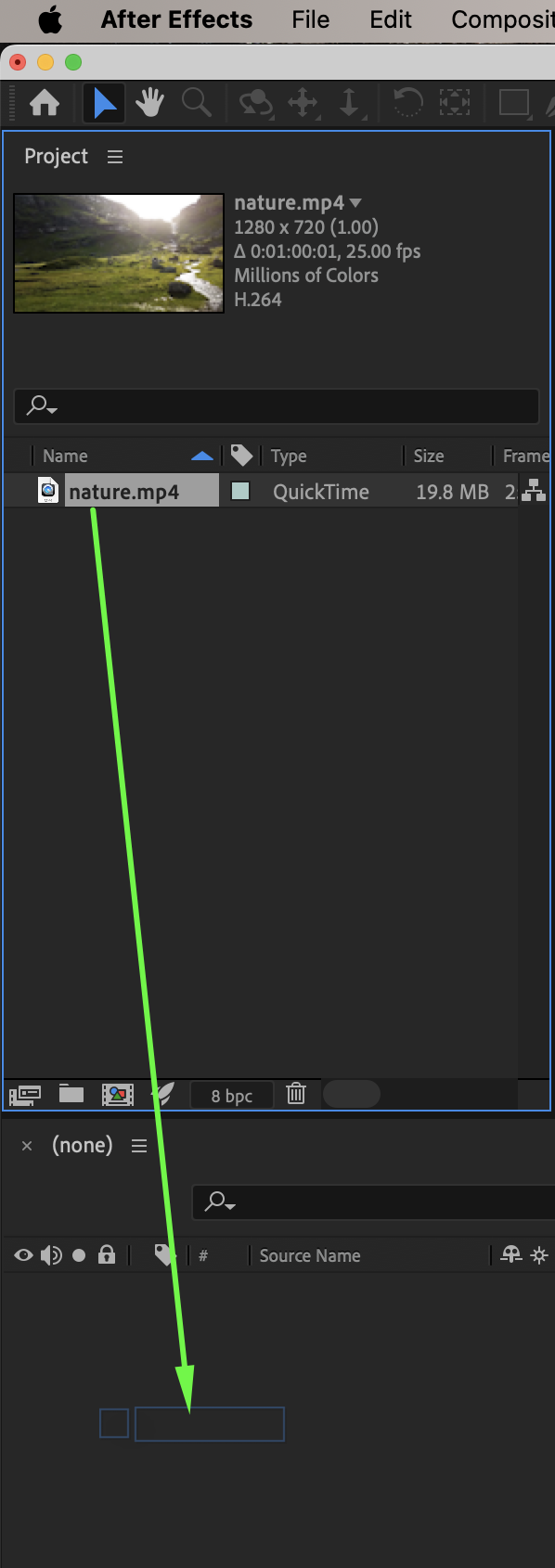
Go to File > Import > File and import your video. Drag it onto the timeline.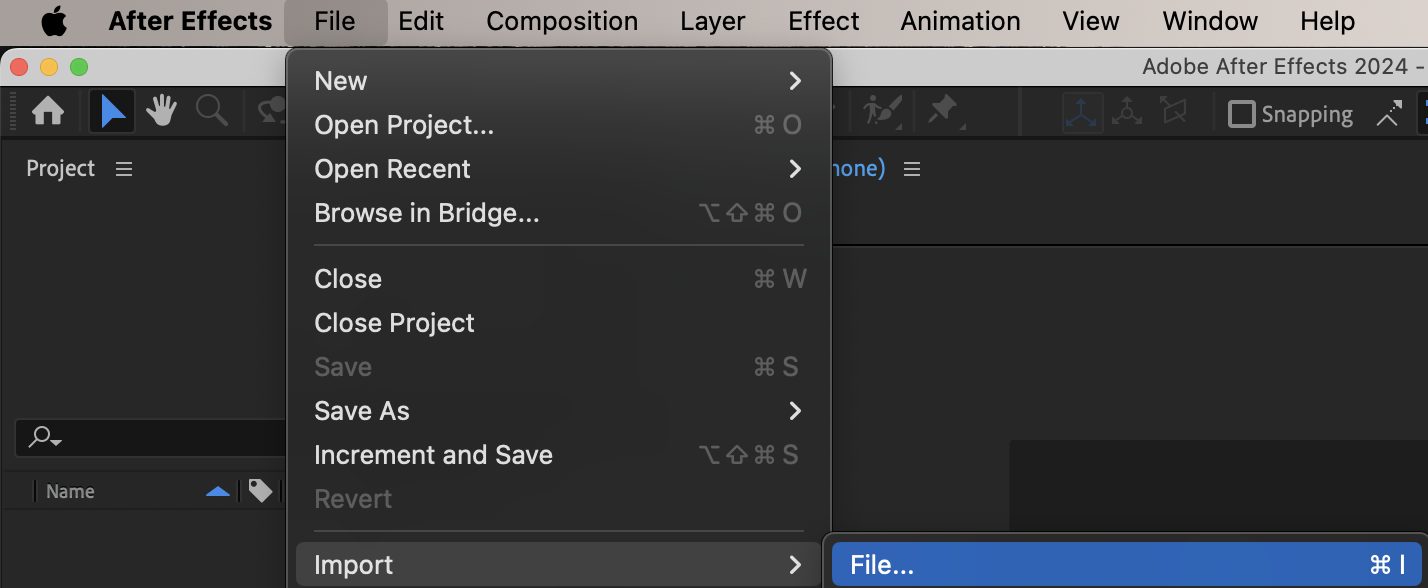
 Step 2: Apply the 3D Camera Tracker
From the Effects & Presets panel, apply 3D Camera Tracker to your footage layer.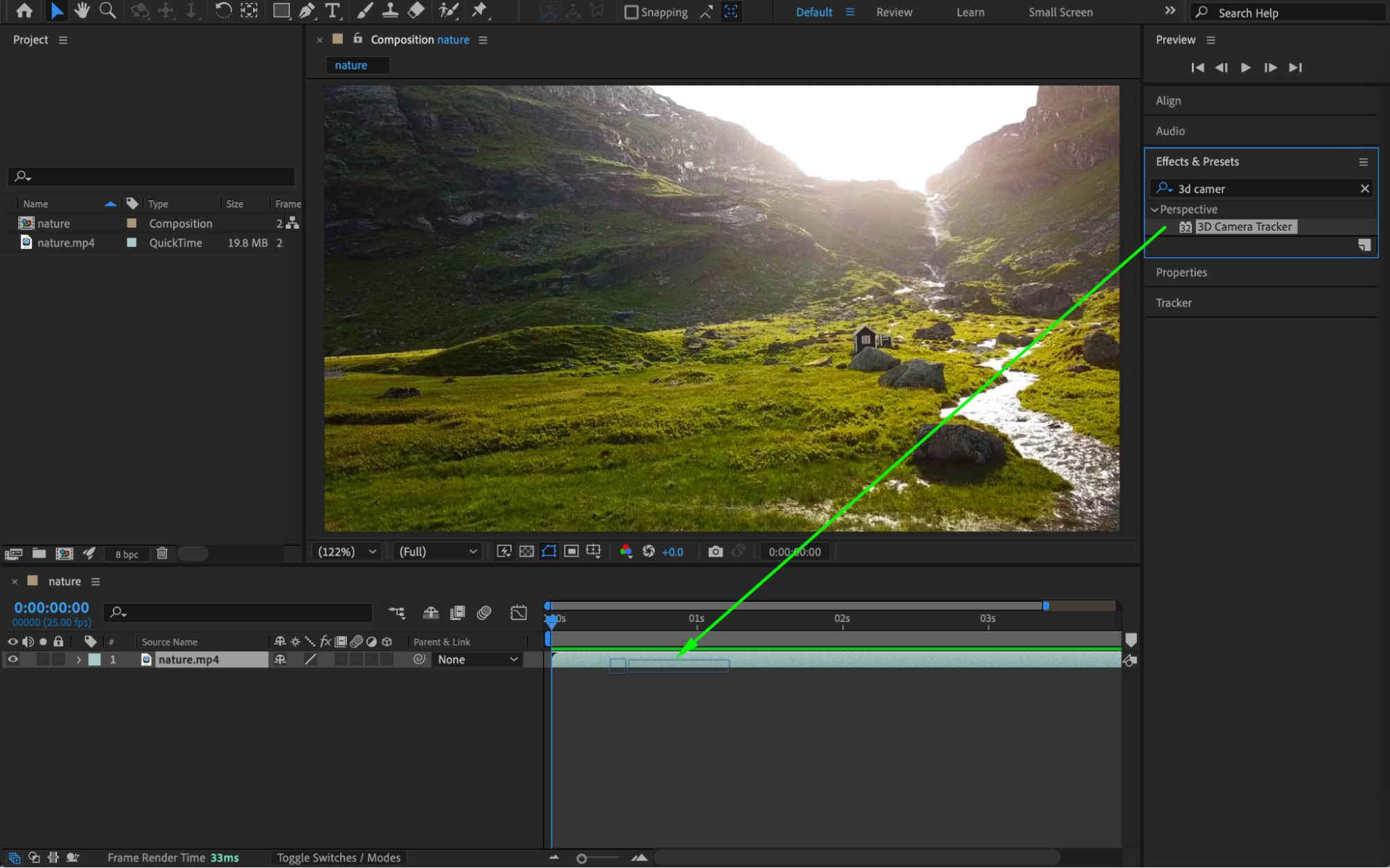
Step 3: Create the Camera
Wait for the footage analysis to complete. In the Effect Controls panel, click Create Camera.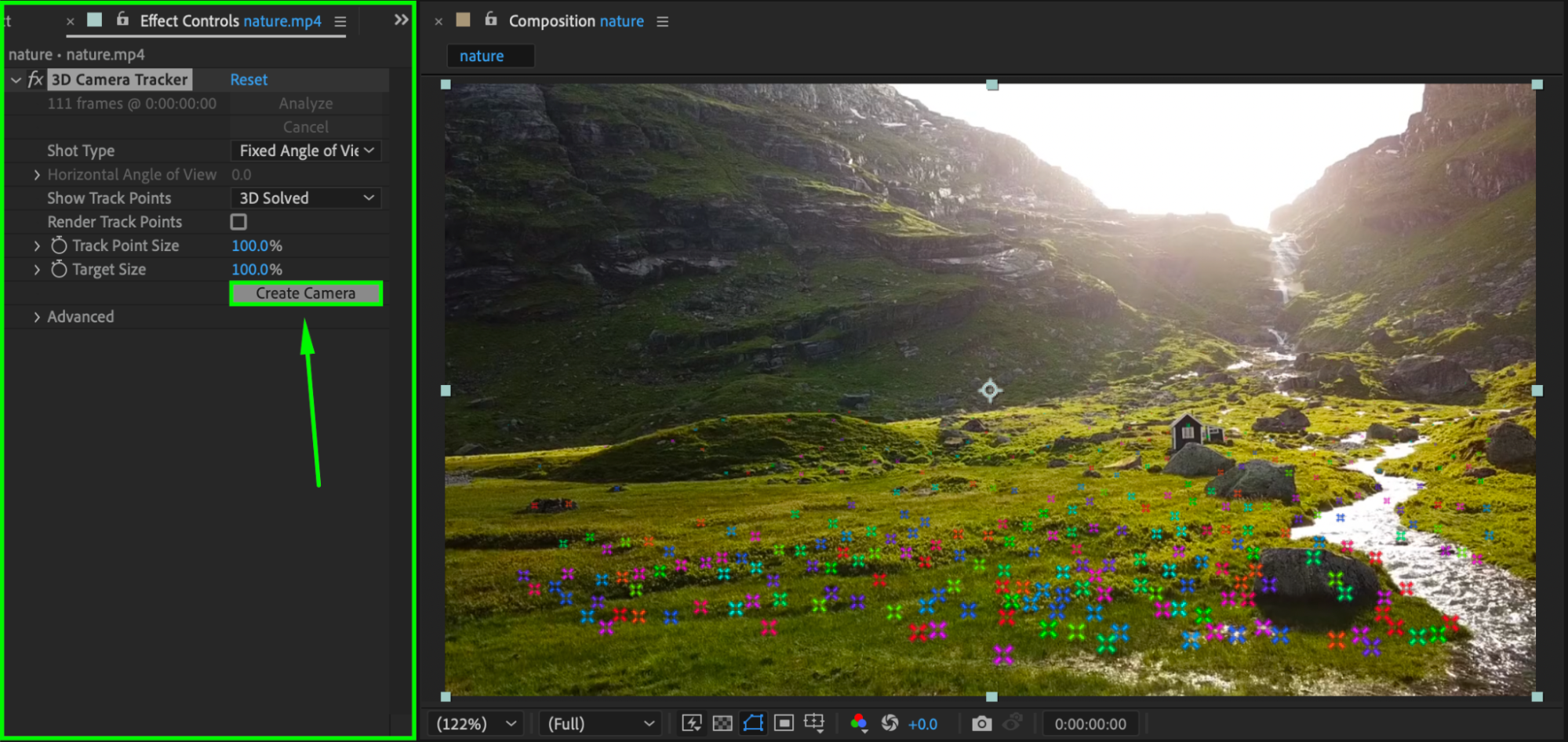 Step 4: Create and Customize Text
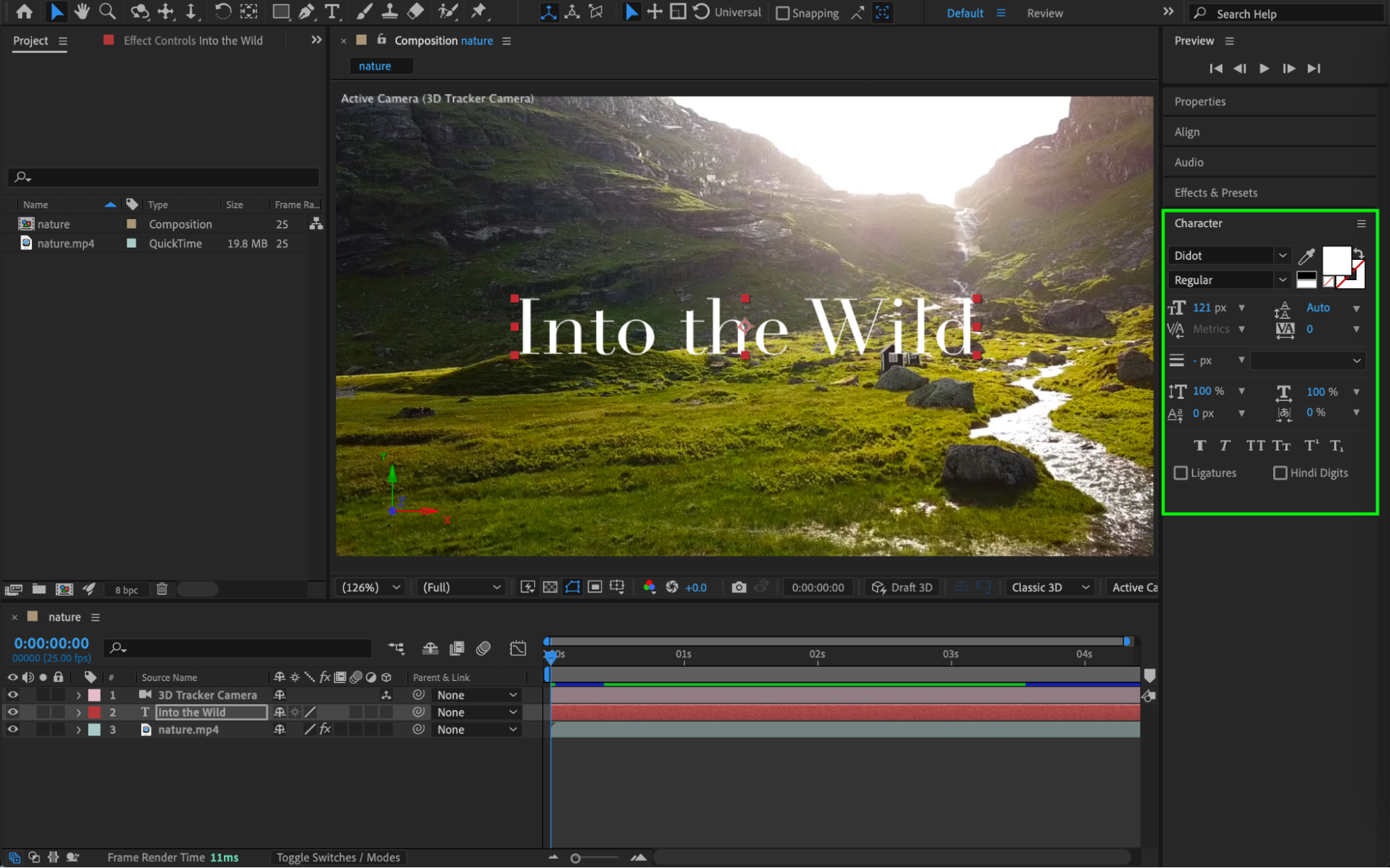
Go to Layer > New > Text. Use the Character panel to customize the font, size, and styling.
 Step 5: Enable 3D for the Text Layer
Click the 3D Layer (cube icon) on the text layer. The text will now exist in 3D space and move naturally with the tracked camera.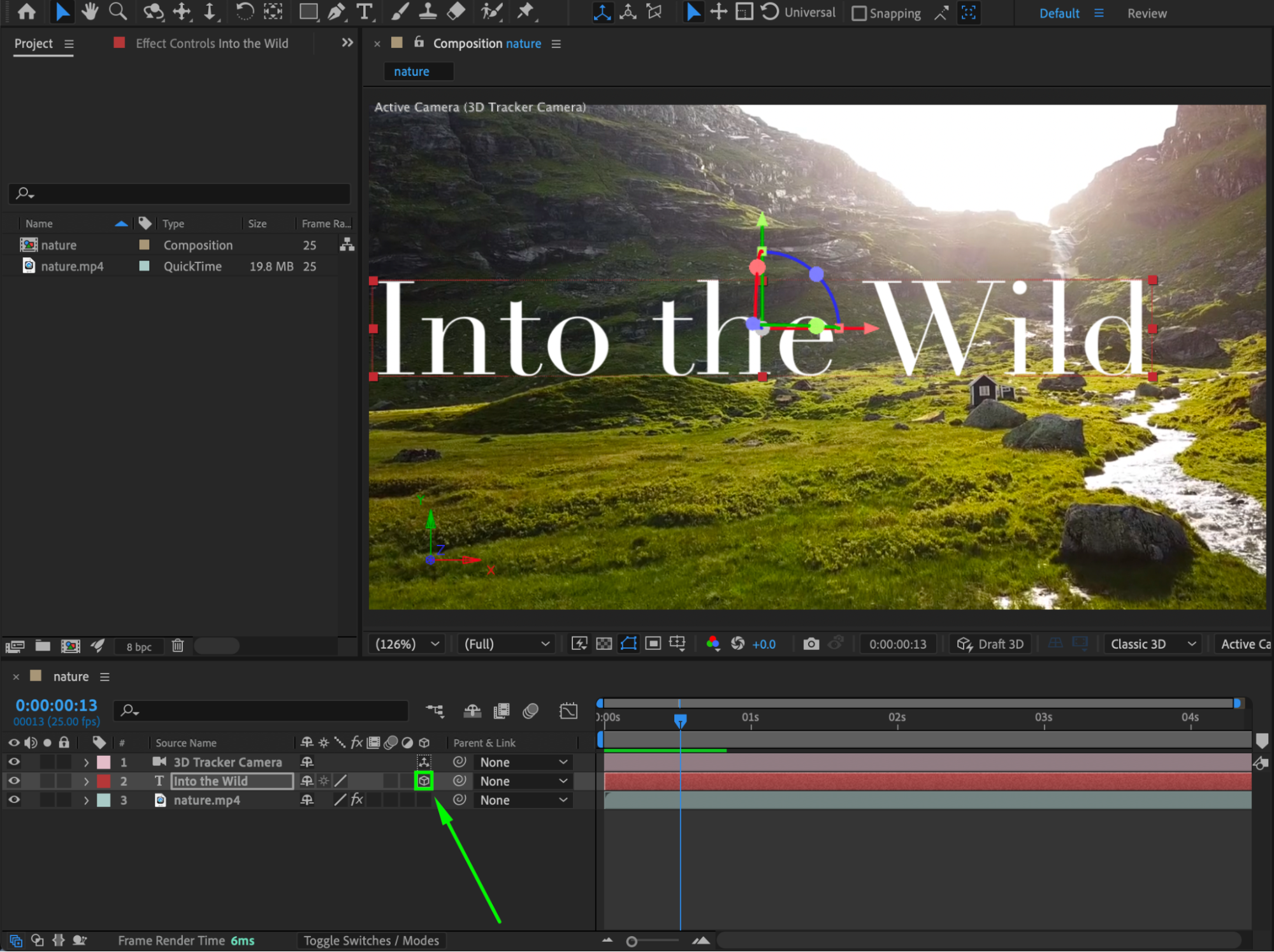
Step 6: Position the Text in the Scene
Adjust the Position (P) value to place the text where it fits best in the footage. You can also scale and rotate it to match the perspective of the scene.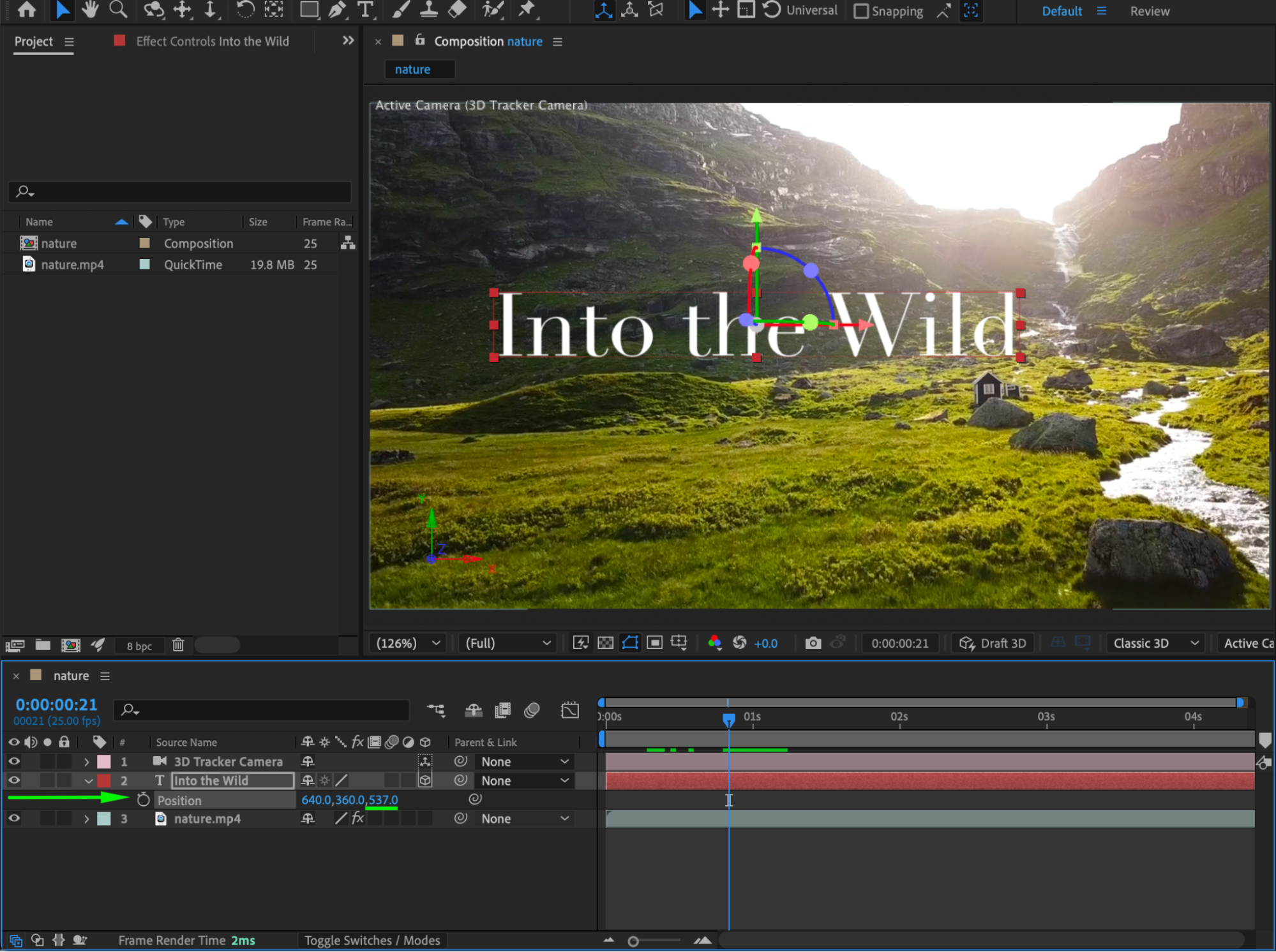 Step 7: Enable Motion Blur
Enable Motion Blur for both the text layer and the composition to enhance realism during camera movement.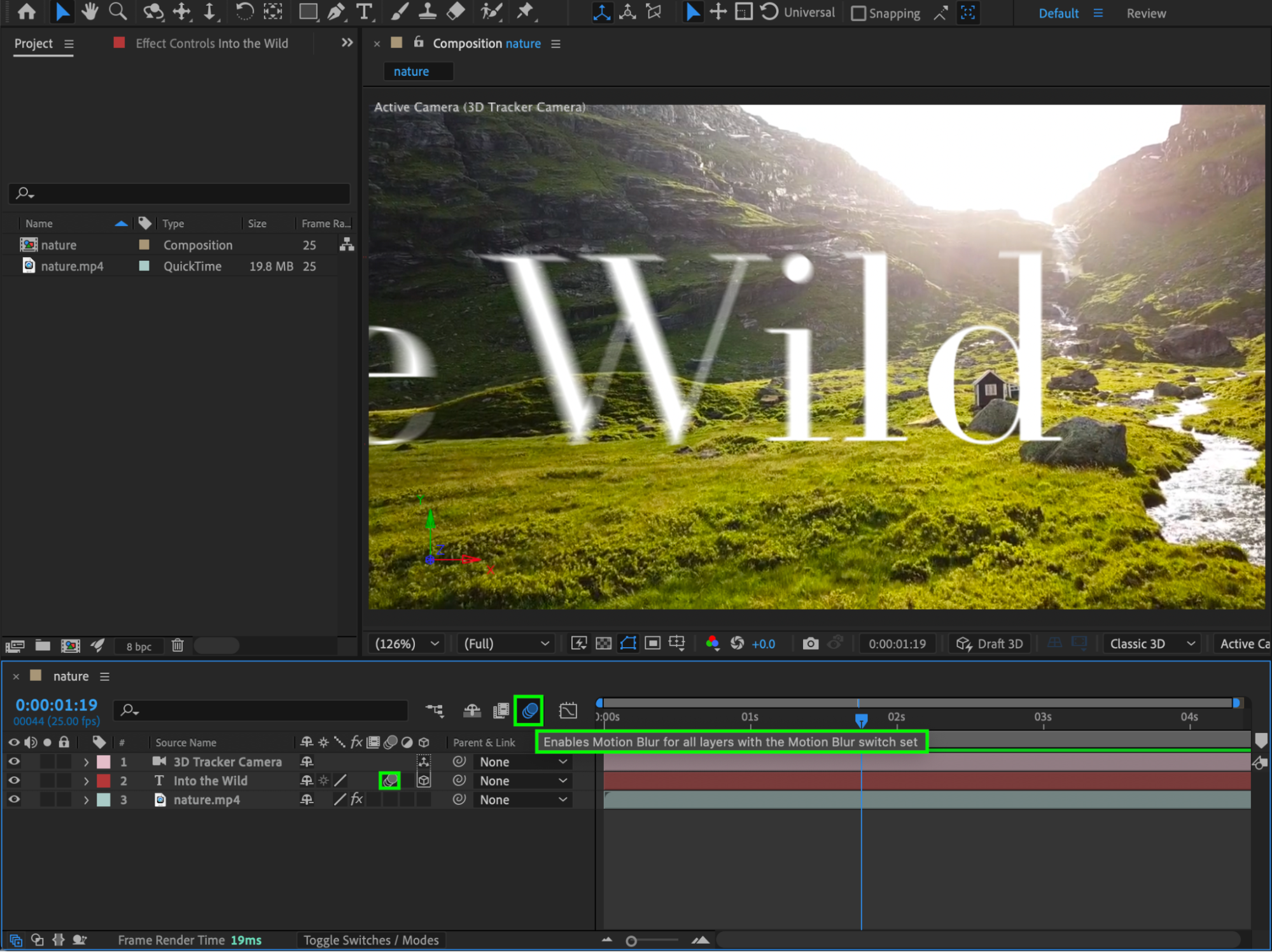 Step 8: Preview the Animation
Preview the animation and fine-tune the text placement, scale, or blur for the best visual result.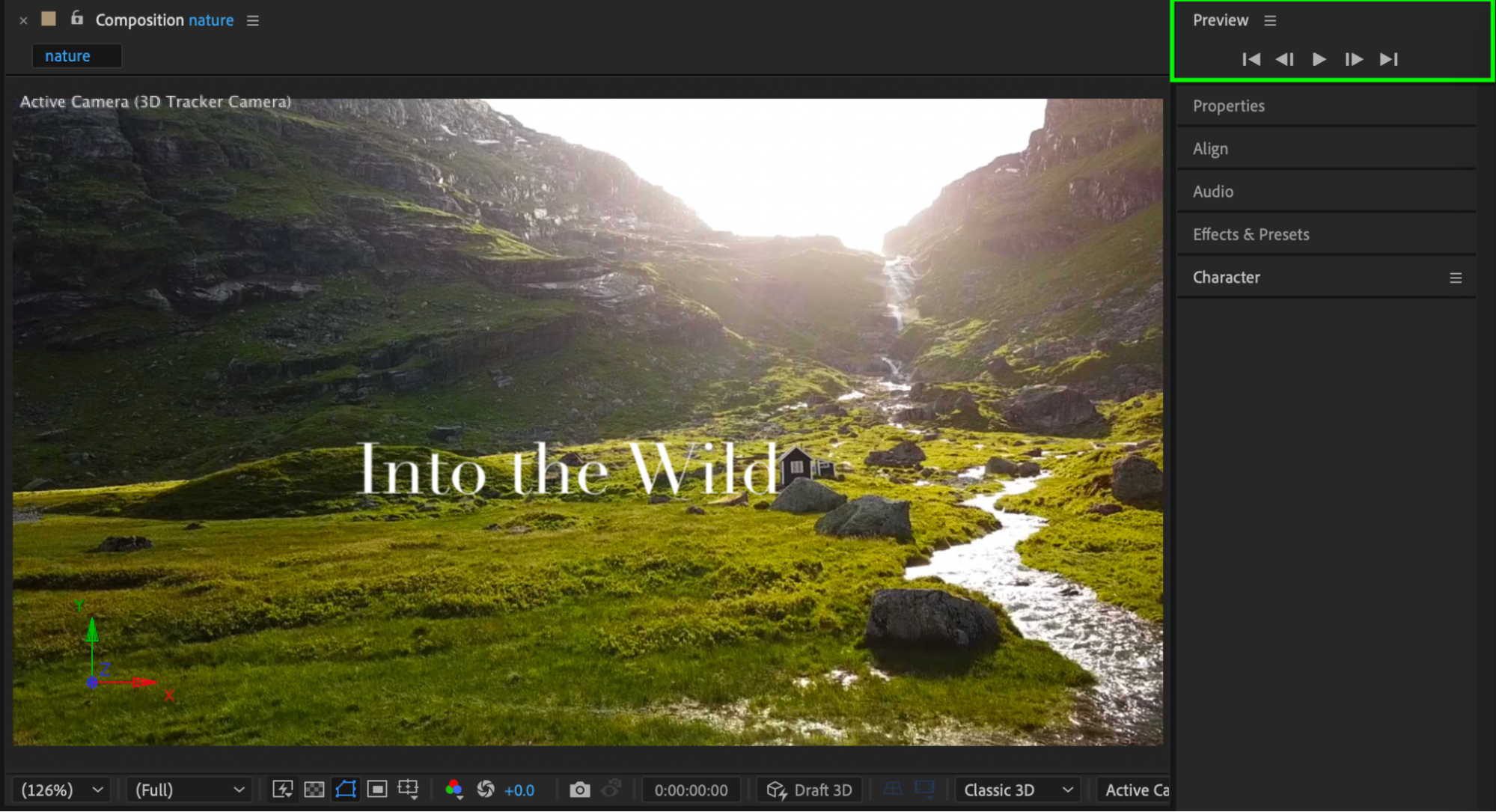 Conclusion
By combining the 3D Camera Tracker with 3D text, you can create an impressive fly-through text effect that feels fully integrated into real footage. This technique works perfectly for cinematic titles, travel videos, and dynamic motion graphics in After Effects.
Our Bestsellers
Our Bestsellers


