
Creating a Liquid Animation Effect in After Effects
Introduction to Liquid-Style Animation with Shape Layers
This tutorial will show you how to design a fluid, liquid-like animation in After Effects using shape layers, expressions, and built-in effects. You’ll create smooth motion using the wiggle expression and refine the result with blur and distortion effects for a stylized liquid look.
Step 1: Create a New Composition
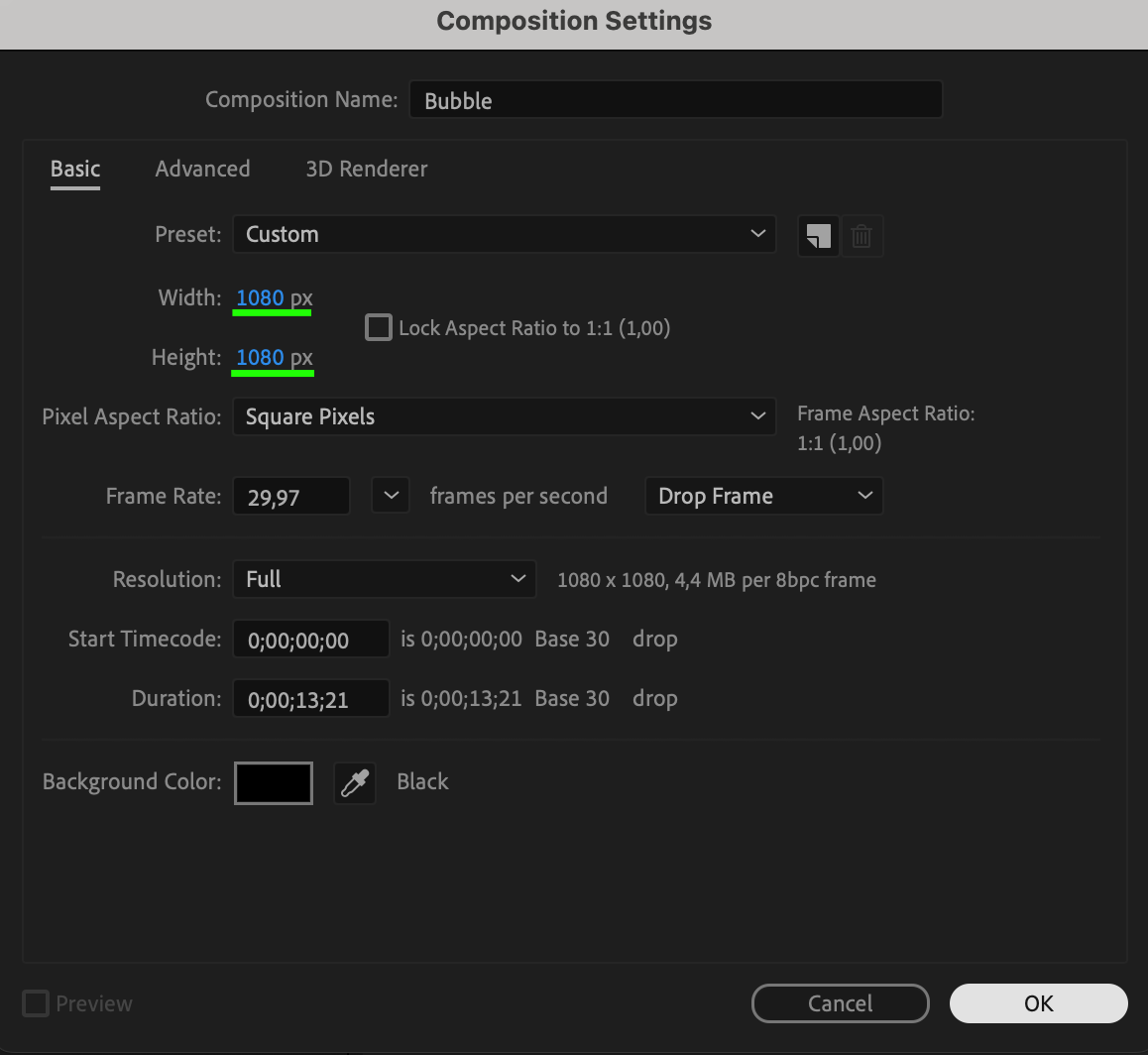
Go to Composition > New Composition. Choose a name, set your desired resolution (for example, 1080×1080), frame rate (e.g., 30 fps), and duration. Click OK to confirm.
 Step 2: Draw a Blue Ellipse Shape
Double-click the Ellipse Tool (Q) at the top. Set Fill to a solid blue and Stroke to none. This will automatically create a centered ellipse with default dimensions. Set its size to about 100 x 100 px in the Timeline panel.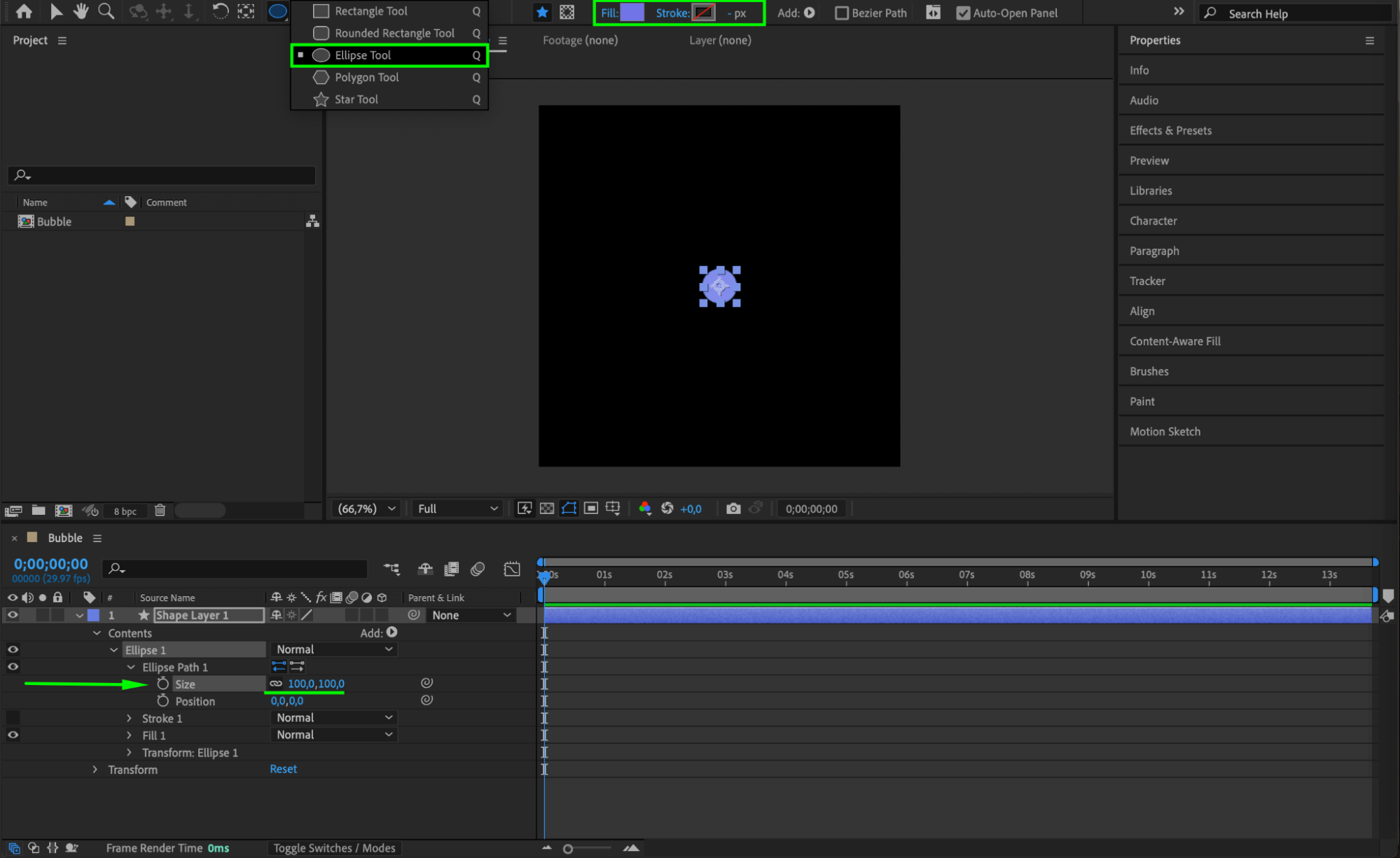 Step 3: Add Slider Controls
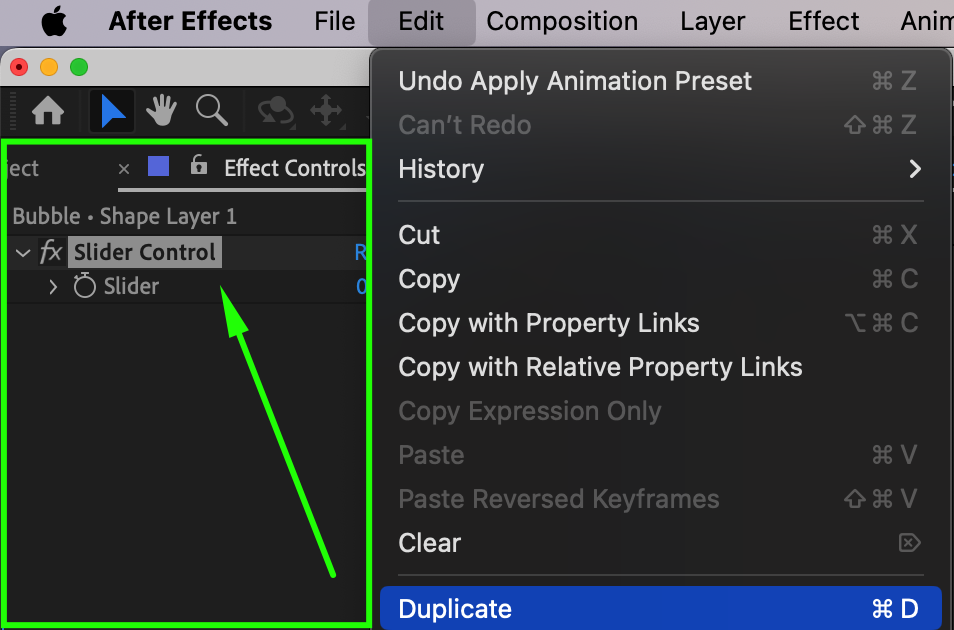
Go to the Effects & Presets panel, search for Slider Control, and drag it onto your shape layer. This effect will help you control the wiggle speed. Now, duplicate the slider by selecting it and pressing “Ctrl/Cmd + D”. Rename the original slider to Speed and the duplicate one to Distance by clicking on their names in the Effect Controls panel.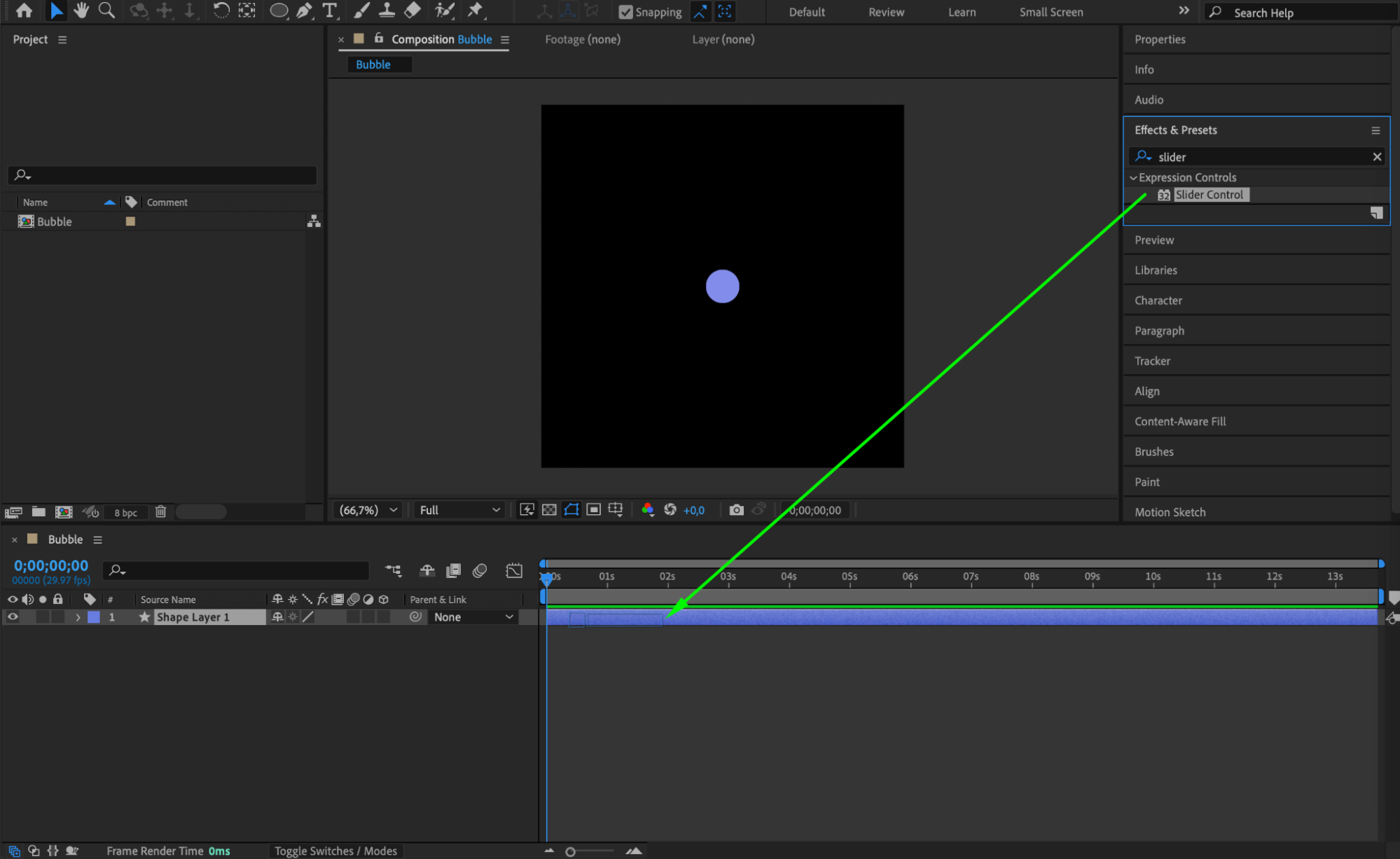
Step 4: Add the Wiggle Expression
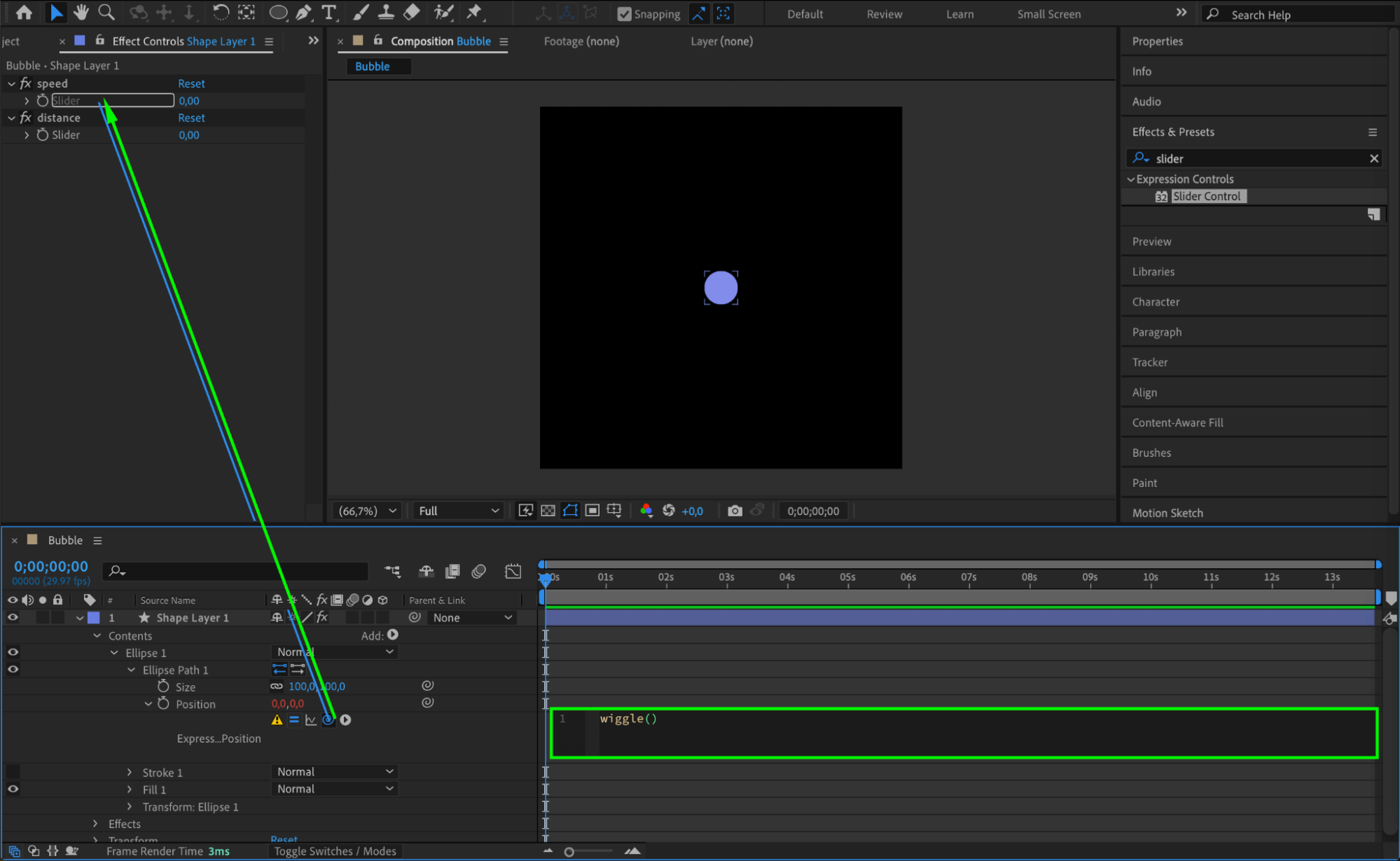
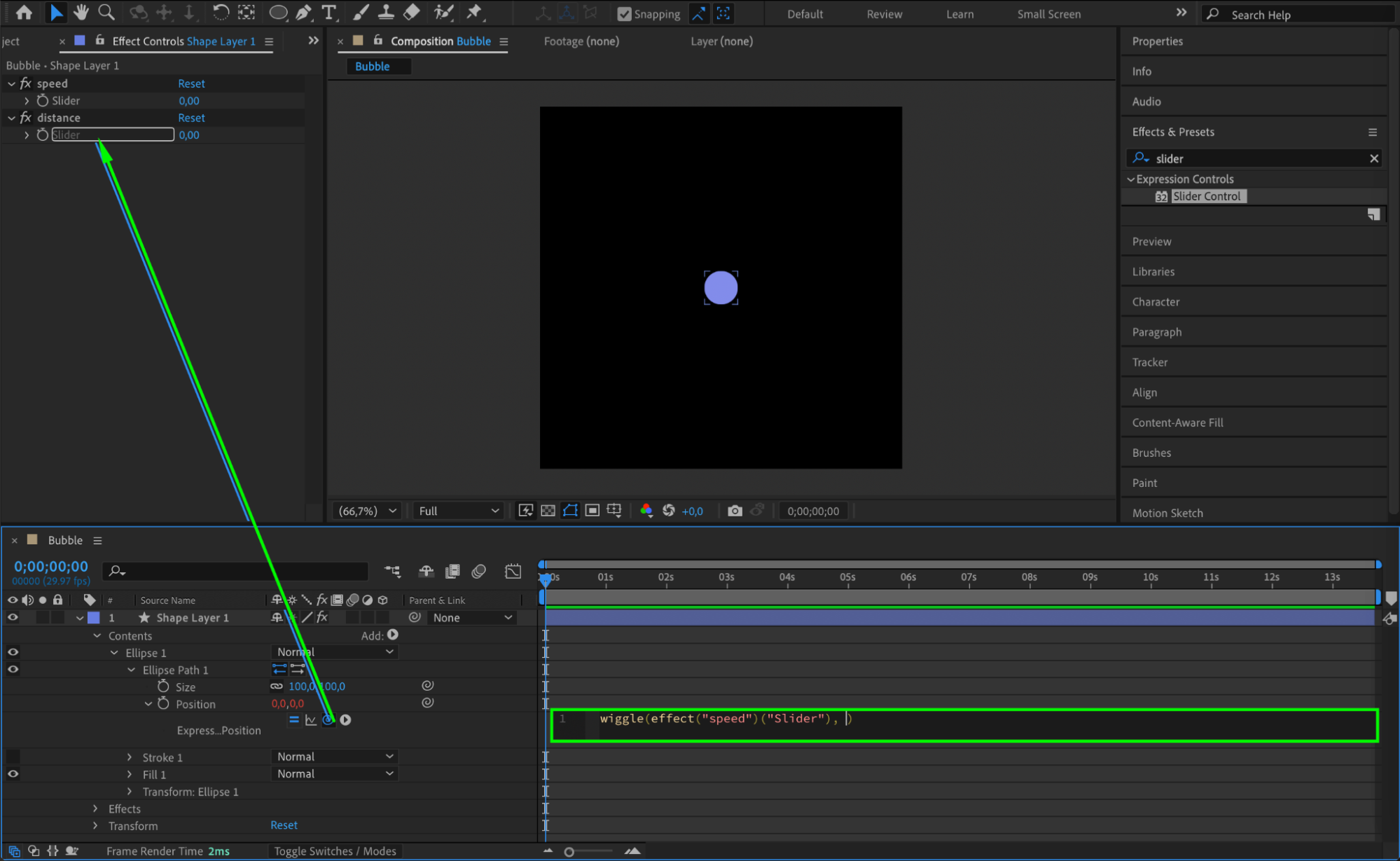
Twirl open the layer properties and go to Contents > Ellipse 1 > Ellipse Path 1 > Position. Hold Alt/Option and click the stopwatch next to Position to add an expression. In the expression field, type:
wiggle(effect(“Speed”)(“Slider”), effect(“Distance”)(“Slider”))
Make sure the names match exactly with the renamed slider effects. This expression connects the position of the ellipse to your custom speed and distance values.
Step 5: Set Slider Values
Set the Speed slider to 0.3 and the Distance slider to 300. These values will create slow and smooth random movement, similar to how liquid flows.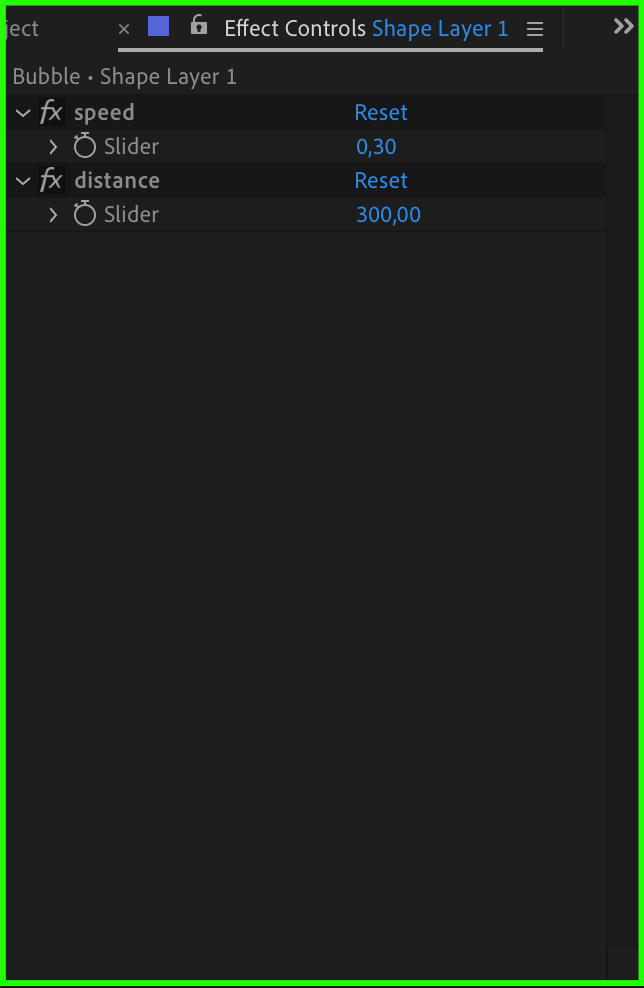 Step 6: Apply Gaussian Blur
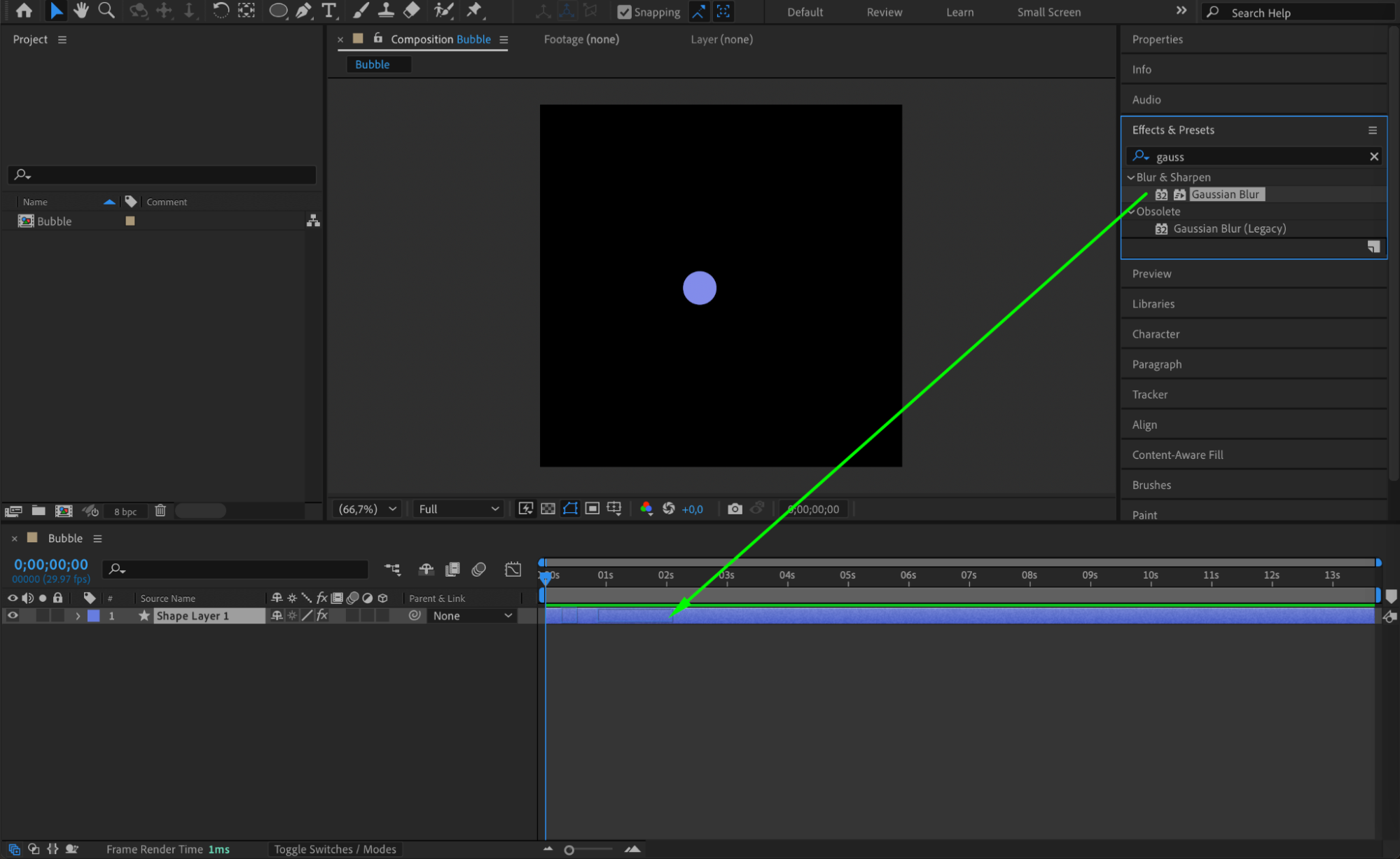
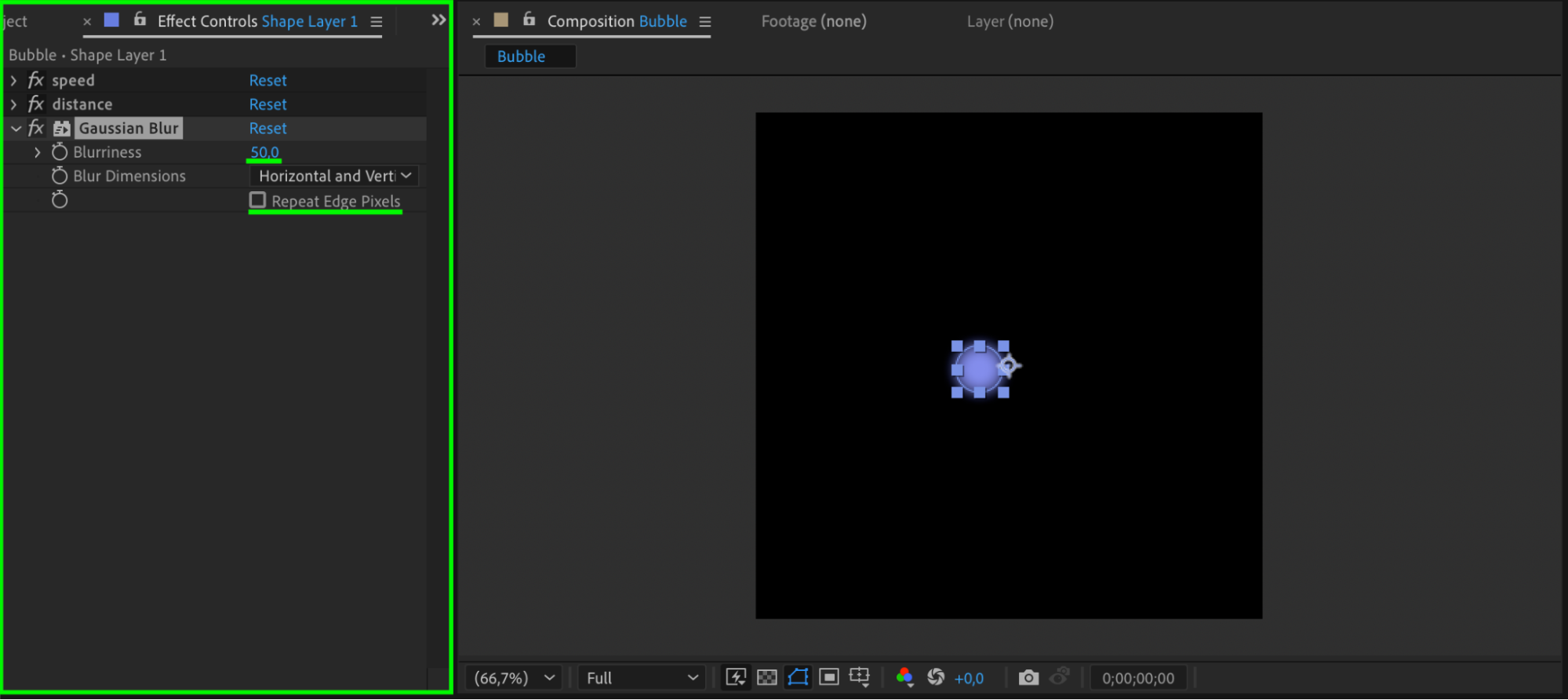
Go to the Effects & Presets panel and search for Gaussian Blur. Drag it onto your shape layer. In the Effect Controls panel, set the Blurriness to 50, and make sure to uncheck the option Repeat Edge Pixels for a cleaner look.
 Step 7: Add Matte Choker
From the Effects & Presets panel, search for Matte Choker and apply it to your shape layer. In the Effect Controls, set Geometric Softness 1 to 50, and Iterations to 1. Leave the rest of the parameters at 0. This effect will help blend the shape edges for a more liquid-like appearance.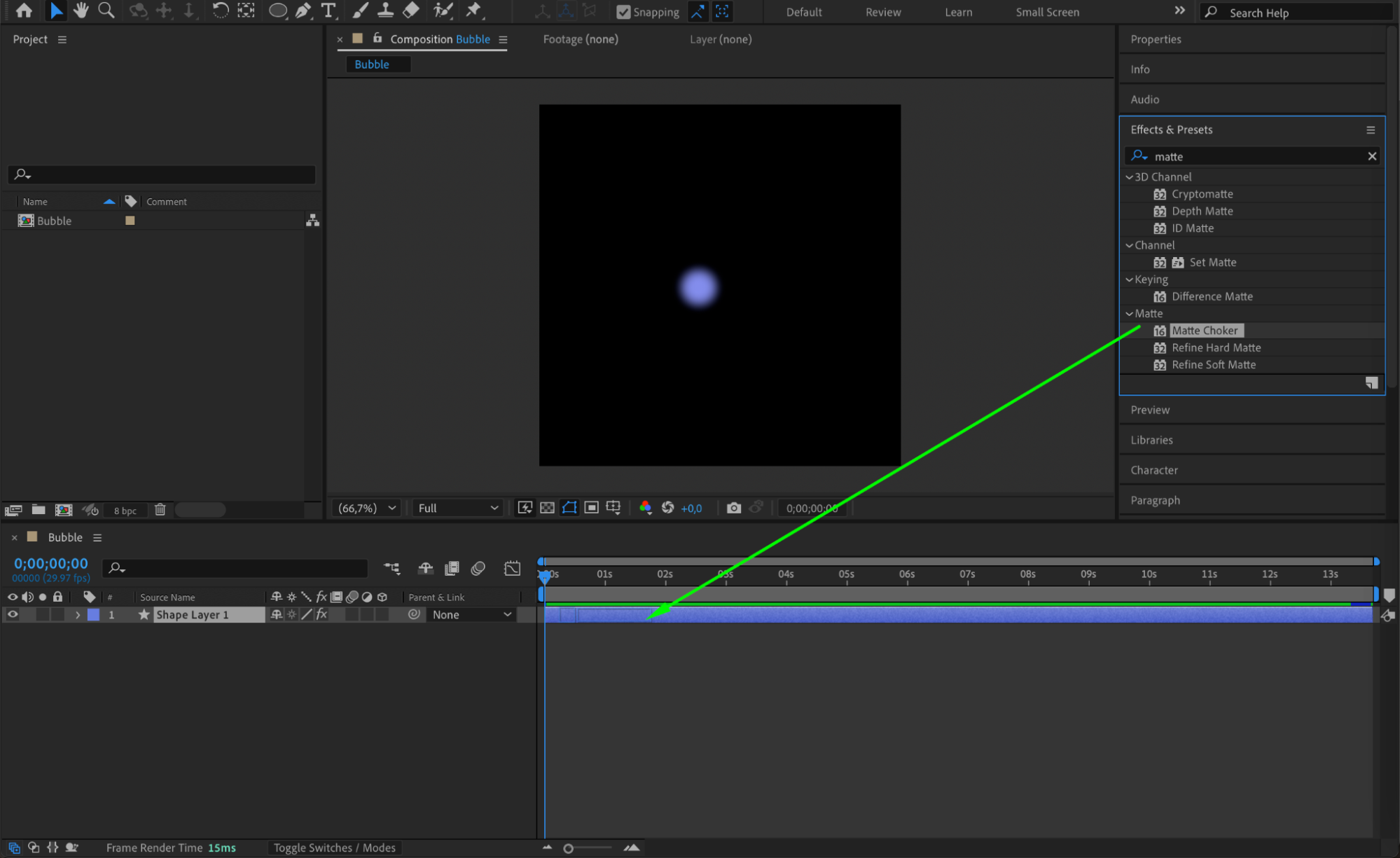
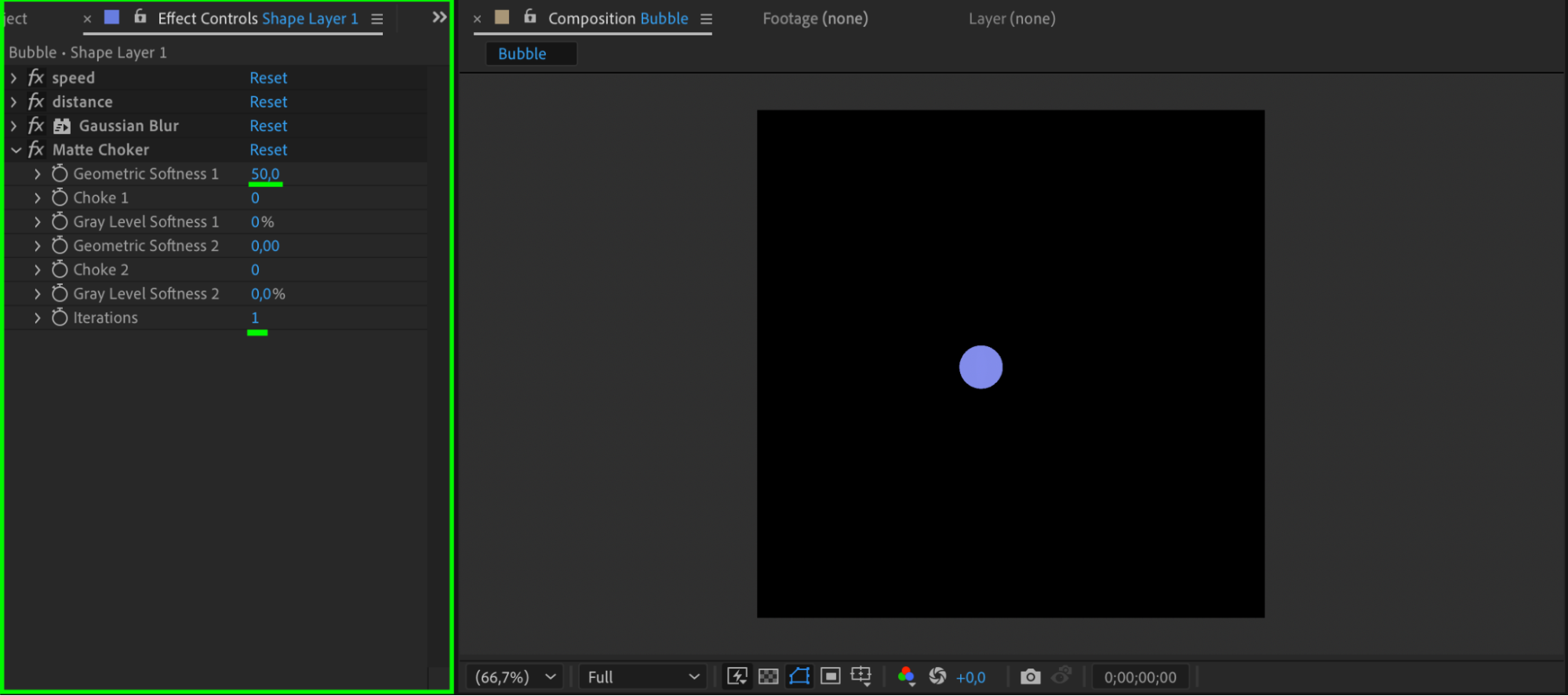 Step 8: Duplicate and Color Variation
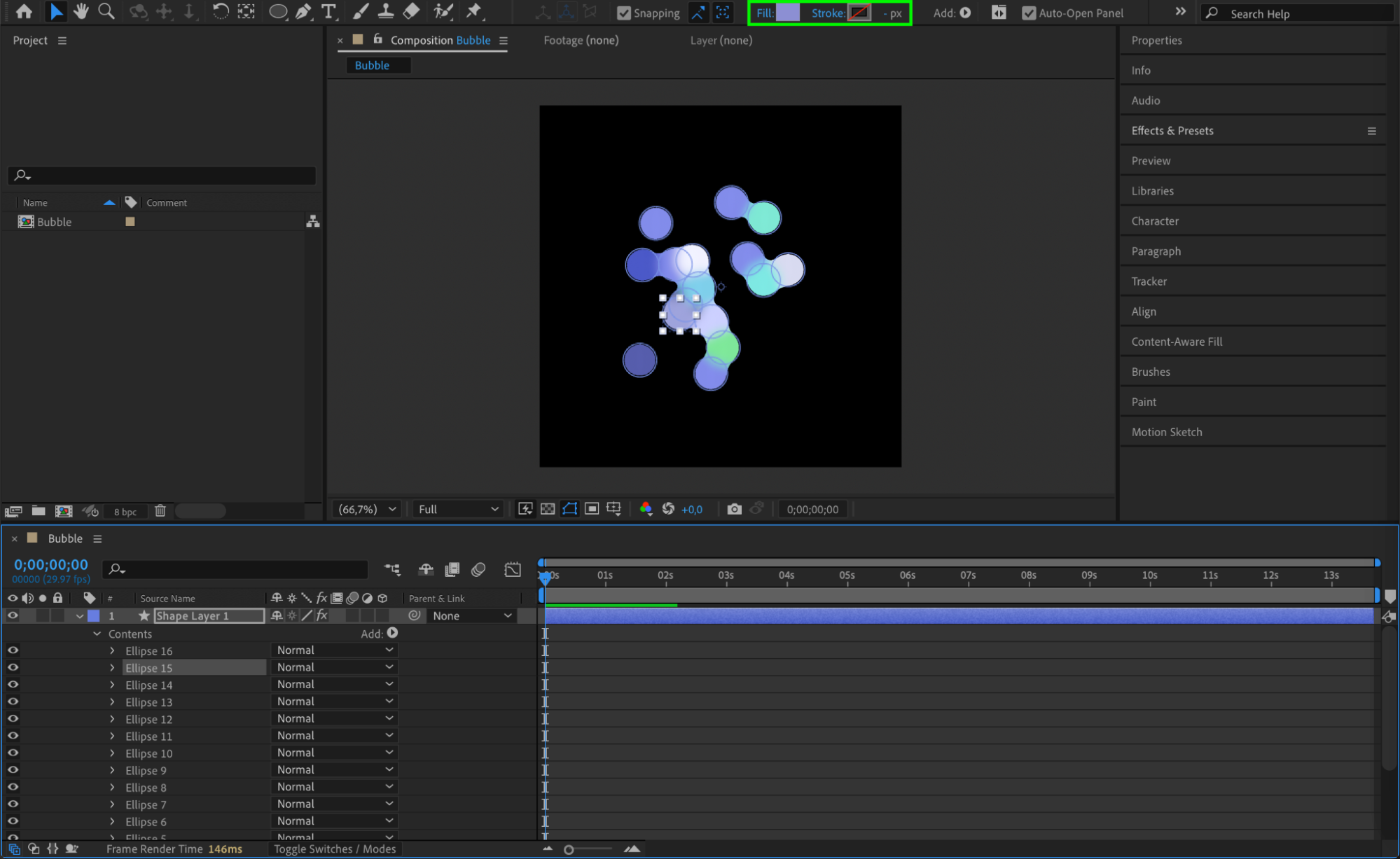
Duplicate the ellipse layer a few times using “Ctrl/Cmd + D”. Change the fill color of each copy to create a vibrant blend of moving blobs. 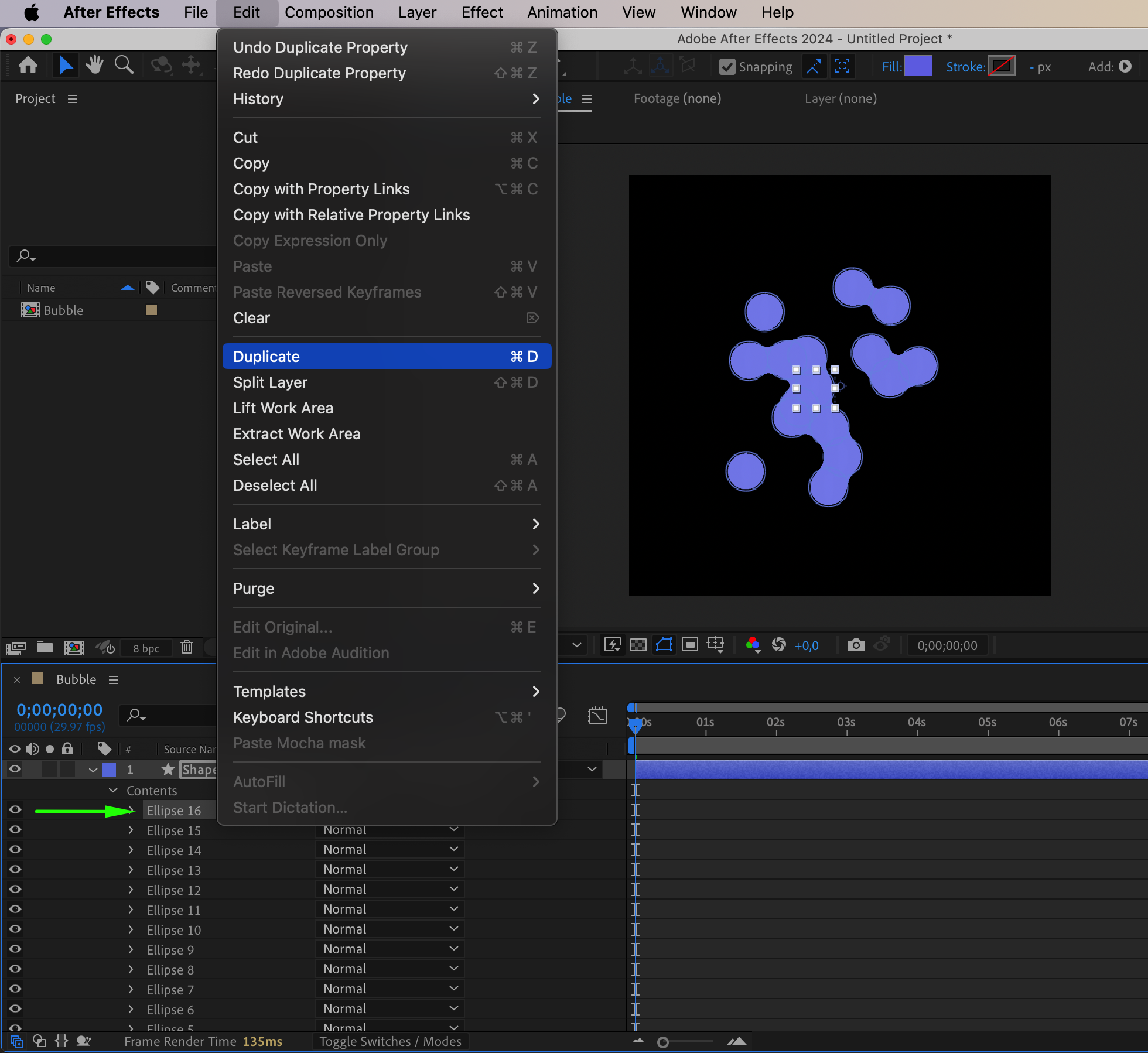
 Step 9: Add Bevel and Emboss
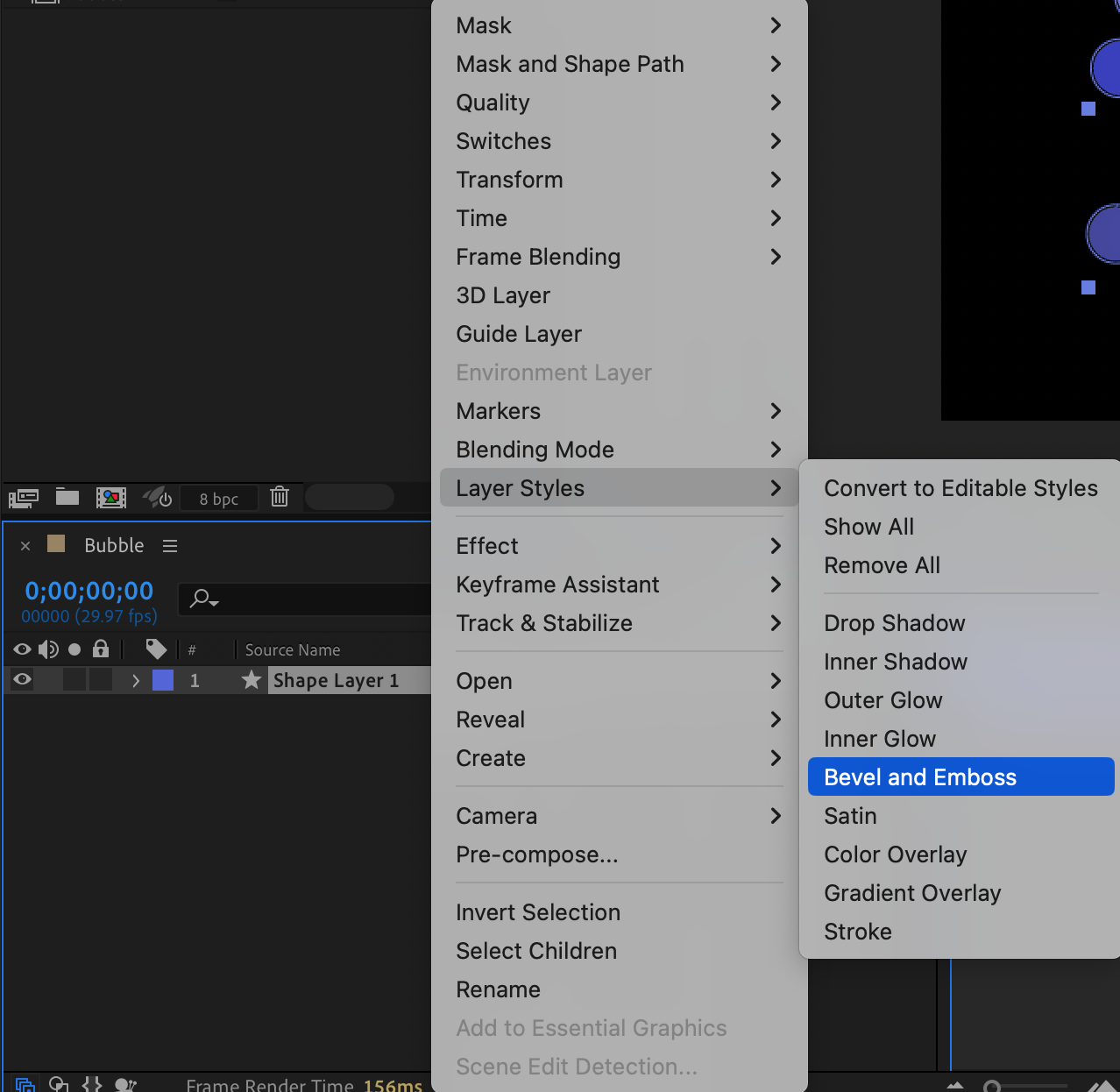
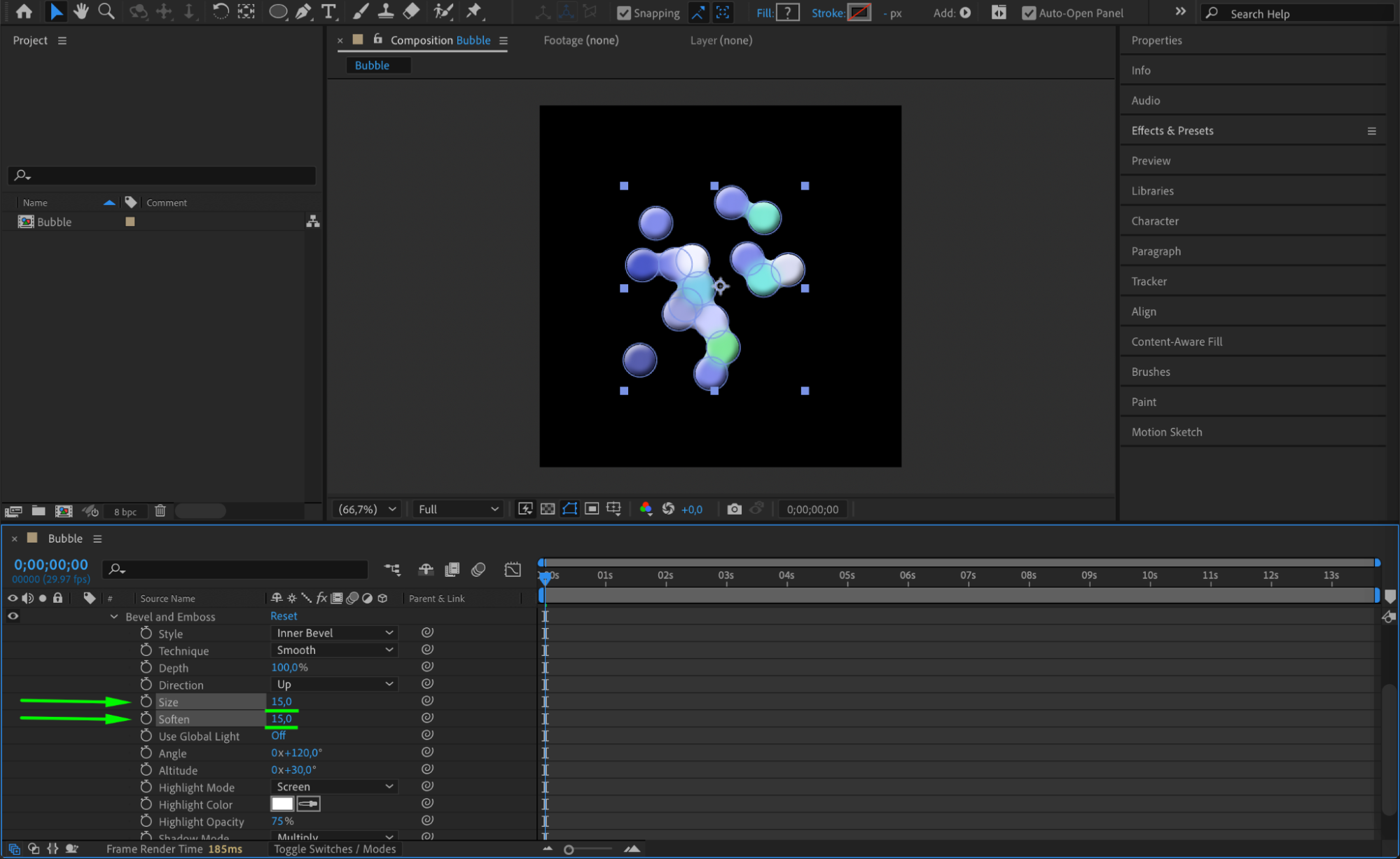
Right-click on a shape layer and choose Layer Styles > Bevel and Emboss. Set Size to 15 and Softness to 15. This gives the shapes a slightly 3D, glossy look, enhancing the liquid effect.
 Step 10: Preview the Animation
Press the spacebar or use the Preview Panel to watch the animation. The fluid motion, softness, and random organic movement should create a stylized liquid feel.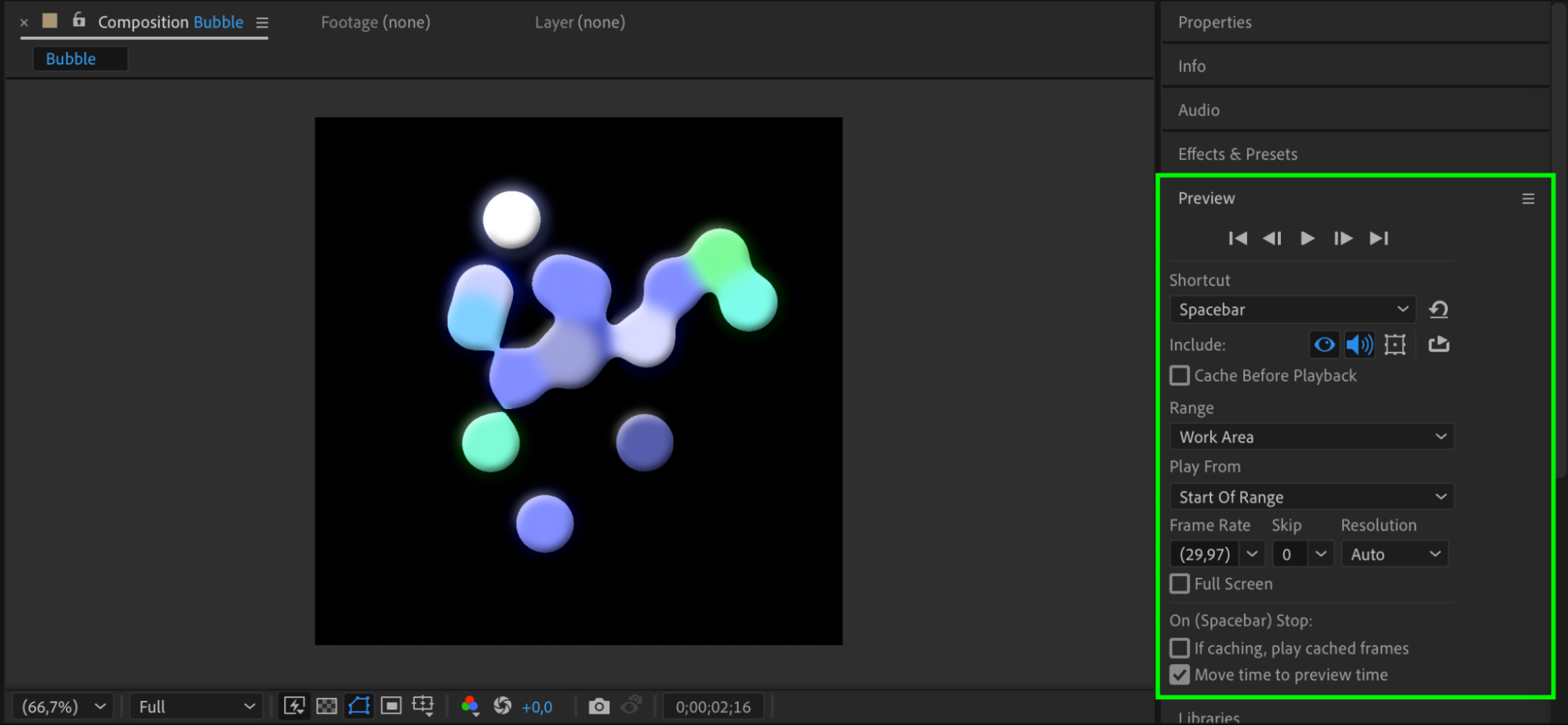 Conclusion
This liquid animation effect is a creative way to enhance your motion design projects in After Effects. With just shape layers, a few effects, and an expression, you can build dynamic animations that feel smooth and natural.
Our Bestsellers
Our Bestsellers


