
Introduction
Liquid neon logo effects are perfect for modern intros, tech branding, and energetic visuals. In this tutorial, you’ll learn how to create a glowing, swirling neon logo animation in After Effects using text, CC Vector Blur, and Colorama.
Step 1: Create a New Composition
Create a new composition with your desired resolution, frame rate, and duration.
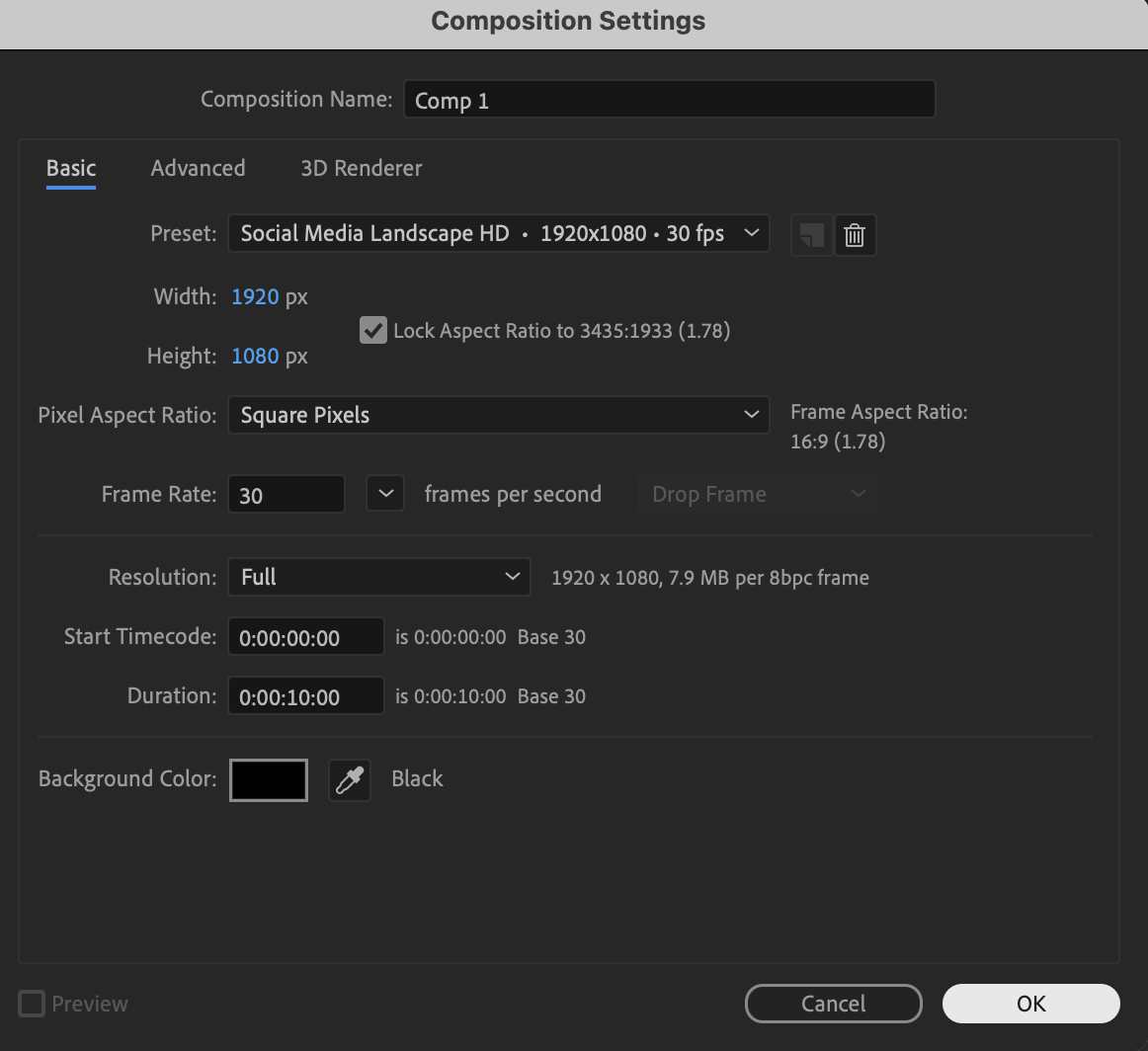 Step 2: Add a Background Solid
Go to Layer → New → Solid. Choose black as the color and click OK. This will serve as the background for your neon logo.
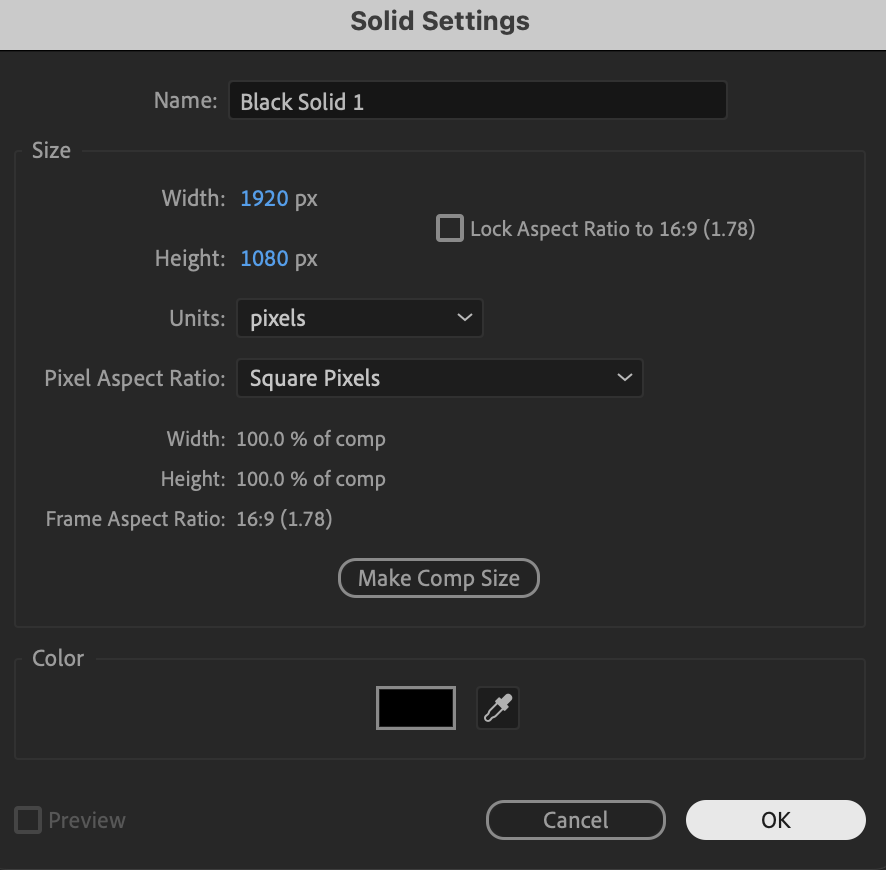
Step 3: Create Your Logo Text
Select the Type Tool (Ctrl/Cmd + T) and create your logo text. Use the Character panel to customize:
Font
Size
Tracking
Alignment
Choose a bold font for a stronger neon effect.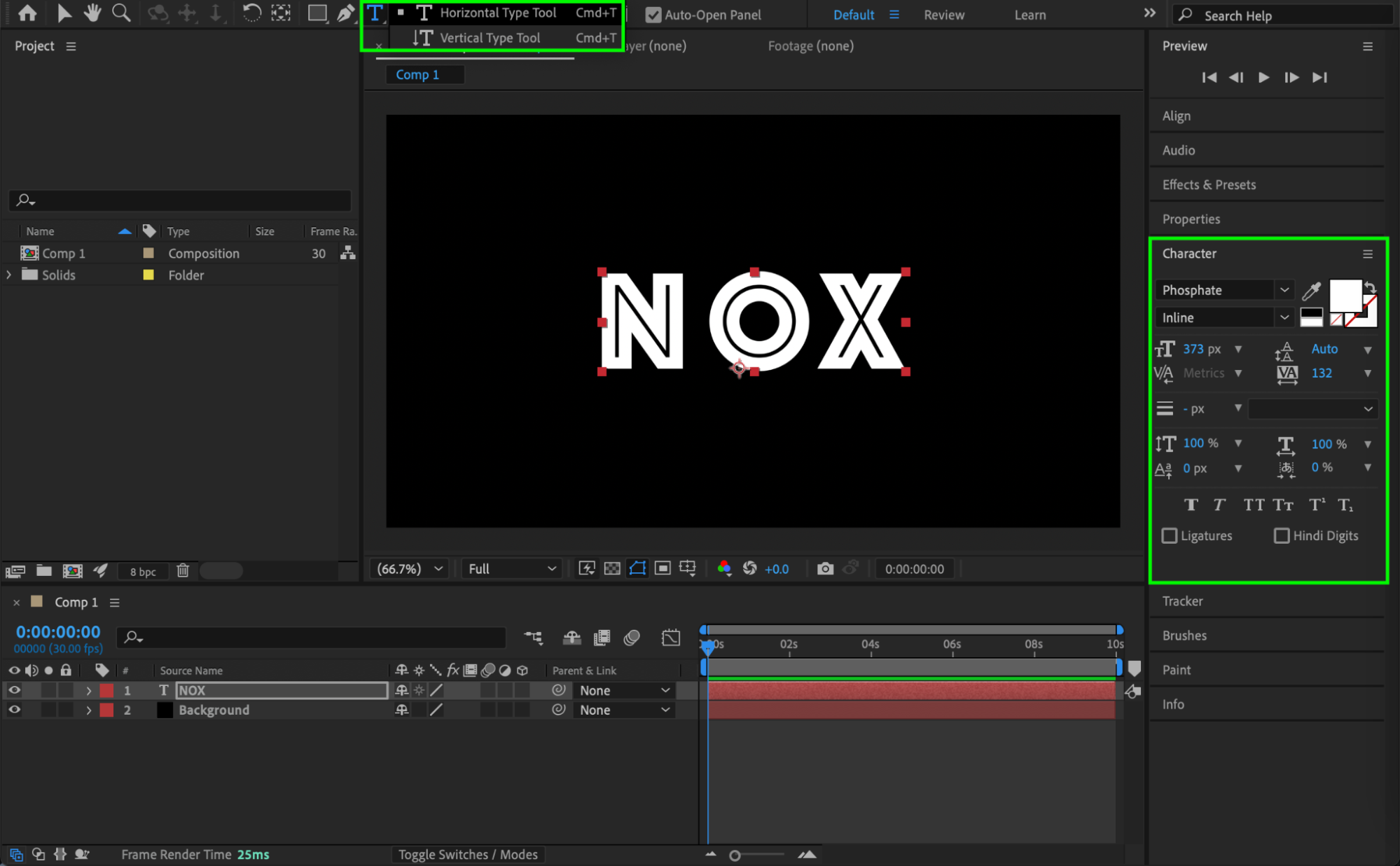 Step 4: Apply CC Vector Blur
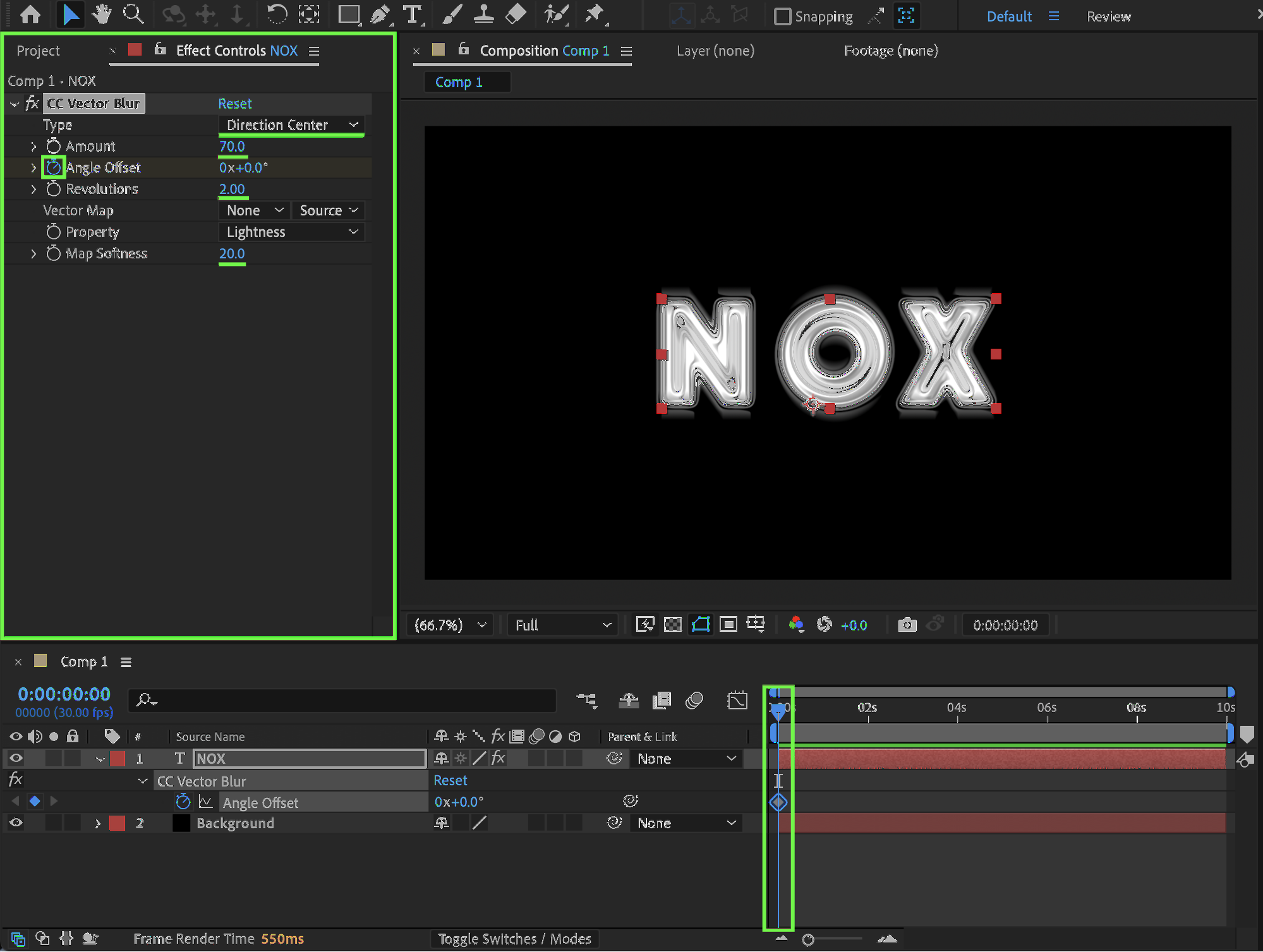
Select the text layer and apply CC Vector Blur from the Effects & Presets panel. Set the following values:
Type: Direction Center
Amount: 70
Revolutions: 2
Map Softness: 20
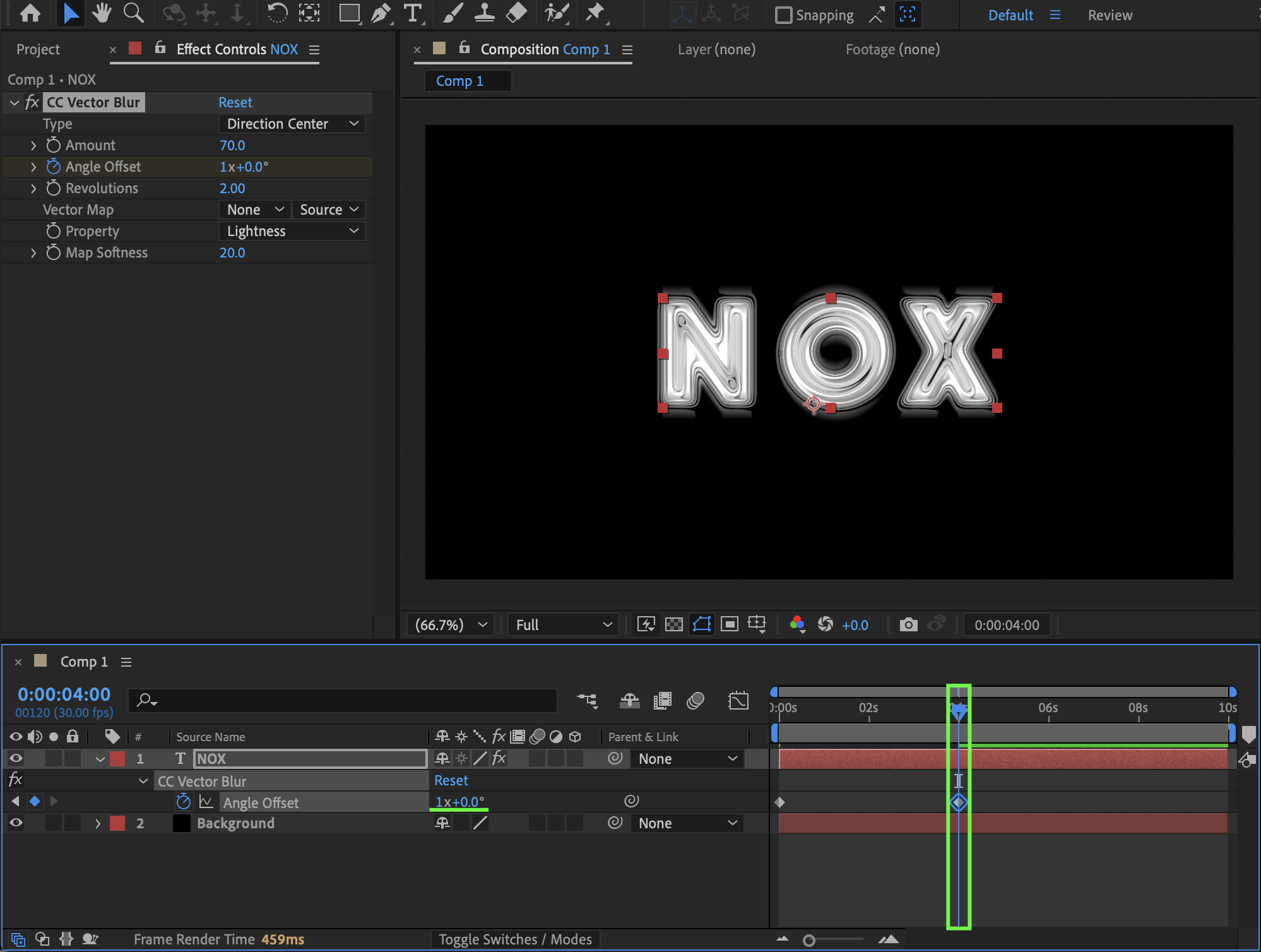
Animate Angle Offset:
Set it to 0° at the beginning of the composition
Set it to 360° after a few seconds (one full rotation)
This creates a liquid swirling motion around the text.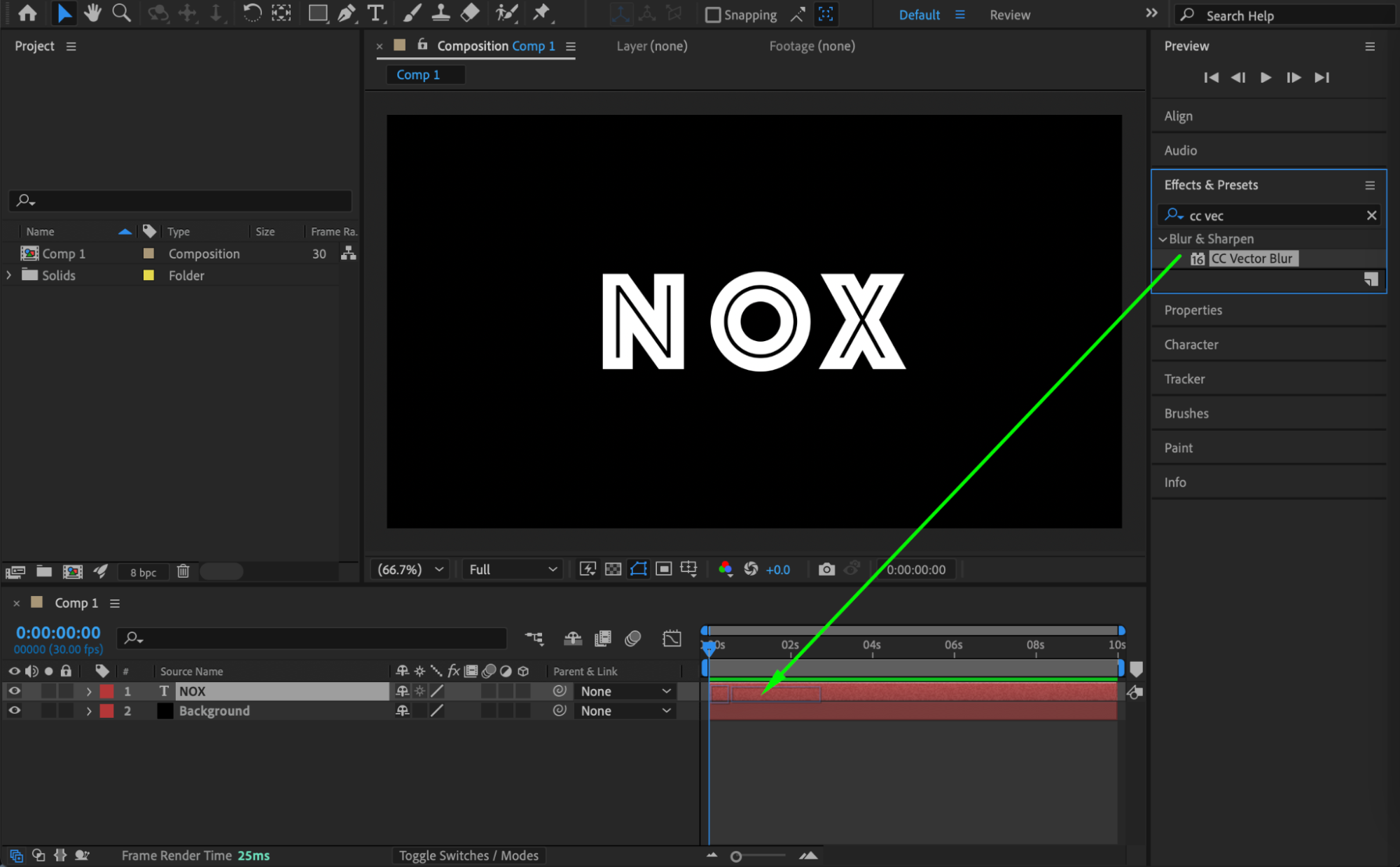
 Step 5: Pre-Compose the Logo
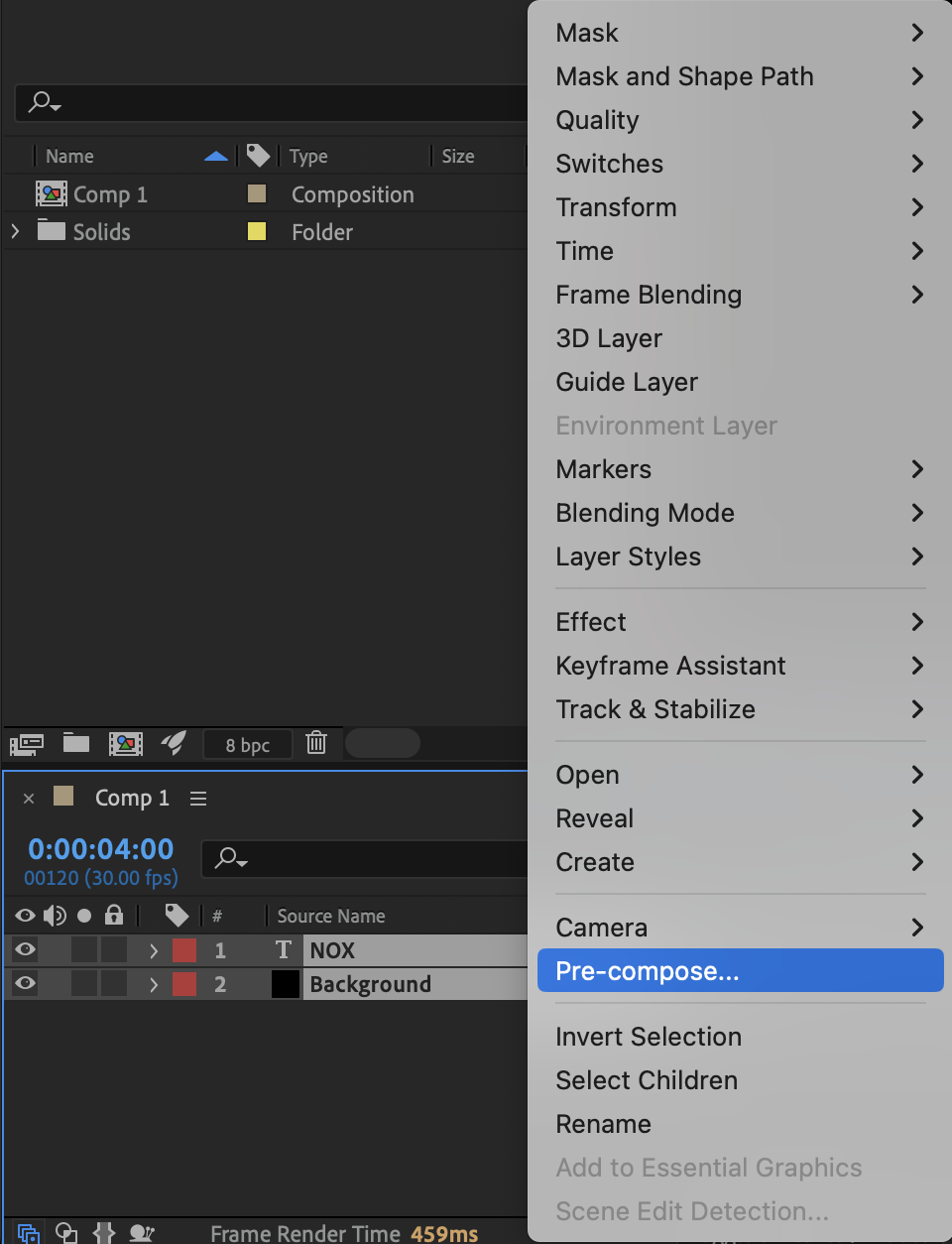
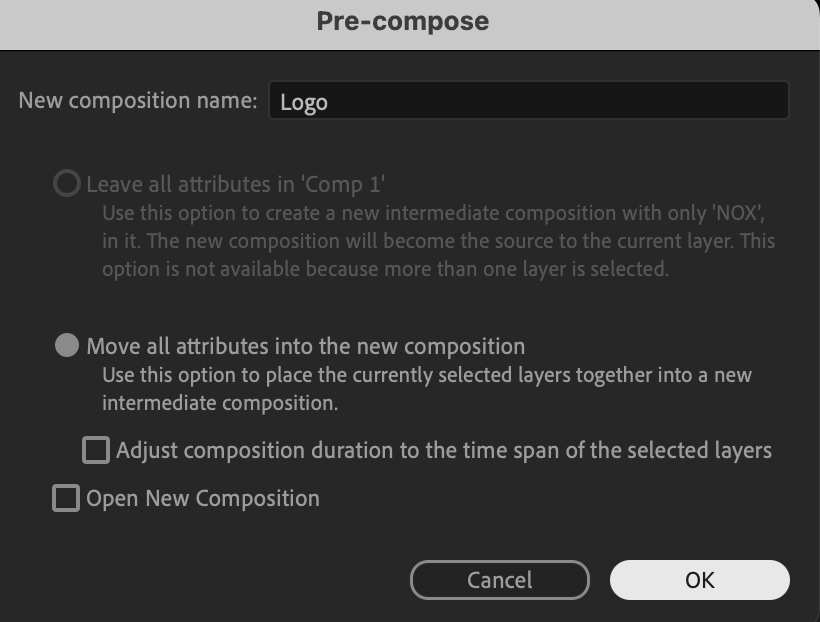
Select both the text layer and the background solid. Right-click → Pre-compose. Name the composition Logo.
 Step 6: Add an Adjustment Layer
Go to Layer → New → Adjustment Layer. This layer will be used for color styling.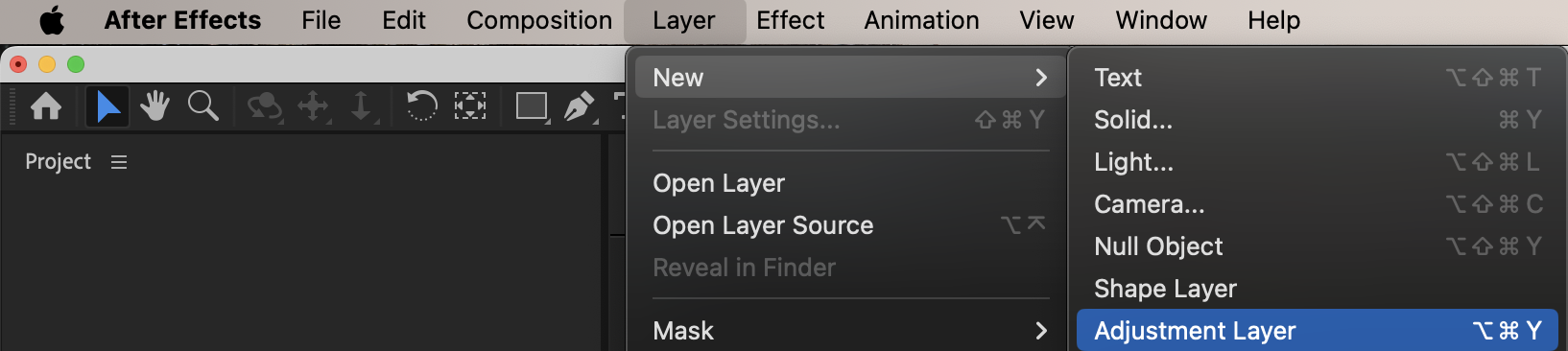
Step 7: Apply Colorama
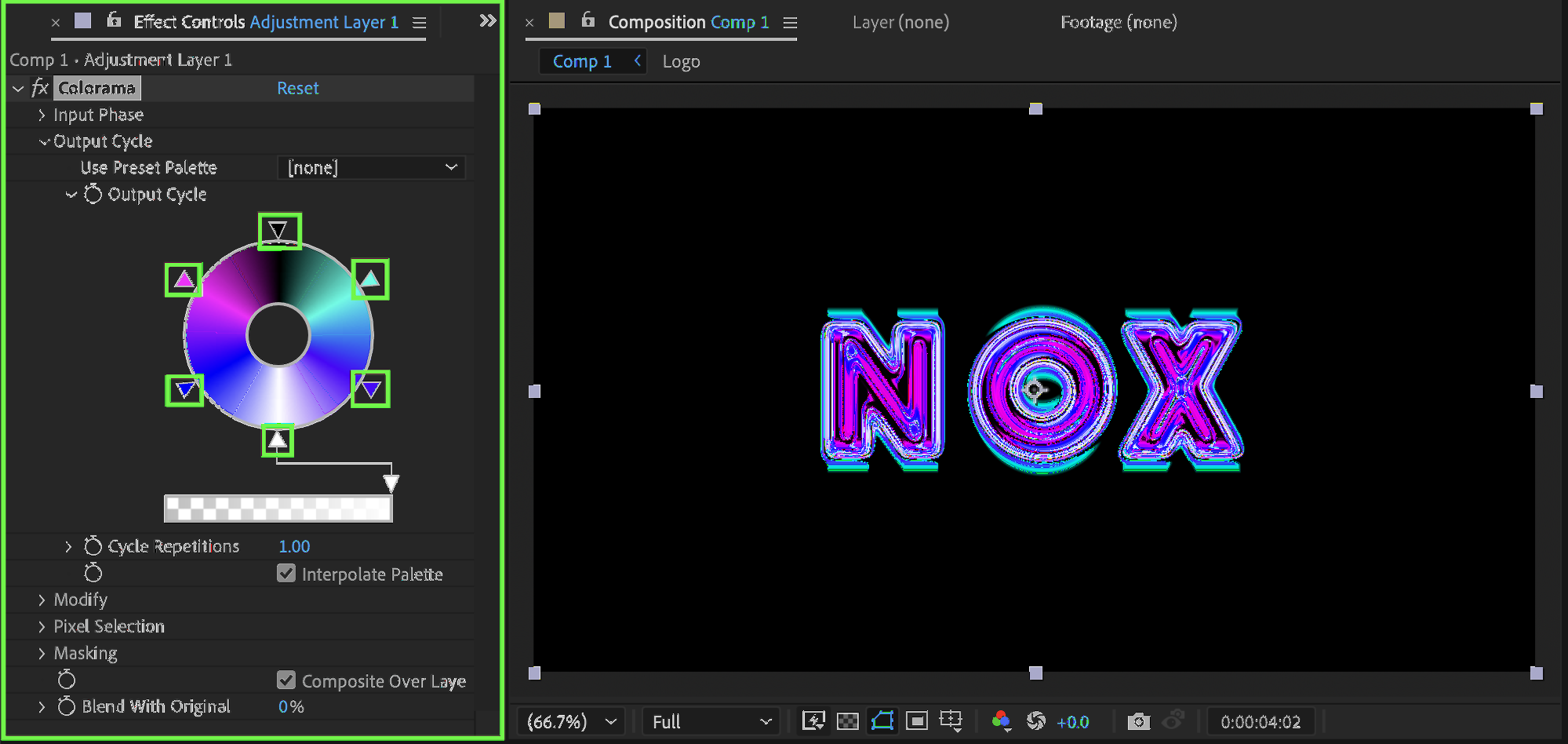
Apply the Colorama effect to the adjustment layer. In Output Cycle, replace the red color with black, and customize the remaining colors to create a neon liquid palette that fits your style.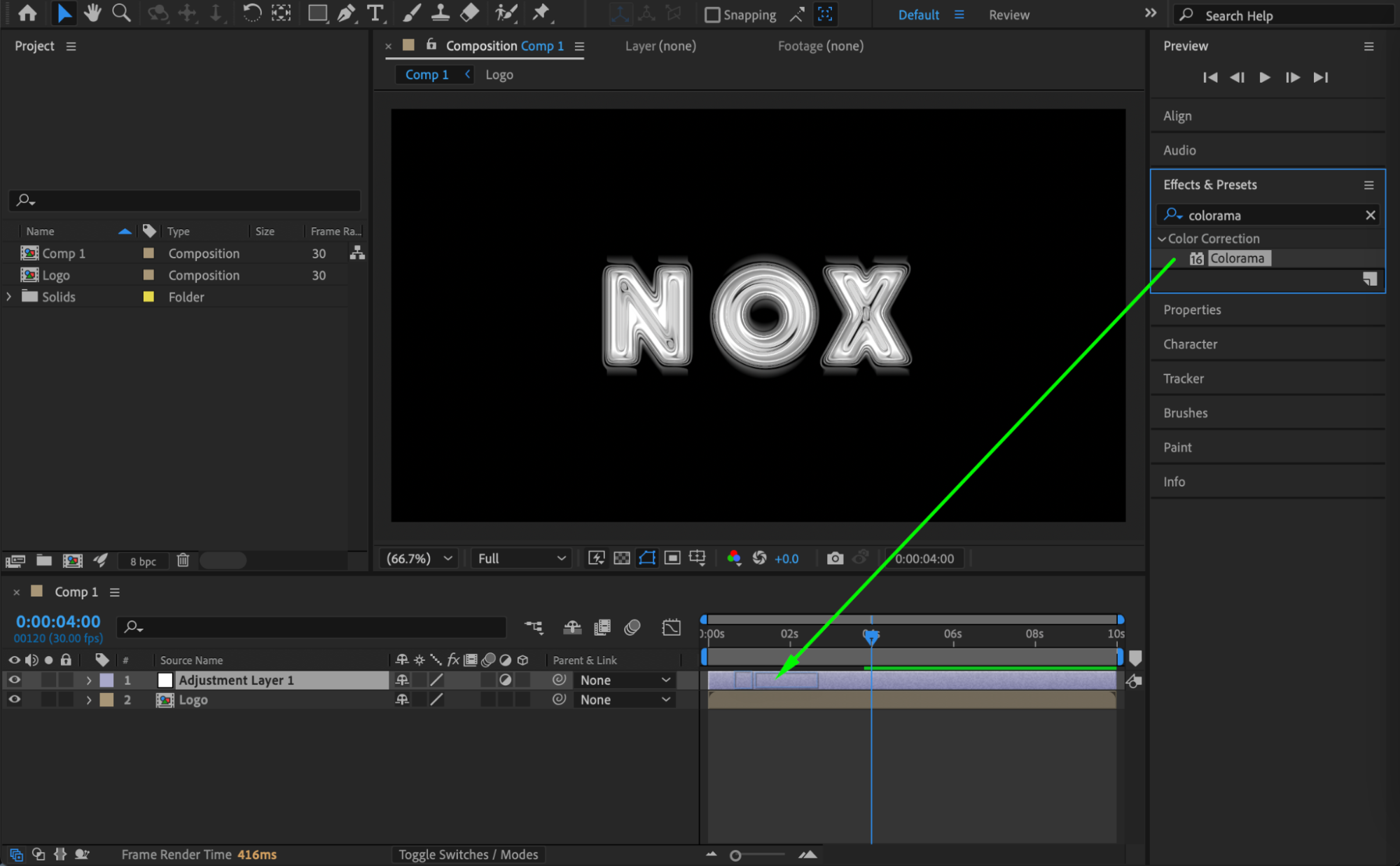
 Step 8: Enhance the Glow with Blending Mode
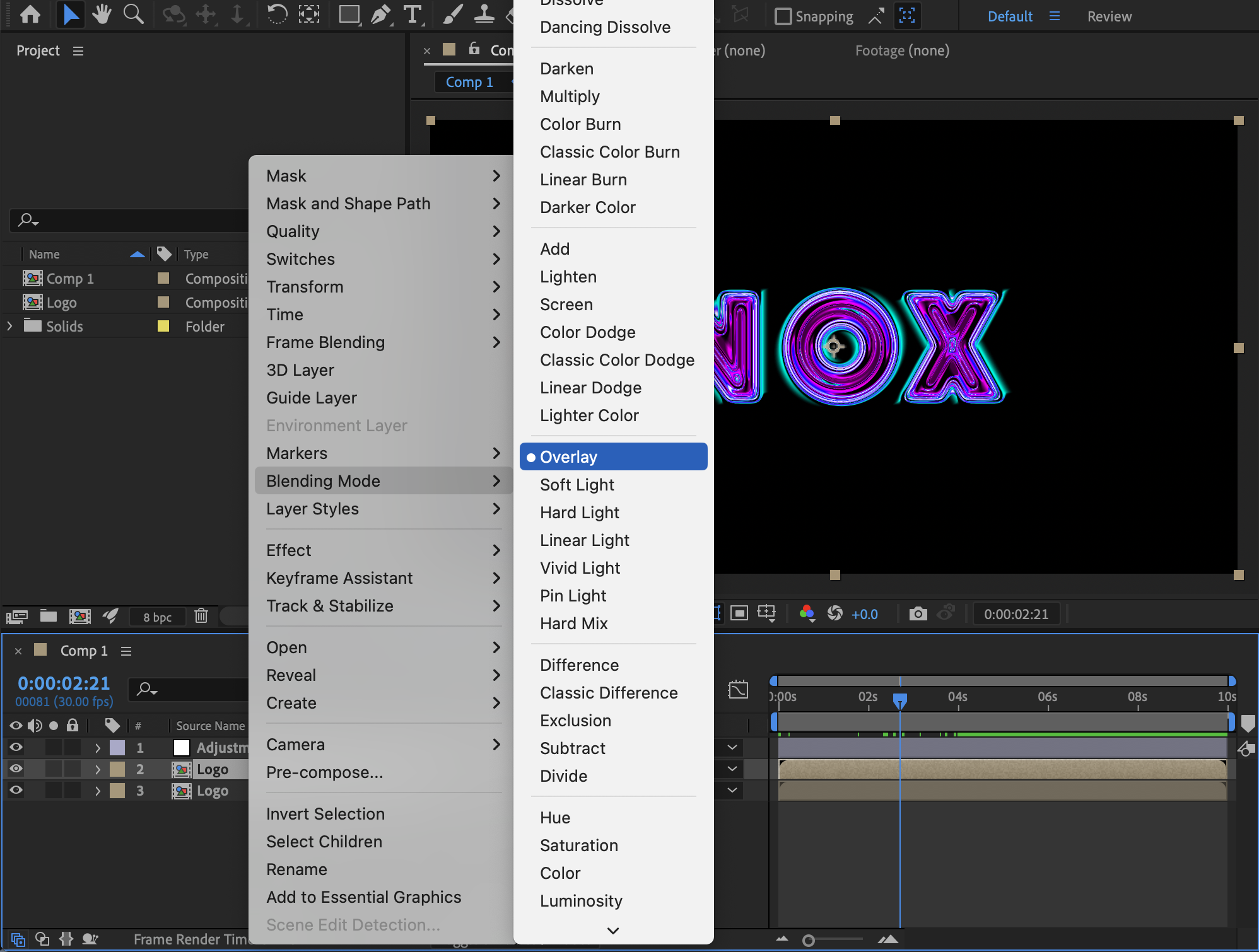
Duplicate the Logo pre-comp. For the duplicated layer:
Right-click and set Blending Mode → Overlay
This intensifies brightness and adds depth to the neon effect.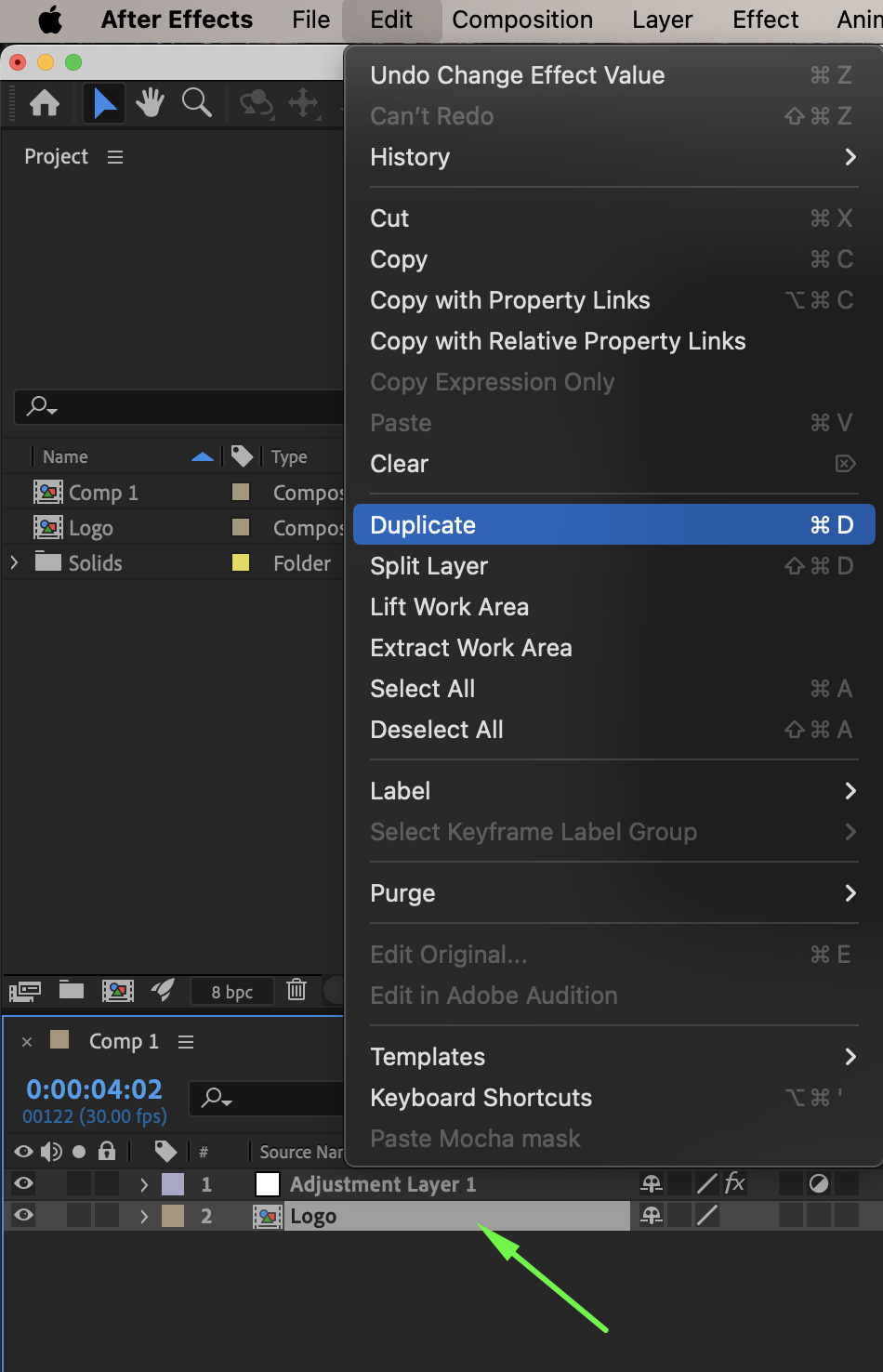
 Step 9: Preview the Animation
Preview the composition and adjust:
Vector Blur strength
Colorama colors
Opacity of the duplicated logo layer
Fine-tune until the liquid neon effect looks smooth and dynamic.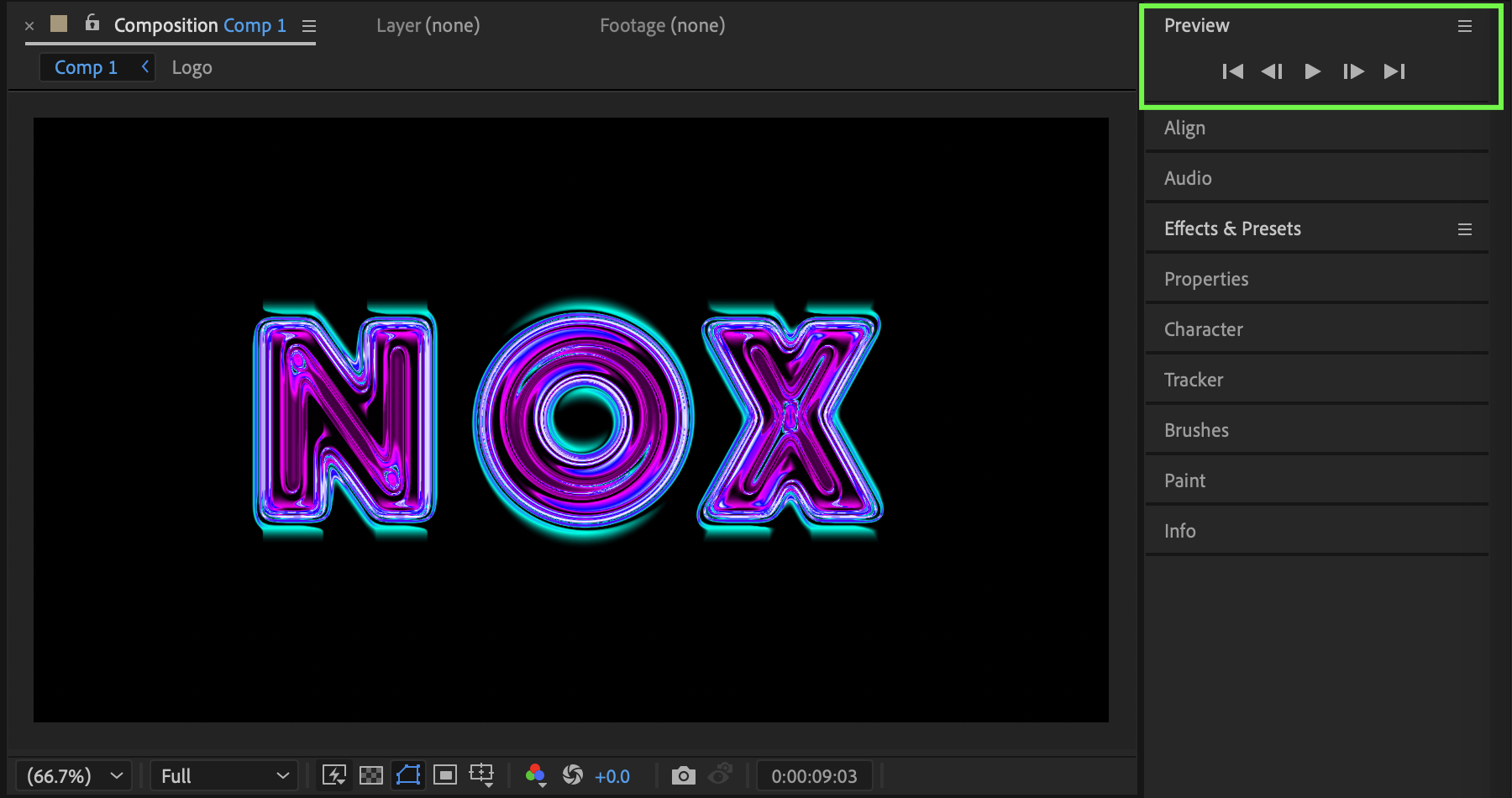
Conclusion
By combining CC Vector Blur, Colorama, and Overlay blending mode, you can create a striking liquid neon logo effect in After Effects. This technique works perfectly for logo intros, motion branding, and energetic video openers.
Our Bestsellers
Our Bestsellers


