
Introduction
Creating an escalator animation in After Effects is easier than it seems.
By using position keyframes, masks, and track mattes, you can make the steps appear as if they are continuously moving downward between the handrails — perfect for architectural motion graphics or stylized scenes.
Step 1: Prepare Your Assets
Open your project that already includes the front and back handrail images and the steps texture or photo. If you don’t have them, create simple shapes using the Pen Tool (G) and Rectangle Tool (Q). Align the top steps so that they match the perspective of the handrails properly.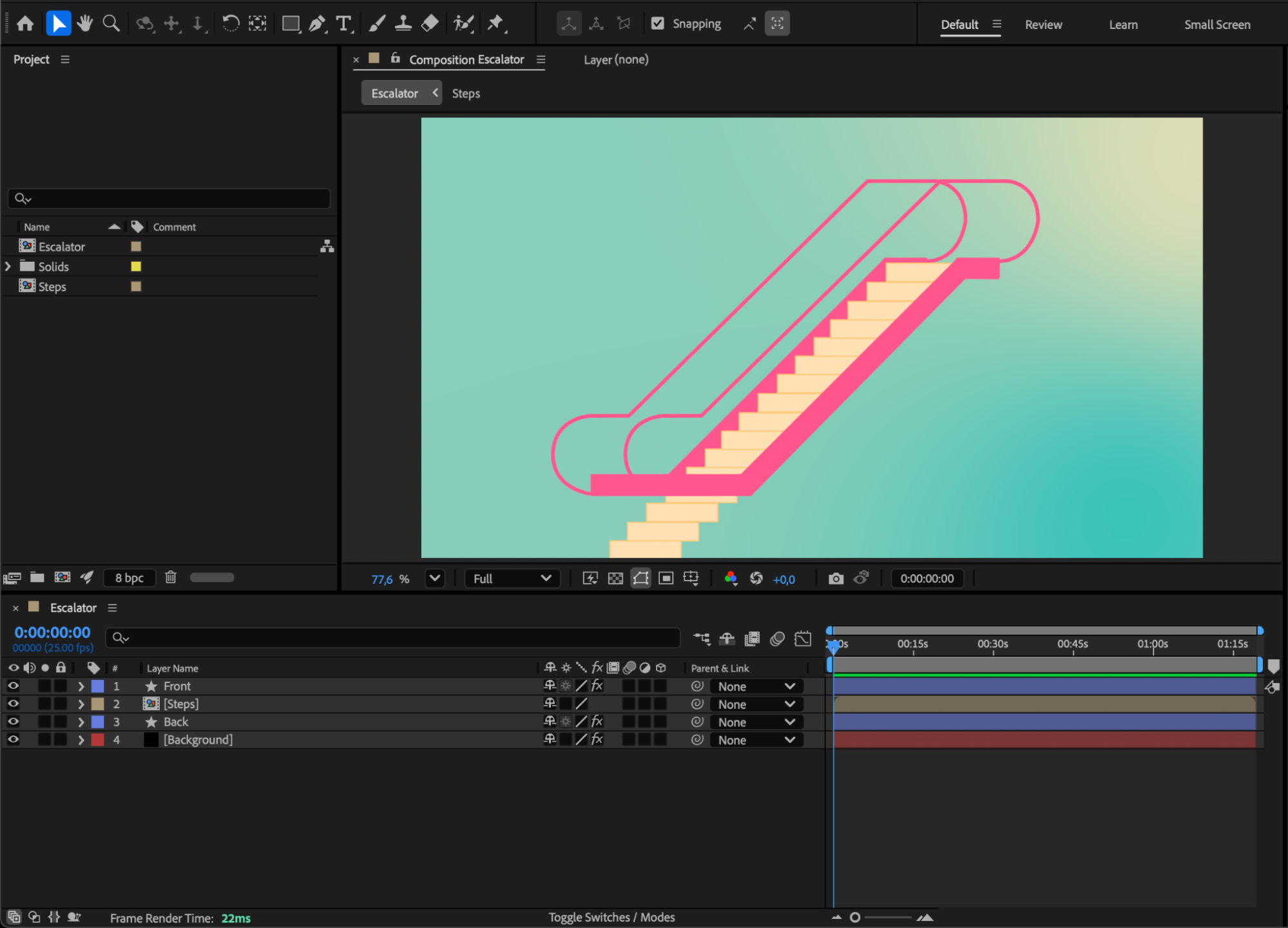
Step 2: Animate the Steps
Select the steps layer and press “P” to open the Position property. Move the CTI (Current Time Indicator) to the start of the composition and click the stopwatch icon to set your first keyframe.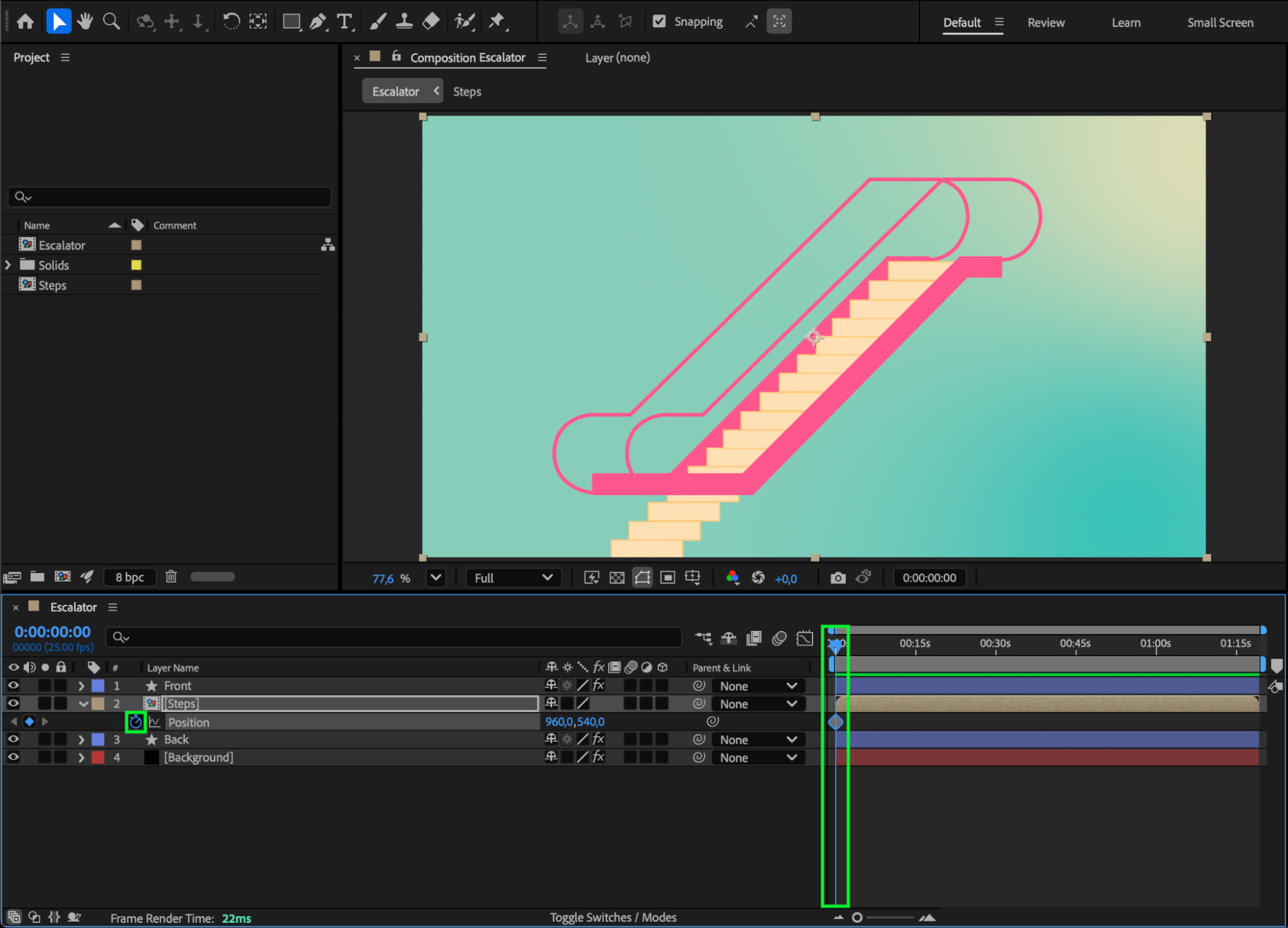
Step 3: Add Guides for Alignment
Go to View > Show Rulers, then drag out blue guide lines to mark the top edge of the visible step. These guides will help you align the steps correctly during animation.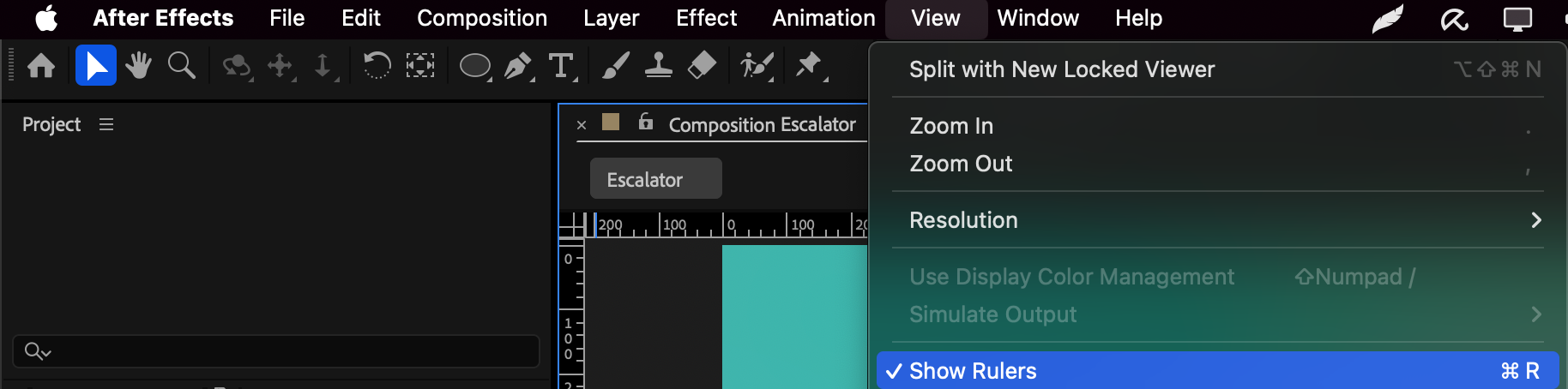
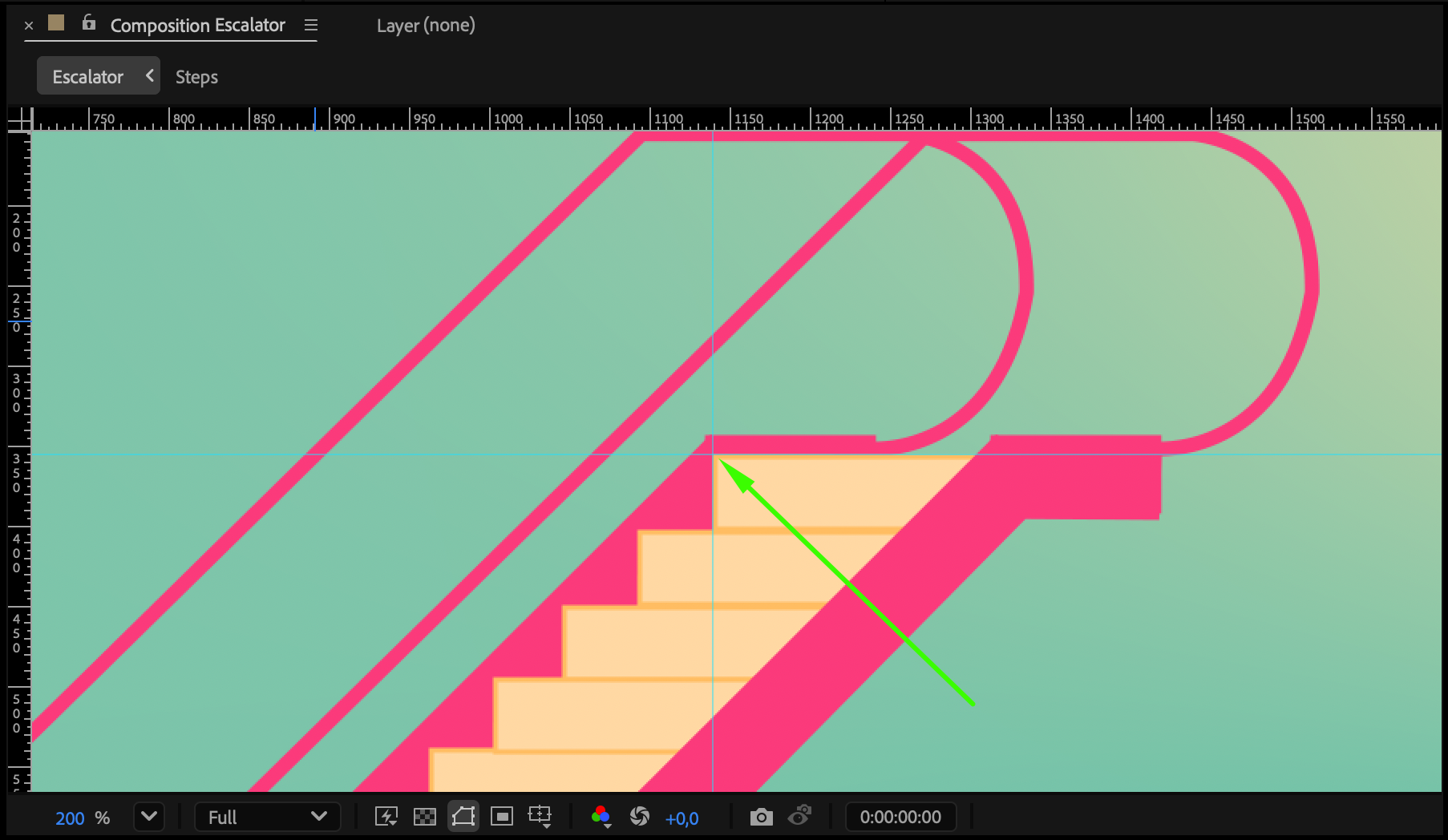 Step 4: Animate the Downward Movement
Move the CTI forward to the point where you want the animation to stop. Change the X position value so the steps move upward in perspective — this creates the illusion of the escalator going down. Adjust until the steps move naturally according to the length and angle of the handrails.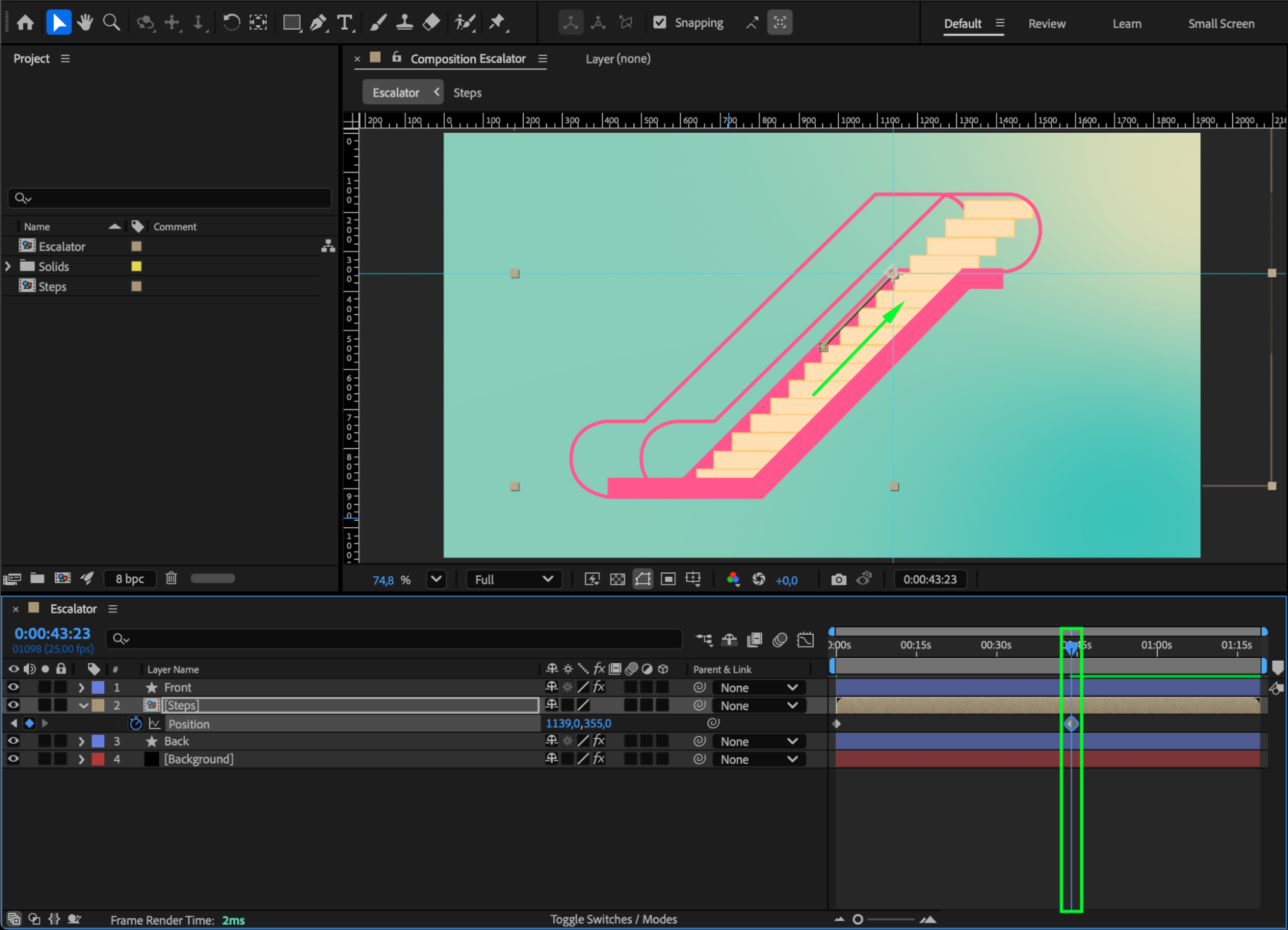 Step 5: Create a Mask Shape
Use the Rectangle Tool (Q) to draw a shape layer that covers the entire area of the steps — starting from the top guide line (set earlier) down to the end of the handrails. This shape will be used to hide the steps when they move out of the visible area.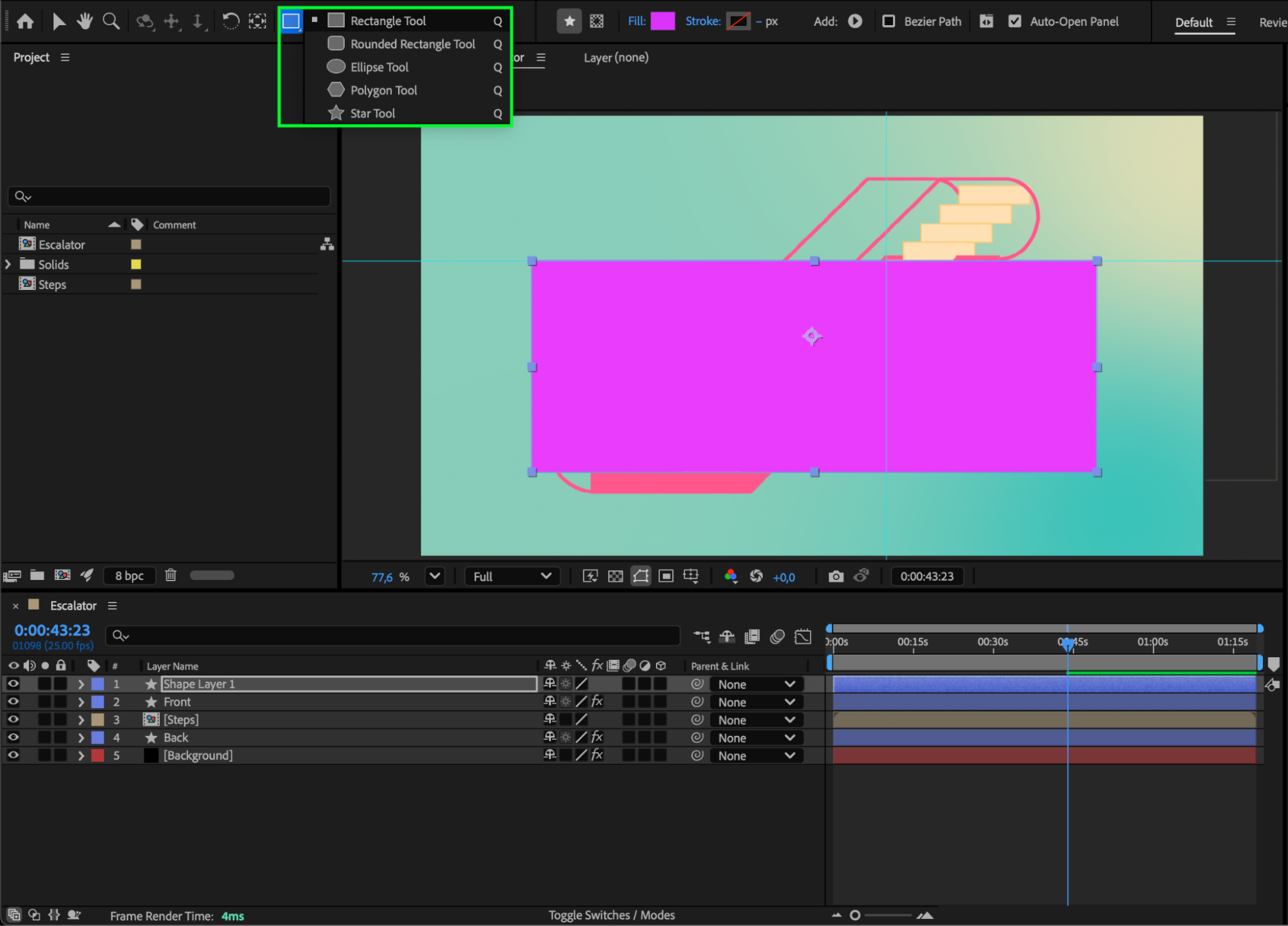
Step 6: Apply a Track Matte
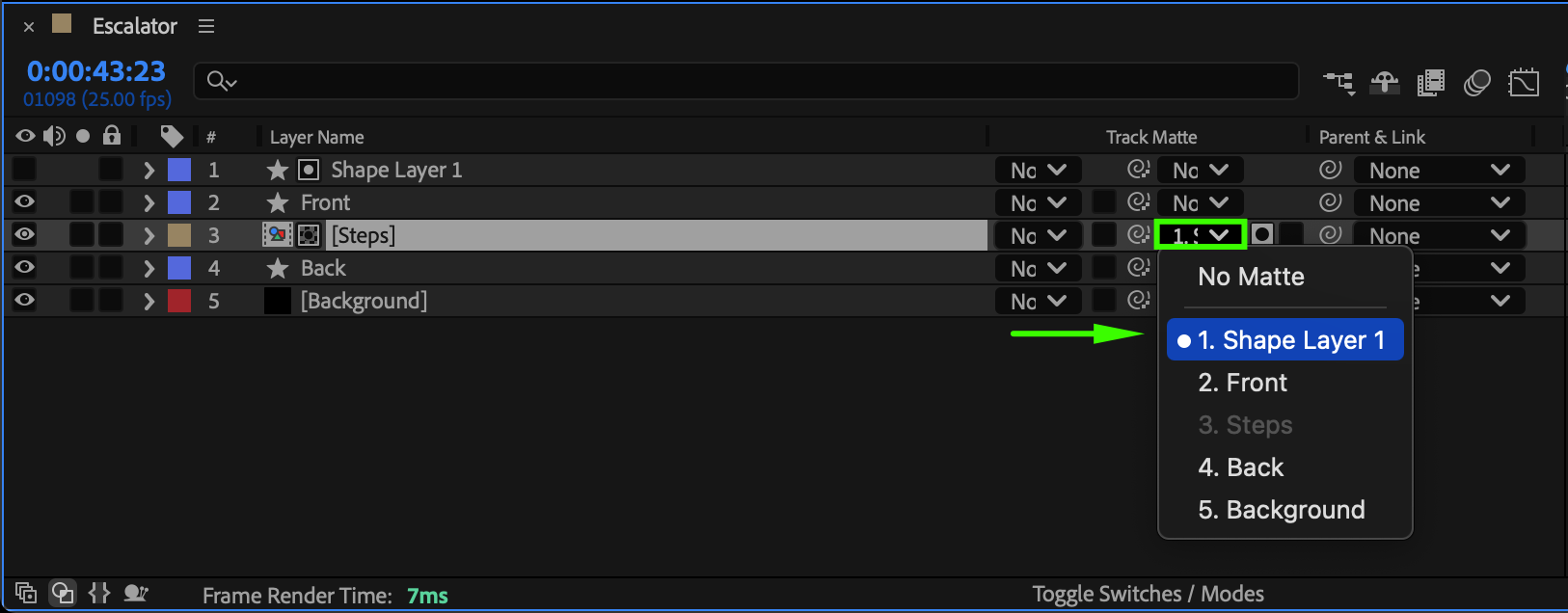
Press the Toggle Switches / Modes button in the Timeline to reveal the Track Matte column. For your steps layer, choose the created shape layer as its matte. This ensures the steps are only visible within the mask area.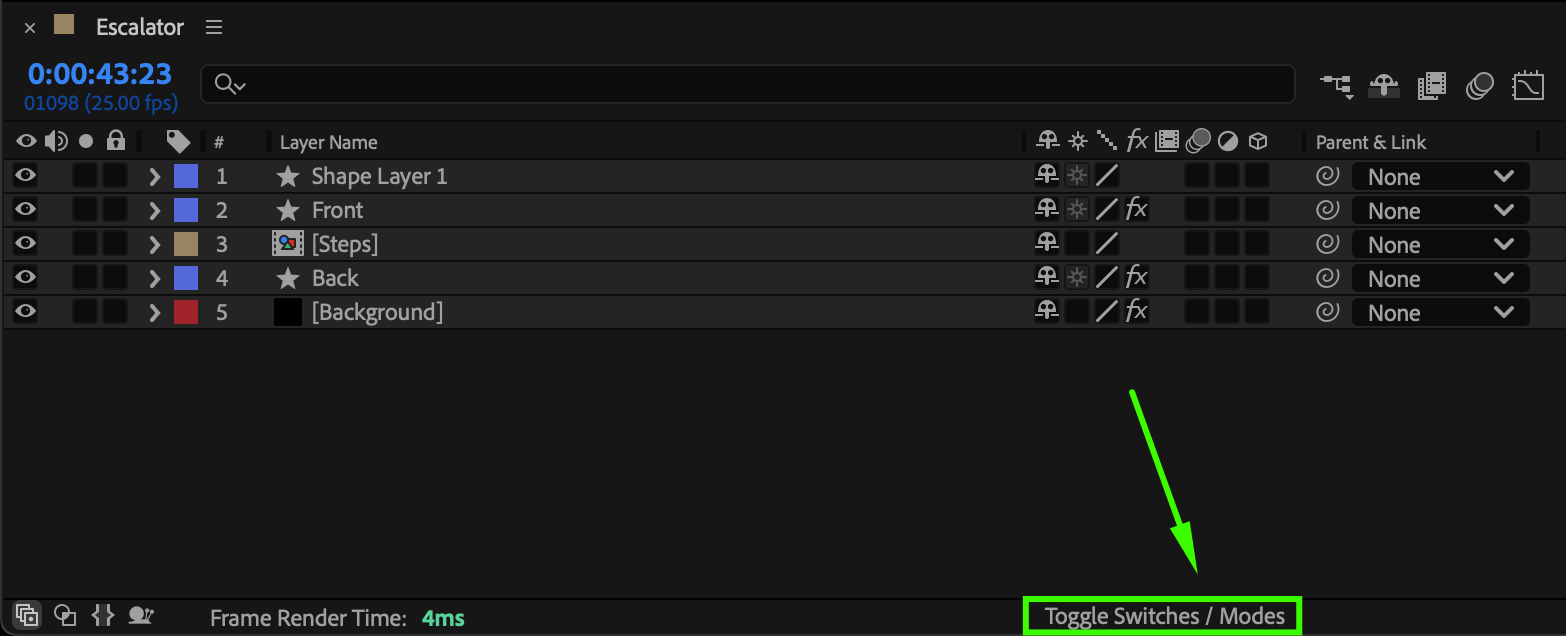
 Step 7: Reverse the Animation
Since the steps are currently animated to move upward, you’ll need to reverse their direction to make them go downward. Select all Position keyframes on the steps layer, right-click, and choose Keyframe Assistant > Time-Reverse Keyframes. This will flip the motion timing, making the steps move smoothly downward instead.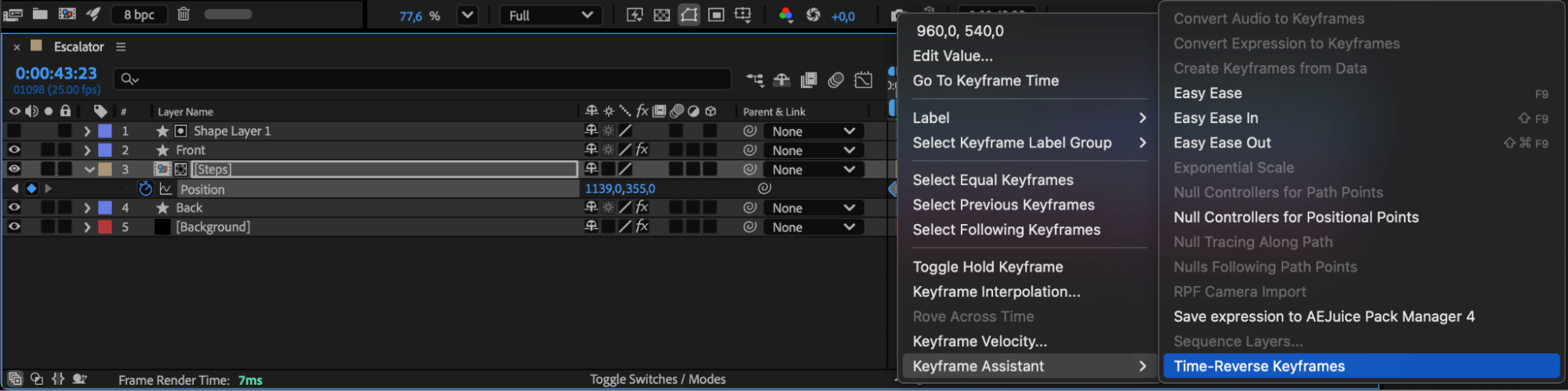 Step 8: Preview Your Animation
Press Spacebar to preview. Your escalator steps should now move smoothly downward within the handrails, creating a realistic descending motion.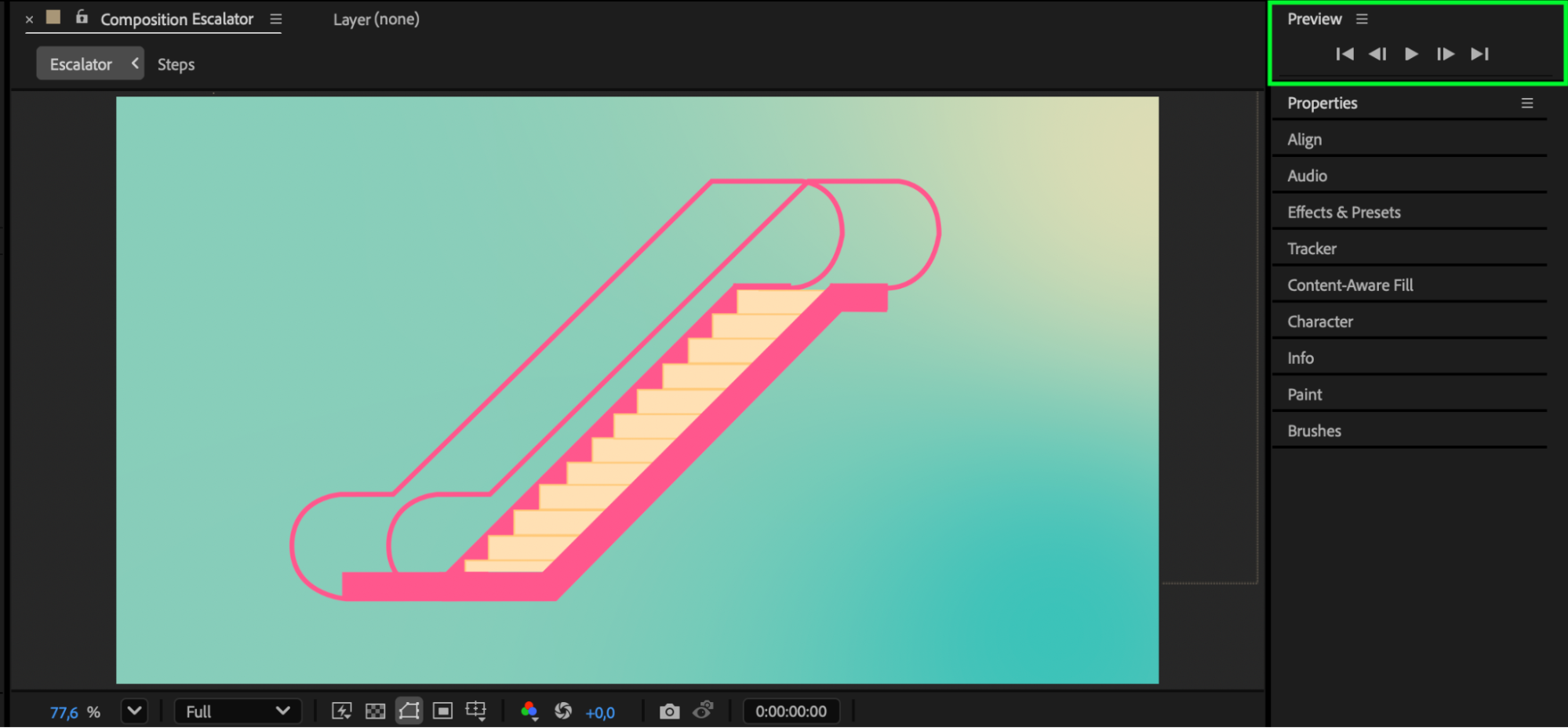
Conclusion
Animating an escalator in After Effects is all about controlling position and masking.
By using keyframes, rulers, and track mattes, you can easily build a smooth downward escalator animation suitable for architectural renders, UI motion design, or stylized visuals.
Our Bestsellers
Our Bestsellers


